

You do not pick a sender address on this form. Add your addresses under the organization menu → Manage → Addresses. You choose the sender address on each shipment or in a shipping rule. Every outbound product ships from an address in Poland.
Before you start
- A contract with DHL eCommerce Polska and its SAP number, your customer number with DHL.
- A WebAPI key for DHL24, DHL’s customer portal: a user name and a password for the WebAPI. Find it in DHL24 under Integrations, or ask DHL eCommerce Polska for one.
- For Test mode, a WebAPI key from the DHL24 test system. Your live key does not work in the test system.
Connect DHL eCommerce Polska
1
Open All carriers
In the sidebar, click Carriers, then open the All carriers tab.
2
Find DHL eCommerce Polska
Find the DHL eCommerce Polska card and click Connect.
3
Fill in the form
The Connect carrier window opens. Enter a Carrier name, your WebAPI user name, WebAPI password and SAP number. Test mode is the only field under Optional fields.
4
Connect the carrier
Click Connect. You see “Carrier connected”, and the carrier appears on the My carriers tab.
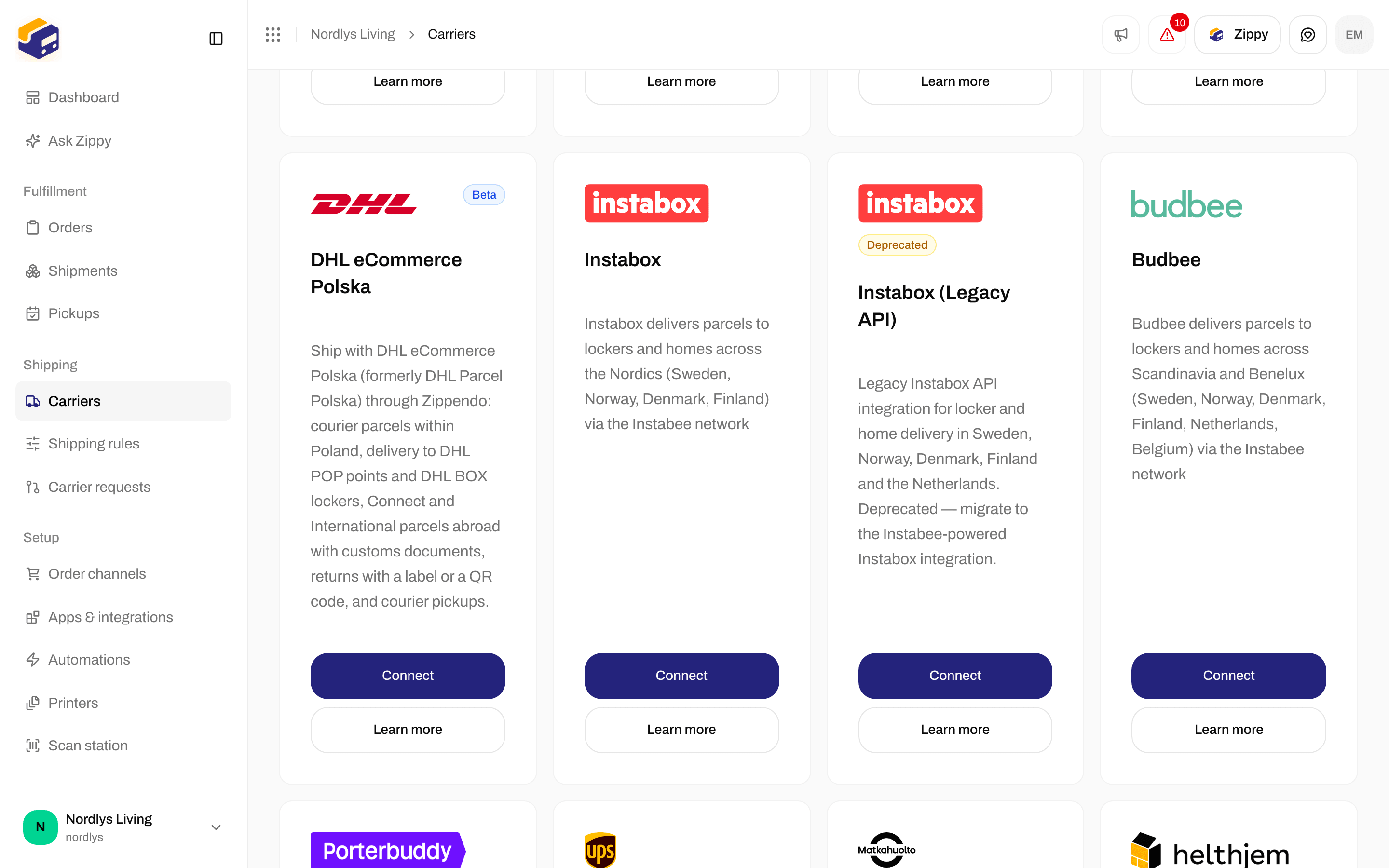
The DHL eCommerce Polska card on All carriers
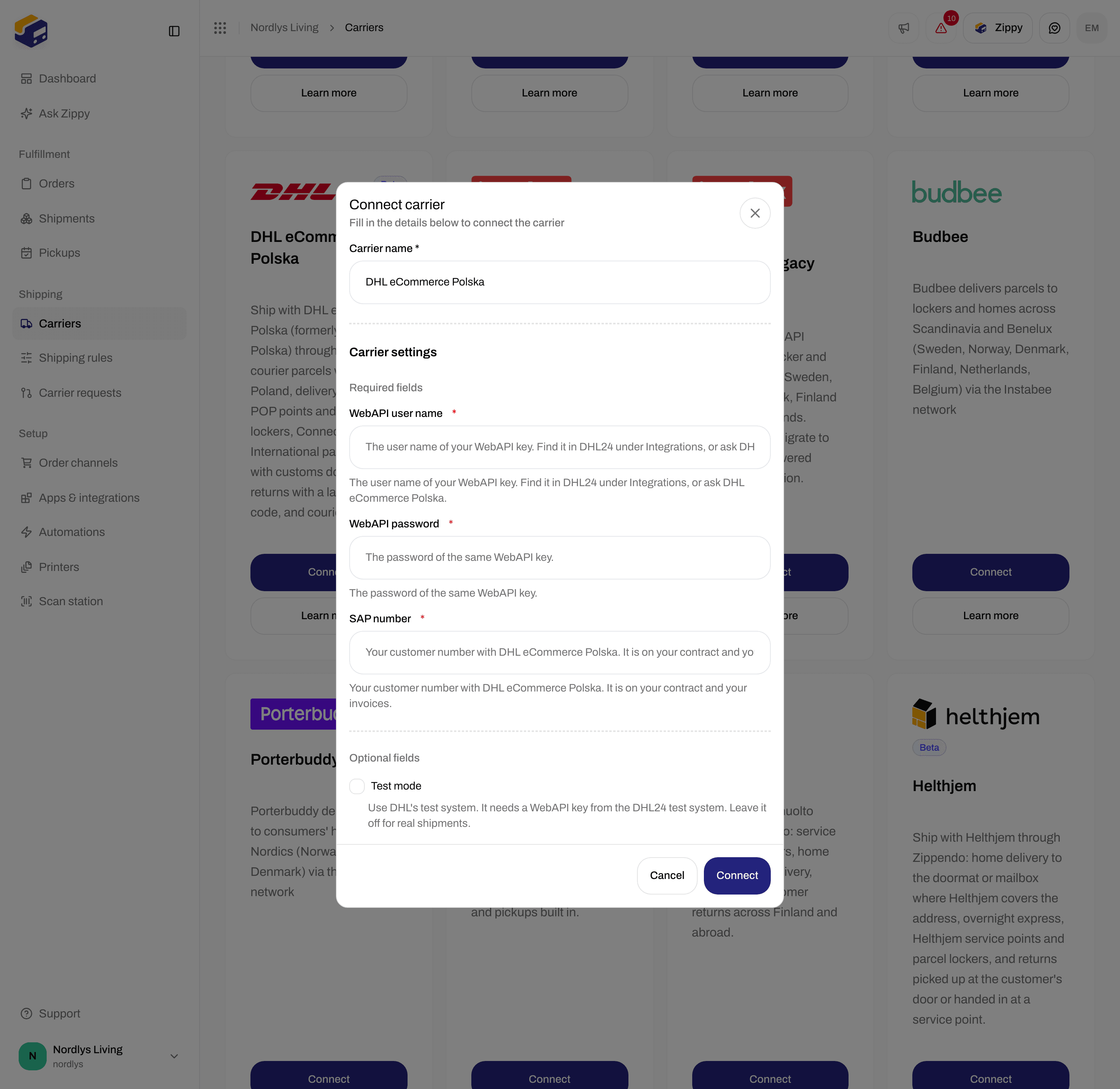
Connect carrier for DHL eCommerce Polska - fill in WebAPI user name, WebAPI password and SAP number
Fields on the form
Connect does nothing until Carrier name, WebAPI user name, WebAPI password and SAP number have a value. When you click Connect or Save, Zippendo checks the details with DHL before it saves them:
- DHL must accept the WebAPI user name and WebAPI password.
- The SAP number must be digits only.
After you connect
The carrier appears on My carriers with a Connected badge and a Beta badge. You choose the product on each shipment or in a shipping rule. See Carrier products and services.
Every parcel needs its weight, length, width and height. Within Poland a parcel takes at most 31.5 kg. DHL decides at sending which countries the products abroad reach under your contract. Each shipment gets one DHL waybill number, with one label page per parcel.
Services and options
- Evening delivery (17:00-22:00): on DHL Parcel Polska.
- Saturday delivery, Saturday pickup, Pre-delivery information, Return of documents, Delivery to a neighbour, Collected by the receiver at a DHL terminal, Age verification, Proof of delivery and Non-standard parcel: on DHL Parcel Polska, DHL Parcel 9, DHL Parcel 12, DHL Parcel evening delivery and DHL Parcel Premium.
- Cash on delivery: DHL collects the amount you enter in COD amount from the receiver and transfers it to your bank account. The form says: “The amount in PLN that DHL collects from the receiver and transfers to your bank account.” On the same five products and on DHL POP and DHL BOX. When DHL says the point your customer chose does not take cash on delivery, the shipment is not created: choose another point, or send the parcel to your customer’s address with DHL Parcel Polska.
- Insurance: enter Insured value. The form says: “The value of the goods in PLN that DHL insures.” On every product, returns included.
- Abandon if undeliverable: on DHL Parcel International. If DHL cannot deliver the parcel, DHL disposes of it instead of sending it back to you.
- Return of documents: optionally Document to return. The form says: “The name of the signed document the courier brings back to you, up to 32 characters.”
- Delivery to a neighbour: enter Neighbour’s name, Neighbour’s street and house number (for example Kwiatowa 12/4), Neighbour’s postcode and Neighbour’s city. Neighbour’s phone number is optional.
- Note for the driver: the form says: “Printed on the label, up to 100 characters. The driver sees the first 50.” On every product.
- Cost centre: the form says: “Your cost centre on DHL’s invoice, up to 20 characters.” On every product.
- Label format: the form says: “PDF (default), PDF (A4) for an office printer, or ZPL for a Zebra label printer at 203 or 300 dpi. Labels are 10 × 15 cm.”
DHL POP and DHL BOX
DHL POP and DHL BOX delivers to a DHL POP point or a DHL BOX locker in Poland. Choose it in the Service point section of the shipment before you send. Zippendo lists the DHL points within 5 km of the receiver’s address. DHL tells the receiver when the parcel is ready. See Pick a service point.Customs
DHL Parcel International, and the products abroad when they go to a country outside the EU, need customs data. Zippendo sends it as DHL’s simplified customs declaration, made from the shipment’s order lines, and DHL returns the customs declaration (CN23) and a proforma invoice with the label. Print both and send them with the parcel. Each order line needs a description, a unit price above 0 and the same currency (GBP, PLN, EUR, CHF or USD). On the shipment, fill in:- I confirm the customs declarations: the form says: “Needed for parcels leaving the EU: you confirm the value is within the simplified declaration’s limit, the goods are neither prohibited nor restricted, and the invoice or proforma invoice that goes with the parcel matches the customs declaration.”
- Shipping cost for customs: the form says: “Needed for parcels leaving the EU: what your customer paid for shipping, in the currency of the order lines, rounded up to a whole amount.” Enter 0 when shipping was free.
- Customs content (optional): the form says: “What the parcel contains, for customs outside the EU. Default: sale of goods.”
Return labels and QR codes
On a return your customer is the sender, and you are the receiver in Poland.- DHL Parcel Polska return: within Poland. Zippendo shows the return label on the shipment’s Documents tab. With the service QR code instead of a label, the shipment shows a QR code instead: your customer shows it at a DHL POP or DHL BOX, which prints the label. If the QR code does not arrive, the return still stands, and Fetch label gets its printable label.
- DHL Parcel Connect return: from another EU country to you in Poland, with a label.
- Return label valid for (days): the form says: “How many days your customer can use the return label or QR code. Default 14.” At most 90.
Labels, tracking and pickups
- Labels: if DHL’s answer carries no label, Zippendo asks DHL for it straight away. If that fails too, the shipment is sent with a warning, and Fetch label gets the PDF label from DHL. If the customs documents of a parcel leaving the EU do not arrive, the shipment is sent with a warning too: print them from DHL24.
- Tracking: Zippendo fetches the status from DHL about once an hour. There is nothing to set up. Each shipment also shows a link to DHL’s tracking page. See Carrier tracking webhooks.
- Pickups: you can order a DHL courier under Pickups for shipments you have already sent, from an address in Poland. Choose the shipments to collect. The pickup form has no time fields for DHL eCommerce Polska: the courier comes between 09:00 and 17:00, Polish time. For a pickup today, order it before 16:40 Polish time. The returns are not collected this way: your customer hands them in. See Schedule a pickup.
Cancel a shipment
Open the sent shipment and click Cancel shipment, then confirm. DHL answers straight away: you see Shipment cancelled, and the status becomes Cancelled. If DHL refuses, for example because the courier has already collected the parcel, nothing changes. Don’t hand over a parcel whose shipment you cancelled. See Hold, cancel, or delete a shipment.Change or remove the connection
To change it, open Carriers → My carriers and click Edit carrier on the card. Carrier settings holds WebAPI user name, WebAPI password, SAP number and Test mode. Click Save. You see “Carrier updated”. To remove it, click Delete on the same page, type the carrier name in capital letters, and click Delete. Shipping rules that use this carrier are deleted with it. Shipments you already sent keep their labels and tracking numbers.Common problems
More help: Carrier authentication failures.