

Create shipment and Send shipment
What to check before you send
Open Shipments and click the Pending shipment. Send shipment is at the top right. Everything you need to check is on the shipment page: Shipment information
Carrier information: Carrier, Product and Services. Click the pencil to change them while the shipment is Pending, Draft or Error. If the Shipping rule card says Manual setup, you can apply a shipping rule instead.
Addresses: Sender, Receiver, and Service point when the product delivers to one. See Sender, receiver, and other parties and Pick a service point.
Parcel details: weight, dimensions and order lines, including Country of origin and Tariff number for shipments that cross a customs border. See Customs and documents.
Printer settings and Shipping rule: shown only while the shipment is Draft or Pending. Printers are optional. The label is created even when no printer is set.
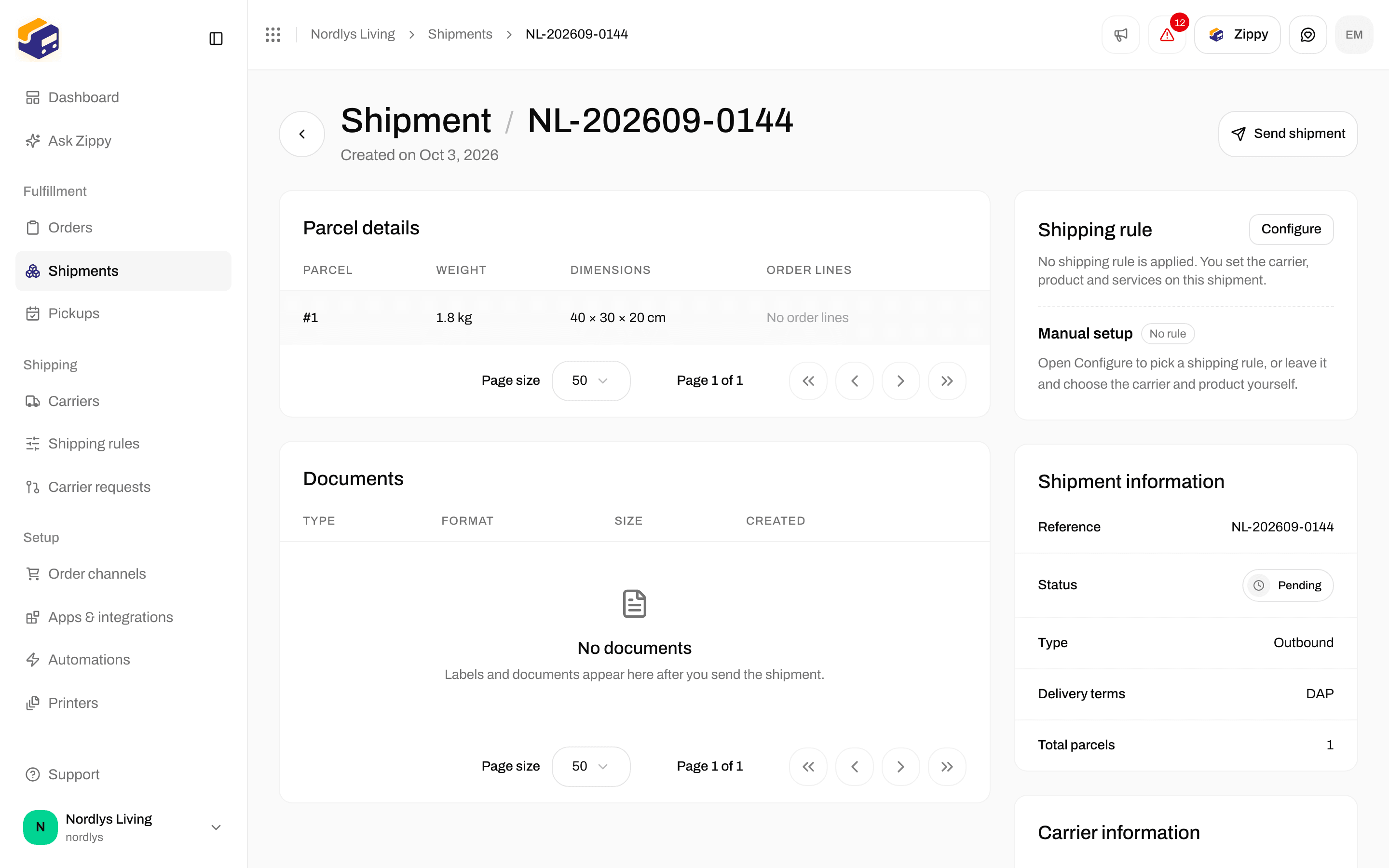
A pending shipment. Send shipment at the top sends it to the carrier straight away.
1
Open the pending shipment
The status must be Pending. A Draft shipment cannot be sent yet. Apply a shipping rule to make it Pending.
2
Check the shipment page
Check the parties, product, parcels, printers and service point. Fix anything while you can still edit it.
3
Click Send shipment
The button shows Sending… while Zippendo talks to the carrier. When it is done, you see Shipment sent, the status changes to Sent, and the Documents card holds the Label.
When the send button shows
A Sent Outbound shipment can show Create return shipment when its shipping rule has a return rule. That creates a return shipment; it does not send this one again. See Return shipments.
Send every shipment on an order
When an order already has shipments, the button at the top of the order is Send order instead of Create shipment. It sends every Pending or Error shipment on that order in one go.- When nothing can be sent, the button is grayed out and shows No shipments ready to send.
- While it works, it shows Sending….
Each shipment card on the order also has its own Send button (Sending… while it works). It does the same as Send shipment.
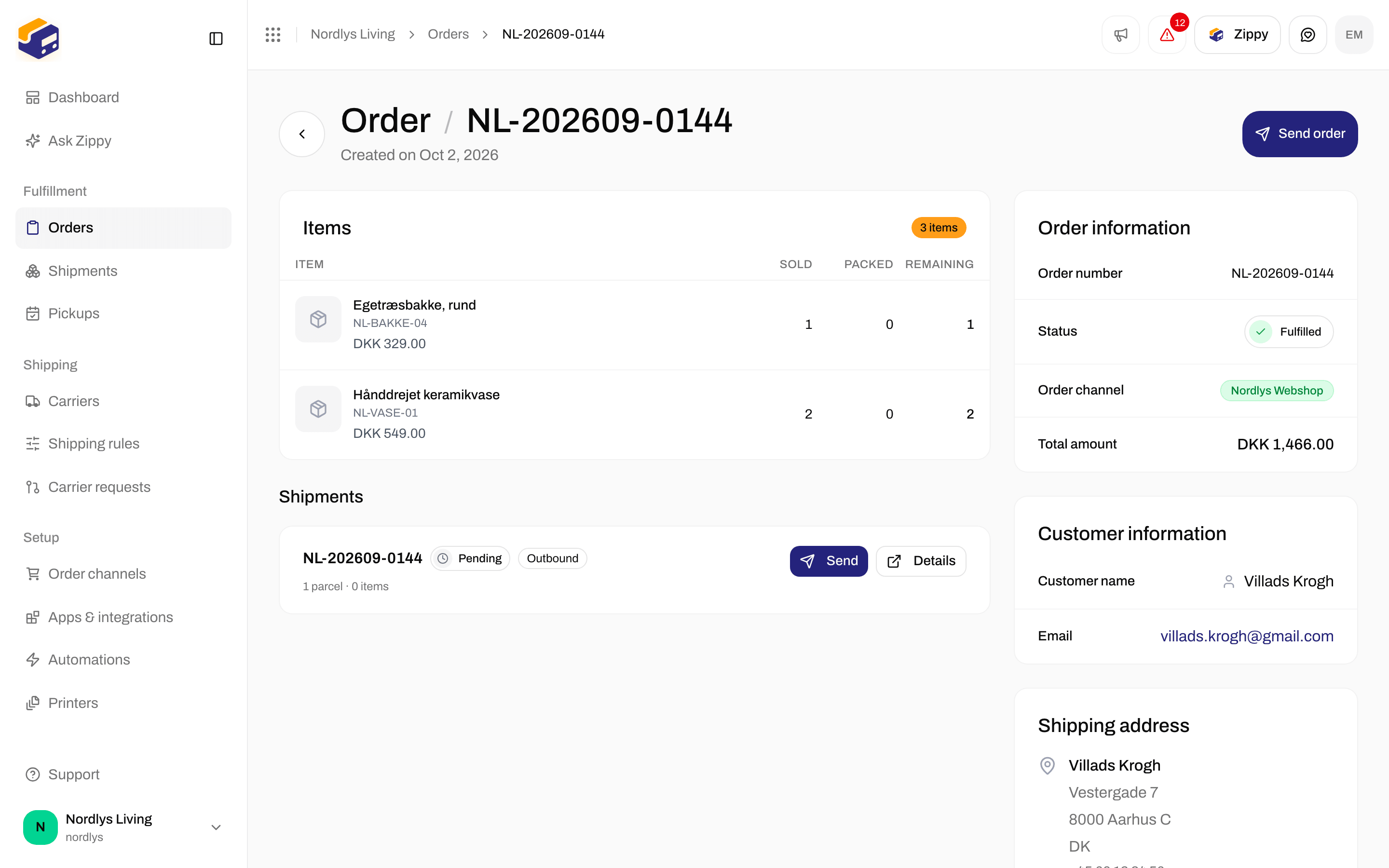
Send order sends every Pending or Error shipment on the order. Each card also has Send.
Send from the Shipments list
In the Shipments list, every Pending row has a Send button next to the row menu (Retry sending on an Error row). It does the same as Send shipment, without opening the shipment. Rows send one at a time: while one row is sending, the other buttons wait. There is no screen for sending many shipments in one click. To send several at once, use Send order (developers can also send in bulk through the API).When the carrier says no
If the carrier refuses the shipment, the status changes to Error. A red box titled Shipment failed to send lists the reasons, and the button at the top changes to Retry sending. Each reason is written in plain words first, with the carrier’s own message underneath when it adds something.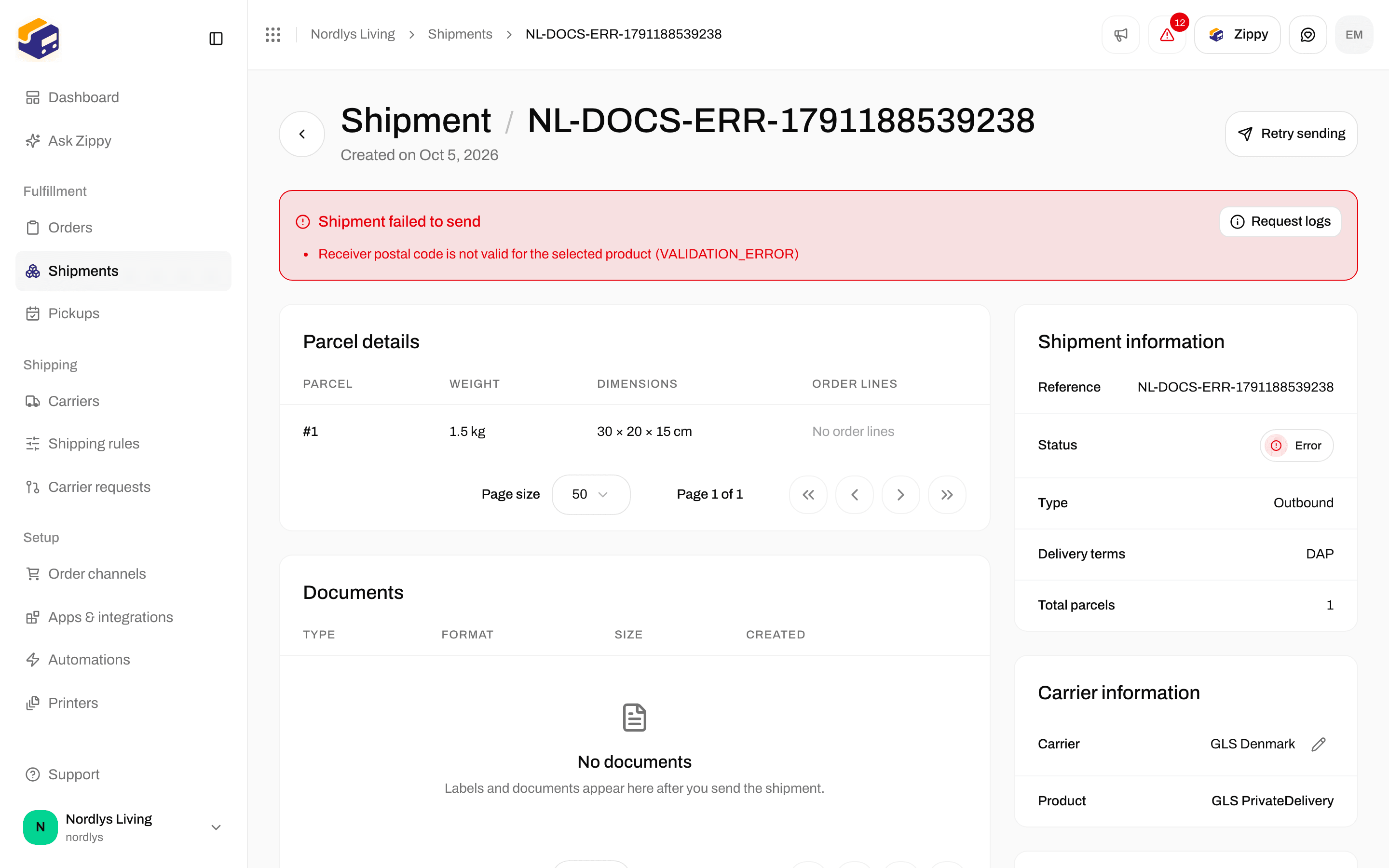
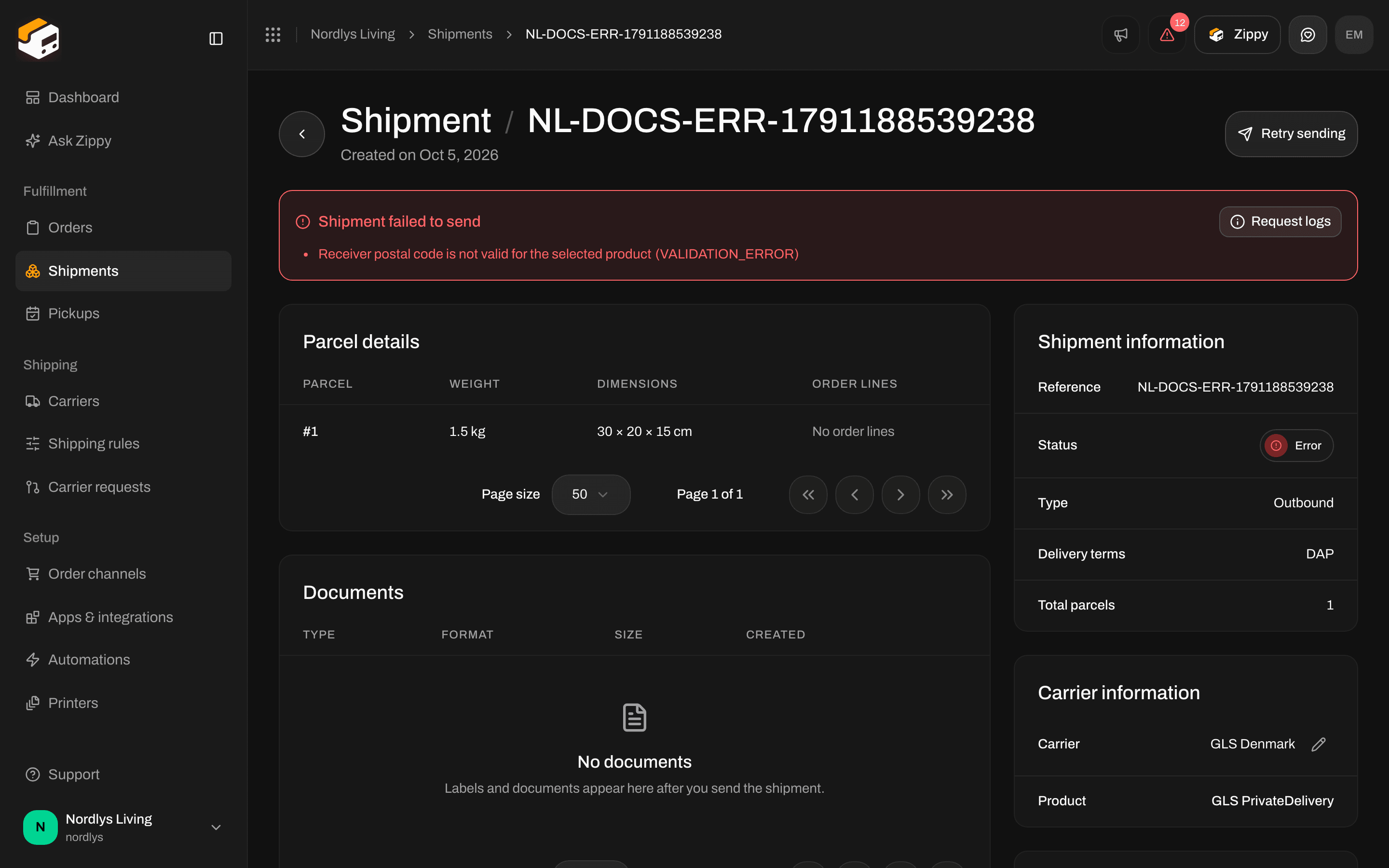
A shipment the carrier refused. The reasons are listed, with Retry sending at the top and Request logs in the box.
If your plan’s included shipments are used up and Allow overage shipments is off, shipping pauses until the next period. See Your plan usage below and Billing and usage.
Fix the problem, then click Retry sending. A retry that succeeds counts as one shipment. You cannot cancel a label from this screen. See Hold, cancel, or delete a shipment.
Request logs
Request logs shows the messages Zippendo exchanged with the carrier. The button sits in the red error box, and in the Shipment information card when there are logs but no errors. Support may ask you to open it. The window is titled Request logs. Each entry shows which step it was:
Each entry also shows how long it took and whether it succeeded (failures are red). Click an entry to see the Error, the Request and the Response.
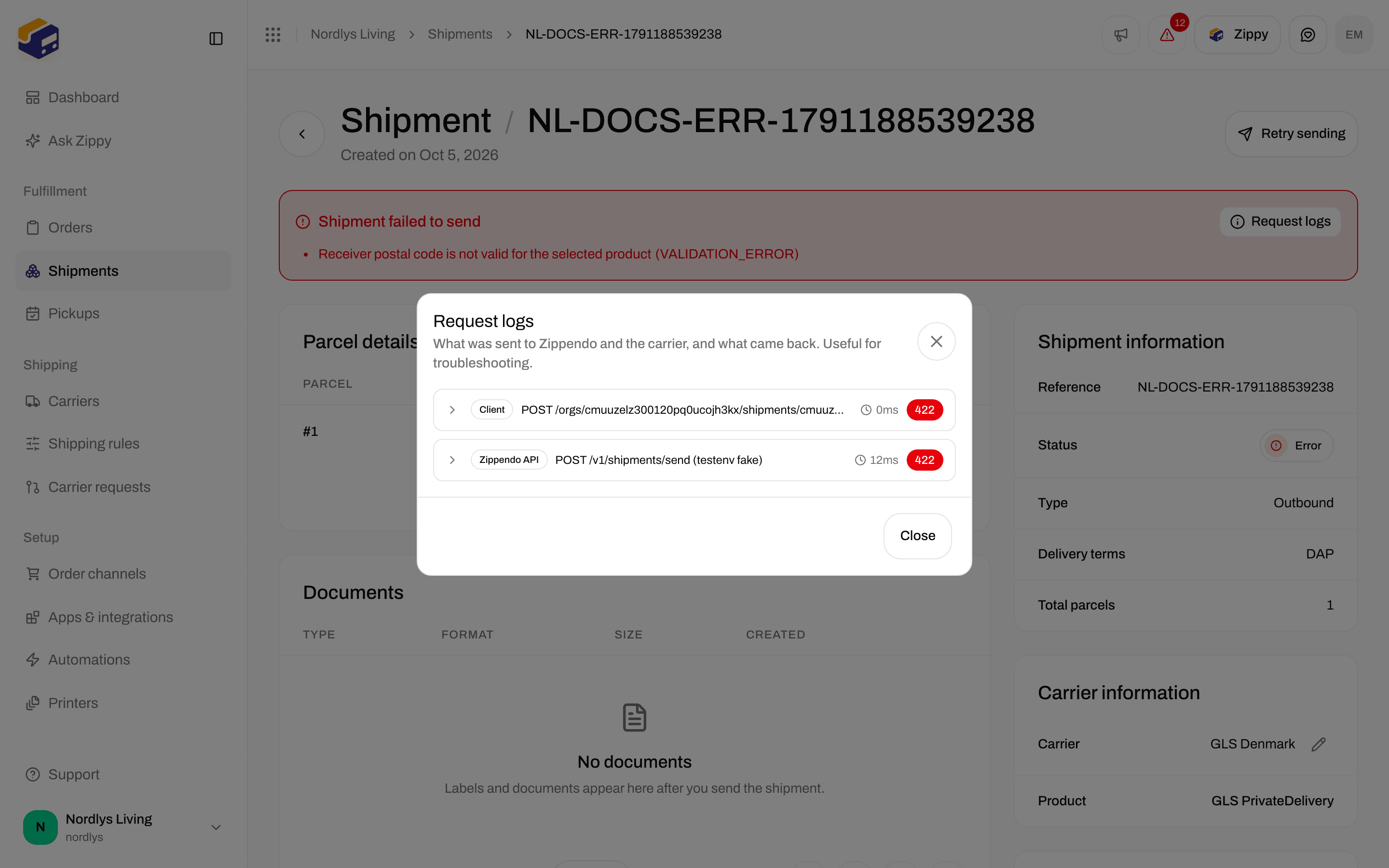
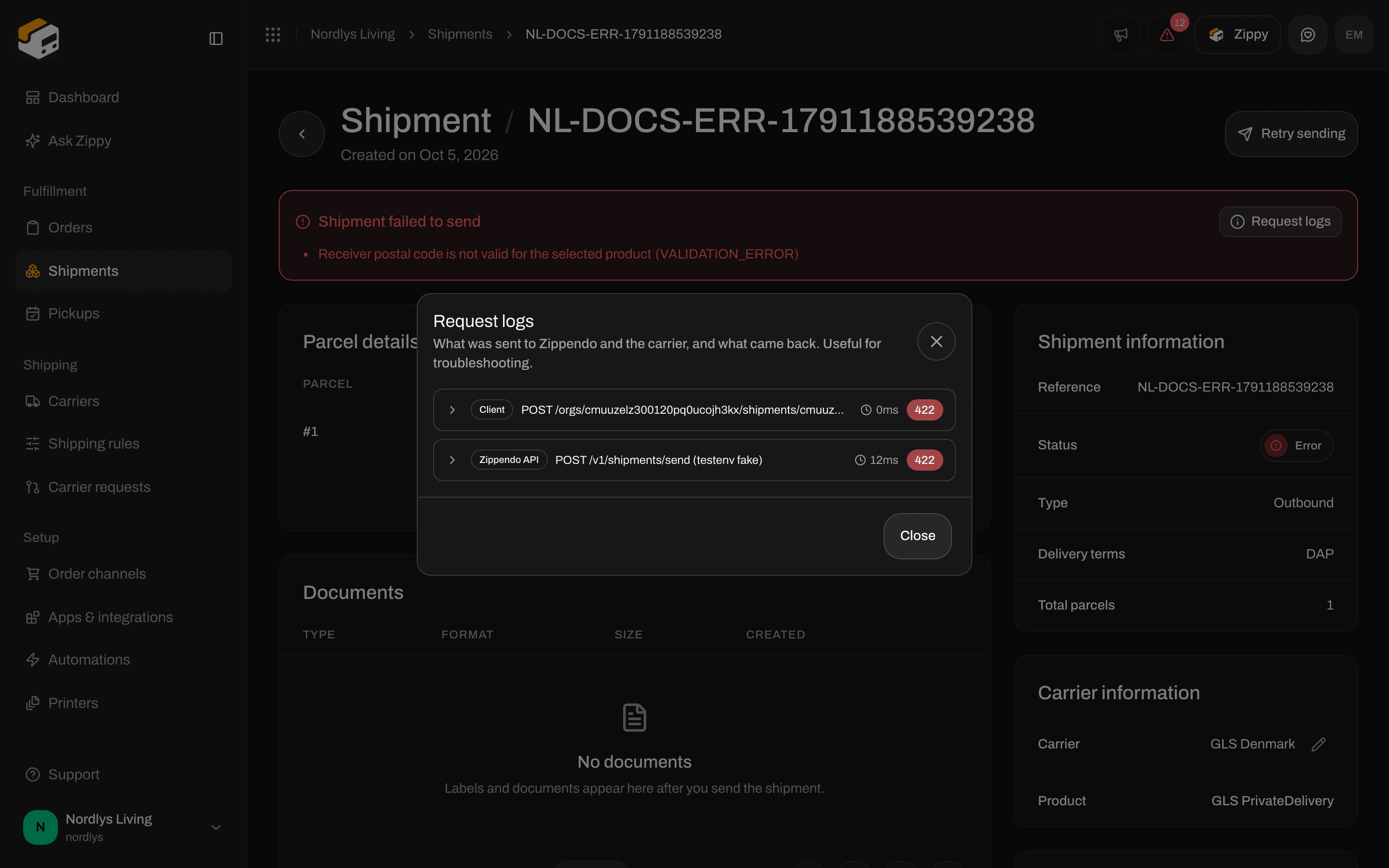
Request logs lists each step with its result. Click an entry to see the details.
Sent, but no label yet
Now and then a carrier accepts the shipment but does not hand out the label straight away. The shipment is sent, and the page shows Shipment sent with a warning instead of a label. Click Fetch label in the warning to ask the carrier again. The button shows Fetching label… while it works.Your plan usage
Every shipment that is sent successfully counts as one shipment on your plan, including a Retry sending that succeeds. Downloading or printing a label again does not count. To see your usage, open the organization menu, click Manage, then Pricing plans. The Current usage box shows:- Shipments this period, for example “120 / 500 shipments used”
- Allow overage shipments: when it is off, shipping pauses when you reach your included shipments. When it is on, extra shipments are billed as overage.
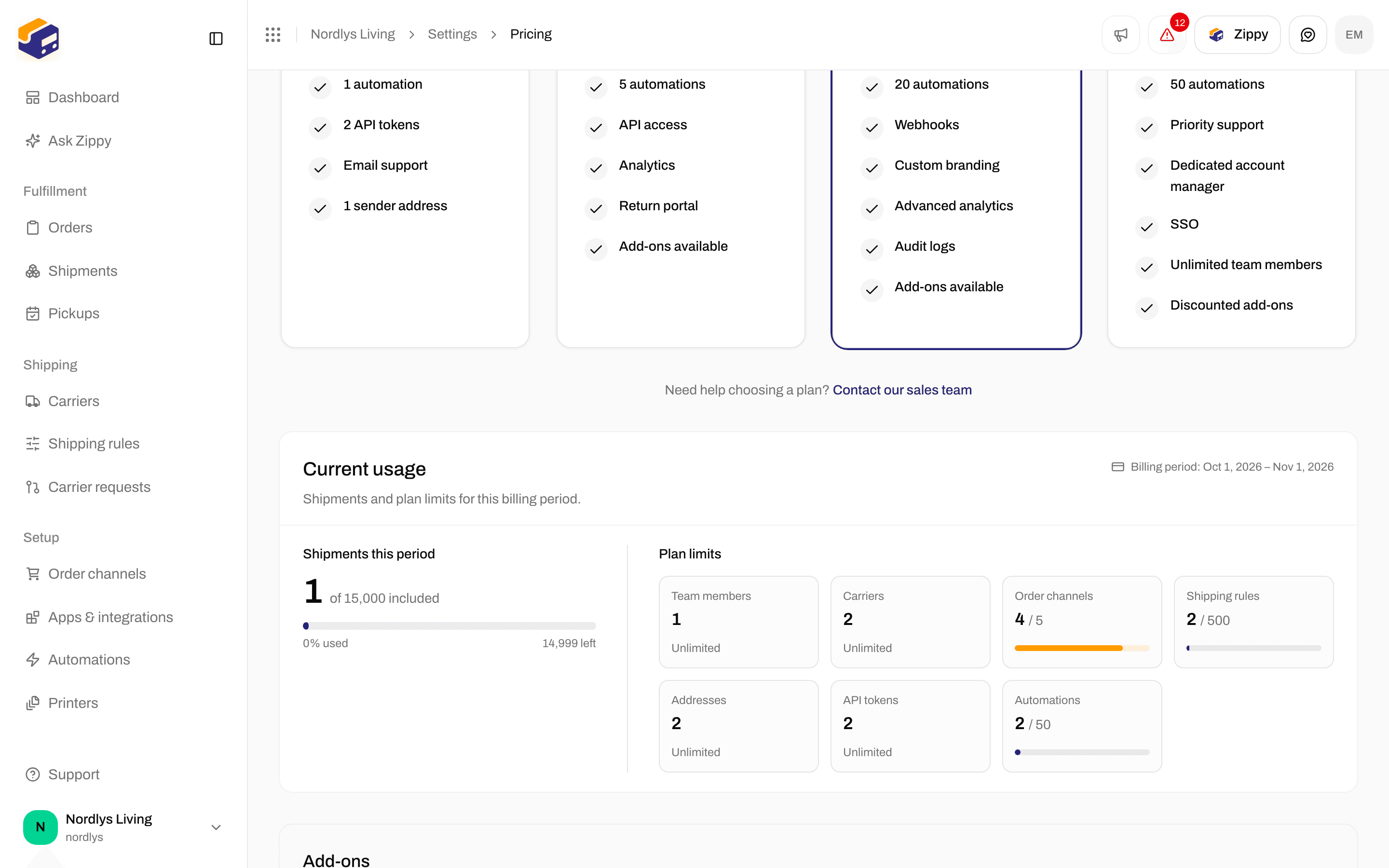
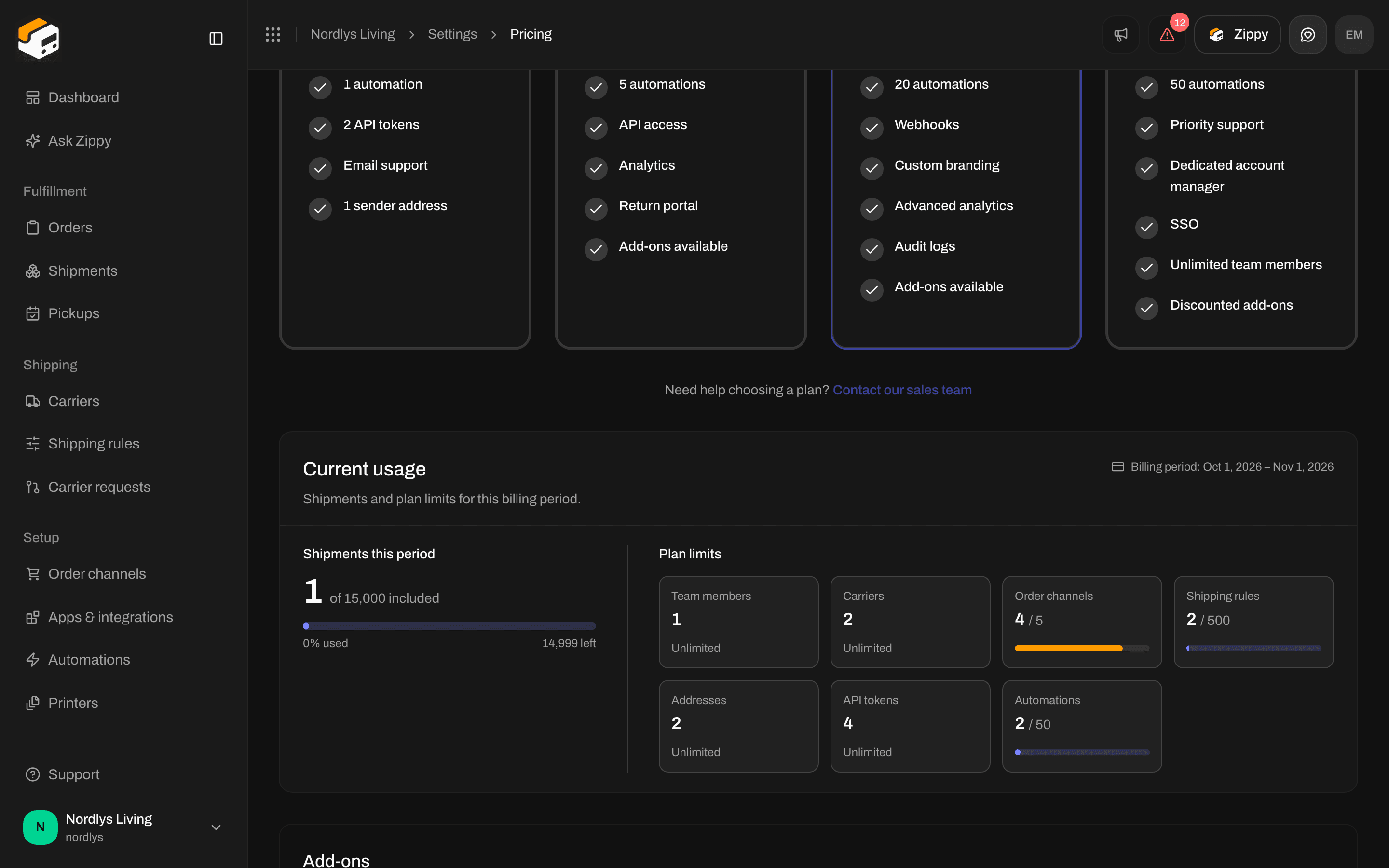
Current usage counts sent shipments, not label downloads