

Delete your organization
At the bottom of Settings → Organization, below Data export, under Delete organization:This permanently deletes the organization and all its data. You can’t undo this. Export your data first. You can still export it for a short time after you schedule the deletion.
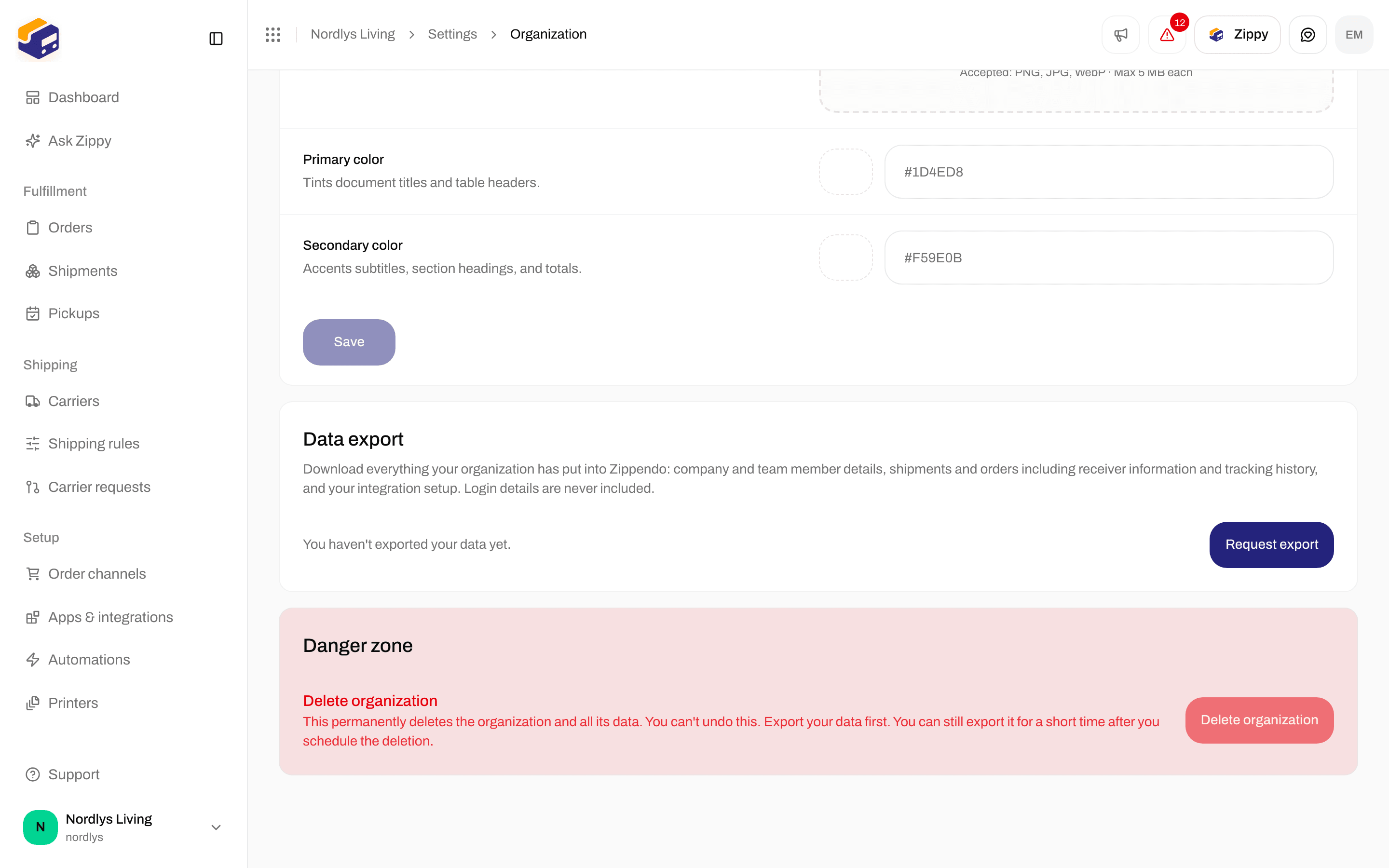
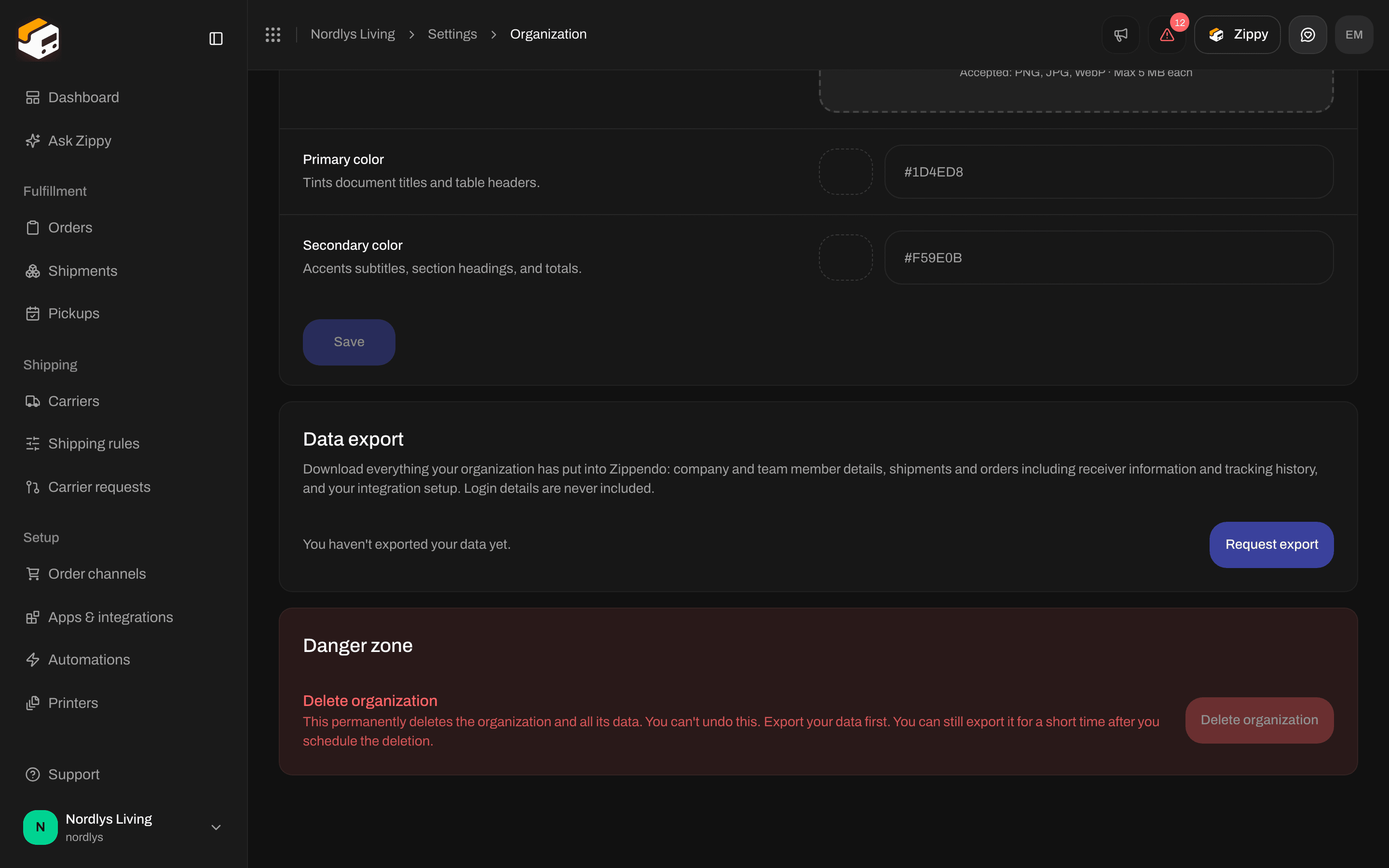
Danger zone on the Organization tab - the Delete organization button cannot be clicked
- The organization and all its data, such as orders, shipments, carriers and settings, are deleted for good. They cannot be restored.
- Export your data before you ask for deletion. After deletion is scheduled, you can still export for a short period. See Export organization data.
- If you only want to stop paying, you do not need to delete anything. Cancel your subscription instead and move to the Free plan, see Billing and usage.
Delete your account
At the bottom of your Profile settings page, under Delete account:This permanently deletes your account and all its data. You can’t undo this.
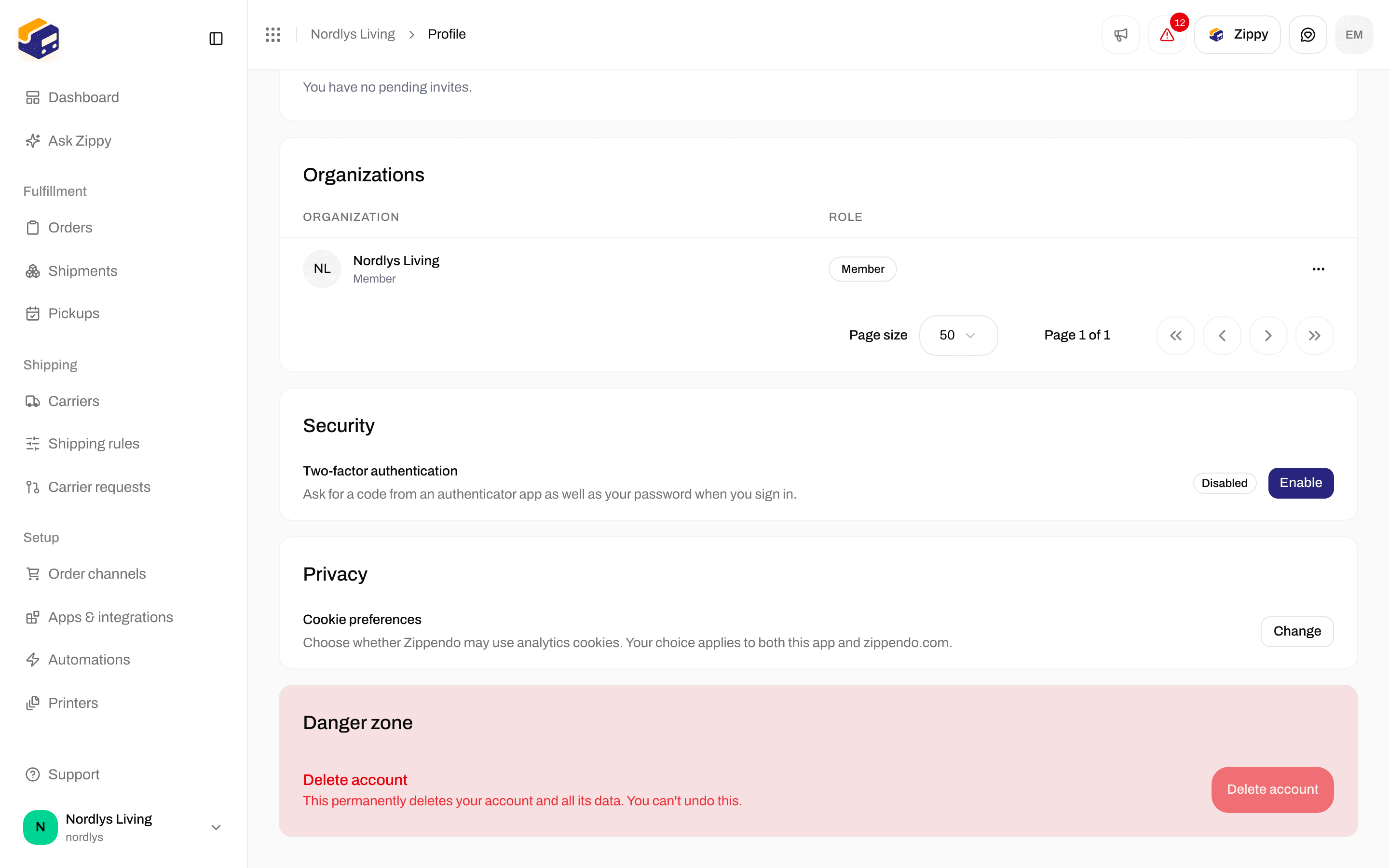
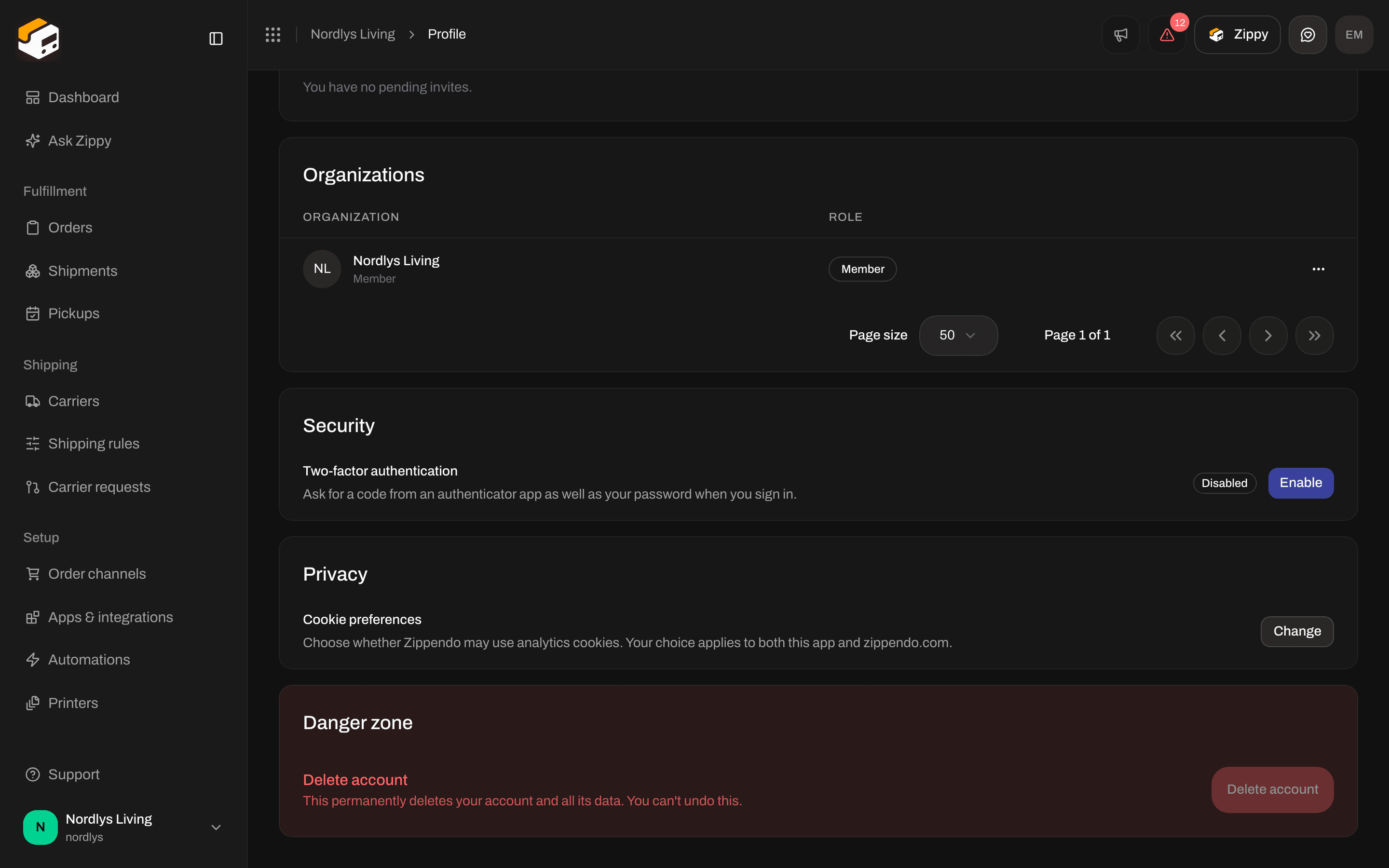
Danger zone on Profile settings - the Delete account button cannot be clicked
Remove a team member
Removing a team member takes away their access to this organization.1
Find the team member
Open Settings → Team. Open the menu on the team member’s row and click Remove team member. You cannot remove yourself (your row is marked You).
2
Confirm
The Remove team member window asks, for example, Are you sure you want to remove Anna Jensen from this organization? You can’t undo this. Type DELETE in capitals, then click Remove.
Delete a carrier
Deleting a carrier removes it, and the carrier credentials you entered for it, from Zippendo.1
Open the carrier
Go to Carriers → My carriers, click Edit carrier on the carrier, then click Delete at the top of the page.
2
Confirm
The Delete carrier window says, for example, This will permanently delete carrier “PostNord”. This action cannot be undone. Type the carrier’s name in capitals, for example
POSTNORD. Delete can be clicked once the text matches.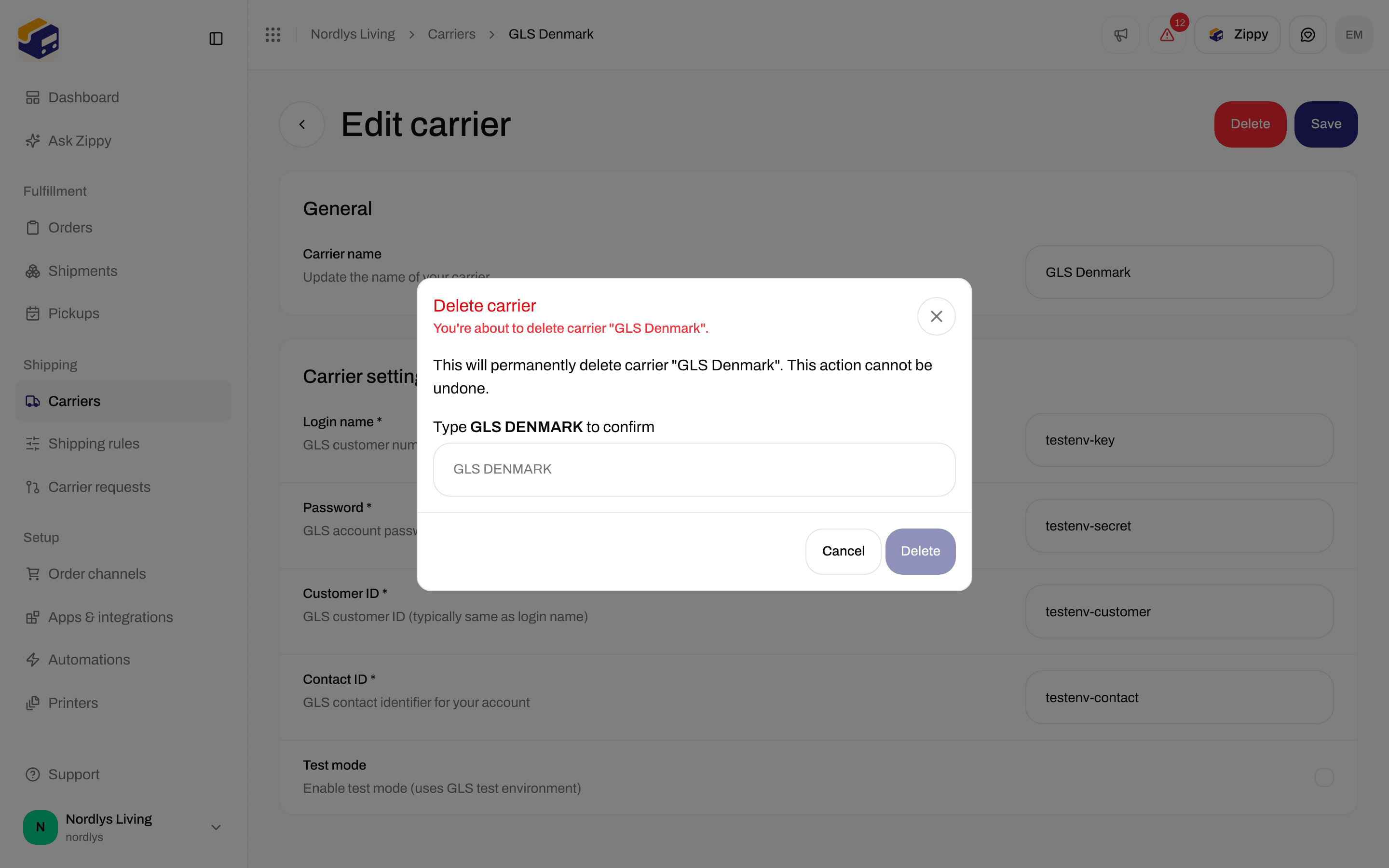
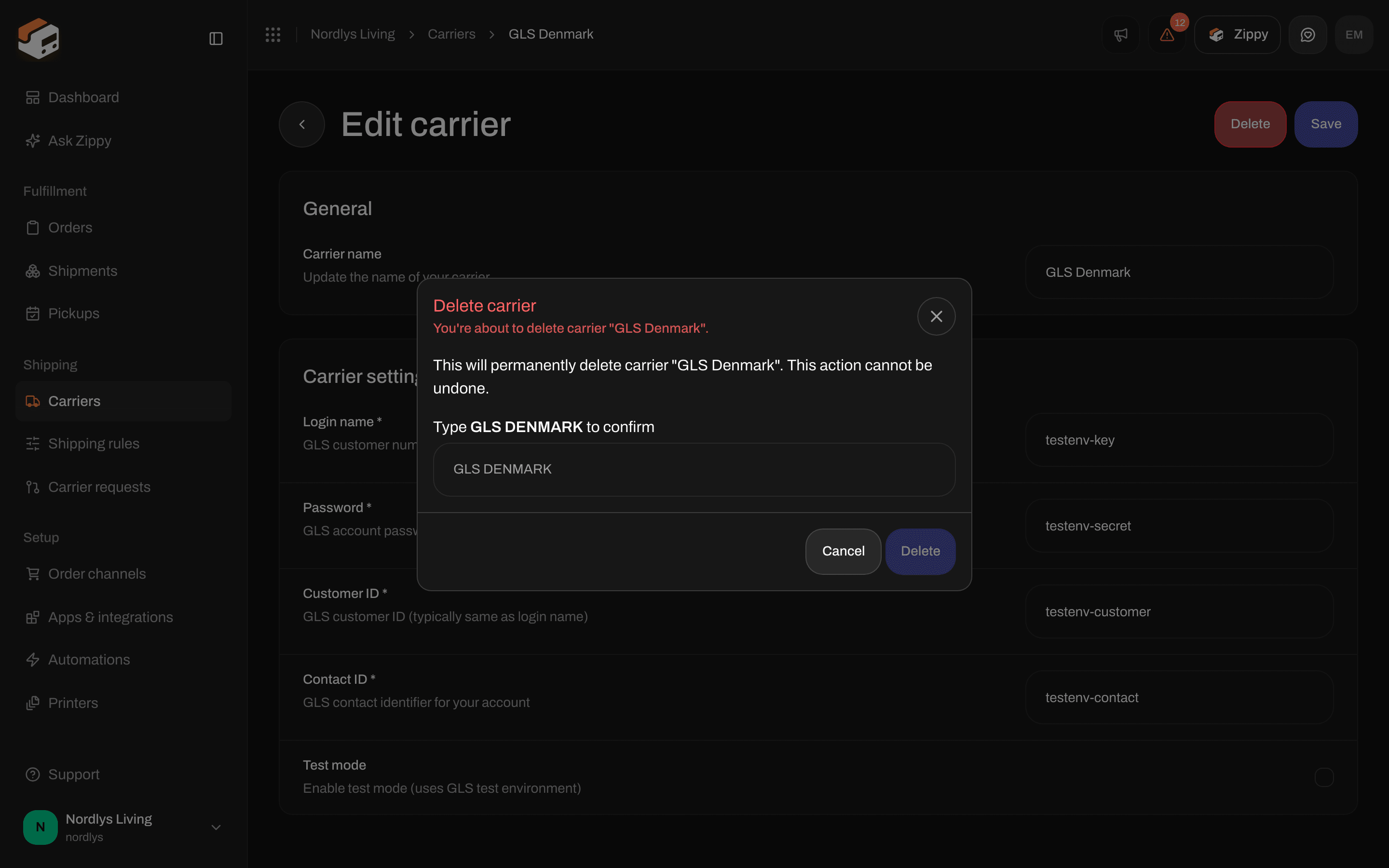
Delete carrier - type the carrier name in capitals to confirm
Disconnect a Shopify webshop
Open Order channels, click your Shopify channel, and open the Connection & integration tab. Under Danger zone, Disconnect store says: Remove the connection to this Shopify store. Orders stop being imported and Zippendo removes its webhooks from the store.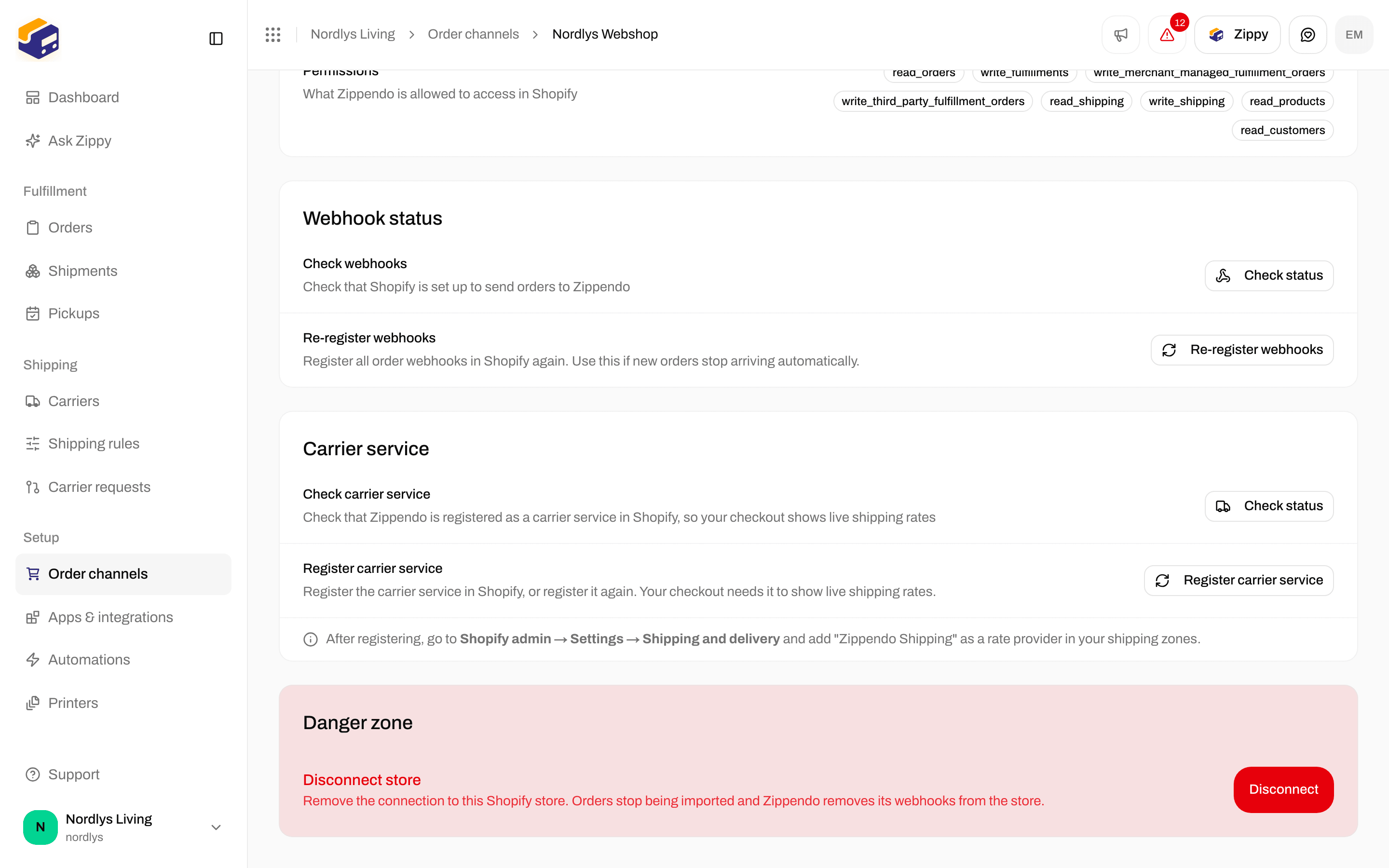
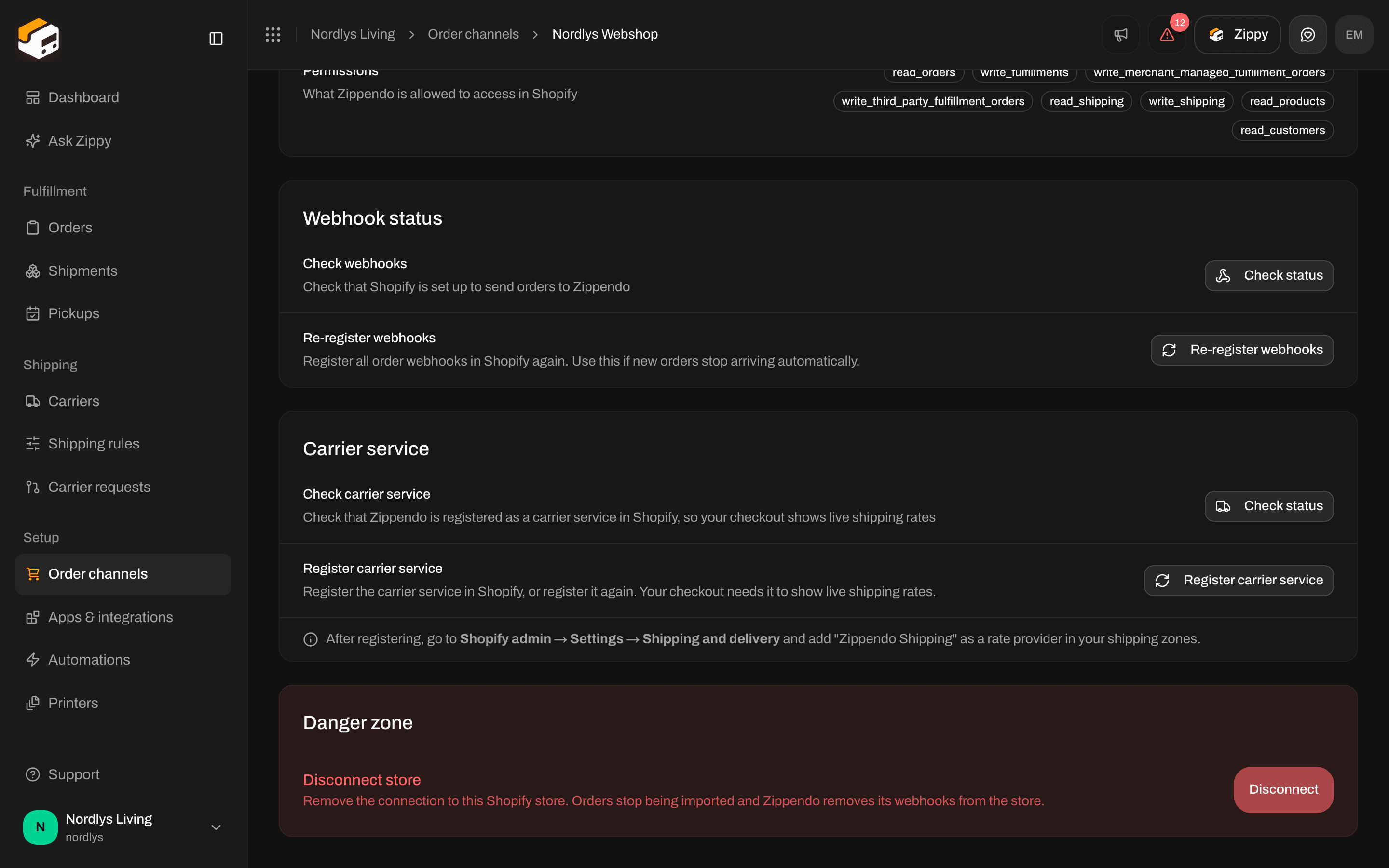
Shopify Danger zone - Disconnect store
Disconnect WooCommerce or delete a custom channel
Open Order channels and click the channel. The Danger zone section is on the channel page.
More about each channel: Connect WooCommerce and Custom channel API.
Related
- Export organization data - download your data before you ask for your organization to be deleted.
- Organization settings - the rest of the Organization tab.
- Profile, language, and two-factor authentication - Delete account and Leave.
- Invite team members - revoke an invitation or remove a team member.
- Carrier credentials
- Shopify settings
- Connect WooCommerce
- Custom channel API