Budbee is an Instabee brand. It books locker and home delivery across Scandinavia and Benelux through the Instabee Integration API. The catalog card copy is: Budbee delivers parcels to lockers and homes across Scandinavia and Benelux (Sweden, Norway, Denmark, Finland, Netherlands, Belgium) via the Instabee network. Catalog slug: budbee. This page is the Budbee connect form. Shared chrome for every carrier: Carrier credentials. Inventory of every connector: Connect a carrier or integration. Walkthrough: Carriers. Instabox uses the same Instabee key shape — Connect Instabox.
You do not pick a sender address on this form. Add addresses under Manage → Addresses. The address is chosen on the shipment or on a shipping rule.

Prerequisites

  • An Instabee Integration API key for Budbee. The form helper is: Your Instabee Integration API key (sent as ‘Authorization: ApiKey <key>’). Zippendo does not generate this key.
  • Permission to create carriers in the organization. You can connect Budbee more than once if each connection has its own Carrier name.
The brand on the API is fixed to Budbee in Zippendo. You do not type “budbee” on this form.

Connect from All Carriers

1

Open All Carriers

Sidebar Carriers. Page title Carriers / Integrations. Header tabs: My Carriers (?tab=my-carriers) and All Carriers (?tab=all-carriers).
2

Find Budbee

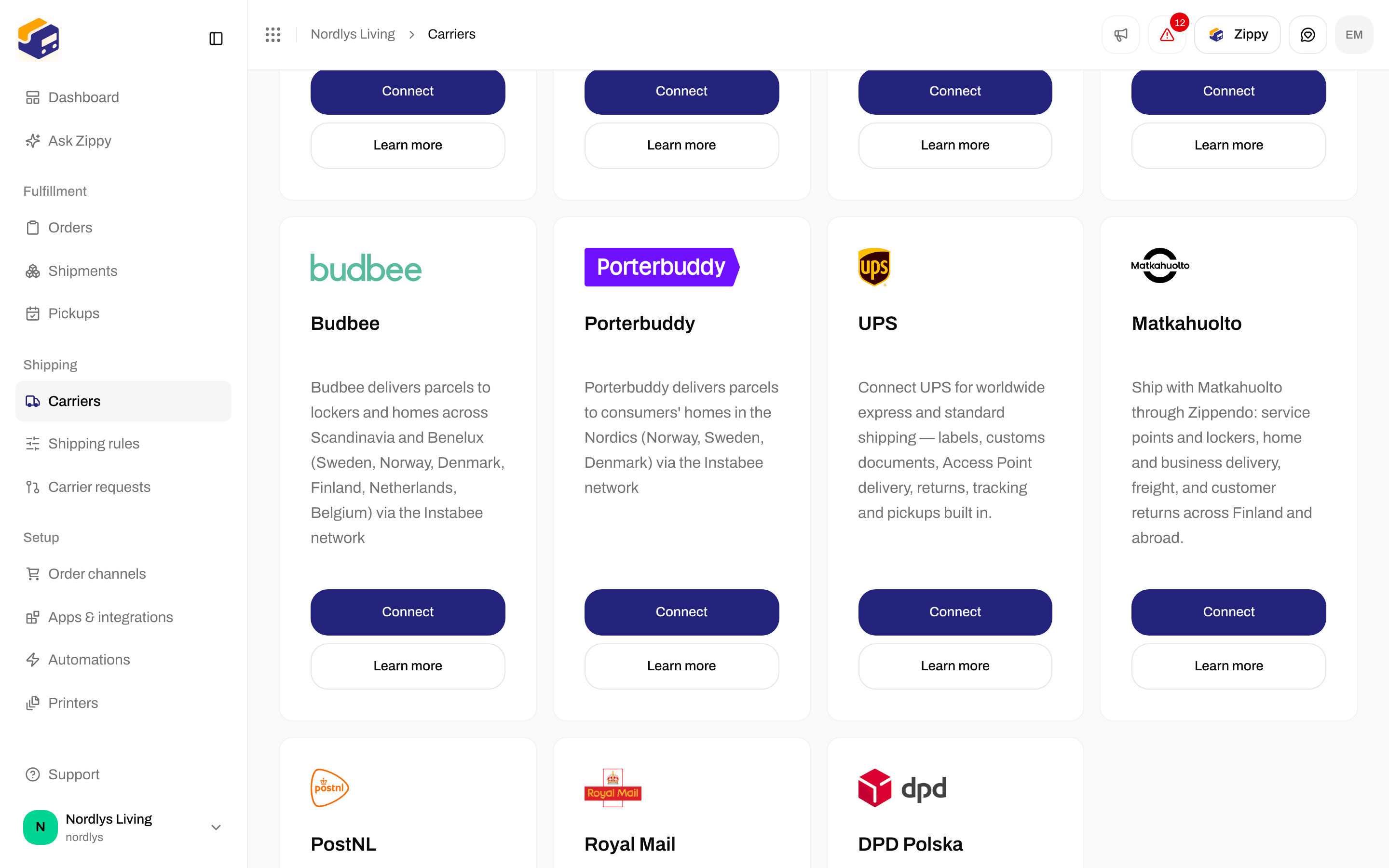
Card title Budbee. Buttons: Connect and Learn more (opens budbee.com in a new tab).
3

Click Connect

Modal id connect-carrier-modal. Title Create new carrier. Subtitle Fill out the information below to create a new carrier.
4

Fill required fields

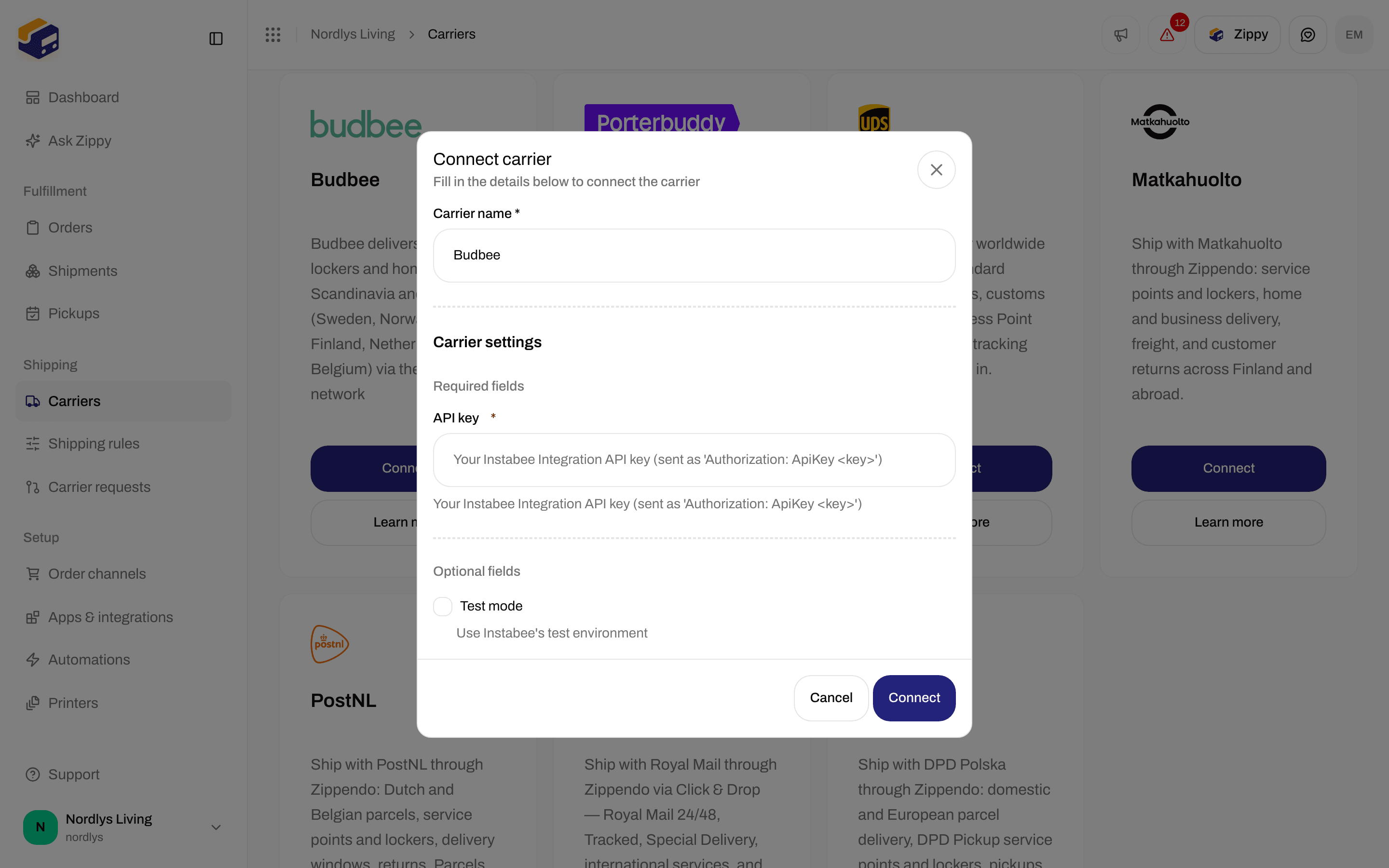
Shared fields first, then Carrier Configuration → Required Fields (API Key). Optional Fields is Sandbox Mode. Empty required values make Create return without saving.
5

Create

Click Create (shows Creating… while the request runs) or Cancel. Success toast: Carrier created successfully. Failure copy in the modal: Failed to create carrier. Please try again.
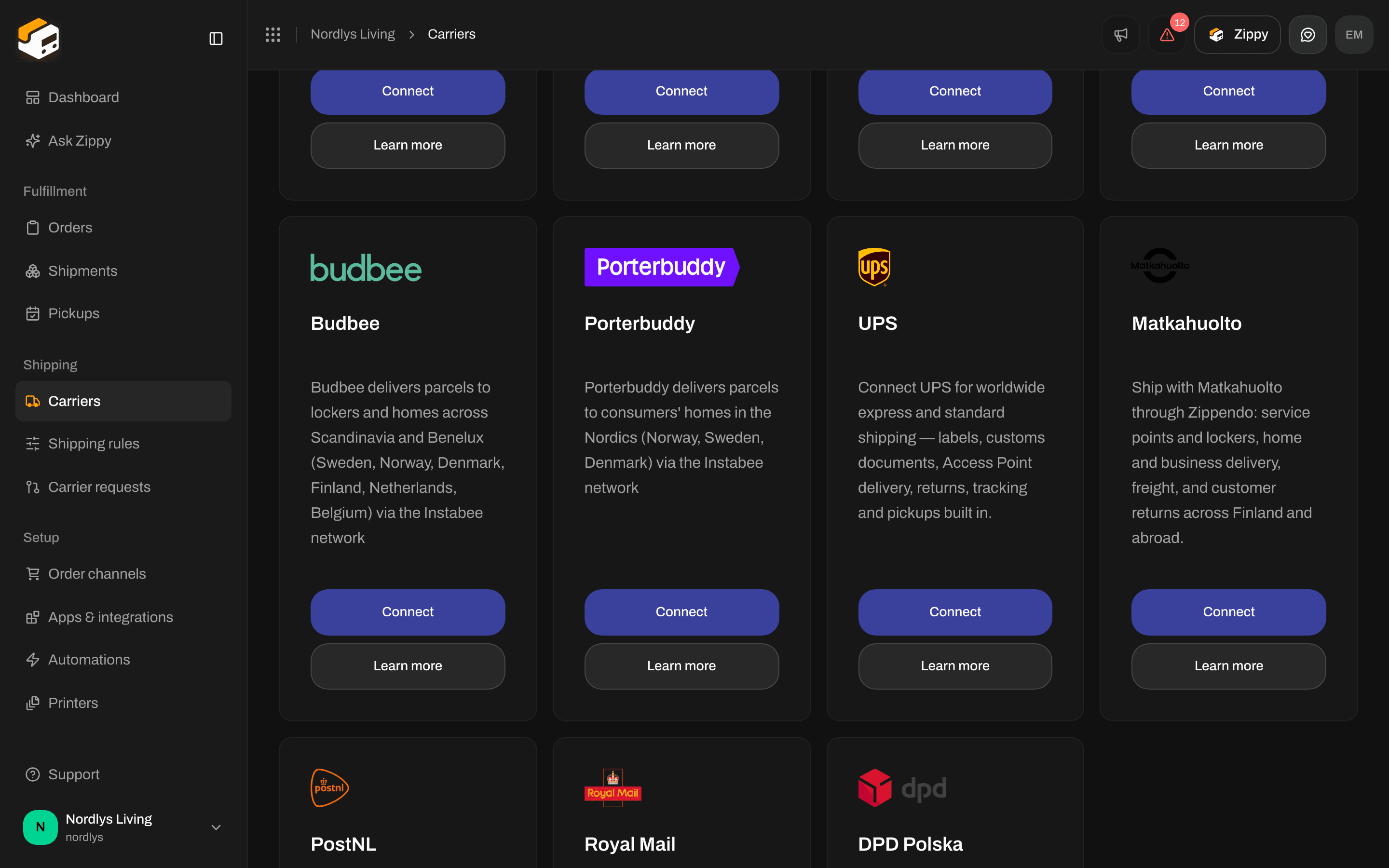
All Carriers grid with the Budbee card, Connect, and Learn moreAll Carriers grid with the Budbee card, Connect, and Learn more

Budbee on All Carriers — Connect and Learn more

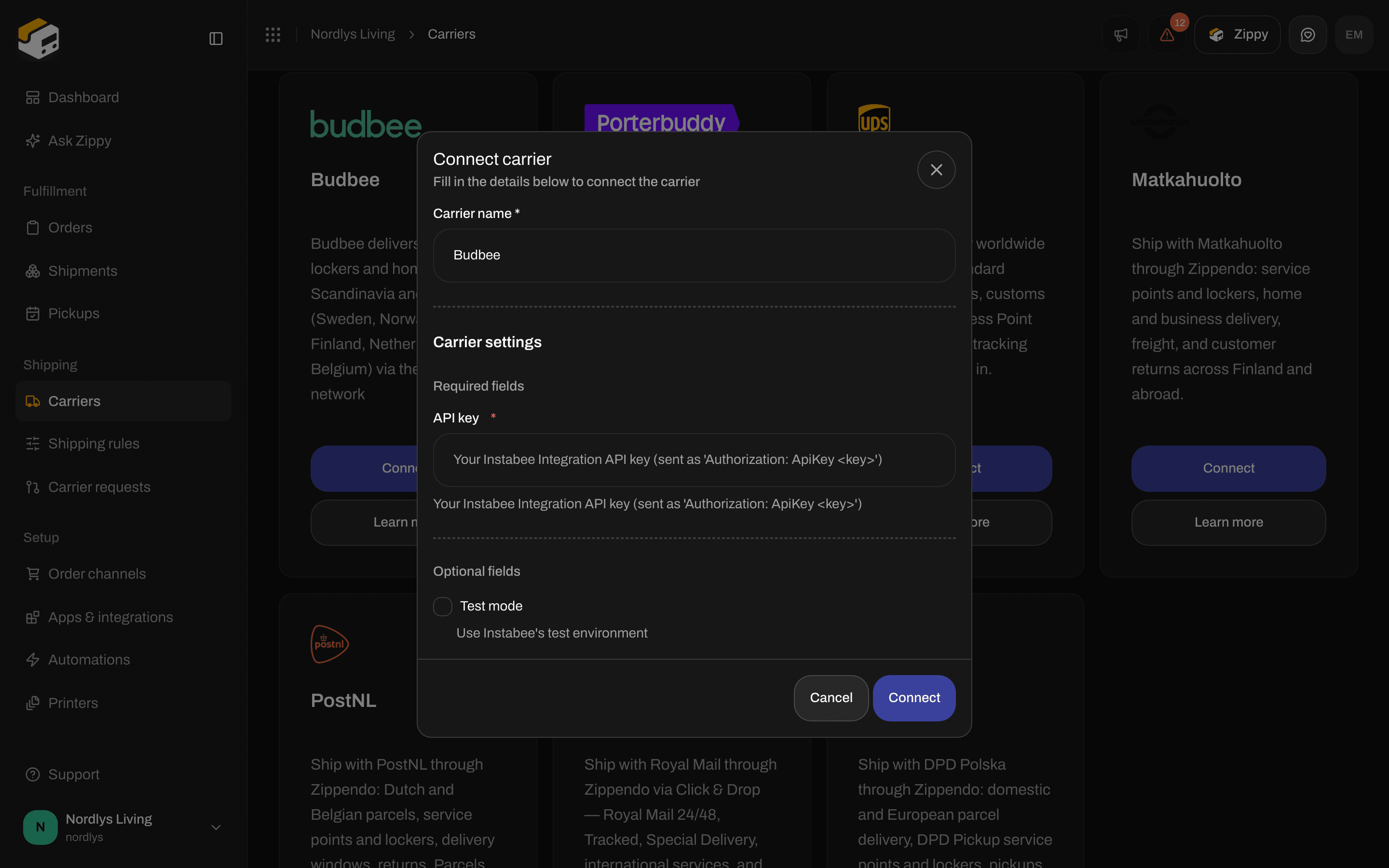
Create new carrier dialog for Budbee with required API Key and optional Sandbox ModeCreate new carrier dialog for Budbee with required API Key and optional Sandbox Mode

Create new carrier for Budbee — API Key and Sandbox Mode

Shared fields

These appear on every connect dialog, including Budbee.

Budbee credentials

Carrier Configuration splits into Required Fields and Optional Fields. API Key is a text input (the label does not contain “Password” or “Secret”). Each helper is catalog copy. Placeholder on the key field is the same helper. There is no client secret, account number, or brand picker on this form. Porterbuddy and Instabox use the same two fields.
Leave Sandbox Mode off for live orders. Details: Sandbox mode.

After you connect

The connection appears on My Carriers with a Connected badge and Edit Carrier. Products are not on this form — they appear when you create a shipment or save a shipping rule. See Carrier products and services. Budbee products (sender and destination countries SE, NO, DK, FI, NL, BE; weight helper 0.1 - 20 kg):

Locker products (droppoint)

Locker delivery and Locker return are service-point products. On Create Shipment pick a Service Point on the Drop Point card before send. Error: This carrier product delivers to a service point — select a droppoint before sending. How to pick: Pick a service point. Naming: Droppoint vs service point. Budbee does not appear in Pickups. That list is Bring and PostNord only — Schedule a pickup. Tracking is push (Instabee platform webhooks). There is no webhook URL field on Edit your carrierCarrier tracking webhooks. Budbee does not generate customs documents or commercial invoices in Zippendo.

Edit

On My Carriers, click Edit Carrier. Page title: Edit your carrier. URL /dashboard/carriers/:id. Two cards:
  • GeneralCarrier name (helper: Update the name of your carrier), plus Brand when brands exist.
  • Carrier settingsAPI Key and Sandbox Mode.
Header actions: Delete and Save (pending Saving…). Success toast: Carrier updated successfully. Loading: Loading carrier…. Load failure: Failed to load carrier. Please try again. Save failure: Failed to update carrier. Please try again. Shared delete chrome: Carrier credentials.

Delete

On Edit your carrier, click Delete. Modal id global-delete-modal. Title Delete Carrier. Subtitle You are about to delete carrier “{{name}}”. Body: This will permanently delete carrier “{{name}}”. This action cannot be undone. Type the carrier name in uppercase to enable Delete. Toast: Carrier deleted successfully. Failure: Failed to delete carrier. Booked shipments keep their labels and tracking.

Common errors

Auth failures after send: Carrier authentication failures.