

Before you start
You need a Make scenario that starts with a custom webhook, and that webhook’s address:- In Make, create a scenario and add the Webhooks app with the Custom webhook trigger.
- Create a new webhook and copy the address Make shows. It starts with
https://hook.followed by your Make region, such ashttps://hook.eu1.make.com/.
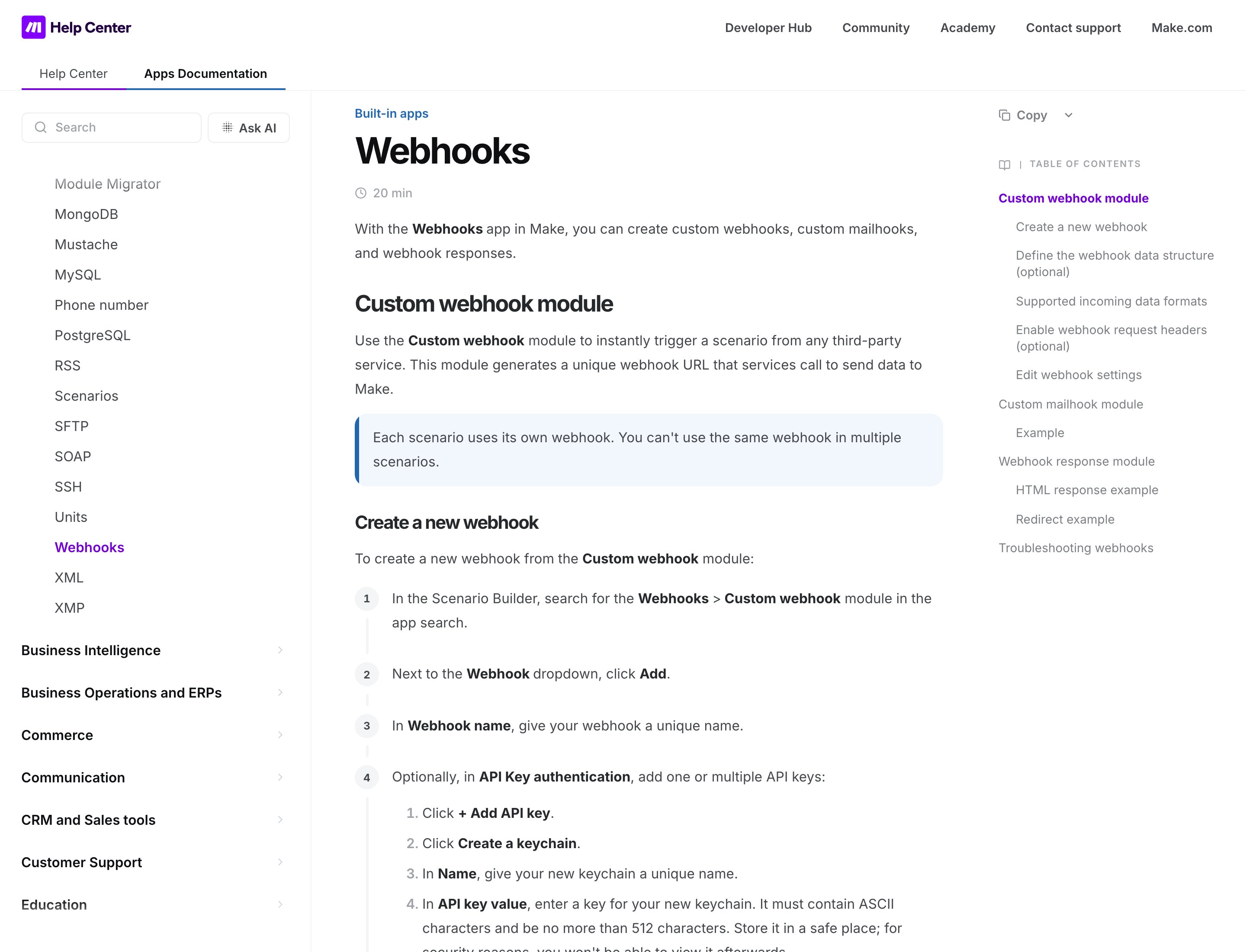
Make's help article on the Custom webhook trigger
Connect Make
1
Find Make in the catalog
Click Apps & integrations in the sidebar, then Catalog. Make is under Apps. Click Connect, or Add connection if you already have one.
2
Review access
Read what Zippendo will do with the connection and click Continue.
3
Fill in the connection details
Type a Connection name, such as “Make: shipments to spreadsheet”, and paste the webhook address into Custom webhook URL.
4
Pick the events
Tick the events that should start the scenario, or click Select all. See the list below.
5
Click Connect
You see Integration connected, and Make shows on the Connected tab.
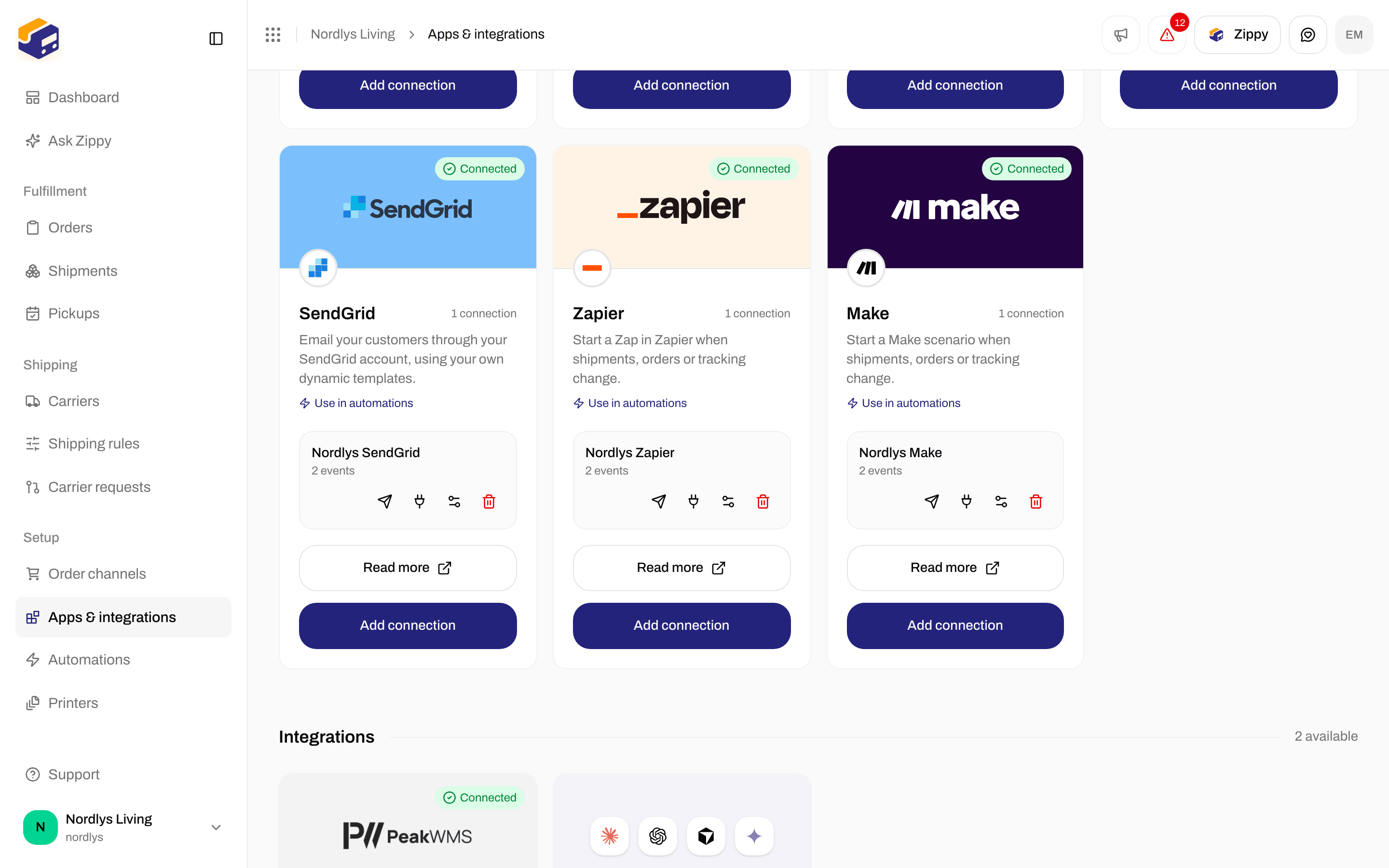
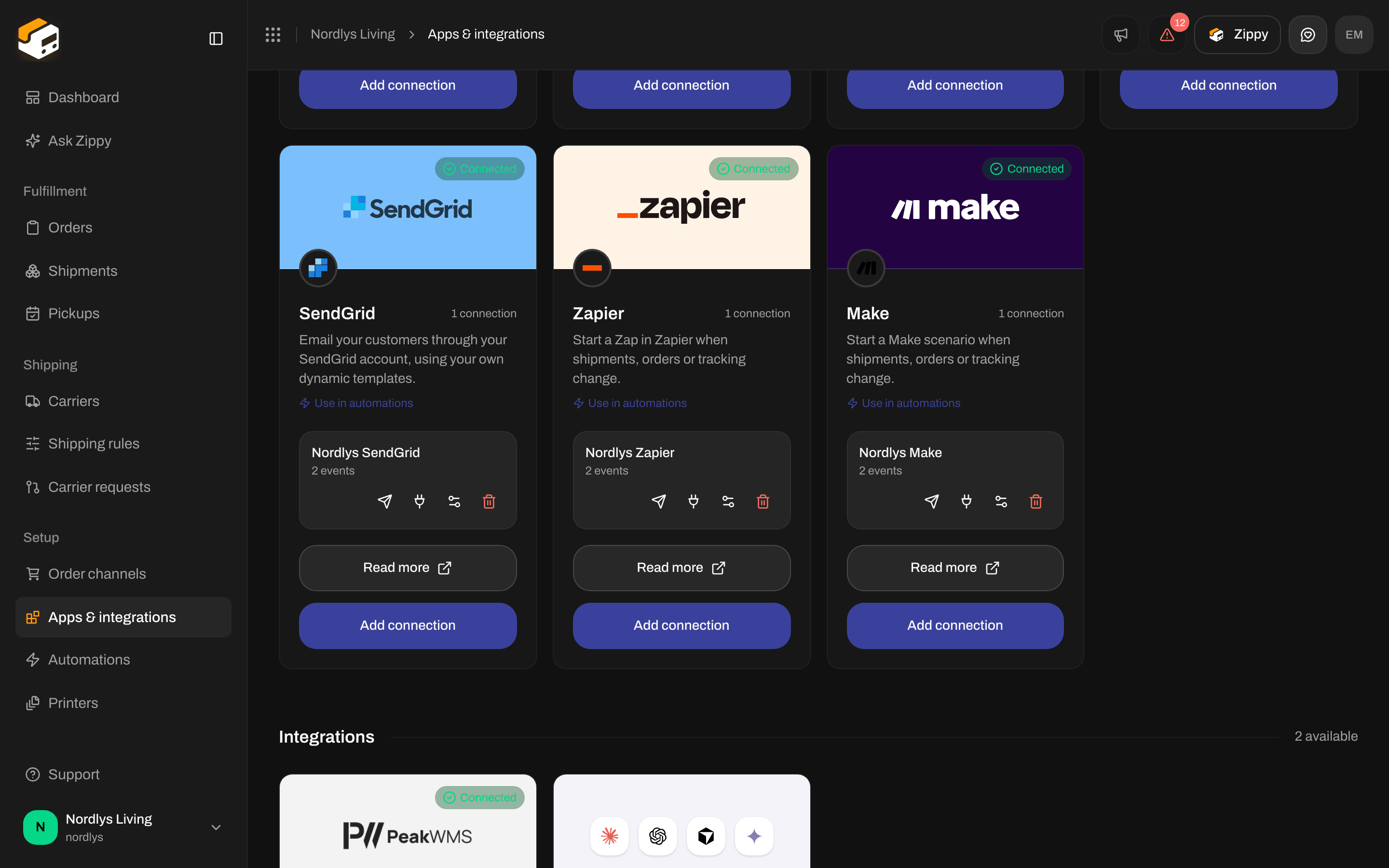
The Make card in the catalog
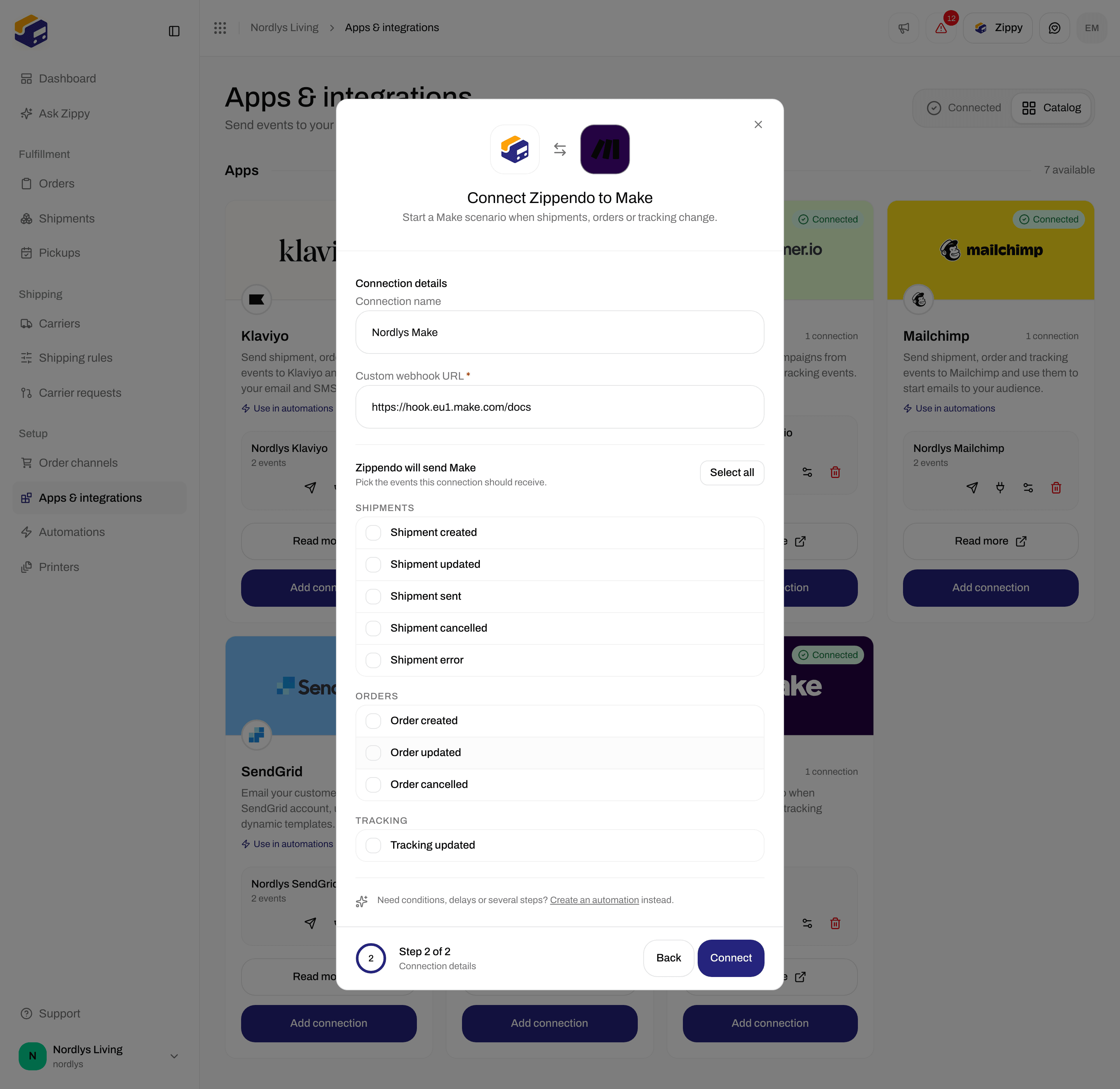
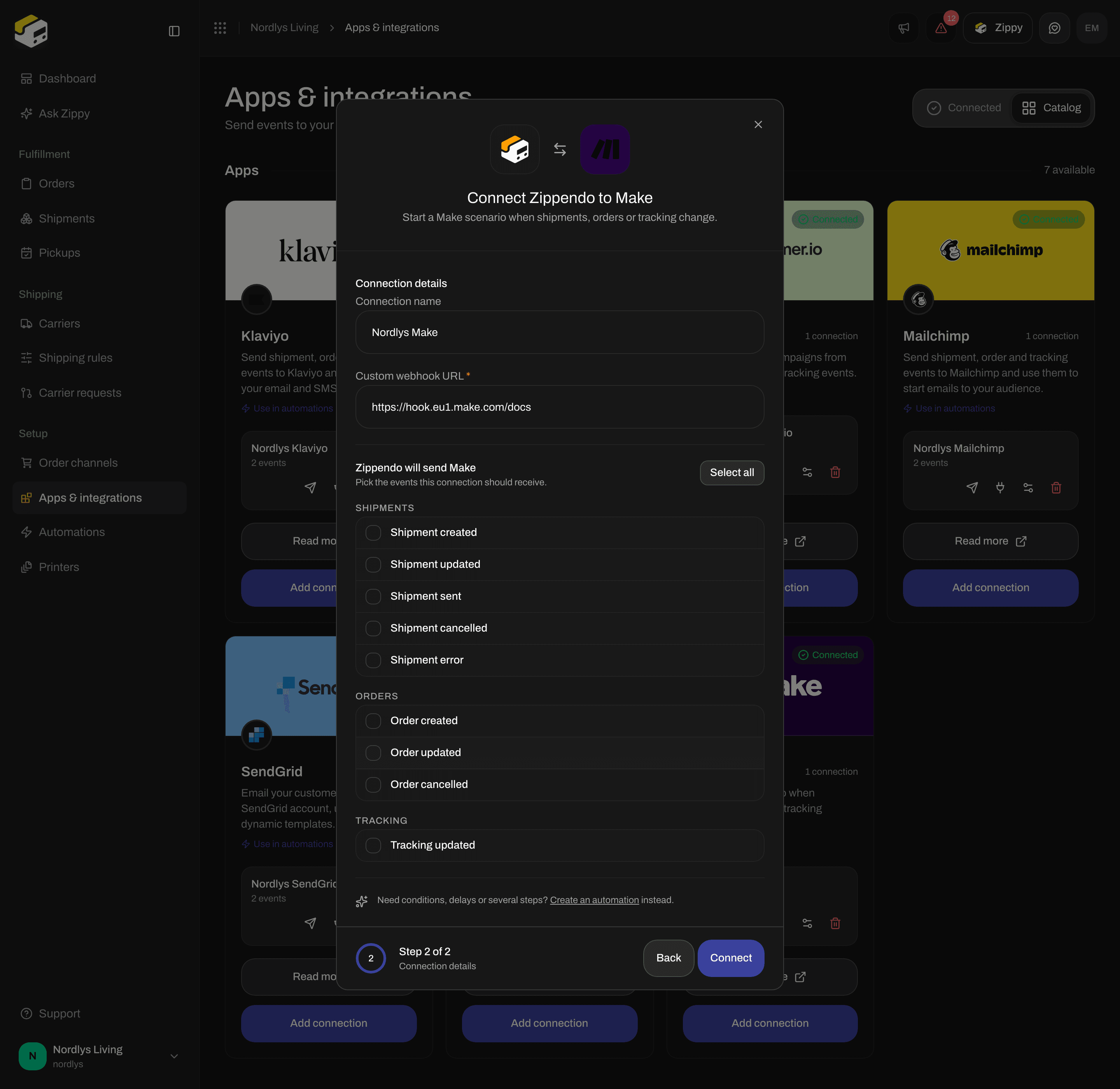
Connecting Make: a name, the Custom webhook URL and the events
Want more than one scenario? Create a webhook for each in Make, and add a connection for each with Add connection.
Events Make can receive
Every delivery tells the scenario which event it is, so you can use filters and routers in Make to handle each kind differently. To decide in Zippendo instead, use an automation (see below).
Check the connection and teach Make the fields
Make learns which fields to offer from the first data it receives.1
Let Make listen
In the Make scenario, click Run once.
2
Send something
In Zippendo, click the paper plane on the connection row (Send test event). A test event only holds a short test message, so to map shipment or order fields, make a real event happen instead, such as creating a shipment.
3
Map the fields and turn the scenario on
Map the fields in the next modules of your scenario, then turn the scenario on in Make. A scenario that is off does not run on new events.
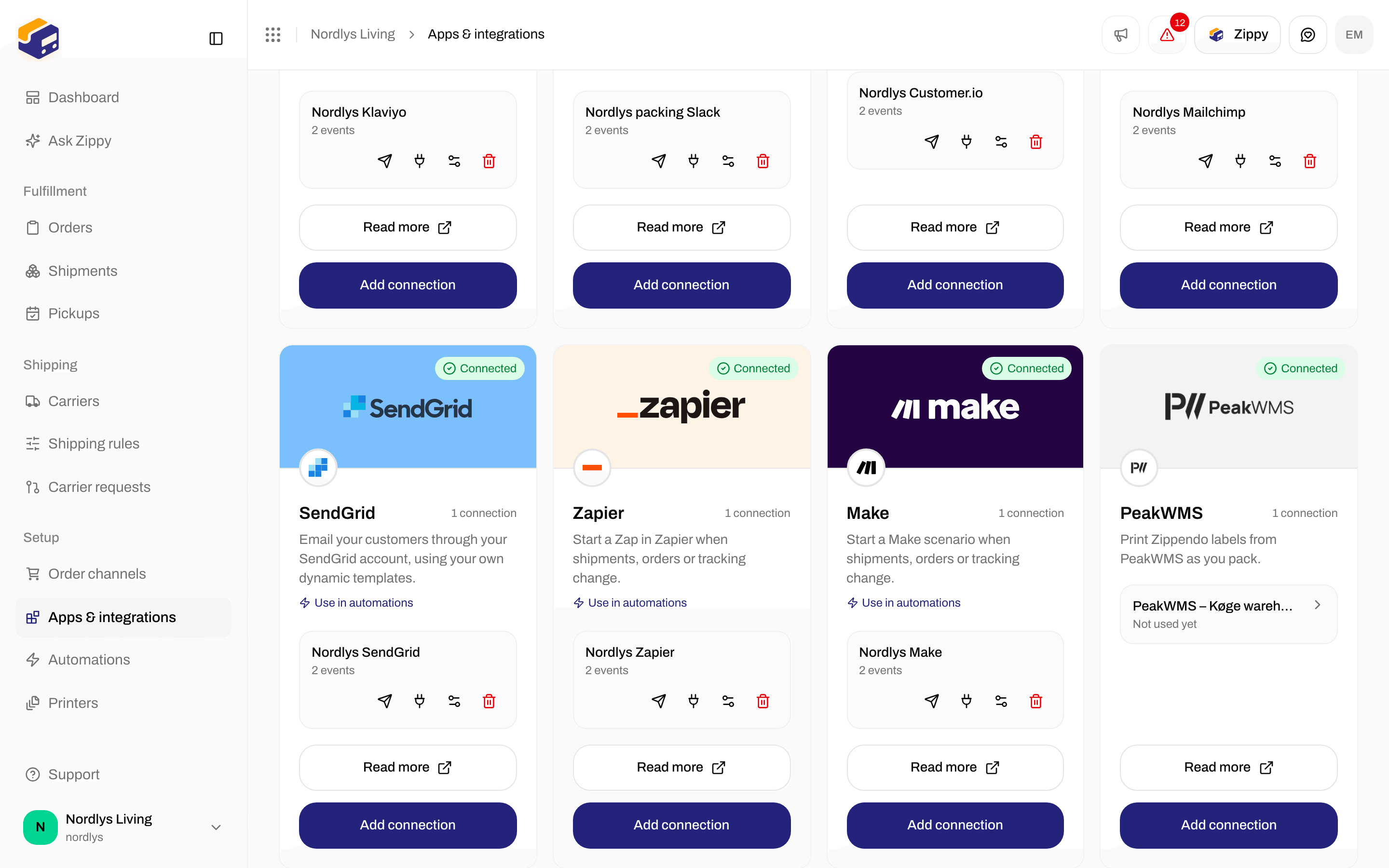
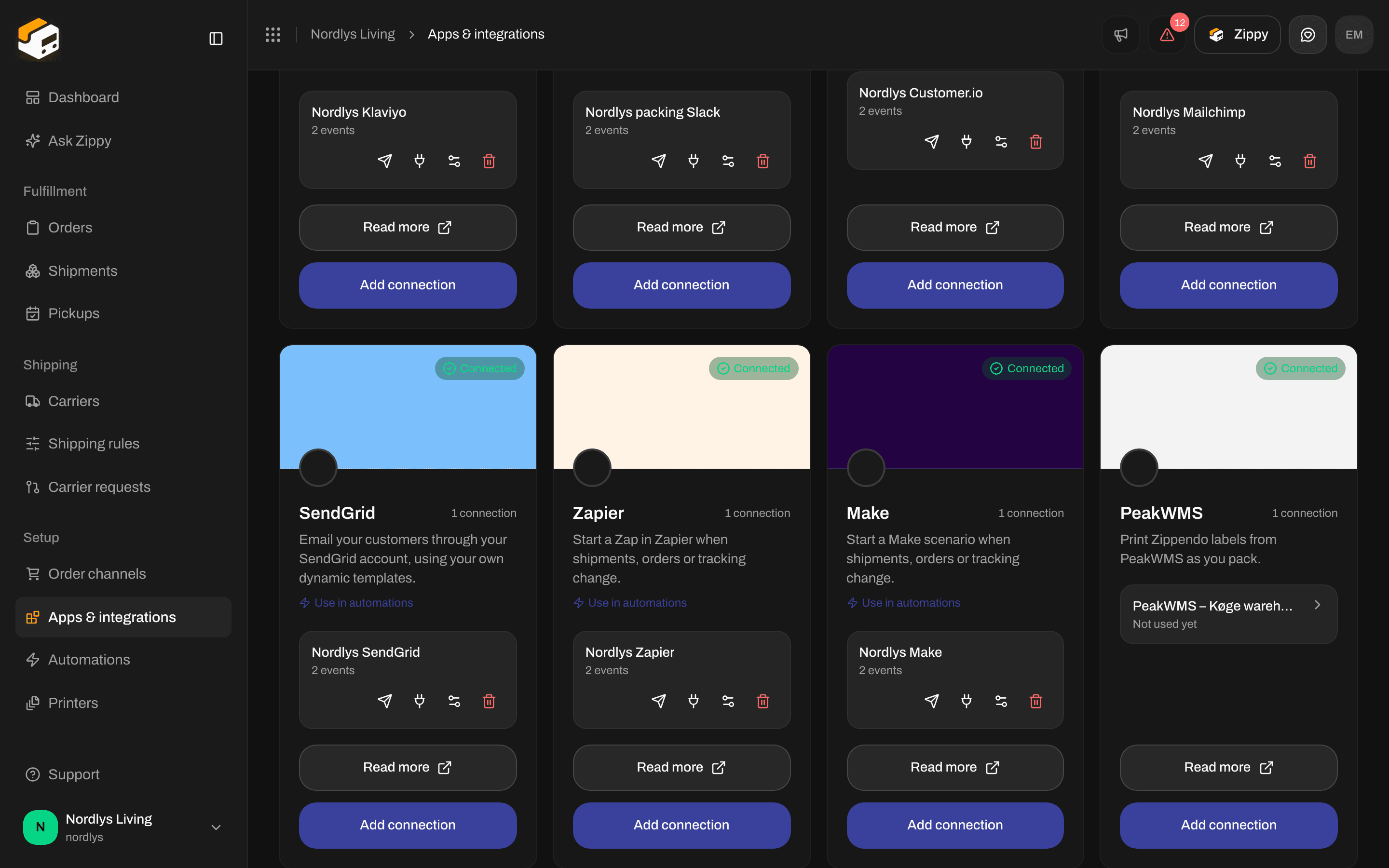
A Make connection on the Connected tab
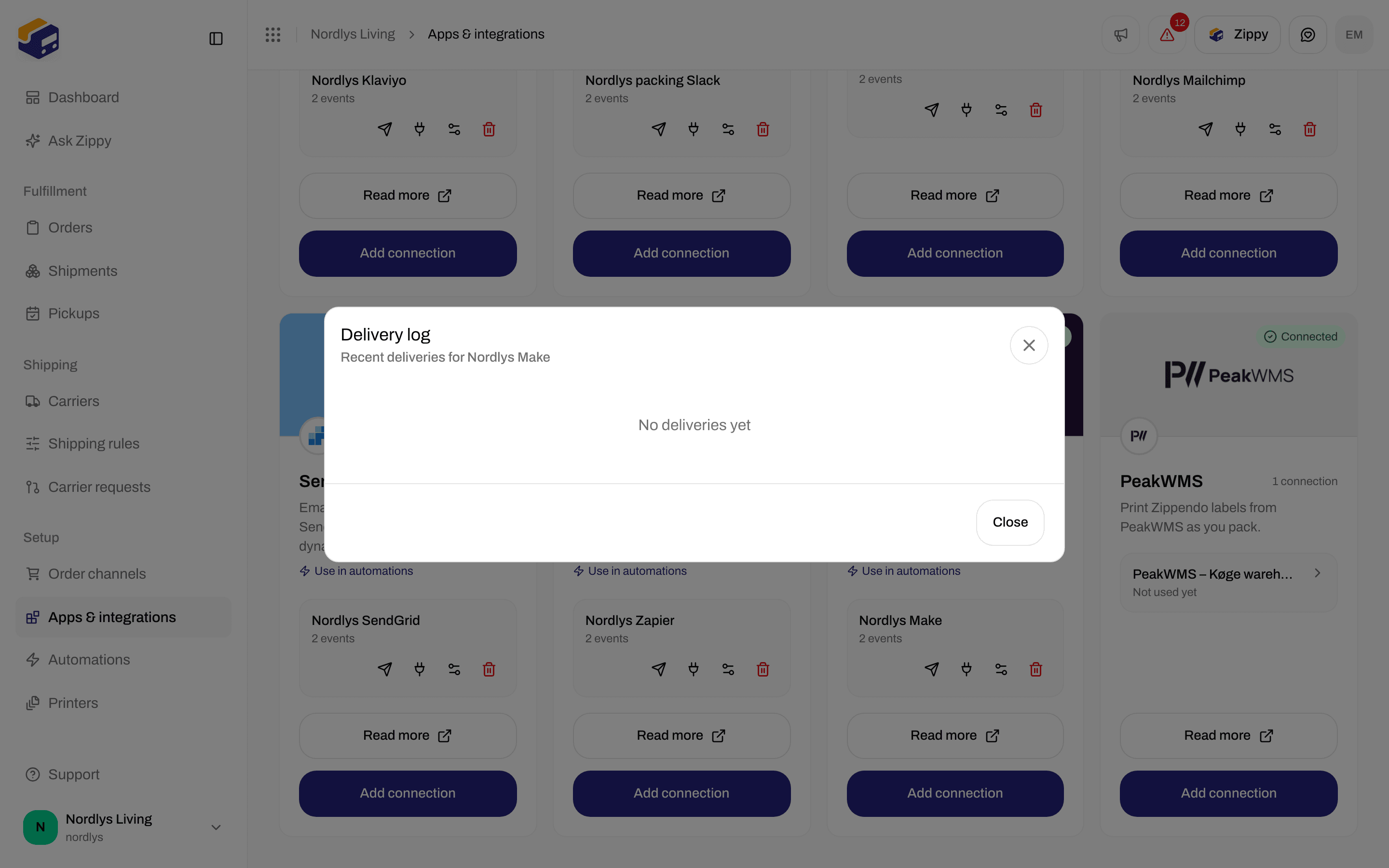
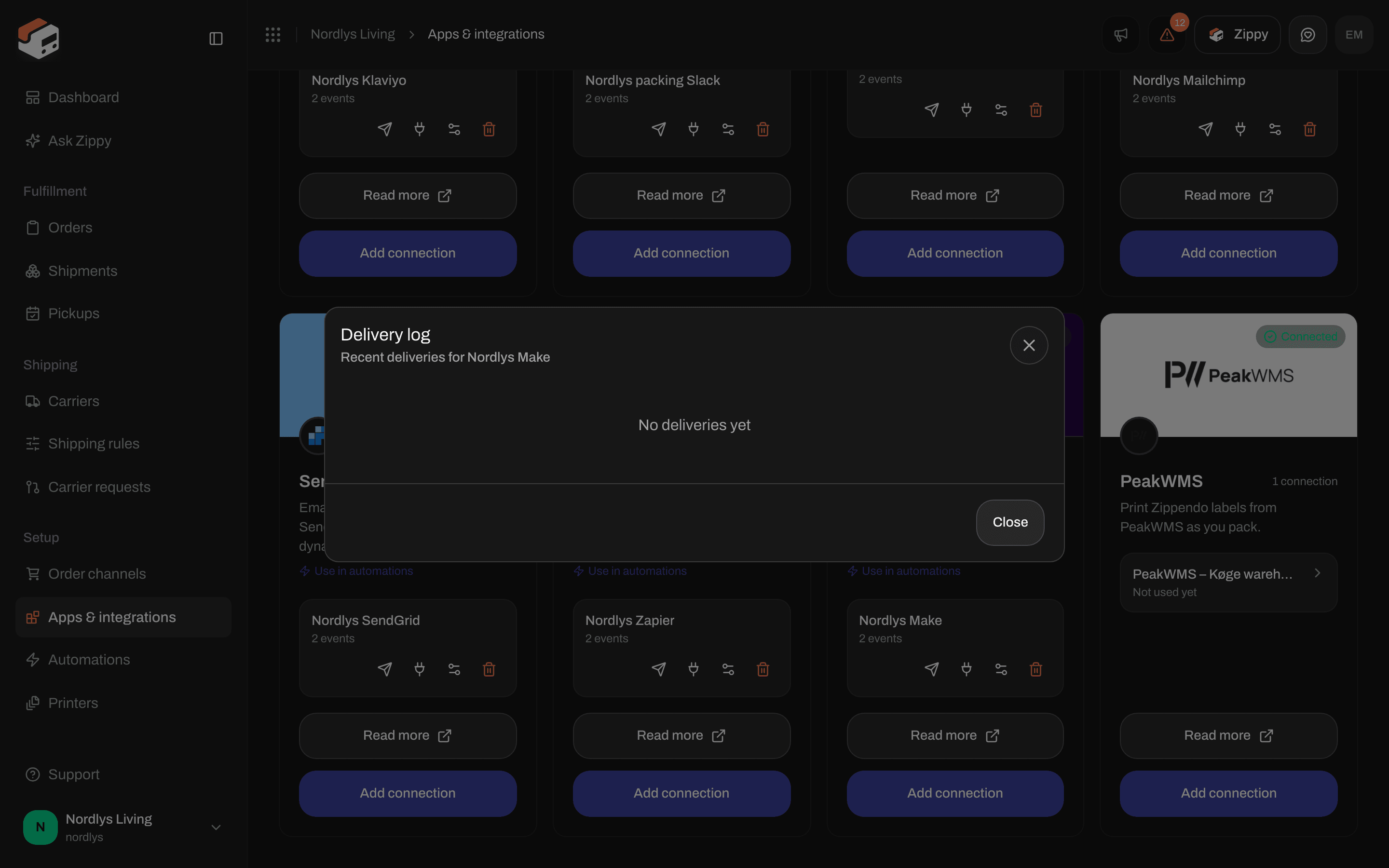
The delivery log before the first event
Change the address or disconnect
Click the sliders icon to open Edit your Make connection. Leave Custom webhook URL empty to keep the stored address, or paste a new one to replace it. Click Save changes.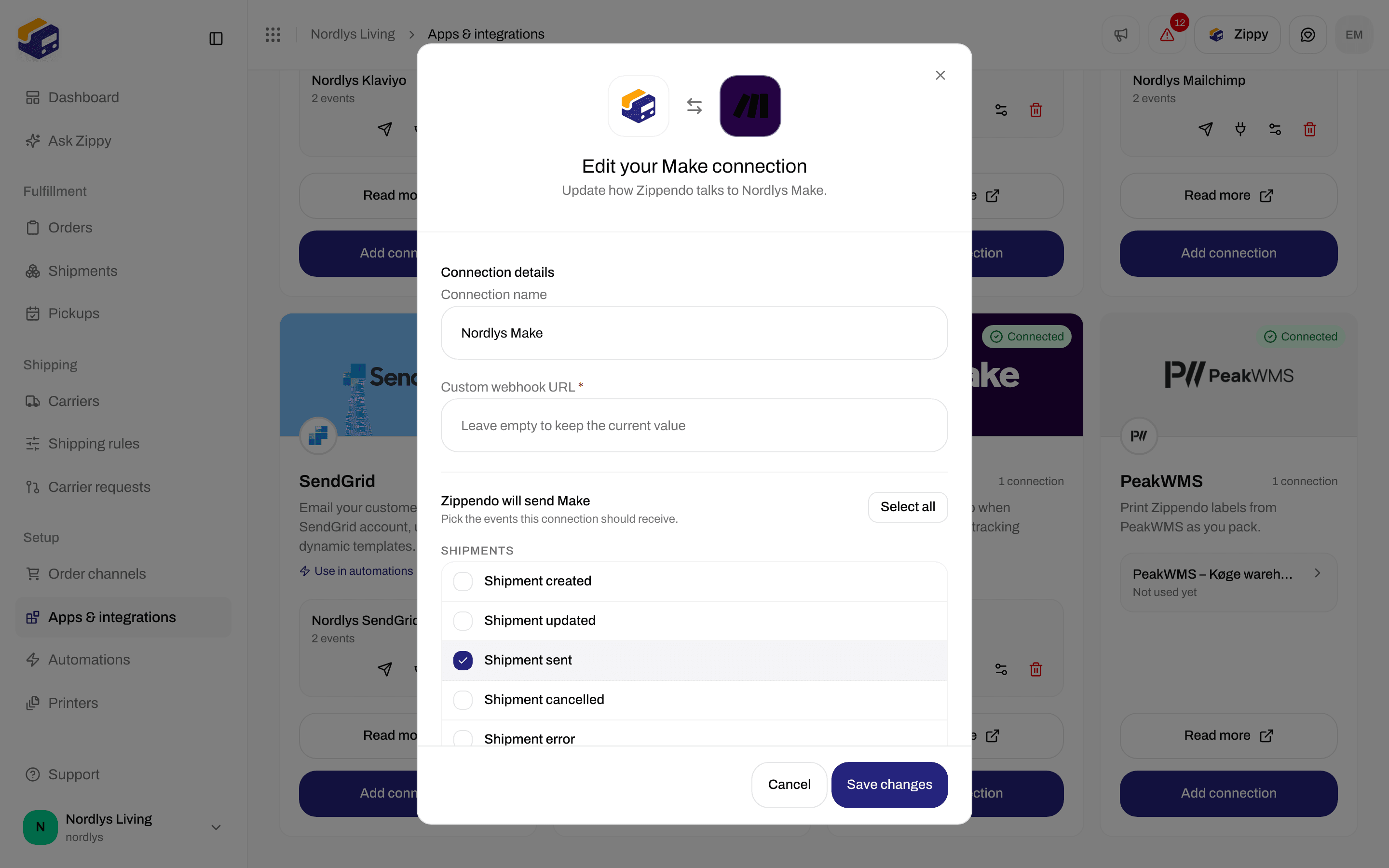
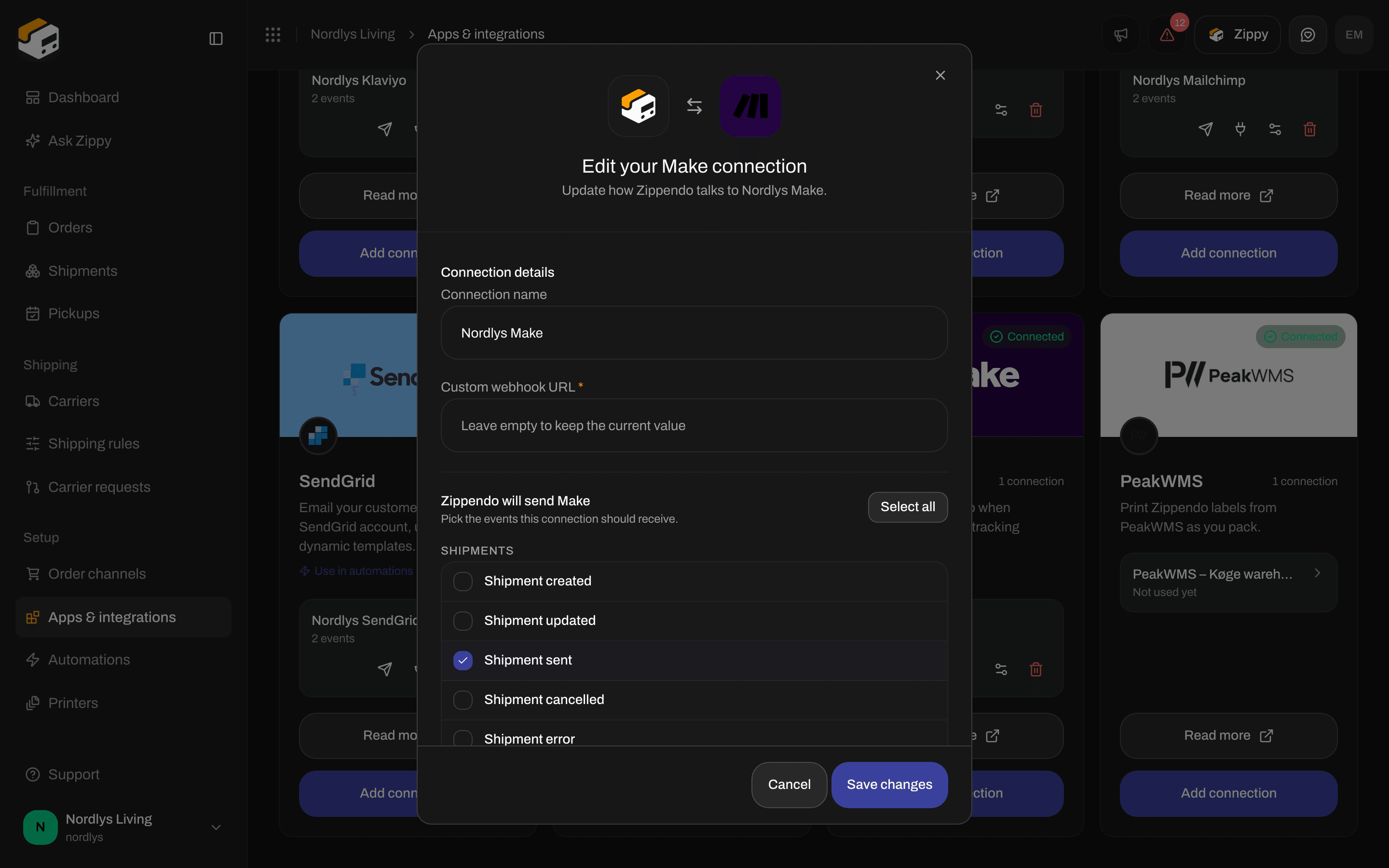
Edit a Make connection
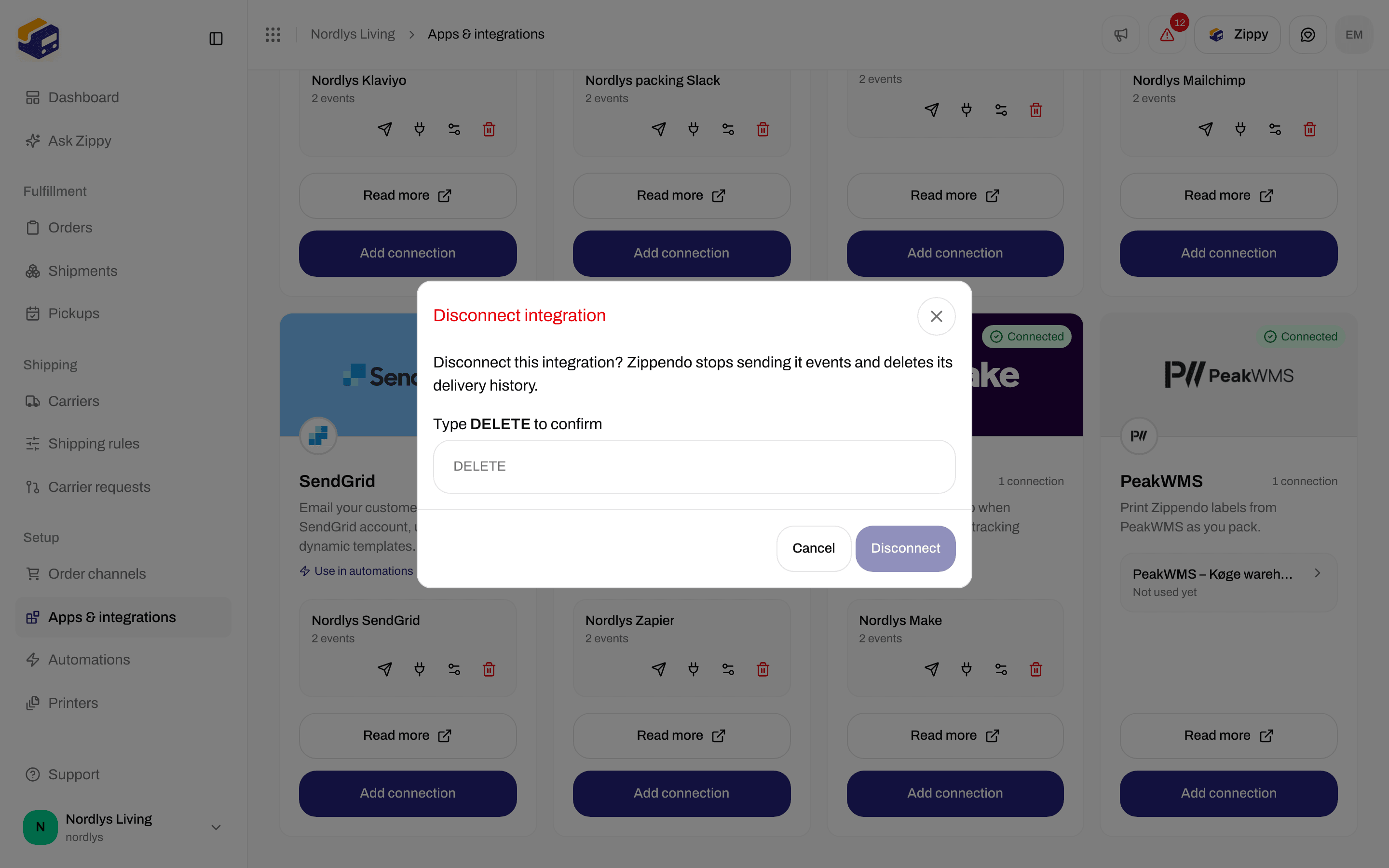
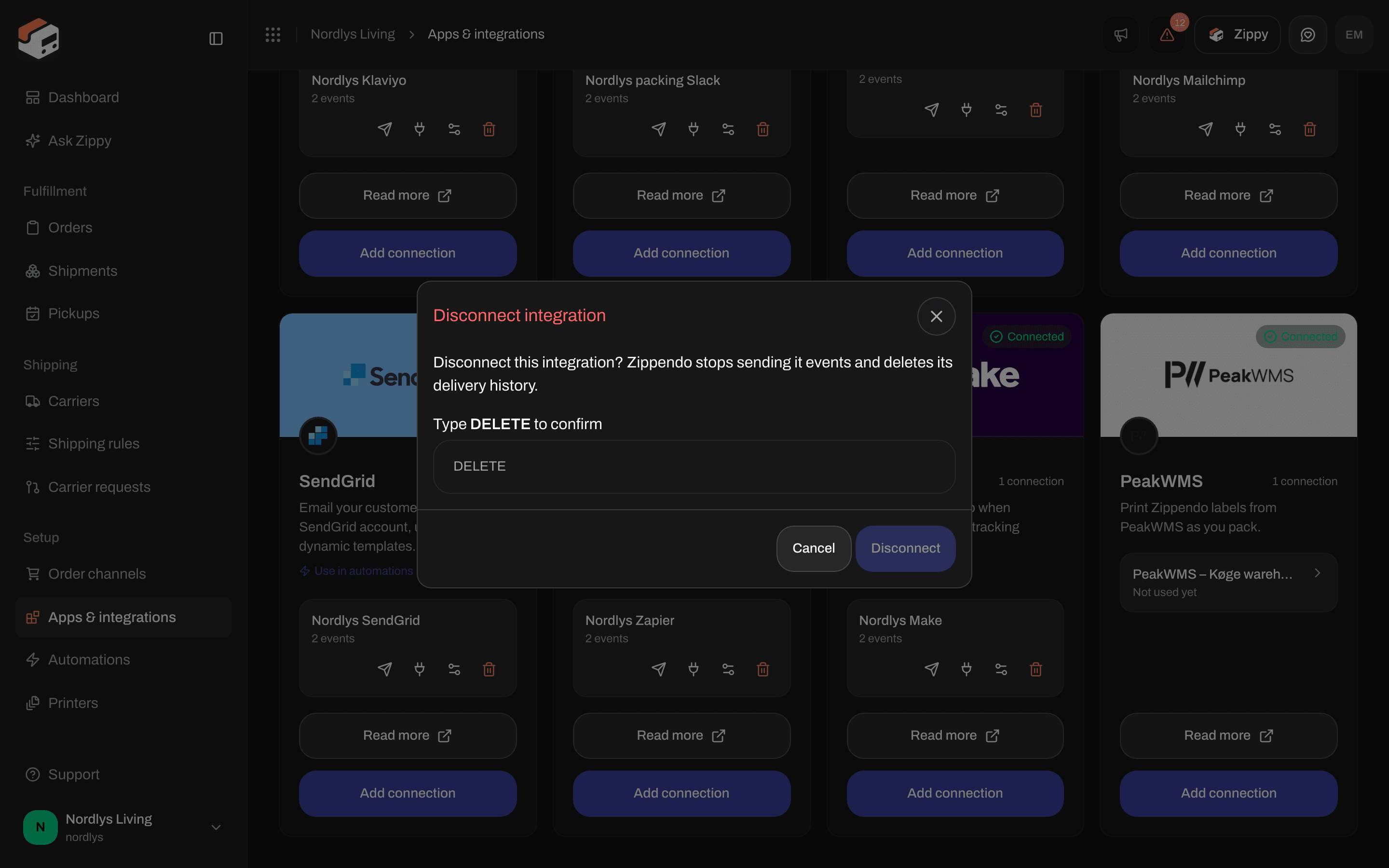
Type DELETE to disconnect
Use Make in an automation
In Automations, add the step Trigger Make scenario. It sends the event that started the automation to Make, but only when your conditions match, for example only for orders from one webshop.
See Automations for building the rest of the automation.
Related
- Connect an integration - test, delivery log, edit and disconnect for every app
- Make - the longer guide
- Connect Zapier - the same idea in Zapier
- Integrations troubleshooting
- Automations
- Connect a carrier or integration