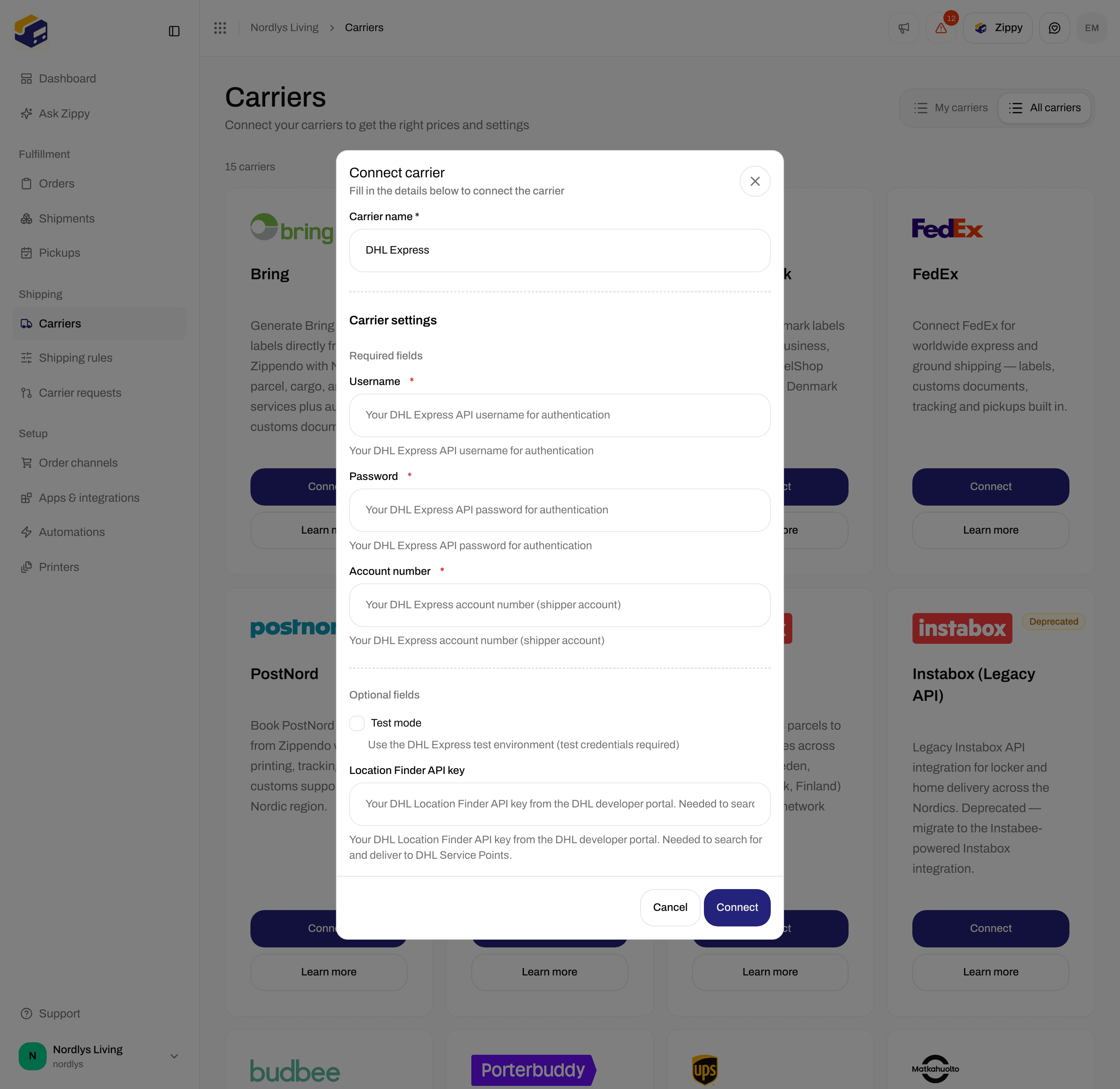
DHL Express books worldwide express labels from Zippendo, with tracking and customs documents. The catalog card copy is: Ship worldwide with DHL Express through Zippendo — express labels, tracking, and customs documents to 220+ countries. Catalog slug: dhl_express. There is no separate DHL Freight connector. This page is the DHL Express connect form. Shared chrome for every carrier: Carrier credentials. Inventory of every connector: Connect a carrier or integration. Walkthrough: Carriers.
You do not pick a sender address on this form. Add addresses under Manage → Addresses. The address is chosen on the shipment or on a shipping rule.

Prerequisites

  • A DHL Express shipper account (the billed Account Number).
  • MyDHL API username and password. Zippendo does not generate these — DHL Express issues them for API access.
  • Optional: a Location Finder API key from developer.dhl.com if you will deliver to DHL Service Points.
  • Permission to create carriers in the organization. You can connect DHL Express more than once if each connection has its own Carrier name.

Where to get credentials

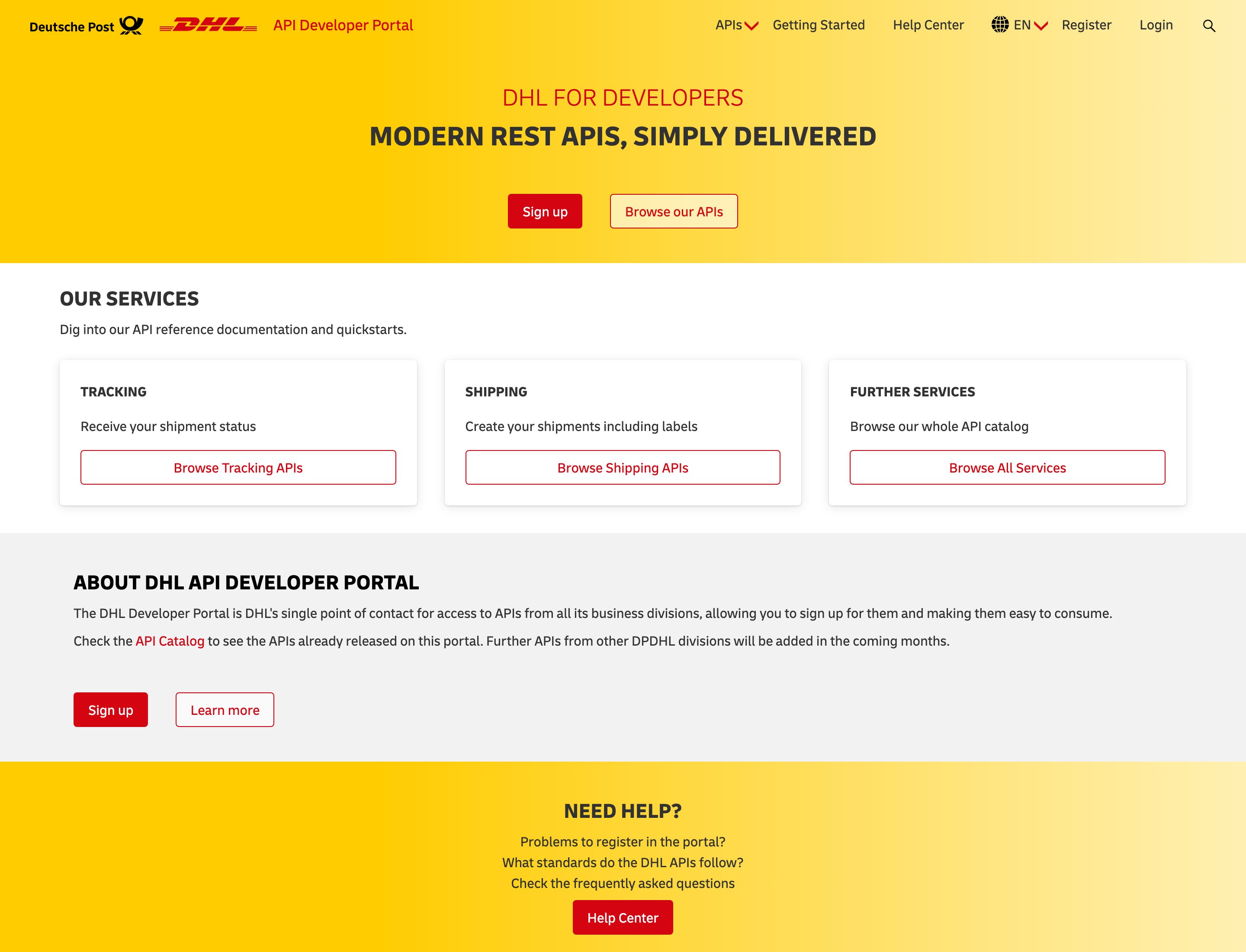
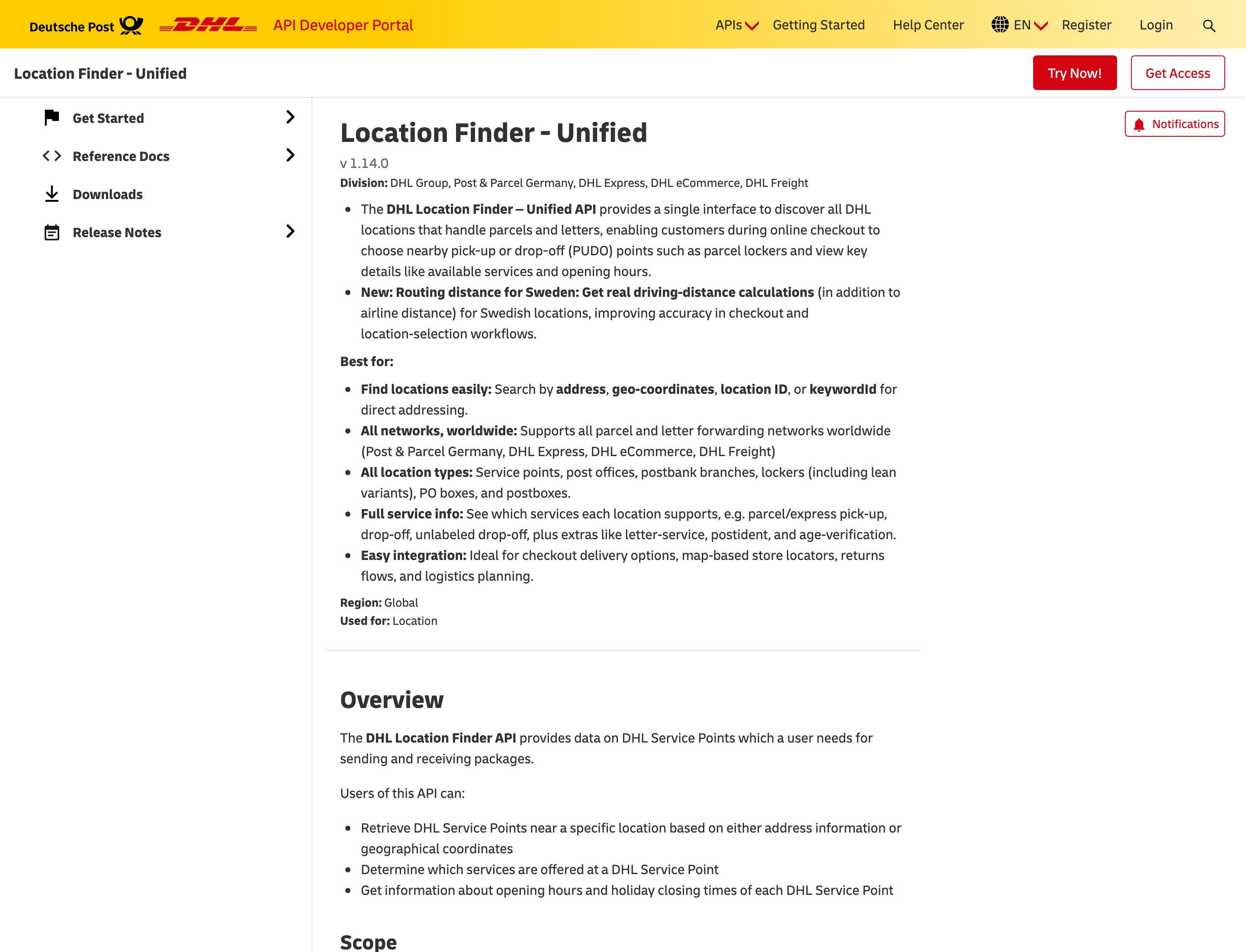
MyDHL API username and password are issued for your DHL Express account — there is no self-serve public form. The Location Finder key is created on the DHL API Developer Portal after you Register / Get Access (login required). These public pages are the step we can show.
DHL API Developer Portal home with Sign up, Browse our APIs, and Tracking Shipping Further Services cards

DHL API Developer Portal — register here, then Get Access for API keys in your own account

DHL Location Finder Unified API product page with Get Access and Try Now

Location Finder – Unified on developer.dhl.com — Get Access in your own portal account for the optional Location Finder API Key

Connect from All Carriers

1

Open All Carriers

Sidebar Carriers. Page title Carriers / Integrations. Header tabs: My Carriers (?tab=my-carriers) and All Carriers (?tab=all-carriers).
2

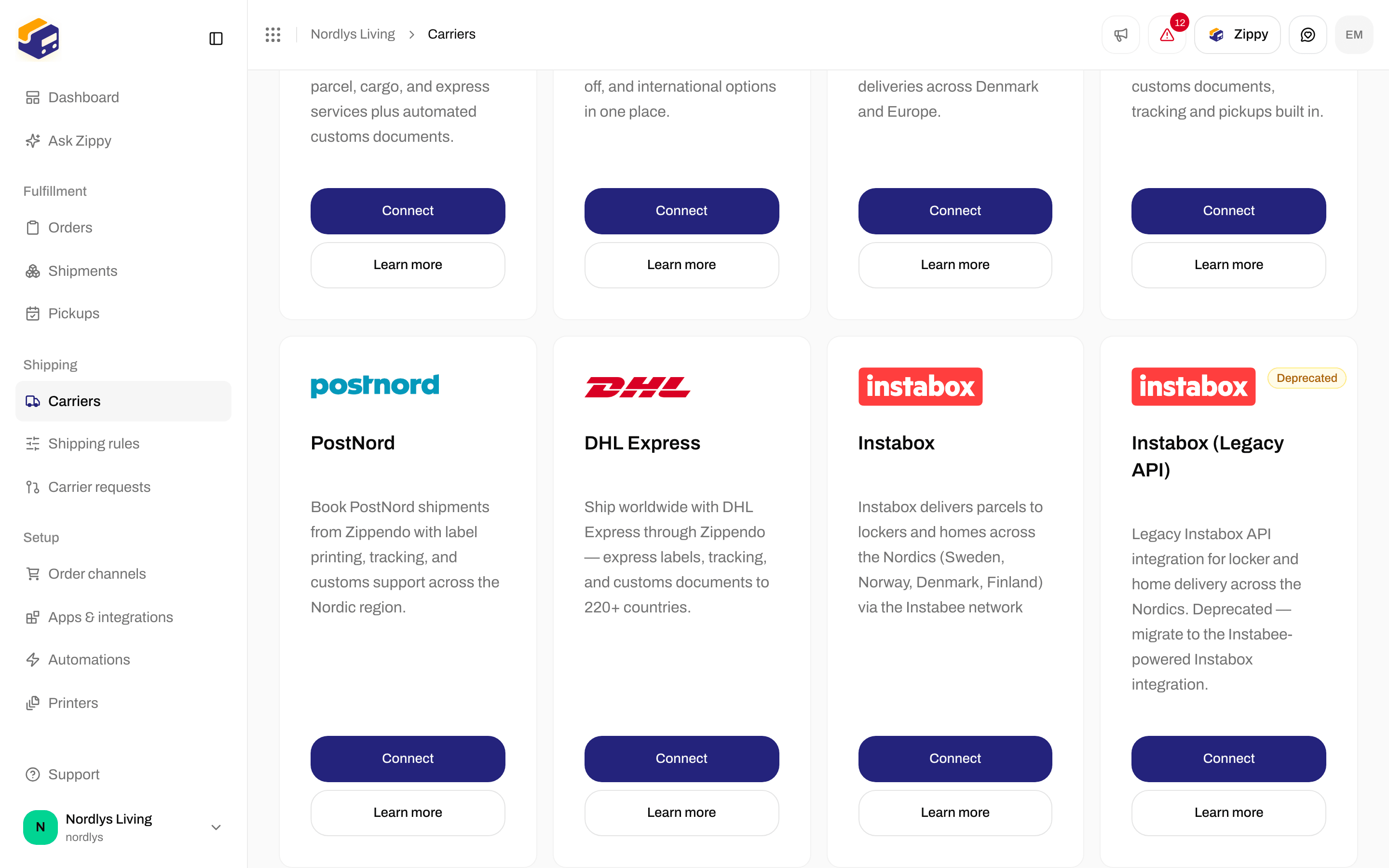
Find DHL Express

Card title DHL Express. Buttons: Connect and Learn more (opens dhl.com Express in a new tab).
3

Click Connect

Modal id connect-carrier-modal. Title Create new carrier. Subtitle Fill out the information below to create a new carrier.
4

Fill required fields

Shared fields first, then Carrier Configuration → Required Fields. Scroll Optional Fields for Sandbox Mode and Location Finder API Key. Empty required values make Create return without saving.
5

Create

Click Create (shows Creating… while the request runs) or Cancel. Success toast: Carrier created successfully. Failure copy in the modal: Failed to create carrier. Please try again.
All Carriers grid with the DHL Express card, Connect, and Learn moreAll Carriers grid with the DHL Express card, Connect, and Learn more

DHL Express on All Carriers — Connect and Learn more

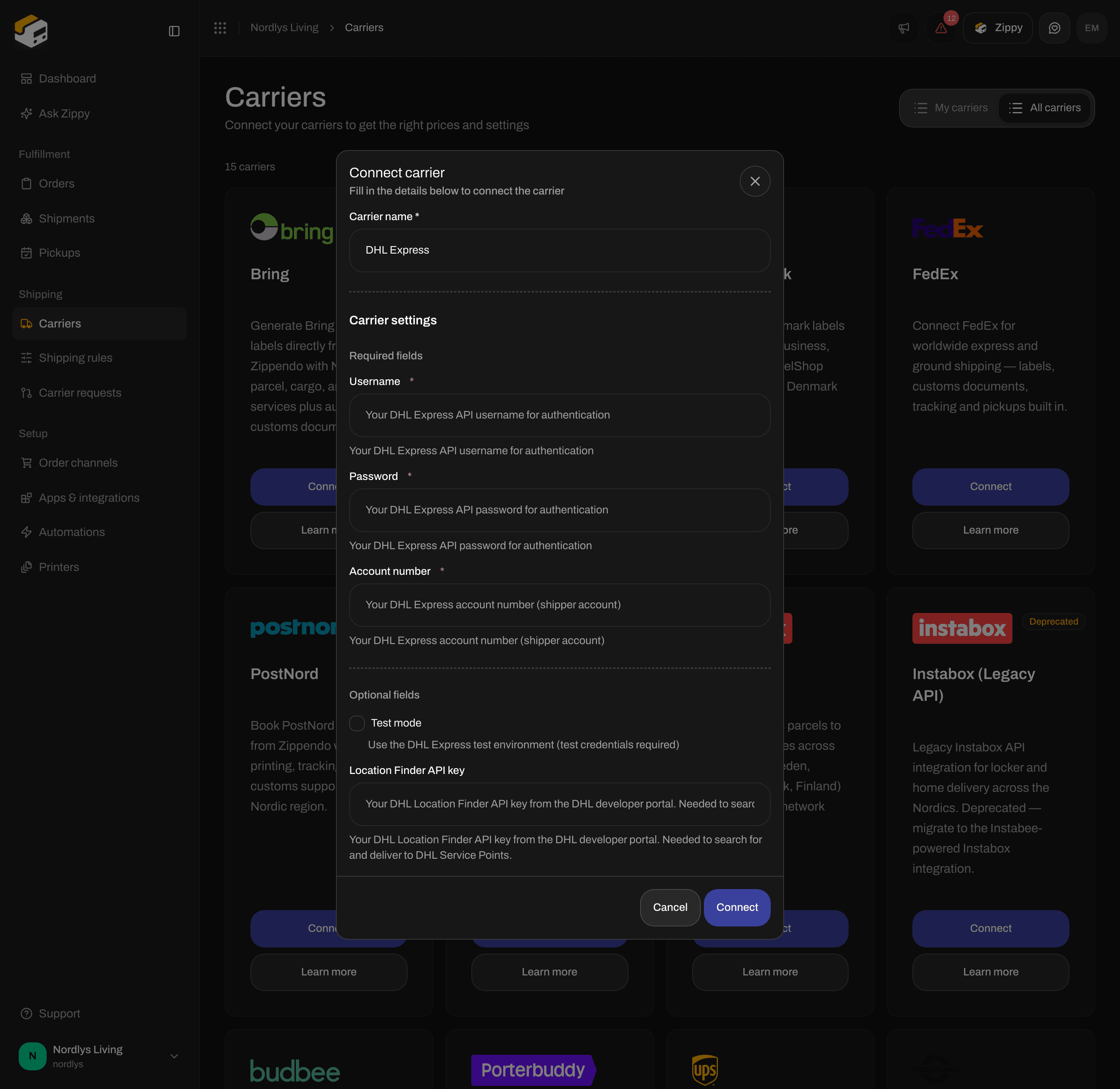
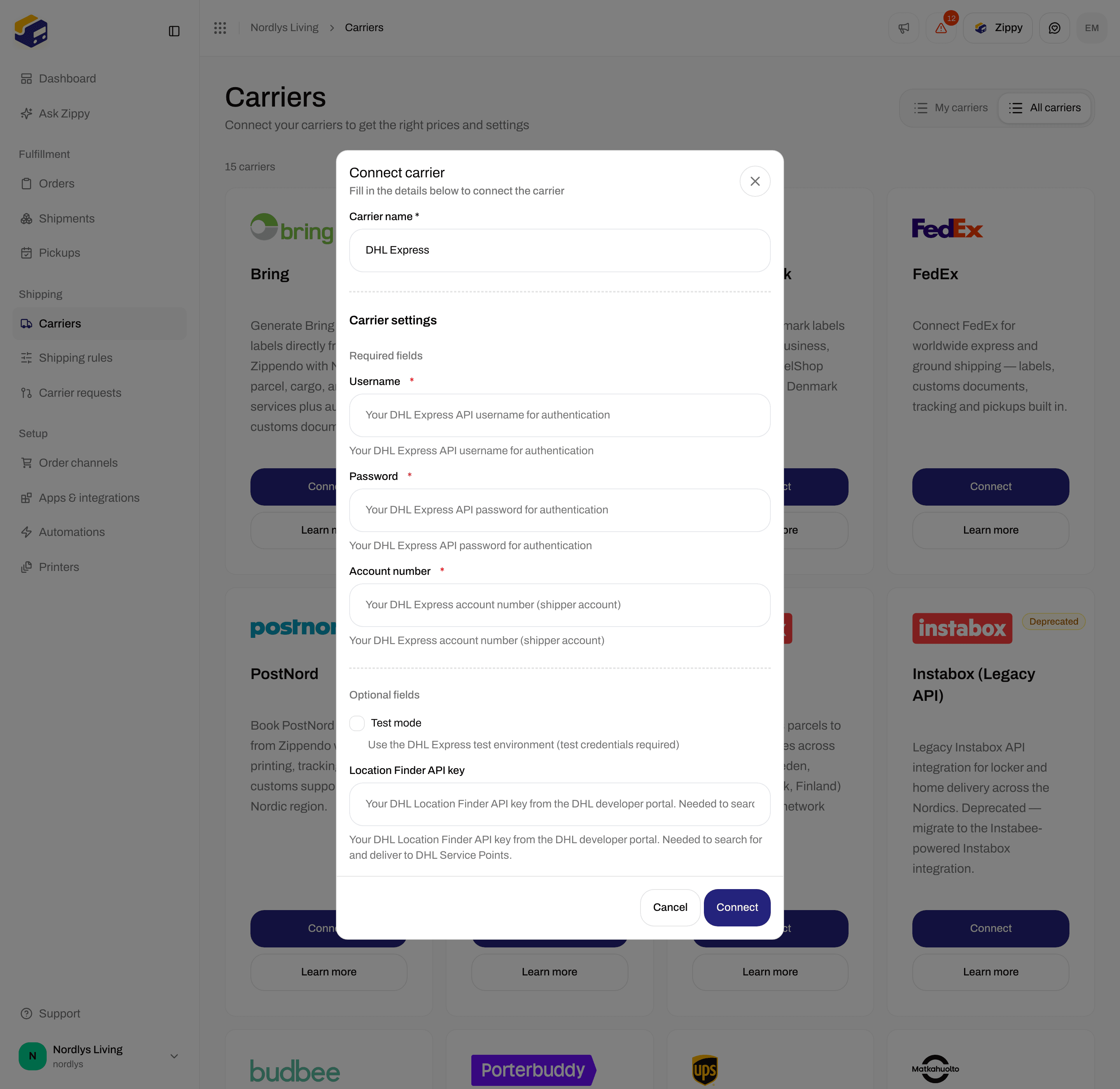
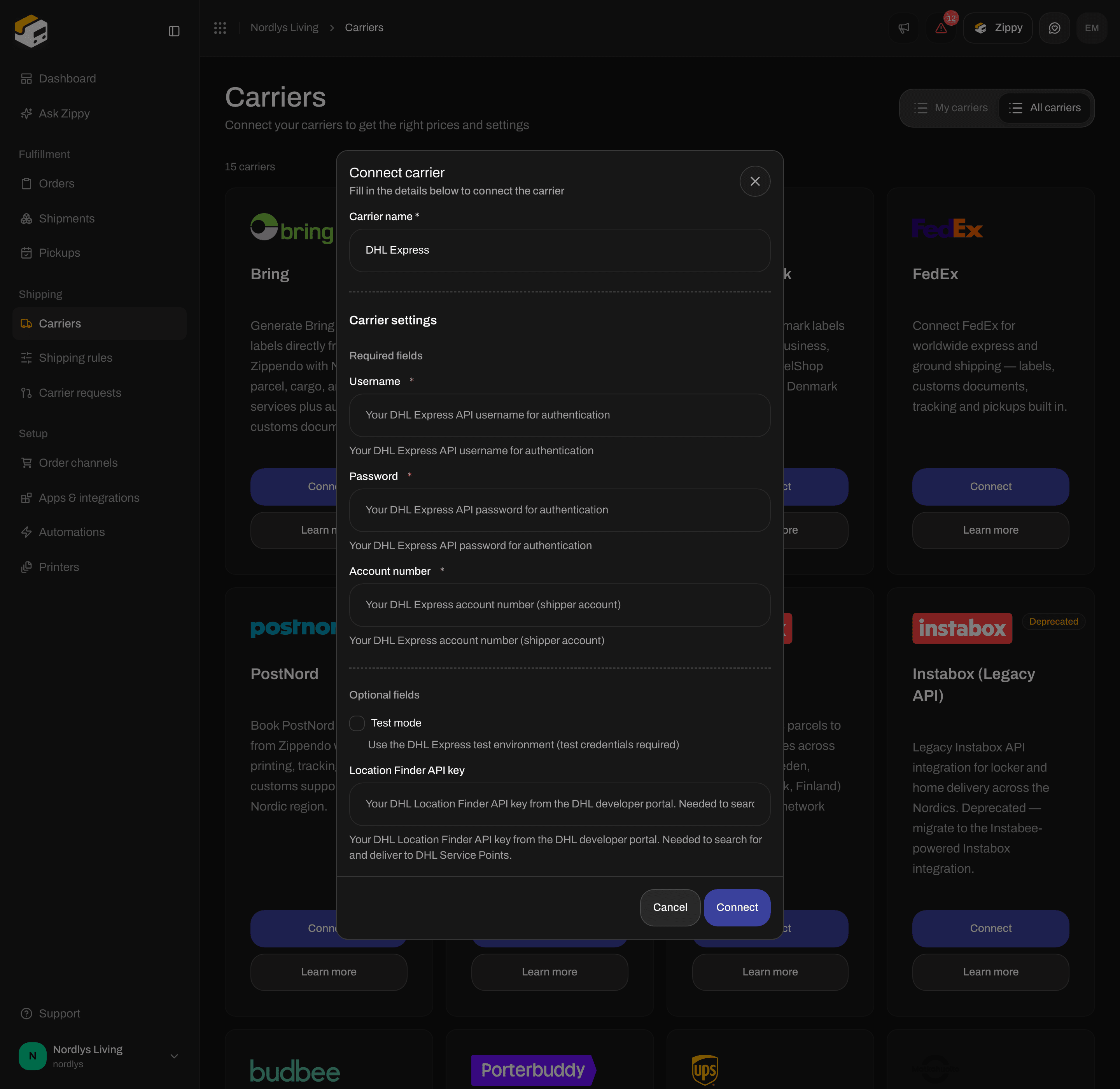
Create new carrier dialog for DHL Express with required Username, Password, and Account NumberCreate new carrier dialog for DHL Express with required Username, Password, and Account Number

Create new carrier for DHL Express — Username, Password, Account Number

Shared fields

These appear on every connect dialog, including DHL Express.

DHL Express credentials

Carrier Configuration splits into Required Fields and Optional Fields. Labels that contain “Password” or “Secret” use a password input. Each helper is catalog copy. Placeholder on text fields is the same helper. DHL Express authenticates MyDHL with this Username and Password (Basic auth). Location Finder uses a separate X-API-KEY.
DHL Express connect form scrolled to Sandbox Mode and Location Finder API KeyDHL Express connect form scrolled to Sandbox Mode and Location Finder API Key

DHL Express optional fields — Sandbox Mode and Location Finder API Key

Leave Sandbox Mode off for live orders. Test credentials on the production host, or live credentials on the test host, fail at send time. Details: Sandbox mode.

After you connect

The connection appears on My Carriers with a Connected badge and Edit Carrier. Products are not on this form — they appear when you create a shipment or save a shipping rule. See Carrier products and services. Outbound products include DHL Express Domestic, DHL Express Worldwide, DHL Express Worldwide (Documents), DHL Express Worldwide (EU), DHL Economy Select, DHL Economy Select (EU), DHL Express 9:00, DHL Express 9:00 (Documents), DHL Express 12:00, DHL Express 12:00 (Documents), and DHL Express Envelope. Inbound Return variants exist for the worldwide, EU, domestic, and Economy Select products. Extra service on outbound: Shipment Insurance. Additional options include Label Format (PDF (4x6) / ZPL (thermal)).

Service Point products

DHL Express Worldwide (Service Point) and DHL Express Worldwide (EU) (Service Point) are service-point products. They stay in the product list even without a Location Finder key; searching nearby points without that key fails with DHL Express configuration error: service point search requires a Location Finder API key — create one at developer.dhl.com and add it to the carrier settings. On Create Shipment pick a Service Point on the Drop Point card before send. Error: This carrier product delivers to a service point — select a droppoint before sending. How to pick: Pick a service point. Naming: Droppoint vs service point. DHL Express does not appear in Pickups. That list is Bring and PostNord only — Schedule a pickup. Tracking is pulled on a schedule. There is no tracking-webhook field on Edit your carrierCarrier tracking webhooks. DHL Express generates customs documents and commercial invoices for international shipments — Customs and documents.

Edit

On My Carriers, click Edit Carrier. Page title: Edit your carrier. URL /dashboard/carriers/:id. Two cards:
  • GeneralCarrier name (helper: Update the name of your carrier), plus Brand when brands exist.
  • Carrier settings — the same DHL fields as connect, including Sandbox Mode and Location Finder API Key.
Header actions: Delete and Save (pending Saving…). Success toast: Carrier updated successfully. Loading: Loading carrier…. Load failure: Failed to load carrier. Please try again. Save failure: Failed to update carrier. Please try again. On edit, credential strings are plain text inputs (not password). Shared delete chrome: Carrier credentials.

Delete

On Edit your carrier, click Delete. Modal id global-delete-modal. Title Delete Carrier. Subtitle You are about to delete carrier “{{name}}”. Body: This will permanently delete carrier “{{name}}”. This action cannot be undone. Type the carrier name in uppercase to enable Delete. Toast: Carrier deleted successfully. Failure: Failed to delete carrier. Booked shipments keep their labels and tracking.

Common errors

Auth failures after send: Carrier authentication failures.