

Add a printer
1
Download Zippendo Printer
Click Printers in the sidebar, then Download Zippendo Printer. Pick macOS (Apple Silicon), macOS (Intel) or Windows. Install the app on the computer your printer is connected to.
2
Sign in
In Zippendo Printer, click Sign in with your browser and click Authorize Zippendo Printer in the browser.
3
Add the printer in the app
Click Add your first printer (or + Add printer). Choose the Organization, the Printer on this computer, a Display name and the Printer type, then click Add printer.
4
Approve it in Zippendo
On Printers, open the menu at the end of the new printer’s row and click Approve. The status changes from Pending approval to Active.
You can add the same printer twice, once of each type. Every printer in your organization needs its own name.
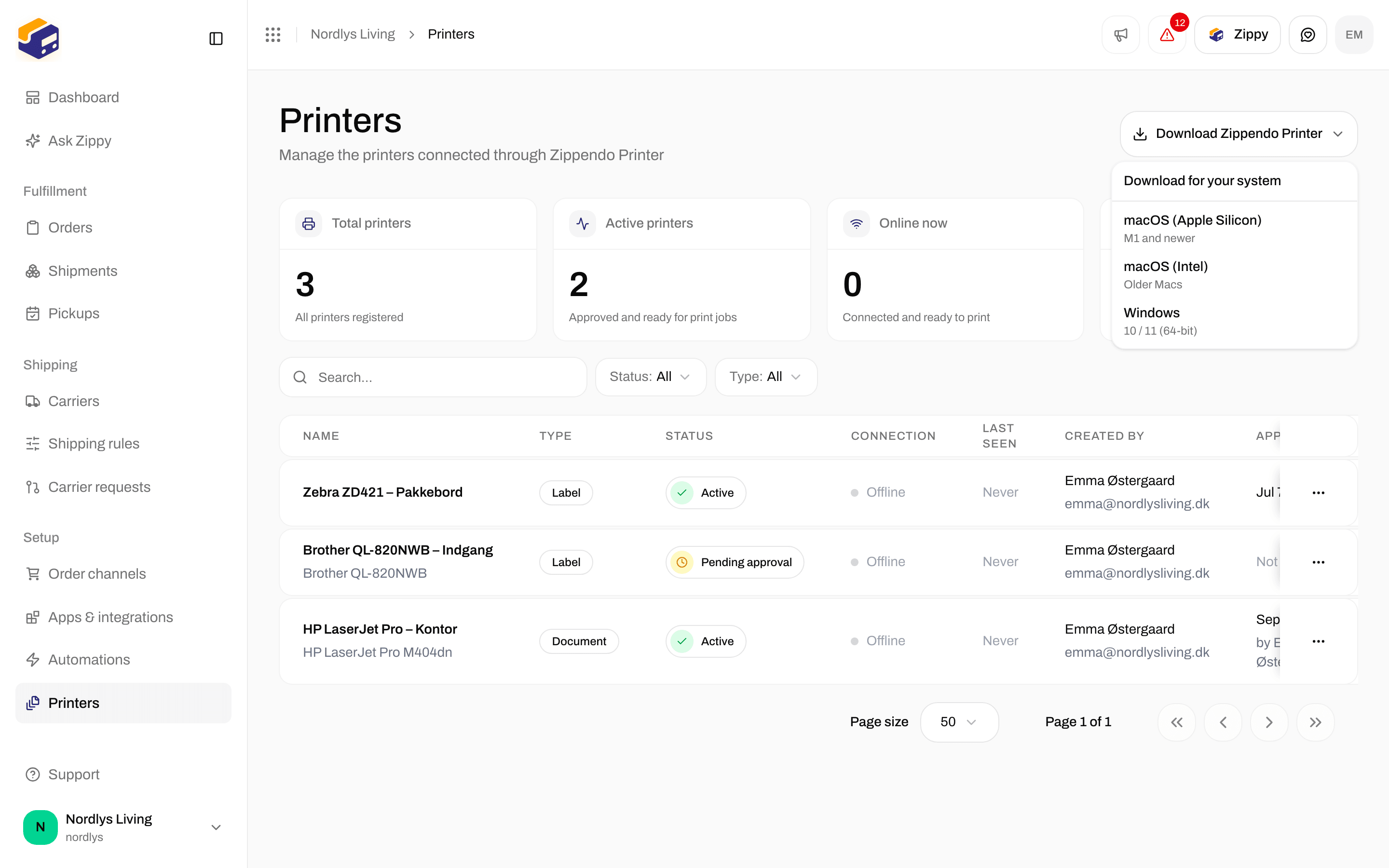
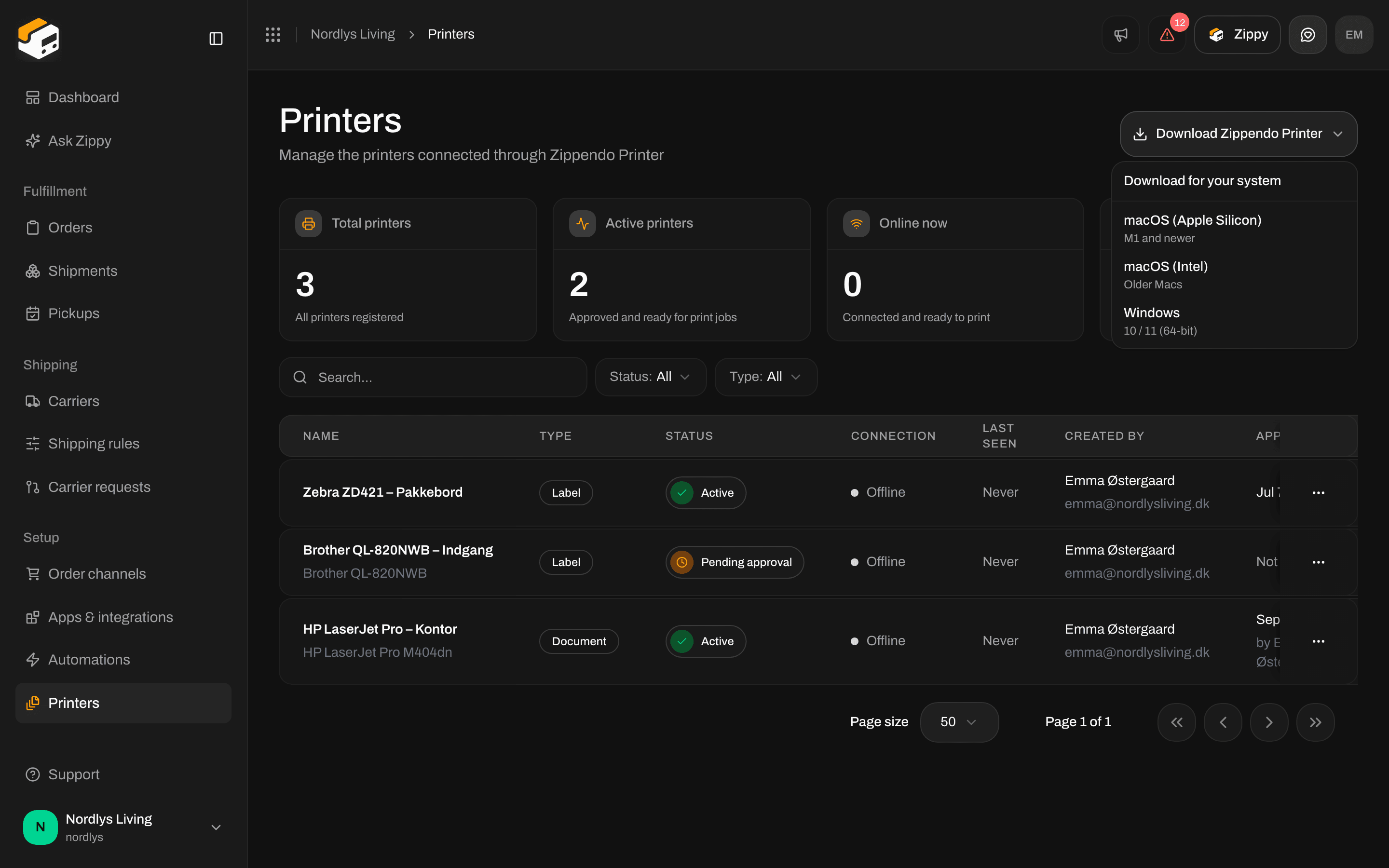
Download Zippendo Printer lists macOS Apple Silicon, macOS Intel and Windows
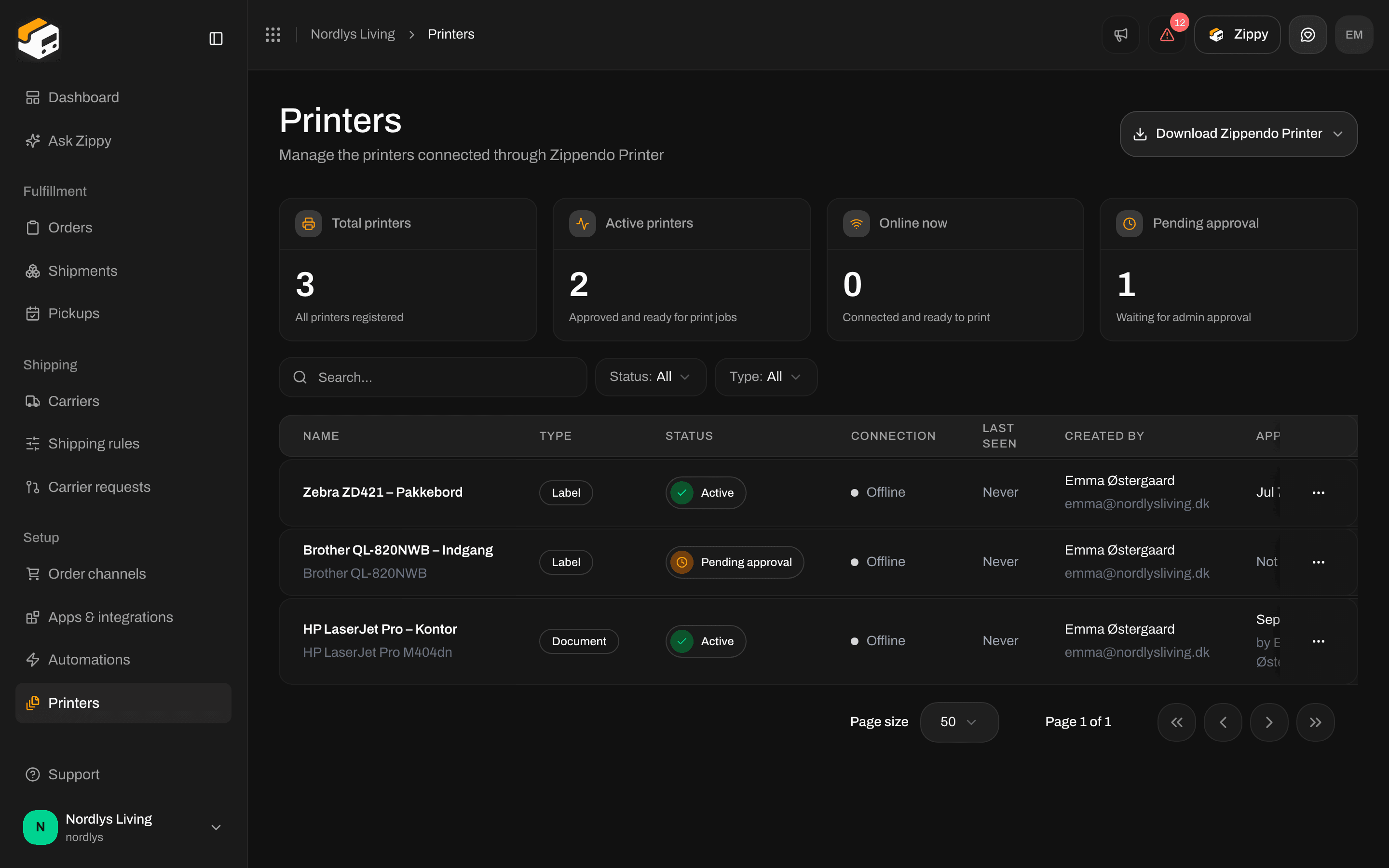
The Printers page
Click Printers in the sidebar. Until a printer has been added, the page says No printers yet and Printers appear here when you add them in Zippendo Printer. Four boxes at the top count your printers: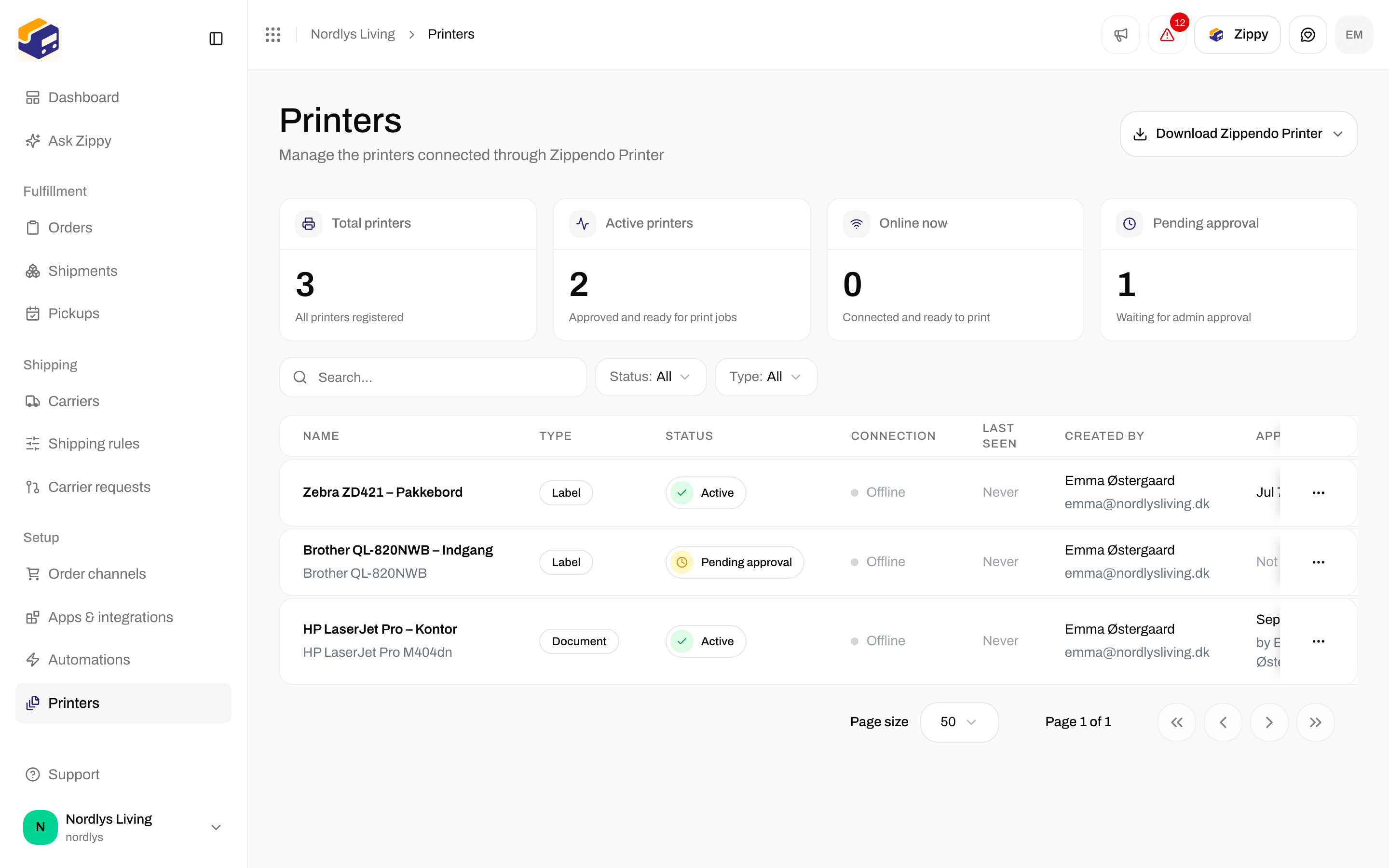
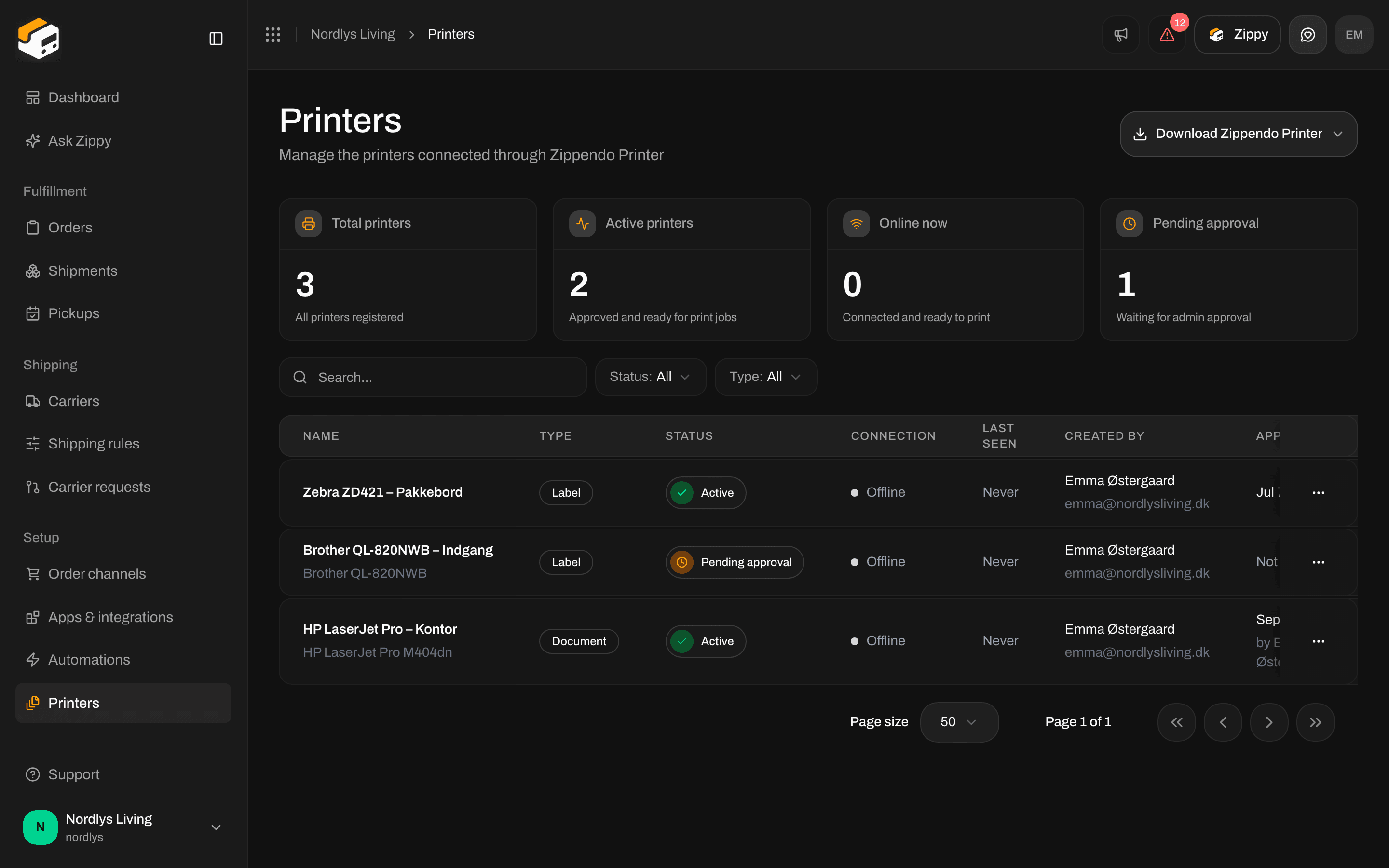
The Printers page with an active label printer that is offline
Columns
Active and Online are separate. Active means approved. Online means Zippendo Printer is running and the computer can see the printer right now. An Active printer that is Offline keeps its print jobs until it is back online. See Printer offline or not printing.
Row menu
Open the menu at the end of a row:Filters
Click Filters at the top of the page. Use Search for part of a printer’s name, Status for Active, Pending approval or Disabled, and Type for Label printer or Document printer. Click Add filters to apply them, or Clear all filters to start over.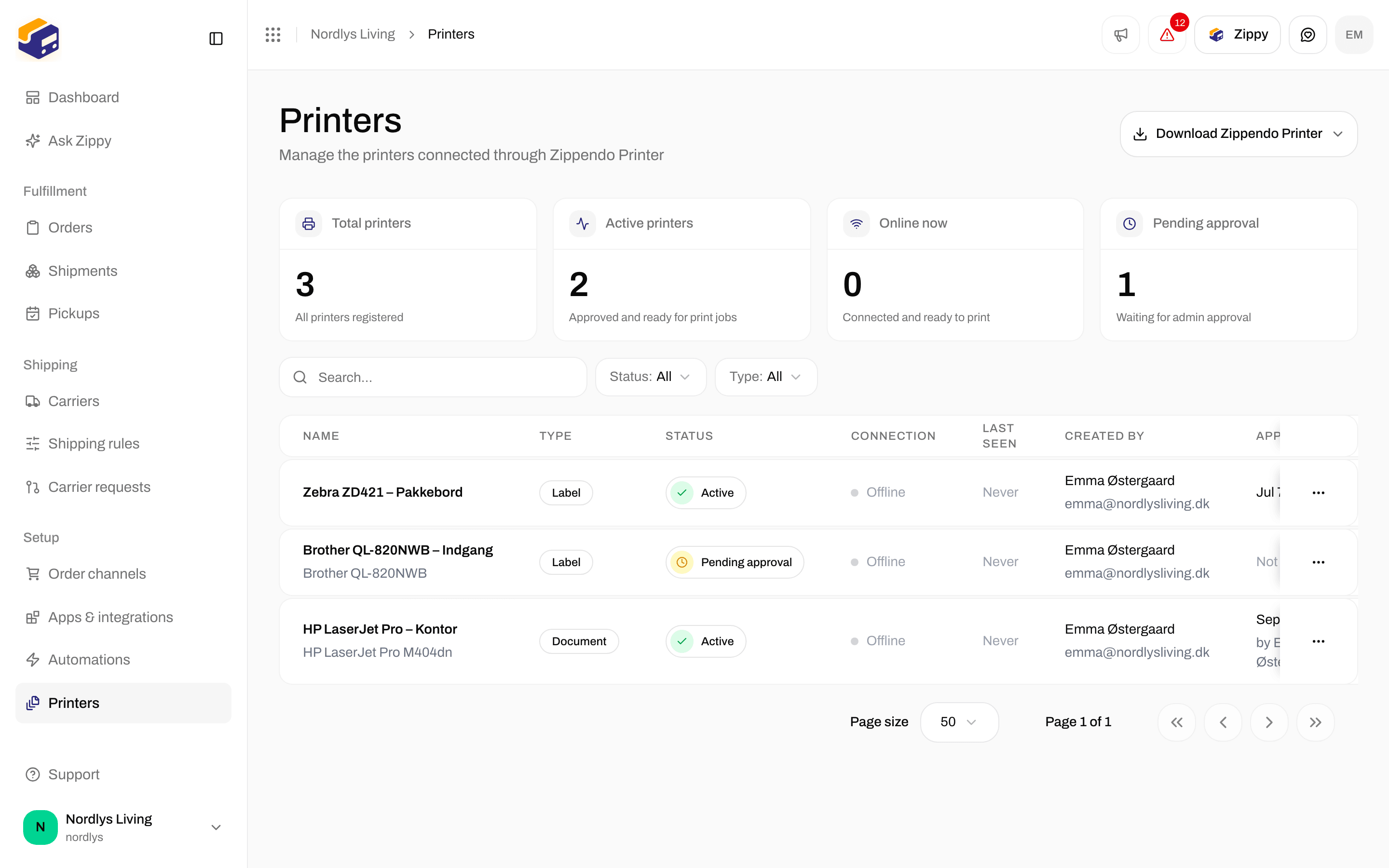
Filters on the Printers page: Search, Status and Type
Edit a printer
Click Edit in the row menu. Edit printer opens:
Save becomes clickable once you change something. You see Printer updated. Cancel closes the window without saving.
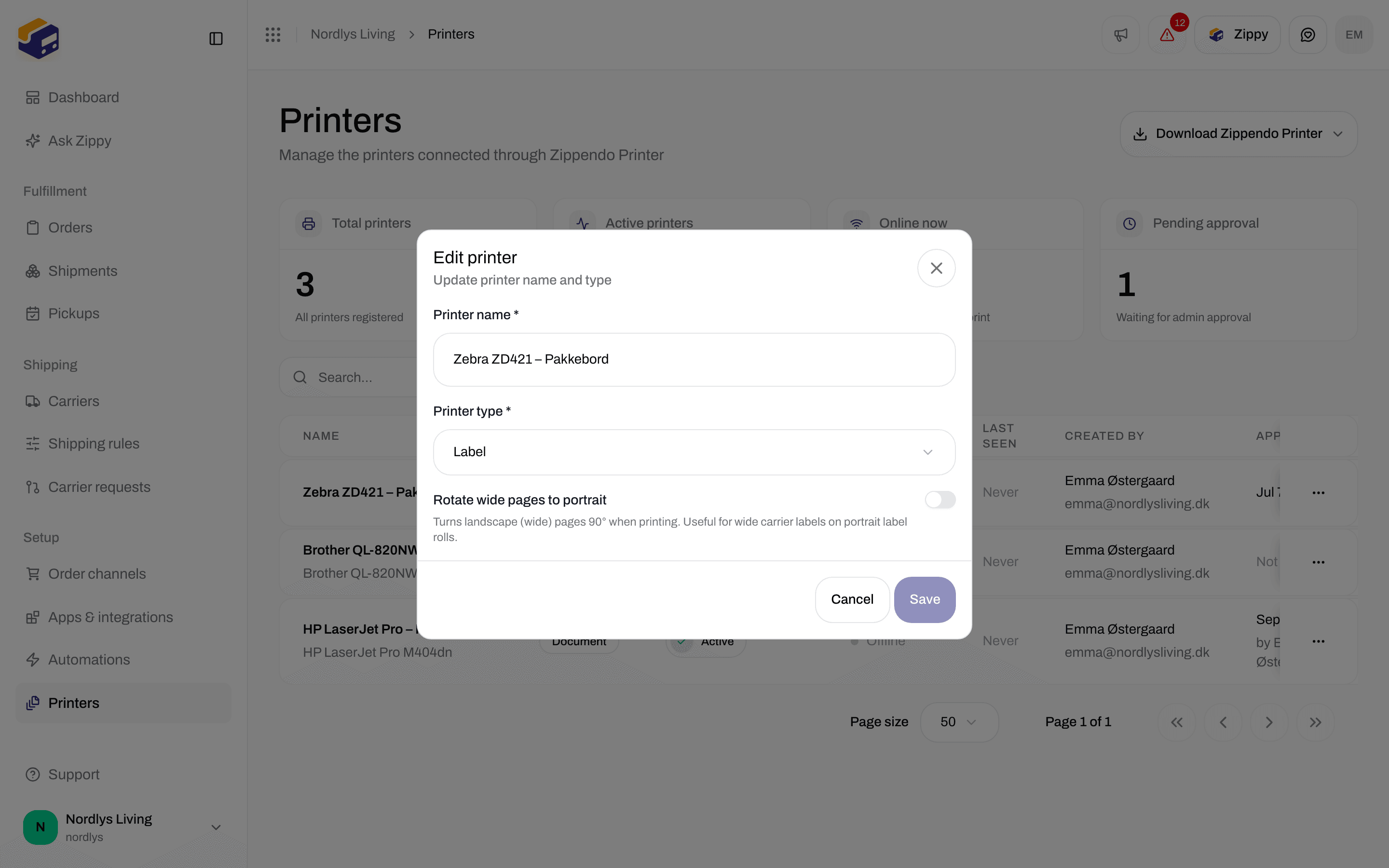
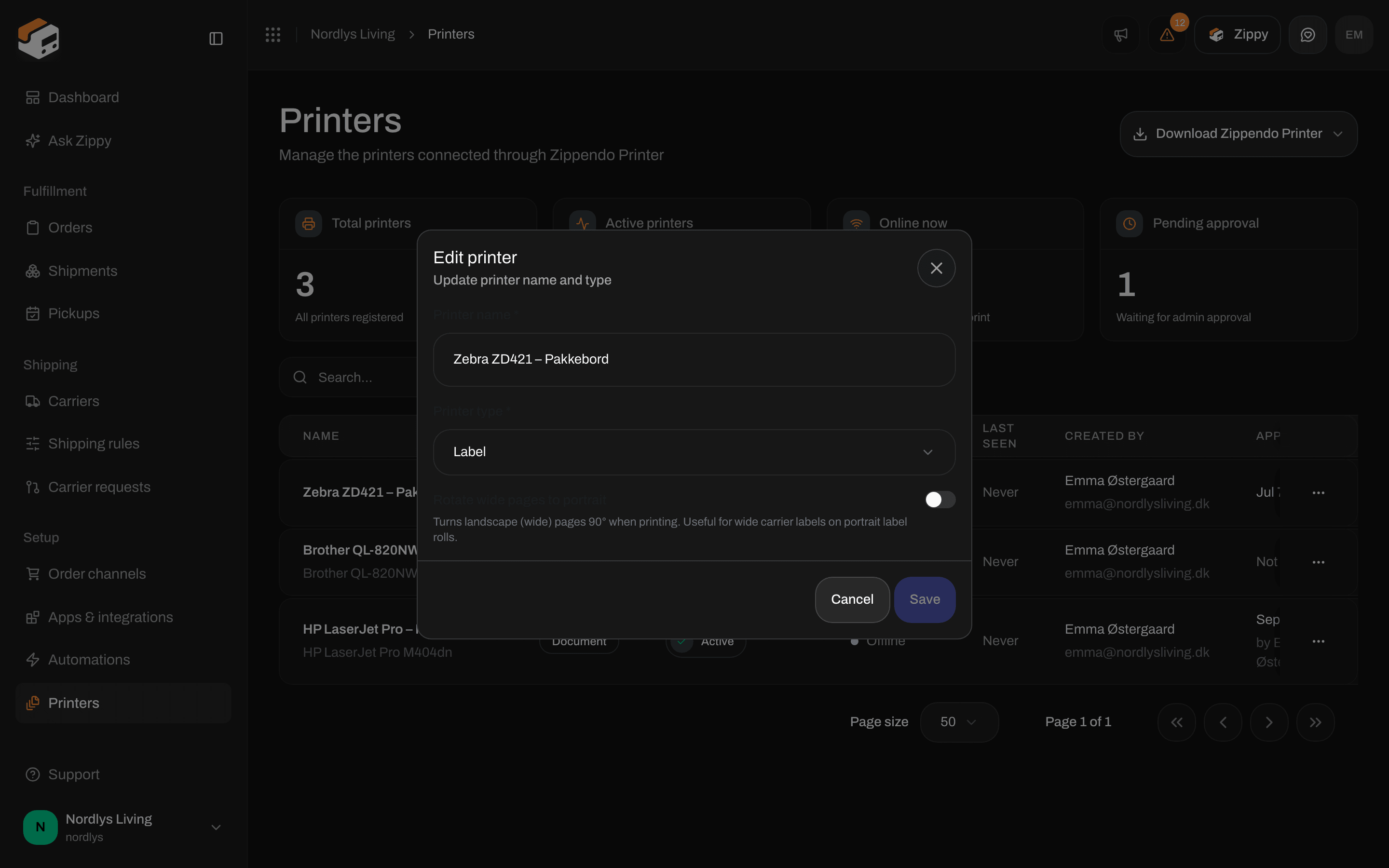
Edit printer: name, type and Rotate wide pages to portrait
Delete a printer
Click Delete in the row menu. Delete printer warns that the printer is deleted permanently and that this cannot be undone. Type the printer’s name in capital letters, for exampleLABEL PRINTER 1, and confirm. You see Printer deleted.
To use the printer again later, add it again in Zippendo Printer and approve it.
The printer’s page
Click a printer’s row to open its page. It has two tabs:- Overview: Printer information with the Status, the Connection, the Type, when it was created and by whom, when it was last seen, and when and by whom it was approved.
- Jobs: every print job sent to this printer. See Printer jobs.
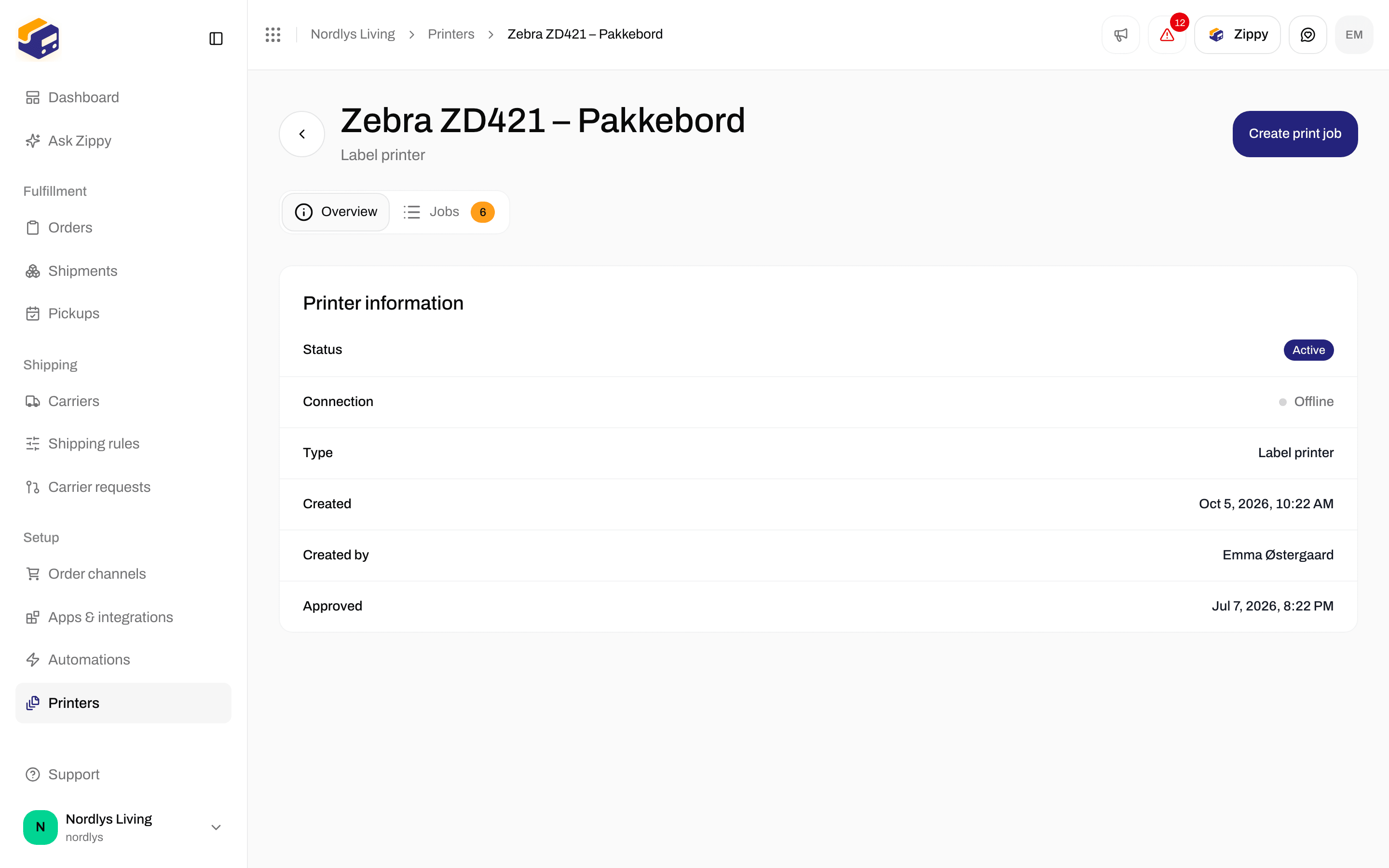
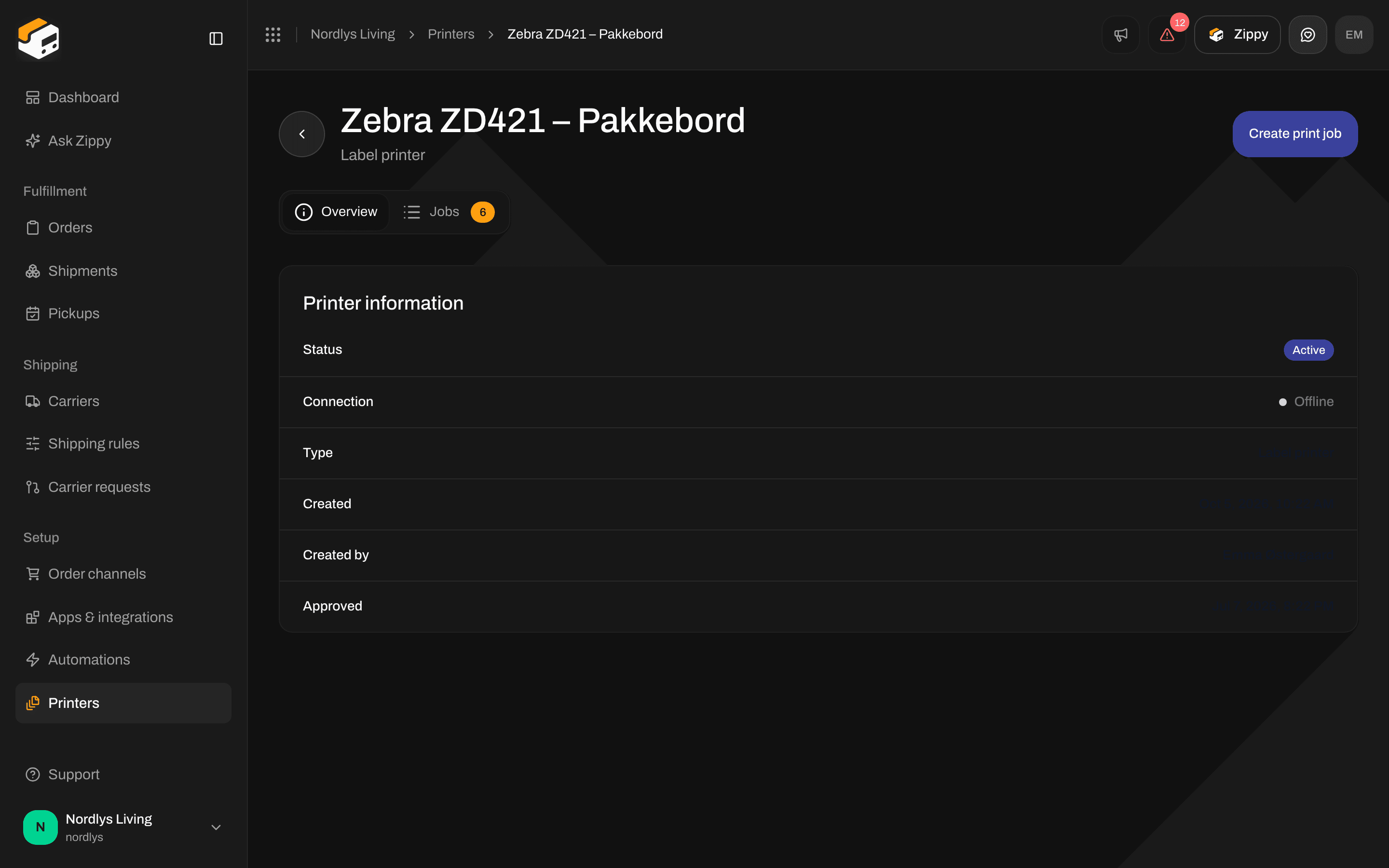
A printer's Overview: Active and Offline
Print a shipment’s documents
Open a shipment and find its Documents card. Print all prints everything in the card. Print in a row’s menu prints that one document. Both send the documents to your printers through Zippendo Printer. Your browser’s print window does not open. Labels go to an Active label printer. Everything else goes to an Active document printer. Zippendo picks the printers in this order:- The printers chosen in the shipment’s shipping rule.
- The printers chosen on the shipment itself. See Shipment printer settings.
- If neither has a printer, Print documents opens so you can pick one for this print.
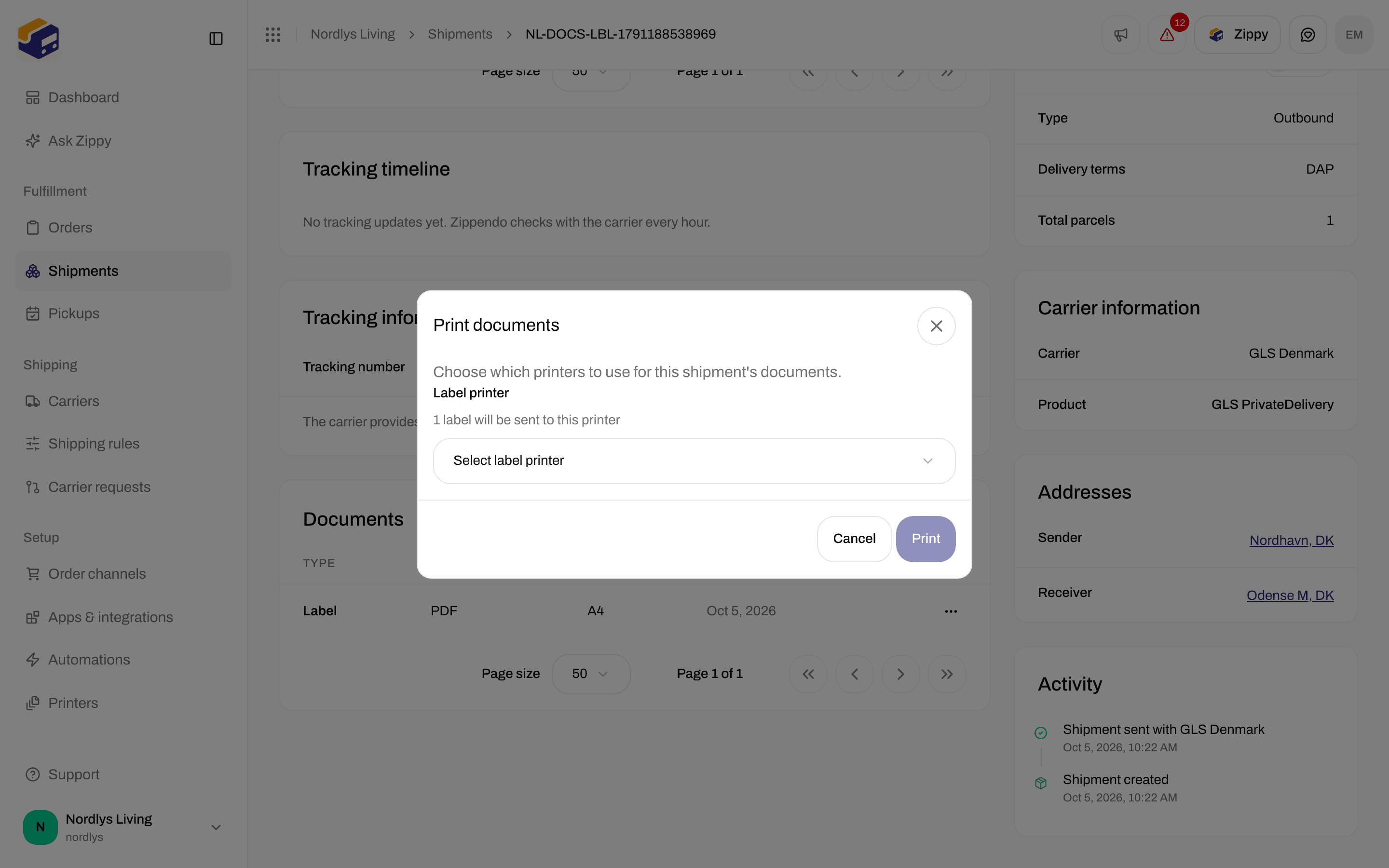
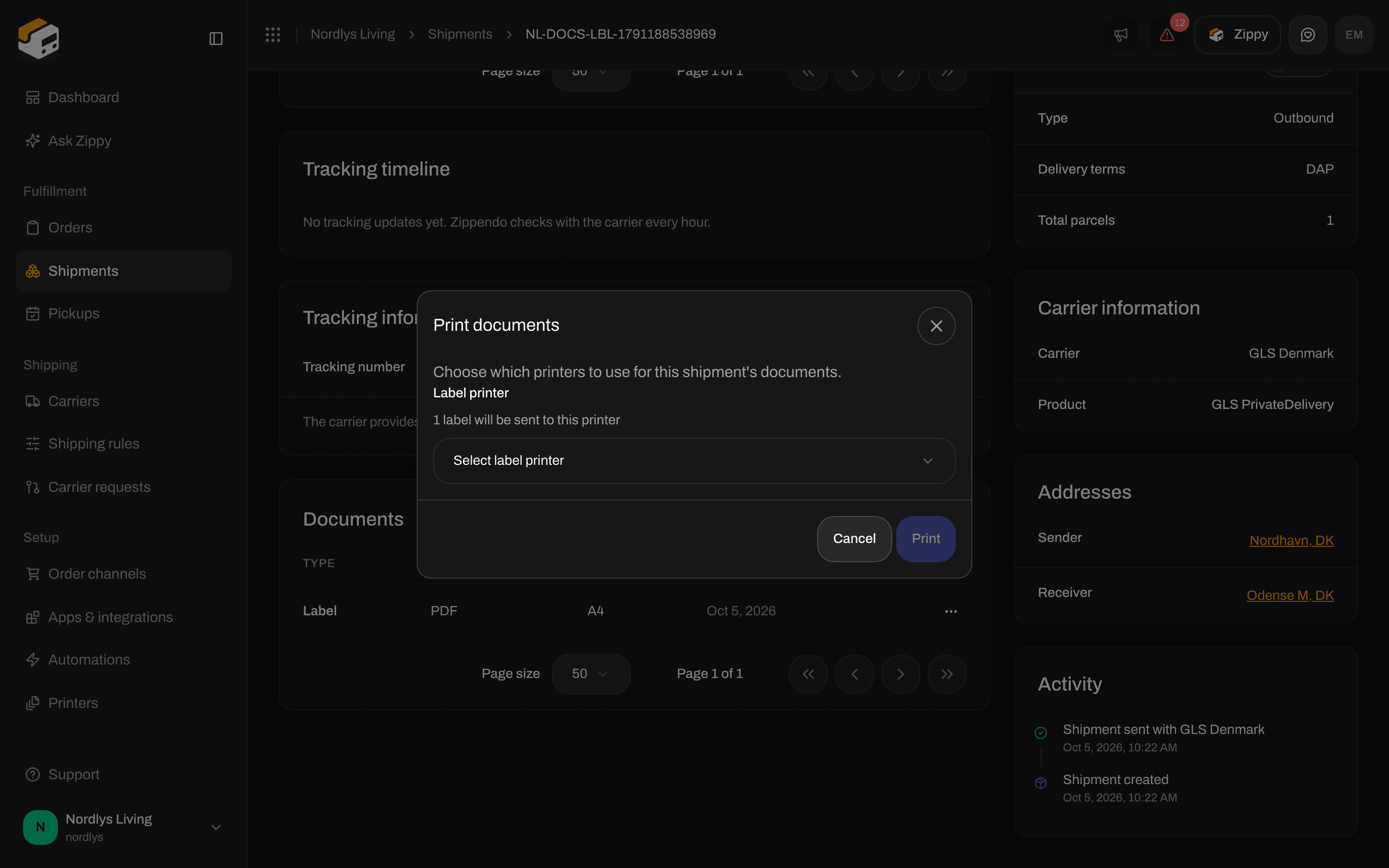
Print documents opens when no printer is chosen for the shipment
Next
Set up Zippendo Printer
Install the app, sign in with your browser and add a printer.
Authorize Zippendo Printer
The browser sign-in page and approving printers.
Printer jobs
Follow, retry and delete print jobs.
Auto-print
Print labels and documents when a shipment is sent.
Labels and printing
Send a shipment, then view, download or print the label.