

Applying a rule is not the same as creating a shipment. Applying puts the rule on the order or shipment, and can copy its carrier settings onto the order’s existing Draft and Pending shipments. You still create shipments with Create shipment.
Where you find it
Both cards have a Configure button at the top.
On an order
When a rule is set, the card shows:- Carrier, product, and services come from this saved rule for new shipments.
- The rule’s name with an Active badge
- The rule’s services, or No additional services on this rule
- No shipping rule is applied. Pick one so new shipments get their carrier settings from it.
- No rule on order with a No rule badge
- Open Configure to pick a shipping rule for this order, or wait until you create a shipment.
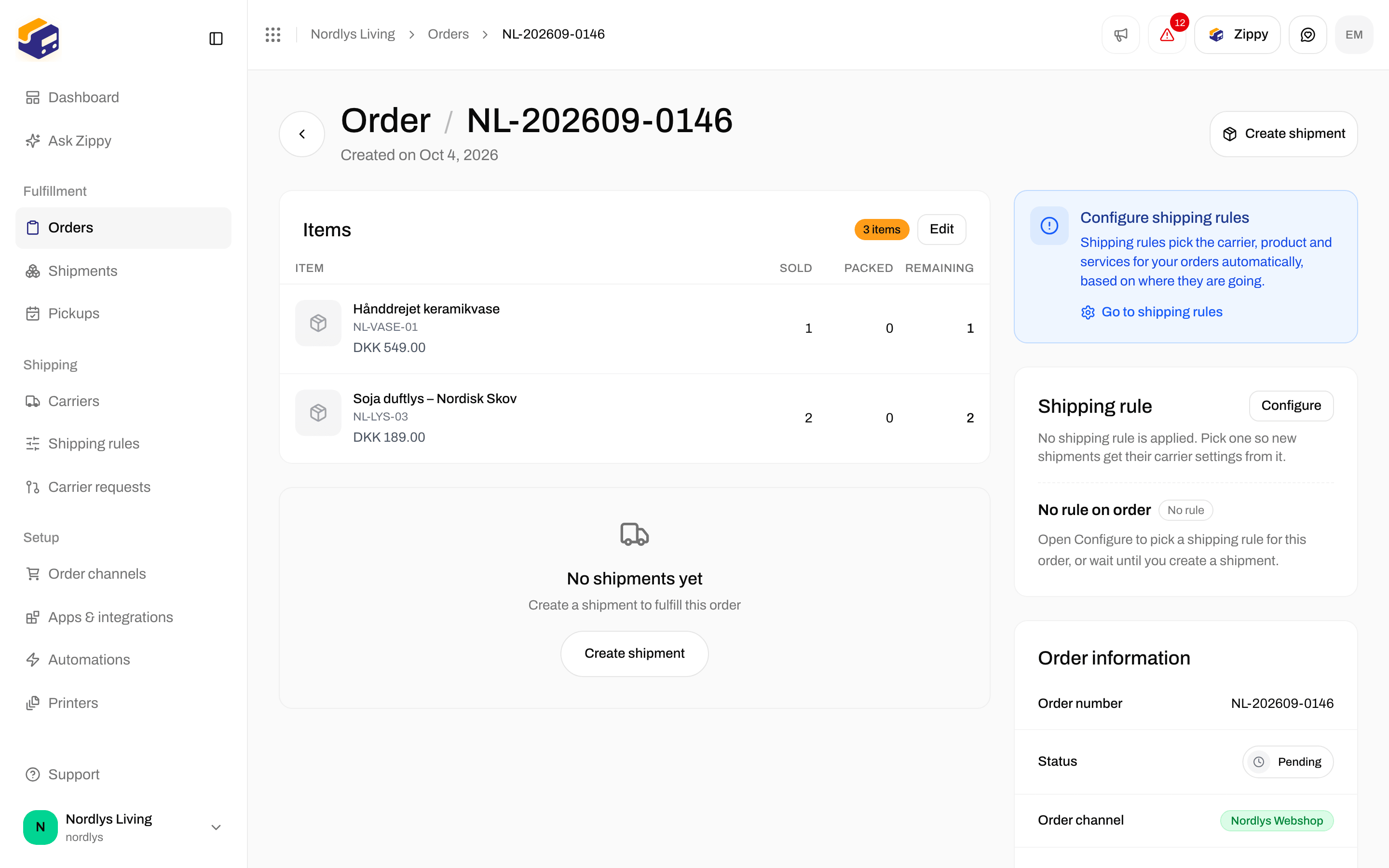
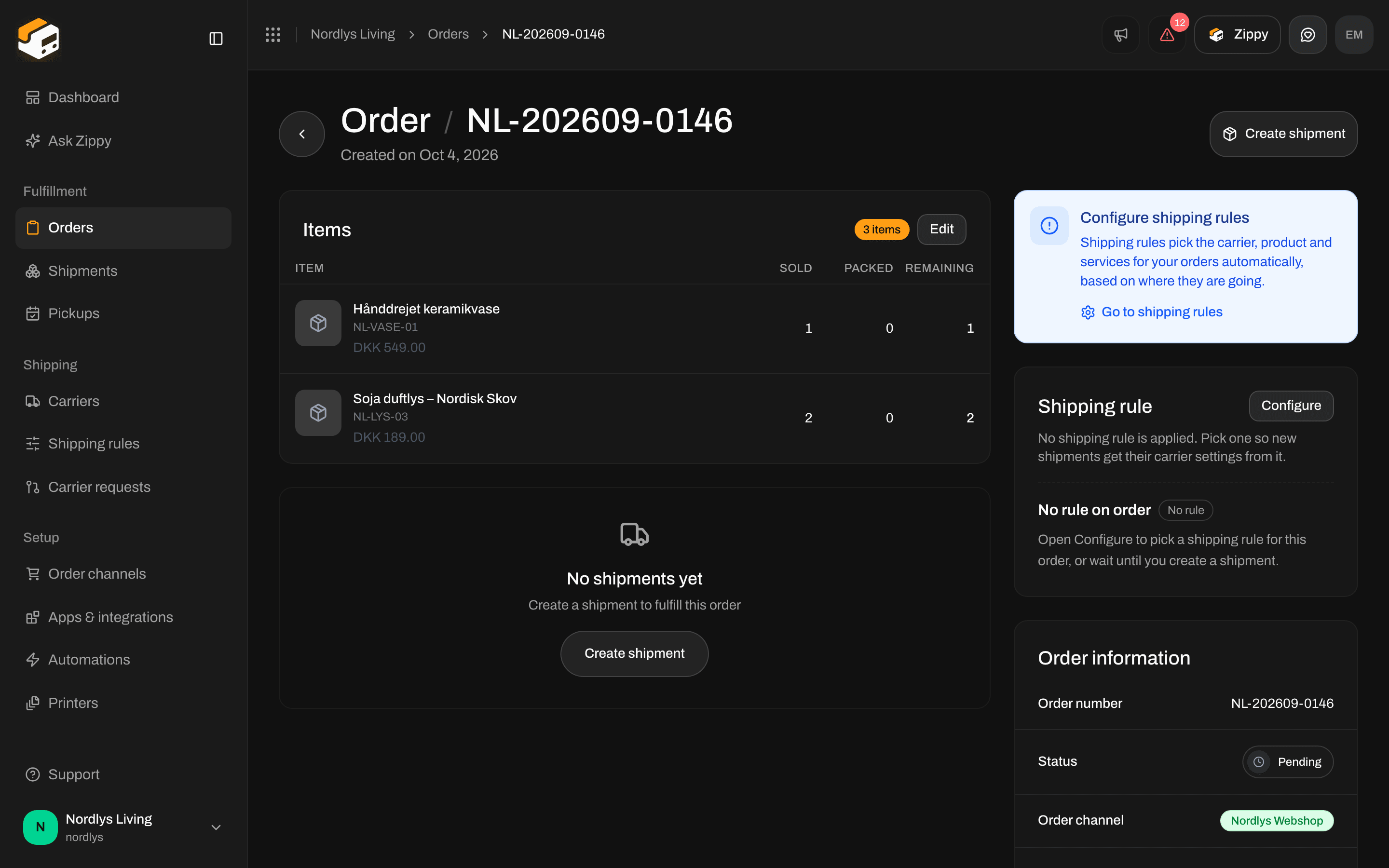
An order's Shipping rule card with Configure
On a shipment
When a rule is set, the card shows:- Carrier, product, and services come from this saved rule.
- The rule’s name with an Active badge
- The rule’s services, or No additional services on this rule
- No shipping rule is applied. You set the carrier, product and services on this shipment.
- Manual setup with a No rule badge
- Open Configure to pick a shipping rule, or leave it and choose the carrier and product yourself.
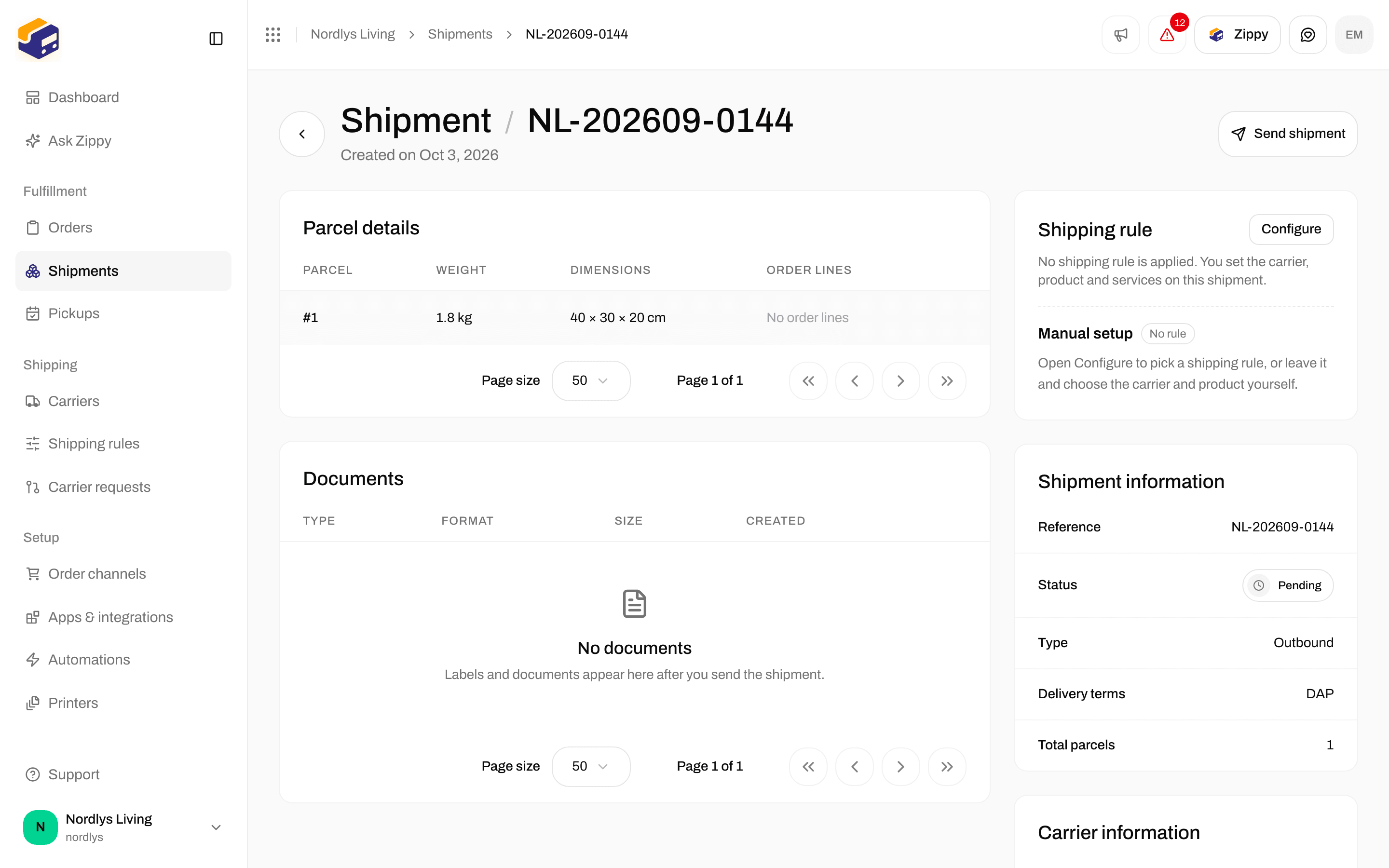
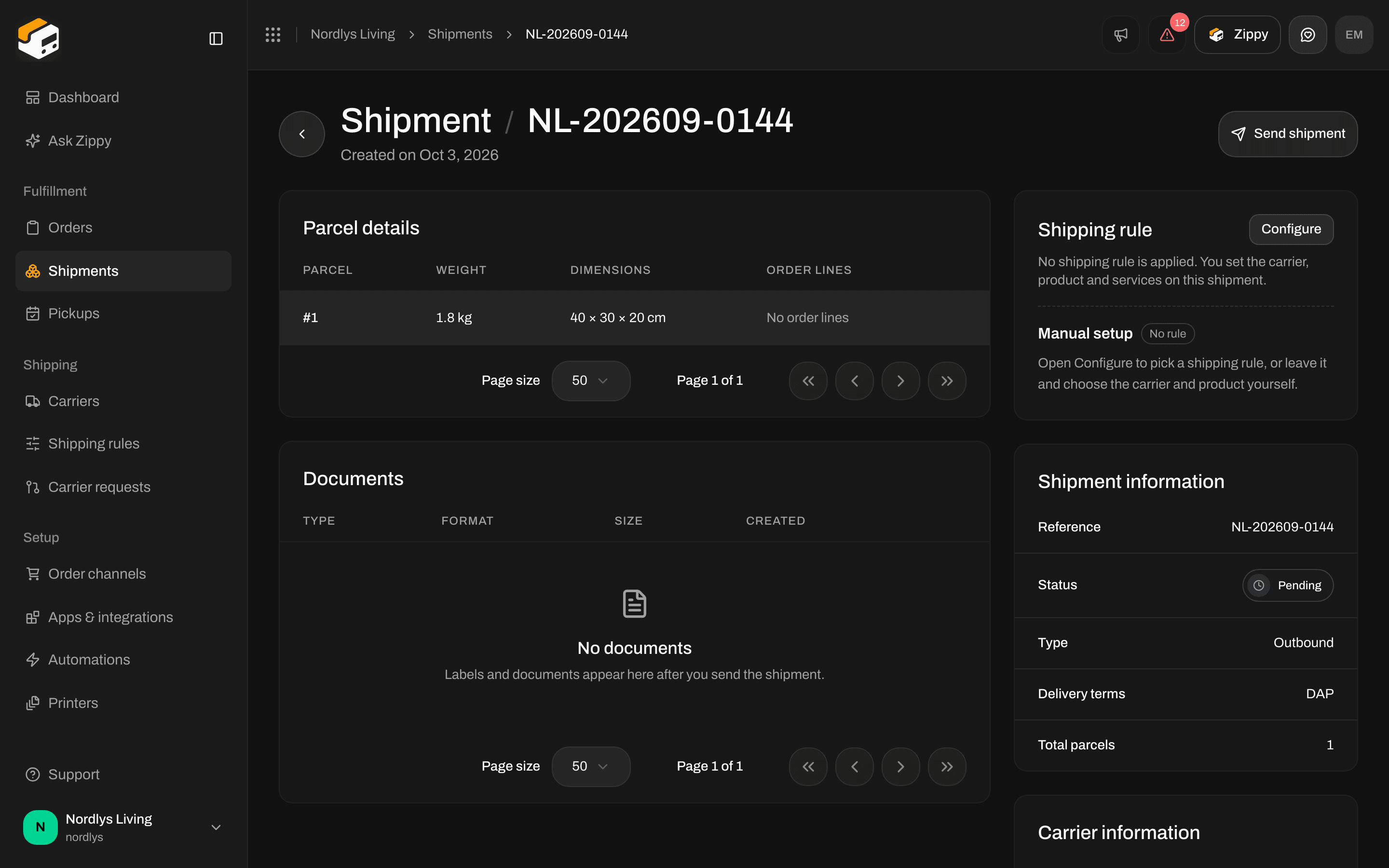
A pending shipment: the Shipping rule card next to Printer settings
Apply a rule to an order
Click Configure on the order’s Shipping rule card. A window titled Shipping rule opens: Choose which rule applies to this order, or leave no rule until you create a shipment.
While the rules load, you see Loading shipping rules…. If you have none yet, you see No shipping rules configured and a Configure shipping rules link to the Shipping rules page.
Apply is grayed out while the rules are loading, or while a service point is needed and none is chosen (see Service point below).
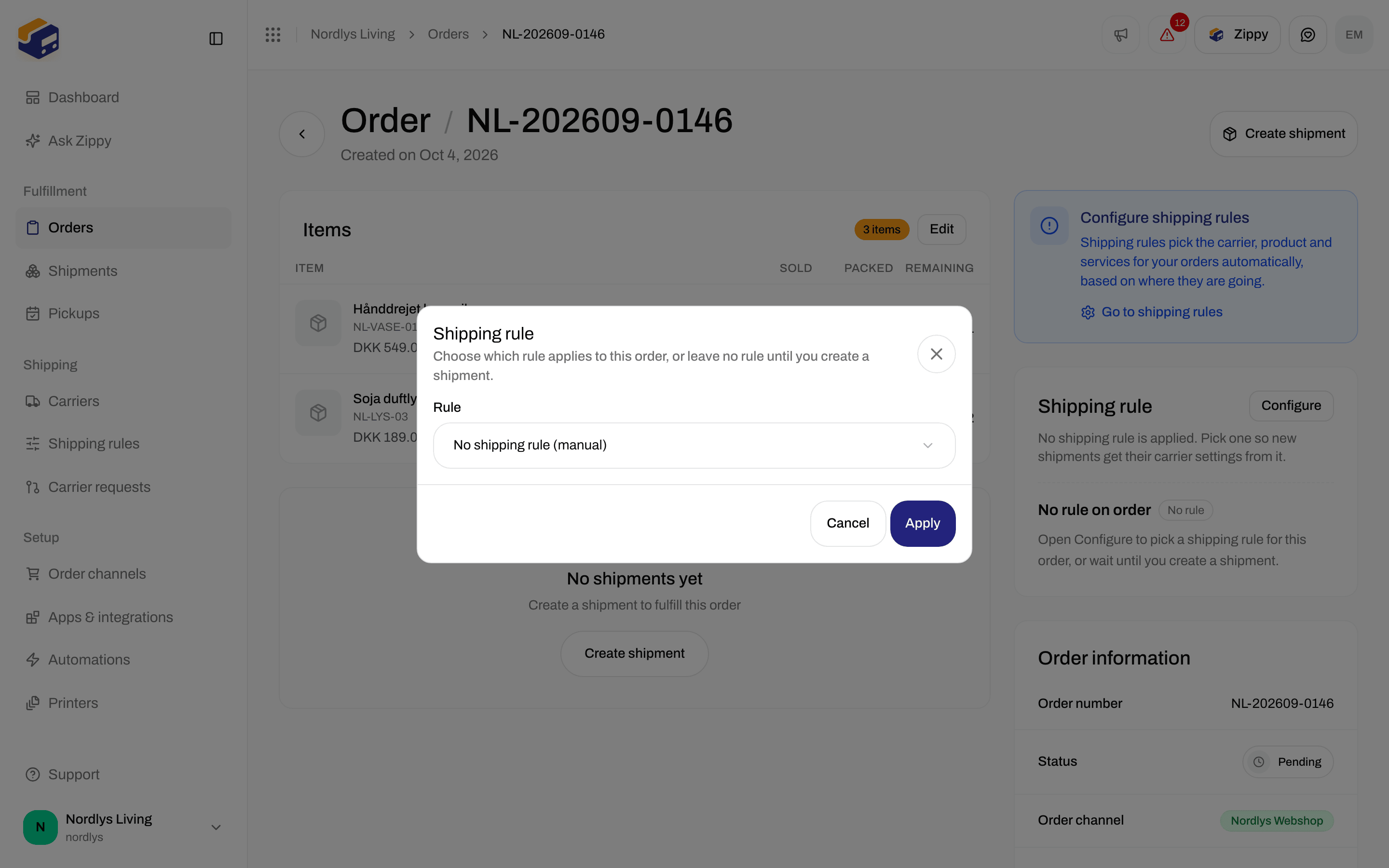
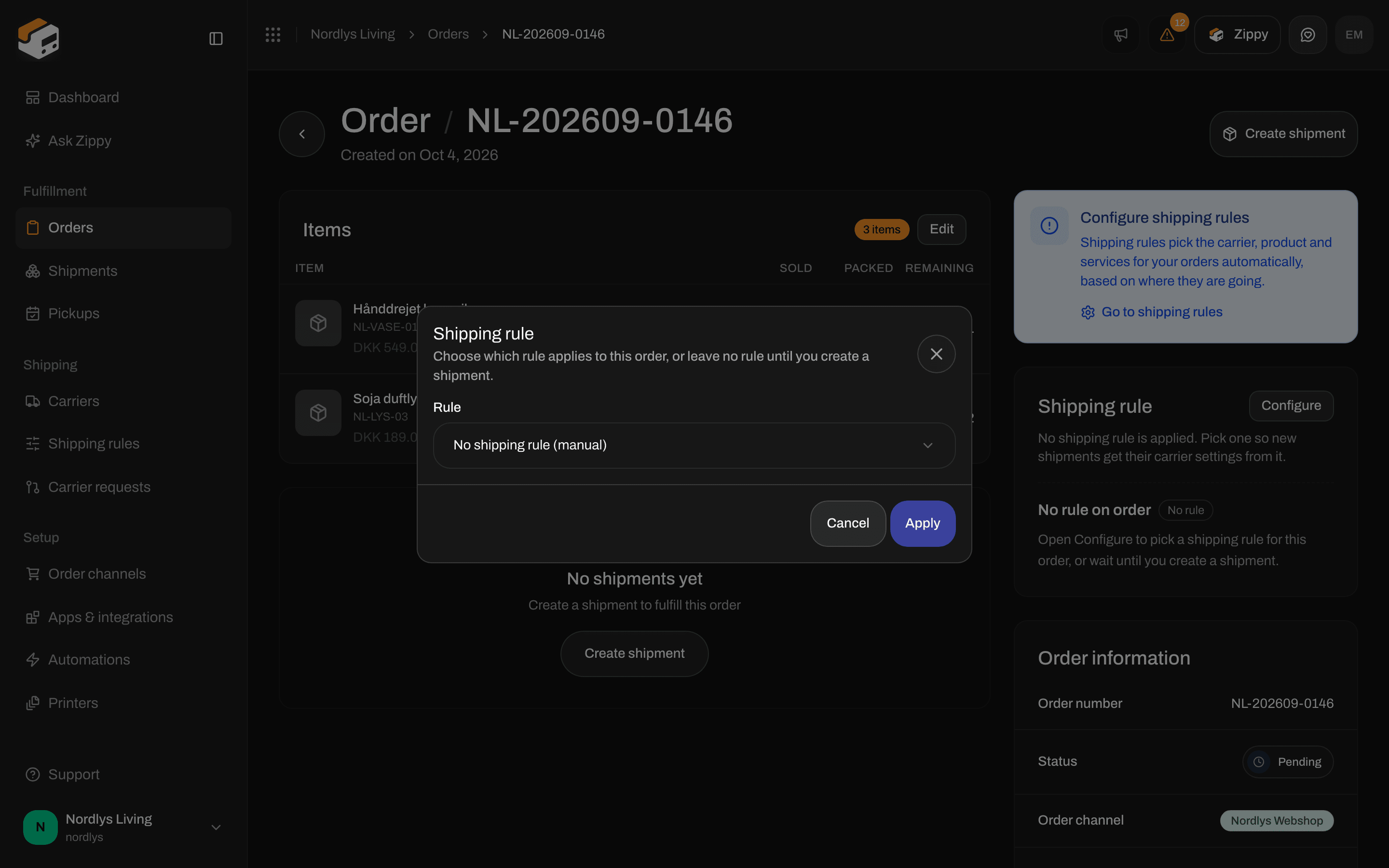
The order's Shipping rule window. Rule starts at No shipping rule (manual).
1
Click Configure
On the order’s Shipping rule card.
2
Pick a rule
Choose a rule by name, or No shipping rule (manual) to remove the rule.
3
Decide about existing shipments
Leave Also apply to … existing shipments ticked to update every Draft and Pending shipment on the order. Untick it to change only the order. Processing, Sent and Error shipments are never included.
4
Choose a service point (if asked)
If the rule’s product delivers to a service point and one of the shipments has none yet, fill in Service point *. See Service point below.
5
Click Apply
The button shows Applying…. Zippendo saves the order, then puts the rule on the shipments if the box is ticked.
Apply a rule to a shipment
Click Configure on the shipment’s Shipping rule card. A window titled Shipping rule opens: Choose which rule applies to this shipment, or keep manual carrier settings. Rule works as on the order: No shipping rule (manual) or a rule by name, with the same loading and empty messages. Click Apply (Applying… while it works) or Cancel. This window changes this shipment only. A Draft shipment becomes Pending when you apply a rule, so you can send it.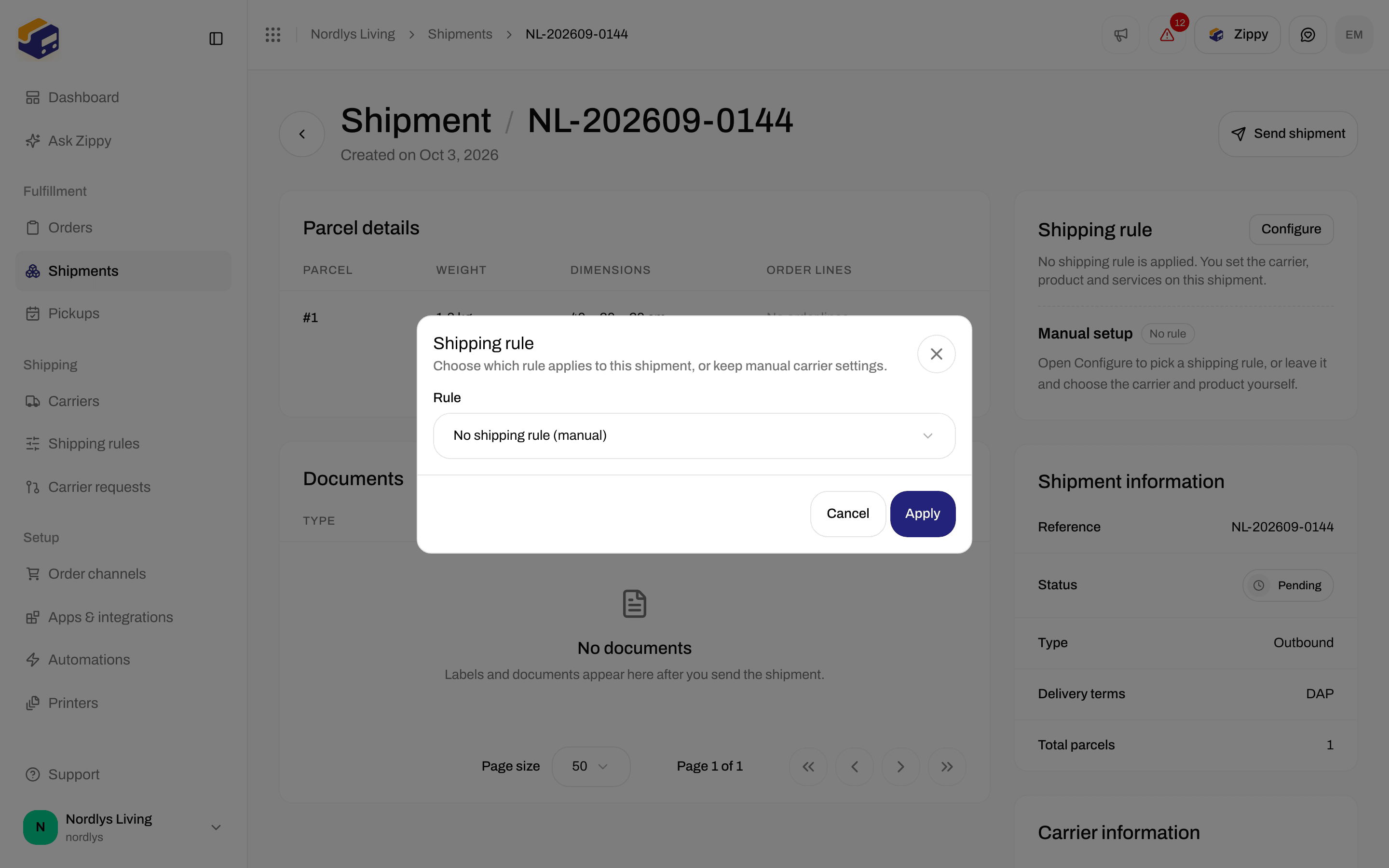
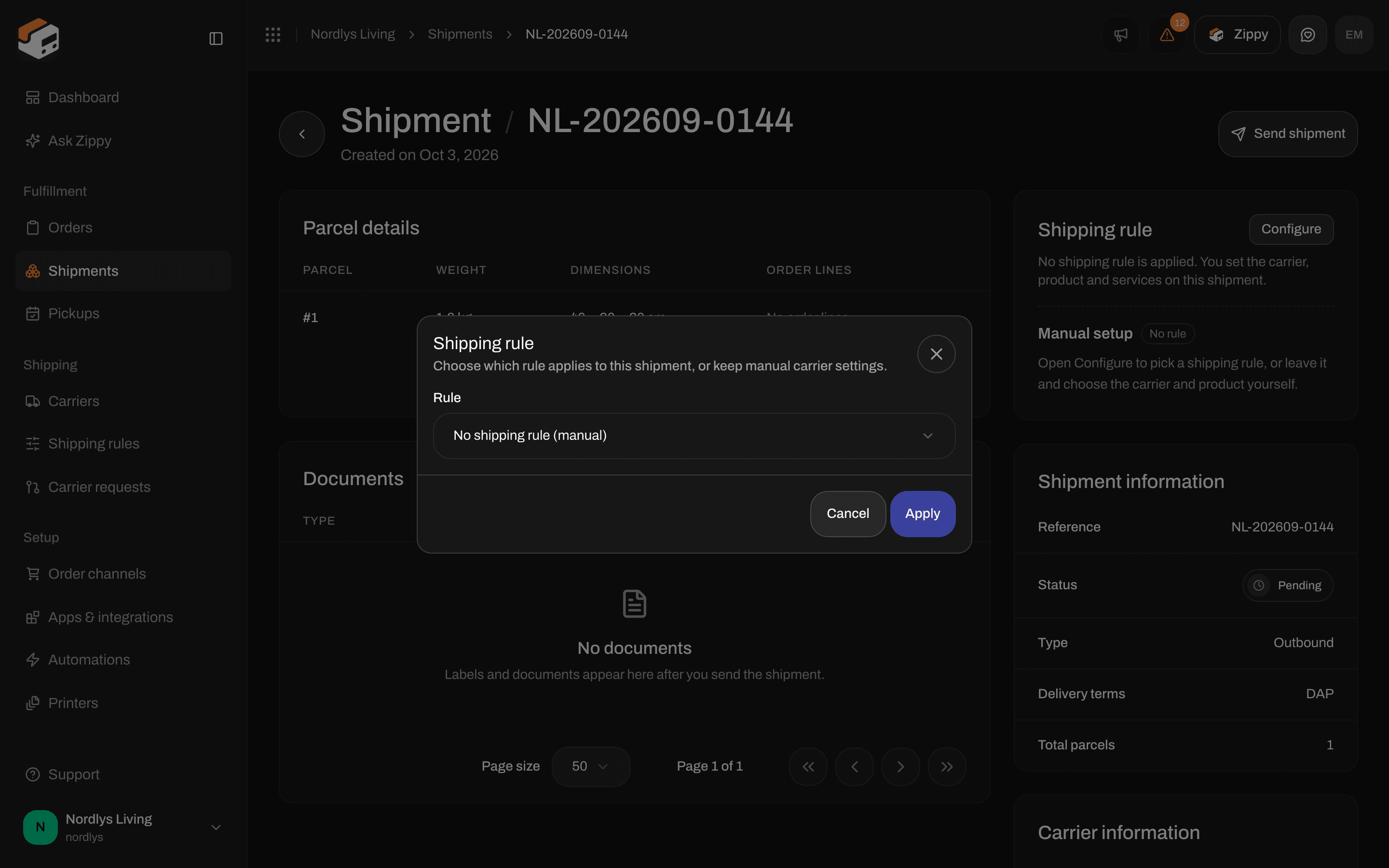
The shipment's Shipping rule window with the Rule list
Service point
Both windows show a Service point section when the rule’s product delivers to a service point and the shipment has none yet (on an order: one of the shipments you are applying the rule to).
Select service point shows the list and map in the same window (titled Select service point, with Confirm selection and Back). See Pick a service point.
Apply stays grayed out until a service point is chosen.
When you cannot apply a rule
When an order already has a rule and you click Create shipment, the window shows Shipping rule with Carrier, product, services and sender address come from the order’s shipping rule. You can switch to Configure carrier manually instead. That is part of creating a shipment, not the Configure window on this page. See Create a shipment.
You are done when the card shows the rule’s name and Active, or No rule (on a shipment: Manual setup) if you removed it. If the shipment is Pending, you can now send it.