

The address list
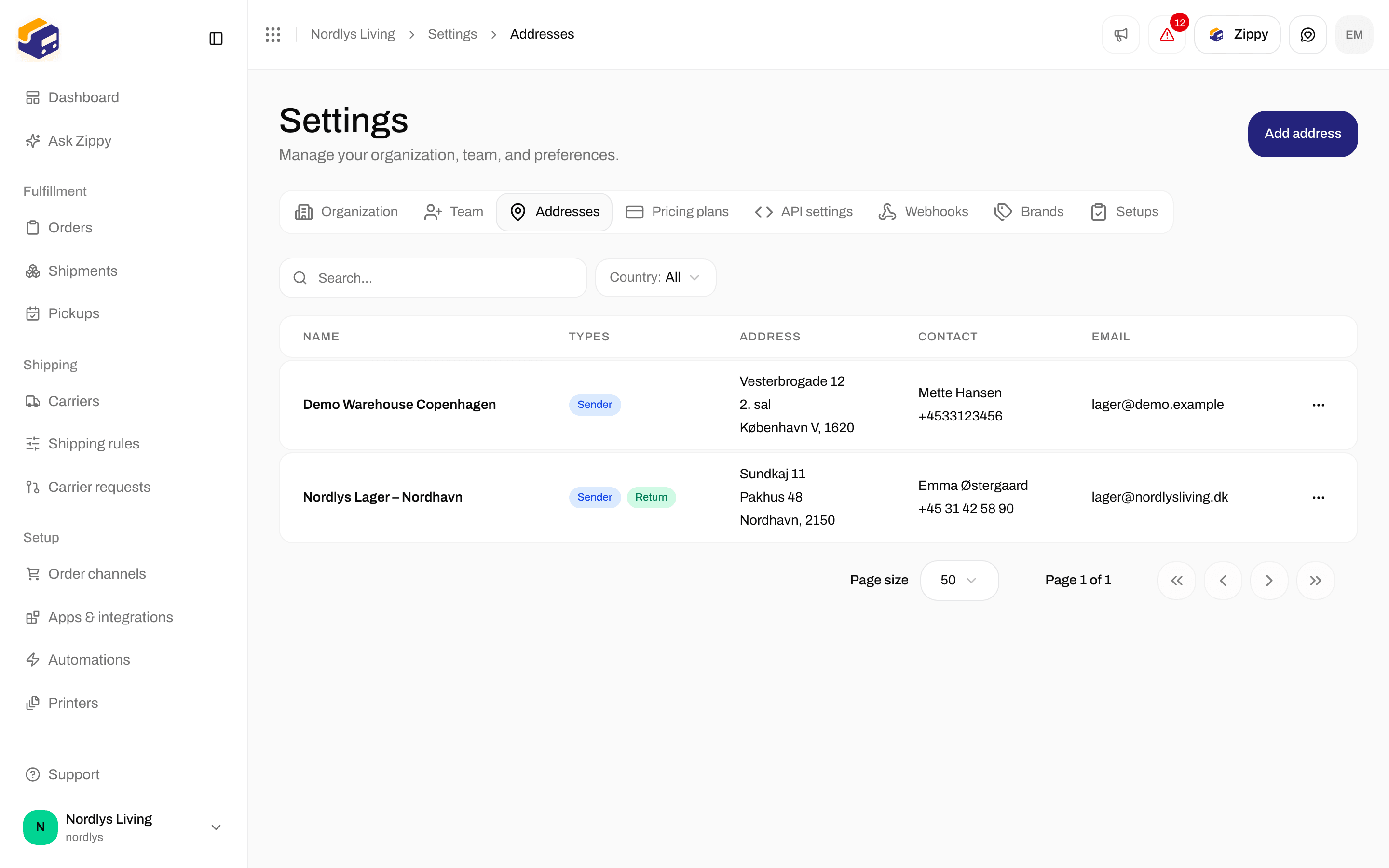
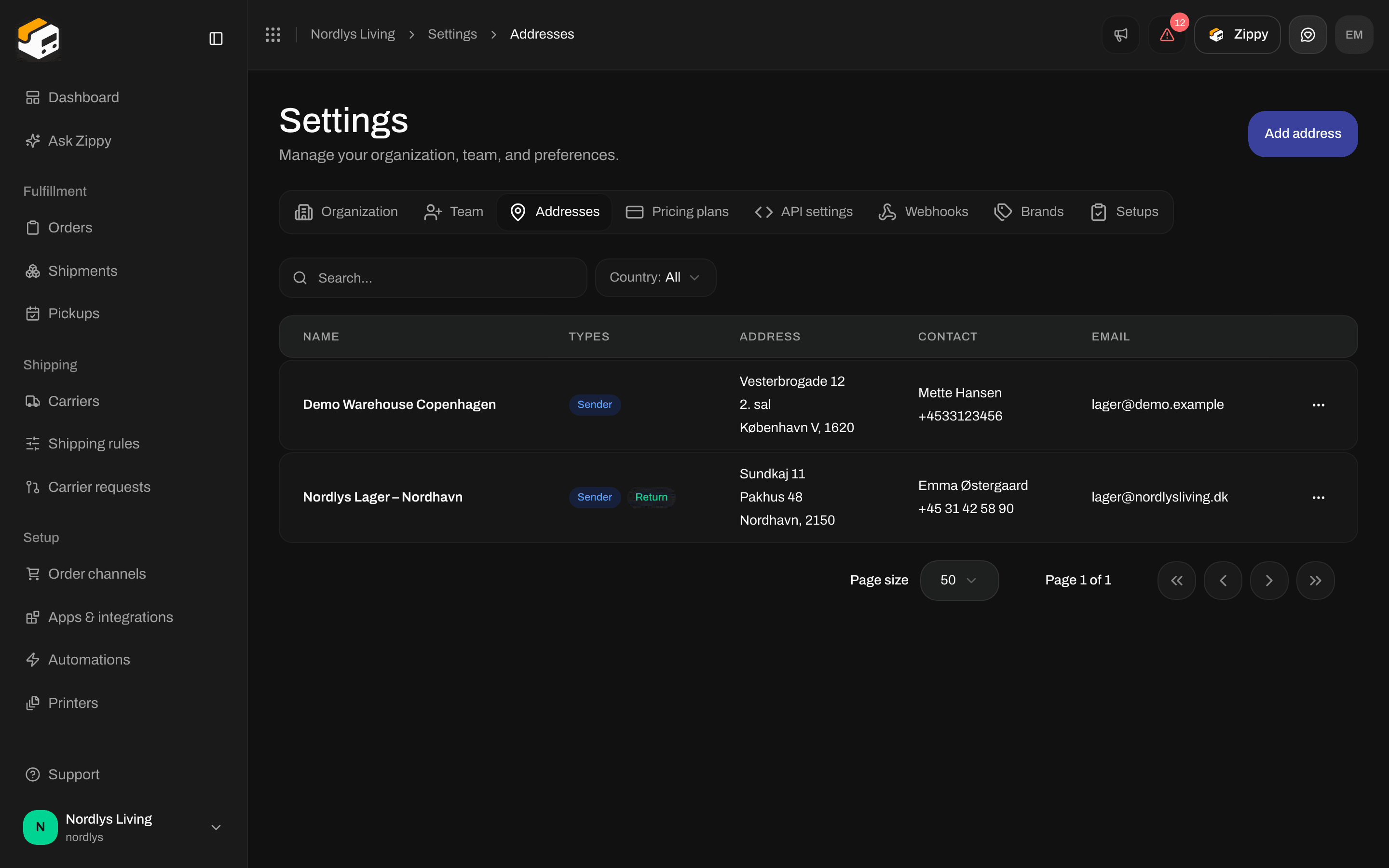
Addresses - Name, Types, Address, Contact, Email
Click a row, or Edit in the row menu, to change an address. The row menu also shows Delete, but it does not remove the address at the moment.
Filter the list
Use Filters at the top of the list (see Search and filters):Add an address
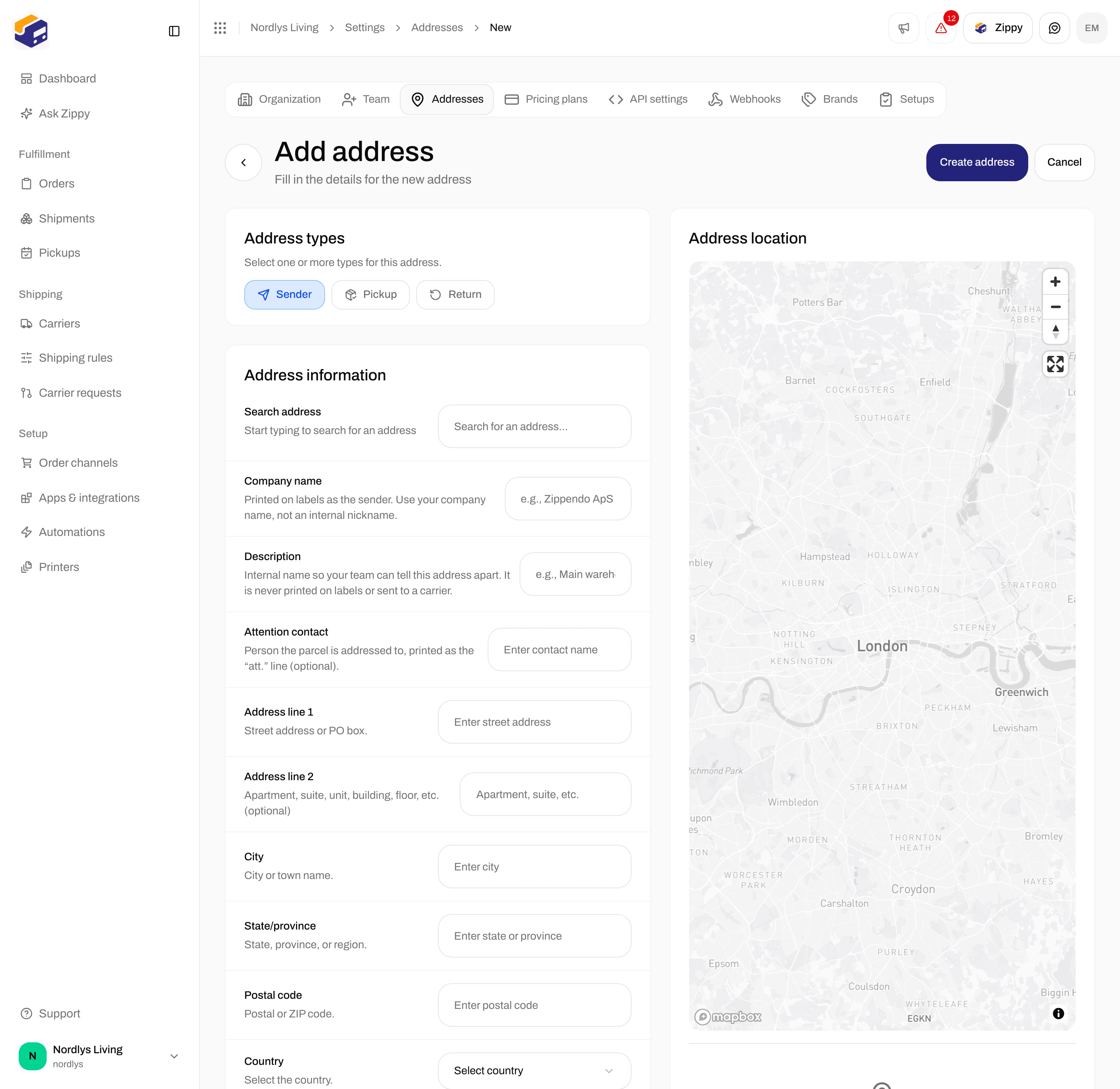
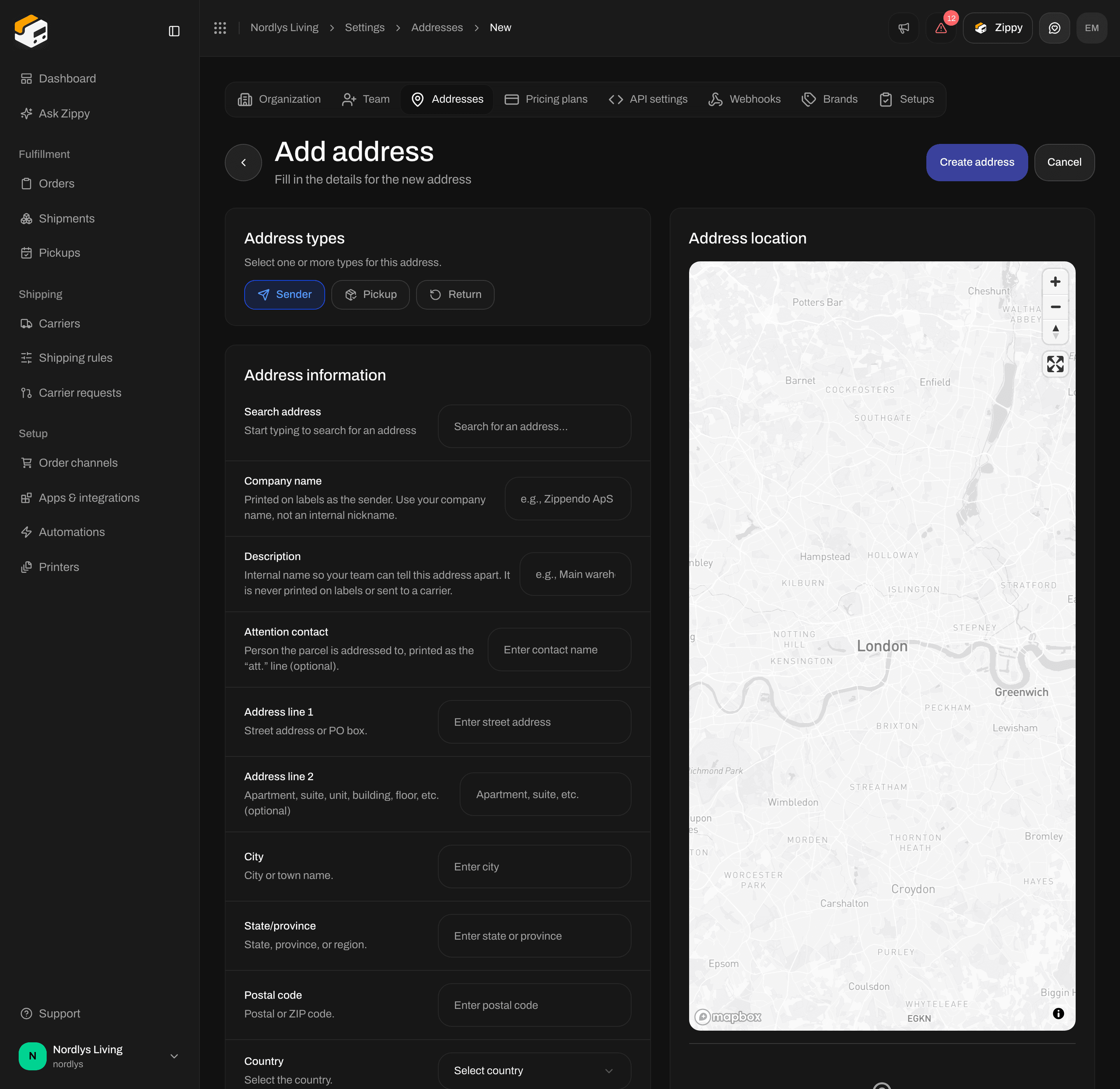
Add address - types, search, contact fields, and the map
1
Open the form
On the Addresses tab, click Add address.
2
Choose the types
Sender is on already. Also tick Pickup and/or Return if you use this location for those jobs.
3
Find the address
Type at least three characters in Search address and pick a result. Zippendo fills in the street, city, state, postal code and country, and places a pin on the map. You can also fill in the fields yourself.
4
Add the name and contact details
Fill in Company name, Phone number and Email. If you keep more than one address for the same company, add a Description so you can tell them apart.
5
Save
Click Create address. You see Address “Nordic Home ApS” created (with your company name), and you return to the list.
Address types
You can tick more than one type. If you tick none, you see Select at least one address type.Address fields
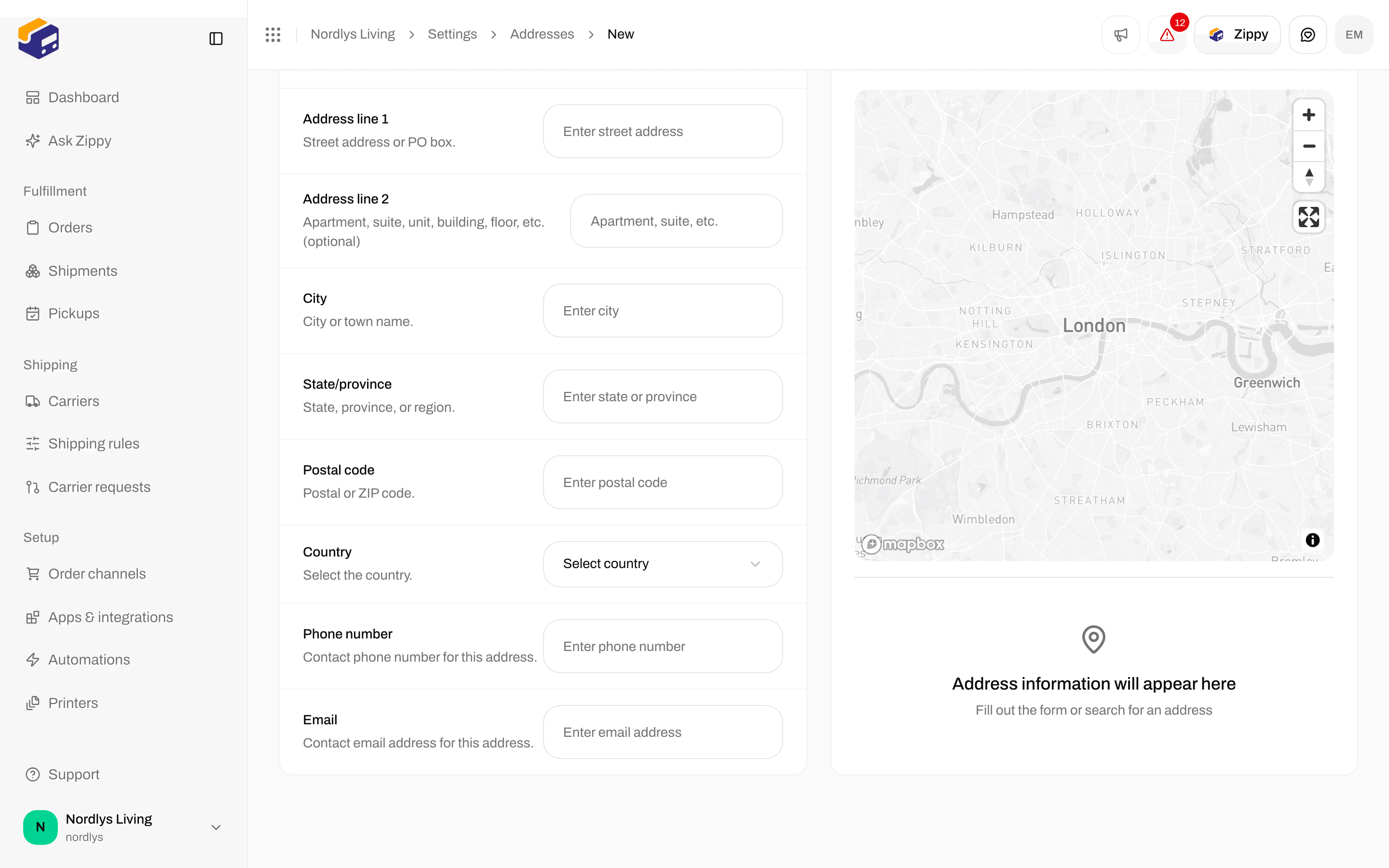
Add address - Address line 2 through Email, with the empty map preview
If a required field is empty, the form tells you which one, for example City is required or Phone number is required. Enter a valid email address means the email is not written correctly.
When you reach your plan limit
If you see You’ve reached your plan’s limit. Upgrade your plan or remove something you no longer use., your plan has no room for another address. The Free plan includes 1 address, Standard 5, Growth 10, and Pro unlimited. Upgrade under Pricing plans, see Billing and usage.Edit an address
Click the address in the list. The Edit address form has the same fields as Add address. Change what you need and click Update address. You return to the list when the change is saved.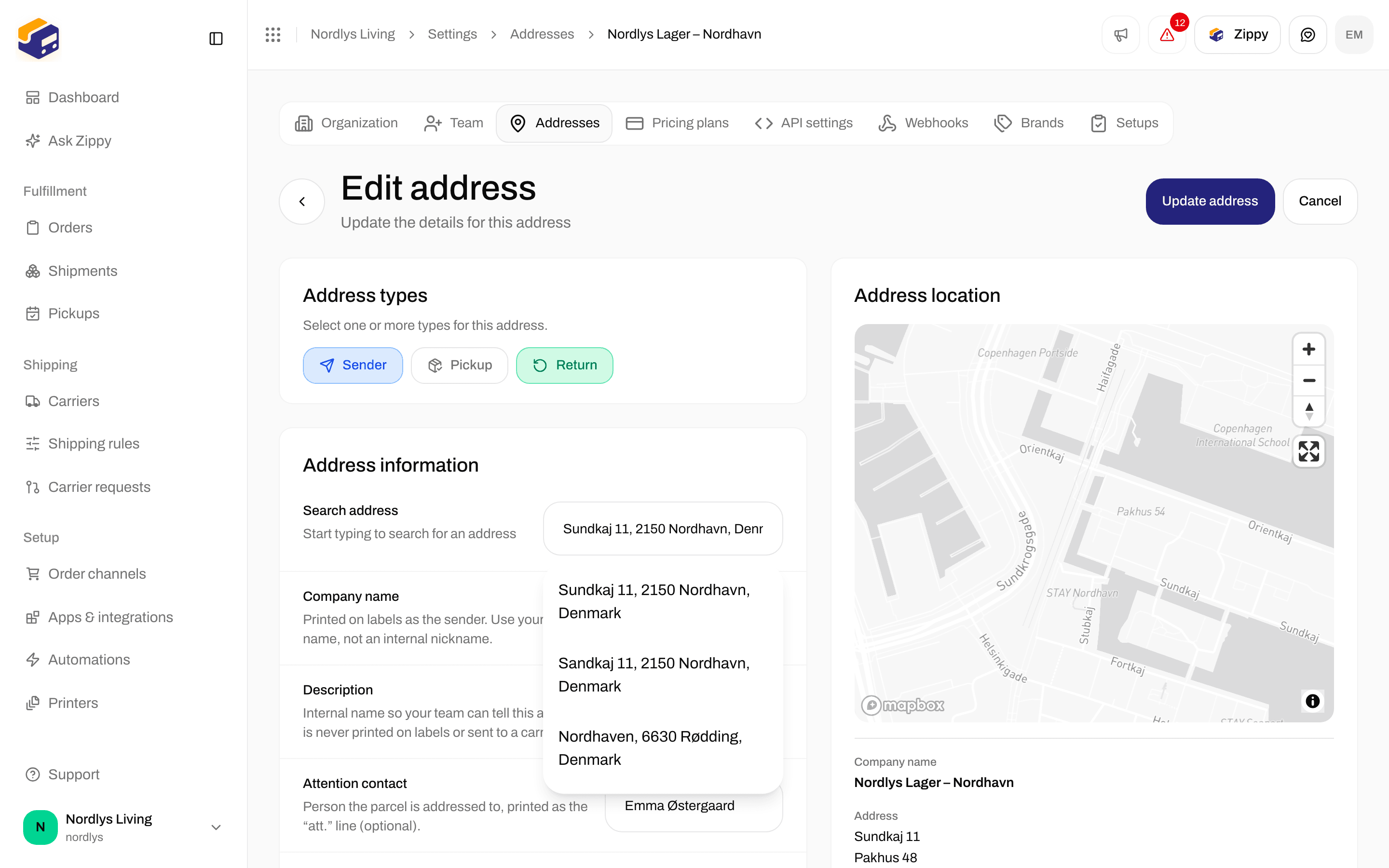
Edit address - fields filled from an existing address
The map
Address location on the right of the form shows a pin and a summary of the address: Company name (with the description beneath it), Address, Contact, Phone and Email. Until you search or fill in the form, it says Address information will appear here and Fill out the form or search for an address.Related
- Shipment parties - the receiver and other parties on a shipment.
- Create a brand - the Brand field on an address.
- Schedule a pickup - uses Pickup addresses.
- Search and filters
- Sender addresses - overview of this tab.