

Before you start
You need two things from your Mailchimp account:- An API key. Generate it in your Mailchimp account. Copy the whole key, including the ending such as
-us21: Zippendo uses that ending to reach your Mailchimp account. - The audience ID of the audience your customers are in. You find it in Mailchimp under Audience → Settings → Audience name and defaults. Use the ID, not the audience’s name.
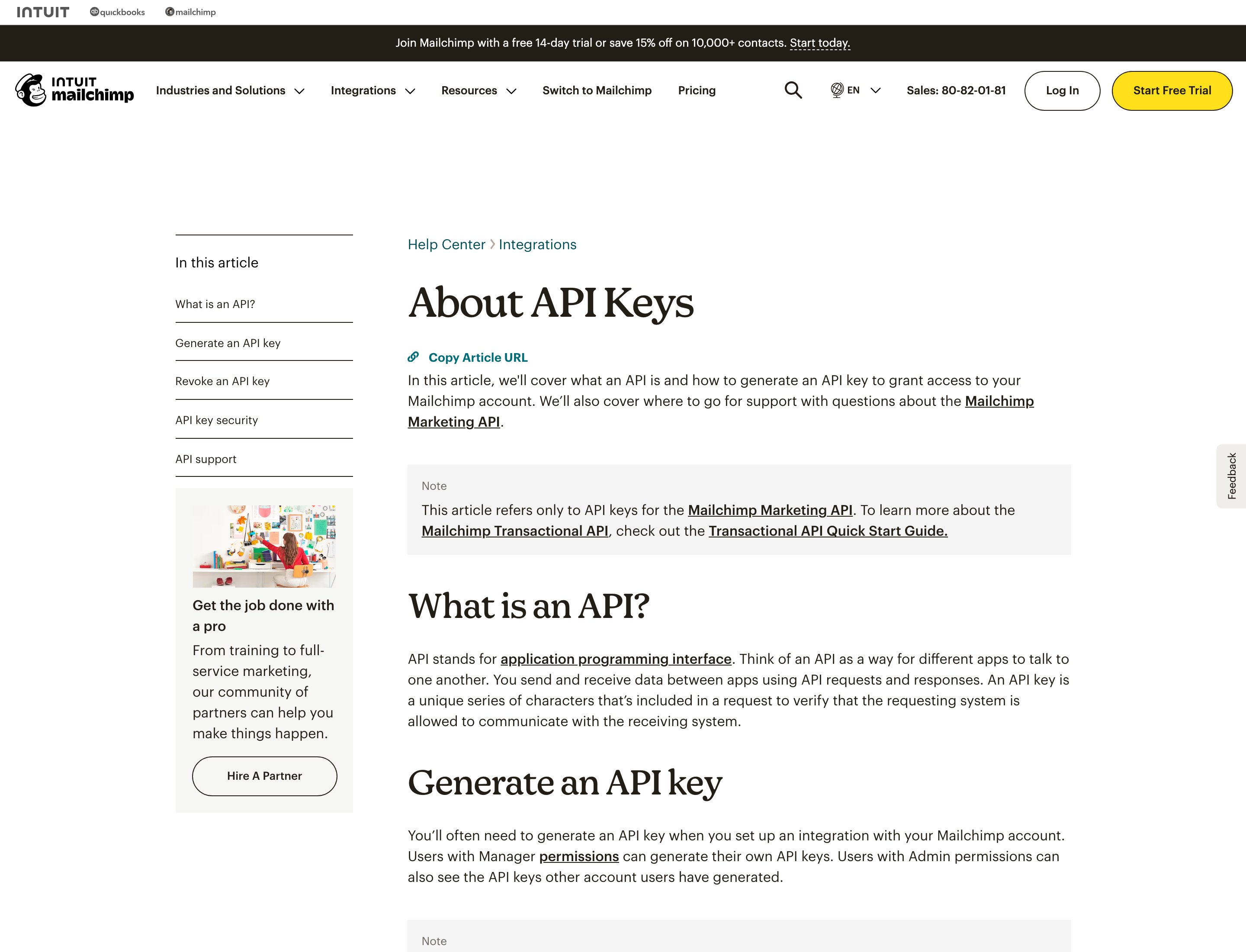
Mailchimp's help article on API keys
Connect Mailchimp
1
Find Mailchimp in the catalog
Click Apps & integrations in the sidebar, then Catalog. Mailchimp is under Apps. Click Connect, or Add connection if you already have one.
2
Review access
Read what Zippendo will do with the connection and click Continue.
3
Fill in the connection details
Type a Connection name, such as “Mailchimp newsletter”. Paste the key into API key and the audience ID into Audience ID.
4
Pick the events
Tick the events Mailchimp should receive, or click Select all. See the list below.
5
Click Connect
You see Integration connected, and Mailchimp shows on the Connected tab.
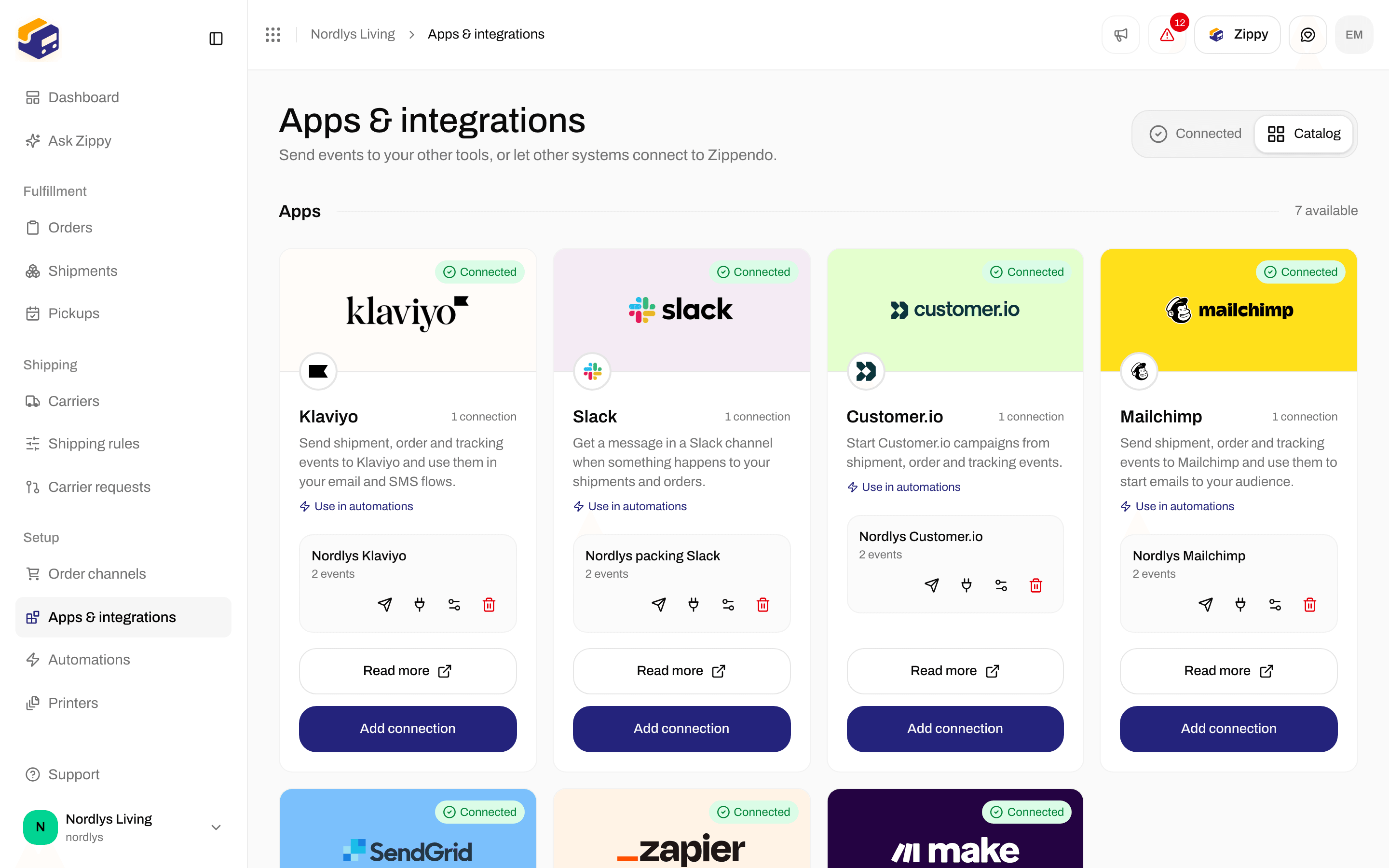
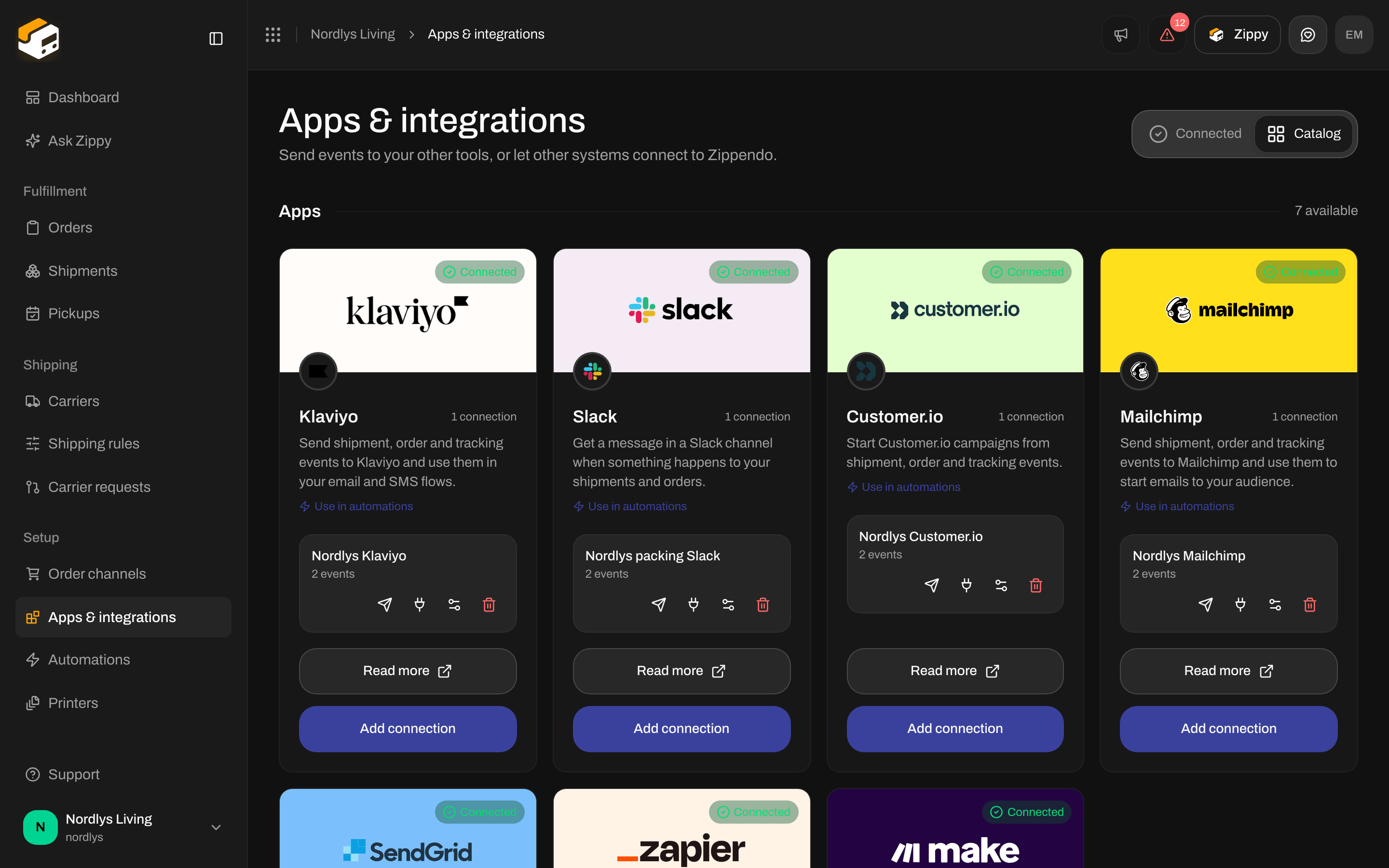
The Mailchimp card in the catalog
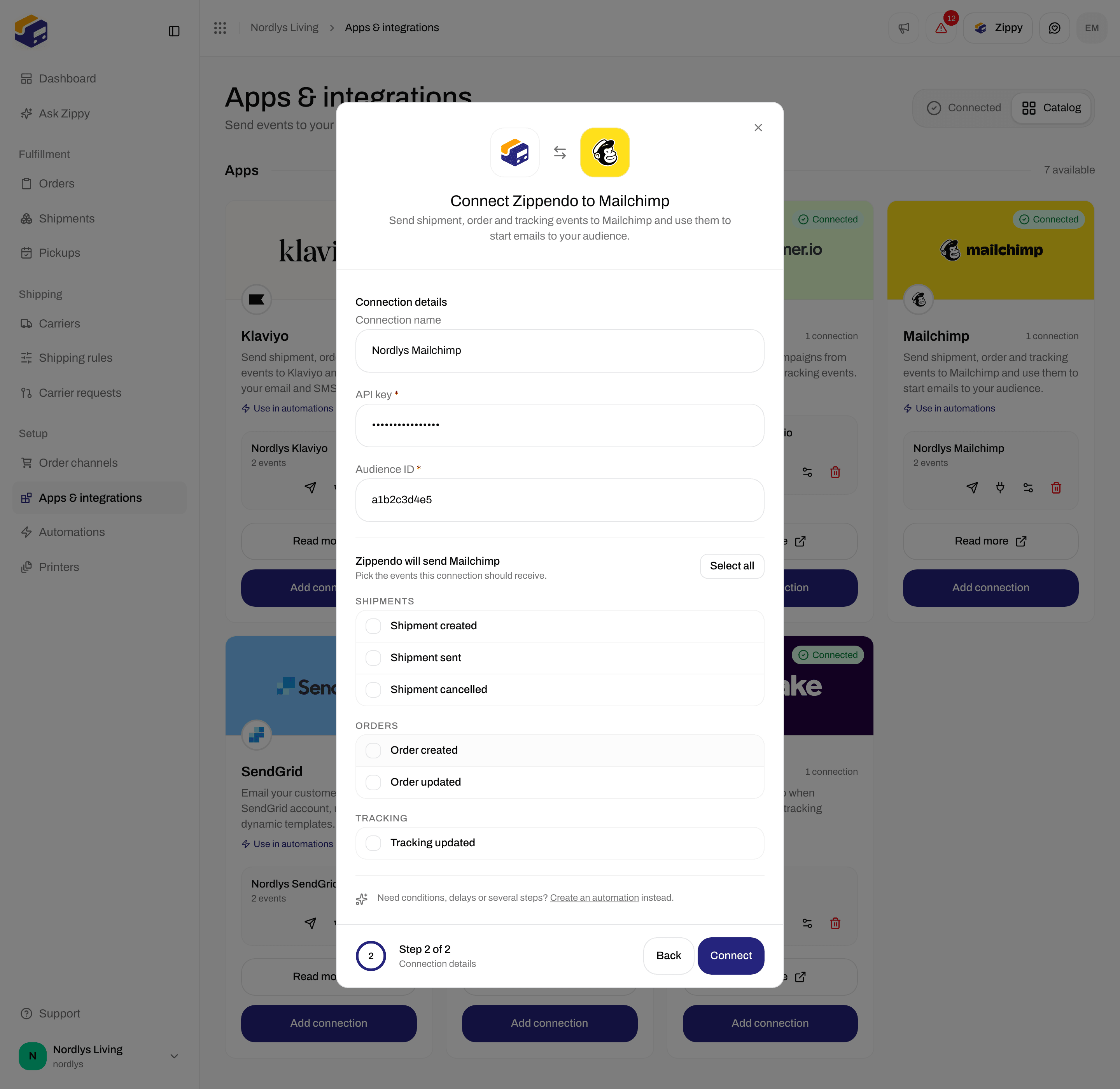
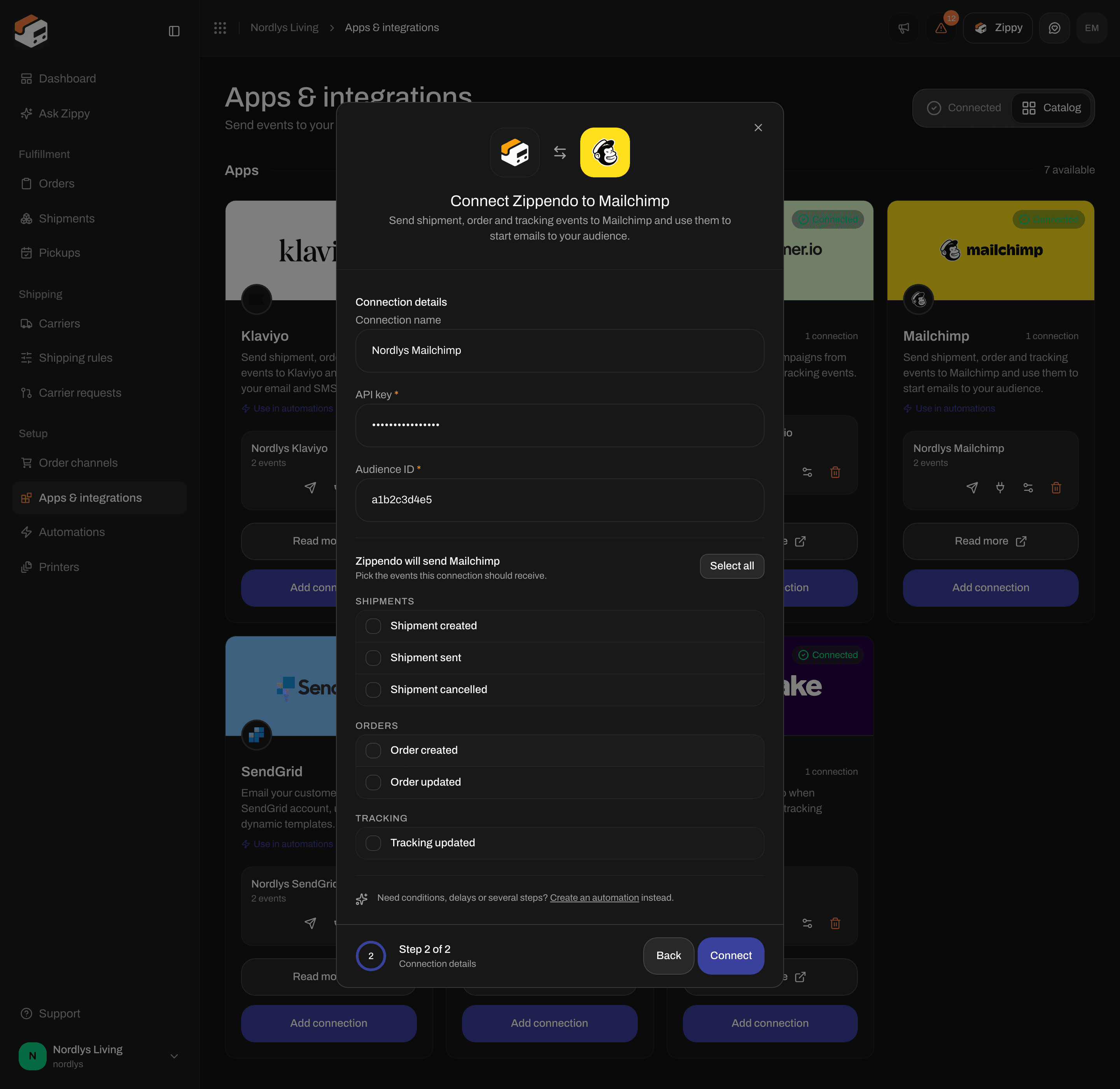
Connecting Mailchimp: a name, the API key and the Audience ID
Events Mailchimp can receive
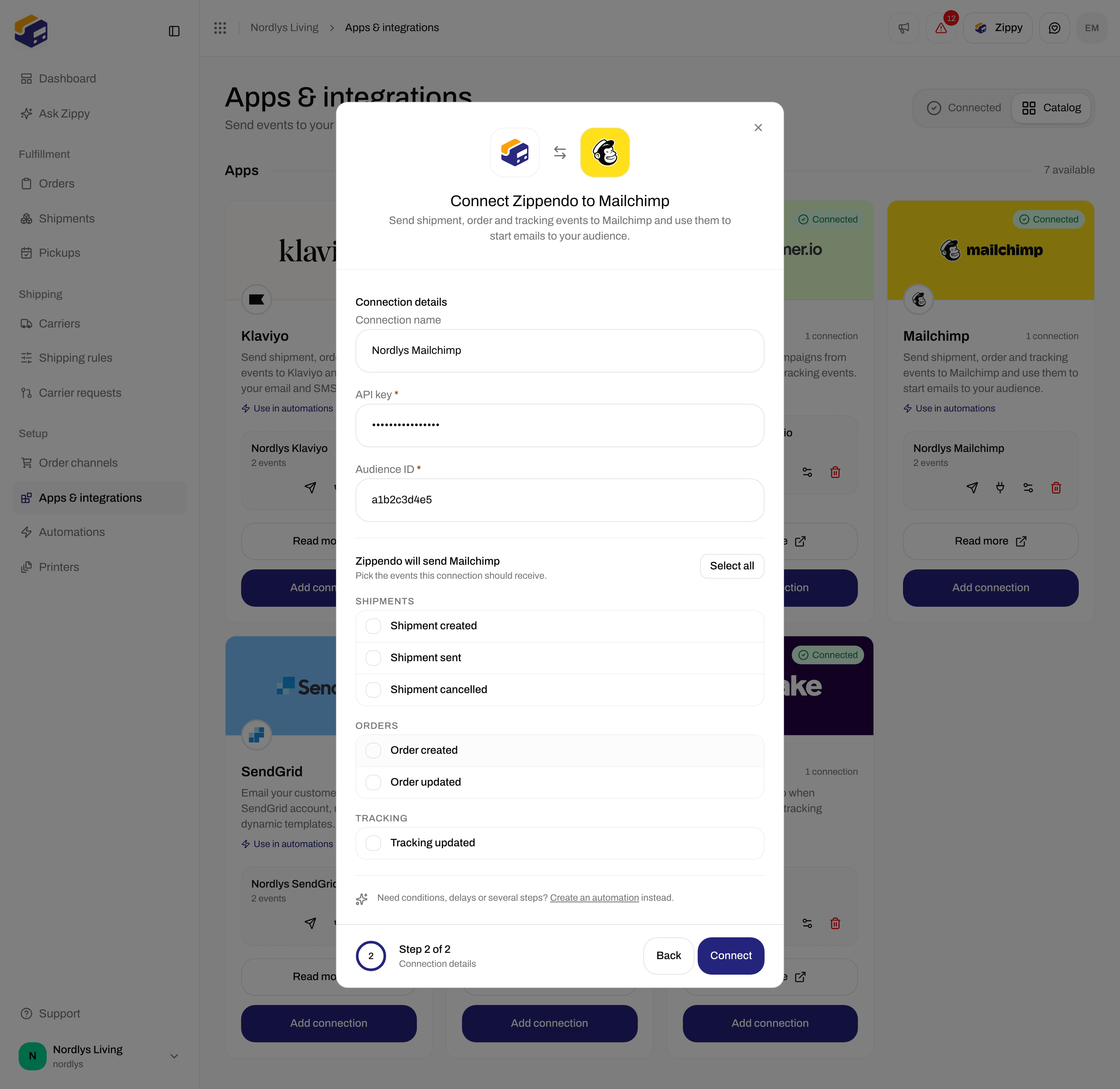
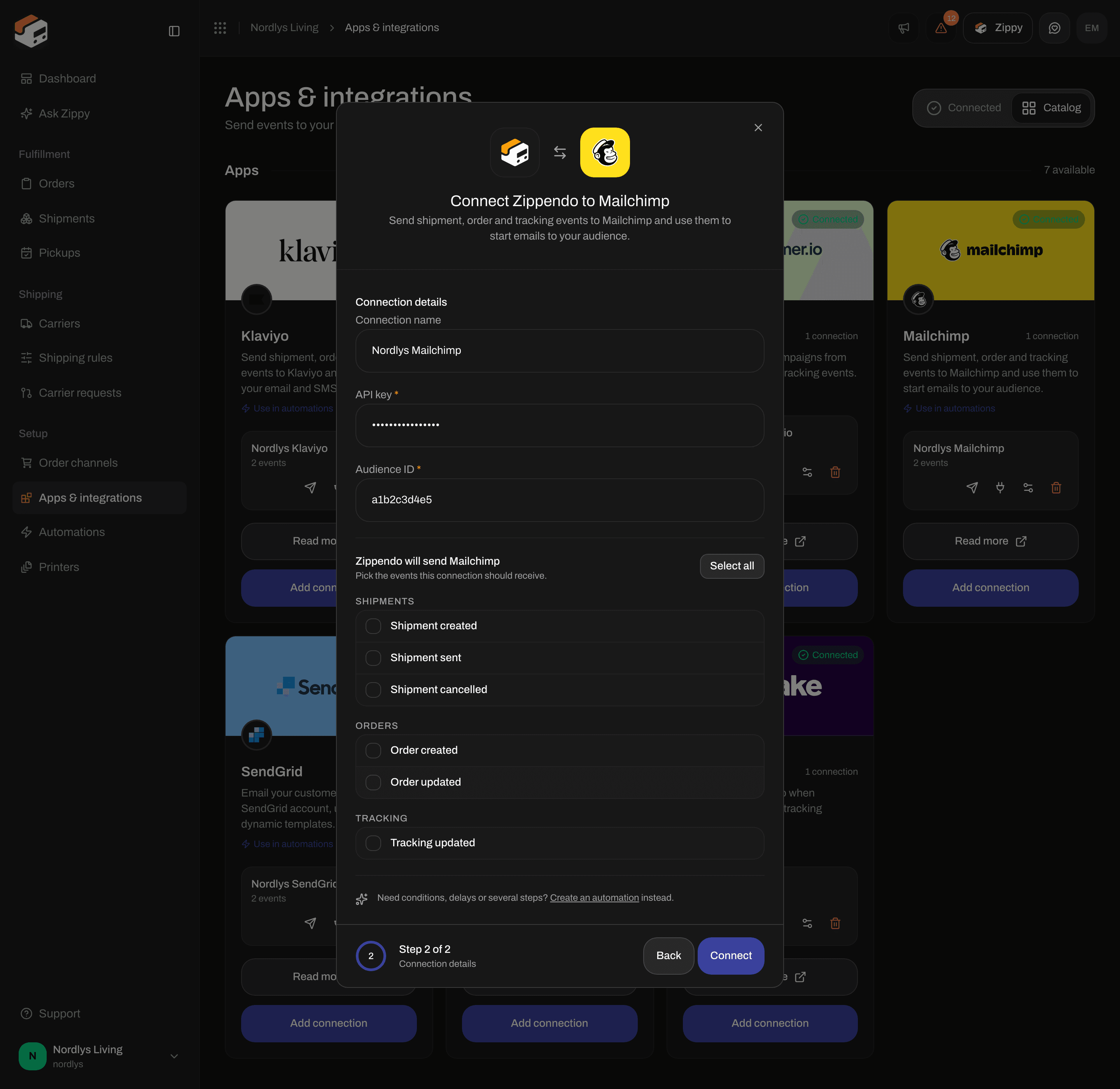
The order and tracking events for Mailchimp
shipment_dispatched for Shipment sent. Mailchimp files each event under the contact with the customer’s email, so an event for an order without a customer email cannot be delivered.
To give an event a different name, send it from an automation and fill in Custom event name (see below). The connection window has no field for it.
Check the connection
Click the paper plane on the connection row (Send test event), then open the delivery log (the plug icon). A test event has no customer, so for Mailchimp it always shows a red cross with “No customer email available — Mailchimp events require a contact email”. That is expected and says nothing about your key. Check with a real event instead: send a shipment for an order with a customer email and look for a green tick.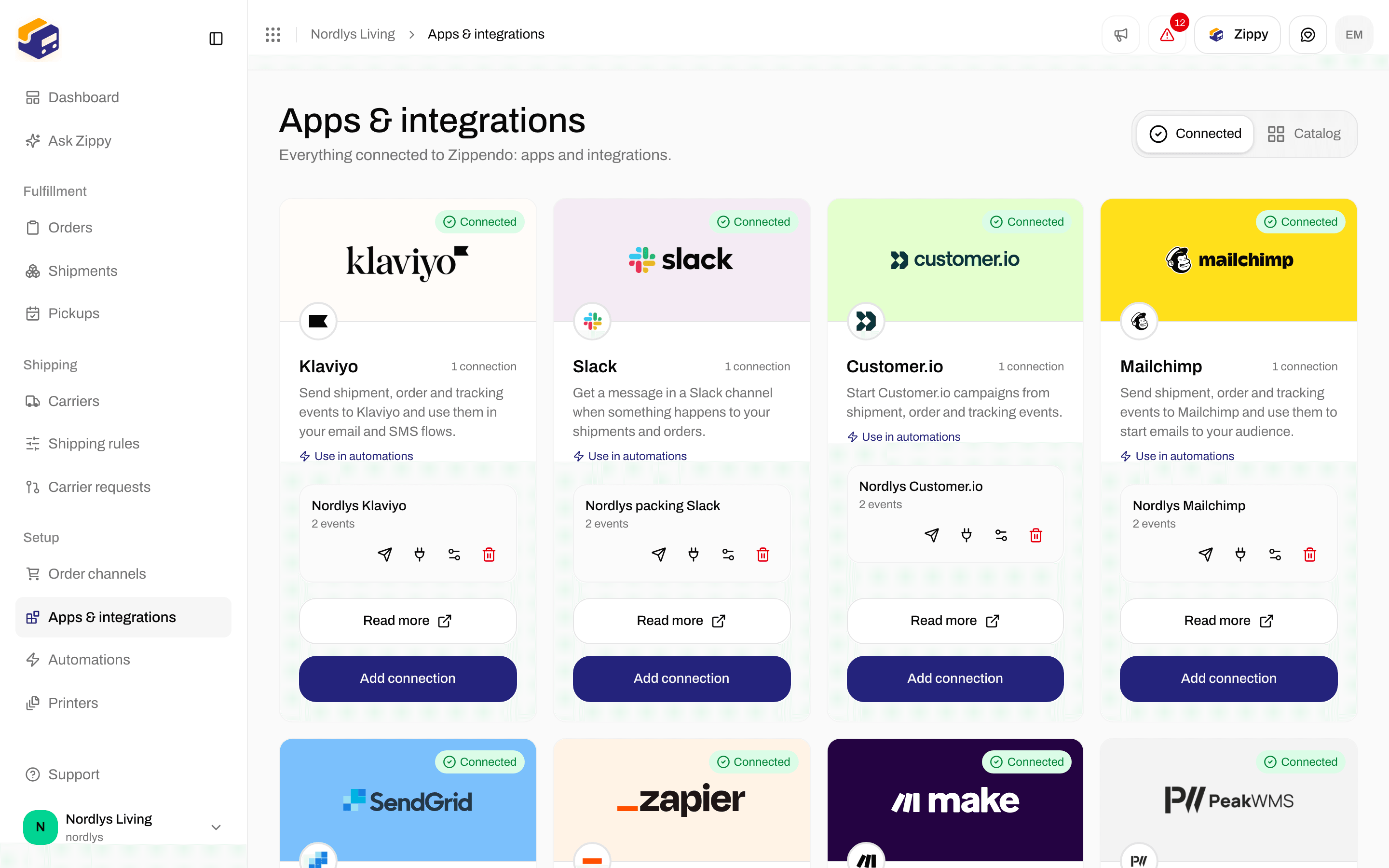
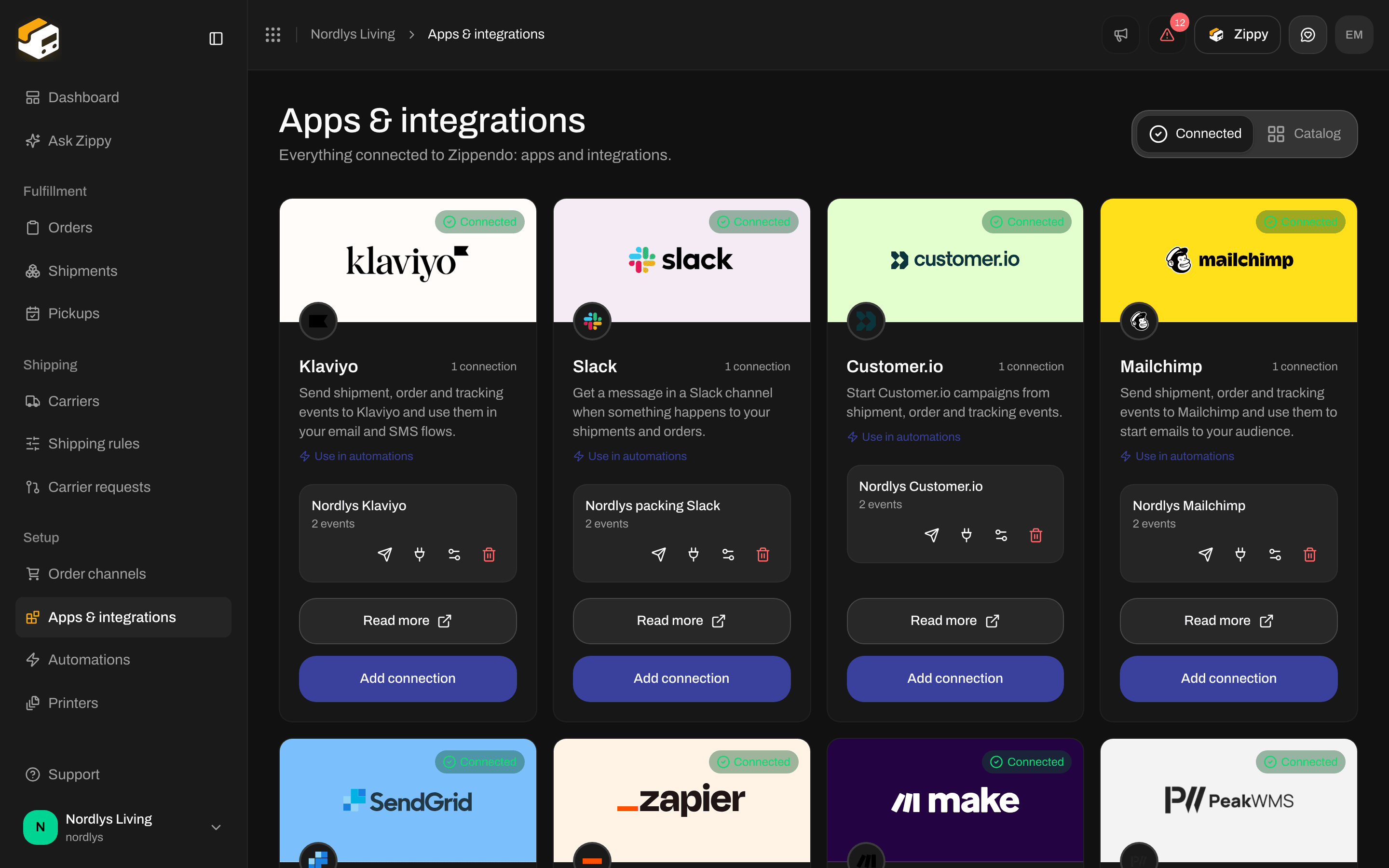
A Mailchimp connection on the Connected tab
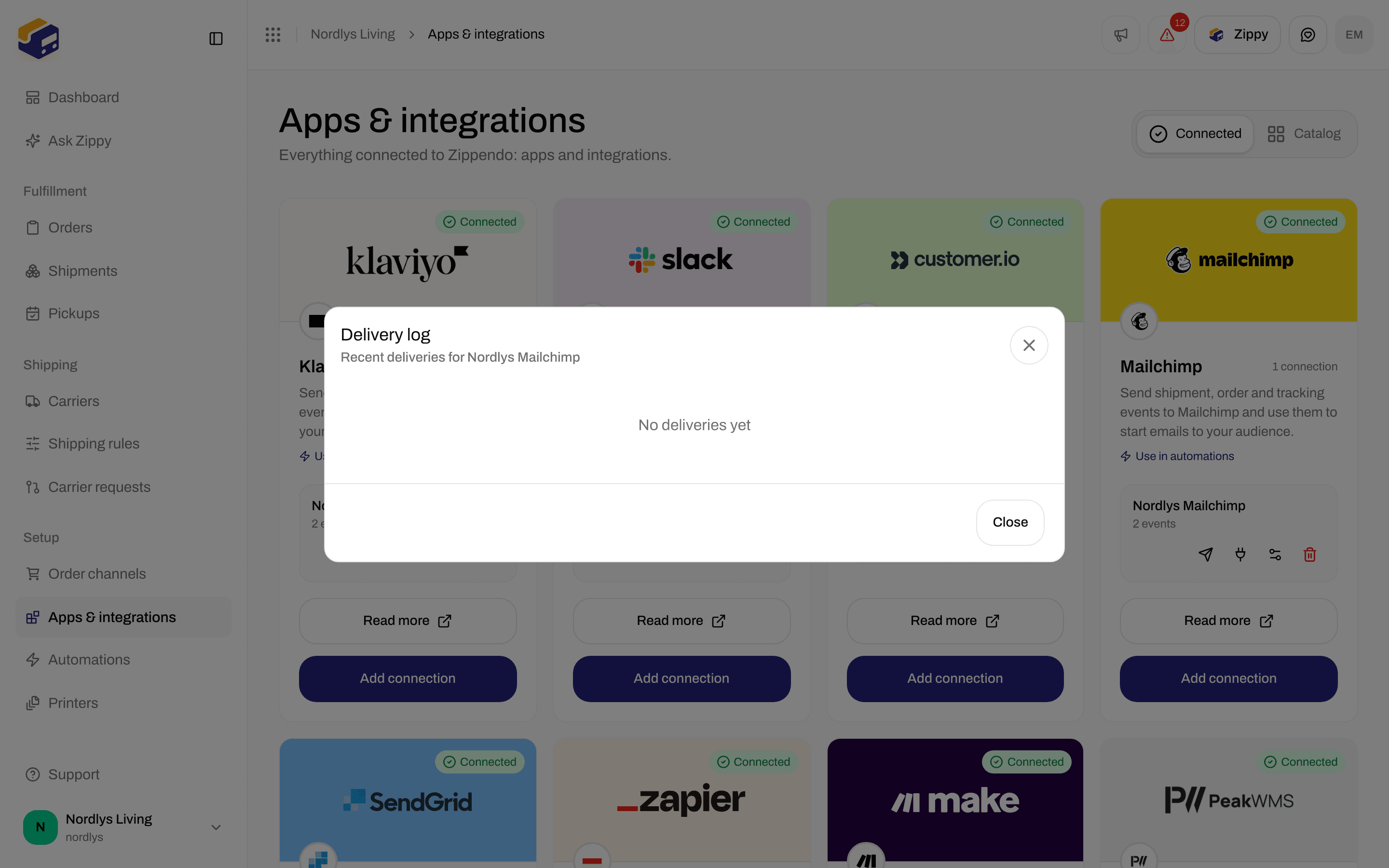
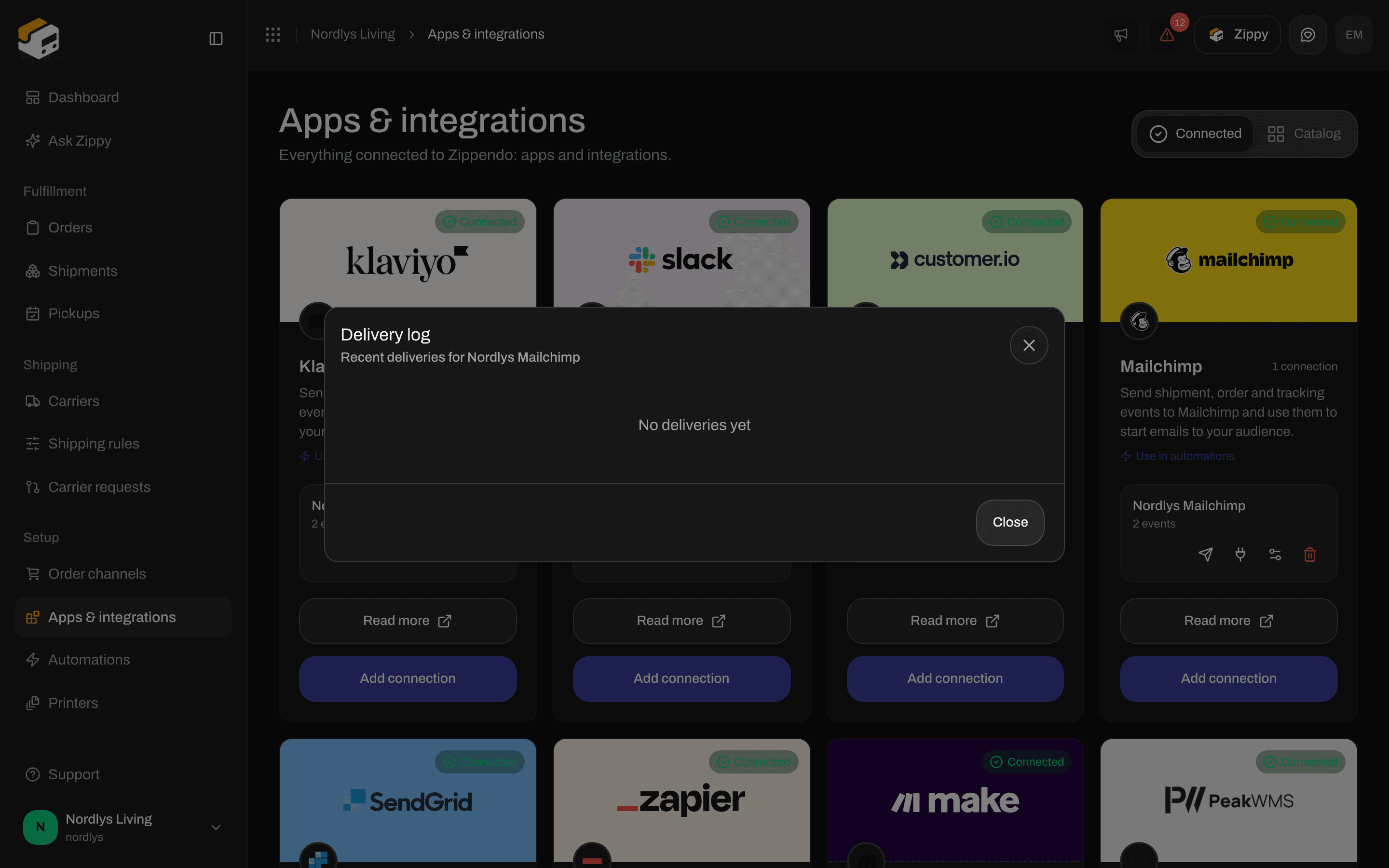
The delivery log before the first event
Change the key or disconnect
Click the sliders icon to open Edit your Mailchimp connection. Leave API key and Audience ID empty to keep what is stored. If you change one of them, fill in both: whatever you type replaces everything stored for the connection. Click Save changes.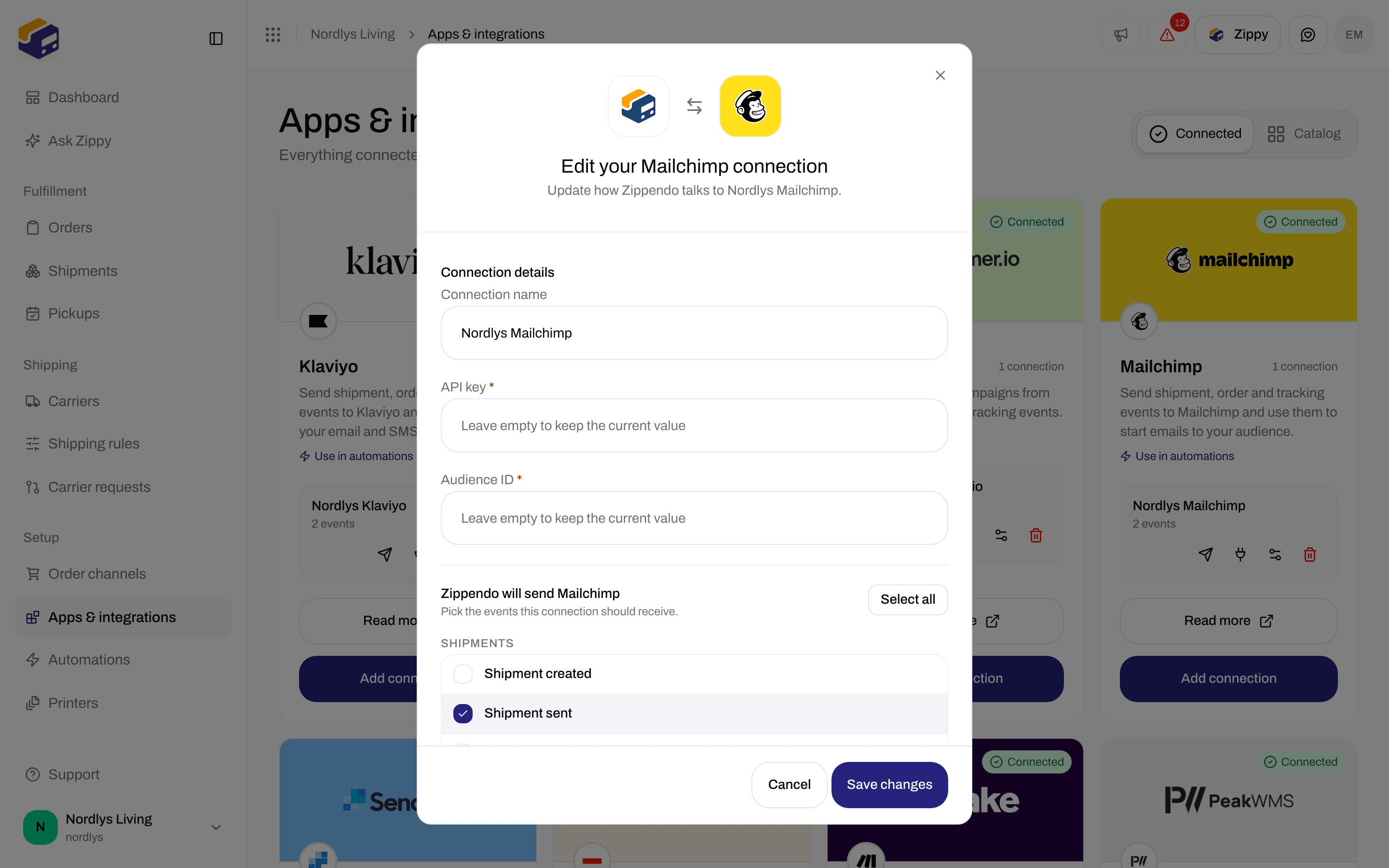
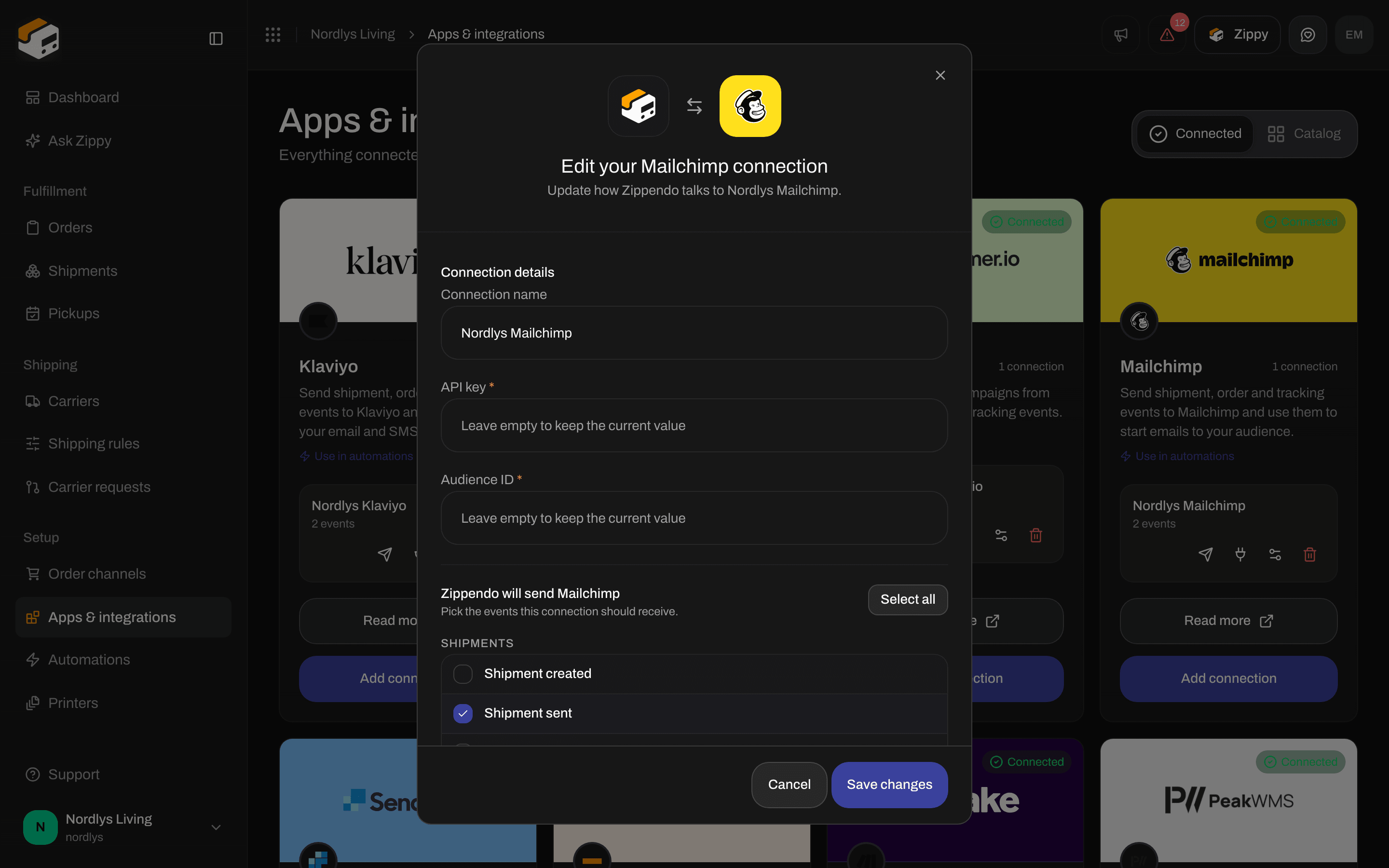
Edit a Mailchimp connection
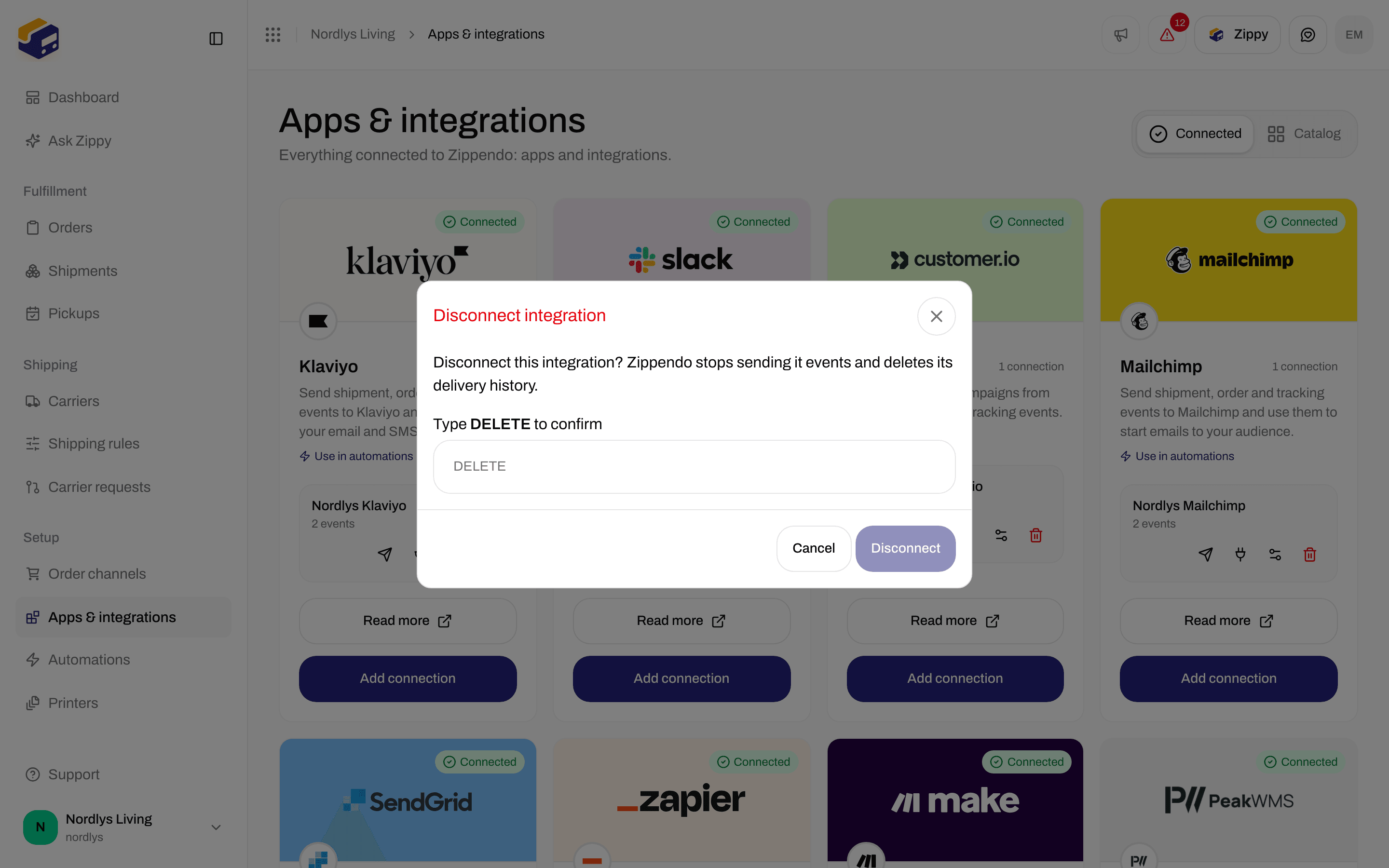
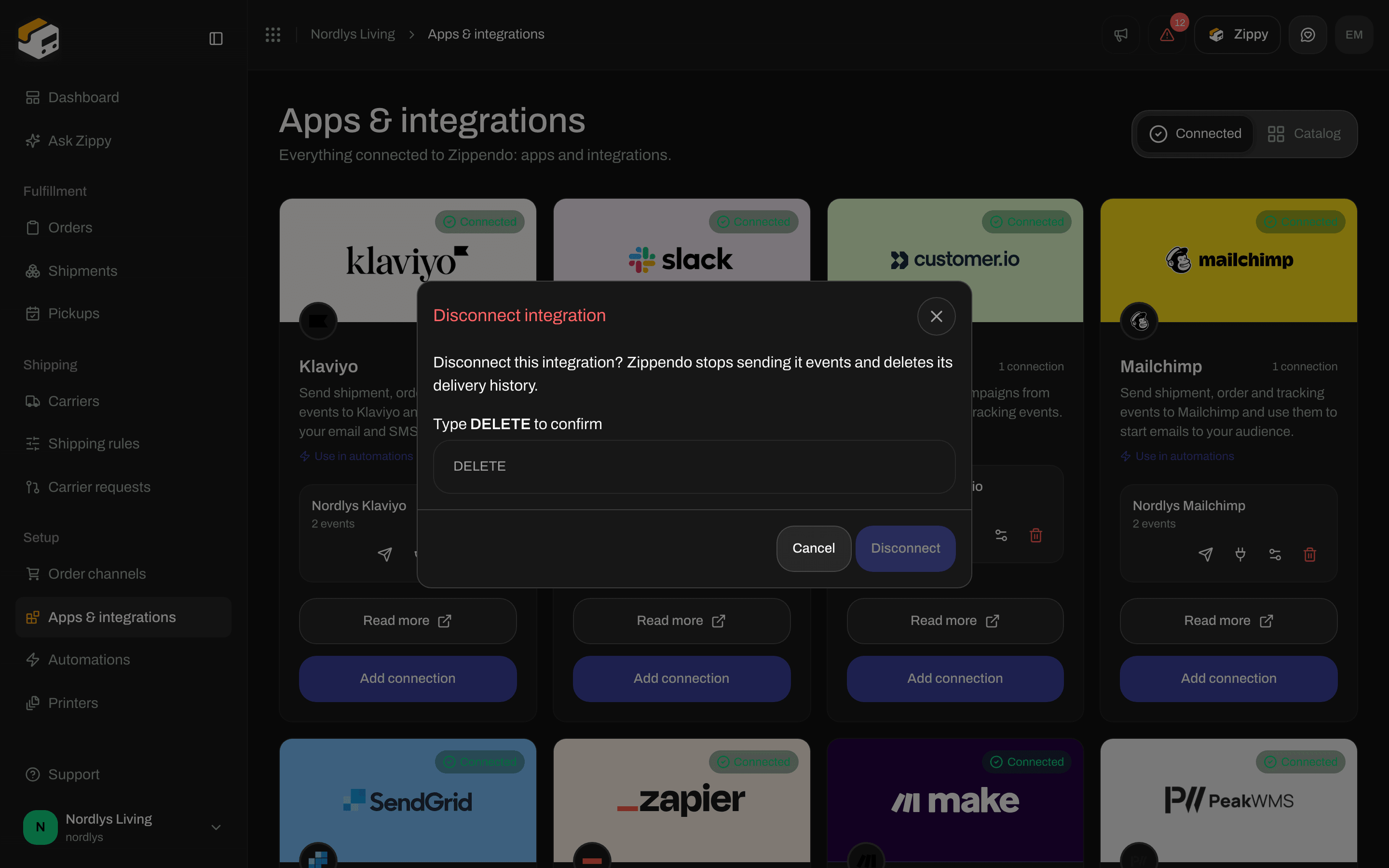
Type DELETE to disconnect
Use Mailchimp in an automation
In Automations, add the step Send Mailchimp event. It sends the event that started the automation to Mailchimp, but only when your conditions match.
See Automations for building the rest of the automation.
Related
- Connect an integration - test, delivery log, edit and disconnect for every app
- Mailchimp - the longer guide
- Integrations troubleshooting
- Automations
- Connect a carrier or integration