

On a shipment
Open a shipment. On the shipment page, the Printer settings card shows the shipment’s printers.- With no printers chosen, it says No printers, Not configured and No printers selected yet. Add them so Zippendo knows where to send labels and documents.
- With printers chosen, it says Labels and documents go to these printers when you send or print this shipment. and shows the printer under Label and under Document, or Not set.
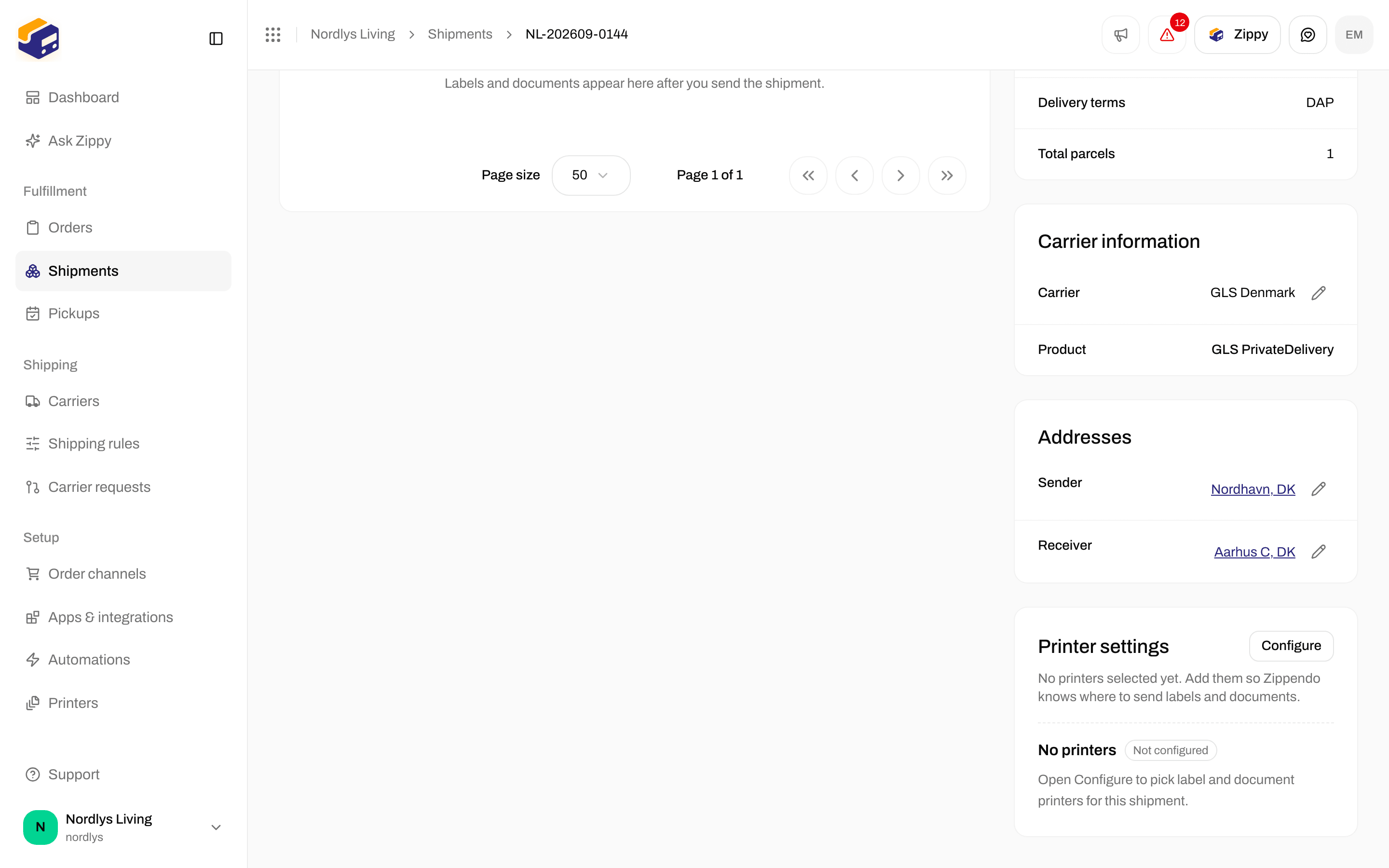
Printer settings on a shipment with no printers chosen
Choose the printers
1
Click Configure
Click Configure in the Printer settings box. The Printer settings window opens: Choose where labels and documents are sent when this shipment is printed.
2
Pick the printers
Pick a Label printer and a Document printer, or None.
3
Save
Click Save. You see Printer settings updated.
Choose None to remove a printer from the shipment.
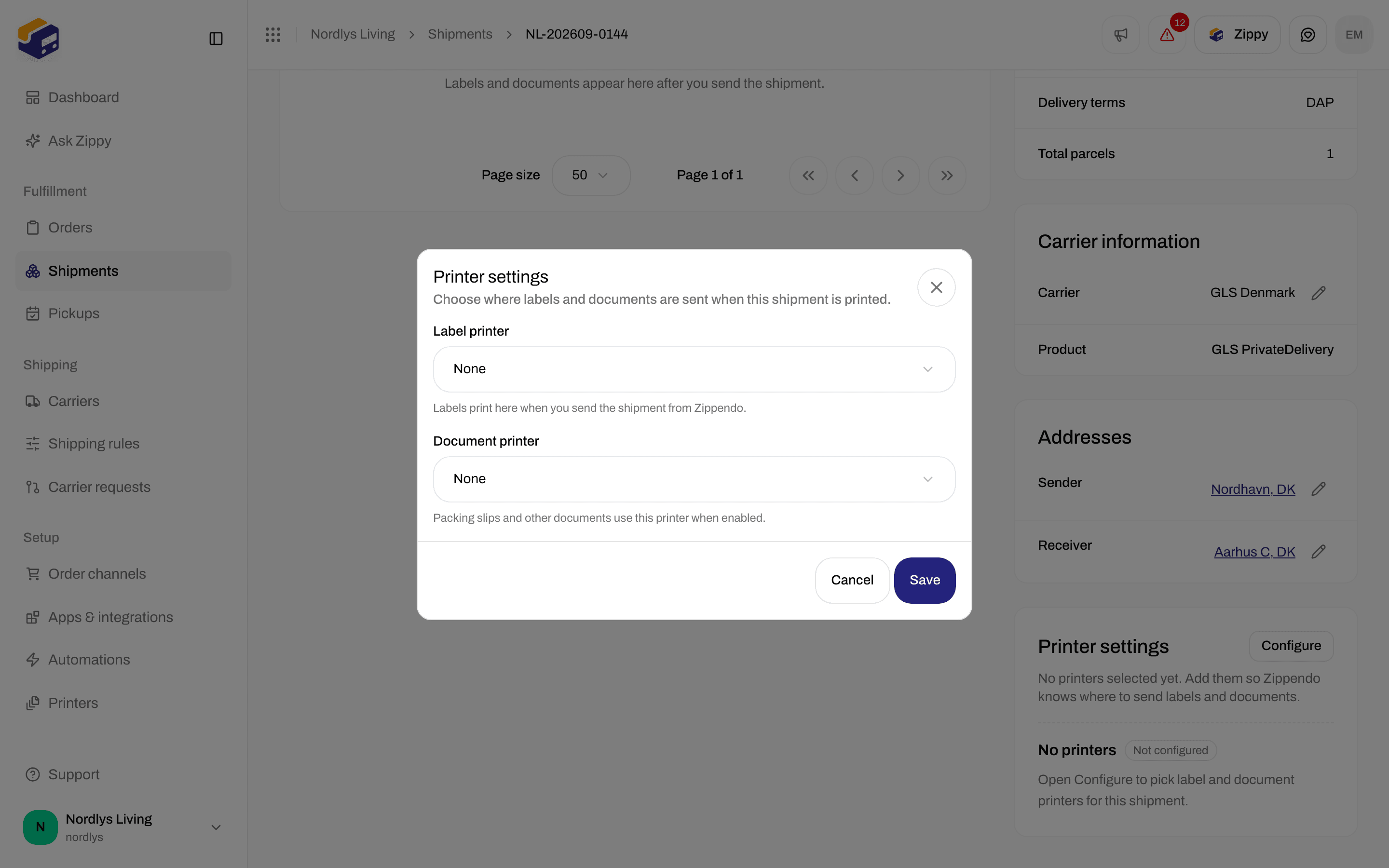
The Printer settings window with a label printer and a document printer
On Create shipment
When you create a shipment by hand, the Printer settings box lets you choose the printers straight away:
Leave both on None if you want to print later from the Documents card.
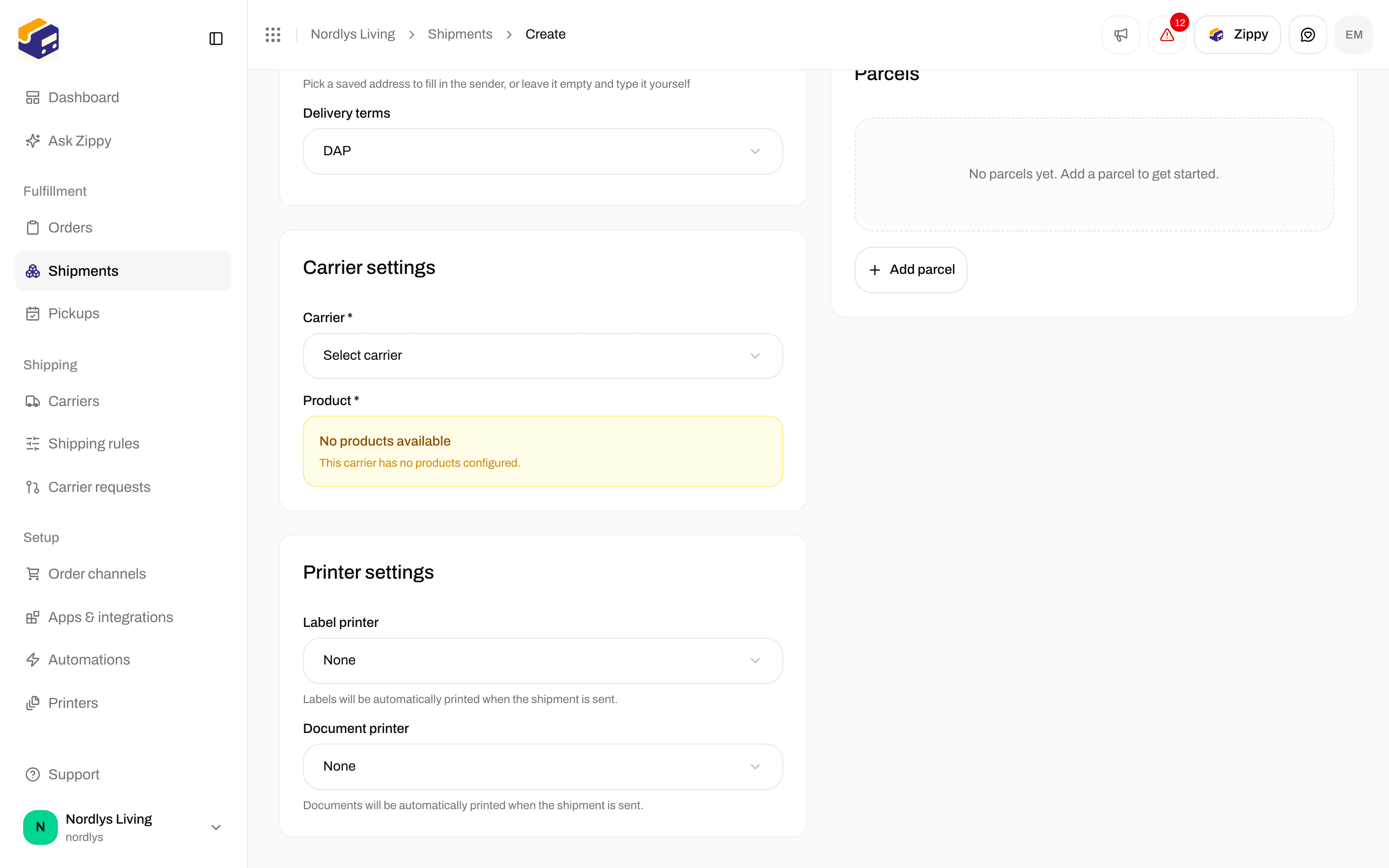
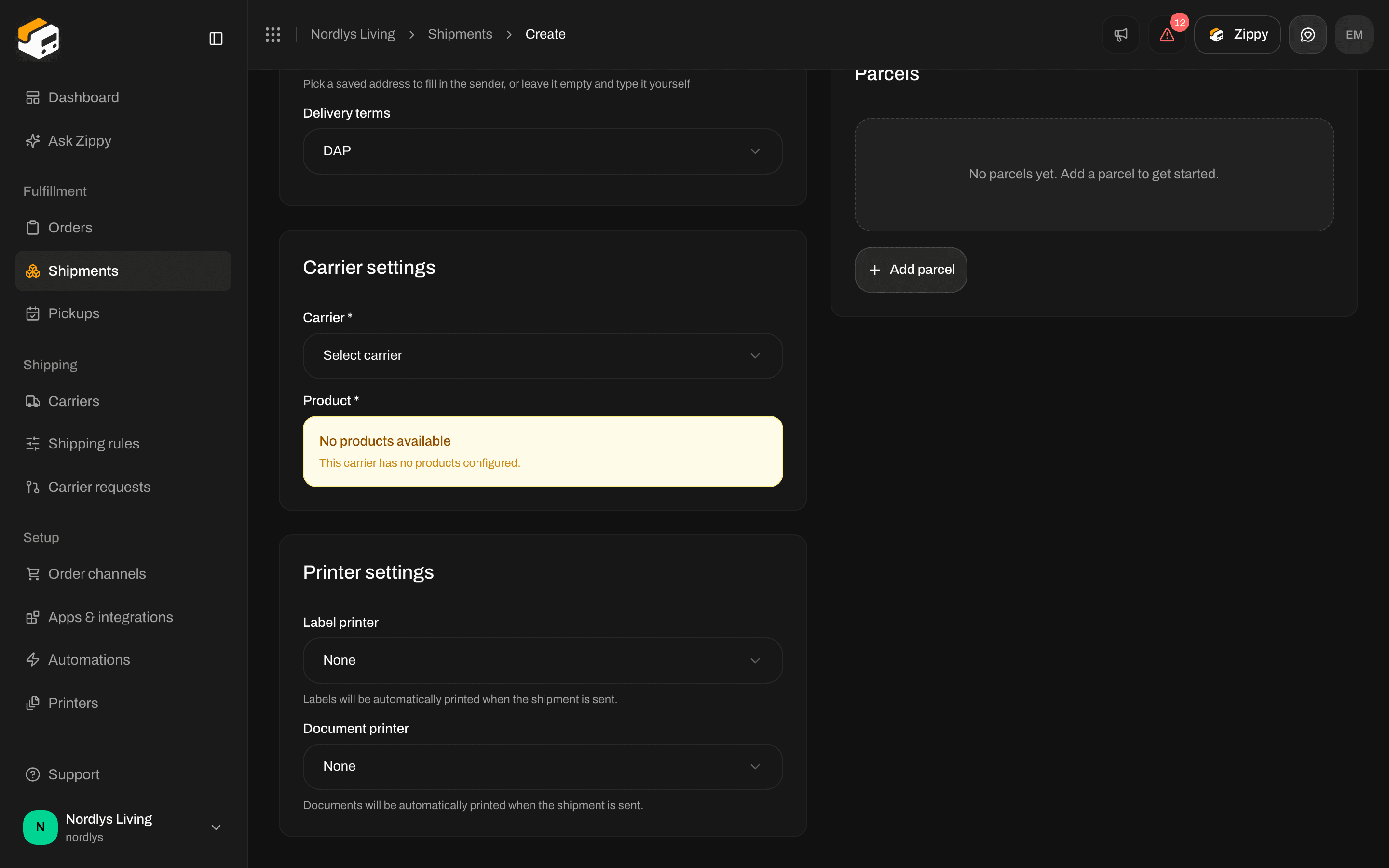
Printer settings on Create shipment: both printers start as None
What prints when you send
- The shipment has no shipping rule: a printer chosen here prints automatically when you send the shipment. The label goes to the label printer. Packing slips, invoices and other documents go to the document printer.
- The shipment has a shipping rule: automatic printing follows the rule’s Automatic printing settings, and the printers chosen here are not used for it. See Auto-print labels and documents.
Print by hand with Print all
In the Documents card on the shipment page, Print all prints everything in the card and Print in a row’s menu prints one document. Zippendo uses the shipping rule’s printers first, then the printers chosen on the shipment. If no label printer or document printer is set for what you print, Print documents opens: Choose which printers to use for this shipment’s documents.
Choose a printer in each list and click Print. These choices are only for this print. To keep them, use Configure as described above.
If there is no active printer of the right type, you see No active label printers found. Please set up a printer first. or No active document printers found. Please set up a printer first. Add and approve one first: Set up Zippendo Printer.
After printing you see, for example, “2 print jobs created”. If you see “1 document failed to print”, the chosen printer may have been disabled or have the wrong type. Check it on Printers.
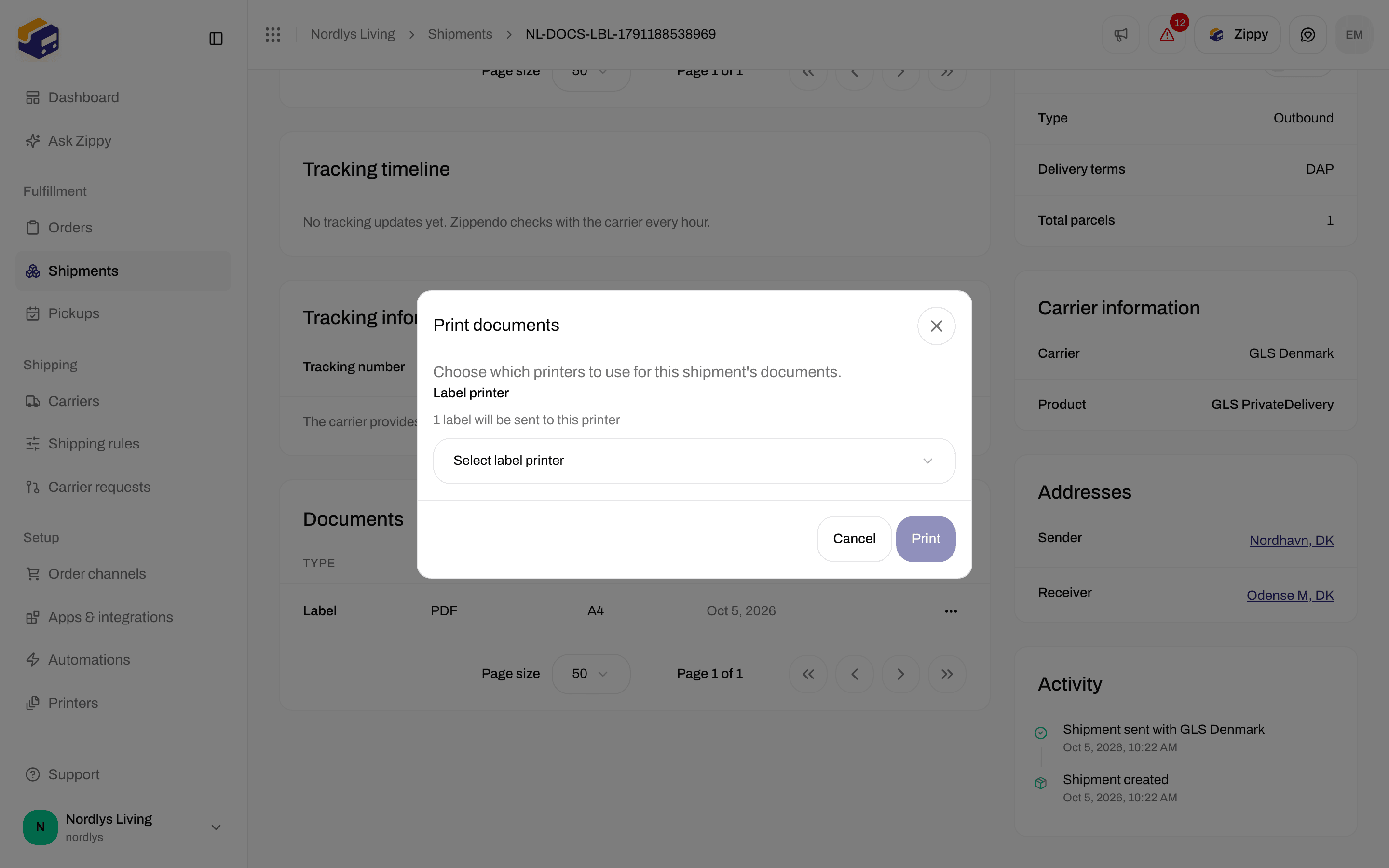
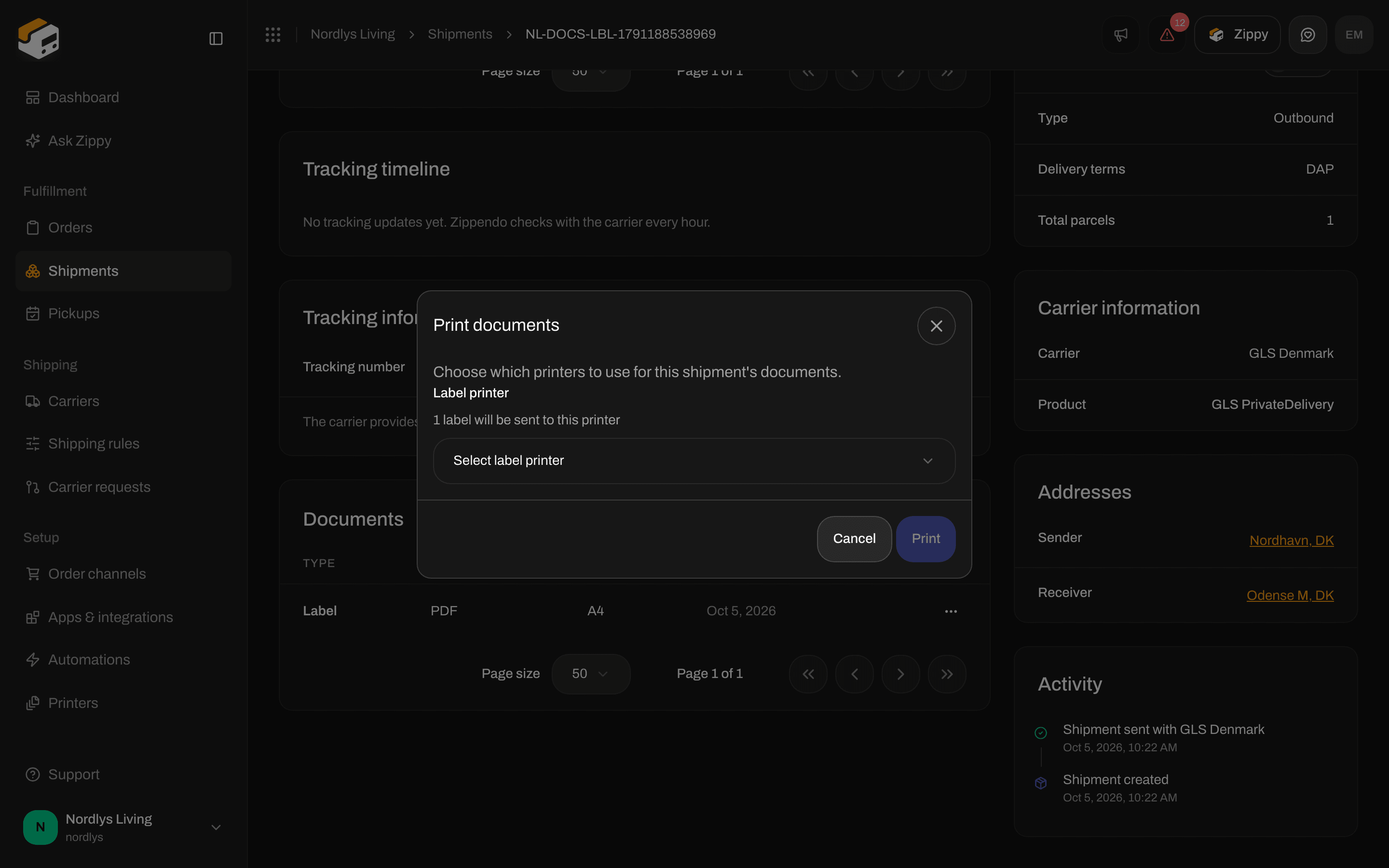
Print documents asks for a label printer for this print
Related
- Auto-print labels and documents - printers and automatic printing on a shipping rule
- Printer jobs
- Add and manage printers
- Set up Zippendo Printer
- Labels and printing