Get Google keys for the service point map and address search
Make two keys in your own Google Cloud account and add them in Zippendo, so customers can choose their service point on a map and search an address in Shopify checkout.
Your customers can already choose their service point from a list. At checkout they can search it by postcode or service point name, and in the cart by postcode. With two keys from your own Google account, you can give them more:
A Google address search key lets customers search for any address or area at checkout, and move the map to see the service points there.
Both keys are optional, and you can add one without the other. Without them, everything still works with the list. Making the keys takes about 15 minutes in Google Cloud, and this page walks you through every click.
Google gives you a free amount of use every month, and charges for use above it. The map counts each time a customer opens it. Address search counts each search and each time a customer moves the map. Google’s current prices are on Google Maps Platform pricing. In Google Cloud, you can set a budget alert, so Google emails you before a bill grows. A budget alert doesn’t stop the charges: to cap what address search can cost, also set a daily request limit (a quota) for the Geocoding API.
Step 3: Create the map key and lock it to your webshop
In Google Maps Platform, open Keys & Credentials, click Create credentials and choose API key. Google shows your new key: a long code that starts with “AIza”. Copy it.A key that isn’t locked works on any website, so someone else could use it and you would pay for their maps. Lock it to the addresses where your customers check out.
1
Open the key's settings
Click the name of your new key.
2
Allow only your webshop's addresses
Under Application restrictions, choose Websites. Under Website restrictions, add each address your customers check out on, one at a time:
Your own domain, for example https://nordlysliving.dk/*, and the same with *. in front, for example https://*.nordlysliving.dk/*, so addresses such as www. and checkout. are included.
Your Shopify address, for example https://nordlys-living.myshopify.com/*.
https://shop.app/*, if you switched on Include block in Shop Pay for the picker.
3
Allow only the map
Under API restrictions, choose Restrict key and tick only Maps JavaScript API.
4
Save
Click Save. It can take a few minutes before the new limits work.
Not sure which address your checkout uses? Start a checkout in your webshop and look at the address bar of your browser. That address must be in the list.
Click Order channels in the sidebar. On the Connected tab, click your Shopify webshop. You land on the Orders & checkout tab.
2
Paste the map key
In the Service points at checkout card, or the Service points in the cart card, paste the map key into Google Maps key (optional) and click Save key. You see Google key saved. Both cards use the same keys, so you add them once.
3
Paste the address search key
In the Service points at checkout card, paste the second key into Google address search key (optional) and click Save key. If Google accepts the key, you see Google key saved, and the box says Key saved. Paste a new key to replace it. The cart has no address search, so its card shows only the map key.
The two key boxes on the Service points at checkout card
Zippendo doesn’t show the address search key again after you save it. To remove it, click Remove key. To remove the map key, empty its box and click Save key.
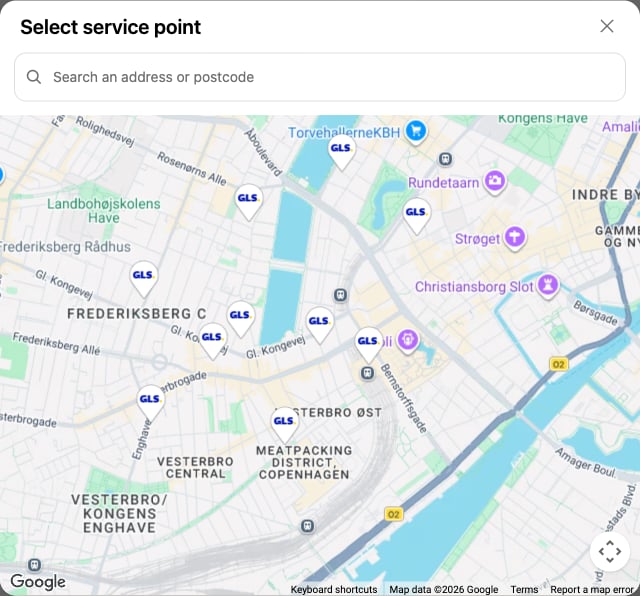
Start a checkout in your webshop, choose your service point shipping method and click Change service point. With the address search key, the search box above the list says Address, postcode or service point name.With the map key, your customers can switch between List and Map. Map opens a map with a pin for each service point, with the carrier’s logo. With the address search key too, customers can search an address or a postcode above the map, or simply move the map, and the service points there appear.
The map your customers see after clicking Map
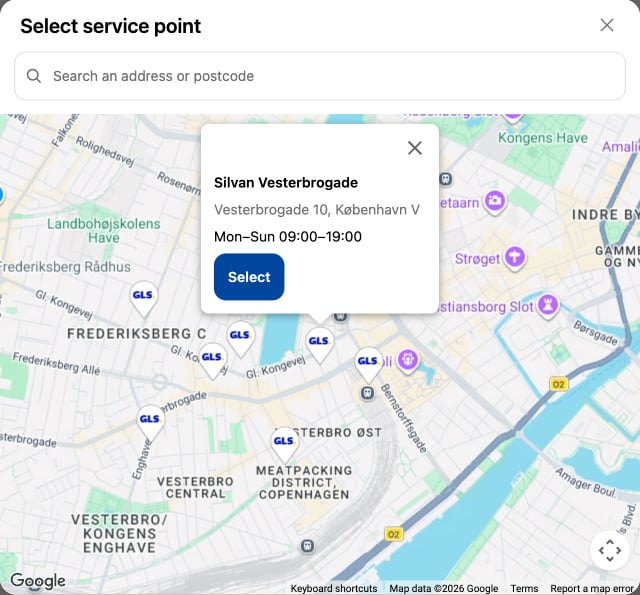
When they click a pin, they see the service point’s name, address and opening hours. Select chooses it, and the map closes.
There is no map. Copy the map key again from Google Cloud and paste the whole key. Compare the address in your browser during checkout with the Website restrictions on the key, and check that the Maps JavaScript API is on and billing is set up. When checkout shows the shipping methods in a window on top of the page, there is no Map button: Shopify allows no map there.
Zippendo says Google didn’t accept this key. The address search key is locked to websites, or the Geocoding API isn’t switched on for it. Fix both in Google Cloud, or make a new key as in Step 4.
Customers can’t search an address, or moving the map shows no new service points. Check that you saved an address search key, and that the Geocoding API is still on and billing is set up in your Google Cloud project.
You just changed a key. Wait a few minutes and try again.
The map comes straight from Google, with your map key. When a customer searches an address or moves the map, Zippendo passes what they typed, or the spot on the map, to Google with your address search key. Both keys run under your own agreement with Google, and Google bills your account.Related: Add the service point picker to Shopify checkout · Service point picker in checkout
Was this page helpful?
⌘I
{"docsConfig":{"theme":"almond","$schema":"https://mintlify.com/docs.json","name":"Zippendo","colors":{"primary":"#000","light":"#fff","dark":"#000"},"logo":{"light":"https://mintcdn.com/zippendo/vvJk_PyssTmjqf9_/logo/light.svg?fit=max\u0026auto=format\u0026n=vvJk_PyssTmjqf9_\u0026q=85\u0026s=9fc741a418a93f2d556d0b9b613050e8","dark":"https://mintcdn.com/zippendo/vvJk_PyssTmjqf9_/logo/dark.svg?fit=max\u0026auto=format\u0026n=vvJk_PyssTmjqf9_\u0026q=85\u0026s=230c49f3bcdc109cf7306f3a3fb81bc2","href":"https://www.zippendo.com"},"favicon":"https://mintcdn.com/zippendo/vvJk_PyssTmjqf9_/favicon-dark.svg?fit=max\u0026auto=format\u0026n=vvJk_PyssTmjqf9_\u0026q=85\u0026s=3bd5c187f9c99f9ca518062f6a7b2e18","api":{"openapi":"https://api.zippendo.com/public/json","playground":{"display":"interactive"},"mdx":{"server":"https://api.zippendo.com"}},"navbar":{"links":[{"href":"https://app.zippendo.com/login","label":"Sign in"}],"primary":{"type":"button","label":"Get started","href":"https://app.zippendo.com/sign-up"}},"footer":{"socials":{"website":"https://www.zippendo.com"}},"seo":{"metatags":{"og:site_name":"Zippendo","og:type":"website","twitter:card":"summary_large_image"}},"fonts":{"family":"Inter"},"icons":{"library":"lucide"},"errors":{"404":{"redirect":false,"title":"404: Lost in Documentation Space","description":"Looks like this page took a wrong turn. Try the sidebar or head back to the introduction."}},"contextual":{"options":["copy","view","chatgpt","claude","perplexity","mcp","cursor","vscode"],"display":"header"},"styling":{"latex":false},"navigation":{"languages":[{"language":"en","default":true,"href":"introduction"},{"language":"de","navbar":{"links":[{"href":"https://app.zippendo.com/login","label":"Anmelden"}],"primary":{"type":"button","label":"Loslegen","href":"https://app.zippendo.com/sign-up"}},"href":"de/introduction"},{"language":"pl","navbar":{"links":[{"href":"https://app.zippendo.com/login","label":"Zaloguj się"}],"primary":{"type":"button","label":"Zacznij","href":"https://app.zippendo.com/sign-up"}},"href":"pl/introduction"},{"language":"da","navbar":{"links":[{"href":"https://app.zippendo.com/login","label":"Log ind"}],"primary":{"type":"button","label":"Kom i gang","href":"https://app.zippendo.com/sign-up"}},"href":"da/introduction"},{"language":"sv","navbar":{"links":[{"href":"https://app.zippendo.com/login","label":"Logga in"}],"primary":{"type":"button","label":"Kom igång","href":"https://app.zippendo.com/sign-up"}},"href":"sv/introduction"},{"language":"nl","navbar":{"links":[{"href":"https://app.zippendo.com/login","label":"Inloggen"}],"primary":{"type":"button","label":"Aan de slag","href":"https://app.zippendo.com/sign-up"}},"href":"nl/introduction"},{"language":"no","navbar":{"links":[{"href":"https://app.zippendo.com/login","label":"Logg inn"}],"primary":{"type":"button","label":"Kom i gang","href":"https://app.zippendo.com/sign-up"}},"href":"no/introduction"},{"language":"fi","navbar":{"links":[{"href":"https://app.zippendo.com/login","label":"Kirjaudu sisään"}],"primary":{"type":"button","label":"Aloita","href":"https://app.zippendo.com/sign-up"}},"href":"fi/introduction"},{"language":"fr","navbar":{"links":[{"href":"https://app.zippendo.com/login","label":"Se connecter"}],"primary":{"type":"button","label":"Commencer","href":"https://app.zippendo.com/sign-up"}},"href":"fr/introduction"}]}},"deployment":{"deploymentMetadataValue":{"subdomain":"zippendo","hasAudioNarration":false,"actualSubdomain":"zippendo","customDomains":["www.zippendo.com"],"gitSource":{"type":"github","owner":"zippendo","repo":"zippendo","deployBranch":"main","contentDirectory":"apps/docs","isPrivate":true,"mountPath":"","label":""},"chroma":{"liveDeploymentHistoryId":"6adbd363a4165772661cbff5","collectionId":"c7d6e11e-a9db-4571-89f6-de7c8fd67a4f","schemaVersion":"v3","latestBuiltDeploymentHistoryId":"6adbd363a4165772661cbff5"},"feedback":{"thumbs":true},"entitlements":{},"buildId":"6adf244cd7cf896c8ad7cdef","clientVersion":"0.0.3966","searchFilterCounts":[{"language":"de","tag":"Anleitungen","count":105},{"language":"en","tag":"How-to","count":86},{"language":"da","tag":"Guides","count":86},{"language":"fi","tag":"Ohjeet","count":86},{"language":"fr","tag":"Guides pratiques","count":86},{"language":"nl","tag":"Hoe doe je dat","count":86},{"language":"no","tag":"Slik gjør du","count":86},{"language":"pl","tag":"Poradniki","count":86},{"language":"sv","tag":"Instruktioner","count":86},{"language":"en","tag":"API reference","count":85},{"language":"en","tag":"Documentation","count":59},{"language":"da","tag":"Dokumentation","count":59},{"language":"de","tag":"Dokumentation","count":59},{"language":"fi","tag":"Dokumentaatio","count":59},{"language":"fr","tag":"Documentation","count":59},{"language":"nl","tag":"Documentatie","count":59},{"language":"no","tag":"Dokumentasjon","count":59},{"language":"pl","tag":"Dokumentacja","count":59},{"language":"sv","tag":"Dokumentation","count":59},{"language":"en","tag":"Connect a carrier","count":29},{"language":"da","tag":"Tilslut en transportør","count":29},{"language":"de","tag":"Versanddienstleister verbinden","count":29},{"language":"fi","tag":"Yhdistä kuljetusyhtiö","count":29},{"language":"fr","tag":"Connecter un transporteur","count":29},{"language":"nl","tag":"Een vervoerder koppelen","count":29},{"language":"no","tag":"Koble til en transportør","count":29},{"language":"pl","tag":"Połącz przewoźnika","count":29},{"language":"sv","tag":"Anslut en transportör","count":29},{"language":"en","tag":"Shipments","count":22},{"language":"en","tag":"Tutorials","count":19},{"language":"da","tag":"Vejledninger","count":19},{"language":"fi","tag":"Opastukset","count":19},{"language":"fr","tag":"Tutoriels","count":19},{"language":"nl","tag":"Handleidingen","count":19},{"language":"no","tag":"Veiledninger","count":19},{"language":"pl","tag":"Samouczki","count":19},{"language":"sv","tag":"Guider","count":19},{"language":"en","tag":"Connections","count":14},{"language":"en","tag":"Fulfillment flow","count":14},{"language":"da","tag":"Forbindelser","count":14},{"language":"da","tag":"Forsendelsesflow","count":14},{"language":"de","tag":"Verbindungen","count":14},{"language":"de","tag":"Versandablauf","count":14},{"language":"fi","tag":"Yhteydet","count":14},{"language":"fi","tag":"Toimitusprosessi","count":14},{"language":"fr","tag":"Connexions","count":14},{"language":"fr","tag":"Flux d'expédition","count":14},{"language":"nl","tag":"Koppelingen","count":14},{"language":"nl","tag":"Verzendproces","count":14},{"language":"no","tag":"Tilkoblinger","count":14},{"language":"no","tag":"Sendingsflyt","count":14},{"language":"pl","tag":"Połączenia","count":14},{"language":"pl","tag":"Przepływ realizacji zamówień","count":14},{"language":"sv","tag":"Anslutningar","count":14},{"language":"sv","tag":"Orderflöde","count":14},{"language":"en","tag":"Account","count":13},{"language":"en","tag":"Carriers","count":13},{"language":"da","tag":"Konto","count":13},{"language":"de","tag":"Konto","count":13},{"language":"fi","tag":"Tili","count":13},{"language":"fr","tag":"Compte","count":13},{"language":"nl","tag":"Account","count":13},{"language":"no","tag":"Konto","count":13},{"language":"pl","tag":"Konto","count":13},{"language":"sv","tag":"Konto","count":13},{"language":"da","tag":"Drift","count":12},{"language":"de","tag":"Betrieb","count":12},{"language":"fi","tag":"Toiminnot","count":12},{"language":"fr","tag":"Opérations","count":12},{"language":"nl","tag":"Dagelijks gebruik","count":12},{"language":"no","tag":"Drift","count":12},{"language":"pl","tag":"Operacje","count":12},{"language":"sv","tag":"Daglig drift","count":12},{"language":"da","tag":"Integrationer","count":11},{"language":"da","tag":"Vidensbase","count":11},{"language":"de","tag":"Integrationen","count":11},{"language":"de","tag":"Wissensdatenbank","count":11},{"language":"fi","tag":"Integraatiot","count":11},{"language":"fi","tag":"Tietopankki","count":11},{"language":"fr","tag":"Intégrations","count":11},{"language":"fr","tag":"Base de connaissances","count":11},{"language":"nl","tag":"Integraties","count":11},{"language":"nl","tag":"Kennisbank","count":11},{"language":"no","tag":"Integrasjoner","count":11},{"language":"no","tag":"Kunnskapsbase","count":11},{"language":"pl","tag":"Integracje","count":11},{"language":"pl","tag":"Baza wiedzy","count":11},{"language":"sv","tag":"Integrationer","count":11},{"language":"sv","tag":"Kunskapsbas","count":11},{"language":"de","tag":"Bestellungen \u0026 Verkaufskanäle","count":10}]},"assistantConfig":{"enableAskAiButton":false,"enableStarterQuestions":false,"enableContextualStarterQuestions":false,"enableAskAiSearchBar":true},"hasChatPermissions":false,"hasWebMcpPermissions":false,"toggles":[{"name":"kill-isr","enabled":true,"variant":{"name":"disabled","enabled":false,"feature_enabled":true},"impressionData":false},{"name":"agent-mintlify-slack","enabled":true,"variant":{"name":"disabled","enabled":false,"feature_enabled":true},"impressionData":false},{"name":"editor-v7-file-tree","enabled":true,"variant":{"name":"disabled","enabled":false,"feature_enabled":true},"impressionData":false},{"name":"agent-integrations-settings","enabled":true,"variant":{"name":"disabled","enabled":false,"feature_enabled":true},"impressionData":false},{"name":"automations-pr-grouping","enabled":true,"variant":{"name":"disabled","enabled":false,"feature_enabled":true},"impressionData":false},{"name":"custom-prefix","enabled":true,"variant":{"name":"disabled","enabled":false,"feature_enabled":true},"impressionData":false},{"name":"analytics-v7","enabled":true,"variant":{"name":"disabled","enabled":false,"feature_enabled":true},"impressionData":false},{"name":"user-flows-analytics","enabled":true,"variant":{"name":"disabled","enabled":false,"feature_enabled":true},"impressionData":false},{"name":"no-publish-flow","enabled":true,"variant":{"name":"disabled","enabled":false,"feature_enabled":true},"impressionData":false},{"name":"workos-onboarding","enabled":true,"variant":{"name":"disabled","enabled":false,"feature_enabled":true},"impressionData":false},{"name":"llms-txt-v2","enabled":true,"variant":{"name":"disabled","enabled":false,"feature_enabled":true},"impressionData":false},{"name":"pause-universal-search-reconcile","enabled":true,"variant":{"name":"disabled","enabled":false,"feature_enabled":true},"impressionData":false},{"name":"snapshot-serving-live","enabled":true,"variant":{"name":"disabled","enabled":false,"feature_enabled":true},"impressionData":false},{"name":"stripTemperatureMiddleware","enabled":true,"variant":{"name":"disabled","enabled":false,"feature_enabled":true},"impressionData":false},{"name":"per-site-search-delta","enabled":true,"variant":{"name":"disabled","enabled":false,"feature_enabled":true},"impressionData":false},{"name":"support-platform-pylon-zendesk","enabled":true,"variant":{"name":"disabled","enabled":false,"feature_enabled":true},"impressionData":false},{"name":"snapshot-serving","enabled":true,"variant":{"name":"disabled","enabled":false,"feature_enabled":true},"impressionData":false},{"name":"instant-rollback","enabled":true,"variant":{"name":"disabled","enabled":false,"feature_enabled":true},"impressionData":false},{"name":"granular-notifications-server","enabled":true,"variant":{"name":"disabled","enabled":false,"feature_enabled":true},"impressionData":false},{"name":"granular-notifications","enabled":true,"variant":{"name":"disabled","enabled":false,"feature_enabled":true},"impressionData":false},{"name":"editor-private-page-search","enabled":true,"variant":{"name":"disabled","enabled":false,"feature_enabled":true},"impressionData":false},{"name":"automations-fable","enabled":true,"variant":{"name":"disabled","enabled":false,"feature_enabled":true},"impressionData":false},{"name":"fixed-ai-action-pricing","enabled":true,"variant":{"name":"disabled","enabled":false,"feature_enabled":true},"impressionData":false},{"name":"automation-resolve-merge-conflict","enabled":true,"variant":{"name":"disabled","enabled":false,"feature_enabled":true},"impressionData":false},{"name":"scoped-publishing","enabled":true,"variant":{"name":"disabled","enabled":false,"feature_enabled":true},"impressionData":false},{"name":"mintql","enabled":true,"variant":{"name":"disabled","enabled":false,"feature_enabled":true},"impressionData":false},{"name":"page-level-analytics","enabled":true,"variant":{"name":"disabled","enabled":false,"feature_enabled":true},"impressionData":false},{"name":"editor-version-history-v2","enabled":true,"variant":{"name":"disabled","enabled":false,"feature_enabled":true},"impressionData":false},{"name":"editor-nav-generations","enabled":true,"variant":{"name":"disabled","enabled":false,"feature_enabled":true},"impressionData":false},{"name":"billing-page-v2","enabled":true,"variant":{"name":"disabled","enabled":false,"feature_enabled":true},"impressionData":false},{"name":"workspace-projects","enabled":true,"variant":{"name":"disabled","enabled":false,"feature_enabled":true},"impressionData":false},{"name":"assistant-v5","enabled":true,"variant":{"name":"disabled","enabled":false,"feature_enabled":true},"impressionData":false},{"name":"byok-sep-25","enabled":true,"variant":{"name":"disabled","enabled":false,"feature_enabled":true},"impressionData":false},{"name":"fork-pr-previews","enabled":true,"variant":{"name":"disabled","enabled":false,"feature_enabled":true},"impressionData":false},{"name":"revalidation-jwt","enabled":true,"variant":{"name":"disabled","enabled":false,"feature_enabled":true},"impressionData":false},{"name":"vite-origin","enabled":true,"variant":{"name":"disabled","enabled":false,"feature_enabled":true},"impressionData":false},{"name":"editor-agent-model-picker","enabled":true,"variant":{"name":"disabled","enabled":false,"feature_enabled":true},"impressionData":false},{"name":"billing-updated-9-15","enabled":true,"variant":{"name":"disabled","enabled":false,"feature_enabled":true},"impressionData":false},{"name":"hobby-abuse-scan","enabled":true,"variant":{"name":"disabled","enabled":false,"feature_enabled":true},"impressionData":false},{"name":"dashboard-inbox","enabled":true,"variant":{"name":"disabled","enabled":false,"feature_enabled":true},"impressionData":false}],"isAtlas":false,"googleFontsInlined":false},"customCss":[{"filePath":"style.css","content":"@media (min-width:1024px){.h-full.relative.flex-1.flex.items-center.gap-x-4{display:grid;grid-template-columns:240px auto 1fr auto;align-items:center;column-gap:16px}.h-full.relative.flex-1.flex.items-center.gap-x-4>.flex-1.flex.items-center.gap-x-4{width:240px;min-width:240px;max-width:240px;flex:none;grid-column:1;box-sizing:border-box;padding-right:0;justify-content:flex-start}.h-full.relative.flex-1.flex.items-center.gap-x-4>.flex-1.flex.items-center.gap-x-4>.hidden.lg\\:flex.items-center.gap-x-2:empty{display:none}.h-full.relative.flex-1.flex.items-center.gap-x-4>.flex.items-center.gap-4,.h-full.relative.flex-1.flex.items-center.gap-x-4>.flex.items-center.gap-4>.flex-1.relative.hidden.lg\\:flex.items-center{display:contents}.h-full.relative.flex-1.flex.items-center.gap-x-4 .h-14.font-semibold:has(.nav-tabs){grid-column:2;grid-row:1;justify-self:start}.h-full.relative.flex-1.flex.items-center.gap-x-4 nav[aria-label=Main]{grid-column:4;justify-self:end}.h-full.relative.flex-1.flex.items-center.gap-x-4 #search-bar-entry{grid-column:3;justify-self:end}}.flex-1.flex.items-center.gap-x-4{padding-left:0}.sidebar-title{font-weight:700}"}],"page":{"pagePath":"how-to/google-maps-key","slug":"/how-to/google-maps-key","pageMetadata":{"title":"Get Google keys for the service point map and address search","sidebarTitle":"Google keys","description":"Make two keys in your own Google Cloud account and add them in Zippendo, so customers can choose their service point on a map and search an address in Shopify checkout.","keywords":["Google Maps","Google Maps key","Geocoding API","API key","map","address search","service point picker","Shopify Plus"],"href":"/how-to/google-maps-key"},"description":{"compiledSource":"\"use strict\";\nconst {jsx: _jsx} = arguments[0];\nconst {useMDXComponents: _provideComponents} = arguments[0];\nfunction _createMdxContent(props) {\n const _components = {\n p: \"p\",\n ..._provideComponents(),\n ...props.components\n };\n return _jsx(_components.p, {\n children: \"Make two keys in your own Google Cloud account and add them in Zippendo, so customers can choose their service point on a map and search an address in Shopify checkout.\"\n });\n}\nfunction MDXContent(props = {}) {\n const {wrapper: MDXLayout} = {\n ..._provideComponents(),\n ...props.components\n };\n return MDXLayout ? _jsx(MDXLayout, {\n ...props,\n children: _jsx(_createMdxContent, {\n ...props\n })\n }) : _createMdxContent(props);\n}\nreturn {\n default: MDXContent\n};\n","frontmatter":{},"scope":{}},"pageType":"default","mdx":{"mdxSource":{"compiledSource":"\"use strict\";const{Fragment:_Fragment,jsx:_jsx,jsxs:_jsxs}=arguments[0];const{useMDXComponents:_provideComponents}=arguments[0];function _createMdxContent(props){const _components={a:`a`,code:`code`,li:`li`,p:`p`,strong:`strong`,ul:`ul`,..._provideComponents(),...props.components},{Frame,Heading,Info,OptimizedImage,Step,Steps,Tip,Warning}=_components;if(!Frame)_missingMdxReference(`Frame`,true);if(!Heading)_missingMdxReference(`Heading`,true);if(!Info)_missingMdxReference(`Info`,true);if(!OptimizedImage)_missingMdxReference(`OptimizedImage`,true);if(!Step)_missingMdxReference(`Step`,true);if(!Steps)_missingMdxReference(`Steps`,true);if(!Tip)_missingMdxReference(`Tip`,true);if(!Warning)_missingMdxReference(`Warning`,true);return _jsxs(_Fragment,{children:[_jsx(_components.p,{children:`Your customers can already choose their service point from a list. At checkout they can search it by postcode or service point name, and in the cart by postcode. With two keys from your own Google account, you can give them more:`}),`\n`,_jsxs(_components.ul,{children:[`\n`,_jsxs(_components.li,{children:[_jsx(_components.strong,{children:`A Google Maps key`}),` shows a map with a pin for each service point, in the `,_jsx(_components.a,{href:`/tutorials/shopify-service-point-picker`,children:`service point picker at checkout`}),` and in the `,_jsx(_components.a,{href:`/tutorials/shopify-cart-service-points`,children:`service point picker in the cart`}),`.`]}),`\n`,_jsxs(_components.li,{children:[_jsx(_components.strong,{children:`A Google address search key`}),` lets customers search for any address or area at checkout, and move the map to see the service points there.`]}),`\n`]}),`\n`,_jsx(_components.p,{children:`Both keys are optional, and you can add one without the other. Without them, everything still works with the list. Making the keys takes about 15 minutes in Google Cloud, and this page walks you through every click.`}),`\n`,_jsxs(Info,{children:[_jsx(_components.p,{children:_jsx(_components.strong,{children:`What you need`})}),_jsxs(_components.ul,{children:[`\n`,_jsxs(_components.li,{children:[`The service point picker set up in Shopify checkout, or service points in the cart. See `,_jsx(_components.a,{href:`/tutorials/shopify-service-point-picker`,children:`Add the service point picker to Shopify checkout`}),` or `,_jsx(_components.a,{href:`/tutorials/shopify-cart-service-points`,children:`Let customers pick a service point in the Shopify cart`}),`.`]}),`\n`,_jsx(_components.li,{children:`A Google account.`}),`\n`,_jsx(_components.li,{children:`A payment card. Google asks you to set up billing before a Google key works, also when you stay within the free monthly use.`}),`\n`]})]}),`\n`,_jsx(Heading,{level:`2`,id:`what-it-costs`,children:`What it costs`}),`\n`,_jsxs(_components.p,{children:[`Google gives you a free amount of use every month, and charges for use above it. The map counts each time a customer opens it. Address search counts each search and each time a customer moves the map. Google’s current prices are on `,_jsx(_components.a,{href:`https://mapsplatform.google.com/pricing/`,children:`Google Maps Platform pricing`}),`. In Google Cloud, you can set a budget alert, so Google emails you before a bill grows. A budget alert doesn’t stop the charges: to cap what address search can cost, also set a daily request limit (a quota) for the Geocoding API.`]}),`\n`,_jsx(Heading,{level:`2`,id:`step-1-make-a-project-in-google-cloud`,children:`Step 1: Make a project in Google Cloud`}),`\n`,_jsxs(Steps,{children:[_jsx(Step,{title:`Sign in to Google Cloud`,children:_jsxs(_components.p,{children:[`Go to `,_jsx(_components.a,{href:`https://console.cloud.google.com`,children:`console.cloud.google.com`}),` and sign in with your Google account.`]})}),_jsx(Step,{title:`Create a project`,children:_jsx(_components.p,{children:`Create a new project and give it a name you will recognize, such as “Webshop map”.`})}),_jsx(Step,{title:`Set up billing`,children:_jsx(_components.p,{children:`When Google asks, add a billing account with your payment card.`})})]}),`\n`,_jsx(Heading,{level:`2`,id:`step-2-switch-on-the-apis`,children:`Step 2: Switch on the APIs`}),`\n`,_jsxs(_components.p,{children:[`In your project, open `,_jsx(_components.strong,{children:`Google Maps Platform`}),` and switch on (enable) these two:`]}),`\n`,_jsxs(_components.ul,{children:[`\n`,_jsxs(_components.li,{children:[_jsx(_components.strong,{children:`Maps JavaScript API`}),`: shows a map on a web page, such as your checkout.`]}),`\n`,_jsxs(_components.li,{children:[_jsx(_components.strong,{children:`Geocoding API`}),`: lets customers search an address or an area, and move the map to see the service points there.`]}),`\n`]}),`\n`,_jsx(Heading,{level:`2`,id:`step-3-create-the-map-key-and-lock-it-to-your-webshop`,children:`Step 3: Create the map key and lock it to your webshop`}),`\n`,_jsxs(_components.p,{children:[`In `,_jsx(_components.strong,{children:`Google Maps Platform`}),`, open `,_jsx(_components.strong,{children:`Keys \u0026 Credentials`}),`, click `,_jsx(_components.strong,{children:`Create credentials`}),` and choose `,_jsx(_components.strong,{children:`API key`}),`. Google shows your new key: a long code that starts with “AIza”. Copy it.`]}),`\n`,_jsx(_components.p,{children:`A key that isn’t locked works on any website, so someone else could use it and you would pay for their maps. Lock it to the addresses where your customers check out.`}),`\n`,_jsxs(Steps,{children:[_jsx(Step,{title:`Open the key's settings`,children:_jsx(_components.p,{children:`Click the name of your new key.`})}),_jsxs(Step,{title:`Allow only your webshop's addresses`,children:[_jsxs(_components.p,{children:[`Under `,_jsx(_components.strong,{children:`Application restrictions`}),`, choose `,_jsx(_components.strong,{children:`Websites`}),`. Under `,_jsx(_components.strong,{children:`Website restrictions`}),`, add each address your customers check out on, one at a time:`]}),_jsxs(_components.ul,{children:[`\n`,_jsxs(_components.li,{children:[`Your own domain, for example `,_jsx(_components.code,{children:`https://nordlysliving.dk/*`}),`, and the same with `,_jsx(_components.code,{children:`*.`}),` in front, for example `,_jsx(_components.code,{children:`https://*.nordlysliving.dk/*`}),`, so addresses such as `,_jsx(_components.a,{href:`http://www`,children:`www`}),`. and checkout. are included.`]}),`\n`,_jsxs(_components.li,{children:[`Your Shopify address, for example `,_jsx(_components.code,{children:`https://nordlys-living.myshopify.com/*`}),`.`]}),`\n`,_jsxs(_components.li,{children:[_jsx(_components.code,{children:`https://shop.app/*`}),`, if you switched on `,_jsx(_components.strong,{children:`Include block in Shop Pay`}),` for the picker.`]}),`\n`]})]}),_jsx(Step,{title:`Allow only the map`,children:_jsxs(_components.p,{children:[`Under `,_jsx(_components.strong,{children:`API restrictions`}),`, choose `,_jsx(_components.strong,{children:`Restrict key`}),` and tick only `,_jsx(_components.strong,{children:`Maps JavaScript API`}),`.`]})}),_jsx(Step,{title:`Save`,children:_jsxs(_components.p,{children:[`Click `,_jsx(_components.strong,{children:`Save`}),`. It can take a few minutes before the new limits work.`]})})]}),`\n`,_jsx(Tip,{children:_jsx(_components.p,{children:`Not sure which address your checkout uses? Start a checkout in your webshop and look at the address bar of your browser. That address must be in the list.`})}),`\n`,_jsx(Heading,{level:`2`,id:`step-4-create-the-address-search-key`,children:`Step 4: Create the address search key`}),`\n`,_jsx(_components.p,{children:`Address search needs a second key. Unlike the map key, it must not be locked to websites, or address search won’t work.`}),`\n`,_jsxs(Steps,{children:[_jsx(Step,{title:`Create a second key`,children:_jsxs(_components.p,{children:[`In `,_jsx(_components.strong,{children:`Keys \u0026 Credentials`}),`, click `,_jsx(_components.strong,{children:`Create credentials`}),` and choose `,_jsx(_components.strong,{children:`API key`}),` again. Copy the new key.`]})}),_jsx(Step,{title:`Allow only address search`,children:_jsxs(_components.p,{children:[`Click the name of the new key. Under `,_jsx(_components.strong,{children:`API restrictions`}),`, choose `,_jsx(_components.strong,{children:`Restrict key`}),` and tick only `,_jsx(_components.strong,{children:`Geocoding API`}),`.`]})}),_jsx(Step,{title:`Leave the websites open`,children:_jsxs(_components.p,{children:[`Under `,_jsx(_components.strong,{children:`Application restrictions`}),`, choose `,_jsx(_components.strong,{children:`None`}),`. Because the key only allows the Geocoding API, nobody can use it to show maps.`]})}),_jsx(Step,{title:`Save`,children:_jsxs(_components.p,{children:[`Click `,_jsx(_components.strong,{children:`Save`}),`.`]})})]}),`\n`,_jsx(Warning,{children:_jsx(_components.p,{children:`Use two different keys. Address search doesn’t work with a key that is locked to websites, so one key can’t do both.`})}),`\n`,_jsxs(_components.p,{children:[`Google renames its menus from time to time. If a name here doesn’t match your screen, Google’s own guide `,_jsx(_components.a,{href:`https://developers.google.com/maps/documentation/javascript/get-api-key`,children:`Use API keys`}),` shows the current steps.`]}),`\n`,_jsx(Heading,{level:`2`,id:`step-5-add-the-keys-in-zippendo`,children:`Step 5: Add the keys in Zippendo`}),`\n`,_jsxs(Steps,{children:[_jsx(Step,{title:`Open your webshop`,children:_jsxs(_components.p,{children:[`Click `,_jsx(_components.strong,{children:`Order channels`}),` in the sidebar. On the `,_jsx(_components.strong,{children:`Connected`}),` tab, click your Shopify webshop. You land on the `,_jsx(_components.strong,{children:`Orders \u0026 checkout`}),` tab.`]})}),_jsx(Step,{title:`Paste the map key`,children:_jsxs(_components.p,{children:[`In the `,_jsx(_components.strong,{children:`Service points at checkout`}),` card, or the `,_jsx(_components.strong,{children:`Service points in the cart`}),` card, paste the map key into `,_jsx(_components.strong,{children:`Google Maps key (optional)`}),` and click `,_jsx(_components.strong,{children:`Save key`}),`. You see `,_jsx(_components.strong,{children:`Google key saved`}),`. Both cards use the same keys, so you add them once.`]})}),_jsxs(Step,{title:`Paste the address search key`,children:[_jsxs(_components.p,{children:[`In the `,_jsx(_components.strong,{children:`Service points at checkout`}),` card, paste the second key into `,_jsx(_components.strong,{children:`Google address search key (optional)`}),` and click `,_jsx(_components.strong,{children:`Save key`}),`. If Google accepts the key, you see `,_jsx(_components.strong,{children:`Google key saved`}),`, and the box says `,_jsx(_components.strong,{children:`Key saved. Paste a new key to replace it.`}),` The cart has no address search, so its card shows only the map key.`]}),_jsxs(Frame,{caption:`The two key boxes on the Service points at checkout card`,children:[_jsx(OptimizedImage,{src:`https://mintcdn.com/zippendo/cPFBHhpG6rolz2WC/images/how-to/google-maps-key/03-zippendo-keys-light.png?fit=max\u0026auto=format\u0026n=cPFBHhpG6rolz2WC\u0026q=85\u0026s=a54f62e7b8caa8987618d9f4103a1de4`,alt:`Google Maps key (optional) with a saved key, and Google address search key (optional) with Key saved. Paste a new key to replace it, with the buttons Save key and Remove key`,className:`mint-block dark:mint-hidden`,\"data-og-width\":`1119`,width:`1119`,\"data-og-height\":`205`,height:`205`,\"data-path\":`images/how-to/google-maps-key/03-zippendo-keys-light.png`,\"data-optimize\":`true`,\"data-opv\":`3`,srcset:`https://mintcdn.com/zippendo/cPFBHhpG6rolz2WC/images/how-to/google-maps-key/03-zippendo-keys-light.png?w=280\u0026fit=max\u0026auto=format\u0026n=cPFBHhpG6rolz2WC\u0026q=85\u0026s=366189ab103efad161b8ddeb760cd1da 280w, https://mintcdn.com/zippendo/cPFBHhpG6rolz2WC/images/how-to/google-maps-key/03-zippendo-keys-light.png?w=560\u0026fit=max\u0026auto=format\u0026n=cPFBHhpG6rolz2WC\u0026q=85\u0026s=df41301c07901dacf53ae0845f6f66e0 560w, https://mintcdn.com/zippendo/cPFBHhpG6rolz2WC/images/how-to/google-maps-key/03-zippendo-keys-light.png?w=840\u0026fit=max\u0026auto=format\u0026n=cPFBHhpG6rolz2WC\u0026q=85\u0026s=fe22914cc2af82d8cb464d95edecf404 840w, https://mintcdn.com/zippendo/cPFBHhpG6rolz2WC/images/how-to/google-maps-key/03-zippendo-keys-light.png?w=1100\u0026fit=max\u0026auto=format\u0026n=cPFBHhpG6rolz2WC\u0026q=85\u0026s=c809634a81042003ba93c4bafb5dc69f 1100w, https://mintcdn.com/zippendo/cPFBHhpG6rolz2WC/images/how-to/google-maps-key/03-zippendo-keys-light.png?w=1650\u0026fit=max\u0026auto=format\u0026n=cPFBHhpG6rolz2WC\u0026q=85\u0026s=b56fada8e2b19c8bdf03df18cc548519 1650w, https://mintcdn.com/zippendo/cPFBHhpG6rolz2WC/images/how-to/google-maps-key/03-zippendo-keys-light.png?w=2500\u0026fit=max\u0026auto=format\u0026n=cPFBHhpG6rolz2WC\u0026q=85\u0026s=96eb7d9096e5019ce398c86bdc7d2daf 2500w`}),_jsx(OptimizedImage,{src:`https://mintcdn.com/zippendo/cPFBHhpG6rolz2WC/images/how-to/google-maps-key/03-zippendo-keys-dark.png?fit=max\u0026auto=format\u0026n=cPFBHhpG6rolz2WC\u0026q=85\u0026s=f3541b4f8b22f9f3d4fbf4a60e6737d8`,alt:`Google Maps key (optional) with a saved key, and Google address search key (optional) with Key saved. Paste a new key to replace it, with the buttons Save key and Remove key`,className:`mint-hidden dark:mint-block`,\"data-og-width\":`1119`,width:`1119`,\"data-og-height\":`205`,height:`205`,\"data-path\":`images/how-to/google-maps-key/03-zippendo-keys-dark.png`,\"data-optimize\":`true`,\"data-opv\":`3`,srcset:`https://mintcdn.com/zippendo/cPFBHhpG6rolz2WC/images/how-to/google-maps-key/03-zippendo-keys-dark.png?w=280\u0026fit=max\u0026auto=format\u0026n=cPFBHhpG6rolz2WC\u0026q=85\u0026s=188a11a82bd68d83afc9792802e541ab 280w, https://mintcdn.com/zippendo/cPFBHhpG6rolz2WC/images/how-to/google-maps-key/03-zippendo-keys-dark.png?w=560\u0026fit=max\u0026auto=format\u0026n=cPFBHhpG6rolz2WC\u0026q=85\u0026s=a544af04985396148ec1510584cb3194 560w, https://mintcdn.com/zippendo/cPFBHhpG6rolz2WC/images/how-to/google-maps-key/03-zippendo-keys-dark.png?w=840\u0026fit=max\u0026auto=format\u0026n=cPFBHhpG6rolz2WC\u0026q=85\u0026s=6c5c687fb5e8291cf8ca78fb799011f9 840w, https://mintcdn.com/zippendo/cPFBHhpG6rolz2WC/images/how-to/google-maps-key/03-zippendo-keys-dark.png?w=1100\u0026fit=max\u0026auto=format\u0026n=cPFBHhpG6rolz2WC\u0026q=85\u0026s=3f65ffea8688f002e6c0d276a83a1a34 1100w, https://mintcdn.com/zippendo/cPFBHhpG6rolz2WC/images/how-to/google-maps-key/03-zippendo-keys-dark.png?w=1650\u0026fit=max\u0026auto=format\u0026n=cPFBHhpG6rolz2WC\u0026q=85\u0026s=fb257a39a05b1ded30c7dbf3a1e0e136 1650w, https://mintcdn.com/zippendo/cPFBHhpG6rolz2WC/images/how-to/google-maps-key/03-zippendo-keys-dark.png?w=2500\u0026fit=max\u0026auto=format\u0026n=cPFBHhpG6rolz2WC\u0026q=85\u0026s=5312c12f104a14b517c714ef6572c64c 2500w`})]})]})]}),`\n`,_jsxs(_components.p,{children:[`Zippendo doesn’t show the address search key again after you save it. To remove it, click `,_jsx(_components.strong,{children:`Remove key`}),`. To remove the map key, empty its box and click `,_jsx(_components.strong,{children:`Save key`}),`.`]}),`\n`,_jsx(Heading,{level:`2`,id:`check-that-it-works`,children:`Check that it works`}),`\n`,_jsxs(_components.p,{children:[`Start a checkout in your webshop, choose your service point shipping method and click `,_jsx(_components.strong,{children:`Change service point`}),`. With the address search key, the search box above the list says `,_jsx(_components.strong,{children:`Address, postcode or service point name`}),`.`]}),`\n`,_jsxs(_components.p,{children:[`With the map key, your customers can switch between `,_jsx(_components.strong,{children:`List`}),` and `,_jsx(_components.strong,{children:`Map`}),`. `,_jsx(_components.strong,{children:`Map`}),` opens a map with a pin for each service point, with the carrier’s logo. With the address search key too, customers can search an address or a postcode above the map, or simply move the map, and the service points there appear.`]}),`\n`,_jsx(Frame,{caption:`The map your customers see after clicking Map`,children:_jsx(OptimizedImage,{src:`https://mintcdn.com/zippendo/cPFBHhpG6rolz2WC/images/how-to/google-maps-key/01-checkout-map.png?fit=max\u0026auto=format\u0026n=cPFBHhpG6rolz2WC\u0026q=85\u0026s=021bb7eafed15dbd35cdf30f6d44c999`,alt:`Select service point window in Shopify checkout with a search box for an address or postcode above a Google map of Copenhagen, and a GLS pin for each service point`,\"data-og-width\":`640`,width:`640`,\"data-og-height\":`596`,height:`596`,\"data-path\":`images/how-to/google-maps-key/01-checkout-map.png`,\"data-optimize\":`true`,\"data-opv\":`3`,srcset:`https://mintcdn.com/zippendo/cPFBHhpG6rolz2WC/images/how-to/google-maps-key/01-checkout-map.png?w=280\u0026fit=max\u0026auto=format\u0026n=cPFBHhpG6rolz2WC\u0026q=85\u0026s=294fb0ea41cbfc8e5efdc360a6ea47f2 280w, https://mintcdn.com/zippendo/cPFBHhpG6rolz2WC/images/how-to/google-maps-key/01-checkout-map.png?w=560\u0026fit=max\u0026auto=format\u0026n=cPFBHhpG6rolz2WC\u0026q=85\u0026s=d1a2cd095c7834c7c92aaf59002f8c3d 560w, https://mintcdn.com/zippendo/cPFBHhpG6rolz2WC/images/how-to/google-maps-key/01-checkout-map.png?w=840\u0026fit=max\u0026auto=format\u0026n=cPFBHhpG6rolz2WC\u0026q=85\u0026s=ff28090bb65bbe432b304efc275f71f2 840w, https://mintcdn.com/zippendo/cPFBHhpG6rolz2WC/images/how-to/google-maps-key/01-checkout-map.png?w=1100\u0026fit=max\u0026auto=format\u0026n=cPFBHhpG6rolz2WC\u0026q=85\u0026s=96a352981082412de397fab7d631ccb4 1100w, https://mintcdn.com/zippendo/cPFBHhpG6rolz2WC/images/how-to/google-maps-key/01-checkout-map.png?w=1650\u0026fit=max\u0026auto=format\u0026n=cPFBHhpG6rolz2WC\u0026q=85\u0026s=fbe064f33e0ad1065016a9cdaff8e6c0 1650w, https://mintcdn.com/zippendo/cPFBHhpG6rolz2WC/images/how-to/google-maps-key/01-checkout-map.png?w=2500\u0026fit=max\u0026auto=format\u0026n=cPFBHhpG6rolz2WC\u0026q=85\u0026s=4186dd8008c8d4d1de081b3af9dacf81 2500w`})}),`\n`,_jsxs(_components.p,{children:[`When they click a pin, they see the service point’s name, address and opening hours. `,_jsx(_components.strong,{children:`Select`}),` chooses it, and the map closes.`]}),`\n`,_jsx(Frame,{caption:`Click a pin, then Select`,children:_jsx(OptimizedImage,{src:`https://mintcdn.com/zippendo/cPFBHhpG6rolz2WC/images/how-to/google-maps-key/02-checkout-map-pin.png?fit=max\u0026auto=format\u0026n=cPFBHhpG6rolz2WC\u0026q=85\u0026s=02c77381f26dc3937ed3cb3ced24dc46`,alt:`A pin opened on the map, showing Silvan Vesterbrogade, Vesterbrogade 10, København V, open Mon–Sun 09:00–19:00, with a Select button`,\"data-og-width\":`640`,width:`640`,\"data-og-height\":`595`,height:`595`,\"data-path\":`images/how-to/google-maps-key/02-checkout-map-pin.png`,\"data-optimize\":`true`,\"data-opv\":`3`,srcset:`https://mintcdn.com/zippendo/cPFBHhpG6rolz2WC/images/how-to/google-maps-key/02-checkout-map-pin.png?w=280\u0026fit=max\u0026auto=format\u0026n=cPFBHhpG6rolz2WC\u0026q=85\u0026s=9d3b3dbc809d475547ecf254e9e35356 280w, https://mintcdn.com/zippendo/cPFBHhpG6rolz2WC/images/how-to/google-maps-key/02-checkout-map-pin.png?w=560\u0026fit=max\u0026auto=format\u0026n=cPFBHhpG6rolz2WC\u0026q=85\u0026s=facf6125c855b5fc42d226e14861a0cd 560w, https://mintcdn.com/zippendo/cPFBHhpG6rolz2WC/images/how-to/google-maps-key/02-checkout-map-pin.png?w=840\u0026fit=max\u0026auto=format\u0026n=cPFBHhpG6rolz2WC\u0026q=85\u0026s=1de06c677e12e3500d3924e8d3110f87 840w, https://mintcdn.com/zippendo/cPFBHhpG6rolz2WC/images/how-to/google-maps-key/02-checkout-map-pin.png?w=1100\u0026fit=max\u0026auto=format\u0026n=cPFBHhpG6rolz2WC\u0026q=85\u0026s=213c950de410635141bf2018fe1c9812 1100w, https://mintcdn.com/zippendo/cPFBHhpG6rolz2WC/images/how-to/google-maps-key/02-checkout-map-pin.png?w=1650\u0026fit=max\u0026auto=format\u0026n=cPFBHhpG6rolz2WC\u0026q=85\u0026s=8e7a83849b8529df675085e4debf6f1e 1650w, https://mintcdn.com/zippendo/cPFBHhpG6rolz2WC/images/how-to/google-maps-key/02-checkout-map-pin.png?w=2500\u0026fit=max\u0026auto=format\u0026n=cPFBHhpG6rolz2WC\u0026q=85\u0026s=c79e7f52ef58ec33822ef1c8f9d81562 2500w`})}),`\n`,_jsx(Heading,{level:`2`,id:`something-doesn’t-work`,children:`Something doesn’t work?`}),`\n`,_jsxs(_components.ul,{children:[`\n`,_jsxs(_components.li,{children:[_jsx(_components.strong,{children:`There is no map.`}),` Copy the map key again from Google Cloud and paste the whole key. Compare the address in your browser during checkout with the `,_jsx(_components.strong,{children:`Website restrictions`}),` on the key, and check that the Maps JavaScript API is on and billing is set up. When checkout shows the shipping methods in a window on top of the page, there is no `,_jsx(_components.strong,{children:`Map`}),` button: Shopify allows no map there.`]}),`\n`,_jsxs(_components.li,{children:[_jsx(_components.strong,{children:`Zippendo says Google didn’t accept this key.`}),` The address search key is locked to websites, or the Geocoding API isn’t switched on for it. Fix both in Google Cloud, or make a new key as in Step 4.`]}),`\n`,_jsxs(_components.li,{children:[_jsx(_components.strong,{children:`Customers can’t search an address, or moving the map shows no new service points.`}),` Check that you saved an address search key, and that the Geocoding API is still on and billing is set up in your Google Cloud project.`]}),`\n`,_jsxs(_components.li,{children:[_jsx(_components.strong,{children:`You just changed a key.`}),` Wait a few minutes and try again.`]}),`\n`]}),`\n`,_jsx(Heading,{level:`2`,id:`who-sees-what`,children:`Who sees what`}),`\n`,_jsx(_components.p,{children:`The map comes straight from Google, with your map key. When a customer searches an address or moves the map, Zippendo passes what they typed, or the spot on the map, to Google with your address search key. Both keys run under your own agreement with Google, and Google bills your account.`}),`\n`,_jsxs(_components.p,{children:[`Related: `,_jsx(_components.a,{href:`/tutorials/shopify-service-point-picker`,children:`Add the service point picker to Shopify checkout`}),` · `,_jsx(_components.a,{href:`/order-channels/shopify-checkout-pickup-picker`,children:`Service point picker in checkout`})]})]})}function MDXContent(props={}){const{wrapper:MDXLayout}={..._provideComponents(),...props.components};return MDXLayout?_jsx(MDXLayout,{...props,children:_jsx(_createMdxContent,{...props})}):_createMdxContent(props)}return{default:MDXContent};function _missingMdxReference(id,component){throw new Error(`Expected `+(component?`component`:`object`)+\" `\"+id+\"` to be defined: you likely forgot to import, pass, or provide it.\")}","frontmatter":{},"scope":{"config":{},"pageMetadata":{"title":"Get Google keys for the service point map and address search","sidebarTitle":"Google keys","description":"Make two keys in your own Google Cloud account and add them in Zippendo, so customers can choose their service point on a map and search an address in Shopify checkout.","keywords":["Google Maps","Google Maps key","Geocoding API","API key","map","address search","service point picker","Shopify Plus"],"href":"/how-to/google-maps-key"}}},"mdxSourceWithNoJs":null},"mdxExtracts":{"tableOfContents":[{"title":"What it costs","slug":"what-it-costs","depth":2,"children":[]},{"title":"Step 1: Make a project in Google Cloud","slug":"step-1-make-a-project-in-google-cloud","depth":2,"children":[]},{"title":"Step 2: Switch on the APIs","slug":"step-2-switch-on-the-apis","depth":2,"children":[]},{"title":"Step 3: Create the map key and lock it to your webshop","slug":"step-3-create-the-map-key-and-lock-it-to-your-webshop","depth":2,"children":[]},{"title":"Step 4: Create the address search key","slug":"step-4-create-the-address-search-key","depth":2,"children":[]},{"title":"Step 5: Add the keys in Zippendo","slug":"step-5-add-the-keys-in-zippendo","depth":2,"children":[]},{"title":"Check that it works","slug":"check-that-it-works","depth":2,"children":[]},{"title":"Something doesn’t work?","slug":"something-doesn’t-work","depth":2,"children":[]},{"title":"Who sees what","slug":"who-sees-what","depth":2,"children":[]}],"codeExamples":{}},"jsLinks":[],"dynamicCss":".mint-block {\n display: block\n}\n.mint-hidden {\n display: none\n}\n.dark\\:mint-block:is(.dark *) {\n display: block\n}\n.dark\\:mint-hidden:is(.dark *) {\n display: none\n}","subdomain":"zippendo","siteName":"Zippendo","title":"Get Google keys for the service point map and address search - Zippendo","navMaps":{"firstHrefInVersion":{},"firstHrefInLanguage":{"en":{"href":"/how-to/google-maps-key","matchLevel":0},"de":{"href":"/de/how-to/google-maps-key","matchLevel":1},"pl":{"href":"/pl/how-to/google-maps-key","matchLevel":1},"da":{"href":"/da/how-to/google-maps-key","matchLevel":1},"sv":{"href":"/sv/how-to/google-maps-key","matchLevel":1},"nl":{"href":"/nl/how-to/google-maps-key","matchLevel":1},"no":{"href":"/no/how-to/google-maps-key","matchLevel":1},"fi":{"href":"/fi/how-to/google-maps-key","matchLevel":1},"fr":{"href":"/fr/how-to/google-maps-key","matchLevel":1}}},"lastModified":"2026-10-26T10:00:52.904Z","originalFileLocation":"how-to/google-maps-key.mdx","locale":"en"},"headHtml":"\u003cscript data-mint-head>(function(){var d=document.documentElement,p=null;if(!p){try{p=localStorage.getItem(\"isDarkMode\")}catch(e){}if(p==='true')p='dark';else if(p==='false')p='light';if(p!=='light'\u0026\u0026p!=='dark'\u0026\u0026p!=='system')p=\"system\"}var r=p==='system'?(matchMedia(\"(prefers-color-scheme: dark)\").matches?'dark':'light'):p;d.classList.remove(r==='dark'?'light':'dark');d.classList.add(r);d.setAttribute(\"data-theme-preference\",p)})();\u003c/script>\u003cmeta data-mint-head name=\"description\" content=\"Make two keys in your own Google Cloud account and add them in Zippendo, so customers can choose their service point on a map and search an address in Shopify checkout.\">\u003cmeta data-mint-head name=\"application-name\" content=\"Zippendo\">\u003cmeta data-mint-head name=\"generator\" content=\"Mintlify\">\u003clink data-mint-head rel=\"icon\" type=\"image/png\" sizes=\"192x192\" href=\"/docs/mintlify-assets/_mintlify/favicons/zippendo/XeGTBUnK9_a8L7dY/_generated/favicon/android-chrome-192x192.png\" media=\"(prefers-color-scheme: light)\">\u003clink data-mint-head rel=\"apple-touch-icon\" type=\"image/png\" sizes=\"180x180\" href=\"/docs/mintlify-assets/_mintlify/favicons/zippendo/XeGTBUnK9_a8L7dY/_generated/favicon/apple-touch-icon.png\">\u003clink data-mint-head rel=\"icon\" type=\"image/png\" sizes=\"16x16\" href=\"/docs/mintlify-assets/_mintlify/favicons/zippendo/XeGTBUnK9_a8L7dY/_generated/favicon/favicon-16x16.png\" media=\"(prefers-color-scheme: light)\">\u003clink data-mint-head rel=\"icon\" type=\"image/png\" sizes=\"32x32\" href=\"/docs/mintlify-assets/_mintlify/favicons/zippendo/XeGTBUnK9_a8L7dY/_generated/favicon/favicon-32x32.png\" media=\"(prefers-color-scheme: light)\">\u003clink data-mint-head rel=\"shortcut icon\" type=\"image/x-icon\" href=\"/docs/mintlify-assets/_mintlify/favicons/zippendo/XeGTBUnK9_a8L7dY/_generated/favicon/favicon.ico\" media=\"(prefers-color-scheme: light)\">\u003clink data-mint-head rel=\"icon\" type=\"image/png\" sizes=\"192x192\" href=\"/docs/mintlify-assets/_mintlify/favicons/zippendo/XeGTBUnK9_a8L7dY/_generated/favicon-dark/android-chrome-192x192.png\" media=\"(prefers-color-scheme: dark)\">\u003clink data-mint-head rel=\"icon\" type=\"image/png\" sizes=\"16x16\" href=\"/docs/mintlify-assets/_mintlify/favicons/zippendo/XeGTBUnK9_a8L7dY/_generated/favicon-dark/favicon-16x16.png\" media=\"(prefers-color-scheme: dark)\">\u003clink data-mint-head rel=\"icon\" type=\"image/png\" sizes=\"32x32\" href=\"/docs/mintlify-assets/_mintlify/favicons/zippendo/XeGTBUnK9_a8L7dY/_generated/favicon-dark/favicon-32x32.png\" media=\"(prefers-color-scheme: dark)\">\u003clink data-mint-head rel=\"shortcut icon\" type=\"image/x-icon\" href=\"/docs/mintlify-assets/_mintlify/favicons/zippendo/XeGTBUnK9_a8L7dY/_generated/favicon-dark/favicon.ico\" media=\"(prefers-color-scheme: dark)\">\u003cmeta data-mint-head property=\"og:title\" content=\"Get Google keys for the service point map and address search - Zippendo\">\u003cmeta data-mint-head property=\"og:description\" content=\"Make two keys in your own Google Cloud account and add them in Zippendo, so customers can choose their service point on a map and search an address in Shopify checkout.\">\u003cmeta data-mint-head property=\"og:site_name\" content=\"Zippendo\">\u003cmeta data-mint-head property=\"og:url\" content=\"https://www.zippendo.com/docs/how-to/google-maps-key\">\u003cmeta data-mint-head property=\"og:type\" content=\"website\">\u003cmeta data-mint-head property=\"og:image\" content=\"https://zippendo.mintlify.app/_mintlify/api/og/v2?division=Orders+%26+channels\u0026amp;title=Get+Google+keys+for+the+service+point+map+and+address+search\u0026amp;description=Make+two+keys+in+your+own+Google+Cloud+account+and+add+them+in+Zippendo%2C+so+customers+can+choose+their+service+point+on+a+map+and+search+an+address+in+Shopify+c\u0026amp;theme=7227caed4860308e744693c0\u0026amp;signature=e4d85dfa488d54d62d84e7ad1543e2233657fd4ef618134bec5ce4a33be6030e\">\u003cmeta data-mint-head property=\"og:image:width\" content=\"1200\">\u003cmeta data-mint-head property=\"og:image:height\" content=\"630\">\u003cmeta data-mint-head name=\"twitter:card\" content=\"summary_large_image\">\u003cmeta data-mint-head name=\"twitter:title\" content=\"Get Google keys for the service point map and address search - Zippendo\">\u003cmeta data-mint-head name=\"twitter:description\" content=\"Make two keys in your own Google Cloud account and add them in Zippendo, so customers can choose their service point on a map and search an address in Shopify checkout.\">\u003cmeta data-mint-head name=\"twitter:image\" content=\"https://zippendo.mintlify.app/_mintlify/api/og/v2?division=Orders+%26+channels\u0026amp;title=Get+Google+keys+for+the+service+point+map+and+address+search\u0026amp;description=Make+two+keys+in+your+own+Google+Cloud+account+and+add+them+in+Zippendo%2C+so+customers+can+choose+their+service+point+on+a+map+and+search+an+address+in+Shopify+c\u0026amp;theme=7227caed4860308e744693c0\u0026amp;signature=e4d85dfa488d54d62d84e7ad1543e2233657fd4ef618134bec5ce4a33be6030e\">\u003cmeta data-mint-head name=\"twitter:image:width\" content=\"1200\">\u003cmeta data-mint-head name=\"twitter:image:height\" content=\"630\">\u003cmeta data-mint-head name=\"msapplication-config\" content=\"/docs/mintlify-assets/_mintlify/favicons/zippendo/XeGTBUnK9_a8L7dY/_generated/favicon/browserconfig.xml\">\u003cmeta data-mint-head name=\"apple-mobile-web-app-title\" content=\"Zippendo\">\u003cmeta data-mint-head name=\"msapplication-TileColor\" content=\"#000\">\u003clink data-mint-head rel=\"canonical\" href=\"https://www.zippendo.com/docs/how-to/google-maps-key\">\u003clink data-mint-head rel=\"alternate\" type=\"application/xml\" href=\"/docs/sitemap.xml\">\u003clink data-mint-head rel=\"alternate\" type=\"text/markdown\" href=\"/docs/how-to/google-maps-key.md\">\u003clink data-mint-head rel=\"alternate\" hreflang=\"en\" href=\"https://www.zippendo.com/docs/how-to/google-maps-key\">\u003clink data-mint-head rel=\"alternate\" hreflang=\"de\" href=\"https://www.zippendo.com/docs/de/how-to/google-maps-key\">\u003clink data-mint-head rel=\"alternate\" hreflang=\"pl\" href=\"https://www.zippendo.com/docs/pl/how-to/google-maps-key\">\u003clink data-mint-head rel=\"alternate\" hreflang=\"da\" href=\"https://www.zippendo.com/docs/da/how-to/google-maps-key\">\u003clink data-mint-head rel=\"alternate\" hreflang=\"sv\" href=\"https://www.zippendo.com/docs/sv/how-to/google-maps-key\">\u003clink data-mint-head rel=\"alternate\" hreflang=\"nl\" href=\"https://www.zippendo.com/docs/nl/how-to/google-maps-key\">\u003clink data-mint-head rel=\"alternate\" hreflang=\"no\" href=\"https://www.zippendo.com/docs/no/how-to/google-maps-key\">\u003clink data-mint-head rel=\"alternate\" hreflang=\"fi\" href=\"https://www.zippendo.com/docs/fi/how-to/google-maps-key\">\u003clink data-mint-head rel=\"alternate\" hreflang=\"fr\" href=\"https://www.zippendo.com/docs/fr/how-to/google-maps-key\">\u003clink data-mint-head rel=\"alternate\" hreflang=\"x-default\" href=\"https://www.zippendo.com/docs/how-to/google-maps-key\">\u003cscript data-mint-head type=\"application/ld+json\">{\"@context\":\"https://schema.org\",\"@graph\":[{\"@type\":\"Organization\",\"@id\":\"https://www.zippendo.com/#organization\",\"name\":\"Zippendo\",\"url\":\"https://www.zippendo.com\",\"logo\":{\"@type\":\"ImageObject\",\"url\":\"https://mintcdn.com/zippendo/vvJk_PyssTmjqf9_/logo/light.svg?fit=max\u0026auto=format\u0026n=vvJk_PyssTmjqf9_\u0026q=85\u0026s=9fc741a418a93f2d556d0b9b613050e8\"}},{\"@type\":\"WebSite\",\"@id\":\"https://www.zippendo.com/docs#website\",\"name\":\"Zippendo\",\"url\":\"https://www.zippendo.com/docs\",\"publisher\":{\"@id\":\"https://www.zippendo.com/#organization\"}},{\"@type\":\"WebPage\",\"@id\":\"https://www.zippendo.com/docs/how-to/google-maps-key#webpage\",\"url\":\"https://www.zippendo.com/docs/how-to/google-maps-key\",\"name\":\"Get Google keys for the service point map and address search\",\"description\":\"Make two keys in your own Google Cloud account and add them in Zippendo, so customers can choose their service point on a map and search an address in Shopify checkout.\",\"dateModified\":\"2026-10-26T10:00:52.904Z\",\"isPartOf\":{\"@id\":\"https://www.zippendo.com/docs#website\"},\"breadcrumb\":{\"@id\":\"https://www.zippendo.com/docs/how-to/google-maps-key#breadcrumb\"}},{\"@type\":\"BreadcrumbList\",\"@id\":\"https://www.zippendo.com/docs/how-to/google-maps-key#breadcrumb\",\"itemListElement\":[{\"@type\":\"ListItem\",\"position\":1,\"name\":\"Orders \u0026 channels\",\"item\":\"https://www.zippendo.com/docs/how-to/connect-woocommerce\"},{\"@type\":\"ListItem\",\"position\":2,\"name\":\"Get Google keys for the service point map and address search\",\"item\":\"https://www.zippendo.com/docs/how-to/google-maps-key\"}]},{\"@type\":[\"Article\",\"TechArticle\"],\"@id\":\"https://www.zippendo.com/docs/how-to/google-maps-key#article\",\"headline\":\"Get Google keys for the service point map and address search\",\"name\":\"Get Google keys for the service point map and address search\",\"description\":\"Make two keys in your own Google Cloud account and add them in Zippendo, so customers can choose their service point on a map and search an address in Shopify checkout.\",\"url\":\"https://www.zippendo.com/docs/how-to/google-maps-key\",\"mainEntityOfPage\":{\"@id\":\"https://www.zippendo.com/docs/how-to/google-maps-key#webpage\"},\"dateModified\":\"2026-10-26T10:00:52.904Z\",\"keywords\":\"Google Maps, Google Maps key, Geocoding API, API key, map, address search, service point picker, Shopify Plus\",\"publisher\":{\"@id\":\"https://www.zippendo.com/#organization\"},\"isPartOf\":{\"@id\":\"https://www.zippendo.com/docs#website\"}}]}\u003c/script>\u003cscript data-mint-head type=\"application/ld+json\">{\"@context\":\"https://schema.org\",\"@type\":\"WebSite\",\"name\":\"Zippendo\",\"creator\":{\"@type\":\"Organization\",\"name\":\"Mintlify\",\"url\":\"https://mintlify.com\"}}\u003c/script>","siteName":"Zippendo","nav":{"global":null,"languages":[{"language":"en","default":true,"tabs":[{"tab":"Documentation","icon":"book-open","pages":[{"title":"Documentation","href":"/introduction"}]},{"tab":"Tutorials","icon":"map","pages":[{"title":"Tutorials","href":"/tutorials"}]},{"tab":"How-to","icon":"list-checks","groups":[{"group":"Overview","pages":[{"title":"How-to guides","sidebarTitle":"Overview","href":"/how-to"},{"title":"Connect a carrier or integration","sidebarTitle":"Connect","href":"/how-to/connect-index"}]},{"group":"Shipments","pages":[{"title":"Send a shipment","sidebarTitle":"Send a shipment","href":"/how-to/send-a-shipment"},{"title":"Pick a service point","sidebarTitle":"Pick a service point","href":"/how-to/pick-a-service-point"},{"title":"Split and move parcels","sidebarTitle":"Split and move parcels","href":"/how-to/split-and-move-parcels"},{"title":"Customs and documents","sidebarTitle":"Customs and documents","href":"/how-to/customs-and-documents"},{"title":"Return shipments","sidebarTitle":"Return shipments","href":"/how-to/inbound-and-returns"},{"title":"Sender, receiver, and other parties","sidebarTitle":"Sender, receiver, and other parties","href":"/how-to/shipment-parties"},{"title":"Hold, cancel, or delete a shipment","sidebarTitle":"Hold, cancel, or delete a shipment","href":"/how-to/hold-cancel-and-delete-shipments"},{"title":"Apply a shipping rule","sidebarTitle":"Apply a shipping rule","href":"/how-to/apply-a-shipping-rule"}]},{"group":"Orders \u0026 channels","pages":[{"title":"Connect WooCommerce","sidebarTitle":"Connect WooCommerce","href":"/how-to/connect-woocommerce"},{"title":"Shopify settings","description":"Set up a connected Shopify webshop in Zippendo - order import, fulfillment, checkout rates, shipping method mapping, webhooks and disconnecting.","sidebarTitle":"Shopify settings","href":"/how-to/shopify-settings"},{"title":"Get Google keys for the service point map and address search","sidebarTitle":"Google keys","href":"/how-to/google-maps-key"},{"title":"Custom channel API","description":"Create a custom order channel, copy the ingest URL and signing secret, set the Operations switches and push a signed order from your own webshop or ERP.","sidebarTitle":"Custom channel API","href":"/how-to/custom-channel-api"},{"title":"Order channel settings","sidebarTitle":"Order channel settings","href":"/how-to/order-channel-settings"},{"title":"Edit order lines","sidebarTitle":"Edit order lines","href":"/how-to/edit-order-lines"}]},{"group":"Carriers","pages":[{"title":"Carrier credentials","sidebarTitle":"Carrier credentials","href":"/how-to/carrier-credentials"},{"title":"Test mode","sidebarTitle":"Test mode","href":"/how-to/sandbox-mode"},{"title":"Carrier products and services","sidebarTitle":"Carrier products and services","href":"/how-to/carrier-products-and-services"},{"title":"Request a carrier integration","sidebarTitle":"Request a carrier integration","href":"/how-to/request-carrier-integration"},{"title":"Service points","sidebarTitle":"Service points","href":"/how-to/drop-point-and-service-points"},{"title":"Carrier tracking webhooks","sidebarTitle":"Carrier tracking webhooks","href":"/how-to/tracking-webhooks"}]},{"group":"Connect a carrier","pages":[{"title":"Connect Bring","sidebarTitle":"Bring","href":"/how-to/connect-bring"},{"title":"Connect Budbee","sidebarTitle":"Budbee","href":"/how-to/connect-budbee"},{"title":"Connect Danske Fragtmænd","sidebarTitle":"Danske Fragtmænd","href":"/how-to/connect-danske-fragtmaend"},{"title":"Connect DAO Denmark","sidebarTitle":"DAO Denmark","href":"/how-to/connect-dao"},{"title":"Connect DHL Express","sidebarTitle":"DHL Express","href":"/how-to/connect-dhl"},{"title":"Connect DHL eCommerce Europe","sidebarTitle":"DHL eCommerce Europe","href":"/how-to/connect-dhl-ecommerce-eu"},{"title":"Connect DHL Parcel Benelux","sidebarTitle":"DHL Parcel Benelux","href":"/how-to/connect-dhl-parcel-nl"},{"title":"Connect DPD Belgium","sidebarTitle":"DPD Belgium","href":"/how-to/connect-dpd-be"},{"title":"Connect DPD Switzerland","sidebarTitle":"DPD Switzerland","href":"/how-to/connect-dpd-ch"},{"title":"Connect DPD Hungary","sidebarTitle":"DPD Hungary","href":"/how-to/connect-dpd-hu"},{"title":"Connect DPD Latvia","sidebarTitle":"DPD Latvia","href":"/how-to/connect-dpd-lv"},{"title":"Connect DPD Lithuania","sidebarTitle":"DPD Lithuania","href":"/how-to/connect-dpd-lt"},{"title":"Connect DPD Polska","sidebarTitle":"DPD Polska","href":"/how-to/connect-dpd-pl"},{"title":"Connect DSV Road","sidebarTitle":"DSV Road","href":"/how-to/connect-dsv-road"},{"title":"Connect DSV Road (DB Schenker)","sidebarTitle":"DSV Road (DB Schenker)","href":"/how-to/connect-dsv-schenker"},{"title":"Connect DSV XPress","sidebarTitle":"DSV XPress","href":"/how-to/connect-dsv-xpress"},{"title":"Connect FedEx","sidebarTitle":"FedEx","href":"/how-to/connect-fedex"},{"title":"Connect GLS Denmark","sidebarTitle":"GLS Denmark","href":"/how-to/connect-gls"},{"title":"Connect GLS Croatia, Czech Republic, Hungary, Slovakia or Romania","sidebarTitle":"GLS (MyGLS)","href":"/how-to/connect-gls-mygls"},{"title":"Connect Helthjem","sidebarTitle":"Helthjem","href":"/how-to/connect-helthjem"},{"title":"Connect Instabox","sidebarTitle":"Instabox","href":"/how-to/connect-instabox"},{"title":"Connect Instabox (Legacy API)","sidebarTitle":"Instabox (Legacy API)","href":"/how-to/connect-instabox-legacy"},{"title":"Connect Matkahuolto","sidebarTitle":"Matkahuolto","href":"/how-to/connect-matkahuolto"},{"title":"Connect Porterbuddy","sidebarTitle":"Porterbuddy","href":"/how-to/connect-porterbuddy"},{"title":"Connect Posti","sidebarTitle":"Posti","href":"/how-to/connect-posti"},{"title":"Connect PostNL","sidebarTitle":"PostNL","href":"/how-to/connect-postnl"},{"title":"Connect PostNord","sidebarTitle":"PostNord","href":"/how-to/connect-postnord"},{"title":"Connect Royal Mail","sidebarTitle":"Royal Mail","href":"/how-to/connect-royal-mail"},{"title":"Connect UPS","sidebarTitle":"UPS","href":"/how-to/connect-ups"}]},{"group":"Connect an integration","pages":[{"title":"Connect Slack, Klaviyo and other apps","sidebarTitle":"Connect an integration","href":"/how-to/connect-an-integration"},{"title":"Connect Customer.io","sidebarTitle":"Customer.io","href":"/how-to/connect-customer-io"},{"title":"Connect Klaviyo","sidebarTitle":"Klaviyo","href":"/how-to/connect-klaviyo"},{"title":"Connect Mailchimp","sidebarTitle":"Mailchimp","href":"/how-to/connect-mailchimp"},{"title":"Connect Make","sidebarTitle":"Make","href":"/how-to/connect-make"},{"title":"Connect SendGrid","sidebarTitle":"SendGrid","href":"/how-to/connect-sendgrid"},{"title":"Connect Slack","sidebarTitle":"Slack","href":"/how-to/connect-slack"},{"title":"Connect Zapier","sidebarTitle":"Zapier","href":"/how-to/connect-zapier"}]},{"group":"Printing","pages":[{"title":"Set up Zippendo Printer","sidebarTitle":"Set up Zippendo Printer","href":"/how-to/setup-printer-client"},{"title":"Add and manage printers","sidebarTitle":"Add a printer","href":"/how-to/add-a-printer"},{"title":"Authorize Zippendo Printer","sidebarTitle":"Authorize Zippendo Printer","href":"/how-to/authorize-a-printer"},{"title":"Auto-print labels and documents","sidebarTitle":"Auto-print labels and documents","href":"/how-to/auto-print"},{"title":"Printer jobs","sidebarTitle":"Printer jobs","href":"/how-to/printer-jobs"},{"title":"Shipment printer settings","sidebarTitle":"Shipment printer settings","href":"/how-to/shipment-printer-settings"}]},{"group":"Automation","pages":[{"title":"Build an automation","sidebarTitle":"Automations","href":"/how-to/automations"},{"title":"Shipping rule fields","sidebarTitle":"Shipping rule fields","href":"/how-to/shipping-rule-fields"},{"title":"Schedule a pickup","sidebarTitle":"Schedule a pickup","href":"/how-to/schedule-a-pickup"}]},{"group":"Account","pages":[{"title":"Invite team members","sidebarTitle":"Invite team members","href":"/how-to/invite-team-members"},{"title":"Roles and permissions","sidebarTitle":"Roles and permissions","href":"/how-to/roles-and-permissions"},{"title":"Create a brand","sidebarTitle":"Create a brand","href":"/how-to/create-a-brand"},{"title":"Organization settings","sidebarTitle":"Organization settings","href":"/how-to/organization-settings"},{"title":"Organization branding","sidebarTitle":"Organization branding","href":"/how-to/branding"},{"title":"Sender, pickup, and return addresses","sidebarTitle":"Sender, pickup, and return addresses","href":"/how-to/sender-addresses"},{"title":"Billing and usage","sidebarTitle":"Billing and usage","href":"/how-to/billing-and-usage"},{"title":"Danger zone","sidebarTitle":"Danger zone","href":"/how-to/danger-zone"},{"title":"Export organization data","sidebarTitle":"Export organization data","href":"/how-to/data-export"},{"title":"Profile, language, and two-factor authentication","sidebarTitle":"Profile and two-factor authentication","href":"/how-to/profile-and-security"},{"title":"Import from another platform","sidebarTitle":"Import from another platform","href":"/how-to/import-from-another-platform"},{"title":"Switch organization and brand","sidebarTitle":"Switch organization and brand","href":"/how-to/switch-organization-and-brand"}]},{"group":"Search \u0026 dashboard","pages":[{"title":"Search and filters","sidebarTitle":"Search and filters","href":"/how-to/search-and-filters"},{"title":"Export dashboard CSV","sidebarTitle":"Export dashboard CSV","href":"/how-to/dashboard-csv-export"},{"title":"Ask Zippy","sidebarTitle":"Ask Zippy","href":"/how-to/zippy-ai"}]},{"group":"API \u0026 events","pages":[{"title":"Create an API token","href":"/how-to/create-an-api-token"},{"title":"Webhooks","href":"/how-to/webhooks"},{"title":"Get a shipping quote","sidebarTitle":"Get a shipping quote","href":"/how-to/shipping-quotes"}]}]},{"tab":"Integrations","icon":"plug","pages":[{"title":"Integrations","href":"/integrations/overview"}]},{"tab":"Knowledge base","icon":"life-buoy","pages":[{"title":"Knowledge base","href":"/knowledge-base/introduction"}]},{"tab":"API reference","icon":"terminal","pages":[{"title":"API reference","href":"/api-reference/overview"}]}]},{"language":"de","navbar":{"links":[{"href":"https://app.zippendo.com/login","label":"Anmelden"}],"primary":{"type":"button","label":"Loslegen","href":"https://app.zippendo.com/sign-up"}},"pages":[{"title":"de","href":"/de/how-to/google-maps-key"}]},{"language":"pl","navbar":{"links":[{"href":"https://app.zippendo.com/login","label":"Zaloguj się"}],"primary":{"type":"button","label":"Zacznij","href":"https://app.zippendo.com/sign-up"}},"pages":[{"title":"pl","href":"/pl/how-to/google-maps-key"}]},{"language":"da","navbar":{"links":[{"href":"https://app.zippendo.com/login","label":"Log ind"}],"primary":{"type":"button","label":"Kom i gang","href":"https://app.zippendo.com/sign-up"}},"pages":[{"title":"da","href":"/da/how-to/google-maps-key"}]},{"language":"sv","navbar":{"links":[{"href":"https://app.zippendo.com/login","label":"Logga in"}],"primary":{"type":"button","label":"Kom igång","href":"https://app.zippendo.com/sign-up"}},"pages":[{"title":"sv","href":"/sv/how-to/google-maps-key"}]},{"language":"nl","navbar":{"links":[{"href":"https://app.zippendo.com/login","label":"Inloggen"}],"primary":{"type":"button","label":"Aan de slag","href":"https://app.zippendo.com/sign-up"}},"pages":[{"title":"nl","href":"/nl/how-to/google-maps-key"}]},{"language":"no","navbar":{"links":[{"href":"https://app.zippendo.com/login","label":"Logg inn"}],"primary":{"type":"button","label":"Kom i gang","href":"https://app.zippendo.com/sign-up"}},"pages":[{"title":"no","href":"/no/how-to/google-maps-key"}]},{"language":"fi","navbar":{"links":[{"href":"https://app.zippendo.com/login","label":"Kirjaudu sisään"}],"primary":{"type":"button","label":"Aloita","href":"https://app.zippendo.com/sign-up"}},"pages":[{"title":"fi","href":"/fi/how-to/google-maps-key"}]},{"language":"fr","navbar":{"links":[{"href":"https://app.zippendo.com/login","label":"Se connecter"}],"primary":{"type":"button","label":"Commencer","href":"https://app.zippendo.com/sign-up"}},"pages":[{"title":"fr","href":"/fr/how-to/google-maps-key"}]}]},"title":"Get Google keys for the service point map and address search - Zippendo","buildId":"dpl_3DJU2xKhT5gDPFQL5Tqv7AFnkWsF","deploymentId":"dpl_3DJU2xKhT5gDPFQL5Tqv7AFnkWsF","dynamics":["07c022d89b","a74be98ba7"],"chunks":["Frame-DZIqth76.js","DynamicMarkdown-BklwmxA6.js","zoom-image-lightbox-zlSAS9__.js","lightbox-handle-r17bVUz3.js"]}