Step by step, with pictures. On Shopify Plus, let your customers choose their service point in a picker under the shipping method, instead of scrolling a long list.
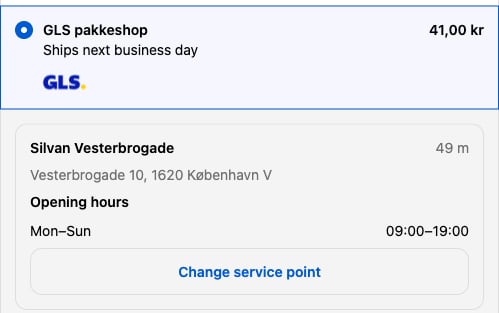
In this tutorial you add the Zippendo service point picker to your Shopify checkout. Instead of one long list with a shipping method for every service point, your customers see each service point shipping method once. When they choose it, the service point nearest to them is already picked, with its address and opening hours. Want a different one? They click Change service point and choose from a list, or from a map if you add your own Google Maps key.
What your customers see: the nearest service point is already chosen
It takes about 10 minutes. You start in Zippendo, then add the picker in Shopify’s checkout editor.
What you need
A Shopify webshop on the Shopify Plus plan. Shopify only lets apps add things to the checkout page on Shopify Plus.
Click Order channels in the menu on the left. On the Connected tab, click your Shopify webshop. You land on the Orders & checkout tab.
2
Choose the Zippendo checkout picker
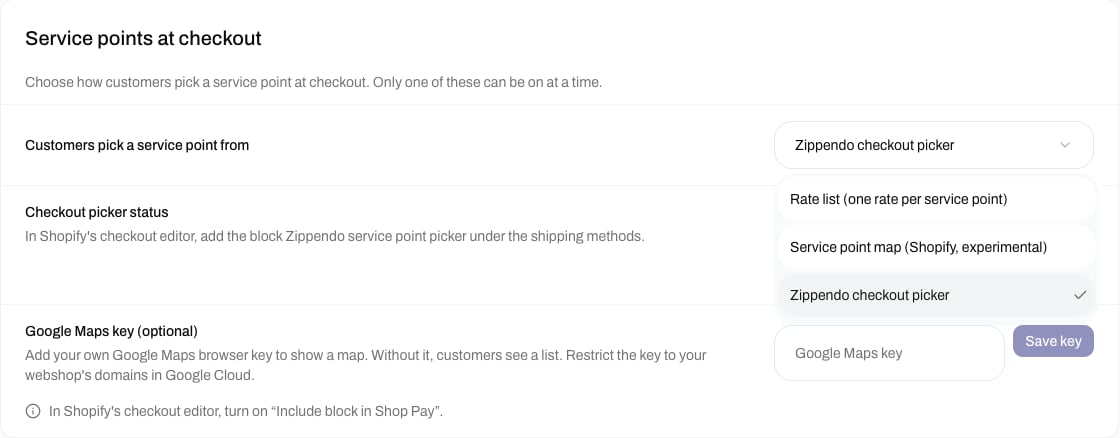
Scroll down to the Service points at checkout card. Under Customers pick a service point from, choose Zippendo checkout picker.
Choose Zippendo checkout picker
Can’t choose it, and it says Turn off service points in the cart first? Your customers already pick their service point in the cart. Only one of the two can be on: switch off Service points in the cart first.
3
Approve the new permissions, if Zippendo asks
If the card says Approve Zippendo’s new permissions in Shopify, click Approve in Shopify. Shopify opens and asks you to approve. Do that, come back to Zippendo, reload the page and choose Zippendo checkout picker again.
4
Open the checkout editor
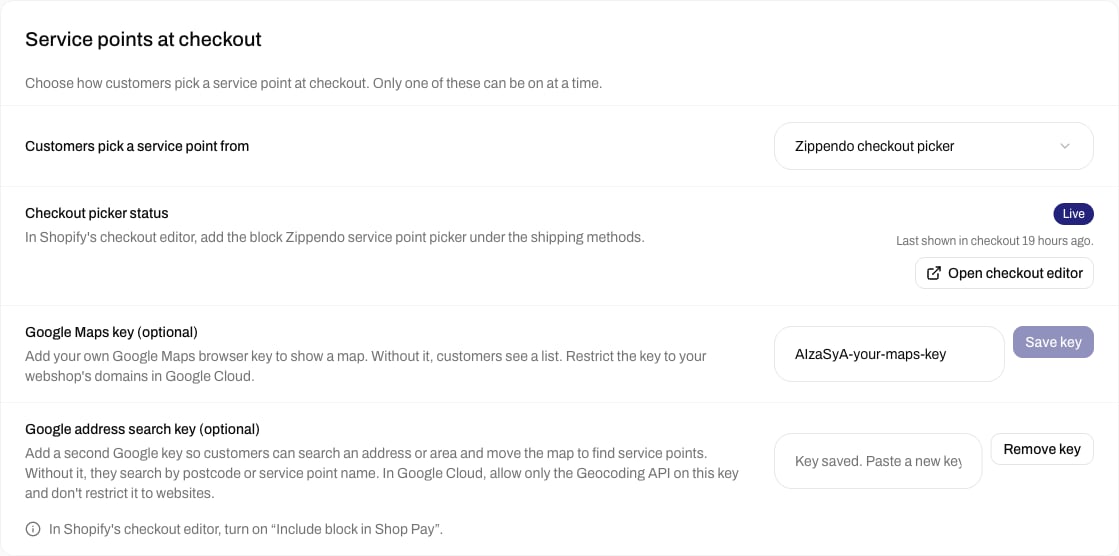
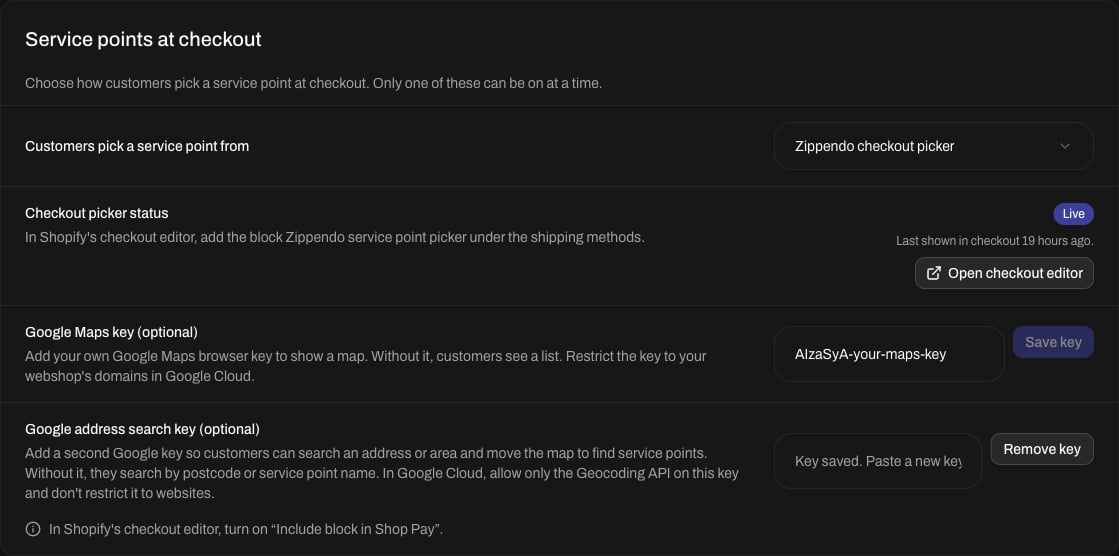
The card now shows Checkout picker status, with Waiting for the first checkout until the picker has been shown to a customer. Click Open checkout editor. Shopify’s checkout editor opens in a new tab.
Checkout picker status, with the Open checkout editor button
The two Google key boxes below are optional. You can add them now or later: see “A map and address search” at the bottom of this page.
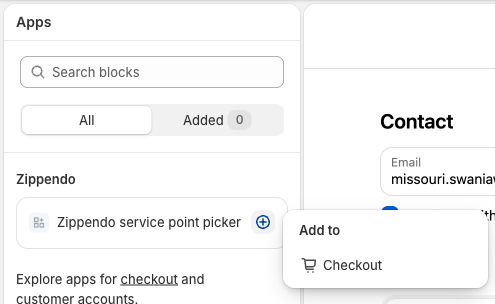
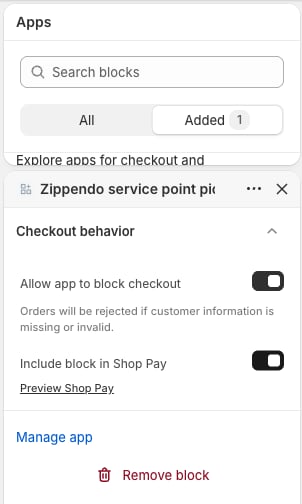
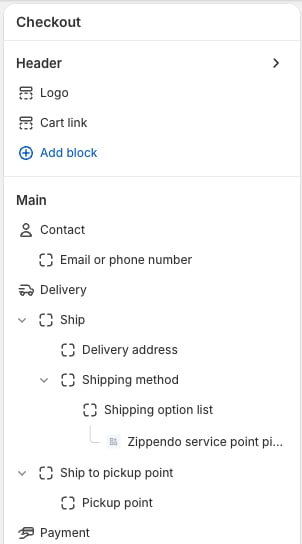
Click Save at the top right of the checkout editor. Want to check where the block went? Click the first icon at the top of the left panel: Zippendo service point picker sits under Shipping method.
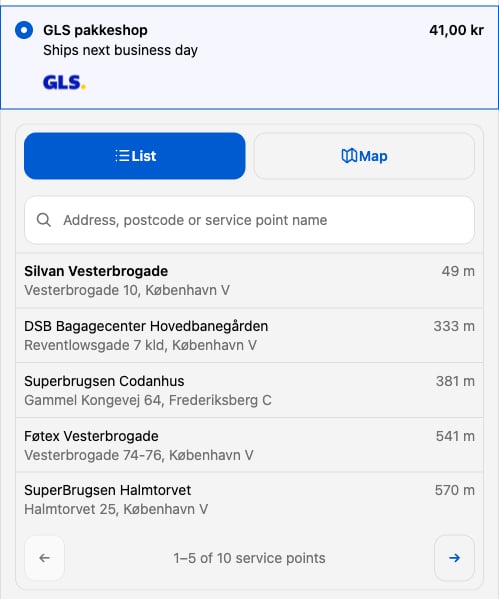
Open your webshop, put a product in the cart and go to checkout. Type a delivery address and choose your service point shipping method. The nearest service point is chosen for you.Click Change service point to see the others. Your customers can search for a postcode or a service point name and page through the list with the arrows. If you added a Google address search key, they can also search for an address or an area.
After Change service point: search, and choose from the nearest service points
Back in Zippendo, the Checkout picker status changes from Waiting for the first checkout to Live. From now on, orders arrive with the service point your customer chose.
Until the picker has been shown in a checkout, Zippendo keeps showing one shipping method per service point, so your customers can always choose. When you want to stop using the picker, always switch it off in Zippendo first, and only then remove the block in Shopify.
Apple Pay and Google Pay skip the part of checkout where the picker is. The order still comes in, and Zippendo uses the service point nearest to the delivery address.
Pickup in store or Shopify’s pickup points: if your webshop offers these, read the checkout editor steps on Service point picker in checkout.
Switch it off: on the card, choose Rate list (one rate per service point).
{"docsConfig":{"theme":"almond","$schema":"https://mintlify.com/docs.json","name":"Zippendo","colors":{"primary":"#000","light":"#fff","dark":"#000"},"logo":{"light":"https://mintcdn.com/zippendo/vvJk_PyssTmjqf9_/logo/light.svg?fit=max\u0026auto=format\u0026n=vvJk_PyssTmjqf9_\u0026q=85\u0026s=9fc741a418a93f2d556d0b9b613050e8","dark":"https://mintcdn.com/zippendo/vvJk_PyssTmjqf9_/logo/dark.svg?fit=max\u0026auto=format\u0026n=vvJk_PyssTmjqf9_\u0026q=85\u0026s=230c49f3bcdc109cf7306f3a3fb81bc2","href":"https://www.zippendo.com"},"favicon":"https://mintcdn.com/zippendo/vvJk_PyssTmjqf9_/favicon-dark.svg?fit=max\u0026auto=format\u0026n=vvJk_PyssTmjqf9_\u0026q=85\u0026s=3bd5c187f9c99f9ca518062f6a7b2e18","api":{"openapi":"https://api.zippendo.com/public/json","playground":{"display":"interactive"},"mdx":{"server":"https://api.zippendo.com"}},"navbar":{"links":[{"href":"https://app.zippendo.com/login","label":"Sign in"}],"primary":{"type":"button","label":"Get started","href":"https://app.zippendo.com/sign-up"}},"footer":{"socials":{"website":"https://www.zippendo.com"}},"seo":{"metatags":{"og:site_name":"Zippendo","og:type":"website","twitter:card":"summary_large_image"}},"fonts":{"family":"Inter"},"icons":{"library":"lucide"},"errors":{"404":{"redirect":false,"title":"404: Lost in Documentation Space","description":"Looks like this page took a wrong turn. Try the sidebar or head back to the introduction."}},"contextual":{"options":["copy","view","chatgpt","claude","perplexity","mcp","cursor","vscode"],"display":"header"},"styling":{"latex":false},"navigation":{"languages":[{"language":"en","default":true,"href":"introduction"},{"language":"de","navbar":{"links":[{"href":"https://app.zippendo.com/login","label":"Anmelden"}],"primary":{"type":"button","label":"Loslegen","href":"https://app.zippendo.com/sign-up"}},"href":"de/introduction"},{"language":"pl","navbar":{"links":[{"href":"https://app.zippendo.com/login","label":"Zaloguj się"}],"primary":{"type":"button","label":"Zacznij","href":"https://app.zippendo.com/sign-up"}},"href":"pl/introduction"},{"language":"da","navbar":{"links":[{"href":"https://app.zippendo.com/login","label":"Log ind"}],"primary":{"type":"button","label":"Kom i gang","href":"https://app.zippendo.com/sign-up"}},"href":"da/introduction"},{"language":"sv","navbar":{"links":[{"href":"https://app.zippendo.com/login","label":"Logga in"}],"primary":{"type":"button","label":"Kom igång","href":"https://app.zippendo.com/sign-up"}},"href":"sv/introduction"},{"language":"nl","navbar":{"links":[{"href":"https://app.zippendo.com/login","label":"Inloggen"}],"primary":{"type":"button","label":"Aan de slag","href":"https://app.zippendo.com/sign-up"}},"href":"nl/introduction"},{"language":"no","navbar":{"links":[{"href":"https://app.zippendo.com/login","label":"Logg inn"}],"primary":{"type":"button","label":"Kom i gang","href":"https://app.zippendo.com/sign-up"}},"href":"no/introduction"},{"language":"fi","navbar":{"links":[{"href":"https://app.zippendo.com/login","label":"Kirjaudu sisään"}],"primary":{"type":"button","label":"Aloita","href":"https://app.zippendo.com/sign-up"}},"href":"fi/introduction"},{"language":"fr","navbar":{"links":[{"href":"https://app.zippendo.com/login","label":"Se connecter"}],"primary":{"type":"button","label":"Commencer","href":"https://app.zippendo.com/sign-up"}},"href":"fr/introduction"}]}},"deployment":{"deploymentMetadataValue":{"subdomain":"zippendo","hasAudioNarration":false,"actualSubdomain":"zippendo","customDomains":["www.zippendo.com"],"gitSource":{"type":"github","owner":"zippendo","repo":"zippendo","deployBranch":"main","contentDirectory":"apps/docs","isPrivate":true,"mountPath":"","label":""},"chroma":{"liveDeploymentHistoryId":"6adbd363a4165772661cbff5","collectionId":"c7d6e11e-a9db-4571-89f6-de7c8fd67a4f","schemaVersion":"v3","latestBuiltDeploymentHistoryId":"6adbd363a4165772661cbff5"},"feedback":{"thumbs":true},"entitlements":{},"buildId":"6adf244cd7cf896c8ad7cdef","clientVersion":"0.0.3966","searchFilterCounts":[{"language":"de","tag":"Anleitungen","count":105},{"language":"en","tag":"How-to","count":86},{"language":"da","tag":"Guides","count":86},{"language":"fi","tag":"Ohjeet","count":86},{"language":"fr","tag":"Guides pratiques","count":86},{"language":"nl","tag":"Hoe doe je dat","count":86},{"language":"no","tag":"Slik gjør du","count":86},{"language":"pl","tag":"Poradniki","count":86},{"language":"sv","tag":"Instruktioner","count":86},{"language":"en","tag":"API reference","count":85},{"language":"en","tag":"Documentation","count":59},{"language":"da","tag":"Dokumentation","count":59},{"language":"de","tag":"Dokumentation","count":59},{"language":"fi","tag":"Dokumentaatio","count":59},{"language":"fr","tag":"Documentation","count":59},{"language":"nl","tag":"Documentatie","count":59},{"language":"no","tag":"Dokumentasjon","count":59},{"language":"pl","tag":"Dokumentacja","count":59},{"language":"sv","tag":"Dokumentation","count":59},{"language":"en","tag":"Connect a carrier","count":29},{"language":"da","tag":"Tilslut en transportør","count":29},{"language":"de","tag":"Versanddienstleister verbinden","count":29},{"language":"fi","tag":"Yhdistä kuljetusyhtiö","count":29},{"language":"fr","tag":"Connecter un transporteur","count":29},{"language":"nl","tag":"Een vervoerder koppelen","count":29},{"language":"no","tag":"Koble til en transportør","count":29},{"language":"pl","tag":"Połącz przewoźnika","count":29},{"language":"sv","tag":"Anslut en transportör","count":29},{"language":"en","tag":"Shipments","count":22},{"language":"en","tag":"Tutorials","count":19},{"language":"da","tag":"Vejledninger","count":19},{"language":"fi","tag":"Opastukset","count":19},{"language":"fr","tag":"Tutoriels","count":19},{"language":"nl","tag":"Handleidingen","count":19},{"language":"no","tag":"Veiledninger","count":19},{"language":"pl","tag":"Samouczki","count":19},{"language":"sv","tag":"Guider","count":19},{"language":"en","tag":"Connections","count":14},{"language":"en","tag":"Fulfillment flow","count":14},{"language":"da","tag":"Forbindelser","count":14},{"language":"da","tag":"Forsendelsesflow","count":14},{"language":"de","tag":"Verbindungen","count":14},{"language":"de","tag":"Versandablauf","count":14},{"language":"fi","tag":"Yhteydet","count":14},{"language":"fi","tag":"Toimitusprosessi","count":14},{"language":"fr","tag":"Connexions","count":14},{"language":"fr","tag":"Flux d'expédition","count":14},{"language":"nl","tag":"Koppelingen","count":14},{"language":"nl","tag":"Verzendproces","count":14},{"language":"no","tag":"Tilkoblinger","count":14},{"language":"no","tag":"Sendingsflyt","count":14},{"language":"pl","tag":"Połączenia","count":14},{"language":"pl","tag":"Przepływ realizacji zamówień","count":14},{"language":"sv","tag":"Anslutningar","count":14},{"language":"sv","tag":"Orderflöde","count":14},{"language":"en","tag":"Account","count":13},{"language":"en","tag":"Carriers","count":13},{"language":"da","tag":"Konto","count":13},{"language":"de","tag":"Konto","count":13},{"language":"fi","tag":"Tili","count":13},{"language":"fr","tag":"Compte","count":13},{"language":"nl","tag":"Account","count":13},{"language":"no","tag":"Konto","count":13},{"language":"pl","tag":"Konto","count":13},{"language":"sv","tag":"Konto","count":13},{"language":"da","tag":"Drift","count":12},{"language":"de","tag":"Betrieb","count":12},{"language":"fi","tag":"Toiminnot","count":12},{"language":"fr","tag":"Opérations","count":12},{"language":"nl","tag":"Dagelijks gebruik","count":12},{"language":"no","tag":"Drift","count":12},{"language":"pl","tag":"Operacje","count":12},{"language":"sv","tag":"Daglig drift","count":12},{"language":"da","tag":"Integrationer","count":11},{"language":"da","tag":"Vidensbase","count":11},{"language":"de","tag":"Integrationen","count":11},{"language":"de","tag":"Wissensdatenbank","count":11},{"language":"fi","tag":"Integraatiot","count":11},{"language":"fi","tag":"Tietopankki","count":11},{"language":"fr","tag":"Intégrations","count":11},{"language":"fr","tag":"Base de connaissances","count":11},{"language":"nl","tag":"Integraties","count":11},{"language":"nl","tag":"Kennisbank","count":11},{"language":"no","tag":"Integrasjoner","count":11},{"language":"no","tag":"Kunnskapsbase","count":11},{"language":"pl","tag":"Integracje","count":11},{"language":"pl","tag":"Baza wiedzy","count":11},{"language":"sv","tag":"Integrationer","count":11},{"language":"sv","tag":"Kunskapsbas","count":11},{"language":"de","tag":"Bestellungen \u0026 Verkaufskanäle","count":10}]},"assistantConfig":{"enableAskAiButton":false,"enableStarterQuestions":false,"enableContextualStarterQuestions":false,"enableAskAiSearchBar":true},"hasChatPermissions":false,"hasWebMcpPermissions":false,"toggles":[{"name":"kill-isr","enabled":true,"variant":{"name":"disabled","enabled":false,"feature_enabled":true},"impressionData":false},{"name":"agent-mintlify-slack","enabled":true,"variant":{"name":"disabled","enabled":false,"feature_enabled":true},"impressionData":false},{"name":"editor-v7-file-tree","enabled":true,"variant":{"name":"disabled","enabled":false,"feature_enabled":true},"impressionData":false},{"name":"agent-integrations-settings","enabled":true,"variant":{"name":"disabled","enabled":false,"feature_enabled":true},"impressionData":false},{"name":"automations-pr-grouping","enabled":true,"variant":{"name":"disabled","enabled":false,"feature_enabled":true},"impressionData":false},{"name":"custom-prefix","enabled":true,"variant":{"name":"disabled","enabled":false,"feature_enabled":true},"impressionData":false},{"name":"analytics-v7","enabled":true,"variant":{"name":"disabled","enabled":false,"feature_enabled":true},"impressionData":false},{"name":"user-flows-analytics","enabled":true,"variant":{"name":"disabled","enabled":false,"feature_enabled":true},"impressionData":false},{"name":"no-publish-flow","enabled":true,"variant":{"name":"disabled","enabled":false,"feature_enabled":true},"impressionData":false},{"name":"workos-onboarding","enabled":true,"variant":{"name":"disabled","enabled":false,"feature_enabled":true},"impressionData":false},{"name":"llms-txt-v2","enabled":true,"variant":{"name":"disabled","enabled":false,"feature_enabled":true},"impressionData":false},{"name":"pause-universal-search-reconcile","enabled":true,"variant":{"name":"disabled","enabled":false,"feature_enabled":true},"impressionData":false},{"name":"snapshot-serving-live","enabled":true,"variant":{"name":"disabled","enabled":false,"feature_enabled":true},"impressionData":false},{"name":"stripTemperatureMiddleware","enabled":true,"variant":{"name":"disabled","enabled":false,"feature_enabled":true},"impressionData":false},{"name":"per-site-search-delta","enabled":true,"variant":{"name":"disabled","enabled":false,"feature_enabled":true},"impressionData":false},{"name":"support-platform-pylon-zendesk","enabled":true,"variant":{"name":"disabled","enabled":false,"feature_enabled":true},"impressionData":false},{"name":"snapshot-serving","enabled":true,"variant":{"name":"disabled","enabled":false,"feature_enabled":true},"impressionData":false},{"name":"instant-rollback","enabled":true,"variant":{"name":"disabled","enabled":false,"feature_enabled":true},"impressionData":false},{"name":"granular-notifications-server","enabled":true,"variant":{"name":"disabled","enabled":false,"feature_enabled":true},"impressionData":false},{"name":"granular-notifications","enabled":true,"variant":{"name":"disabled","enabled":false,"feature_enabled":true},"impressionData":false},{"name":"editor-private-page-search","enabled":true,"variant":{"name":"disabled","enabled":false,"feature_enabled":true},"impressionData":false},{"name":"automations-fable","enabled":true,"variant":{"name":"disabled","enabled":false,"feature_enabled":true},"impressionData":false},{"name":"fixed-ai-action-pricing","enabled":true,"variant":{"name":"disabled","enabled":false,"feature_enabled":true},"impressionData":false},{"name":"automation-resolve-merge-conflict","enabled":true,"variant":{"name":"disabled","enabled":false,"feature_enabled":true},"impressionData":false},{"name":"scoped-publishing","enabled":true,"variant":{"name":"disabled","enabled":false,"feature_enabled":true},"impressionData":false},{"name":"mintql","enabled":true,"variant":{"name":"disabled","enabled":false,"feature_enabled":true},"impressionData":false},{"name":"page-level-analytics","enabled":true,"variant":{"name":"disabled","enabled":false,"feature_enabled":true},"impressionData":false},{"name":"editor-version-history-v2","enabled":true,"variant":{"name":"disabled","enabled":false,"feature_enabled":true},"impressionData":false},{"name":"editor-nav-generations","enabled":true,"variant":{"name":"disabled","enabled":false,"feature_enabled":true},"impressionData":false},{"name":"billing-page-v2","enabled":true,"variant":{"name":"disabled","enabled":false,"feature_enabled":true},"impressionData":false},{"name":"workspace-projects","enabled":true,"variant":{"name":"disabled","enabled":false,"feature_enabled":true},"impressionData":false},{"name":"assistant-v5","enabled":true,"variant":{"name":"disabled","enabled":false,"feature_enabled":true},"impressionData":false},{"name":"byok-sep-25","enabled":true,"variant":{"name":"disabled","enabled":false,"feature_enabled":true},"impressionData":false},{"name":"fork-pr-previews","enabled":true,"variant":{"name":"disabled","enabled":false,"feature_enabled":true},"impressionData":false},{"name":"revalidation-jwt","enabled":true,"variant":{"name":"disabled","enabled":false,"feature_enabled":true},"impressionData":false},{"name":"vite-origin","enabled":true,"variant":{"name":"disabled","enabled":false,"feature_enabled":true},"impressionData":false},{"name":"editor-agent-model-picker","enabled":true,"variant":{"name":"disabled","enabled":false,"feature_enabled":true},"impressionData":false},{"name":"billing-updated-9-15","enabled":true,"variant":{"name":"disabled","enabled":false,"feature_enabled":true},"impressionData":false},{"name":"hobby-abuse-scan","enabled":true,"variant":{"name":"disabled","enabled":false,"feature_enabled":true},"impressionData":false},{"name":"dashboard-inbox","enabled":true,"variant":{"name":"disabled","enabled":false,"feature_enabled":true},"impressionData":false}],"isAtlas":false,"googleFontsInlined":false},"customCss":[{"filePath":"style.css","content":"@media (min-width:1024px){.h-full.relative.flex-1.flex.items-center.gap-x-4{display:grid;grid-template-columns:240px auto 1fr auto;align-items:center;column-gap:16px}.h-full.relative.flex-1.flex.items-center.gap-x-4>.flex-1.flex.items-center.gap-x-4{width:240px;min-width:240px;max-width:240px;flex:none;grid-column:1;box-sizing:border-box;padding-right:0;justify-content:flex-start}.h-full.relative.flex-1.flex.items-center.gap-x-4>.flex-1.flex.items-center.gap-x-4>.hidden.lg\\:flex.items-center.gap-x-2:empty{display:none}.h-full.relative.flex-1.flex.items-center.gap-x-4>.flex.items-center.gap-4,.h-full.relative.flex-1.flex.items-center.gap-x-4>.flex.items-center.gap-4>.flex-1.relative.hidden.lg\\:flex.items-center{display:contents}.h-full.relative.flex-1.flex.items-center.gap-x-4 .h-14.font-semibold:has(.nav-tabs){grid-column:2;grid-row:1;justify-self:start}.h-full.relative.flex-1.flex.items-center.gap-x-4 nav[aria-label=Main]{grid-column:4;justify-self:end}.h-full.relative.flex-1.flex.items-center.gap-x-4 #search-bar-entry{grid-column:3;justify-self:end}}.flex-1.flex.items-center.gap-x-4{padding-left:0}.sidebar-title{font-weight:700}"}],"page":{"pagePath":"tutorials/shopify-service-point-picker","slug":"/tutorials/shopify-service-point-picker","pageMetadata":{"title":"Add the service point picker to Shopify checkout","sidebarTitle":"Service point picker","description":"Step by step, with pictures. On Shopify Plus, let your customers choose their service point in a picker under the shipping method, instead of scrolling a long list.","href":"/tutorials/shopify-service-point-picker"},"description":{"compiledSource":"\"use strict\";\nconst {jsx: _jsx} = arguments[0];\nconst {useMDXComponents: _provideComponents} = arguments[0];\nfunction _createMdxContent(props) {\n const _components = {\n p: \"p\",\n ..._provideComponents(),\n ...props.components\n };\n return _jsx(_components.p, {\n children: \"Step by step, with pictures. On Shopify Plus, let your customers choose their service point in a picker under the shipping method, instead of scrolling a long list.\"\n });\n}\nfunction MDXContent(props = {}) {\n const {wrapper: MDXLayout} = {\n ..._provideComponents(),\n ...props.components\n };\n return MDXLayout ? _jsx(MDXLayout, {\n ...props,\n children: _jsx(_createMdxContent, {\n ...props\n })\n }) : _createMdxContent(props);\n}\nreturn {\n default: MDXContent\n};\n","frontmatter":{},"scope":{}},"pageType":"default","mdx":{"mdxSource":{"compiledSource":"\"use strict\";const{Fragment:_Fragment,jsx:_jsx,jsxs:_jsxs}=arguments[0];const{useMDXComponents:_provideComponents}=arguments[0];function _createMdxContent(props){const _components={a:`a`,li:`li`,p:`p`,strong:`strong`,ul:`ul`,..._provideComponents(),...props.components},{Check,Frame,Heading,Info,Note,OptimizedImage,Step,Steps,Warning}=_components;if(!Check)_missingMdxReference(`Check`,true);if(!Frame)_missingMdxReference(`Frame`,true);if(!Heading)_missingMdxReference(`Heading`,true);if(!Info)_missingMdxReference(`Info`,true);if(!Note)_missingMdxReference(`Note`,true);if(!OptimizedImage)_missingMdxReference(`OptimizedImage`,true);if(!Step)_missingMdxReference(`Step`,true);if(!Steps)_missingMdxReference(`Steps`,true);if(!Warning)_missingMdxReference(`Warning`,true);return _jsxs(_Fragment,{children:[_jsxs(_components.p,{children:[`In this tutorial you add the Zippendo service point picker to your Shopify checkout. Instead of one long list with a shipping method for every service point, your customers see each service point shipping method once. When they choose it, the service point nearest to them is already picked, with its address and opening hours. Want a different one? They click `,_jsx(_components.strong,{children:`Change service point`}),` and choose from a list, or from a map if you add your own Google Maps key.`]}),`\n`,_jsx(Frame,{caption:`What your customers see: the nearest service point is already chosen`,children:_jsx(OptimizedImage,{src:`https://mintcdn.com/zippendo/3iHx7f4_tYAQ-H01/images/tutorials/shopify-service-point-picker/06-checkout-picker.png?fit=max\u0026auto=format\u0026n=3iHx7f4_tYAQ-H01\u0026q=85\u0026s=03434e9719adebf1a89e2347ee4edf46`,alt:`Shopify checkout with the GLS pakkeshop shipping method selected. Below it, the nearest service point with its distance, address and opening hours, and a Change service point button`,\"data-og-width\":`499`,width:`499`,\"data-og-height\":`313`,height:`313`,\"data-path\":`images/tutorials/shopify-service-point-picker/06-checkout-picker.png`,\"data-optimize\":`true`,\"data-opv\":`3`,srcset:`https://mintcdn.com/zippendo/3iHx7f4_tYAQ-H01/images/tutorials/shopify-service-point-picker/06-checkout-picker.png?w=280\u0026fit=max\u0026auto=format\u0026n=3iHx7f4_tYAQ-H01\u0026q=85\u0026s=f40fa4a8e27bf7bd1c9258e8944da01c 280w, https://mintcdn.com/zippendo/3iHx7f4_tYAQ-H01/images/tutorials/shopify-service-point-picker/06-checkout-picker.png?w=560\u0026fit=max\u0026auto=format\u0026n=3iHx7f4_tYAQ-H01\u0026q=85\u0026s=c66ed3a9cc0751e975eabcd2c25e3e7d 560w, https://mintcdn.com/zippendo/3iHx7f4_tYAQ-H01/images/tutorials/shopify-service-point-picker/06-checkout-picker.png?w=840\u0026fit=max\u0026auto=format\u0026n=3iHx7f4_tYAQ-H01\u0026q=85\u0026s=25ad0233b4bb51096e226c43e8312d12 840w, https://mintcdn.com/zippendo/3iHx7f4_tYAQ-H01/images/tutorials/shopify-service-point-picker/06-checkout-picker.png?w=1100\u0026fit=max\u0026auto=format\u0026n=3iHx7f4_tYAQ-H01\u0026q=85\u0026s=8d32738024d4913bb117ba1a4a7d40d3 1100w, https://mintcdn.com/zippendo/3iHx7f4_tYAQ-H01/images/tutorials/shopify-service-point-picker/06-checkout-picker.png?w=1650\u0026fit=max\u0026auto=format\u0026n=3iHx7f4_tYAQ-H01\u0026q=85\u0026s=0c050911de7959524c84e6a1199b2e78 1650w, https://mintcdn.com/zippendo/3iHx7f4_tYAQ-H01/images/tutorials/shopify-service-point-picker/06-checkout-picker.png?w=2500\u0026fit=max\u0026auto=format\u0026n=3iHx7f4_tYAQ-H01\u0026q=85\u0026s=cb716eb8adf19c1854cd169ada766194 2500w`})}),`\n`,_jsx(_components.p,{children:`It takes about 10 minutes. You start in Zippendo, then add the picker in Shopify’s checkout editor.`}),`\n`,_jsxs(Info,{children:[_jsx(_components.p,{children:_jsx(_components.strong,{children:`What you need`})}),_jsxs(_components.ul,{children:[`\n`,_jsxs(_components.li,{children:[`A Shopify webshop on the `,_jsx(_components.strong,{children:`Shopify Plus`}),` plan. Shopify only lets apps add things to the checkout page on Shopify Plus.`]}),`\n`,_jsxs(_components.li,{children:[`Your shipping prices at checkout. See `,_jsx(_components.a,{href:`/tutorials/shopify-checkout-prices`,children:`Show your shipping prices in Shopify checkout`}),`.`]}),`\n`,_jsxs(_components.li,{children:[`A `,_jsx(_components.a,{href:`/tutorials/shipping-rules`,children:`shipping rule`}),` that delivers to a service point, such as “GLS Pakkeshop”.`]}),`\n`]})]}),`\n`,_jsx(Note,{children:_jsxs(_components.p,{children:[`Not on Shopify Plus? Your customers can still choose a service point: each one shows up as its own shipping method. See `,_jsx(_components.a,{href:`/tutorials/shopify-checkout-prices`,children:`Show your shipping prices in Shopify checkout`}),`.`]})}),`\n`,_jsx(Heading,{level:`2`,id:`step-1-switch-on-the-picker-in-zippendo`,children:`Step 1: Switch on the picker in Zippendo`}),`\n`,_jsxs(Steps,{children:[_jsx(Step,{title:`Open your webshop's settings`,children:_jsxs(_components.p,{children:[`Click `,_jsx(_components.strong,{children:`Order channels`}),` in the menu on the left. On the `,_jsx(_components.strong,{children:`Connected`}),` tab, click your Shopify webshop. You land on the `,_jsx(_components.strong,{children:`Orders \u0026 checkout`}),` tab.`]})}),_jsxs(Step,{title:`Choose the Zippendo checkout picker`,children:[_jsxs(_components.p,{children:[`Scroll down to the `,_jsx(_components.strong,{children:`Service points at checkout`}),` card. Under `,_jsx(_components.strong,{children:`Customers pick a service point from`}),`, choose `,_jsx(_components.strong,{children:`Zippendo checkout picker`}),`.`]}),_jsxs(Frame,{caption:`Choose Zippendo checkout picker`,children:[_jsx(OptimizedImage,{src:`https://mintcdn.com/zippendo/3iHx7f4_tYAQ-H01/images/tutorials/shopify-service-point-picker/01-service-point-choice-light.png?fit=max\u0026auto=format\u0026n=3iHx7f4_tYAQ-H01\u0026q=85\u0026s=725c3d71cc793788b2ac4db56c72ccda`,alt:`Service points at checkout card with the list open: Rate list (one rate per service point), Service point map (Shopify, experimental) and Zippendo checkout picker`,className:`mint-block dark:mint-hidden`,\"data-og-width\":`1120`,width:`1120`,\"data-og-height\":`438`,height:`438`,\"data-path\":`images/tutorials/shopify-service-point-picker/01-service-point-choice-light.png`,\"data-optimize\":`true`,\"data-opv\":`3`,srcset:`https://mintcdn.com/zippendo/3iHx7f4_tYAQ-H01/images/tutorials/shopify-service-point-picker/01-service-point-choice-light.png?w=280\u0026fit=max\u0026auto=format\u0026n=3iHx7f4_tYAQ-H01\u0026q=85\u0026s=940bb27a4d90a99faf55e4bfe7402e49 280w, https://mintcdn.com/zippendo/3iHx7f4_tYAQ-H01/images/tutorials/shopify-service-point-picker/01-service-point-choice-light.png?w=560\u0026fit=max\u0026auto=format\u0026n=3iHx7f4_tYAQ-H01\u0026q=85\u0026s=a50a12e78d321c0f4e442fd33f86f4f7 560w, https://mintcdn.com/zippendo/3iHx7f4_tYAQ-H01/images/tutorials/shopify-service-point-picker/01-service-point-choice-light.png?w=840\u0026fit=max\u0026auto=format\u0026n=3iHx7f4_tYAQ-H01\u0026q=85\u0026s=246a5ab53acf535084745129f31c4a69 840w, https://mintcdn.com/zippendo/3iHx7f4_tYAQ-H01/images/tutorials/shopify-service-point-picker/01-service-point-choice-light.png?w=1100\u0026fit=max\u0026auto=format\u0026n=3iHx7f4_tYAQ-H01\u0026q=85\u0026s=9542d7567ceb4721862da038405976a6 1100w, https://mintcdn.com/zippendo/3iHx7f4_tYAQ-H01/images/tutorials/shopify-service-point-picker/01-service-point-choice-light.png?w=1650\u0026fit=max\u0026auto=format\u0026n=3iHx7f4_tYAQ-H01\u0026q=85\u0026s=88b373228f1f1afe29ee936fec356bdc 1650w, https://mintcdn.com/zippendo/3iHx7f4_tYAQ-H01/images/tutorials/shopify-service-point-picker/01-service-point-choice-light.png?w=2500\u0026fit=max\u0026auto=format\u0026n=3iHx7f4_tYAQ-H01\u0026q=85\u0026s=89e42713bb468bfde27e3b5a6116502f 2500w`}),_jsx(OptimizedImage,{src:`https://mintcdn.com/zippendo/3iHx7f4_tYAQ-H01/images/tutorials/shopify-service-point-picker/01-service-point-choice-dark.png?fit=max\u0026auto=format\u0026n=3iHx7f4_tYAQ-H01\u0026q=85\u0026s=6f0cc815840b963f6e1100b4649a2b5e`,alt:`Service points at checkout card with the list open: Rate list (one rate per service point), Service point map (Shopify, experimental) and Zippendo checkout picker`,className:`mint-hidden dark:mint-block`,\"data-og-width\":`1120`,width:`1120`,\"data-og-height\":`438`,height:`438`,\"data-path\":`images/tutorials/shopify-service-point-picker/01-service-point-choice-dark.png`,\"data-optimize\":`true`,\"data-opv\":`3`,srcset:`https://mintcdn.com/zippendo/3iHx7f4_tYAQ-H01/images/tutorials/shopify-service-point-picker/01-service-point-choice-dark.png?w=280\u0026fit=max\u0026auto=format\u0026n=3iHx7f4_tYAQ-H01\u0026q=85\u0026s=0e72409b4f54171852358c591c3995fb 280w, https://mintcdn.com/zippendo/3iHx7f4_tYAQ-H01/images/tutorials/shopify-service-point-picker/01-service-point-choice-dark.png?w=560\u0026fit=max\u0026auto=format\u0026n=3iHx7f4_tYAQ-H01\u0026q=85\u0026s=4ea73ff2fd9d97215388bb7760915af8 560w, https://mintcdn.com/zippendo/3iHx7f4_tYAQ-H01/images/tutorials/shopify-service-point-picker/01-service-point-choice-dark.png?w=840\u0026fit=max\u0026auto=format\u0026n=3iHx7f4_tYAQ-H01\u0026q=85\u0026s=ee8a6cac9501ecfa71c9ea014096ee1d 840w, https://mintcdn.com/zippendo/3iHx7f4_tYAQ-H01/images/tutorials/shopify-service-point-picker/01-service-point-choice-dark.png?w=1100\u0026fit=max\u0026auto=format\u0026n=3iHx7f4_tYAQ-H01\u0026q=85\u0026s=f6eecb879a884706d1e36f69734a87e8 1100w, https://mintcdn.com/zippendo/3iHx7f4_tYAQ-H01/images/tutorials/shopify-service-point-picker/01-service-point-choice-dark.png?w=1650\u0026fit=max\u0026auto=format\u0026n=3iHx7f4_tYAQ-H01\u0026q=85\u0026s=f05822c5d30c56bd2253ac181a74e64d 1650w, https://mintcdn.com/zippendo/3iHx7f4_tYAQ-H01/images/tutorials/shopify-service-point-picker/01-service-point-choice-dark.png?w=2500\u0026fit=max\u0026auto=format\u0026n=3iHx7f4_tYAQ-H01\u0026q=85\u0026s=f4298ca443fc8254a54e1f12acb3b445 2500w`})]}),_jsxs(_components.p,{children:[`Can’t choose it, and it says `,_jsx(_components.strong,{children:`Turn off service points in the cart first`}),`? Your customers already pick their service point in the cart. Only one of the two can be on: switch off `,_jsx(_components.strong,{children:`Service points in the cart`}),` first.`]})]}),_jsx(Step,{title:`Approve the new permissions, if Zippendo asks`,children:_jsxs(_components.p,{children:[`If the card says `,_jsx(_components.strong,{children:`Approve Zippendo’s new permissions in Shopify`}),`, click `,_jsx(_components.strong,{children:`Approve in Shopify`}),`. Shopify opens and asks you to approve. Do that, come back to Zippendo, reload the page and choose `,_jsx(_components.strong,{children:`Zippendo checkout picker`}),` again.`]})}),_jsxs(Step,{title:`Open the checkout editor`,children:[_jsxs(_components.p,{children:[`The card now shows `,_jsx(_components.strong,{children:`Checkout picker status`}),`, with `,_jsx(_components.strong,{children:`Waiting for the first checkout`}),` until the picker has been shown to a customer. Click `,_jsx(_components.strong,{children:`Open checkout editor`}),`. Shopify’s checkout editor opens in a new tab.`]}),_jsxs(Frame,{caption:`Checkout picker status, with the Open checkout editor button`,children:[_jsx(OptimizedImage,{src:`https://mintcdn.com/zippendo/3iHx7f4_tYAQ-H01/images/tutorials/shopify-service-point-picker/02-picker-status-light.png?fit=max\u0026auto=format\u0026n=3iHx7f4_tYAQ-H01\u0026q=85\u0026s=44ae3f93d8bef66cf0965987d9cbb618`,alt:`Service points at checkout card with Zippendo checkout picker chosen, the Checkout picker status, an Open checkout editor button, and boxes for an optional Google Maps key and an optional Google address search key`,className:`mint-block dark:mint-hidden`,\"data-og-width\":`1119`,width:`1119`,\"data-og-height\":`556`,height:`556`,\"data-path\":`images/tutorials/shopify-service-point-picker/02-picker-status-light.png`,\"data-optimize\":`true`,\"data-opv\":`3`,srcset:`https://mintcdn.com/zippendo/3iHx7f4_tYAQ-H01/images/tutorials/shopify-service-point-picker/02-picker-status-light.png?w=280\u0026fit=max\u0026auto=format\u0026n=3iHx7f4_tYAQ-H01\u0026q=85\u0026s=66f764a6a1ab568a201d7d44c279cd62 280w, https://mintcdn.com/zippendo/3iHx7f4_tYAQ-H01/images/tutorials/shopify-service-point-picker/02-picker-status-light.png?w=560\u0026fit=max\u0026auto=format\u0026n=3iHx7f4_tYAQ-H01\u0026q=85\u0026s=8c74cf0932fffae8352189b5ab51d042 560w, https://mintcdn.com/zippendo/3iHx7f4_tYAQ-H01/images/tutorials/shopify-service-point-picker/02-picker-status-light.png?w=840\u0026fit=max\u0026auto=format\u0026n=3iHx7f4_tYAQ-H01\u0026q=85\u0026s=73b8fef29caf9e6a6e880d0d126b9917 840w, https://mintcdn.com/zippendo/3iHx7f4_tYAQ-H01/images/tutorials/shopify-service-point-picker/02-picker-status-light.png?w=1100\u0026fit=max\u0026auto=format\u0026n=3iHx7f4_tYAQ-H01\u0026q=85\u0026s=4dd32b39206ebd944d531fab5e2a08c5 1100w, https://mintcdn.com/zippendo/3iHx7f4_tYAQ-H01/images/tutorials/shopify-service-point-picker/02-picker-status-light.png?w=1650\u0026fit=max\u0026auto=format\u0026n=3iHx7f4_tYAQ-H01\u0026q=85\u0026s=5afd62402318874e11ee5bf59f5dee42 1650w, https://mintcdn.com/zippendo/3iHx7f4_tYAQ-H01/images/tutorials/shopify-service-point-picker/02-picker-status-light.png?w=2500\u0026fit=max\u0026auto=format\u0026n=3iHx7f4_tYAQ-H01\u0026q=85\u0026s=1e74bf6729f5667f45b22a616a89cdd4 2500w`}),_jsx(OptimizedImage,{src:`https://mintcdn.com/zippendo/3iHx7f4_tYAQ-H01/images/tutorials/shopify-service-point-picker/02-picker-status-dark.png?fit=max\u0026auto=format\u0026n=3iHx7f4_tYAQ-H01\u0026q=85\u0026s=8f8cfcce39ddc42ab401b0ef4bddfe4c`,alt:`Service points at checkout card with Zippendo checkout picker chosen, the Checkout picker status, an Open checkout editor button, and boxes for an optional Google Maps key and an optional Google address search key`,className:`mint-hidden dark:mint-block`,\"data-og-width\":`1119`,width:`1119`,\"data-og-height\":`556`,height:`556`,\"data-path\":`images/tutorials/shopify-service-point-picker/02-picker-status-dark.png`,\"data-optimize\":`true`,\"data-opv\":`3`,srcset:`https://mintcdn.com/zippendo/3iHx7f4_tYAQ-H01/images/tutorials/shopify-service-point-picker/02-picker-status-dark.png?w=280\u0026fit=max\u0026auto=format\u0026n=3iHx7f4_tYAQ-H01\u0026q=85\u0026s=f58f9df552f5fc2bdc7fca1755b40c50 280w, https://mintcdn.com/zippendo/3iHx7f4_tYAQ-H01/images/tutorials/shopify-service-point-picker/02-picker-status-dark.png?w=560\u0026fit=max\u0026auto=format\u0026n=3iHx7f4_tYAQ-H01\u0026q=85\u0026s=1f205794c3ce1e849cf12326ea7aeb02 560w, https://mintcdn.com/zippendo/3iHx7f4_tYAQ-H01/images/tutorials/shopify-service-point-picker/02-picker-status-dark.png?w=840\u0026fit=max\u0026auto=format\u0026n=3iHx7f4_tYAQ-H01\u0026q=85\u0026s=2f10efcf36d609ba9ba00a674988167f 840w, https://mintcdn.com/zippendo/3iHx7f4_tYAQ-H01/images/tutorials/shopify-service-point-picker/02-picker-status-dark.png?w=1100\u0026fit=max\u0026auto=format\u0026n=3iHx7f4_tYAQ-H01\u0026q=85\u0026s=8f112843c4d15afe74b76342ab7284d2 1100w, https://mintcdn.com/zippendo/3iHx7f4_tYAQ-H01/images/tutorials/shopify-service-point-picker/02-picker-status-dark.png?w=1650\u0026fit=max\u0026auto=format\u0026n=3iHx7f4_tYAQ-H01\u0026q=85\u0026s=932c2dabf99bcfbfa01c6233450251c0 1650w, https://mintcdn.com/zippendo/3iHx7f4_tYAQ-H01/images/tutorials/shopify-service-point-picker/02-picker-status-dark.png?w=2500\u0026fit=max\u0026auto=format\u0026n=3iHx7f4_tYAQ-H01\u0026q=85\u0026s=cbbfaf94dc0f087d4c62627640d52a2f 2500w`})]}),_jsx(_components.p,{children:`The two Google key boxes below are optional. You can add them now or later: see “A map and address search” at the bottom of this page.`})]})]}),`\n`,_jsx(Heading,{level:`2`,id:`step-2-add-the-zippendo-block-to-your-checkout`,children:`Step 2: Add the Zippendo block to your checkout`}),`\n`,_jsx(_components.p,{children:`The checkout editor is part of Shopify, so the names here are Shopify’s.`}),`\n`,_jsxs(Steps,{children:[_jsx(Step,{title:`Open Apps`,children:_jsxs(_components.p,{children:[`At the top of the left panel, click `,_jsx(_components.strong,{children:`Apps`}),`: the third icon, with four small squares. You see `,_jsx(_components.strong,{children:`Zippendo service point picker`}),`.`]})}),_jsxs(Step,{title:`Add the block`,children:[_jsxs(_components.p,{children:[`Click the `,_jsx(_components.strong,{children:`+`}),` next to `,_jsx(_components.strong,{children:`Zippendo service point picker`}),`, then click `,_jsx(_components.strong,{children:`Checkout`}),`.`]}),_jsx(Frame,{caption:`Click + next to Zippendo service point picker, then Checkout`,children:_jsx(OptimizedImage,{src:`https://mintcdn.com/zippendo/3iHx7f4_tYAQ-H01/images/tutorials/shopify-service-point-picker/03-shopify-editor-add-block.png?fit=max\u0026auto=format\u0026n=3iHx7f4_tYAQ-H01\u0026q=85\u0026s=b8af27f9bc947d59b6bbca1e0a0592bd`,alt:`The Apps panel of Shopify's checkout editor with Zippendo service point picker and a small menu: Add to, Checkout`,\"data-og-width\":`495`,width:`495`,\"data-og-height\":`304`,height:`304`,\"data-path\":`images/tutorials/shopify-service-point-picker/03-shopify-editor-add-block.png`,\"data-optimize\":`true`,\"data-opv\":`3`,srcset:`https://mintcdn.com/zippendo/3iHx7f4_tYAQ-H01/images/tutorials/shopify-service-point-picker/03-shopify-editor-add-block.png?w=280\u0026fit=max\u0026auto=format\u0026n=3iHx7f4_tYAQ-H01\u0026q=85\u0026s=a060624d254b0ec83b73401435b5d4d8 280w, https://mintcdn.com/zippendo/3iHx7f4_tYAQ-H01/images/tutorials/shopify-service-point-picker/03-shopify-editor-add-block.png?w=560\u0026fit=max\u0026auto=format\u0026n=3iHx7f4_tYAQ-H01\u0026q=85\u0026s=862d90e7a94361845d433156ce0d1941 560w, https://mintcdn.com/zippendo/3iHx7f4_tYAQ-H01/images/tutorials/shopify-service-point-picker/03-shopify-editor-add-block.png?w=840\u0026fit=max\u0026auto=format\u0026n=3iHx7f4_tYAQ-H01\u0026q=85\u0026s=c85376aa8eed3a7cbe1fddb251203fca 840w, https://mintcdn.com/zippendo/3iHx7f4_tYAQ-H01/images/tutorials/shopify-service-point-picker/03-shopify-editor-add-block.png?w=1100\u0026fit=max\u0026auto=format\u0026n=3iHx7f4_tYAQ-H01\u0026q=85\u0026s=523995942f6aae4d215e2aef31d05e35 1100w, https://mintcdn.com/zippendo/3iHx7f4_tYAQ-H01/images/tutorials/shopify-service-point-picker/03-shopify-editor-add-block.png?w=1650\u0026fit=max\u0026auto=format\u0026n=3iHx7f4_tYAQ-H01\u0026q=85\u0026s=c62c35e1b7610857c264cebda7bb774b 1650w, https://mintcdn.com/zippendo/3iHx7f4_tYAQ-H01/images/tutorials/shopify-service-point-picker/03-shopify-editor-add-block.png?w=2500\u0026fit=max\u0026auto=format\u0026n=3iHx7f4_tYAQ-H01\u0026q=85\u0026s=c337481848a8399481d5179718cb06d8 2500w`})})]})]}),`\n`,_jsx(Heading,{level:`2`,id:`step-3-switch-on-two-settings`,children:`Step 3: Switch on two settings`}),`\n`,_jsxs(_components.p,{children:[`The block’s settings open on the left, under `,_jsx(_components.strong,{children:`Checkout behavior`}),`. Switch on both:`]}),`\n`,_jsxs(_components.ul,{children:[`\n`,_jsxs(_components.li,{children:[_jsx(_components.strong,{children:`Allow app to block checkout`}),`: gives the picker a moment to save your customer’s choice before they pay. It never stops anyone from paying.`]}),`\n`,_jsxs(_components.li,{children:[_jsx(_components.strong,{children:`Include block in Shop Pay`}),`: customers who pay with Shop Pay see the picker too.`]}),`\n`]}),`\n`,_jsx(Frame,{caption:`Both switches on`,children:_jsx(OptimizedImage,{src:`https://mintcdn.com/zippendo/3iHx7f4_tYAQ-H01/images/tutorials/shopify-service-point-picker/04-shopify-editor-block-settings.png?fit=max\u0026auto=format\u0026n=3iHx7f4_tYAQ-H01\u0026q=85\u0026s=947e4915901fcb23b90c8b008d6b489e`,alt:`Settings of the Zippendo service point picker block, with Allow app to block checkout and Include block in Shop Pay both switched on`,\"data-og-width\":`302`,width:`302`,\"data-og-height\":`504`,height:`504`,\"data-path\":`images/tutorials/shopify-service-point-picker/04-shopify-editor-block-settings.png`,\"data-optimize\":`true`,\"data-opv\":`3`,srcset:`https://mintcdn.com/zippendo/3iHx7f4_tYAQ-H01/images/tutorials/shopify-service-point-picker/04-shopify-editor-block-settings.png?w=280\u0026fit=max\u0026auto=format\u0026n=3iHx7f4_tYAQ-H01\u0026q=85\u0026s=e65f495016edd2ef6c2c0c0c2a674cba 280w, https://mintcdn.com/zippendo/3iHx7f4_tYAQ-H01/images/tutorials/shopify-service-point-picker/04-shopify-editor-block-settings.png?w=560\u0026fit=max\u0026auto=format\u0026n=3iHx7f4_tYAQ-H01\u0026q=85\u0026s=04911f127c2d9d41d02e0c6403429e00 560w, https://mintcdn.com/zippendo/3iHx7f4_tYAQ-H01/images/tutorials/shopify-service-point-picker/04-shopify-editor-block-settings.png?w=840\u0026fit=max\u0026auto=format\u0026n=3iHx7f4_tYAQ-H01\u0026q=85\u0026s=d07ed3c05d0d3b18db830ee5ec9c87f2 840w, https://mintcdn.com/zippendo/3iHx7f4_tYAQ-H01/images/tutorials/shopify-service-point-picker/04-shopify-editor-block-settings.png?w=1100\u0026fit=max\u0026auto=format\u0026n=3iHx7f4_tYAQ-H01\u0026q=85\u0026s=d55e52828367a095638967126164b62e 1100w, https://mintcdn.com/zippendo/3iHx7f4_tYAQ-H01/images/tutorials/shopify-service-point-picker/04-shopify-editor-block-settings.png?w=1650\u0026fit=max\u0026auto=format\u0026n=3iHx7f4_tYAQ-H01\u0026q=85\u0026s=59e91b411e6fe9367a91454fc8b9800d 1650w, https://mintcdn.com/zippendo/3iHx7f4_tYAQ-H01/images/tutorials/shopify-service-point-picker/04-shopify-editor-block-settings.png?w=2500\u0026fit=max\u0026auto=format\u0026n=3iHx7f4_tYAQ-H01\u0026q=85\u0026s=19b93bd5224d5f052e96729b0eca52c7 2500w`})}),`\n`,_jsx(Heading,{level:`2`,id:`step-4-save`,children:`Step 4: Save`}),`\n`,_jsxs(_components.p,{children:[`Click `,_jsx(_components.strong,{children:`Save`}),` at the top right of the checkout editor. Want to check where the block went? Click the first icon at the top of the left panel: `,_jsx(_components.strong,{children:`Zippendo service point picker`}),` sits under `,_jsx(_components.strong,{children:`Shipping method`}),`.`]}),`\n`,_jsx(Frame,{caption:`The block sits under Shipping method`,children:_jsx(OptimizedImage,{src:`https://mintcdn.com/zippendo/3iHx7f4_tYAQ-H01/images/tutorials/shopify-service-point-picker/05-shopify-editor-block-placed.png?fit=max\u0026auto=format\u0026n=3iHx7f4_tYAQ-H01\u0026q=85\u0026s=d982185736a3da235625650b930b69dd`,alt:`The sections of the checkout in Shopify's checkout editor. Under Delivery, Ship, Shipping method and Shipping option list, the Zippendo service point picker block is listed`,\"data-og-width\":`302`,width:`302`,\"data-og-height\":`544`,height:`544`,\"data-path\":`images/tutorials/shopify-service-point-picker/05-shopify-editor-block-placed.png`,\"data-optimize\":`true`,\"data-opv\":`3`,srcset:`https://mintcdn.com/zippendo/3iHx7f4_tYAQ-H01/images/tutorials/shopify-service-point-picker/05-shopify-editor-block-placed.png?w=280\u0026fit=max\u0026auto=format\u0026n=3iHx7f4_tYAQ-H01\u0026q=85\u0026s=e5b5d47507d91d87c9a82f19d5e1e1b2 280w, https://mintcdn.com/zippendo/3iHx7f4_tYAQ-H01/images/tutorials/shopify-service-point-picker/05-shopify-editor-block-placed.png?w=560\u0026fit=max\u0026auto=format\u0026n=3iHx7f4_tYAQ-H01\u0026q=85\u0026s=5021dd7bcab558d624636f84e430d834 560w, https://mintcdn.com/zippendo/3iHx7f4_tYAQ-H01/images/tutorials/shopify-service-point-picker/05-shopify-editor-block-placed.png?w=840\u0026fit=max\u0026auto=format\u0026n=3iHx7f4_tYAQ-H01\u0026q=85\u0026s=a3d53549eafa81893ca86b1f0e46f3d9 840w, https://mintcdn.com/zippendo/3iHx7f4_tYAQ-H01/images/tutorials/shopify-service-point-picker/05-shopify-editor-block-placed.png?w=1100\u0026fit=max\u0026auto=format\u0026n=3iHx7f4_tYAQ-H01\u0026q=85\u0026s=27dee3b2a811d2566caab31f47df9239 1100w, https://mintcdn.com/zippendo/3iHx7f4_tYAQ-H01/images/tutorials/shopify-service-point-picker/05-shopify-editor-block-placed.png?w=1650\u0026fit=max\u0026auto=format\u0026n=3iHx7f4_tYAQ-H01\u0026q=85\u0026s=b96b36fe48e60a678108b9e64b17ce8b 1650w, https://mintcdn.com/zippendo/3iHx7f4_tYAQ-H01/images/tutorials/shopify-service-point-picker/05-shopify-editor-block-placed.png?w=2500\u0026fit=max\u0026auto=format\u0026n=3iHx7f4_tYAQ-H01\u0026q=85\u0026s=08827b6c9e8422c8a4ec50cbf1a0f2fa 2500w`})}),`\n`,_jsx(Heading,{level:`2`,id:`step-5-try-it-as-a-customer`,children:`Step 5: Try it as a customer`}),`\n`,_jsx(_components.p,{children:`Open your webshop, put a product in the cart and go to checkout. Type a delivery address and choose your service point shipping method. The nearest service point is chosen for you.`}),`\n`,_jsxs(_components.p,{children:[`Click `,_jsx(_components.strong,{children:`Change service point`}),` to see the others. Your customers can search for a postcode or a service point name and page through the list with the arrows. If you added a Google address search key, they can also search for an address or an area.`]}),`\n`,_jsx(Frame,{caption:`After Change service point: search, and choose from the nearest service points`,children:_jsx(OptimizedImage,{src:`https://mintcdn.com/zippendo/3iHx7f4_tYAQ-H01/images/tutorials/shopify-service-point-picker/07-checkout-picker-list.png?fit=max\u0026auto=format\u0026n=3iHx7f4_tYAQ-H01\u0026q=85\u0026s=5bd91e8d8cb986d303edc9f2be5ba6c2`,alt:`The picker opened in Shopify checkout: List and Map buttons, a search box, the nearest service points with their distance, and arrows to page through the list`,\"data-og-width\":`499`,width:`499`,\"data-og-height\":`599`,height:`599`,\"data-path\":`images/tutorials/shopify-service-point-picker/07-checkout-picker-list.png`,\"data-optimize\":`true`,\"data-opv\":`3`,srcset:`https://mintcdn.com/zippendo/3iHx7f4_tYAQ-H01/images/tutorials/shopify-service-point-picker/07-checkout-picker-list.png?w=280\u0026fit=max\u0026auto=format\u0026n=3iHx7f4_tYAQ-H01\u0026q=85\u0026s=67b8bc00ac33dfc73f1498c4350df287 280w, https://mintcdn.com/zippendo/3iHx7f4_tYAQ-H01/images/tutorials/shopify-service-point-picker/07-checkout-picker-list.png?w=560\u0026fit=max\u0026auto=format\u0026n=3iHx7f4_tYAQ-H01\u0026q=85\u0026s=178179fab4fa30de0f125a7112b32416 560w, https://mintcdn.com/zippendo/3iHx7f4_tYAQ-H01/images/tutorials/shopify-service-point-picker/07-checkout-picker-list.png?w=840\u0026fit=max\u0026auto=format\u0026n=3iHx7f4_tYAQ-H01\u0026q=85\u0026s=f357dda0be27689d729604f3ddafa956 840w, https://mintcdn.com/zippendo/3iHx7f4_tYAQ-H01/images/tutorials/shopify-service-point-picker/07-checkout-picker-list.png?w=1100\u0026fit=max\u0026auto=format\u0026n=3iHx7f4_tYAQ-H01\u0026q=85\u0026s=924f275887835f1e3f460d606c061631 1100w, https://mintcdn.com/zippendo/3iHx7f4_tYAQ-H01/images/tutorials/shopify-service-point-picker/07-checkout-picker-list.png?w=1650\u0026fit=max\u0026auto=format\u0026n=3iHx7f4_tYAQ-H01\u0026q=85\u0026s=841d82f11a623f12a3913c8a8931ecdd 1650w, https://mintcdn.com/zippendo/3iHx7f4_tYAQ-H01/images/tutorials/shopify-service-point-picker/07-checkout-picker-list.png?w=2500\u0026fit=max\u0026auto=format\u0026n=3iHx7f4_tYAQ-H01\u0026q=85\u0026s=8a1fa6591853bd633eb3ed8e2290b4d8 2500w`})}),`\n`,_jsx(Check,{children:_jsxs(_components.p,{children:[`Back in Zippendo, the `,_jsx(_components.strong,{children:`Checkout picker status`}),` changes from `,_jsx(_components.strong,{children:`Waiting for the first checkout`}),` to `,_jsx(_components.strong,{children:`Live`}),`. From now on, orders arrive with the service point your customer chose.`]})}),`\n`,_jsx(Warning,{children:_jsx(_components.p,{children:`Until the picker has been shown in a checkout, Zippendo keeps showing one shipping method per service point, so your customers can always choose. When you want to stop using the picker, always switch it off in Zippendo first, and only then remove the block in Shopify.`})}),`\n`,_jsx(Heading,{level:`2`,id:`a-map-and-address-search`,children:`A map and address search`}),`\n`,_jsx(_components.p,{children:`Out of the box, customers get a list they can search by postcode or service point name. You can add two extras with your own Google keys:`}),`\n`,_jsxs(_components.ul,{children:[`\n`,_jsxs(_components.li,{children:[_jsx(_components.strong,{children:`A map`}),`: with a `,_jsx(_components.strong,{children:`Google Maps key`}),`, customers can switch between `,_jsx(_components.strong,{children:`List`}),` and `,_jsx(_components.strong,{children:`Map`}),`, and choose a service point by clicking its pin.`]}),`\n`,_jsxs(_components.li,{children:[_jsx(_components.strong,{children:`Address search`}),`: with a `,_jsx(_components.strong,{children:`Google address search key`}),`, customers can search for any address or area, and move the map to see the service points there.`]}),`\n`]}),`\n`,_jsxs(_components.p,{children:[`Paste the keys into the two boxes on the `,_jsx(_components.strong,{children:`Service points at checkout`}),` card. How to get them, step by step: `,_jsx(_components.a,{href:`/how-to/google-maps-key`,children:`Get Google keys for the service point map and address search`}),`.`]}),`\n`,_jsx(Heading,{level:`2`,id:`good-to-know`,children:`Good to know`}),`\n`,_jsxs(_components.ul,{children:[`\n`,_jsxs(_components.li,{children:[_jsx(_components.strong,{children:`Apple Pay and Google Pay`}),` skip the part of checkout where the picker is. The order still comes in, and Zippendo uses the service point nearest to the delivery address.`]}),`\n`,_jsxs(_components.li,{children:[_jsx(_components.strong,{children:`Pickup in store or Shopify’s pickup points`}),`: if your webshop offers these, read the checkout editor steps on `,_jsx(_components.a,{href:`/order-channels/shopify-checkout-pickup-picker`,children:`Service point picker in checkout`}),`.`]}),`\n`,_jsxs(_components.li,{children:[_jsx(_components.strong,{children:`Switch it off`}),`: on the card, choose `,_jsx(_components.strong,{children:`Rate list (one rate per service point)`}),`.`]}),`\n`]}),`\n`,_jsxs(_components.p,{children:[`All the details: `,_jsx(_components.a,{href:`/order-channels/shopify-checkout-pickup-picker`,children:`Service point picker in checkout`})]})]})}function MDXContent(props={}){const{wrapper:MDXLayout}={..._provideComponents(),...props.components};return MDXLayout?_jsx(MDXLayout,{...props,children:_jsx(_createMdxContent,{...props})}):_createMdxContent(props)}return{default:MDXContent};function _missingMdxReference(id,component){throw new Error(`Expected `+(component?`component`:`object`)+\" `\"+id+\"` to be defined: you likely forgot to import, pass, or provide it.\")}","frontmatter":{},"scope":{"config":{},"pageMetadata":{"title":"Add the service point picker to Shopify checkout","sidebarTitle":"Service point picker","description":"Step by step, with pictures. On Shopify Plus, let your customers choose their service point in a picker under the shipping method, instead of scrolling a long list.","href":"/tutorials/shopify-service-point-picker"}}},"mdxSourceWithNoJs":null},"mdxExtracts":{"tableOfContents":[{"title":"Step 1: Switch on the picker in Zippendo","slug":"step-1-switch-on-the-picker-in-zippendo","depth":2,"children":[]},{"title":"Step 2: Add the Zippendo block to your checkout","slug":"step-2-add-the-zippendo-block-to-your-checkout","depth":2,"children":[]},{"title":"Step 3: Switch on two settings","slug":"step-3-switch-on-two-settings","depth":2,"children":[]},{"title":"Step 4: Save","slug":"step-4-save","depth":2,"children":[]},{"title":"Step 5: Try it as a customer","slug":"step-5-try-it-as-a-customer","depth":2,"children":[]},{"title":"A map and address search","slug":"a-map-and-address-search","depth":2,"children":[]},{"title":"Good to know","slug":"good-to-know","depth":2,"children":[]}],"codeExamples":{}},"jsLinks":[],"dynamicCss":".mint-block {\n display: block\n}\n.mint-hidden {\n display: none\n}\n.dark\\:mint-block:is(.dark *) {\n display: block\n}\n.dark\\:mint-hidden:is(.dark *) {\n display: none\n}","subdomain":"zippendo","siteName":"Zippendo","title":"Add the service point picker to Shopify checkout - Zippendo","navMaps":{"firstHrefInVersion":{},"firstHrefInLanguage":{"en":{"href":"/tutorials/shopify-service-point-picker","matchLevel":0},"de":{"href":"/de/tutorials/shopify-service-point-picker","matchLevel":1},"pl":{"href":"/pl/tutorials/shopify-service-point-picker","matchLevel":1},"da":{"href":"/da/tutorials/shopify-service-point-picker","matchLevel":1},"sv":{"href":"/sv/tutorials/shopify-service-point-picker","matchLevel":1},"nl":{"href":"/nl/tutorials/shopify-service-point-picker","matchLevel":1},"no":{"href":"/no/tutorials/shopify-service-point-picker","matchLevel":1},"fi":{"href":"/fi/tutorials/shopify-service-point-picker","matchLevel":1},"fr":{"href":"/fr/tutorials/shopify-service-point-picker","matchLevel":1}}},"lastModified":"2026-10-26T10:00:51.799Z","originalFileLocation":"tutorials/shopify-service-point-picker.mdx","locale":"en"},"headHtml":"\u003cscript data-mint-head>(function(){var d=document.documentElement,p=null;if(!p){try{p=localStorage.getItem(\"isDarkMode\")}catch(e){}if(p==='true')p='dark';else if(p==='false')p='light';if(p!=='light'\u0026\u0026p!=='dark'\u0026\u0026p!=='system')p=\"system\"}var r=p==='system'?(matchMedia(\"(prefers-color-scheme: dark)\").matches?'dark':'light'):p;d.classList.remove(r==='dark'?'light':'dark');d.classList.add(r);d.setAttribute(\"data-theme-preference\",p)})();\u003c/script>\u003cmeta data-mint-head name=\"description\" content=\"Step by step, with pictures. On Shopify Plus, let your customers choose their service point in a picker under the shipping method, instead of scrolling a long list.\">\u003cmeta data-mint-head name=\"application-name\" content=\"Zippendo\">\u003cmeta data-mint-head name=\"generator\" content=\"Mintlify\">\u003clink data-mint-head rel=\"icon\" type=\"image/png\" sizes=\"192x192\" href=\"/docs/mintlify-assets/_mintlify/favicons/zippendo/XeGTBUnK9_a8L7dY/_generated/favicon/android-chrome-192x192.png\" media=\"(prefers-color-scheme: light)\">\u003clink data-mint-head rel=\"apple-touch-icon\" type=\"image/png\" sizes=\"180x180\" href=\"/docs/mintlify-assets/_mintlify/favicons/zippendo/XeGTBUnK9_a8L7dY/_generated/favicon/apple-touch-icon.png\">\u003clink data-mint-head rel=\"icon\" type=\"image/png\" sizes=\"16x16\" href=\"/docs/mintlify-assets/_mintlify/favicons/zippendo/XeGTBUnK9_a8L7dY/_generated/favicon/favicon-16x16.png\" media=\"(prefers-color-scheme: light)\">\u003clink data-mint-head rel=\"icon\" type=\"image/png\" sizes=\"32x32\" href=\"/docs/mintlify-assets/_mintlify/favicons/zippendo/XeGTBUnK9_a8L7dY/_generated/favicon/favicon-32x32.png\" media=\"(prefers-color-scheme: light)\">\u003clink data-mint-head rel=\"shortcut icon\" type=\"image/x-icon\" href=\"/docs/mintlify-assets/_mintlify/favicons/zippendo/XeGTBUnK9_a8L7dY/_generated/favicon/favicon.ico\" media=\"(prefers-color-scheme: light)\">\u003clink data-mint-head rel=\"icon\" type=\"image/png\" sizes=\"192x192\" href=\"/docs/mintlify-assets/_mintlify/favicons/zippendo/XeGTBUnK9_a8L7dY/_generated/favicon-dark/android-chrome-192x192.png\" media=\"(prefers-color-scheme: dark)\">\u003clink data-mint-head rel=\"icon\" type=\"image/png\" sizes=\"16x16\" href=\"/docs/mintlify-assets/_mintlify/favicons/zippendo/XeGTBUnK9_a8L7dY/_generated/favicon-dark/favicon-16x16.png\" media=\"(prefers-color-scheme: dark)\">\u003clink data-mint-head rel=\"icon\" type=\"image/png\" sizes=\"32x32\" href=\"/docs/mintlify-assets/_mintlify/favicons/zippendo/XeGTBUnK9_a8L7dY/_generated/favicon-dark/favicon-32x32.png\" media=\"(prefers-color-scheme: dark)\">\u003clink data-mint-head rel=\"shortcut icon\" type=\"image/x-icon\" href=\"/docs/mintlify-assets/_mintlify/favicons/zippendo/XeGTBUnK9_a8L7dY/_generated/favicon-dark/favicon.ico\" media=\"(prefers-color-scheme: dark)\">\u003cmeta data-mint-head property=\"og:title\" content=\"Add the service point picker to Shopify checkout - Zippendo\">\u003cmeta data-mint-head property=\"og:description\" content=\"Step by step, with pictures. On Shopify Plus, let your customers choose their service point in a picker under the shipping method, instead of scrolling a long list.\">\u003cmeta data-mint-head property=\"og:site_name\" content=\"Zippendo\">\u003cmeta data-mint-head property=\"og:url\" content=\"https://www.zippendo.com/docs/tutorials/shopify-service-point-picker\">\u003cmeta data-mint-head property=\"og:type\" content=\"website\">\u003cmeta data-mint-head property=\"og:image\" content=\"https://zippendo.mintlify.app/_mintlify/api/og/v2?division=Shopify\u0026amp;title=Add+the+service+point+picker+to+Shopify+checkout\u0026amp;description=Step+by+step%2C+with+pictures.+On+Shopify+Plus%2C+let+your+customers+choose+their+service+point+in+a+picker+under+the+shipping+method%2C+instead+of+scrolling+a+long+l\u0026amp;theme=7227caed4860308e744693c0\u0026amp;signature=bd02016648f0604e60e075ca88ca45320c26247455d668be09e5141bf3ec3063\">\u003cmeta data-mint-head property=\"og:image:width\" content=\"1200\">\u003cmeta data-mint-head property=\"og:image:height\" content=\"630\">\u003cmeta data-mint-head name=\"twitter:card\" content=\"summary_large_image\">\u003cmeta data-mint-head name=\"twitter:title\" content=\"Add the service point picker to Shopify checkout - Zippendo\">\u003cmeta data-mint-head name=\"twitter:description\" content=\"Step by step, with pictures. On Shopify Plus, let your customers choose their service point in a picker under the shipping method, instead of scrolling a long list.\">\u003cmeta data-mint-head name=\"twitter:image\" content=\"https://zippendo.mintlify.app/_mintlify/api/og/v2?division=Shopify\u0026amp;title=Add+the+service+point+picker+to+Shopify+checkout\u0026amp;description=Step+by+step%2C+with+pictures.+On+Shopify+Plus%2C+let+your+customers+choose+their+service+point+in+a+picker+under+the+shipping+method%2C+instead+of+scrolling+a+long+l\u0026amp;theme=7227caed4860308e744693c0\u0026amp;signature=bd02016648f0604e60e075ca88ca45320c26247455d668be09e5141bf3ec3063\">\u003cmeta data-mint-head name=\"twitter:image:width\" content=\"1200\">\u003cmeta data-mint-head name=\"twitter:image:height\" content=\"630\">\u003cmeta data-mint-head name=\"msapplication-config\" content=\"/docs/mintlify-assets/_mintlify/favicons/zippendo/XeGTBUnK9_a8L7dY/_generated/favicon/browserconfig.xml\">\u003cmeta data-mint-head name=\"apple-mobile-web-app-title\" content=\"Zippendo\">\u003cmeta data-mint-head name=\"msapplication-TileColor\" content=\"#000\">\u003clink data-mint-head rel=\"canonical\" href=\"https://www.zippendo.com/docs/tutorials/shopify-service-point-picker\">\u003clink data-mint-head rel=\"alternate\" type=\"application/xml\" href=\"/docs/sitemap.xml\">\u003clink data-mint-head rel=\"alternate\" type=\"text/markdown\" href=\"/docs/tutorials/shopify-service-point-picker.md\">\u003clink data-mint-head rel=\"alternate\" hreflang=\"en\" href=\"https://www.zippendo.com/docs/tutorials/shopify-service-point-picker\">\u003clink data-mint-head rel=\"alternate\" hreflang=\"de\" href=\"https://www.zippendo.com/docs/de/tutorials/shopify-service-point-picker\">\u003clink data-mint-head rel=\"alternate\" hreflang=\"pl\" href=\"https://www.zippendo.com/docs/pl/tutorials/shopify-service-point-picker\">\u003clink data-mint-head rel=\"alternate\" hreflang=\"da\" href=\"https://www.zippendo.com/docs/da/tutorials/shopify-service-point-picker\">\u003clink data-mint-head rel=\"alternate\" hreflang=\"sv\" href=\"https://www.zippendo.com/docs/sv/tutorials/shopify-service-point-picker\">\u003clink data-mint-head rel=\"alternate\" hreflang=\"nl\" href=\"https://www.zippendo.com/docs/nl/tutorials/shopify-service-point-picker\">\u003clink data-mint-head rel=\"alternate\" hreflang=\"no\" href=\"https://www.zippendo.com/docs/no/tutorials/shopify-service-point-picker\">\u003clink data-mint-head rel=\"alternate\" hreflang=\"fi\" href=\"https://www.zippendo.com/docs/fi/tutorials/shopify-service-point-picker\">\u003clink data-mint-head rel=\"alternate\" hreflang=\"fr\" href=\"https://www.zippendo.com/docs/fr/tutorials/shopify-service-point-picker\">\u003clink data-mint-head rel=\"alternate\" hreflang=\"x-default\" href=\"https://www.zippendo.com/docs/tutorials/shopify-service-point-picker\">\u003cscript data-mint-head type=\"application/ld+json\">{\"@context\":\"https://schema.org\",\"@graph\":[{\"@type\":\"Organization\",\"@id\":\"https://www.zippendo.com/#organization\",\"name\":\"Zippendo\",\"url\":\"https://www.zippendo.com\",\"logo\":{\"@type\":\"ImageObject\",\"url\":\"https://mintcdn.com/zippendo/vvJk_PyssTmjqf9_/logo/light.svg?fit=max\u0026auto=format\u0026n=vvJk_PyssTmjqf9_\u0026q=85\u0026s=9fc741a418a93f2d556d0b9b613050e8\"}},{\"@type\":\"WebSite\",\"@id\":\"https://www.zippendo.com/docs#website\",\"name\":\"Zippendo\",\"url\":\"https://www.zippendo.com/docs\",\"publisher\":{\"@id\":\"https://www.zippendo.com/#organization\"}},{\"@type\":\"WebPage\",\"@id\":\"https://www.zippendo.com/docs/tutorials/shopify-service-point-picker#webpage\",\"url\":\"https://www.zippendo.com/docs/tutorials/shopify-service-point-picker\",\"name\":\"Add the service point picker to Shopify checkout\",\"description\":\"Step by step, with pictures. On Shopify Plus, let your customers choose their service point in a picker under the shipping method, instead of scrolling a long list.\",\"dateModified\":\"2026-10-26T10:00:51.799Z\",\"isPartOf\":{\"@id\":\"https://www.zippendo.com/docs#website\"},\"breadcrumb\":{\"@id\":\"https://www.zippendo.com/docs/tutorials/shopify-service-point-picker#breadcrumb\"}},{\"@type\":\"BreadcrumbList\",\"@id\":\"https://www.zippendo.com/docs/tutorials/shopify-service-point-picker#breadcrumb\",\"itemListElement\":[{\"@type\":\"ListItem\",\"position\":1,\"name\":\"Shopify\",\"item\":\"https://www.zippendo.com/docs/tutorials/connect-shopify\"},{\"@type\":\"ListItem\",\"position\":2,\"name\":\"Add the service point picker to Shopify checkout\",\"item\":\"https://www.zippendo.com/docs/tutorials/shopify-service-point-picker\"}]},{\"@type\":[\"Article\",\"TechArticle\"],\"@id\":\"https://www.zippendo.com/docs/tutorials/shopify-service-point-picker#article\",\"headline\":\"Add the service point picker to Shopify checkout\",\"name\":\"Add the service point picker to Shopify checkout\",\"description\":\"Step by step, with pictures. On Shopify Plus, let your customers choose their service point in a picker under the shipping method, instead of scrolling a long list.\",\"url\":\"https://www.zippendo.com/docs/tutorials/shopify-service-point-picker\",\"mainEntityOfPage\":{\"@id\":\"https://www.zippendo.com/docs/tutorials/shopify-service-point-picker#webpage\"},\"dateModified\":\"2026-10-26T10:00:51.799Z\",\"publisher\":{\"@id\":\"https://www.zippendo.com/#organization\"},\"isPartOf\":{\"@id\":\"https://www.zippendo.com/docs#website\"}}]}\u003c/script>\u003cscript data-mint-head type=\"application/ld+json\">{\"@context\":\"https://schema.org\",\"@type\":\"WebSite\",\"name\":\"Zippendo\",\"creator\":{\"@type\":\"Organization\",\"name\":\"Mintlify\",\"url\":\"https://mintlify.com\"}}\u003c/script>","siteName":"Zippendo","nav":{"global":null,"languages":[{"language":"en","default":true,"tabs":[{"tab":"Documentation","icon":"book-open","pages":[{"title":"Documentation","href":"/introduction"}]},{"tab":"Tutorials","icon":"map","groups":[{"group":"Getting started","pages":[{"title":"Zippendo tutorials","sidebarTitle":"Overview","href":"/tutorials"},{"title":"Getting started","href":"/tutorials/getting-started"},{"title":"Dashboard","href":"/tutorials/dashboard"}]},{"group":"Shipments \u0026 labels","pages":[{"title":"Create a shipment","href":"/tutorials/create-a-shipment"},{"title":"Labels and printing","href":"/tutorials/labels-printing"},{"title":"Tracking","href":"/tutorials/tracking"},{"title":"Carriers","href":"/tutorials/carriers"}]},{"group":"Orders \u0026 channels","pages":[{"title":"Orders","href":"/tutorials/orders"},{"title":"Filter orders and save views","sidebarTitle":"Filters and saved views","href":"/tutorials/filters-and-saved-views"},{"title":"Connect order channels","href":"/tutorials/connect-order-channels"},{"title":"Checkout","href":"/tutorials/checkout"}]},{"group":"Shopify","pages":[{"title":"Connect Shopify","href":"/tutorials/connect-shopify"},{"title":"Show your shipping prices in Shopify checkout","sidebarTitle":"Shipping prices at checkout","description":"Step by step, with pictures. Let your Shopify checkout show the shipping prices and service points from your Zippendo shipping rules.","href":"/tutorials/shopify-checkout-prices"},{"title":"Add the service point picker to Shopify checkout","sidebarTitle":"Service point picker","href":"/tutorials/shopify-service-point-picker"},{"title":"Let customers pick a service point in the Shopify cart","sidebarTitle":"Service points in the cart","description":"Step by step. If your Shopify plan can't show shipping prices from an app, let your customers choose their service point in the cart, and keep your own Shopify shipping methods.","href":"/tutorials/shopify-cart-service-points"}]},{"group":"Warehouse","pages":[{"title":"Connect PeakWMS","sidebarTitle":"Connect PeakWMS","href":"/tutorials/connect-peakwms"}]},{"group":"Automation","pages":[{"title":"Shipping rules","href":"/tutorials/shipping-rules"},{"title":"Returns","href":"/tutorials/returns"}]},{"group":"Account","pages":[{"title":"Settings, team, and brands","href":"/tutorials/settings-team-brands"}]}]},{"tab":"How-to","icon":"list-checks","pages":[{"title":"How-to","href":"/how-to"}]},{"tab":"Integrations","icon":"plug","pages":[{"title":"Integrations","href":"/integrations/overview"}]},{"tab":"Knowledge base","icon":"life-buoy","pages":[{"title":"Knowledge base","href":"/knowledge-base/introduction"}]},{"tab":"API reference","icon":"terminal","pages":[{"title":"API reference","href":"/api-reference/overview"}]}]},{"language":"de","navbar":{"links":[{"href":"https://app.zippendo.com/login","label":"Anmelden"}],"primary":{"type":"button","label":"Loslegen","href":"https://app.zippendo.com/sign-up"}},"pages":[{"title":"de","href":"/de/tutorials/shopify-service-point-picker"}]},{"language":"pl","navbar":{"links":[{"href":"https://app.zippendo.com/login","label":"Zaloguj się"}],"primary":{"type":"button","label":"Zacznij","href":"https://app.zippendo.com/sign-up"}},"pages":[{"title":"pl","href":"/pl/tutorials/shopify-service-point-picker"}]},{"language":"da","navbar":{"links":[{"href":"https://app.zippendo.com/login","label":"Log ind"}],"primary":{"type":"button","label":"Kom i gang","href":"https://app.zippendo.com/sign-up"}},"pages":[{"title":"da","href":"/da/tutorials/shopify-service-point-picker"}]},{"language":"sv","navbar":{"links":[{"href":"https://app.zippendo.com/login","label":"Logga in"}],"primary":{"type":"button","label":"Kom igång","href":"https://app.zippendo.com/sign-up"}},"pages":[{"title":"sv","href":"/sv/tutorials/shopify-service-point-picker"}]},{"language":"nl","navbar":{"links":[{"href":"https://app.zippendo.com/login","label":"Inloggen"}],"primary":{"type":"button","label":"Aan de slag","href":"https://app.zippendo.com/sign-up"}},"pages":[{"title":"nl","href":"/nl/tutorials/shopify-service-point-picker"}]},{"language":"no","navbar":{"links":[{"href":"https://app.zippendo.com/login","label":"Logg inn"}],"primary":{"type":"button","label":"Kom i gang","href":"https://app.zippendo.com/sign-up"}},"pages":[{"title":"no","href":"/no/tutorials/shopify-service-point-picker"}]},{"language":"fi","navbar":{"links":[{"href":"https://app.zippendo.com/login","label":"Kirjaudu sisään"}],"primary":{"type":"button","label":"Aloita","href":"https://app.zippendo.com/sign-up"}},"pages":[{"title":"fi","href":"/fi/tutorials/shopify-service-point-picker"}]},{"language":"fr","navbar":{"links":[{"href":"https://app.zippendo.com/login","label":"Se connecter"}],"primary":{"type":"button","label":"Commencer","href":"https://app.zippendo.com/sign-up"}},"pages":[{"title":"fr","href":"/fr/tutorials/shopify-service-point-picker"}]}]},"title":"Add the service point picker to Shopify checkout - Zippendo","buildId":"dpl_3DJU2xKhT5gDPFQL5Tqv7AFnkWsF","deploymentId":"dpl_3DJU2xKhT5gDPFQL5Tqv7AFnkWsF","dynamics":["07c022d89b","a74be98ba7"],"chunks":["Frame-DZIqth76.js","DynamicMarkdown-BklwmxA6.js","zoom-image-lightbox-zlSAS9__.js","lightbox-handle-r17bVUz3.js"]}