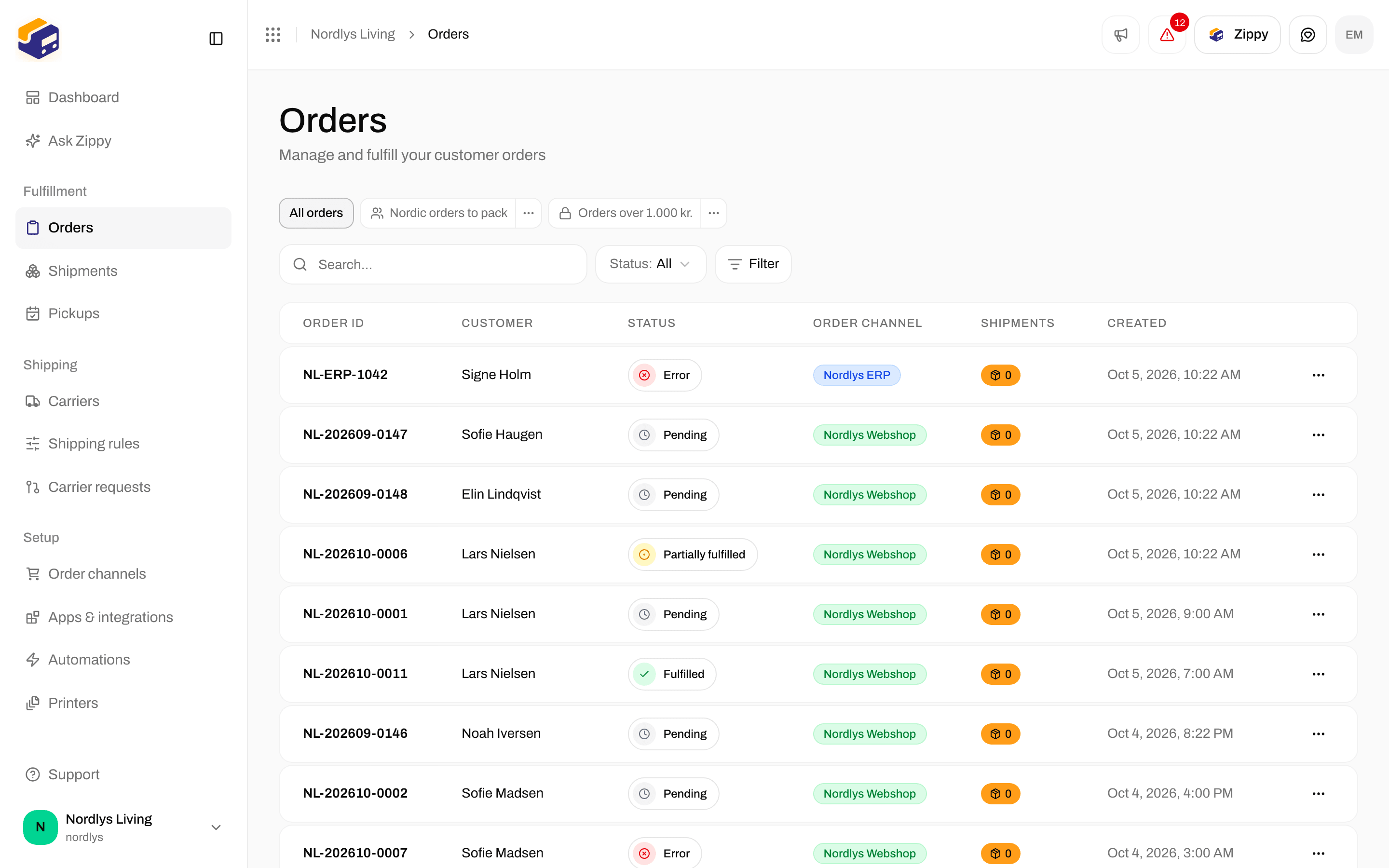
Orders lists the orders that came in from your order channels: Shopify, WooCommerce or your own system. You find an order, check the customer, address and items, then create one or more shipments and send them to the carrier. Click Orders in the sidebar. The page is titled Orders, with the description Manage and fulfill your customer orders.
Orders table with order numbers, customers, statuses, order channel and shipment countsOrders table with order numbers, customers, statuses, order channel and shipment counts

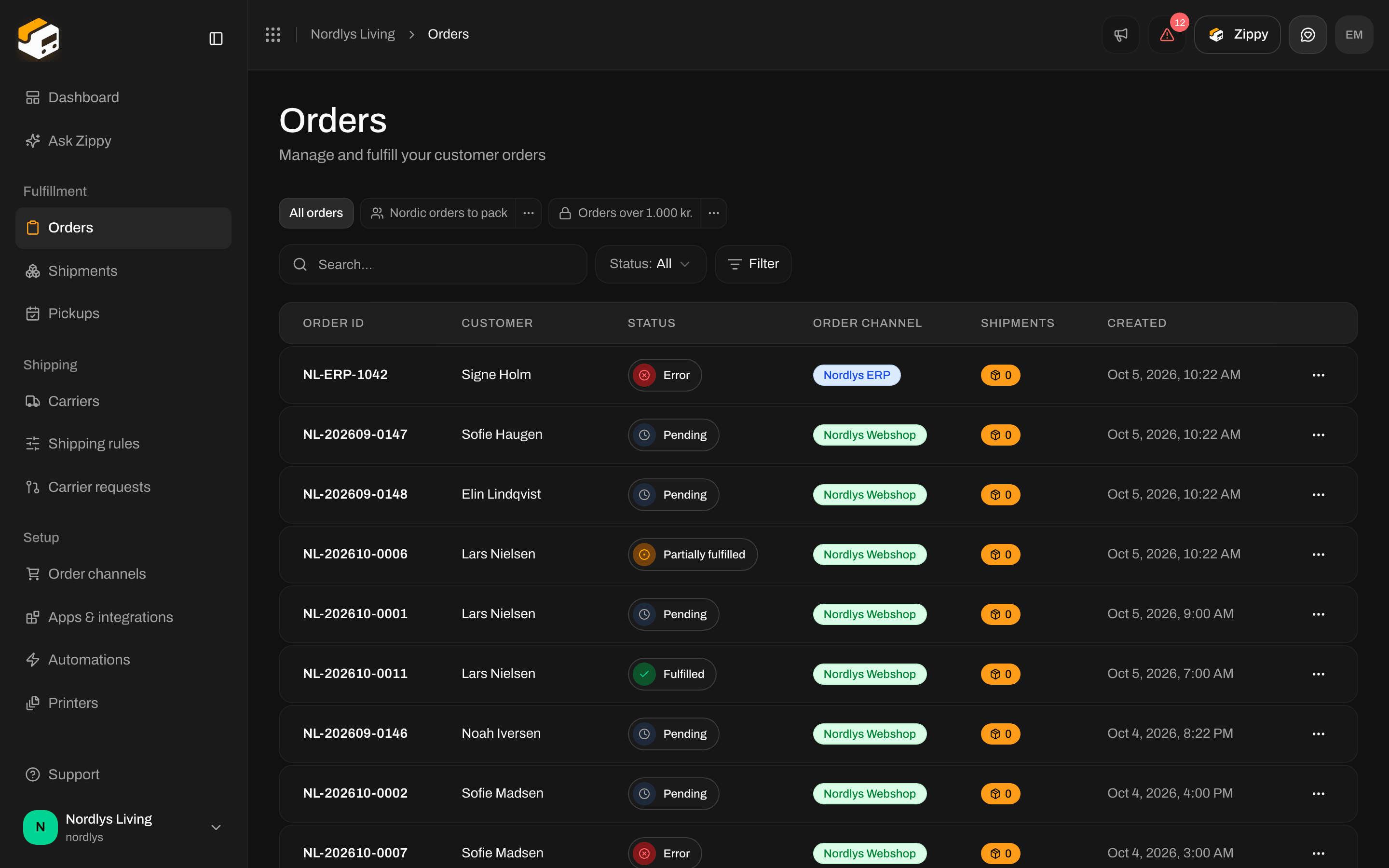
The orders list: order number, customer, status, order channel, number of shipments and created date

The table is called All orders and has these columns:
  • Order ID - the order number from your webshop
  • Customer - the customer’s name
  • Status - see Order statuses
  • Order channel - the order channel the order came from. The color of the tag shows the type: Shopify, WooCommerce, manual or custom.
  • Shipments - how many shipments the order already has
  • Created - when the order was created
If your organization has brands and you are looking at the whole organization, a Brand column is added. You don’t see it when your organization has no brands, or when you have switched to one brand (every row then belongs to that brand). Click a row to open the order. The newest orders are at the top. Use the page controls under the table to see more orders.
There are no checkboxes and no bulk actions in this list. You work on one order at a time: open it, or use the ⋯ menu on its row.

Search and filters

Above the table you find a Search box, a Status list and a Filter button. The list updates as soon as you type or pick a status. Filter lets you narrow the list by almost anything else (country, customer, order channel, total amount, dates and more), combine several filters, and save the result as a view your team can open again. That has its own walkthrough: Filters and saved views.
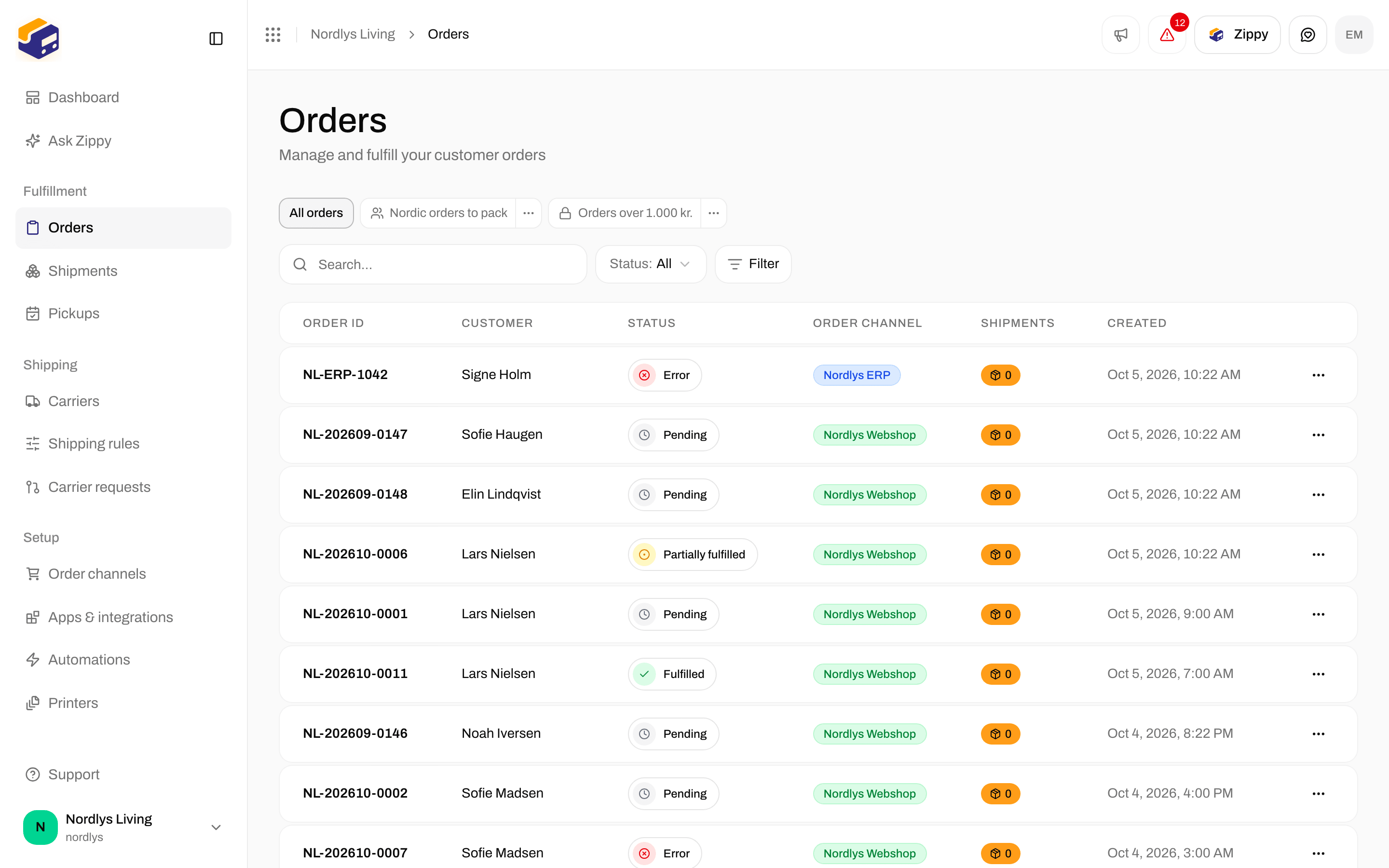
Orders list with the Search box, the Status list and the Filter button above the tableOrders list with the Search box, the Status list and the Filter button above the table

Search, Status and the Filter button above the orders table

  • Search - type an order number, a customer name or a customer email.
  • Status - All, or one of Pending, Processing, Partially fulfilled, Fulfilled, Cancelled and Error.
  • Filter - everything else, combined the way you need.
If your organization has brands and you are looking at the whole organization, a Brand list is added (All brands, No brand or one brand). A number on the Filter button shows how many filters are active. Clear all filters appears as soon as something is applied. Type part of a name, for example a customer’s first name, and the list keeps only the matching orders.
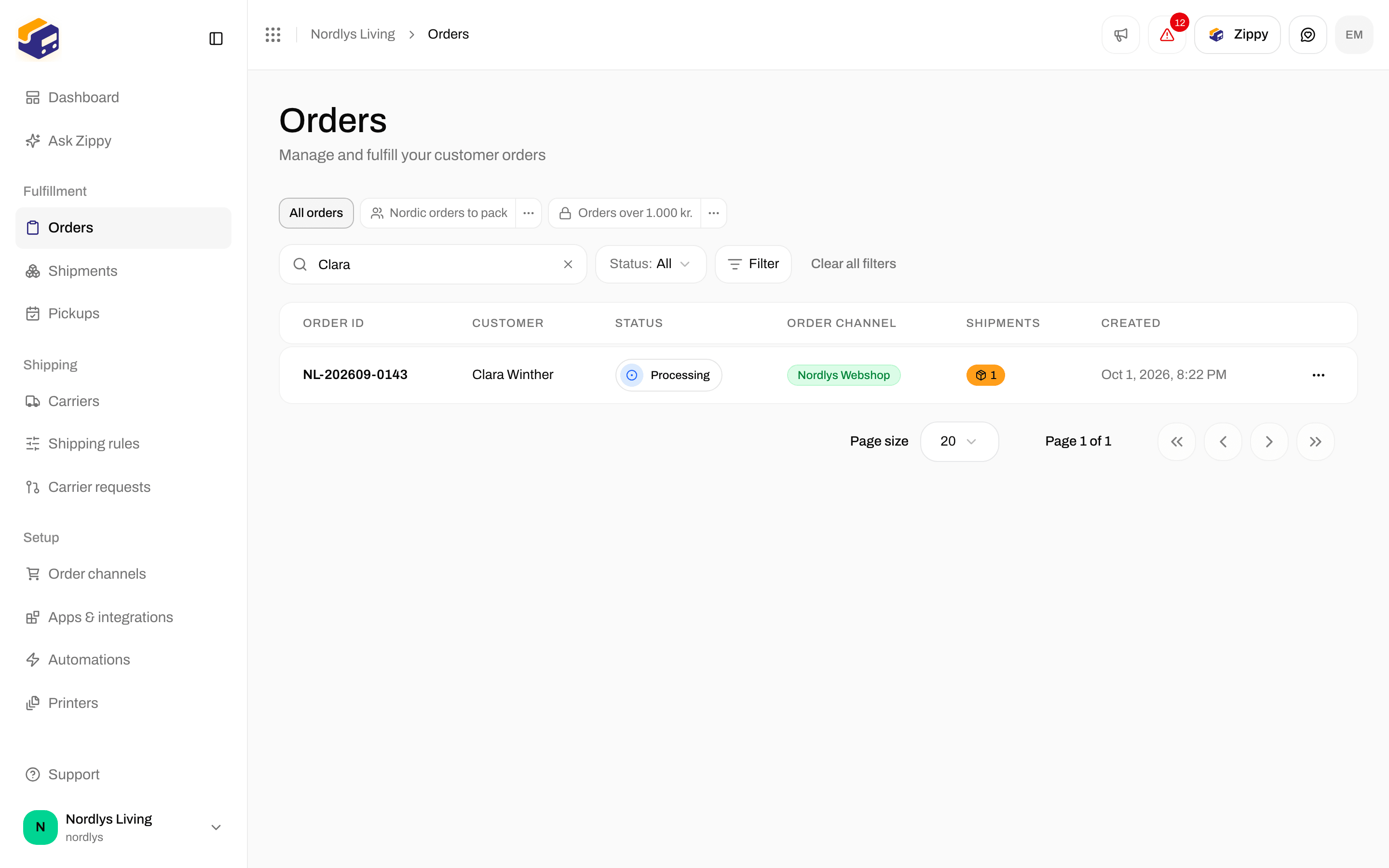
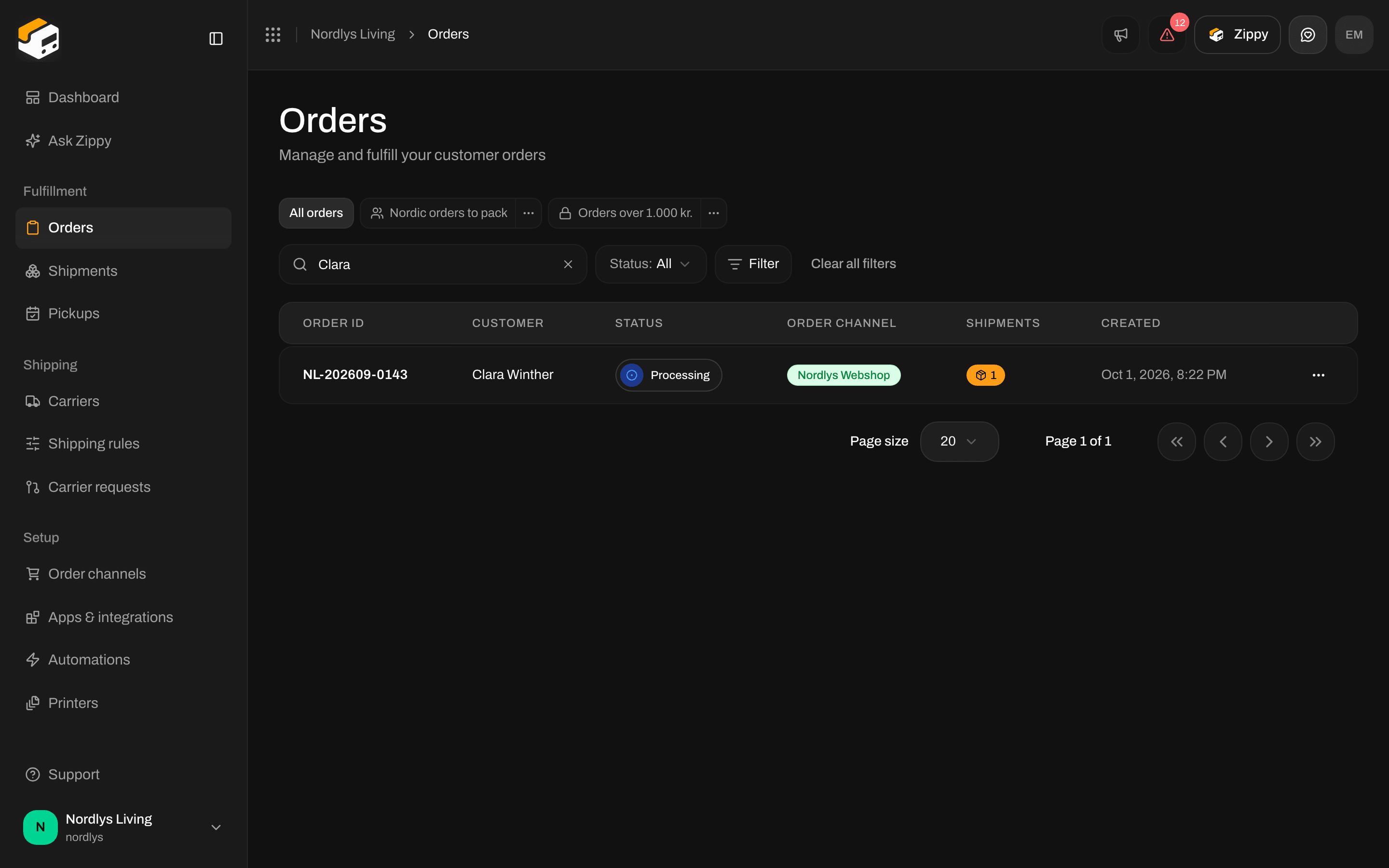
Orders list narrowed by a search to one Processing order with one shipmentOrders list narrowed by a search to one Processing order with one shipment

A search that leaves one matching order

Status

Pick Pending in the Status list to see only the orders that are waiting. Many teams start the day with this list.
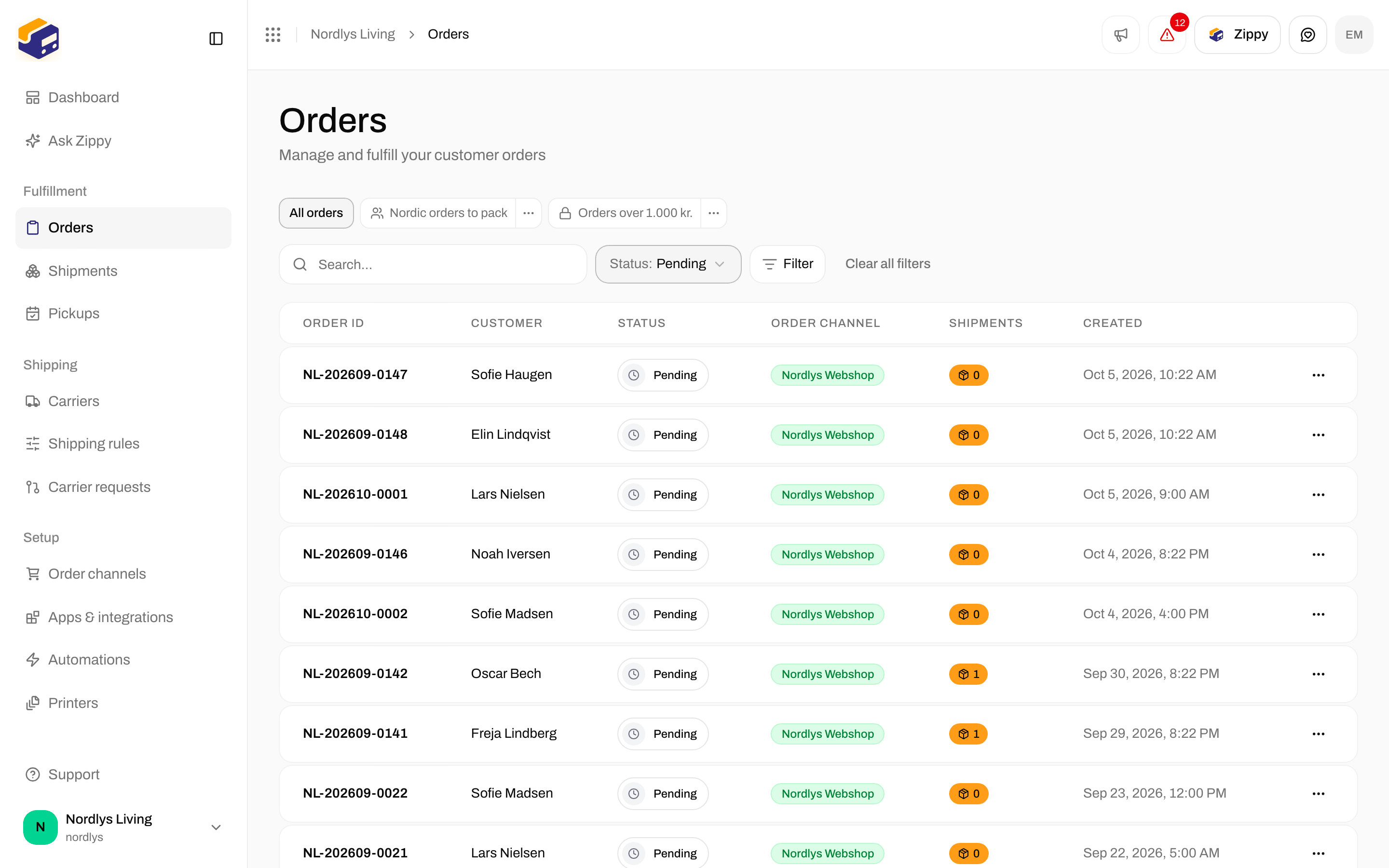
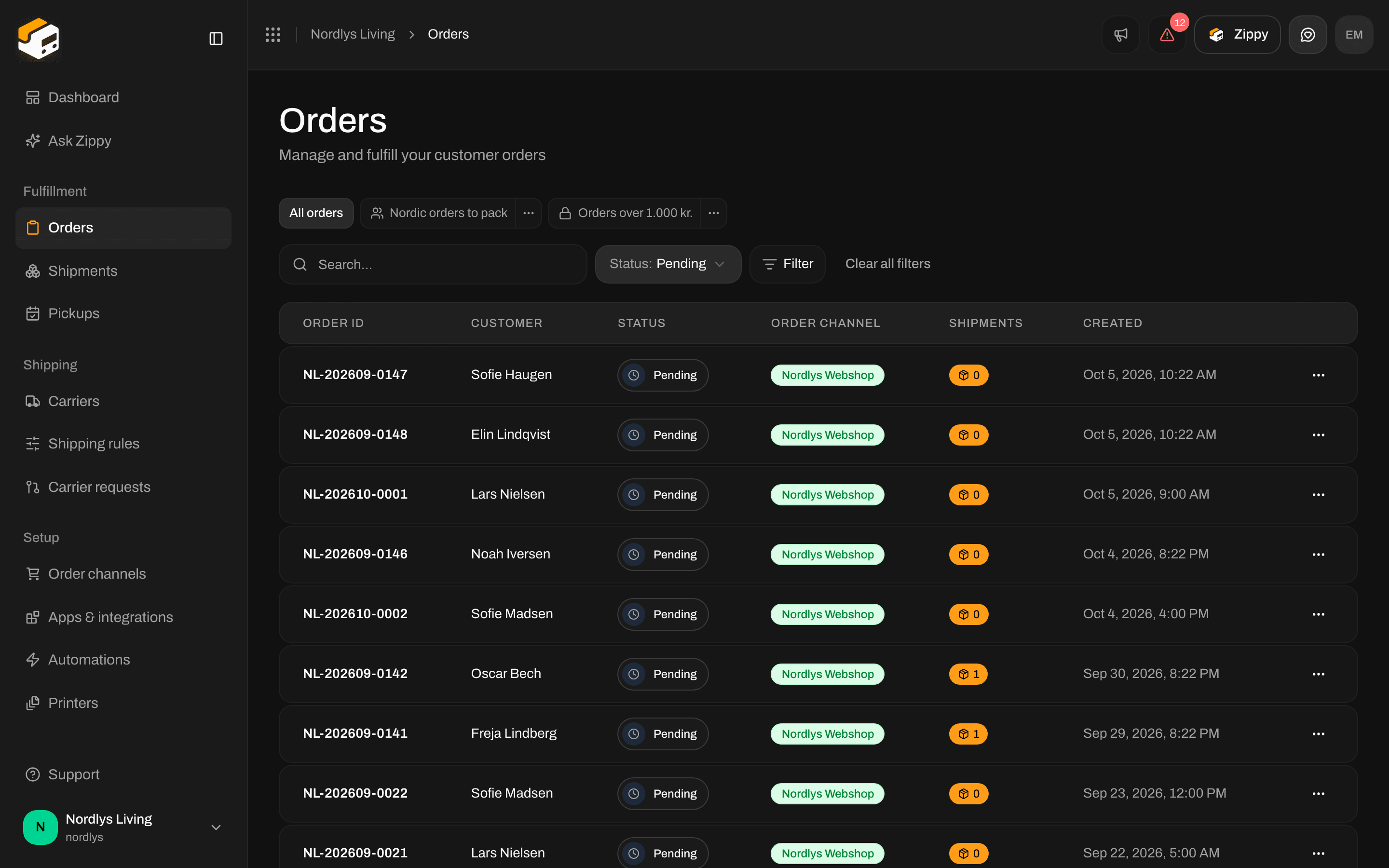
Orders list showing only Pending ordersOrders list showing only Pending orders

Status set to Pending

Order channel

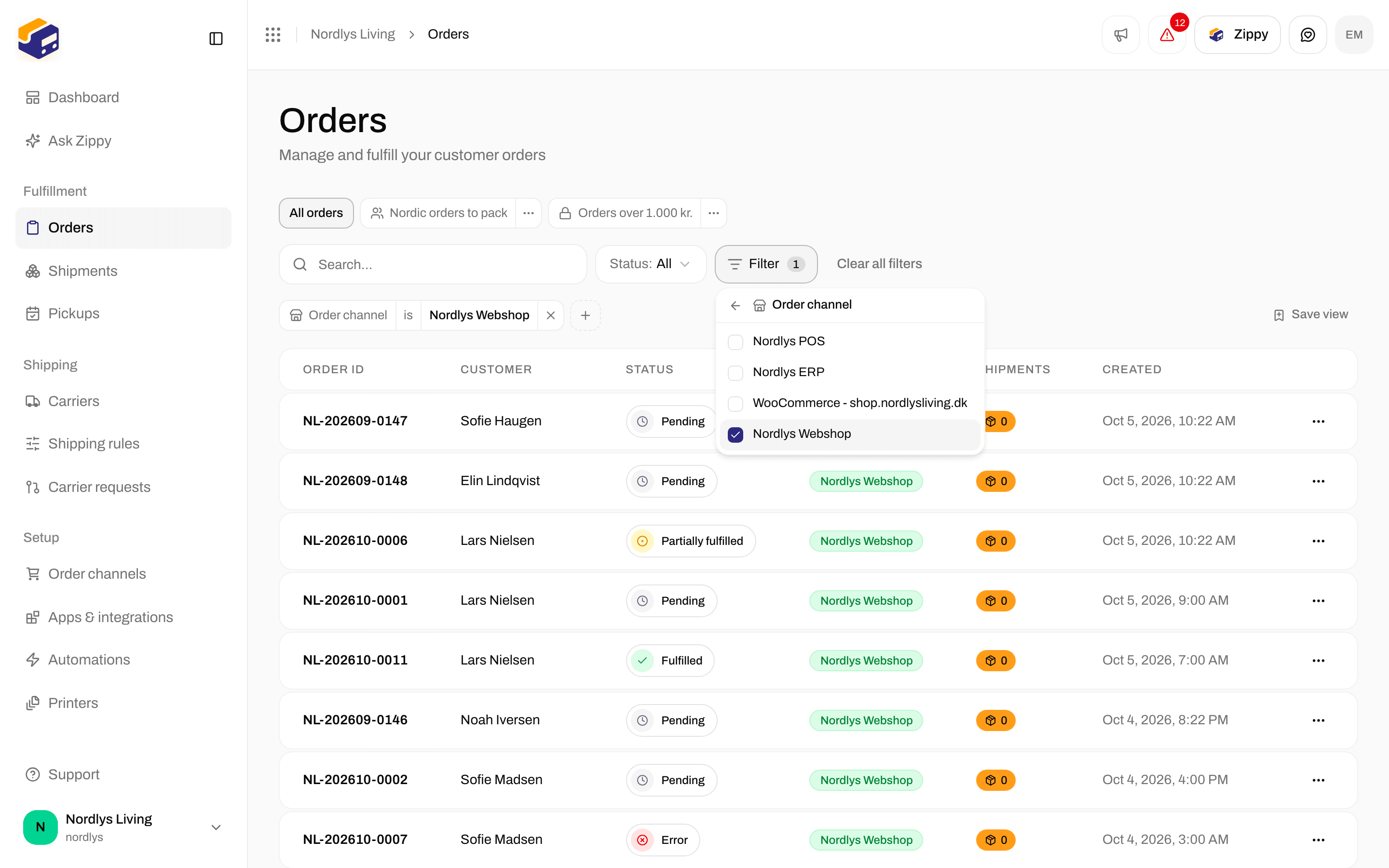
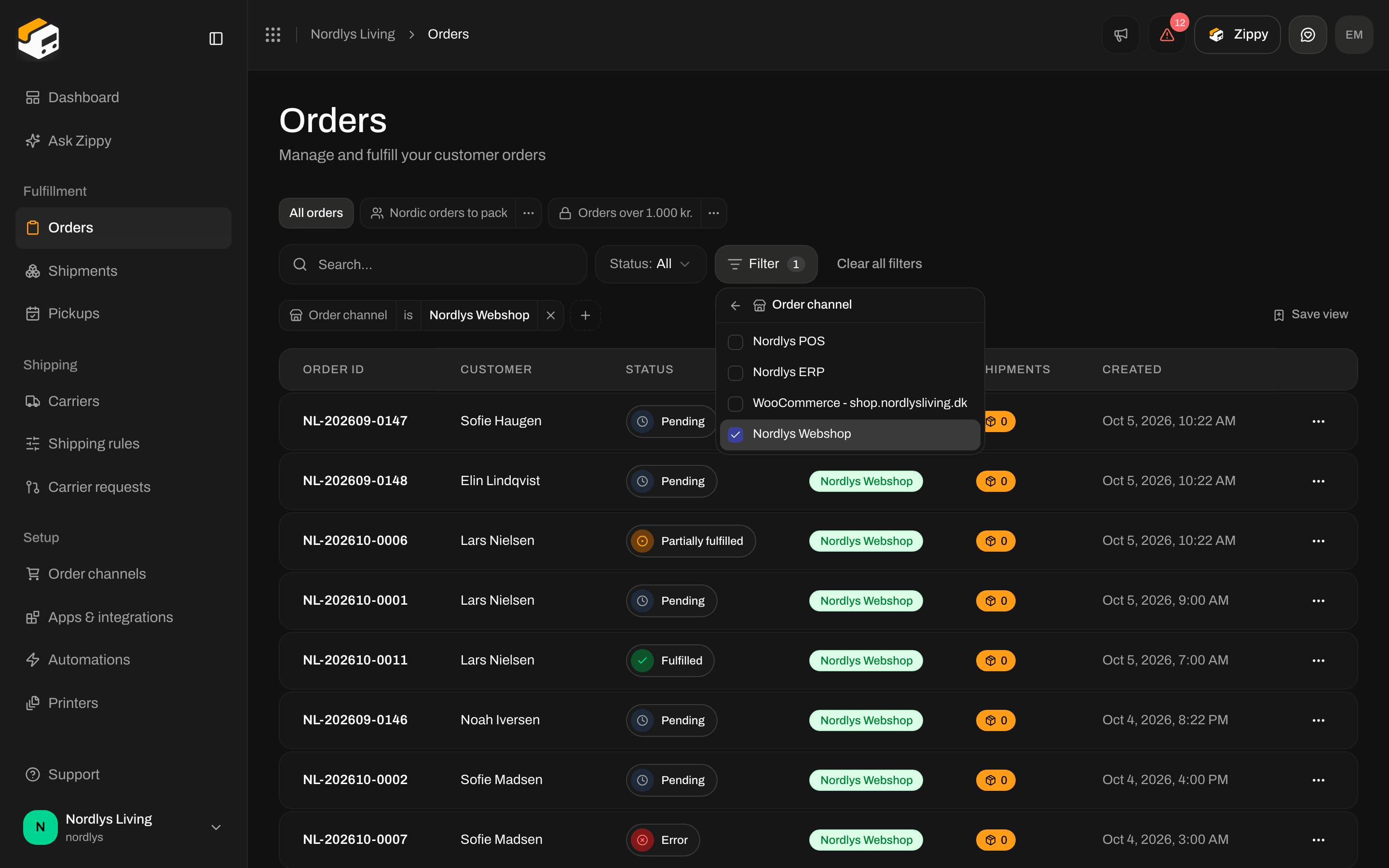
To see the orders from one webshop only, click Filter, choose Order channel and tick the webshop. A small tag appears above the table and the list shows only that webshop’s orders. Untick it again, or click the × on the tag, to see every order channel.
Orders list with an Order channel filter tag above the tableOrders list with an Order channel filter tag above the table

Orders from one order channel only

You can also click a webshop under Channel orders in the sidebar. The page description then reads Showing orders from and the order channel name, with View all orders to go back. The Order channel column shows the order channel on every row as well. To connect another webshop, see Connect order channels and Connect Shopify.

Empty list

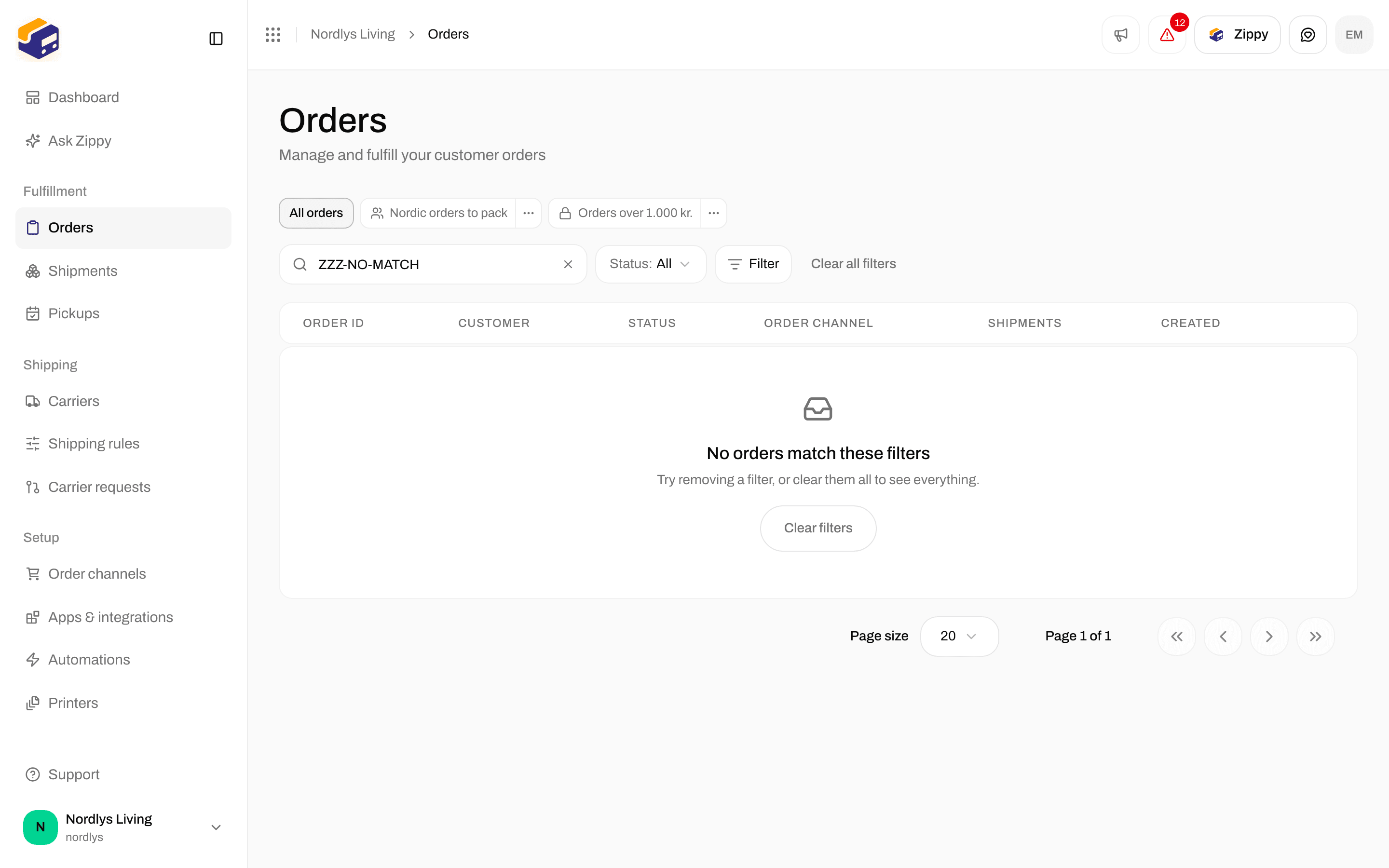
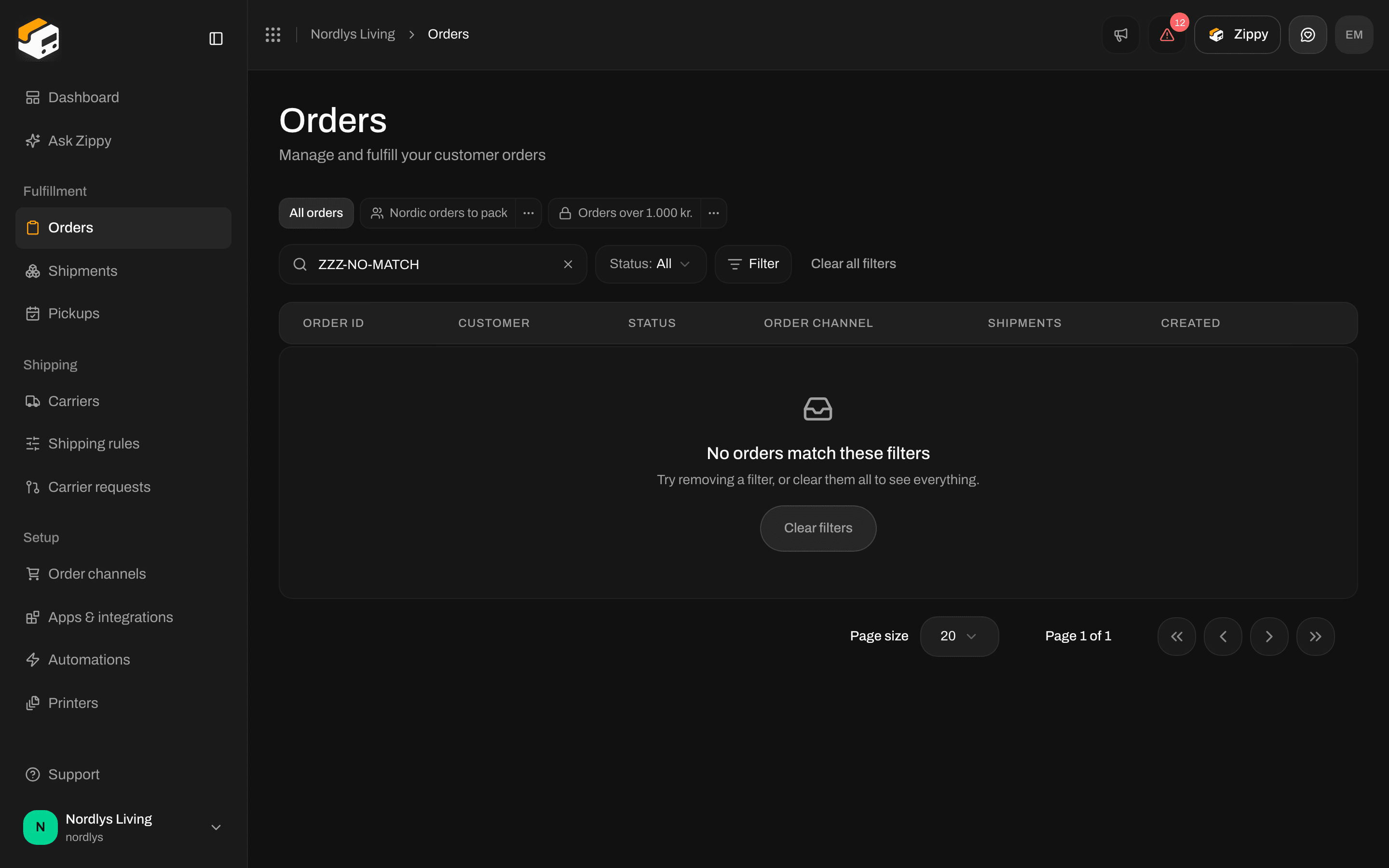
If a search or filter leaves nothing, the table says No orders match these filters and offers Clear filters. Your orders are still there. The filter only hides them.
Empty orders table with No orders match these filters and a Clear filters buttonEmpty orders table with No orders match these filters and a Clear filters button

No orders match the search, with Clear filters

If the list is empty and no filter is active, it says No orders found and Orders from your order channels appear here. Connect an order channel to get your first orders.. Connect an order channel and wait for the first orders to come in. See Order channels and Order sync delays.

Row actions

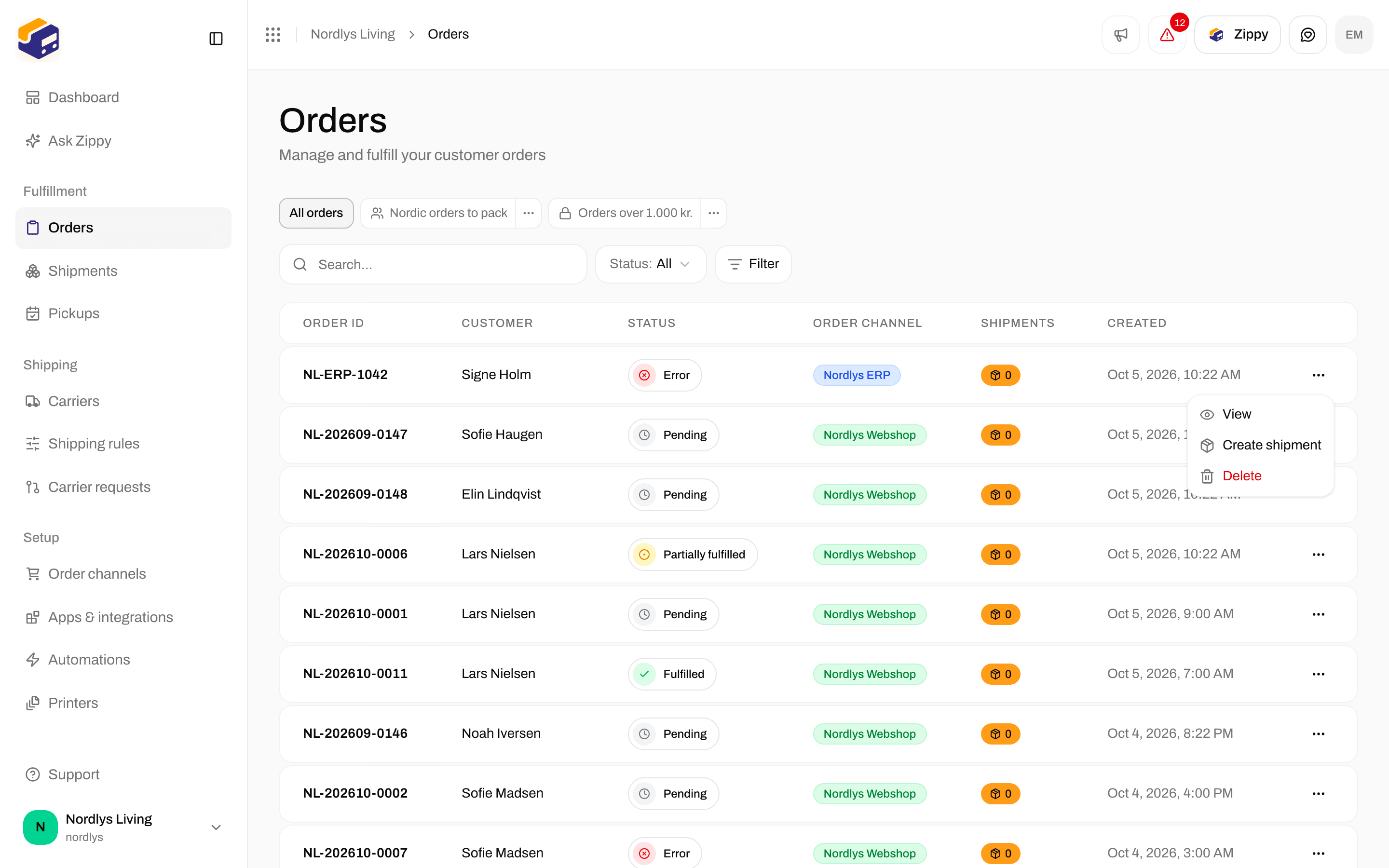
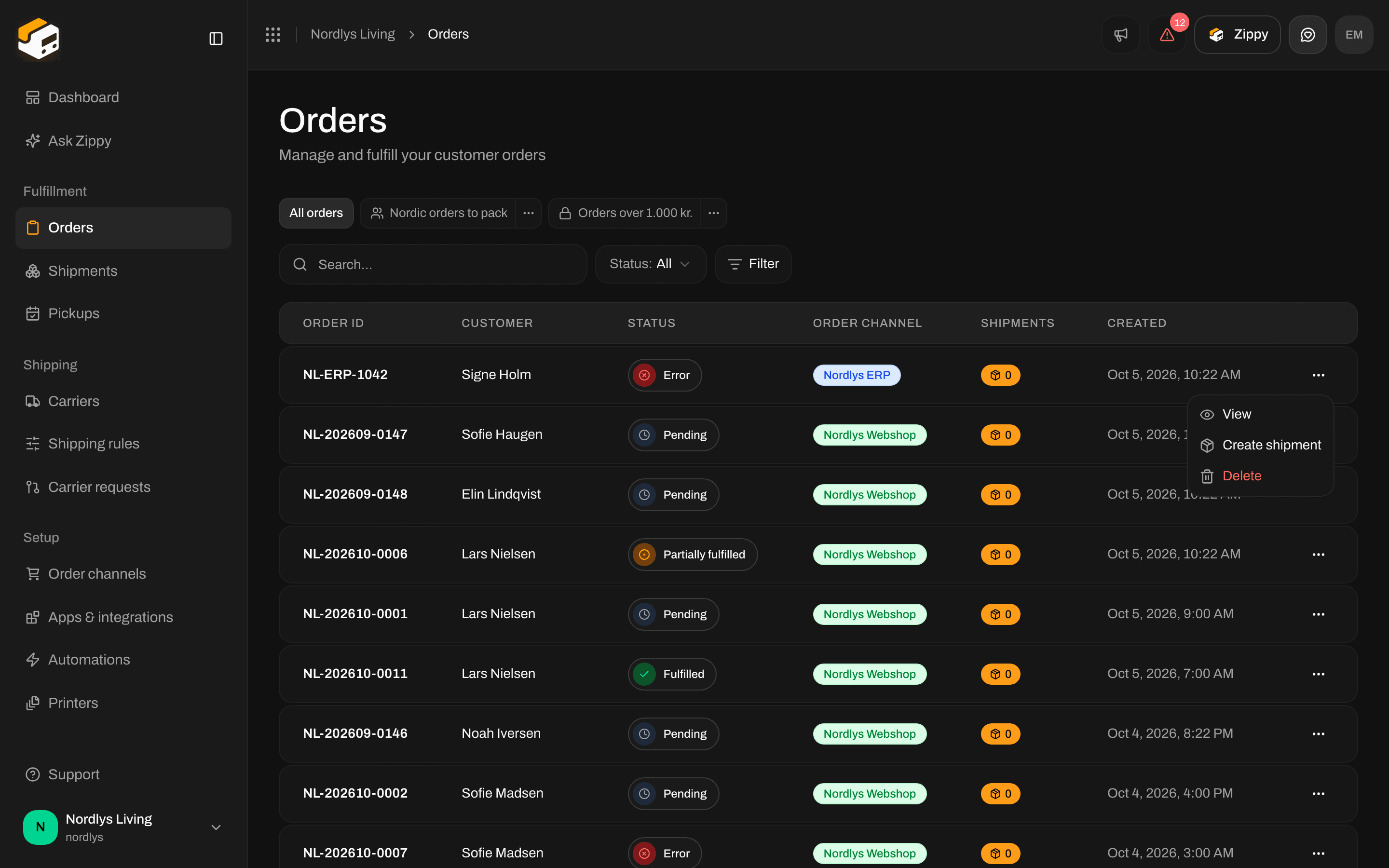
The ⋯ menu on a row has View, Create shipment (only when the order is not Fulfilled or Cancelled) and Delete.
Row menu on an order showing View and DeleteRow menu on an order showing View and Delete

The row menu on a fulfilled order: View and Delete, without Create shipment

Create shipment opens the order with the Create shipment window already open. Delete asks you to type the order number to confirm. Deleting an order cannot be undone.

The order page

Click a row, or View. The page title is Order / {order number}, with Created on and the order date underneath. Everything is on one page:
  • Items and Shipments on the left
  • Shipping rule, Order information, Customer information and Shipping address on the right
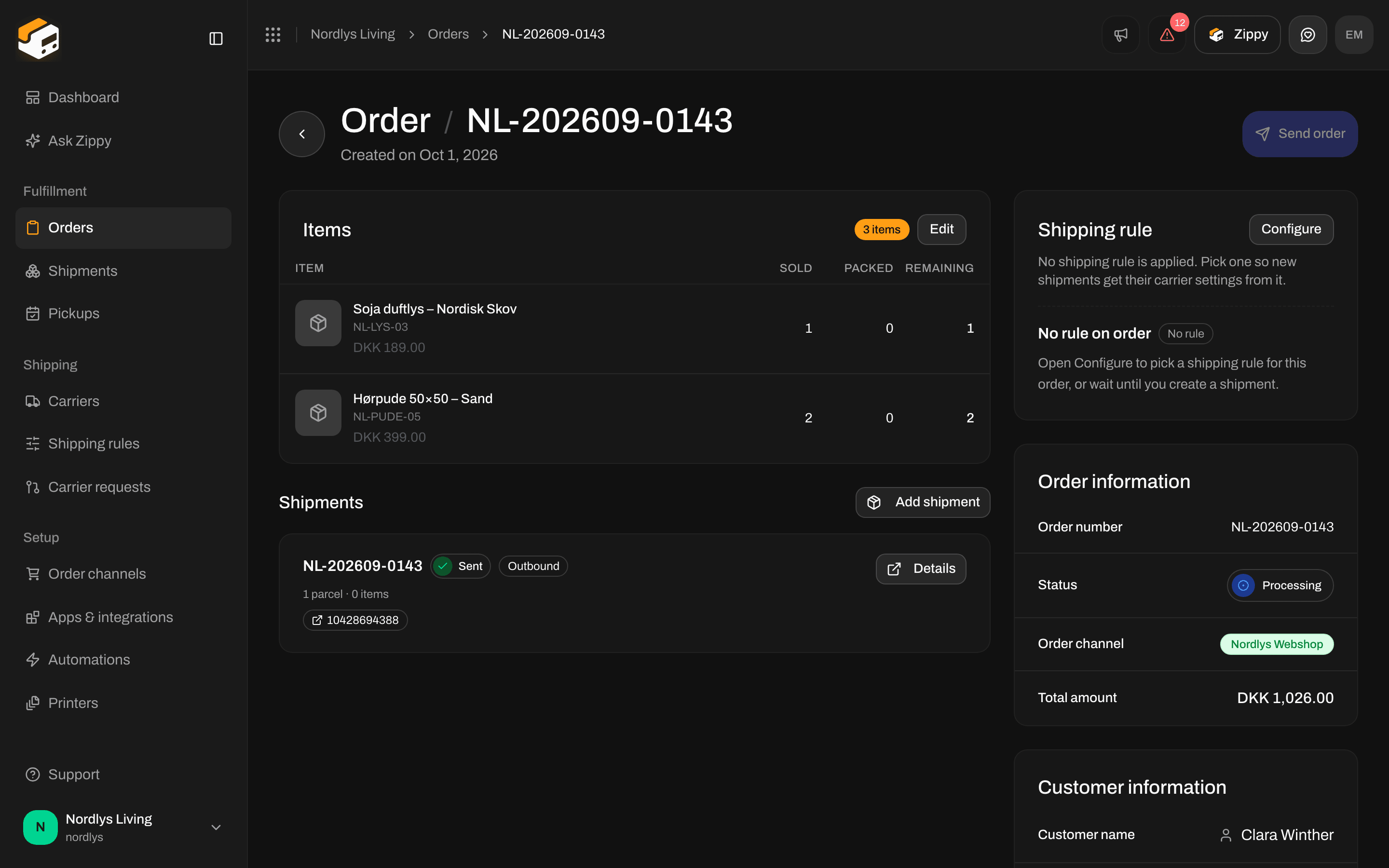
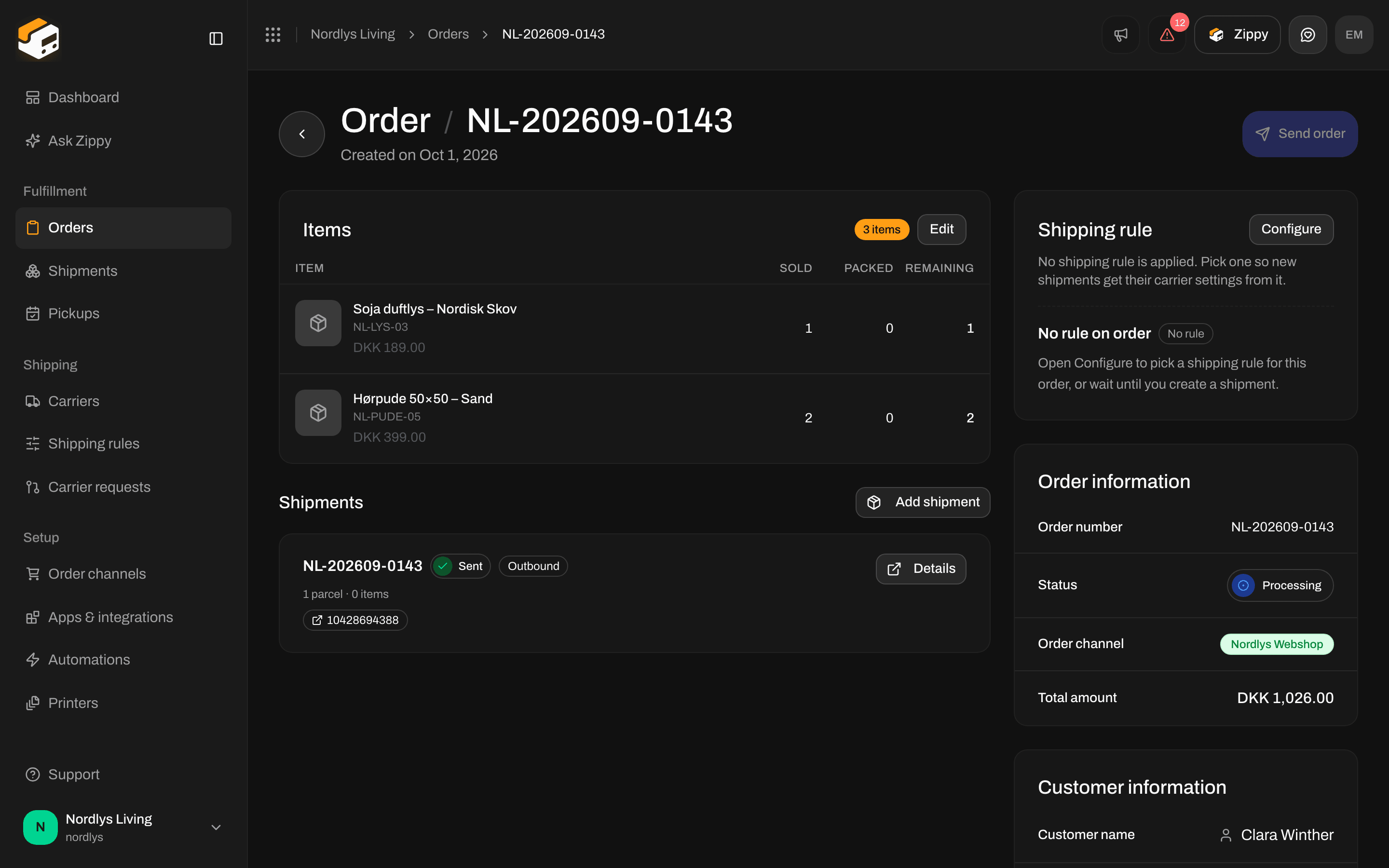
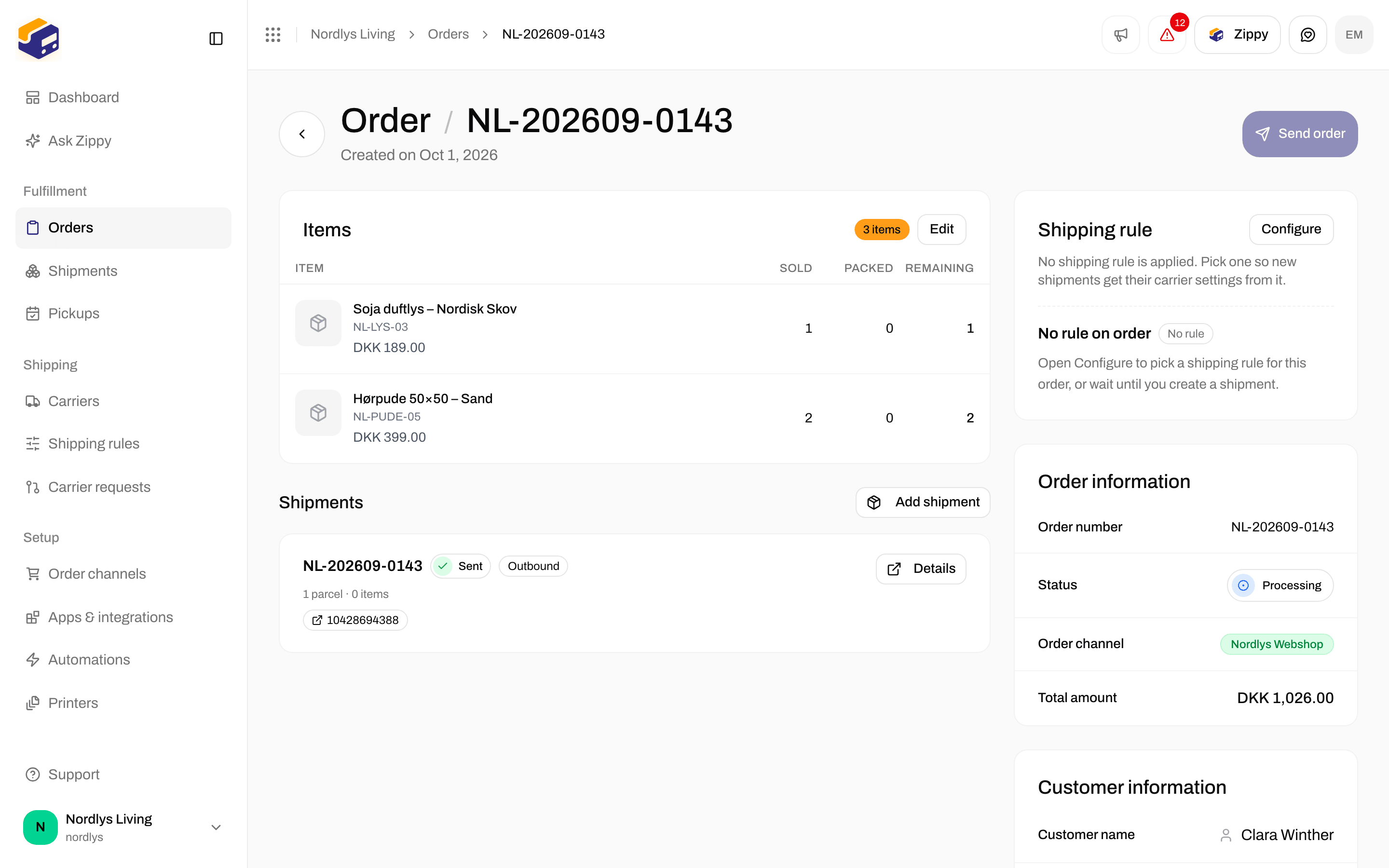
Order page with Items, Shipments, Shipping rule and Order information, and a Send order buttonOrder page with Items, Shipments, Shipping rule and Order information, and a Send order button

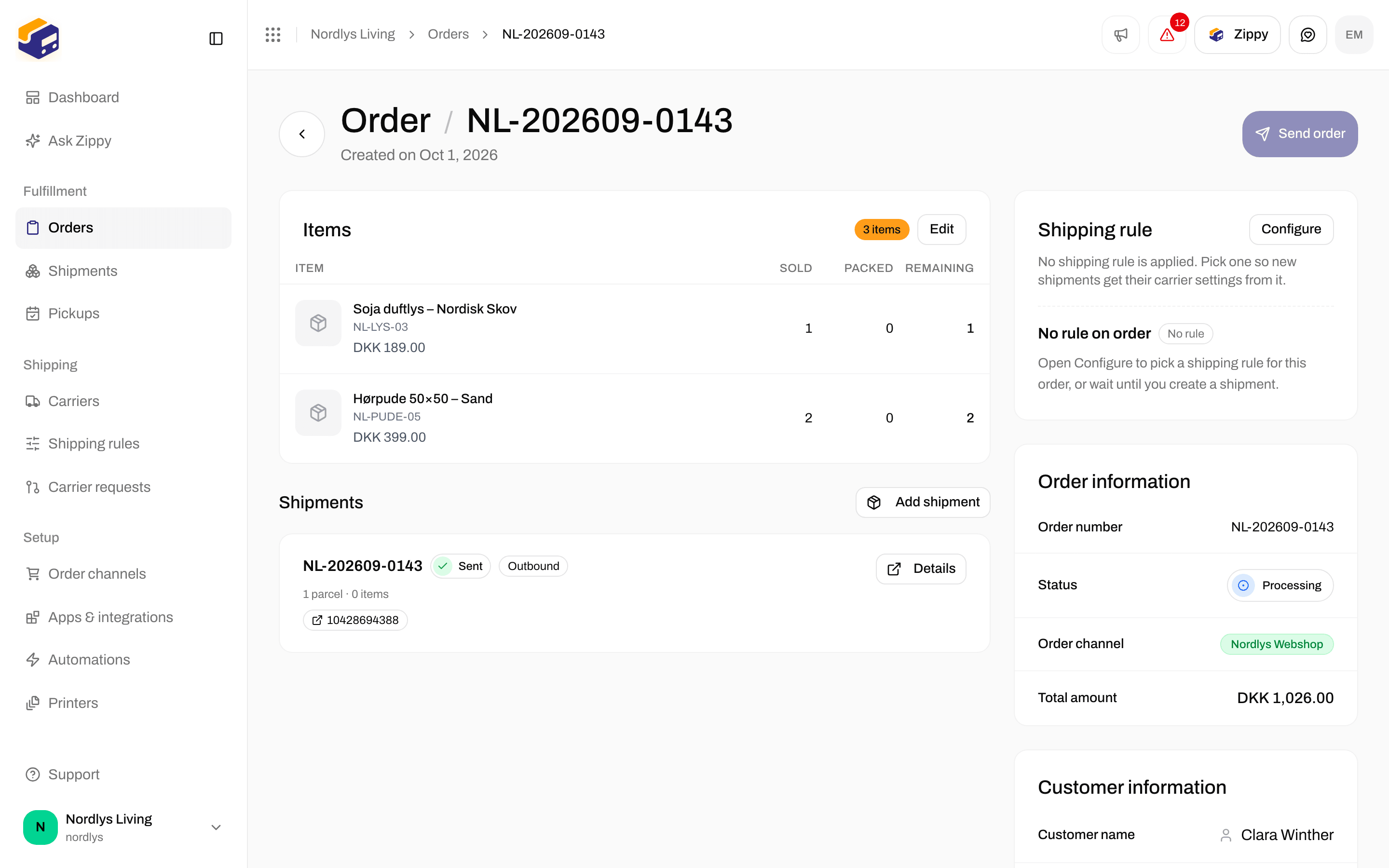
An order with its items, its shipment, the shipping rule and the order information. The button at the top is Send order because the order already has a shipment

The button at the top

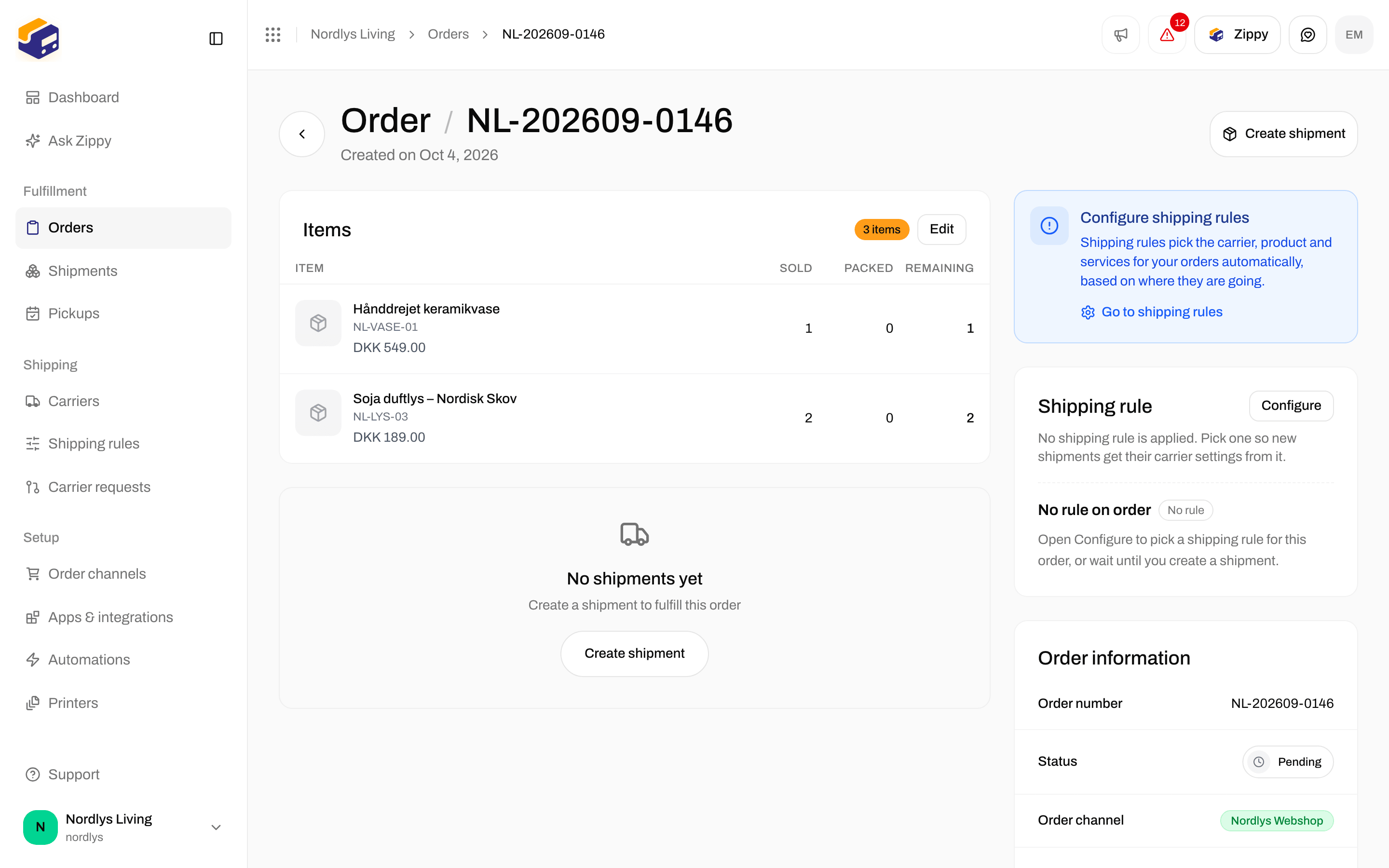
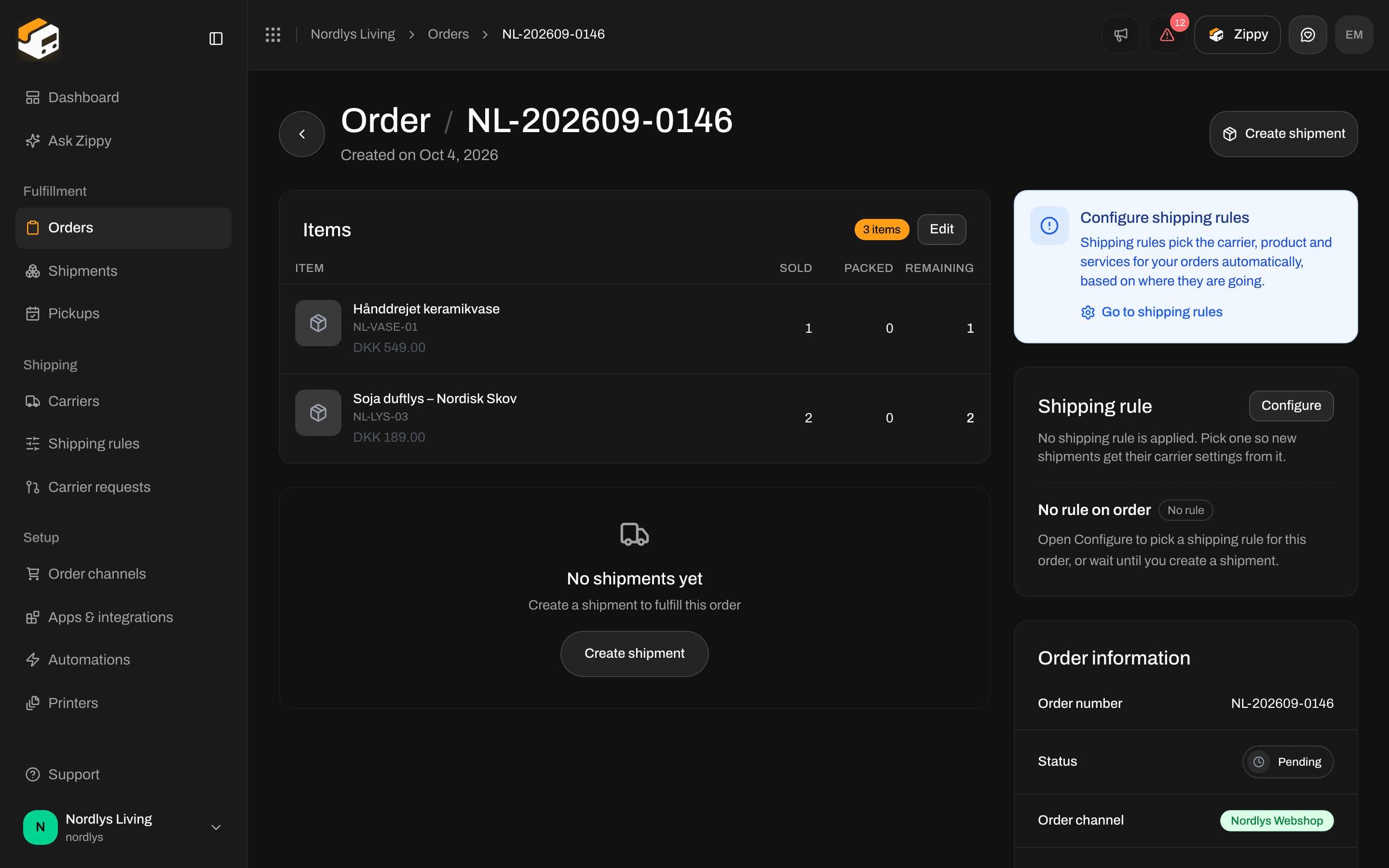
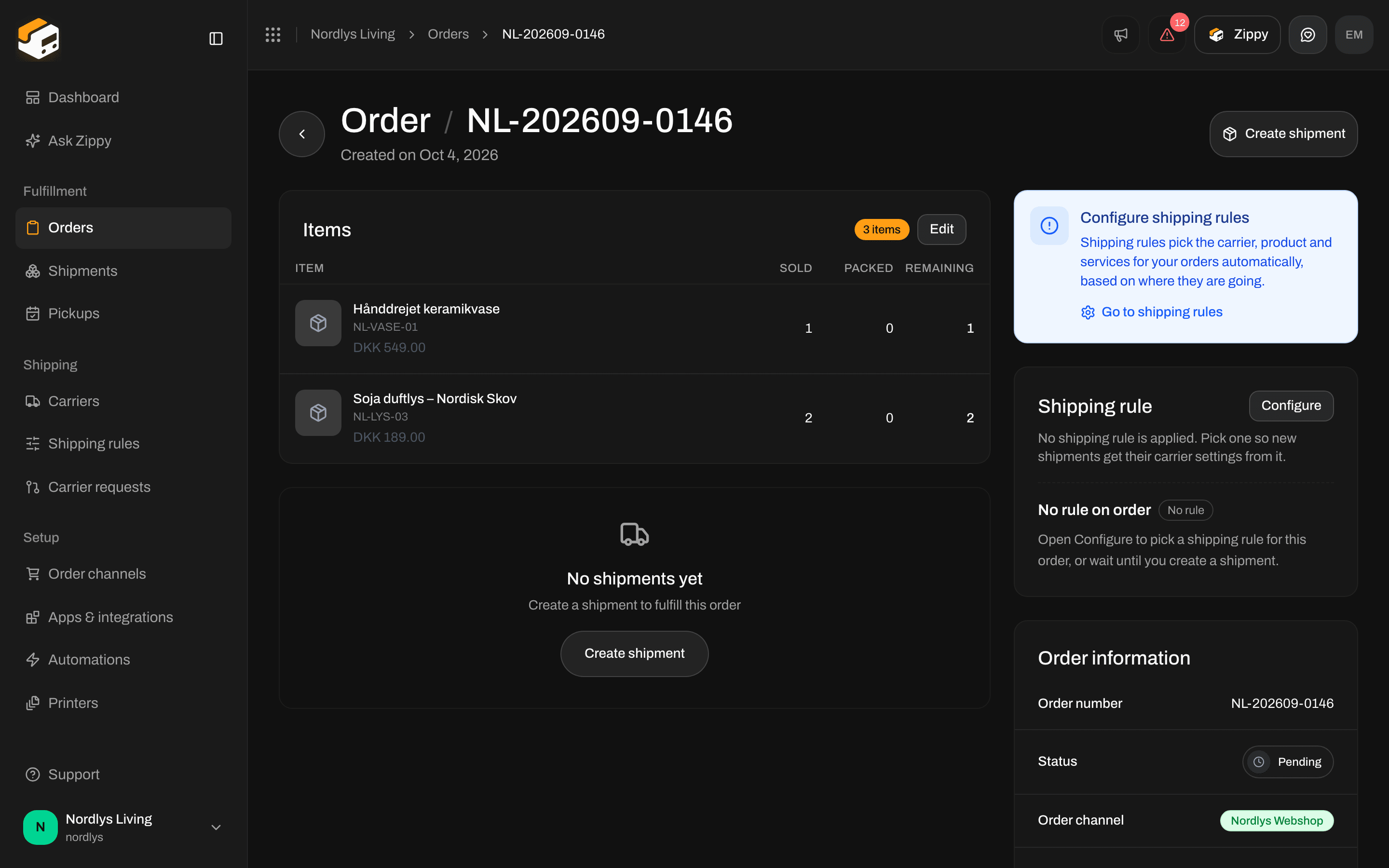
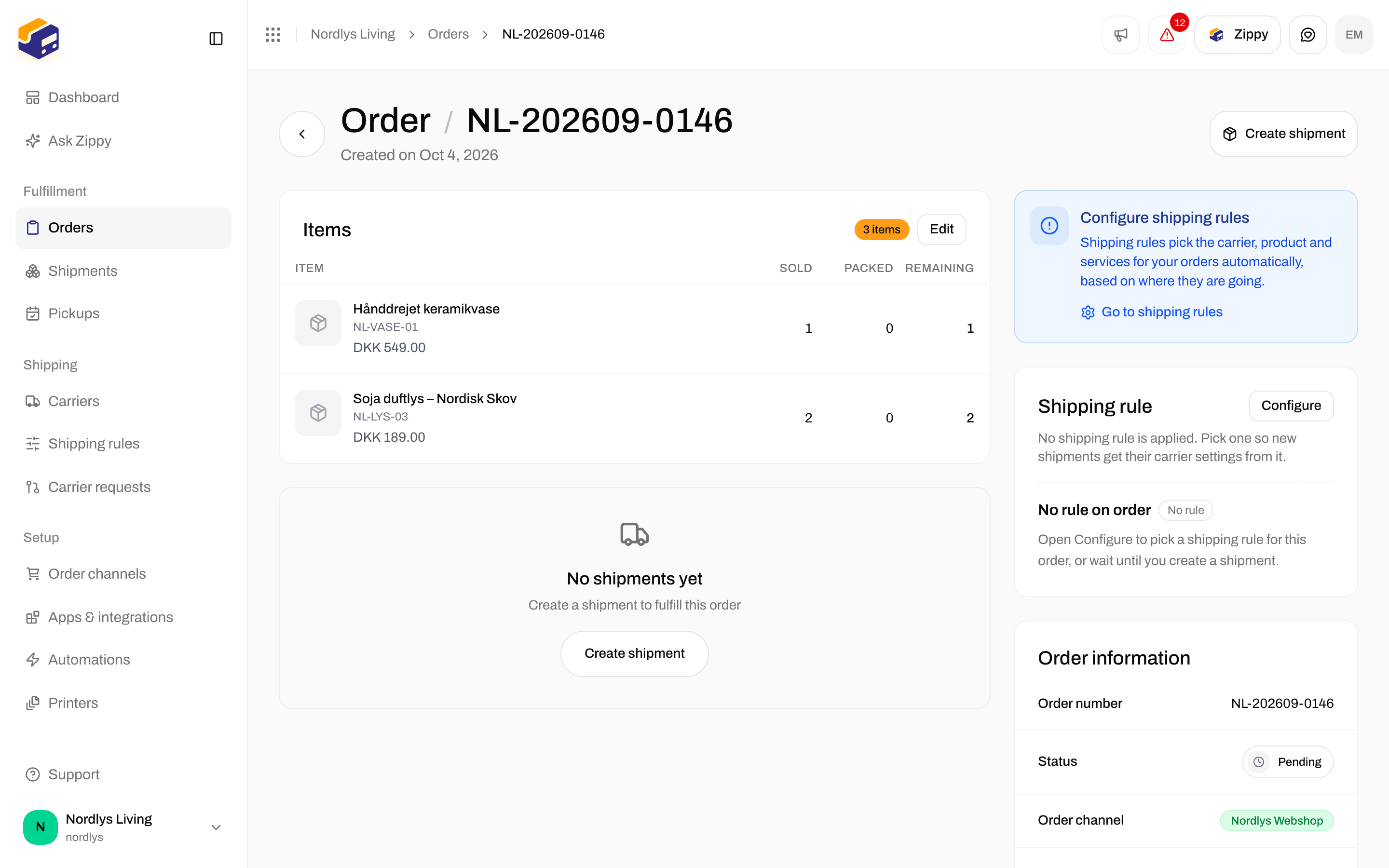
  • The order has no shipments yet, and it is not Fulfilled or Cancelled: Create shipment.
  • The order has at least one shipment: Send order. It sends every shipment on the order that is still Pending or Error. If none of them can be sent, the button is grayed out and shows No shipments ready to send.

Items

Items lists every product on the order with its name, SKU and price, and three counts: Sold (how many the customer bought), Packed (how many are already in a shipment) and Remaining (how many still need to go out). Click Edit to change the items, as long as the order is not Fulfilled or Cancelled. Saving replaces the whole list, and the order needs at least one item. Field by field: Edit order lines.

Shipping rule

The Shipping rule card shows the rule on the order. A rule fills in the carrier, product, services and sender address for new shipments. Click Configure to pick a rule, or choose No shipping rule (manual). If the order has no rule, the card says No rule on order, and you pick the carrier yourself when you create the shipment. When the order has no rule and no shipments yet, a Configure shipping rules box can appear with a link, Go to shipping rules. See Shipping rules and Apply a shipping rule.

Order and customer information

Order information shows:
  • Order number
  • Status
  • Order channel
  • External ID (when the webshop sent one)
  • Total amount
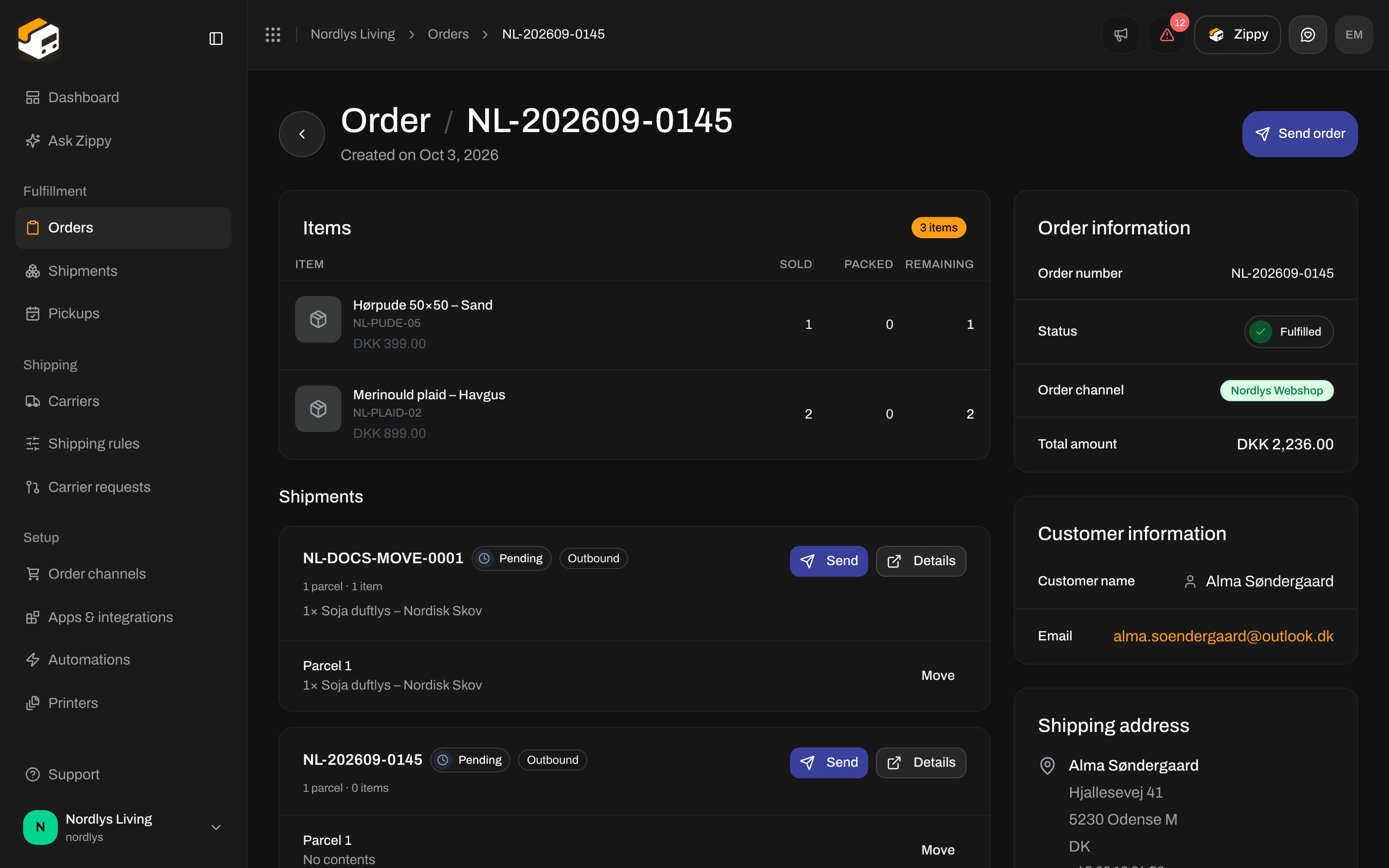
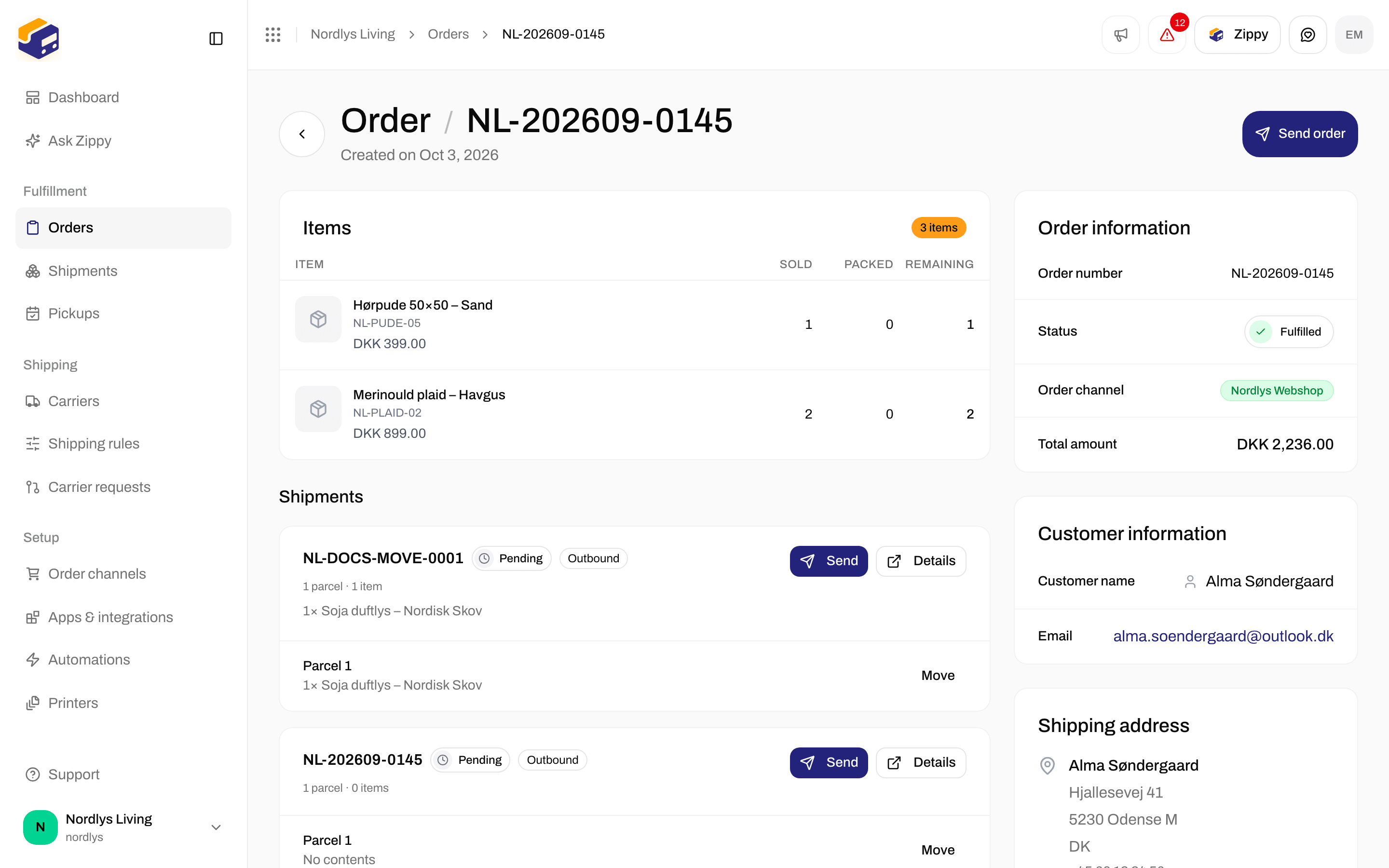
Customer information shows the Customer name and Email. Click the email address to write to the customer. Shipping address shows the name, company, street, postal code, city, country and phone number. Click Edit (or Add if the order has no address) to change it. Shipments that have not been sent yet follow the new address. Shipments that were already sent stay as they are.
Pending order with a Create shipment button and a box suggesting shipping rulesPending order with a Create shipment button and a box suggesting shipping rules

A pending order with no shipments: Create shipment at the top and the Configure shipping rules box

Open orders and fulfilled orders
Fulfilled order with customer information and shipping addressFulfilled order with customer information and shipping address

A fulfilled order: the Fulfilled status, the customer and address, and items without Edit

Error on an order means Zippendo could not create a shipment for it automatically when it came in. Open the order, check the address and items, and create the shipment yourself. Orders that were already fulfilled in your webshop arrive as Fulfilled or Partially fulfilled, and Zippendo does not create a shipment for them, so nothing is shipped twice. Details: Order statuses.

Where orders come from

Every order belongs to an order channel. The Order channel column in the list and the Order channel row on the order show the same thing. Orders only appear after you connect an order channel. A shipment you create yourself under Shipments does not create an order. To check that a webshop is sending orders, click it under Channel orders in the sidebar. If it is missing, connect it under Order channels.

Shipments on the order

The Shipments section on the order page shows each shipment as a card with:
  • the shipment reference, its status, and Outbound or Inbound
  • the number of parcels and items, for example “1 parcel · 2 items”, and what is in them
  • the tracking number, once the shipment has been sent
  • Details, which opens the shipment
  • Send, when the shipment is Pending or Error
Shipments section with an outbound shipment card, a tracking number and the Add shipment buttonShipments section with an outbound shipment card, a tracking number and the Add shipment button

An order with a sent shipment: Add shipment and the shipment card
Once a shipment has labels or other documents, the ⋯ button on the card lets you download them. The same menu has Create return shipment when the shipment is Sent and Outbound, and the order’s shipping rule has a Return shipping rule with Create return automatically when the shipment is sent switched off. When the order has no shipments yet, the section says No shipments yet and Create a shipment to fulfill this order, with a Create shipment button.
Empty shipments section with No shipments yet and a Create shipment buttonEmpty shipments section with No shipments yet and a Create shipment button

An order with no shipments yet

Create a shipment from an order

1

Open an order without shipments

Click Create shipment at the top of the order, in the empty Shipments section, or in the row menu in the list.
2

Check the summary

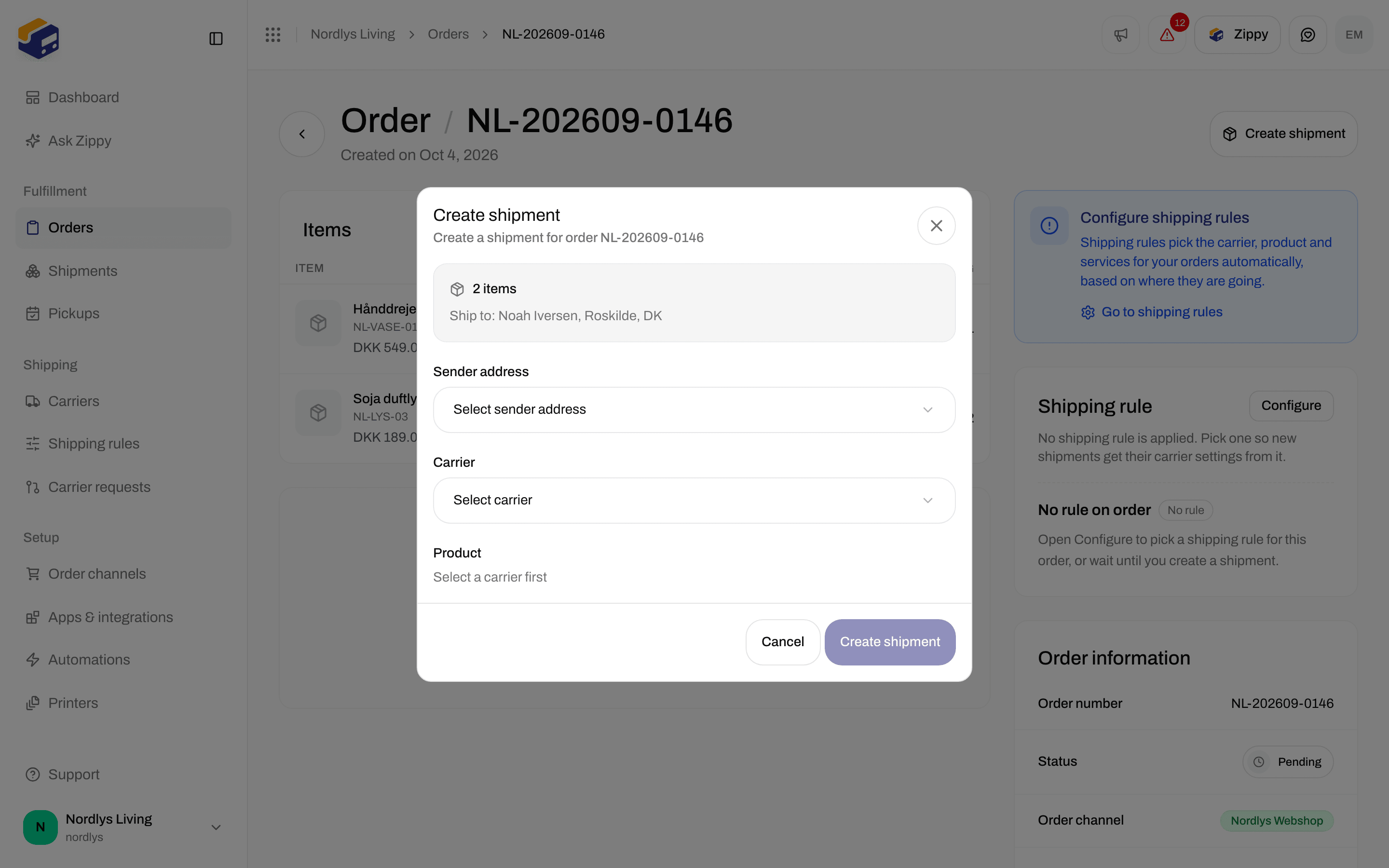
The Create shipment window says Create a shipment for order and the order number. It shows how many items the order has, and Ship to: with the receiver’s name, city and country.
3

Choose how to ship

If the order has a shipping rule, the window uses it: Carrier, product, services and sender address come from the order’s shipping rule. To choose yourself, click Configure carrier manually instead and pick a Sender address, a Carrier and a Product. Without a rule, you must fill in all three. If the product delivers to a service point, you also pick the service point before you can create the shipment.
4

Click Create shipment

The new shipment appears under Shipments, and the button at the top of the order changes to Send order.
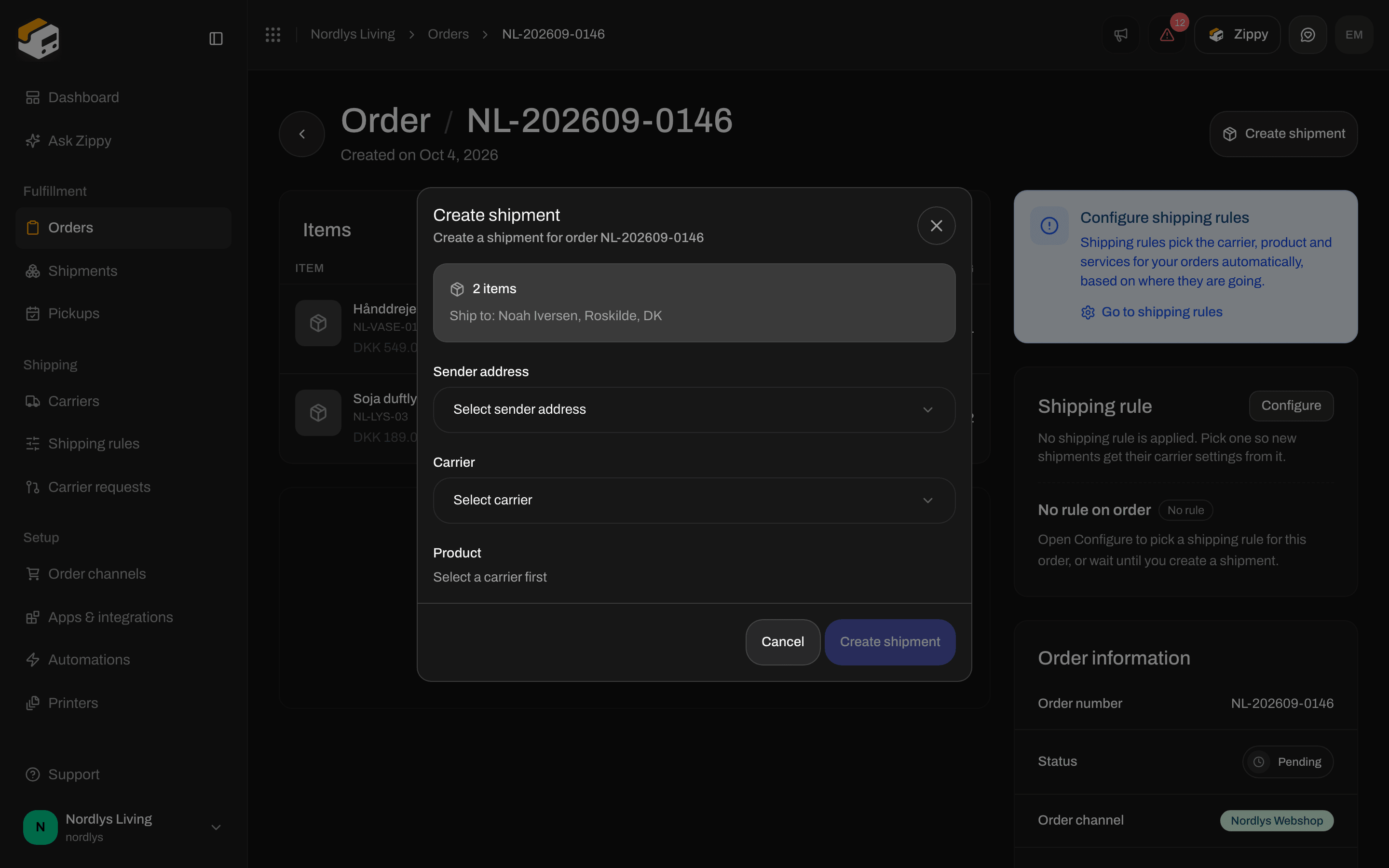
Create shipment window with Sender address, Carrier and Product fieldsCreate shipment window with Sender address, Carrier and Product fields

The Create shipment window: number of items, the receiver, and Sender address, Carrier and Product

You need a connected carrier and a sender address. If one is missing, the window says No sender addresses yet. Add one on the Addresses tab in Settings. or No carriers connected yet. The shipment is created but not sent yet. Click Send on its card, or Send order at the top, to send it to the carrier and get the label. This page only covers creating a shipment from an order. The full shipment form (parcels, sender and receiver, return shipments, service points) is in Create a shipment. Field reference: Creating a shipment.

More than one shipment on one order

One order can have several shipments.
  • Add shipment in the Shipments section (while the order is not Fulfilled or Cancelled) opens the Create shipment window again. Use it for a second box, a later delivery or a different product.
  • When an order has two or more shipments that are still Draft, Pending or Error, each parcel on those cards gets a Move button. Pick Move to and the other shipment’s reference to move the parcel there.
  • To split one shipment into two, open it with Details and click Split shipment on a parcel. This works while the shipment is Draft or Pending, and only on a parcel with more than one item line or a quantity above 1.
A shipment that has been sent cannot be split. Walk through splitting in Split shipment and Split and move parcels. After a split, send each shipment that is still Pending.
Partially fulfilled means some items have been sent and some have not. Create or send a shipment for the rest. Do not create a new shipment for the part that already left.

When a shipment fails

If the carrier does not accept a shipment:
  • The shipment’s status becomes Error. Send stays on the card, so you can try again after you fix the address or the carrier settings.
  • If a shipment cannot be shown, its card says Couldn’t load the shipment.
  • Send order at the top tries every shipment on the order that can be sent. A message tells you how it went, for example 2 shipments sent, 1 sent, 1 failed, or 1 sent, 1 failed, 1 not attempted. Send those again.
Click Details on the card to open the shipment. A Shipment failed to send message there tells you what went wrong, and Request logs shows what the carrier answered. Status meanings: Shipment statuses. If no label appears: Labels not generating.

What to open next

Create a shipment

The full shipment form: parcels, return shipments and service points.

Connect order channels

WooCommerce, your own system, and more than one webshop.

Shipping rules

Let the order’s rule fill in the carrier and product.

Connect Shopify

Get your Shopify orders into this list.
Field by field: Edit order lines · Apply a shipping rule · Send a shipment