

Tracking timeline and Tracking information only appear when the shipment has a tracking number, a tracking link, a label-free code or a QR code. A pending shipment that has not been sent has neither.
Where tracking appears
On the shipment
Open Shipments and click a Sent shipment. Scroll to Parcel details. The Tracking column shows each parcel’s tracking number. The number is a link when the carrier gave a tracking link. The copy button copies the number.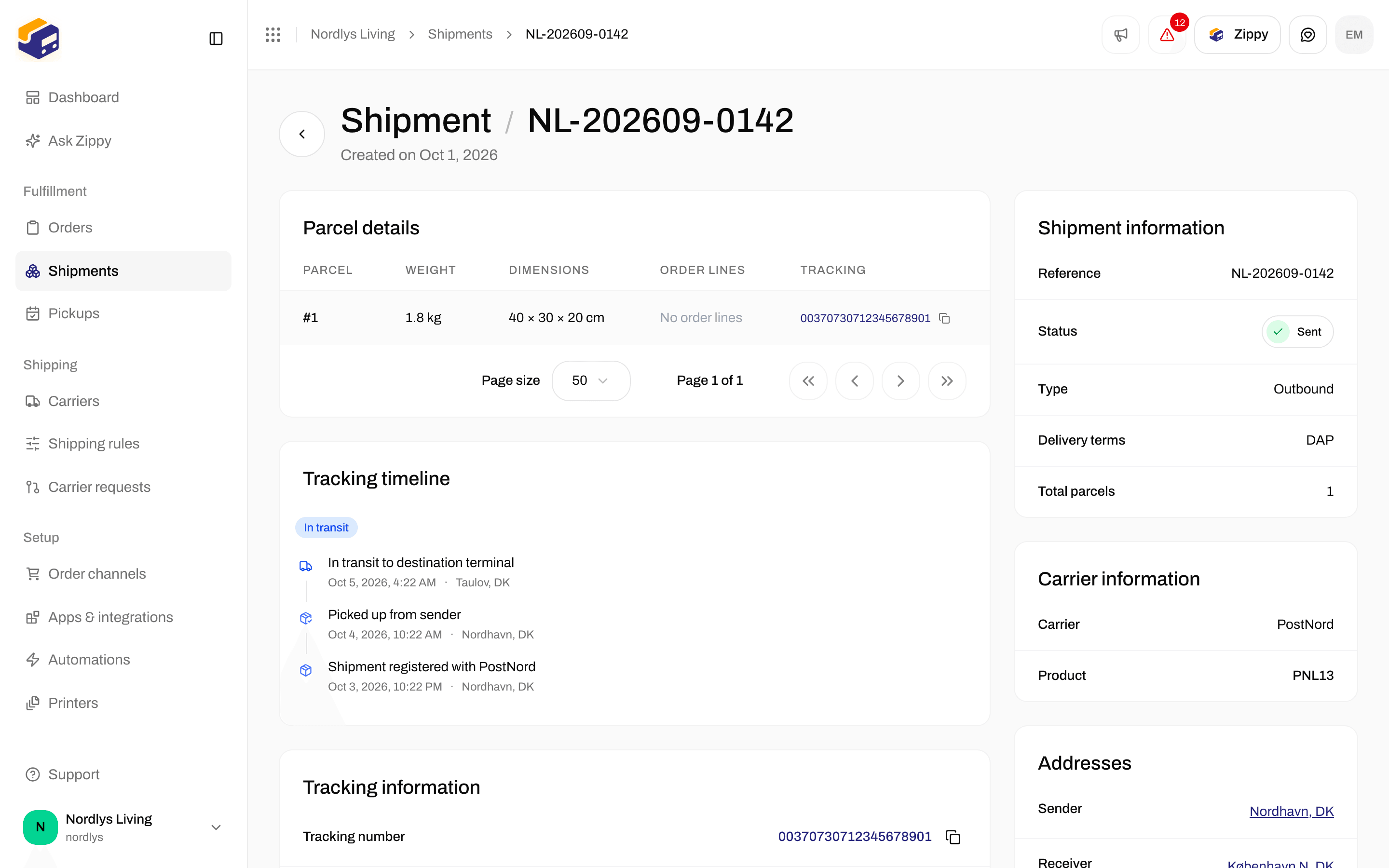
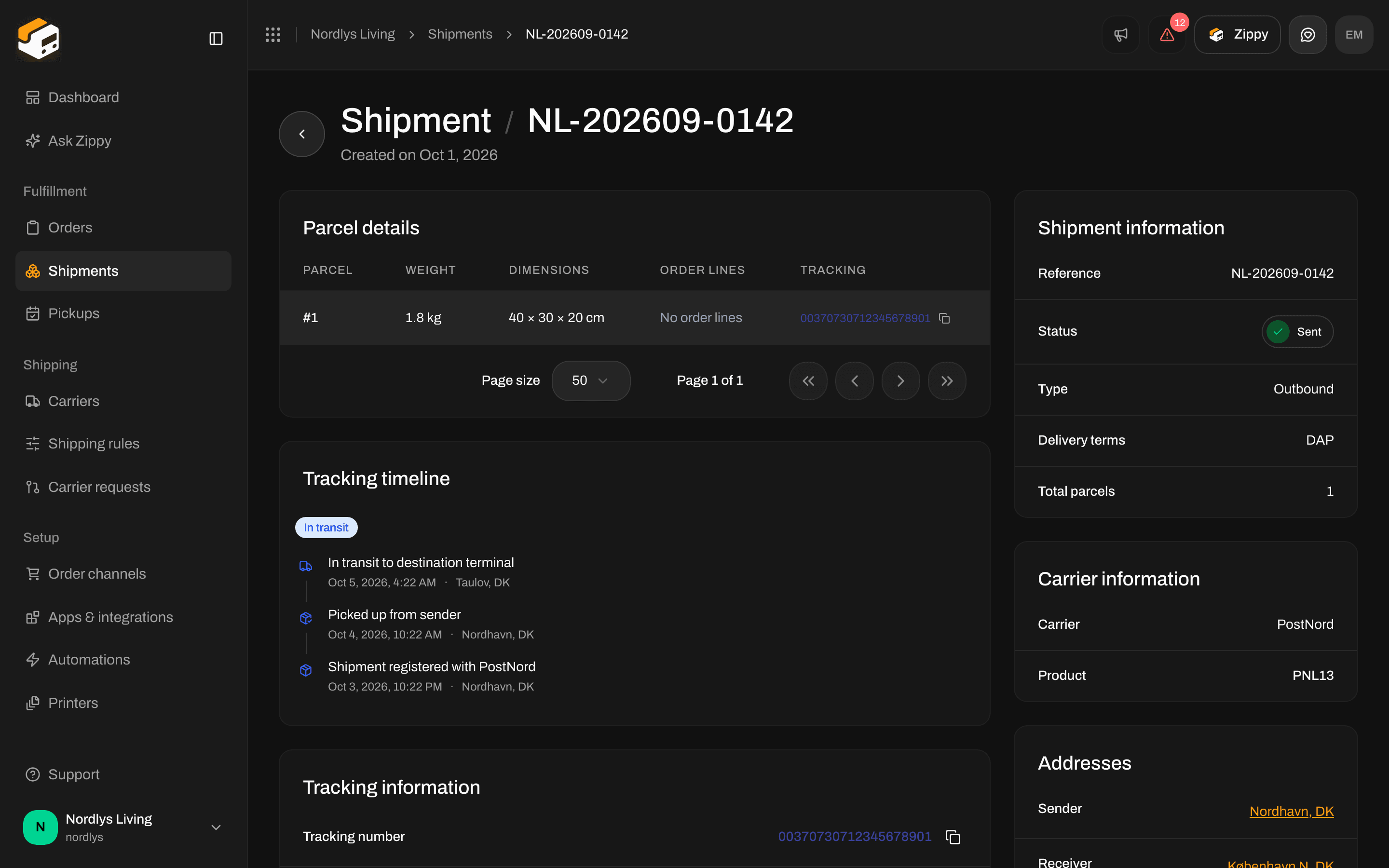
Parcel details shows the tracking number for each parcel
Tracking timeline and information
Below Parcel details you see two sections:- Tracking timeline: the current tracking status and the list of scans.
- Tracking information: the Tracking number (copy it, or click it if it is a link), the Tracking link (Track shipment or Track parcel), and the Label-free code and QR code (Open QR code) when the carrier provides them. A shipment with several parcels shows one block per parcel: Parcel 1, Parcel 2 and so on.
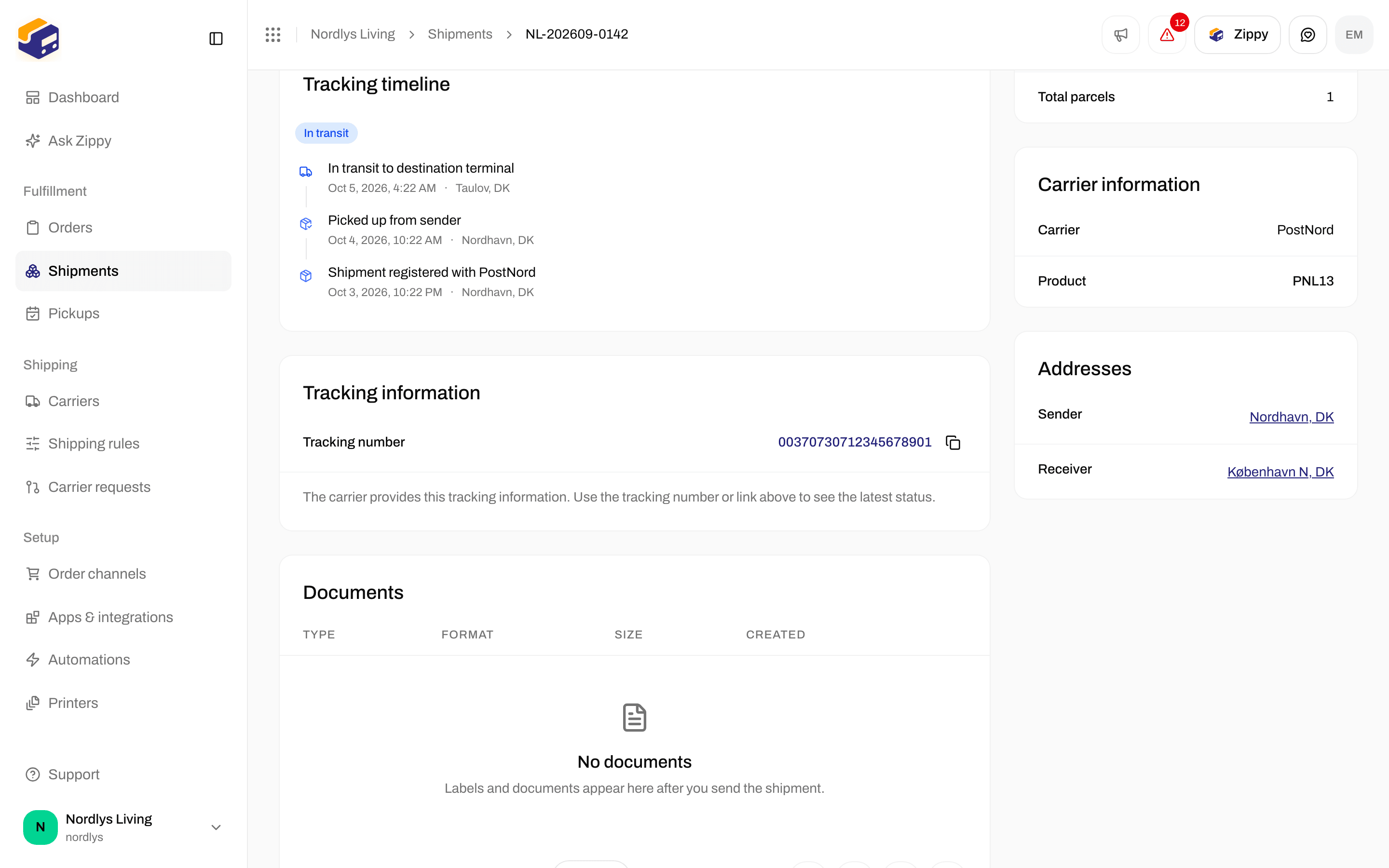
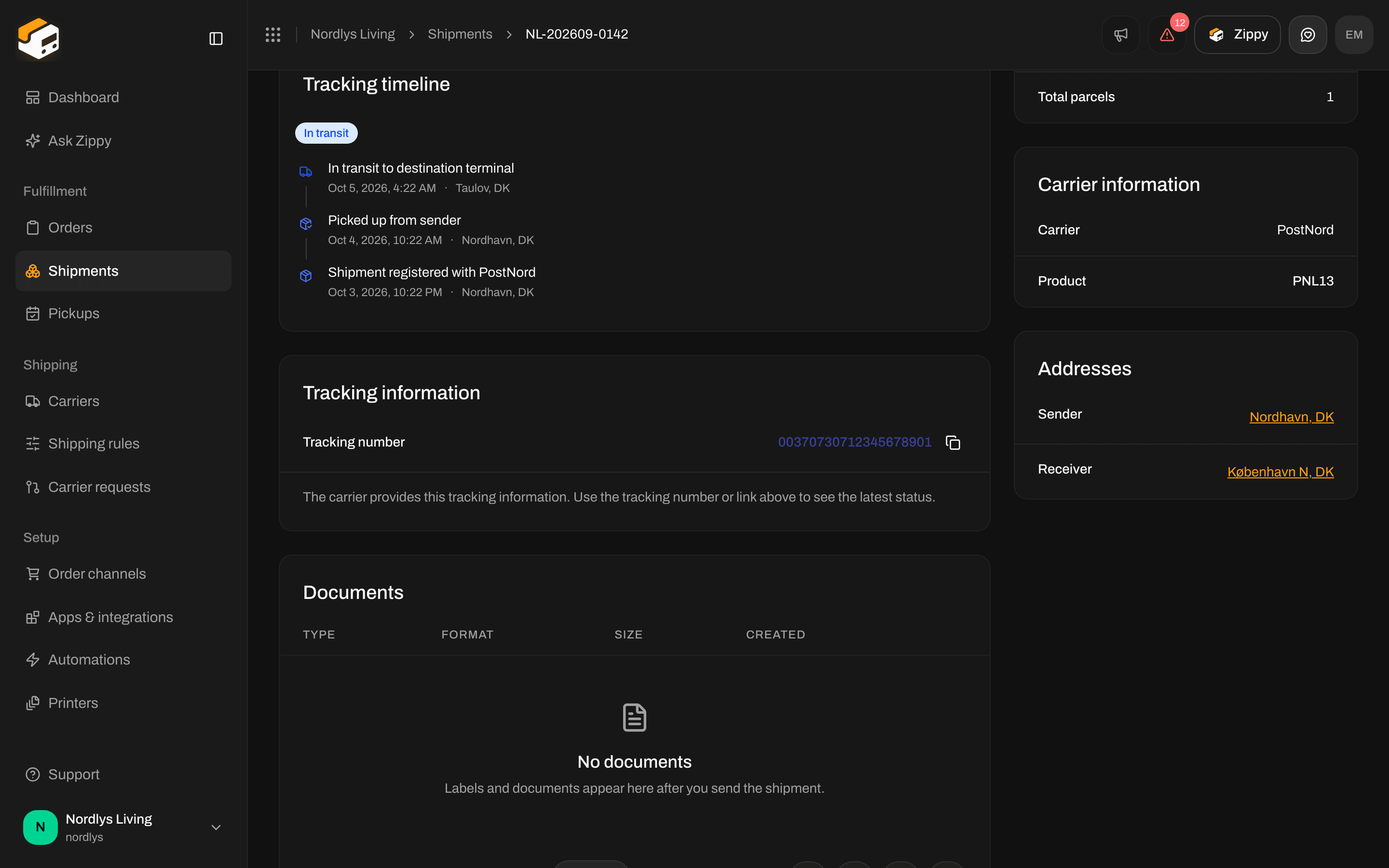
Tracking timeline and Tracking information on the shipment
On the order
Open the order and scroll to Shipments. Each shipment card can show the tracking number. Click Details to open the shipment and its Tracking timeline.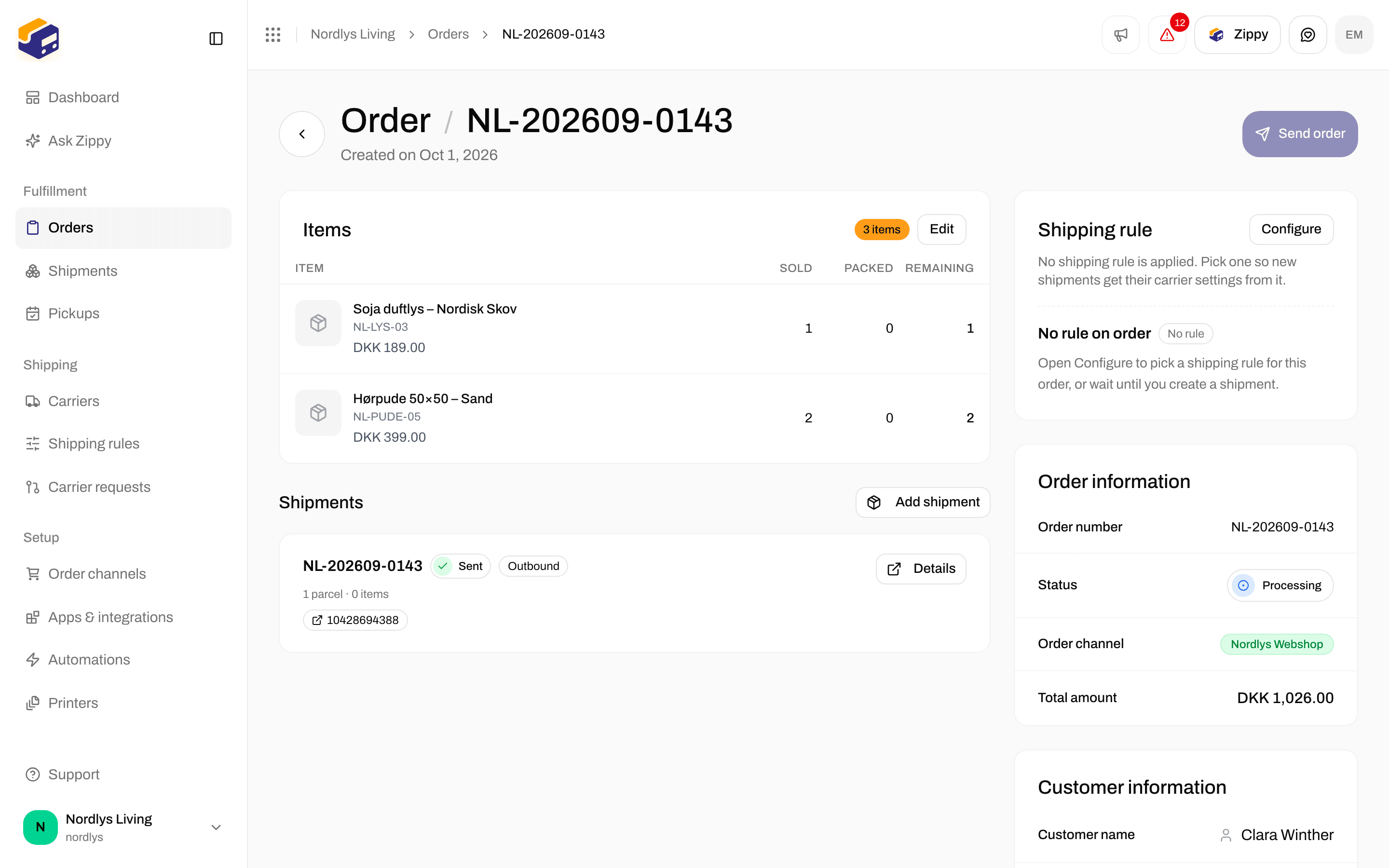
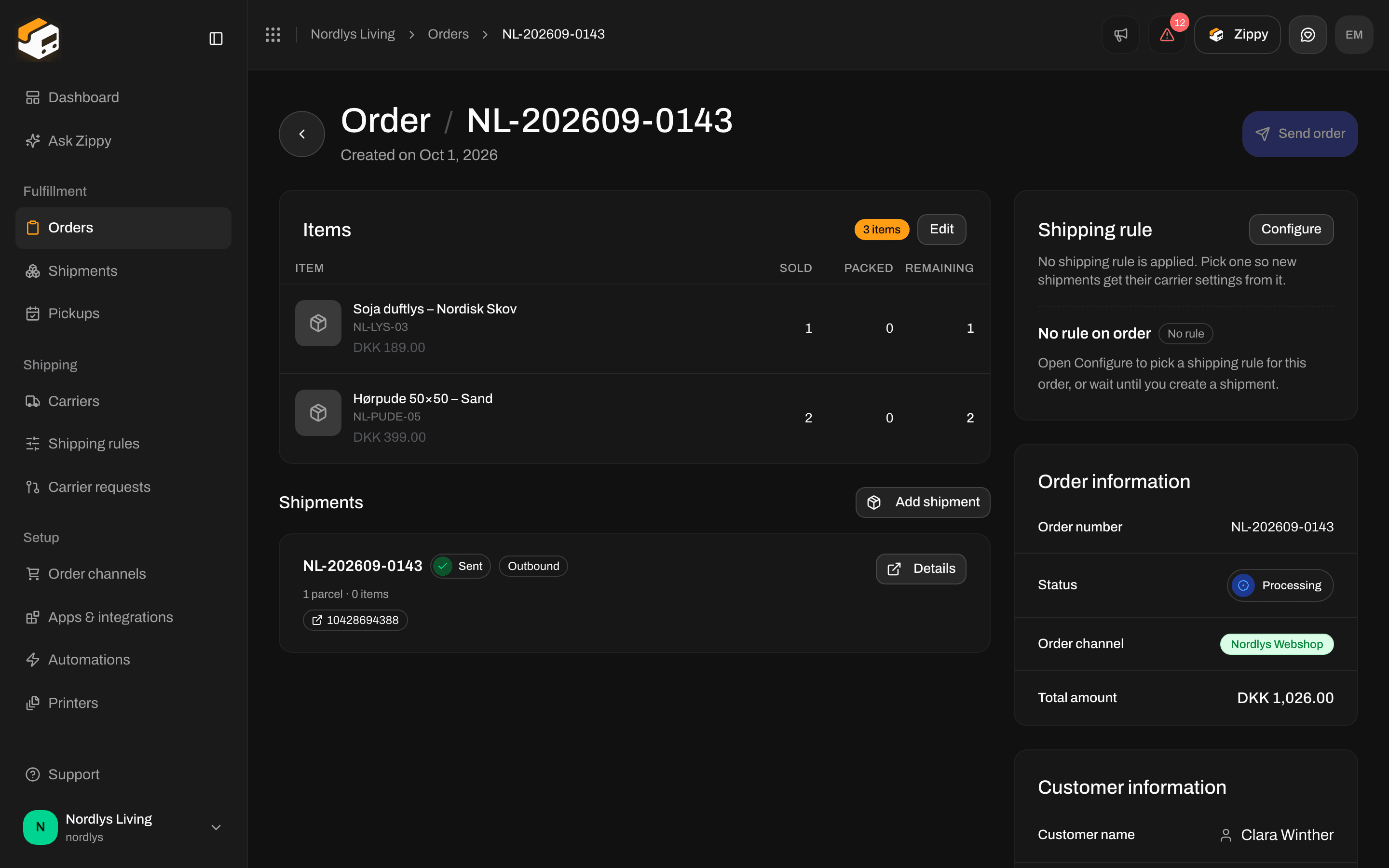
A shipment card on an order, with its tracking number
In the Shipments list
The search box on Shipments says Reference or tracking number. Paste a tracking number to find the shipment.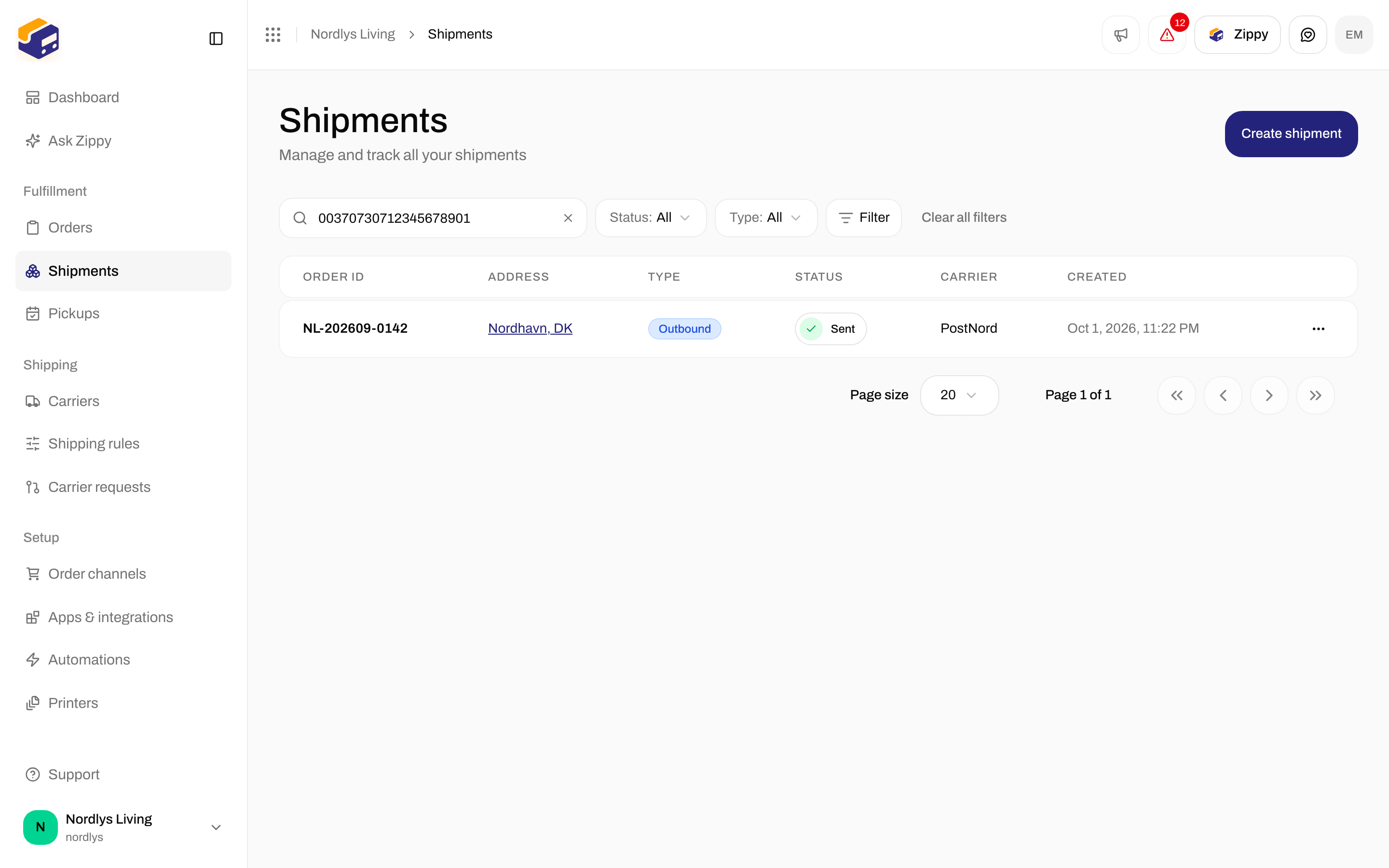
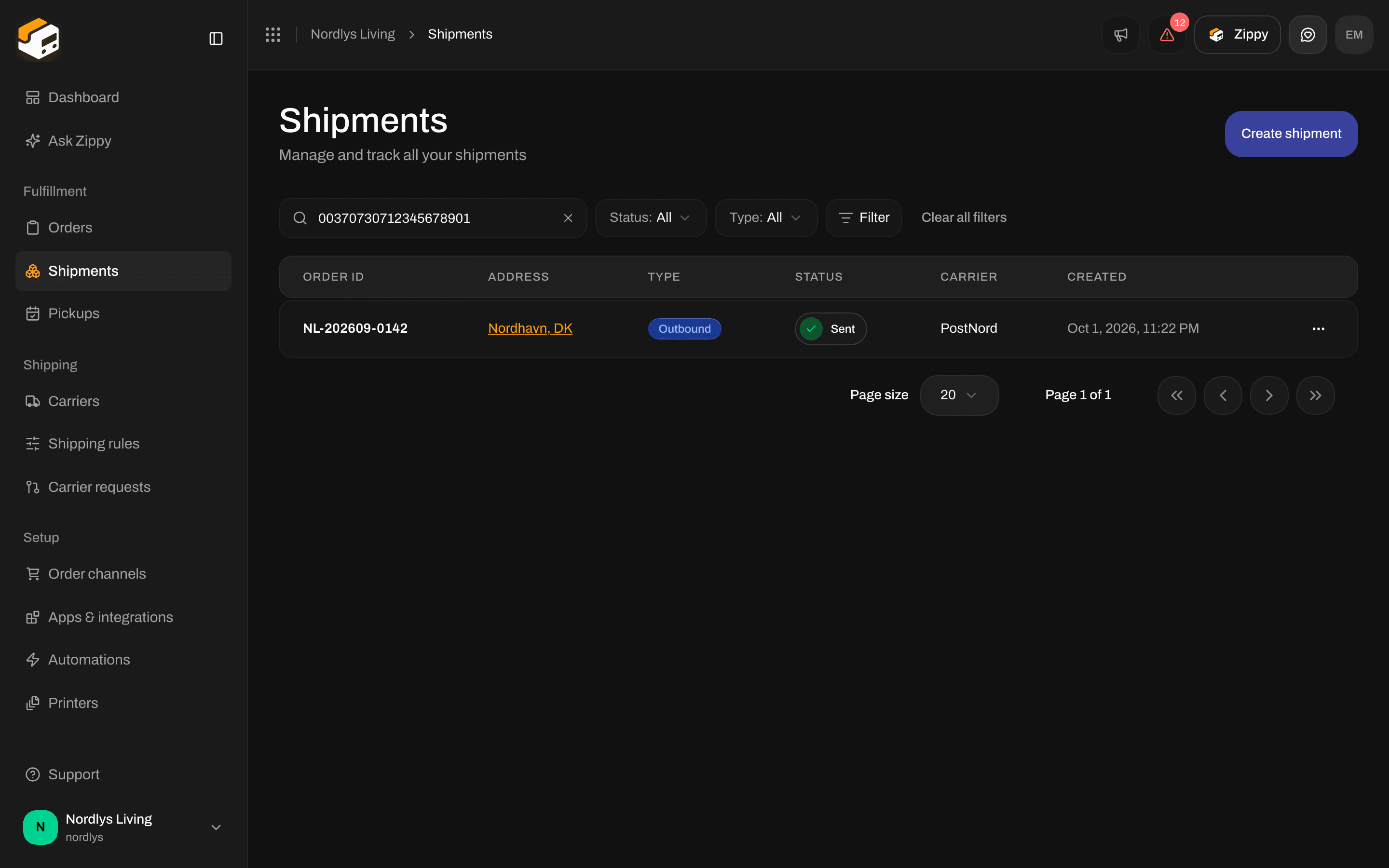
Search Shipments by tracking number
Tracking statuses
The newest scan is at the top. Each scan shows the carrier’s description, the time, and a place when the carrier sends one. Zippendo sorts every carrier scan into one of these statuses:
Delivered and Returned are final. Zippendo does not move a shipment back out of those statuses.
Right after you send, the timeline is often empty. It says No tracking updates yet. Zippendo checks with the carrier every hour.
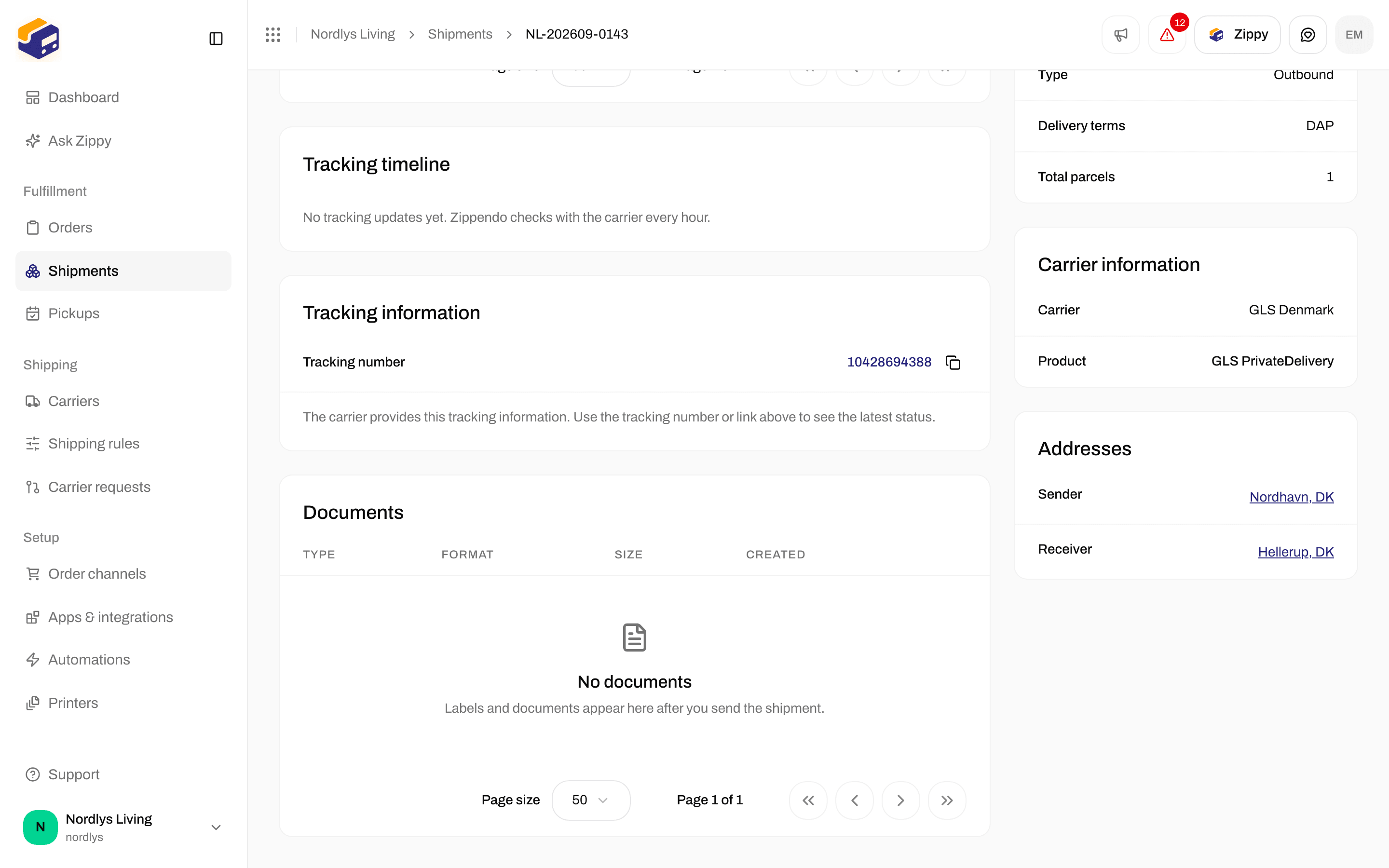
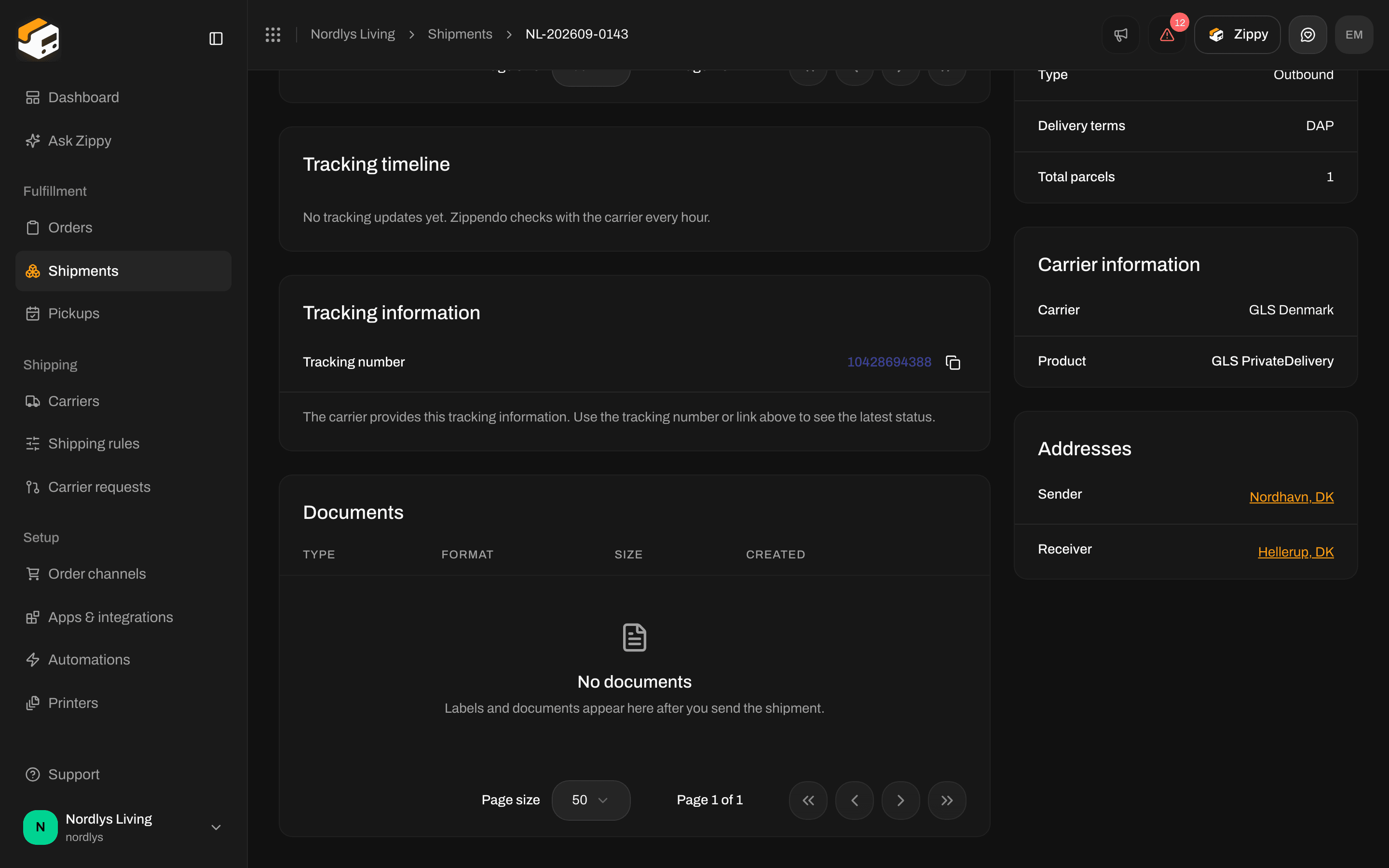
An empty timeline right after sending, before the first scan
Share tracking with your customer
Copy the Tracking number, click the number when it is a link, or open Track shipment / Track parcel. These links go to the carrier’s own tracking page (for example GLS’s parcel search), not to a Zippendo page. If the order came from Shopify or WooCommerce, Zippendo can send the tracking number back to your webshop when the shipment is sent. Turn on Fulfillment sync to Shopify (Shopify) or Mark orders as completed in WooCommerce (WooCommerce) in the order channel’s settings. Your customer then sees the tracking on their order in your webshop. For label-free drop-off, the Label-free code and Open QR code are in the same Tracking information section when the carrier provides them.Tell your customers
Zippendo does not email or text your customers when their tracking changes. Many carrier products send their own delivery notices to the receiver. To send your own tracking emails, connect an email tool under Apps & integrations → Catalog: Klaviyo, Mailchimp, SendGrid and Customer.io can all receive Tracking updated. Pick that event when you connect the tool, then build the email in that tool. For your own systems and other actions:- Webhooks: in Settings → Webhooks, click Add webhook. Under Tracking, tick Tracking updated. Zippendo calls your address every time a new scan is saved. Webhooks are included on every plan.
- Automations: start an automation from Tracking updated to post in Slack, send an event to one of your apps, or run another action.
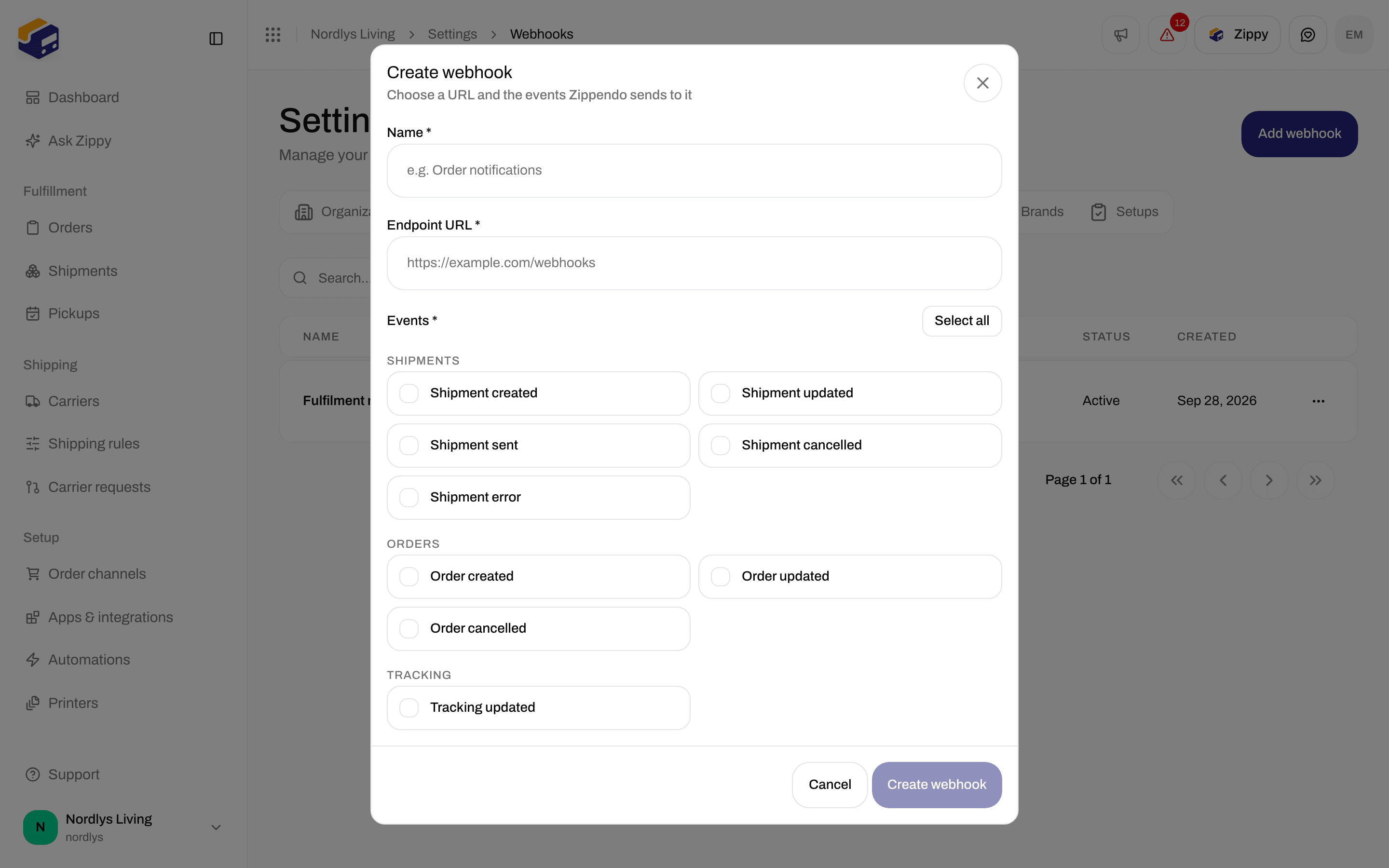
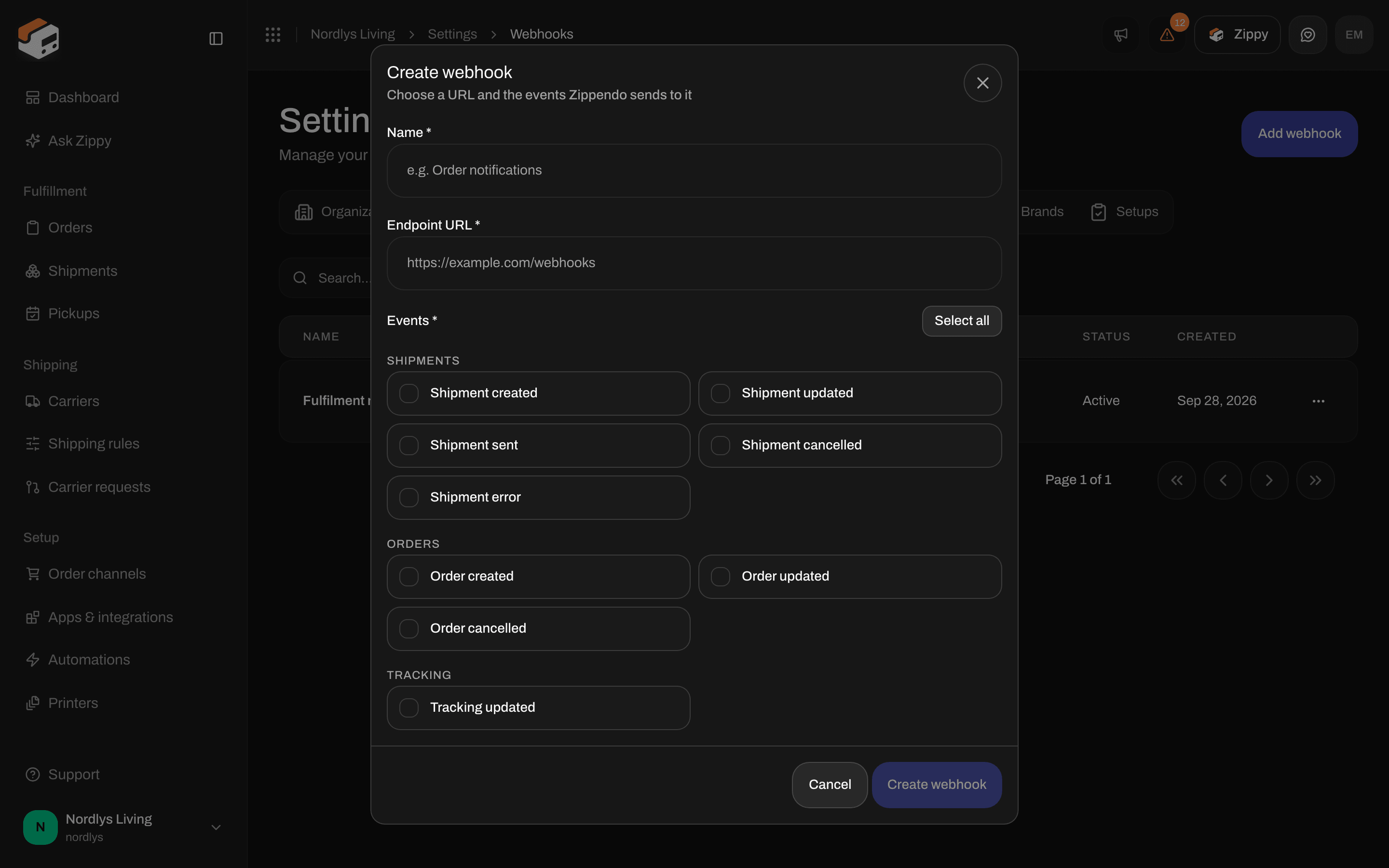
The Create webhook window includes Tracking updated
When tracking does not update
1
Check the tracking number
Open Tracking information. If there is no number, the send may have failed. Check the shipment’s status and see Labels not generating.
2
Open the carrier's link
If the carrier’s own page has no scans either, the parcel has not been scanned yet. Wait for the carrier to collect it.
3
Wait for the next check
Zippendo checks most carriers about once an hour. An empty timeline with a valid number is normal for the first hours after you send.
4
Check the carrier connection
If the carrier’s page shows scans and Zippendo still does not after several hours, check the carrier under Carriers. See Tracking not updating.
Next
Labels and printing
Get the label, then view or print it from Documents.
Orders
Tracking also appears on the order’s shipment card.
Shipment statuses
Pending, Sent, Error and the other shipment statuses.
Tracking not updating
What to check when the carrier’s page is ahead of Zippendo.