

To send events to Slack, Klaviyo and similar apps without building anything, use Connect Slack, Klaviyo and other apps instead.
Tour of Settings: Settings, team, and brands. What each message contains: Webhooks quickstart. Messages that don’t arrive: Webhook delivery failures.
Webhooks are included on every plan: Free up to 5 webhooks, Standard up to 10, Growth up to 25, Pro up to 100, Enterprise unlimited.
Where to find it
Open the organization menu at the bottom of the sidebar, click Manage, then the Webhooks tab. The button to create one is Add webhook in the top right.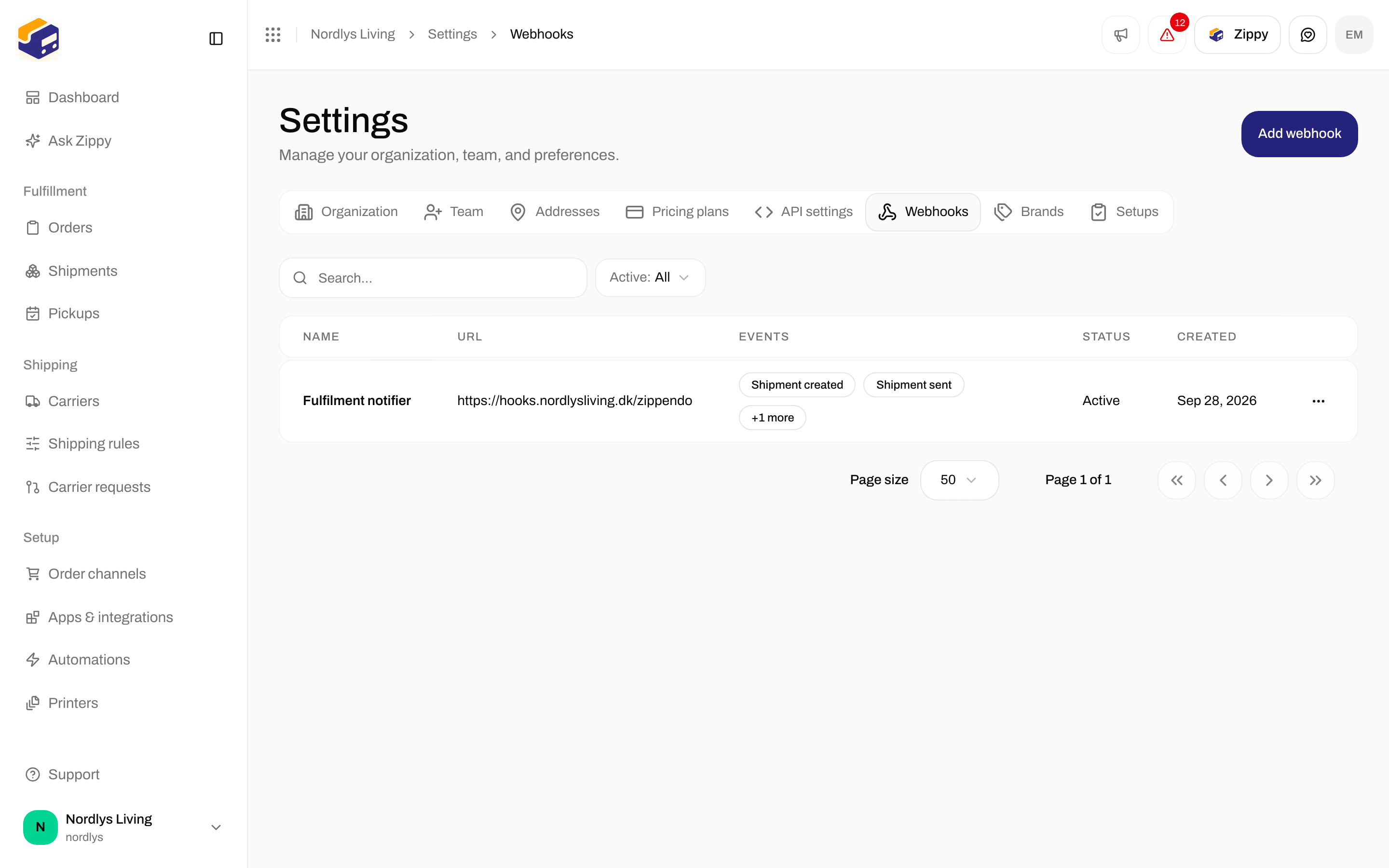
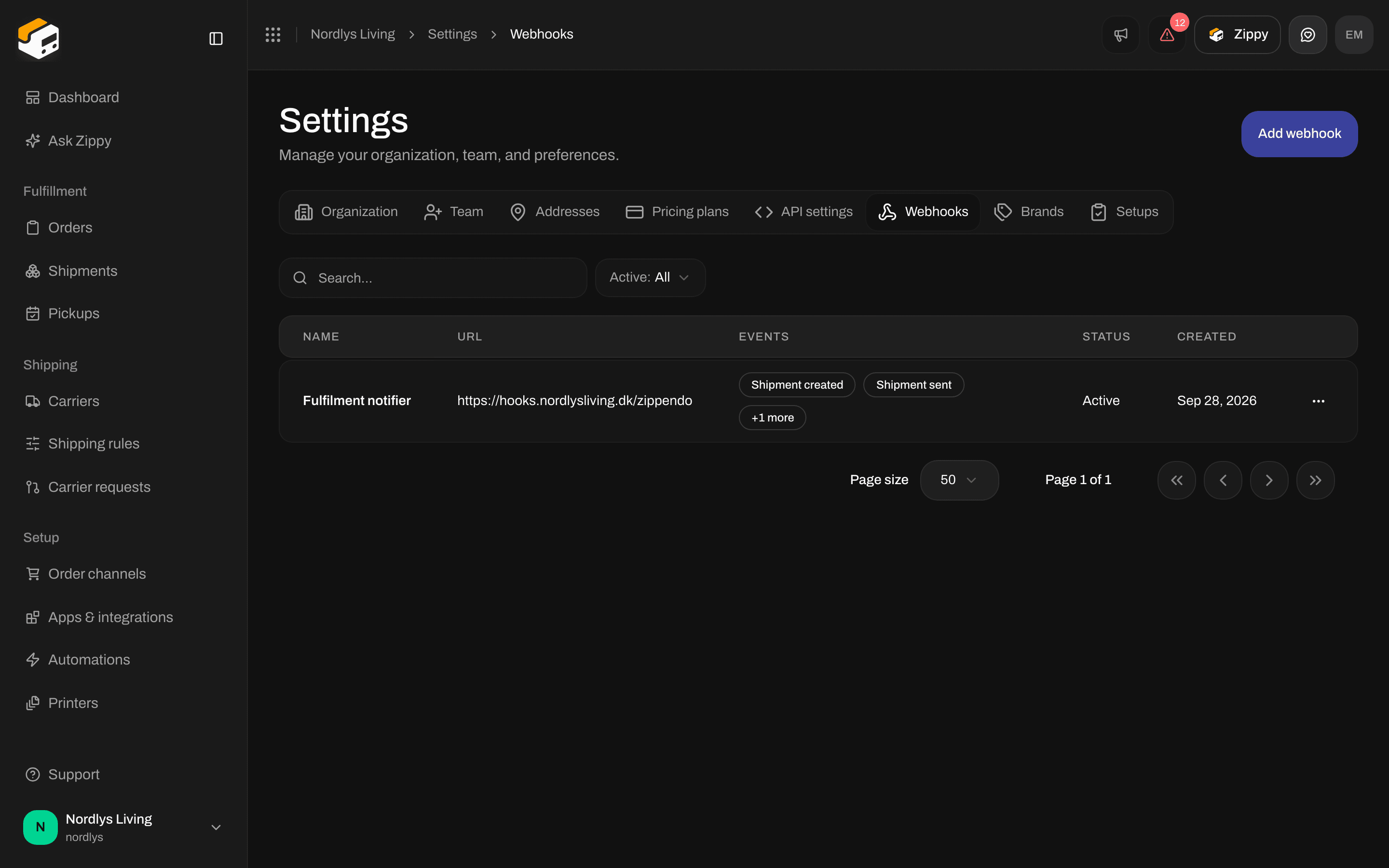
The Webhooks list: name, URL, events, status and actions
The Webhooks list
Each row has Delivery log, Send test, Edit and Delete. Clicking the row opens Edit webhook.
To find a webhook, click Filters above the list. You can search by name, pick Active (Yes or No) and, if you have brands, a Brand. Click Add filters to apply. More on lists: Search and filters.
With no webhooks yet, the list shows No webhooks and a Create your first webhook button.
Create a webhook
1
Open the window
Click Add webhook, or Create your first webhook when the list is empty. The Create webhook window opens.
2
Name and address
Fill in Name * and Endpoint URL *. Use an address that starts with
https://.3
Pick the events
Tick the events you want, or click Select all. Tick Tracking updated if your system needs every tracking scan.
4
Create it
Click Create webhook. You see Webhook created.
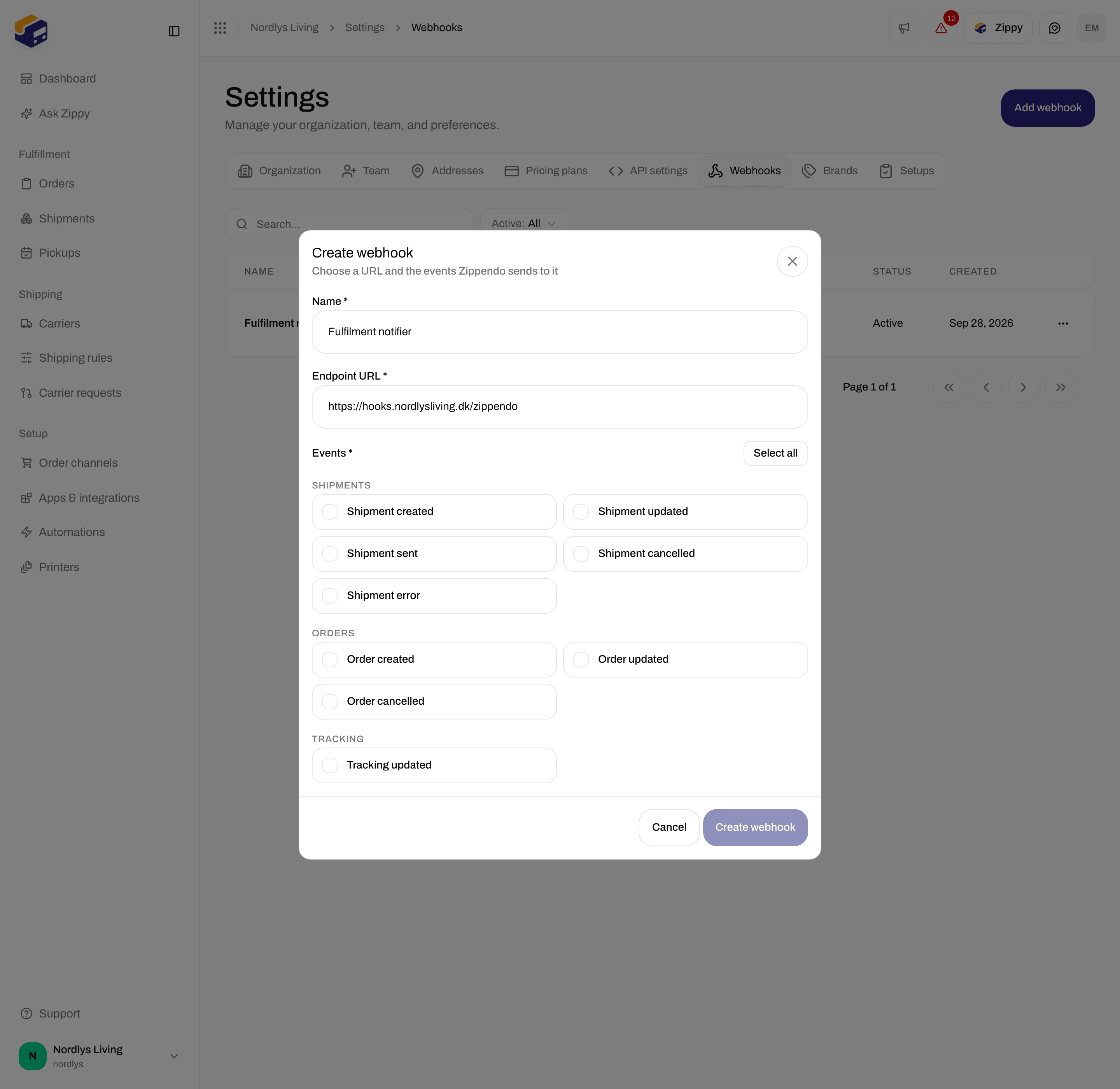
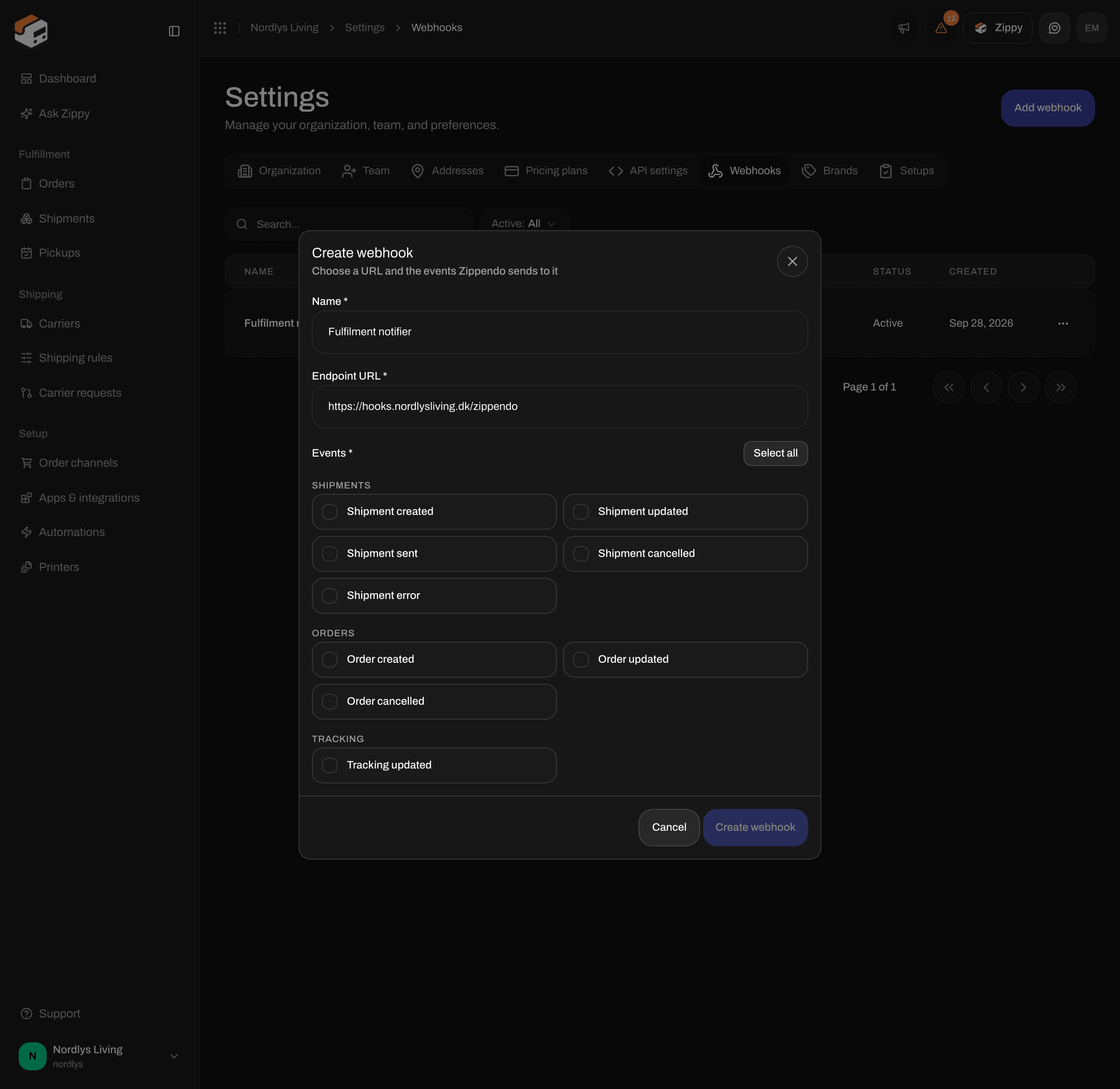
Create webhook: Name, Endpoint URL and the events
Create webhook stays grayed out until you have filled in the name, the address and at least one event. If creating fails with You’ve reached your plan’s limit. Upgrade your plan or remove something you no longer use., delete a webhook you no longer use or upgrade your plan.
The events
There are nine events, in three groups. The technical name in the second column is what your system receives.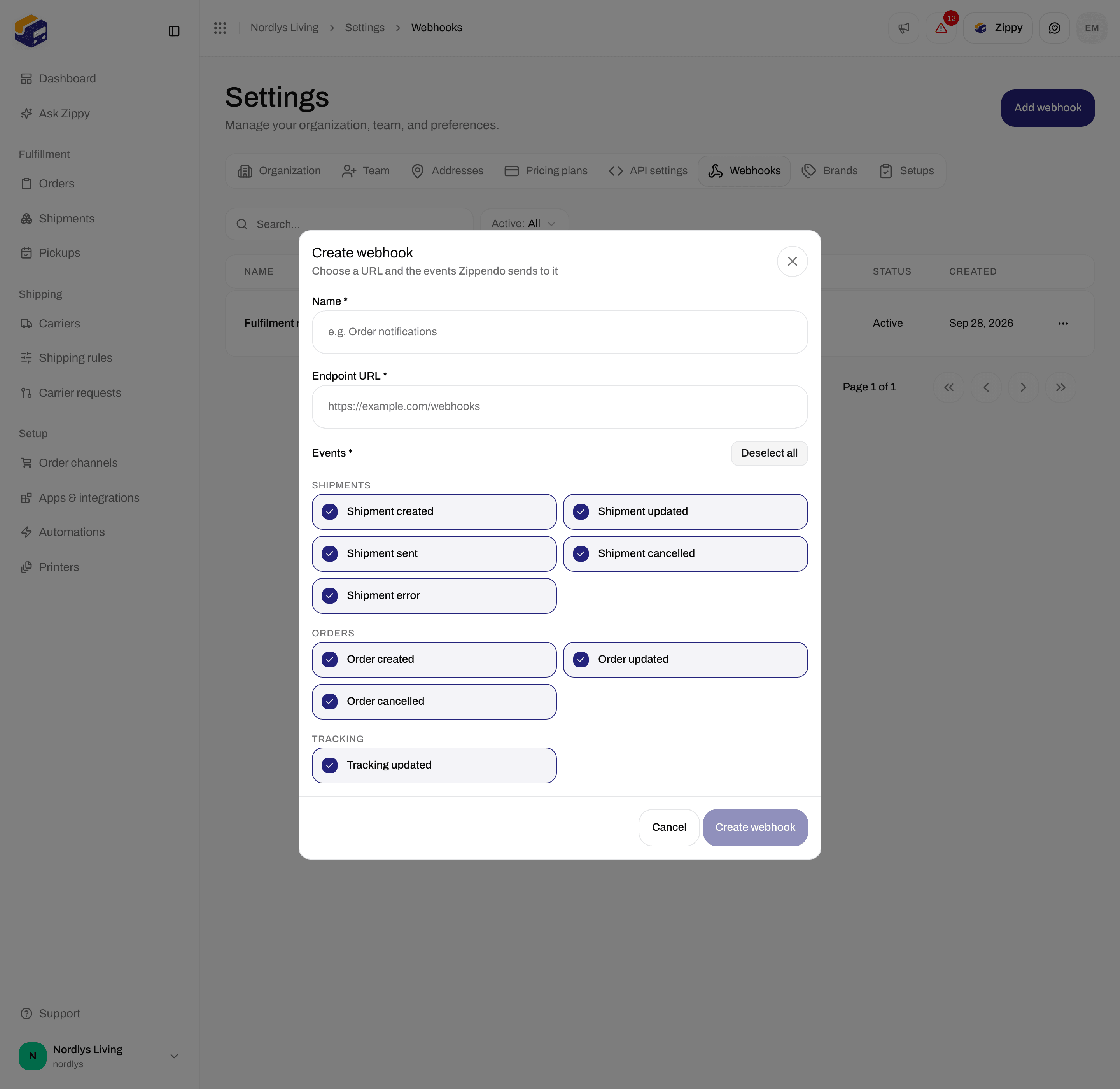
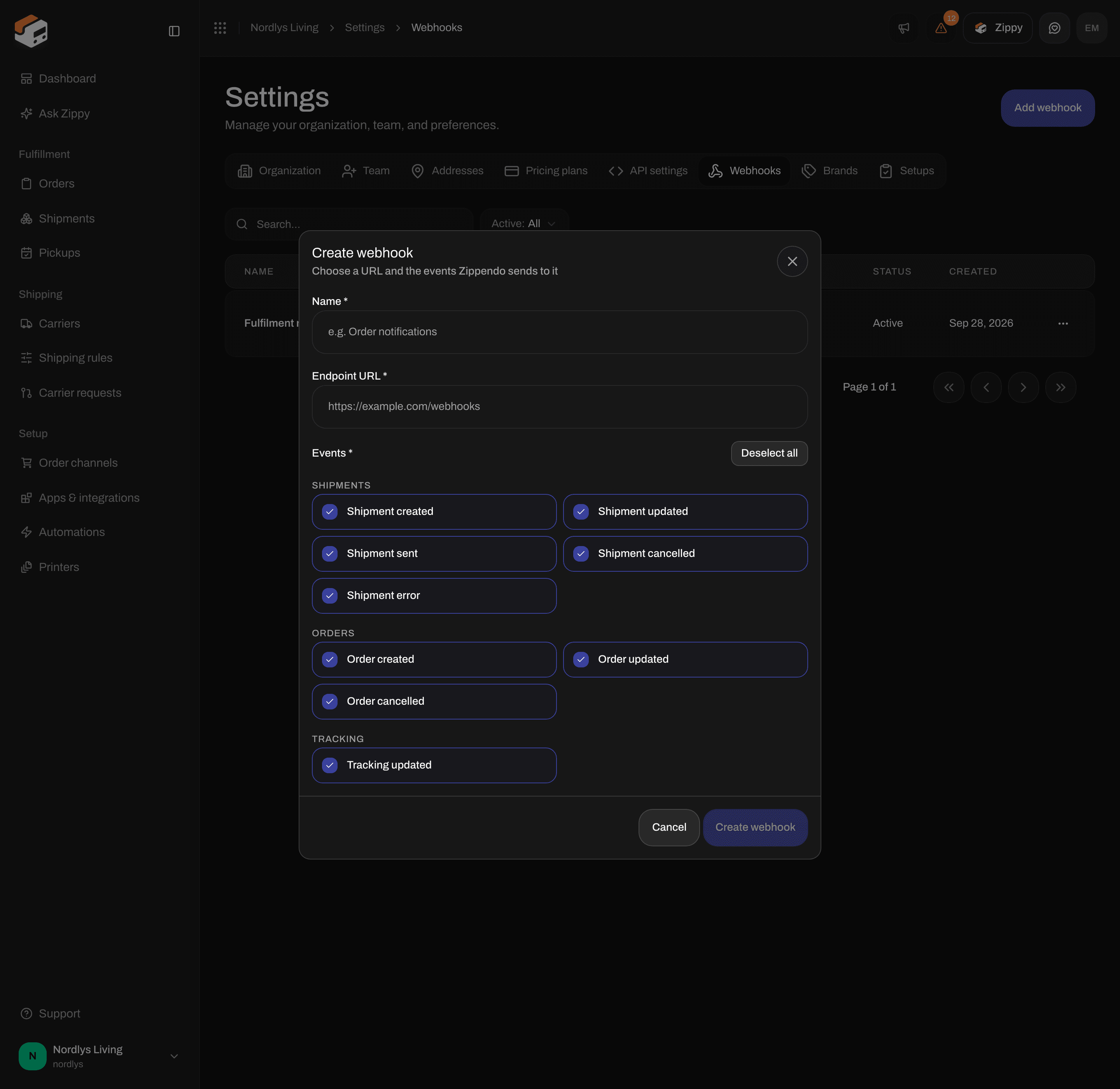
Select all ticks every event, including Tracking updated
Orders that come in from a connected webshop, and the changes the webshop sends later, don’t send order events. Your system still hears about them through the shipment events: Zippendo creates a shipment for each order it imports.
Send test sends a test message called
webhook.test. You can’t tick it as an event.
Edit or pause a webhook
Click the row, or Edit, to open Edit webhook. It has the same fields as Create webhook, plus Active. Click Save changes when you are done.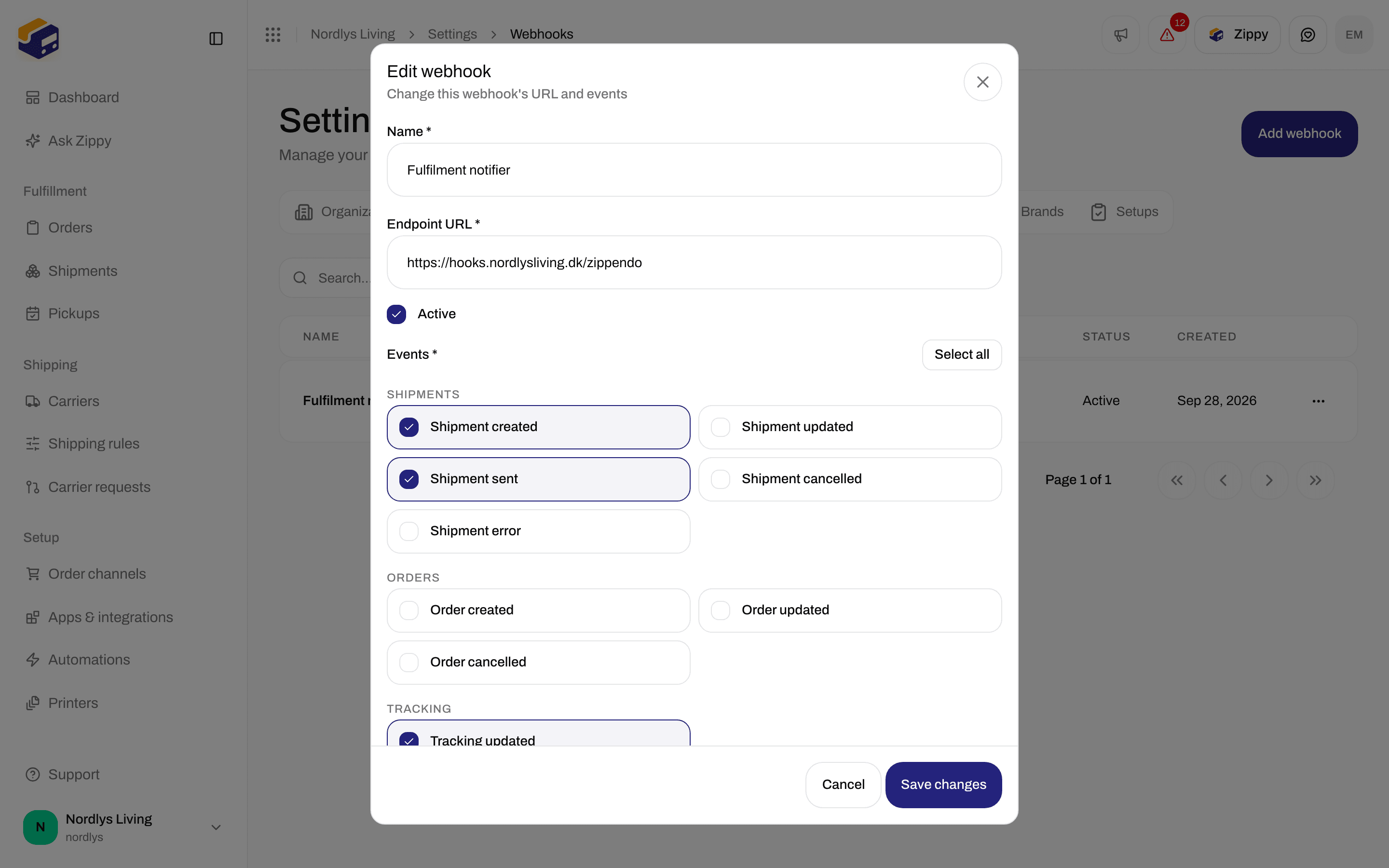
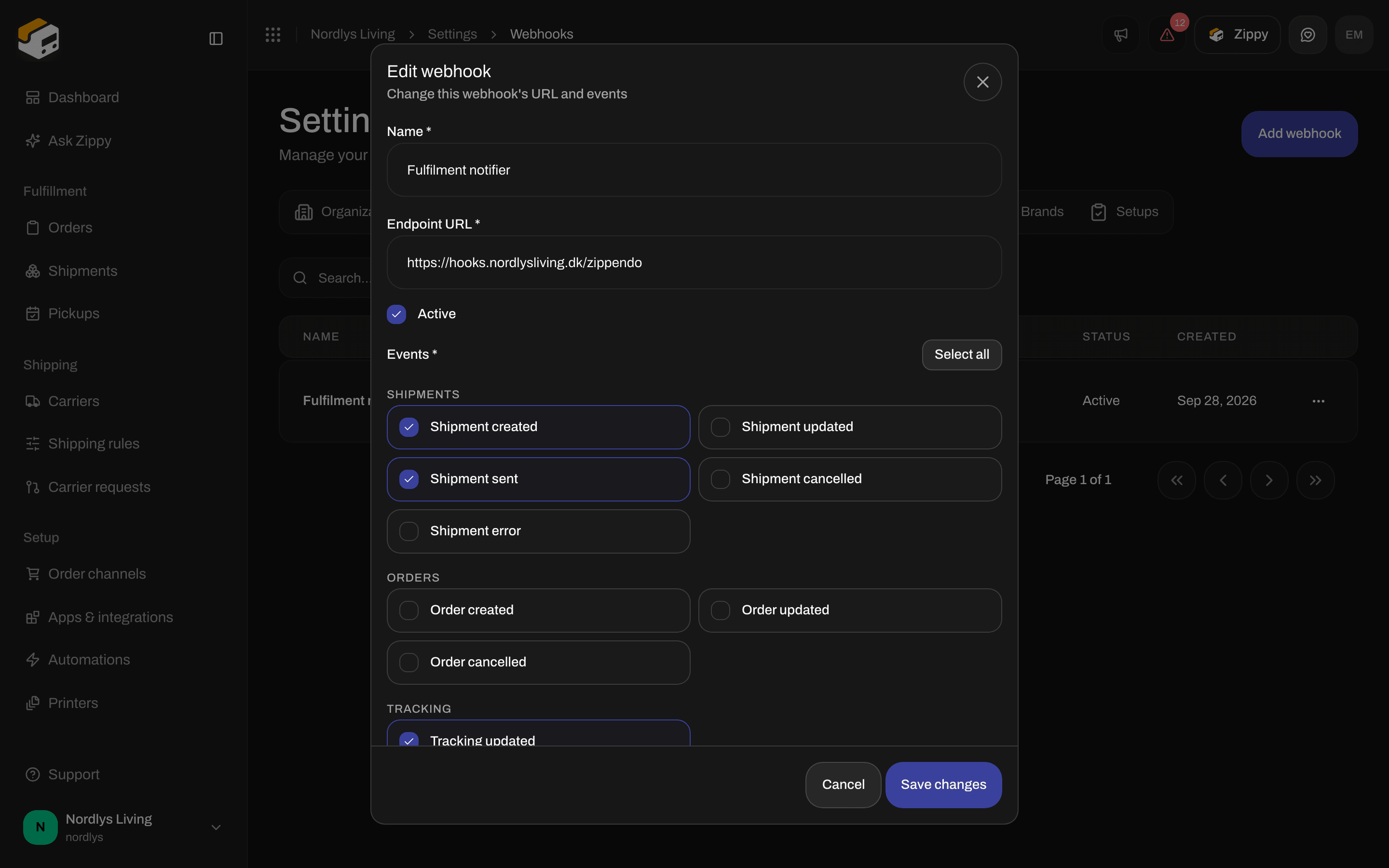
Edit webhook: the same fields, plus Active
Delivery log
Delivery log on a row shows the latest attempts to deliver to that address.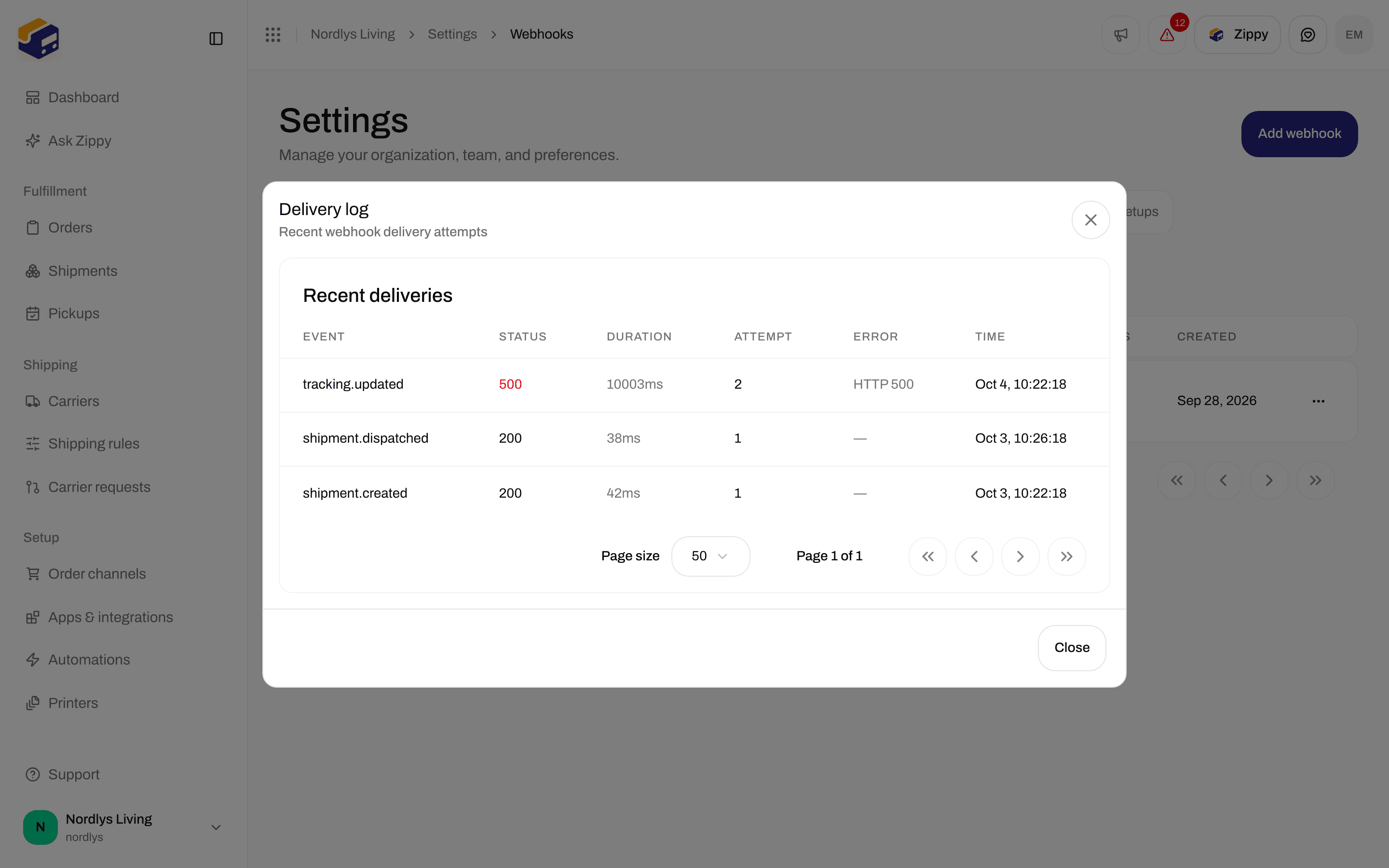
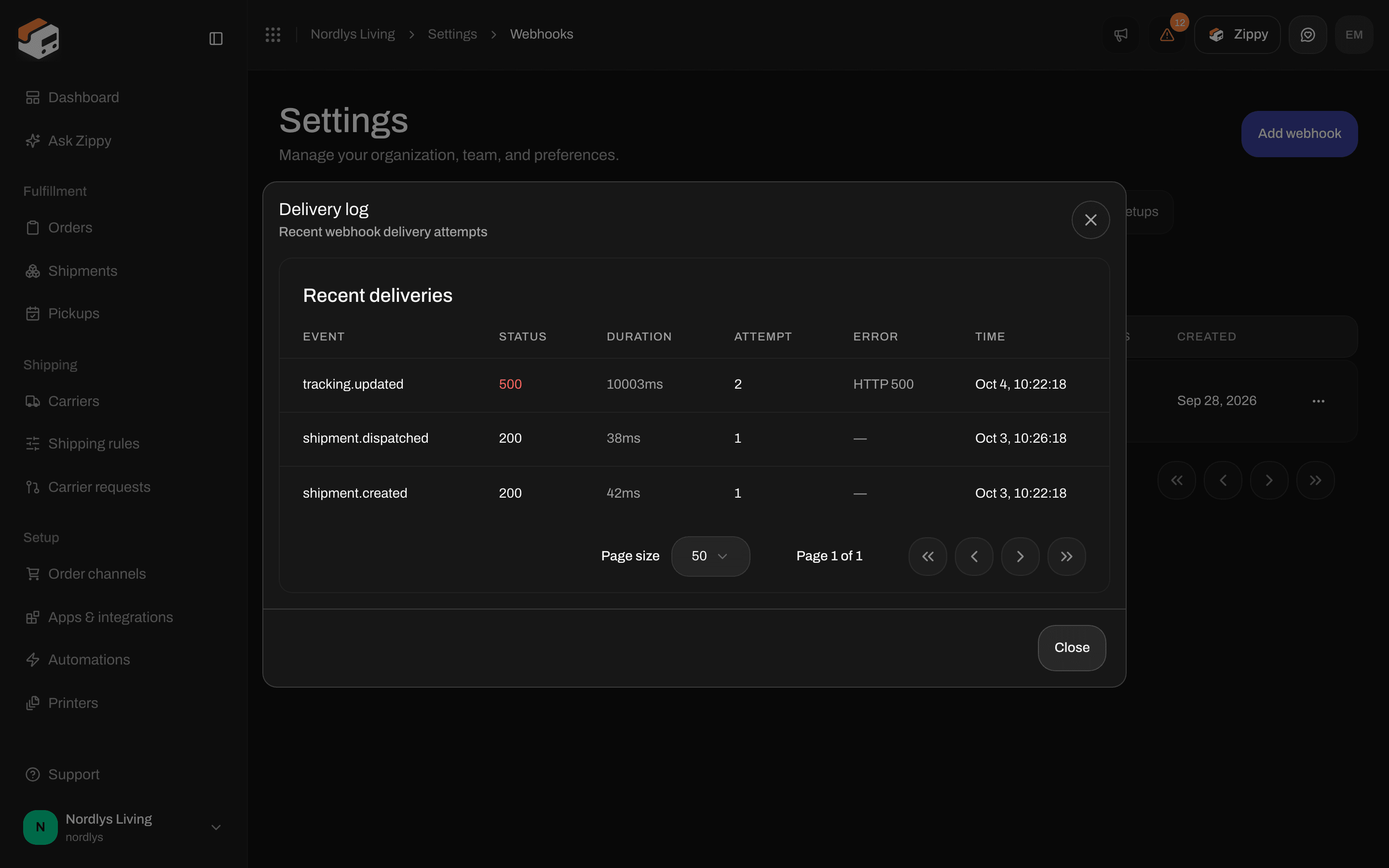
Delivery log: event, status, duration, attempt, error and time
Zippendo waits up to 10 seconds for your server to answer. If it doesn’t answer, or answers with an error, Zippendo tries again, up to 5 times in total, waiting a little longer each time. Every try is a row in the log.
Send a test message
Click Send test on a row. You see Test event sent. The test message looks like this:Delete a webhook
Click Delete on a row. Delete webhook asks you to type the webhook’s name in capital letters, then click Delete. The webhook and its Delivery log are removed, and you see Webhook deleted.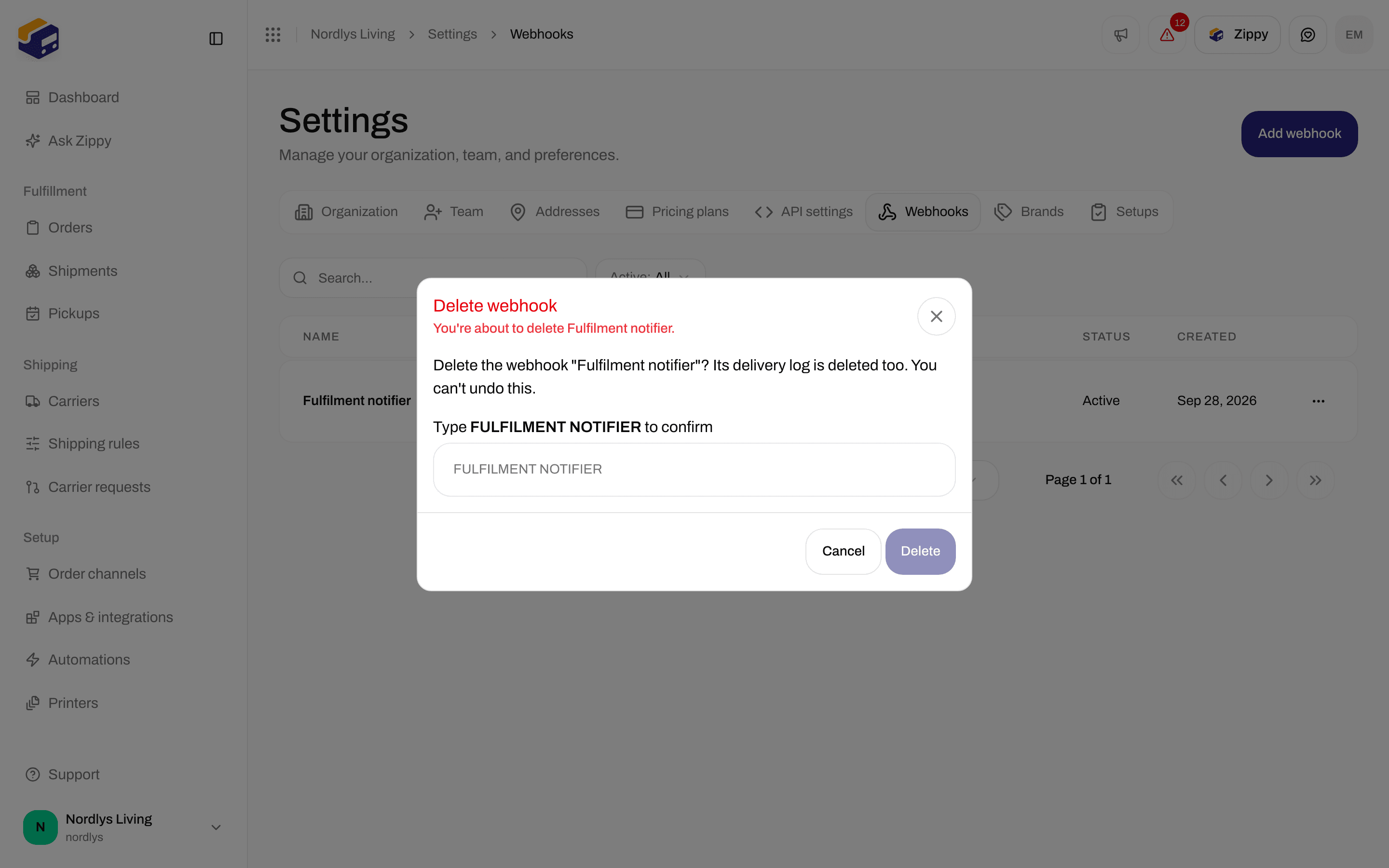
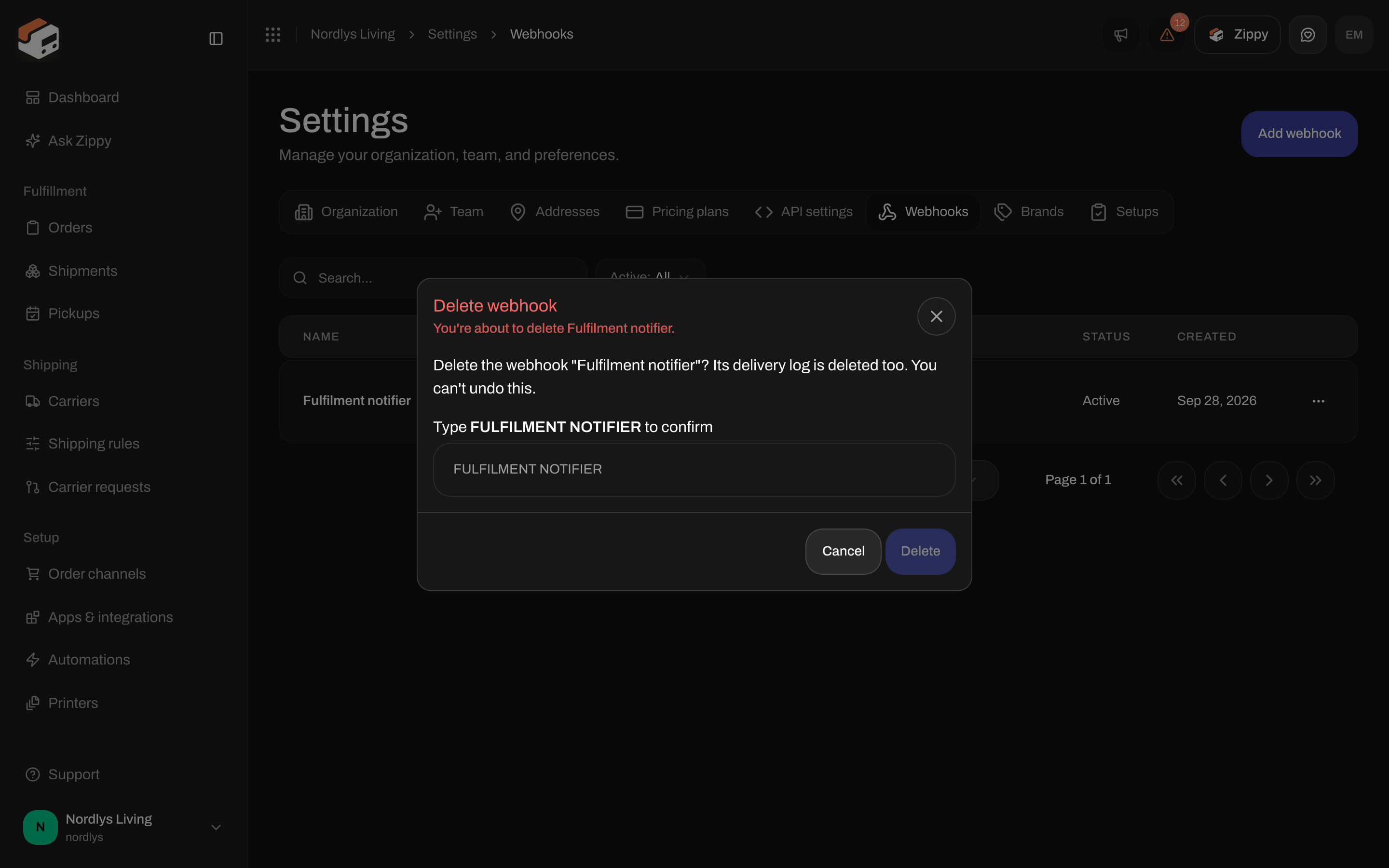
Delete webhook: type the name in capital letters to confirm
For developers: message format and signature
Every message is aPOST with a JSON body { "event", "timestamp", "brandId", "data" } and these headers:
Zippendo creates the secret when you create the webhook. The app does not show it: read it with the Get webhook request in the API reference (the list request leaves it out). Check the signature before you read the body. A worked example is in the Webhooks quickstart. Orders pushed into a custom order channel are signed the same way, with an
X-Zippendo-Signature header: Custom channel API.
Related
- Create an API token: your system asks Zippendo, instead of Zippendo telling your system.
- Carrier tracking webhooks: carriers sending tracking to Zippendo.
- Connect Slack, Klaviyo and other apps: no server of your own needed.
- Shopify settings / Connect WooCommerce: the webshop webhooks Zippendo sets up for you.