

- On a shipping rule, with Print labels automatically and Print documents automatically. This is the usual setup, because every shipment that uses the rule prints the same way.
- On one shipment without a shipping rule, by choosing its printers.
On a shipping rule
1
Open the rule
Click Shipping rules in the sidebar. Click Add shipping rule, or open an existing rule to edit it.
2
Find Automatic printing
Find the Automatic printing card on Create shipping rule or Edit shipping rule and click Configure.
3
Turn on what you want to print
Turn on Print labels automatically, Print documents automatically, or both, and choose a printer for each. Click Done.
4
Save the rule
From now on, every shipment sent with this rule prints automatically.
The Label printer list only shows active label printers, and the Document printer list only active document printers. If you have none, the list says No approved label printers available or No approved document printers available.
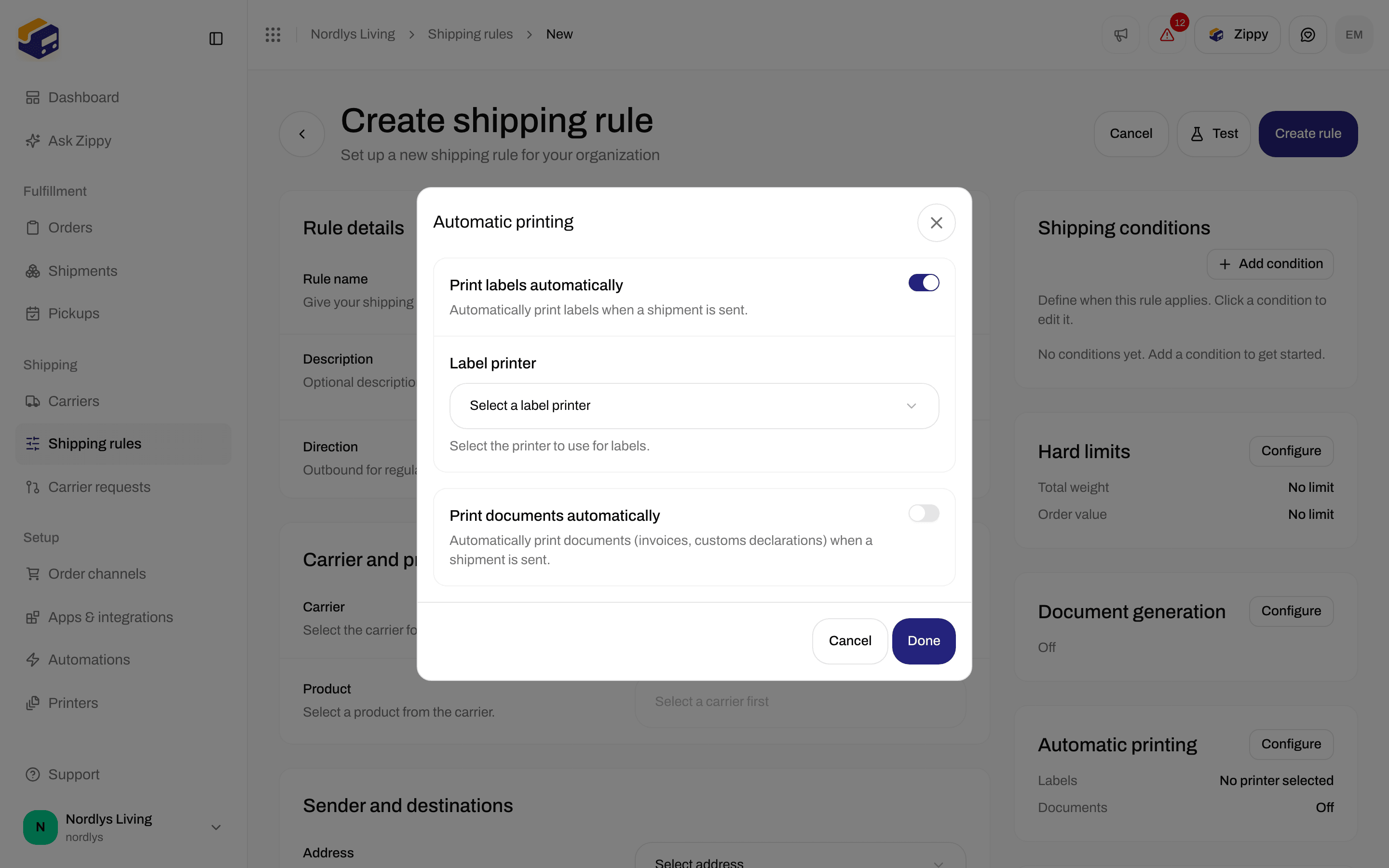
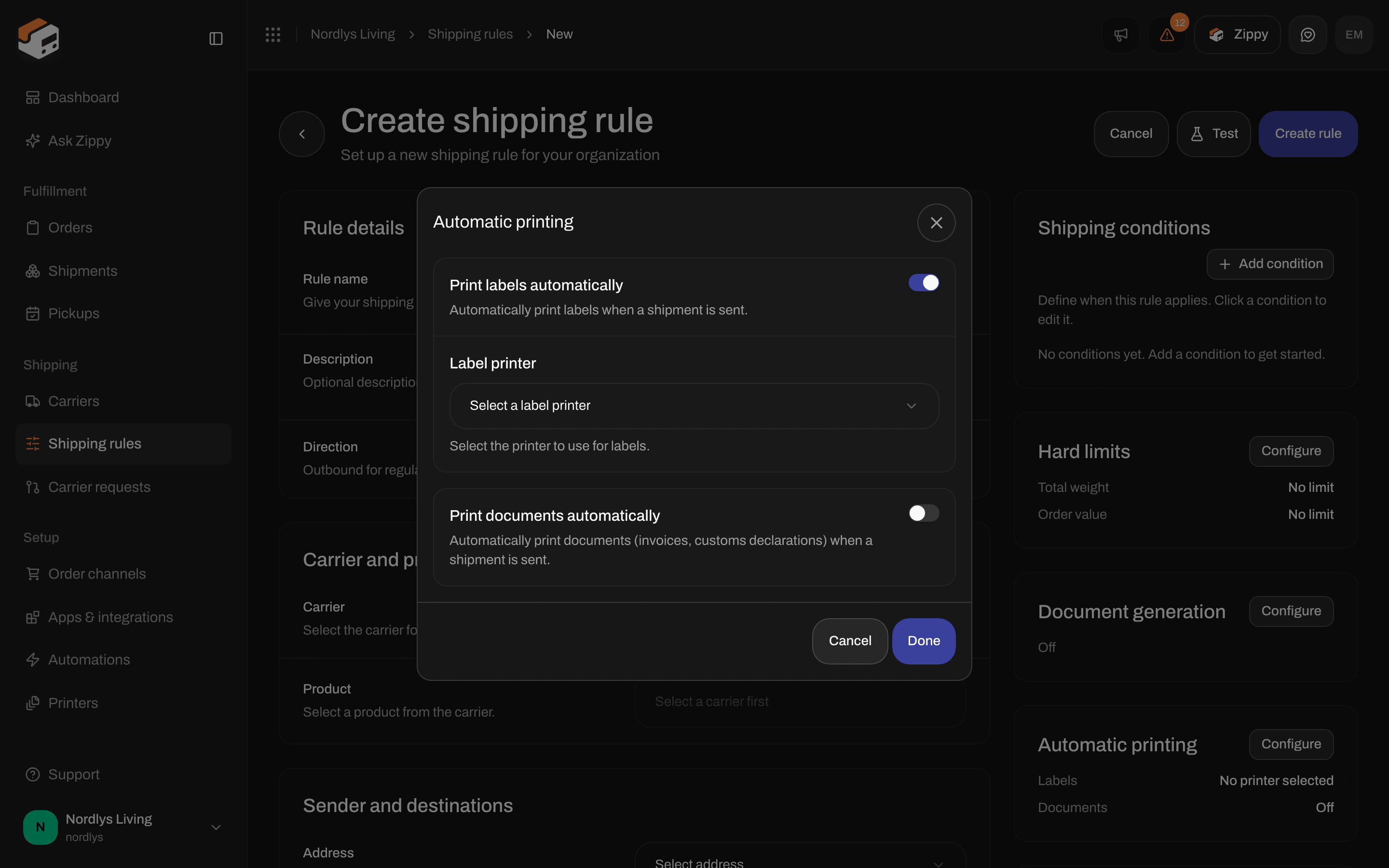
Automatic printing with Print labels automatically turned on and the Label printer list
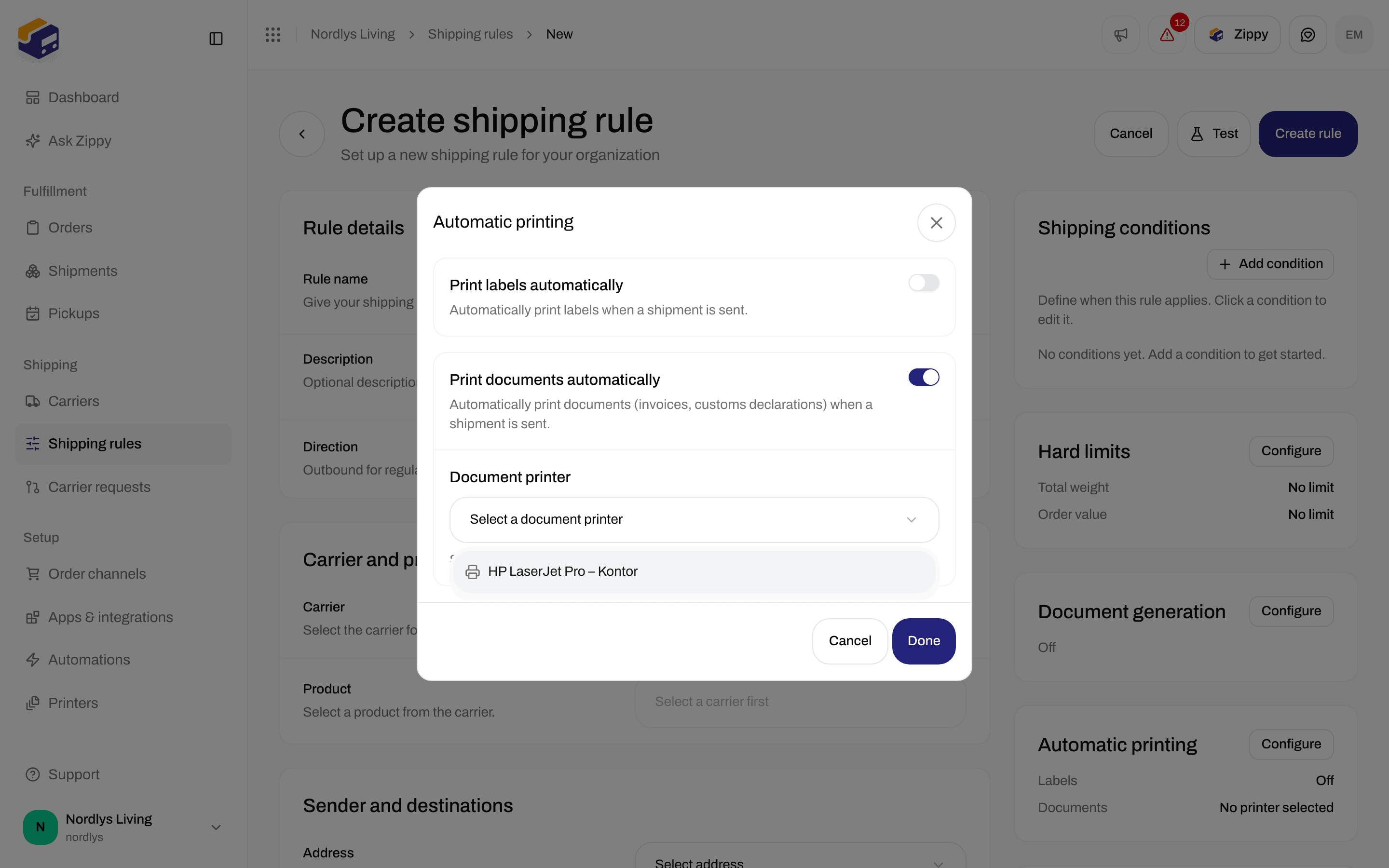
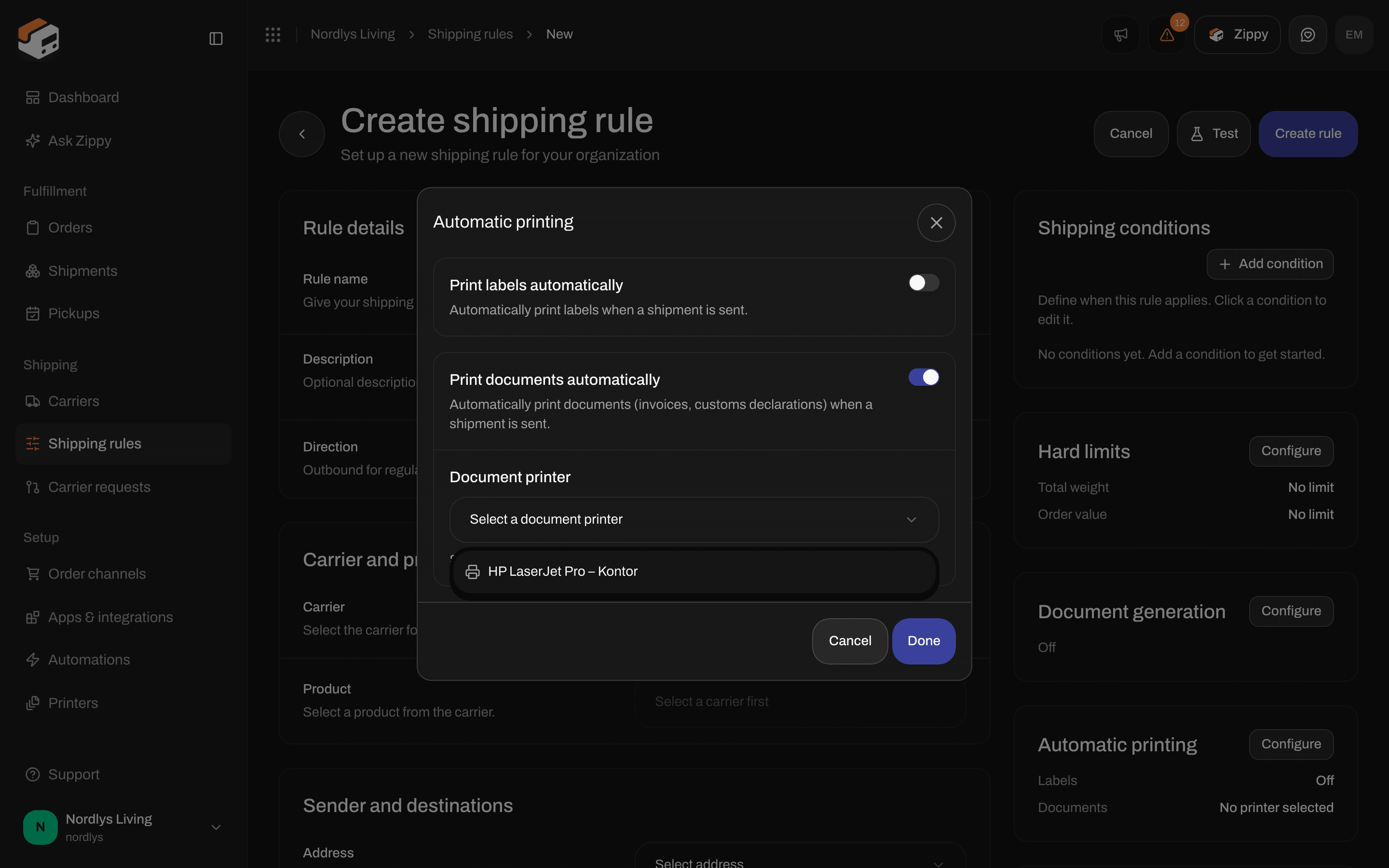
Print documents automatically turned on, with the Document printer list
Which documents print
Print labels automatically prints every label on the shipment. Print documents automatically prints every other document on the shipment. There is no way to pick only some document types. Zippendo only prints documents that exist. Some come from the carrier together with the label. Others Zippendo creates when you turn them on in the Document generation card of the same shipping rule (click Configure):
Some carriers create the customs declaration and commercial invoice themselves. For those carriers the two invoice settings are hidden, and the rule says that the carrier returns them with the label.
These are the documents you can find in the Documents card on a shipment page. Everything except Label goes to the document printer:
More about these documents: Customs and documents.
On a shipment without a shipping rule
A shipment without a shipping rule prints automatically when it has printers chosen on it:- A Label printer chosen: the label prints when you send the shipment.
- A Document printer chosen: all other documents print when you send the shipment.
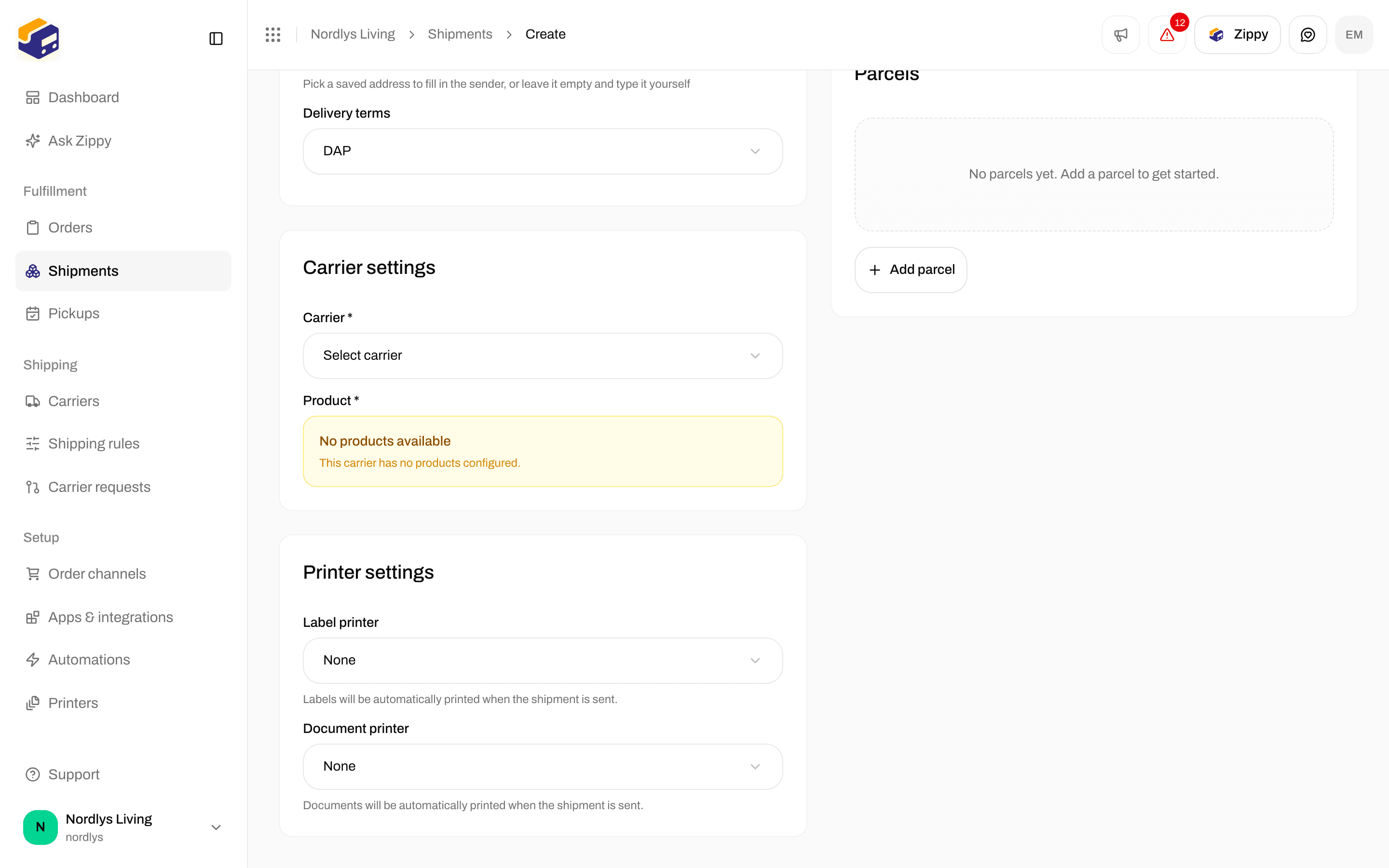
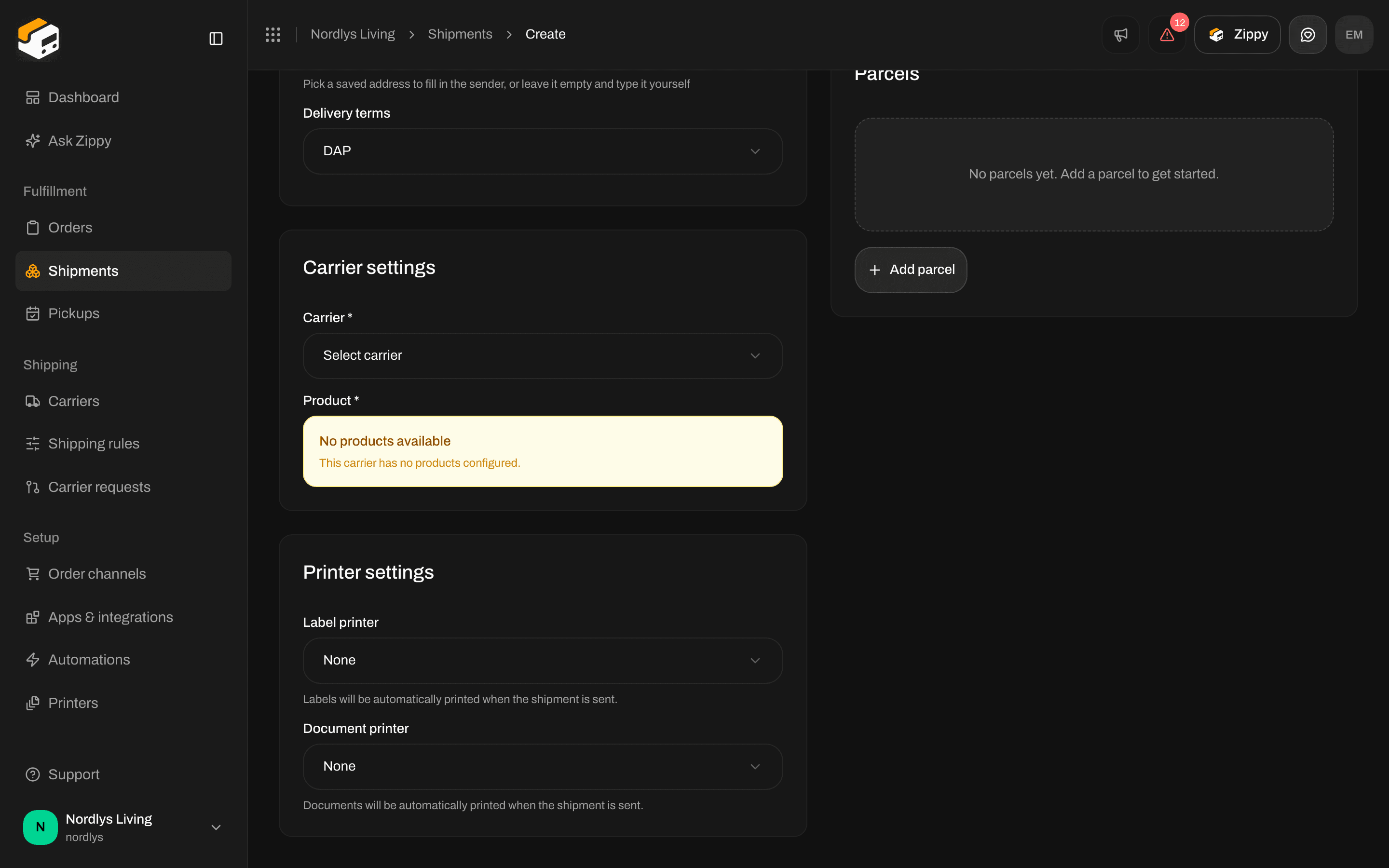
Printer settings on Create shipment: None means nothing prints automatically
Rule or shipment: which one wins
When you send a shipment, Zippendo looks for a shipping rule on the shipment, then on its order.- There is a rule: only the rule’s Automatic printing settings count. Printers chosen on the shipment are ignored for automatic printing.
- There is no rule: the printers chosen on the shipment count.
Automations do not print yet
Under Automations you can add the steps Print label and Print document. They do not print anything yet. Use a shipping rule or the shipment’s printers for printing that works. See Automations.If nothing prints
- The shipment was not sent. Automatic printing happens when you send the shipment, not when you create or save it.
- No printer is chosen. Open the rule, click Configure on the Automatic printing card and check that a printer is chosen for Print labels automatically or Print documents automatically.
- The shipment uses a shipping rule. Then the printers on the shipment are not used. Check the rule’s Automatic printing card.
- The printer is not Active. On Printers, the status must be Active. A printer that is Pending approval or Disabled gets nothing.
- The printer is Offline. The print job waits until Zippendo Printer runs again on that computer. See Printer offline or not printing.
- A document is missing. Print documents automatically needs documents on the shipment. Click Configure on the Document generation card and turn on Generate packing slip (and the invoices if you need them). If a document is in the Documents card but did not print, click Print in its row’s menu.
Next
Shipping rule fields
Every field on a shipping rule, including document generation.
Shipment printer settings
Choose a label printer and a document printer for one shipment.
Set up Zippendo Printer
Install the app and keep it connected.
Add and manage printers
Approve, rename and rotate printers.
Labels and printing
Send a shipment, then view or reprint the label.