

You cannot change your password on this page. To set a new password, sign out and click Forgot password? on the sign-in page. See Forgot password and reset.
Verify your email
If your email address is not verified yet, Verify your email address appears at the top: Verify your email address to use every feature, including inviting team members. Click Resend email to get a new verification email. You see Verification email sent. Check your inbox. Until you verify, inviting team members stops with Verify your email address to continue. Check your inbox for the link we sent you. See Invite team members.Email and language
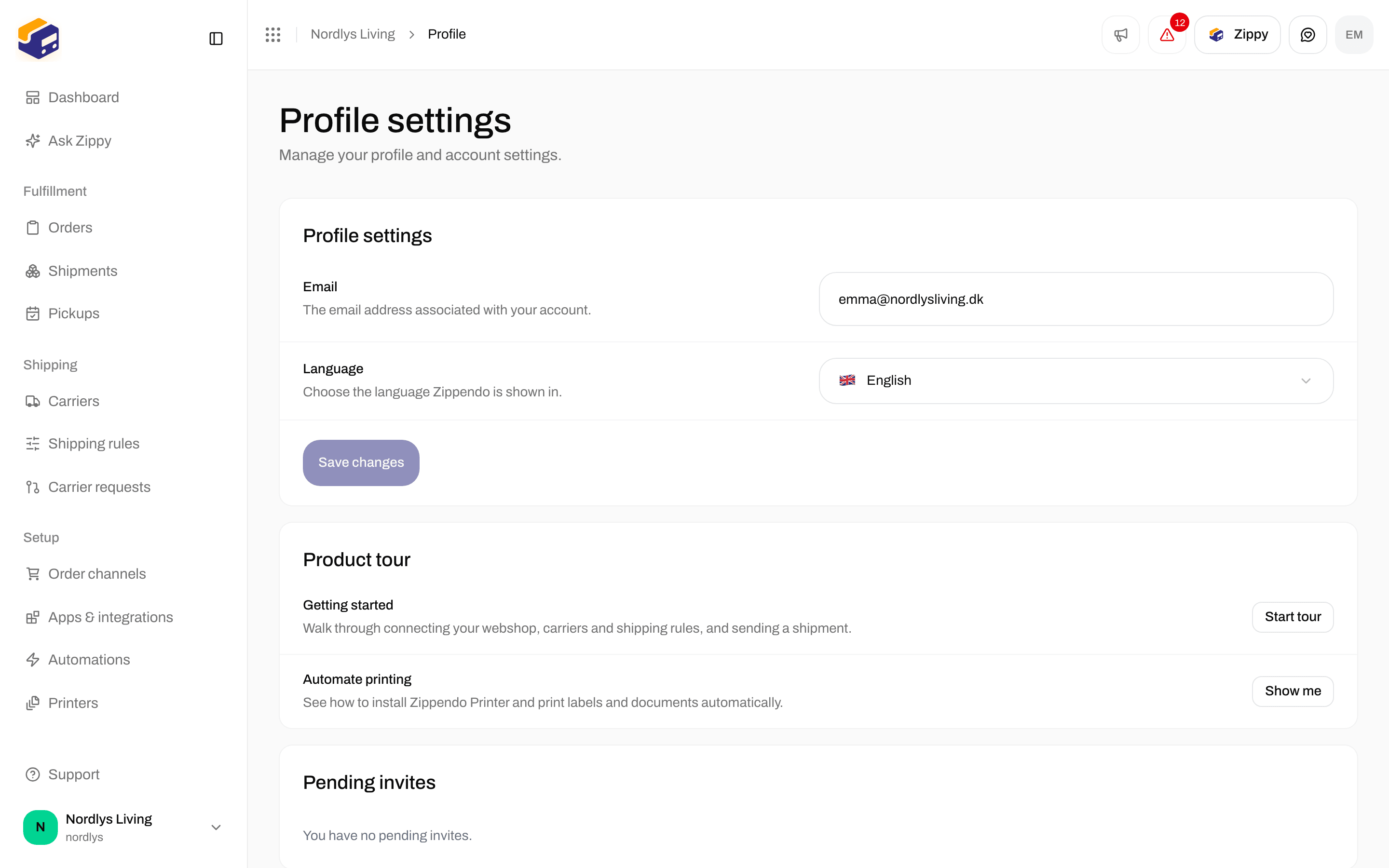
Profile settings - Email, Language, Save changes
Change one or both, then click Save changes. The button can be clicked only after you have changed something. You see Profile updated.
Product tour
Under Product tour you can take the guided tours again:- Getting started - Walk through connecting your webshop, carriers and shipping rules, and sending a shipment. Click Start tour.
- Automate printing - See how to install Zippendo Printer and print labels and documents automatically. Click Show me.
Pending invites and organizations
Pending invites shows You have no pending invites. Invitations to other organizations arrive by email. Organizations lists every organization you belong to:
From the row menu:
- View opens that organization’s Dashboard. Clicking the row does the same.
- Settings opens that organization’s Settings. Shown when you are an admin.
- Leave removes you from that organization. Shown when you are not an admin. There is no confirmation step, so check the organization name before you click. You see You left the organization.
Two-factor authentication
With two-factor authentication on, you sign in with your password and a code from an authenticator app. Under Security, Two-factor authentication shows Disabled or Enabled.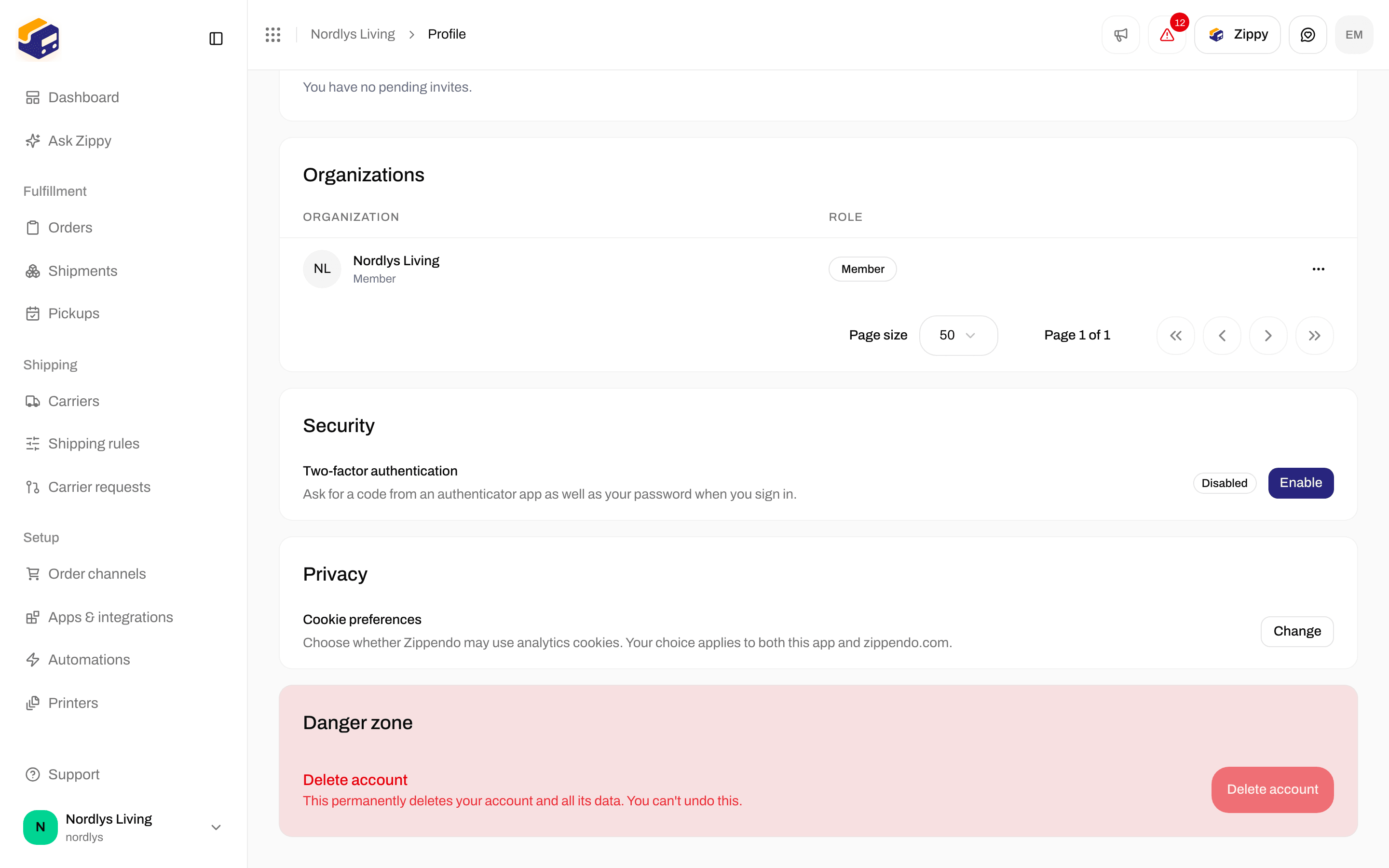
Security - Two-factor authentication with Enable or Disable
Turn on two-factor authentication
1
Start
Under Security, click Enable. The Enable two-factor authentication window opens on Scan & verify.
2
Scan the QR code
Scan this with Google Authenticator, 1Password, or a similar app. If you cannot scan it, open Can’t scan it? Enter this code manually and type the code into your app.
3
Enter the code
Type the 6-digit code your app shows into Enter the 6-digit code from your app, then click Verify & enable.
4
Save your recovery codes
The window moves to Save recovery codes. Each code can be used once to sign in if you lose access to your authenticator app. This is the only time they’ll be shown, so store them somewhere safe. Click Copy all or Download .txt, and keep the codes somewhere safe, such as a password manager.
5
Finish
Tick I’ve saved these recovery codes and click Done. You cannot close the window before you tick the box.
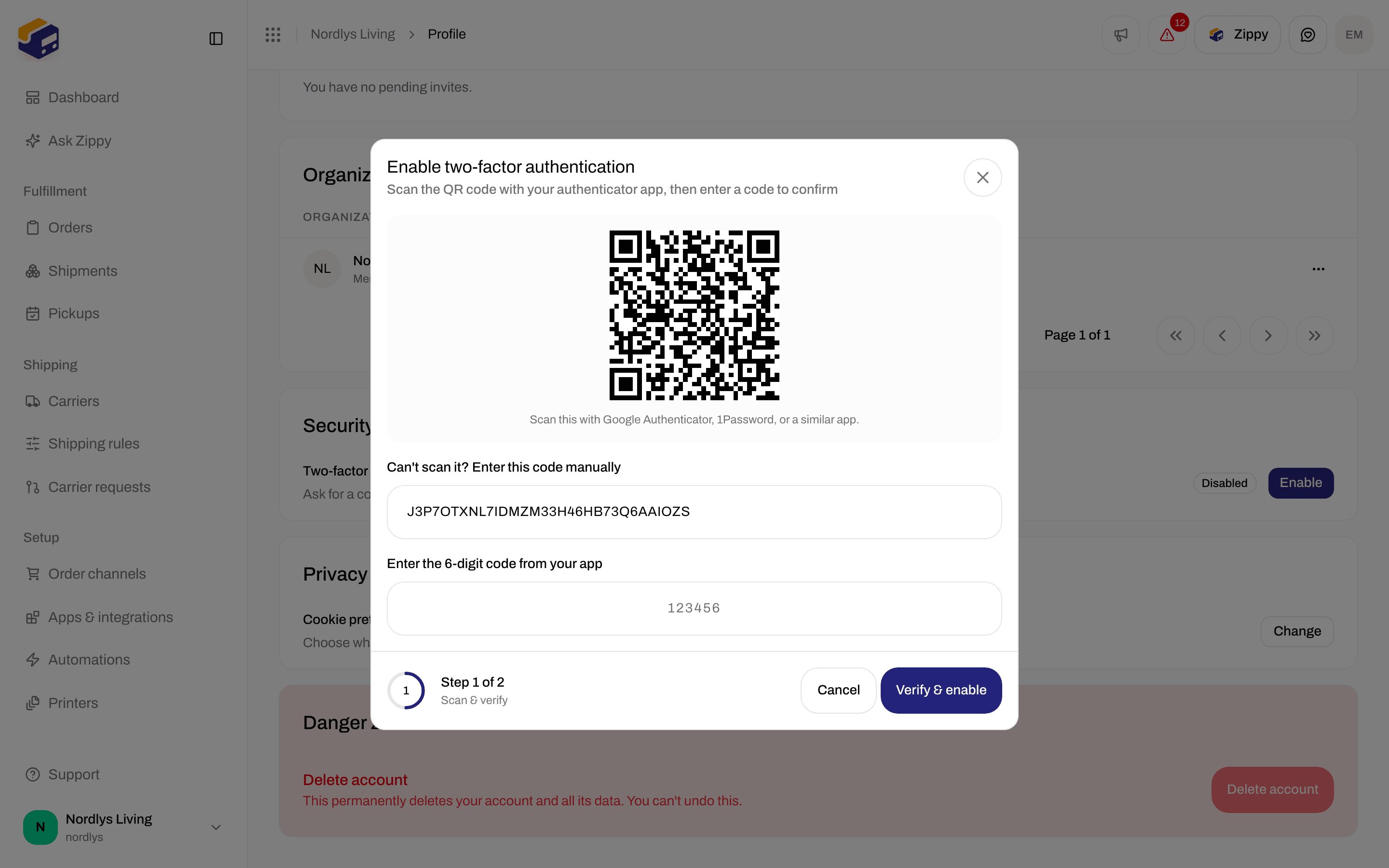
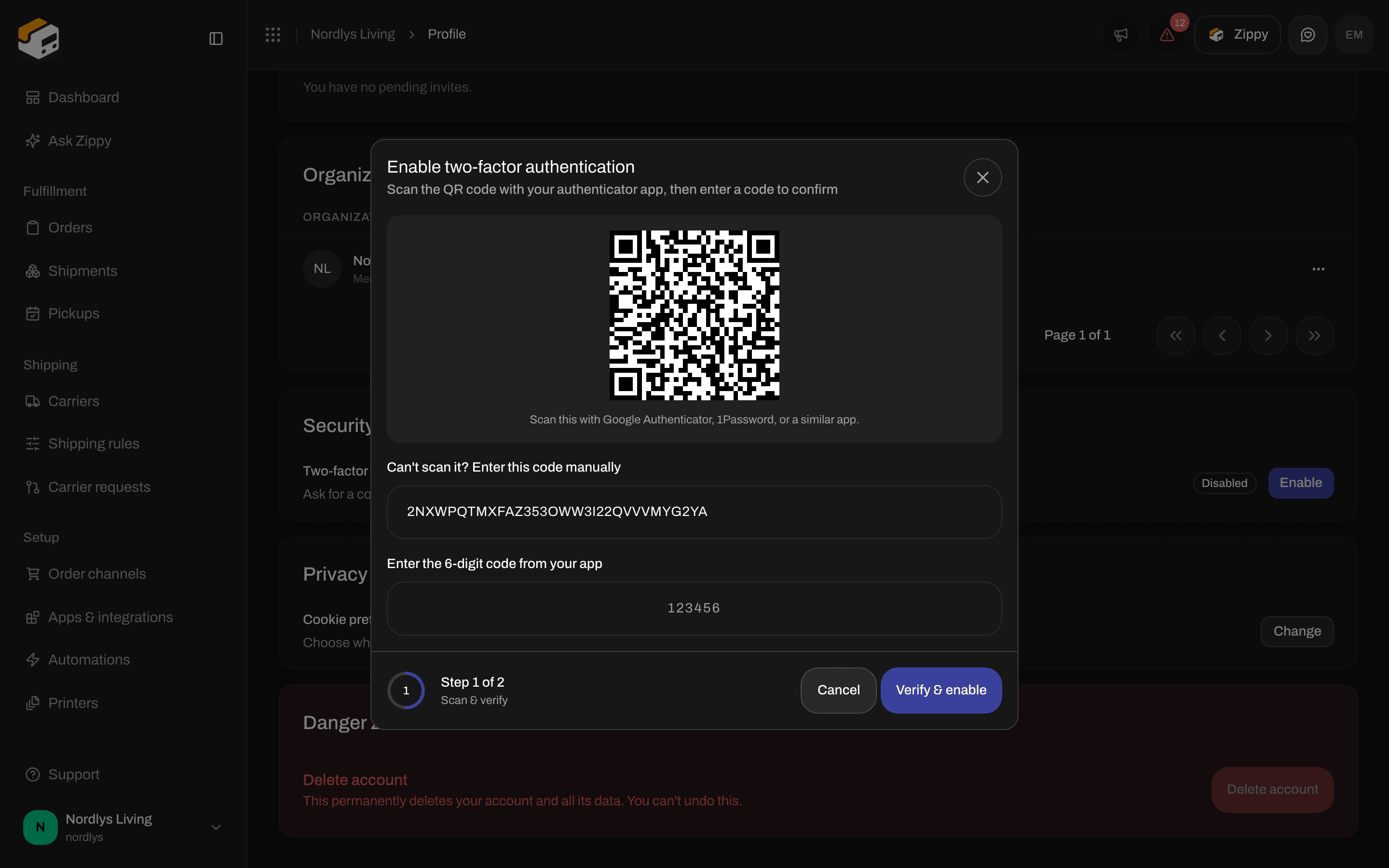
Enable two-factor authentication - QR code, manual code, and the 6-digit code
Turn off two-factor authentication
1
Start
Under Security, click Disable. The Disable two-factor authentication window warns: Anyone who knows your password will be able to sign in. You can turn two-factor authentication back on at any time.
2
Enter your password
Type your password in Password. Leave blank if you sign in with Google.
3
Enter a code
In Verification code, type the 6-digit code from your app. Lost your phone? Click Use a recovery code instead and type one of your recovery codes (format XXXX-XXXX).
4
Confirm
Click Disable. You see Two-factor authentication disabled.
Messages
Cookie preferences
Under Privacy, Cookie preferences: Choose whether Zippendo may use analytics cookies. Your choice applies to both this app and zippendo.com. Click Change to update your choice.Delete your account
At the bottom of the page, under Danger zone, the Delete account button cannot be clicked. See Danger zone.Related
- Invite team members - why email verification matters.
- Danger zone - deleting your account, and leaving an organization instead.
- Organization settings
- Switch organization and brand
- Profile - overview of this page.