

Where to find it
Click the organization switcher at the bottom of the sidebar, then Manage, and open the Brands tab. To create, edit or archive brands, you need a role with Edit organization or Edit everything (see Roles and permissions), and your account must not be restricted to a brand.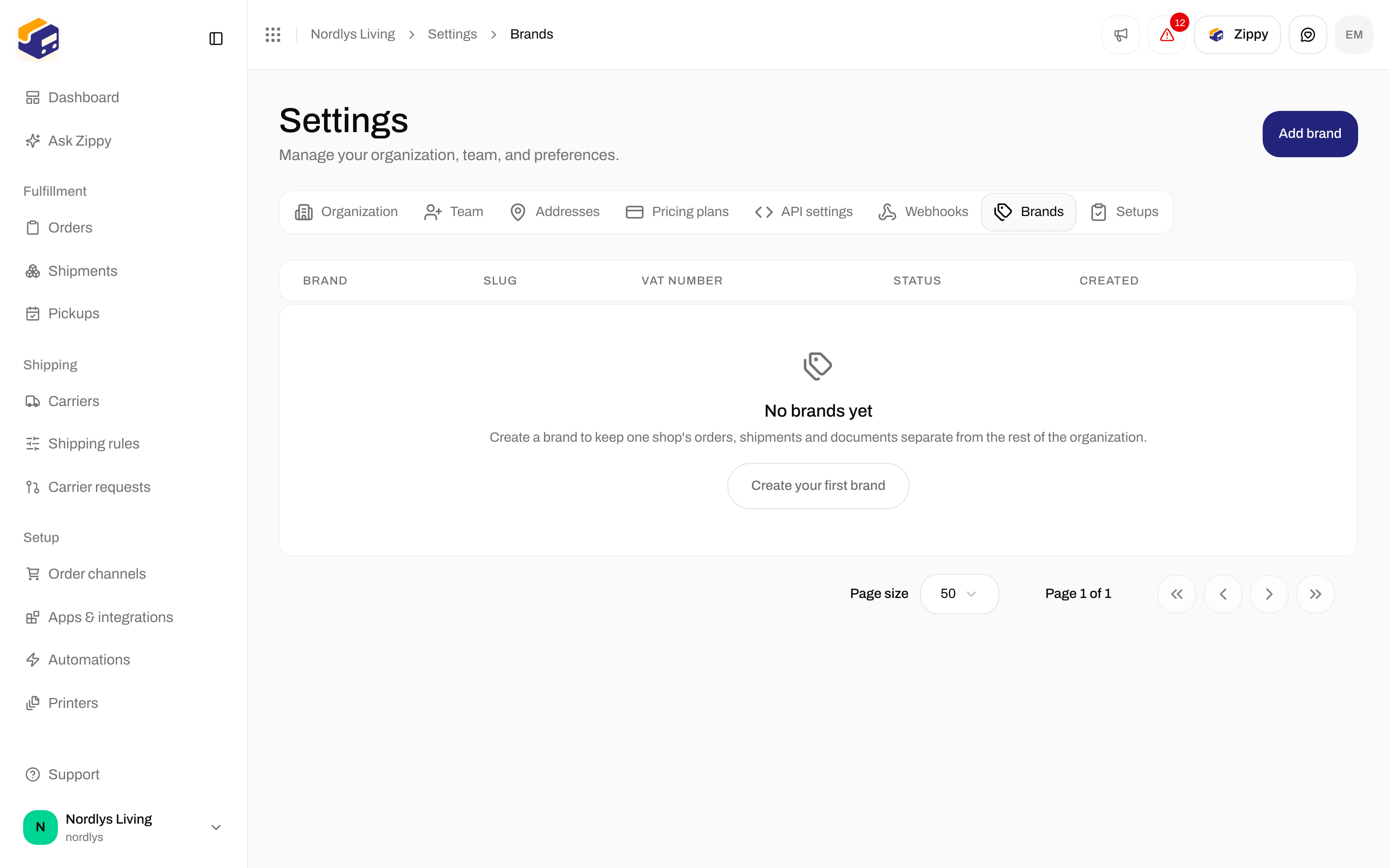
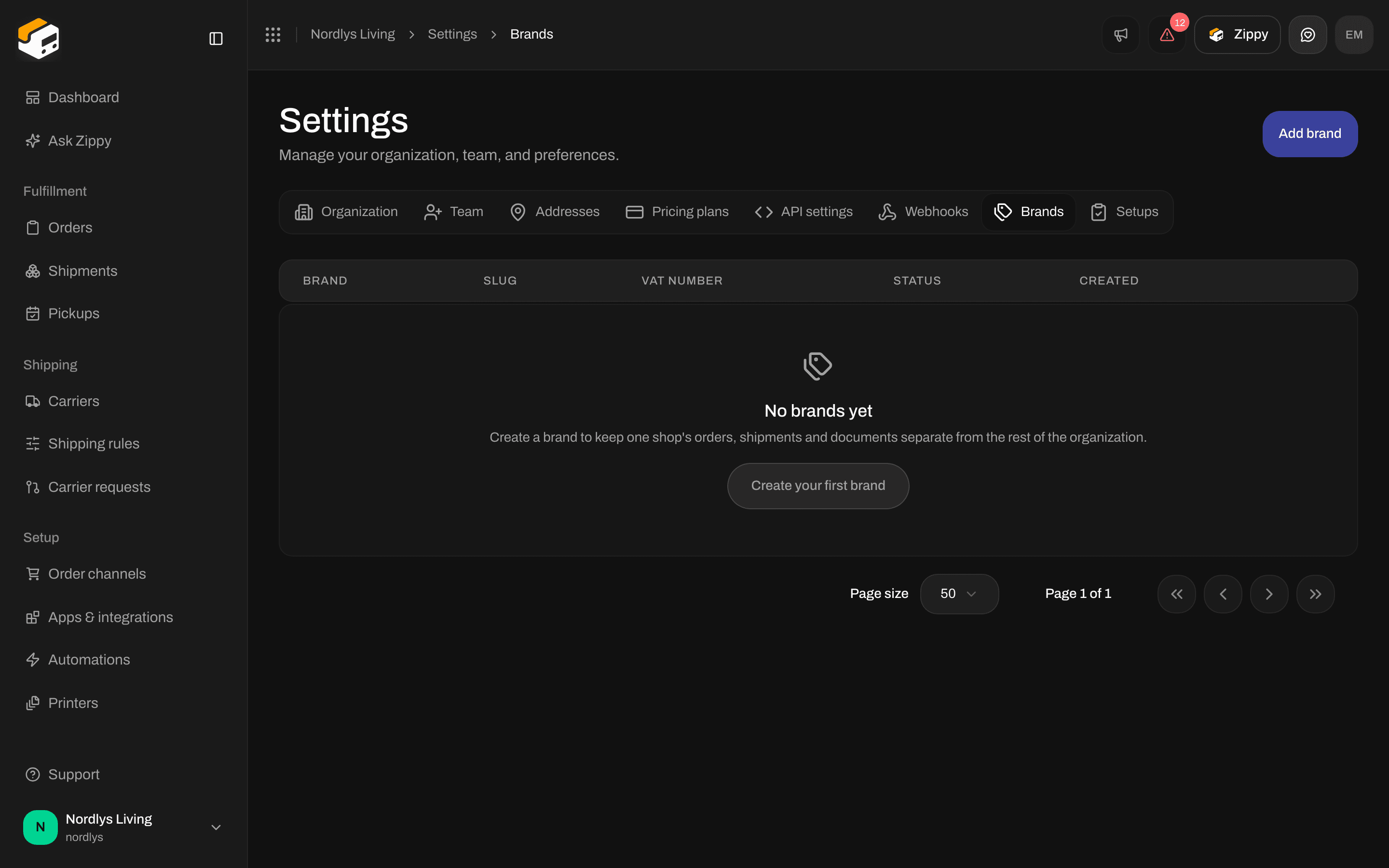
Brands starts empty - Create your first brand or Add brand
If the tab is locked
On a plan without brands, the tab shows Brands are available on Pro. Click Upgrade plan to open Pricing plans. See Billing and usage.If your account is restricted to one brand
The Brands tab is hidden. If you open it anyway, you see You can’t manage brands from this account. Ask a team member who can see the whole organization to create, edit or archive brands.Create the brand
The New brand window asks only for a name and a slug. Invoice details, logo and colors come on the next page.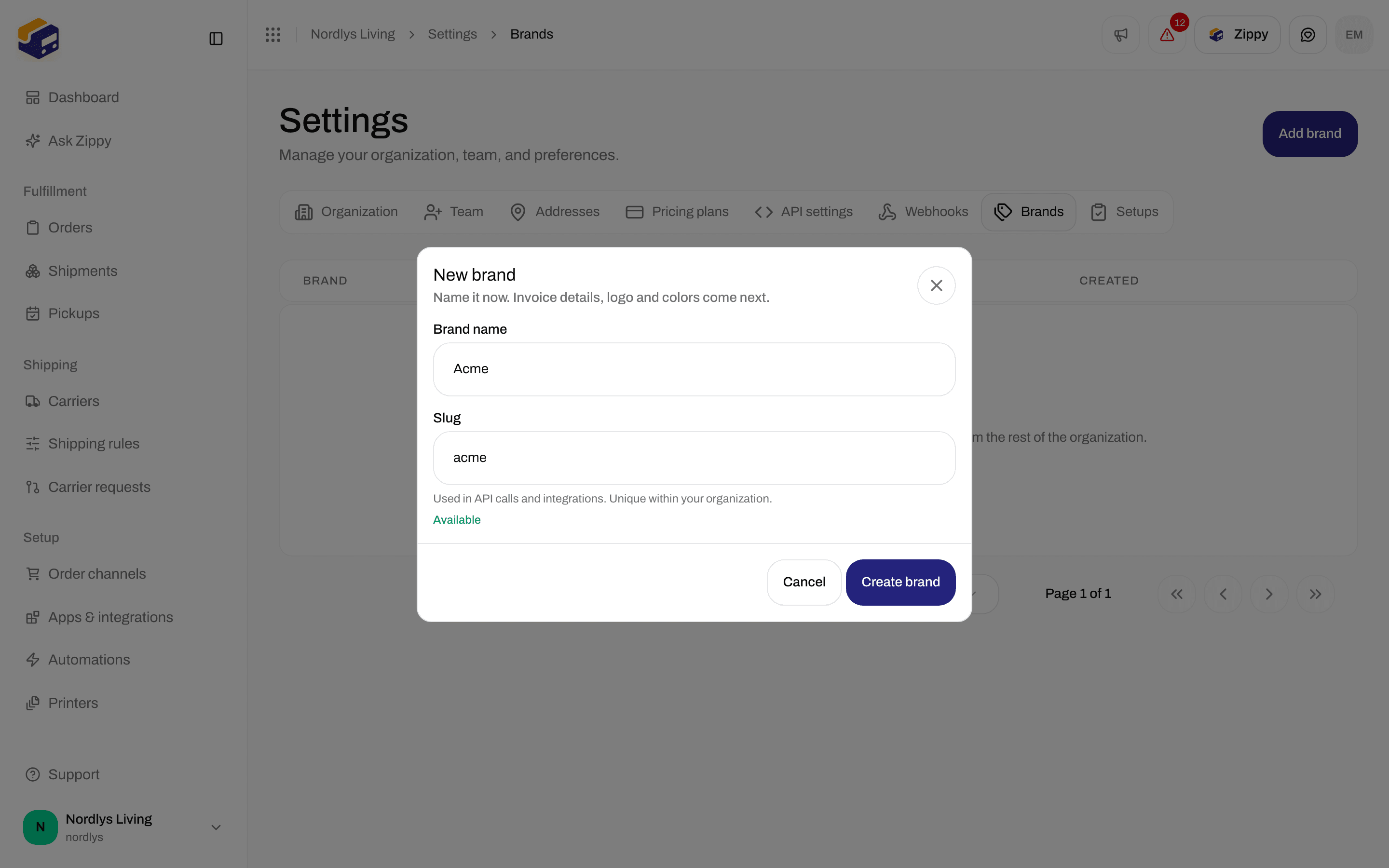
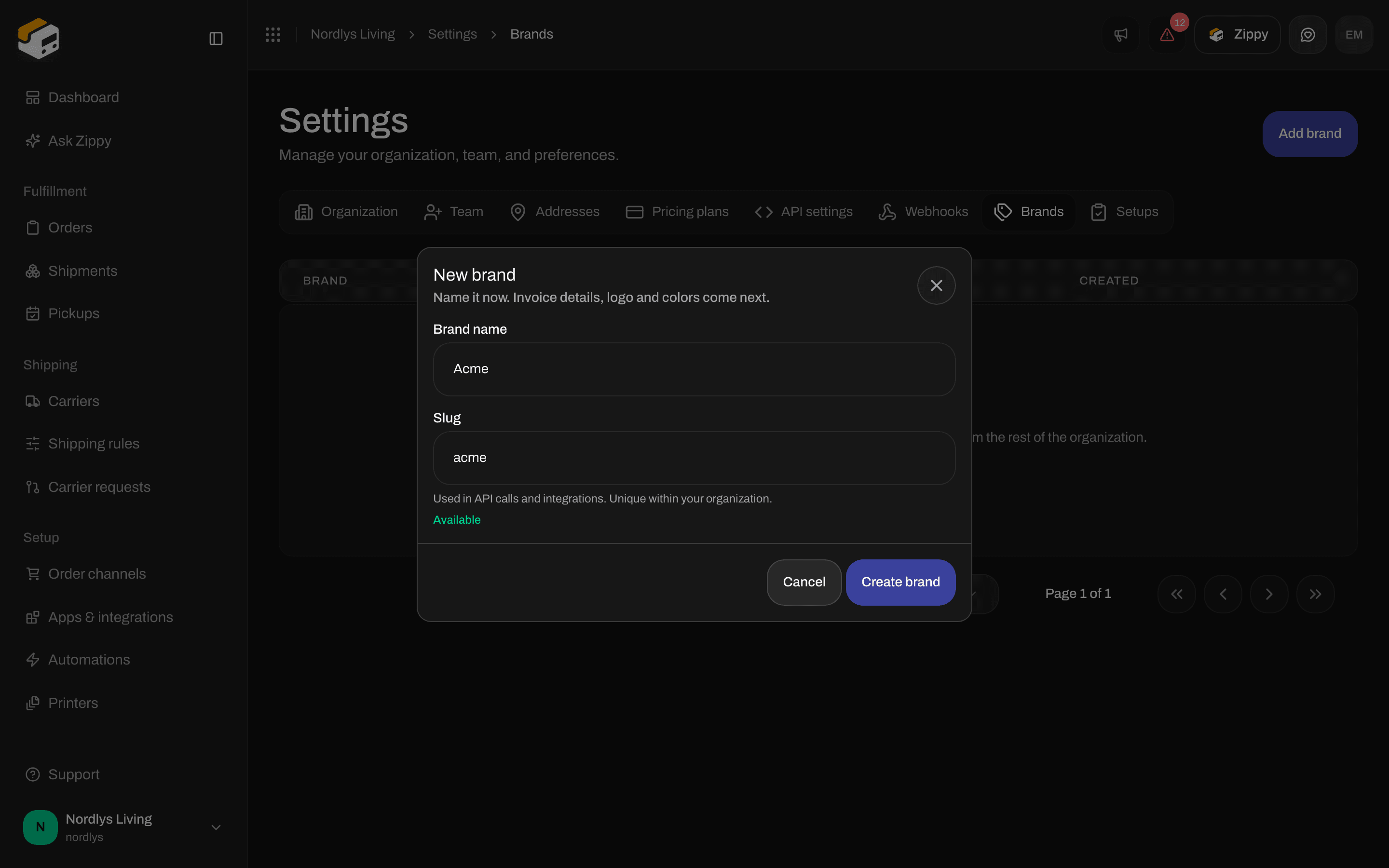
New brand asks only for Brand name and Slug
If you edit the slug yourself, it stops following the name.
1
Open New brand
Click Create your first brand, or Add brand if you already have brands.
2
Name it
Enter the Brand name. Check the Slug and change it if you want a different code.
3
Click Create brand
The button stays grayed out until both fields are valid and the slug is available. You see Brand created, and Zippendo opens the new brand’s page.
Fill in the brand page
Fill in what should be different for this brand. Click Save changes at the top of the page when you are done. You see Brand updated.Customs identifiers
The Use the organization’s customs information switch decides whose VAT number and customs identifiers the brand ships under:- Switched on (the default): the brand uses the organization’s VAT number and customs identifiers from Organization settings. Anything you type in the brand’s own fields is kept but not used.
- Switched off: the brand declares only its own identifiers. Fields you leave blank are not declared at all, and the organization’s values do not fill the gaps.
Manage your brands
The list shows Brand, Slug, VAT number (a dash means the brand uses the organization’s), Status (Active or Archived) and Created. Click a row to open the brand. The menu at the end of each row has:
Archived brands still count toward your plan’s brand limit.
To delete a brand, click Delete, type the brand name in capital letters to confirm, and click Delete. You see Brand deleted. If the brand still has orders, shipments or settings attached, you see This brand still has data linked to it, such as orders, shipments or carriers. Archive it instead of deleting it. Archive it instead.
If you open a brand that no longer exists, you see Brand not found. If the list does not load, you see Couldn’t load brands. Click Try again.
Related
- Switch organization and brand - work in All brands or one brand.
- Organization branding - logo and colors for the organization and each brand.
- Organization settings - the customs identifiers brands can use.
- Invite team members - Restrict the invitee to a brand.
- Billing and usage - brands on Pro and Enterprise.
- Brands - how brands separate your data.