

There is no search box. Zippendo finds the service points near the receiver’s address (street, postal code, city and country code) and shows them in a list and on a map. Fill in the receiver first. See Sender, receiver, and other parties.
When the Service point card appears
The Service point card only appears when the selected product delivers to a service point. Home-delivery products never show it. On Create shipment, pick Carrier *, then Product *. Examples of products that show the card:
Return products such as GLS ShopReturn and PostNord Return do not show the card. The customer can hand in the parcel at any of the carrier’s service points, so you do not choose one. A pickup, where the carrier collects parcels from your address, is something else. See Schedule a pickup.
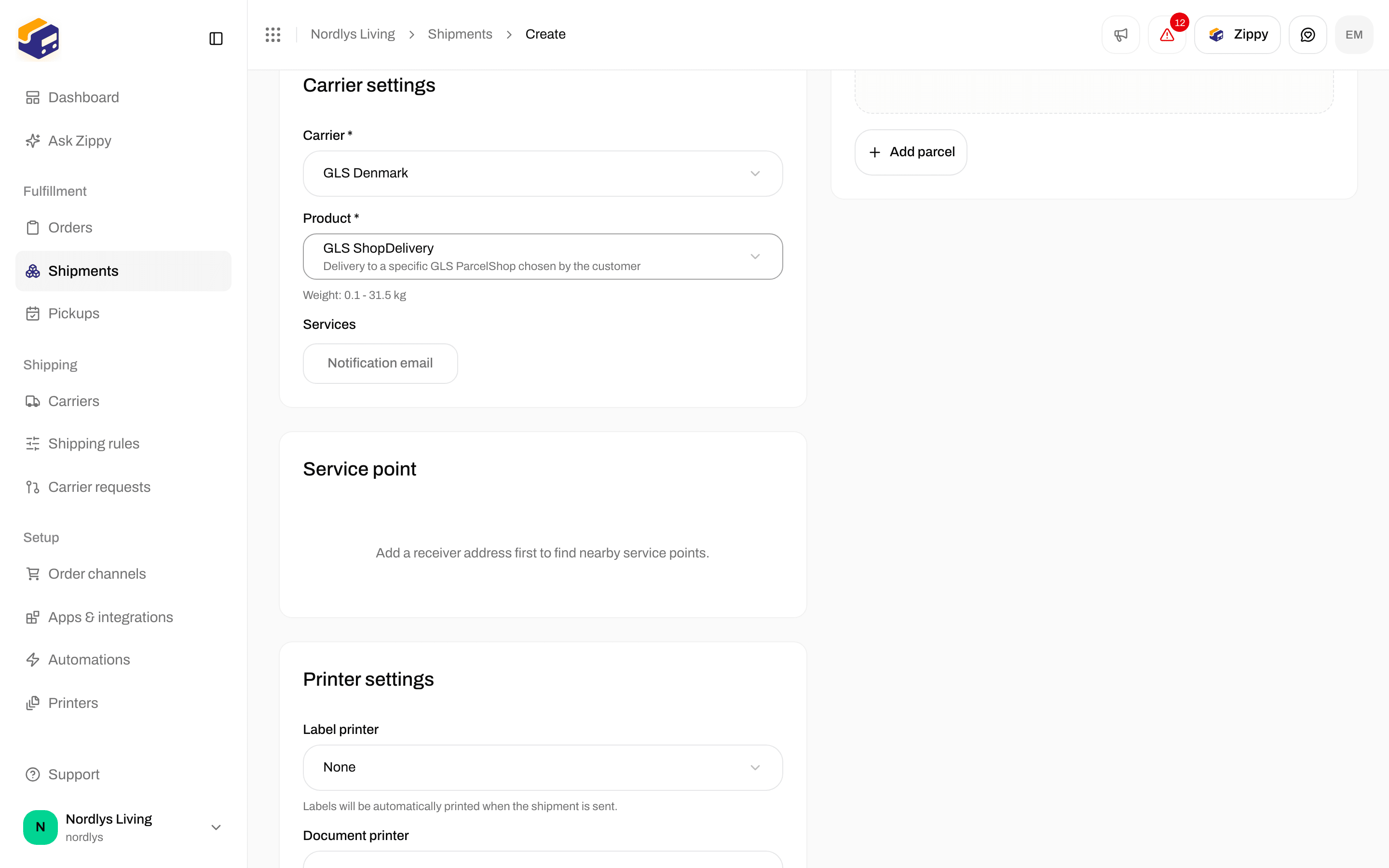
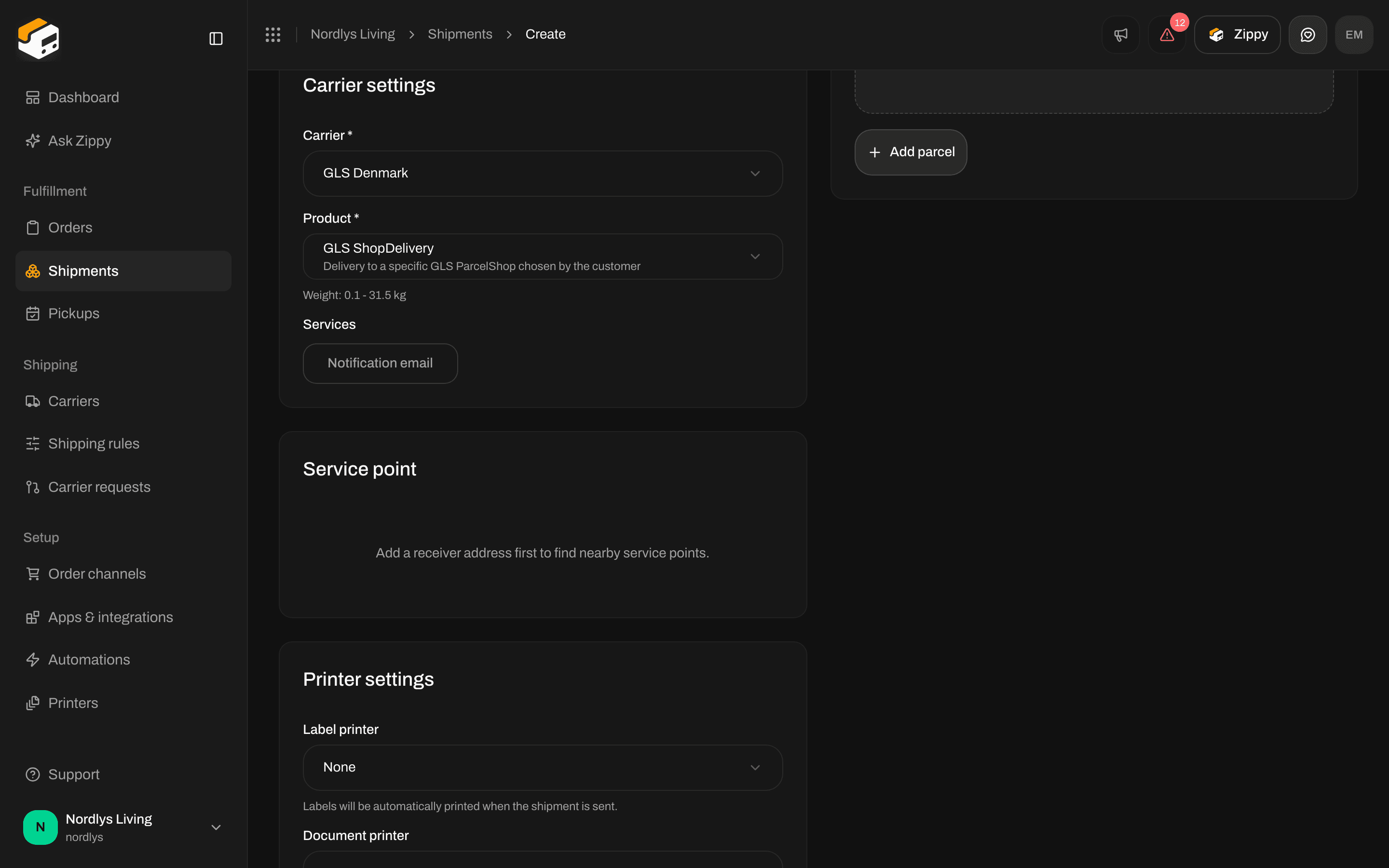
GLS ShopDelivery adds the Service point card. Until there is a receiver, it asks you to add an address first.
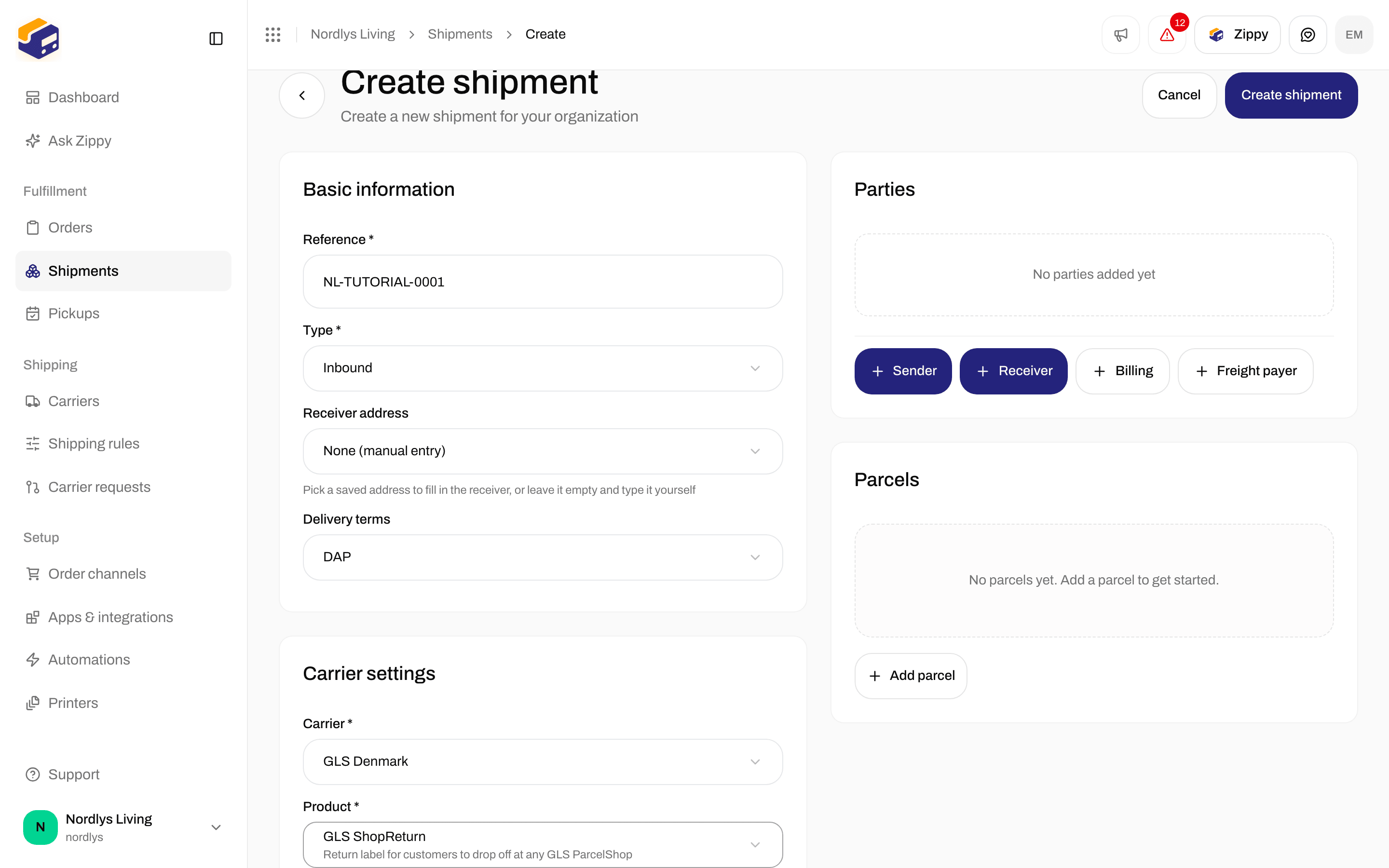
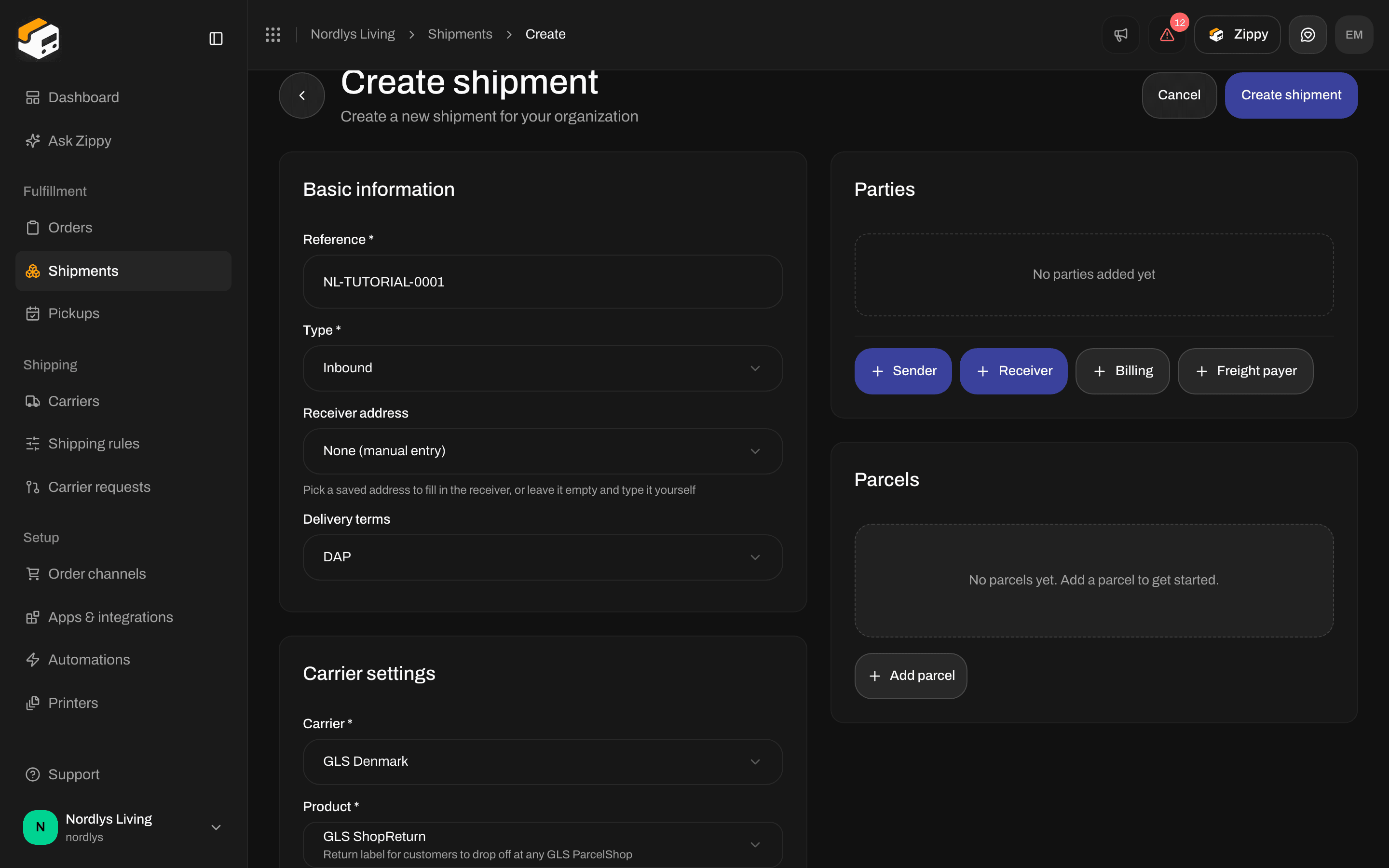
A GLS ShopReturn return shipment has no Service point card. The customer can hand the parcel in at any GLS service point.
The Service point card
Before the list appears
Retry searches again. If the postal code or country is wrong, fix the receiver address first.
After the list appears
Zippendo picks the closest service point for you as soon as the list arrives, unless one is already chosen.
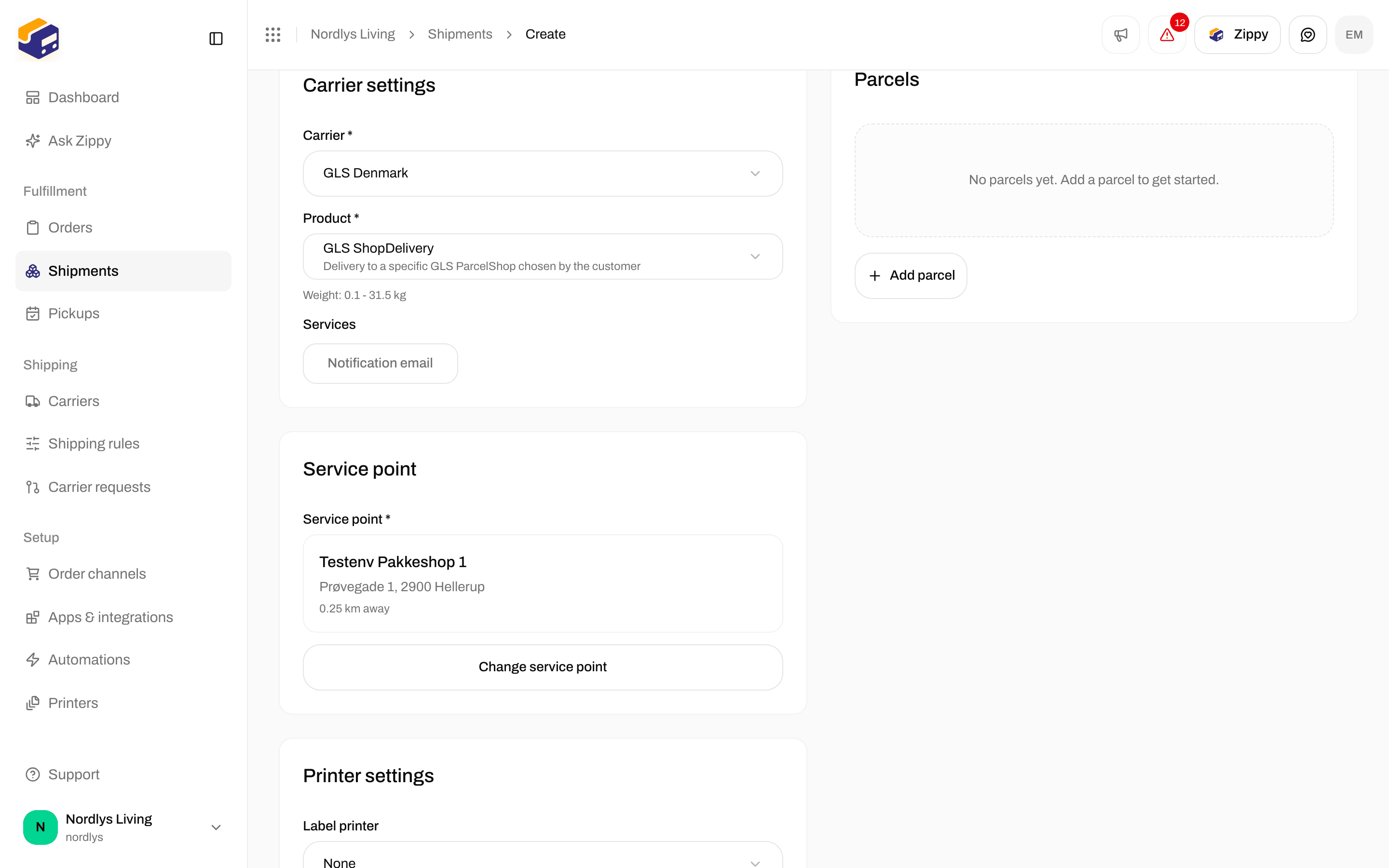
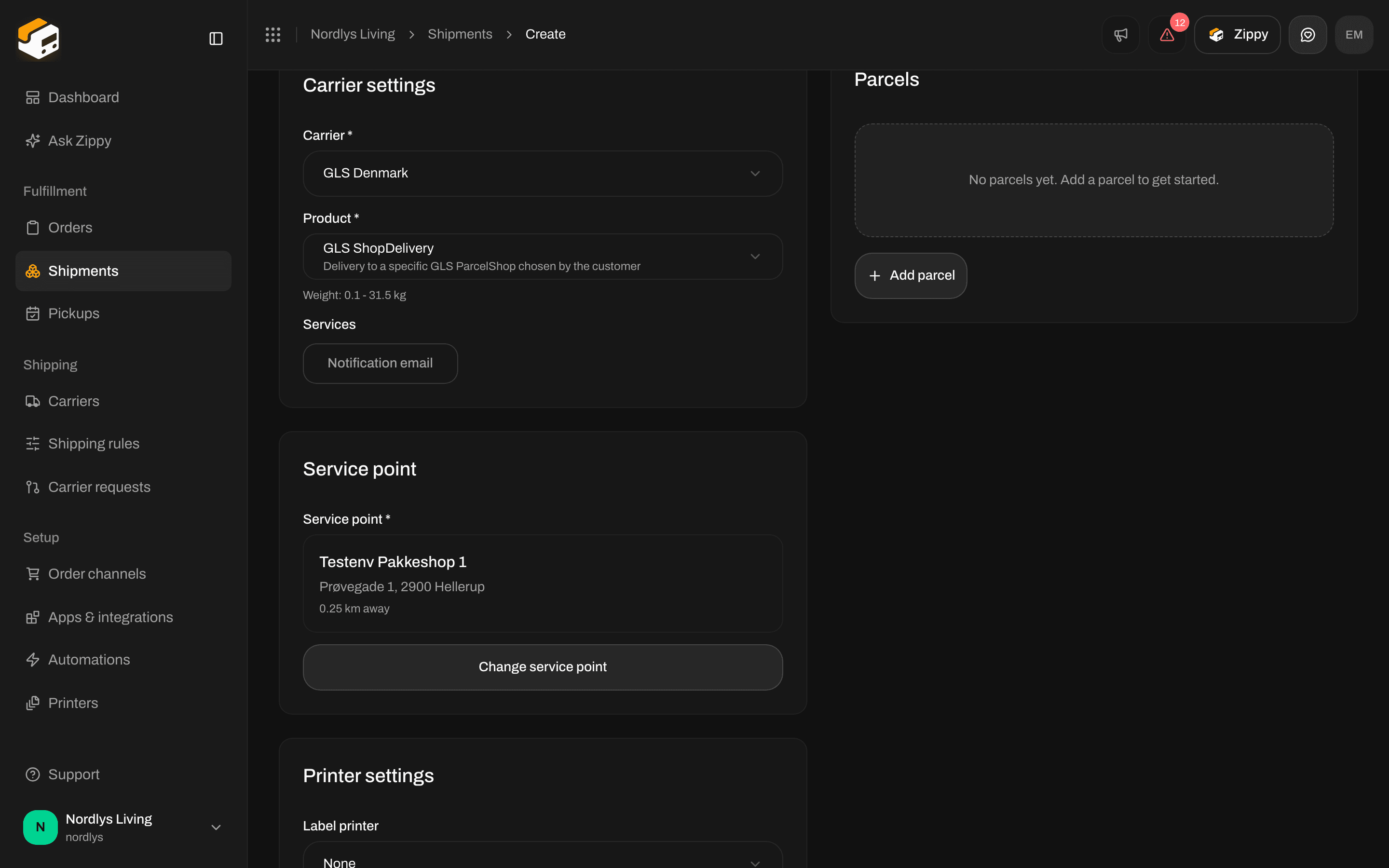
With a complete receiver, the nearest service point is filled in and Change service point is available
Choose from the list and map
Select service point or Change service point opens a window titled Select service point. On the left is the list:- The number found, for example 12 service points found
- Each service point with its name, address and distance, and a check mark on the one you chose
- Click a service point to choose it. Its pin on the map lights up too.
- Couldn’t load service points or No service points found when the list is empty
- It centers on the chosen service point (or the first one) and shows a pin for every result. The chosen pin is green, the others are blue.
- Click a pin to choose that service point.
- No map available when the map cannot be shown
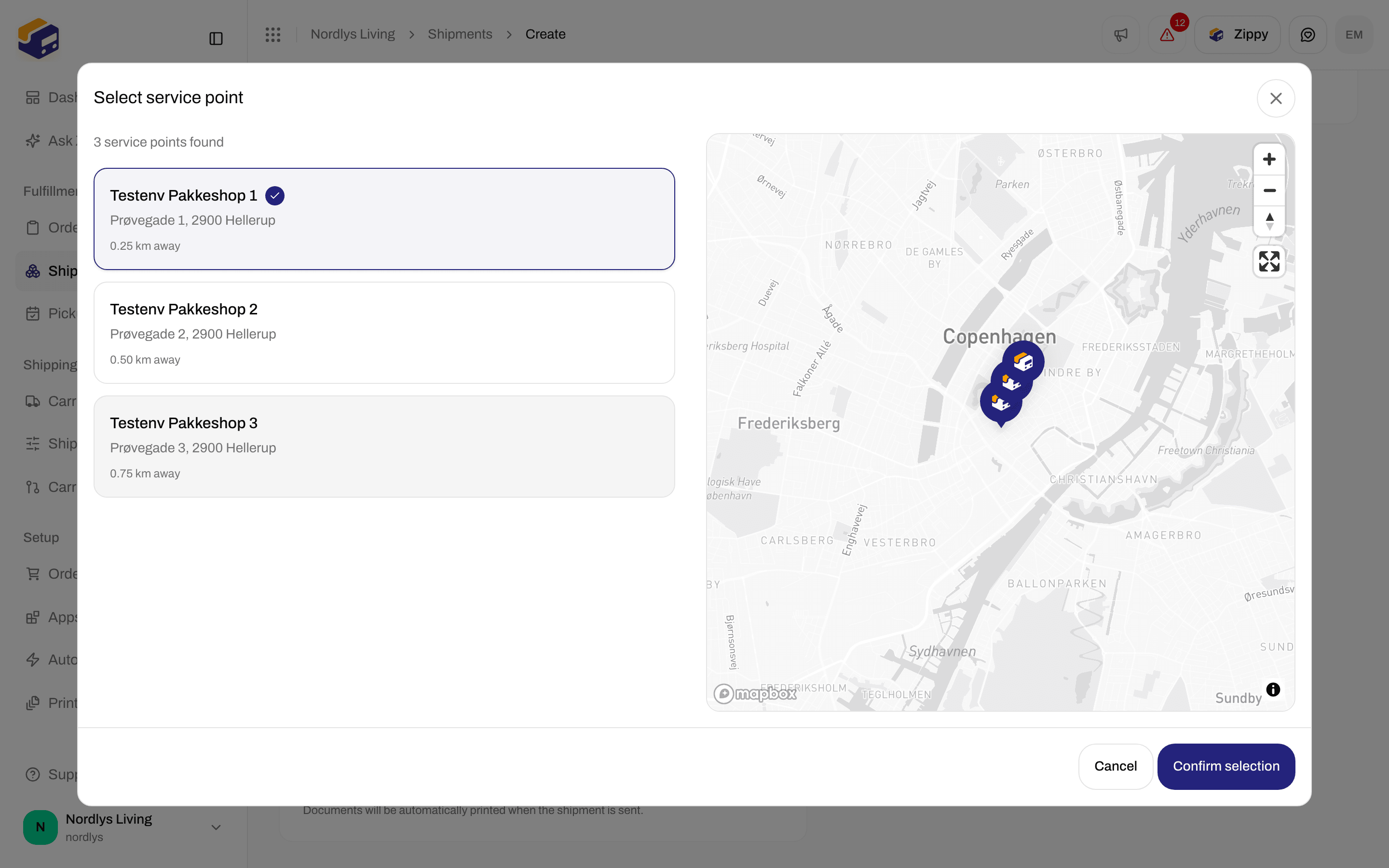
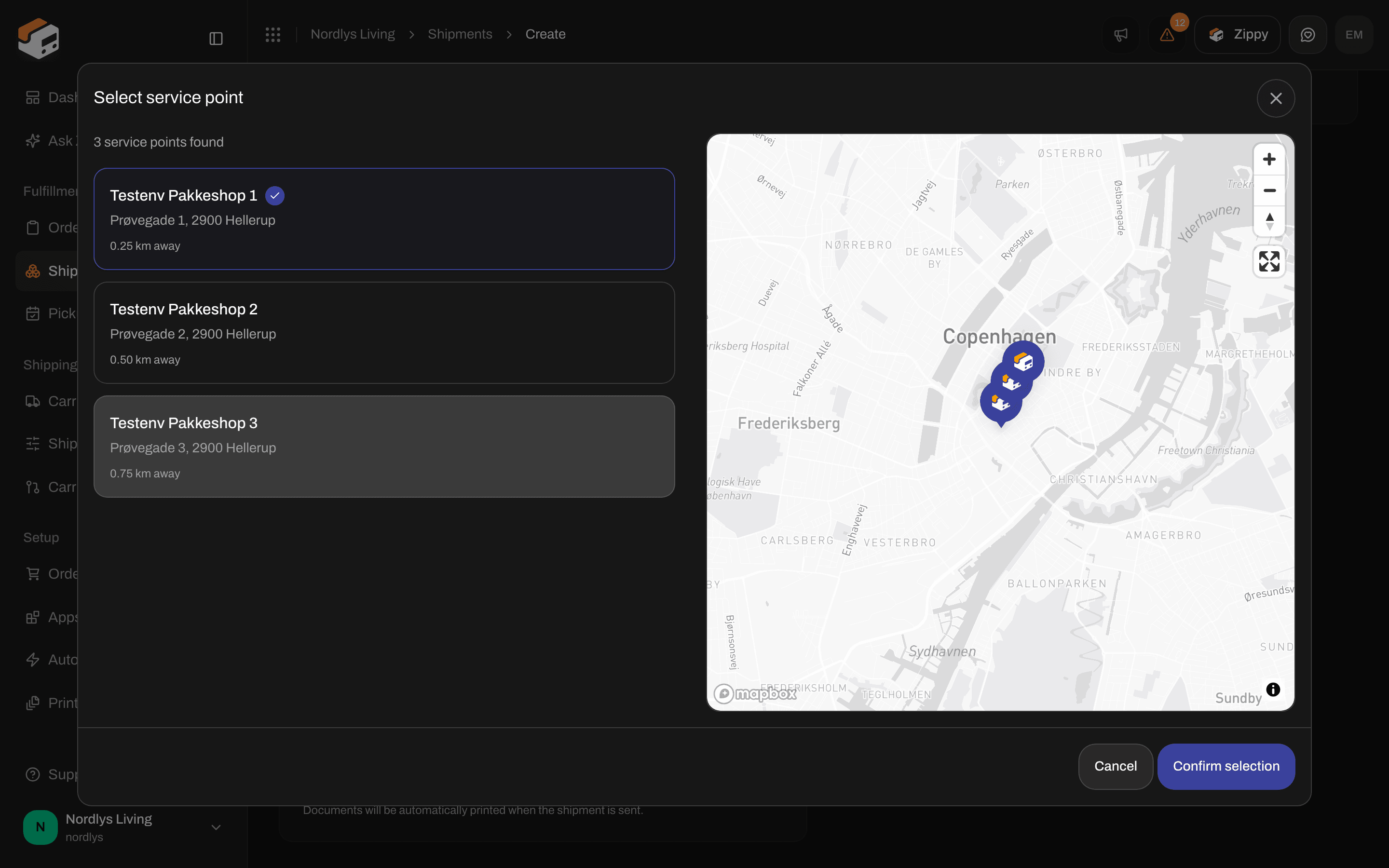
Select service point: the list on the left, the map on the right, Confirm selection at the bottom
From an order
Open the order in Orders and click Create shipment. Fill in:- Sender address
- Carrier
- Product
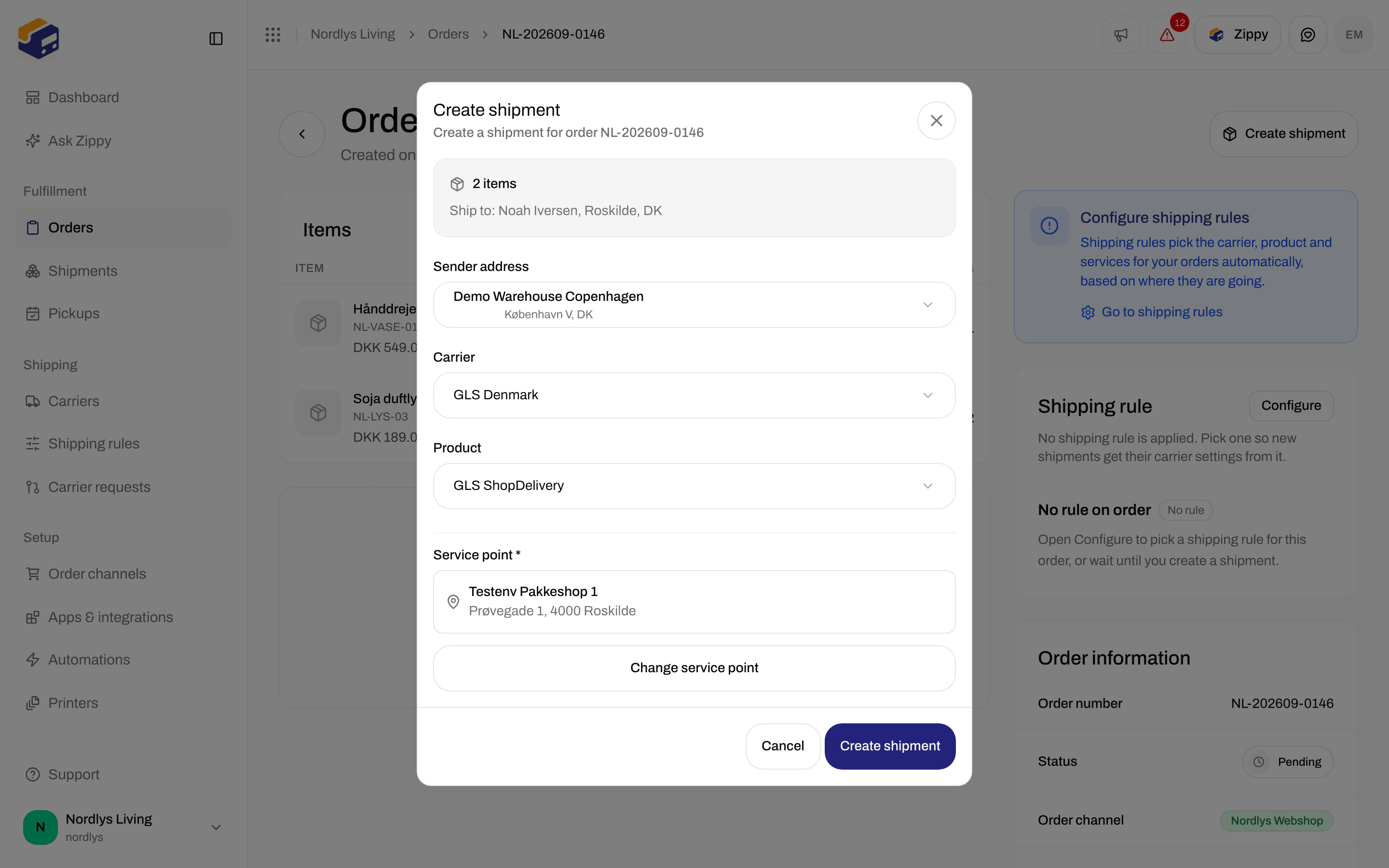
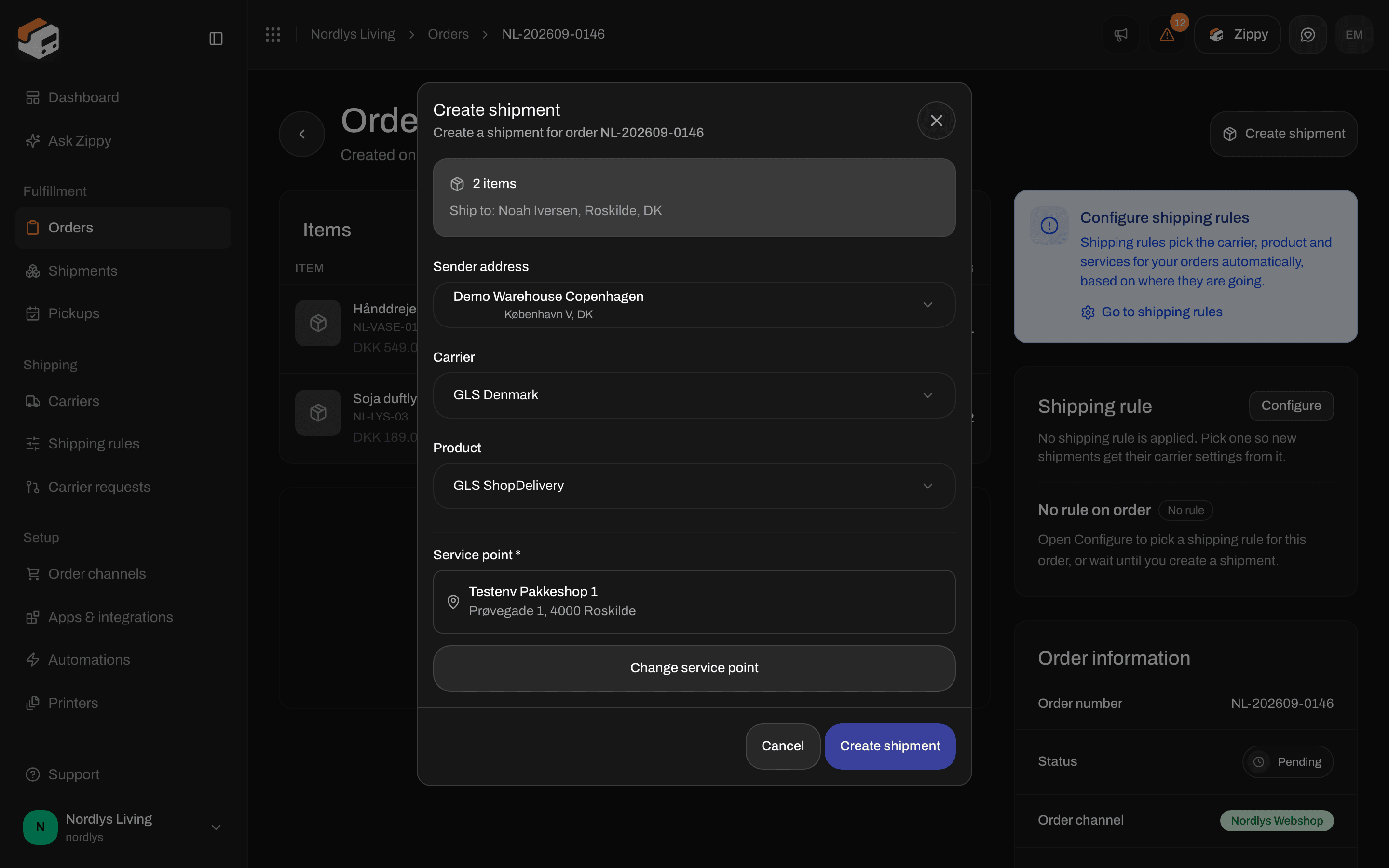
Create shipment from an order: Service point is required for GLS ShopDelivery
Change it later
On the shipment page, the Addresses card shows Sender, Receiver and, when a service point is set, Service point:- A pin icon and the service point’s name. If only its number is known, for example when the customer chose it at checkout, you see the words Service point instead.
- The address, when Zippendo has it
- The service point’s number, for example “ID: 95117”
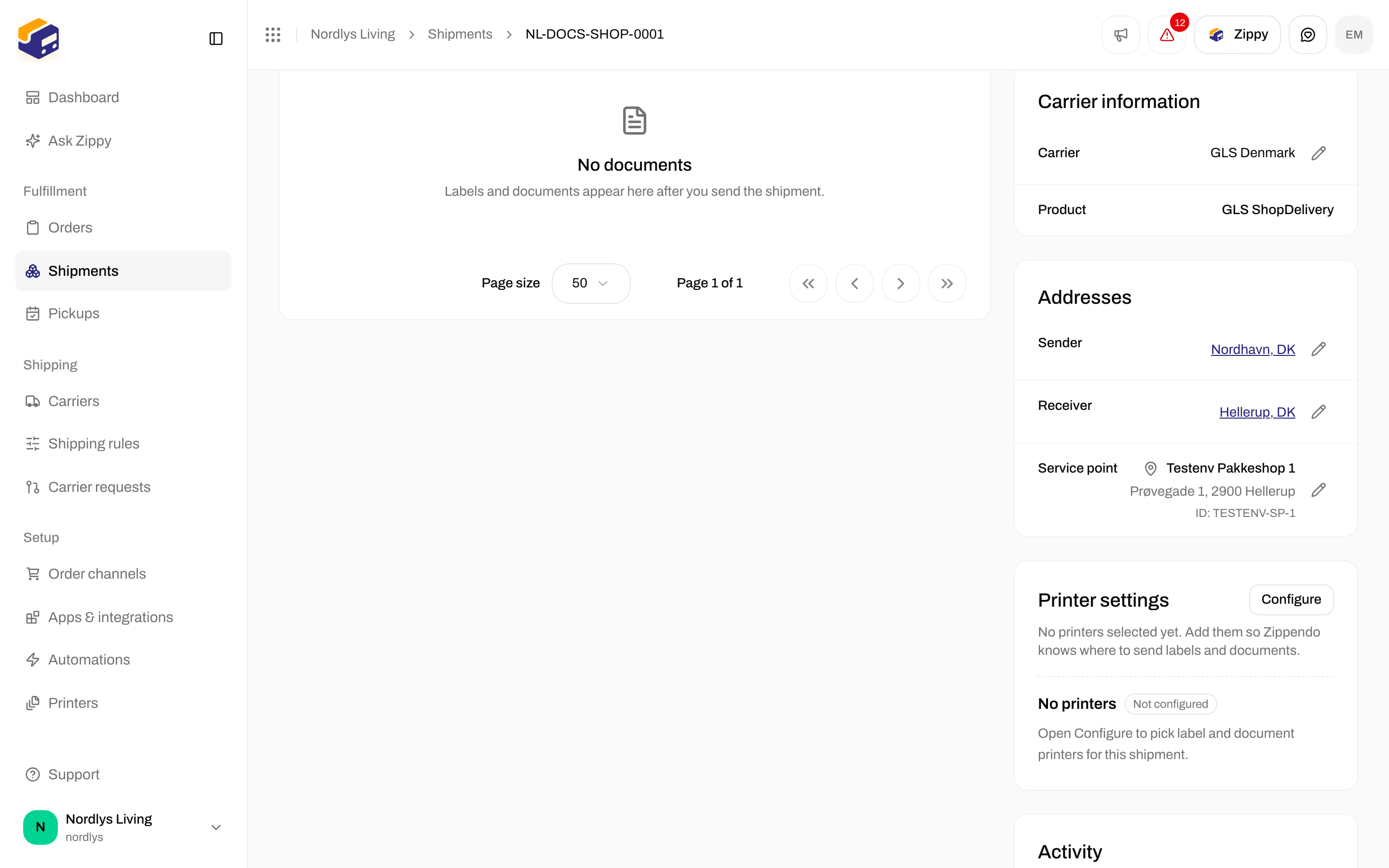
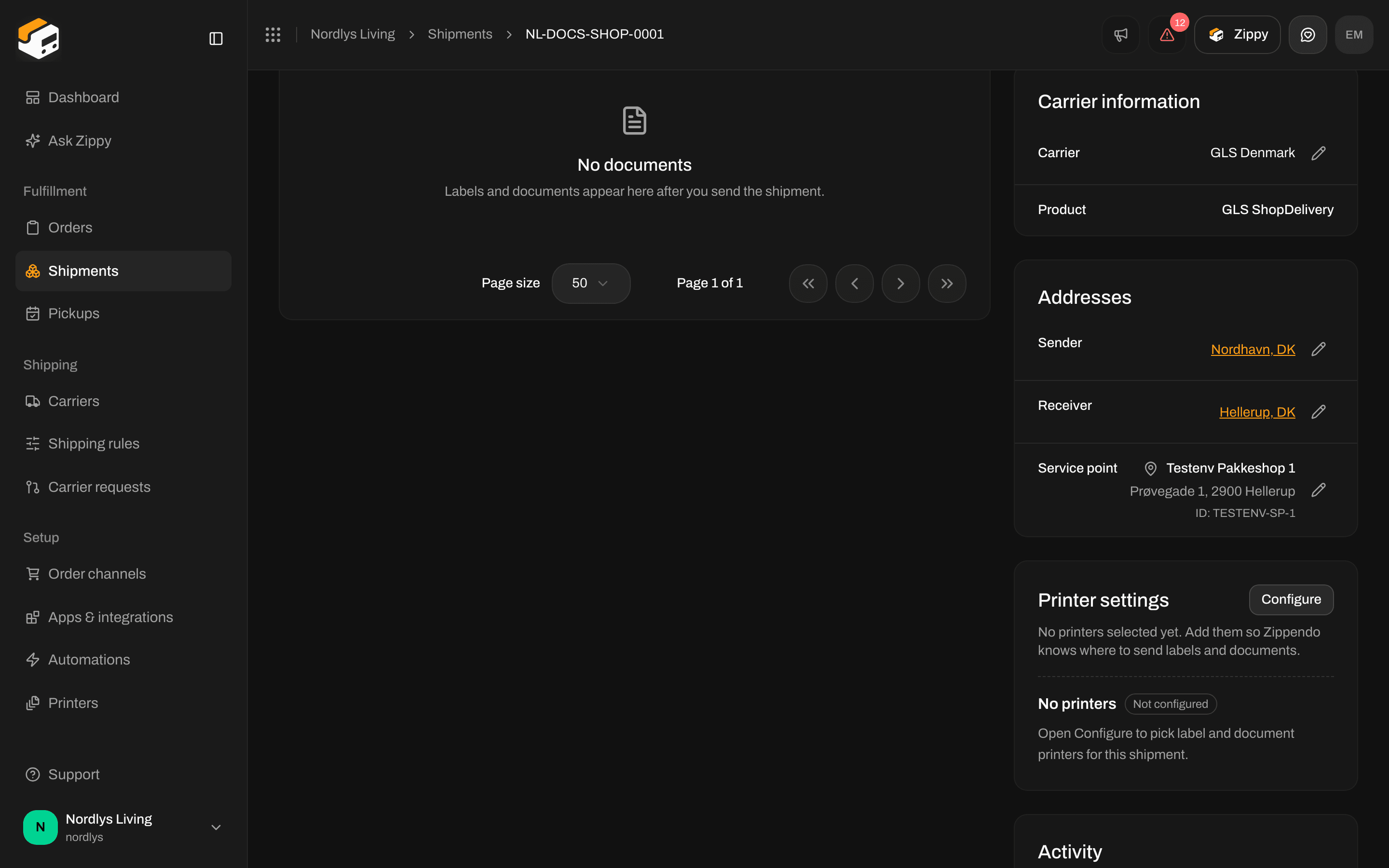
Addresses on a shipment, with the service point's name, address, number and the pencil
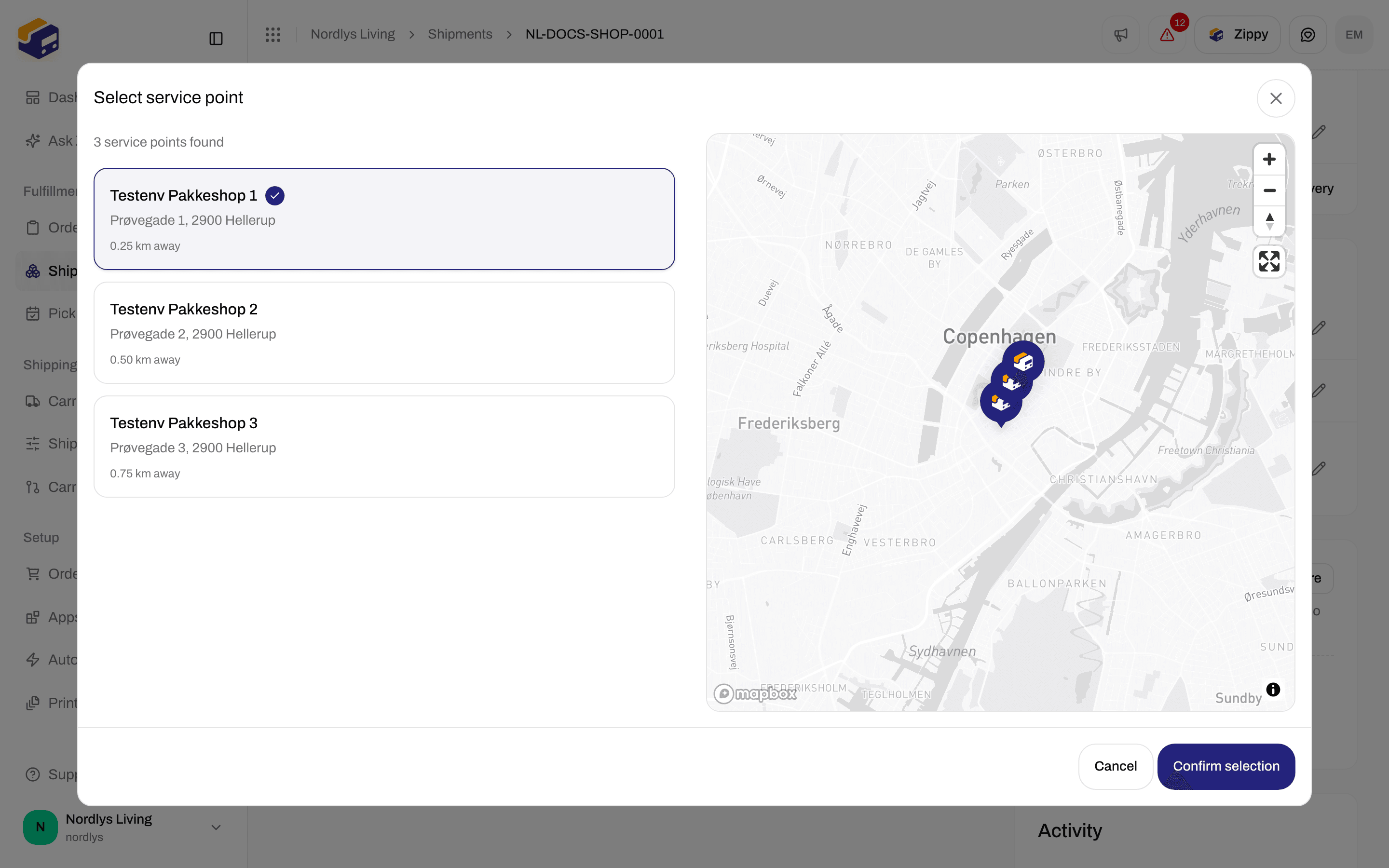
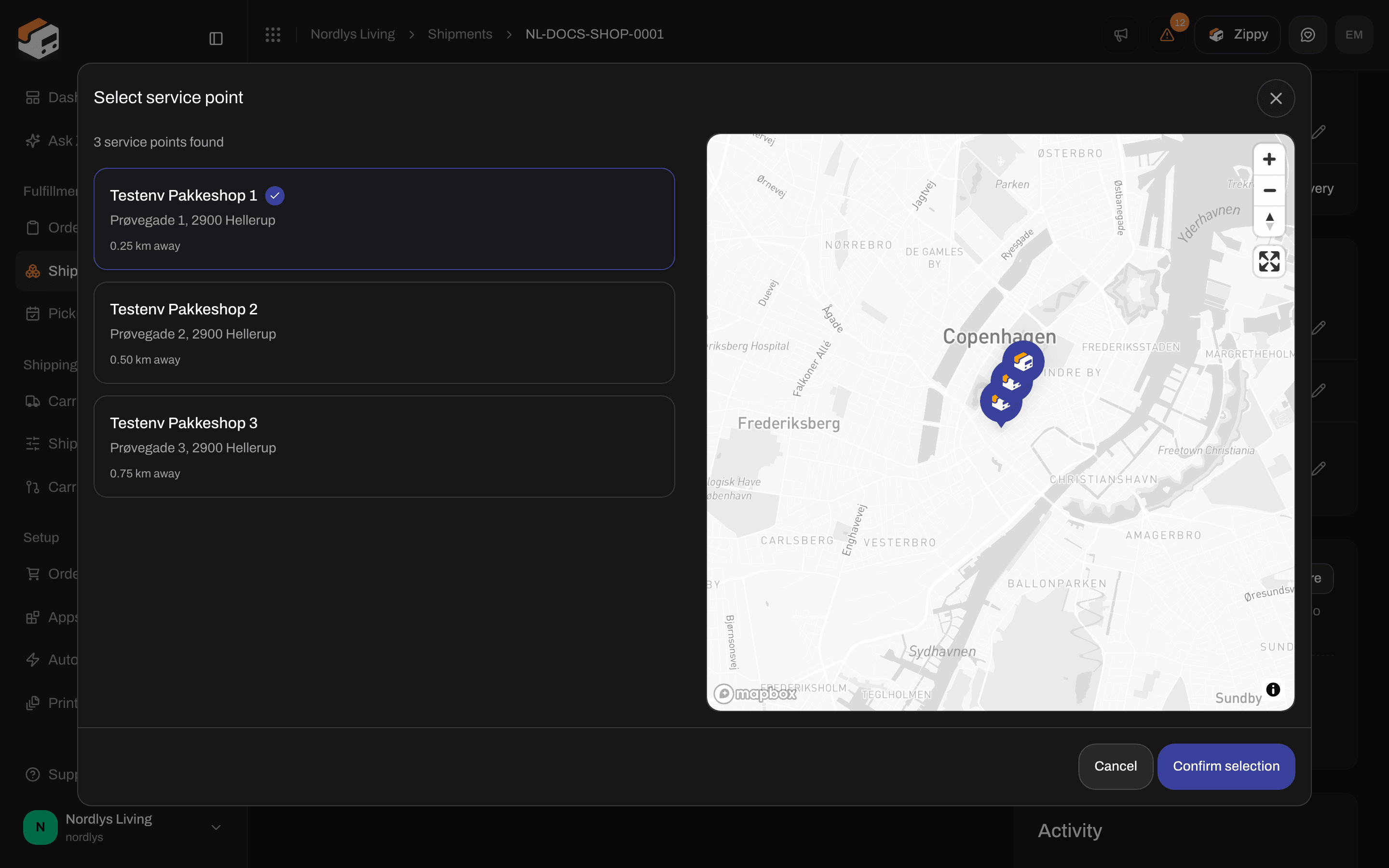
Changing the service point on a pending shipment. Confirm selection saves it.
Messages
A shipment with a service point product cannot be sent without a service point. See Send a shipment.
You are done when Service point * shows a name and address, or when Addresses on the pending shipment lists a Service point. Then send the shipment to get the label.