

You do not pick a sender address on this form. Add your addresses under the organization menu → Manage → Addresses. You choose the sender address on each shipment or in a shipping rule.
Before you start
- You need an API key from Instabee for your Porterbuddy agreement. Zippendo cannot create this key for you.
- Learn more on the card opens porterbuddy.com. It is Porterbuddy’s public website, not the place to get a key.
- Budbee uses the same kind of key. See Connect Budbee.
Connect Porterbuddy
1
Open All carriers
In the sidebar, click Carriers, then open the All carriers tab.
2
Find Porterbuddy
On the Porterbuddy card, click Connect.
3
Fill in the form
The Connect carrier window opens. Enter a Carrier name and your API key. Test mode is under Optional fields.
4
Connect the carrier
Click Connect. You see “Carrier connected”, and the carrier appears on the My carriers tab.
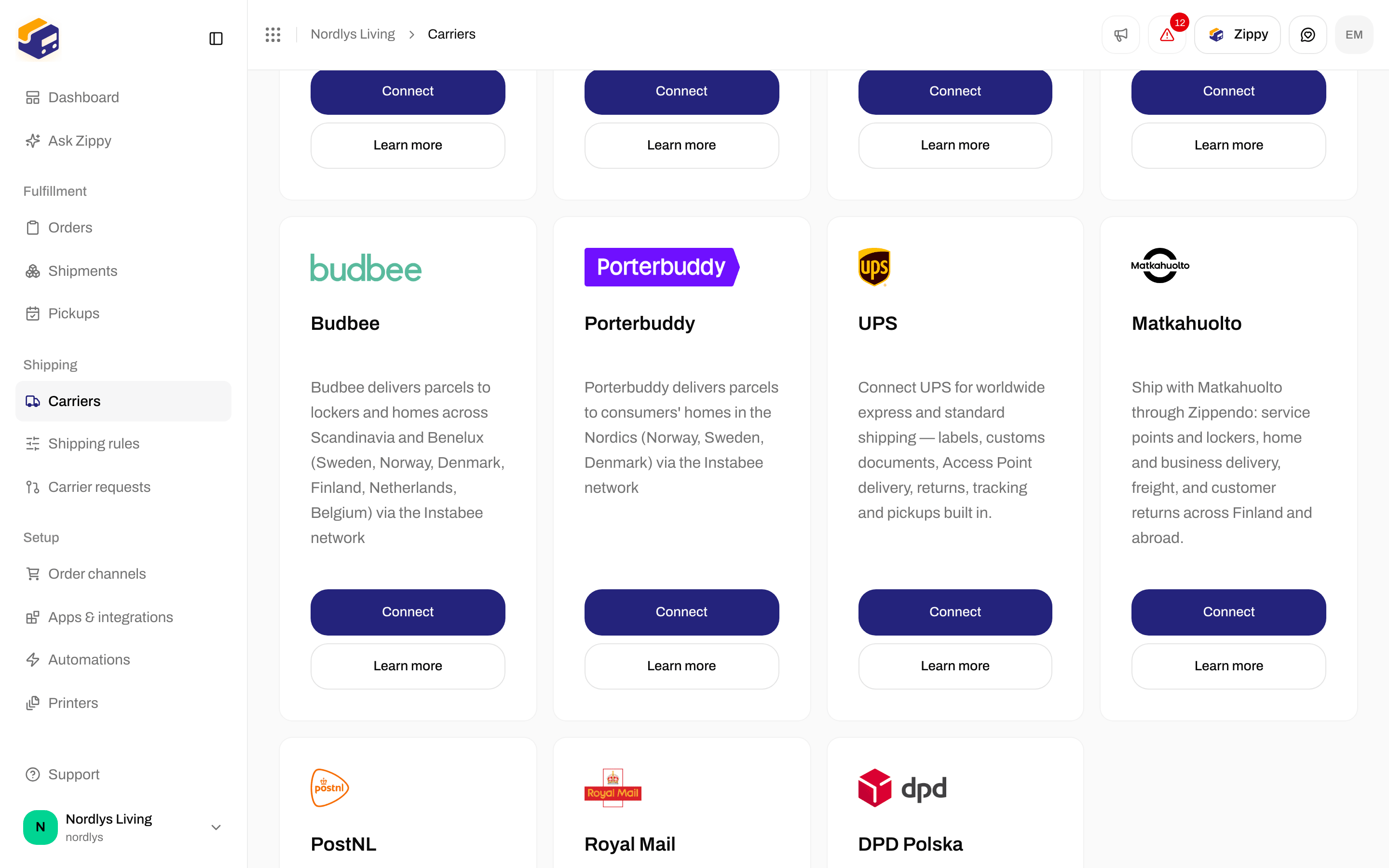
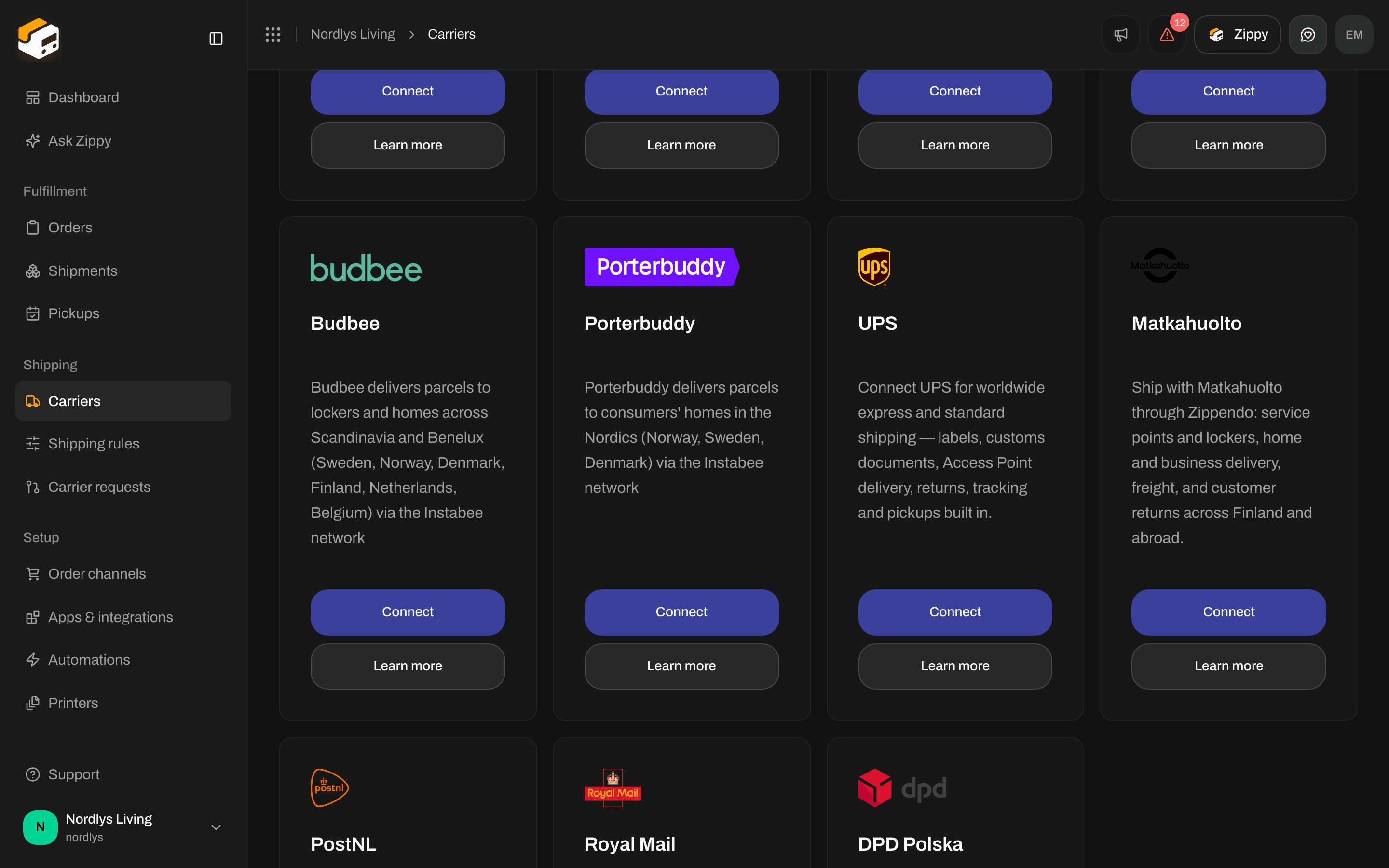
The Porterbuddy card on the All carriers tab
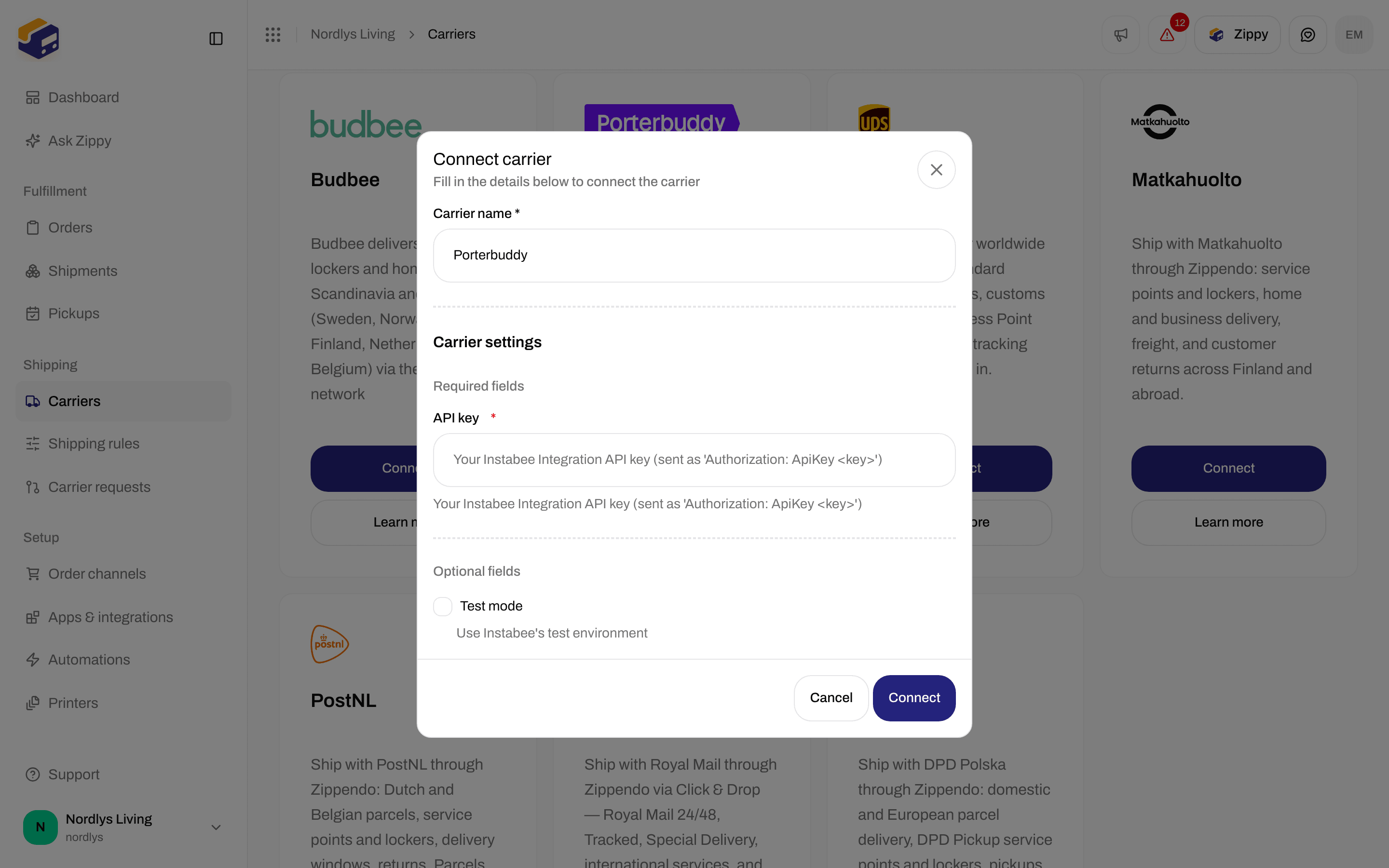
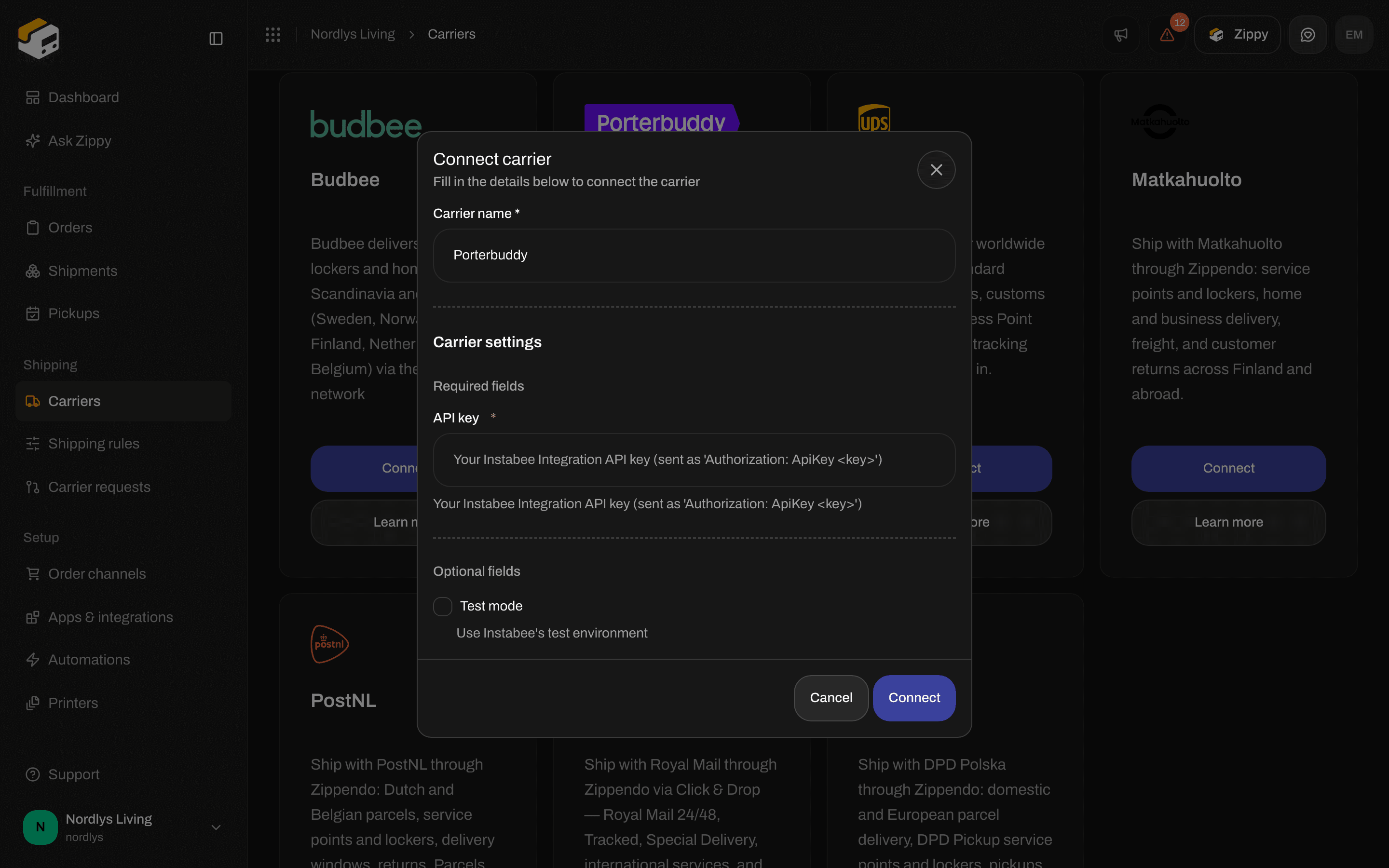
Enter your API key. Test mode is optional.
Fields on the form
Connect does nothing until Carrier name and API key have a value.
Test mode sends your shipments to Instabee’s test system, so no real shipments are created. The test system needs a test key from Instabee: a live key does not work there, and a test key does not work for real shipments. Leave Test mode off for real shipments. See Test mode.
After you connect
The carrier appears on My carriers with a Connected badge. You choose the product on each shipment or in a shipping rule, not on this form. See Carrier products and services.
Both products ship within and between Norway, Sweden and Denmark, from 0.1 to 20 kg. Porterbuddy never delivers to a service point, so you do not pick one.
- Porterbuddy is not available under Pickups. See Schedule a pickup for the carriers that are.
- Instabee sends tracking updates to Zippendo once it has turned them on for your account. Send Instabee the details under Tracking webhook on Edit carrier. See Turn on tracking for Instabox, Budbee and Porterbuddy on Carrier tracking webhooks.
- Porterbuddy does not create customs documents. If the shipping rule has Generate proforma invoice or Generate commercial invoice turned on, Zippendo creates that document. See Customs and documents.
Change or remove the connection
To change it, open Carriers → My carriers and click Edit carrier on the card. The Edit carrier page has two sections:- General: Carrier name, and Brand if your organization has brands.
- Carrier settings: API key and Test mode.