

What you need from Instabox
- An Instabox shipping agreement.
- An Instabee Integration API key for that agreement. Instabee gives you the key. Zippendo cannot create it for you.
Connect Instabox
1
Open All carriers
In the sidebar, click Carriers, then the All carriers tab.
2
Click Connect on Instabox
Find the card named Instabox, without “Legacy API” and without a Deprecated badge, and click Connect. (Learn more opens instabee.com.)
3
Fill in the form
The Connect carrier window opens. Carrier name is already filled in with “Instabox”. Paste your key into API key. Test mode is under Optional fields.
4
Click Connect in the window
You see Carrier connected. Instabox now appears on My carriers marked Connected.
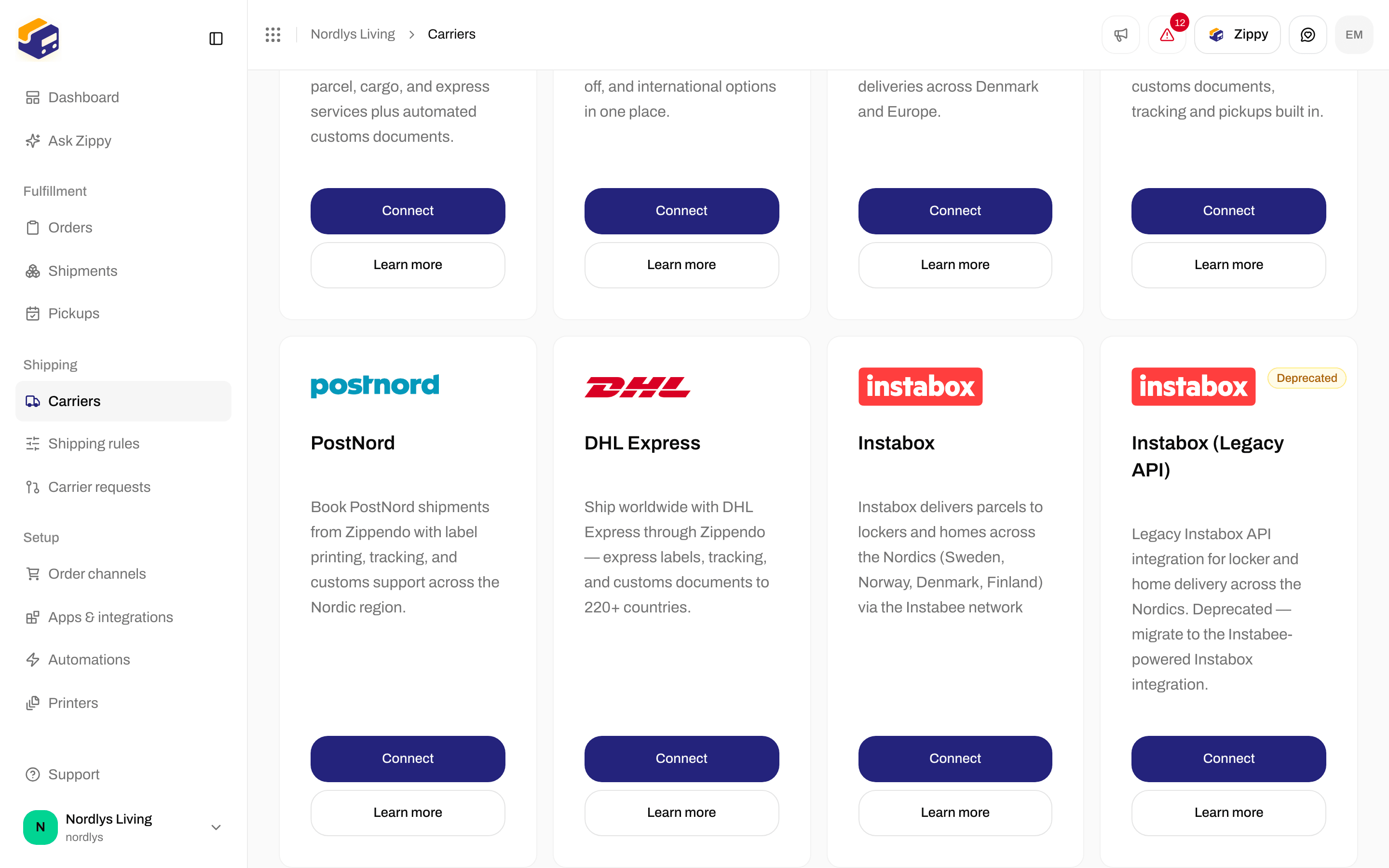
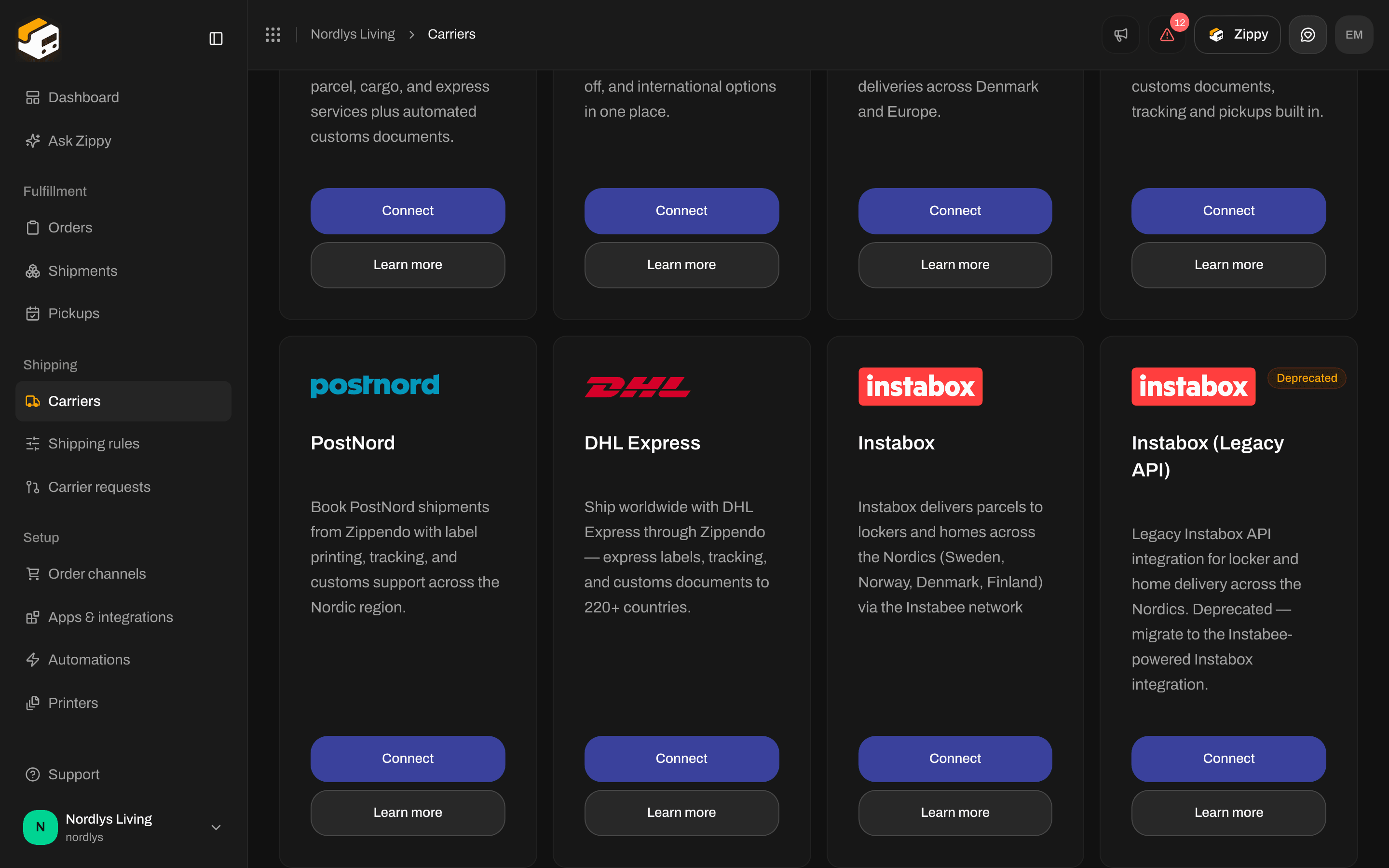
The Instabox card on All carriers
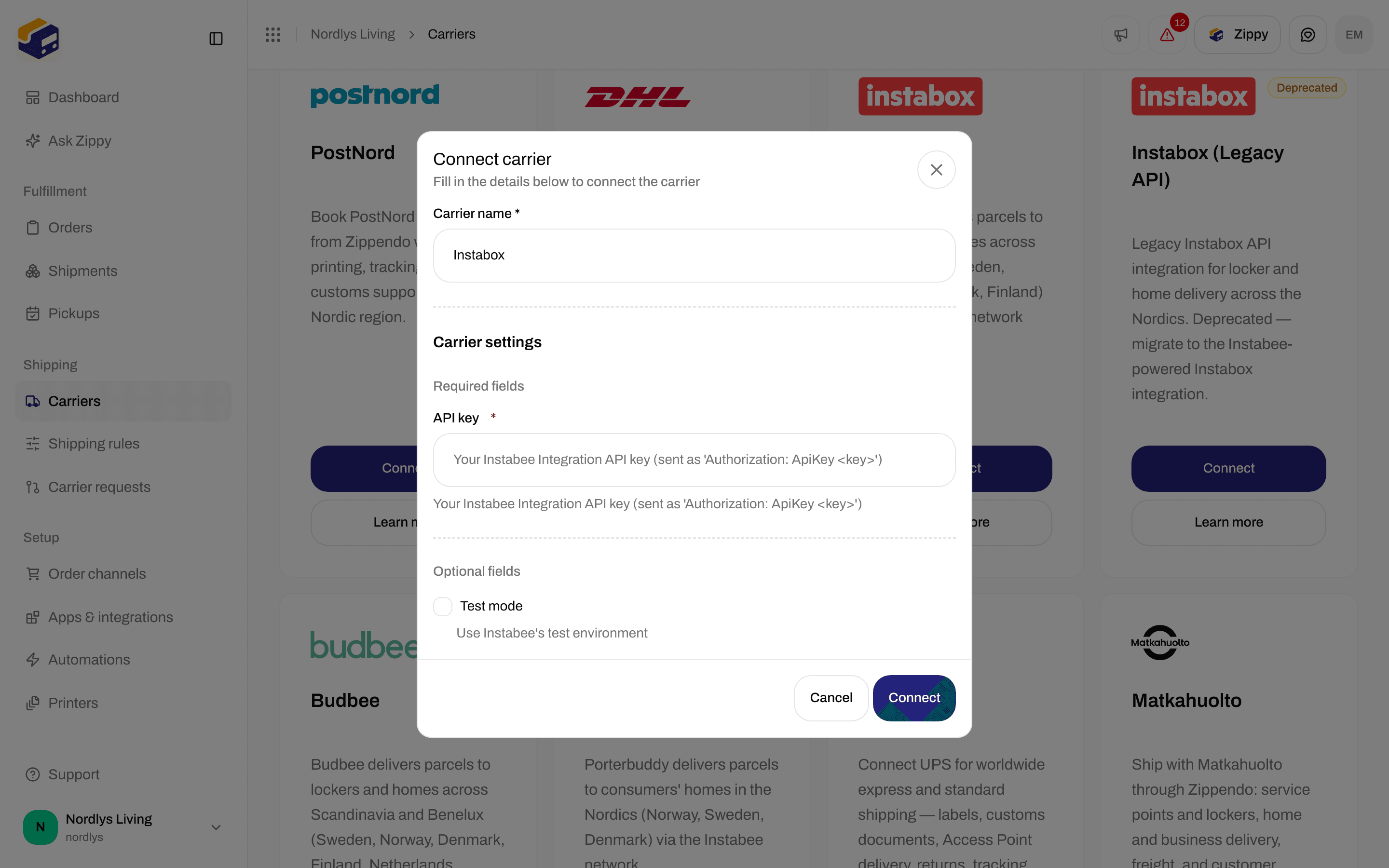
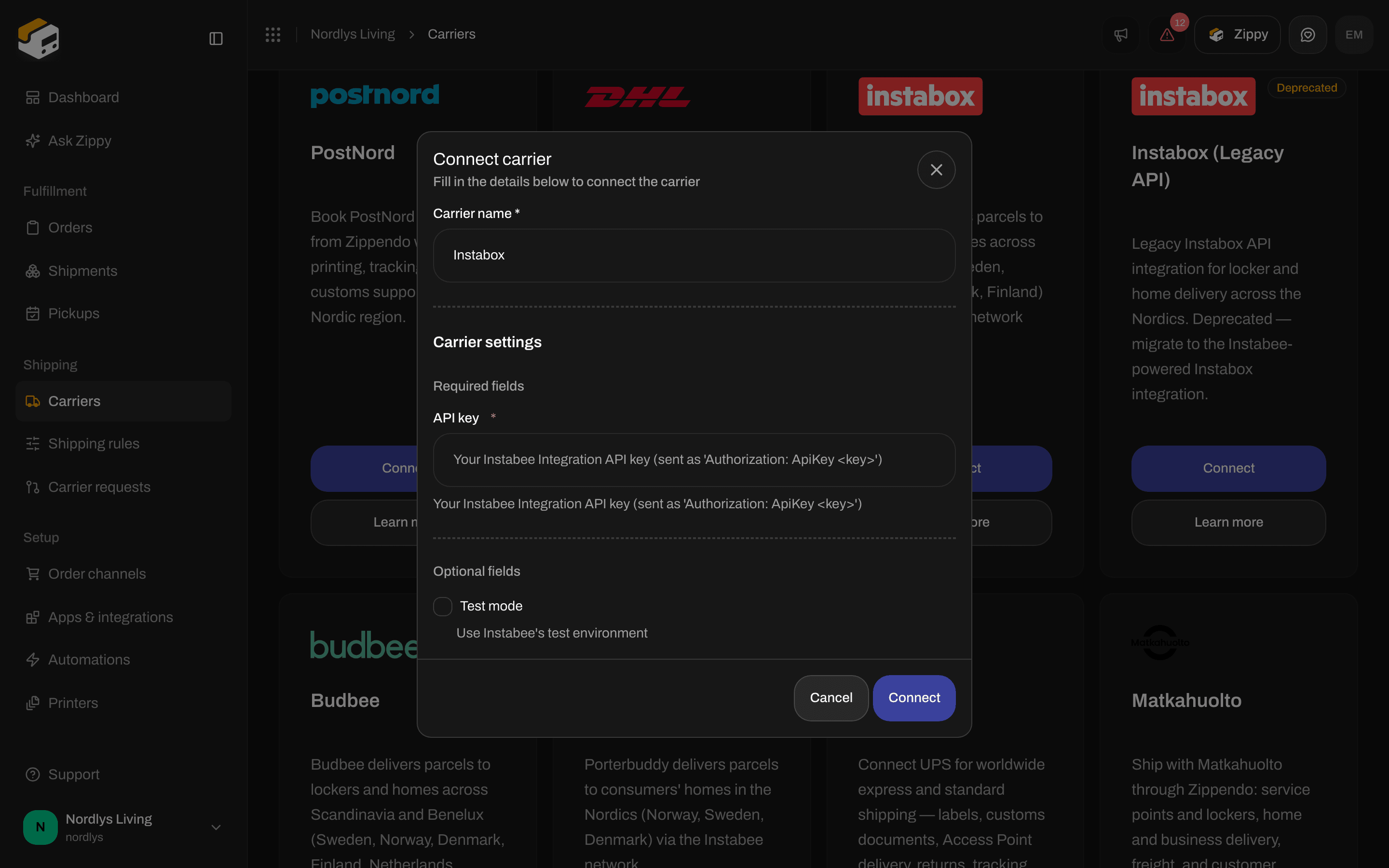
Connect carrier for Instabox - API key and Test mode
What to enter
There is no client ID, client secret or customer number on this form. Those belong to Instabox (Legacy API).
Test or live
With Test mode on, Zippendo sends your shipments to Instabee’s test system instead of the real one. You use the same API key. Turn it off before you ship real orders. More in Test mode.After you connect
You choose an Instabox product when you create a shipment or a shipping rule. See Carrier products and services. Each parcel can weigh 0.1 to 20 kg.
Instabox has no home return product.
- Lockers: for Locker delivery and Locker return, choose the locker in the Service point section of the shipment before you send. See Pick a service point.
- Pickups: Instabox is not available under Pickups.
- Tracking: tracking updates come from Instabee once it has turned them on for your account. Send Instabee the details under Tracking webhook on Edit carrier. See Turn on tracking for Instabox, Budbee and Porterbuddy on Carrier tracking webhooks.
- Customs: Instabox does not create customs documents in Zippendo.
If the connection fails
Zippendo saves your key without checking it. A mistake shows up the first time you send a shipment.
More help: Carrier authentication failures.
Change or remove the connection
- Change: on My carriers, click Edit carrier. Update the fields under Carrier settings and click Save.
- Remove: on the same page, click Delete, type the carrier name in capital letters (for example
INSTABOX) and click Delete. Shipping rules that use this carrier are deleted too. Shipments you already sent keep their labels and tracking numbers.