

Before you start
You need a Klaviyo private API key. Create it in your Klaviyo account under Settings → API keys. Klaviyo only lets an Owner or Admin create one. Let the key create events, because that is what Zippendo does with it.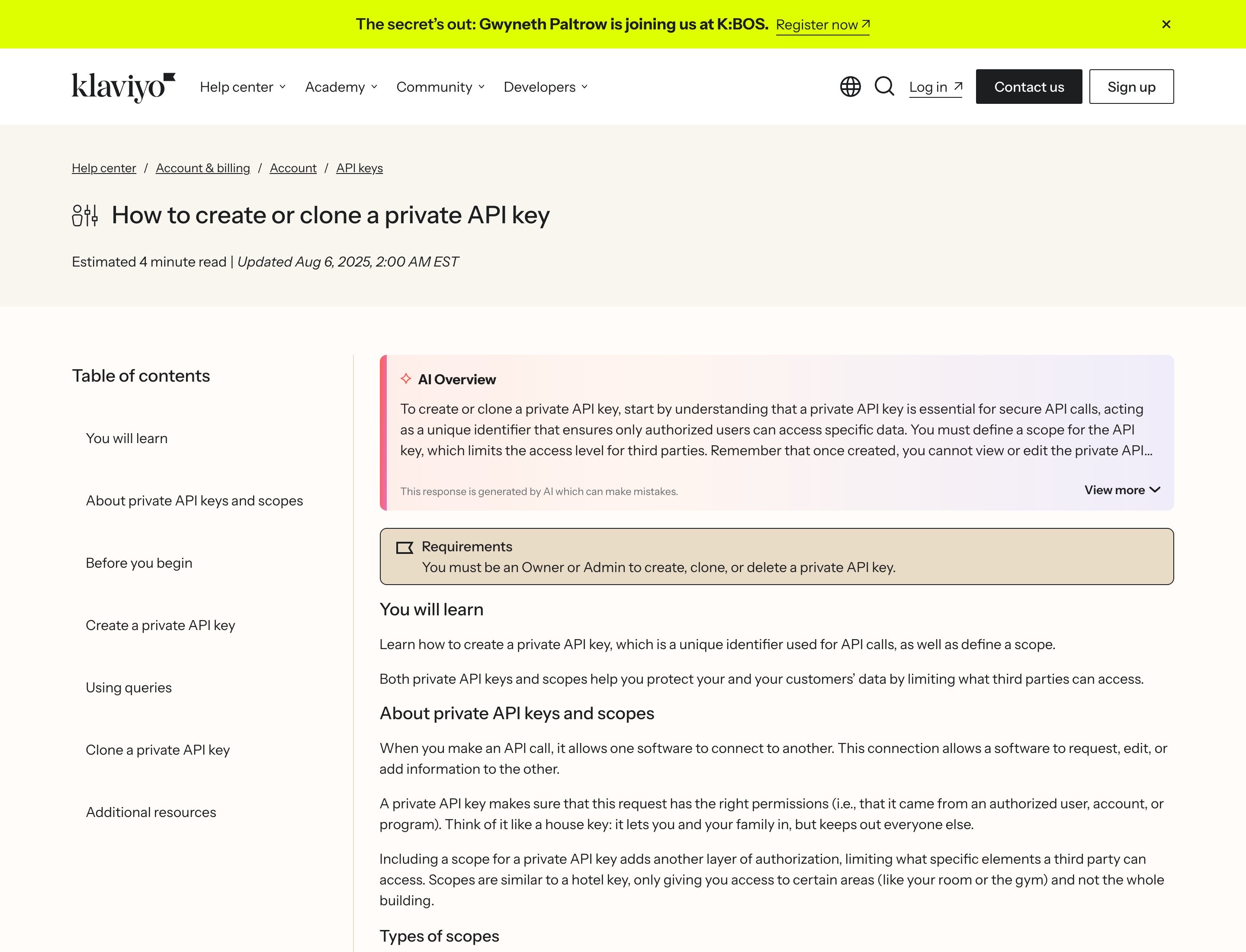
Klaviyo's help article on creating a private API key
Connect Klaviyo
1
Find Klaviyo in the catalog
Click Apps & integrations in the sidebar, then Catalog. Klaviyo is under Apps. Click Connect, or Add connection if you already have one.
2
Review access
Read what Zippendo will do with the connection and click Continue.
3
Fill in the connection details
Type a Connection name, such as “Klaviyo webshop”, and paste your key into Private API key. The key is hidden as you type.
4
Pick the events
Tick the events Klaviyo should receive, or click Select all. See the list below.
5
Click Connect
You see Integration connected, and Klaviyo shows on the Connected tab.
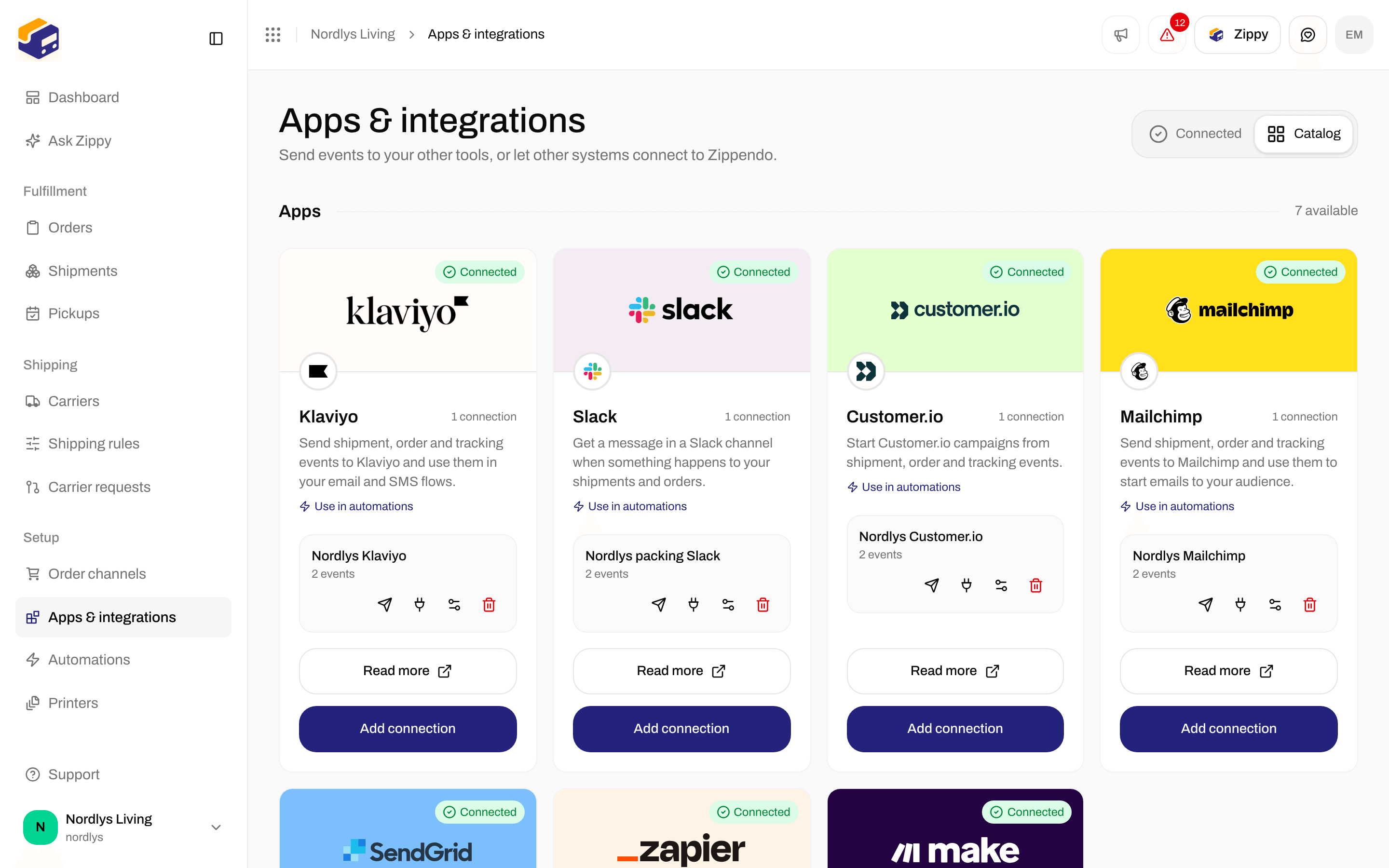
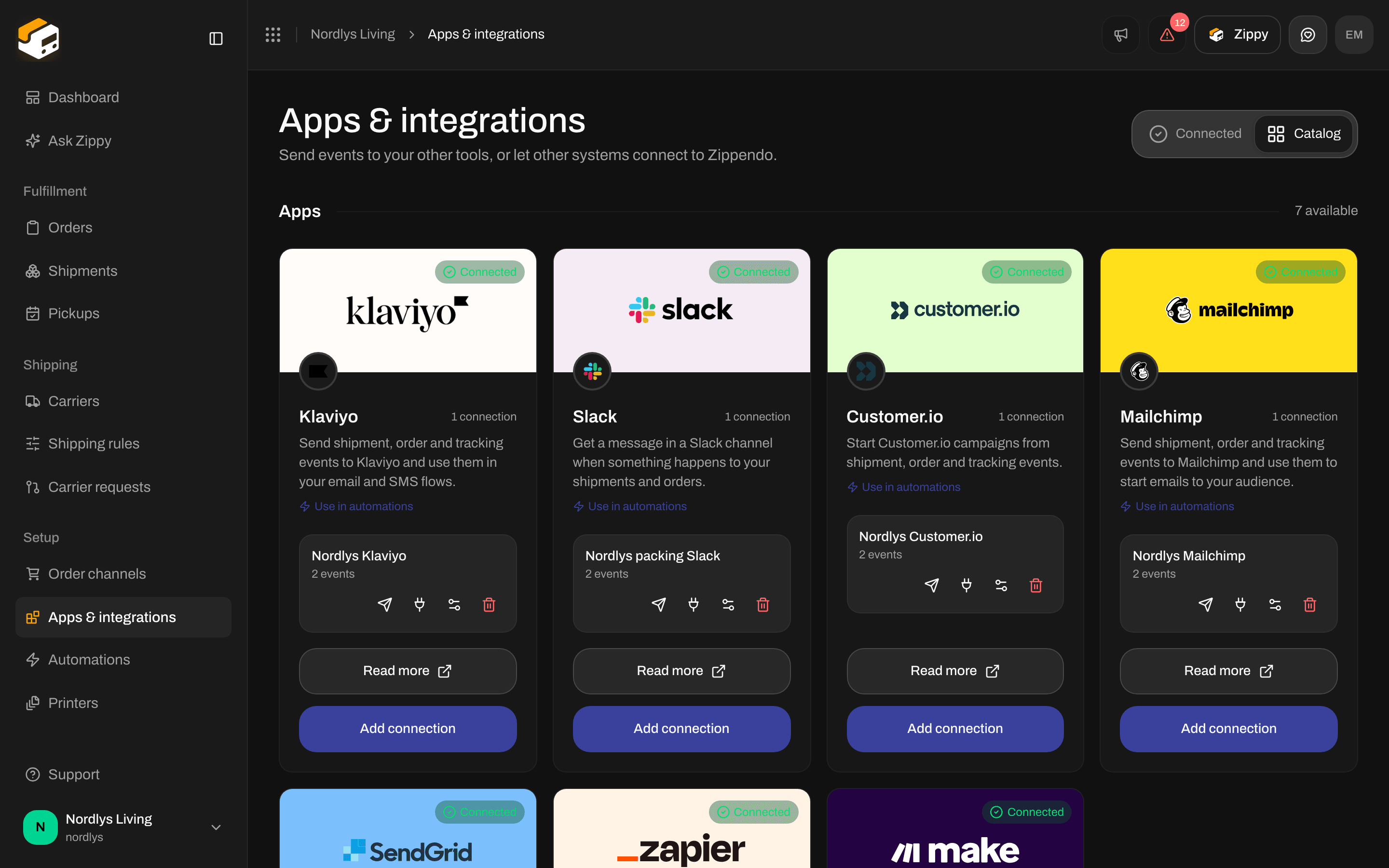
The Klaviyo card in the catalog
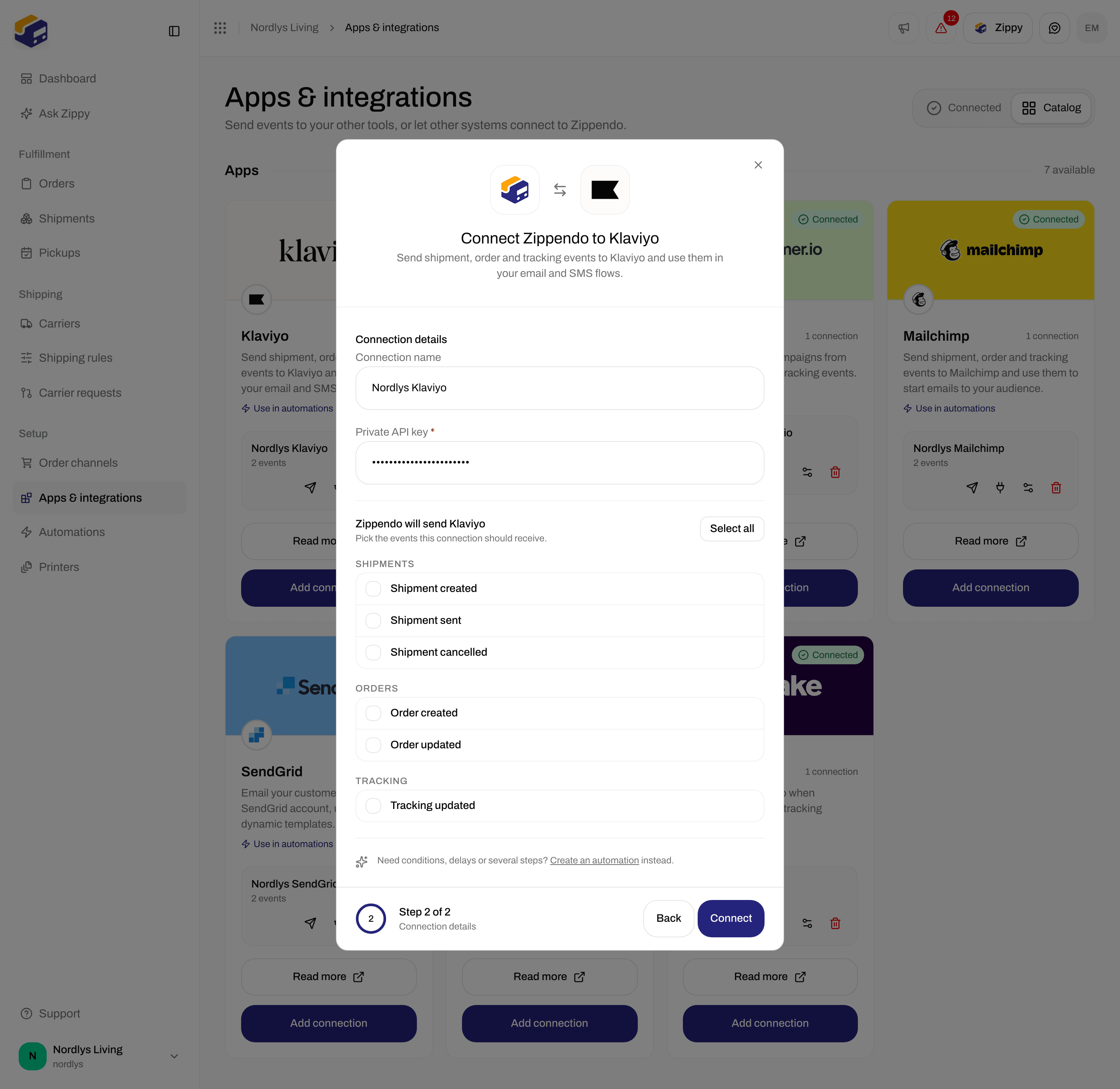
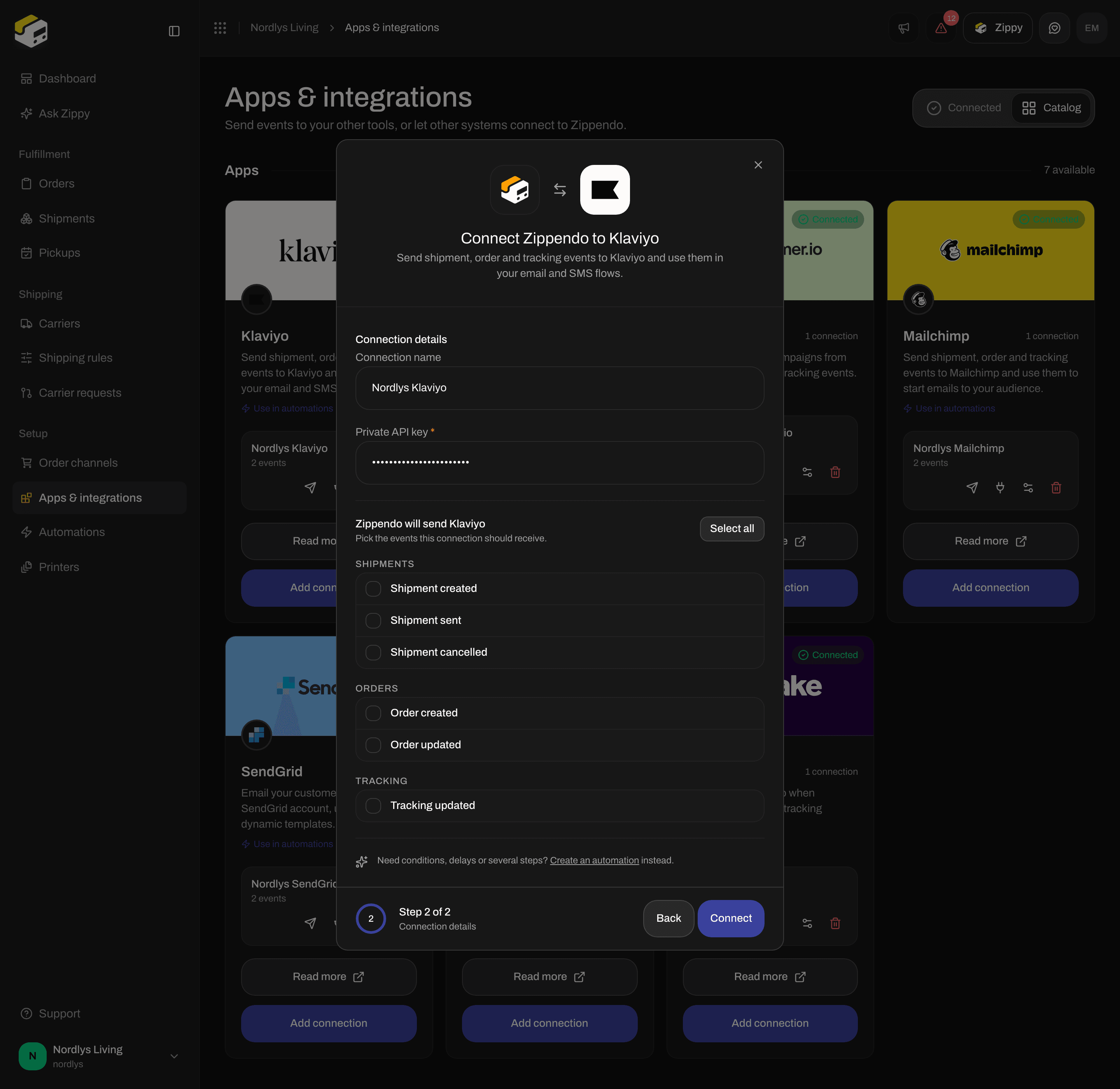
Connecting Klaviyo: a name, the Private API key and the events
Events Klaviyo can receive
In Klaviyo each event shows up as a metric, such as “Shipment created” or “Tracking updated”. Shipment sent arrives as “Shipment Dispatched”. Klaviyo files each event under a profile, using the customer’s email or phone number.
To give an event a different metric name, send it from an automation and fill in Custom event name (see below). The connection window has no field for it.
Check the connection
Click the paper plane on the connection row (Send test event), then open the delivery log (the plug icon). A test event has no customer in it, so Klaviyo may refuse it even when your key is right. If the row shows 401 or 403, Klaviyo refused the key: create a new one and paste it in. The surest check is a real event: send a shipment and look for a green tick.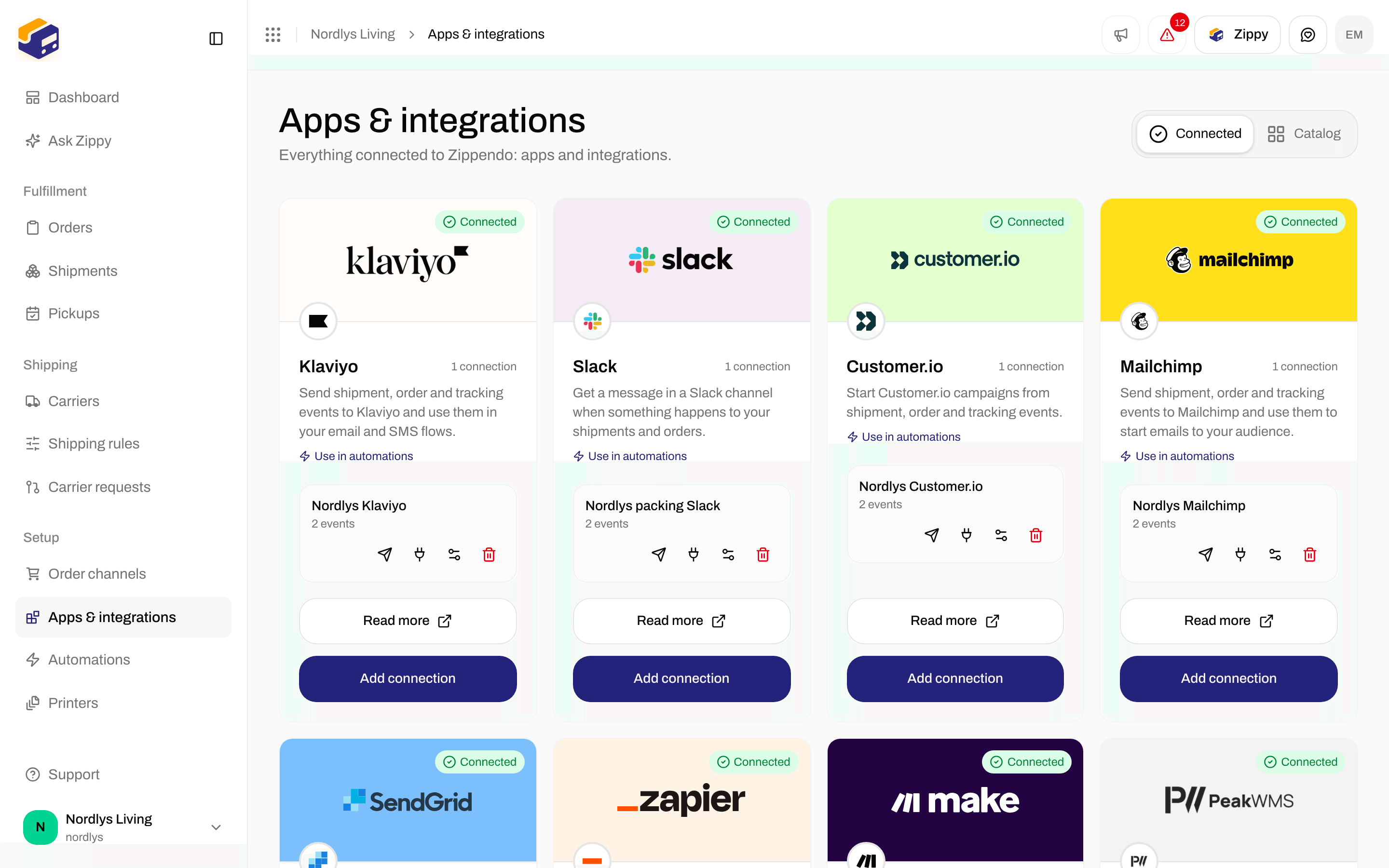
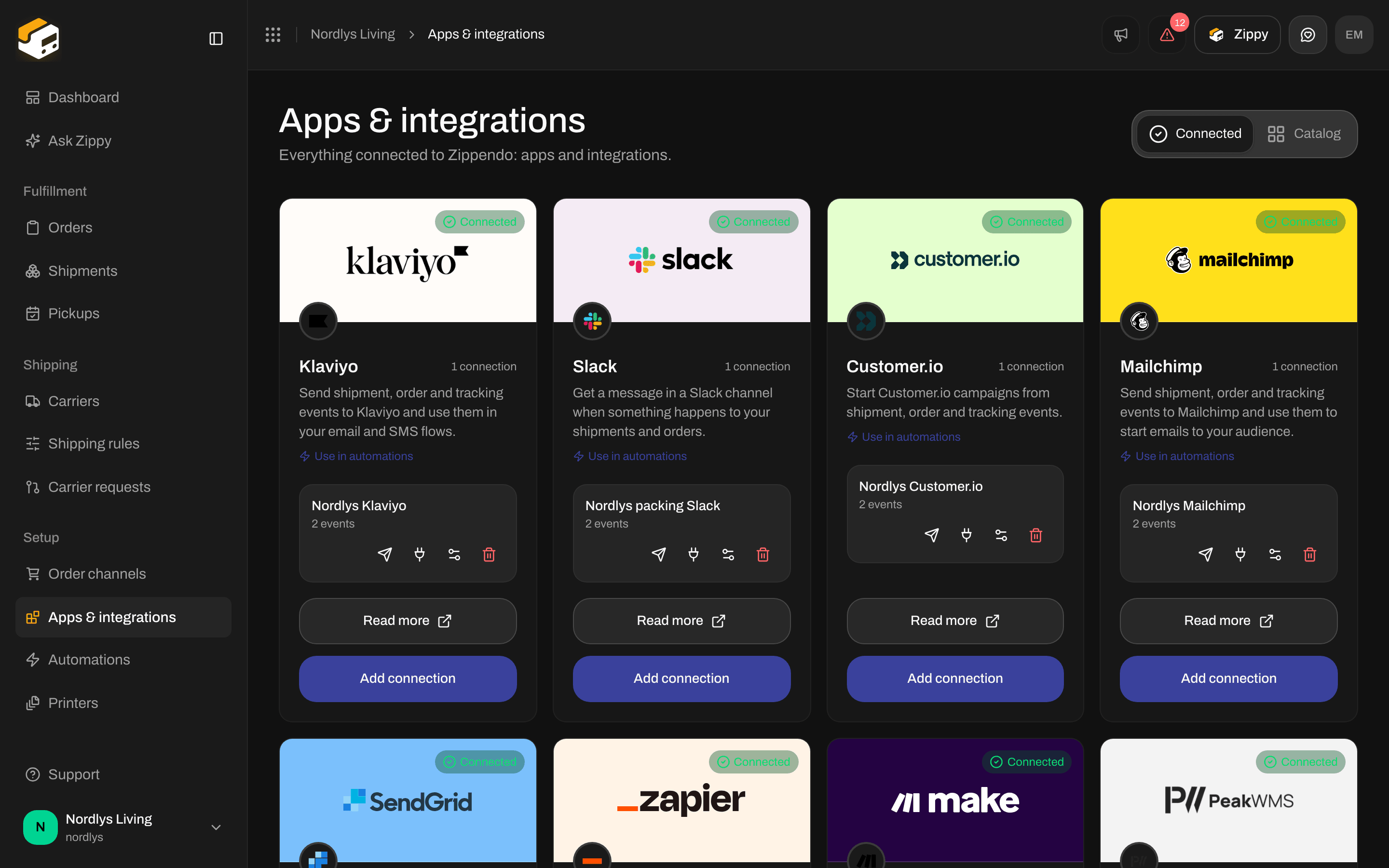
A Klaviyo connection on the Connected tab
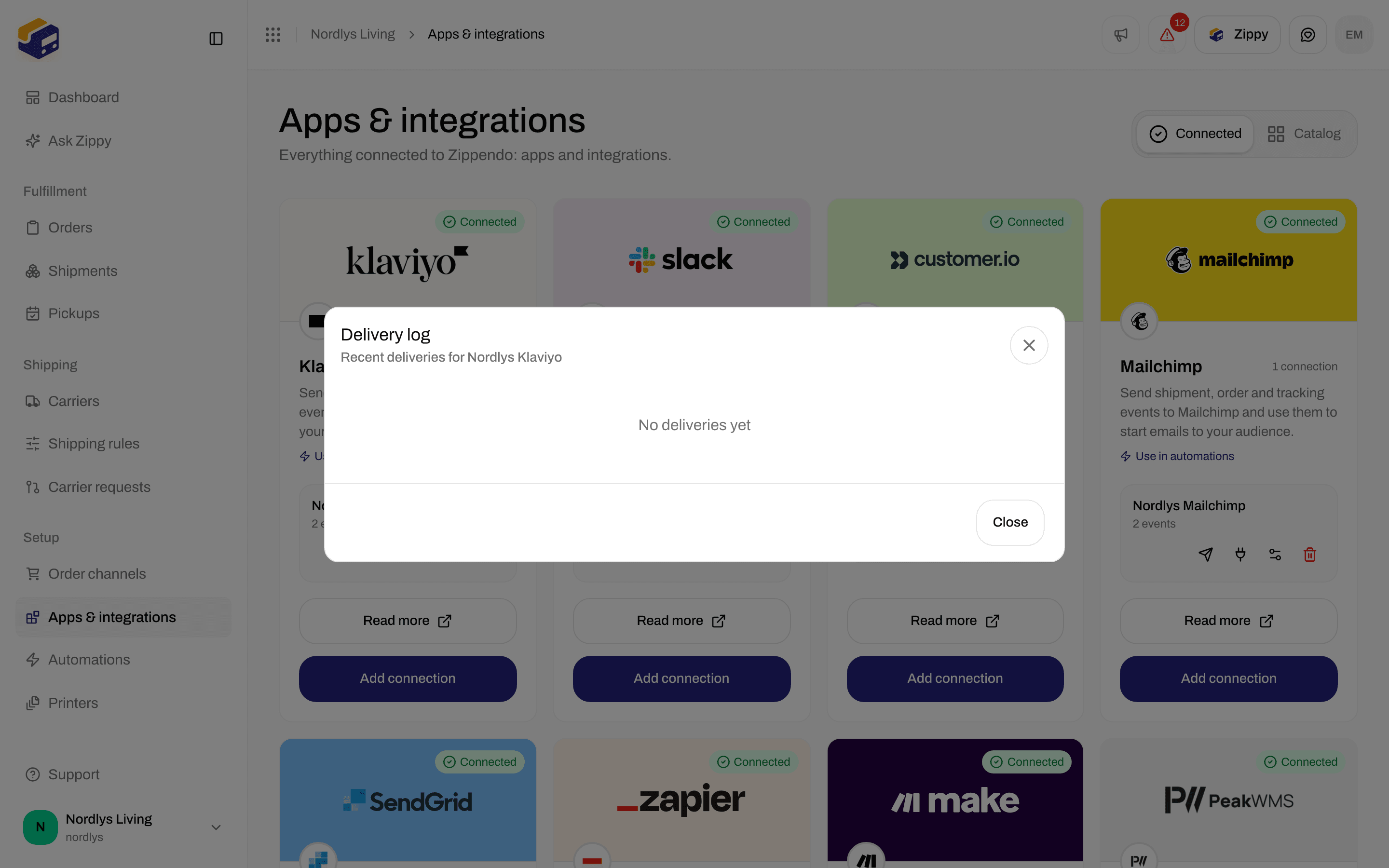
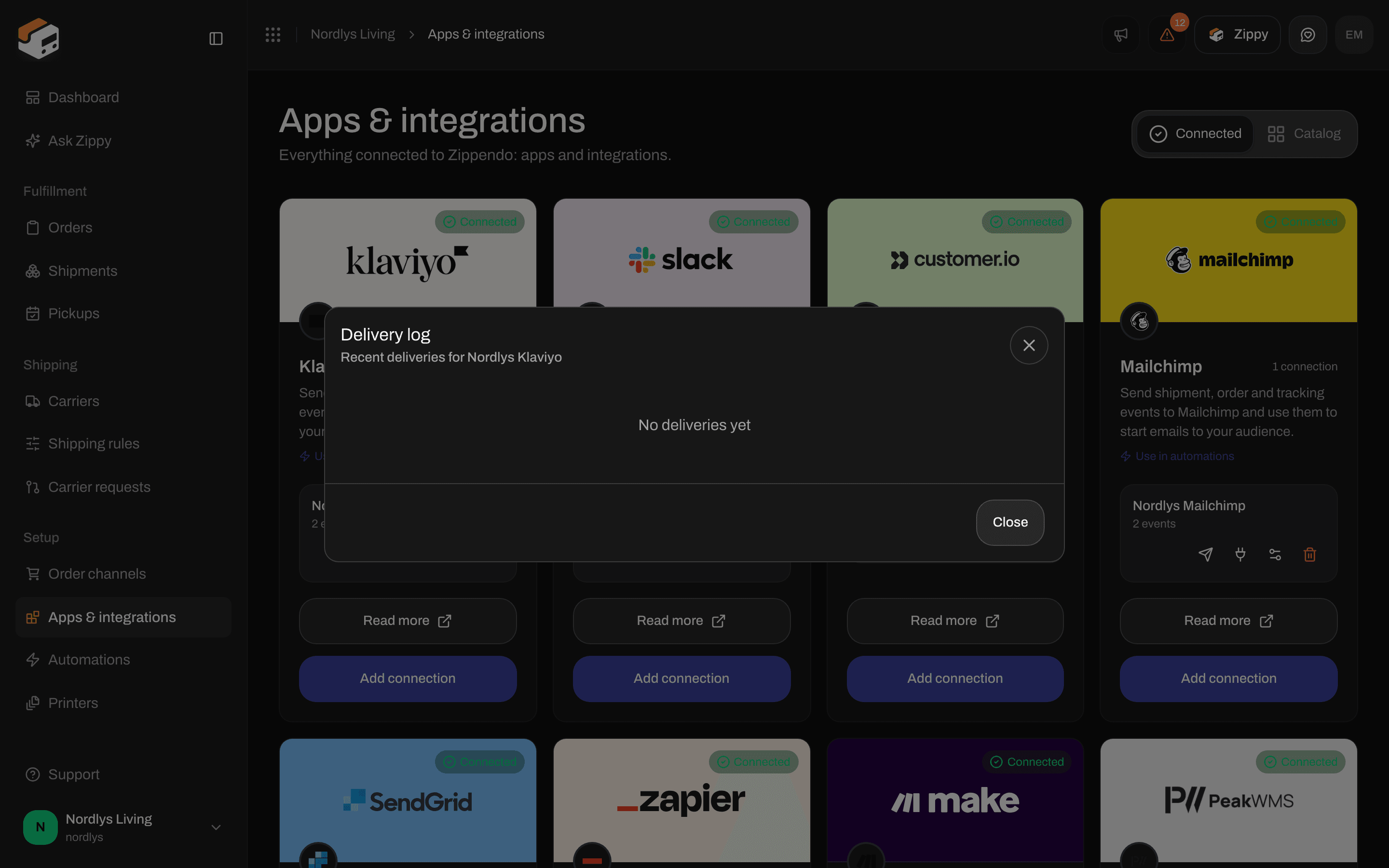
The delivery log before the first event
Change the key or disconnect
Click the sliders icon to open Edit your Klaviyo connection. Leave Private API key empty to keep the stored key, or paste a new key to replace it. Click Save changes.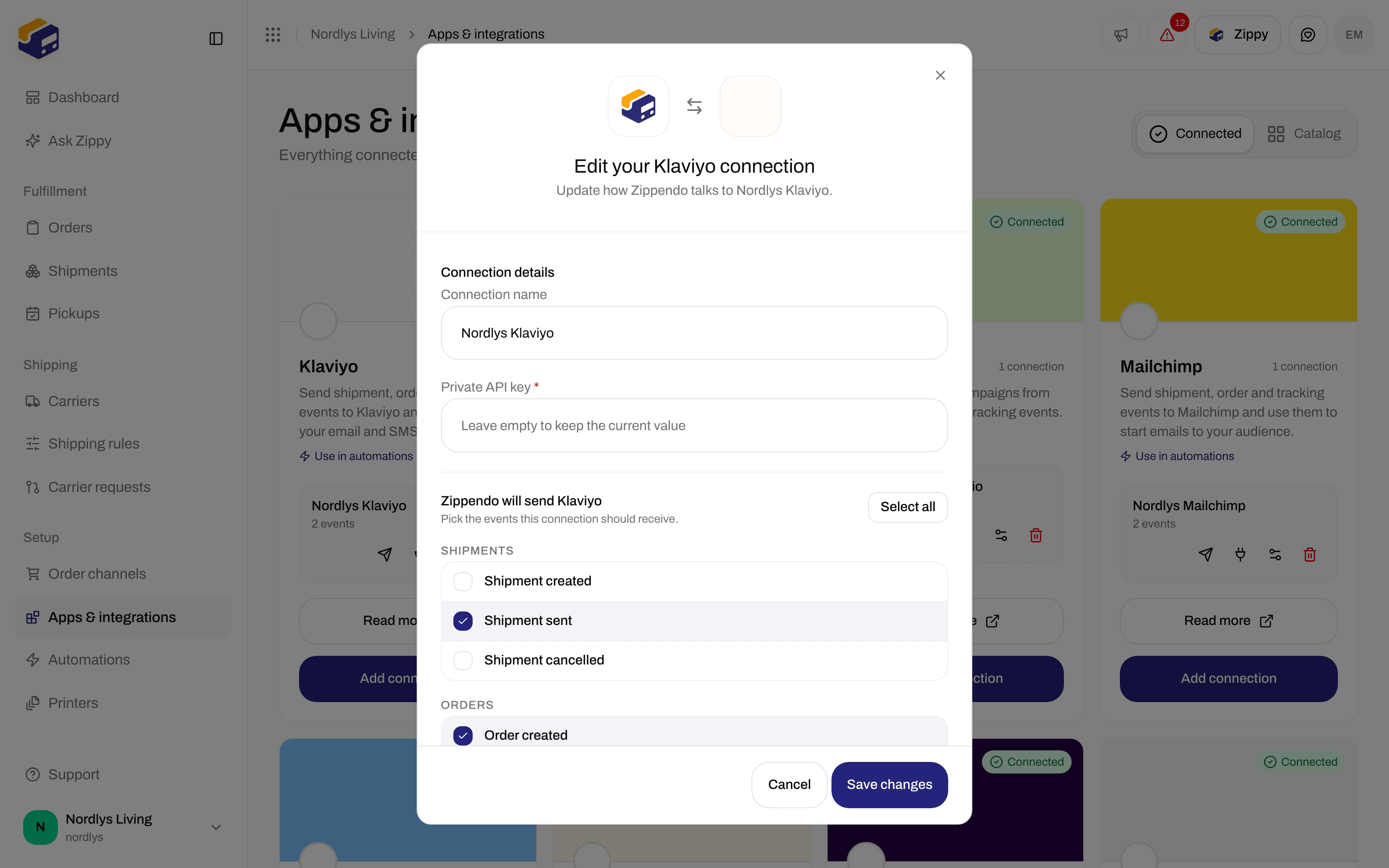
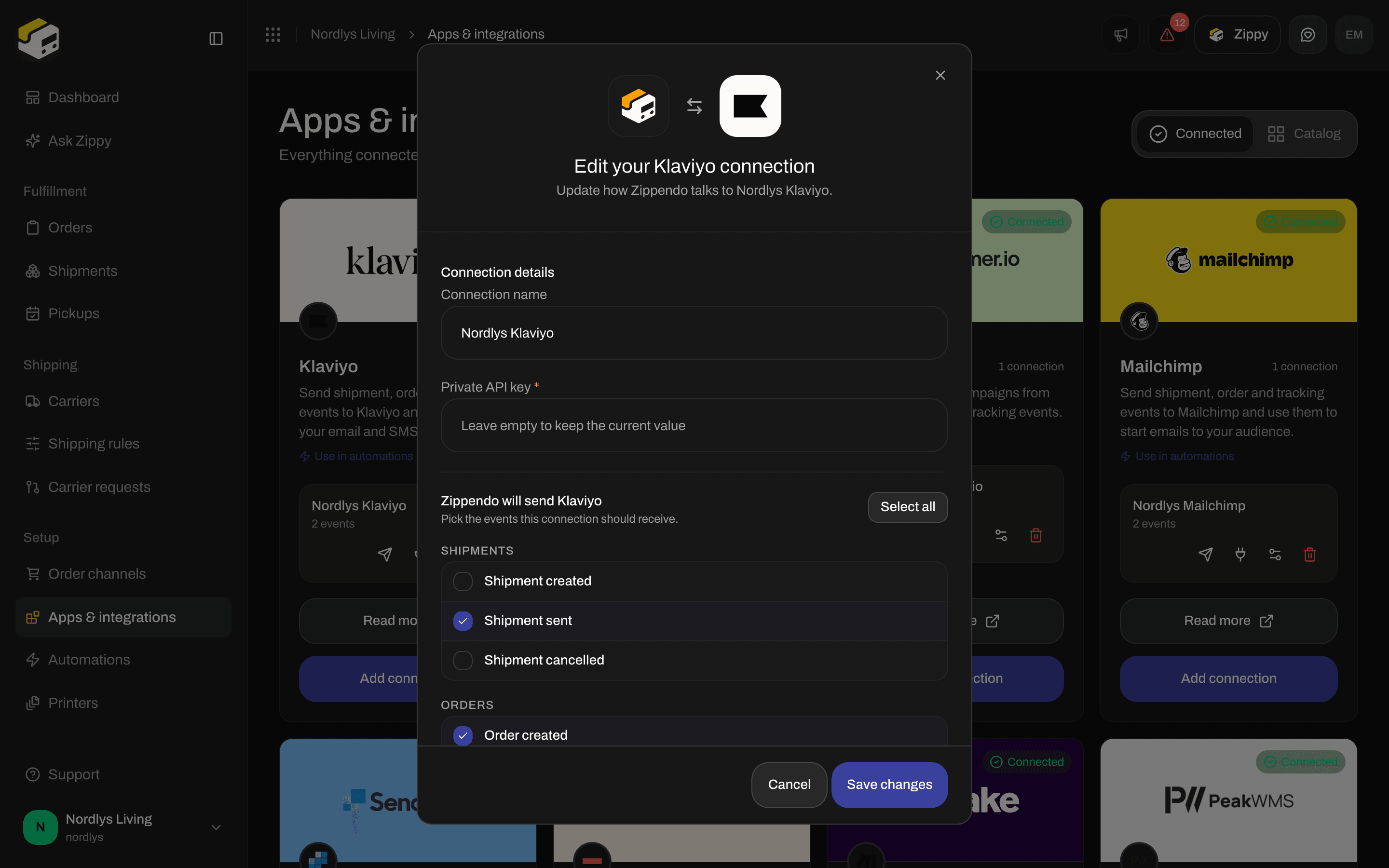
Edit a Klaviyo connection
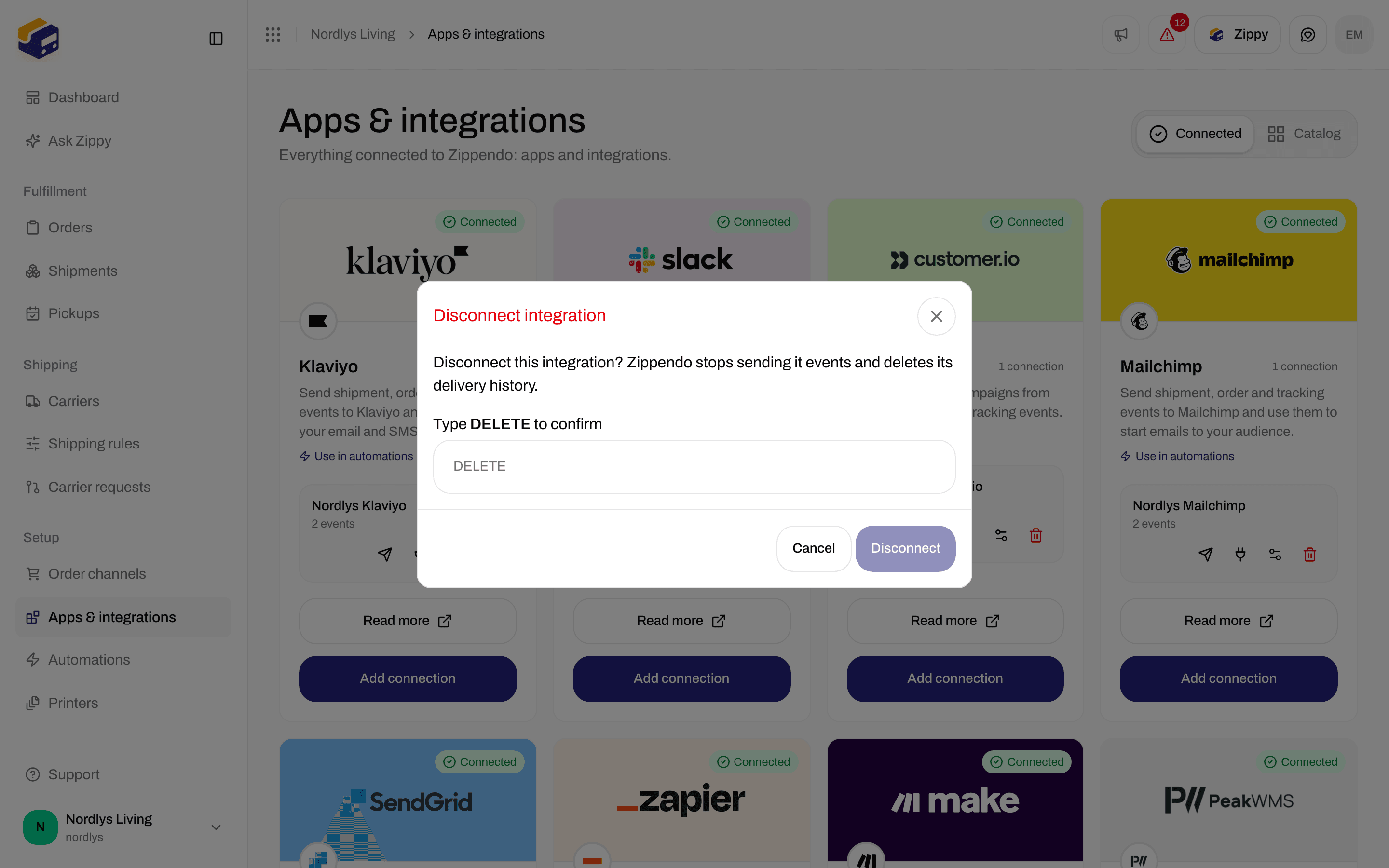
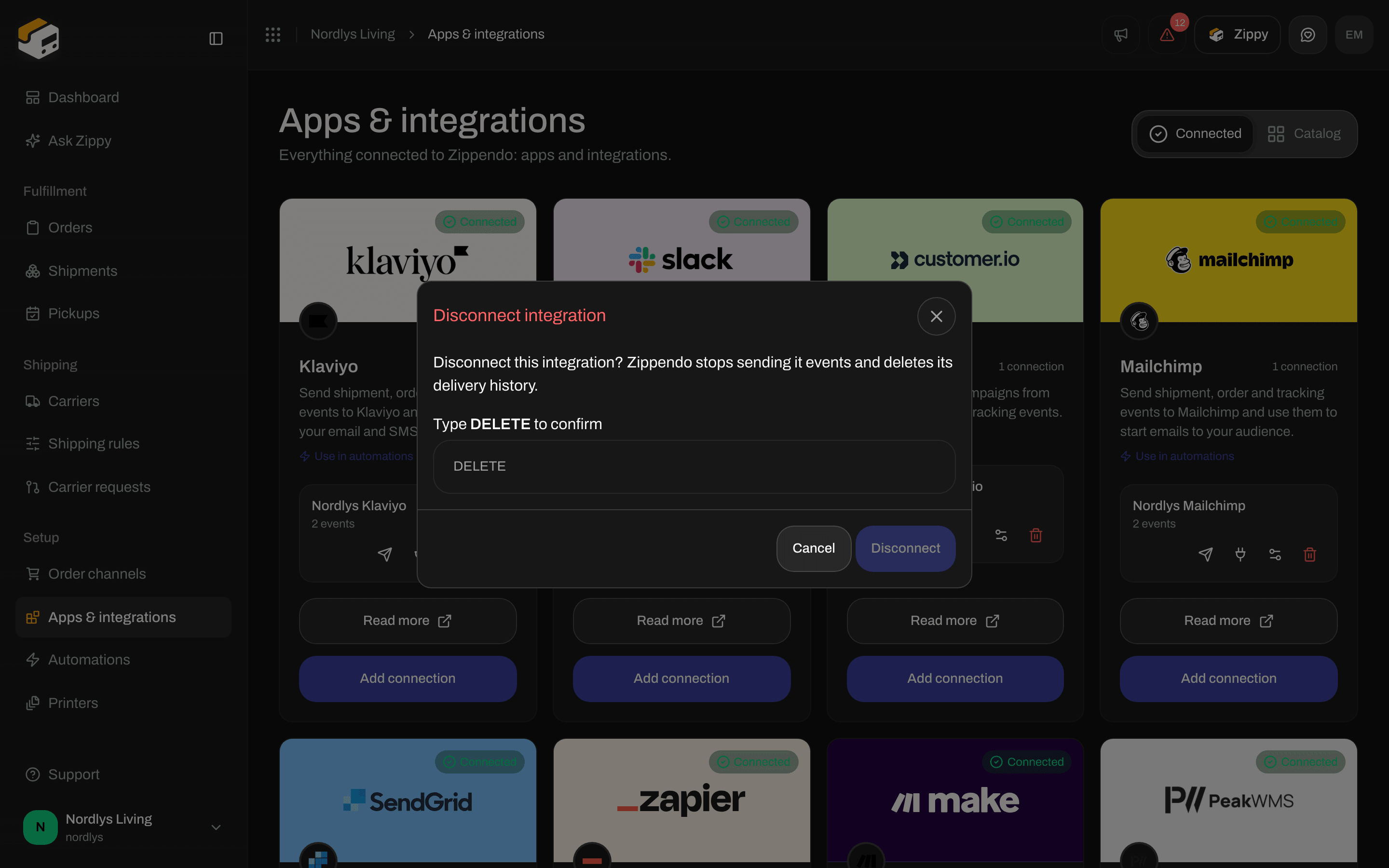
Type DELETE to disconnect
Use Klaviyo in an automation
In Automations, add the step Send Klaviyo event. It sends the event that started the automation to Klaviyo, but only when your conditions match.
See Automations for building the rest of the automation.
Related
- Connect an integration - test, delivery log, edit and disconnect for every app
- Klaviyo - the longer guide
- Integrations troubleshooting
- Automations
- Connect a carrier or integration