

Where to find it
- New carrier: in the sidebar, click Carriers → All carriers → Connect on the carrier. Test mode is under Optional fields in the Connect carrier window.
- Connected carrier: click Carriers → My carriers → Edit carrier. Test mode is in the Carrier settings section.
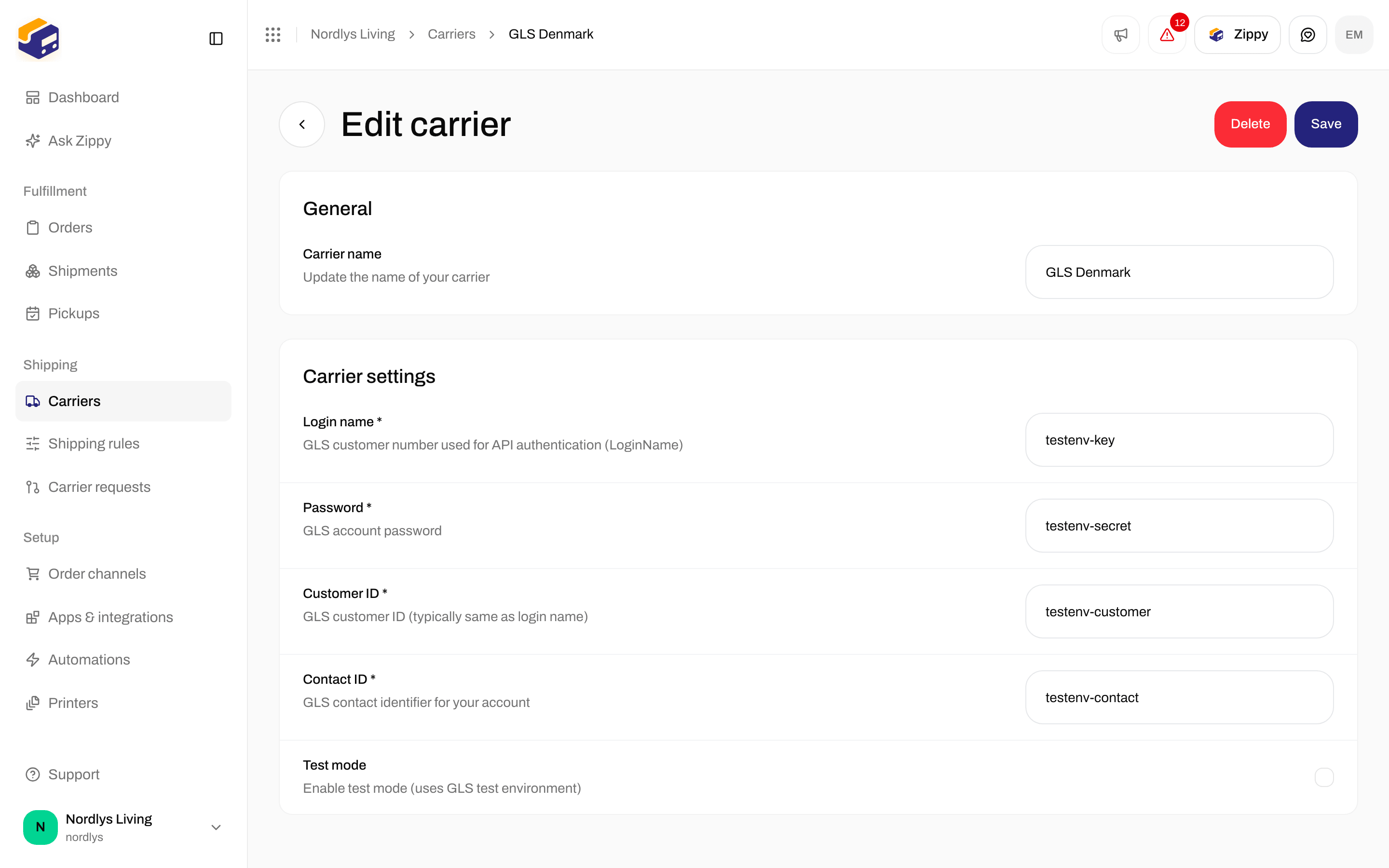
Test mode on the GLS Denmark carrier settings
Which credentials to use
Some carriers give you separate test credentials. Others use the same ones for testing and for real shipments.
Test mode does not change anything else in Zippendo. The shipment still gets a label and tracking number, and it counts toward the shipments on your plan like any other. The carrier never moves a test shipment, so expect few or no tracking events on it.
Test with Posti
Posti says it invoices a shipment only when the parcel is actually shipped, so a test label you never hand over costs nothing. Posti notifies the receiver, so put your own email address and phone number on a test shipment. Zippendo cannot cancel a Posti shipment. See Connect Posti.Test a carrier, then go live
1
Connect the carrier with Test mode on
Fill in the credentials the carrier gave you for testing (see the table above) and tick Test mode.
2
Send a test shipment
Create a shipment with this carrier and send it. Check that the label and tracking number come back.
3
Switch to live
Open the carrier with Edit carrier. Untick Test mode, replace any test credentials with your real ones, and click Save.
Not the same as
- Test against the carrier’s live system on a carrier request. That switch belongs to requesting a new carrier, not to a carrier you have connected.
- App webhooks and carrier tracking webhooks. Test mode does not set either up. See Webhooks and Carrier tracking webhooks.