

- You pay Zippendo directly - you see the plan cards and everything on this page.
- You installed Zippendo from the Shopify App Store - you see a Billed through Shopify panel instead of the plan cards. See If you pay through Shopify below.
- You have an Enterprise agreement - you see Unlimited usage instead of the plan cards. See Enterprise plan below.
Monthly or yearly
Above the plan cards, pick Monthly or Yearly. With Monthly, prices show per month (/month). With Yearly, prices show per year (/year) with the monthly equivalent underneath (/month).Plan cards
There are four cards: Free, Standard, Growth and Pro. Your plan is marked Current plan. Growth is marked Popular when it is not your plan. If you have scheduled a downgrade, the plan you are moving to is marked Scheduled.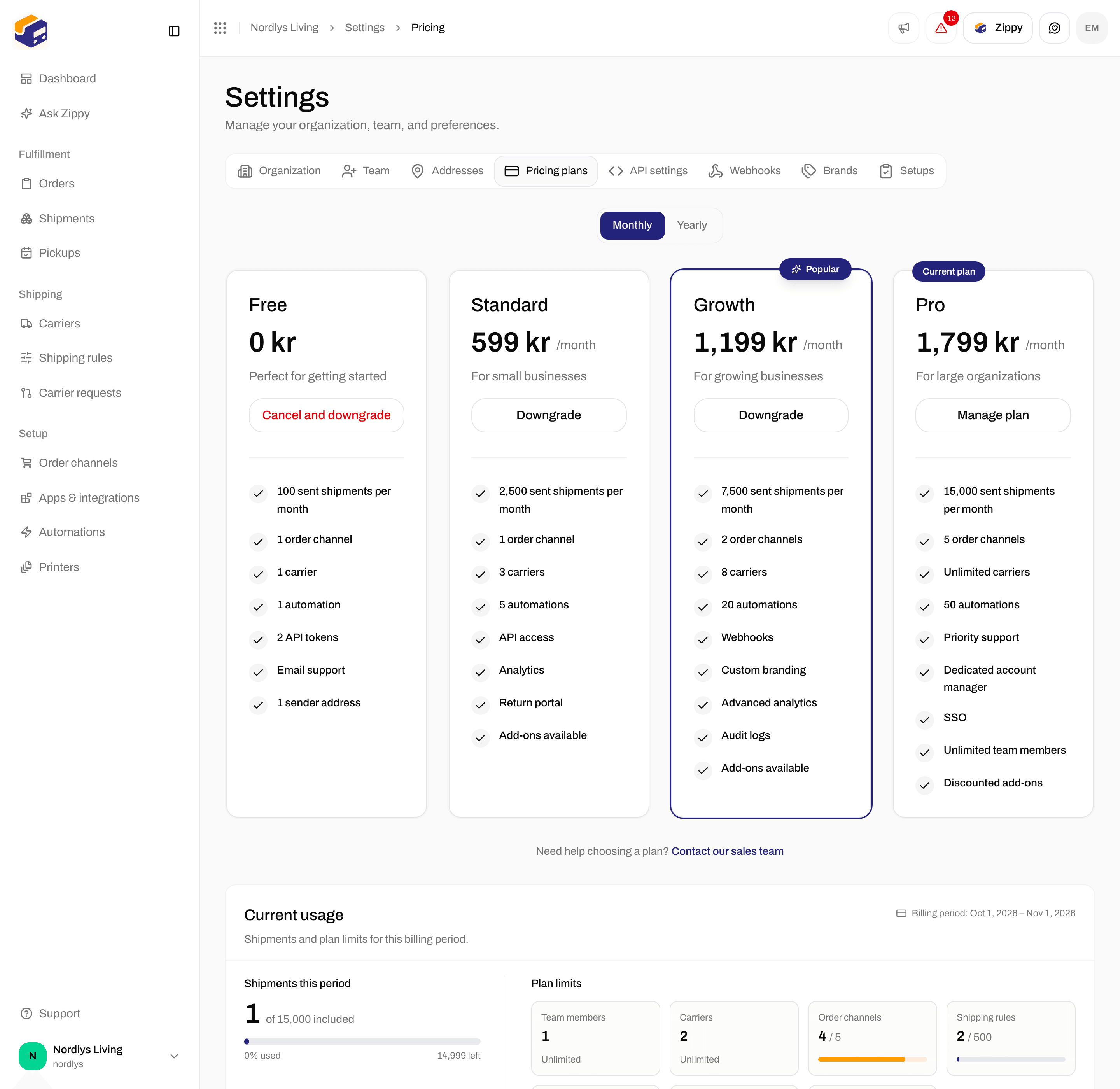
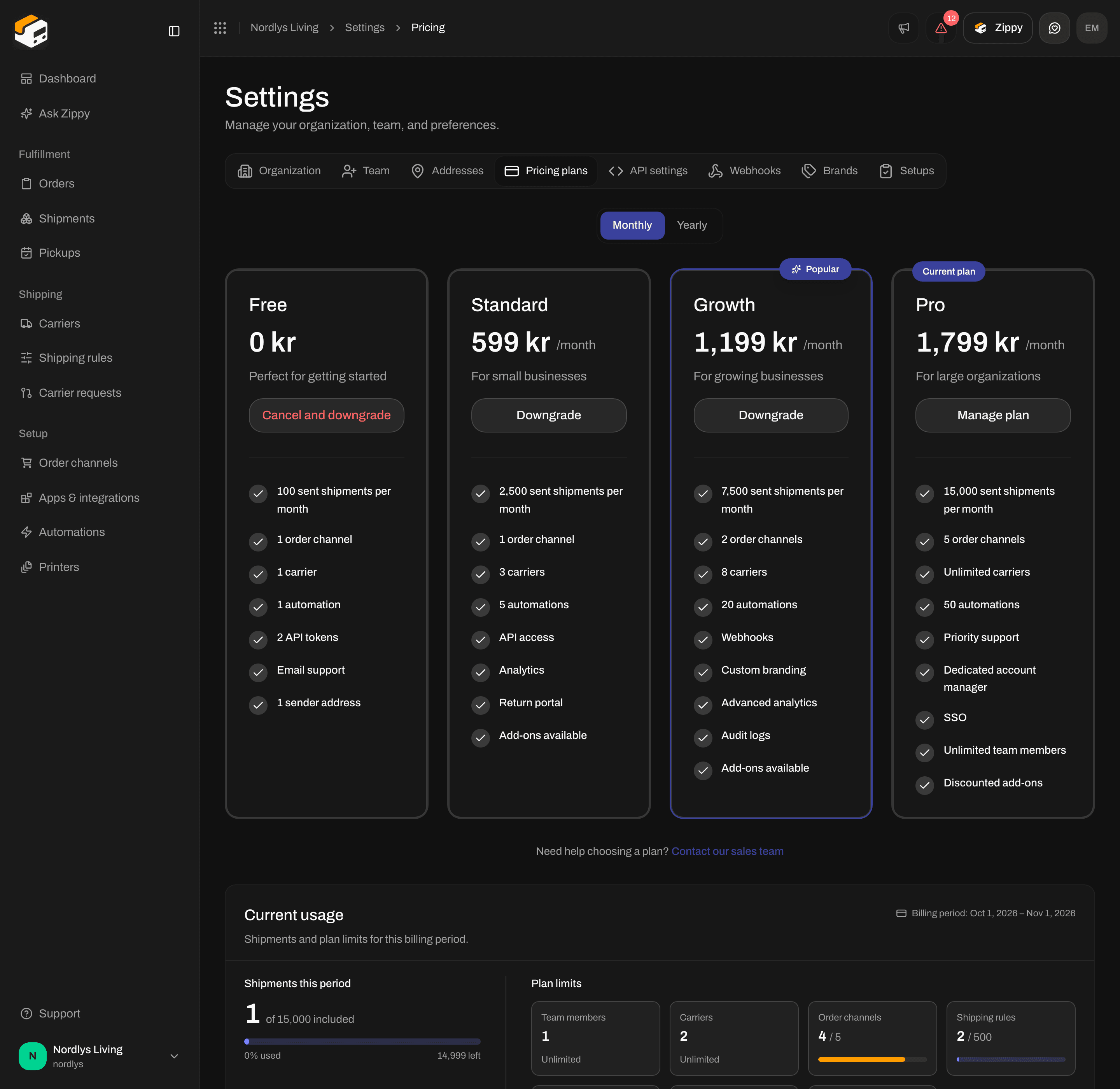
Pricing plans - Monthly/Yearly and the four plan cards
When overage is on, each card also shows the price of every shipment past the included amount: + €0.07 per extra shipment on Free, €0.04 on Standard, €0.03 on Growth and €0.02 on Pro.
Prices on this page are list prices excluding VAT; Pricing plans shows them in the currency your organization is billed in.
The button on each card
Messages above the cards
Upgrade your plan
1
Pick the plan
Click Upgrade on the plan you want.
2
Pay or confirm
If you have not added a payment card yet, a secure payment page opens. Pay there and you return to Pricing plans. If you see Couldn’t start checkout. Please try again., try again in a moment.If a card is already on file, the Upgrade to Growth window opens (with the plan you picked): Switch to the Growth plan at €159. The change applies immediately. Charged now shows what you pay today, prorated for the rest of the billing period. If you see Preview unavailable, you can still confirm, and the prorated amount appears on your next invoice.
3
Confirm
Click Confirm upgrade. You see Your plan was changed to Growth. If you see The plan change failed. Please try again., nothing was changed.
Downgrade your plan
Click Downgrade on a smaller paid plan. The Downgrade plan window shows the change, for example Pro → Growth · €159/month, and your current Billing period.- Downgrade scheduled at period end: your current plan stays active until the end of the billing period. After that, the plan changes.
- You’ll be over some plan limits: shown when you use more than the smaller plan allows, for example carriers (5 in use, max 3 on Standard). Remove the extra carriers, order channels, team members, shipping rules or addresses before the change to avoid restrictions.
Cancel your subscription
Click Cancel subscription at the bottom of the page, or Cancel and downgrade on the Free card. The Manage plan window asks Cancel subscription?:Your subscription ends at the end of the current billing period, and you move to the Free plan. Your saved card is removed and pay-as-you-go overage stops, so you can send at most 100 shipments per month. To switch to a cheaper paid plan instead, use Manage billing.Click Cancel subscription to confirm, or Keep plan to stay. You see Subscription will be cancelled at the end of the billing period. Changed your mind? Click Manage plan on your plan card. Under Pending cancellation, click Resume subscription any time before the billing period ends.
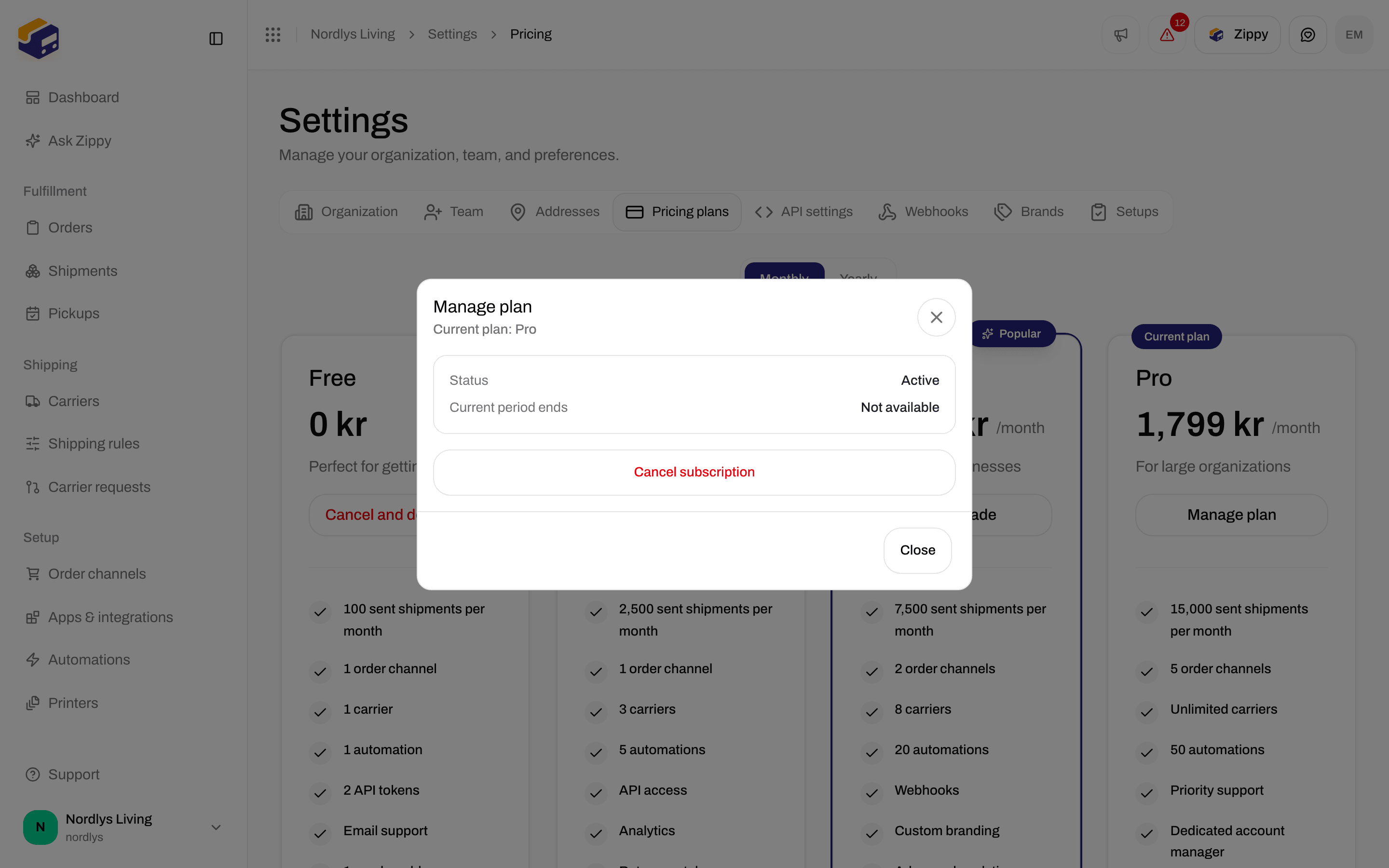
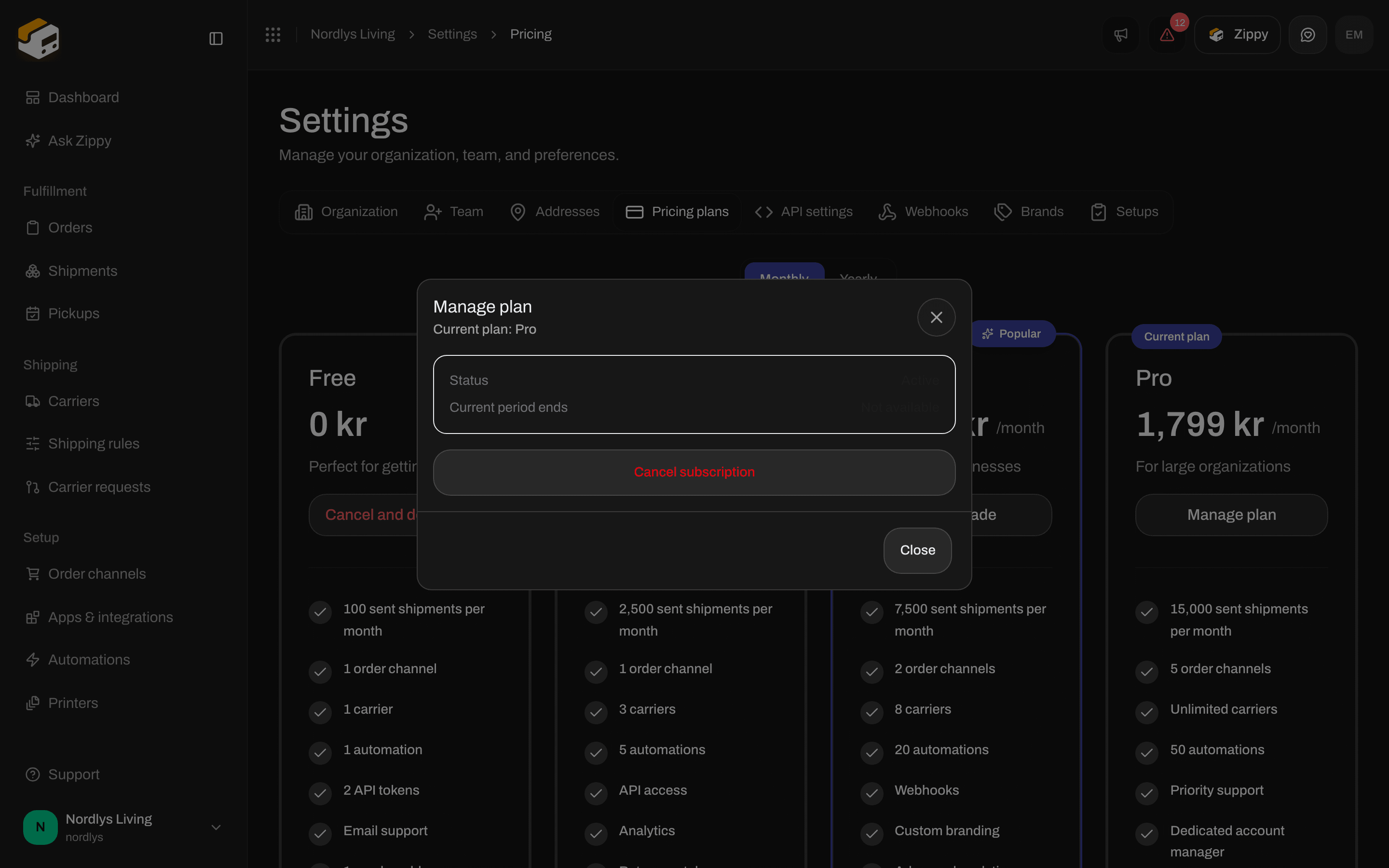
Manage plan - status, period end, and cancel
Current usage
Current usage shows Shipments and plan limits for this billing period. The billing period is shown at the top right, for example Billing period: 1 October 2026 – 31 October 2026.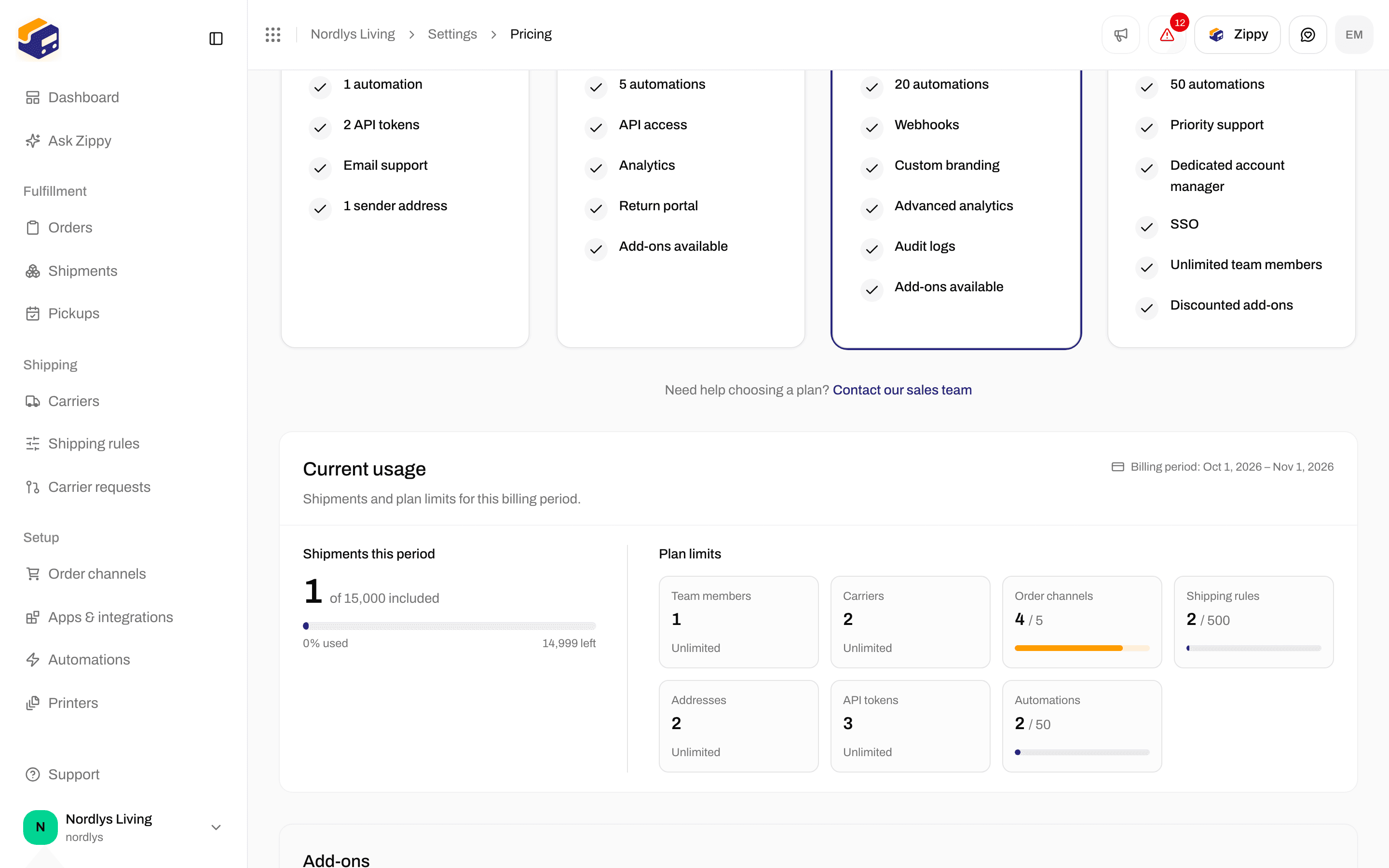
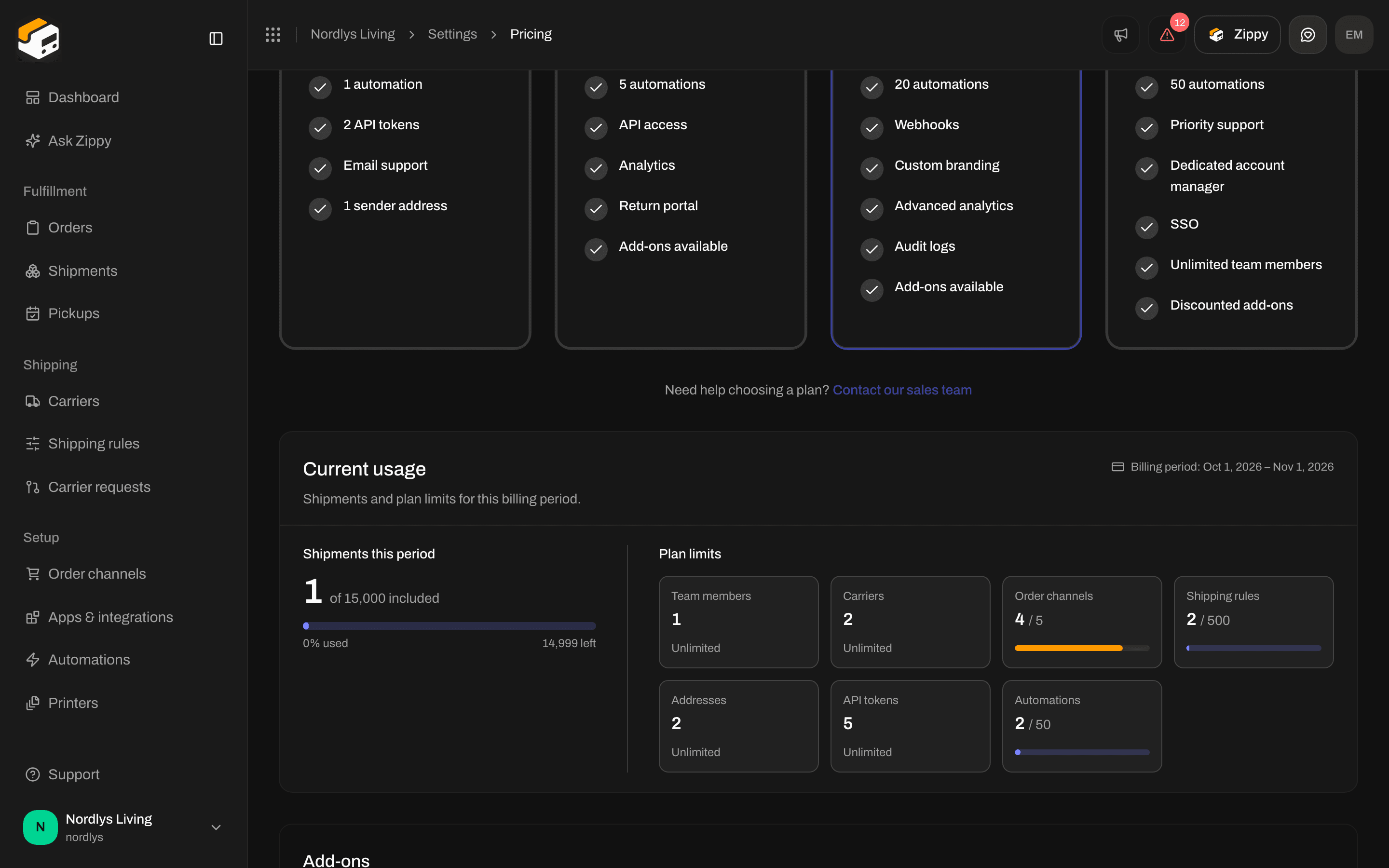
Current usage - shipments this period and plan limits
When you get close to your included shipments, the Dashboard shows a message such as You’ve used 80% of your included shipments, with Enable overage and View usage buttons that bring you here.
Overage
Overage lets you keep sending shipments after you have used your included shipments. Each extra shipment is billed at your plan’s price per extra shipment.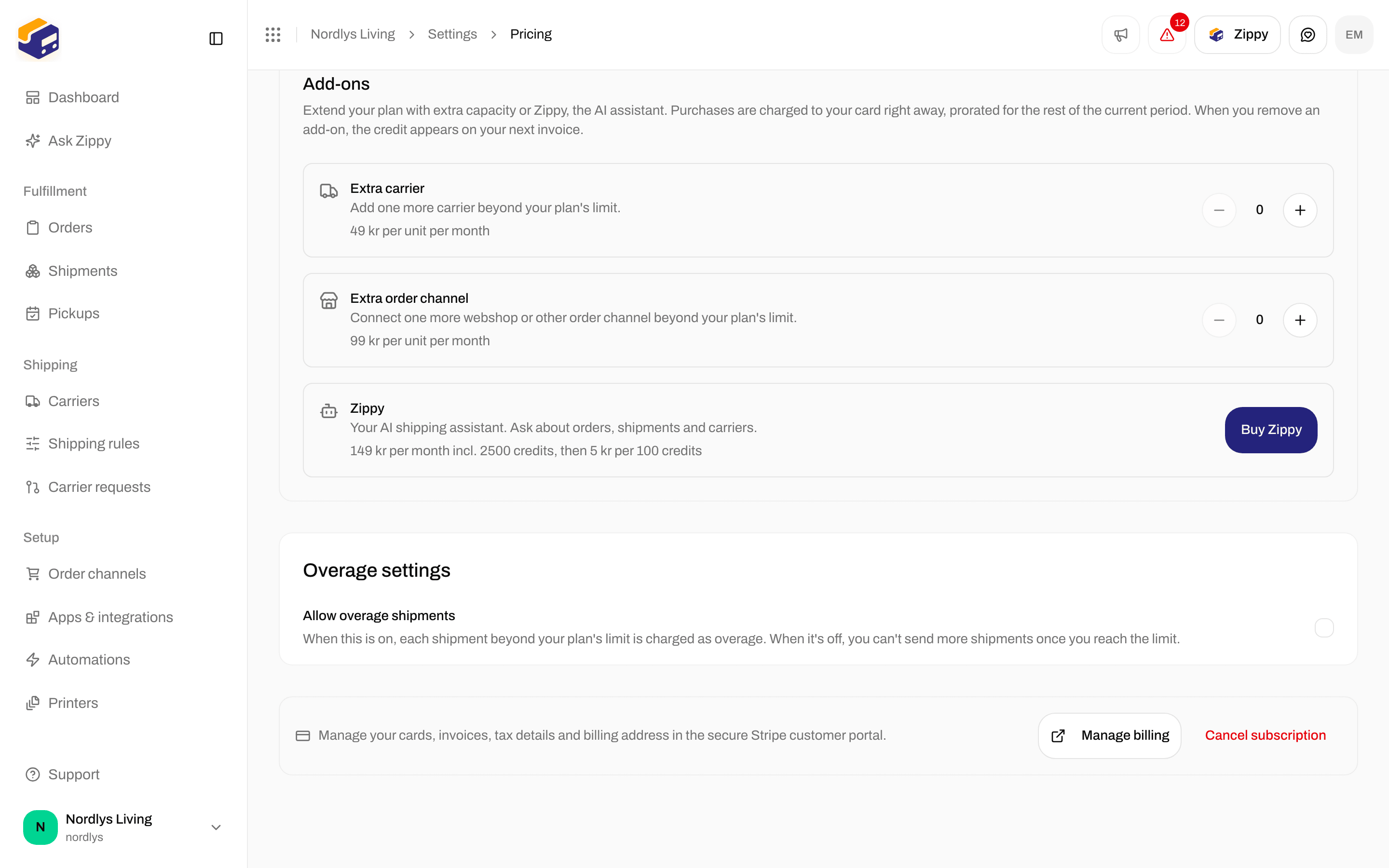
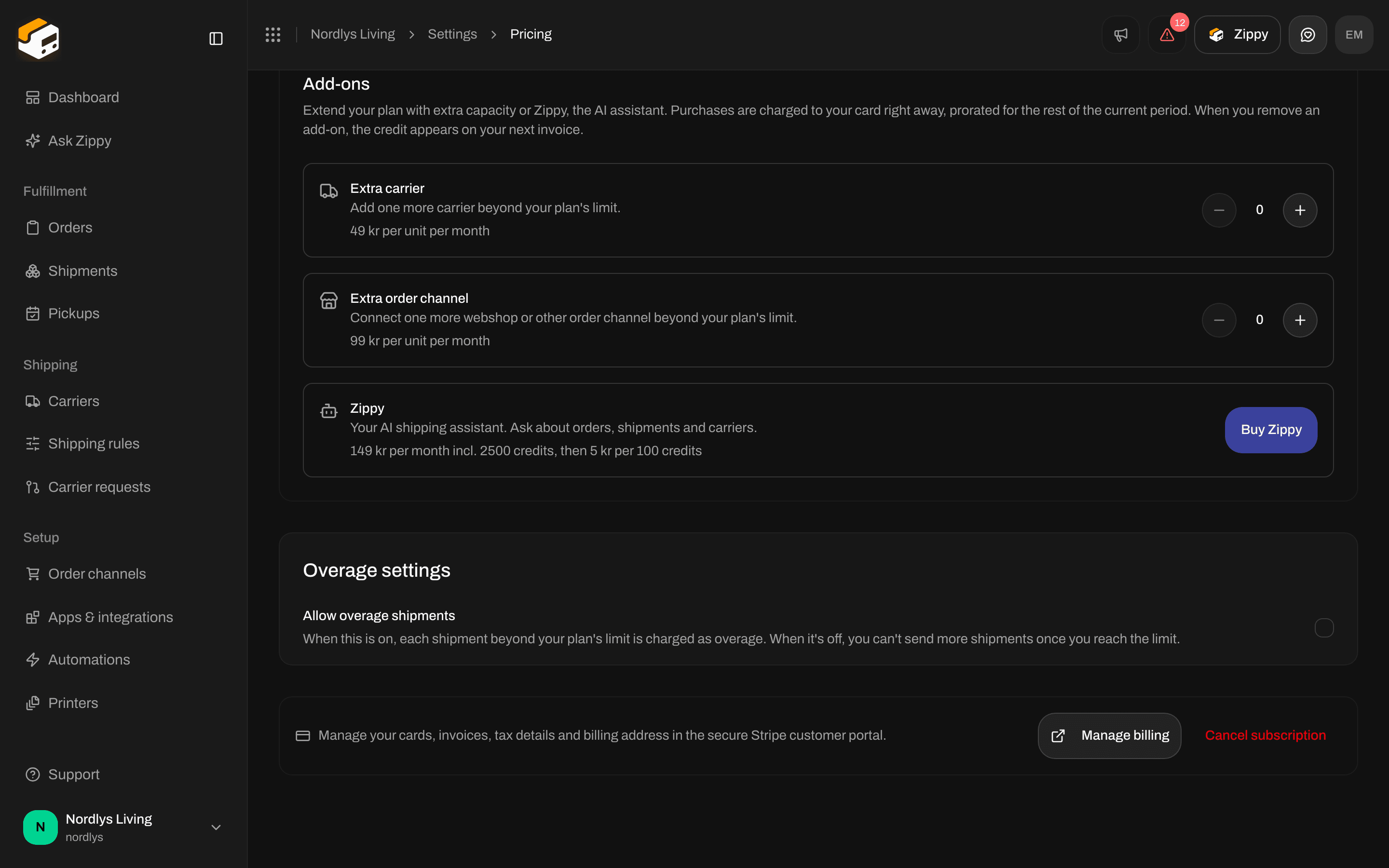
Overage settings and Manage billing
If you see Finish setting up payment to activate your subscription., add a payment card first.
Add-ons
On Standard, Growth and Pro, once you have added a payment card, Add-ons lets you extend your plan. Purchases are charged to your card right away, prorated for the rest of the current period. When you remove an add-on, the credit appears on your next invoice.
Your changes add up in Monthly change, for example Monthly change: +€13 for one extra carrier on Standard. Click Confirm changes to buy, or Reset to start over. If you see The add-on change failed. Please try again., nothing was changed.
To remove Zippy, click Remove Zippy. The window Remove the Zippy add-on? tells you that Zippy will be removed from your subscription and the assistant will be locked again. See Zippy.
Manage billing
At the bottom of the page: Manage your cards, invoices, tax details and billing address in the secure Stripe customer portal.- Manage billing opens the Stripe customer portal in a new tab. Change your payment card, download invoices, and update tax details and your billing address there. If you see We couldn’t open the billing portal. Please try again., try again in a moment.
- Cancel subscription is shown when you are on a paid plan. See Cancel your subscription above.
If you pay through Shopify
If you installed Zippendo from the Shopify App Store, the plan cards are replaced by a Billed through Shopify panel:Because you installed Zippendo from the Shopify App Store, your subscription is managed and billed by Shopify. Charges appear on your regular Shopify invoice.To change or cancel your plan, open Shopify admin → Apps → Zippendo and manage your subscription there. Changes come back to Zippendo automatically. Current usage is still shown, but there is no Manage billing button. See Shopify settings.
Enterprise plan
On an Enterprise agreement, the plan cards are replaced by Unlimited usage:Your organization is on a custom Enterprise plan with no usage limits. Our team handles your billing directly, so there’s nothing to manage here.The panel lists Unlimited shipments, Unlimited carriers, Unlimited order channels, Unlimited team members, Unlimited shipping rules and sender addresses, Unlimited API tokens and Priority support. For changes or billing questions, use Contact your account manager. Manage billing and Current usage are still shown.
Related
- Pricing and billing - plans and limits at a glance.
- Create a brand - brands are included on Pro and Enterprise.
- Create an API token - every plan; how many tokens depends on the plan.
- Organization branding - Growth and above.
- Zippy - the Zippy add-on.
- Shopify settings - plans billed through Shopify.