

What you need
- A return shipping rule: a shipping rule with Direction set to Inbound (return) and a return product.
- On the normal (Outbound) rule you ship with, set Return shipping rule to that return rule.
Create the return shipping rule
Open Shipping rules and click Add shipping rule. Under Direction (Outbound for regular shipments, inbound for returns.), choose Inbound (return).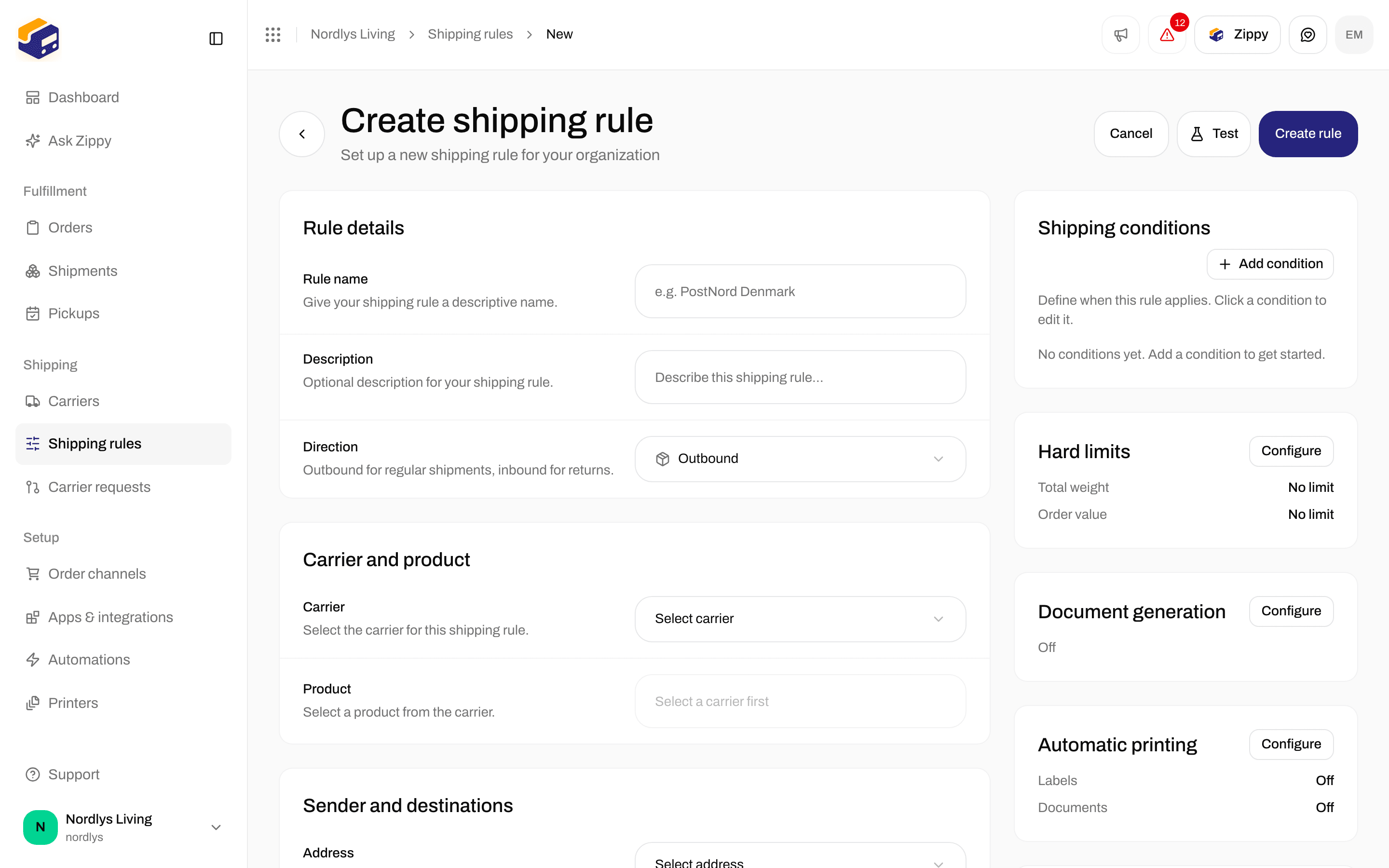
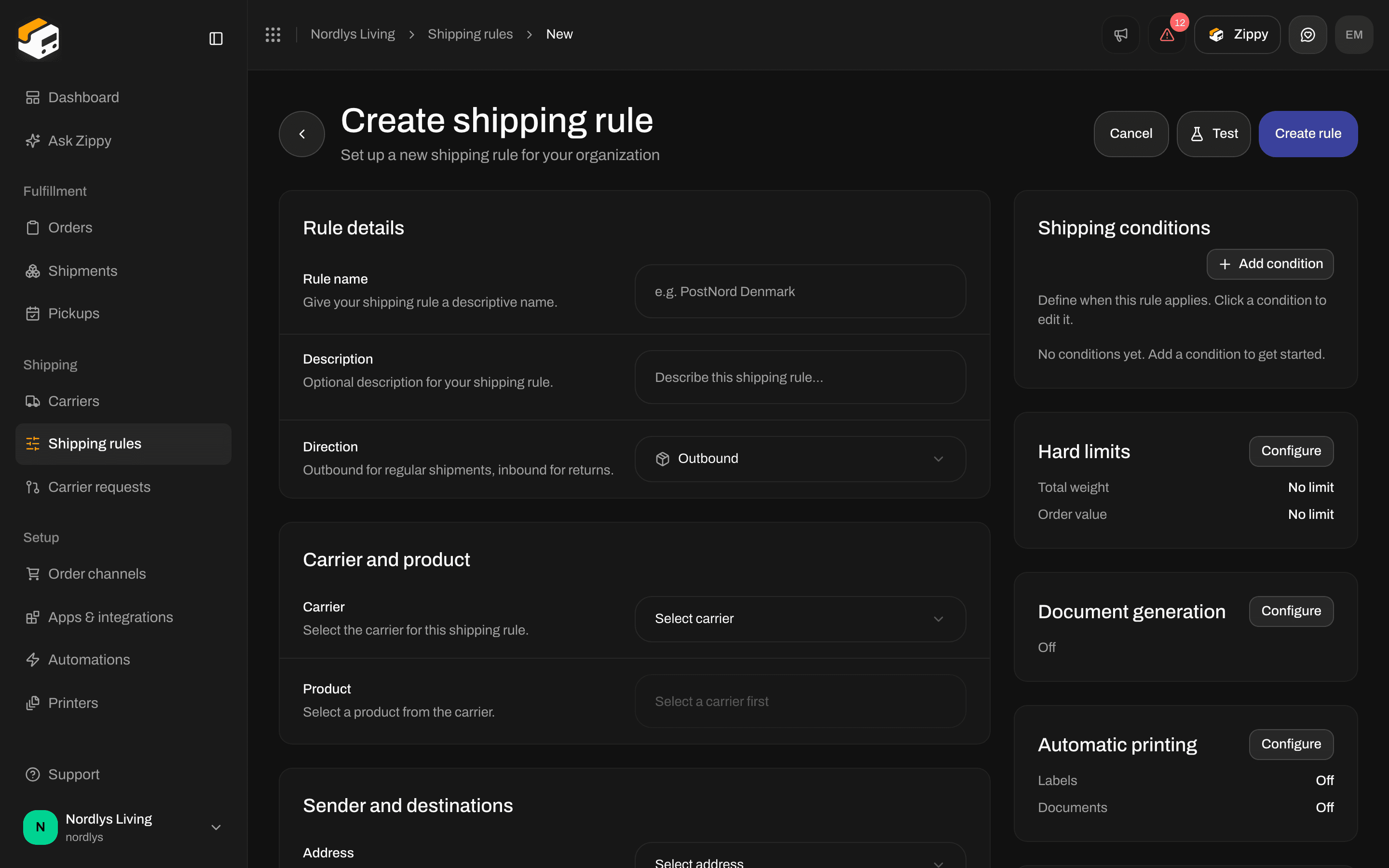
Direction: Outbound or Inbound (return)
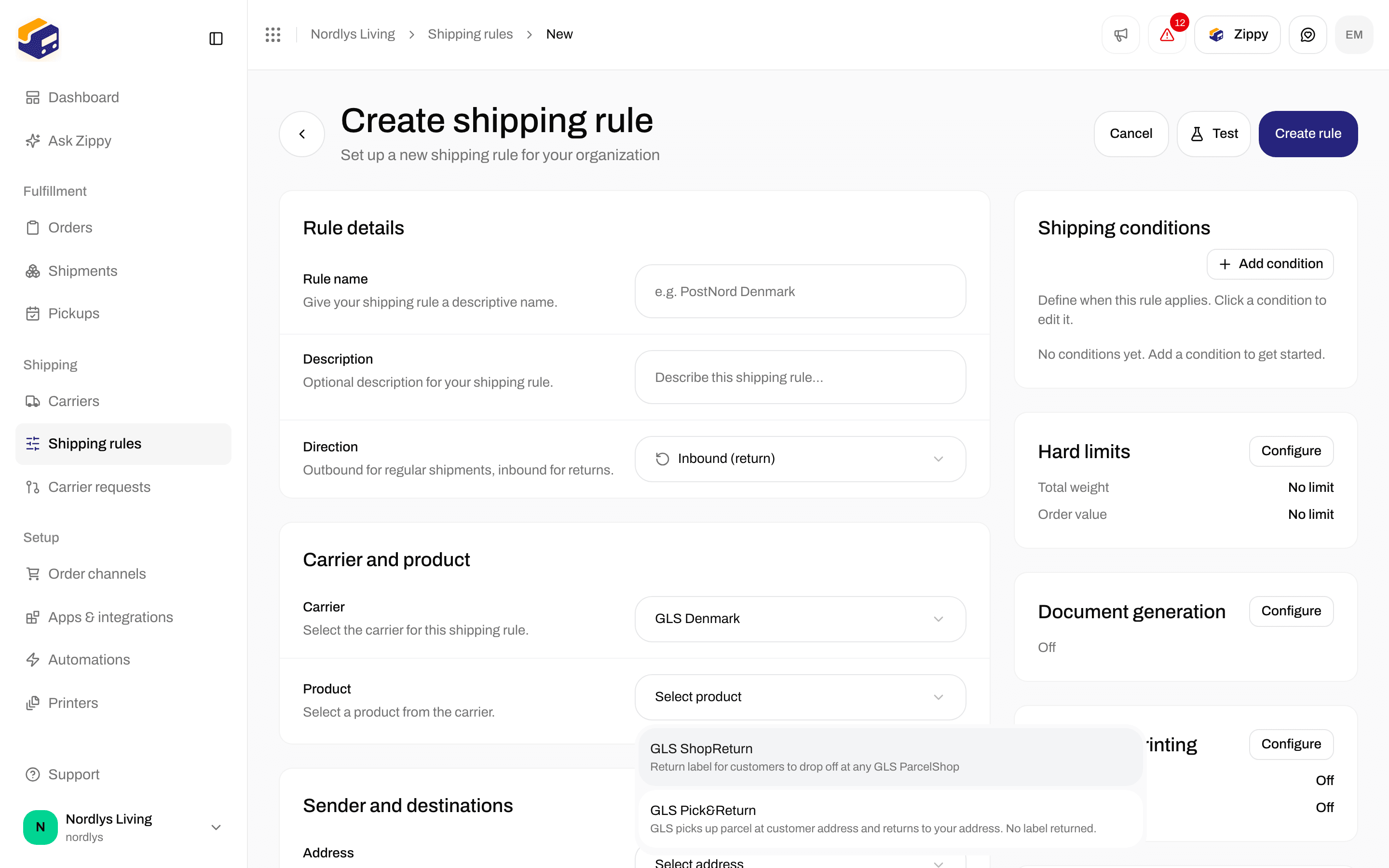
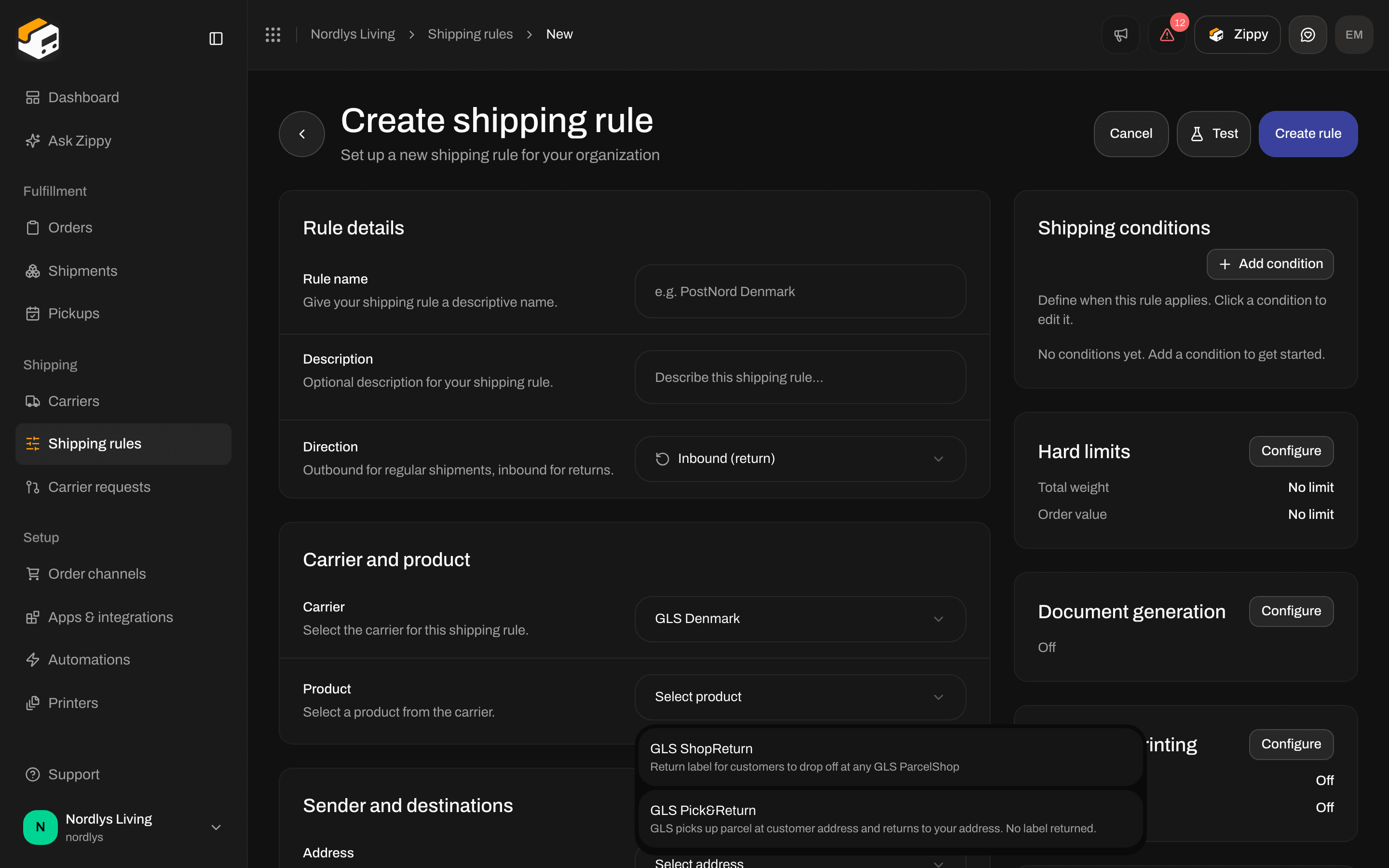
Return products for GLS Denmark: GLS ShopReturn and GLS Pick&Return
Connect it to your normal rule
Open the Outbound rule you ship with and click Configure on the Return shipping card.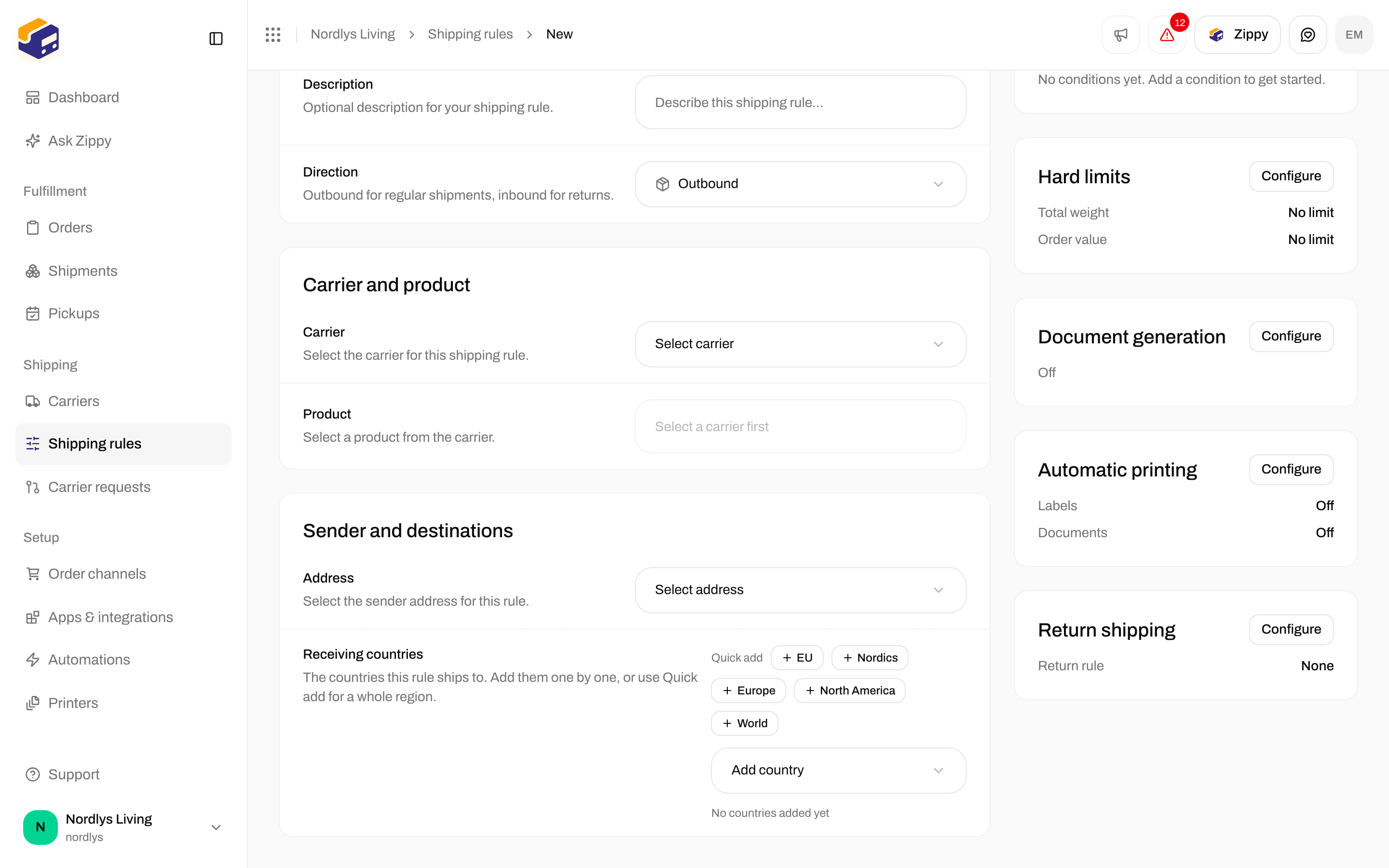
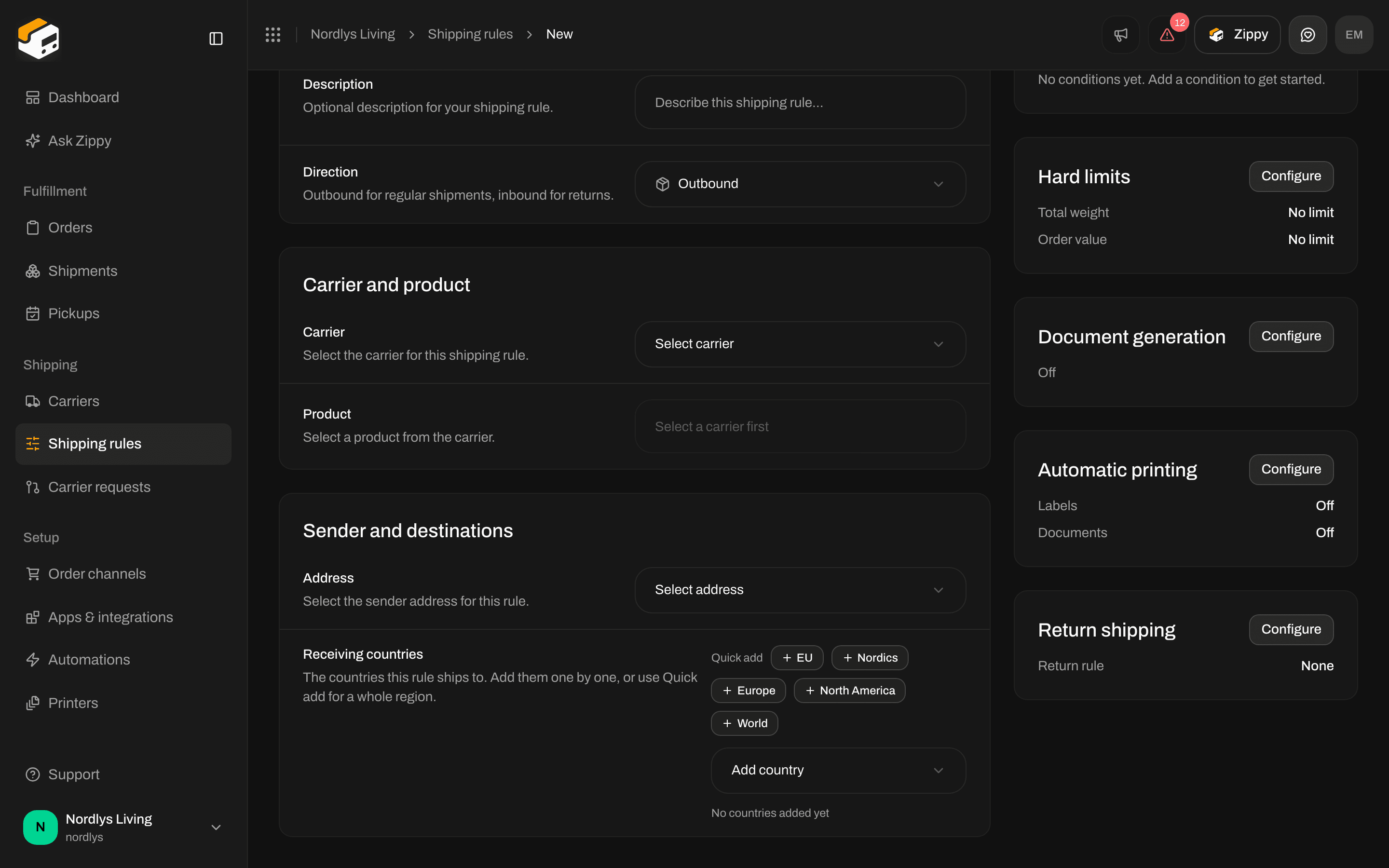
Return shipping: Return shipping rule says None until you pick a return rule
Switch on Create return automatically when the shipment is sent if every shipment should come with a return label. Leave it off if returns are the exception, and create them by hand when you need one.
Create a return shipment by hand
Open Shipments and click Create shipment. Set Type * to Inbound (the default is Outbound). With Inbound selected, two fields change: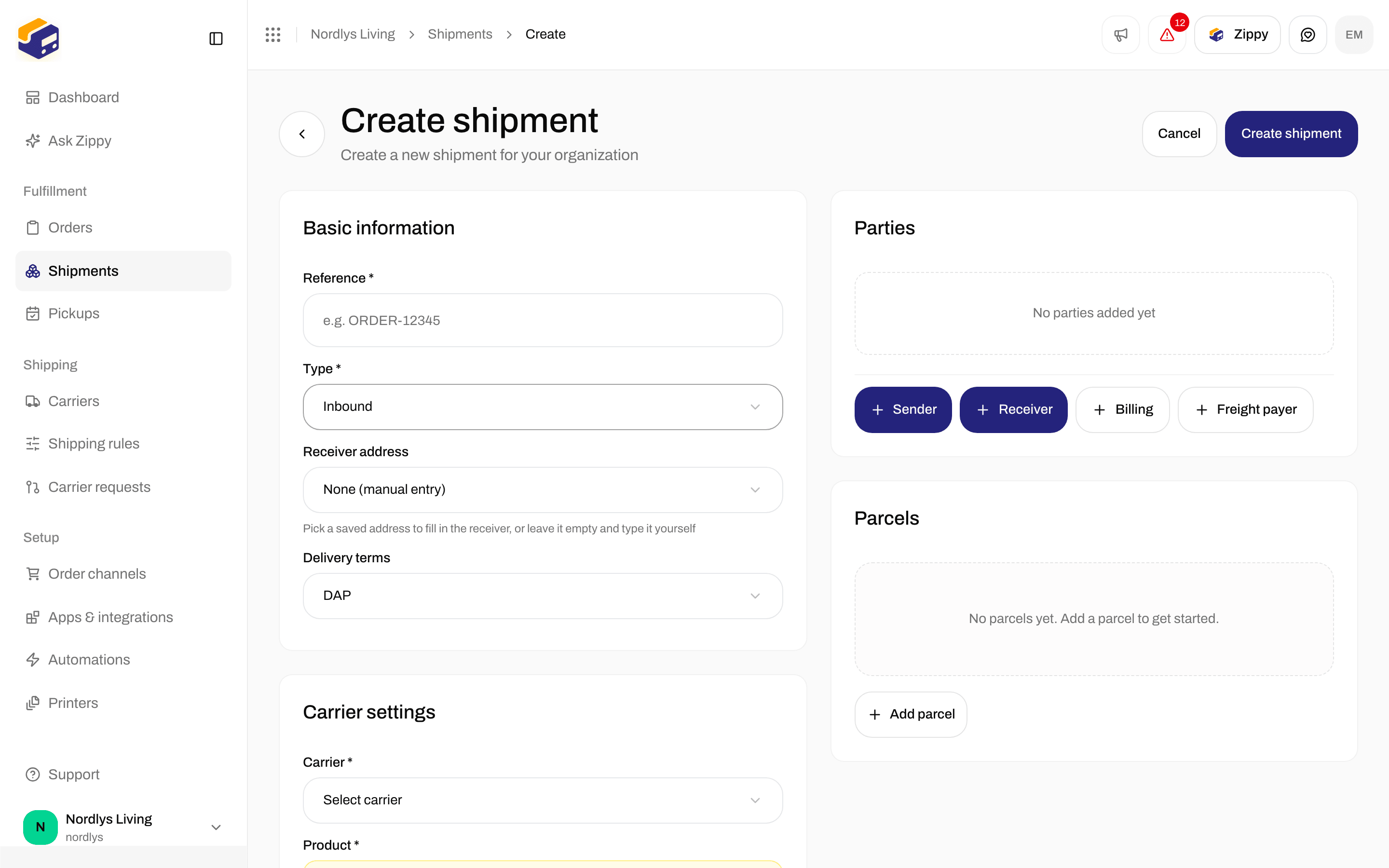
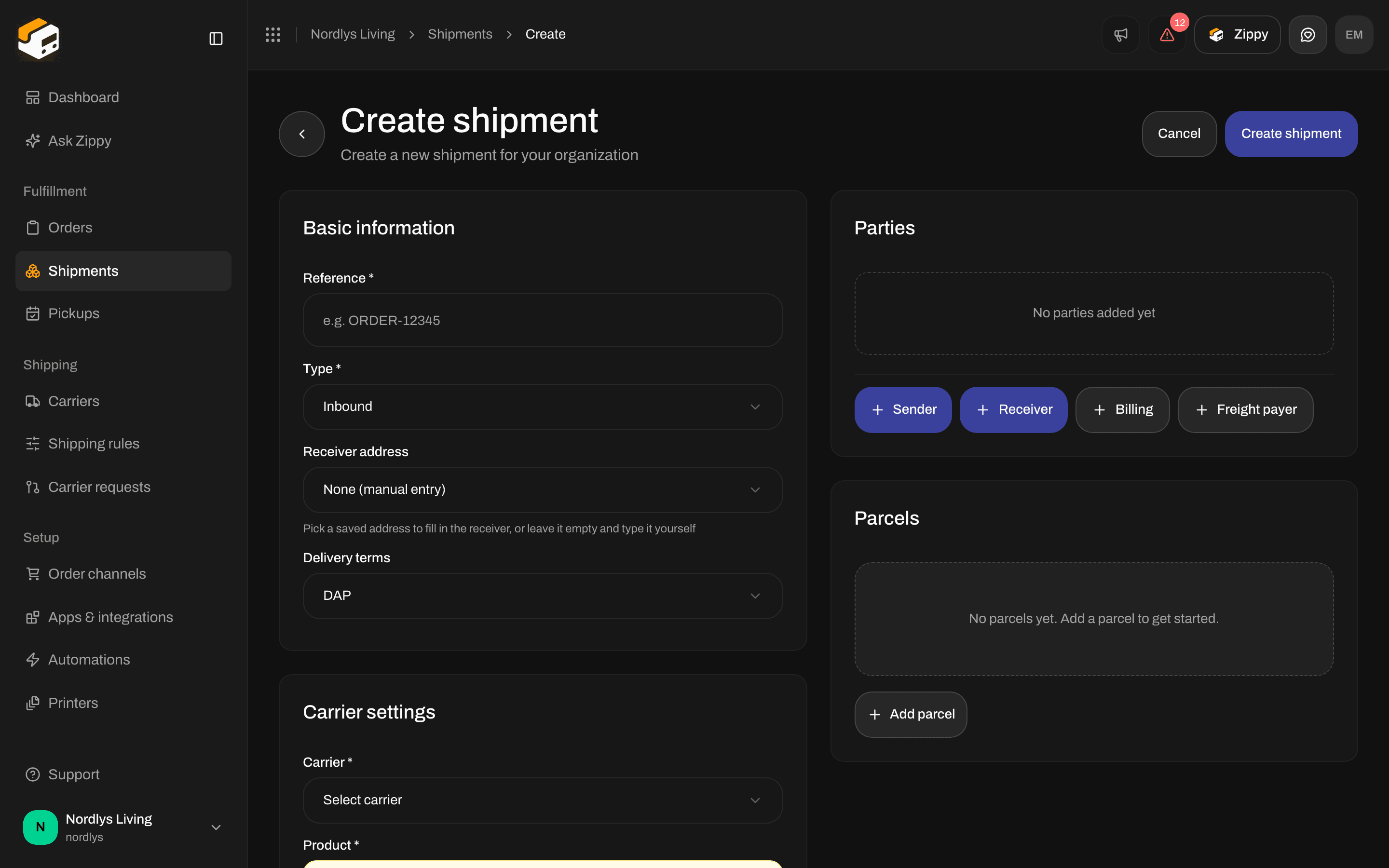
Create shipment with Type Inbound and the Receiver address field
Create return shipment from a sent shipment
On the shipment
On the shipment page, Create return shipment (Creating return shipment… while it works) appears at the top only when all of these are true:- The status is Sent
- The type is Outbound
- The shipment’s shipping rule has a Return shipping rule
- Create return automatically when the shipment is sent is off on that rule
On the order
On the order’s Shipments tab, the ⋮ menu on a shipment card has Create return shipment (Creating… while it works). It shows when the shipment is Sent and Outbound and the order’s shipping rule has a Return shipping rule with auto-create off. To pick the return rule, Zippendo looks at the shipment’s own shipping rule first, then at the order’s.What you get
You see Return shipment created or Couldn’t create return shipment.
Automations
An automation can also create return shipments with the action Create return shipment, with an optional Return shipping rule. See Build an automation.Related
- Returns
- Shipping rule fields
- Sender, pickup, and return addresses
- Send a shipment
- Search and filters
- Shopify settings: checkout rates are for normal shipments; you create returns yourself