

Open a printer’s jobs
1
Open Printers
Click Printers in the sidebar.
2
Open a printer
Click the printer’s row, or View in its row menu.
3
Open Jobs
Click the Jobs tab. The tab shows how many jobs there are.
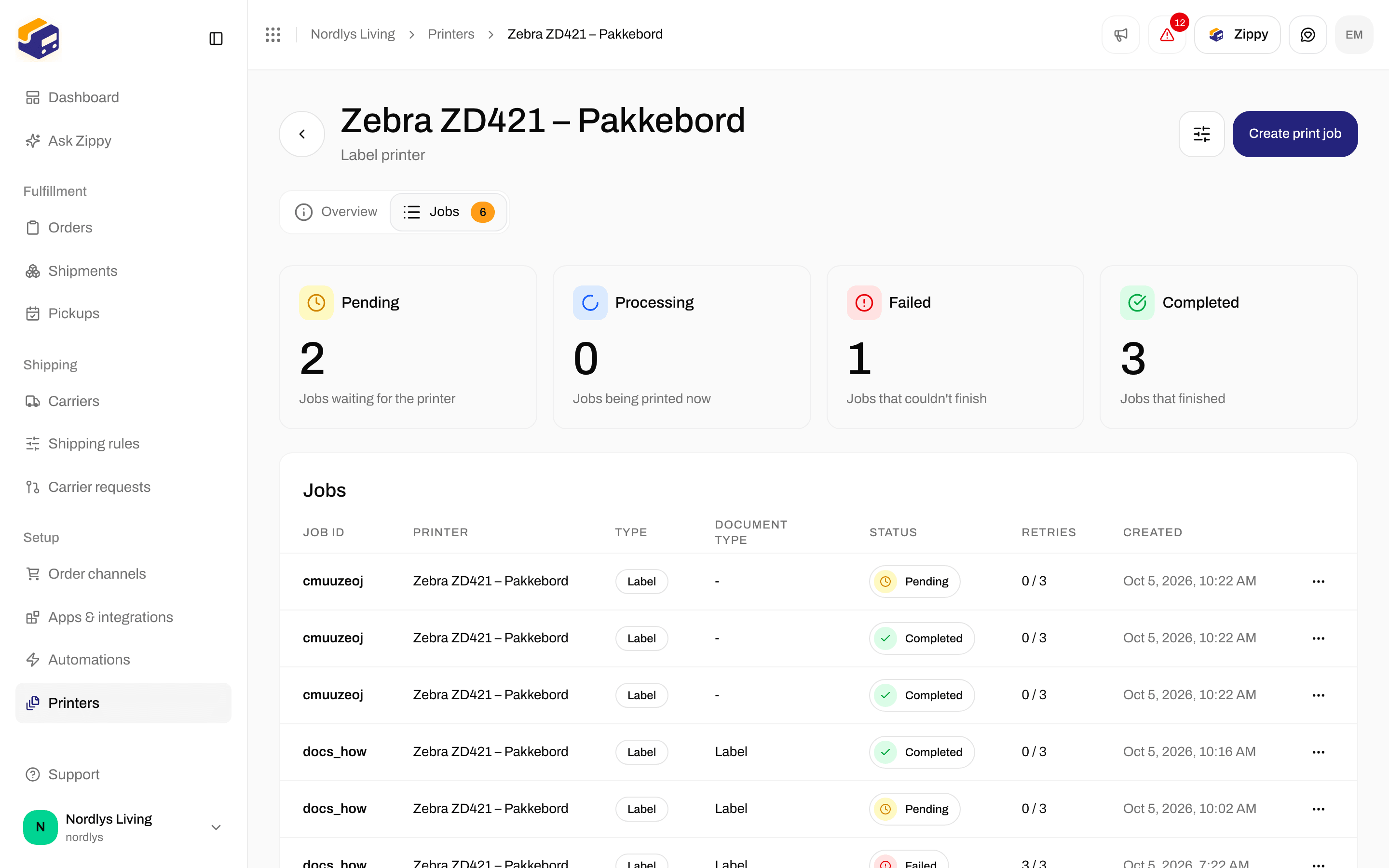
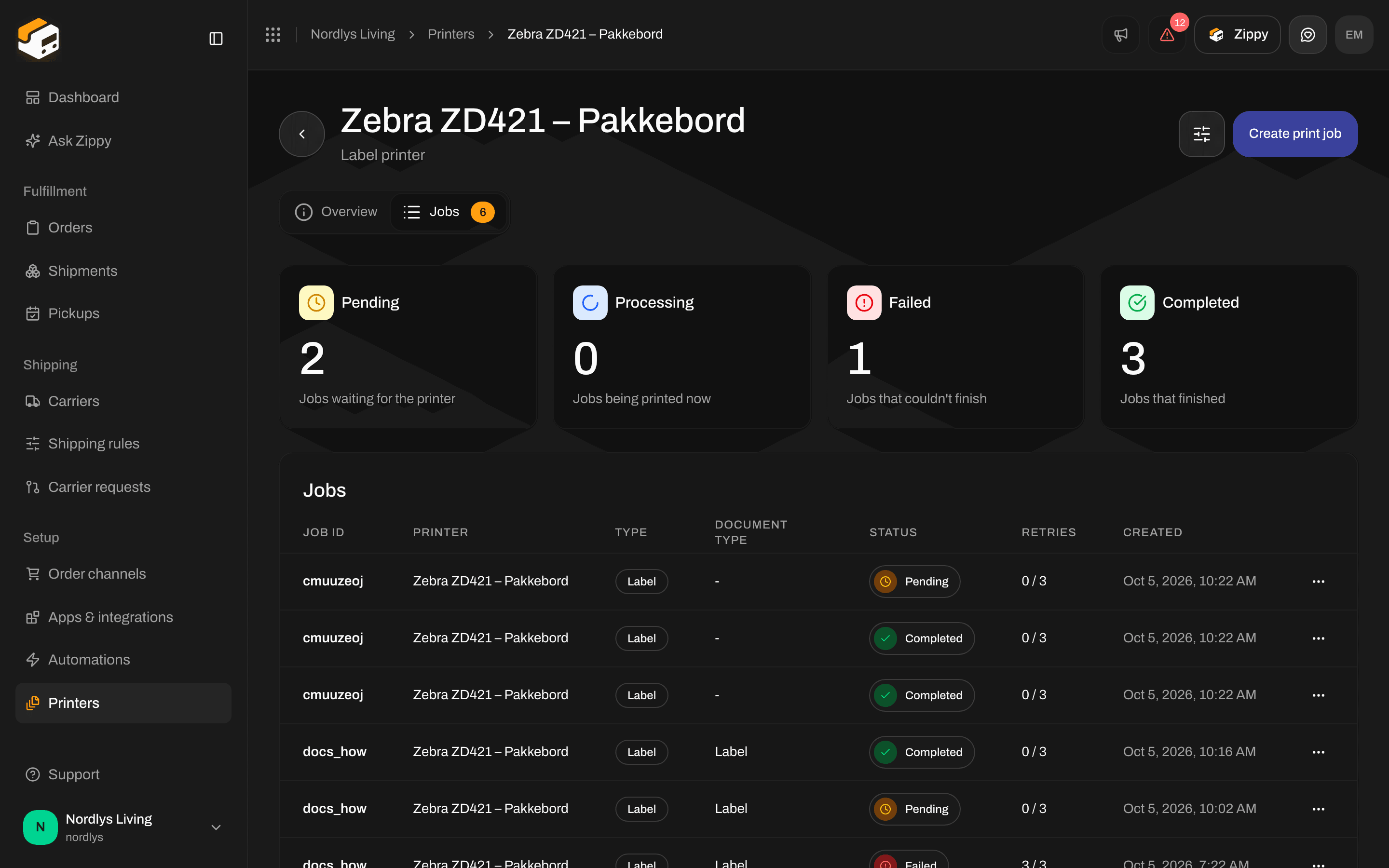
The Jobs tab: counts for each status, then the list of jobs
What each status means
When a print fails, Zippendo tries again by itself, up to 3 times. The Retries column shows how many times it has tried again, for example “1 / 3”. If the last try also fails, the job becomes Failed.
The four boxes above the list count jobs by status: Pending, Processing (this includes Sent jobs), Failed and Completed.
To show only some jobs, click Filters at the top of the page and pick a Status.
The list of jobs
Click a row to open the job. The row menu has View, Retry (only for Failed jobs) and Delete (only for Pending and Failed jobs).
Retry a failed job
1
Fix the cause
Open the job and read Error message under Error details. Typical fixes: turn the printer on, load labels or paper, or open Zippendo Printer on the computer.
2
Click Retry
Click Retry in the job’s row menu, or at the top of the job’s page.
3
Confirm
Retry print job asks Send the failed print job to the printer again? Type
RETRY and confirm. You see Print job sent again.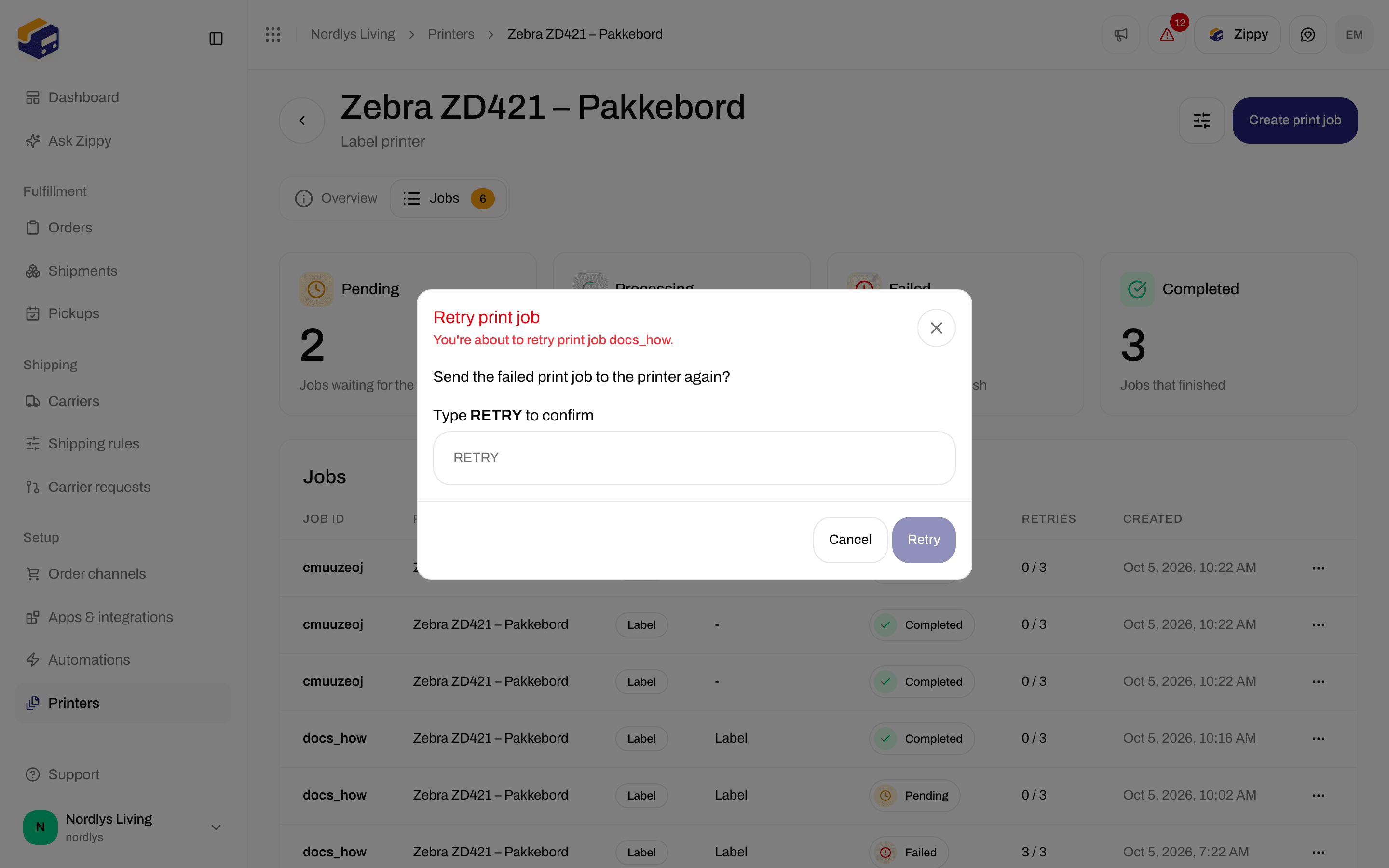
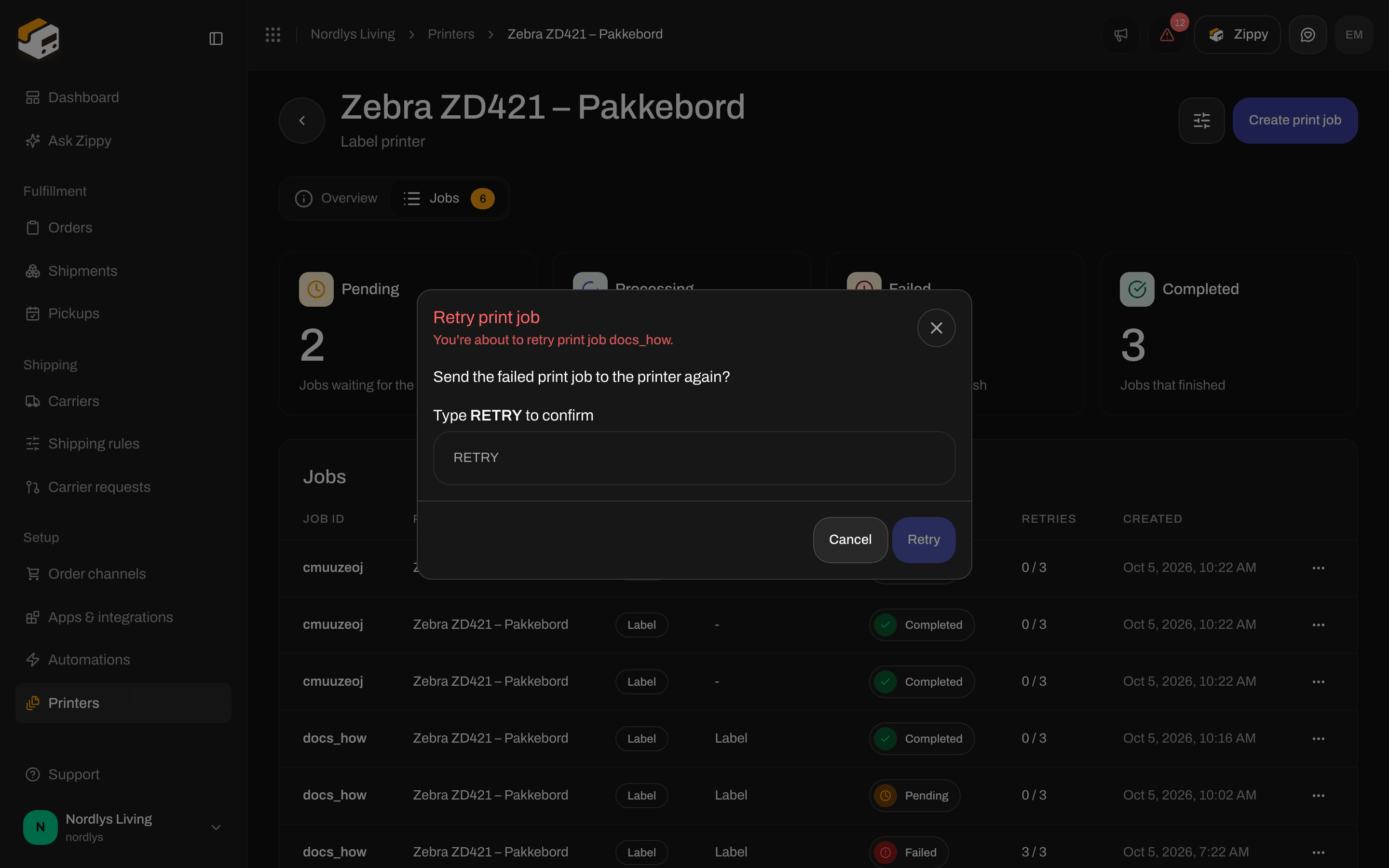
Retry print job asks you to type RETRY
Delete a job
Delete a Pending job to stop it from printing, for example a label you no longer need. Delete a Failed job to clear it from the list. Click Delete in the row menu. Delete print job asks you to type the first 8 characters of the job ID in capital letters, for example3F9A2C1B. You see Print job deleted. Deleting a job does not cancel the shipment or its label.
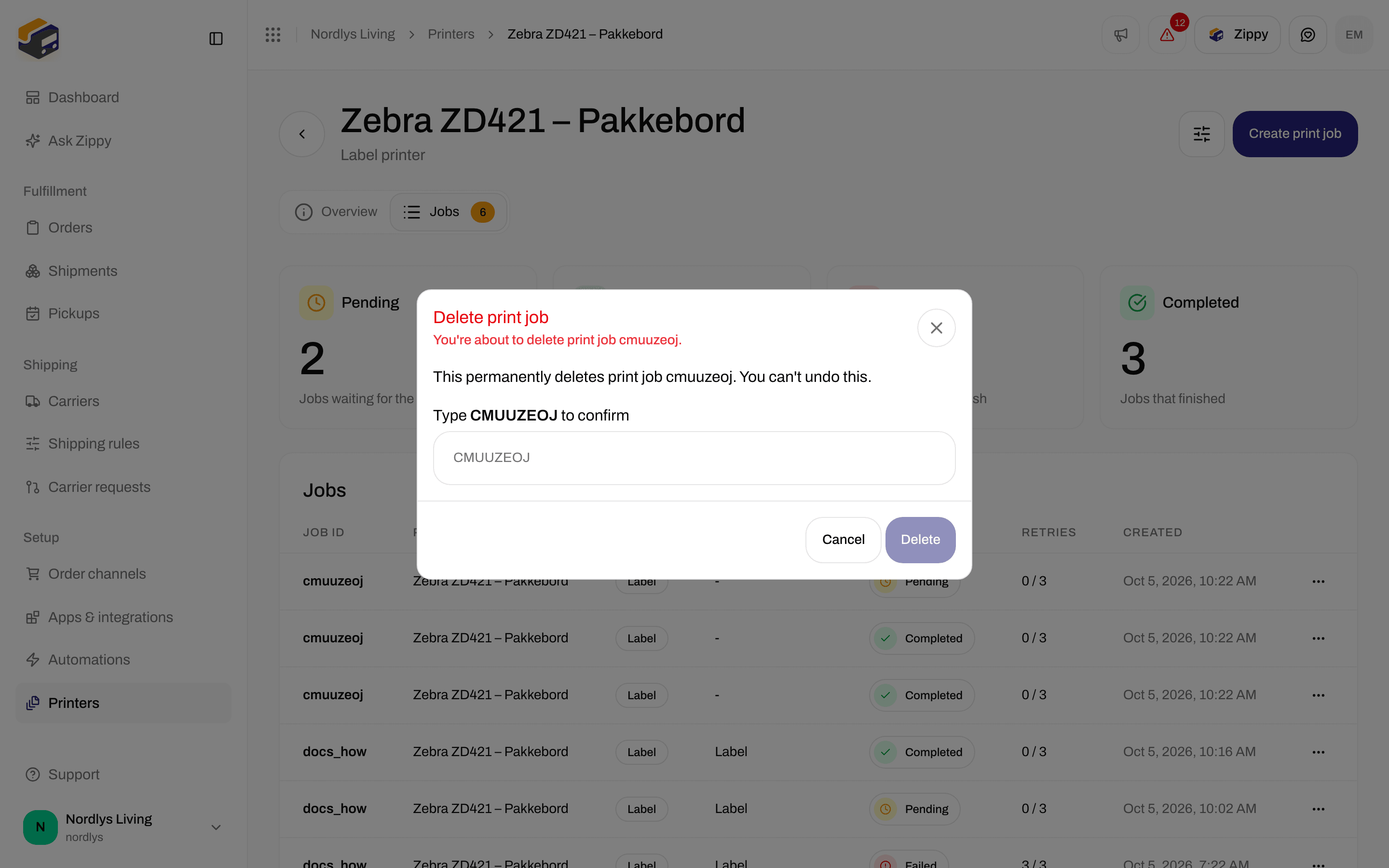
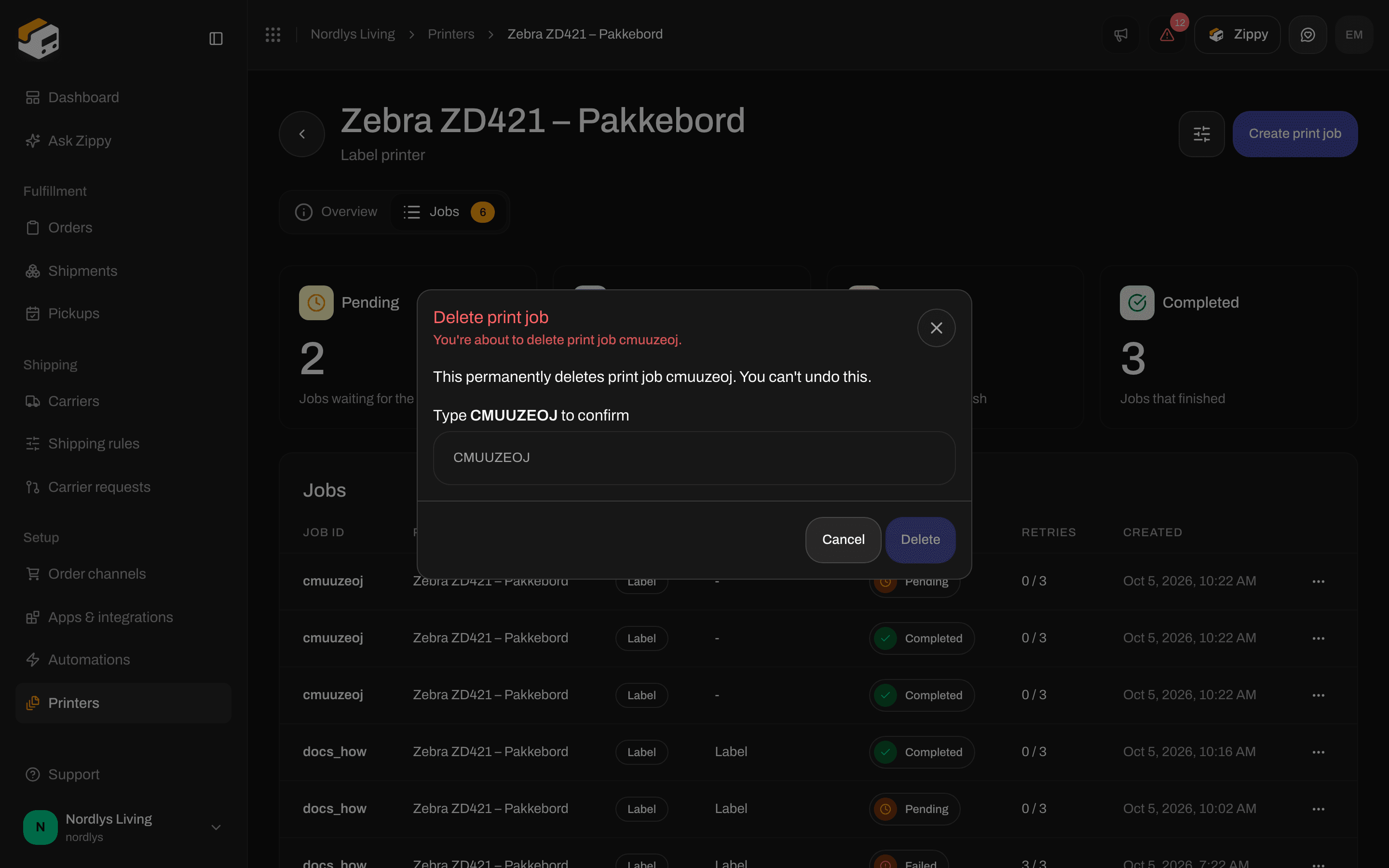
Delete print job asks you to type the start of the job ID
A job’s page
Click a job to open it. The title is Print job with the first 8 characters of its ID.- Overview shows Job information: the status, the printer, the type of document, the file format, the number of tries, and when the job was created, started and completed. If the job failed, Error details shows the Error message.
- Document shows a preview of what was sent to the printer.
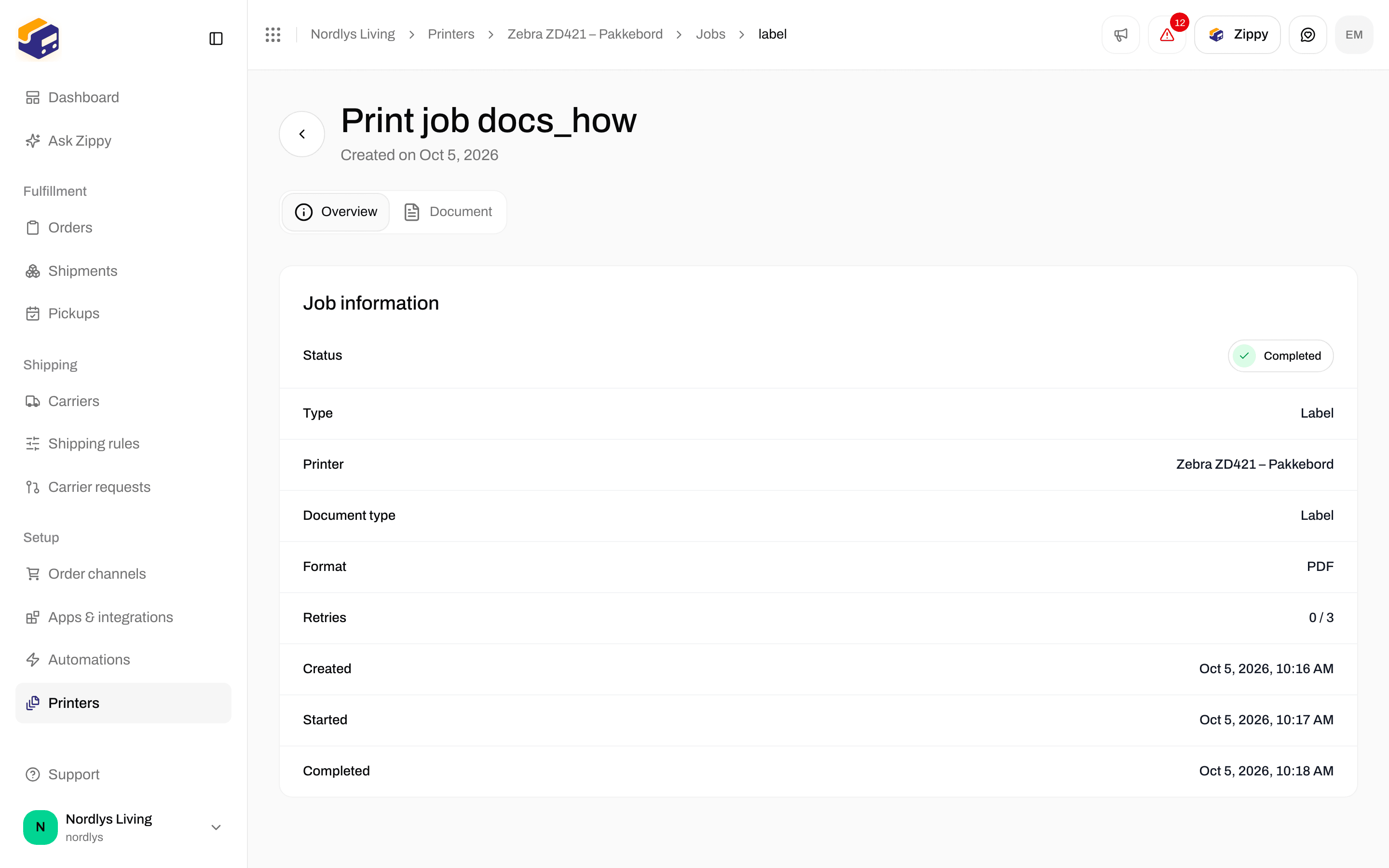
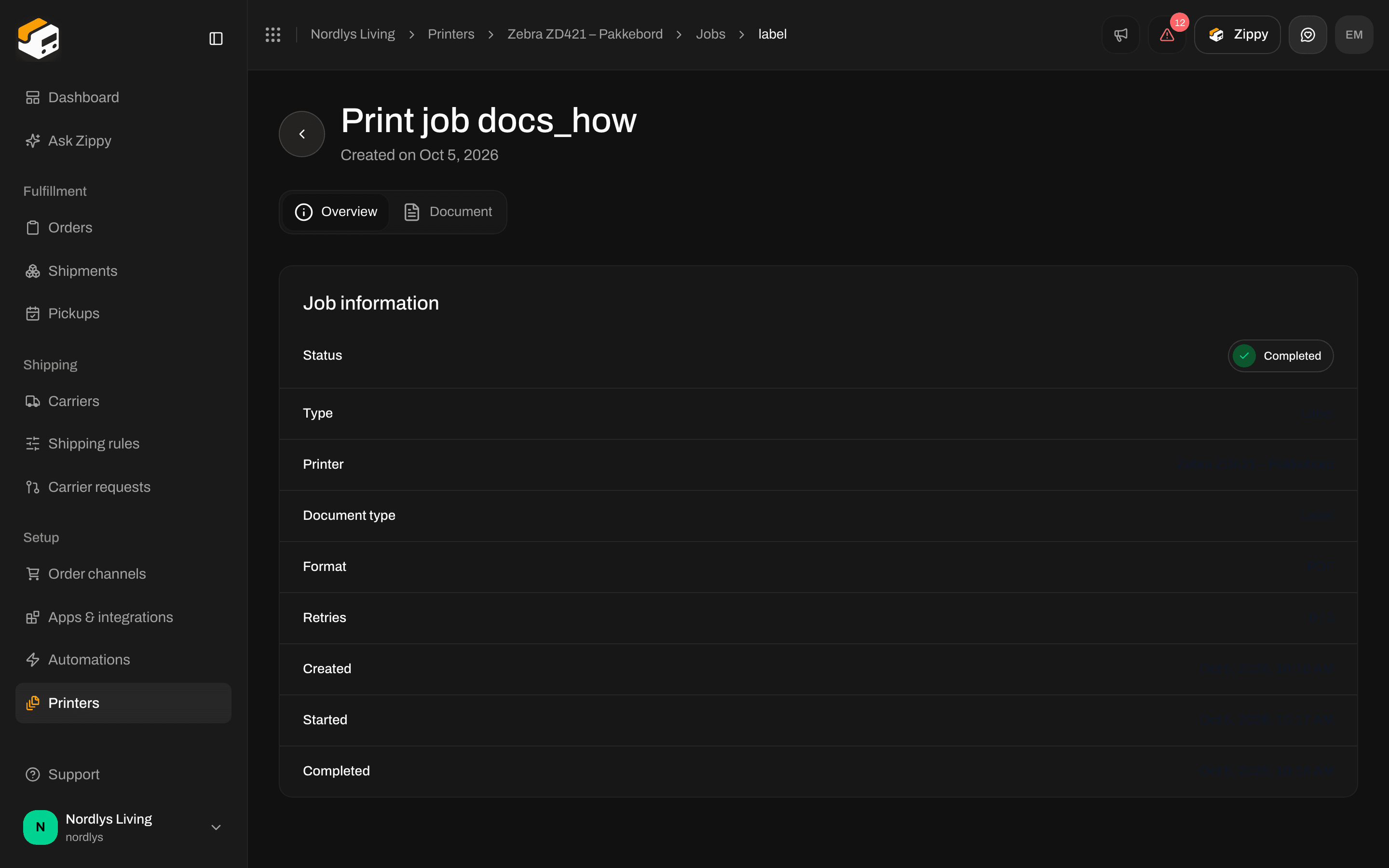
A print job's Overview
Jobs stay Pending
A job stays Pending when Zippendo cannot reach the printer:- Zippendo Printer is closed, or the computer is off or asleep. Open the app and check it says Connected.
- The printer shows Offline on Printers. Check that the printer is on and connected to the computer.