

Open Order channels
Click Order channels in the sidebar, under Setup. The page has two tabs:
If you have not connected anything yet, the page opens on Catalog.
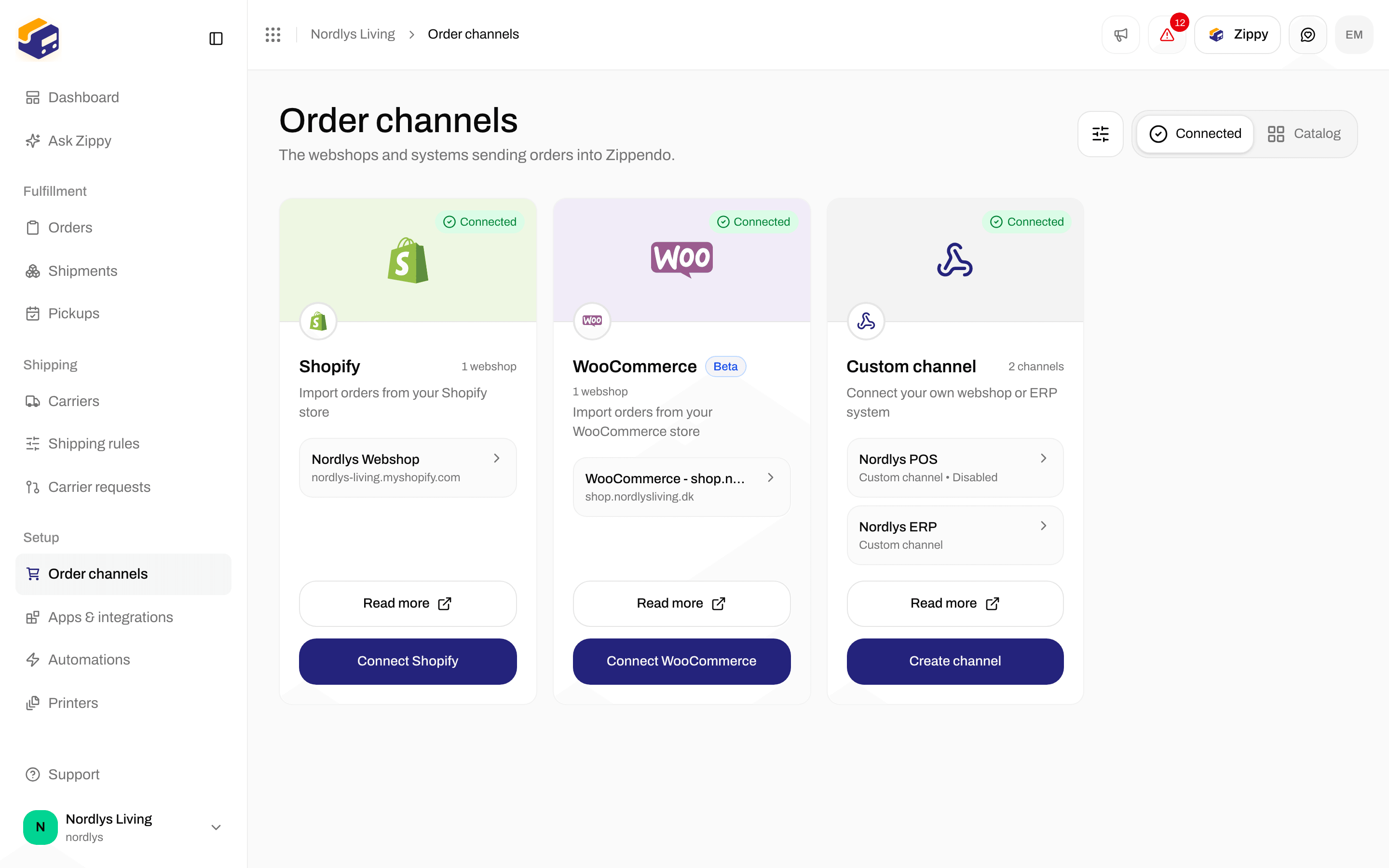
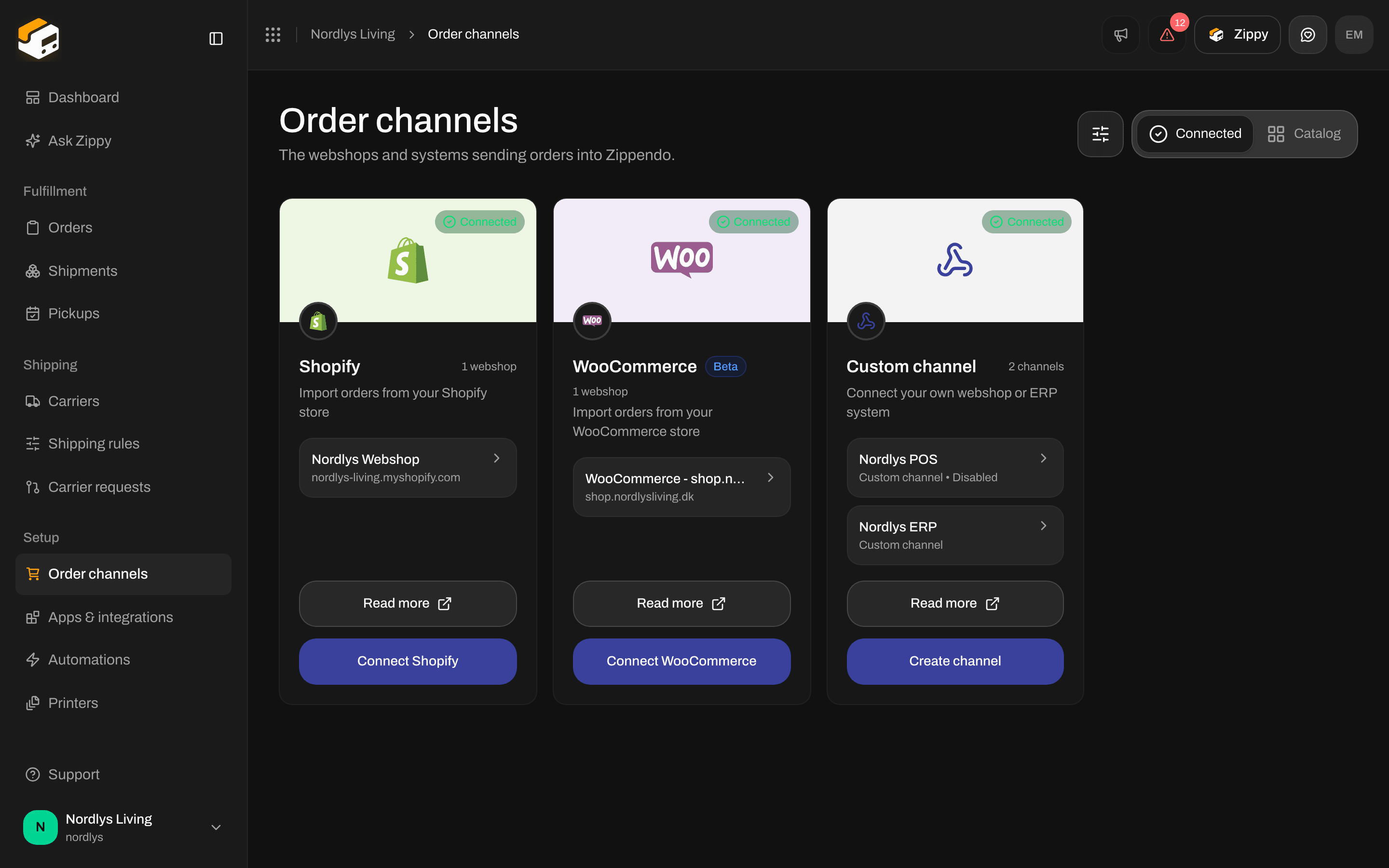
Your connected webshops on the Order channels page
Connected
Each type of channel has one card: Shopify, WooCommerce or Custom channel. A green Connected label on the card means at least one channel of that type is connected, and the card says how many, for example “2 webshops” or “1 channel”. Inside the card, each channel is a row. Click a row to open that channel’s settings.
A row that also says Disabled belongs to a channel that is turned off.
At the bottom of each card, Read more opens the guide for that type, and the second button connects one more: Connect Shopify, Connect WooCommerce or Create channel. The WooCommerce card carries a Beta label because it was launched recently.
When nothing is connected, the tab shows No webshops connected. Click Open catalog to connect your first webshop.
Filter by brand
The filter only appears on Connected, and only when your organization has brands. Click the filter button next to the tabs, choose under Brand, then click Add filters:
When you are working inside one brand, the choices are All records, Only this brand and Organization-wide only.
Shopify rows always show, whatever you pick. If no channel matches, you see No order channels match this brand. Click Clear filter to see every channel again. More about filters: Search and filters.
Catalog
The Catalog tab lists what you can connect. The button on each card opens its own setup window.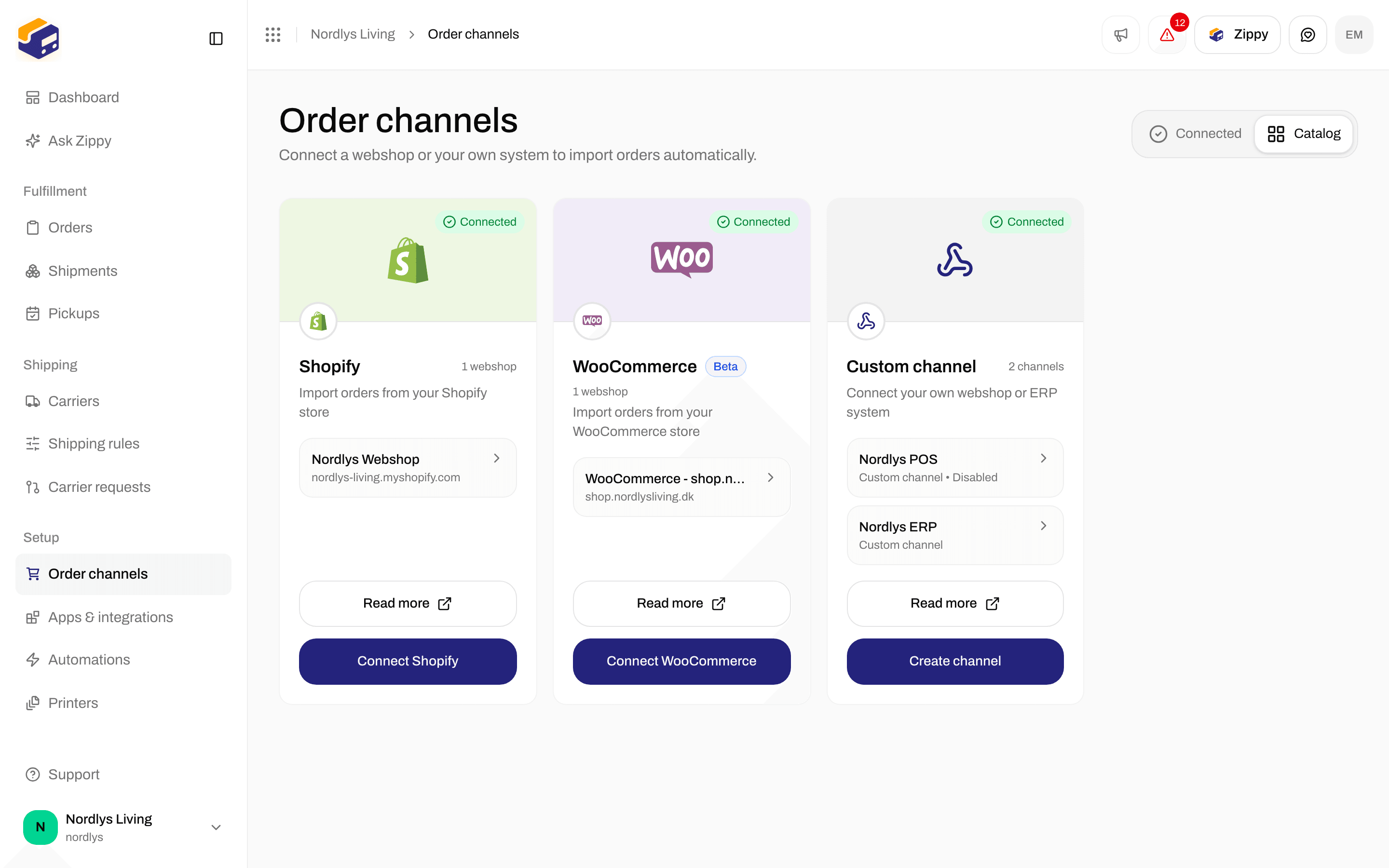
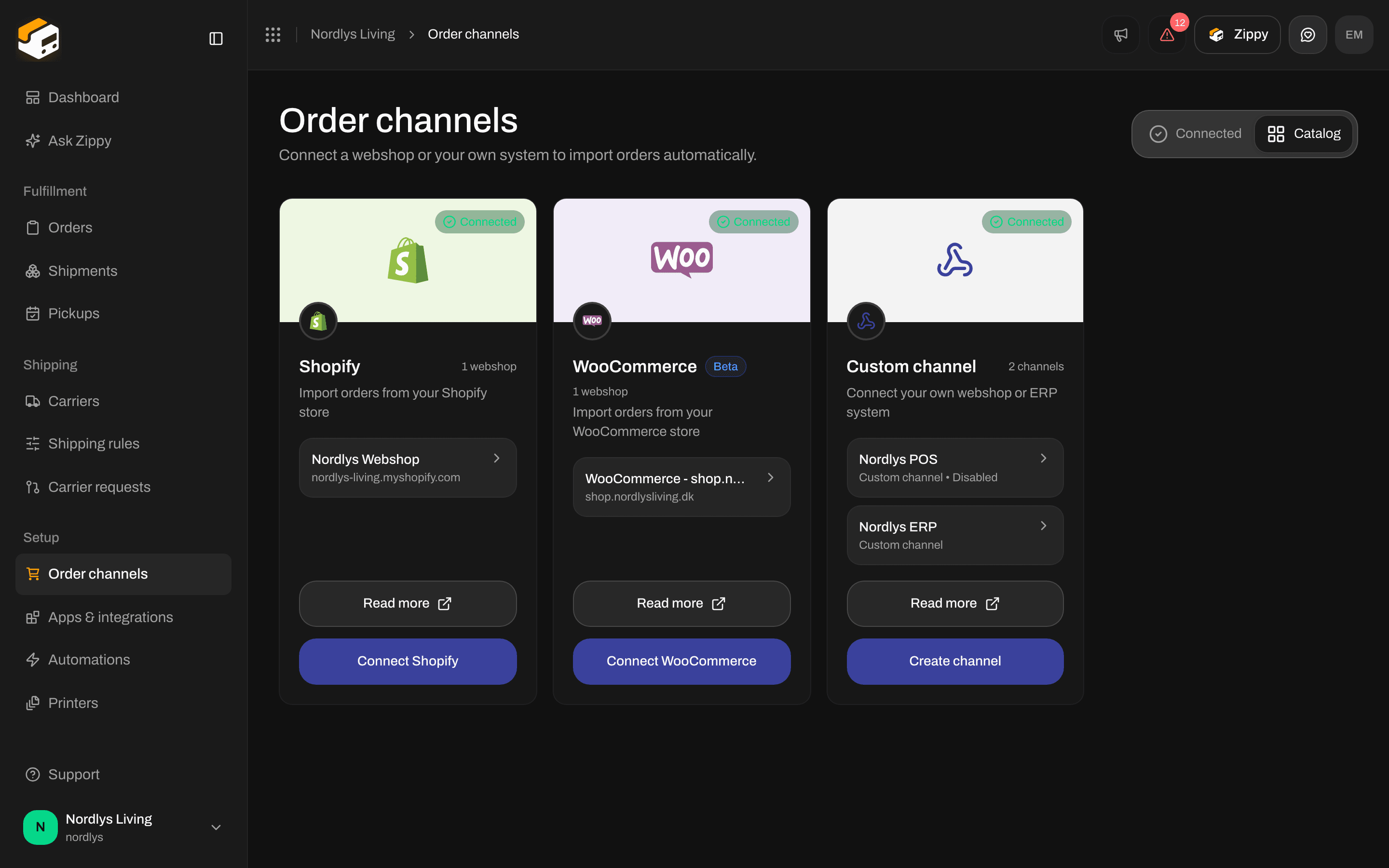
Shopify, WooCommerce and Custom channel in the catalog
Channel orders in the sidebar
Under Channel orders in the sidebar, every order channel has its own shortcut. Click one to open Orders with only that channel’s orders. Channels that are turned off look dimmed. Leftover channels are listed here too, until you remove them. Before you connect anything, the group shows Add order channel instead, which opens the Catalog tab. The group is hidden while the sidebar is collapsed to icons.Brand on a channel
Every Shopify, WooCommerce and custom channel has the same Brand setting: Orders from this channel belong to this brand. The shipments and documents made from those orders belong to the brand too.- Pick No brand (organization-wide) or one of your brands.
- Your choice is saved as soon as you pick it. You don’t need to click a save button.
- The setting only appears when your organization has brands. On Shopify it sits in its own Brands card.
Remove a leftover channel
A leftover channel is one whose Shopify or WooCommerce connection no longer exists, for example after a webshop was removed. It stays in the Shopify or WooCommerce card it came from, marked No active connection and Disconnected. It has no settings page. Custom channels never become leftovers. You delete them from their own settings.1
Click Remove
On the leftover row, click the trash icon (Remove).
2
Confirm
The Remove channel? window warns that the channel and every order imported under it are removed for good, and that this can’t be undone. Click Remove channel, or Cancel to keep it.
Messages
Connect and disconnect messages for Shopify and WooCommerce are on their own pages.