

What connecting does
Once you have connected, Zippendo:- Adds your webshop under Order channels, on the Connected tab.
- Gets new and changed orders from Shopify as soon as they happen. You do not set anything up in Shopify for this.
- Adds Zippendo Shipping to Shopify, so your shipping rules can show up as shipping prices at Shopify checkout. This needs Carrier-Calculated Shipping on your Shopify plan. See Live rates in Shopify checkout.
- Imports your existing orders if you asked for that when connecting.
- Switches on Fulfillment sync to Shopify: when you send a shipment in Zippendo, the Shopify order is marked as fulfilled with the tracking number. This does not send the shipment by itself.
Before you start
- A Shopify store, and permission to install apps on it (the owner of the Shopify store, or a staff account allowed to approve app permissions).
- A Zippendo organization. If you install the app before you have an account, you can Create a Zippendo account or Sign in during the setup.
- A sender address, if you want to choose a default sender while connecting. You can skip this and set a Default sender address later.
- A connected carrier and shipping rules, if you want shipping prices at checkout, or want new shipments to be filled in from a rule.
- Carrier-Calculated Shipping on your Shopify plan, if you want Zippendo’s shipping prices at checkout. Shopify includes it on some plans only. Without it, your orders still come in: use shipping method mapping instead.
- read your orders, so they come into Zippendo
- mark orders as fulfilled and add the tracking number
- show shipping prices and service points at checkout
- read product details for labels and customs: weight, customs codes, country of origin and barcode
- read the customer’s name and email for the label
Connect your webshop
Open the Catalog tab
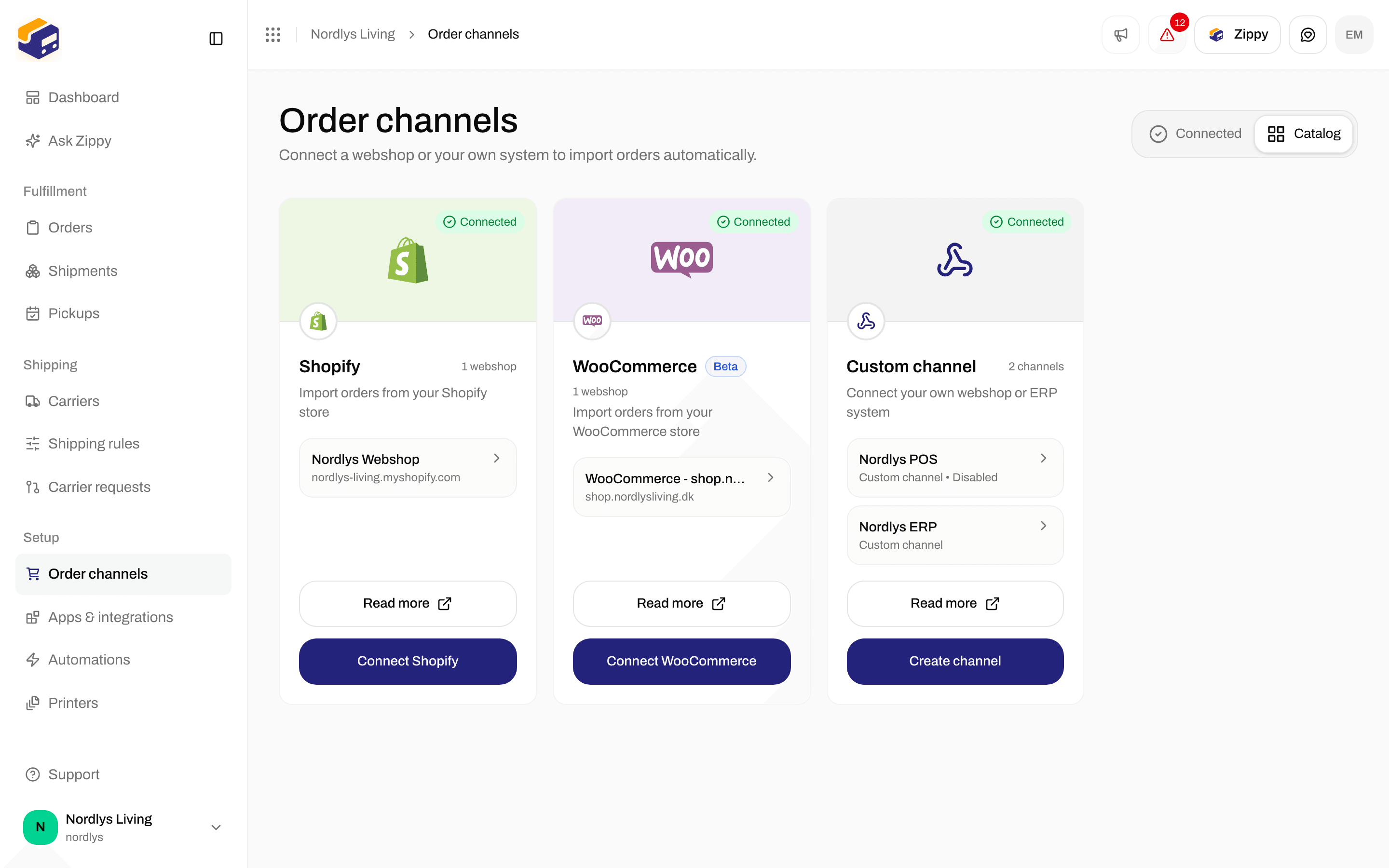
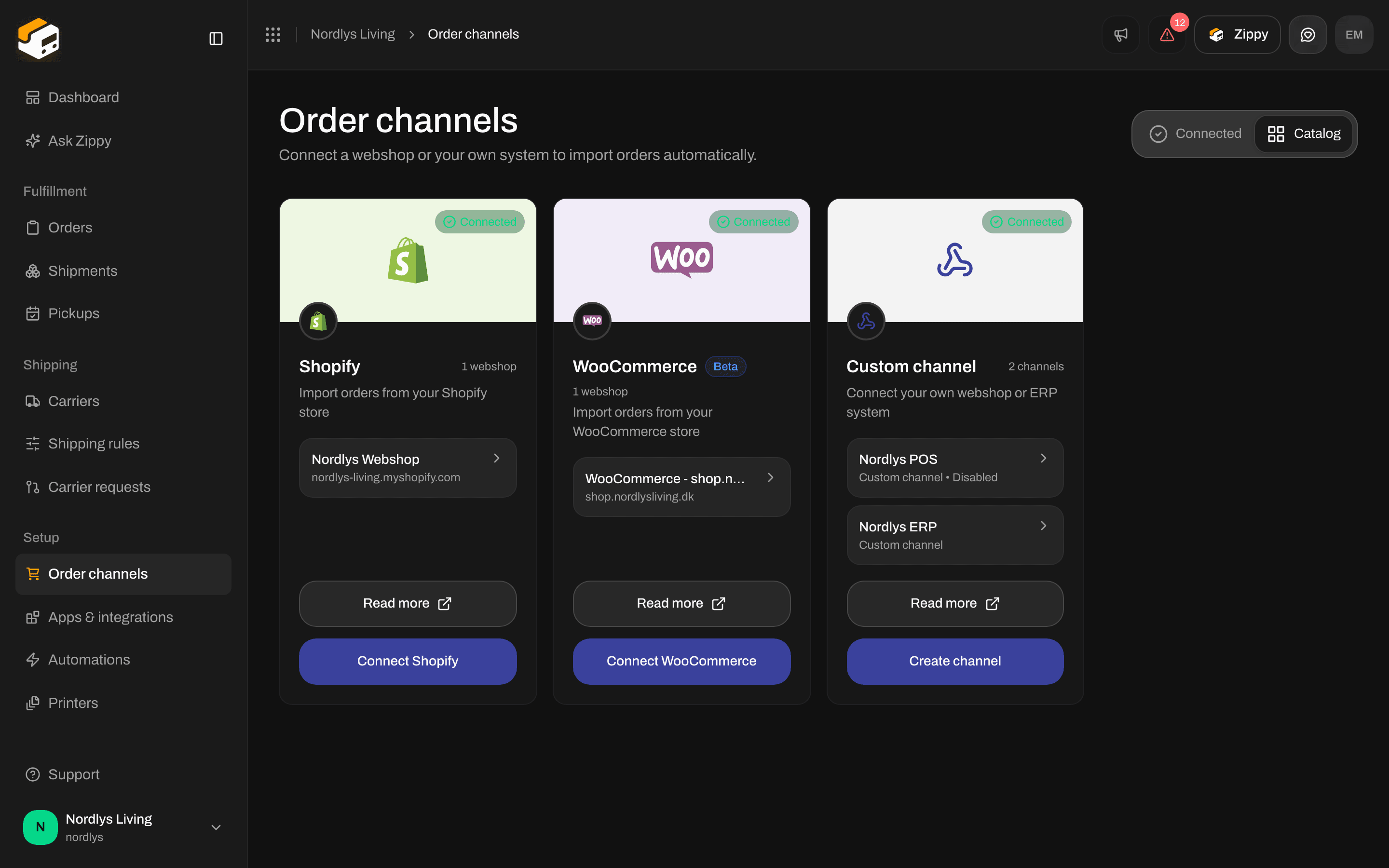
The Shopify card on the Catalog tab of Order channels
Click Connect Shopify
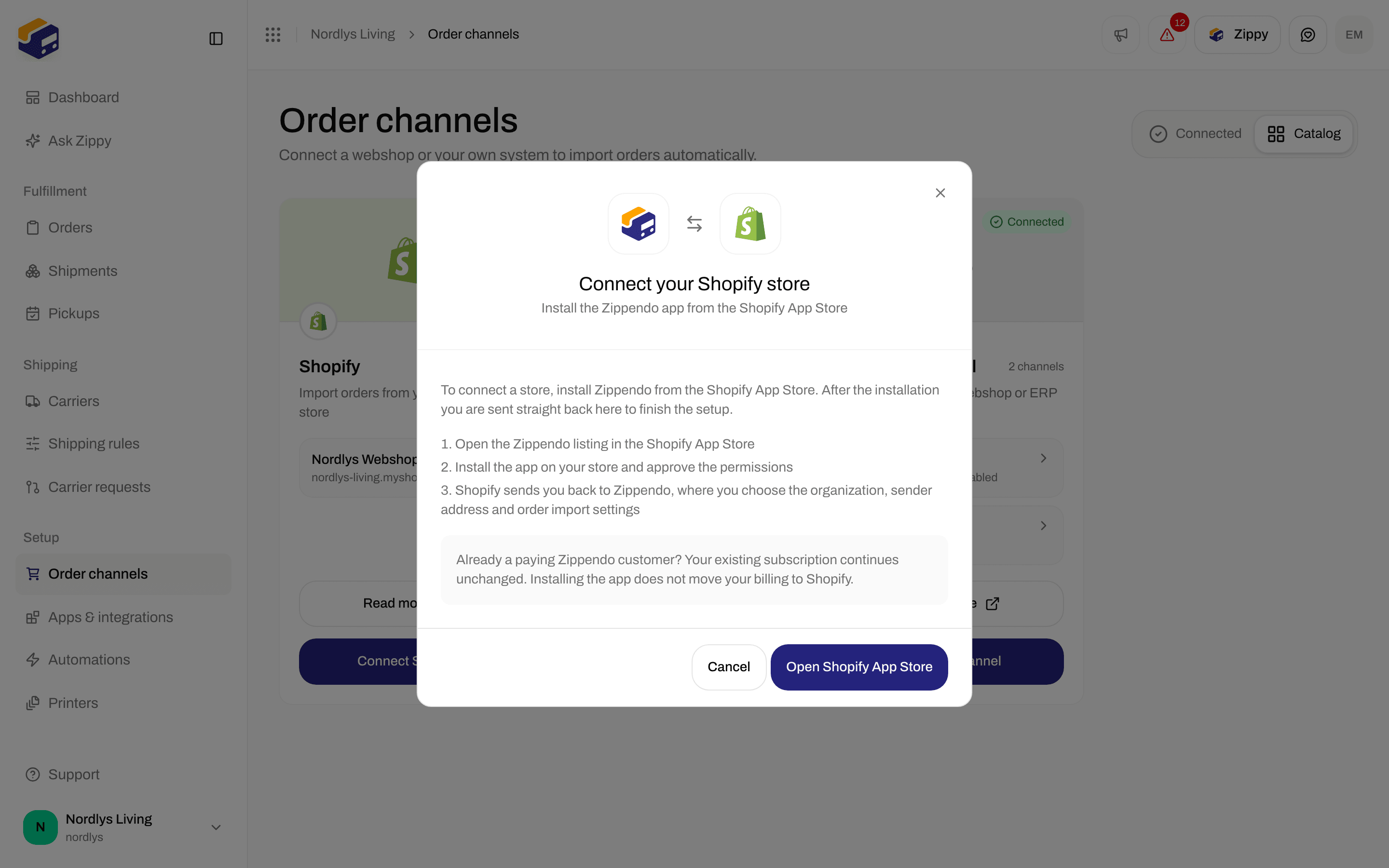
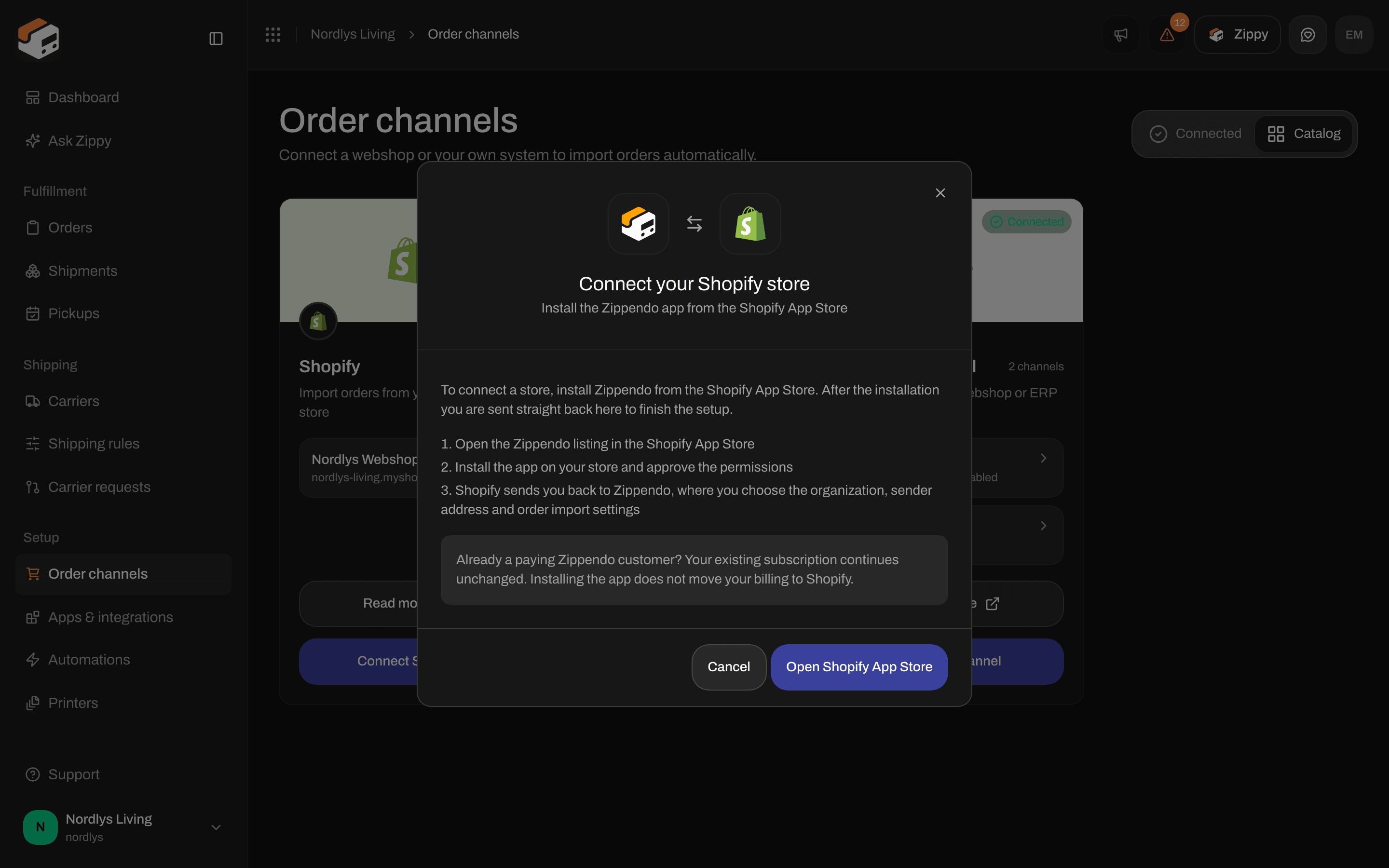
The Connect your Shopify store window
- Open the Zippendo listing in the Shopify App Store
- Install the app on your store and approve the permissions
- Shopify sends you back to Zippendo, where you choose the organization, sender address and order import settings
Install the app in Shopify
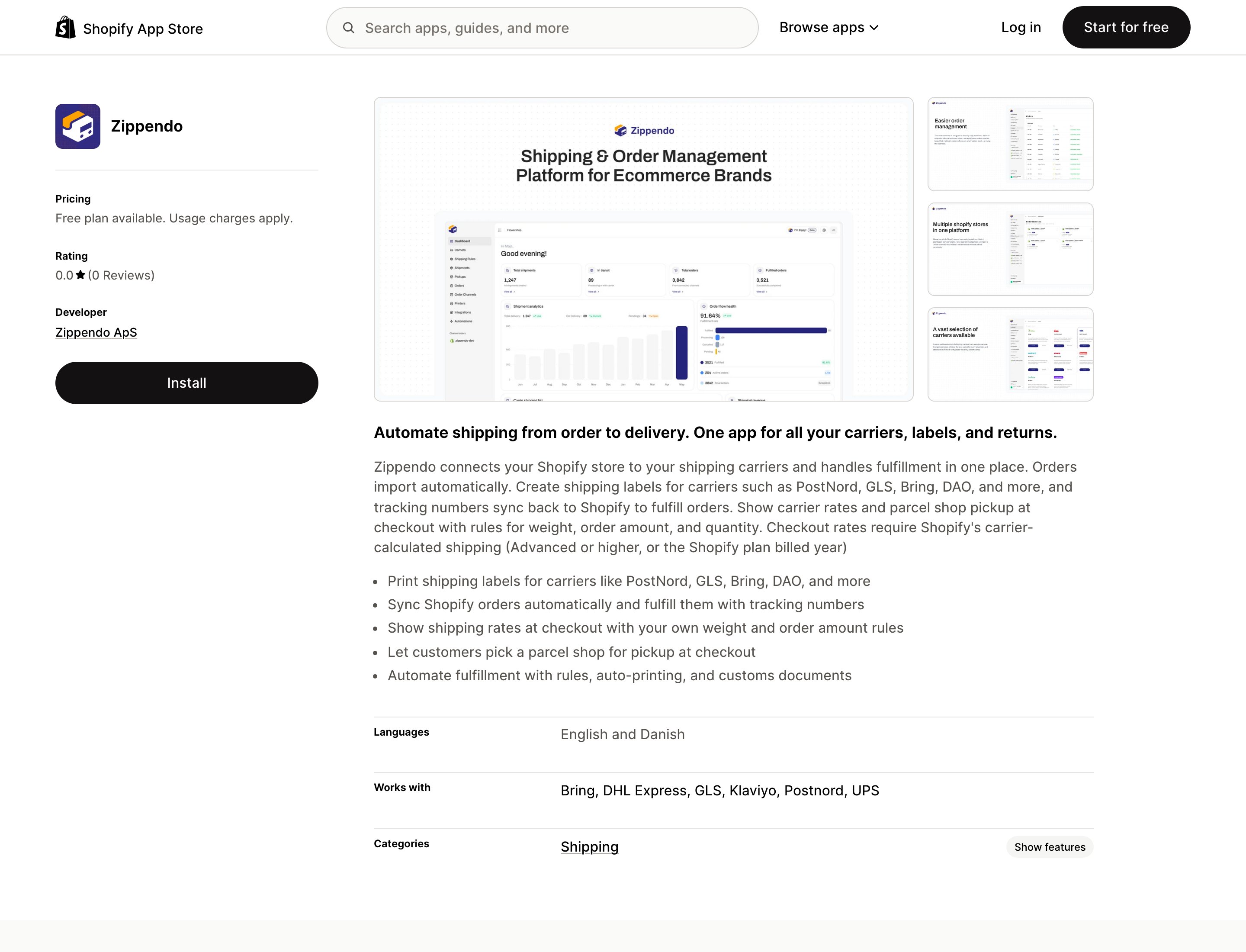
Zippendo in the Shopify App Store: click Install
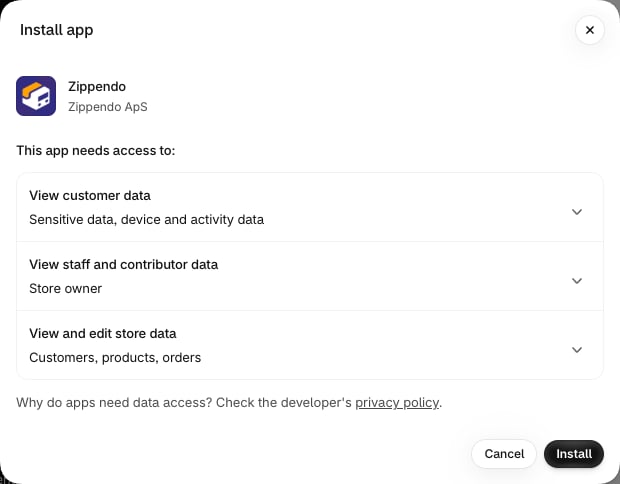
The Install app window in the Shopify admin
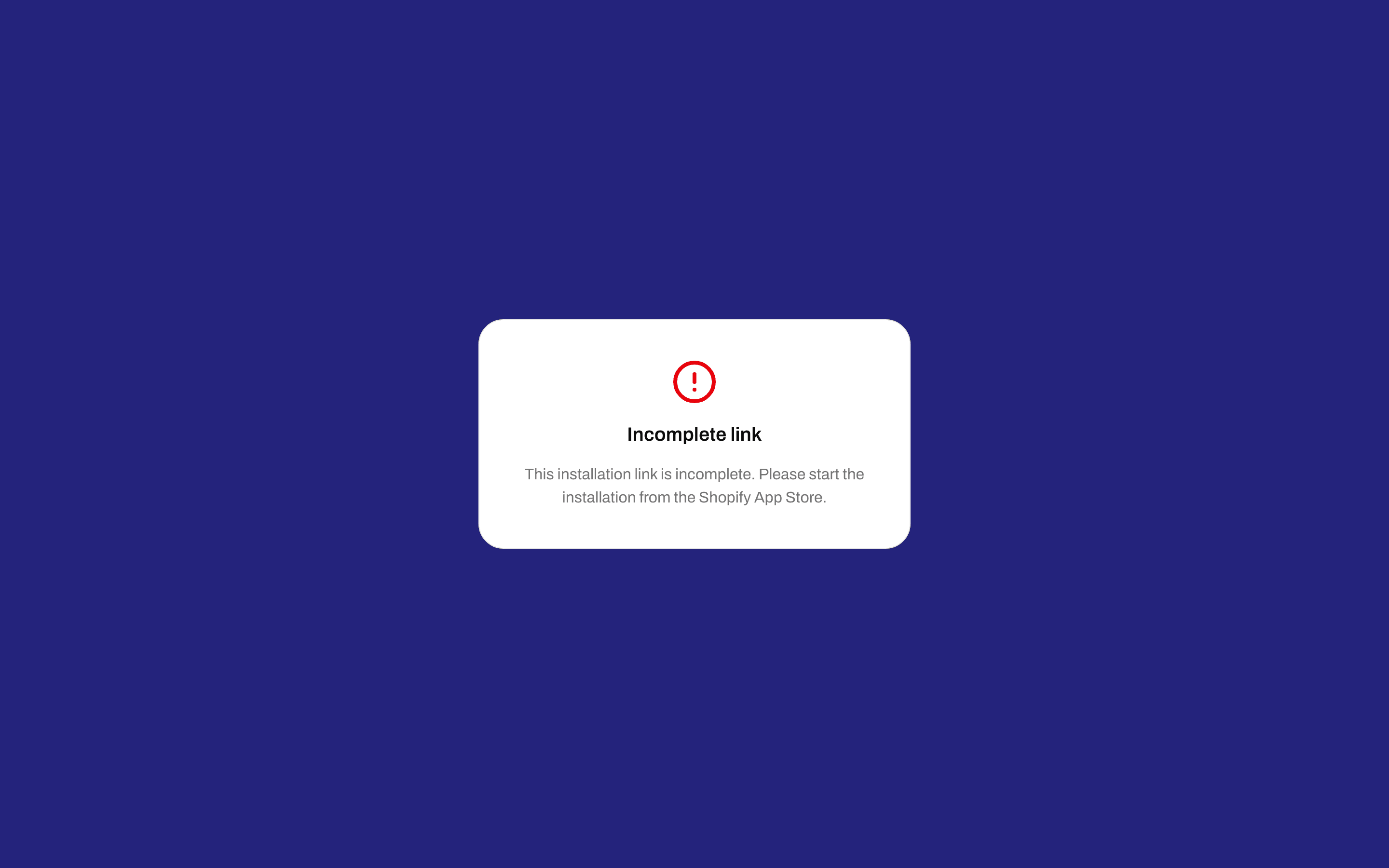
The page you see if you did not come from the Shopify App Store
Sign in or create an account
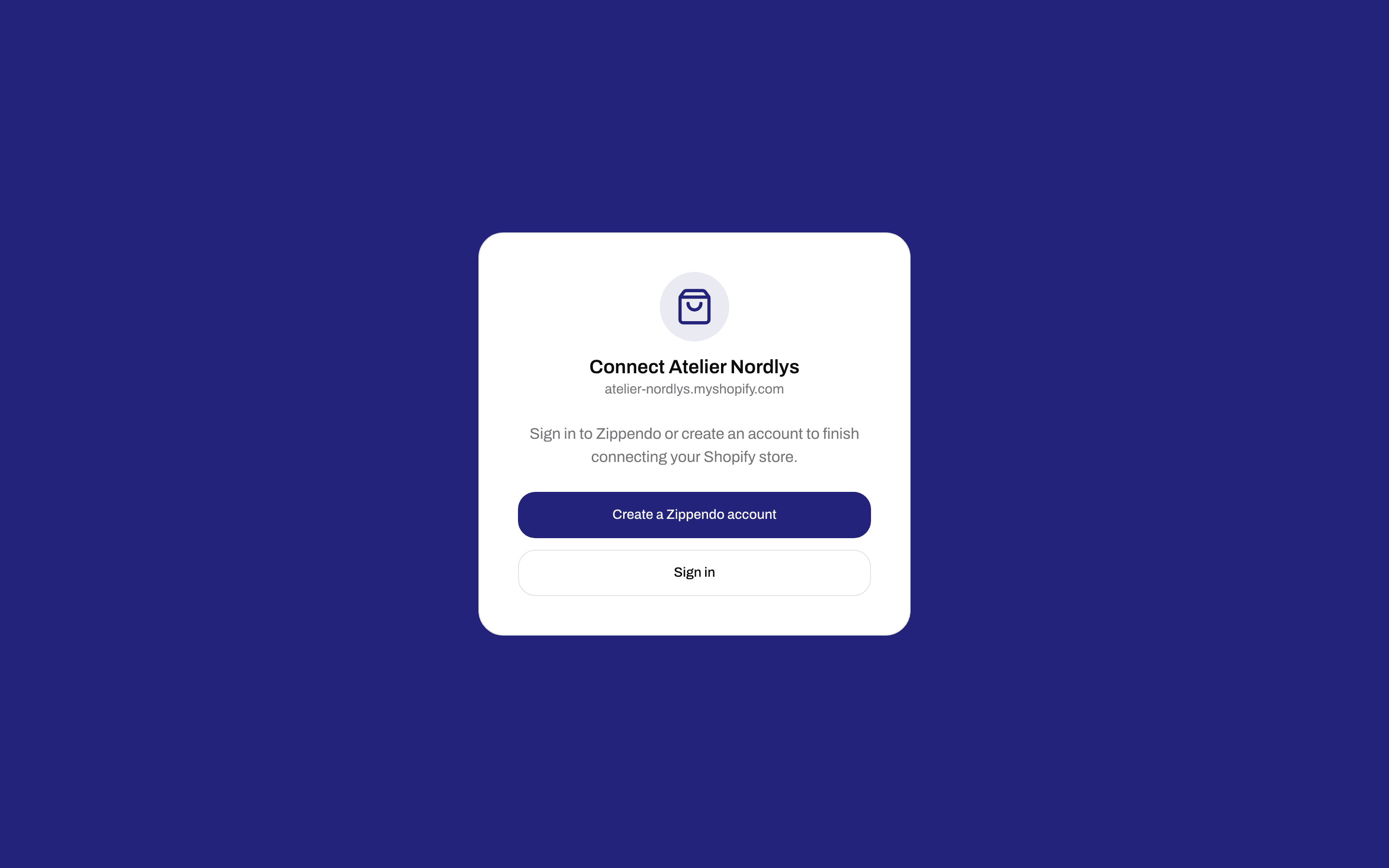
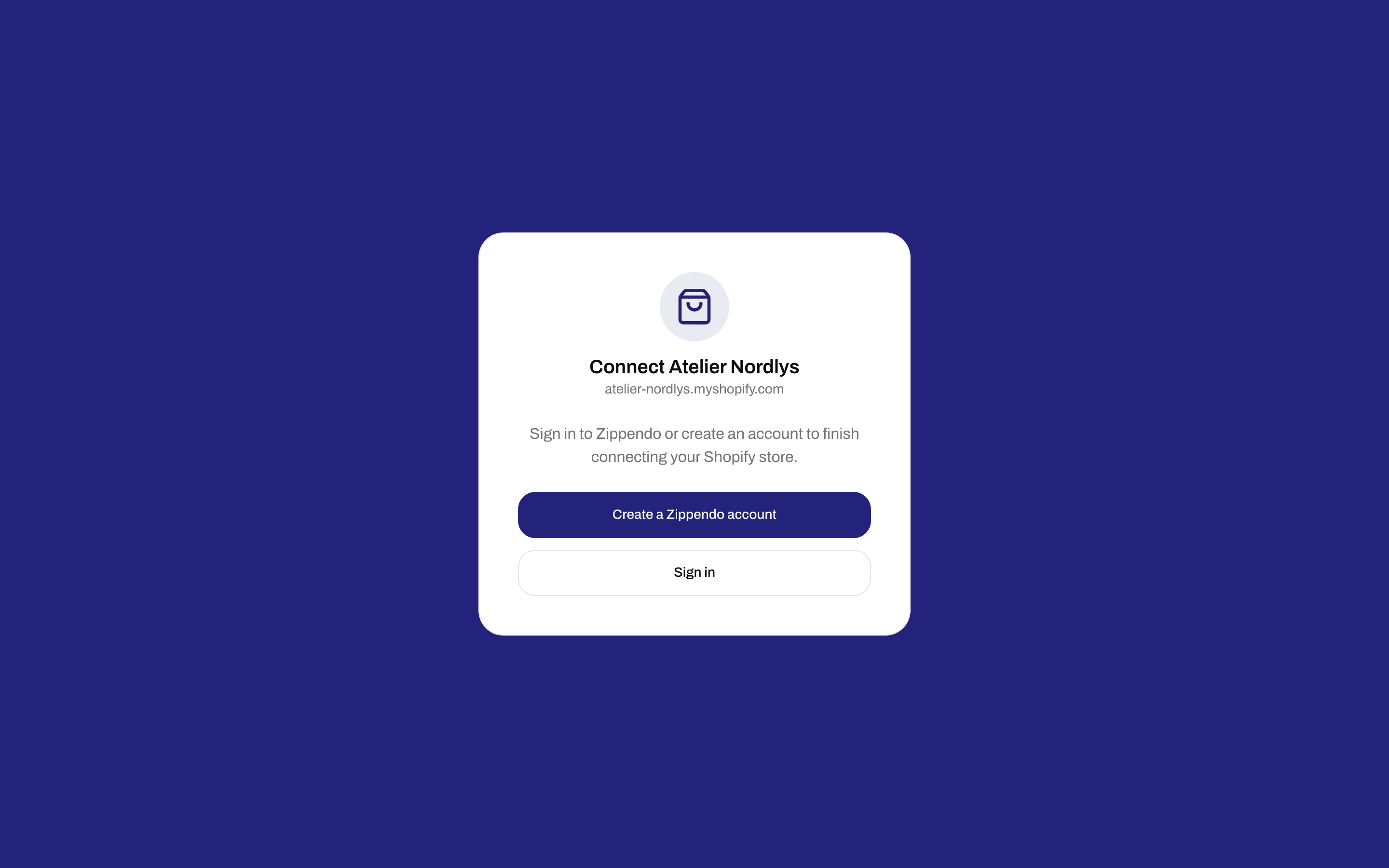
Connecting while signed out
Choose the organization, sender and import
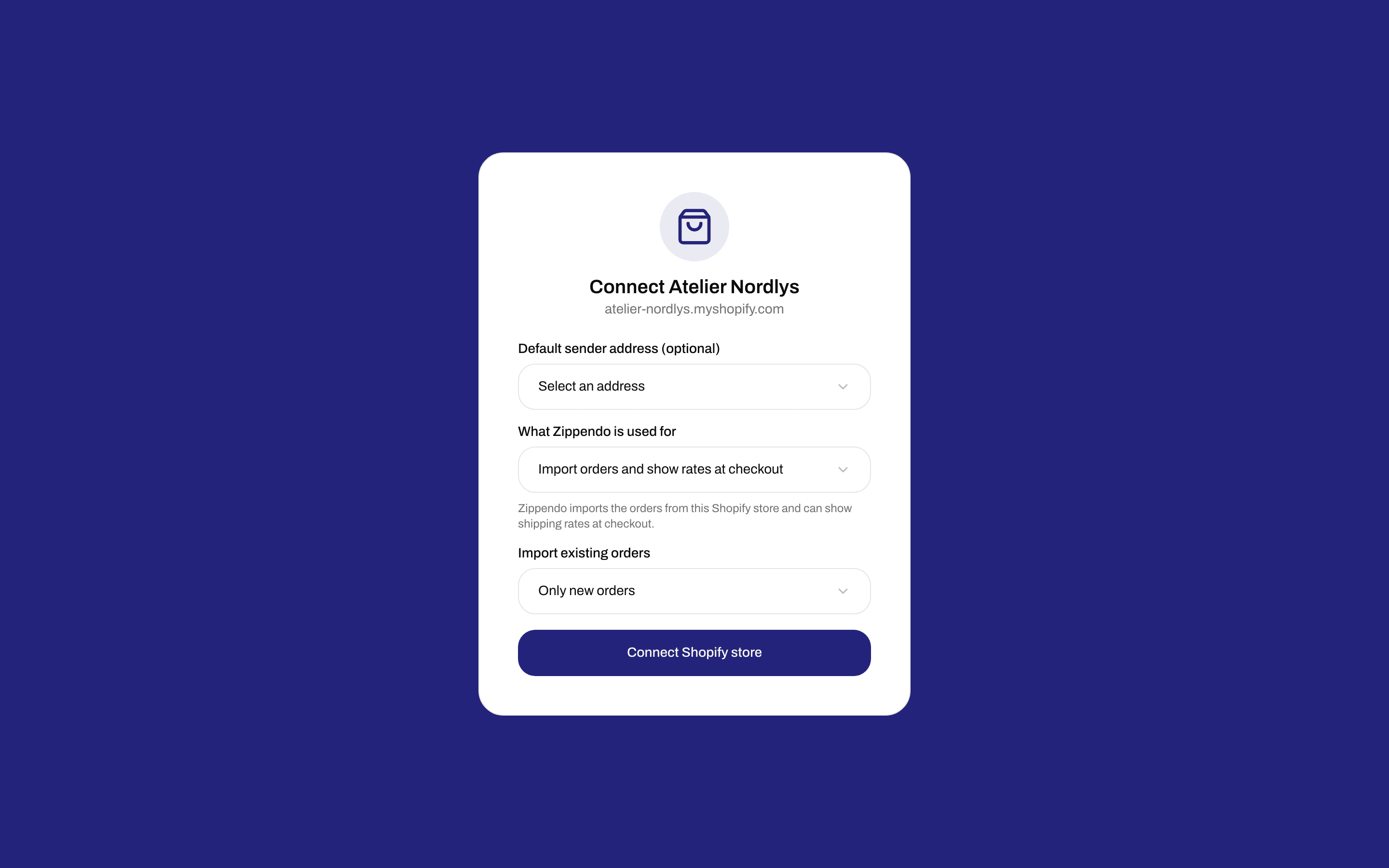
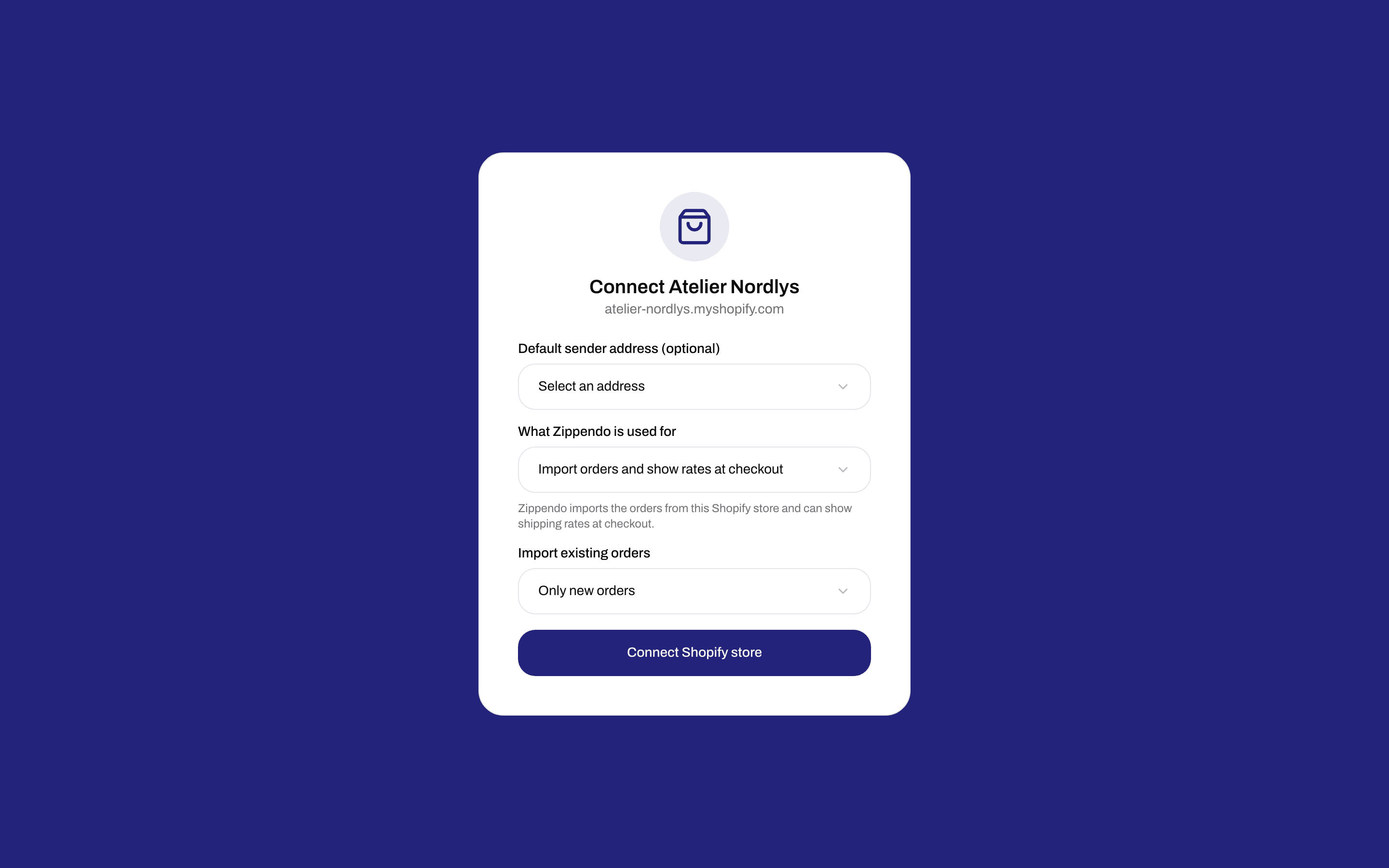
The last step: sender address, order import and Connect Shopify store
- Organization - only shown if you belong to more than one organization.
- Default sender address (optional) - the sender used when a shipment is created without a shipping rule. If you have no addresses yet, add one later under Settings → Addresses.
- What Zippendo is used for - Import orders and show rates at checkout (the usual choice), or Checkout rates only (another system handles the orders). Pick the second one if a warehouse system (WMS) or an ERP already handles your Shopify orders. Shipping prices and service points at checkout still work, but Zippendo does not import the orders or mark them fulfilled. You can change this later.
- Import existing orders - Only new orders, Import the last 30 days, or Import from a specific date (no more than one month back). Only shown when Zippendo imports orders.
After connecting
Your webshop appears on the Shopify card on the Connected tab of Order channels, with its name and its Shopify address (ending in myshopify.com).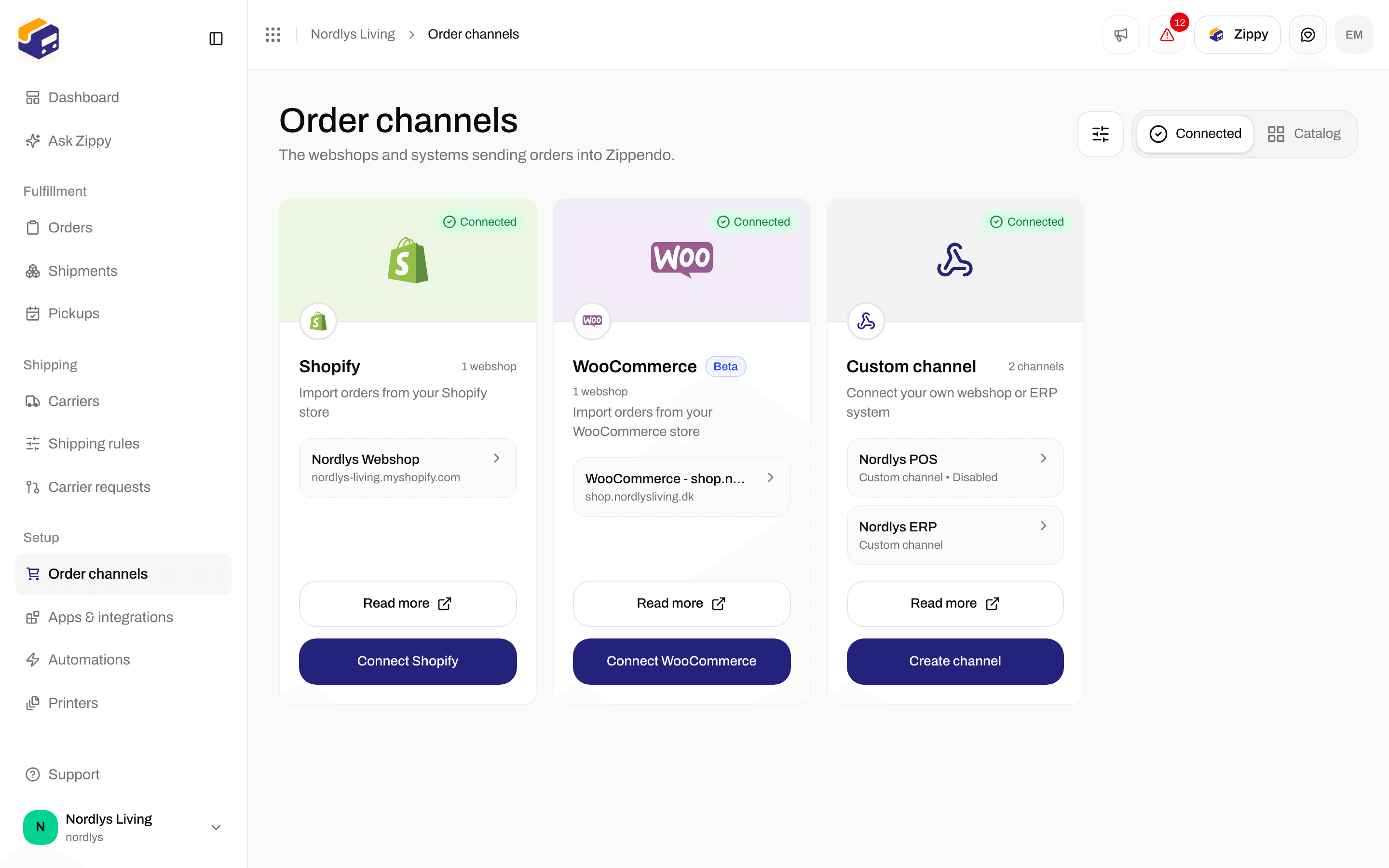
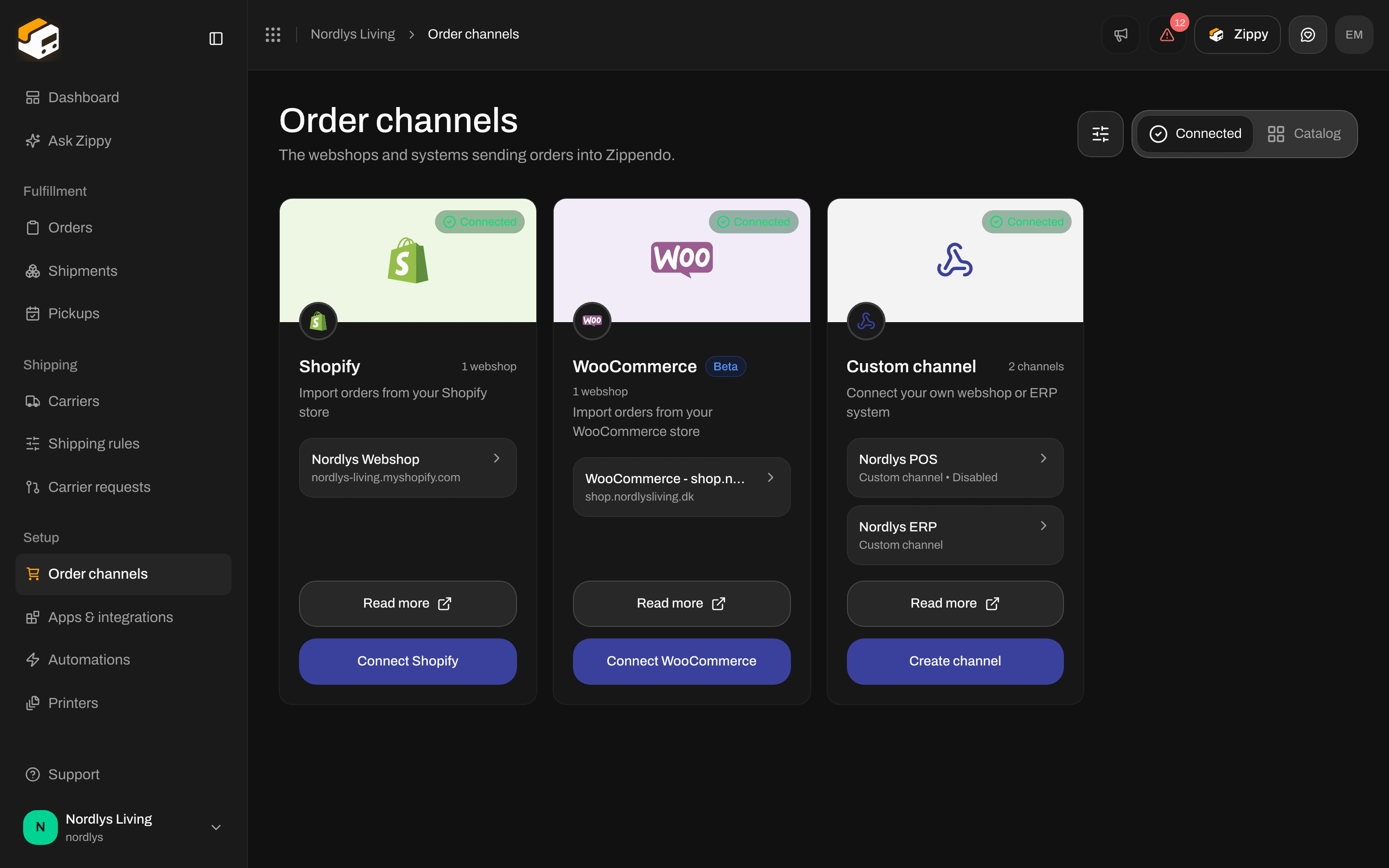
A connected Shopify store under Order channels
Orders & checkout
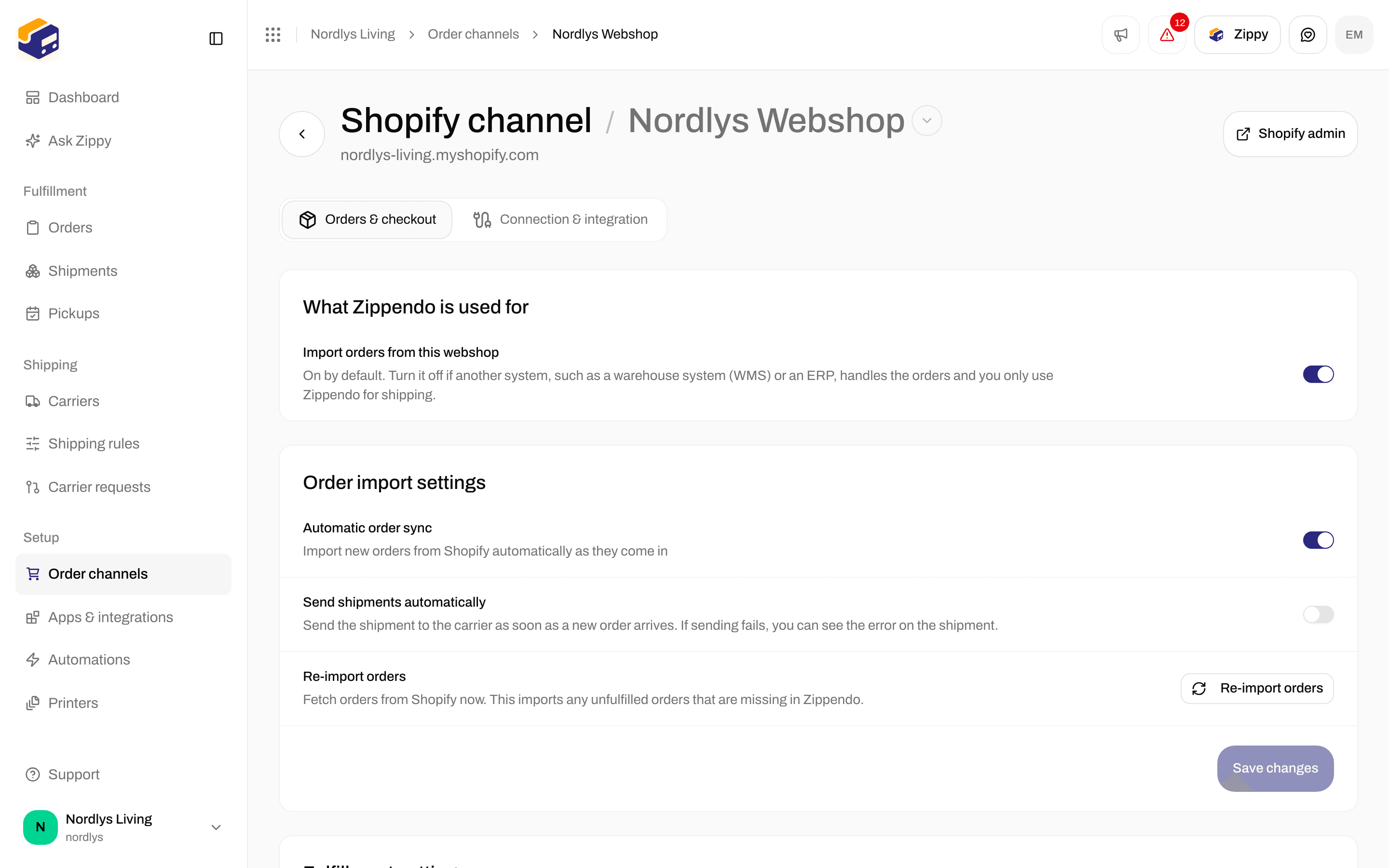
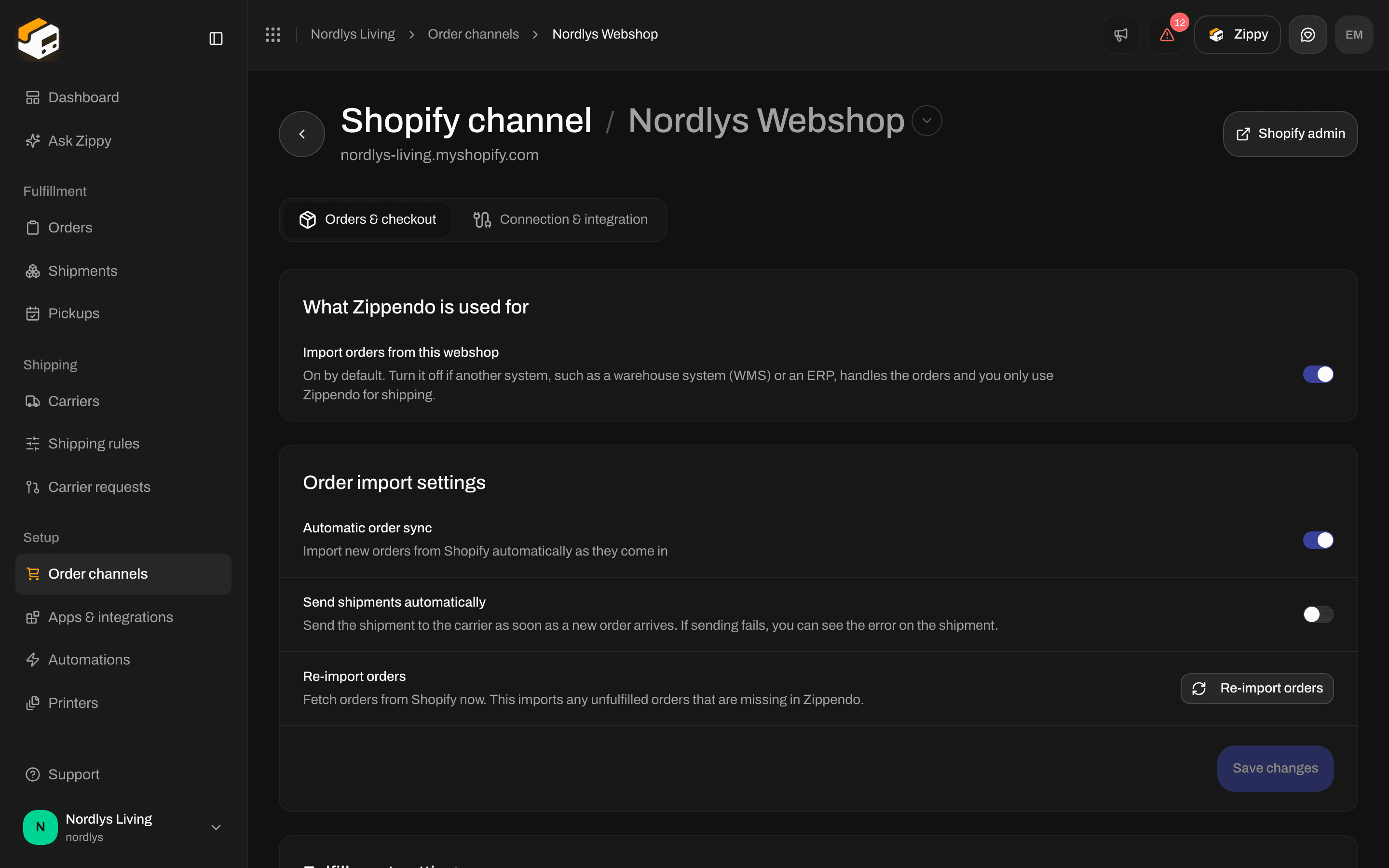
Order import settings and Fulfillment settings
- Import orders from this webshop - on by default. Switch it off if another system, such as a warehouse system (WMS) or an ERP, handles the orders and Zippendo is only used for shipping prices at checkout. While it is off, the two sections below are hidden. Switching it back on asks you to confirm, because both systems could then create shipments for the same order.
- Automatic order sync - new Shopify orders come into Zippendo by themselves.
- Send shipments automatically - sends the shipment to the carrier as soon as a new order arrives. If sending fails, you can see the error on the shipment. Off by default.
- Re-import orders - fetches any unfulfilled orders that are missing in Zippendo.
- Fulfillment sync to Shopify - marks the Shopify order as fulfilled, with the tracking number, when you send its shipment in Zippendo. On by default. It does not send the shipment itself.
Default sender, checkout prices and shipping method mapping
You do not link Shopify locations or products. The sender is your Zippendo sender address, the items come from the order, and the carrier comes from a shipping rule: picked by the customer at checkout, or matched from the shipping method name.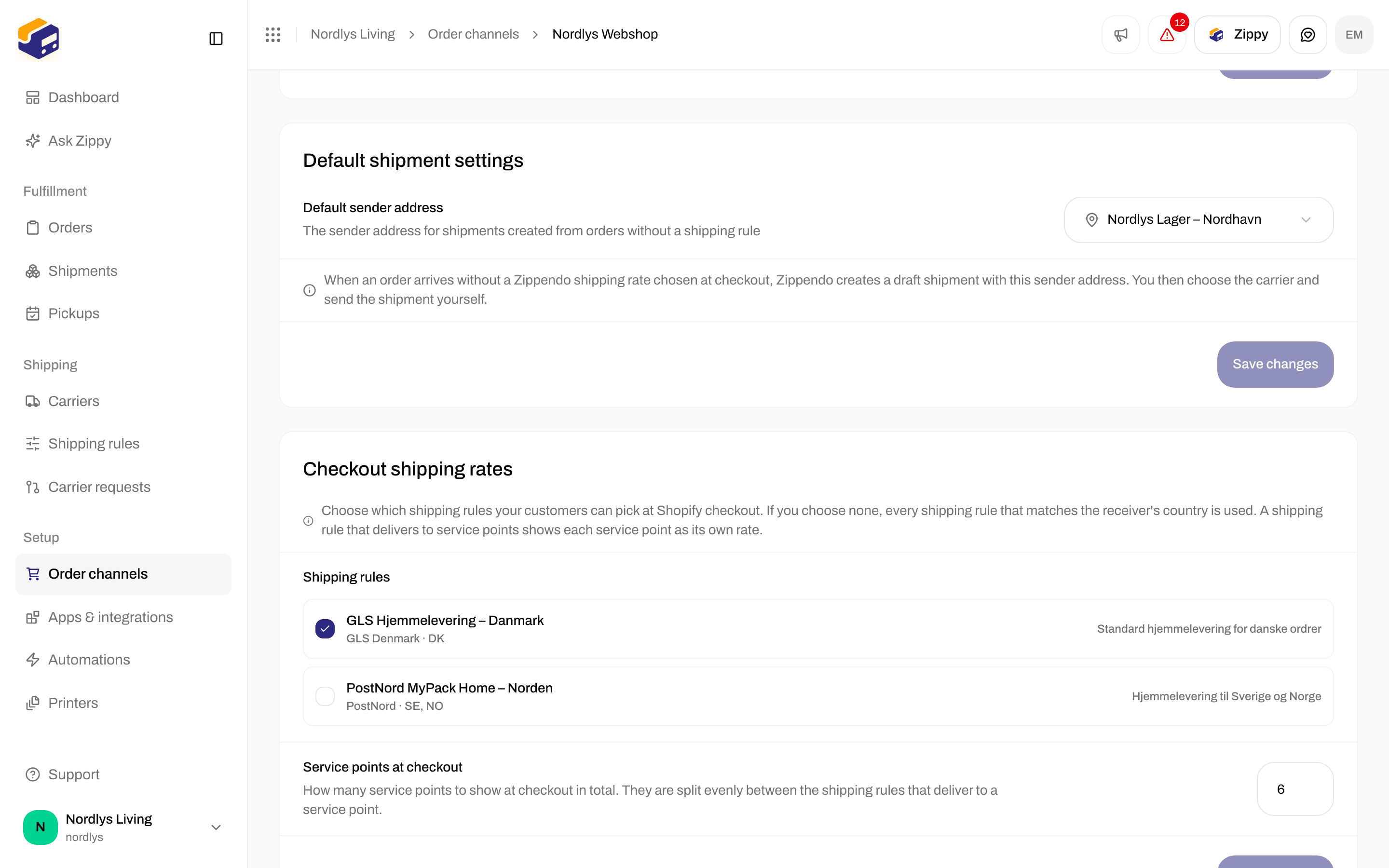
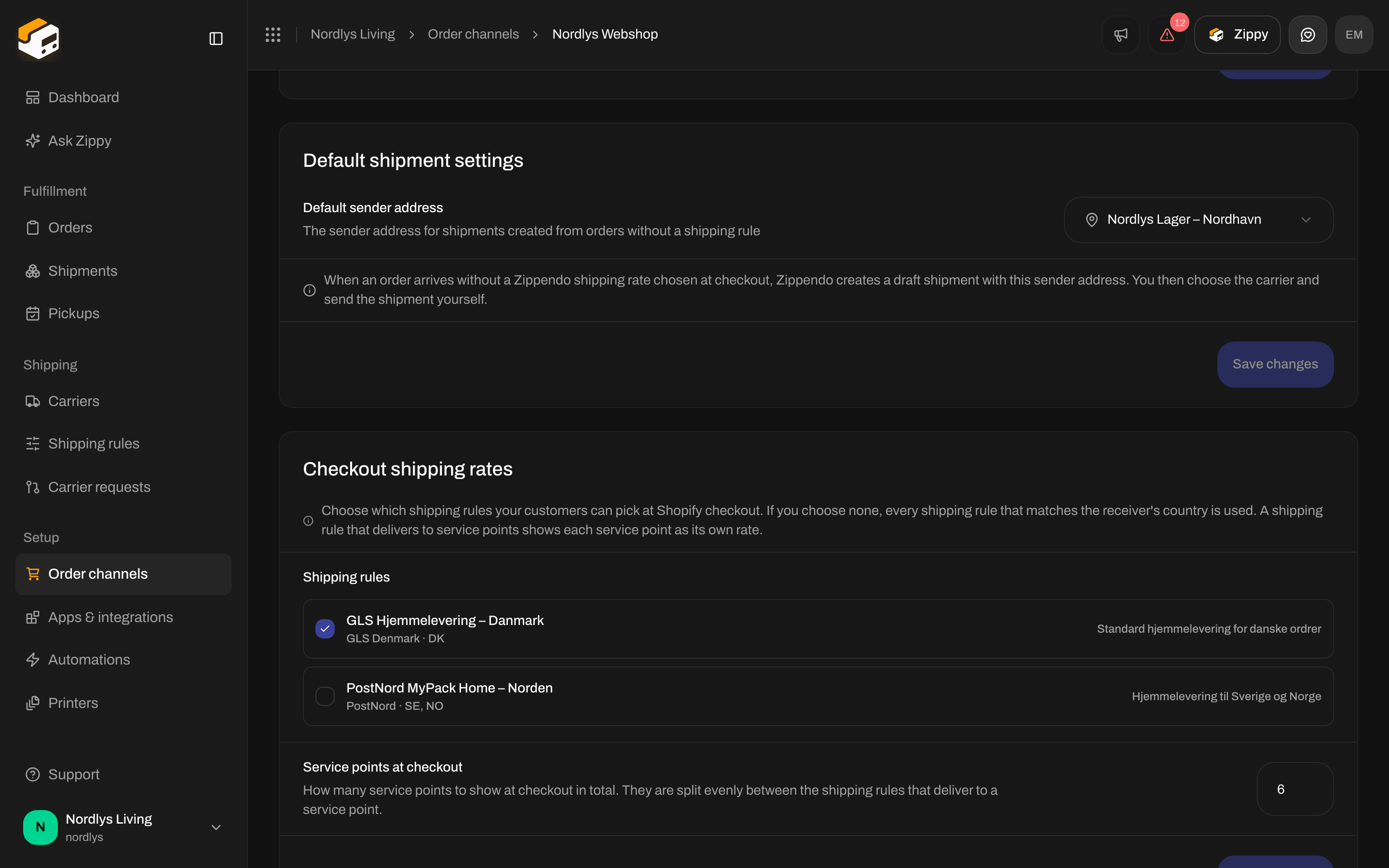
Default sender address and Checkout shipping rates
- Default sender address (under Default shipment settings) - the sender for orders where the customer did not pick a Zippendo shipping price at checkout. Zippendo creates a draft shipment with this address, and you choose the carrier and send it.
- Checkout shipping rates - tick the shipping rules to offer at Shopify checkout. If you tick none, every rule for the customer’s country is offered. Service points at checkout (1 to 20, default 6) is how many service points are shown in total, shared between the service point rules.
- In Shopify, go to Settings → Shipping and delivery and add Zippendo Shipping to your shipping zones. See Live rates in Shopify checkout.
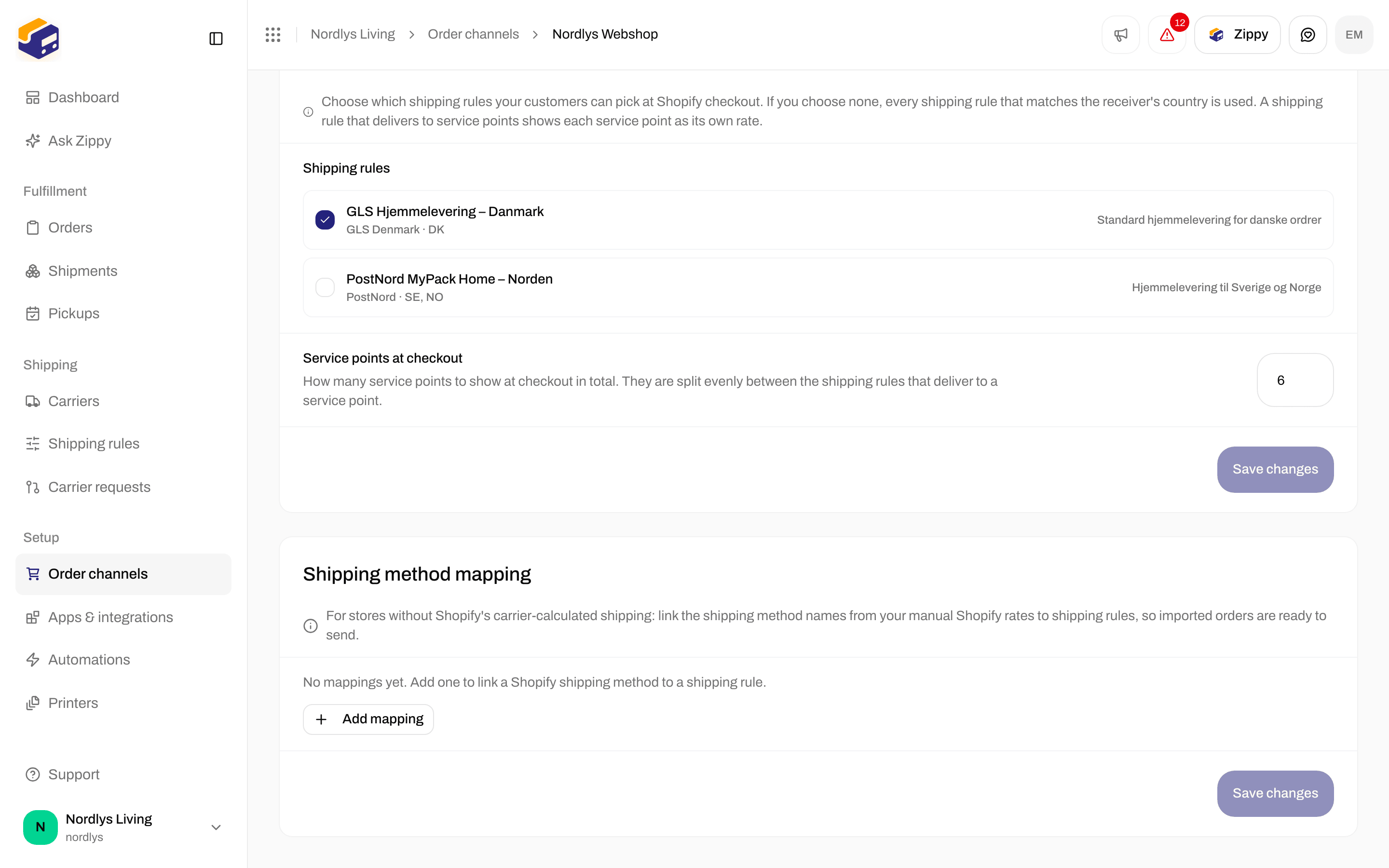
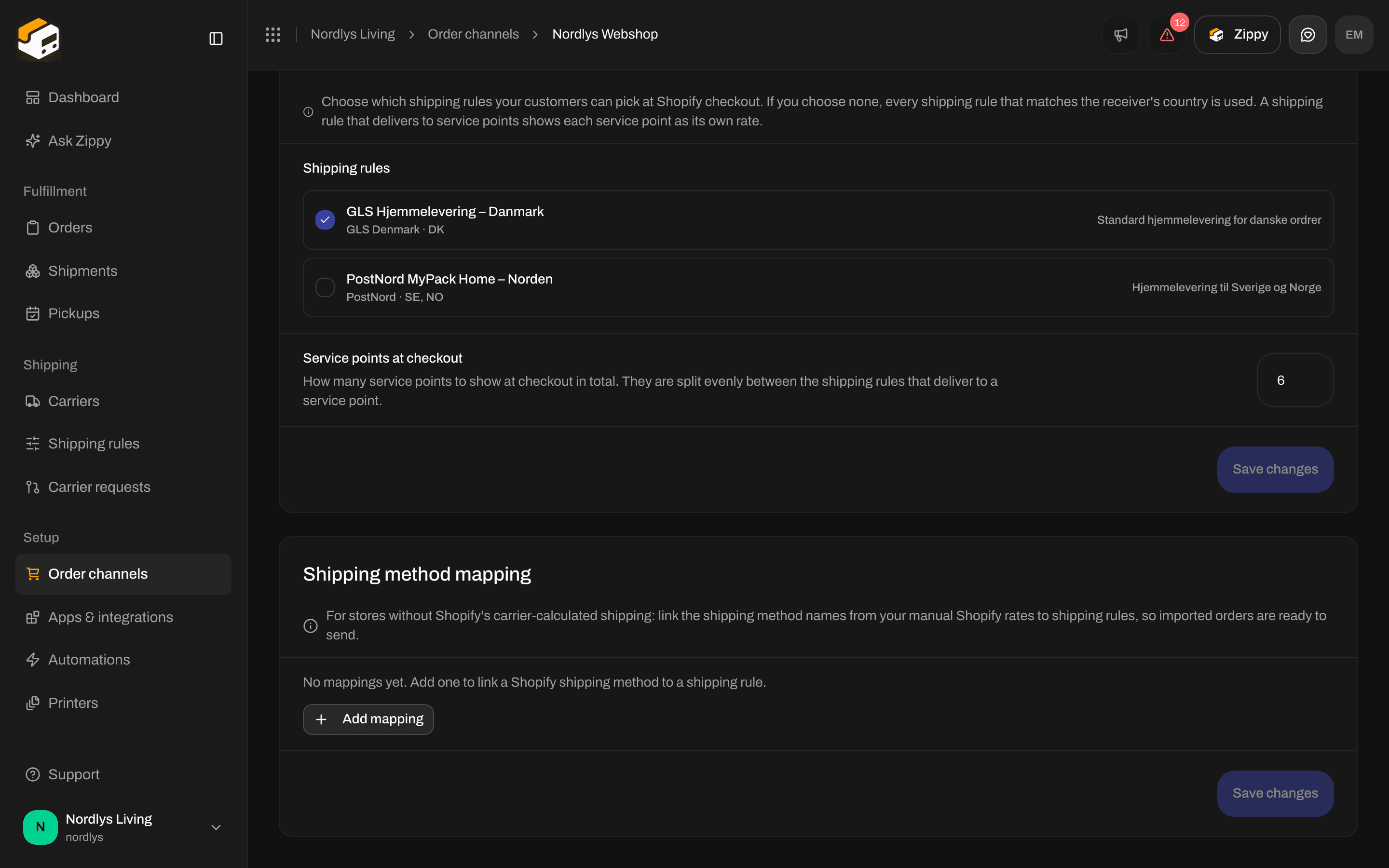
Shipping method mapping, empty until you add a row
GLS Home Delivery) and pick a Shipping rule. For a service point rule, choose under Service point whether Zippendo picks the Nearest automatically or you Choose manually. Click Save changes. Full details: Shopify without carrier-calculated shipping.
If your organization has brands, a Brands card on this tab lets you pick the Brand the webshop’s orders belong to.
Connection & integration
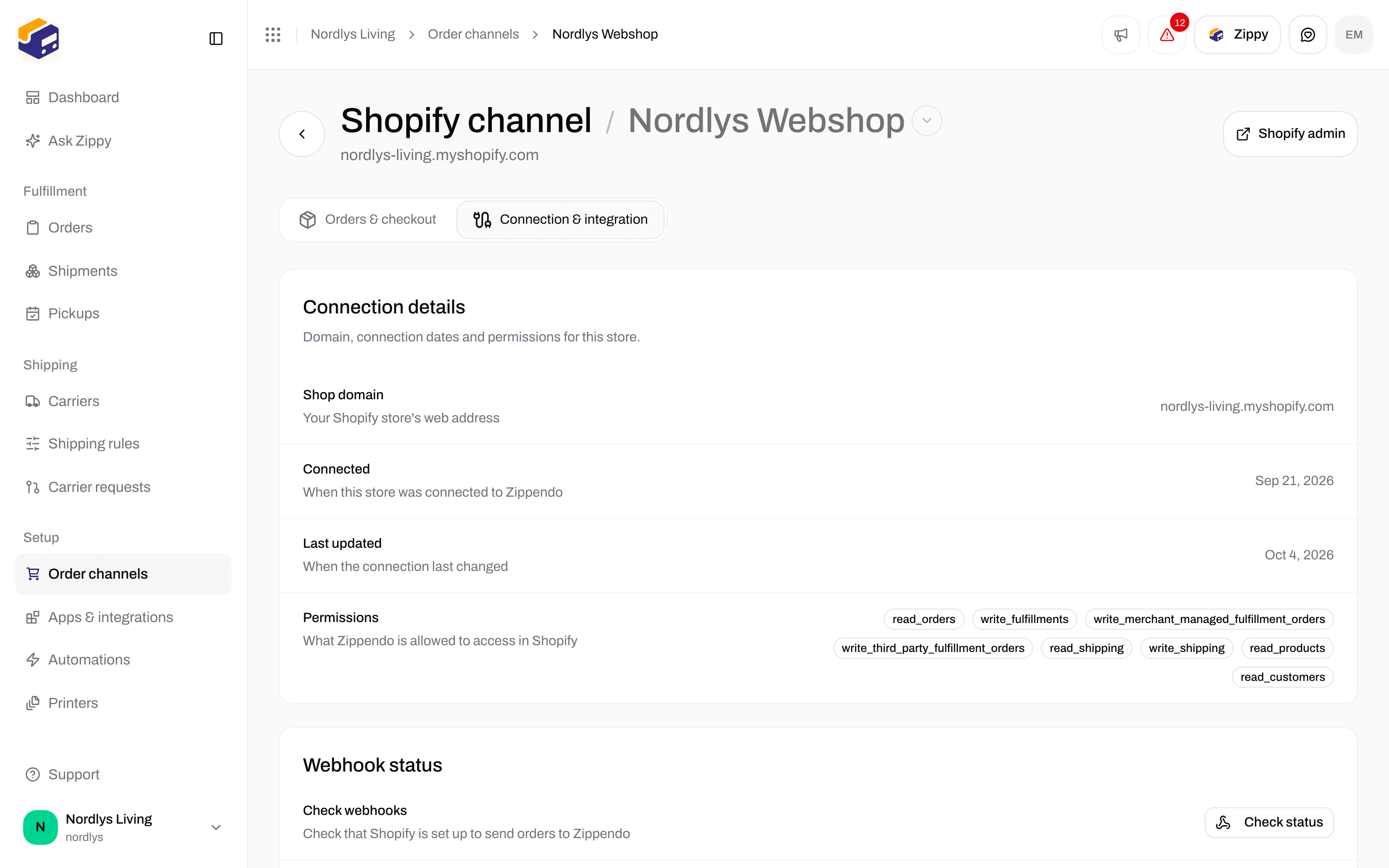
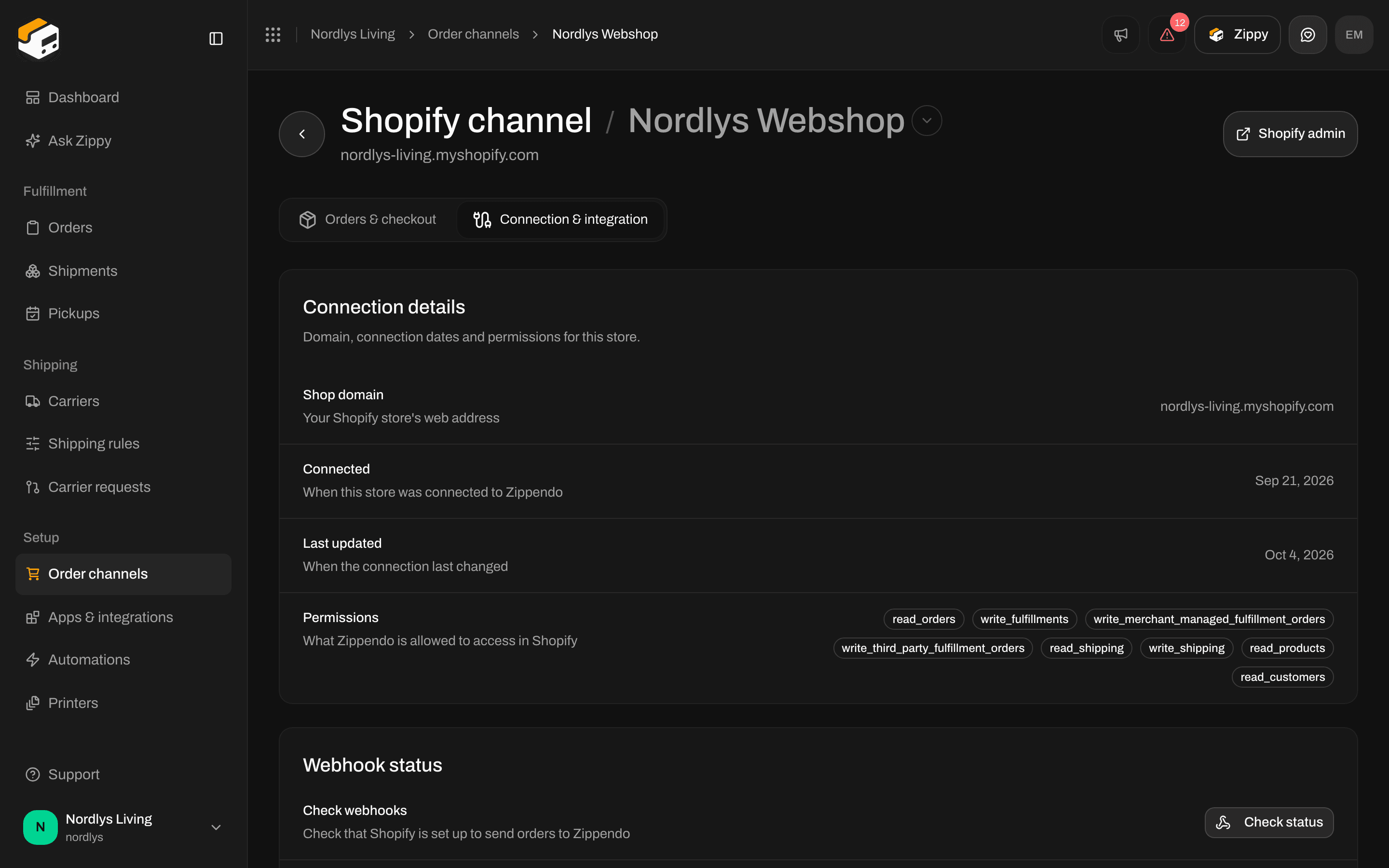
Connection details and Webhook status
- Connection details - Shop domain, Connected, Last updated, and Permissions (what you allowed Zippendo to do in Shopify).
- Webhook status - Check status shows whether Shopify is set up to send orders to Zippendo. If orders are not coming in, click Re-register webhooks.
- Carrier service - Check status shows whether Zippendo Shipping is set up in Shopify. If shipping prices are missing at checkout, click Register carrier service.
How orders arrive
- A customer places an order in your Shopify store.
- Shopify tells Zippendo right away. If something is missed, Re-import orders fetches it.
- The order appears in Orders under this order channel.
- If the customer picked one of your Zippendo shipping prices at checkout, the shipment gets that shipping rule (and the service point they chose). If the shipping method name matches a mapping, that rule is used. Otherwise Zippendo creates a draft shipment with your Default sender address.
- You create or send the shipment from Orders as usual.
What you see in Orders
Open Orders. Shopify orders show the order channel’s name in the Order channel column, next to Order ID, Customer, Status, Shipments and Created.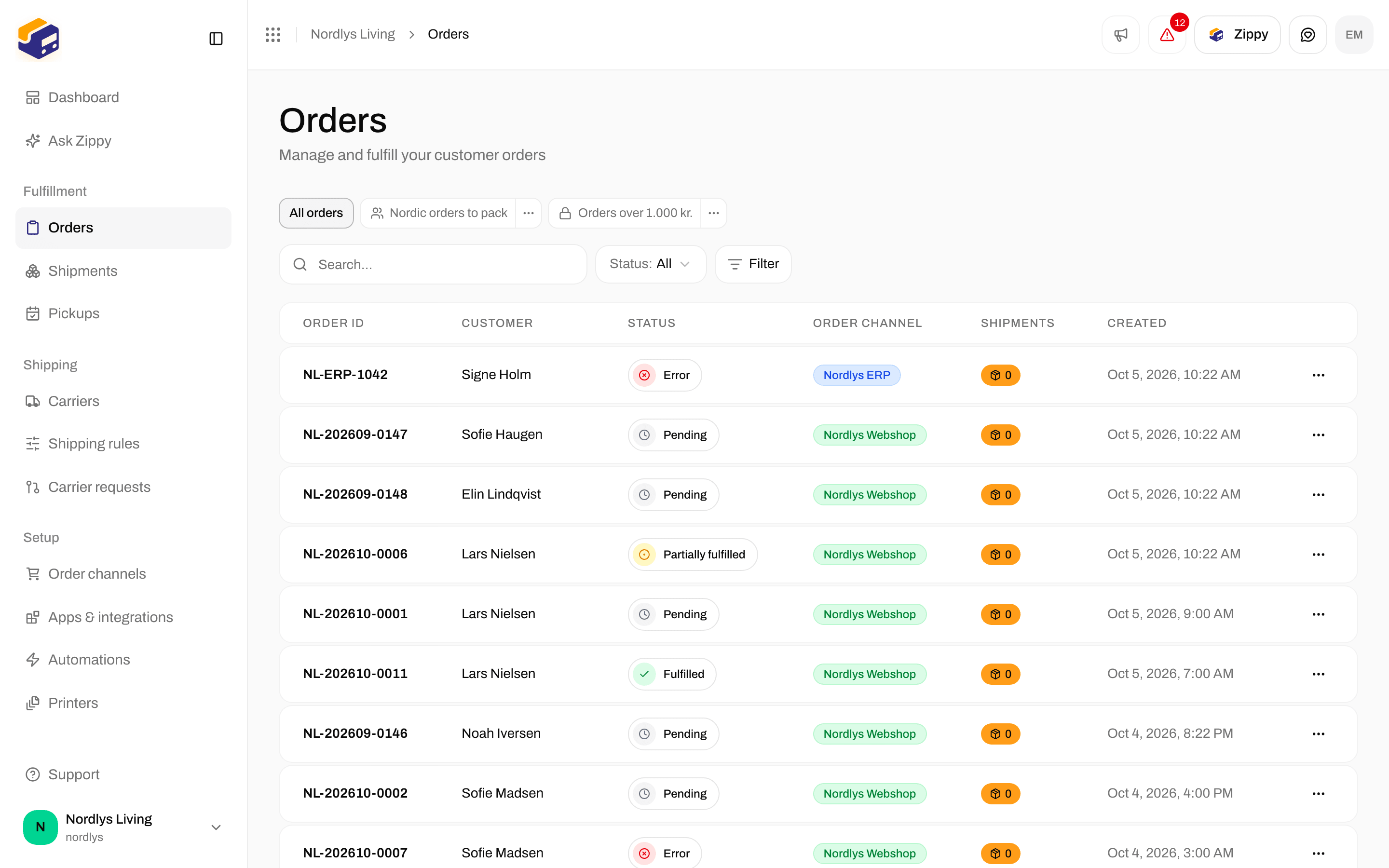
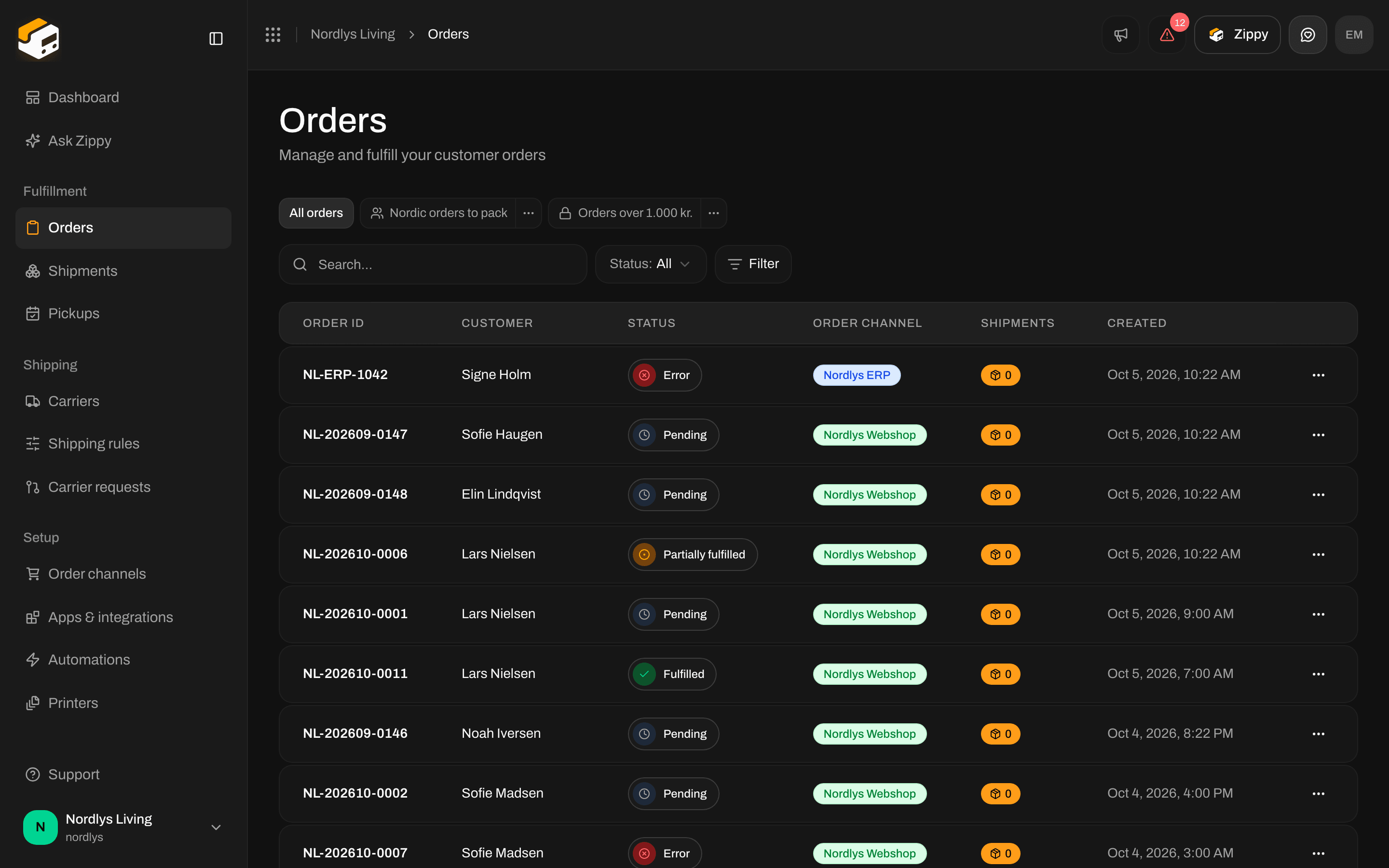
Orders from the Shopify store in the orders list
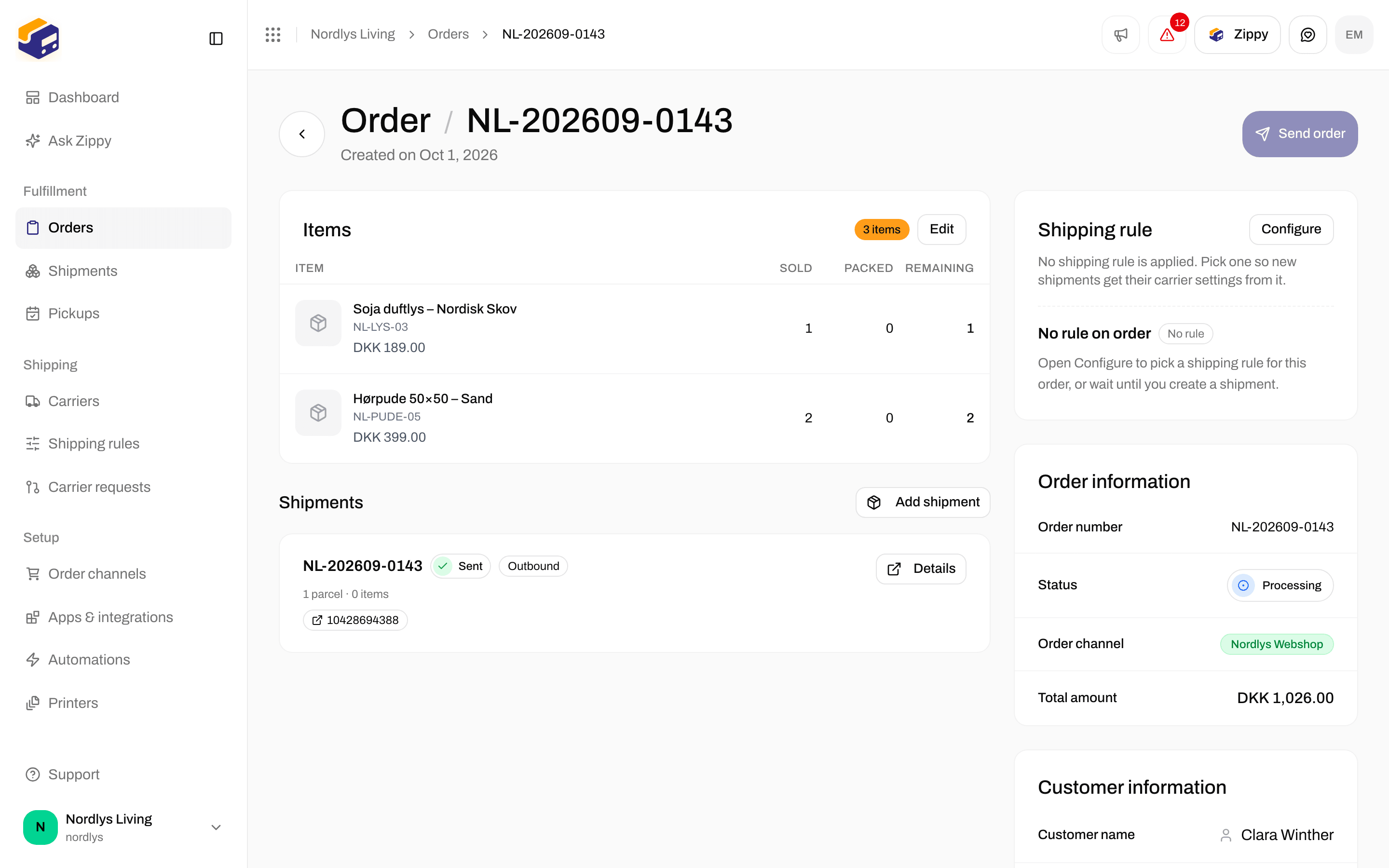
An order from Shopify with its Order channel
Disconnect and reconnect
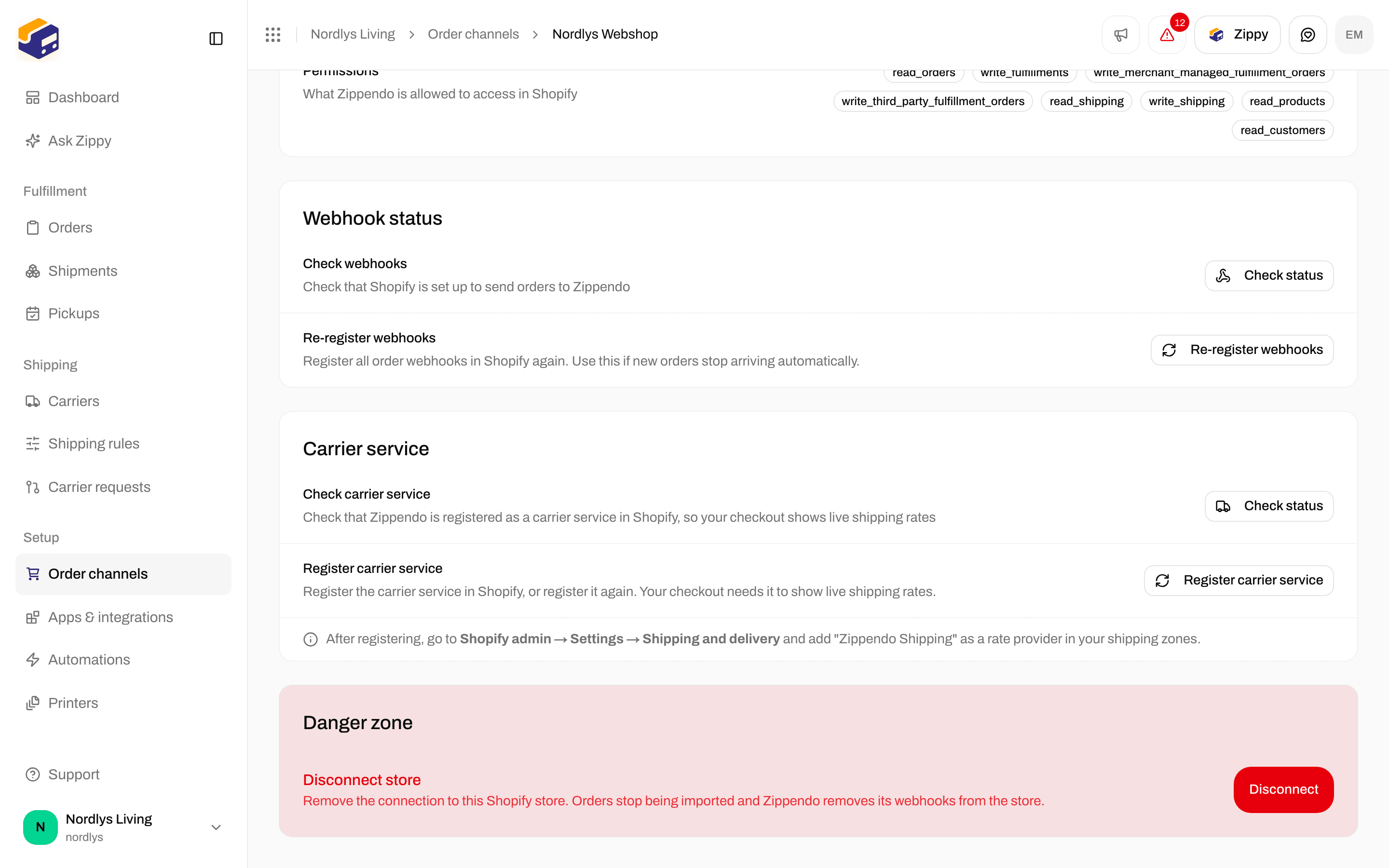
Disconnect store under Danger zone