

Get the label
Open Shipments, find the pending shipment and open it. The button at the top is Send shipment.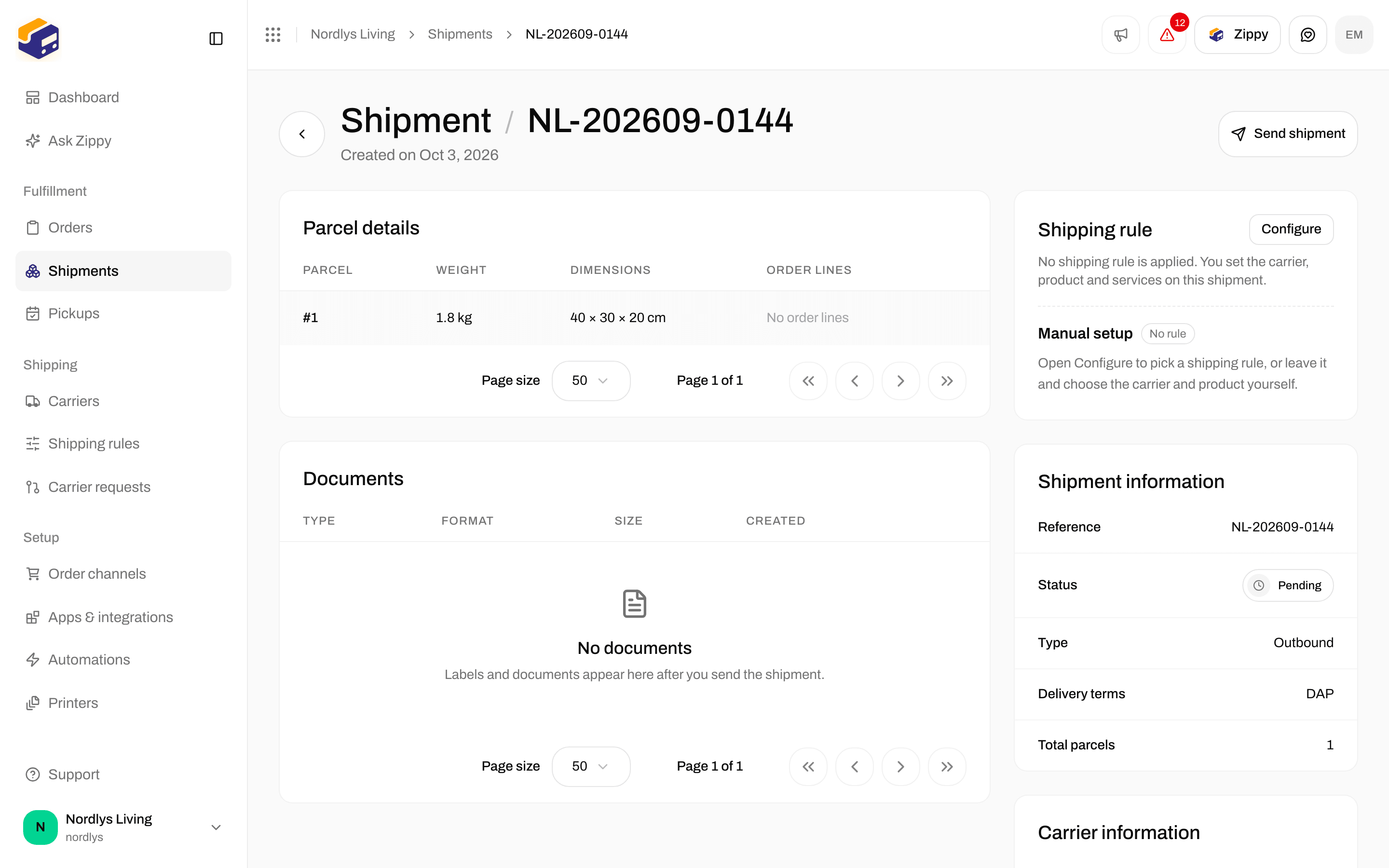
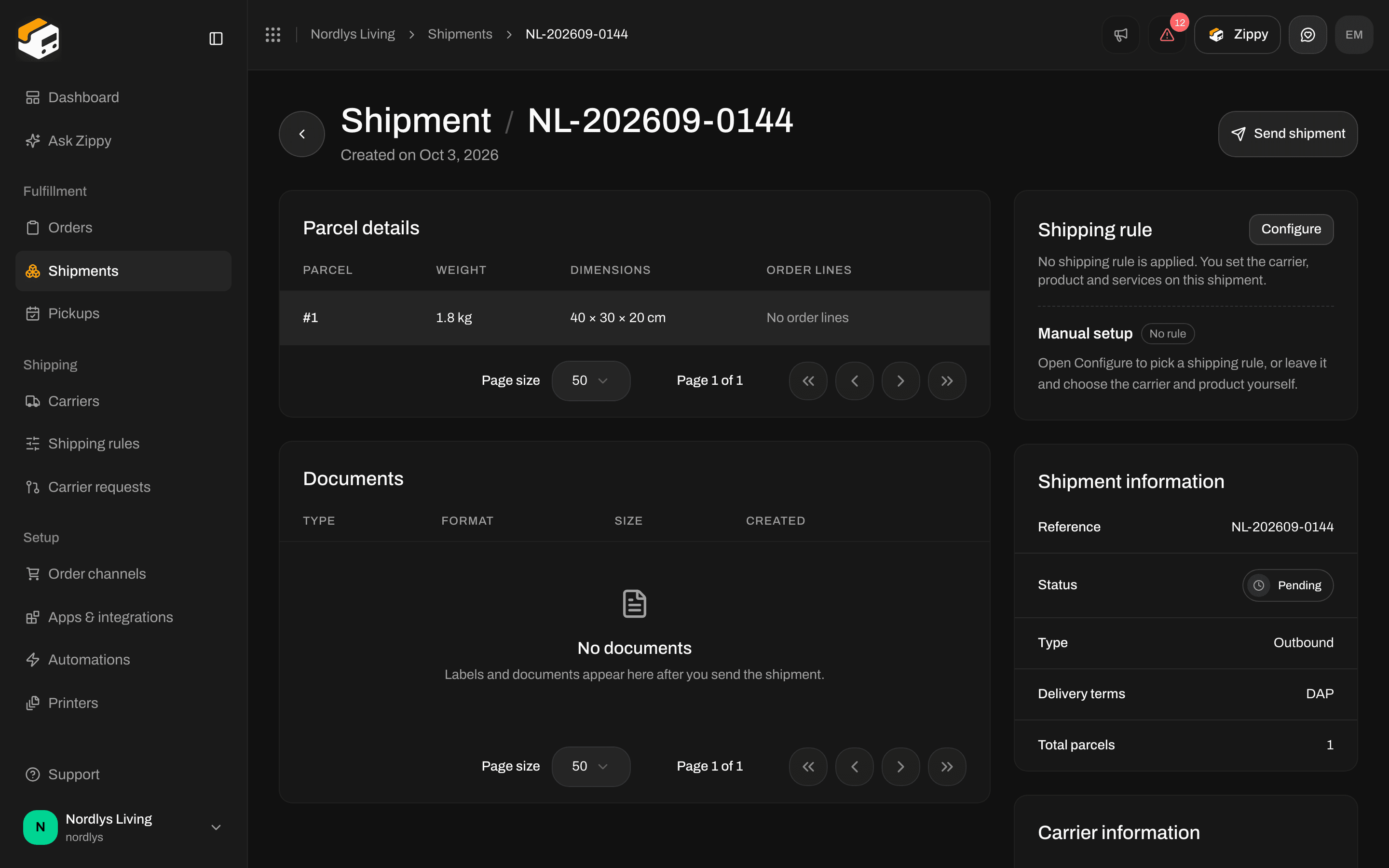
Send shipment sends the shipment to the carrier and creates the label
Open the pending shipment
Click Send shipment
Check Documents
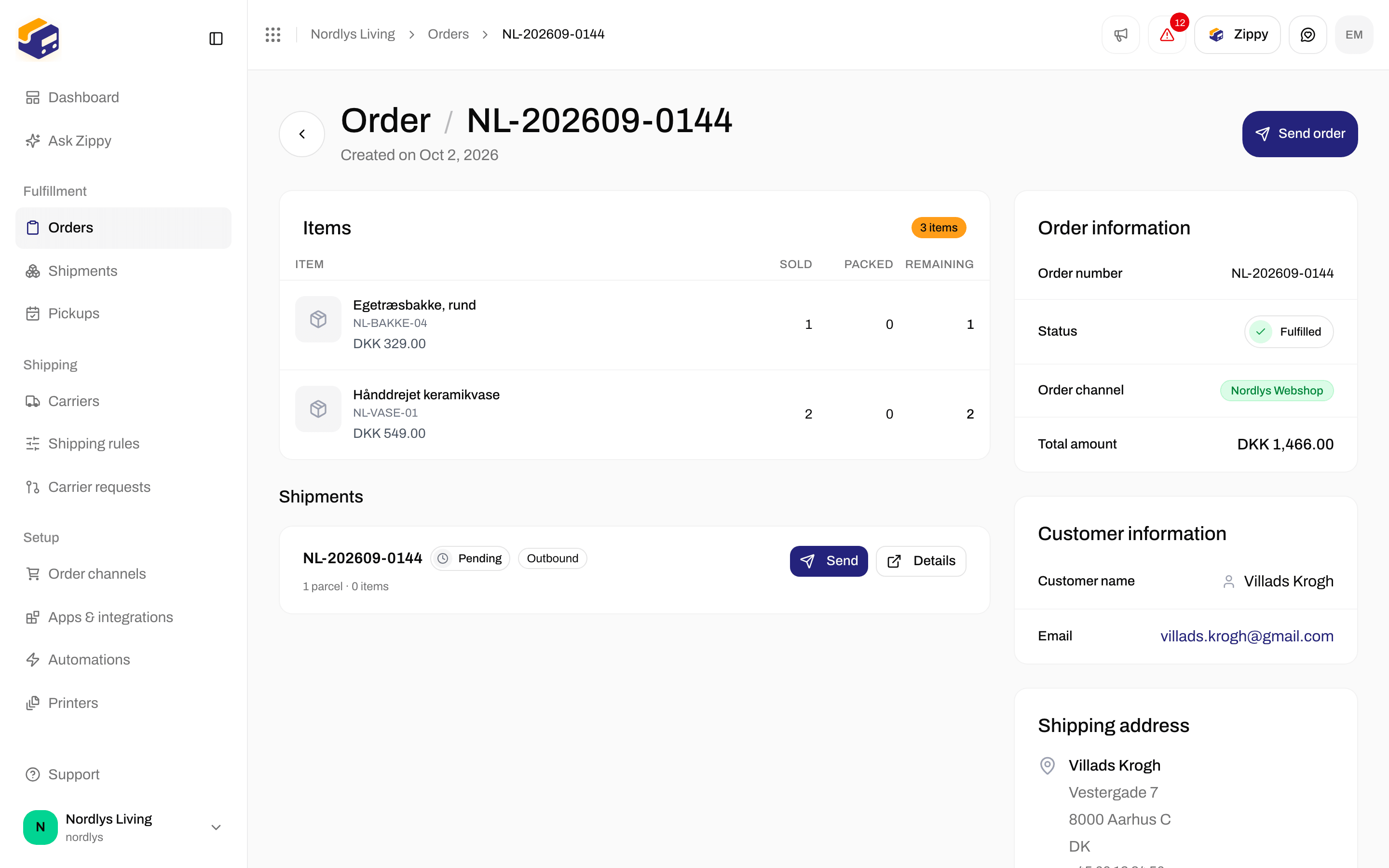
Send order sends every shipment on the order that is ready
View and download
On Documents, each row is one document. Click a row to open it. The ⋯ menu on the row has View, Download and Print.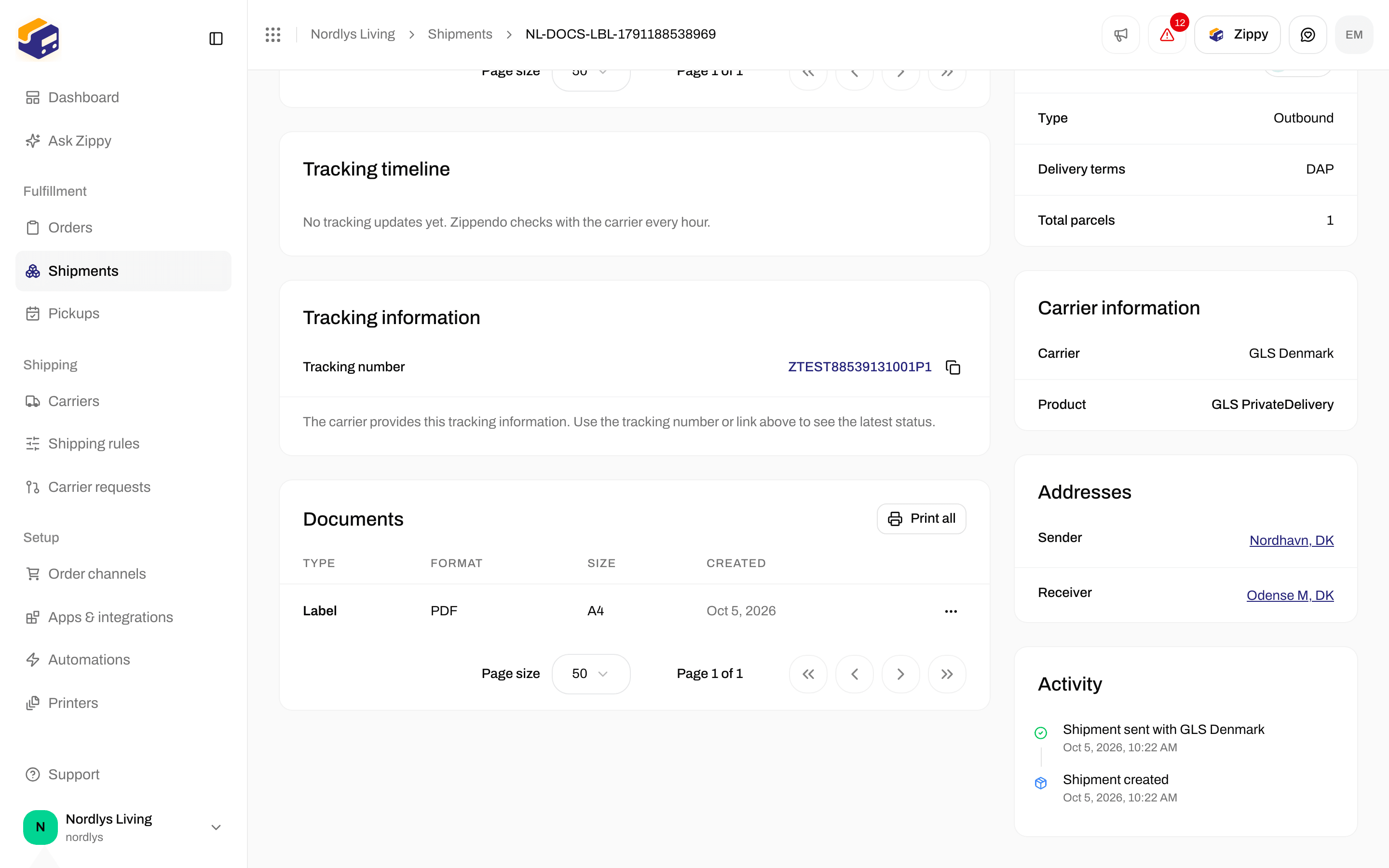
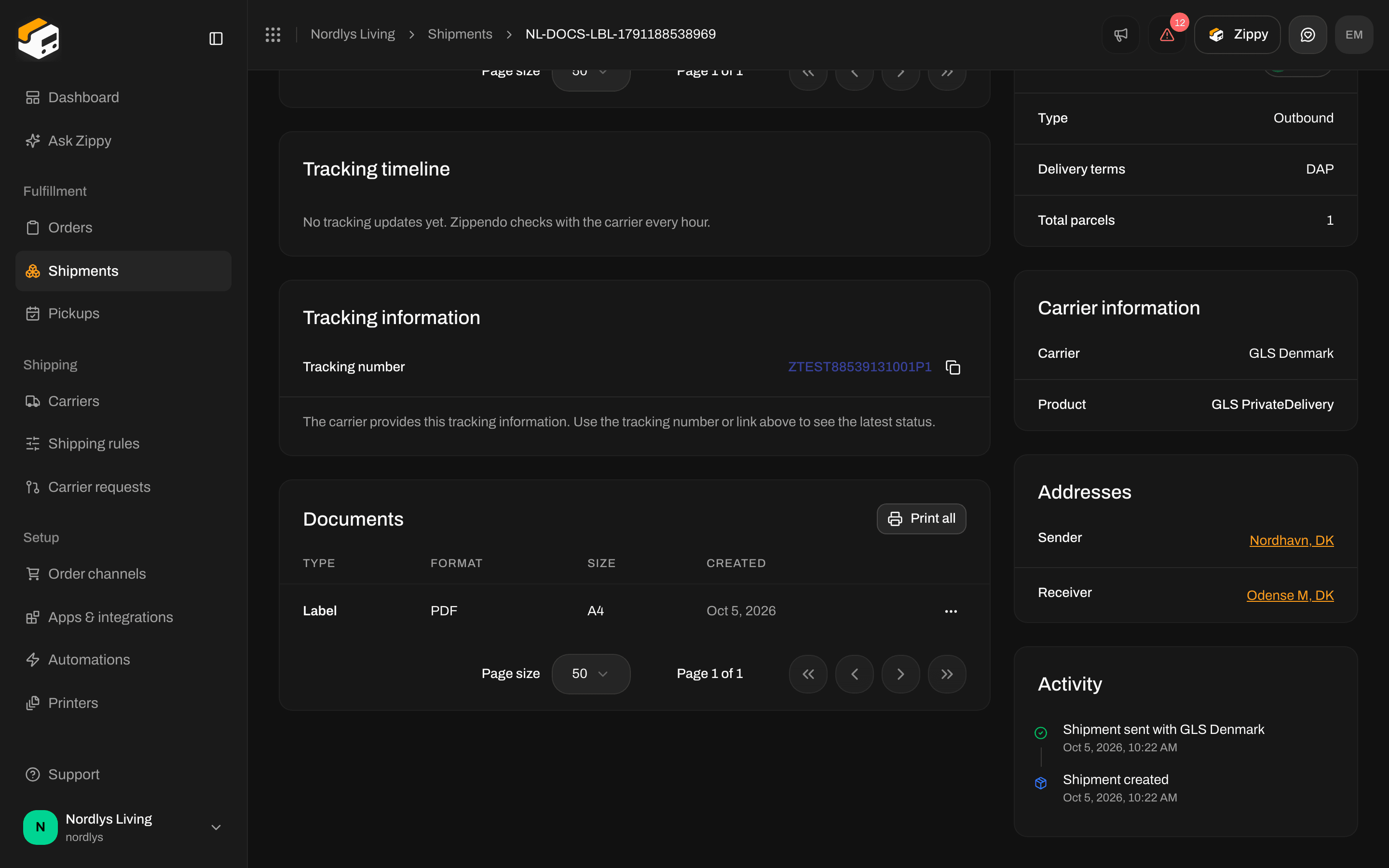
Documents lists the label after a successful send
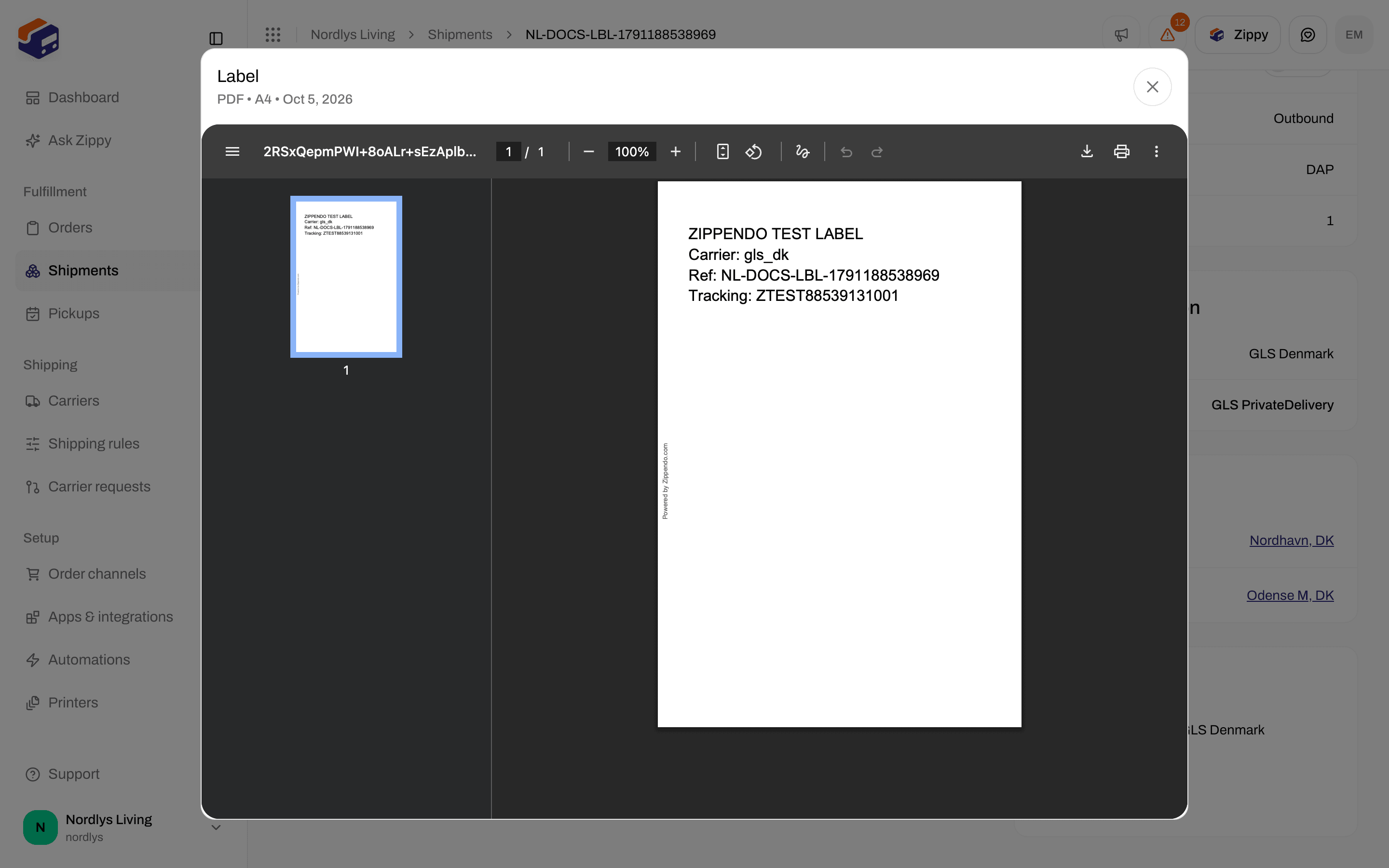
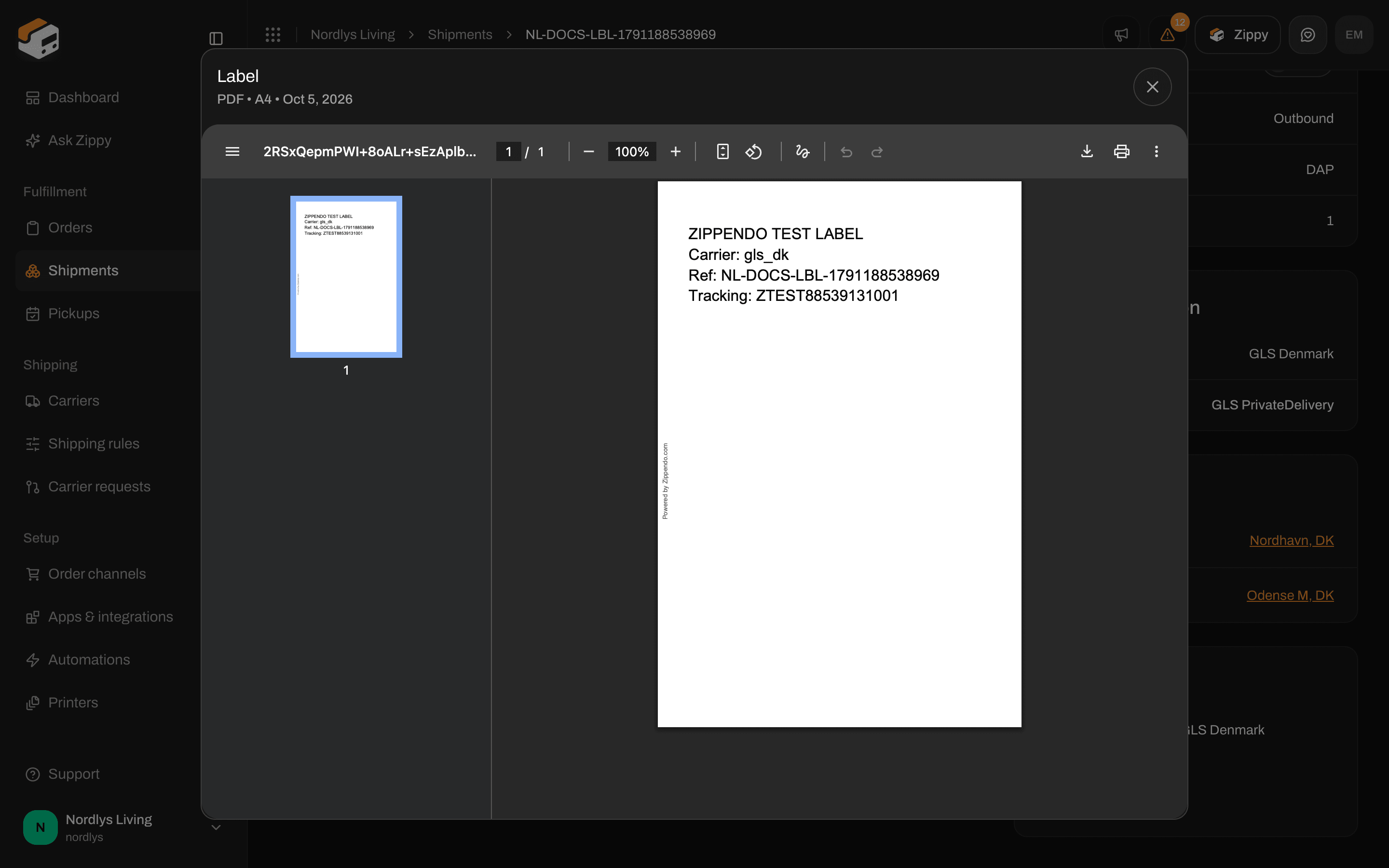
View opens the label. The preview shows the carrier, the shipment reference and the tracking number
label.pdf). You can print that file from your computer like any other file. That does not go through Zippendo Printer.
In an order’s Shipments section, the ⋯ menu on each shipment card can also download the label (for example Label (PDF)) and the other documents.
Formats and other documents
The Format column shows what the carrier or Zippendo produced: pdf, png, jpg, zpl or svg. A ZPL file is a set of instructions for a label printer, not a page you can preview. Download it for a Zebra-compatible printer. The Type column can show:- Label
- Customs invoice
- Commercial invoice
- Proforma invoice
- Packing slip
- Certificate of origin
- CN22 customs declaration
- CN23 customs declaration
- Other
Print with Zippendo Printer
Print and Print all do not open your browser’s print window. They send the documents to Zippendo Printer, a small app you install on the computer next to your printer. It prints on a label printer or a document printer connected to that computer.Install Zippendo Printer
Print from the shipment
Pick printers if none are set
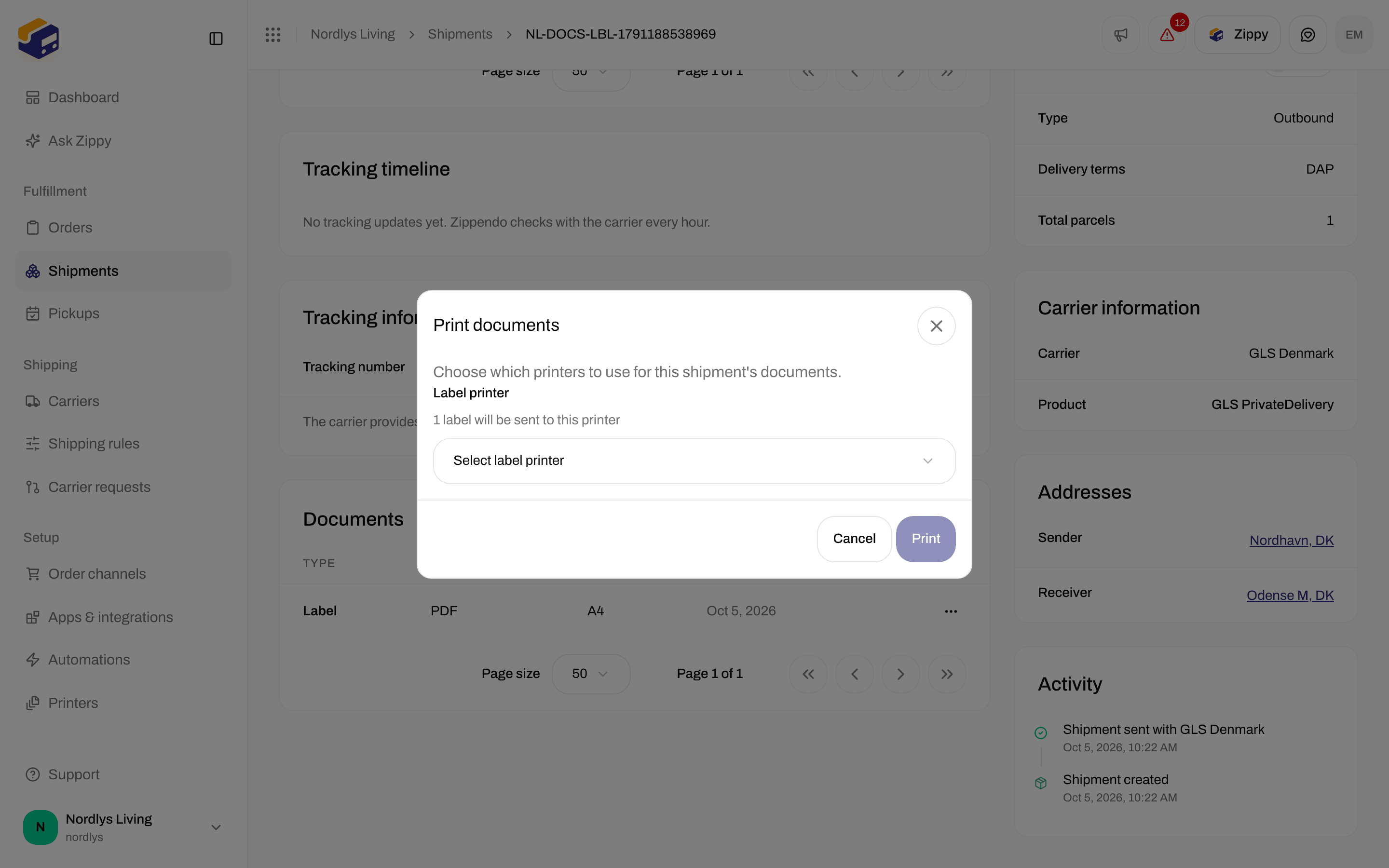
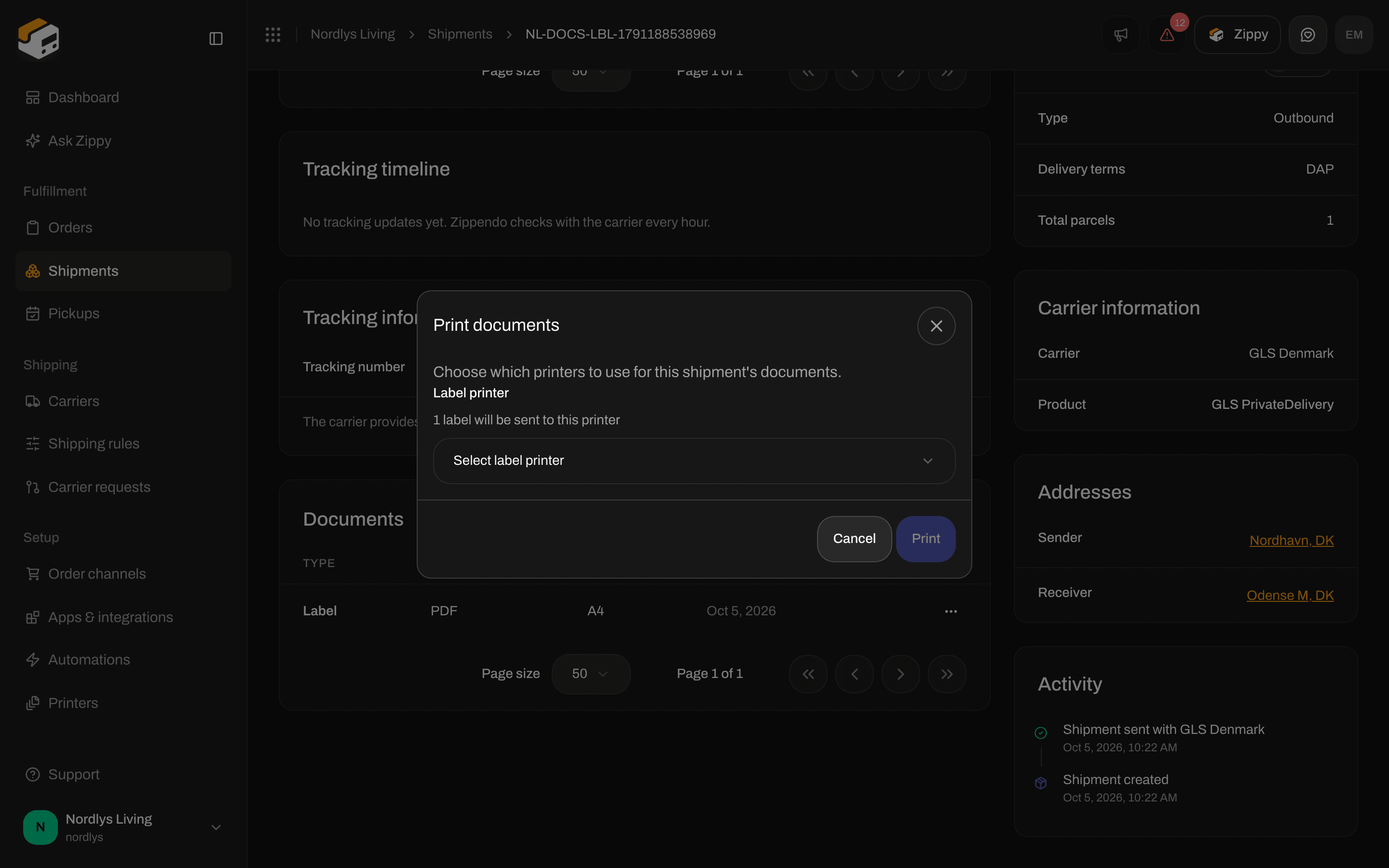
Print all opens Print documents when no printer is set
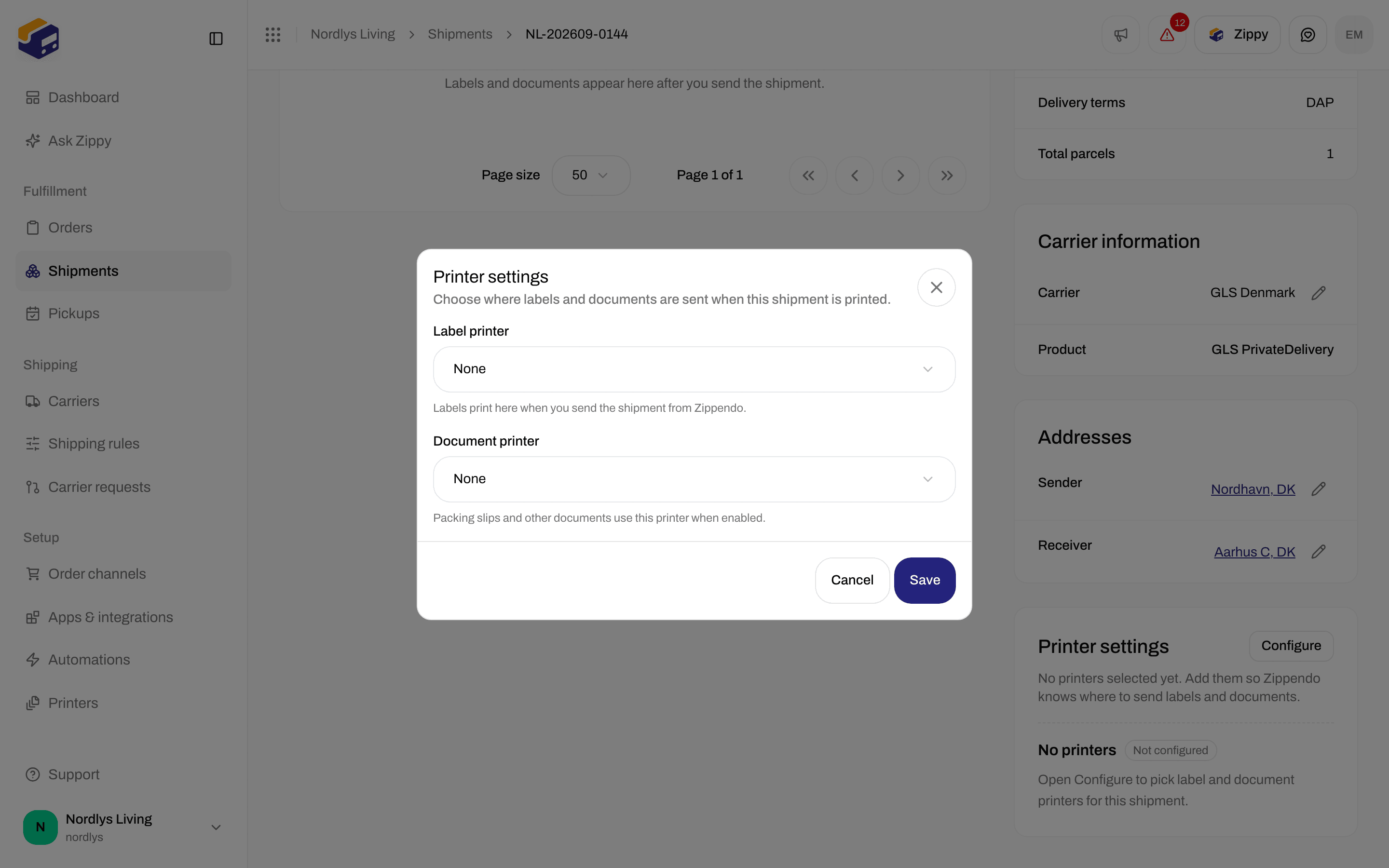
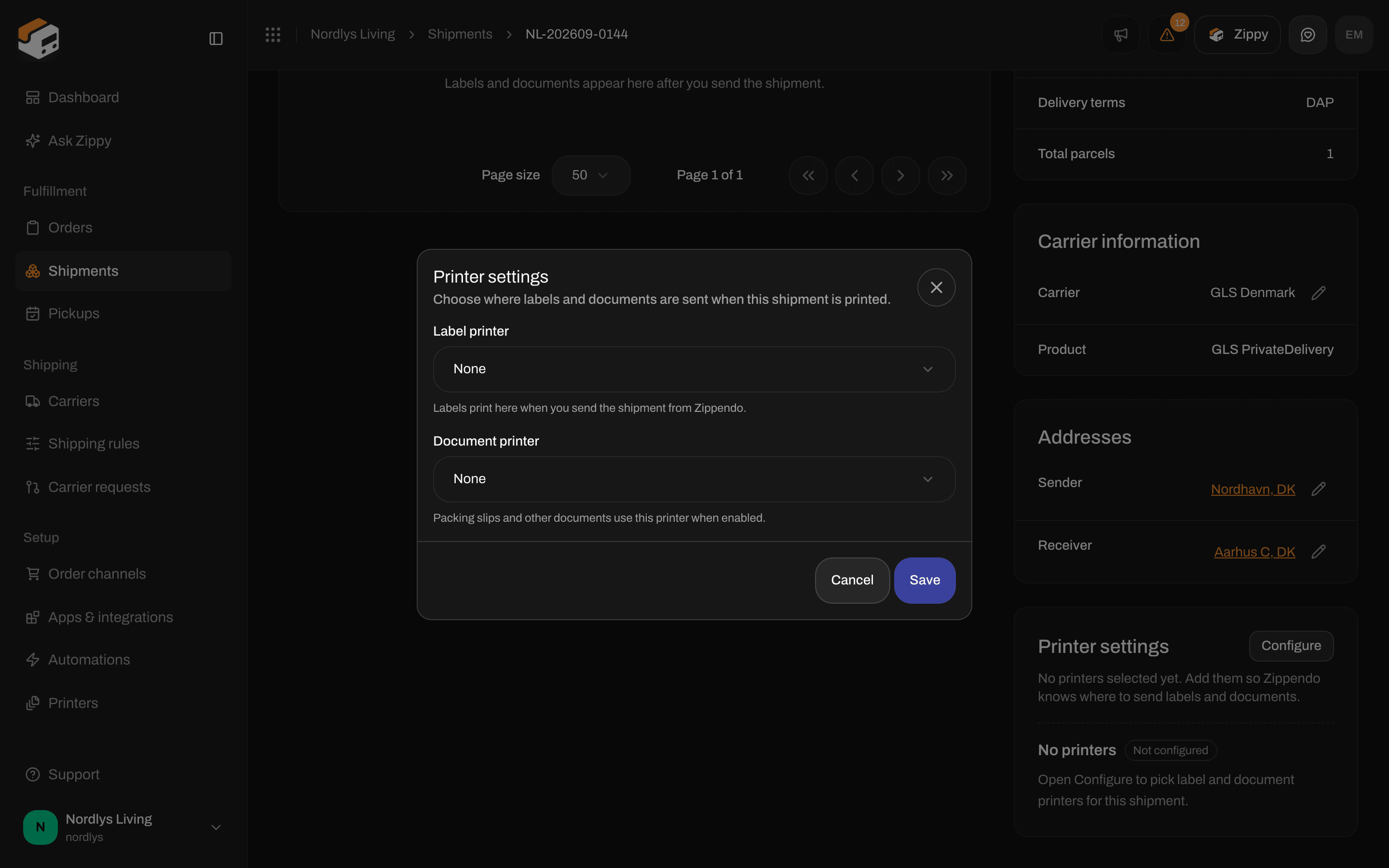
Choose printers on a pending shipment
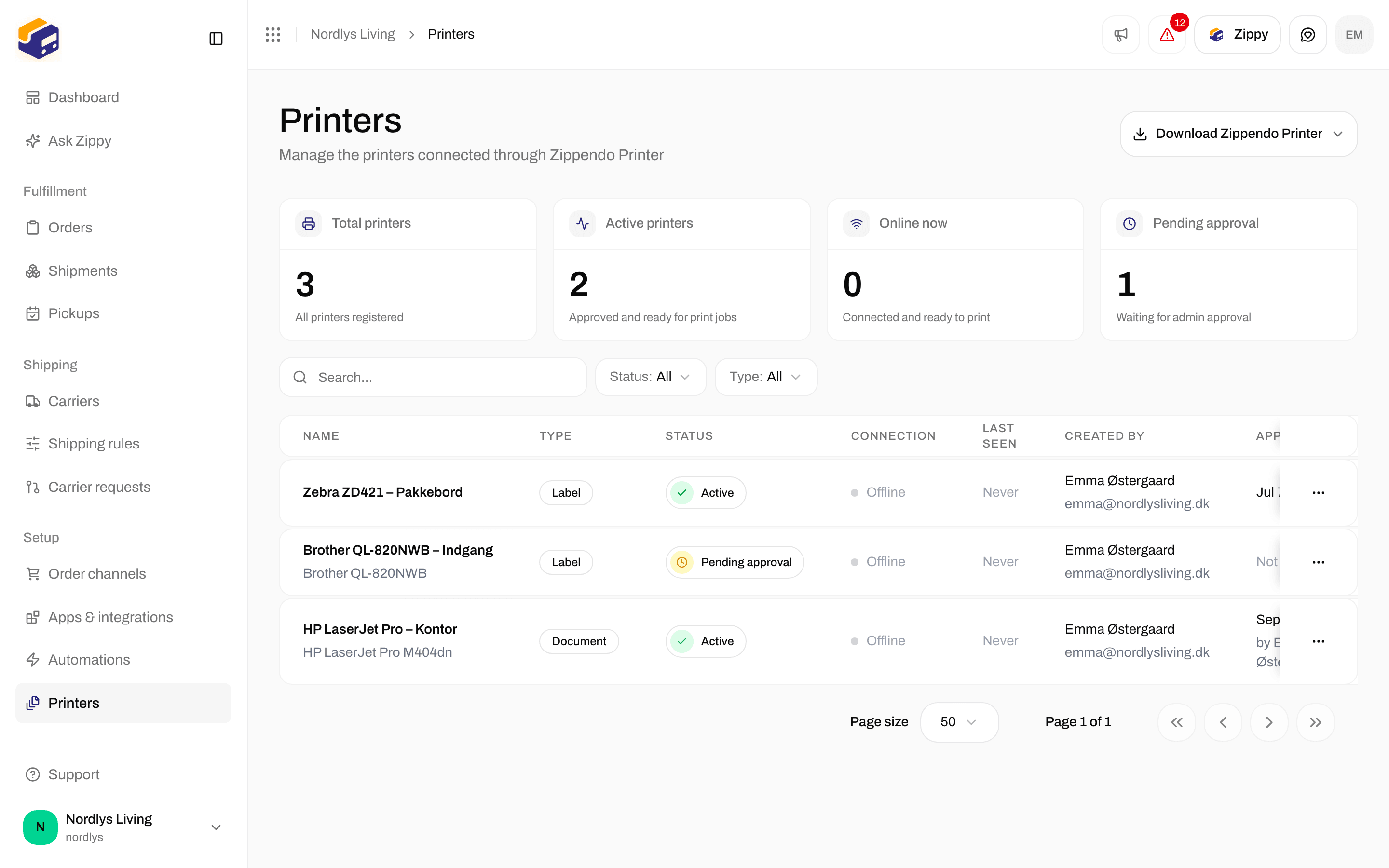
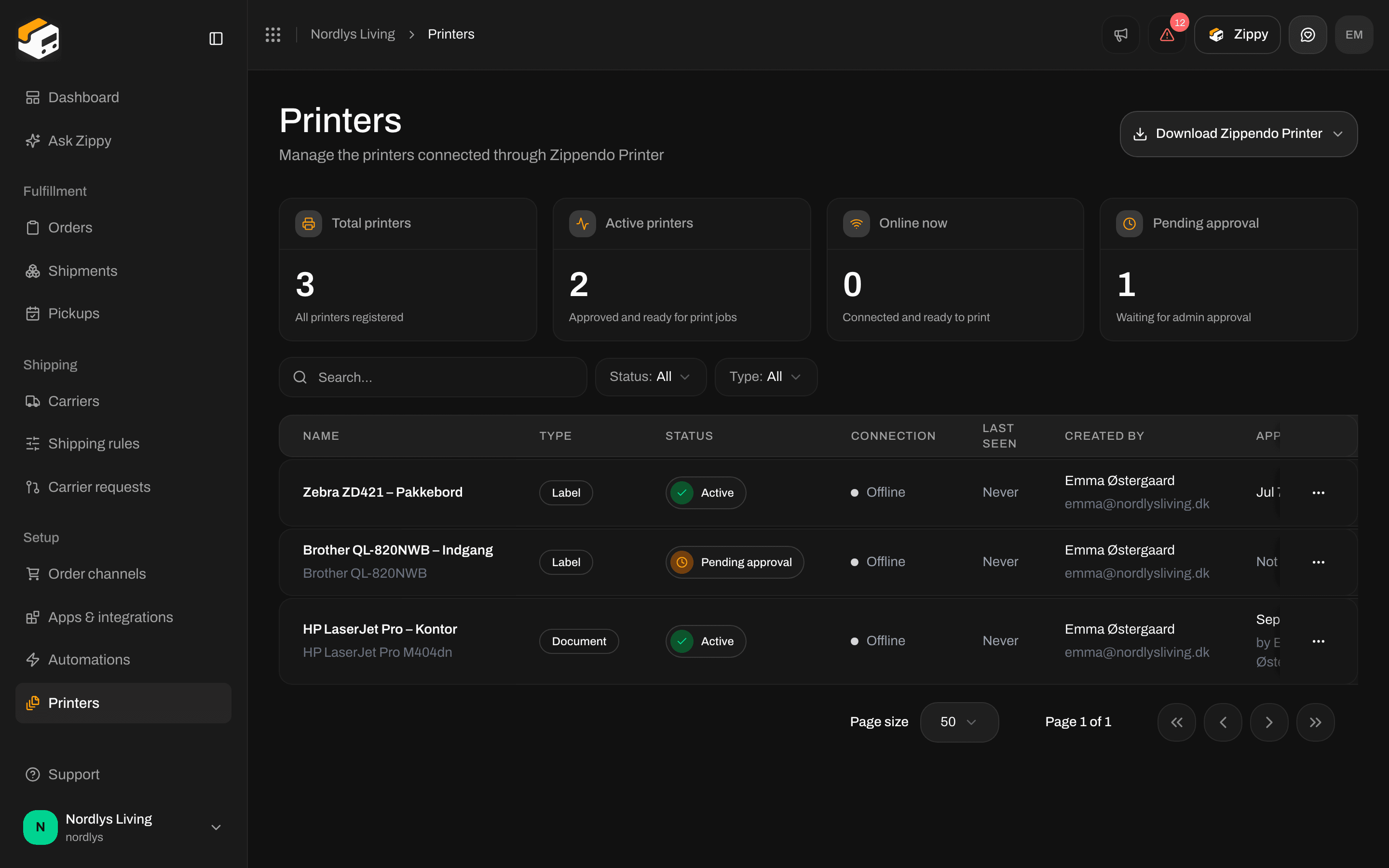
Printers lists your printers and the Download Zippendo Printer button
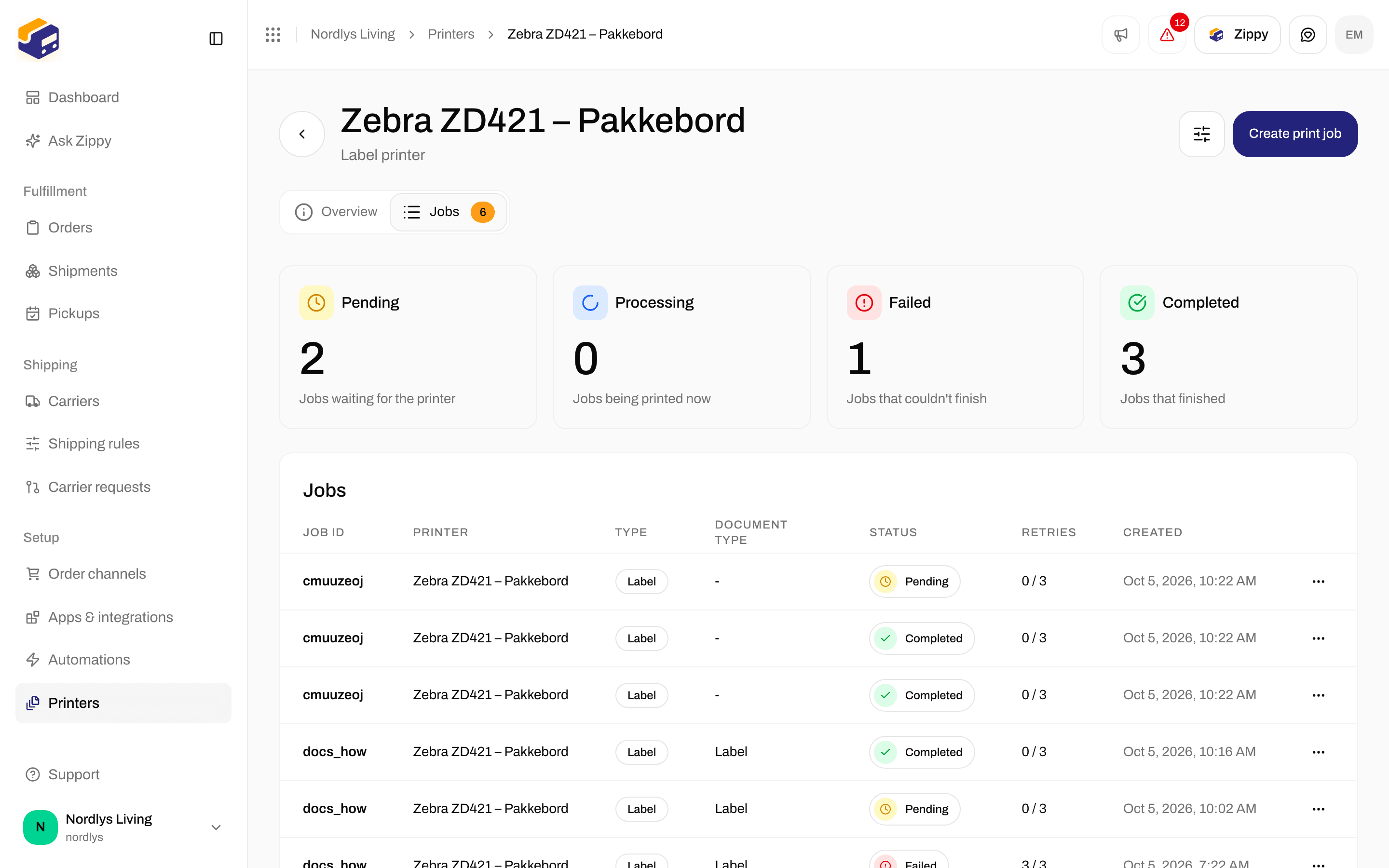
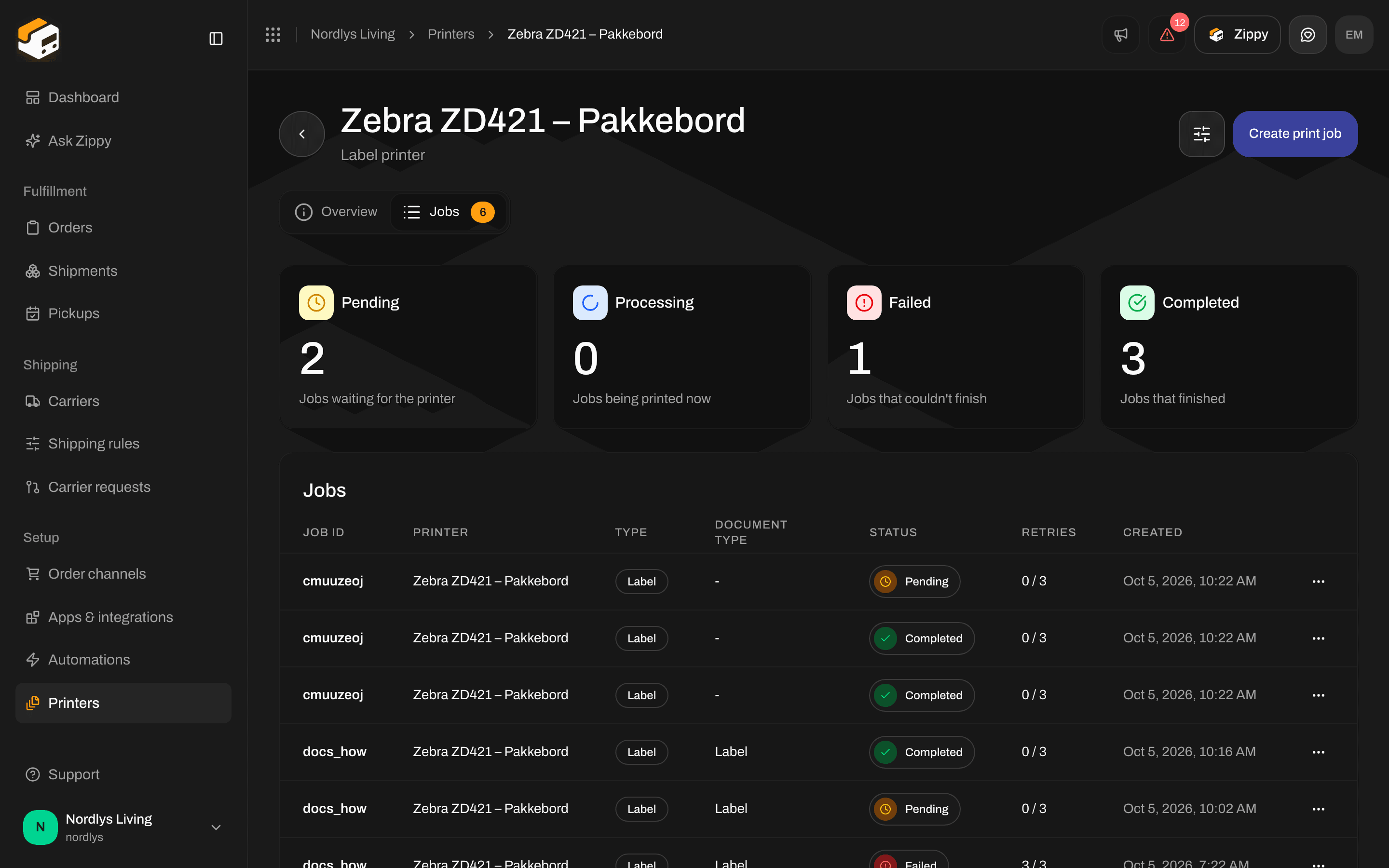
The Jobs tab lists pending and completed print jobs
Turn wide labels
You can’t turn a label in the preview. Turning is a printer setting: click Edit on the printer and switch on Rotate wide pages to portrait. The hint reads Turns landscape (wide) pages 90° when printing. Useful for wide carrier labels on portrait label rolls.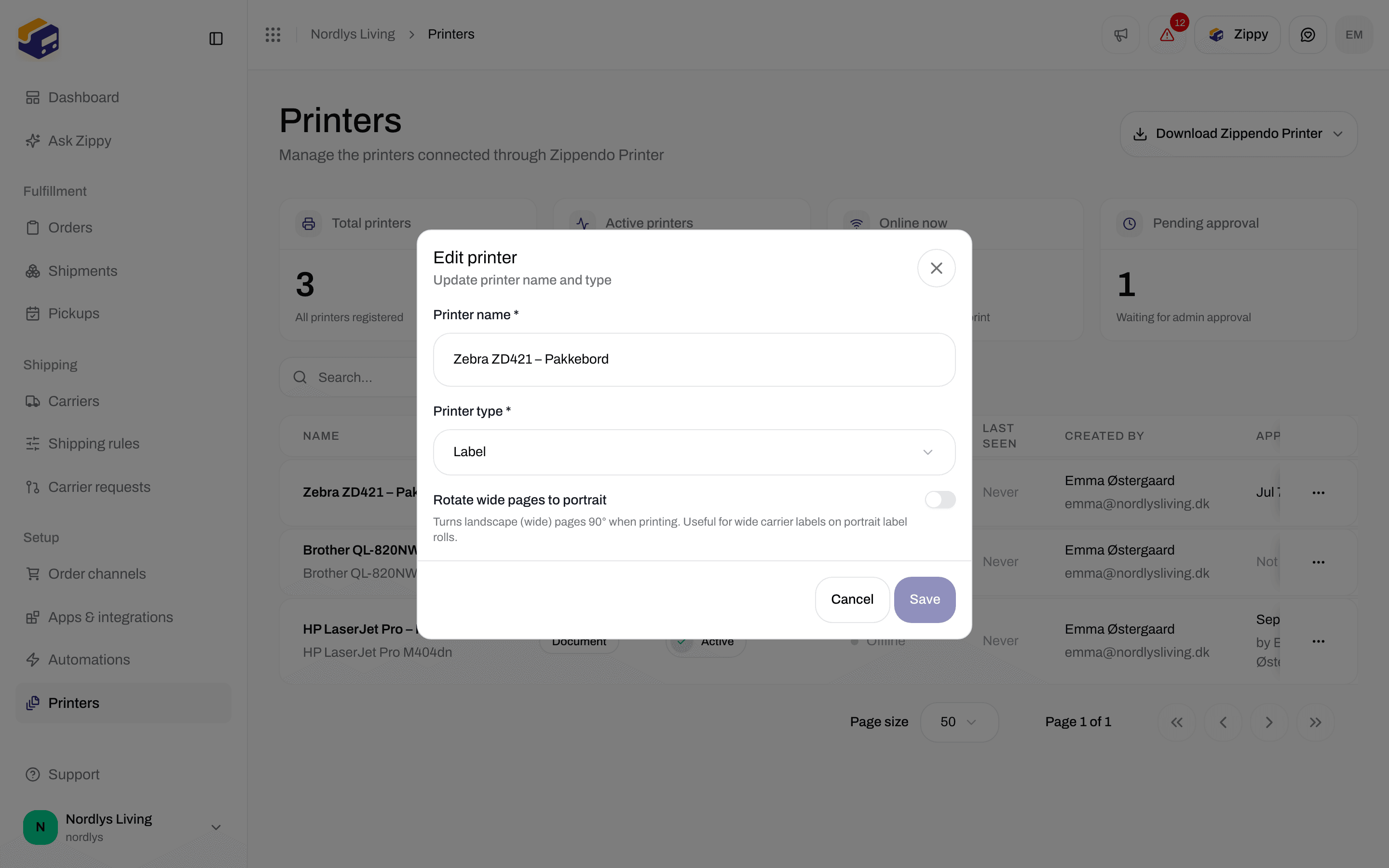
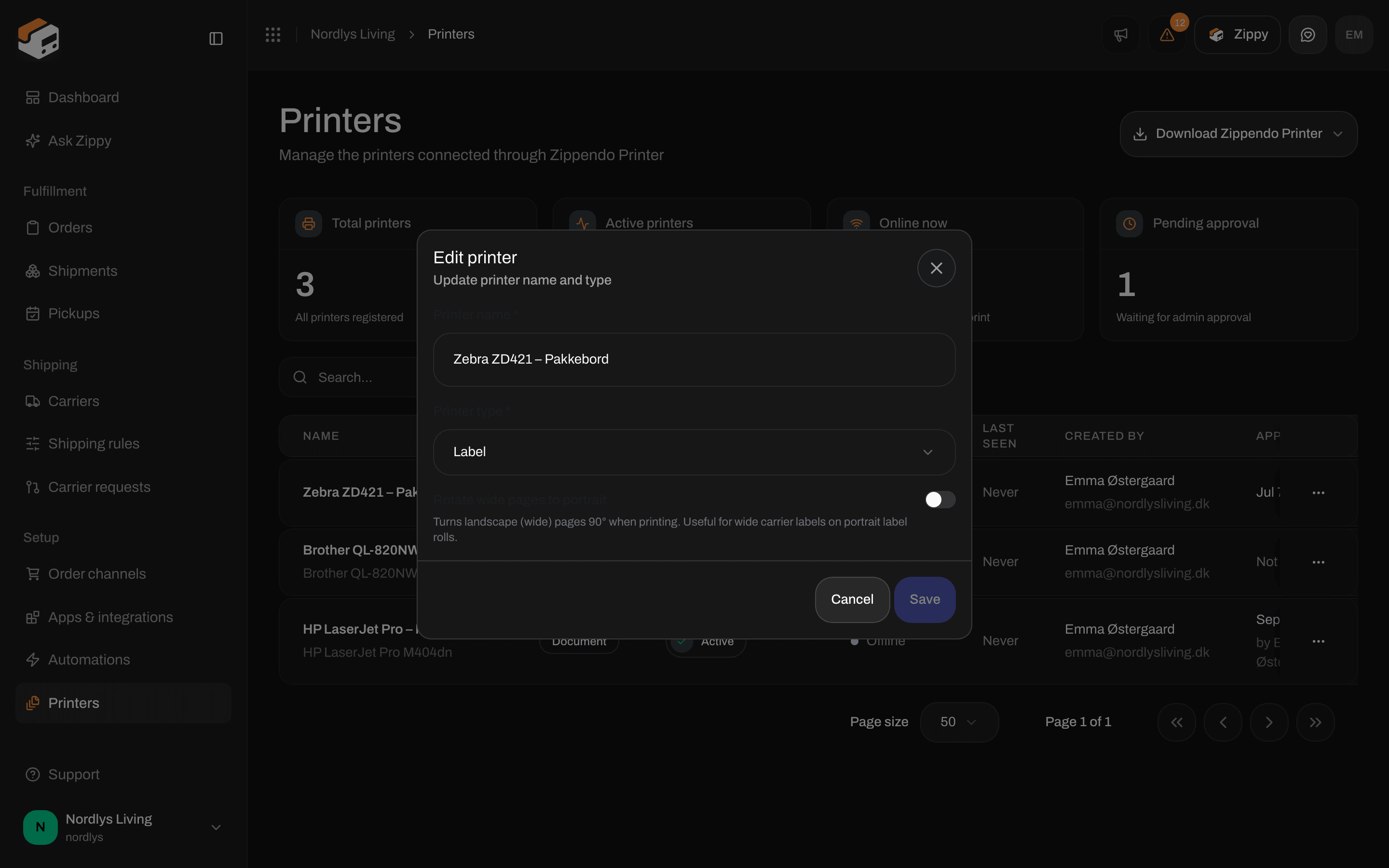
Rotate wide pages to portrait in the Edit printer window
Print automatically when a shipment is sent
On a shipping rule, click Configure on the Automatic printing card:- Print labels automatically: Automatically print labels when a shipment is sent. Pick a Label printer.
- Print documents automatically: Automatically print documents (invoices, customs declarations) when a shipment is sent. Pick a Document printer.
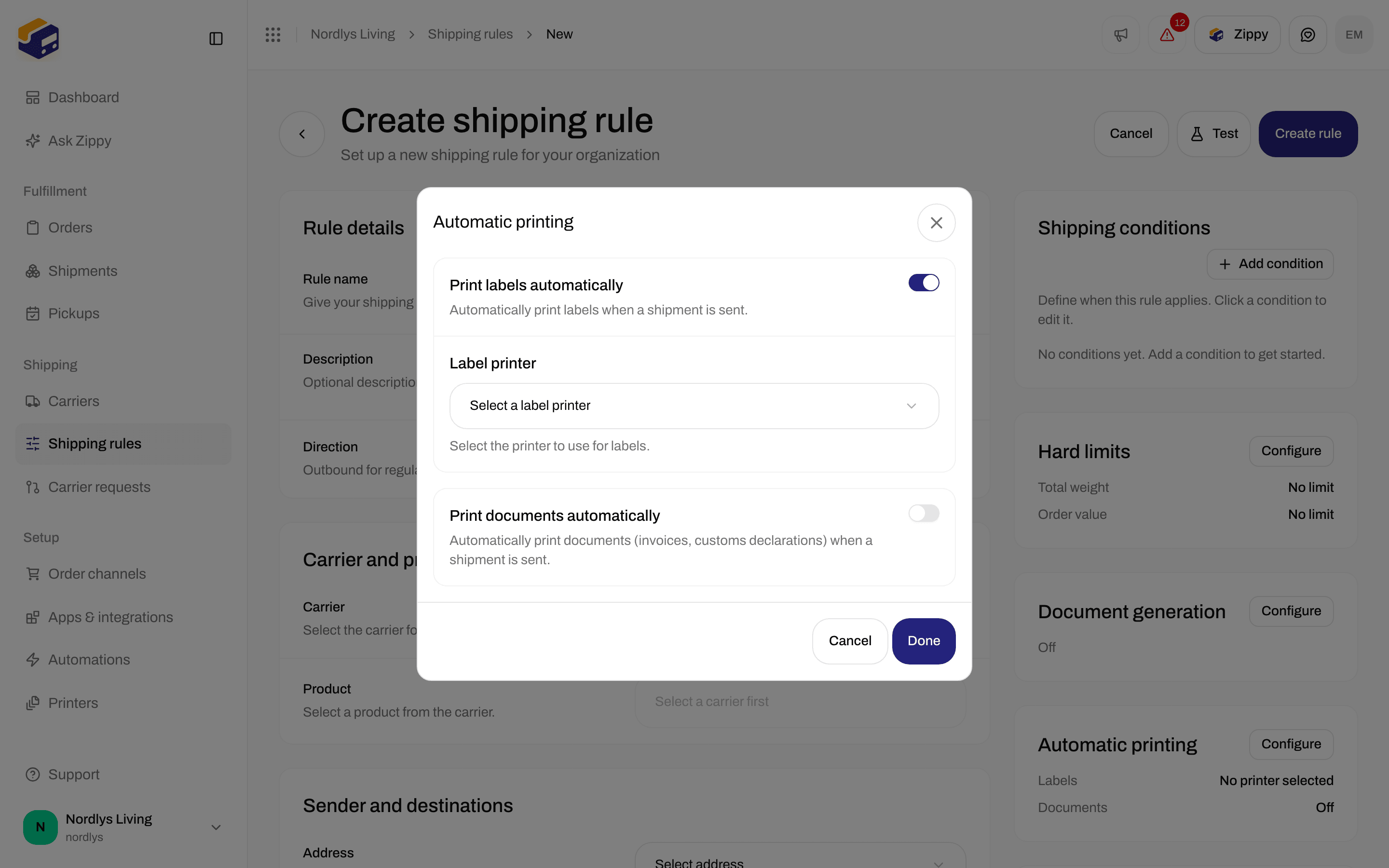
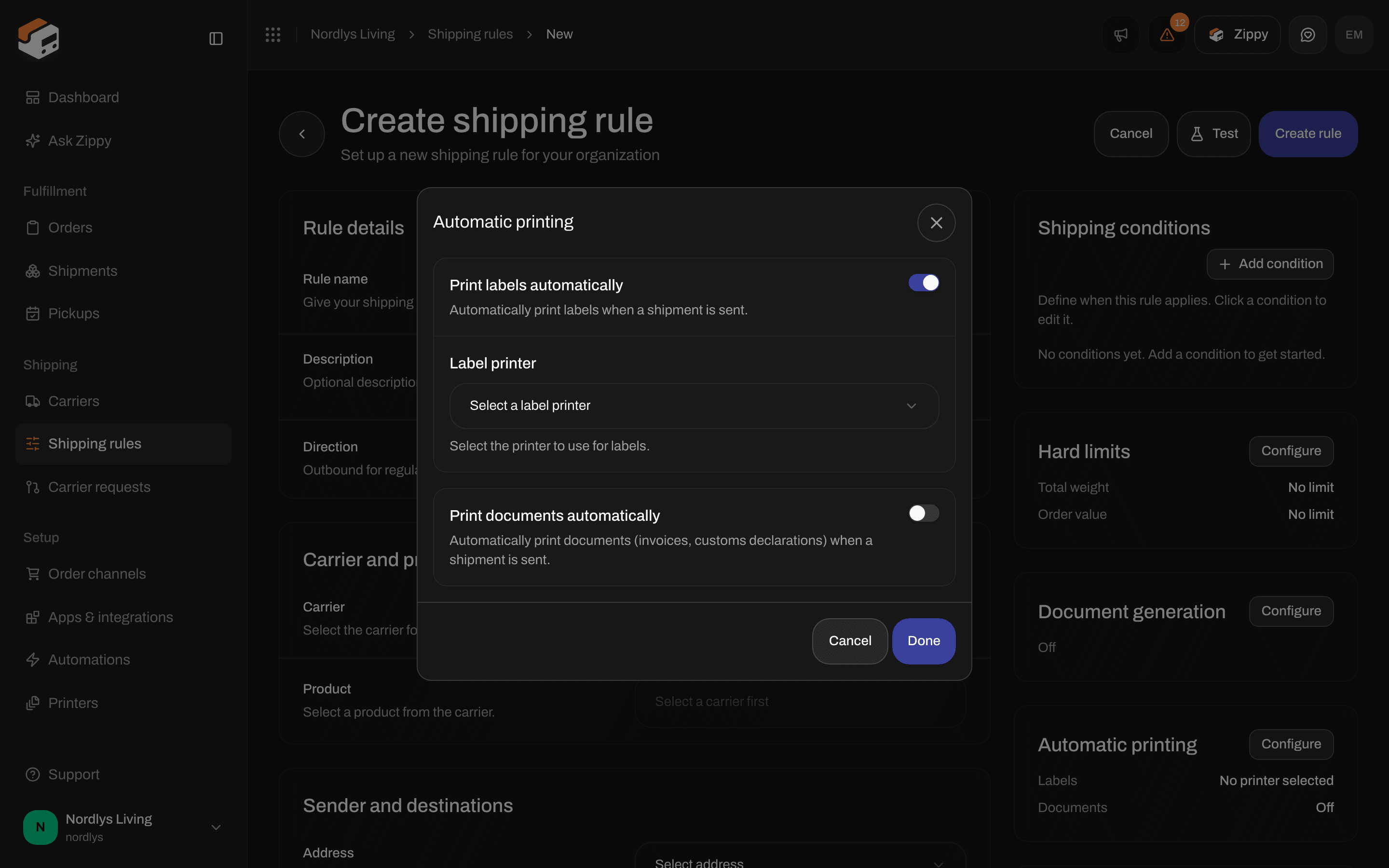
Automatic printing on a new shipping rule
When sending fails
If the carrier does not accept the shipment, its status becomes Error and the button at the top changes to Retry sending. A box titled Shipment failed to send shows the carrier’s reason. Request logs shows what Zippendo sent to the carrier and what came back. Support may ask you for it.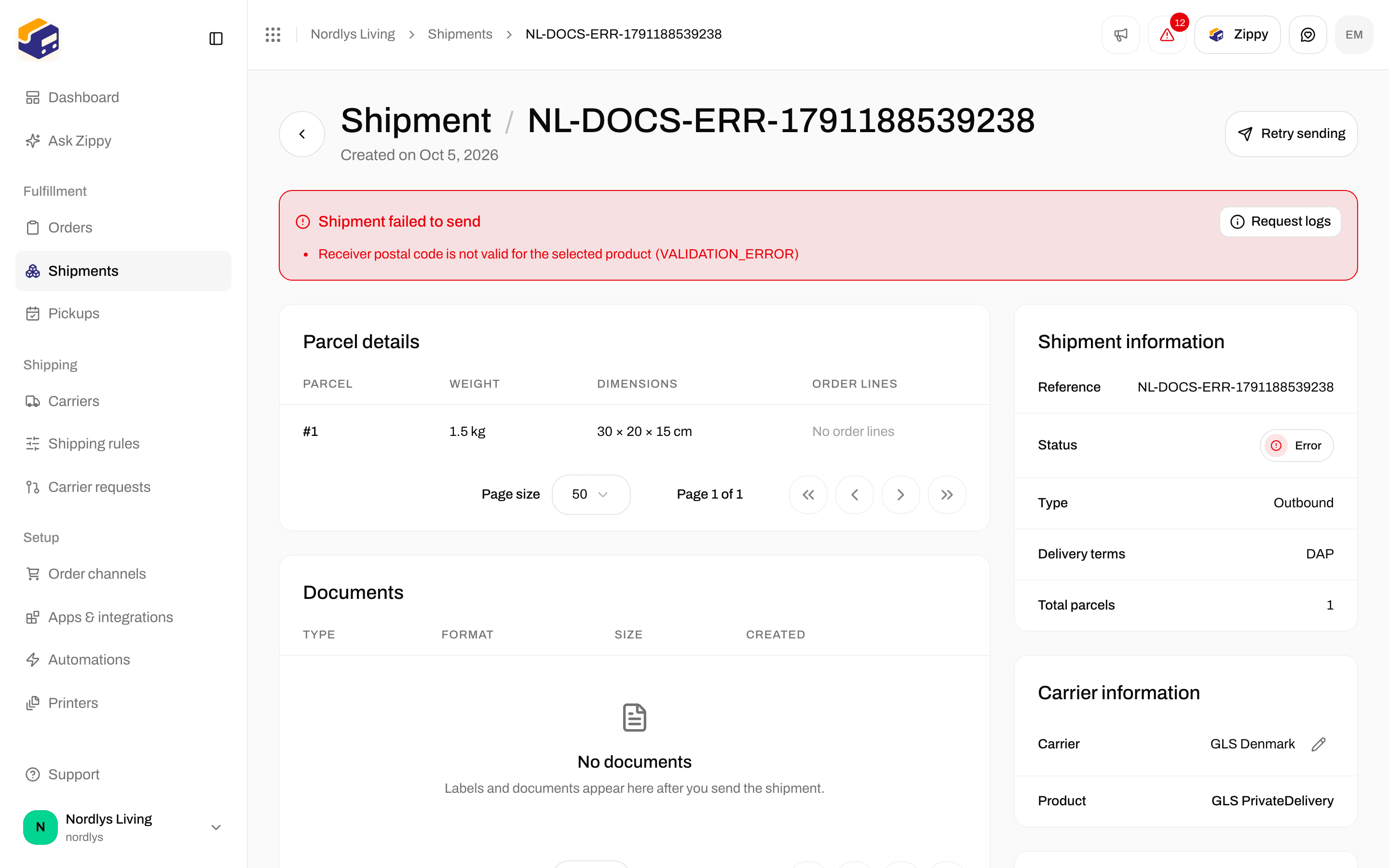
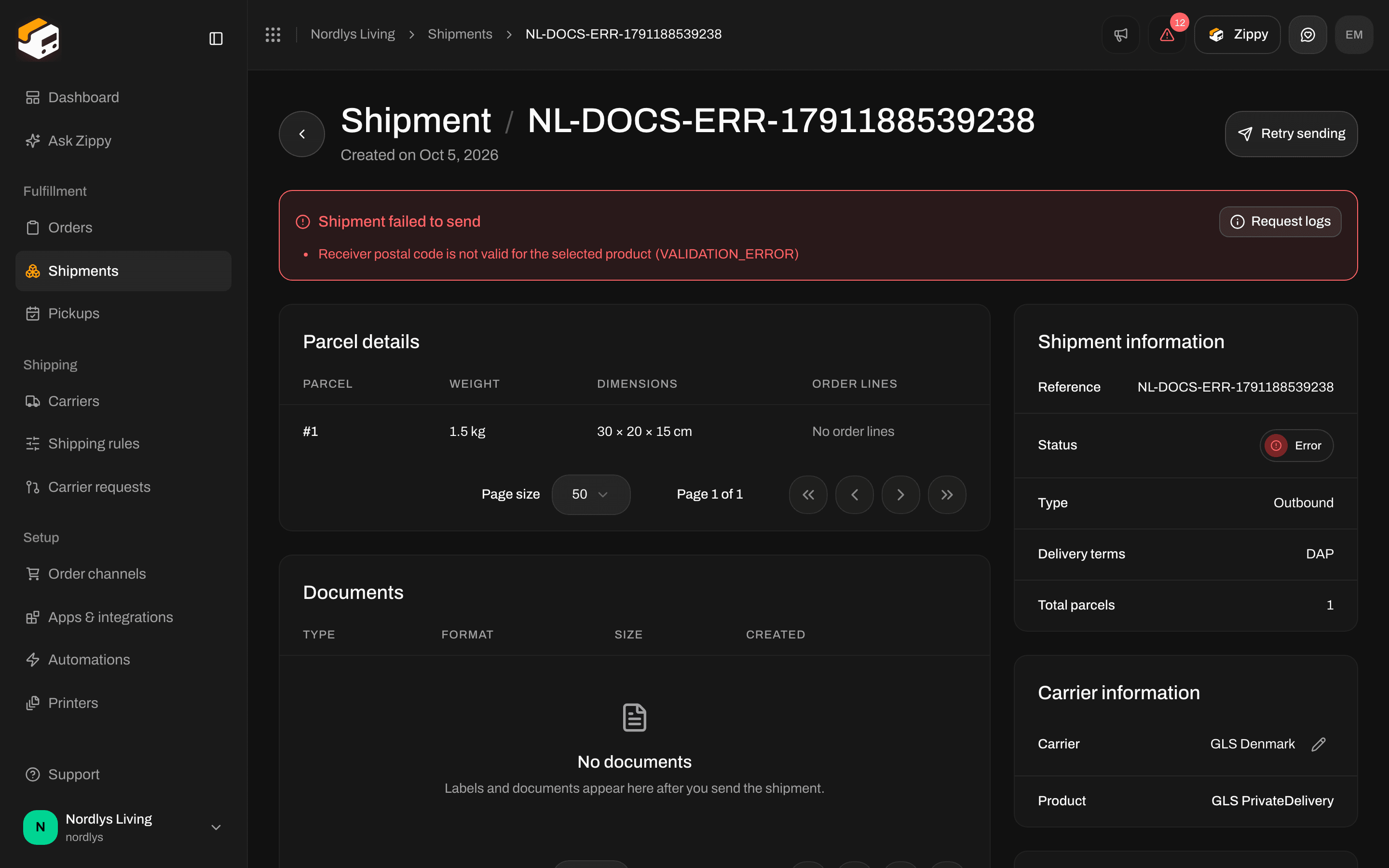
Retry sending after the carrier rejected the shipment
Shipments and your plan
Each successful send counts as one shipment on your plan. Under Settings → Pricing plans, Current usage shows Shipments this period and how much of your included amount you have used. If overage is turned on, extra shipments are billed. If it is off, sending stops when you reach the limit.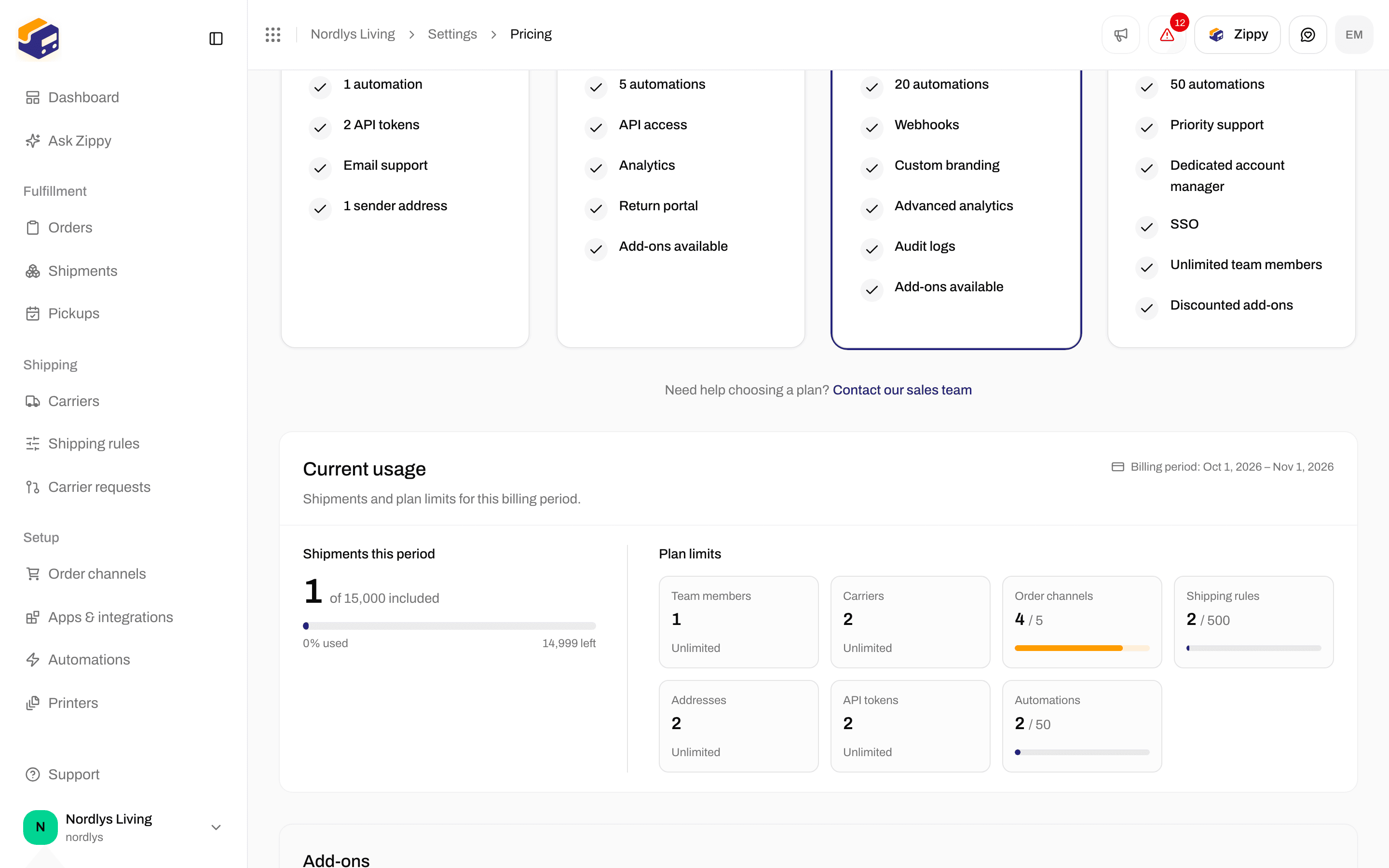
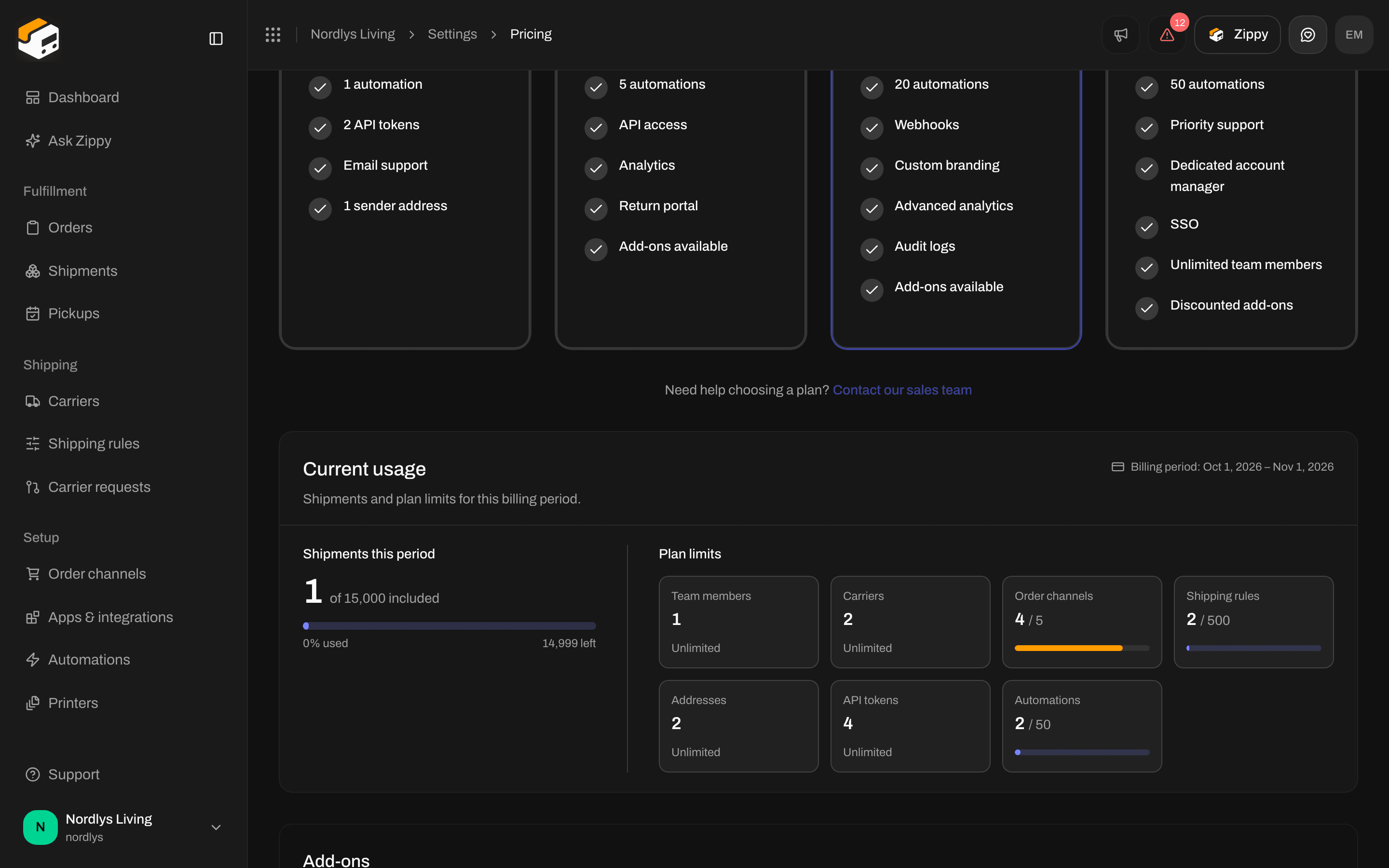
Current usage counts sent shipments, not downloads