

What you do where
Download
Open Printers
Choose your system
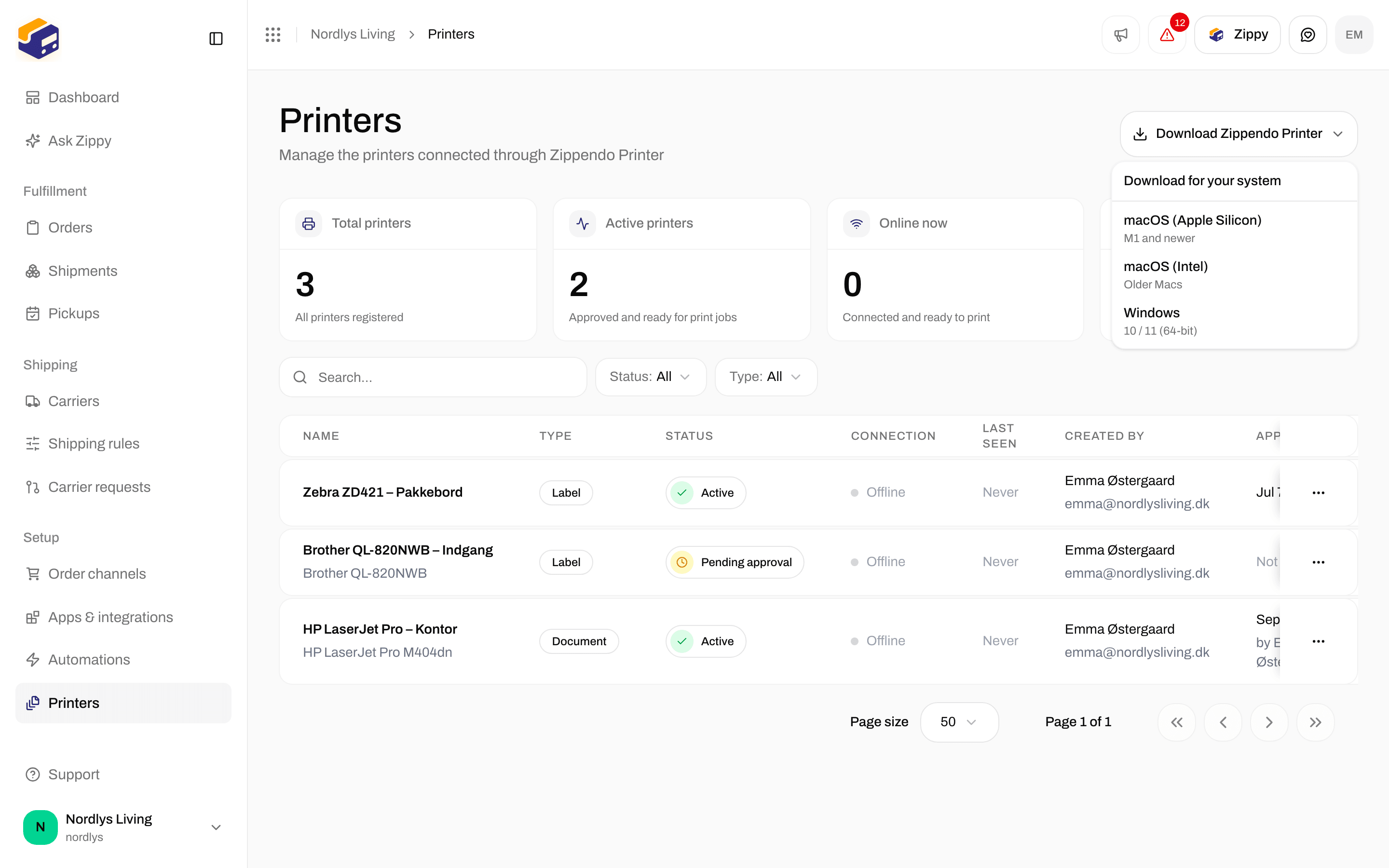
Download Zippendo Printer lists macOS Apple Silicon, macOS Intel and Windows
Install
Mac
Open the downloaded file
.dmg file in your Downloads folder.Move the app to Applications
Open Zippendo Printer
Windows
Run the installer
Zippendo-Printer-win-x64.exe in your Downloads folder.Follow the installer
Sign in
You sign in through your browser, with the same email and password you use for the Zippendo app. There is no code to type.Click Sign in with your browser
Authorize Zippendo Printer in the browser
Go back to the app
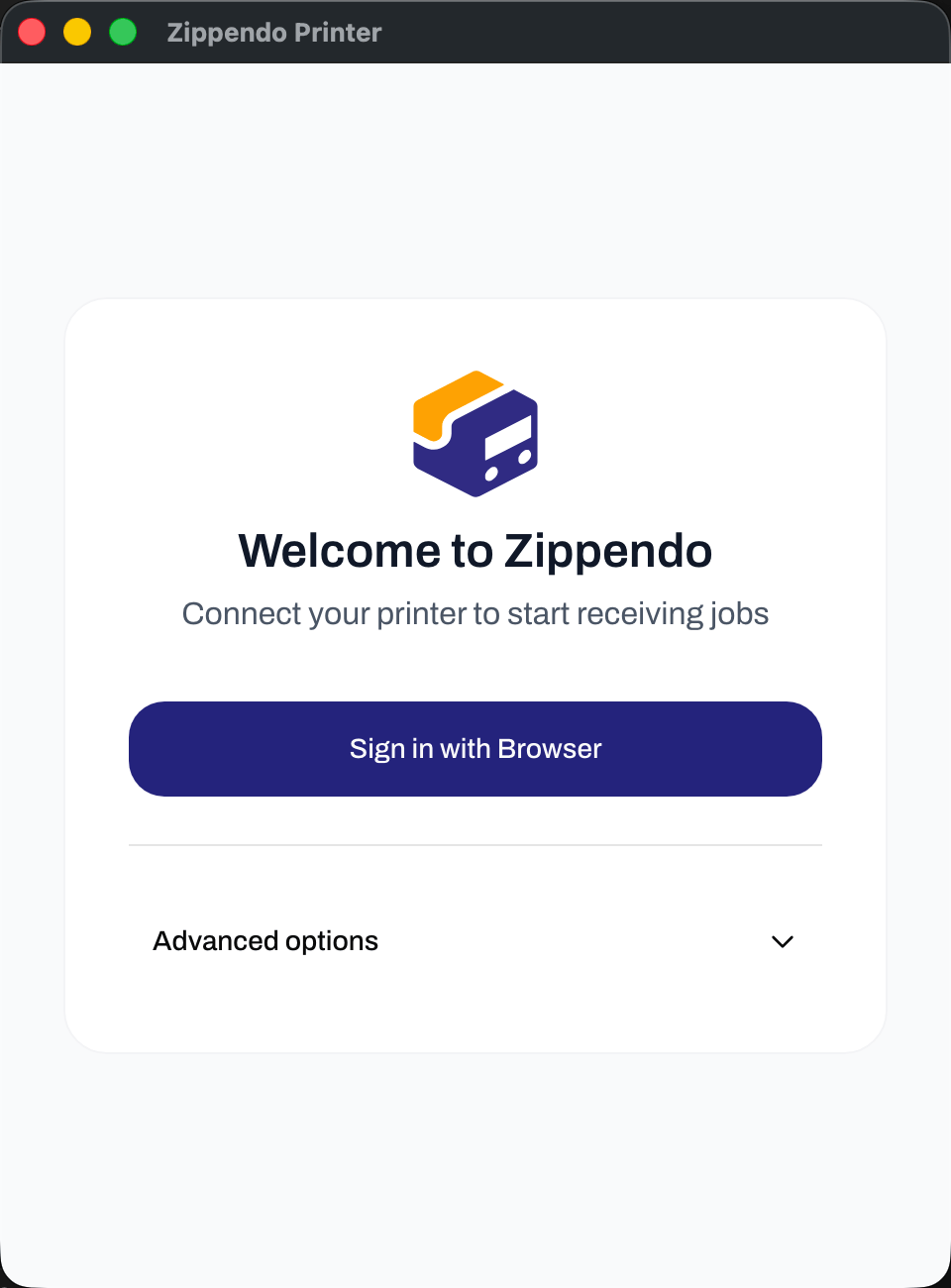
Welcome to Zippendo in Zippendo Printer
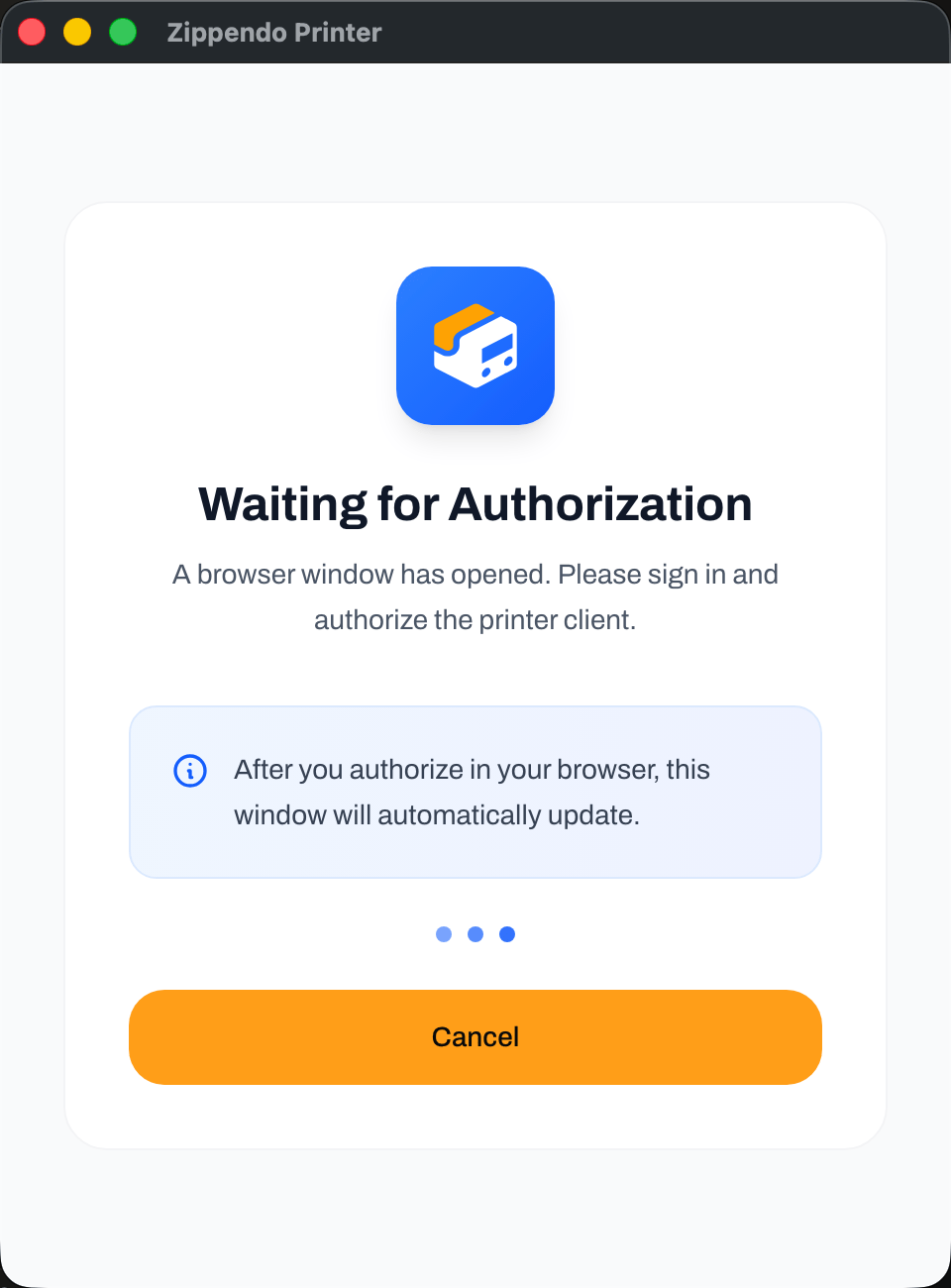
Zippendo Printer waits while you authorize it in the browser
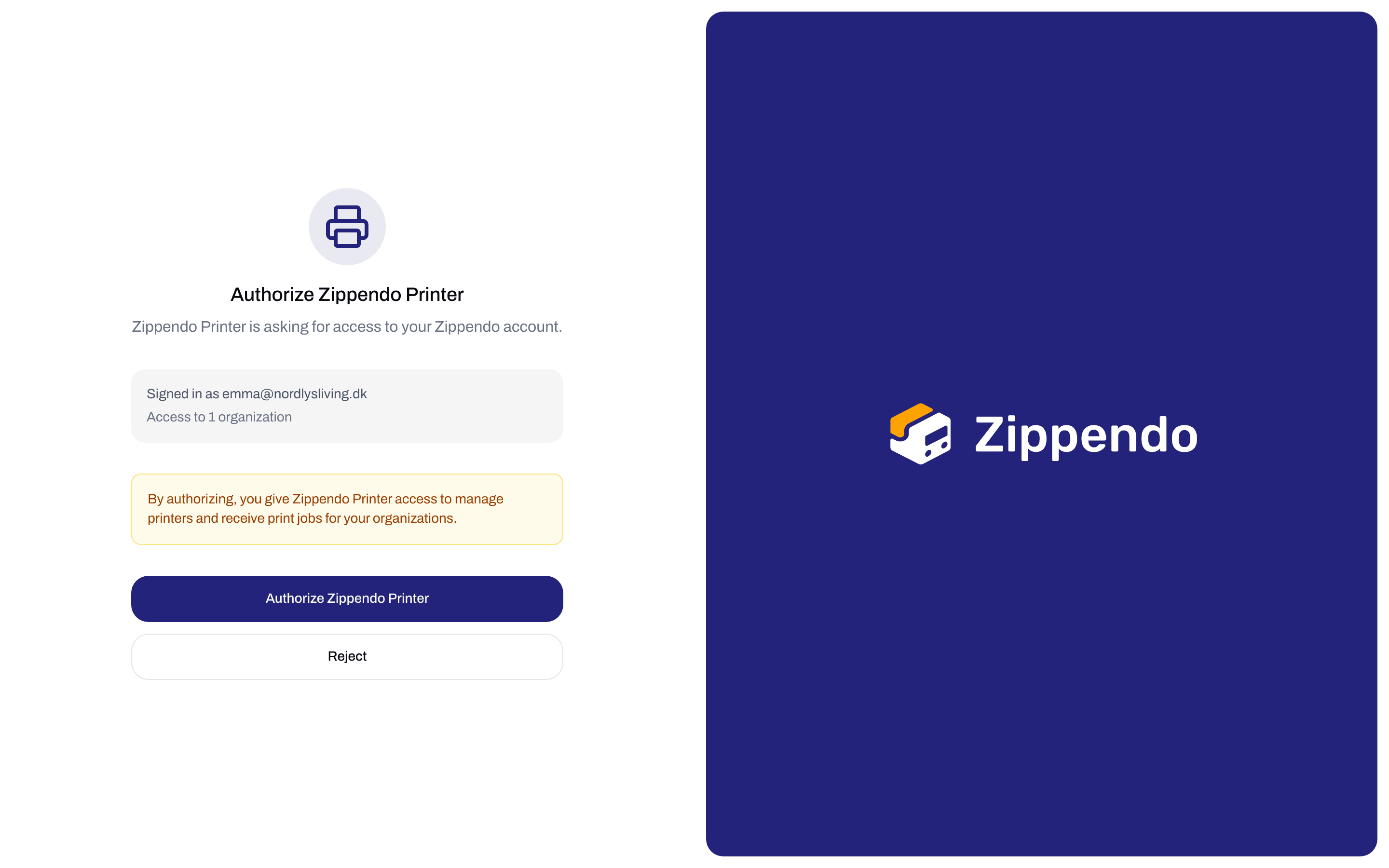
Authorize Zippendo Printer in the browser
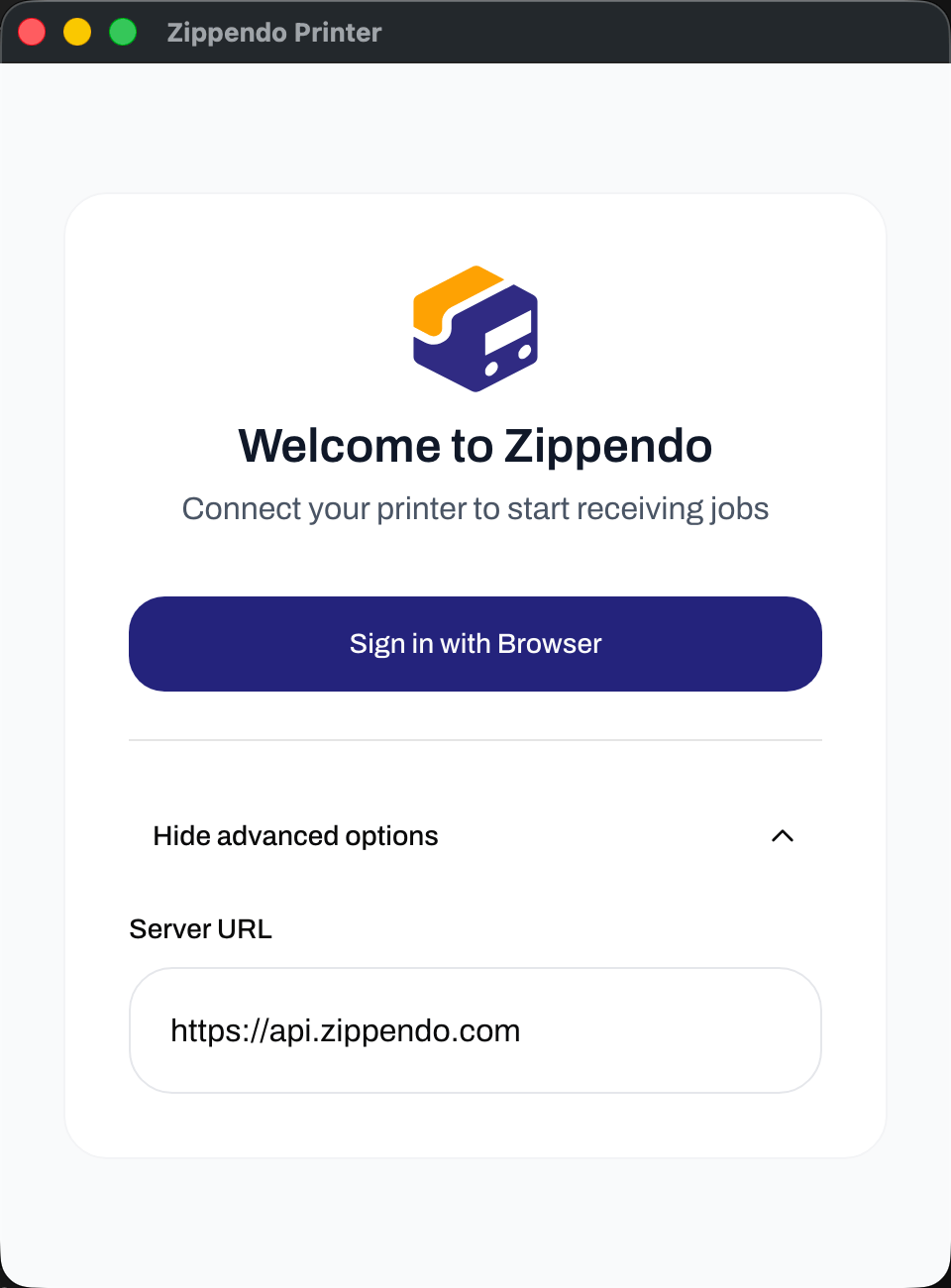
Advanced options in Zippendo Printer
Add a printer
Make sure the printer is turned on and installed on this computer first, so you can print a test page from your computer’s own printer settings.Open Add printer
Fill in the fields
Click Add printer
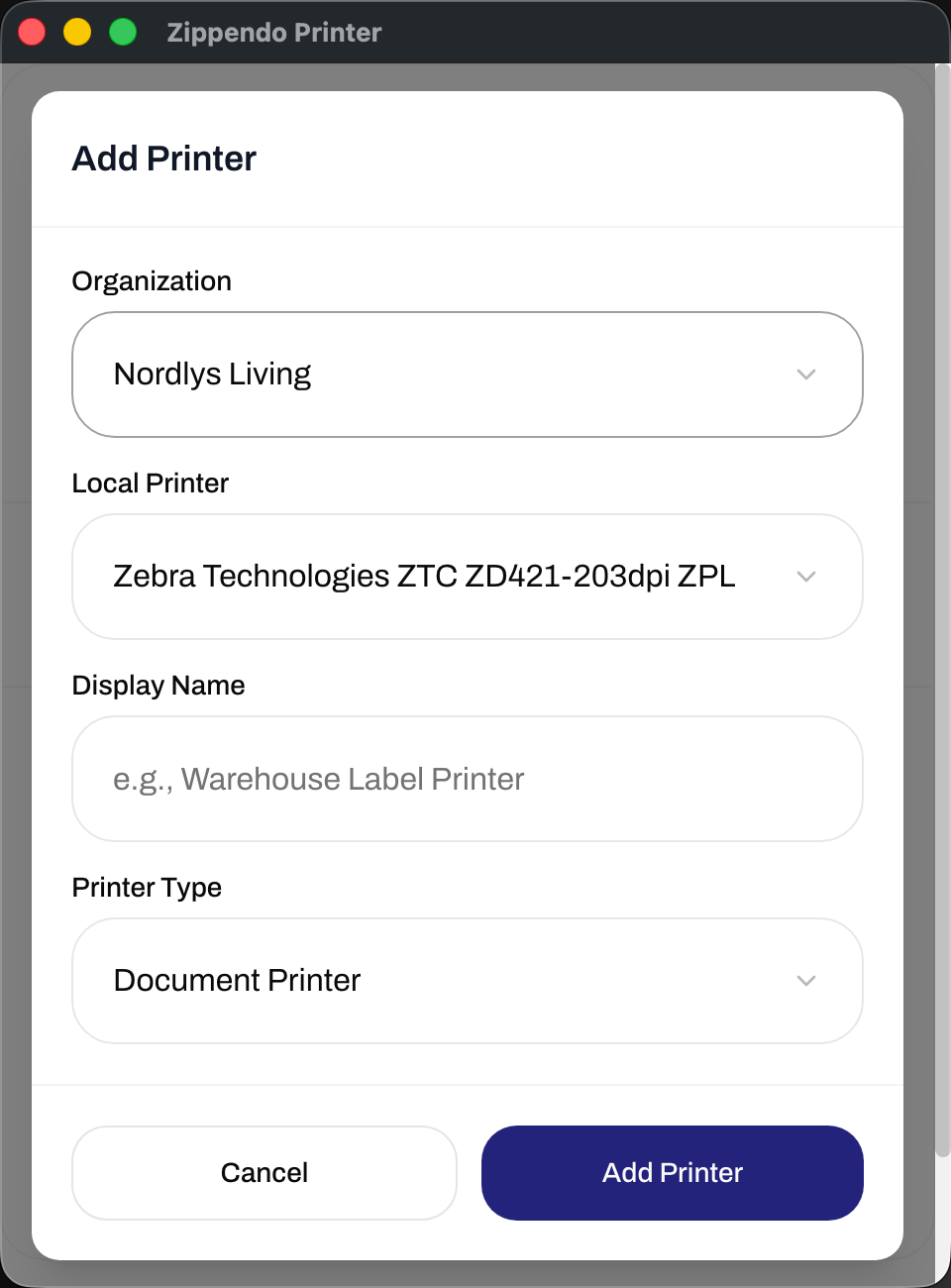
Add printer in Zippendo Printer
Approve the printer in Zippendo
A new printer cannot print until someone in your organization approves it. This stops unknown computers from receiving your labels.Open Printers
Approve it
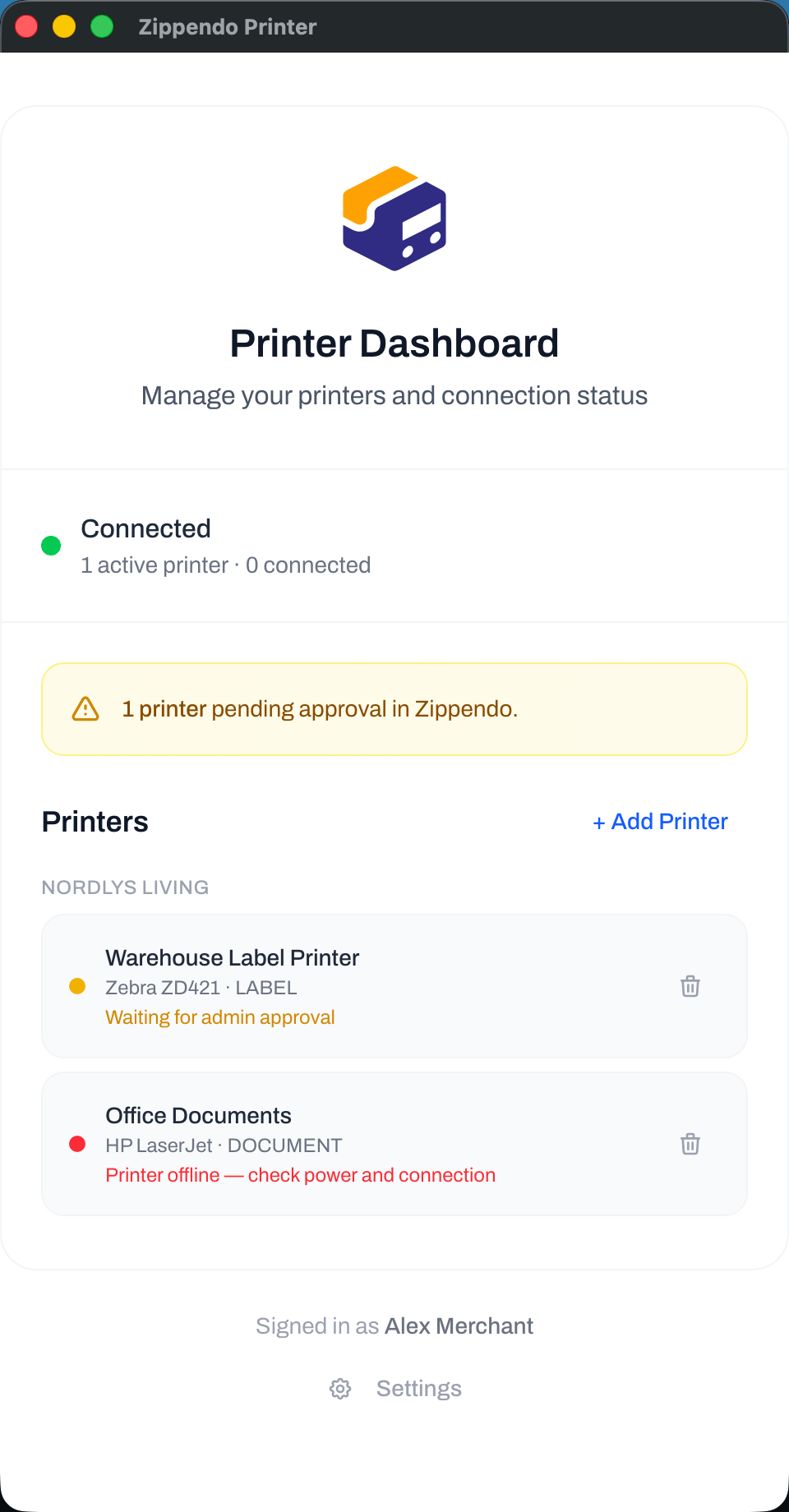
A new printer waiting for approval in Zippendo Printer
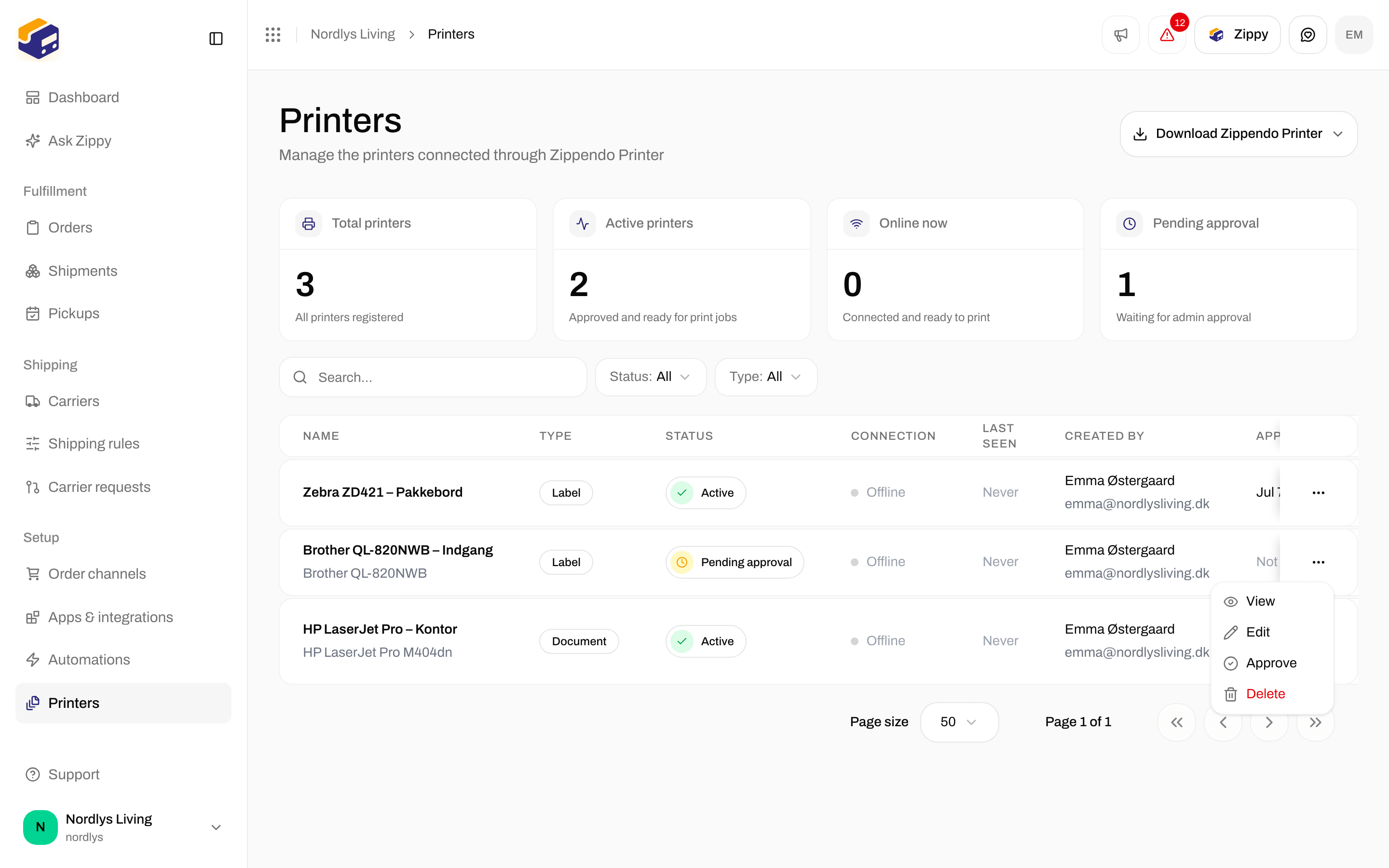
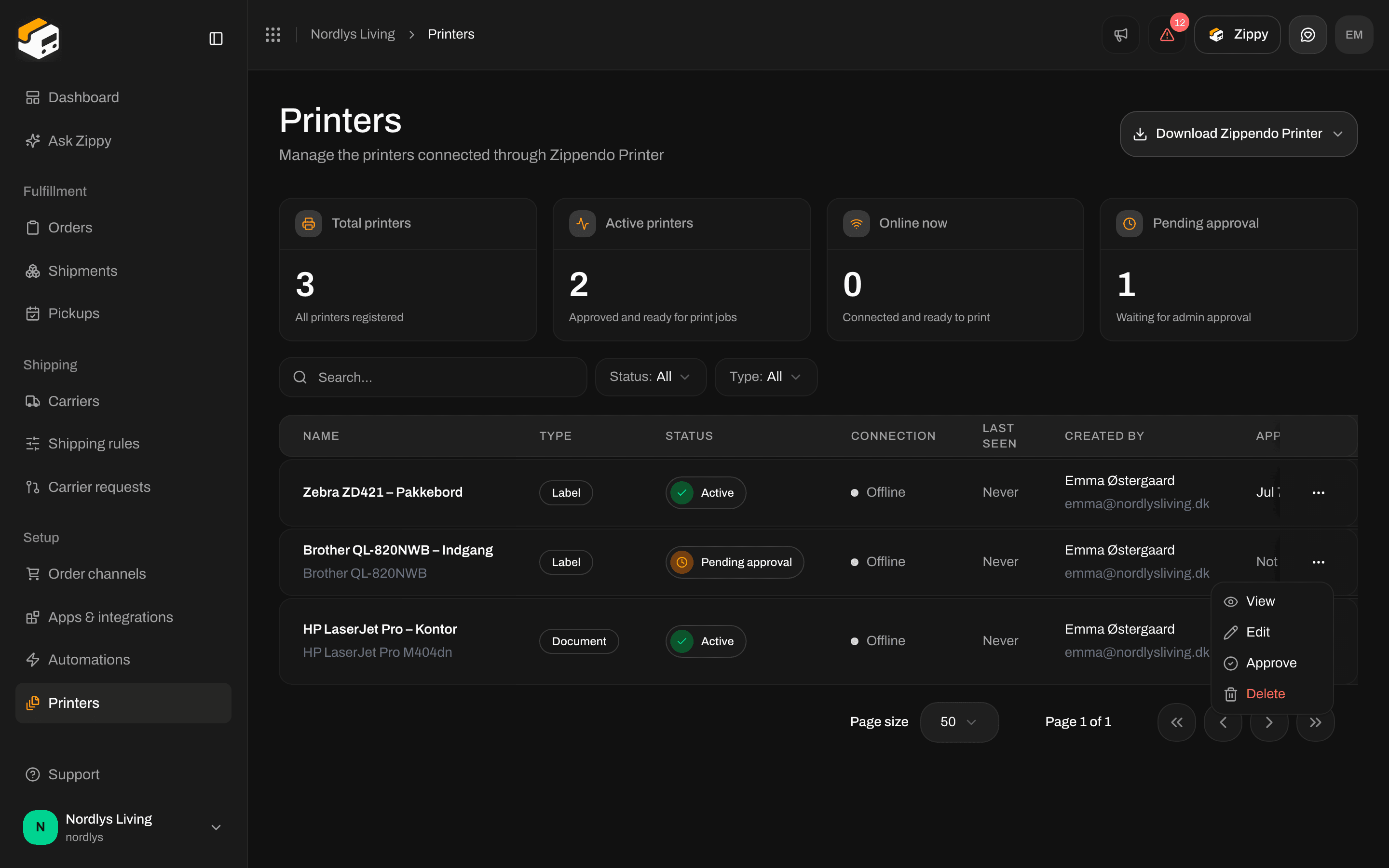
Approve is in the row menu while the printer is Pending approval
Read the Printer overview
The top of Printer overview tells you whether Zippendo Printer is connected to Zippendo. This is about the internet connection, not the cable to your printer.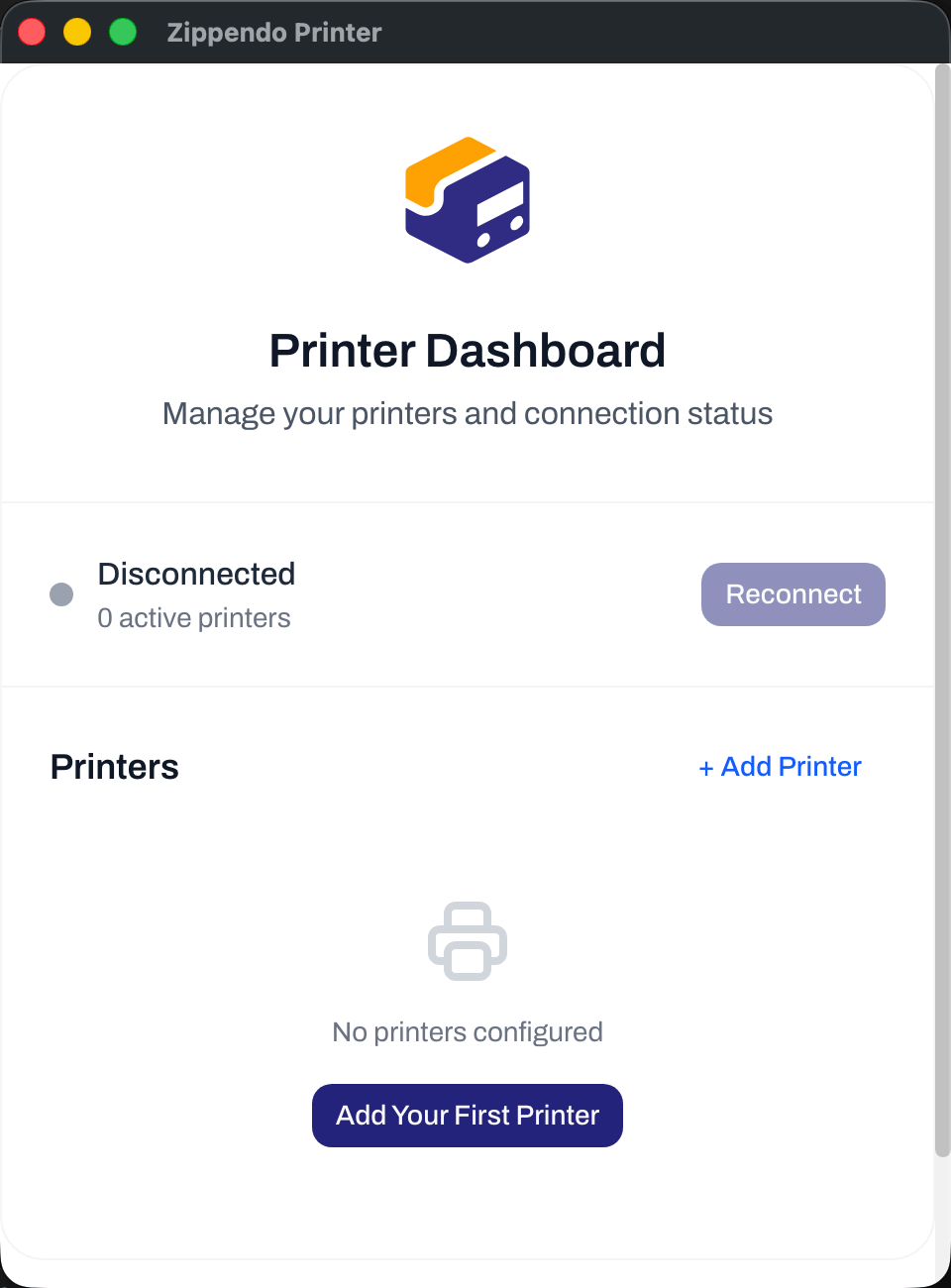
Printer overview before any printer is added
Keep it running
Zippendo Printer only prints while it is open.- Closing the window does not stop the app. It keeps running in the menu bar (Mac) or the system tray (Windows).
- Click the Zippendo icon in the menu bar or tray to see the status and to open the window again with Open Zippendo Printer.
- Quit in that menu stops printing. Jobs sent while the app is closed wait in Zippendo and print when you open it again.
- Zippendo Printer does not start by itself when the computer starts. Open it again after a restart, or add it to your computer’s startup apps.
- If the computer goes to sleep, nothing prints until it wakes up.
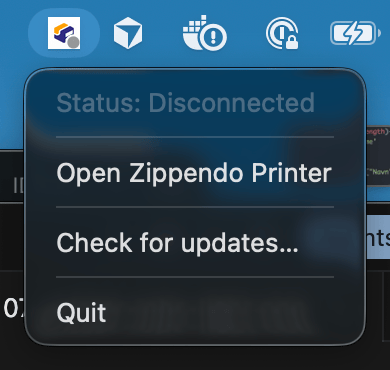
The Zippendo Printer menu in the Mac menu bar
Print and check the result
Nothing prints from Zippendo Printer’s own window. Labels and documents are sent from the Zippendo app:- Automatically when you send a shipment, if you turned on automatic printing. See Auto-print labels and documents.
- By hand with Print or Print all in the Documents card on a shipment page. See Shipment printer settings.
Change the printer later
Rename a printer, change its type, or turn on Rotate wide pages to portrait on the Printers page in Zippendo, not in the app. See Add a printer.Settings in Zippendo Printer
Click Settings at the bottom of Printer overview. Click Back to overview to return.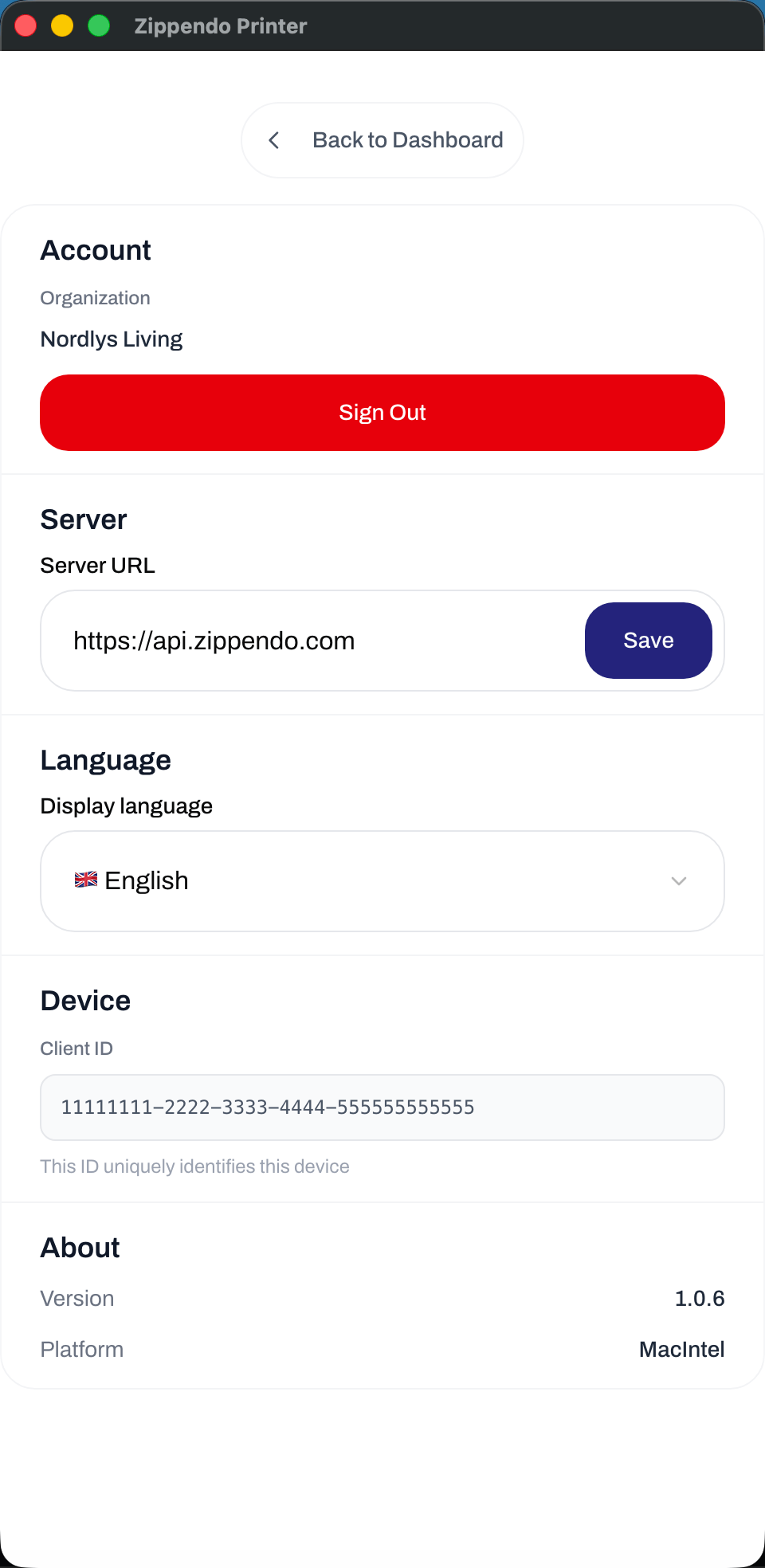
Settings in Zippendo Printer