

What you need from FedEx
- A FedEx account number. FedEx bills your shipments to it.
- A project on the FedEx Developer Portal with an API key (also called Client ID) and an API secret (also called Client secret). You create these yourself after you sign up on the portal.
- For testing: the separate test API key and API secret the portal gives you.
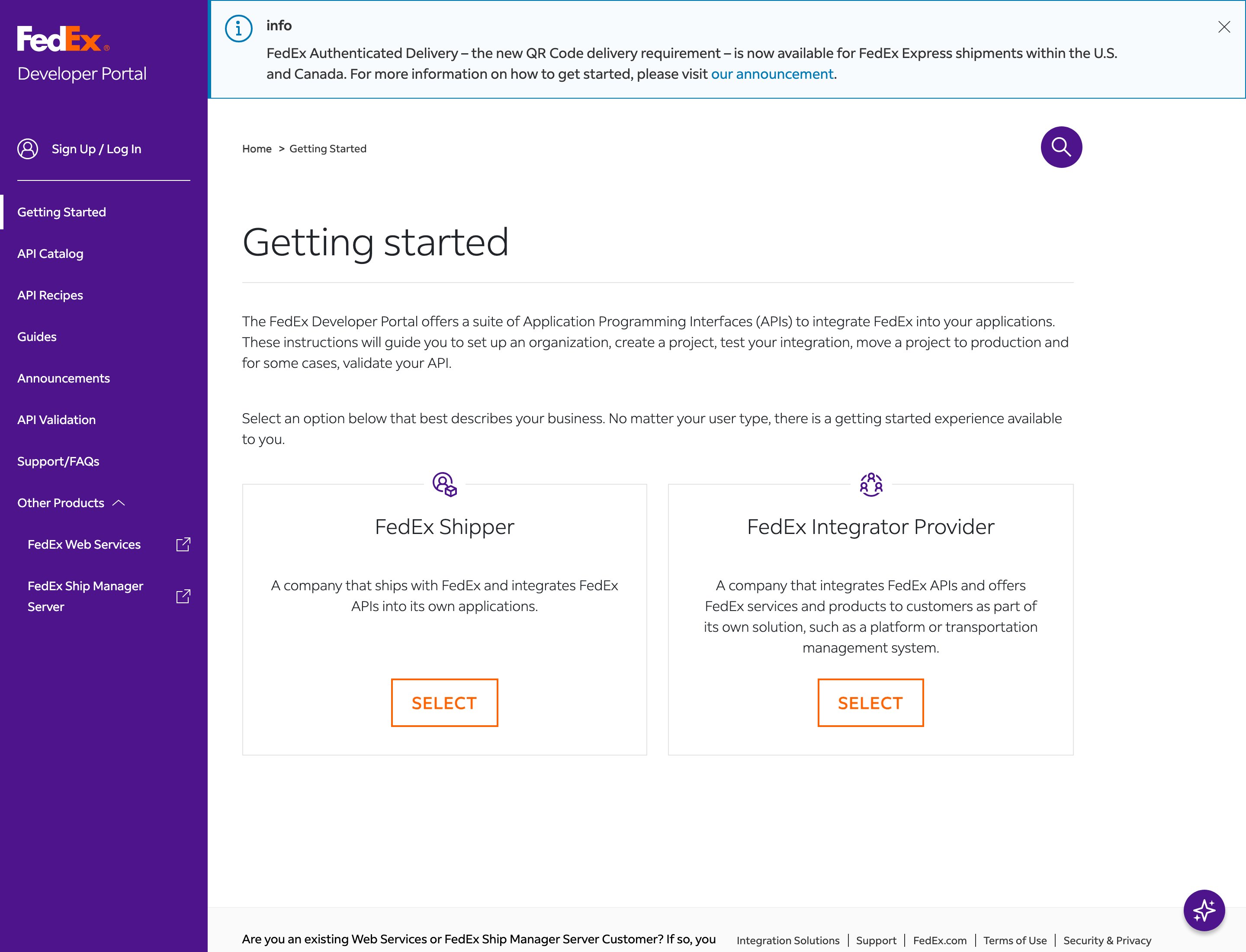
FedEx Developer Portal - sign up or sign in to create your API key and API secret
Connect FedEx
1
Open All carriers
In the sidebar, click Carriers, then the All carriers tab.
2
Click Connect on FedEx
Find the FedEx card and click Connect. (Learn more opens fedex.com.)
3
Fill in the form
The Connect carrier window opens. Carrier name is already filled in with “FedEx”. Fill in API key, API secret and Account number. Test mode is under Optional fields.
4
Click Connect in the window
You see Carrier connected. FedEx now appears on My carriers marked Connected.
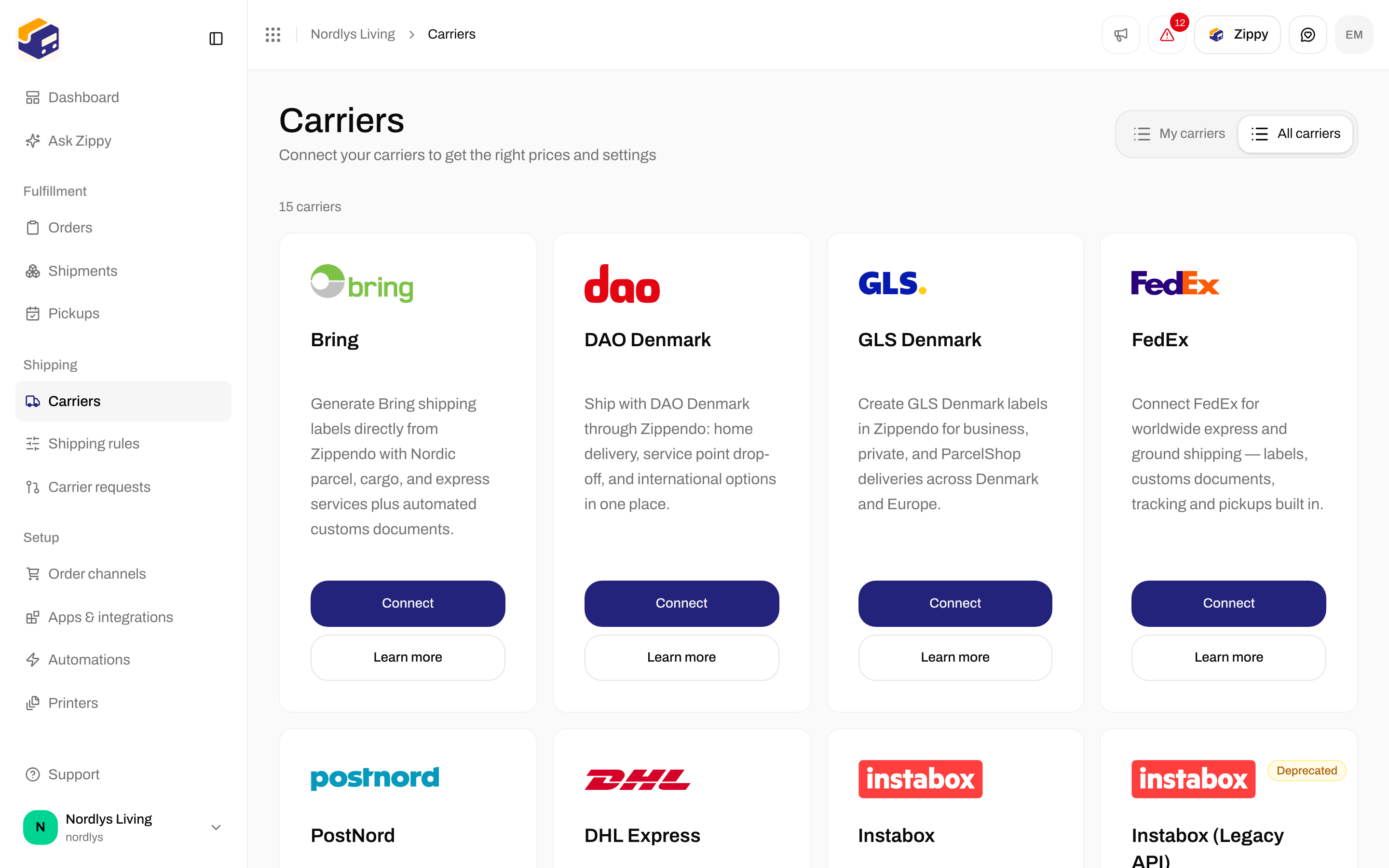
The FedEx card on All carriers
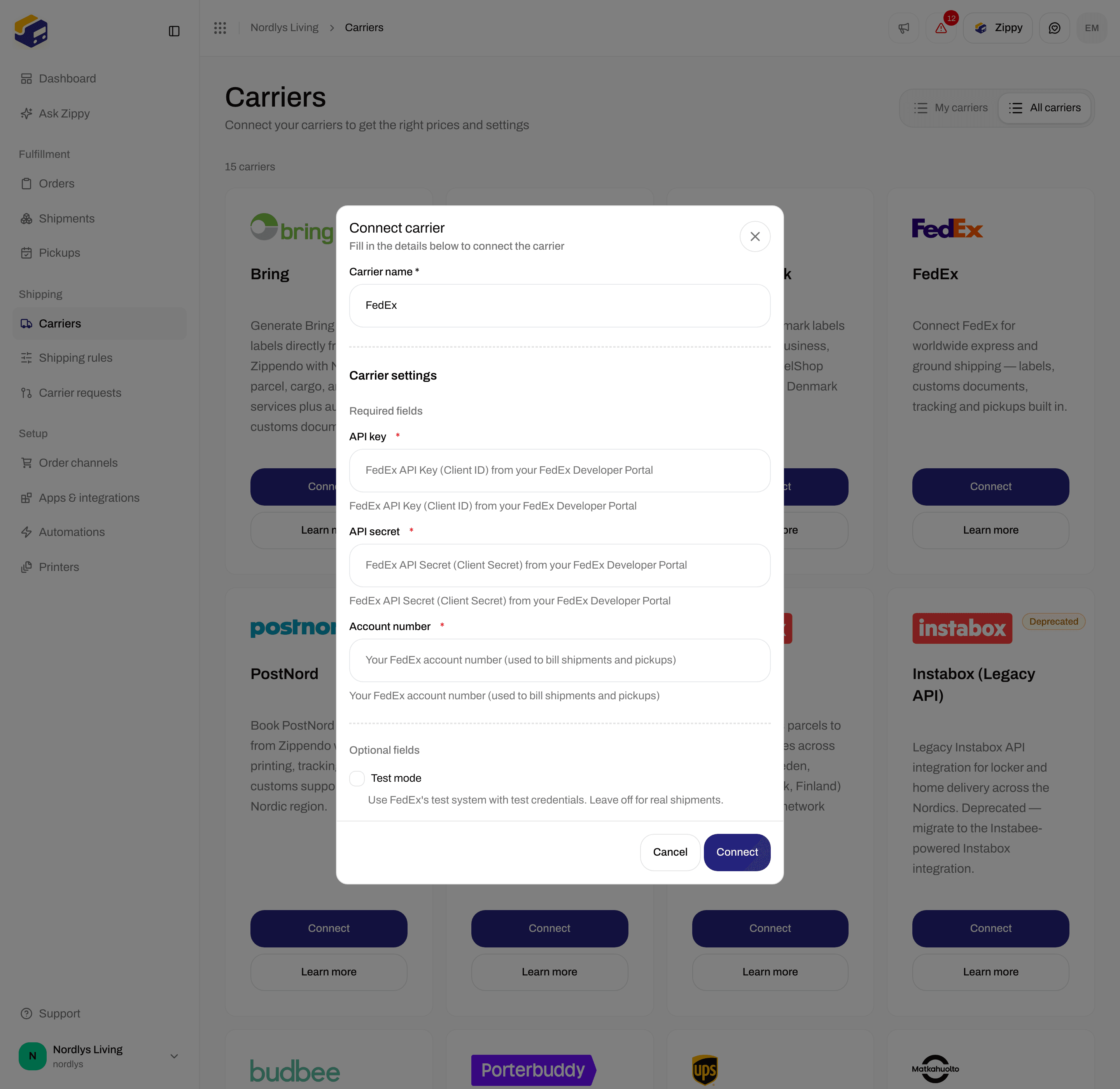
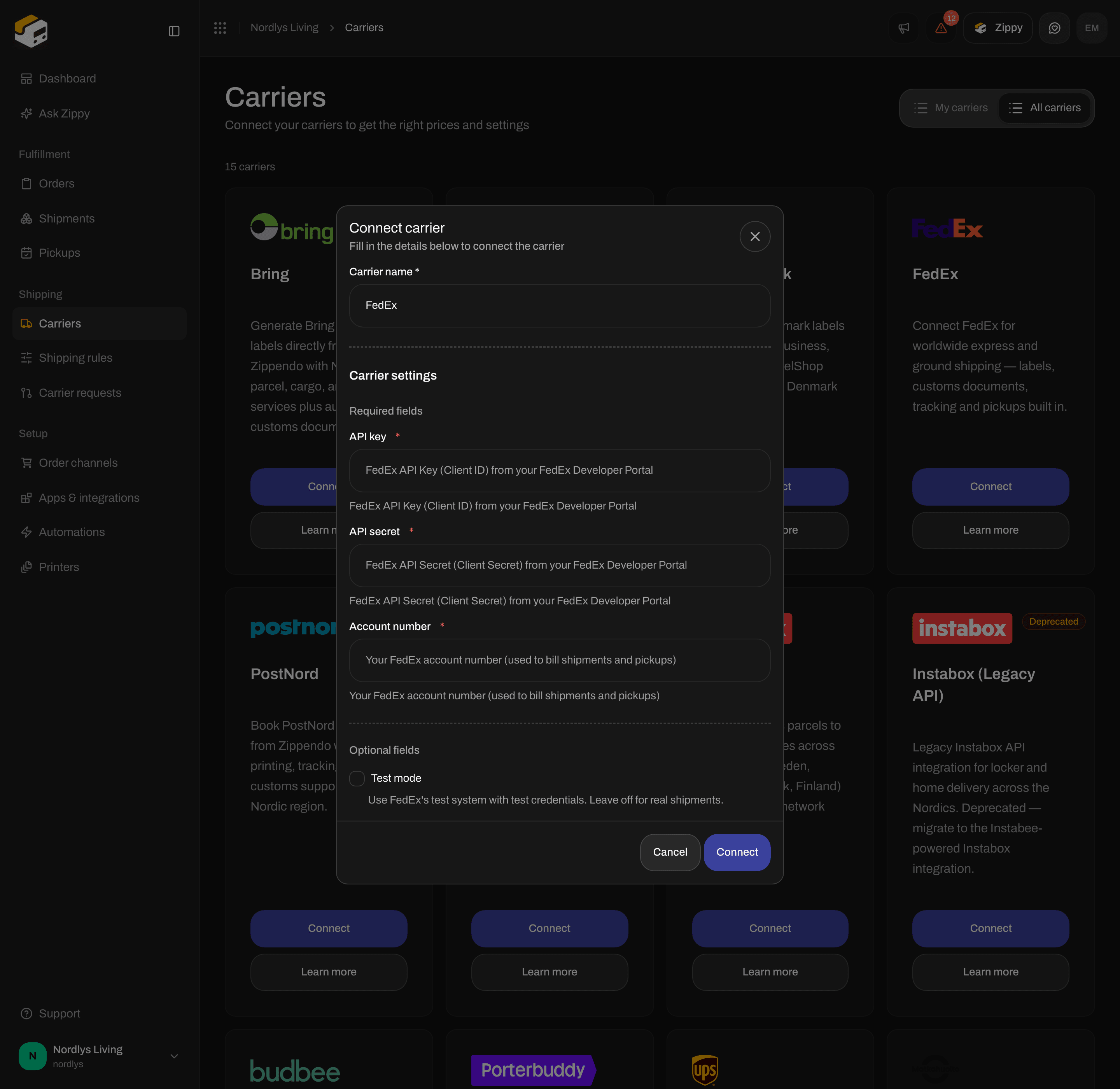
Connect carrier for FedEx - API key, API secret and Account number
What to enter
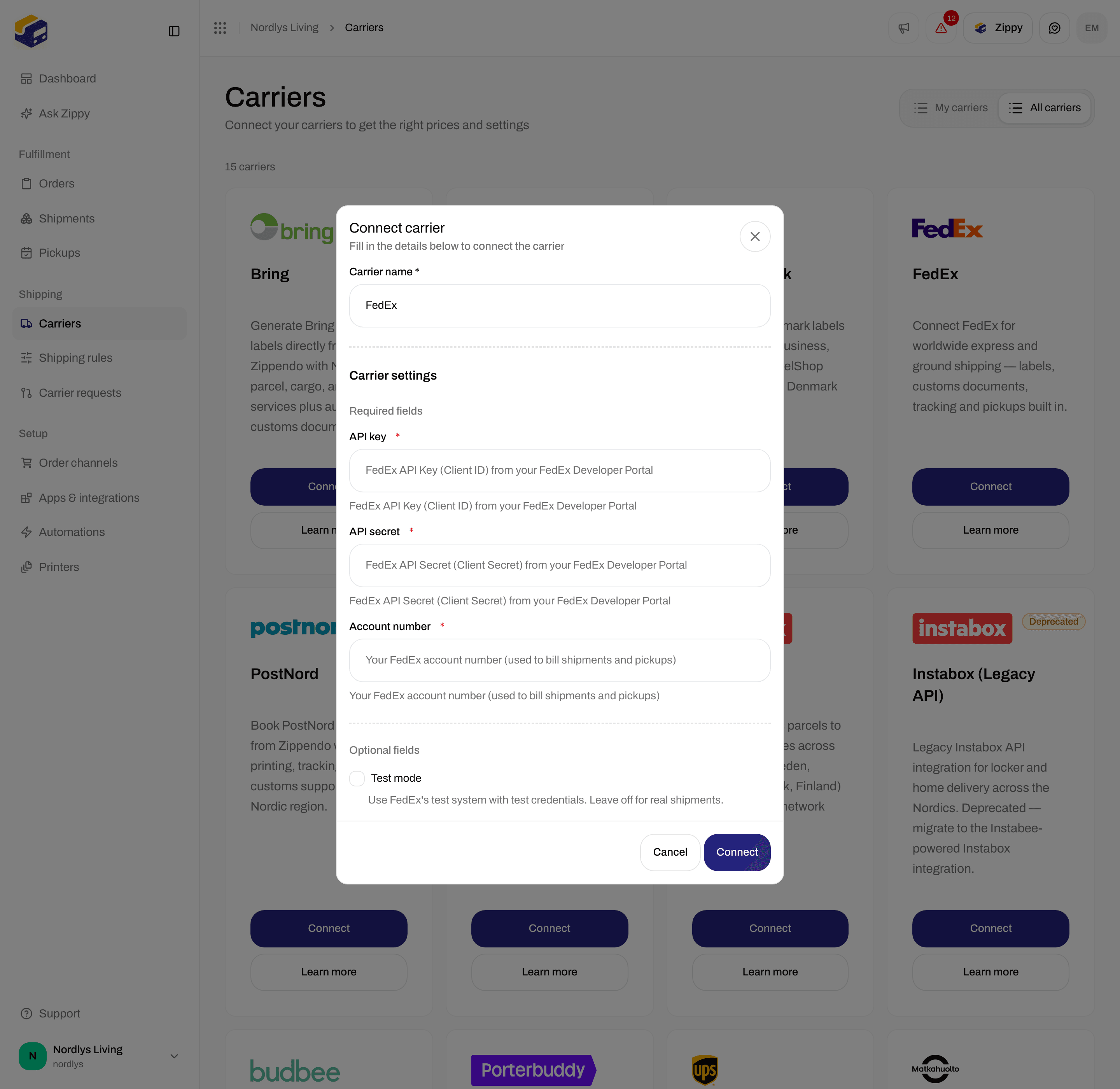
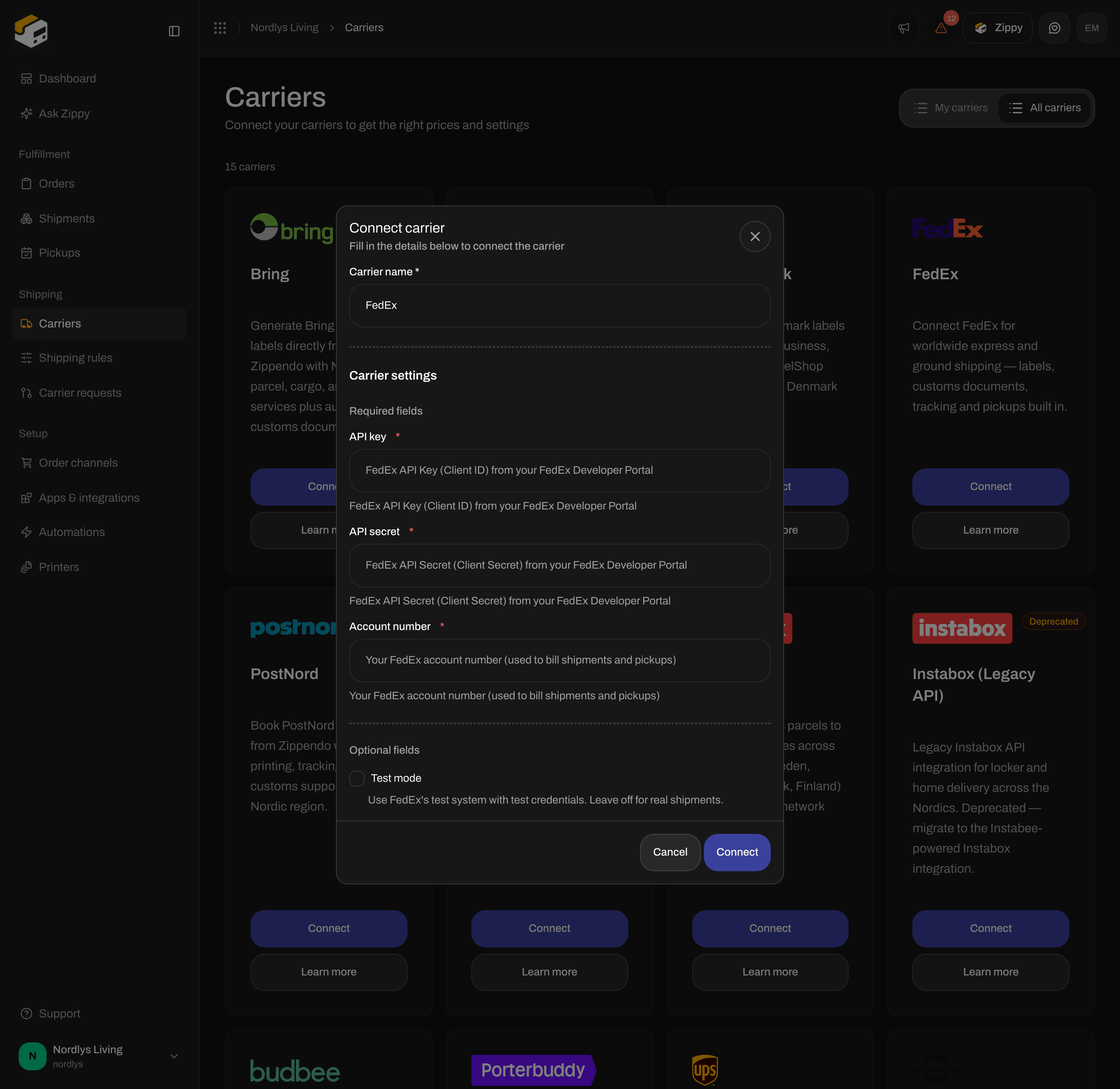
FedEx Optional fields - Test mode
Test or live
FedEx has separate test credentials. With Test mode on, enter your test API key and API secret. With it off, enter your real ones. Test credentials do not work for real shipments, and real credentials do not work in test mode. Turn Test mode off before you ship real orders. More in Test mode.After you connect
You choose a FedEx product when you create a shipment or a shipping rule. See Carrier products and services. The products include FedEx International Priority Express, FedEx International Priority, FedEx International Economy, FedEx International Connect Plus, FedEx International First, FedEx Regional Economy, FedEx Europe First International Priority, FedEx First Overnight, FedEx Priority Overnight, FedEx Standard Overnight, FedEx 2Day, FedEx 2Day A.M., FedEx Express Saver, FedEx Ground and FedEx Ground Home Delivery. Products that support returns also have a Return version for return shipments. Depending on the product, you can add services such as Hold at Location and Saturday delivery, and choose a Pickup type and a Label format (PDF (4x6) or ZPL (thermal)).- Hold at Location: products with Hold at Location ask for a Hold at Location ID, which you find with the service point search. See Pick a service point.
- Pickups: FedEx is not available under Pickups. Instead, Pickup type on the shipment tells FedEx how the parcel reaches it: Drop off at FedEx location, Use scheduled pickup or Contact FedEx to schedule.
- Tracking: Zippendo fetches tracking from FedEx regularly with the same API key, so your FedEx Developer Portal project needs access to tracking as well as shipping.
- Customs: FedEx creates the customs documents and commercial invoice for international shipments. See Customs and documents.
If the connection fails
Zippendo saves your FedEx details without checking them. A mistake shows up the first time you send a shipment.
More help: Carrier authentication failures.
Change or remove the connection
- Change: on My carriers, click Edit carrier. Update the fields under Carrier settings and click Save.
- Remove: on the same page, click Delete, type the carrier name in capital letters (for example
FEDEX) and click Delete. Shipping rules that use this carrier are deleted too. Shipments you already sent keep their labels and tracking numbers.