

The list
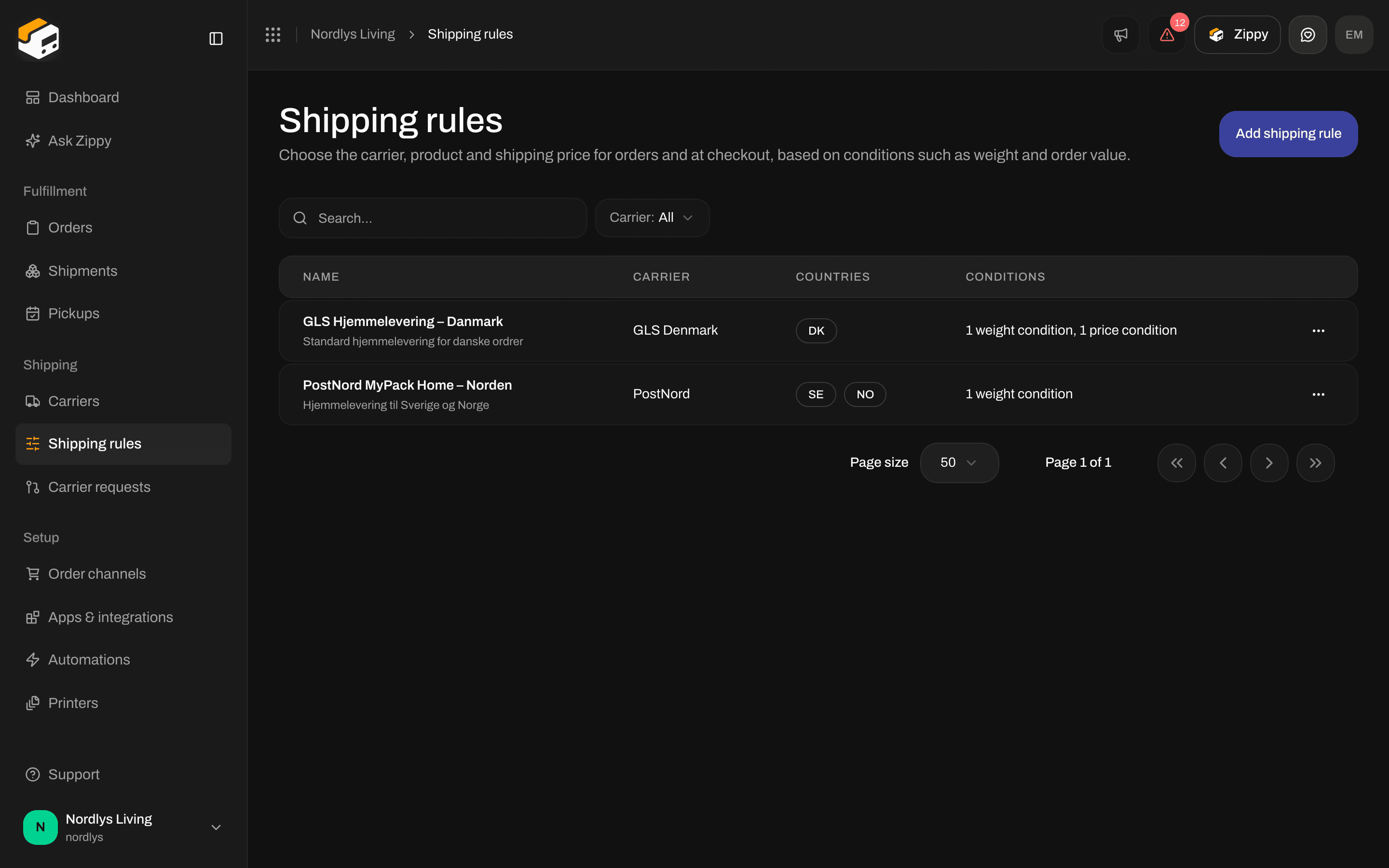
The page is called Shipping rules: Choose the carrier, product and shipping price for orders and at checkout, based on conditions such as weight and order value. Click Add shipping rule to create one. Your rules are under All rules. With no rules yet, you see No shipping rules yet and Click “Add shipping rule” to create your first one. The columns are Name, Carrier, Countries and Conditions. Click a row to edit the rule, or use the row menu for Edit and Delete. The Conditions column sums up each rule, for example No conditions, “2 weight conditions” or “1 price condition”. If the rule’s carrier is no longer connected, Carrier says Unknown.Filter the list
Click Filters, set what you want, then click Add filters. See Search and filters.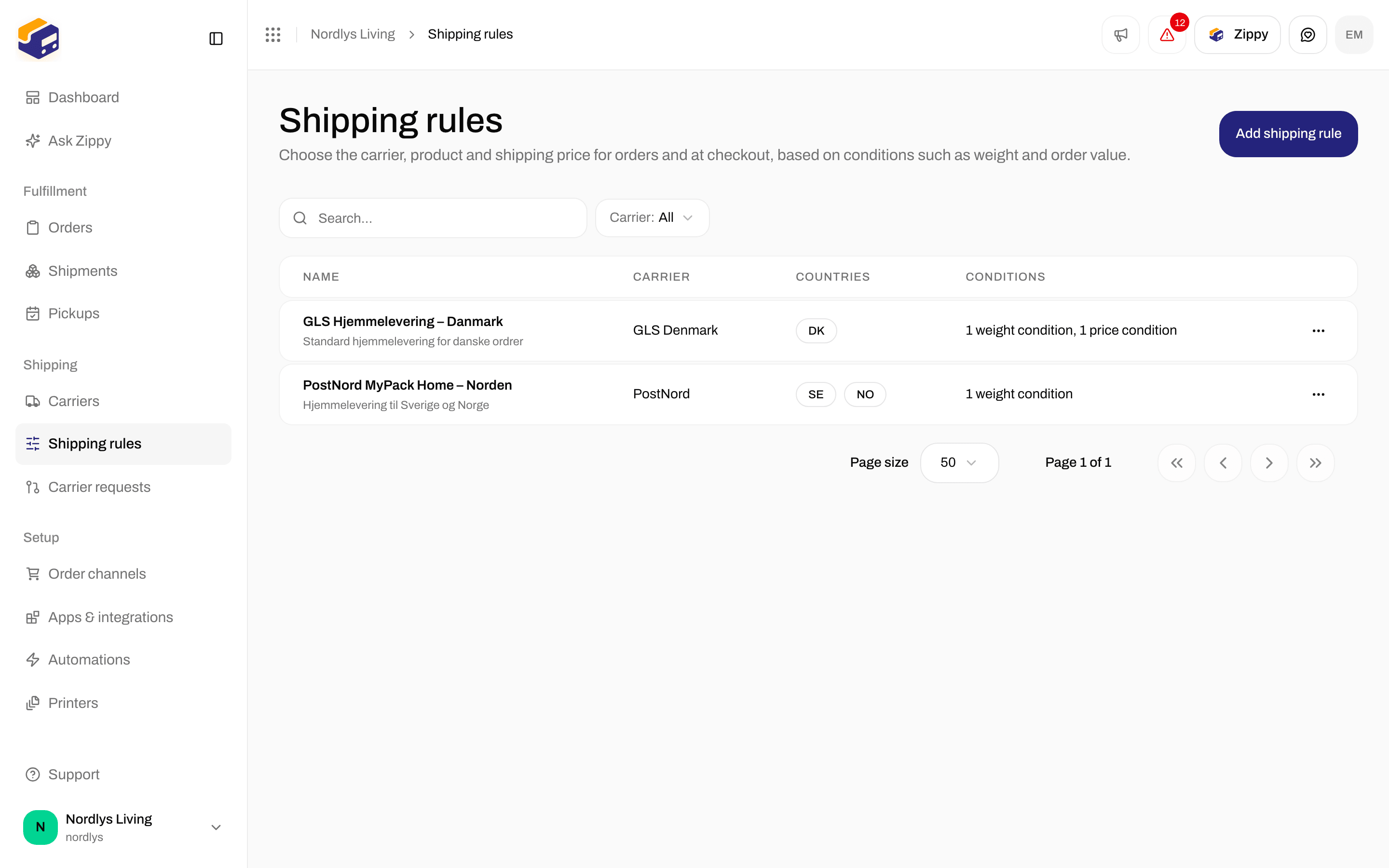
Filters on Shipping rules: Search and Carrier (Brand only appears when you have brands)
Delete a rule
Choose Delete in the row menu. The Delete shipping rule window says This permanently deletes the shipping rule “Standard Shipping”. You can’t undo this. (with your rule’s name). Type the rule name in capital letters to confirm. You see Shipping rule deleted or Couldn’t delete shipping rule. There is no on/off switch for a rule and no priority order. A saved rule is in use.Create or edit a rule
At the top you find Cancel (back to the list), Test (see Condition tester below) and the save button. If a rule cannot be opened, you see Couldn’t load shipping rule. Try again.
After saving, you go back to the list. If saving fails, a red box says Couldn’t create shipping rule. or Couldn’t update shipping rule., with the reason or Please check all fields and try again.
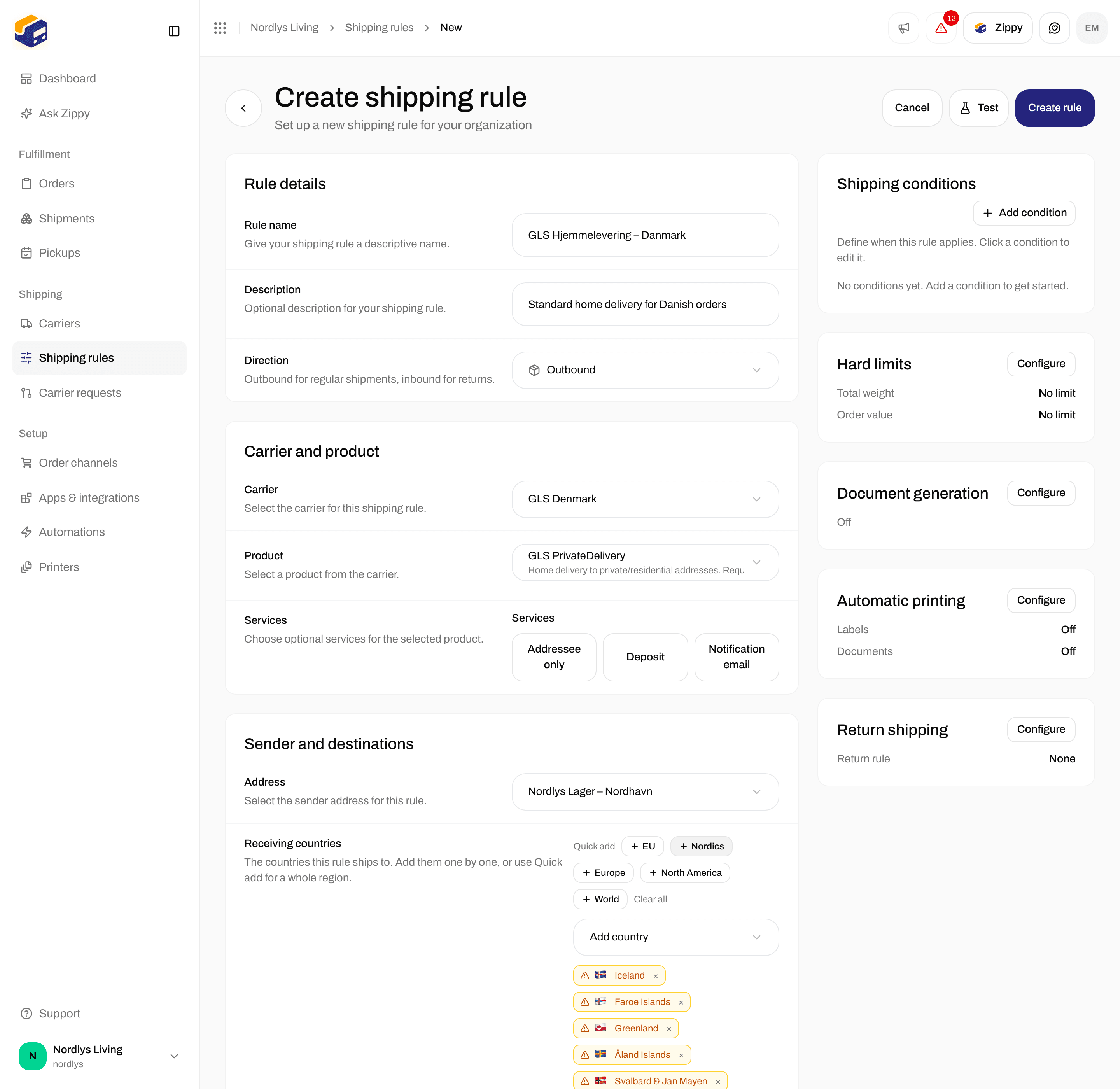
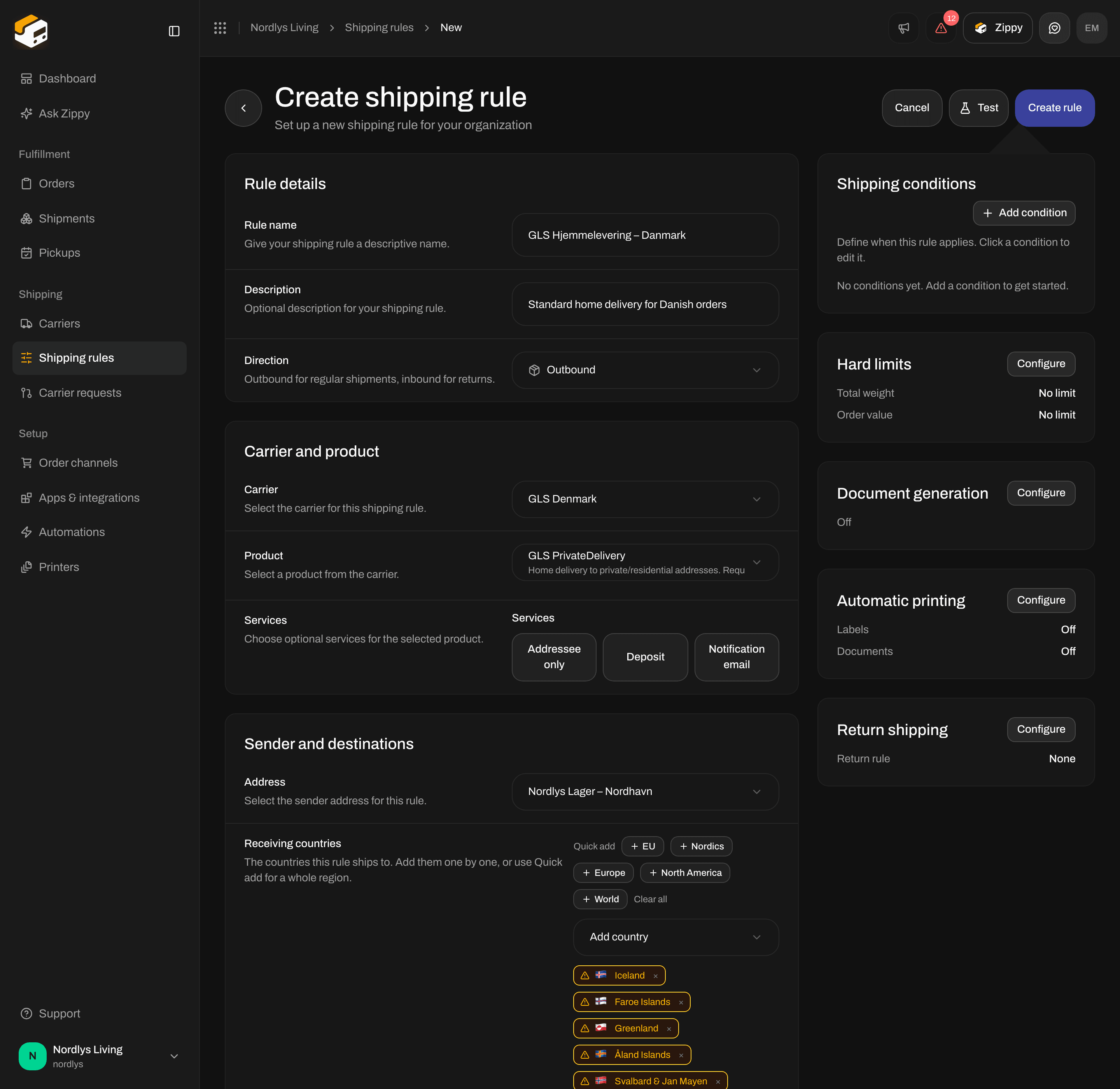
Create shipping rule: name, description, direction, carrier, product and address
The basics
If the product has no services, the Services field says No services available for this product. A search with no result says, for example, No services found matching “sms”.
With Inbound (return), Product only lists return products. See Return shipments. Product services in detail: Carrier products and services.
Email and SMS notifications are not set here. The carrier handles them.
Receiving countries
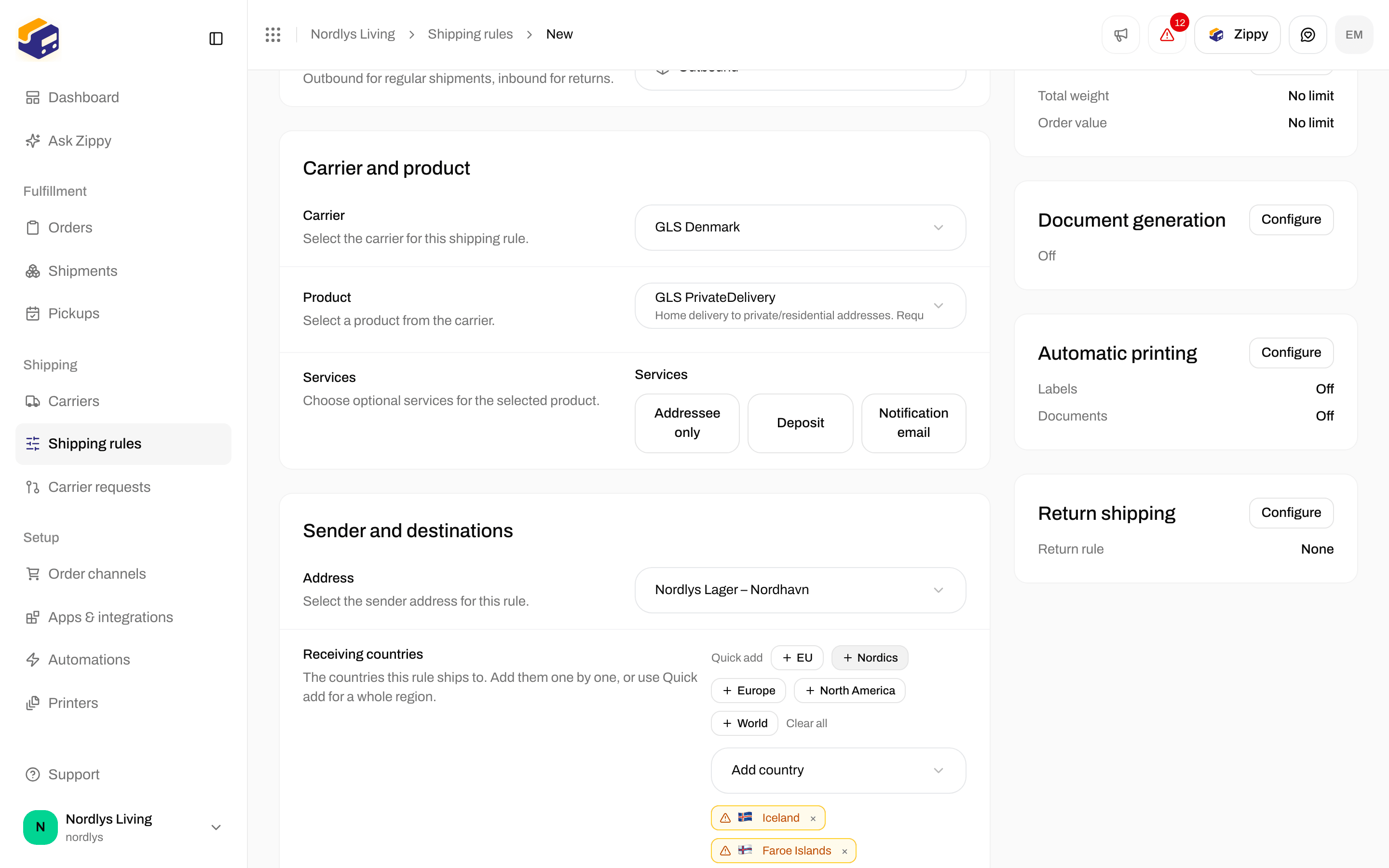
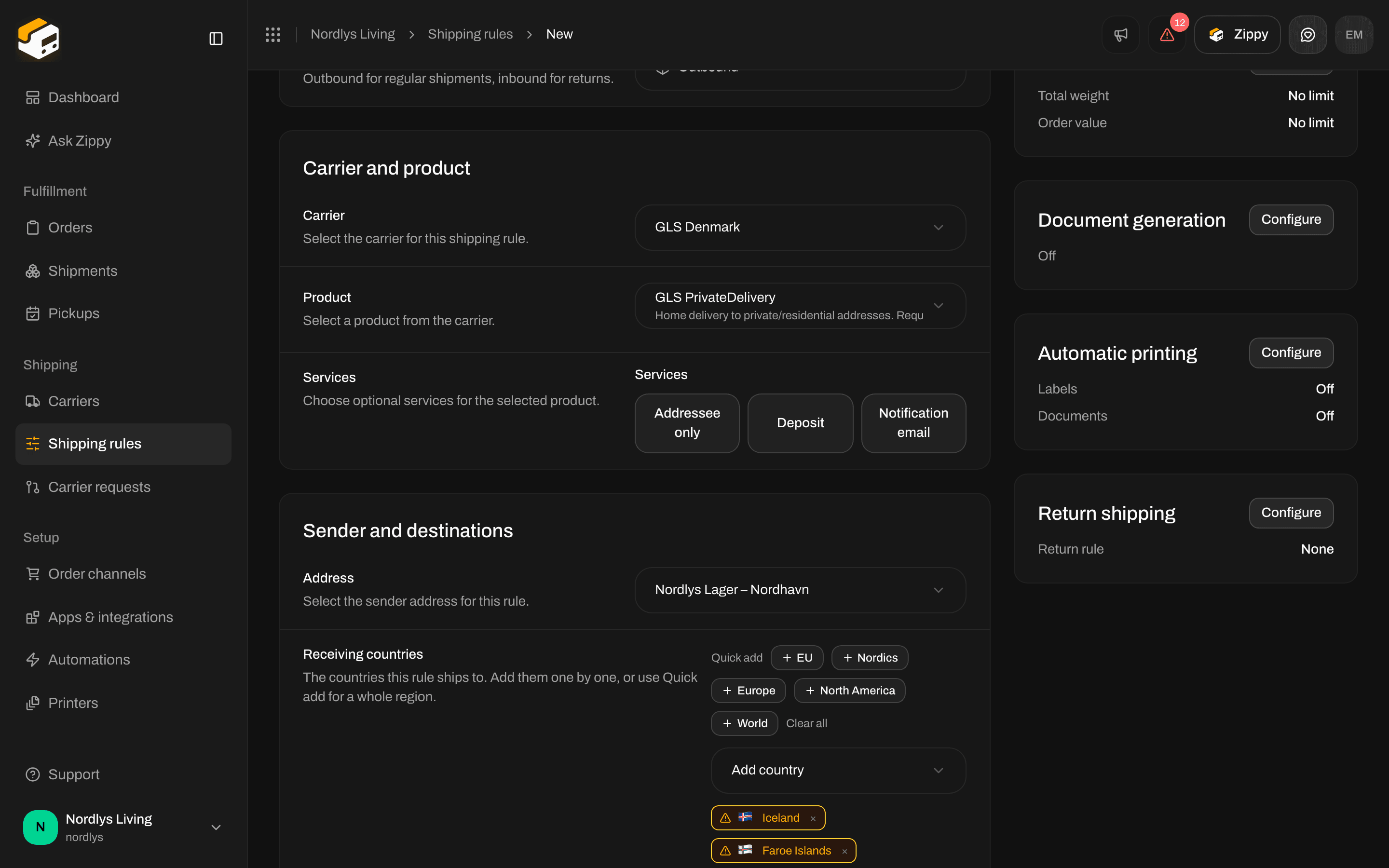
Receiving countries: the chosen countries, Add country and the Quick add regions
At least one country is required (At least one country is required).
Document generation
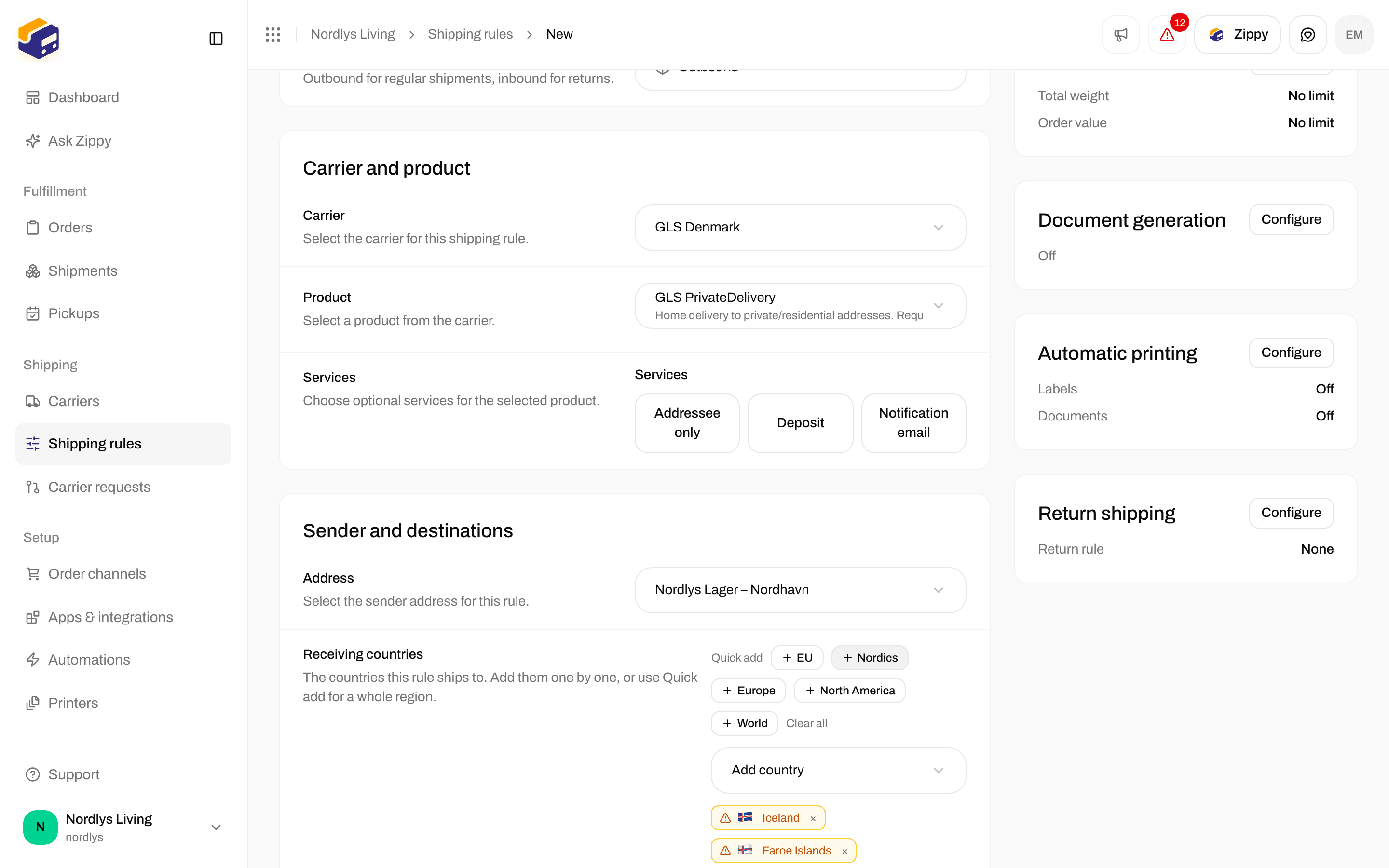
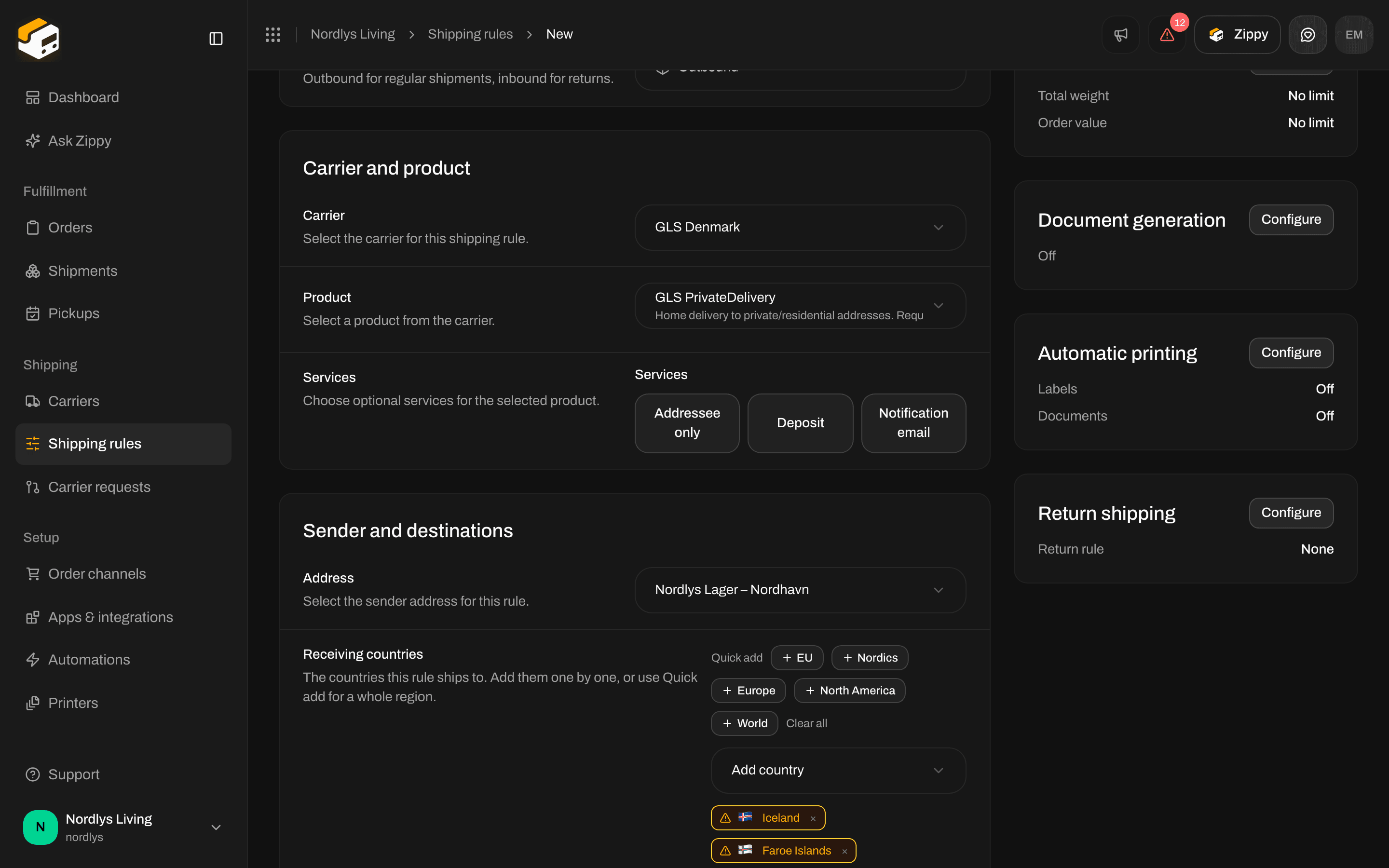
Document generation, Automatic printing and Return shipping
Some carriers make the customs declaration and commercial invoice themselves. For those, the two invoice switches are hidden and the rule says so, for example PostNord creates the customs declaration and commercial invoice itself and sends them with the label. Zippendo doesn’t create its own copies for this rule. See Customs and documents.
Automatic printing
Click Configure on the Automatic printing card to open these switches, and Done to keep your changes. Printers: Add a printer, Auto-print labels and documents.
Return shipping
Click Configure on the Return shipping card to open these fields, and Done to keep your changes. The full return setup: Return shipments.
Hard limits
Click Configure on the Hard limits card: If the cart or order is outside these limits, this rule is skipped and the conditions below are not checked. Click Done to keep your limits.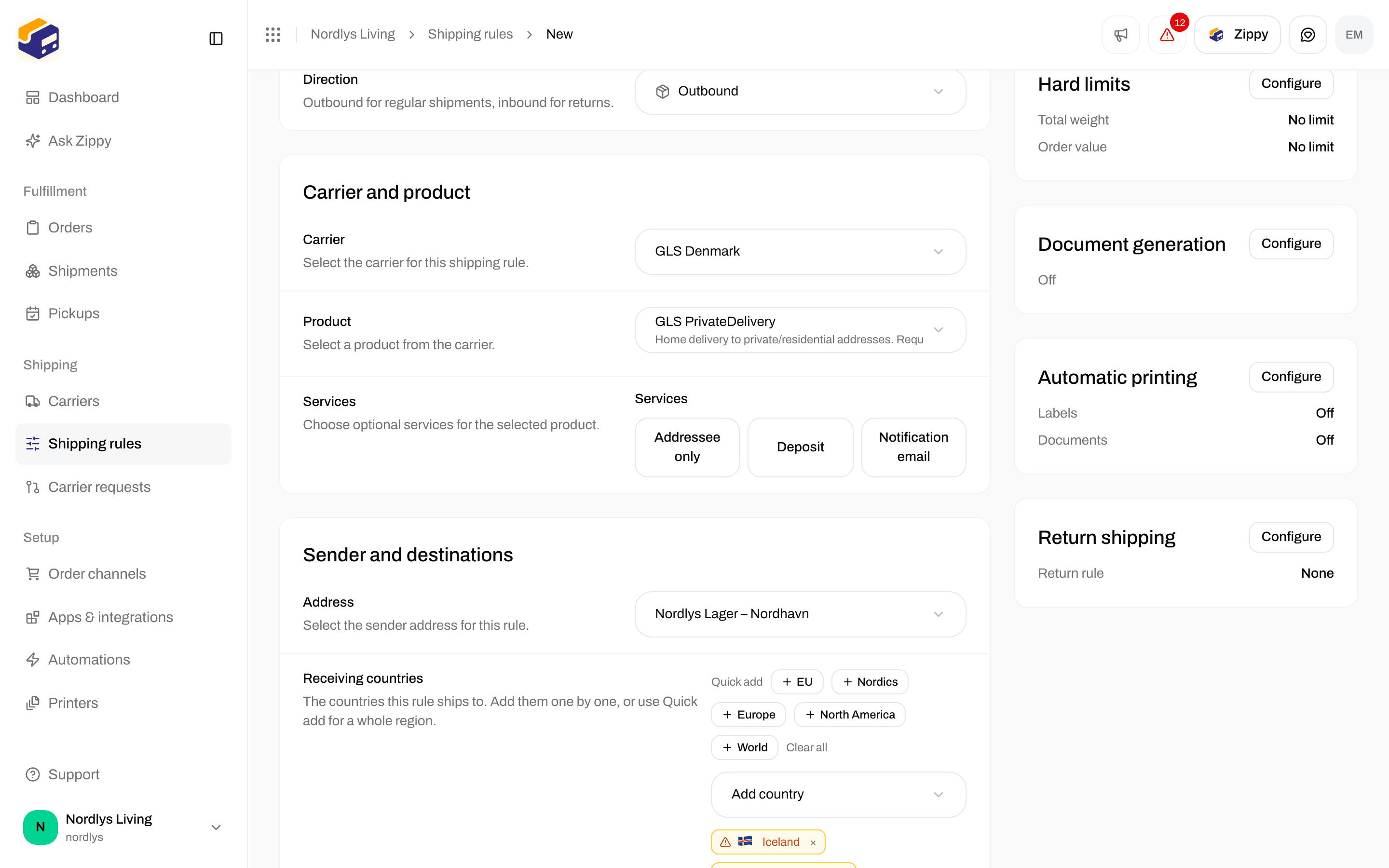
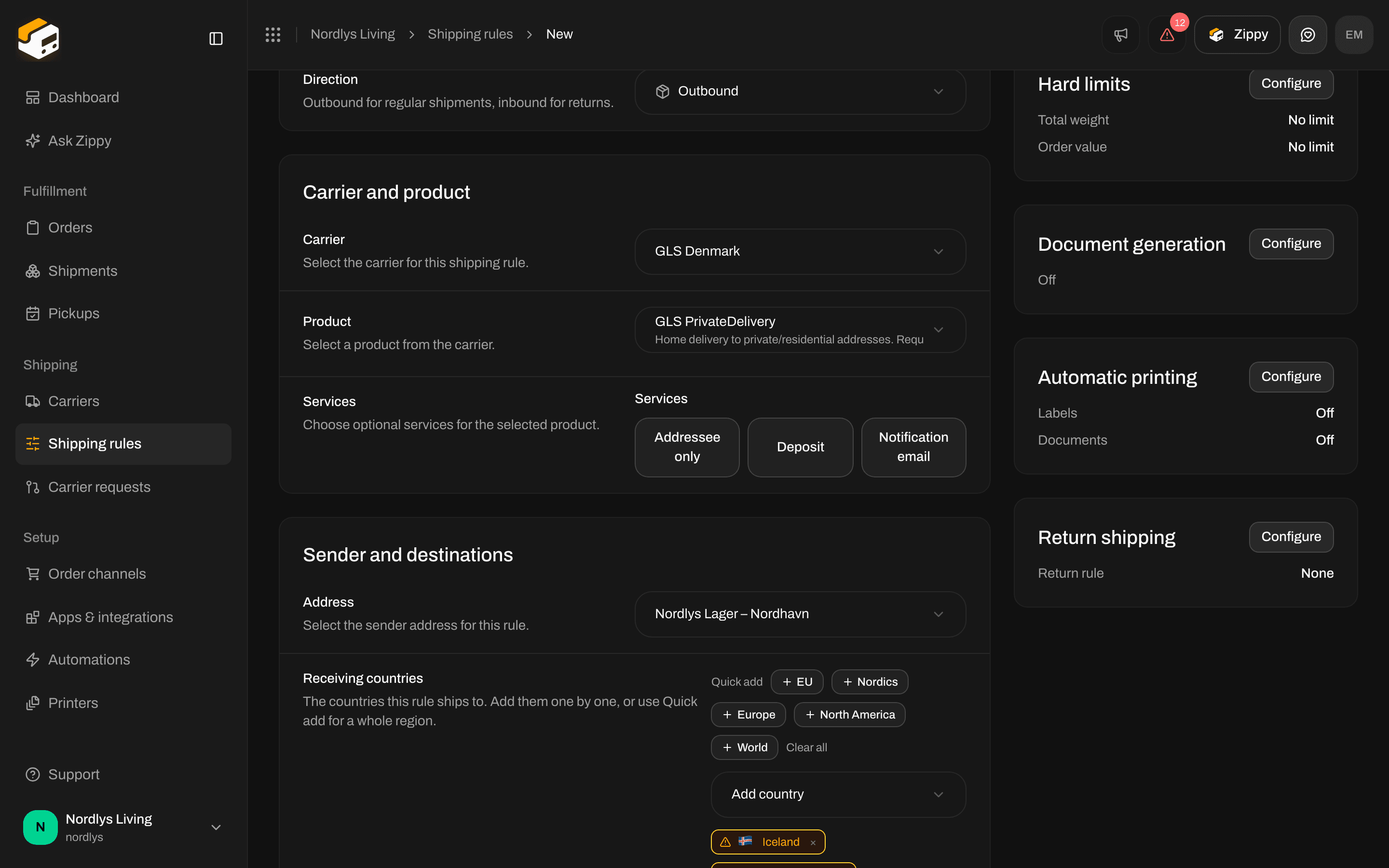
Hard limits: optional minimum and maximum for total weight and order value
A blank box means no limit. You cannot limit a rule by SKU or by order channel.
Shipping conditions
The conditions decide whether a cart gets a price from this rule, and how much. Define when this rule applies. Click a condition to edit it. With none yet: No conditions yet. Add a condition to get started. A rule needs at least one (At least one condition is required). Click Add condition and pick Weight, Order value, Value range, Quantity or Flat rate. Each condition appears as a row with its type, for example Weight range, its limits and its price. The bin at the end of the row removes it. You cannot add a condition on SKU or order channel.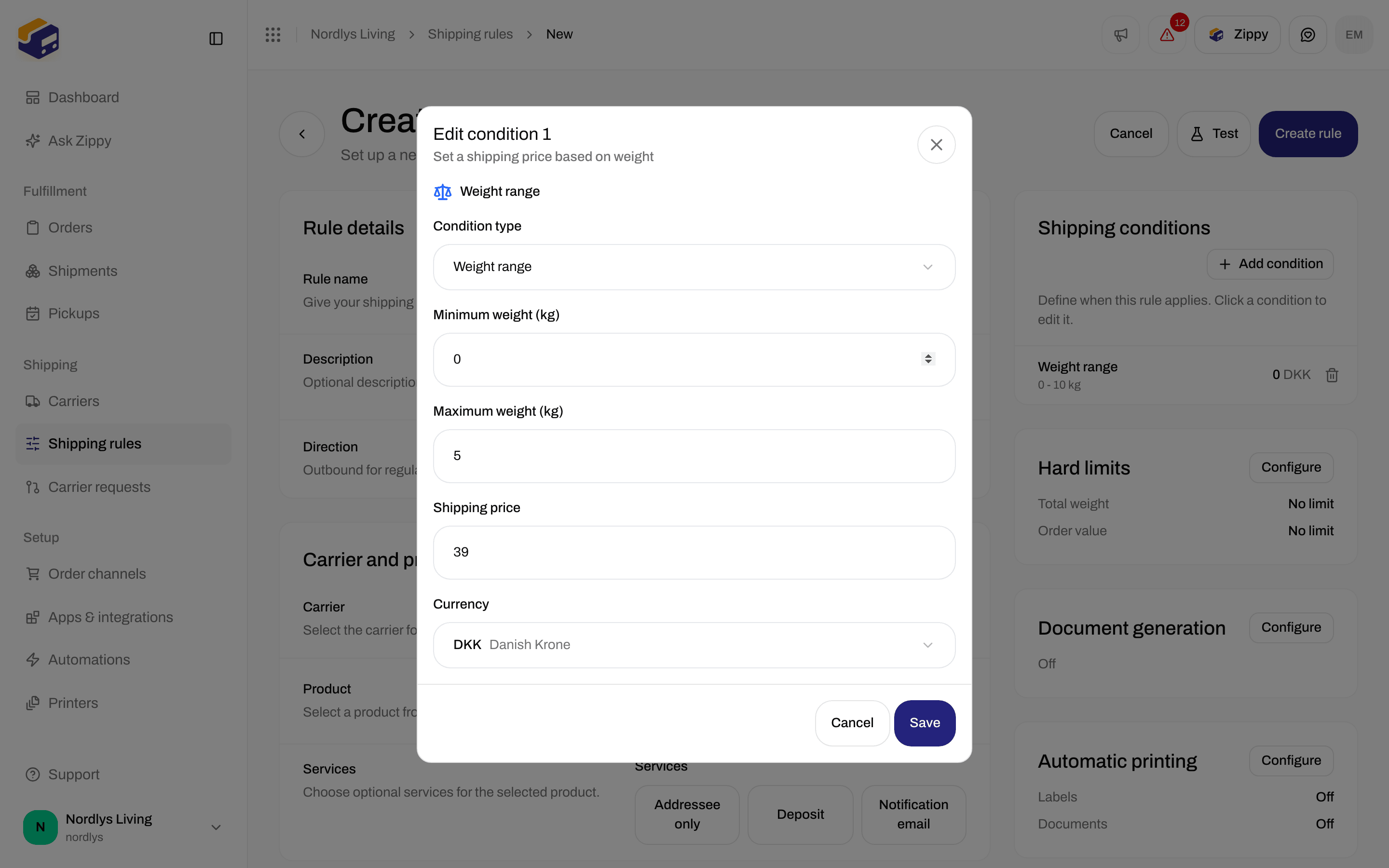
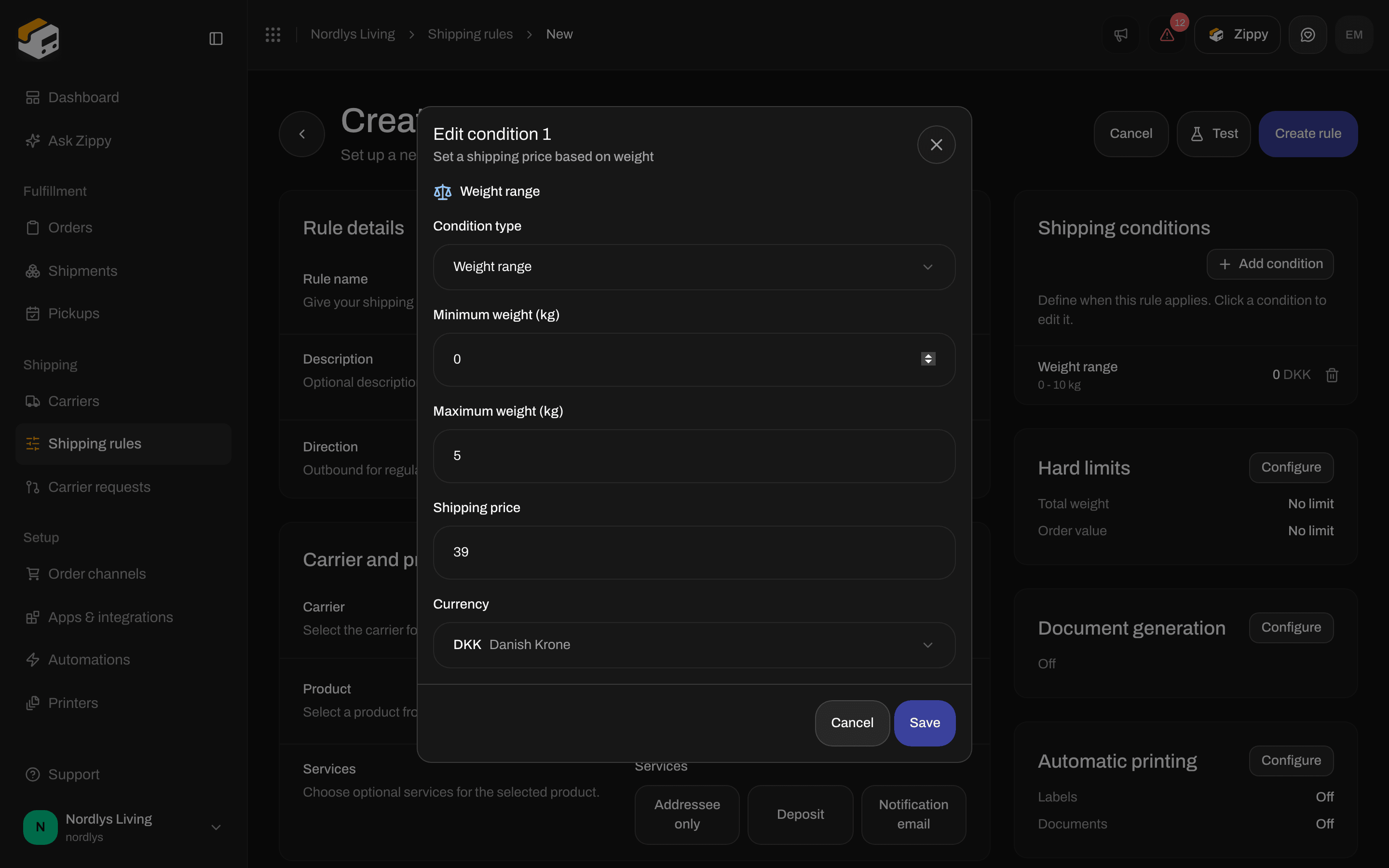
Edit condition: Weight range with minimum and maximum kg, shipping price and currency
Price type (for Order value and Value range):
Note under it: Conditions on the total are only checked for imported orders, not at Shopify checkout. Use Subtotal (before discounts) for prices at checkout.
Comparison for Order value: At least (≥), Greater than (>), At most (≤), Less than (<) or Equal to (=). For Quantity, the choices are At least (≥), More than (>), At most (≤), Less than (<) and Exactly (=). A new condition starts at At least (≥). A new quantity condition starts at 1 item.
Extra settings for the product
Some products need extra details, such as a service point or a code the carrier needs. They appear in the Carrier and product section below Services, one field per setting, with the carrier’s description. A field marked * is required. Which fields you see depends on the product and the services you pick. A product that needs nothing extra shows no extra fields. How service points work on rules: Service points.Condition tester
Click Test at the top of the form to try your prices without saving.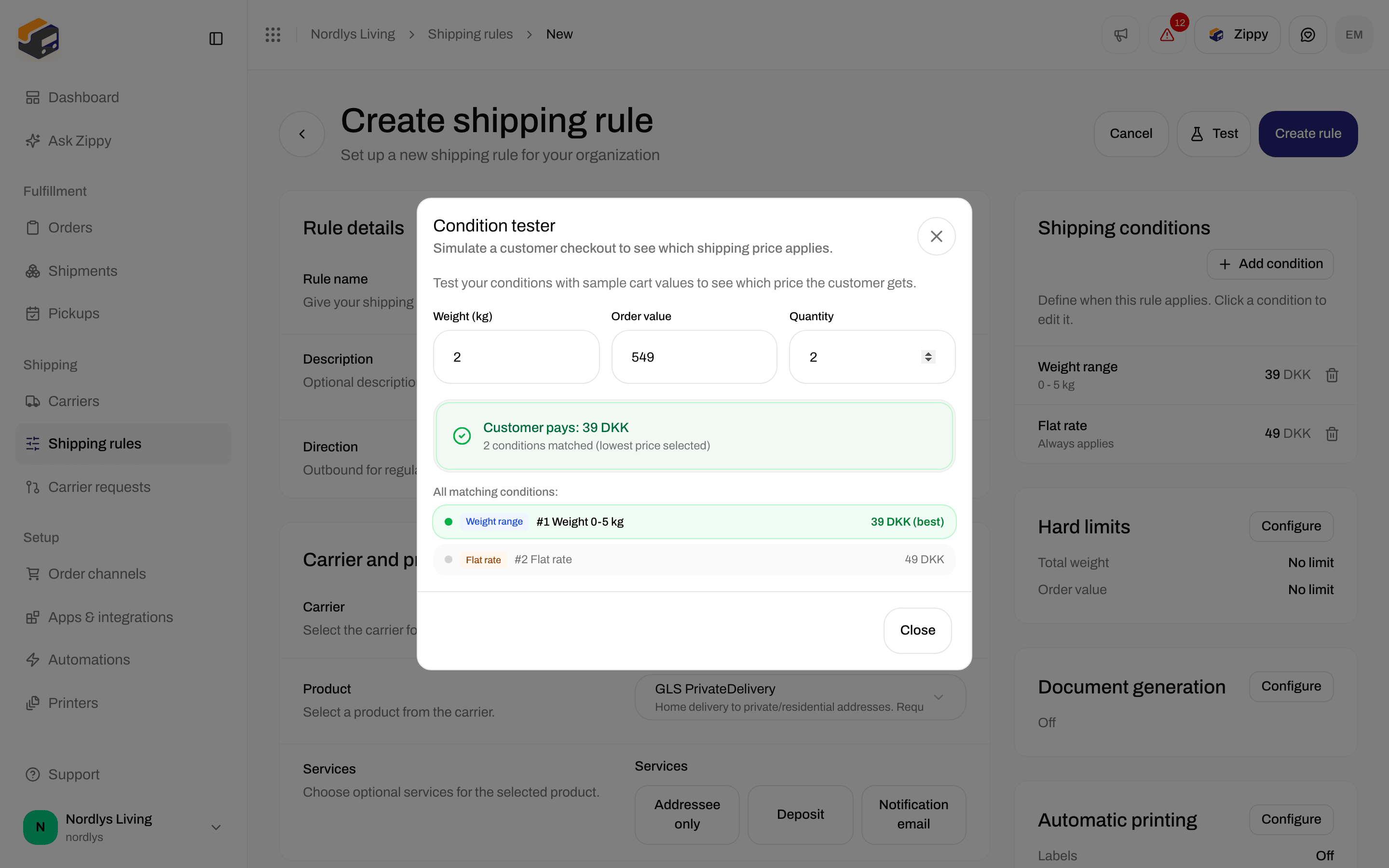
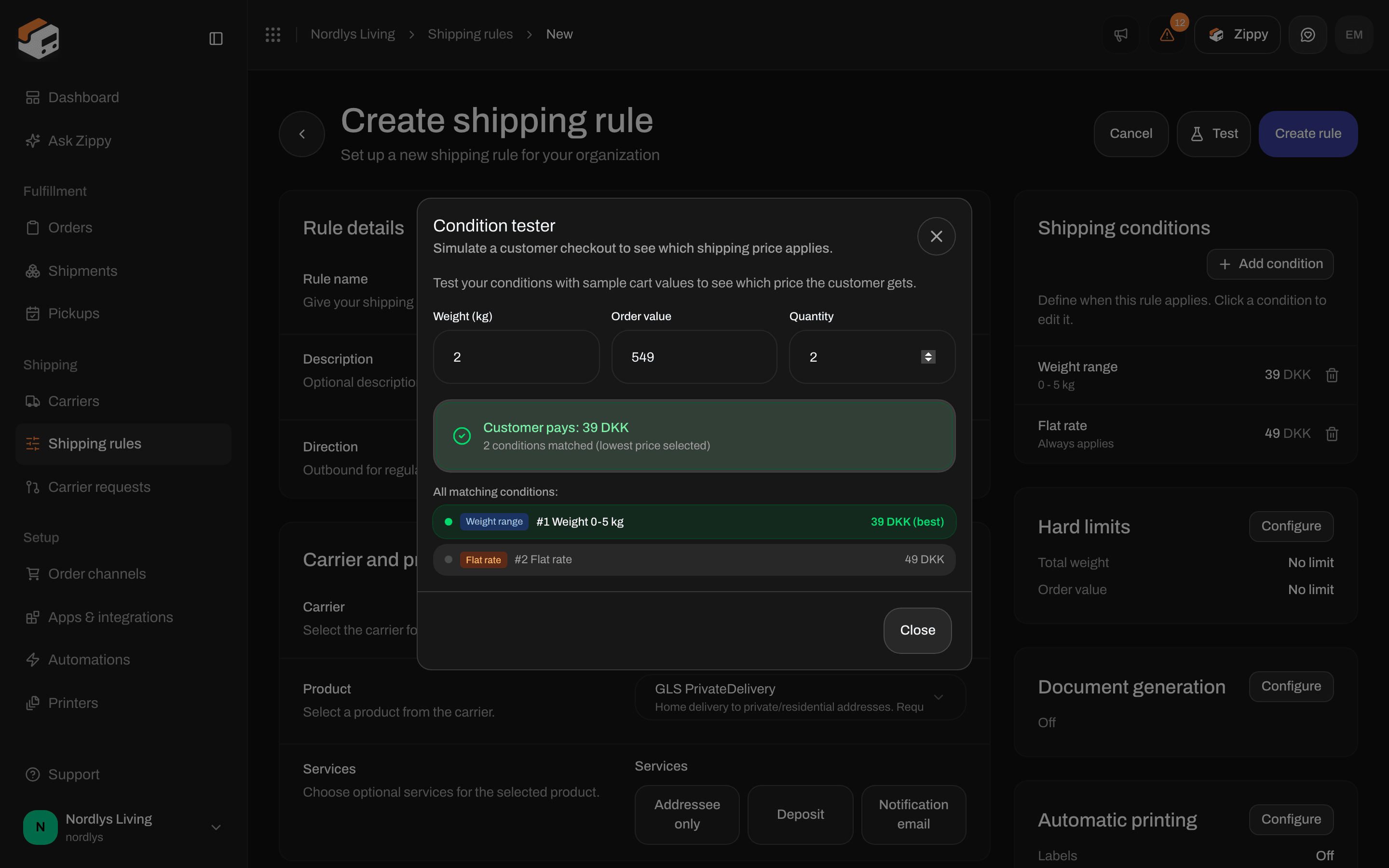
Condition tester with a sample weight, order value and quantity
- No conditions yet: Add conditions above to start testing.
- No values yet: Enter cart values above to simulate a customer checkout.
- Outside the hard limits: Outside hard limits, so the rule is skipped, with which limit the cart missed.
- Nothing matches: No conditions matched and This cart would not get a shipping price from this rule. The rule would be skipped entirely.
- A match: the price, for example “Customer pays: 39 DKK”, and 1 condition matched or, for example, “2 conditions matched (lowest price selected)”. (best) marks the winning condition.
- Warnings: Shipping price is 0 (free shipping). Make sure this is intentional., and a warning when the matching prices are far apart (the lowest one is used).
Related
- Shipping rules
- Apply a shipping rule
- Return shipments
- Auto-print labels and documents
- Carrier products and services
- Shopify settings: which rules appear at checkout
- Search and filters