

There is no separate form for a customs declaration. A CN22 customs declaration or CN23 customs declaration shows up on Documents when the carrier or Zippendo produced one. You prepare it by filling in the parcel lines and the Delivery terms.
Delivery terms
On Create shipment, the Basic information card has Delivery terms. It is set to DAP unless you change it. Pick another Incoterm (EXW, FCA, CPT, CIP, DPU, DDP, FAS, FOB, CFR or CIF) if the shipment needs one. After the shipment is created, you can see the term under Shipment information on the shipment page, but not change it.Parcel fields when you create a shipment
On Create shipment, click Add parcel (or a parcel to edit it). The window is titled Add parcel or Edit parcel: Set the parcel’s weight, dimensions and order lines. The parcel
Order lines: add at least one with Add order line. Until you do, the window says No order lines yet. Add an order line to get started., and creating the shipment fails with At least one order line is required.
Each order line (Order line 1, Order line 2, …) has:
Click Save to keep the parcel, or Cancel.
When a shipment crosses a customs border, carriers expect a description, a quantity and a unit price above 0 on every line. If one is missing when you send, you see: The customs declaration is incomplete. Each item needs a description, a quantity, and a declared value greater than zero. If the product cannot carry customs at all, you see: This carrier product can’t carry a customs declaration. For shipments that cross a customs border, choose a product that supports customs. Pick another product in that case.
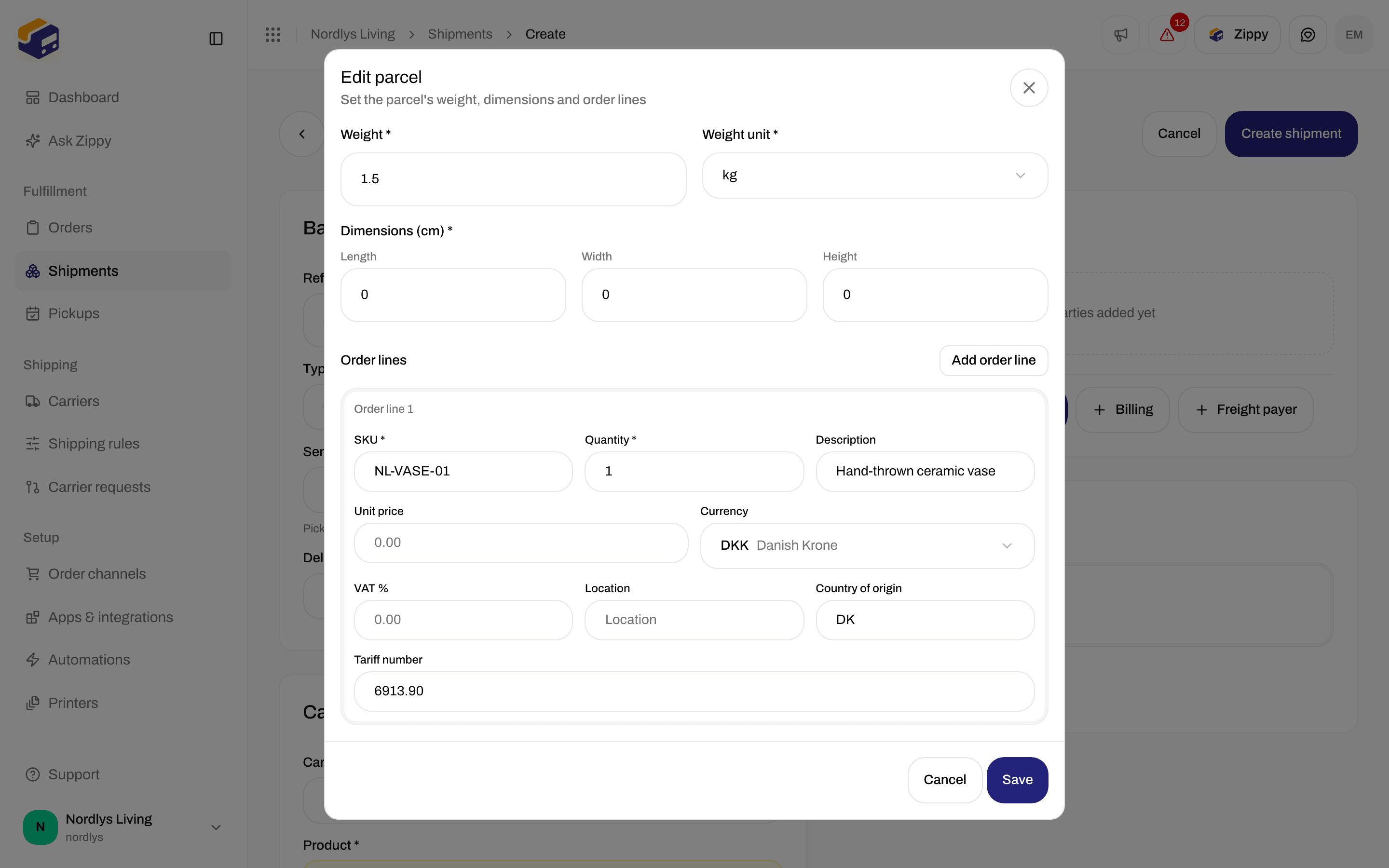
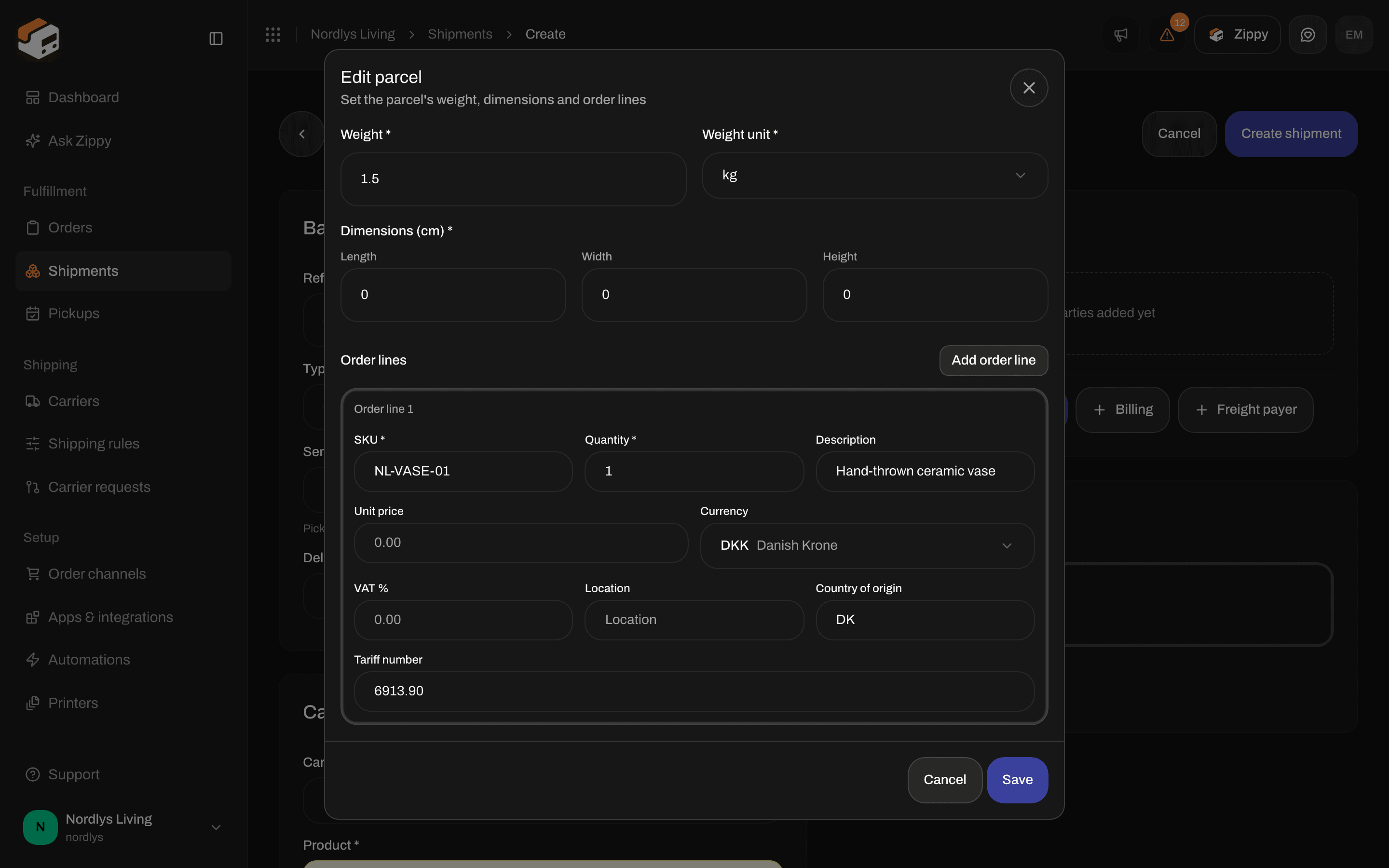
Add parcel: weight, dimensions and order line fields including Country of origin and Tariff number
Edit a parcel on an existing shipment
On the shipment’s Parcel details card, click Edit parcel (or the parcel row). This works while the shipment is Draft, Pending or Error. The window says Edit parcel, with the parcel number and a note that saving updates the whole shipment. It has the same fields, with slightly different labels:
Click Save (Saving… while it works). You see Shipment updated or Couldn’t update shipment.
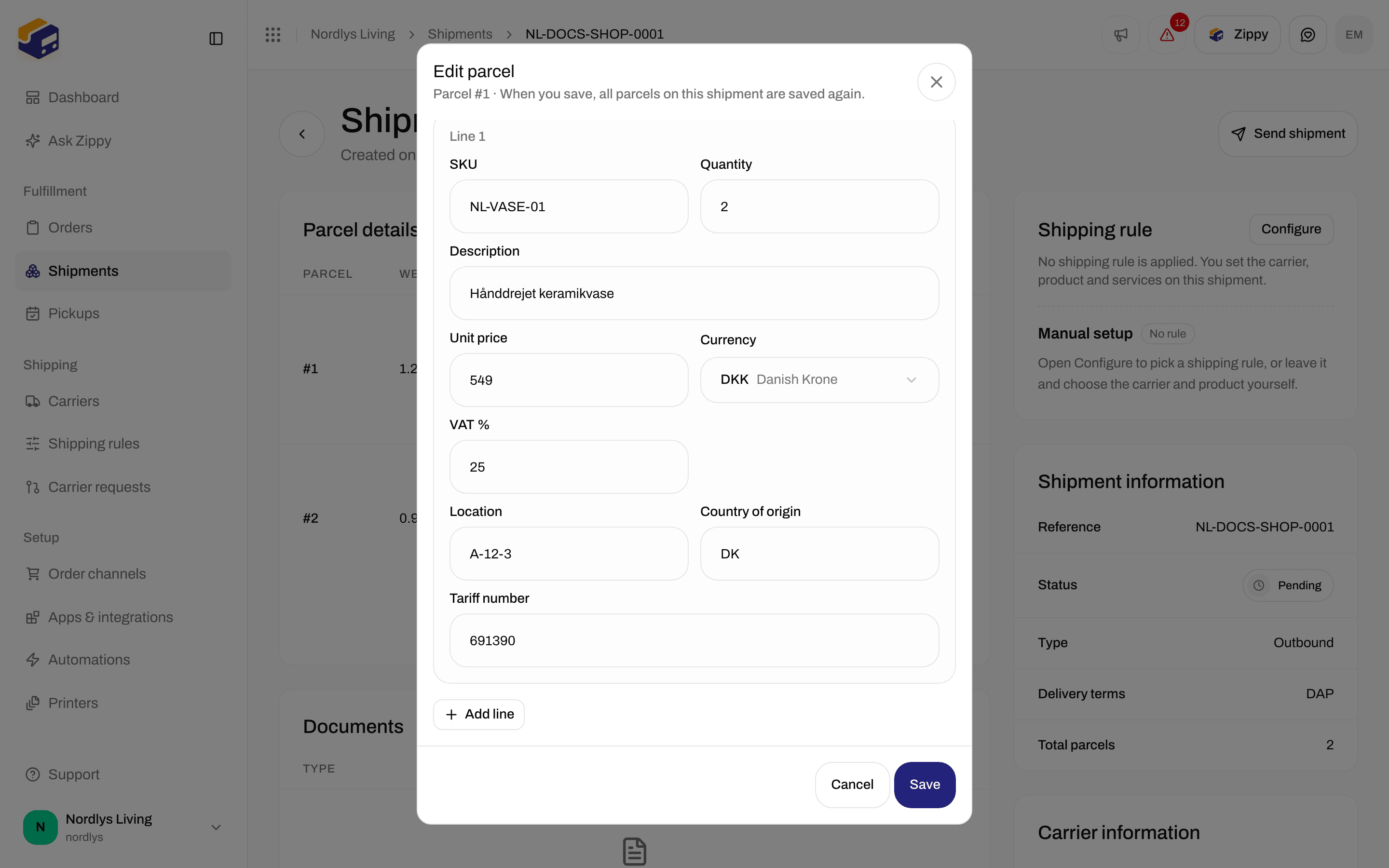
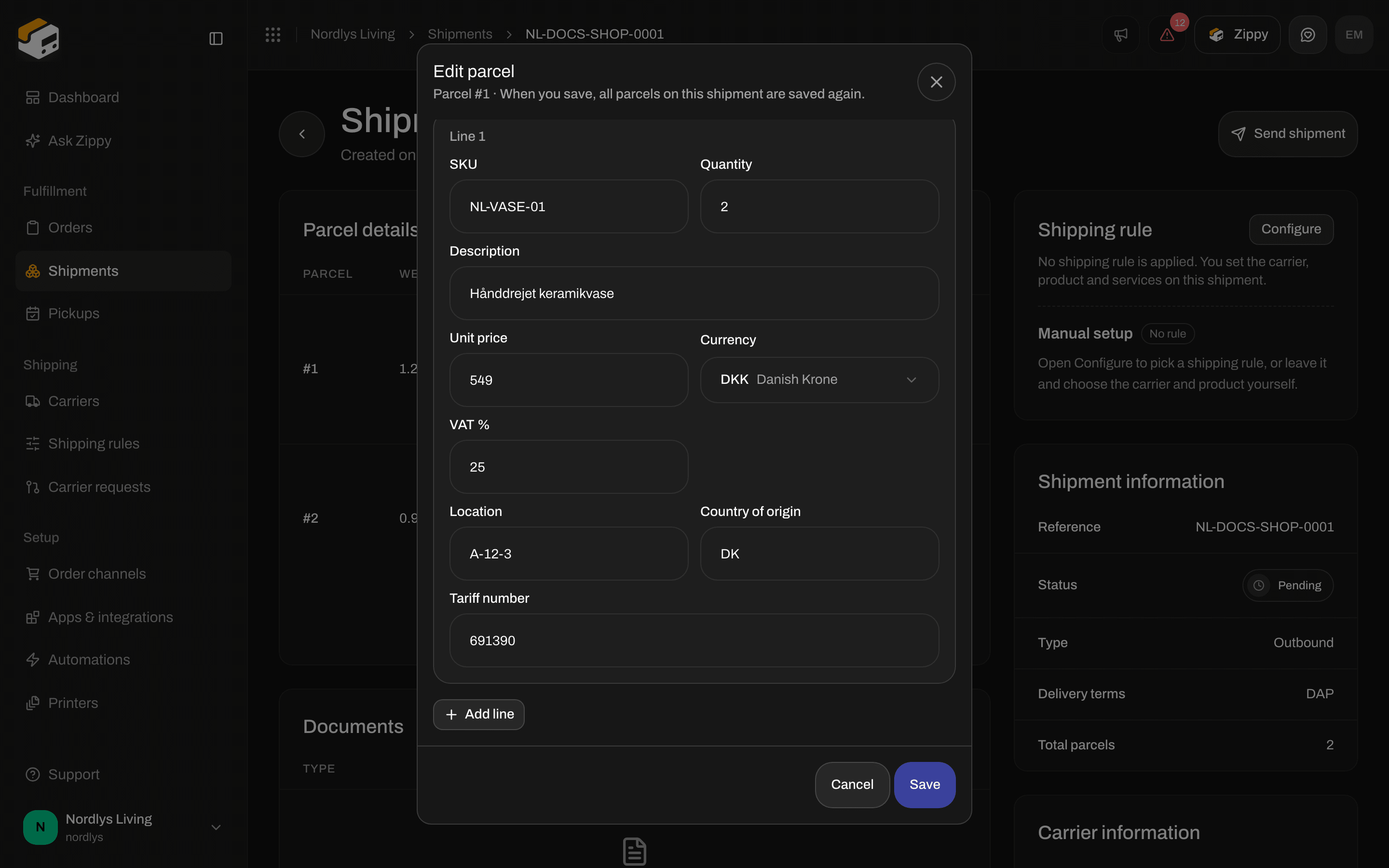
Edit parcel on a pending shipment, with the customs fields on each line
The Documents card
The shipment page is one page of cards, and the Documents card lists the documents. Before you send, it says No documents and Labels and documents appear here after you send the shipment. After you send, the list fills and Print all appears at the top of the card.
Click a row to look at the document. The row menu has:
The Type can be:
- Label
- Customs invoice
- Commercial invoice
- Proforma invoice
- Packing slip
- Certificate of origin
- CN22 customs declaration
- CN23 customs declaration
- Other
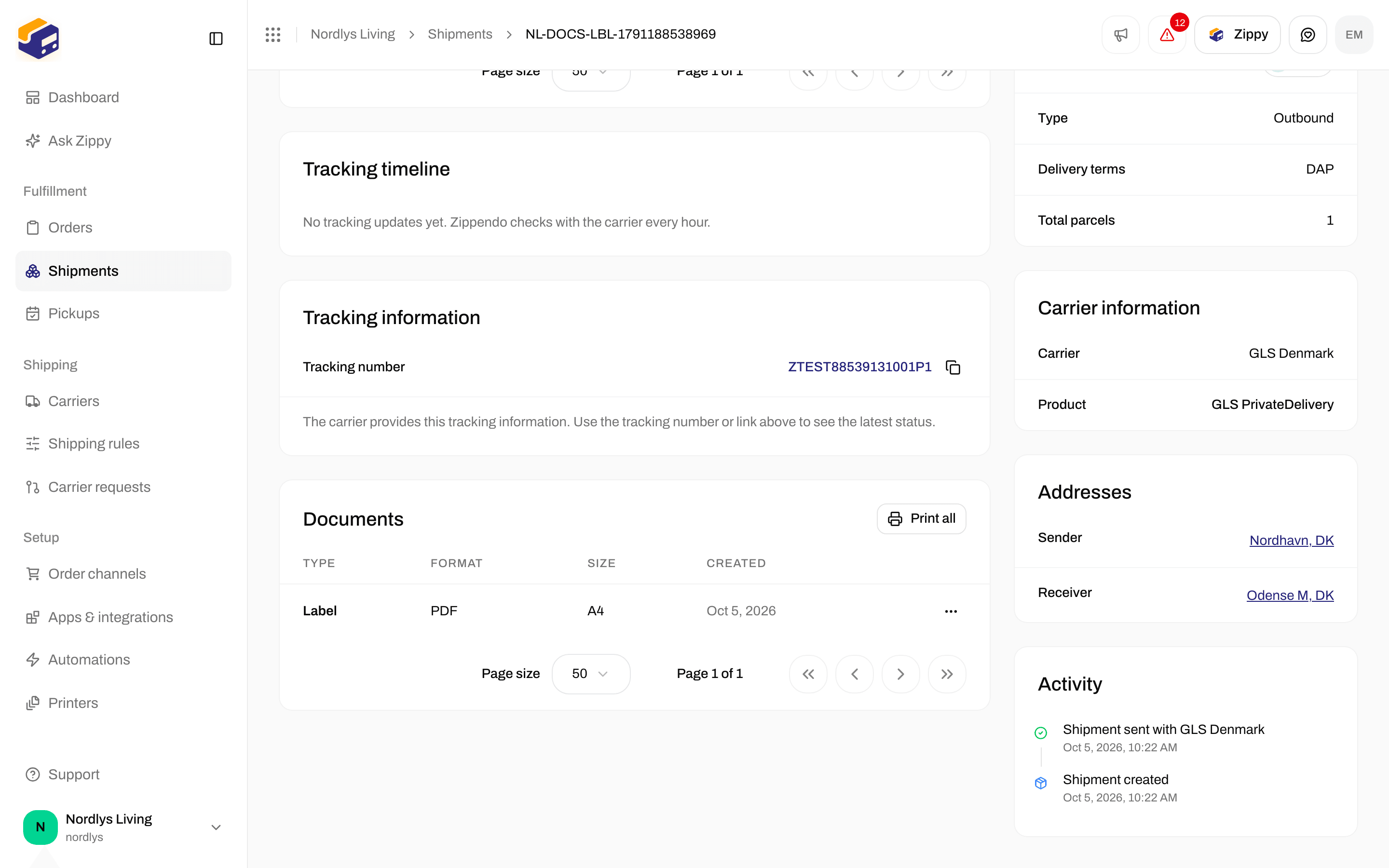
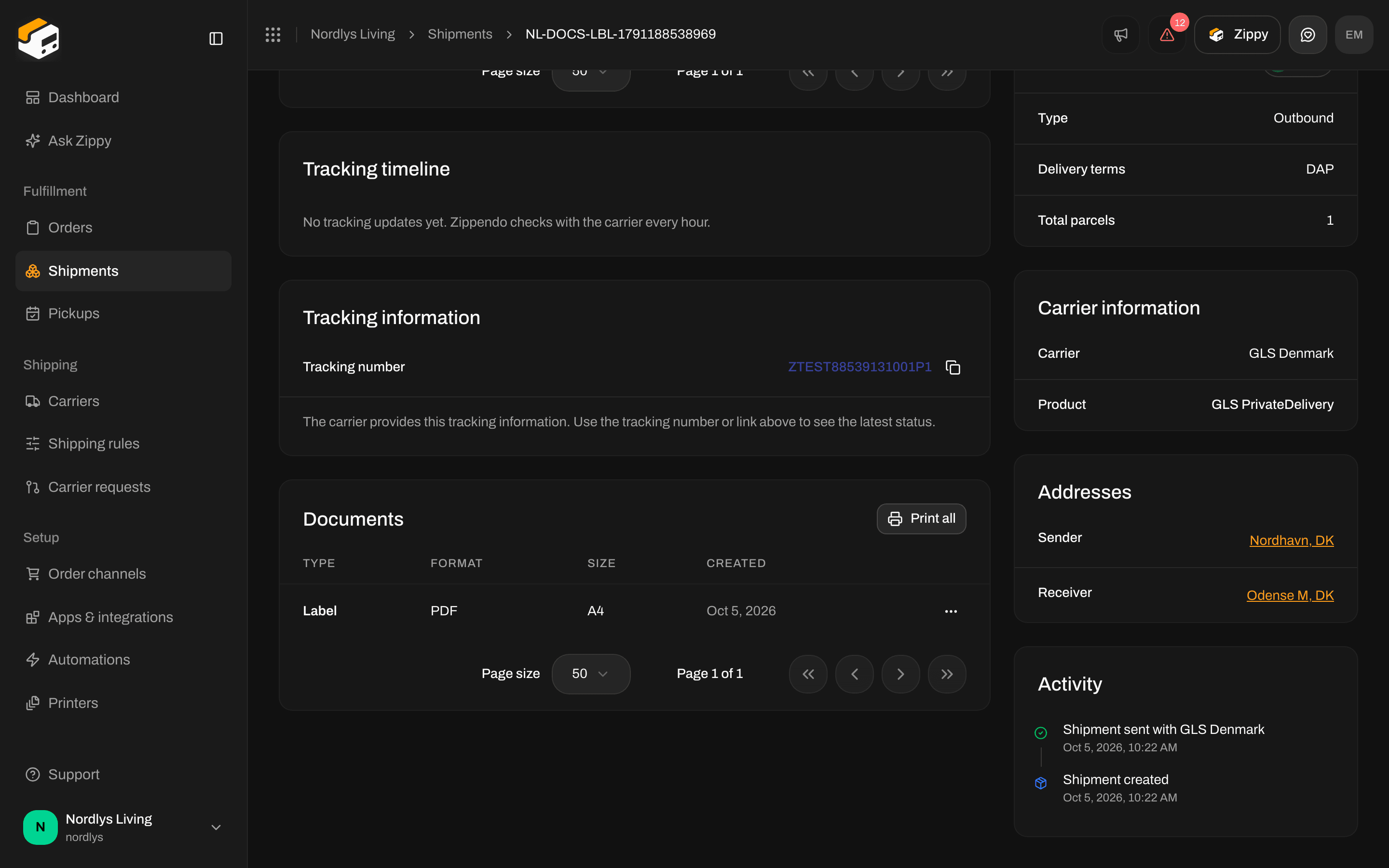
Documents after sending: a Label row with format, size, View, Download, Print and Print all
Look at a document
View opens a window titled with the document type, such as Label or CN22 customs declaration. Under the title you see the format, size and date, for example “PDF • A4 • 10 Sep 2026”. PDFs and pictures are shown right there. There is no rotate button here. Rotation is a printer setting.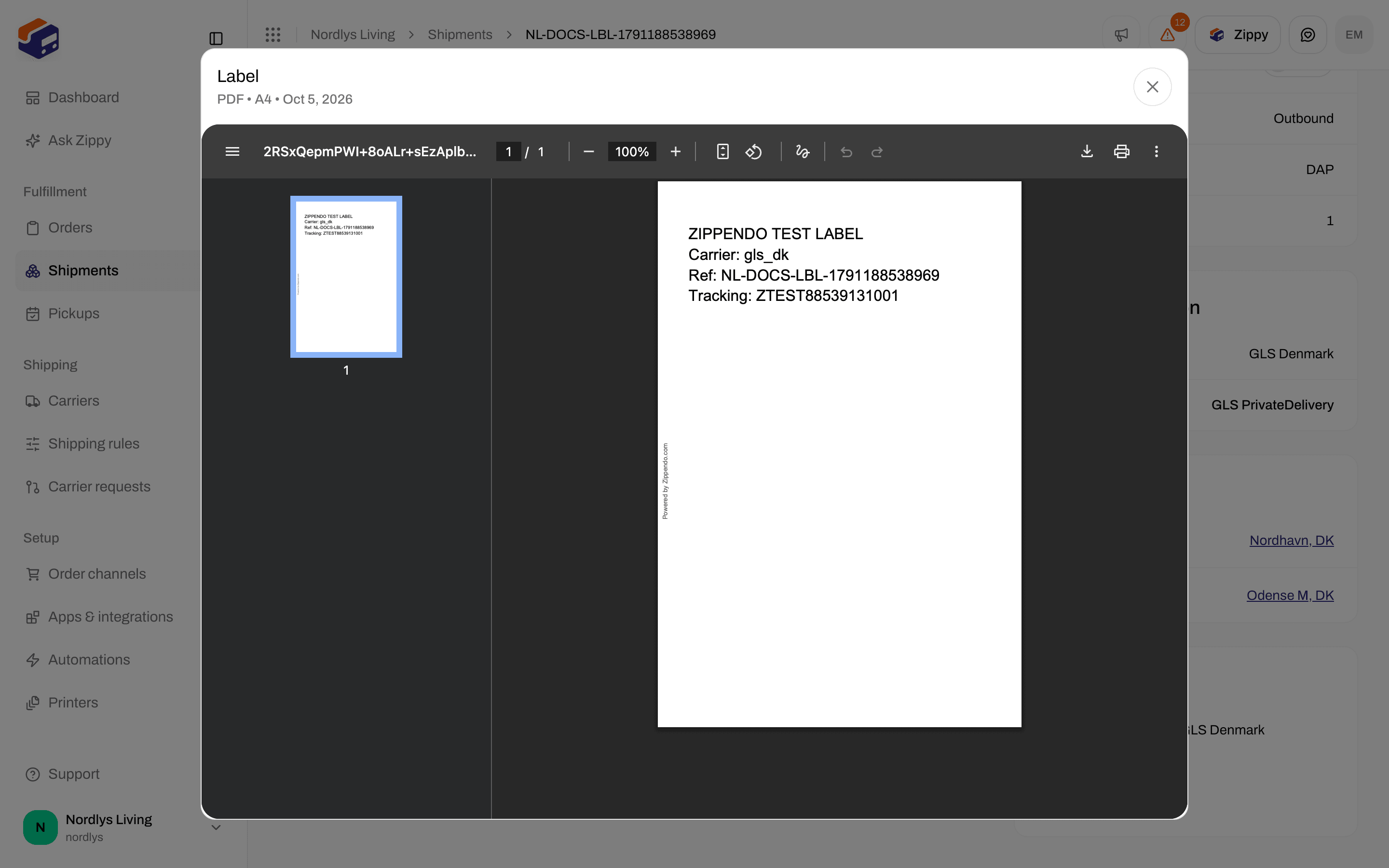
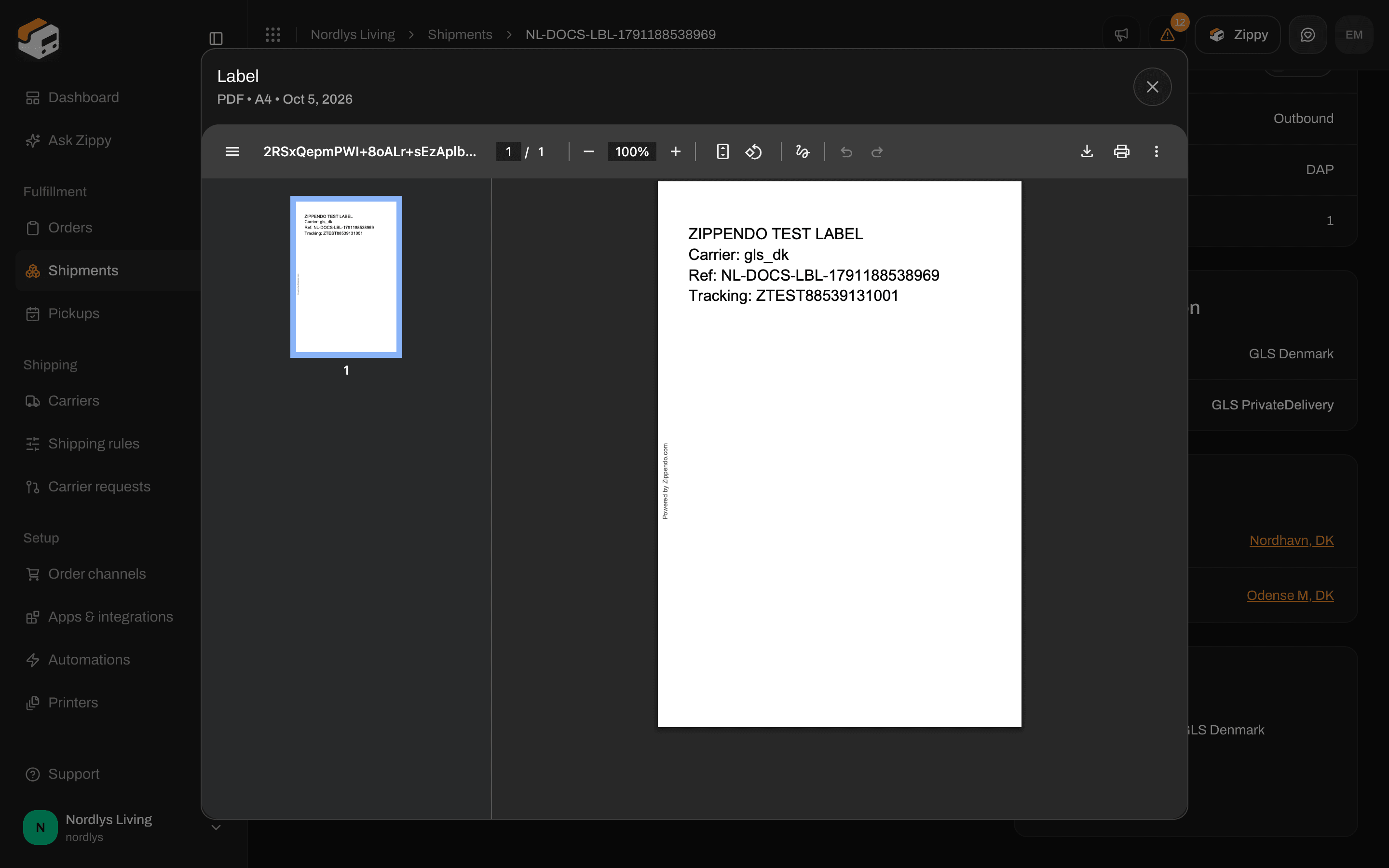
View opens the label as a PDF preview
Click Print. You see how many print jobs were created, for example “3 print jobs created”, or how many failed, for example “1 document failed to print”.
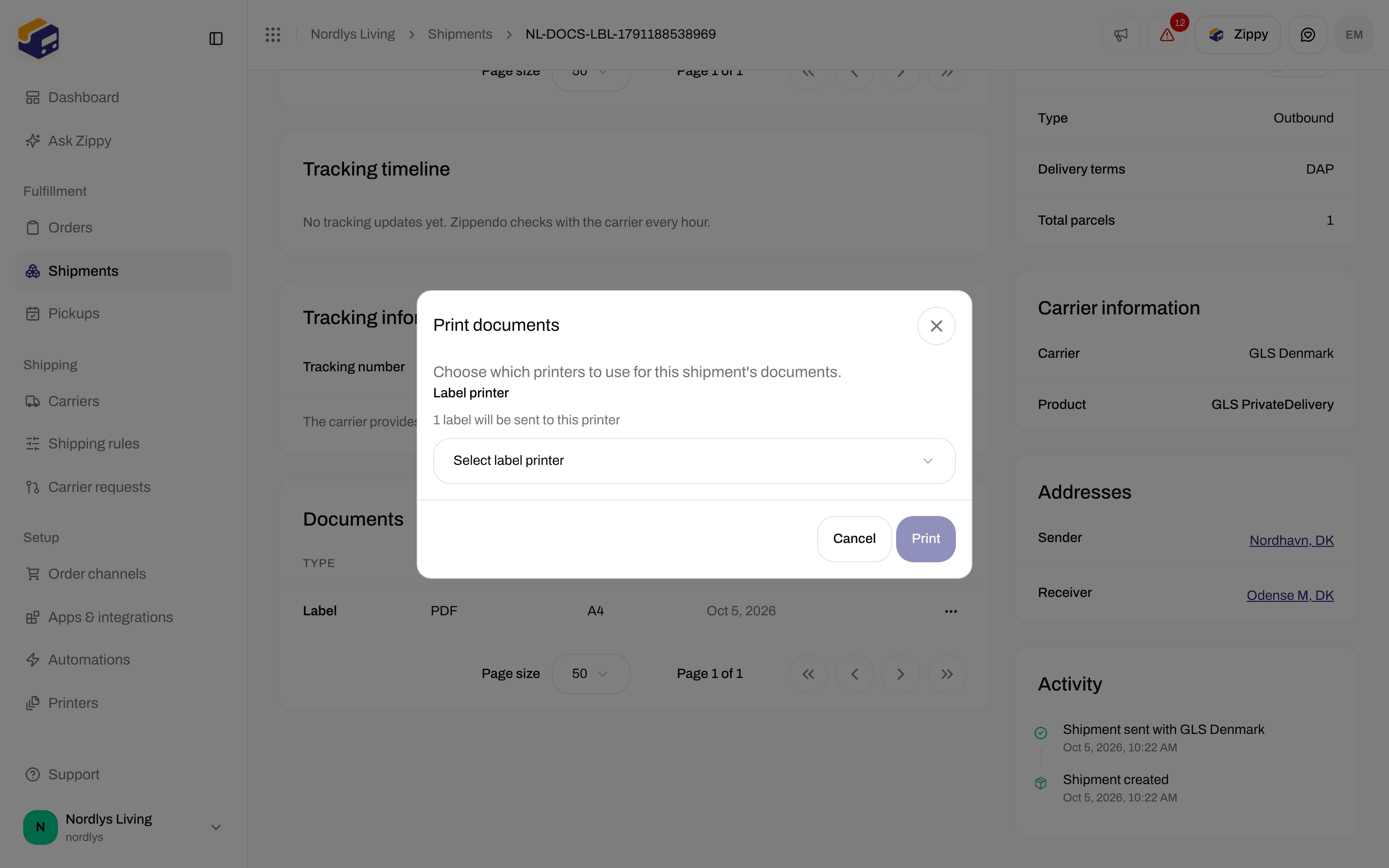
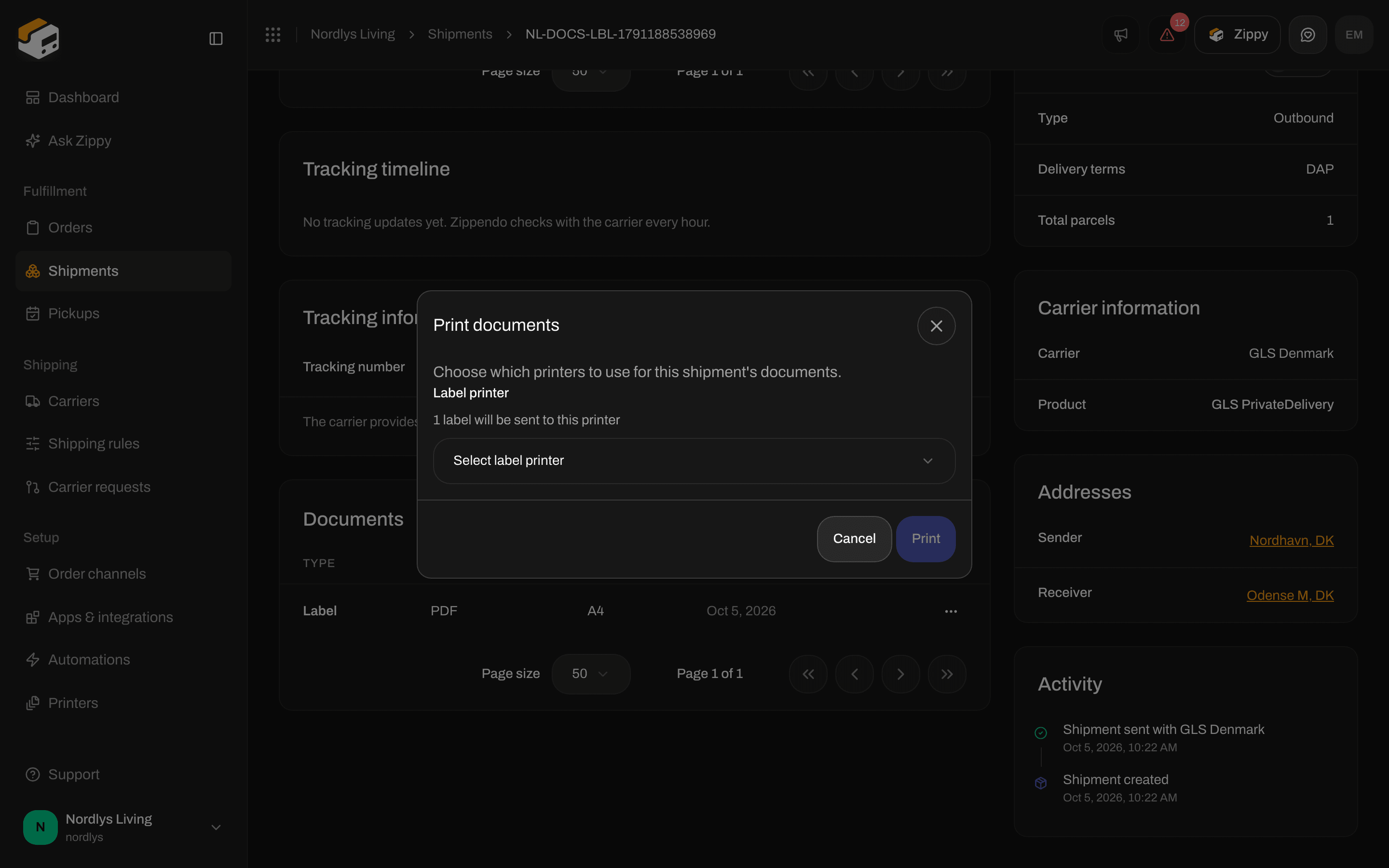
Print all opens Print documents when the shipment has no printer set
Documents from a shipping rule
On a shipping rule (Shipping rules → Add shipping rule, or open a rule), click Configure on the Document generation card. The dialog has three switches:
There is no switch for a CN22. Bring, DHL Express, DHL Parcel Benelux, FedEx, Matkahuolto, PostNL, PostNord, Posti, Royal Mail and UPS make the customs papers themselves and send them with the label. For those carriers the two invoice switches are hidden, and the rule shows a note instead, for example PostNord creates the customs declaration and commercial invoice itself and sends them with the label. Zippendo doesn’t create its own copies for this rule.
DHL eCommerce Europe shows the same note and hides the same switches, but it sends fewer documents:
- DHL Parcel International: DHL sends the CN23 customs declaration.
- DHL Parcel Connect Light: DHL prints the CN22 on the label.
- DHL Parcel Connect to or from the United Kingdom: Zippendo makes the commercial invoice, sends it to DHL and adds it to the shipment’s Documents.
- Other DHL eCommerce Europe shipments that need a customs declaration get no document.
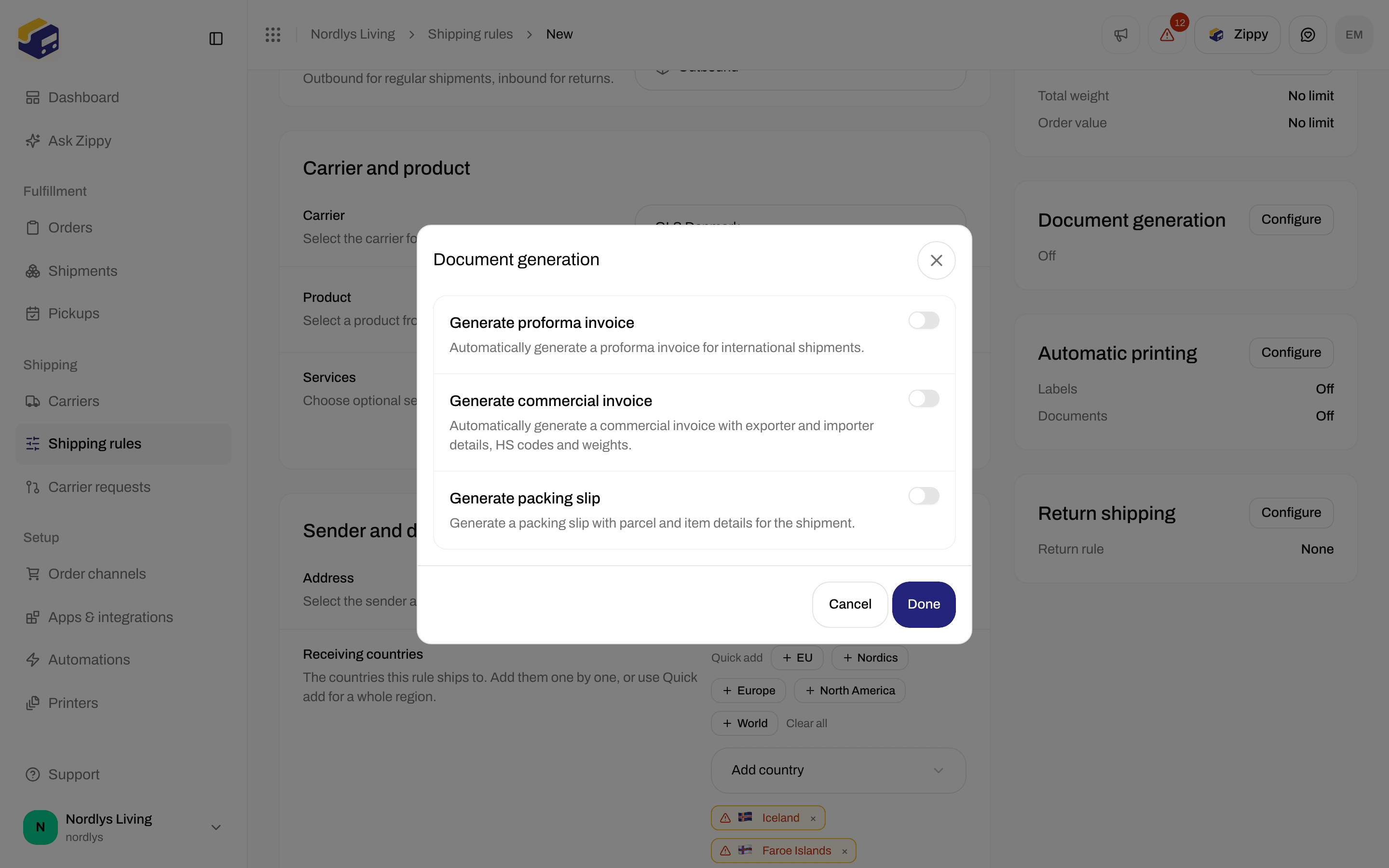
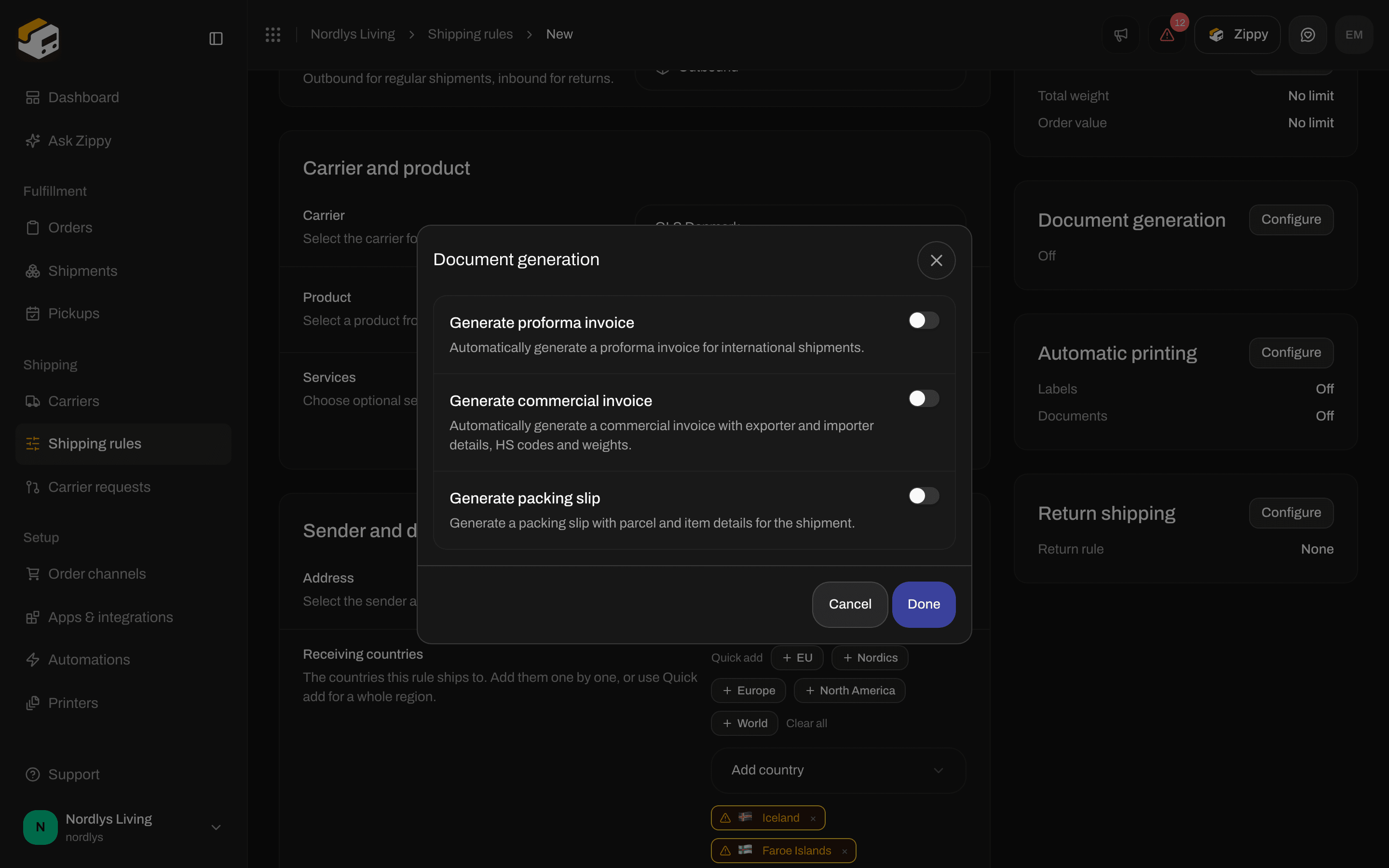
Document generation on a new GLS shipping rule: proforma invoice, commercial invoice and packing slip
Fill in Country of origin, Tariff number, Description, Unit price and Delivery terms before you click Send shipment. Then open Documents to view, download or print the Label and any customs documents the carrier or your rule produced.