Slack posts formatted channel messages when Zippendo shipments and orders change. The catalog card copy is: Get notified in Slack when shipping events happen. This page is the Slack connect form. Shared chrome (events grid, test, delivery log, disconnect) for every app: Connect an integration. Inventory: Connect a carrier or integration. Conditional logic: Automations. Provider essay: Slack. Creating a connection uses the same plan gate as outbound webhooks (Growth and above). Nordlys on this page is Pro, so Connect is unlocked.

Prerequisites

  • A Slack workspace where you can create an Incoming Webhook.
  • The webhook URL for the channel that should receive posts (https://hooks.slack.com/services/…).

Where to get the Incoming Webhook URL

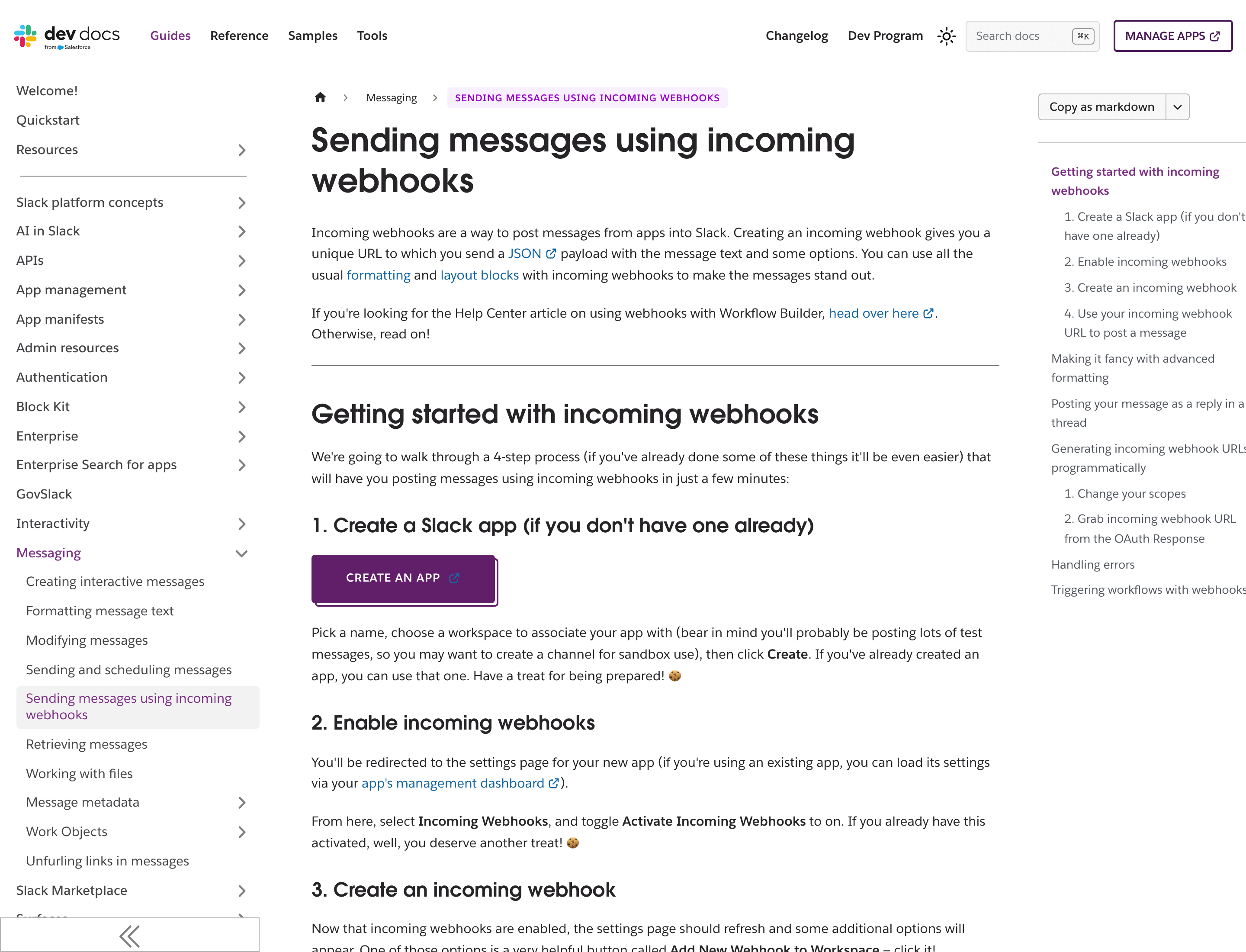
Slack’s public developer docs walk through creating an incoming webhook. Creating the app and copying the URL happens in your Slack workspace (login required).
Slack developer docs for sending messages using incoming webhooks, with Create an app and Enable incoming webhooks steps

Slack docs: create an incoming webhook (the live webhook URL is copied in your own Slack app settings)

Connect from Catalog

1

Open Catalog

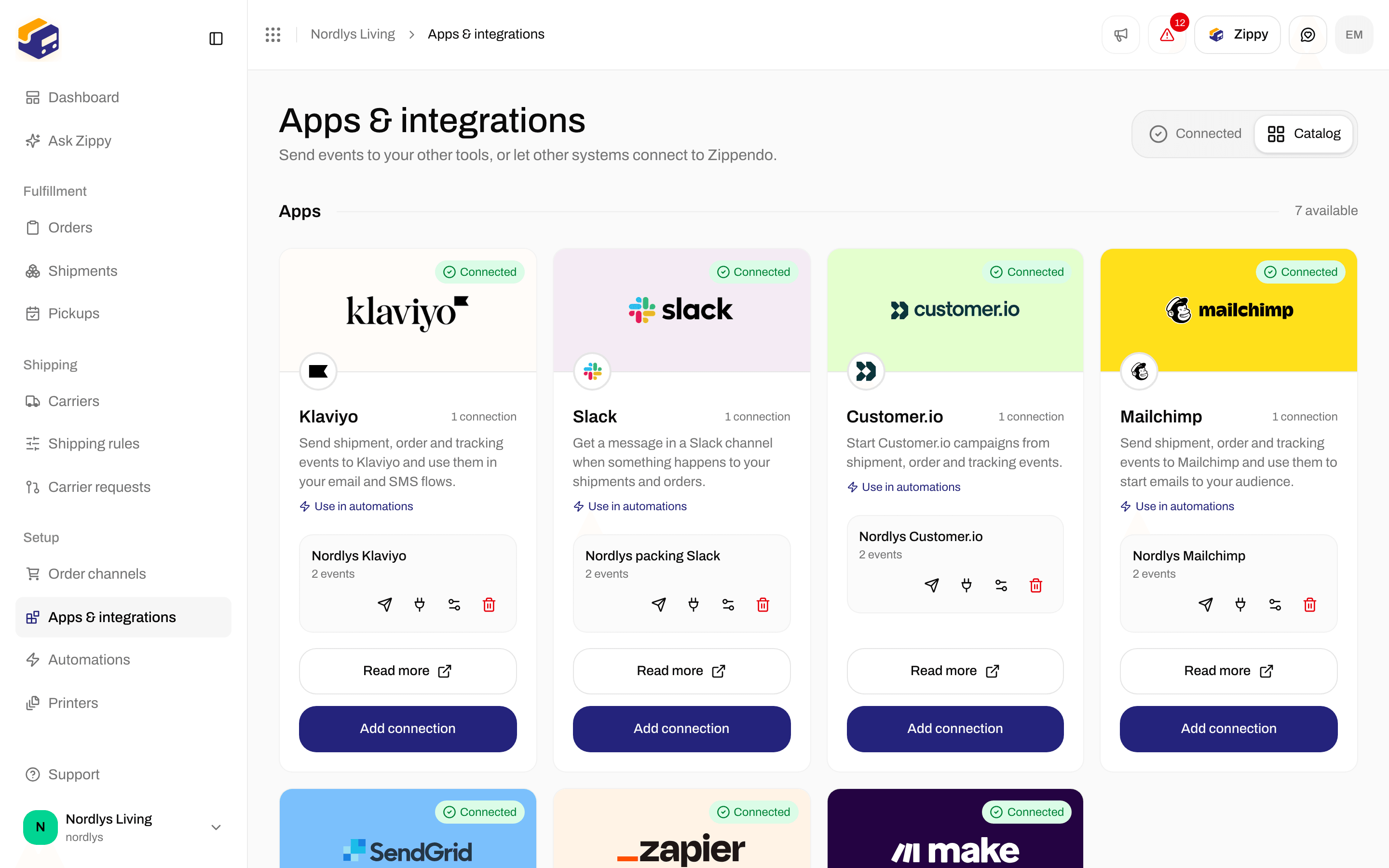
Sidebar Integrations. Page title Integrations. Description: Connect downstream tools to receive shipping and order events from Zippendo. Tabs: Connected (?tab=connected) and Catalog (?tab=catalog).
2

Find Slack

Card title Slack. Links: Use in automations (Automations) and Read more (opens https://zippendo.com/docs/integrations/slack). Button Connect, or Add connection after the first Slack connection.
3

Click Connect

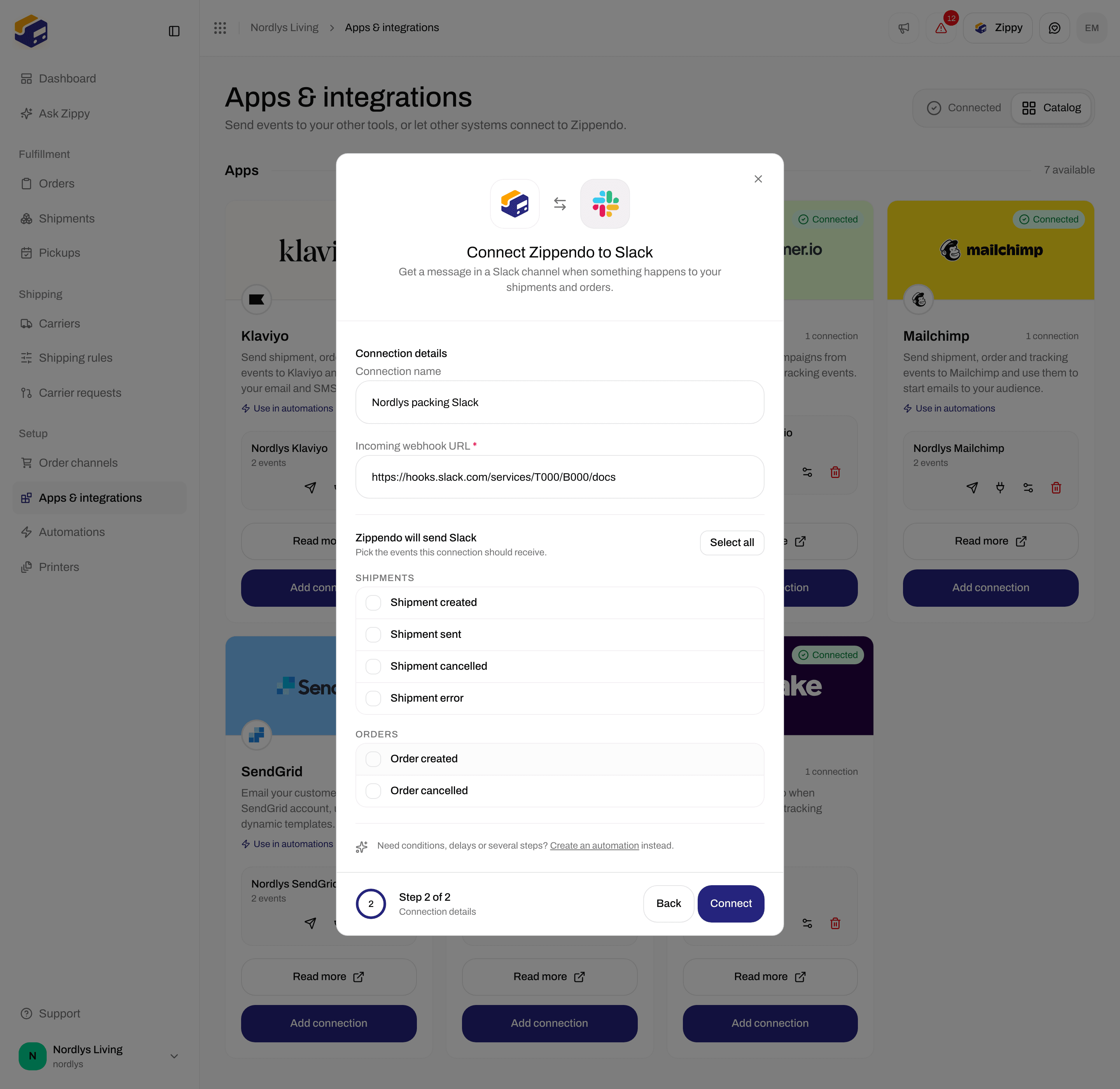
Modal id connect-integration-modal. Title Connect Slack. Subtitle: Get notified in Slack when shipping events happen.
4

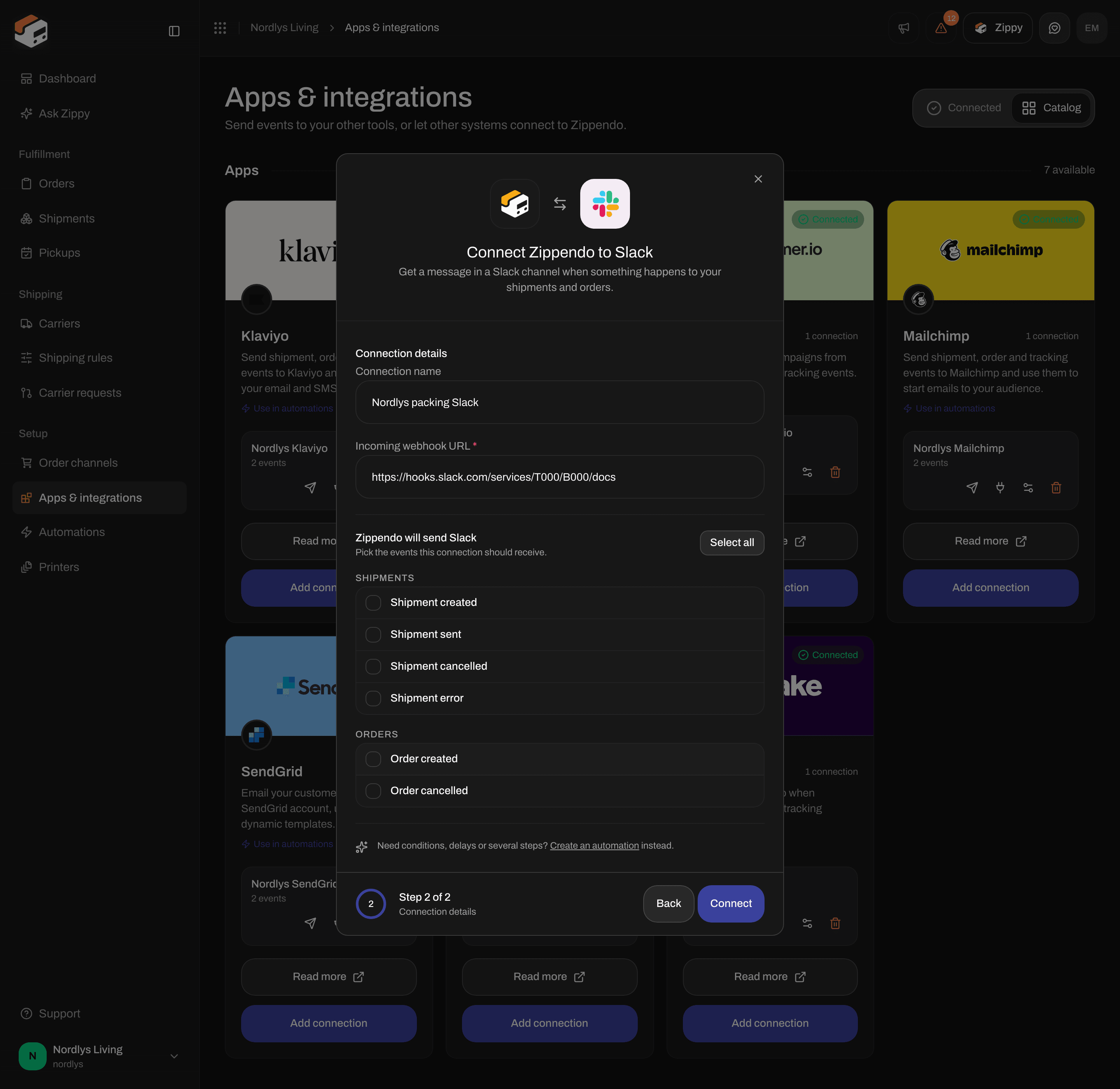
Fill required fields

Connection Name * and Incoming Webhook URL *. Tick Auto-send events if you want Zippendo to push without an automation.
5

Connect

Connect stays disabled until name and URL are filled. Pending spinner on Connect. Success toast: Integration connected successfully. Failure: Failed to create connection (or This feature is not available on your current plan.).
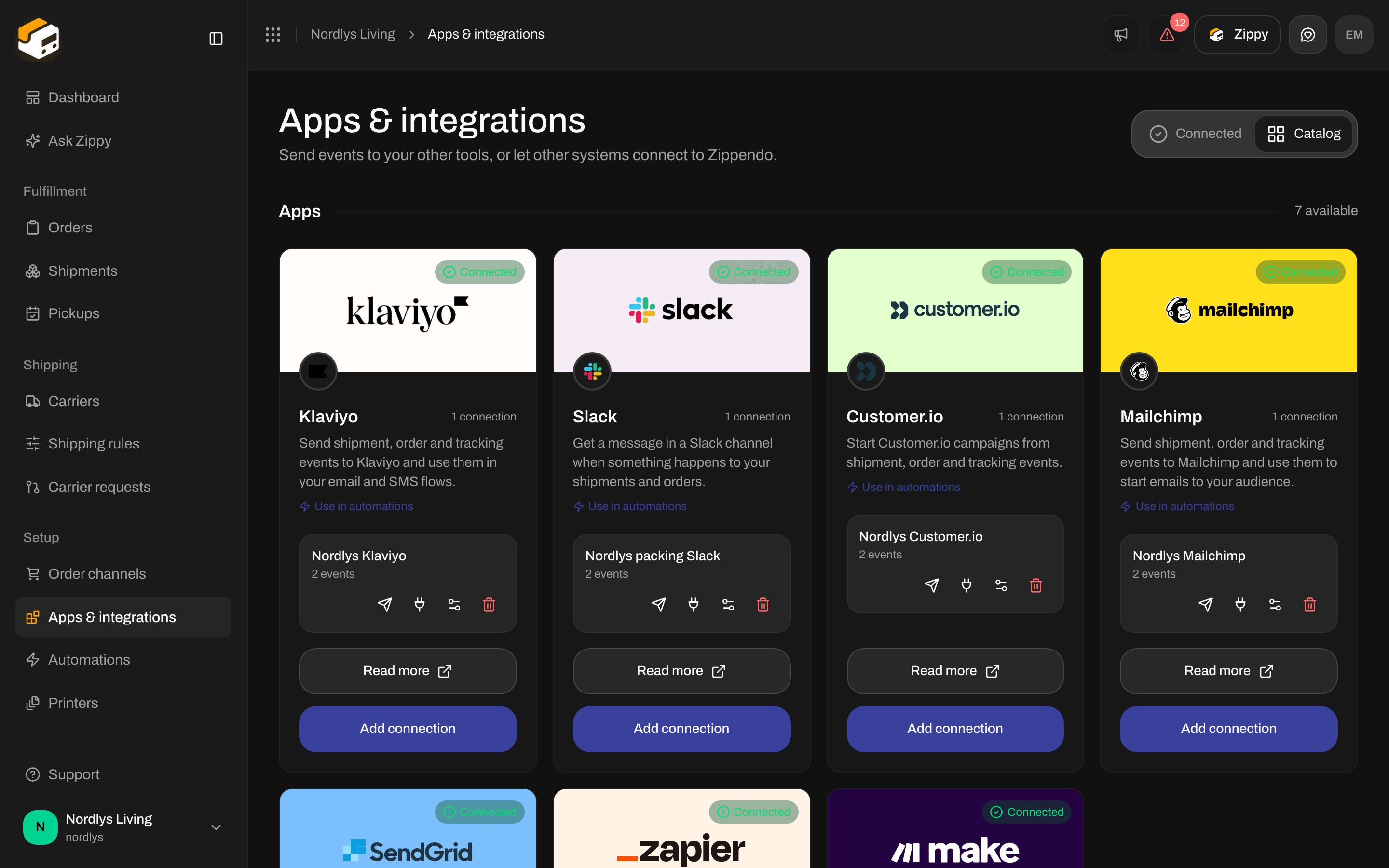
Integrations Catalog with the Slack card, Use in automations, Read more, and ConnectIntegrations Catalog with the Slack card, Use in automations, Read more, and Connect

Slack on Catalog — Use in automations, Read more, Connect

Connect Slack dialog with Connection Name, Incoming Webhook URL, automation hint, and event checkboxesConnect Slack dialog with Connection Name, Incoming Webhook URL, automation hint, and event checkboxes

Connect Slack — Connection Name, Incoming Webhook URL, Auto-send events

Shared fields

These appear on every integration connect dialog, including Slack.

Slack credentials

Footer: Cancel / Connect.

Auto-send events Slack supports

Groups shown: Shipments, Orders. Slack has no Tracking group. Not on this modal: Shipment Updated, Order Updated, Tracking Updated.

After you connect

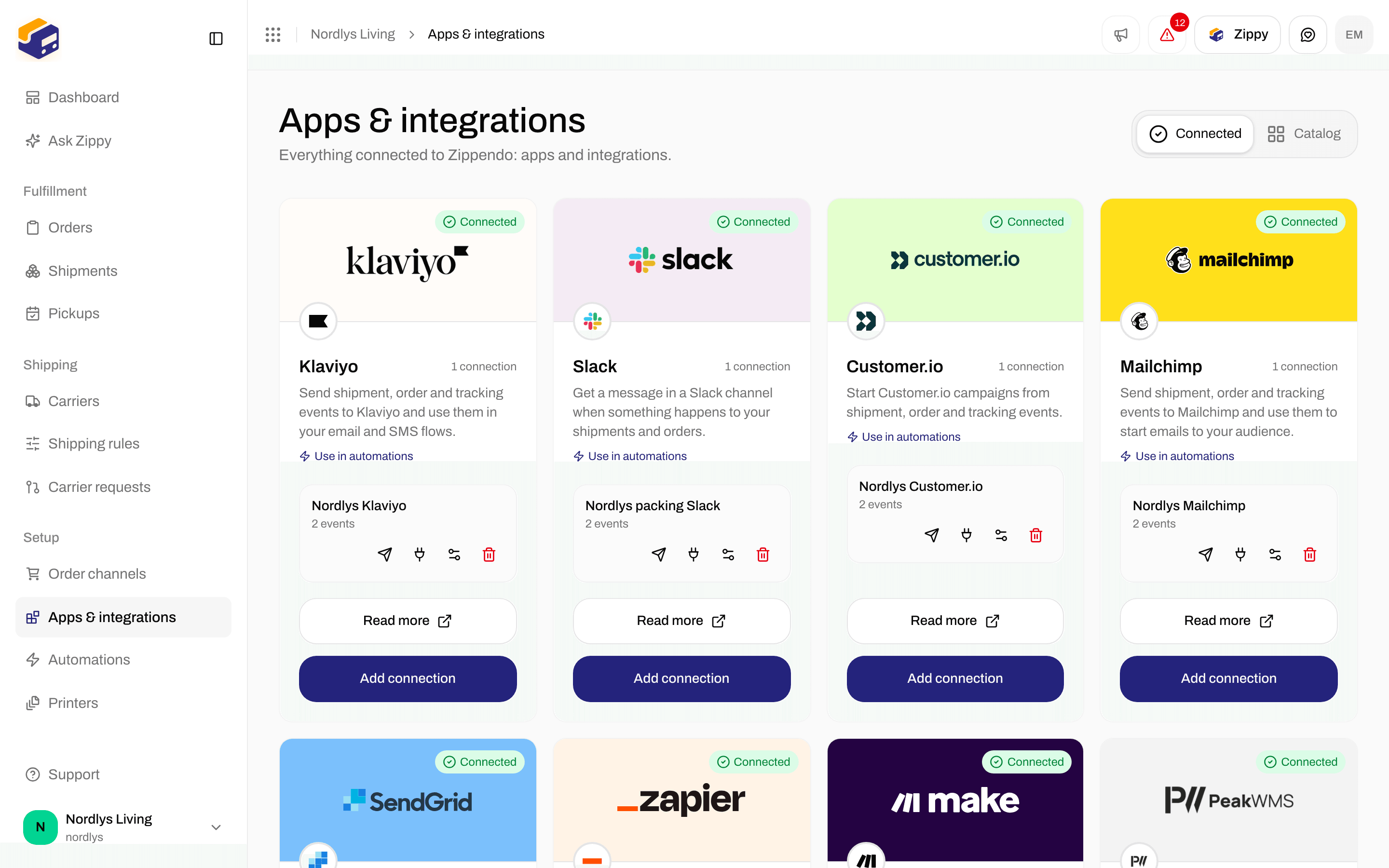
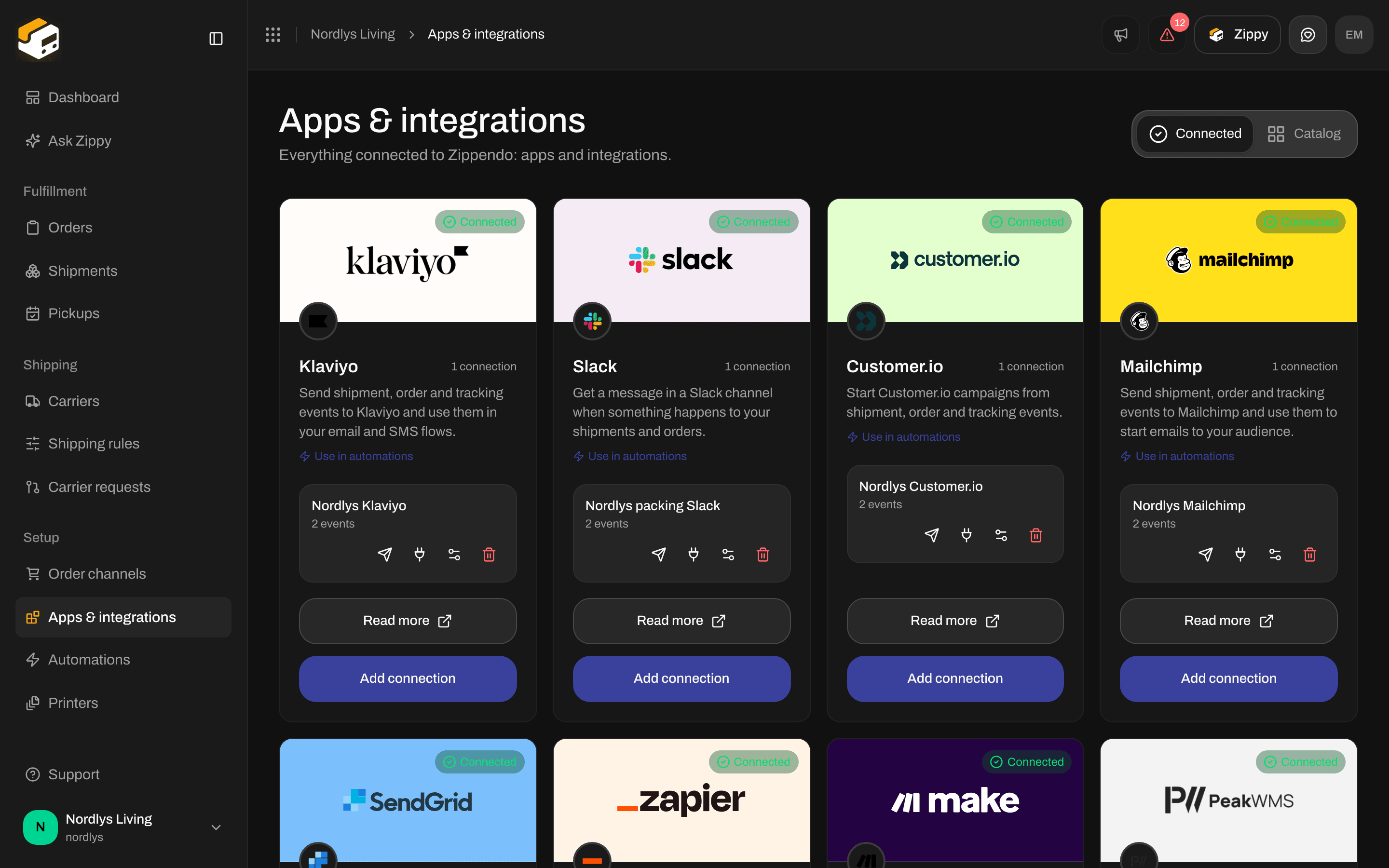
Connected shows a green Connected pill and {{count}} connection(s). Each row:
Integrations Connected tab with a Slack connection and action iconsIntegrations Connected tab with a Slack connection and action icons

Connected — Slack row with test, log, edit, and disconnect

Each auto-send (or test) POSTs a Slack message titled Zippendo: {{event}} (test: Zippendo: Test Event). You can add more Slack connections (one webhook per channel). There is no Sandbox Mode checkbox. Use Send test event to verify the URL.

Edit Slack Connection

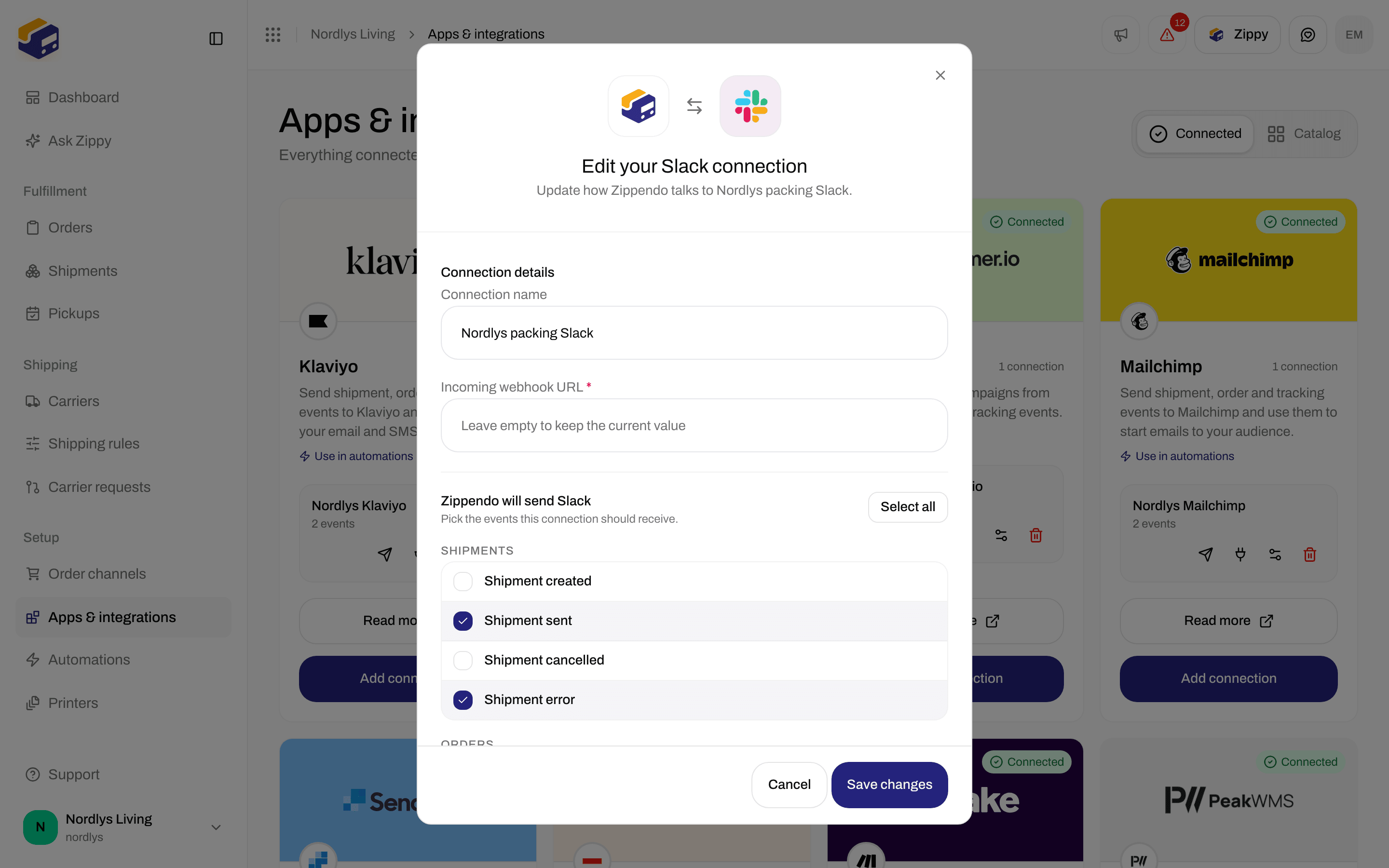
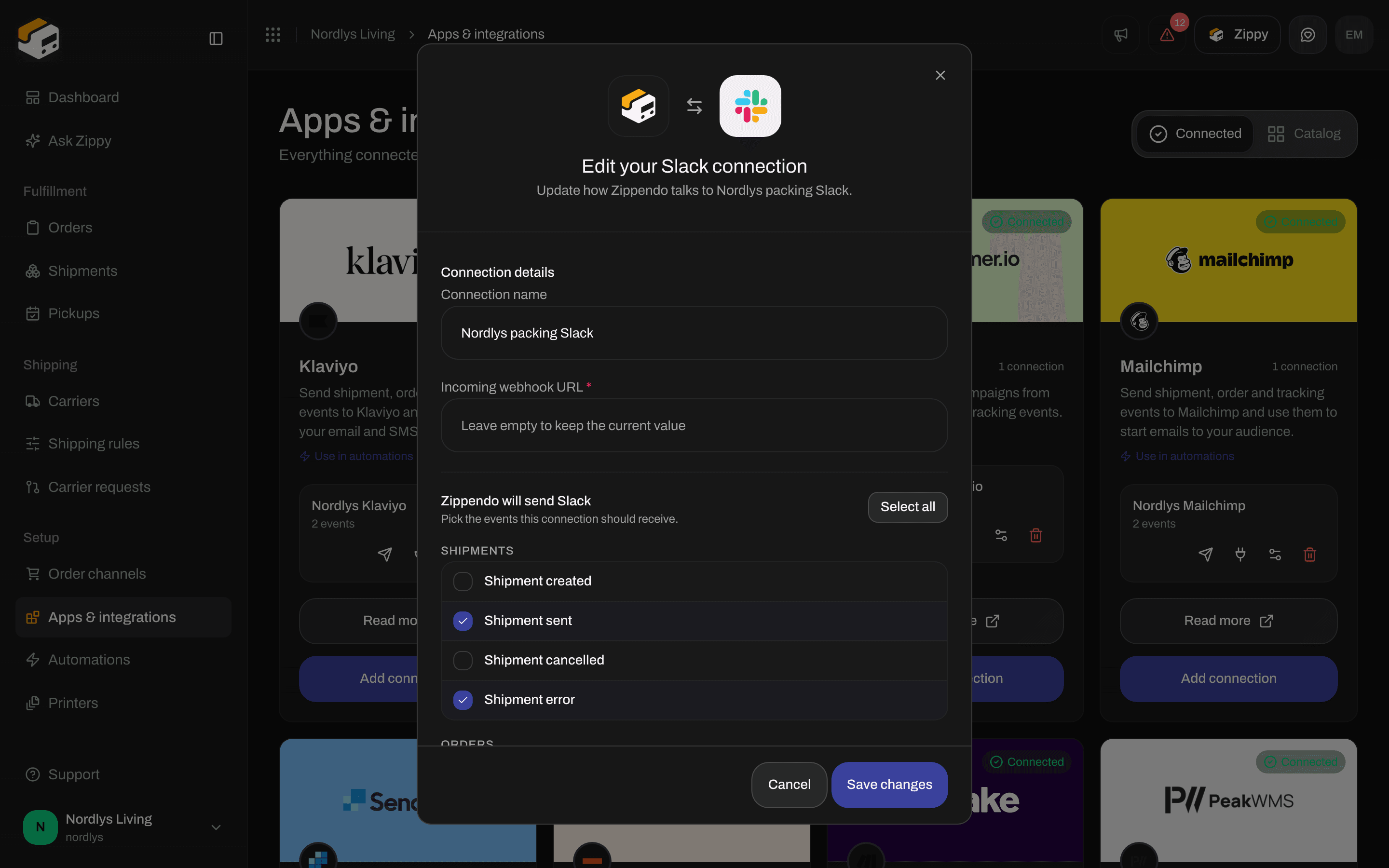
Modal id edit-integration-connection-modal. Title Edit Slack Connection. Subtitle Update the configuration for {{connection}}. Save Changes / Cancel. Save Changes disabled while Connection Name * is empty.
Edit Slack Connection dialog with Connection Name, Incoming Webhook URL, and Auto-send eventsEdit Slack Connection dialog with Connection Name, Incoming Webhook URL, and Auto-send events

Edit Slack Connection — rename, replace the webhook URL, retick events

Toasts: Integration updated successfully / Failed to update connection.
Pasting a new URL replaces the stored credentials. Leave the field blank to keep the existing webhook.

Delivery log and test

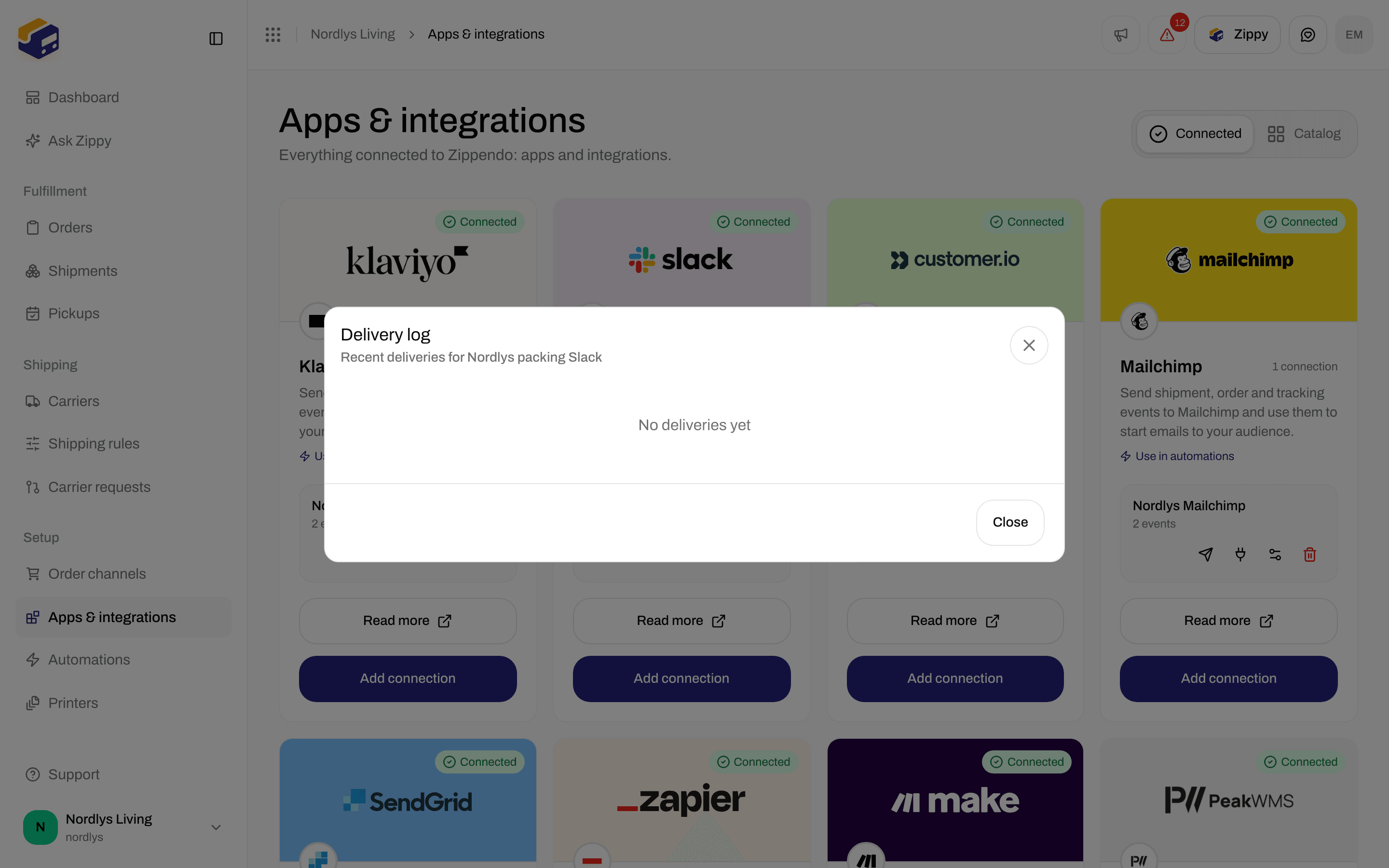
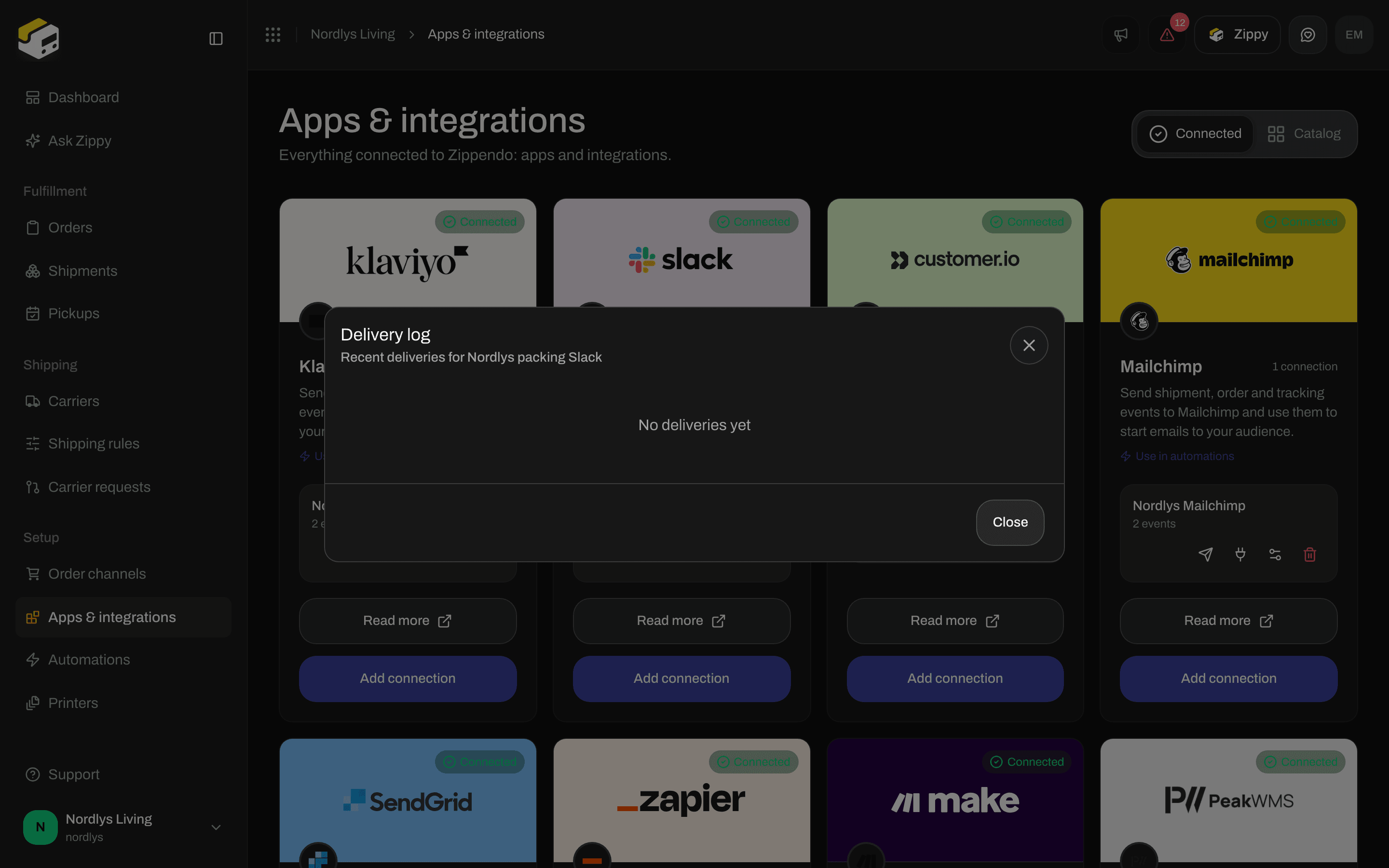
View delivery log — modal id integration-delivery-log-modal. Title Delivery Log. Subtitle Recent deliveries for {{connection}}. Close.
Delivery Log modal showing No deliveries yet for a Slack connectionDelivery Log modal showing No deliveries yet for a Slack connection

Delivery Log — empty until the first auto-send or Send test event

Send test event enqueues integration.test. It does not require any auto-send checkbox.

Disconnect

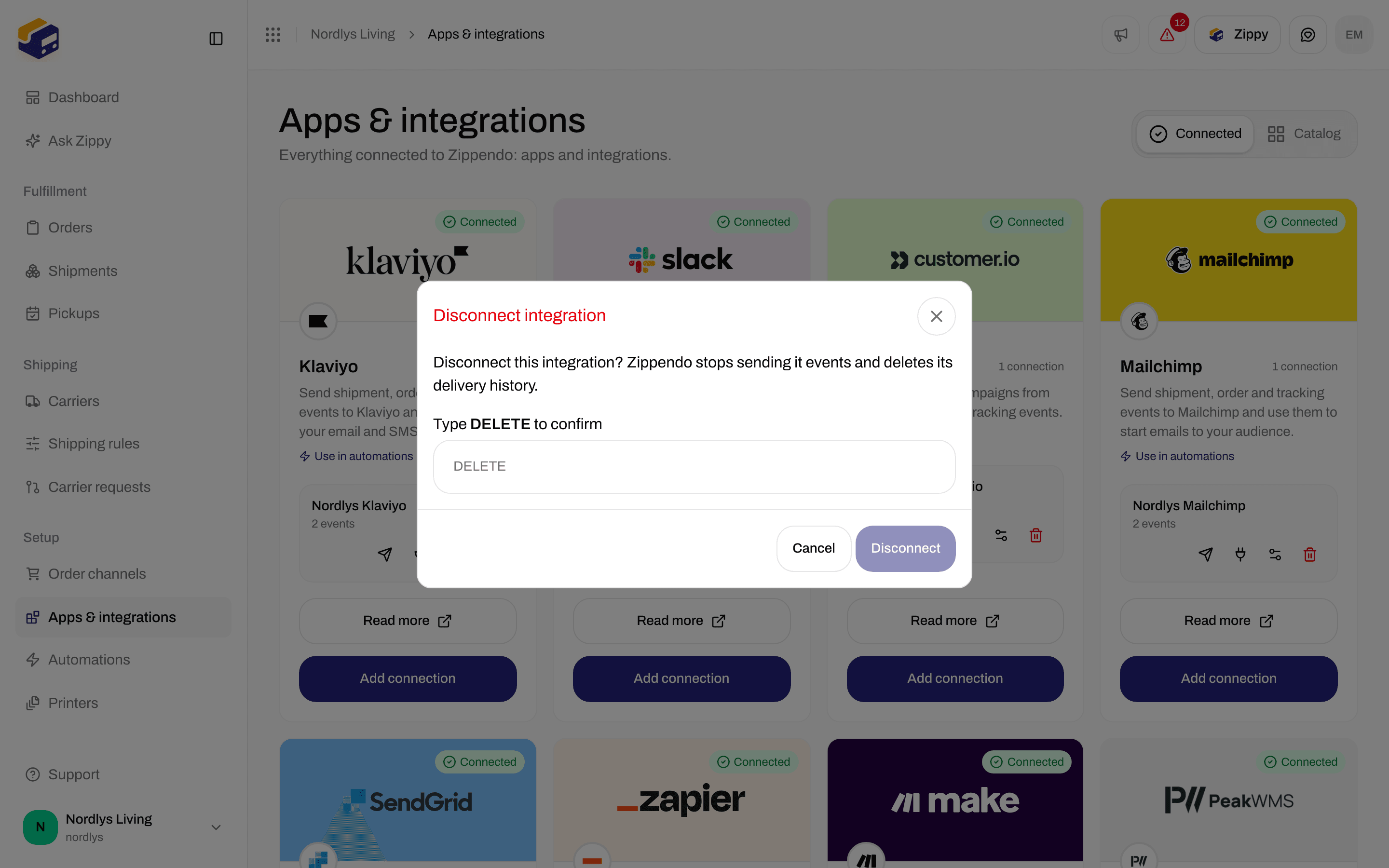
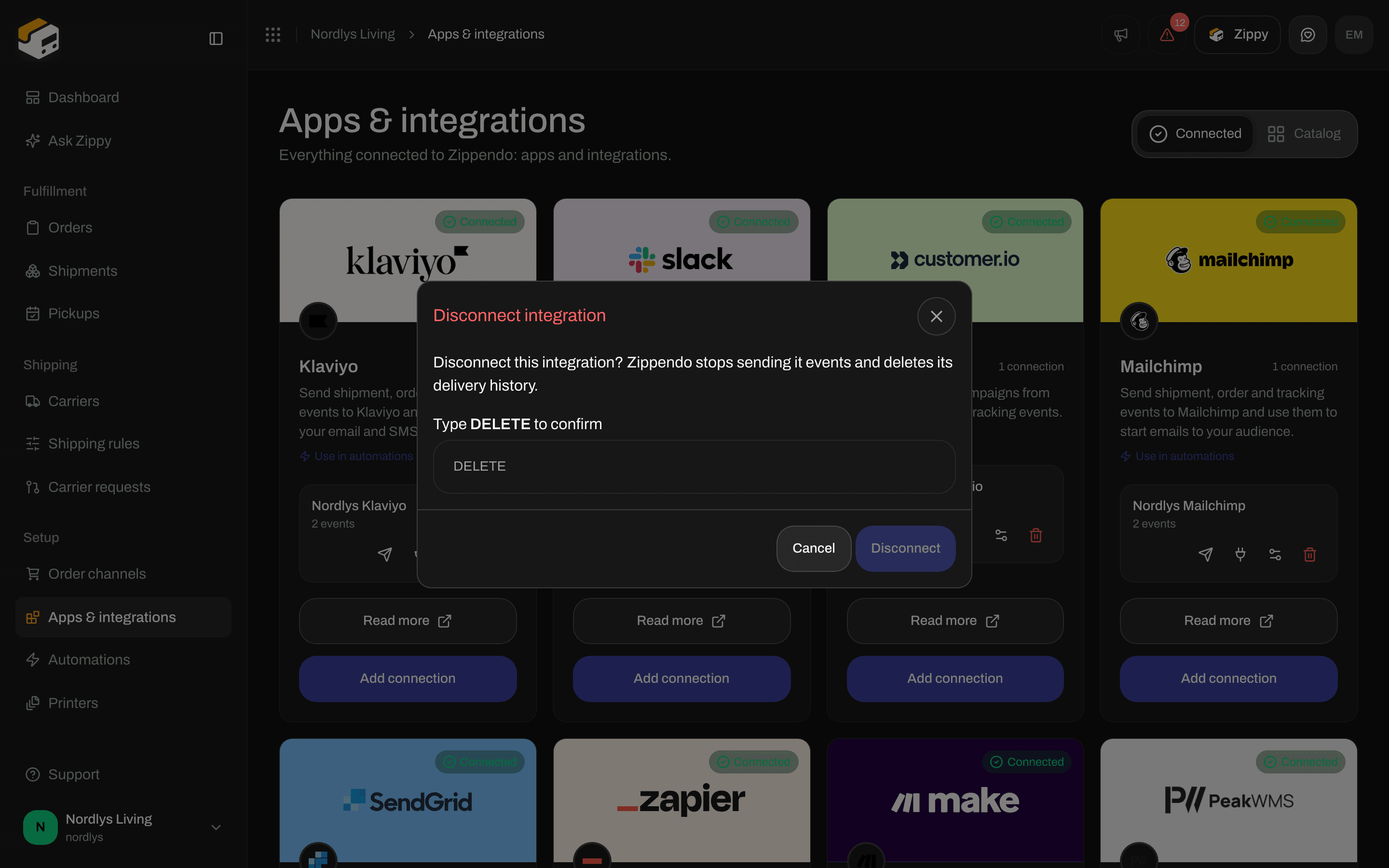
Trash opens Disconnect Integration. Description: Are you sure you want to disconnect this integration? This will stop all event deliveries and delete the delivery history. Type DELETE (placeholder DELETE) to enable Disconnect. Label: Type DELETE to confirm. Tooltip while disabled: Type “DELETE” to confirm. Toasts: Integration disconnected / Failed to delete connection. Missing row: Integration not found. (ORG_INTEGRATION_NOT_FOUND).
Disconnect Integration confirmation requiring DELETEDisconnect Integration confirmation requiring DELETE

Disconnect Integration — type DELETE to confirm

You are done when Connected lists Slack with a Connected pill and Send test event toasts Test event sent.

Automations

Two Slack nodes exist. They are not the same. Send Slack Notification inspector: Connection (required — Connection is required; placeholder Select a connection; helper Select an existing slack connection. Manage connections in Settings > Integrations.). Empty list: No items available. Custom properties optional (Add; key key, value {{shipment.reference}}). No Event name override. Full node list: Automations.