An automation is an event-driven workflow: a trigger starts a run, then actions, conditions, and flow nodes run in order. It is not a shipping rule. A rule is the reusable carrier/product setup; an automation can apply that rule when a shipment is created. Walkthrough context: Shipping rules. Status dictionaries: Automations overview. If a run never starts: Automation not triggering.
Automations live in the client dashboard only. They are not on the public OpenAPI tag list. The builder is a full-viewport editor — no sidebar — and is hidden on mobile.

Where it lives

Sidebar Automations (/{org}/dashboard/automations), after Carrier Requests. Click a row (or Edit) to open /{org}/dashboard/automations/:id.
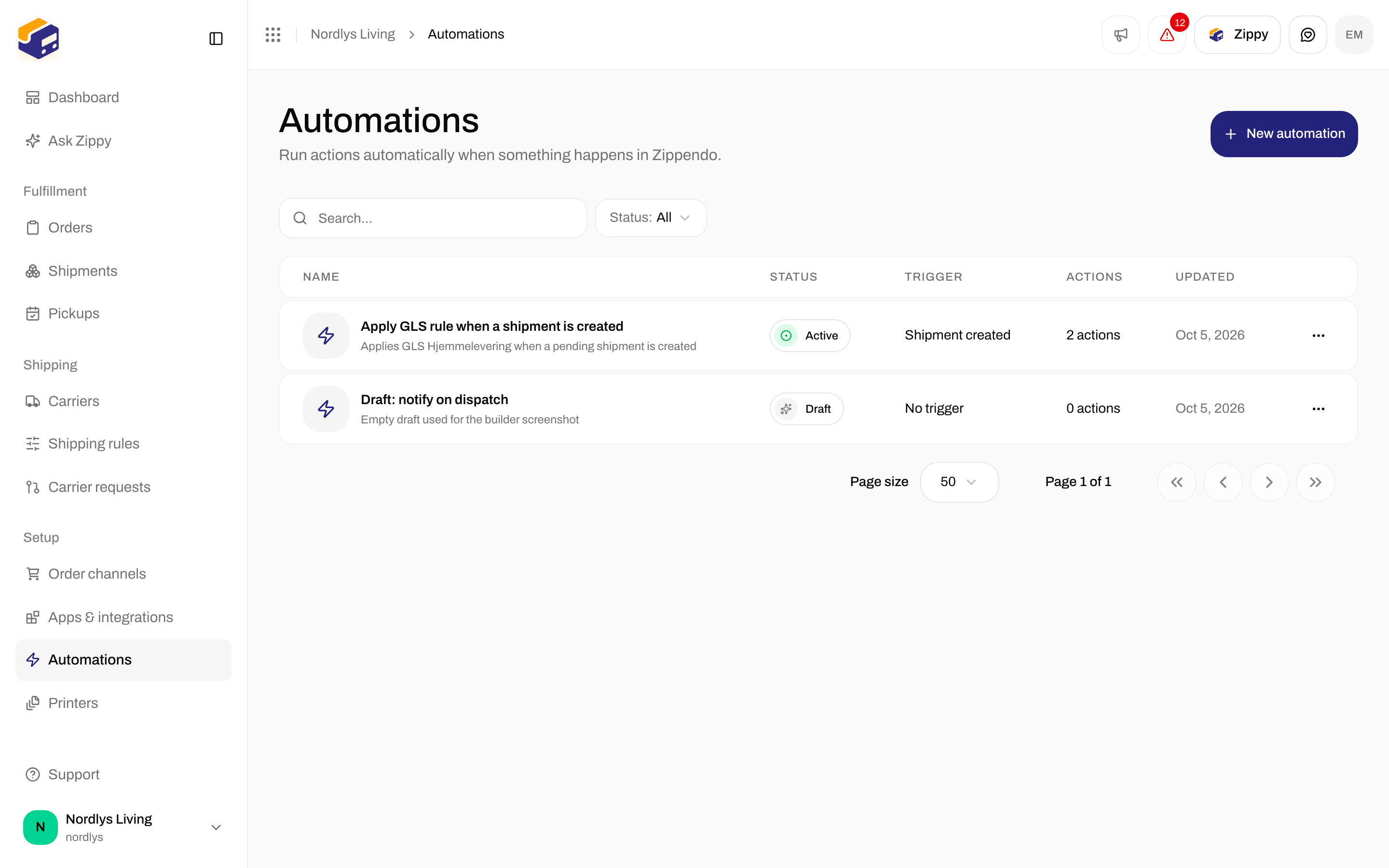
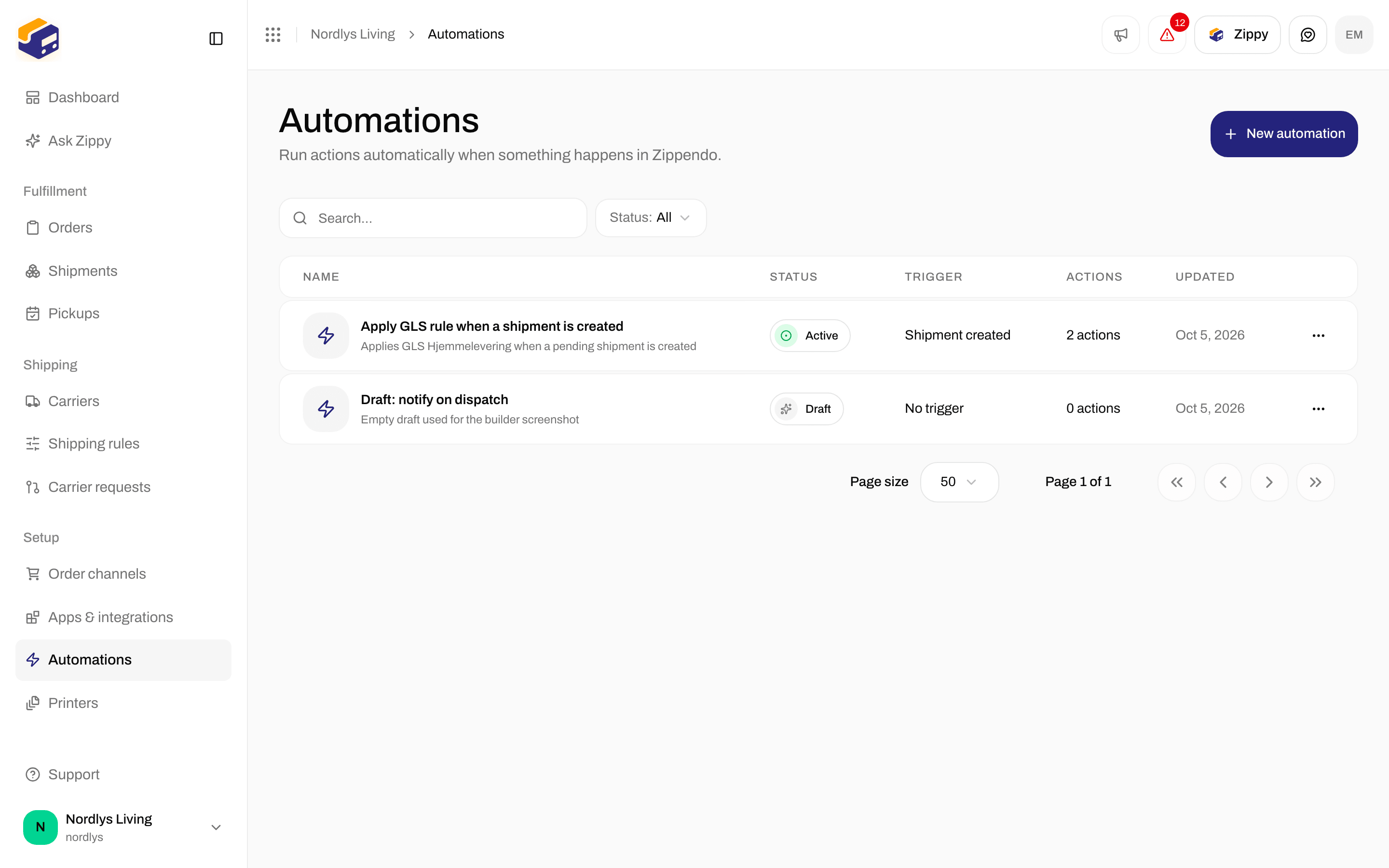
Automations list titled Automations with All automations table and New automation buttonAutomations list titled Automations with All automations table and New automation button

Automations list — name, status, trigger, action count, and New automation

Page title Automations. Description: Trigger actions when events happen in Zippendo. The table heading is All automations.

List

Columns

Filters

Header filter (data-testid="filters.trigger"). Shared chrome: Search and filters. Apply with Add filters.
Filters popover with Search and Status on the Automations listFilters popover with Search and Status on the Automations list

Filters — Search, Status (Draft / Active / Paused)

Empty state

When the API returns no rows: icon, title No automations yet, description Create your first automation to run actions when shipments are dispatched. Button Create automation (opens the same modal as New automation).

Row menu

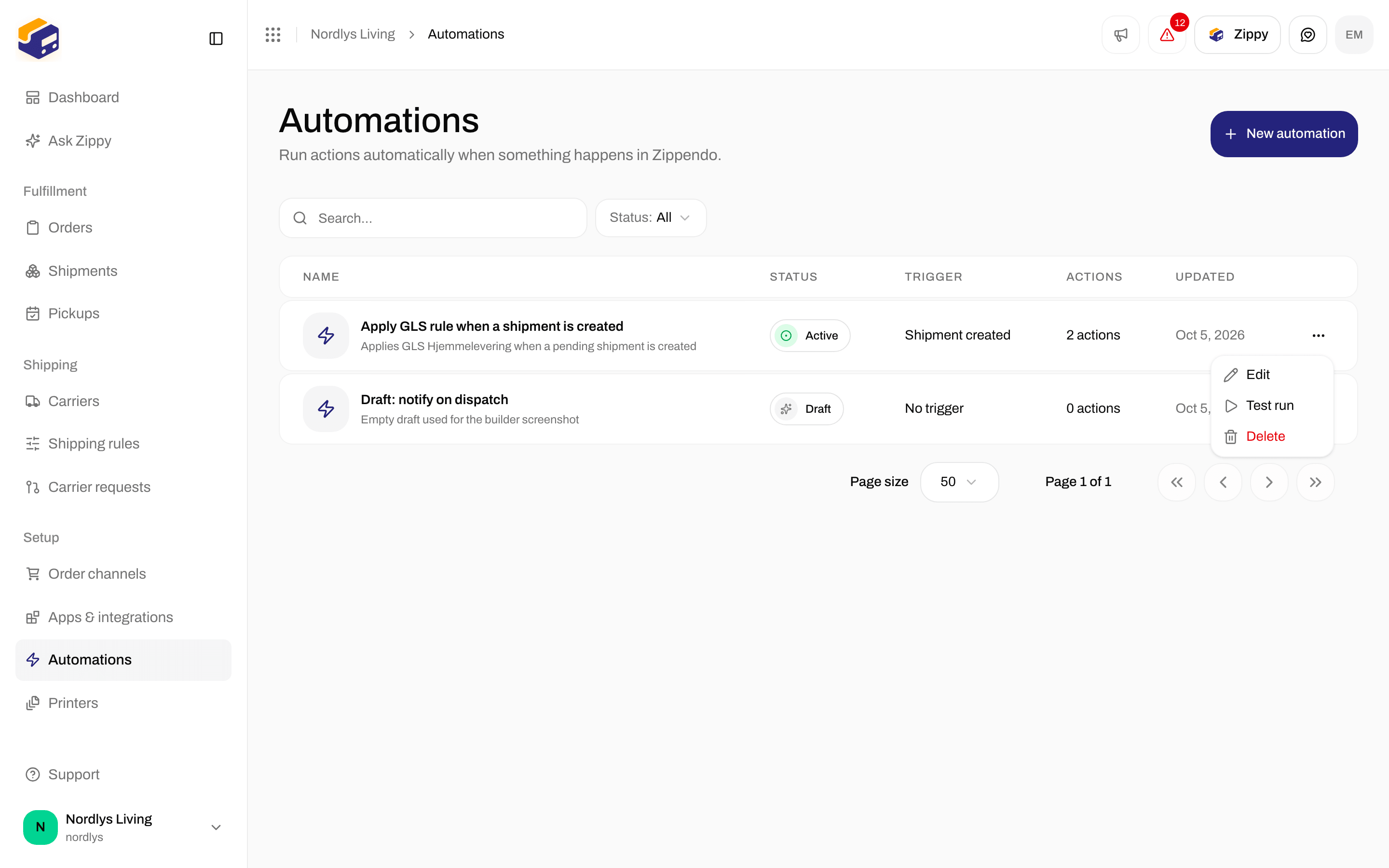
data-testid="table.row-actions":
Automations row menu with Edit, Test run, and DeleteAutomations row menu with Edit, Test run, and Delete

Row menu — Edit, Test run, Delete

Create

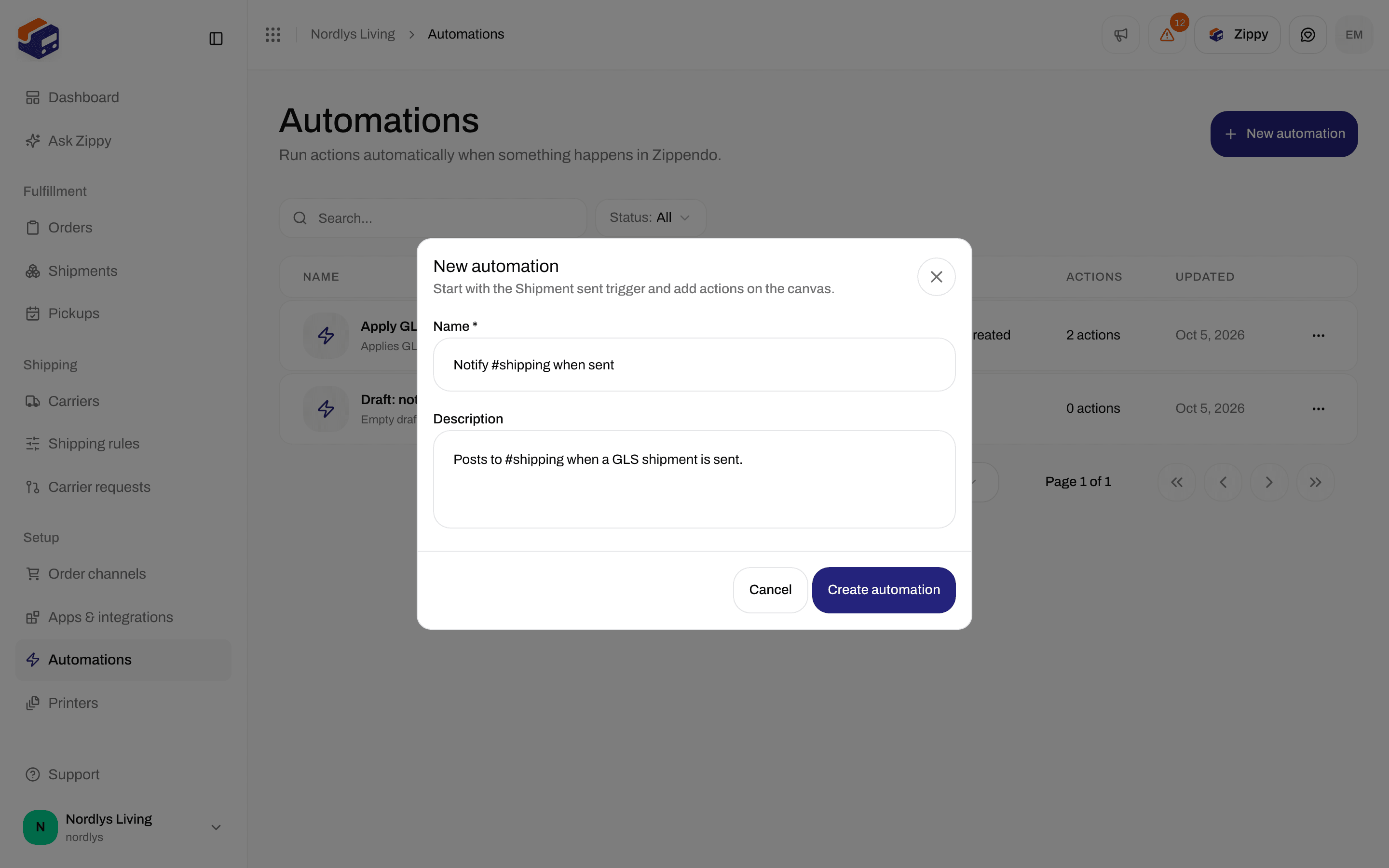
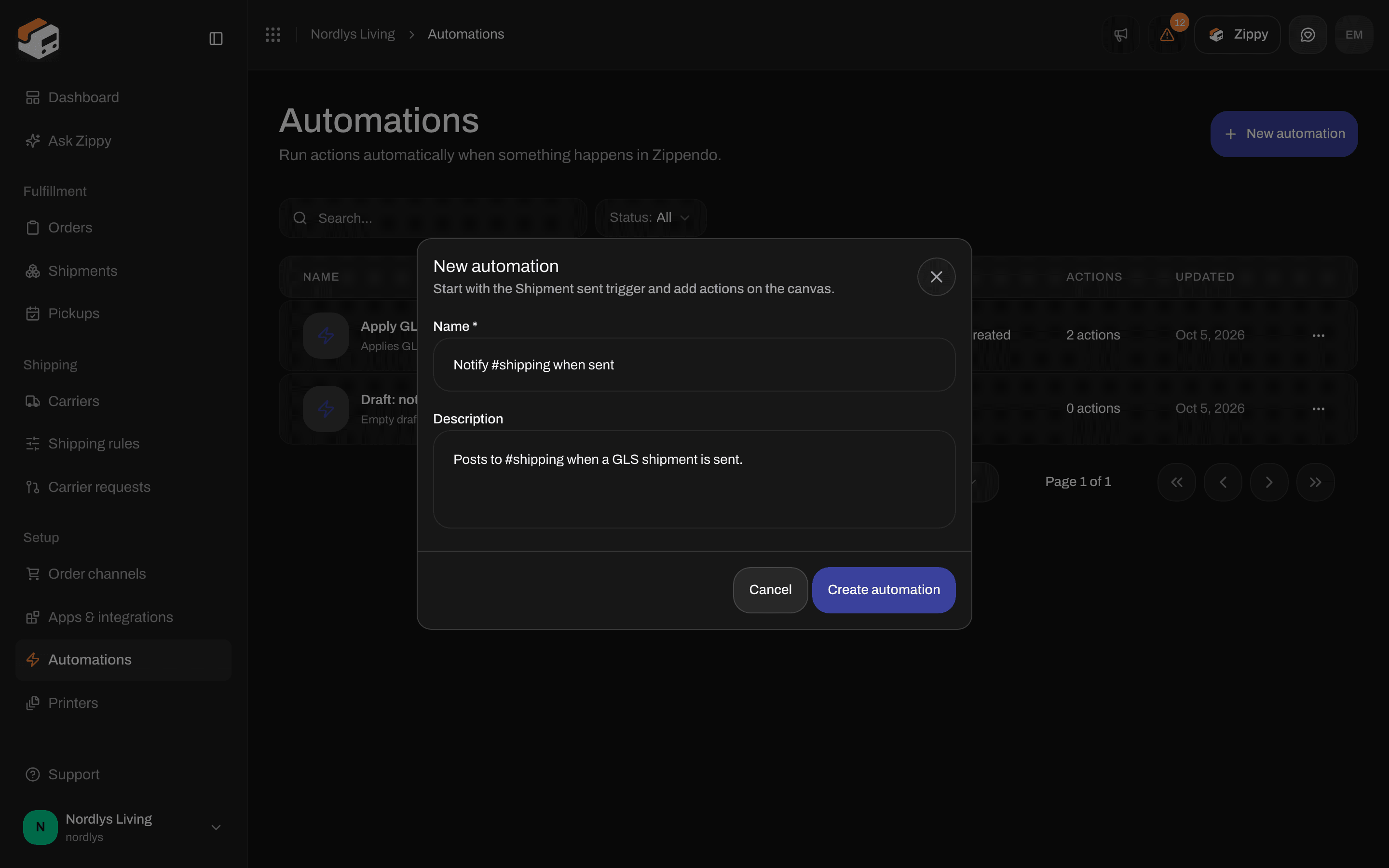
Click New automation. Modal id create-automation-modal. Title New automation. Subtitle: Start with a shipment.dispatched trigger and wire up actions on the canvas. That subtitle is copy only — the saved graph starts empty. You add a trigger yourself.
New automation modal with Name, Description, Cancel, and Create automationNew automation modal with Name, Description, Cancel, and Create automation

New automation — Name, Description, Create automation

Actions: Create automation / Cancel. Success toast Automation created; you land on the builder. Failure toast Failed to create automation, or the API code (plan cap: You have reached your plan limit for this resource.). Create always stores Draft, triggerType empty, graph: { nodes: [], edges: [] }. Plan caps (from Manage → Pricing Plans): Standard 5 automations, Growth 20, Pro 50. Hitting the cap opens Unlock more automationsYou’ve reached your plan’s automation limit. Upgrade to build more automated workflows. See Billing and usage.

Enable, pause, and rename

Status in the list is Draft / Active / Paused. In the builder the status control is a two-state toggle: A Draft shows Paused on this toggle. The first successful click writes Active. There is no control that returns an automation to Draft. The toggle is disabled with Fix validation issues to activate when the graph has issues and the automation is not already active. Activating with an invalid graph returns VALIDATION_FAILED (One or more fields are invalid.) plus the issue messages. Click the title in the top bar to rename (Enter commits, Escape cancels). Empty rename reverts. Save writes the graph. It stays Saved until the canvas is dirty. Save is disabled until you change something. Saving with validation issues toasts Can’t save — fix issues first.

Delete

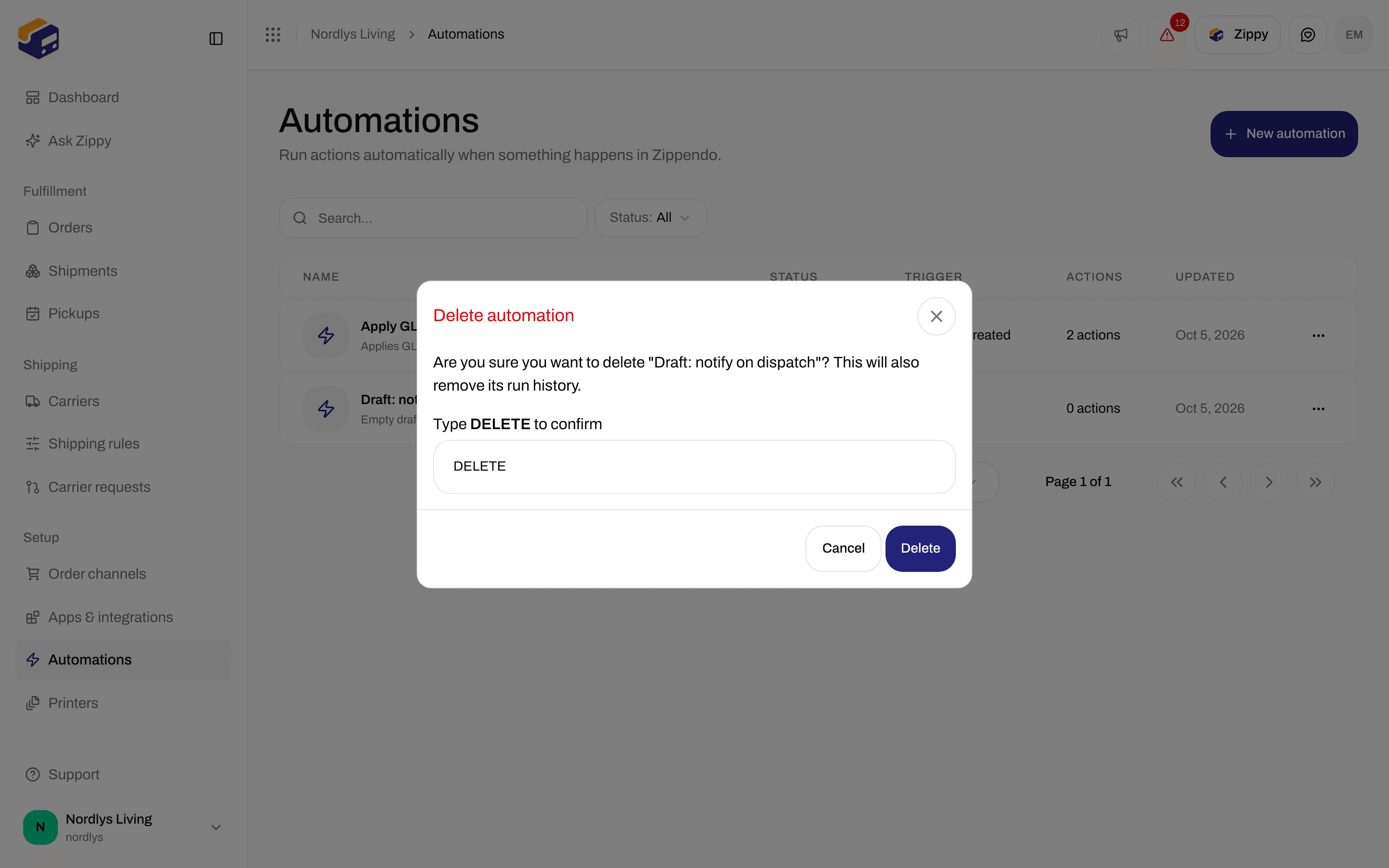
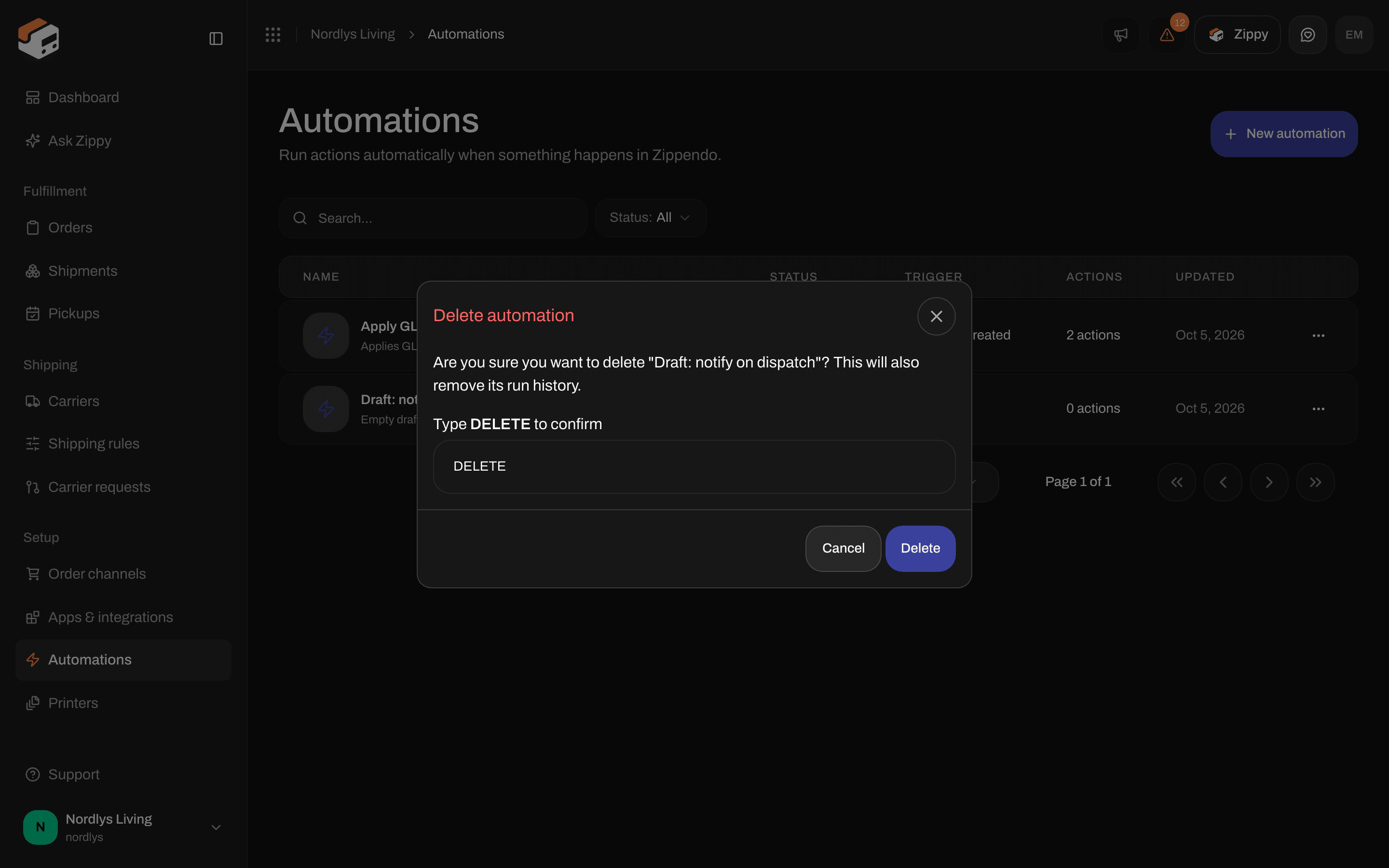
Row menu Delete. Title Delete automation. Body: Are you sure you want to delete ""? This will also remove its run history. Type DELETE to enable Delete. Toast Automation deleted / Failed to delete automation.
Delete automation modal asking to type DELETE to confirmDelete automation modal asking to type DELETE to confirm

Delete automation — type DELETE to confirm

Builder

/{org}/dashboard/automations/:id. Full viewport — no app sidebar. On viewports below md: title The automation builder isn’t available on mobile, description Open Zippendo on a computer to create and edit automations., button Back to automations. Missing automation: Automation not found / It may have been deleted. / Back to automations. Empty canvas hint: Drag elements from the panel or click the grid button to get started.
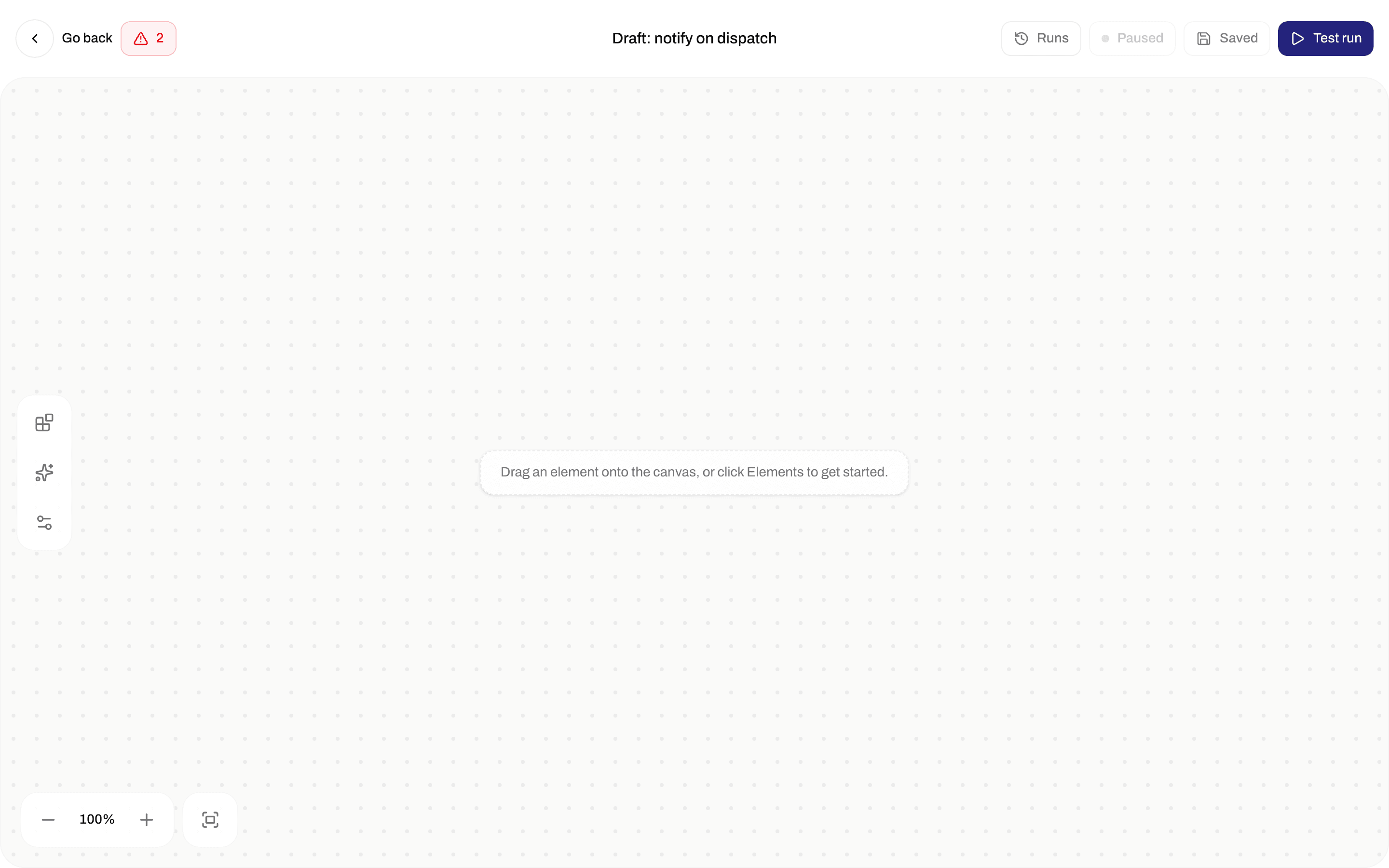
Empty automation builder with canvas hint to drag elements from the panelEmpty automation builder with canvas hint to drag elements from the panel

Empty builder — Go back, Paused toggle, Save, Execute workflow, empty-canvas hint

Top bar

Left rail

Canvas settings

Popover title Canvas. Description Preferences for building workflows. Stored in localStorage as zippendo-automation-canvas-settings.

Elements palette

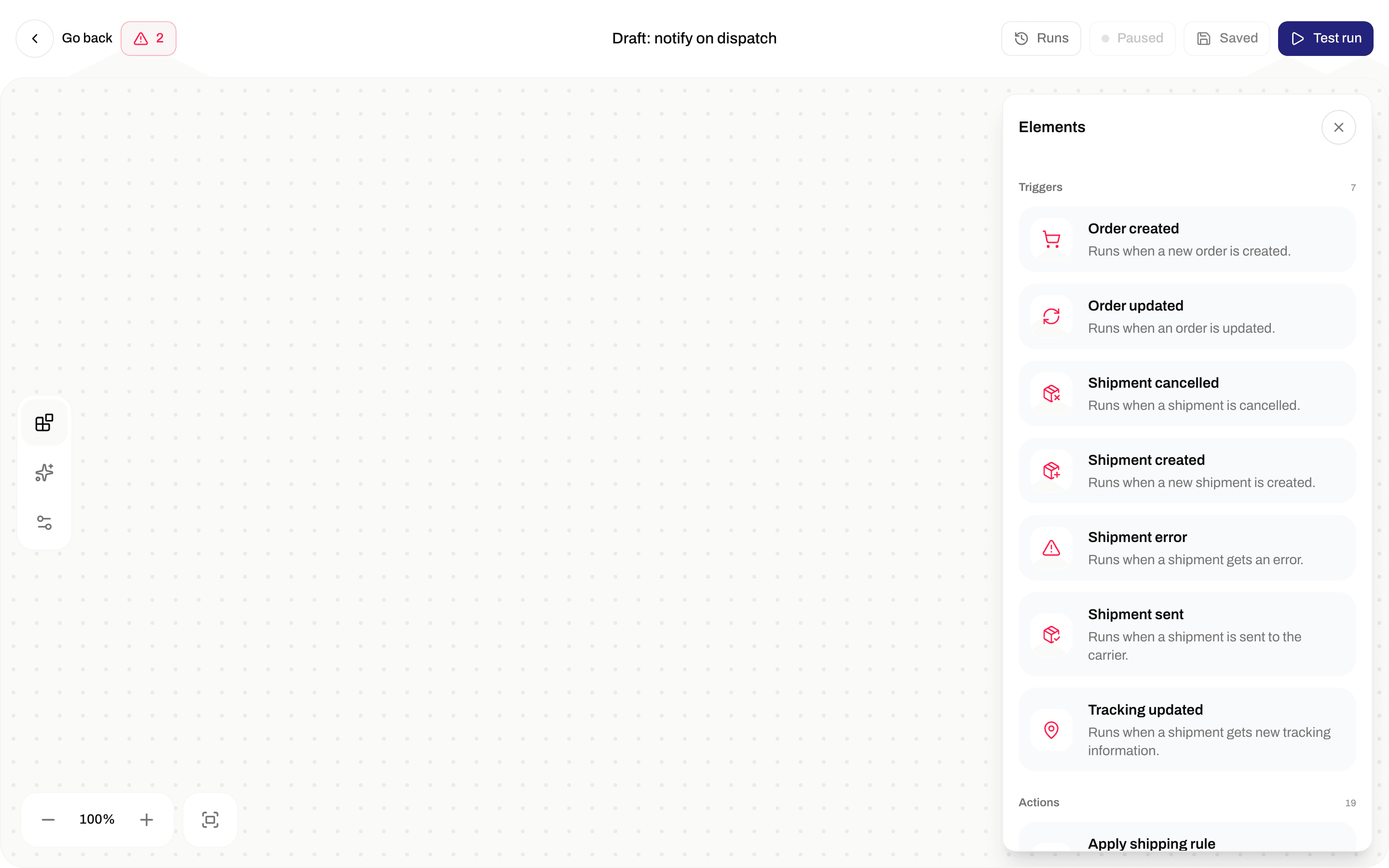
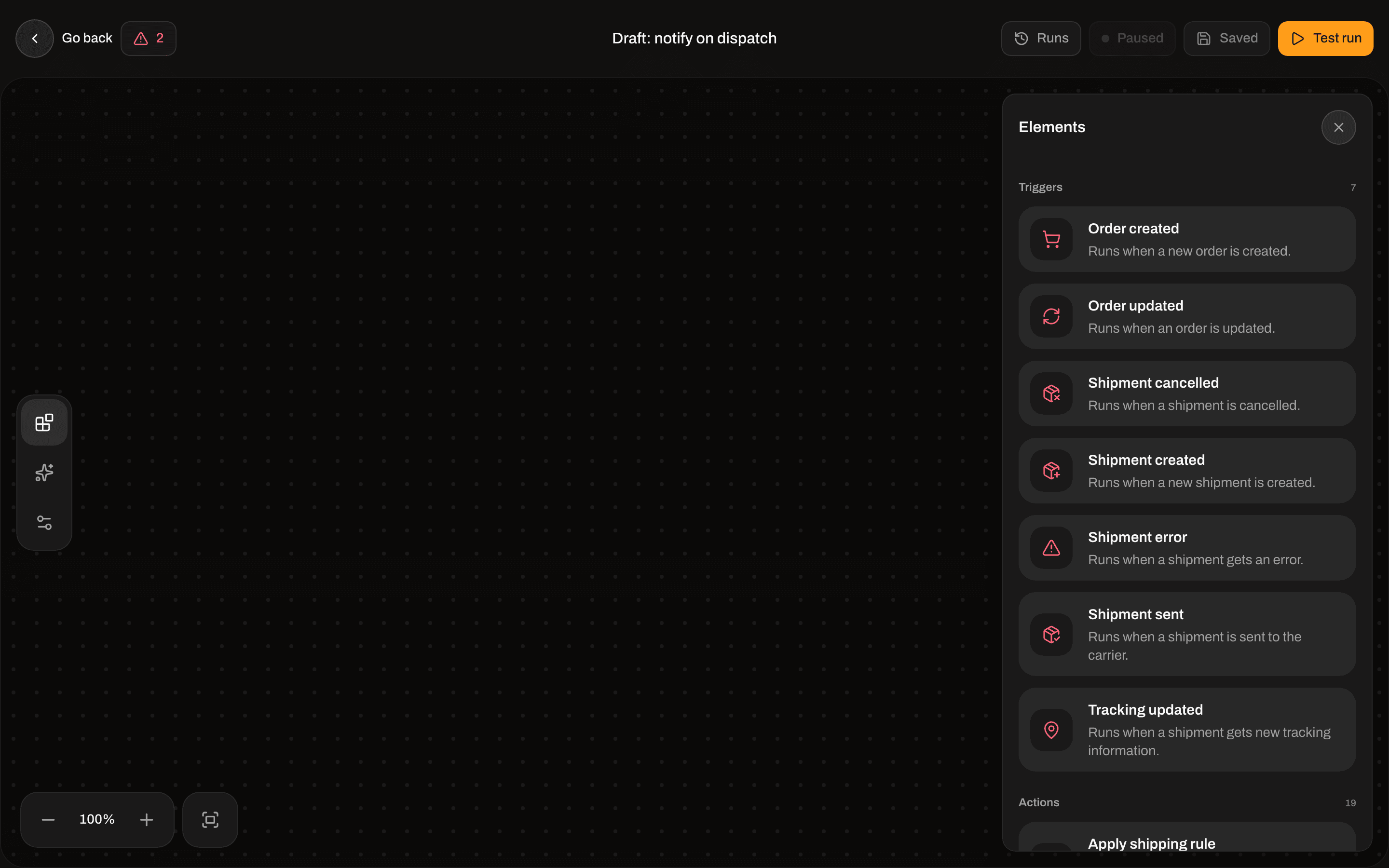
Title Nodes. Groups Triggers, Actions, Conditions, Flow (with a count). Click or drag onto the canvas. A singleton already on the canvas (every trigger is singleton — one per graph) shows badge Added and cannot be added again. Empty search: No elements match / Try a different search term. (search input is not shown in the current palette.)
Nodes palette listing Triggers and Actions for the automation builderNodes palette listing Triggers and Actions for the automation builder

Elements palette — Triggers, then Actions

Palette names and descriptions come from the node registry (English). Canvas subtitles are the registry category (Shipments, Orders, Tracking, Integrations, Printing, Logic, Flow). Non-trigger nodes have Remove node in the inspector footer.
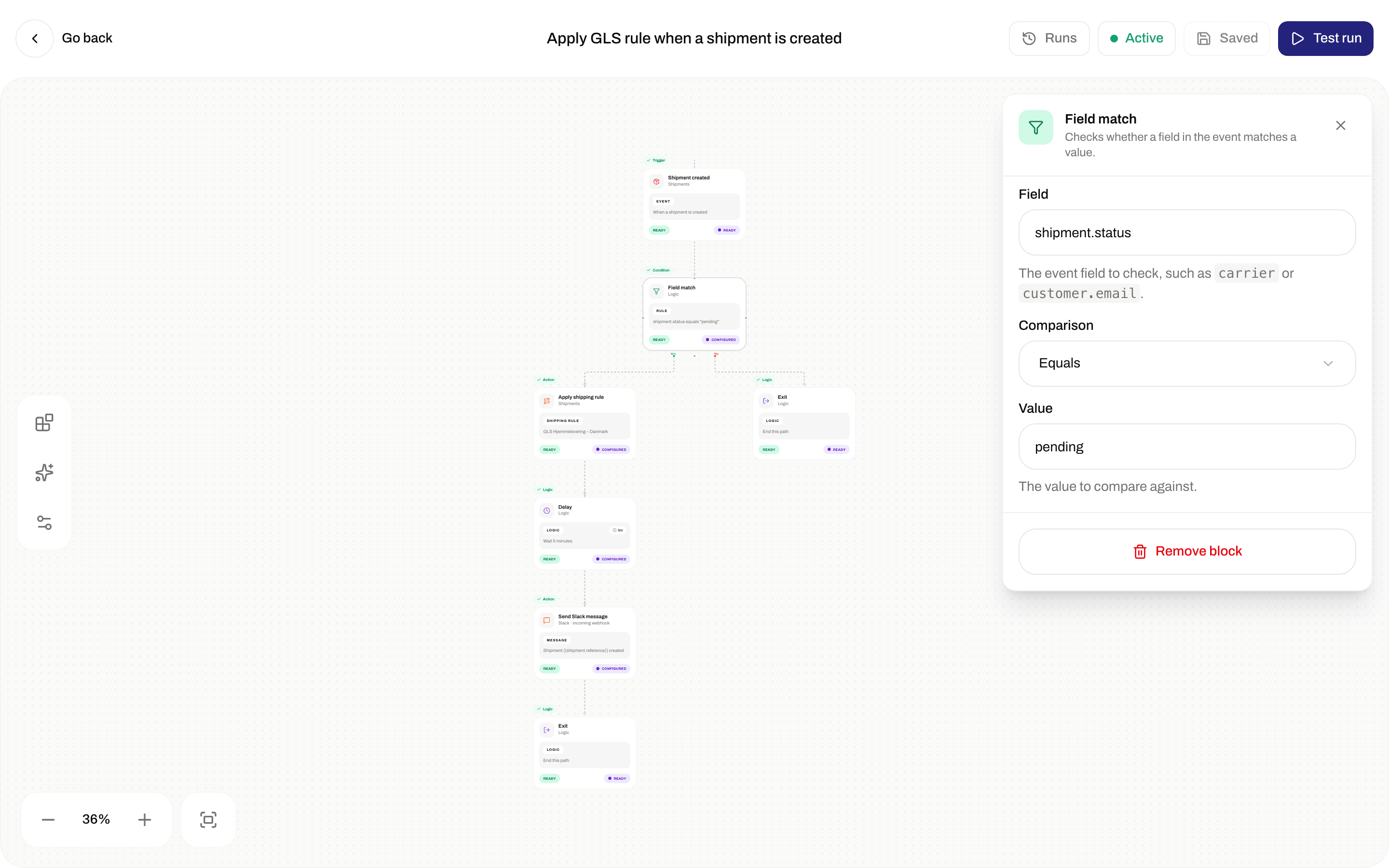
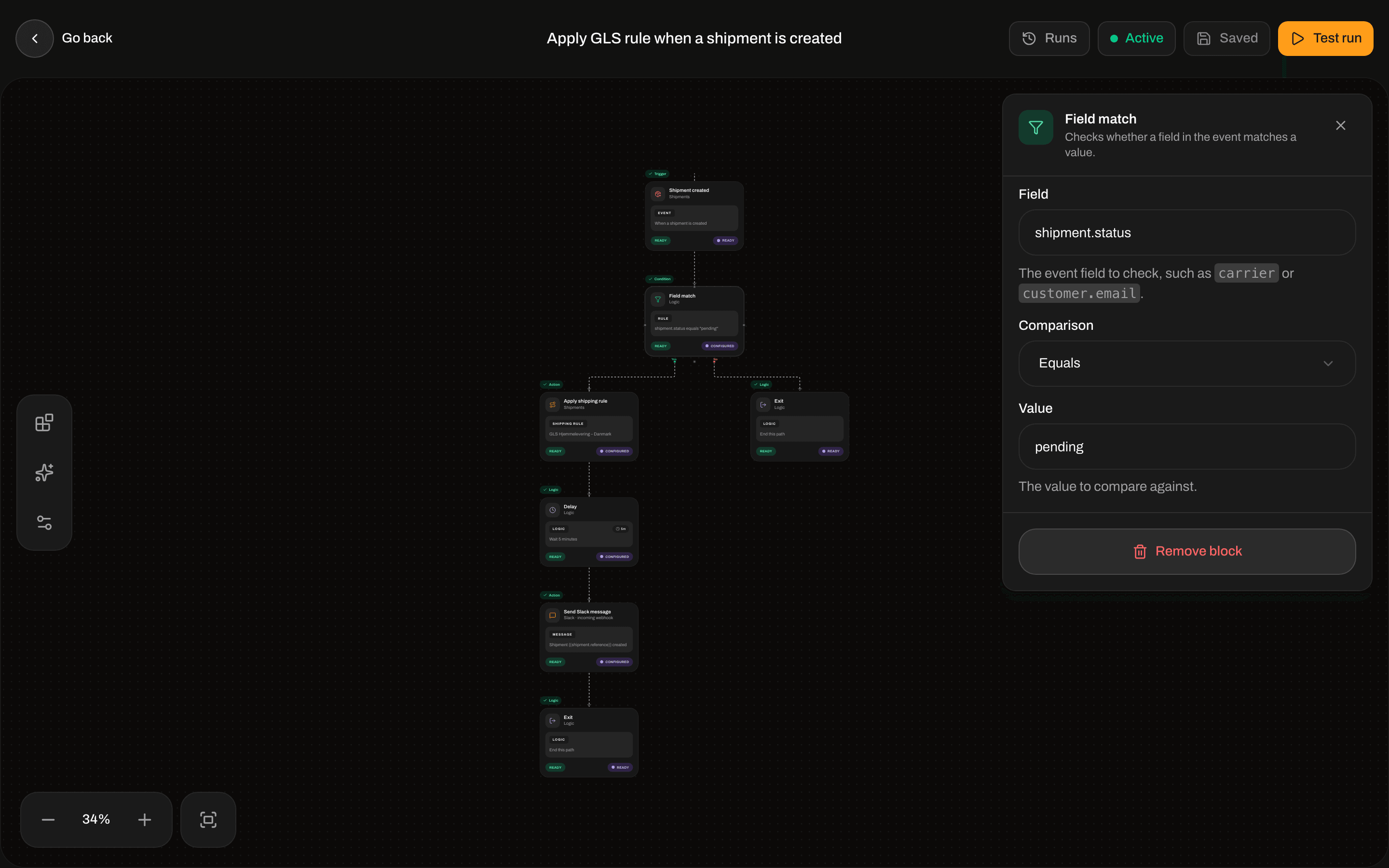
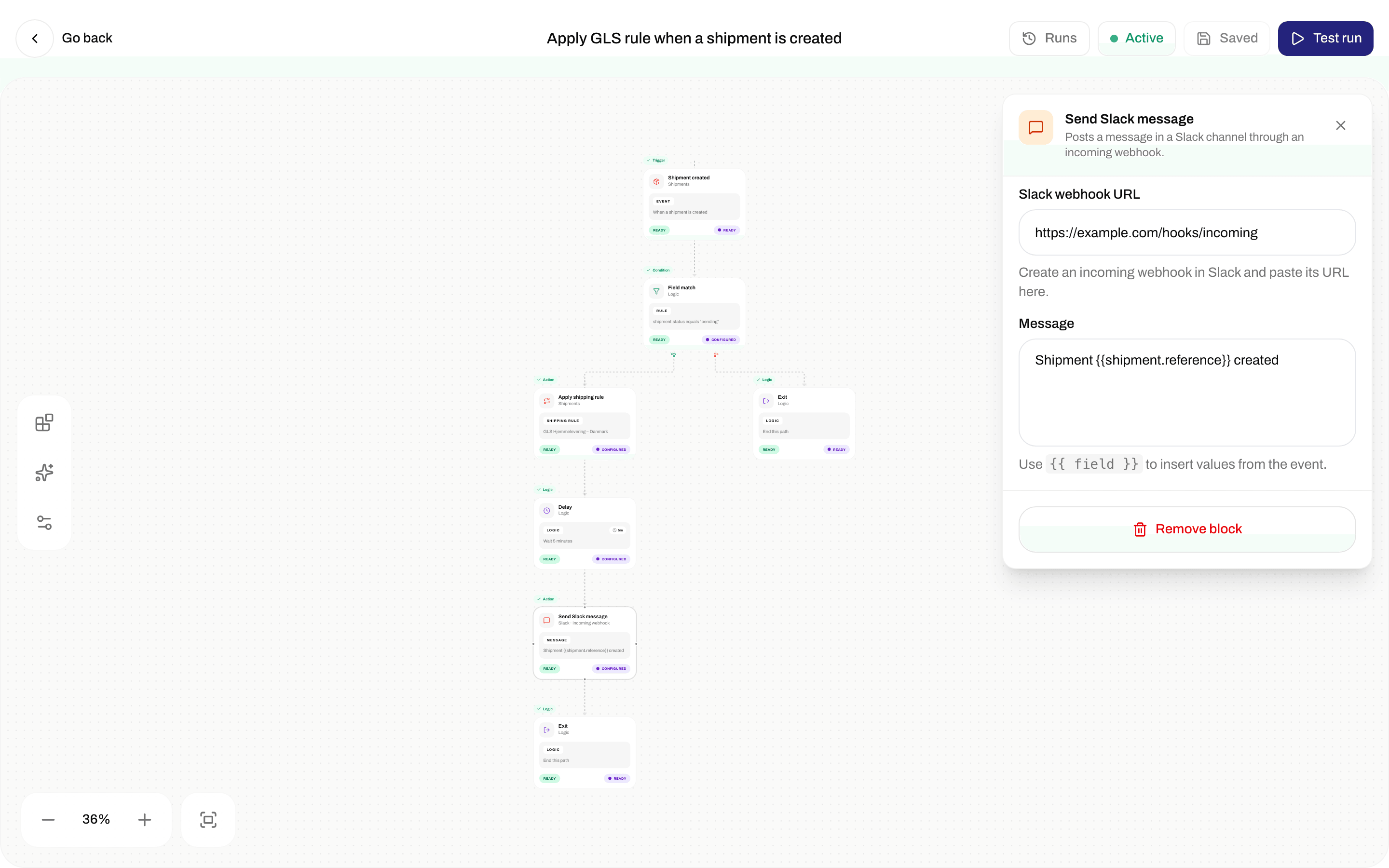
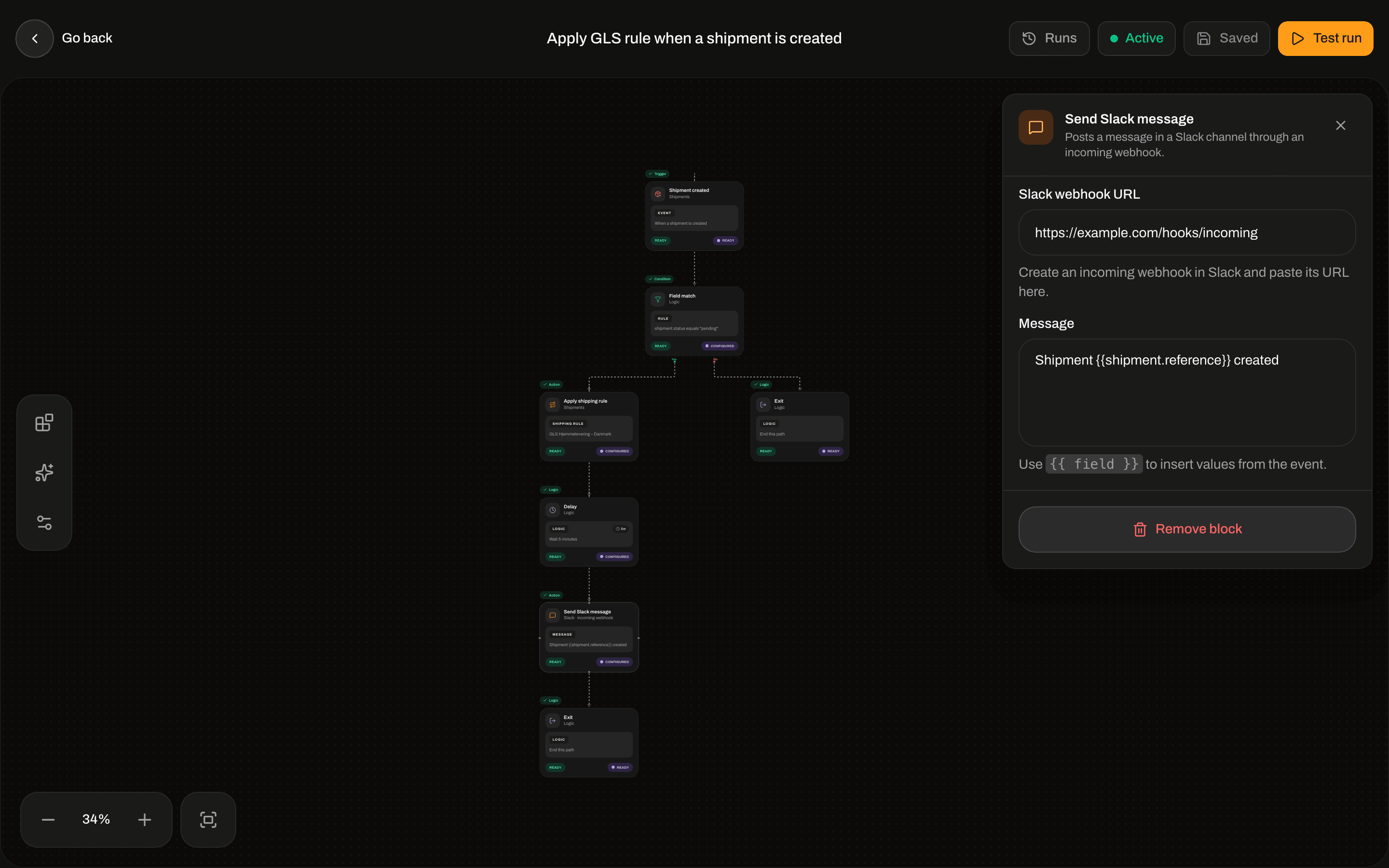
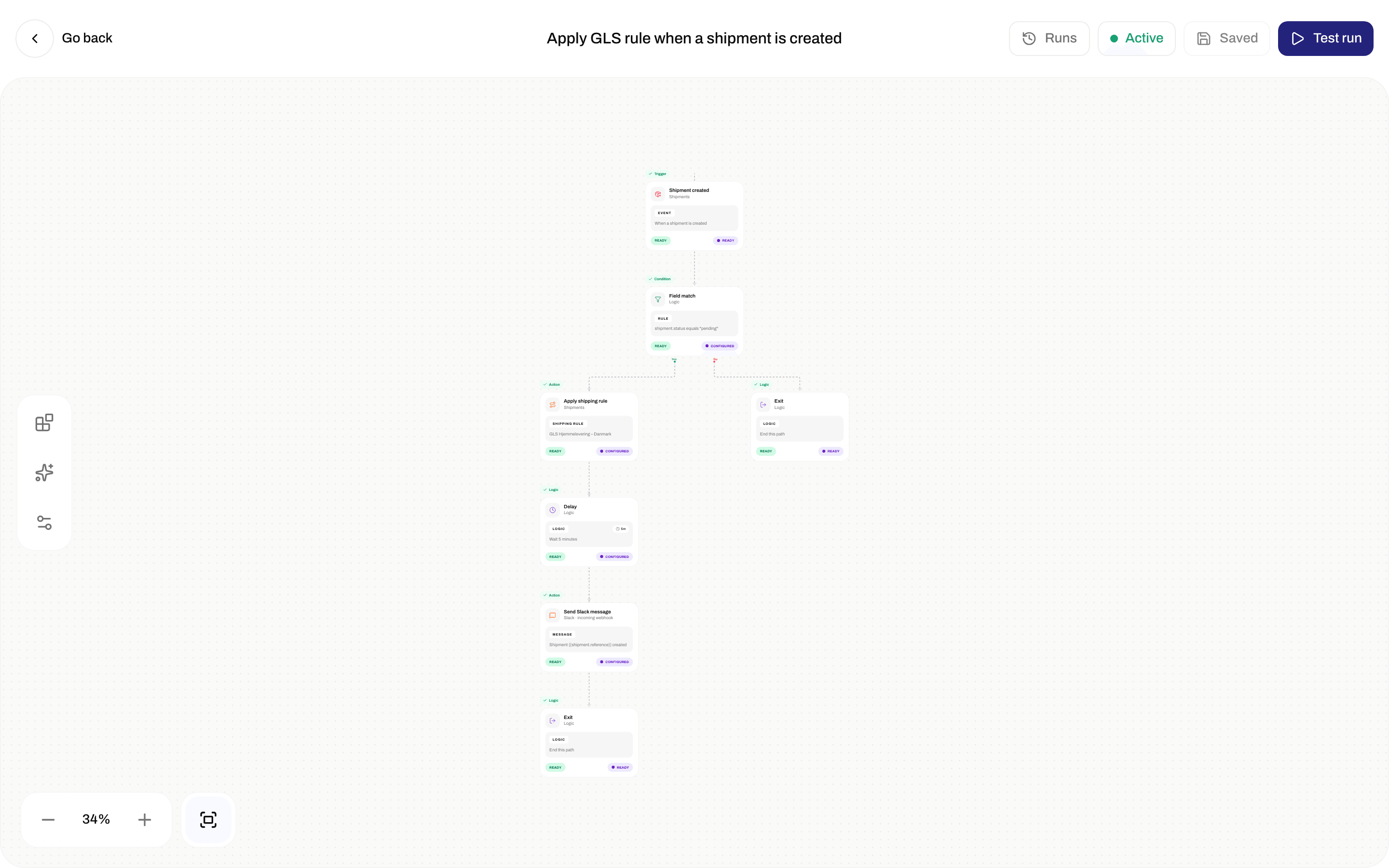
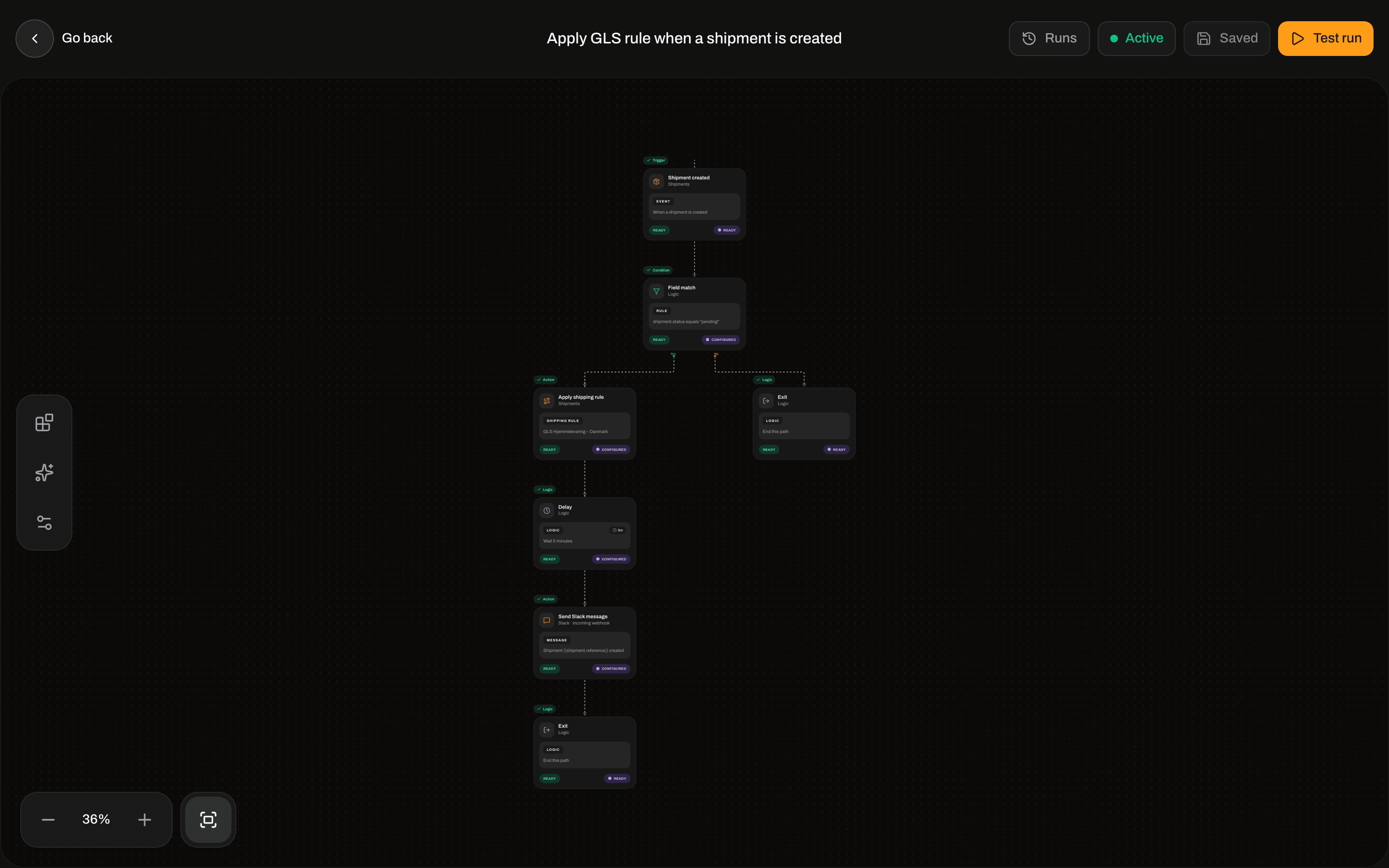
Automation canvas with Shipment Created, Field Match, Apply Shipping Rule, Delay, Send Slack message, and ExitAutomation canvas with Shipment Created, Field Match, Apply Shipping Rule, Delay, Send Slack message, and Exit

Connected graph — trigger, field match, apply rule, delay, Slack, and Exit

Validation (blocks save, activate, and Execute workflow)

Templates

Text fields that mention {{field}} interpolate with {{path}} or {{ nested.path }} (dot notation). Missing paths become empty strings. The inspector Sample payload for shipment/order triggers is flattened (reference, orderNumber). Live events are nested:
Shipment actions still resolve the shipment via shipmentId or shipment.id. Field Match on carrier does not match a nested shipment payload — use a path that exists on the event (for example shipment.status).
There is no Shipment Updated trigger. shipment.updated is an app webhook event only — see Webhooks.

Triggers

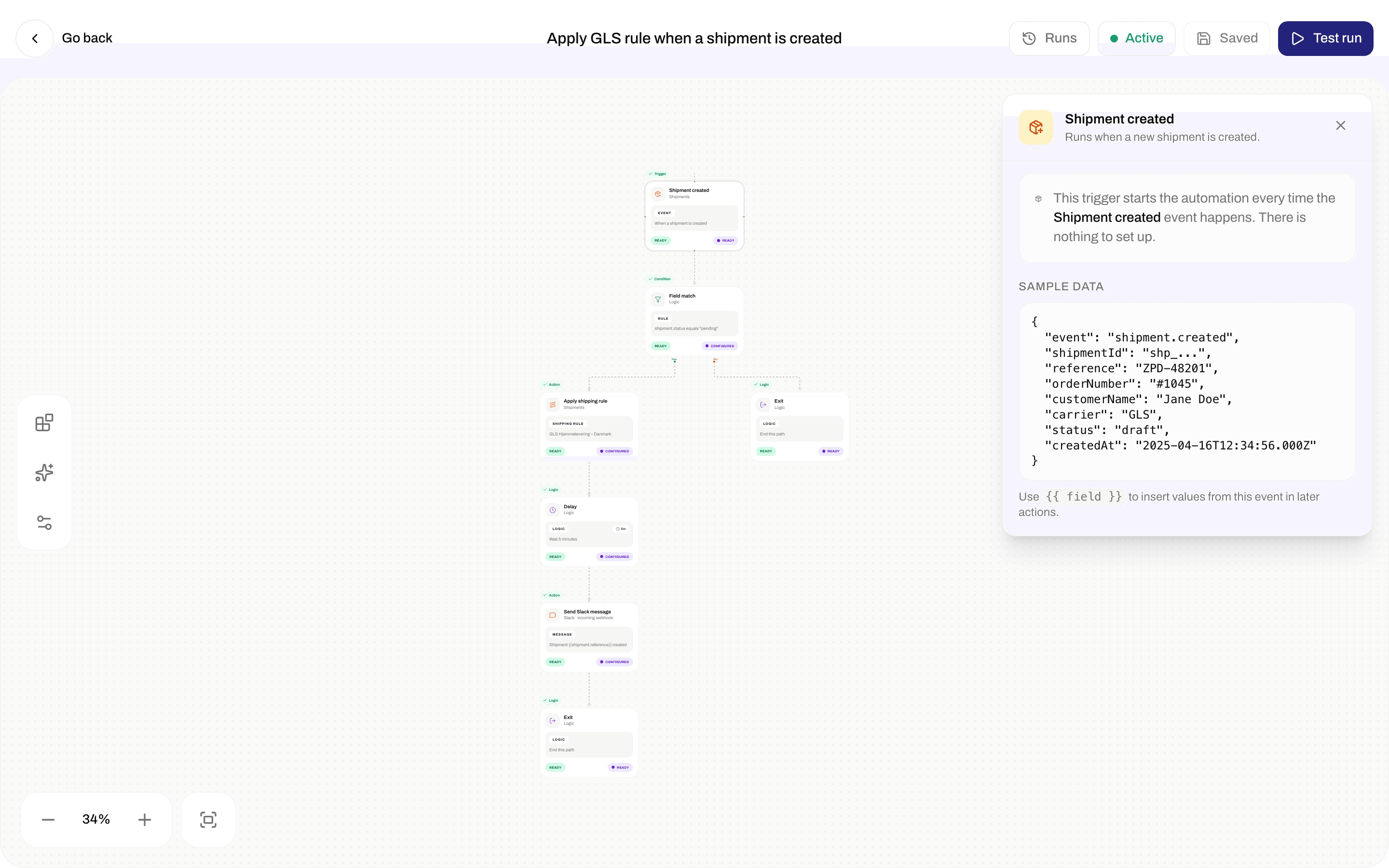
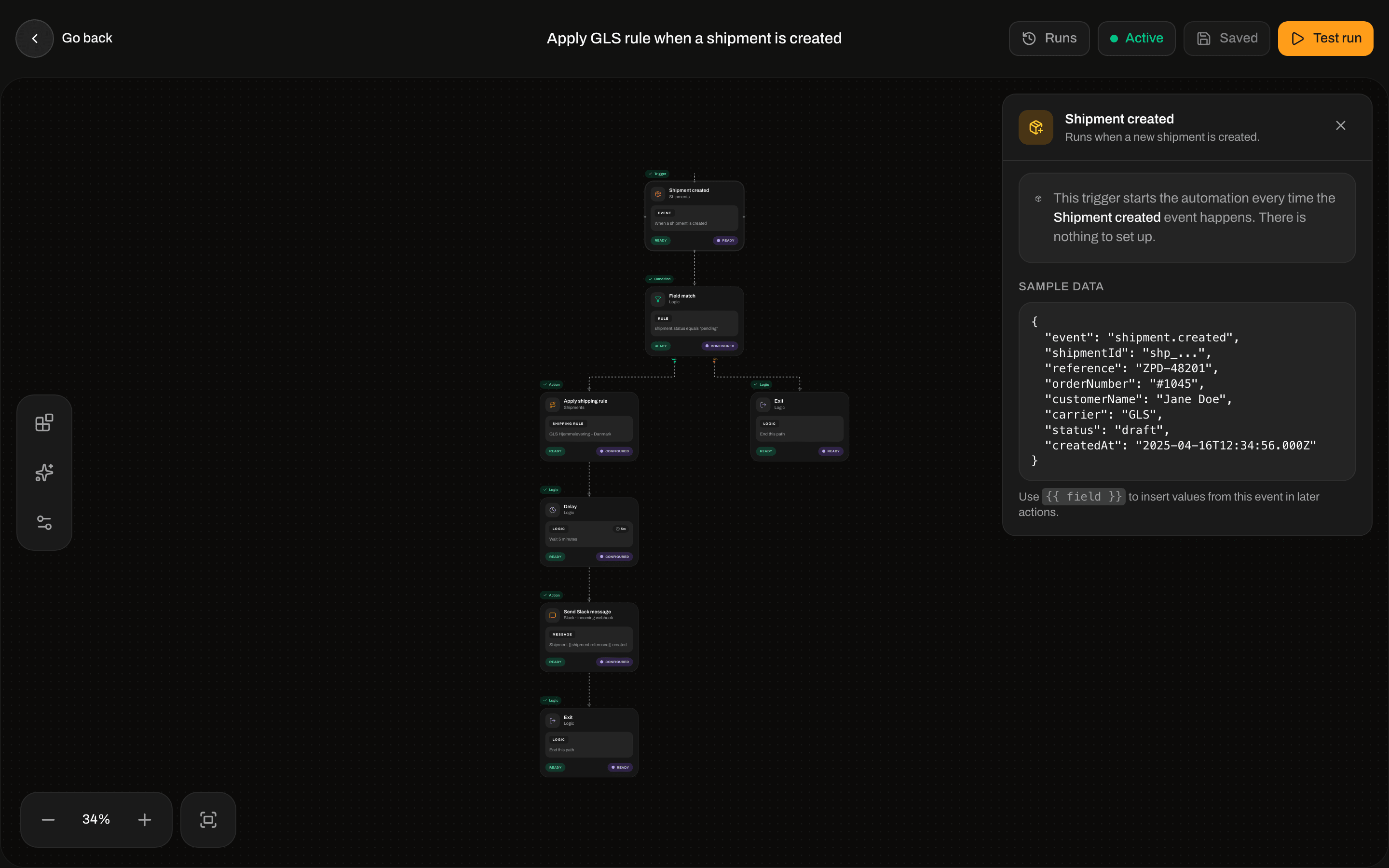
Every trigger: no inspector fields. Copy: This trigger fires whenever the {event} event occurs. No configuration required. Then Sample payload and Use {{ field }} to reference payload values in downstream actions. Only active automations whose triggerType matches the event run. Brand-scoped automations run only for that brand’s events; org-wide automations run for every brand.
Inspector for Shipment Created with sample payload JSONInspector for Shipment Created with sample payload JSON

Shipment Created inspector — sample payload, no configuration

Shipment Created

Registry: Shipment CreatedFires when a new shipment is created. Category Shipments. Event shipment.created. Fires when you create a shipment (dashboard or API). Inspector sample: shipmentId, reference, orderNumber, customerName, carrier, status, createdAt. Live payload is { shipment: <shipment> }.

Shipment Dispatched

Registry: Shipment DispatchedFires when a shipment is dispatched. Canvas label on this node: Shipment dispatched / Zippendo · shipments. Event shipment.dispatched. Fires when a shipment is sent. Inspector sample: shipmentId, reference, orderNumber, customerName, trackingNumber, carrier, dispatchedAt. Live payload is { shipment: <shipment> }.

Shipment Cancelled

Registry: Shipment CancelledFires when a shipment is cancelled. Event shipment.cancelled. Fires when a pending shipment is deleted (dashboard delete). It does not fire when the Cancel Shipment action sets status to cancelled. Inspector sample: shipmentId, reference, customerName, cancelledAt. Live payload: { shipment: { id, reference, status: "cancelled" } }.

Shipment Error

Registry: Shipment ErrorFires when a shipment encounters an error. Event shipment.error. Fires when send/booking fails. Inspector sample: shipmentId, reference, carrier, errorMessage, errorAt. Live payload also includes orderNumber, errorCode, and nested shipment.

Order Created

Registry: Order CreatedFires when a new order is created. Category Orders. Event order.created. Inspector sample: orderId, orderNumber, customerName, customerEmail, totalAmount, currency, createdAt. Live payload is { order: <order> }.

Order Updated

Registry: Order UpdatedFires when an order is updated. Event order.updated. Inspector sample: orderId, orderNumber, customerName, status, updatedAt. Live payload is { order: <order> }.

Tracking Updated

Registry: Tracking UpdatedFires when tracking information is updated. Category Tracking. Event tracking.updated. Fires on carrier tracking ingest. Inspector sample: shipmentId, reference, trackingNumber, carrier, trackingStatus, updatedAt. Live payload is already flat and also has trackingEvent.

Conditions

Field Match

Palette: Field MatchCheck if a field matches a value. Category Logic. Handles TRUE / FALSE. Both must be connected.
Field Match inspector with Field, Operator Equals, and ValueField Match inspector with Field, Operator Equals, and Value

Field Match — Field, Operator, Value

Operators (inspector label → stored value): Comparisons stringify the field. Numeric operators coerce both sides with Number(...).

Flow

Branch

Palette: BranchSplit flow based on a condition. Same inspector as Field Match (Field, Operator, Value). Handles TRUE / FALSE. Both must be connected.

Delay

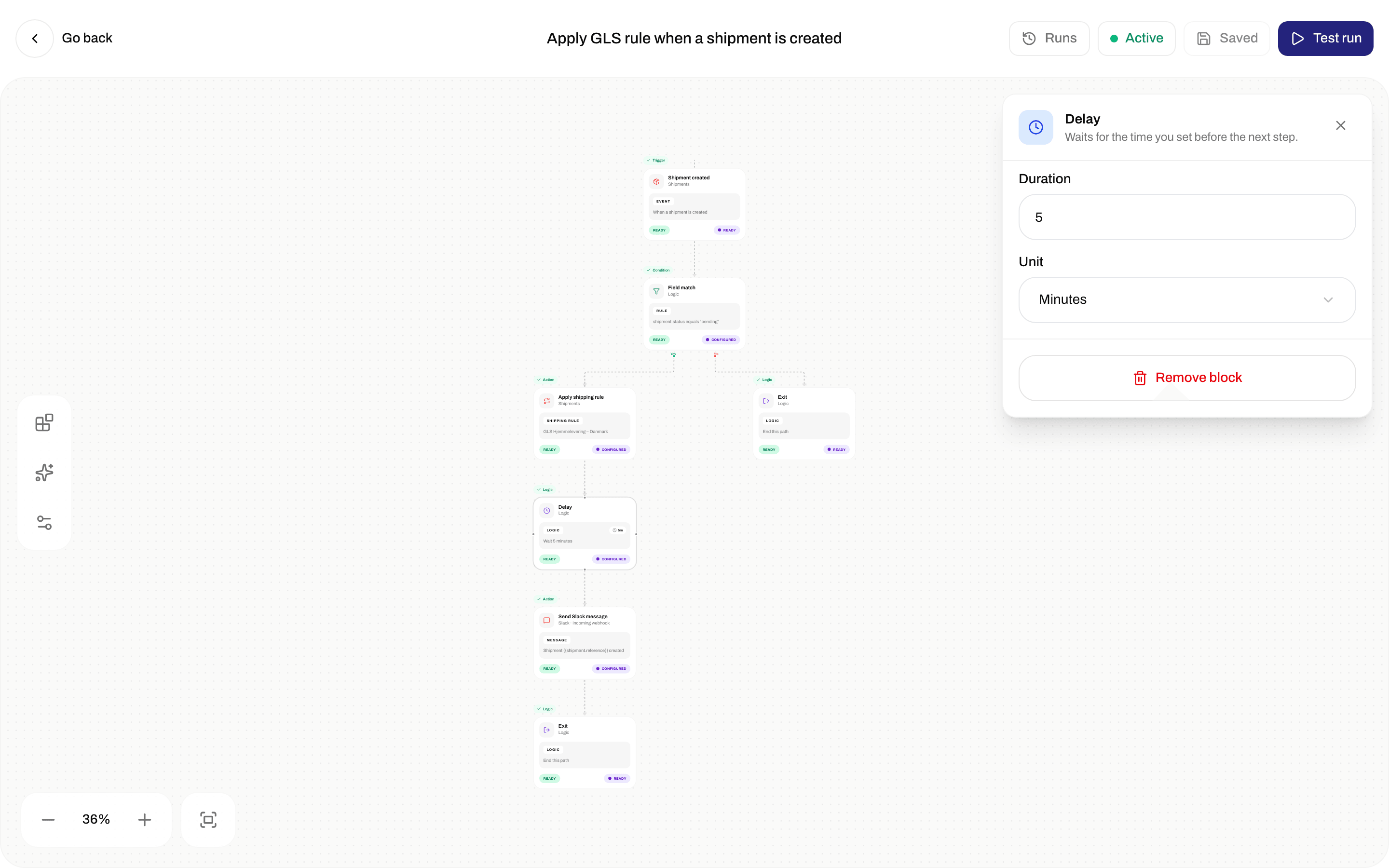
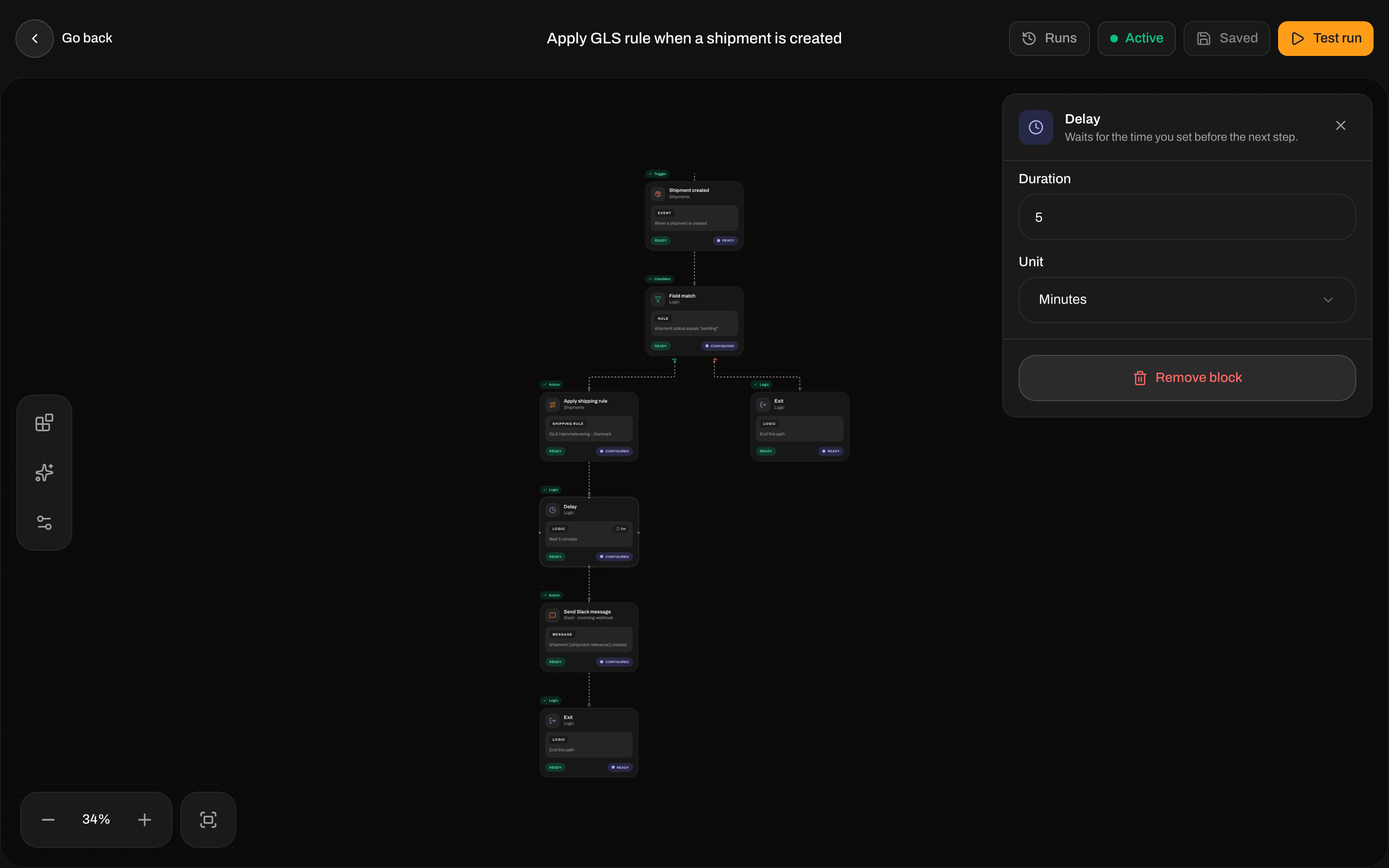
Palette: DelayWait for a specified duration before continuing. The run status becomes waiting until the delay elapses, then continues.
Delay inspector with Duration 5 and Unit MinutesDelay inspector with Duration 5 and Unit Minutes

Delay — Duration and Unit

Exit

Palette: ExitEnds the workflow when this path is reached. No outgoing connector. Inspector: When execution reaches this node, the workflow path completes successfully. Connect all branches to an Exit before saving. At least one reachable Exit is required to save.

Actions

Send Slack Message

Palette: Send Slack MessageSends a message to a Slack channel via webhook. Category Integrations. Canvas label: Send Slack message / Slack · incoming webhook. This is an incoming-webhook URL, not a connected Slack integration (that node is Send Slack Notification).
Send Slack message inspector with Slack webhook URL and Message templateSend Slack message inspector with Slack webhook URL and Message template

Send Slack Message — Slack webhook URL and Message

Send Webhook

Palette: Send WebhookSends an HTTP request to an external URL. There is no inspector control for HTTP headers.

Update Shipment Reference

Palette: Update Shipment ReferenceUpdates the reference field on a shipment.

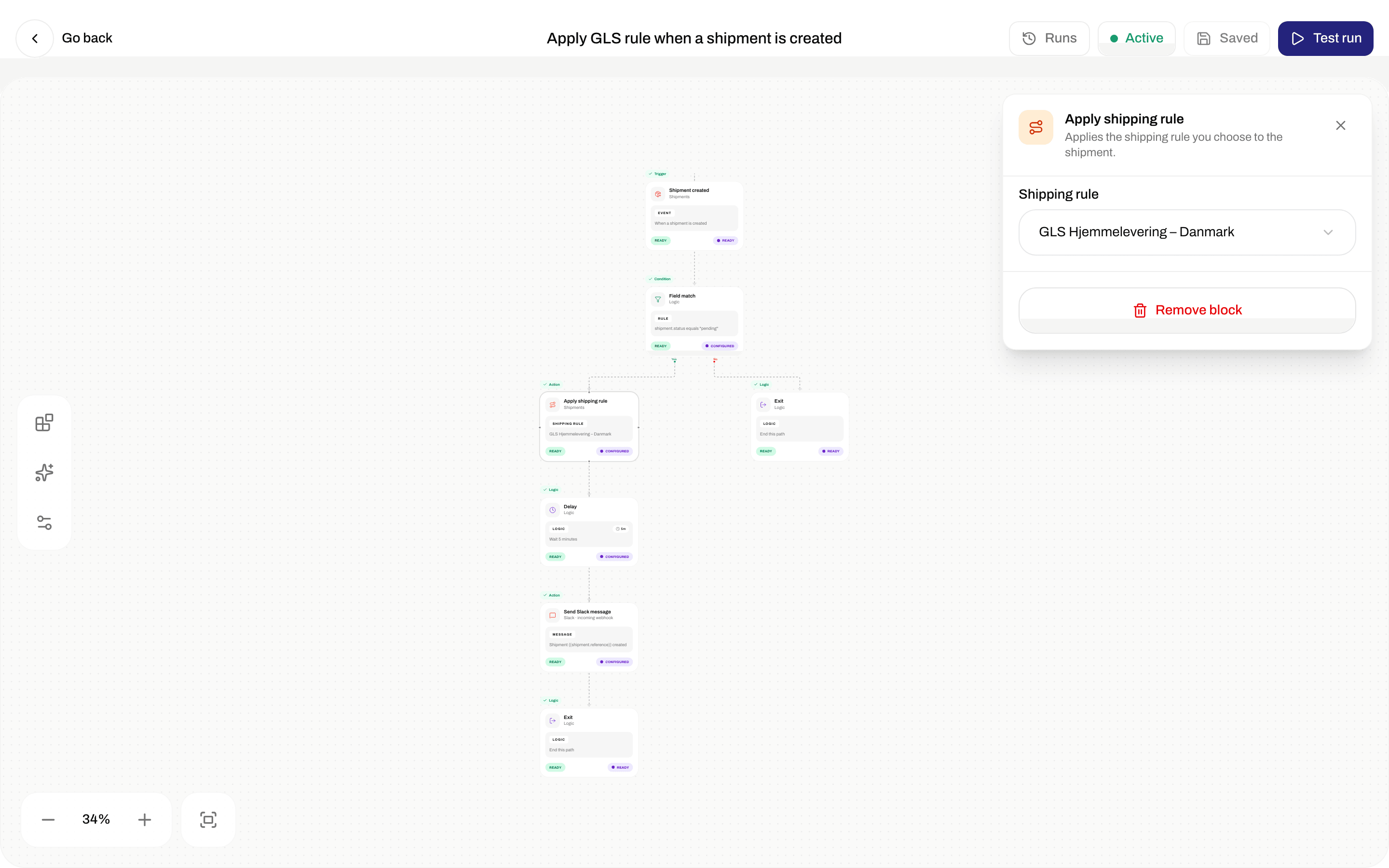
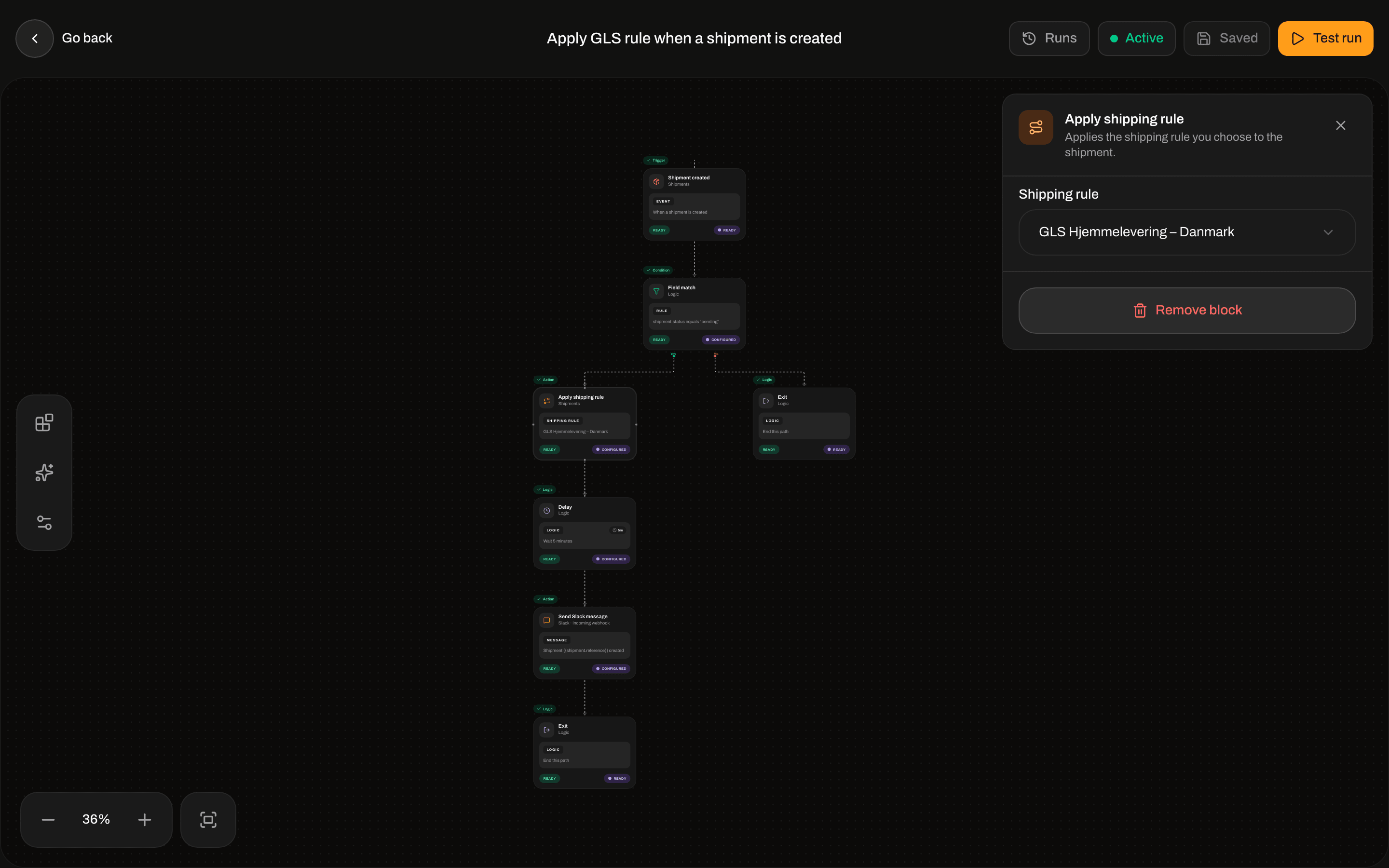
Apply Shipping Rule

Palette: Apply Shipping RuleApplies a shipping rule to the shipment. Sets shippingRuleId on the shipment. It does not re-run checkout condition matching. Same apply as the order/shipment Configure modal — Apply a shipping rule. Field list for the rule itself: Shipping rule fields.
Apply Shipping Rule inspector with Shipping rule dropdownApply Shipping Rule inspector with Shipping rule dropdown

Apply Shipping Rule — select a rule from the organization

Dispatch Shipment

Palette: Dispatch ShipmentDispatches the shipment for delivery. No fields. Inspector: that description plus No additional configuration needed. Worker: pending or on-hold → dispatched. Already dispatched is a no-op. Other statuses fail. Related: Send a shipment.

Cancel Shipment

Palette: Cancel ShipmentCancels the shipment. No fields. Worker sets status to cancelled. This does not emit shipment.cancelled (that event is delete-of-pending). Related: Hold, cancel, or delete a shipment.

Set Shipment On Hold

Palette: Set Shipment On HoldPlaces the shipment on hold. No fields. Worker: pending → on_hold. Already on hold is a no-op. Other statuses fail.

Assign Carrier

Palette: Assign CarrierAssigns a carrier to the shipment. Writes carrierId into the shipment’s carrierSettings JSON. It does not pick a product, services, or additional parameters. Prefer Apply Shipping Rule when you need a full setup. Palette: Print Shipping LabelPrints the shipping label for the shipment. Category Printing.
Stub. The node is in the palette and inspector. Execution logs the print and returns. It does not enqueue a printer job. For print-on-send, use Auto-print on the shipping rule.
Palette: Print DocumentPrints a document for the shipment.
Stub. Same as print-label: the node configures, execution does not send a print job.

Create Return Shipment

Palette: Create Return ShipmentCreates a return shipment. Dropdown lists inbound rules only. Queues a return with that inbound rule. Related: Inbound and returns, Returns.

Create Shipment from Order

Palette: Create Shipment from OrderCreates a new shipment from the order. Use on an Order Created / Order Updated path (needs orderId / order.id). Creates a pending outbound shipment (parties from sender address + order shipping address). It does not send the shipment.

Integration actions

These use a connected integration from Integrations. Connect first: Connect Slack, Klaviyo, and other apps. Dropdown lists active connections for that provider. Empty: No items available. Shared inspector: The event name sent to the provider is derived from the automation trigger (shipment.created, …) unless you override it on Klaviyo / Customer.io / Mailchimp.

Runs

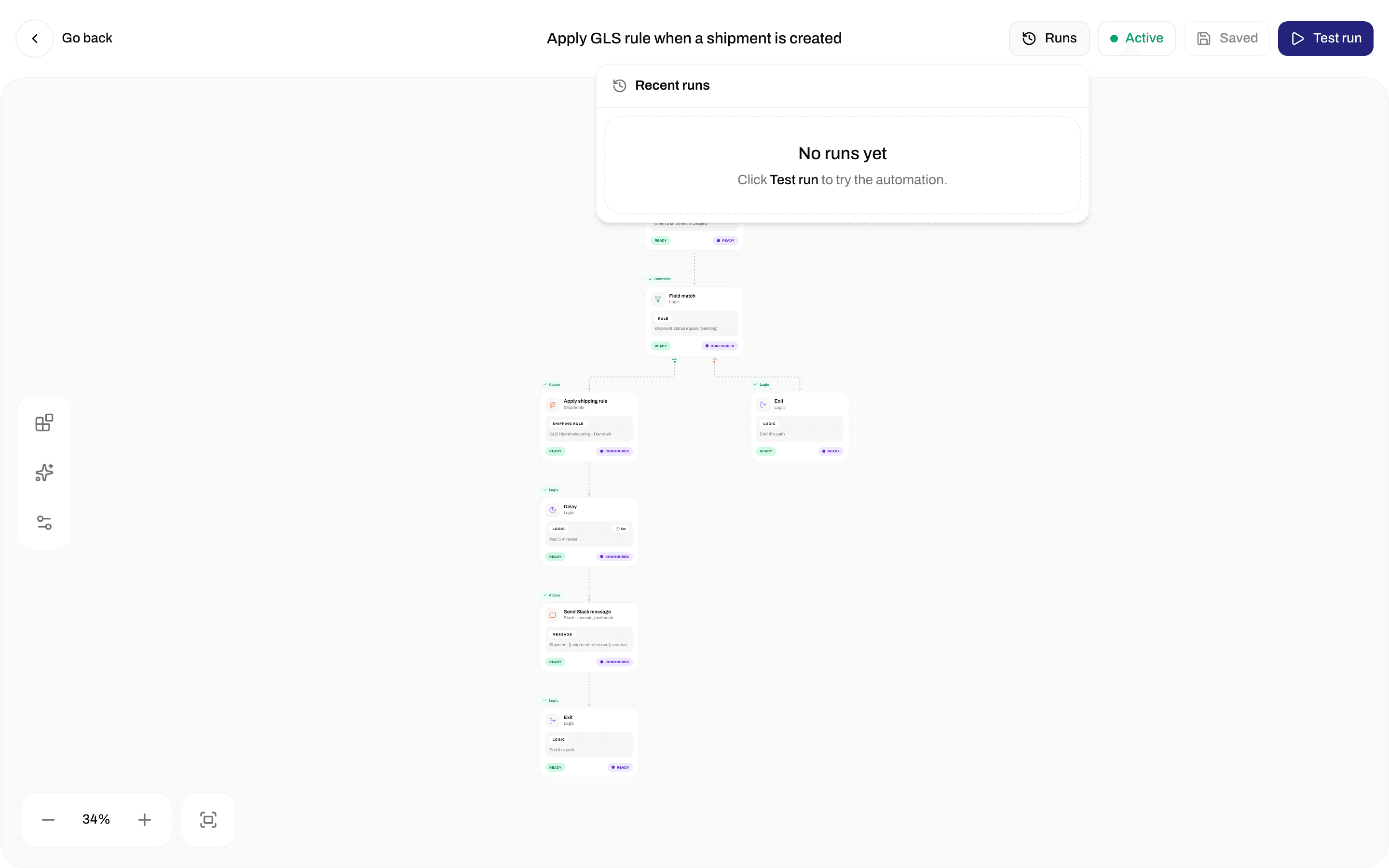
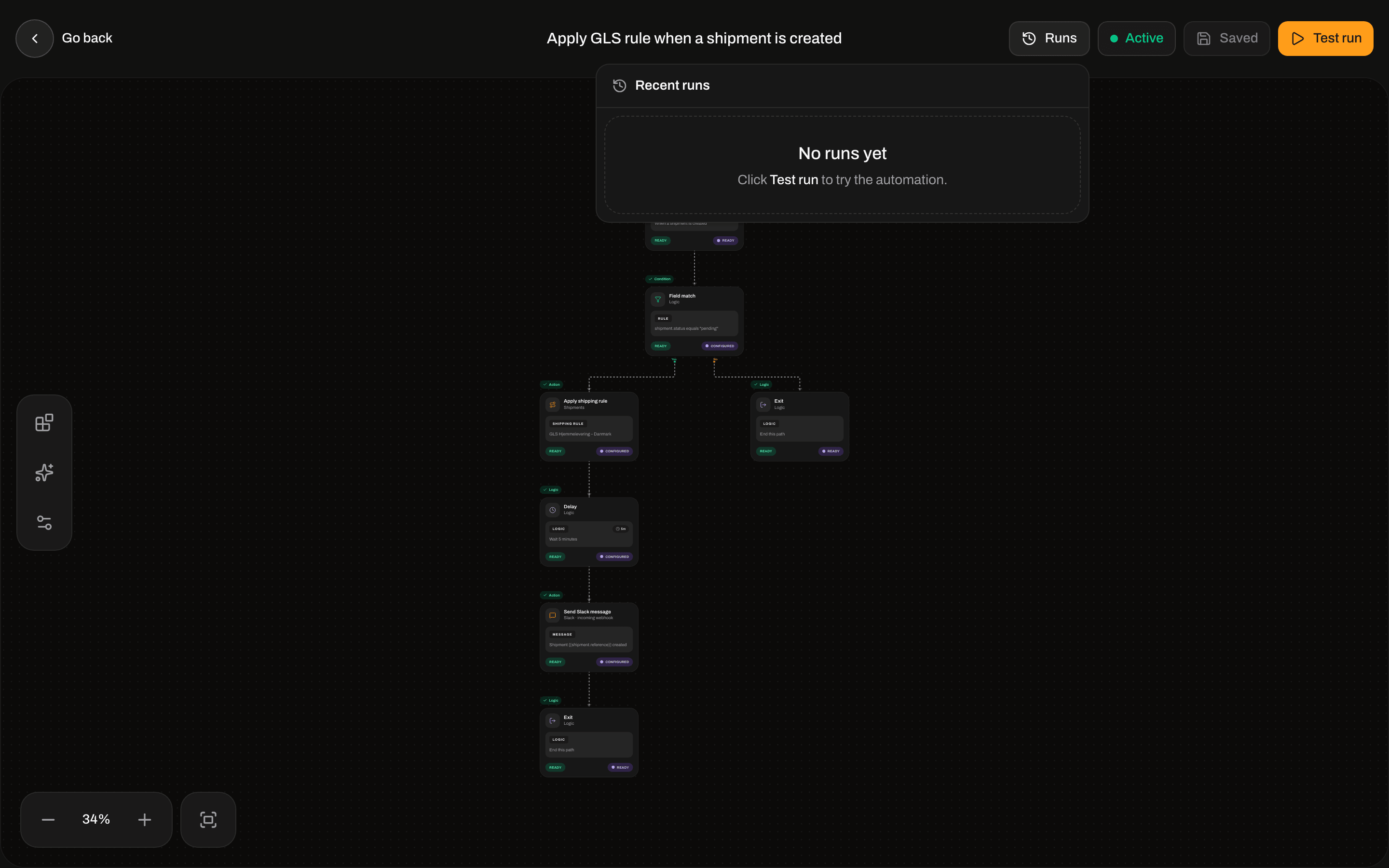
Runs in the top bar. Header Recent runs. Empty: No runs yet / Click Test run to simulate an execution. (The builder button is Execute workflow.)
Recent runs popover showing No runs yet and a hint to click Test runRecent runs popover showing No runs yet and a hint to click Test run

Runs popover — empty state until you execute

A Test run / Execute workflow enqueues automations.execute with event: manual.test and {} as the payload. Shipment/order actions that need an id will fail on that empty payload. When a run exists, the row shows trigger event, relative time, N step(s), and duration. Expand for node logs. Node log statuses: success, failed, skipped. Run statuses the list styles: Running, Success, Failed. A delay puts the run in waiting until it resumes.

Errors the UI surfaces