

Choose where you are coming from
The Setups tab shows one card per platform you can import from:Moving from another shipping platform? Pick where you’re coming from, and we’ll read your account and set it up again here. You review everything before anything is saved.The Webshipper card says Bring your Webshipper carriers, shipping rules, addresses, order channels and webhooks across in one pass. and lists what can be imported: Addresses, Carriers, Shipping rules, Order channels, Webhooks and Team invitations. Click Import now. The import opens on its own page with three steps: Connect, Choose what to import and Import. To leave at any time, click the × in the top-right corner. You return to the Setups tab. If you see No import sources are available right now. Try again later., reload the page in a moment.
Step 1: Connect
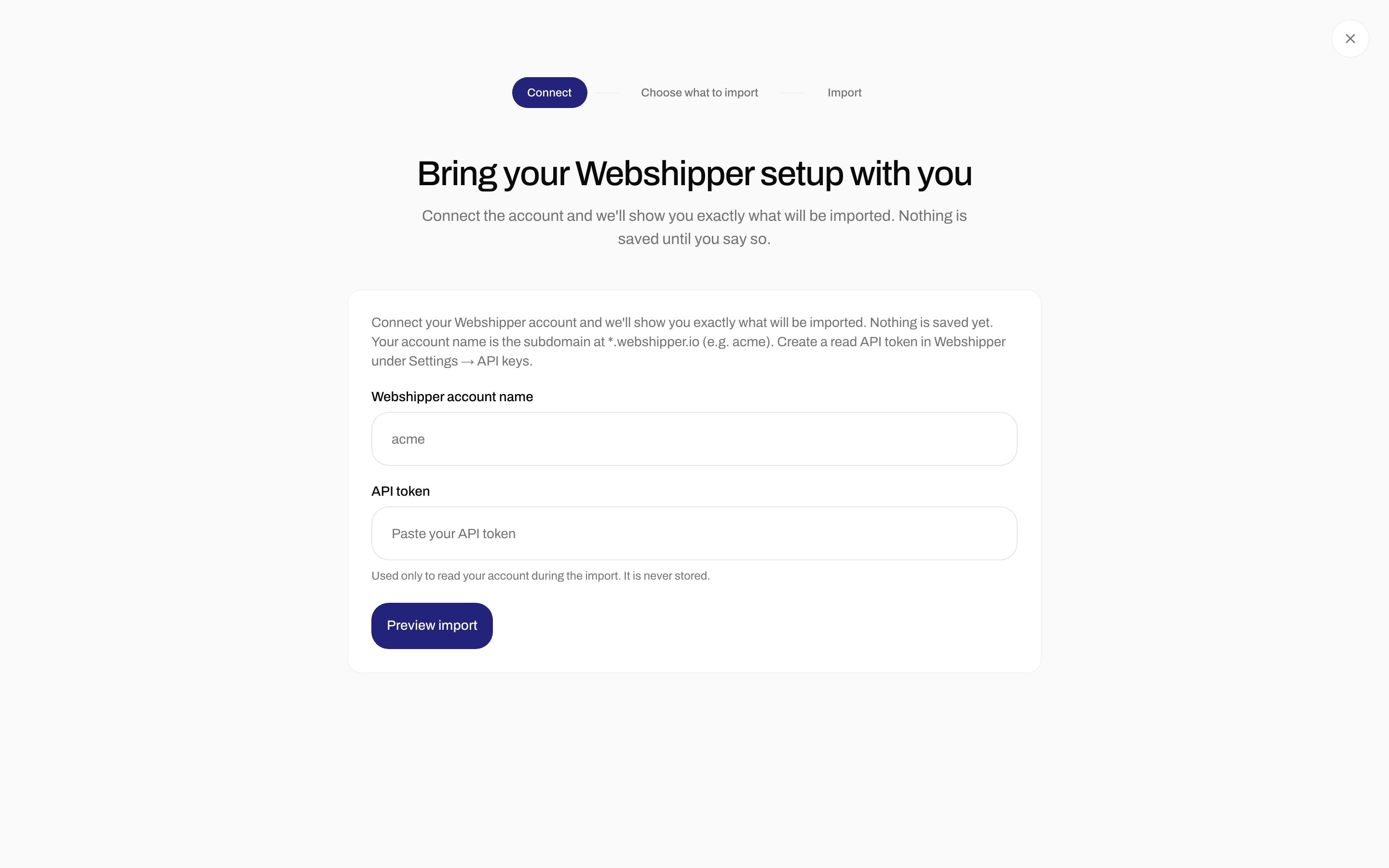
Connect - your Webshipper account name and API token
Connect your Webshipper account and we’ll show you exactly what will be imported. Nothing is saved yet. Your account name is the subdomain at *.webshipper.io (e.g. acme). Create a read API token in Webshipper under Settings → API keys.
Click Preview import. Zippendo reads your Webshipper account and shows what it found.
Step 2: Choose what to import
Check what we’ll import, enter your carrier credentials so your carriers work straight away, and confirm the products and prices the AI suggests.
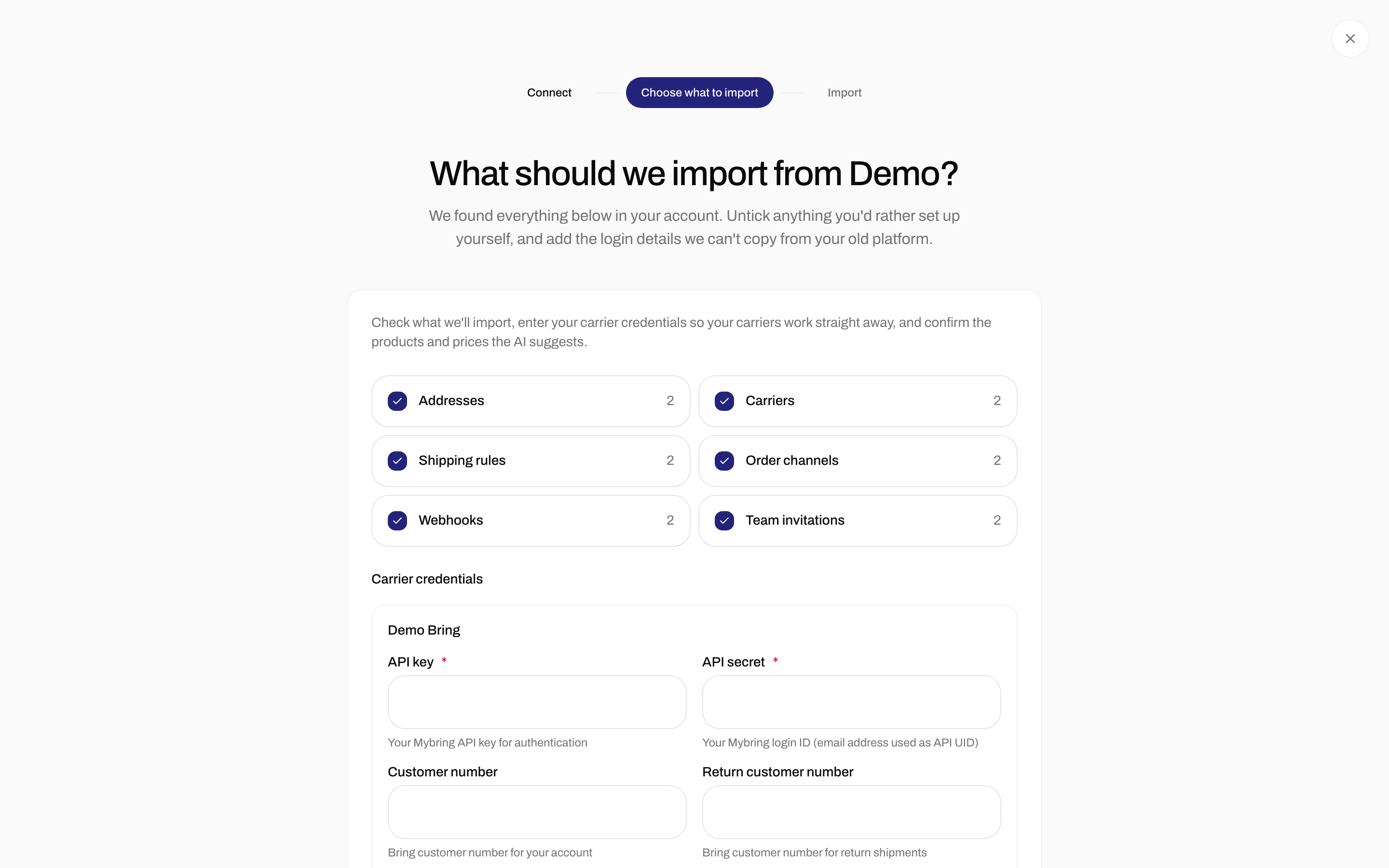
Choose what to import - the groups to import and carrier credentials
Carrier credentials
When Carriers is ticked, Carrier credentials shows a box for each carrier that needs login details, with the same fields you fill in when you connect that carrier yourself (see Carrier credentials). Fields marked * are required. Fill them in so the carrier works as soon as the import is done. If you leave them empty, the carrier may be skipped with The carrier credentials were missing or wrong, so the carrier was not connected, and you can connect it yourself afterwards.Order channel login details
When Order channels is ticked and a channel needs keys (usually WooCommerce), Order channel login details shows the fields to fill in. Shopify channels are reconnected after the import, see Step 3 below.Shipping rules
While Zippendo matches your Webshipper rates to Zippendo products, you see Matching products and translating pricing…. Then each shipping rule gets a box:Items that cannot be imported
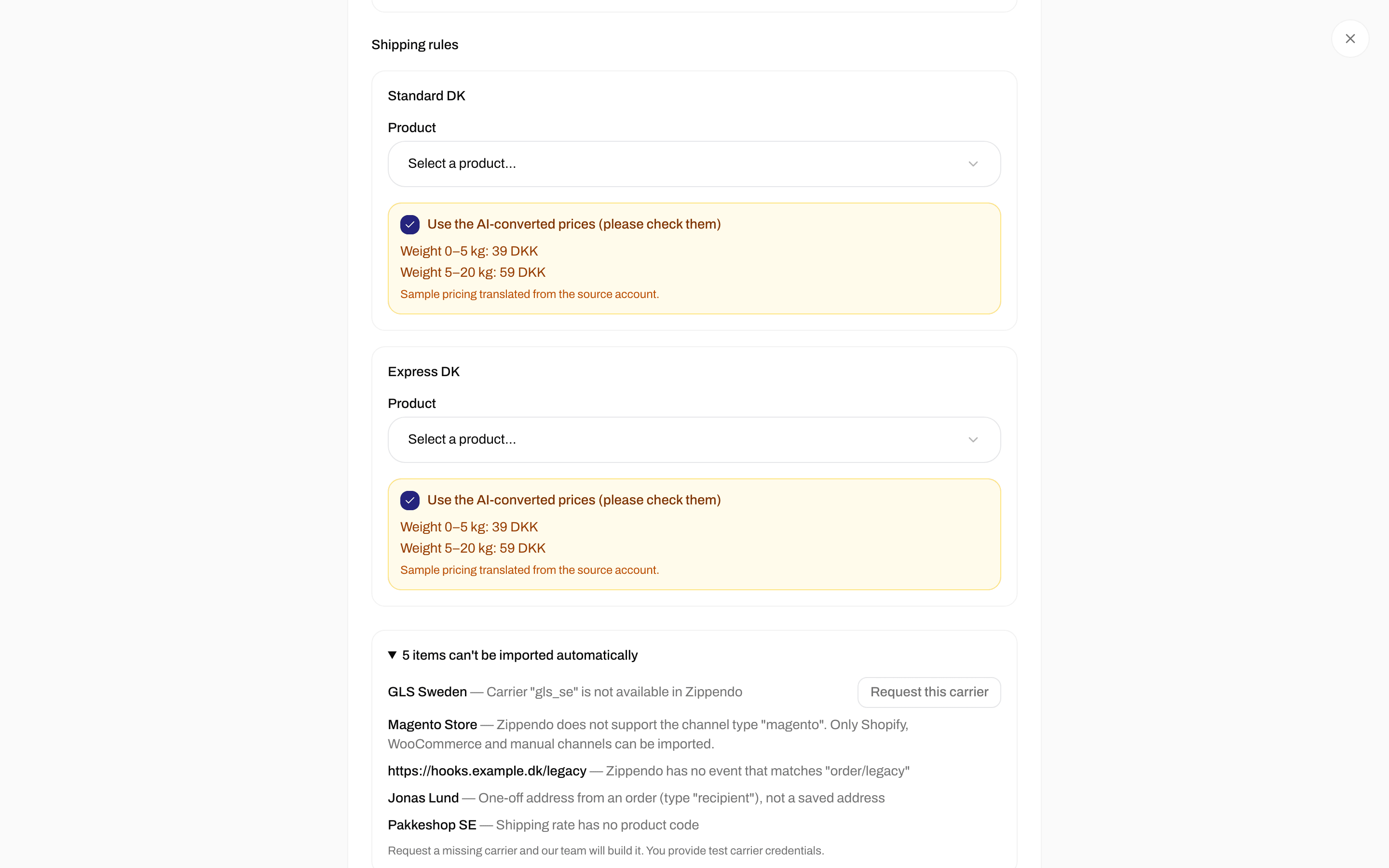
Skipped items, with Request this carrier for a carrier Zippendo does not support yet
Request a missing carrier
Next to a carrier Zippendo does not support yet, click Request this carrier. Request a missing carrier and our team will build it. You provide test carrier credentials.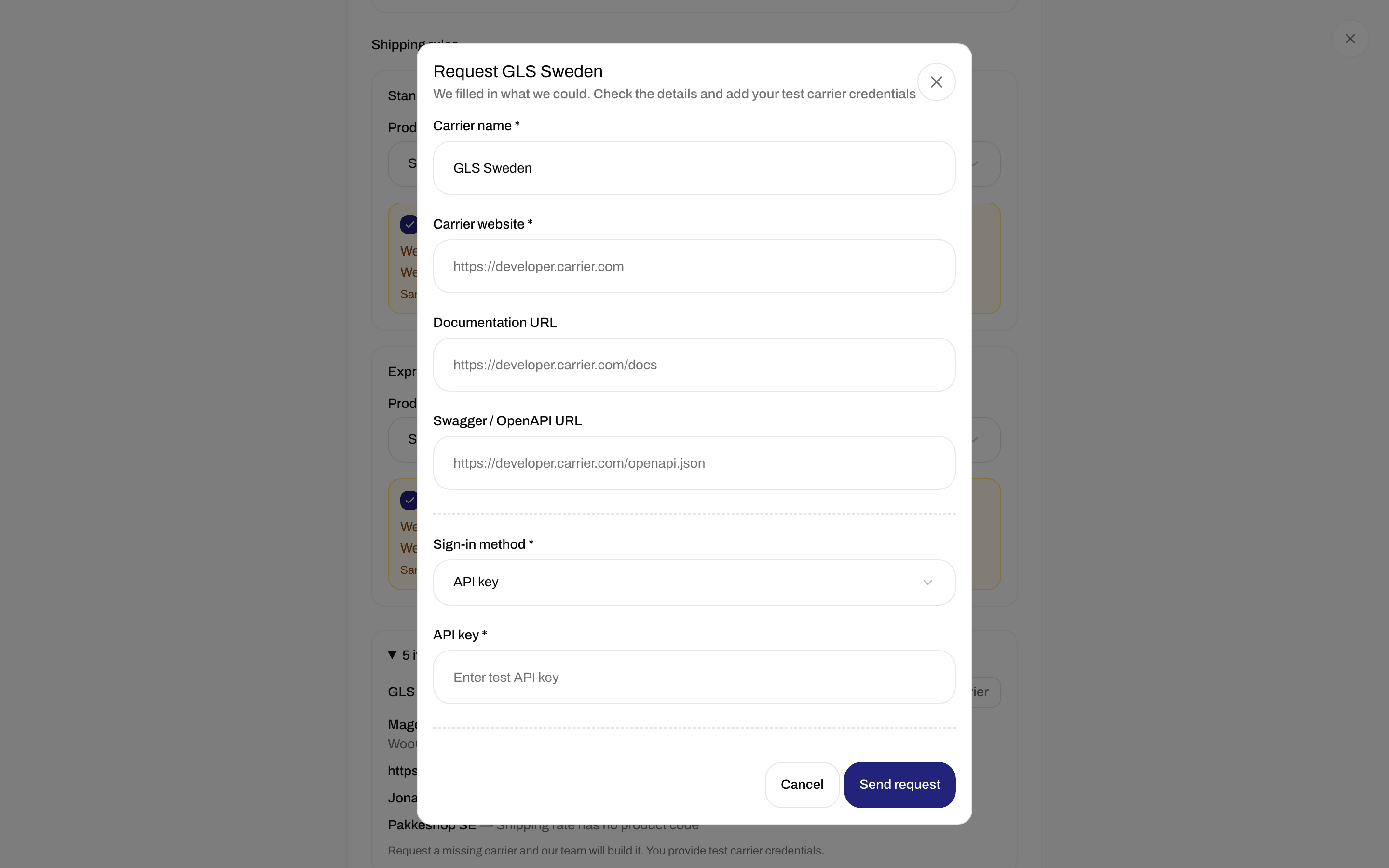
Request a carrier from the skipped list
Start the import
Click Start import. The button can be clicked once product matching is done. Back returns to Connect and clears what was found.Step 3: Import
This runs in the background. You can leave this page and come back to it. While it runs, you see Importing your setup… You can safely leave this page. When it is done, you see Import complete and how many items were created: Addresses, Carriers, Shipping rules, Order channels, Channel mappings, Webhooks and Team invitations. If something is left for you to do, Finish setting up lists it:
If there is nothing left, you see Nothing left to do. You’re all set.
Click Go to settings to open Settings → Organization, or Import another account to start again.
If you see The import failed, click Try again to go back to Connect.