Set up Zippendo as the label provider for your PeakWMS warehouse, step by step with screenshots, from the first click in Zippendo to the first label printed at the packing table.
When your warehouse runs PeakWMS, your packers never have to open Zippendo. They pack a parcel in PeakWMS, PeakWMS asks Zippendo for the label, and the label comes out of the printer at the packing table. Zippendo sends the shipment to the carrier, follows the tracking and shows the shipment under Shipments like any other.This tutorial walks through the setup with screenshots. The reference page PeakWMS explains every PeakWMS setting and what to do when something goes wrong.
Nothing is installed in PeakWMS. You create a connection in Zippendo, copy an API token and a few web addresses into PeakWMS, and tell PeakWMS which carrier product each shipping method uses. It takes about twenty minutes, once.
In the sidebar, click Apps & integrations, then the Catalog tab. Under Integrations you find the systems that connect to Zippendo and ask it to do something. PeakWMS is one of them, with a Connect button. Read more on the card opens PeakWMS’s own help pages.
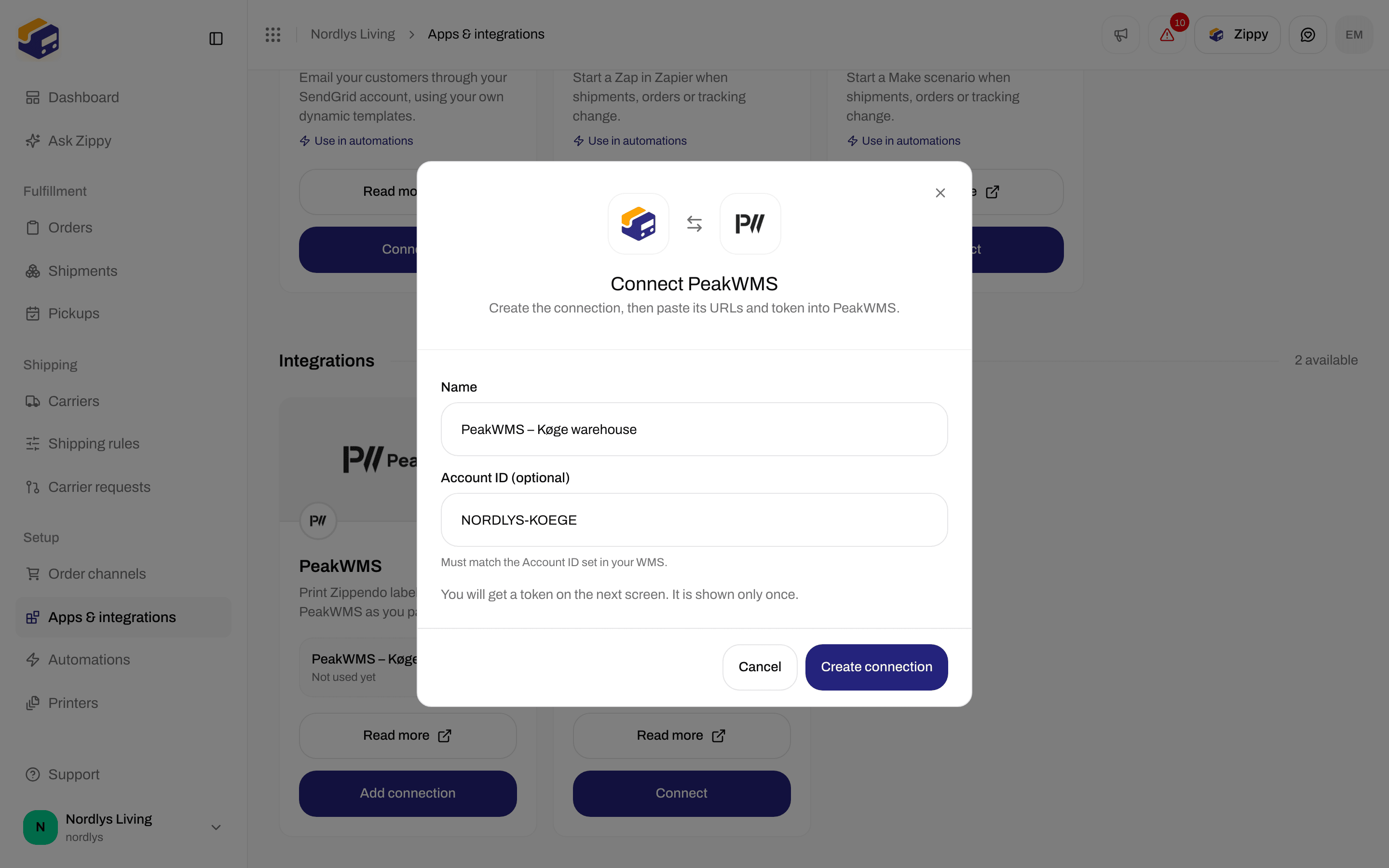
The Connect PeakWMS window asks for a Name and an Account ID (optional).
2
Name the connection after the warehouse
Something like “PeakWMS Køge warehouse”. If you run several warehouses, make one connection per warehouse and name each after its site, so you can tell later which one had a problem.
3
Account ID (optional)
If you plan to fill in an Account ID in PeakWMS, type the same value here. It is a safety net: when the two do not match, Zippendo refuses the request, so a forwarder set up with another warehouse’s web addresses cannot print labels on the wrong connection. You can leave it empty.
The Connect PeakWMS window
4
Pick a brand (only with brands)
If your organization uses brands, the window also asks for the Brand this warehouse ships for.
5
Click Create connection
You see WMS connection created, and the new connection’s page opens.
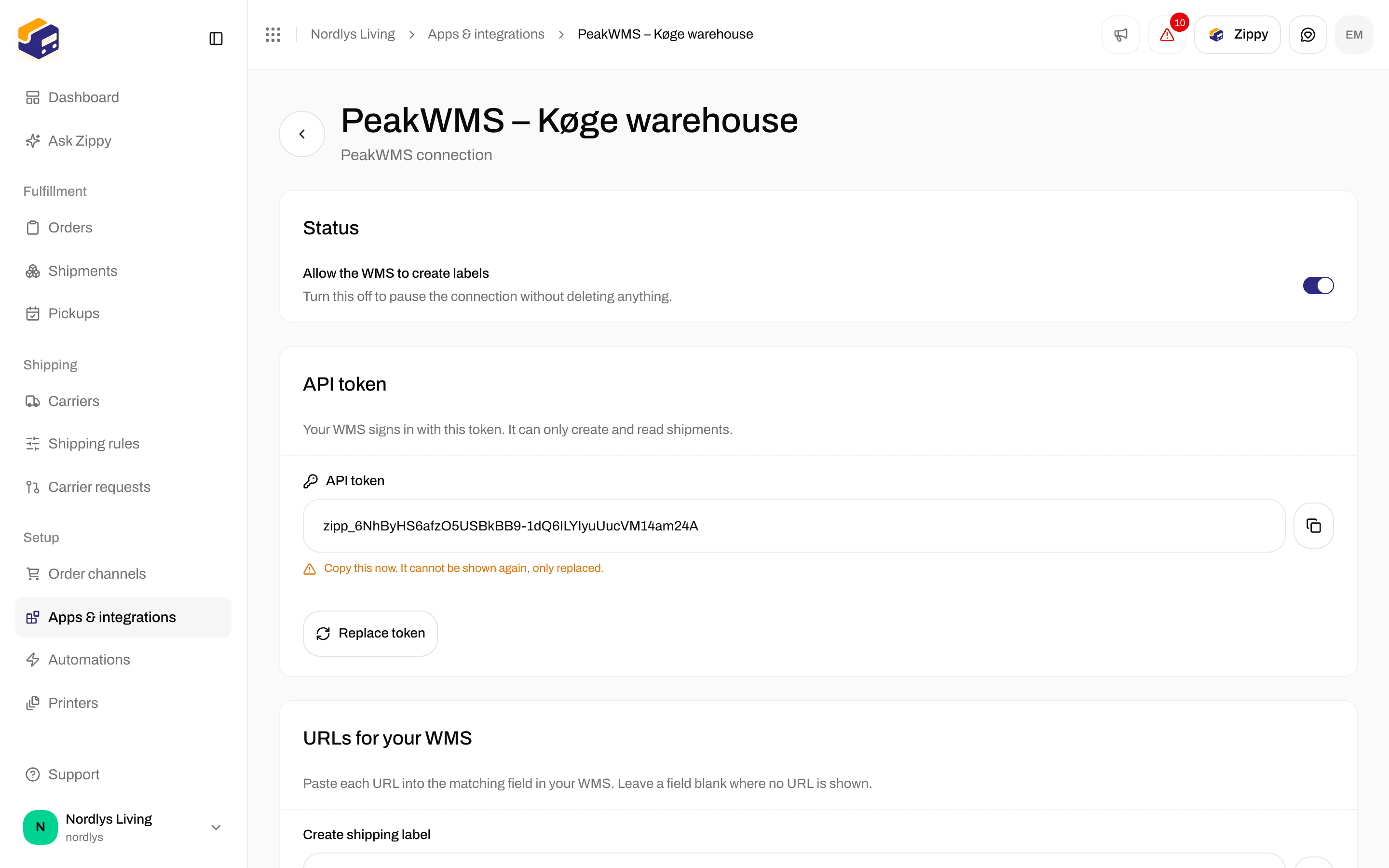
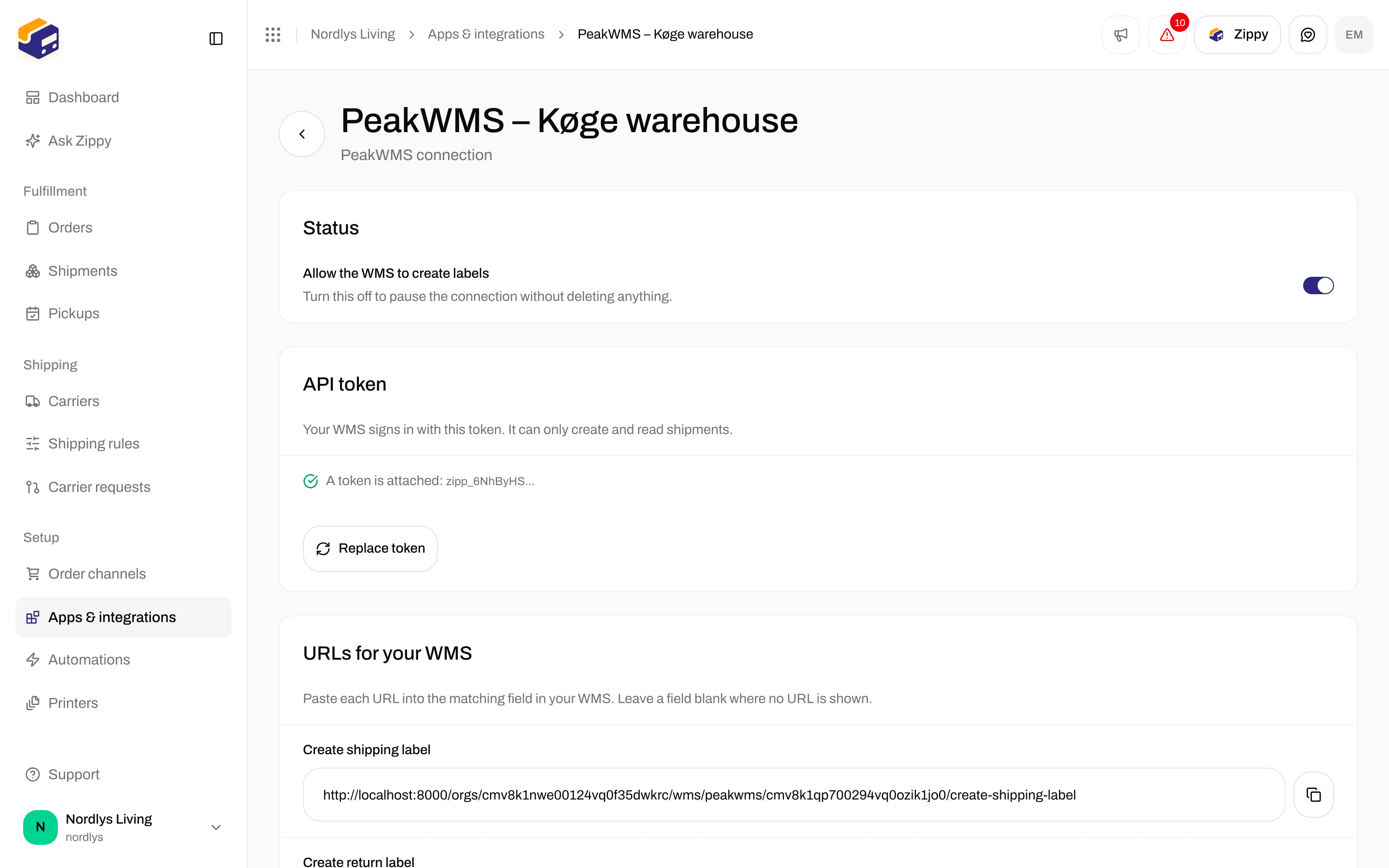
The connection’s page shows the API token exactly once, right after you create the connection. Click the copy button next to it now, and keep the token somewhere safe until you have put it into PeakWMS.
The API token is shown once, with a copy button
If you leave the page without copying, the token cannot be shown again. Click Replace token to get a new one. The old one stops working the moment you do, so PeakWMS needs the new token before your packers can print again.
The API token only lets PeakWMS create and read shipments. It cannot see your carrier accounts, addresses, orders or billing.
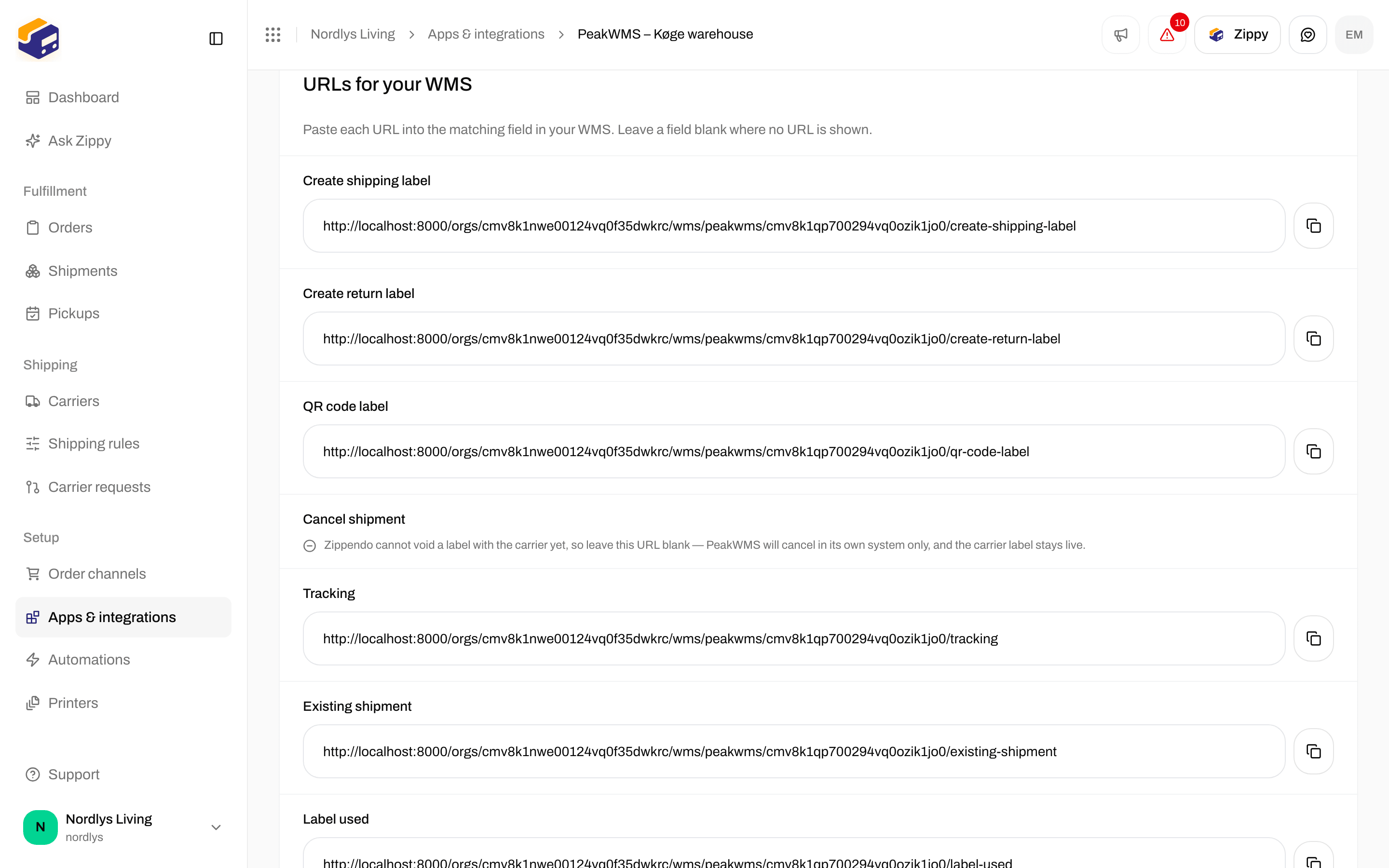
Below the token, URLs for your WMS lists one web address for each thing PeakWMS can ask Zippendo to do. Each has its own copy button.
URLs for your WMS with a copy button next to each address
Now switch to PeakWMS. Everything in this step happens there, on a new forwarder:
1
Create a forwarder
In PeakWMS, add a new Forwarder and set Provider to Generic: the kind of forwarder that sends requests to web addresses you fill in. If you cannot find the screen, PeakWMS’s own help center walks through it. The setup is the same whichever shipping company you use.
2
Paste the web addresses
Copy each address from Zippendo into the PeakWMS field with the same name: Create shipping label (required), Tracking (recommended), and the optional ones you want, such as Create return label, QR code label, Existing shipment and Label used. Leave Cancel shipment empty. Zippendo shows “Not supported. Leave this field blank.” there, because it cannot cancel a label with the carrier.
3
Fill in the sign-in fields
API key is the API token you copied in step 3. Auth scheme is Bearer, which is simply how PeakWMS hands the token over. Account ID is the value you typed in Zippendo in step 2, if you used one.
The full table of forwarder fields, including which ones are optional, is on the PeakWMS page under “Put them into PeakWMS”.
5. Set the Host ID on each shipping method in PeakWMS
In PeakWMS, every shipping method has a Host ID. That is how PeakWMS tells Zippendo which carrier, carrier product and shipping rule to use when a parcel is packed. You set it in PeakWMS, on the shipping method itself, not in Zippendo.
1
Copy the Host ID from Zippendo
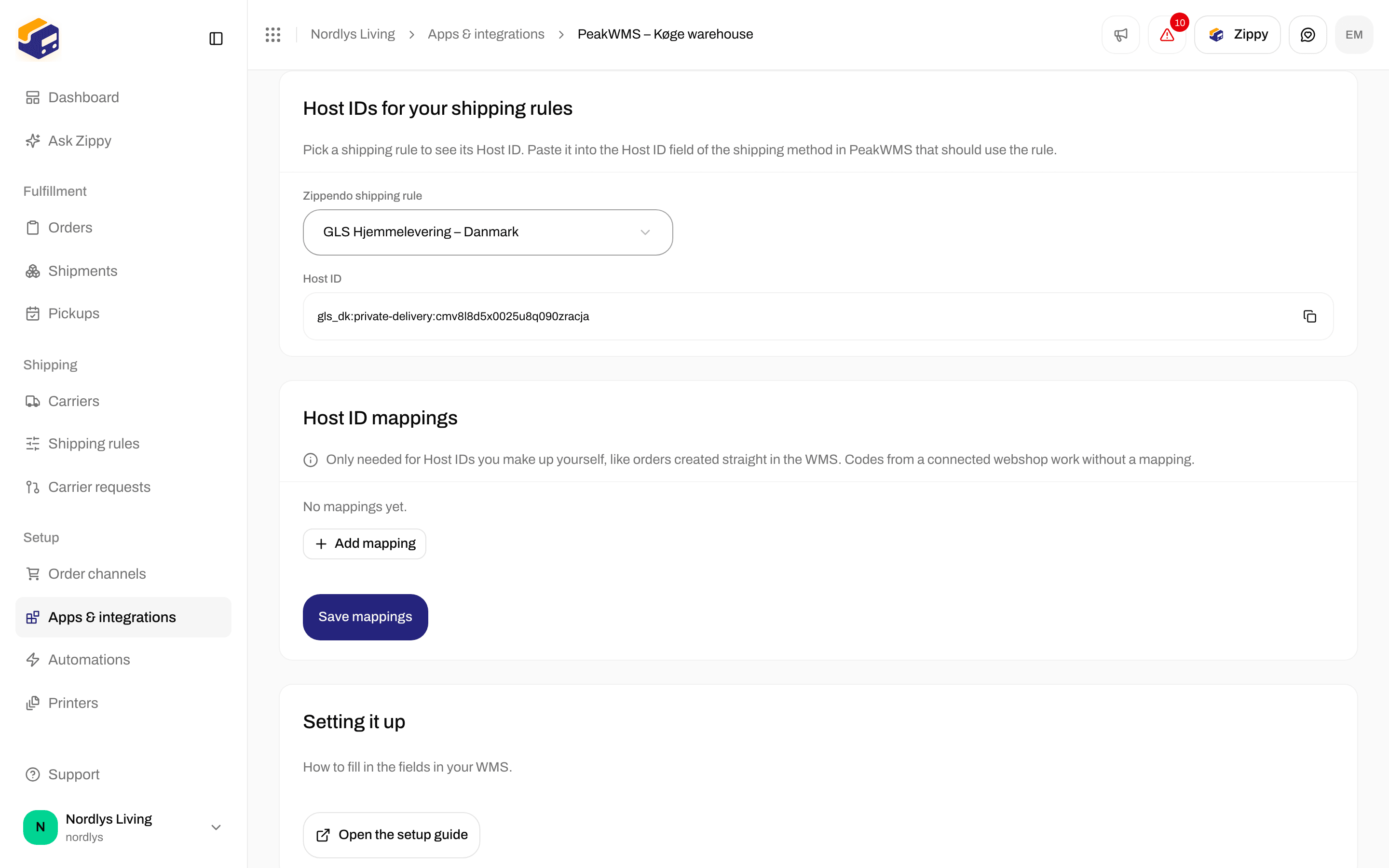
On the connection’s page in Zippendo, go to Host IDs for your shipping rules. Under Zippendo shipping rule, pick the rule the shipping method should use, then click the copy button next to its Host ID.
Host IDs for your shipping rules: pick a rule and copy its Host ID
2
Paste it as the Host ID in PeakWMS
Open the matching shipping method in PeakWMS and paste the code into its Host ID field. Repeat for each shipping method your webshop offers. A rule for service points needs only this one Host ID, whichever service point your customer picks. There is nothing more to set up in Zippendo.
Changing a rule’s carrier or carrier product changes its Host ID. Zippendo shows the new one in the rule’s editor before you save. Paste it into PeakWMS afterwards, or PeakWMS stops recognizing orders that use the rule.
If a Host ID never matches, or the wrong carrier keeps being used, another app on your webshop may be filling an order field called peak_shipping_code, often a shipping app you used before. Whoever looks after your webshop can turn that app off and empty the field. If you use the service point picker in checkout, Zippendo fills this field too: turn off only the other app.
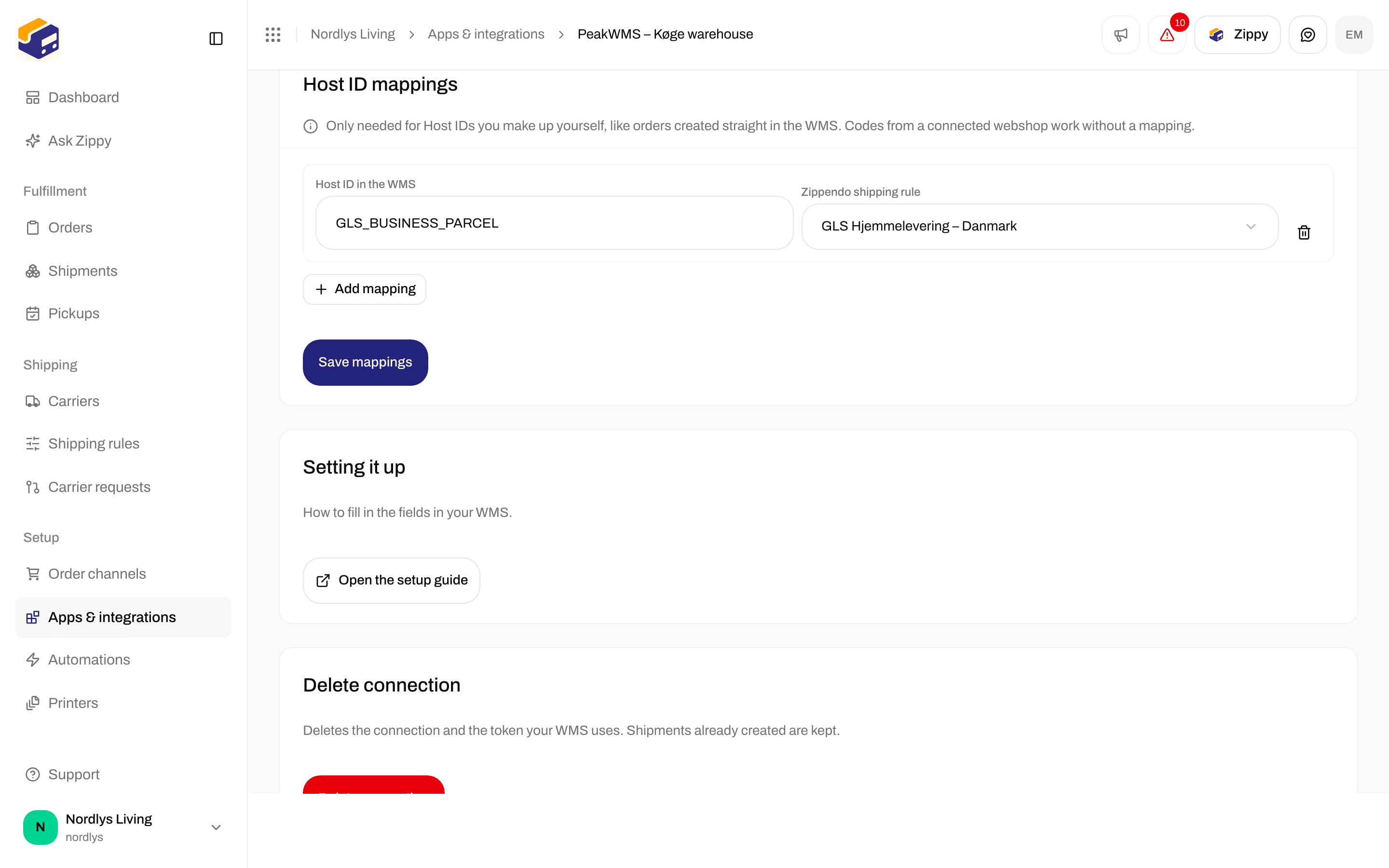
You only need to do anything in Zippendo when the Host ID is a code of your own rather than the one from a webshop order. That is the case when orders are typed straight into PeakWMS, or when you prefer codes like GLS_BUSINESS_PARCEL.In Zippendo, open the connection and go to Host ID mappings. Click Add mapping, type your code under Host ID in the WMS and pick the rule it should use under Zippendo shipping rule. Click Save mappings when the rows are complete. A row without a shipping rule cannot be saved.
A Host ID mapping: GLS_BUSINESS_PARCEL points at a GLS shipping rule for home delivery
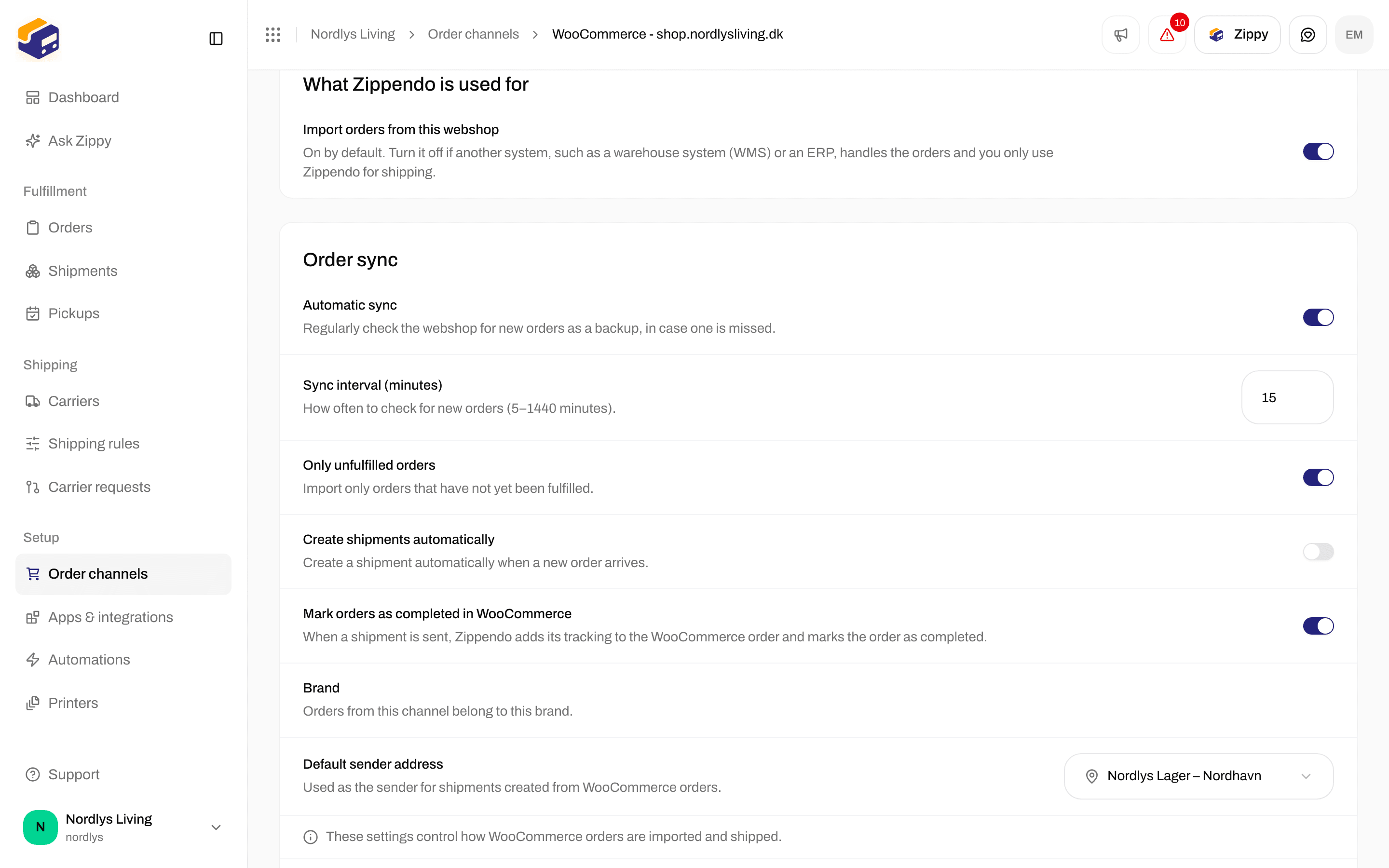
PeakWMS now owns the orders. If Zippendo kept importing them too, both systems would create shipments for the same order, and you would pay for two labels. Open Order channels, open the webshop, and under What Zippendo is used for turn off Import orders from this webshop.
Turn off order import on the webshop PeakWMS handles
Shipping prices and service point selection at checkout keep working exactly as before. Only the order import stops, and Zippendo no longer marks orders as shipped in your webshop, since PeakWMS does that now.
Pack one order in your PeakWMS test environment and check three things: the label prints and shows the carrier you expected, the parcel appears under Shipments in Zippendo, and tracking shows up on the order in PeakWMS. Then switch the addresses in PeakWMS to your live setup.Back in Zippendo, the Connected tab under Apps & integrations shows your PeakWMS connection with when PeakWMS last asked for something, or “Not used yet”. When a request failed, it shows the message your packer saw.
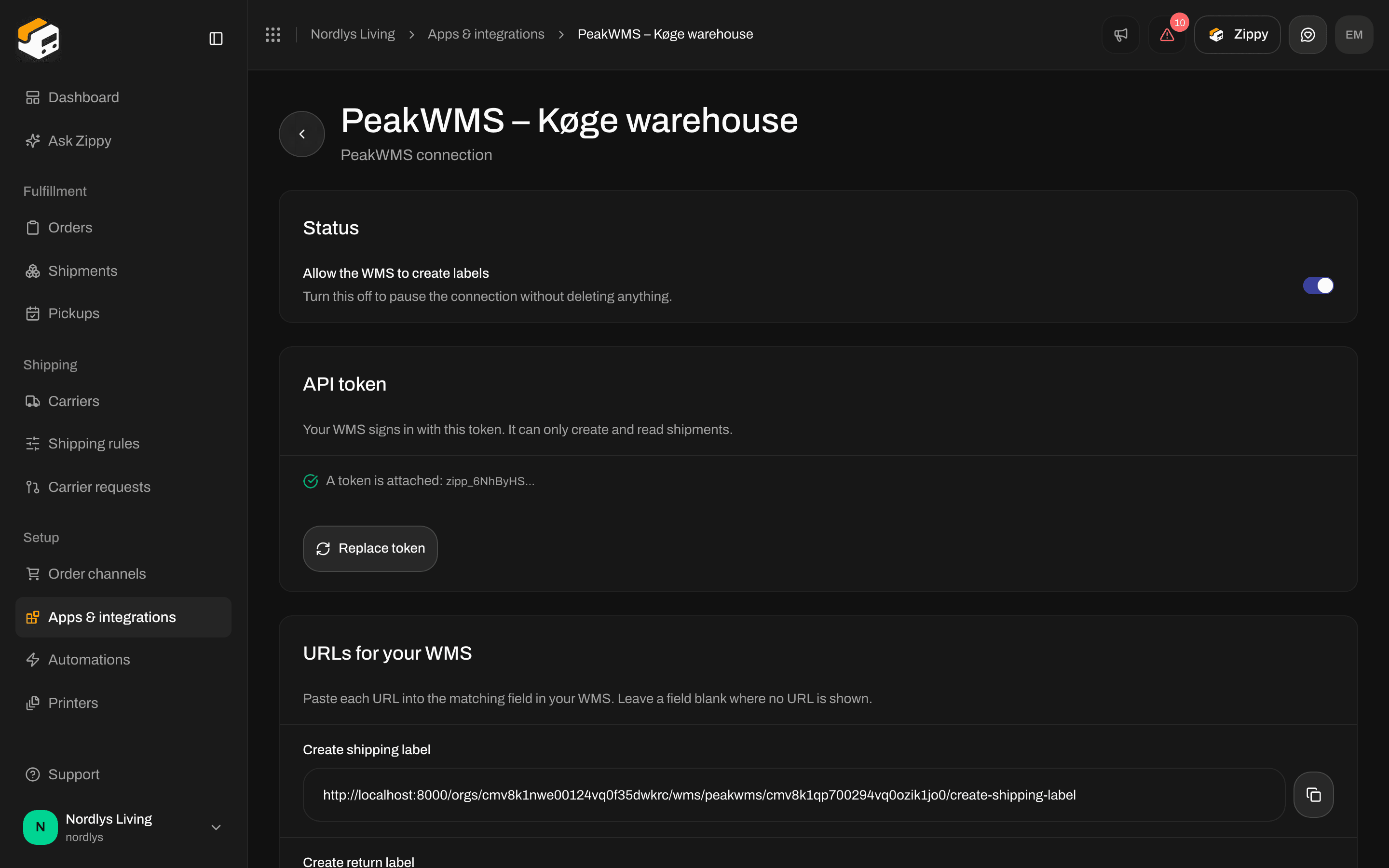
Open the connection by clicking its row on the PeakWMS card. Turn off Allow the WMS to create labels to stop PeakWMS creating labels without deleting anything, and turn it back on when you are ready. Delete connection at the bottom removes the connection and its API token for good. Shipments that were already created stay where they are.
Allow the WMS to create labels is the switch for pausing a connection
A packer who packs the same order twice does not get two labels. Zippendo hands back the label it already made.
Return labels work the same way. The address the parcel comes back to is always the sender address on your shipping rule, so the label is right even if PeakWMS has a different address on file.
Dangerous goods are refused rather than shipped without the papers they need. Send those through a different forwarder in PeakWMS.
{"docsConfig":{"theme":"almond","$schema":"https://mintlify.com/docs.json","name":"Zippendo","colors":{"primary":"#000","light":"#fff","dark":"#000"},"logo":{"light":"https://mintcdn.com/zippendo/vvJk_PyssTmjqf9_/logo/light.svg?fit=max\u0026auto=format\u0026n=vvJk_PyssTmjqf9_\u0026q=85\u0026s=9fc741a418a93f2d556d0b9b613050e8","dark":"https://mintcdn.com/zippendo/vvJk_PyssTmjqf9_/logo/dark.svg?fit=max\u0026auto=format\u0026n=vvJk_PyssTmjqf9_\u0026q=85\u0026s=230c49f3bcdc109cf7306f3a3fb81bc2","href":"https://www.zippendo.com"},"favicon":"https://mintcdn.com/zippendo/vvJk_PyssTmjqf9_/favicon-dark.svg?fit=max\u0026auto=format\u0026n=vvJk_PyssTmjqf9_\u0026q=85\u0026s=3bd5c187f9c99f9ca518062f6a7b2e18","api":{"openapi":"https://api.zippendo.com/public/json","playground":{"display":"interactive"},"mdx":{"server":"https://api.zippendo.com"}},"navbar":{"links":[{"href":"https://app.zippendo.com/login","label":"Sign in"}],"primary":{"type":"button","label":"Get started","href":"https://app.zippendo.com/sign-up"}},"footer":{"socials":{"website":"https://www.zippendo.com"}},"seo":{"metatags":{"og:site_name":"Zippendo","og:type":"website","twitter:card":"summary_large_image"}},"fonts":{"family":"Inter"},"icons":{"library":"lucide"},"errors":{"404":{"redirect":false,"title":"404: Lost in Documentation Space","description":"Looks like this page took a wrong turn. Try the sidebar or head back to the introduction."}},"contextual":{"options":["copy","view","chatgpt","claude","perplexity","mcp","cursor","vscode"],"display":"header"},"styling":{"latex":false},"navigation":{"languages":[{"language":"en","default":true,"href":"introduction"},{"language":"de","navbar":{"links":[{"href":"https://app.zippendo.com/login","label":"Anmelden"}],"primary":{"type":"button","label":"Loslegen","href":"https://app.zippendo.com/sign-up"}},"href":"de/introduction"},{"language":"pl","navbar":{"links":[{"href":"https://app.zippendo.com/login","label":"Zaloguj się"}],"primary":{"type":"button","label":"Zacznij","href":"https://app.zippendo.com/sign-up"}},"href":"pl/introduction"},{"language":"da","navbar":{"links":[{"href":"https://app.zippendo.com/login","label":"Log ind"}],"primary":{"type":"button","label":"Kom i gang","href":"https://app.zippendo.com/sign-up"}},"href":"da/introduction"},{"language":"sv","navbar":{"links":[{"href":"https://app.zippendo.com/login","label":"Logga in"}],"primary":{"type":"button","label":"Kom igång","href":"https://app.zippendo.com/sign-up"}},"href":"sv/introduction"},{"language":"nl","navbar":{"links":[{"href":"https://app.zippendo.com/login","label":"Inloggen"}],"primary":{"type":"button","label":"Aan de slag","href":"https://app.zippendo.com/sign-up"}},"href":"nl/introduction"},{"language":"no","navbar":{"links":[{"href":"https://app.zippendo.com/login","label":"Logg inn"}],"primary":{"type":"button","label":"Kom i gang","href":"https://app.zippendo.com/sign-up"}},"href":"no/introduction"},{"language":"fi","navbar":{"links":[{"href":"https://app.zippendo.com/login","label":"Kirjaudu sisään"}],"primary":{"type":"button","label":"Aloita","href":"https://app.zippendo.com/sign-up"}},"href":"fi/introduction"},{"language":"fr","navbar":{"links":[{"href":"https://app.zippendo.com/login","label":"Se connecter"}],"primary":{"type":"button","label":"Commencer","href":"https://app.zippendo.com/sign-up"}},"href":"fr/introduction"}]}},"deployment":{"deploymentMetadataValue":{"subdomain":"zippendo","hasAudioNarration":false,"actualSubdomain":"zippendo","customDomains":["www.zippendo.com"],"gitSource":{"type":"github","owner":"zippendo","repo":"zippendo","deployBranch":"main","contentDirectory":"apps/docs","isPrivate":true,"mountPath":"","label":""},"chroma":{"liveDeploymentHistoryId":"6ae3245ecf19676b2b5891bb","collectionId":"4bf078fe-51ad-494b-aca4-770b473e2507","schemaVersion":"v3","latestBuiltDeploymentHistoryId":"6ae3245ecf19676b2b5891bb"},"feedback":{"thumbs":true},"entitlements":{},"buildId":"6ae327bac5540a38c0900843","clientVersion":"0.0.4044","searchFilterCounts":[{"language":"de","tag":"Anleitungen","count":105},{"language":"en","tag":"How-to","count":86},{"language":"da","tag":"Guides","count":86},{"language":"fi","tag":"Ohjeet","count":86},{"language":"fr","tag":"Guides pratiques","count":86},{"language":"nl","tag":"Hoe doe je dat","count":86},{"language":"no","tag":"Slik gjør du","count":86},{"language":"pl","tag":"Poradniki","count":86},{"language":"sv","tag":"Instruktioner","count":86},{"language":"en","tag":"API reference","count":85},{"language":"en","tag":"Documentation","count":60},{"language":"da","tag":"Dokumentation","count":60},{"language":"de","tag":"Dokumentation","count":60},{"language":"fi","tag":"Dokumentaatio","count":60},{"language":"fr","tag":"Documentation","count":60},{"language":"nl","tag":"Documentatie","count":60},{"language":"no","tag":"Dokumentasjon","count":60},{"language":"pl","tag":"Dokumentacja","count":60},{"language":"sv","tag":"Dokumentation","count":60},{"language":"en","tag":"Connect a carrier","count":29},{"language":"da","tag":"Tilslut en transportør","count":29},{"language":"de","tag":"Versanddienstleister verbinden","count":29},{"language":"fi","tag":"Yhdistä kuljetusyhtiö","count":29},{"language":"fr","tag":"Connecter un transporteur","count":29},{"language":"nl","tag":"Een vervoerder koppelen","count":29},{"language":"no","tag":"Koble til en transportør","count":29},{"language":"pl","tag":"Połącz przewoźnika","count":29},{"language":"sv","tag":"Anslut en transportör","count":29},{"language":"en","tag":"Shipments","count":22},{"language":"en","tag":"Tutorials","count":19},{"language":"da","tag":"Vejledninger","count":19},{"language":"fi","tag":"Opastukset","count":19},{"language":"fr","tag":"Tutoriels","count":19},{"language":"nl","tag":"Handleidingen","count":19},{"language":"no","tag":"Veiledninger","count":19},{"language":"pl","tag":"Samouczki","count":19},{"language":"sv","tag":"Guider","count":19},{"language":"en","tag":"Connections","count":14},{"language":"en","tag":"Fulfillment flow","count":14},{"language":"da","tag":"Forbindelser","count":14},{"language":"da","tag":"Forsendelsesflow","count":14},{"language":"de","tag":"Verbindungen","count":14},{"language":"de","tag":"Versandablauf","count":14},{"language":"fi","tag":"Yhteydet","count":14},{"language":"fi","tag":"Toimitusprosessi","count":14},{"language":"fr","tag":"Connexions","count":14},{"language":"fr","tag":"Flux d'expédition","count":14},{"language":"nl","tag":"Koppelingen","count":14},{"language":"nl","tag":"Verzendproces","count":14},{"language":"no","tag":"Tilkoblinger","count":14},{"language":"no","tag":"Sendingsflyt","count":14},{"language":"pl","tag":"Połączenia","count":14},{"language":"pl","tag":"Przepływ realizacji zamówień","count":14},{"language":"sv","tag":"Anslutningar","count":14},{"language":"sv","tag":"Orderflöde","count":14},{"language":"en","tag":"Operations","count":13},{"language":"en","tag":"Account","count":13},{"language":"da","tag":"Drift","count":13},{"language":"da","tag":"Konto","count":13},{"language":"de","tag":"Betrieb","count":13},{"language":"de","tag":"Konto","count":13},{"language":"fi","tag":"Toiminnot","count":13},{"language":"fi","tag":"Tili","count":13},{"language":"fr","tag":"Opérations","count":13},{"language":"fr","tag":"Compte","count":13},{"language":"nl","tag":"Dagelijks gebruik","count":13},{"language":"nl","tag":"Account","count":13},{"language":"no","tag":"Drift","count":13},{"language":"no","tag":"Konto","count":13},{"language":"pl","tag":"Operacje","count":13},{"language":"pl","tag":"Konto","count":13},{"language":"sv","tag":"Daglig drift","count":13},{"language":"sv","tag":"Konto","count":13},{"language":"da","tag":"Integrationer","count":11},{"language":"da","tag":"Vidensbase","count":11},{"language":"de","tag":"Integrationen","count":11},{"language":"de","tag":"Wissensdatenbank","count":11},{"language":"fi","tag":"Integraatiot","count":11},{"language":"fi","tag":"Tietopankki","count":11},{"language":"fr","tag":"Intégrations","count":11},{"language":"fr","tag":"Base de connaissances","count":11},{"language":"nl","tag":"Integraties","count":11},{"language":"nl","tag":"Kennisbank","count":11},{"language":"no","tag":"Integrasjoner","count":11},{"language":"no","tag":"Kunnskapsbase","count":11},{"language":"pl","tag":"Integracje","count":11},{"language":"pl","tag":"Baza wiedzy","count":11},{"language":"sv","tag":"Integrationer","count":11},{"language":"sv","tag":"Kunskapsbas","count":11},{"language":"de","tag":"Bestellungen \u0026 Verkaufskanäle","count":10}]},"assistantConfig":{"enableAskAiButton":false,"enableStarterQuestions":false,"enableContextualStarterQuestions":false,"enableAskAiSearchBar":true},"basePath":"/docs","hasChatPermissions":false,"hasWebMcpPermissions":false,"toggles":[{"name":"kill-isr","enabled":true,"variant":{"name":"disabled","enabled":false,"feature_enabled":true},"impressionData":false},{"name":"agent-mintlify-slack","enabled":true,"variant":{"name":"disabled","enabled":false,"feature_enabled":true},"impressionData":false},{"name":"agent-integrations-settings","enabled":true,"variant":{"name":"disabled","enabled":false,"feature_enabled":true},"impressionData":false},{"name":"automations-pr-grouping","enabled":true,"variant":{"name":"disabled","enabled":false,"feature_enabled":true},"impressionData":false},{"name":"custom-prefix","enabled":true,"variant":{"name":"disabled","enabled":false,"feature_enabled":true},"impressionData":false},{"name":"analytics-v7","enabled":true,"variant":{"name":"disabled","enabled":false,"feature_enabled":true},"impressionData":false},{"name":"user-flows-analytics","enabled":true,"variant":{"name":"disabled","enabled":false,"feature_enabled":true},"impressionData":false},{"name":"no-publish-flow","enabled":true,"variant":{"name":"disabled","enabled":false,"feature_enabled":true},"impressionData":false},{"name":"workos-onboarding","enabled":true,"variant":{"name":"disabled","enabled":false,"feature_enabled":true},"impressionData":false},{"name":"llms-txt-v2","enabled":true,"variant":{"name":"disabled","enabled":false,"feature_enabled":true},"impressionData":false},{"name":"snapshot-serving-live","enabled":true,"variant":{"name":"disabled","enabled":false,"feature_enabled":true},"impressionData":false},{"name":"stripTemperatureMiddleware","enabled":true,"variant":{"name":"disabled","enabled":false,"feature_enabled":true},"impressionData":false},{"name":"support-platform-pylon-zendesk","enabled":true,"variant":{"name":"disabled","enabled":false,"feature_enabled":true},"impressionData":false},{"name":"snapshot-serving","enabled":true,"variant":{"name":"disabled","enabled":false,"feature_enabled":true},"impressionData":false},{"name":"instant-rollback","enabled":true,"variant":{"name":"disabled","enabled":false,"feature_enabled":true},"impressionData":false},{"name":"granular-notifications-server","enabled":true,"variant":{"name":"disabled","enabled":false,"feature_enabled":true},"impressionData":false},{"name":"granular-notifications","enabled":true,"variant":{"name":"disabled","enabled":false,"feature_enabled":true},"impressionData":false},{"name":"automations-fable","enabled":true,"variant":{"name":"disabled","enabled":false,"feature_enabled":true},"impressionData":false},{"name":"fixed-ai-action-pricing","enabled":true,"variant":{"name":"disabled","enabled":false,"feature_enabled":true},"impressionData":false},{"name":"automation-resolve-merge-conflict","enabled":true,"variant":{"name":"disabled","enabled":false,"feature_enabled":true},"impressionData":false},{"name":"scoped-publishing","enabled":true,"variant":{"name":"disabled","enabled":false,"feature_enabled":true},"impressionData":false},{"name":"mintql","enabled":true,"variant":{"name":"disabled","enabled":false,"feature_enabled":true},"impressionData":false},{"name":"page-level-analytics","enabled":true,"variant":{"name":"disabled","enabled":false,"feature_enabled":true},"impressionData":false},{"name":"editor-version-history-v2","enabled":true,"variant":{"name":"disabled","enabled":false,"feature_enabled":true},"impressionData":false},{"name":"billing-page-v2","enabled":true,"variant":{"name":"disabled","enabled":false,"feature_enabled":true},"impressionData":false},{"name":"full-page-search","enabled":true,"variant":{"name":"disabled","enabled":false,"feature_enabled":true},"impressionData":false},{"name":"workspace-projects","enabled":true,"variant":{"name":"disabled","enabled":false,"feature_enabled":true},"impressionData":false},{"name":"assistant-v5","enabled":true,"variant":{"name":"disabled","enabled":false,"feature_enabled":true},"impressionData":false},{"name":"byok-sep-25","enabled":true,"variant":{"name":"disabled","enabled":false,"feature_enabled":true},"impressionData":false},{"name":"fork-pr-previews","enabled":true,"variant":{"name":"disabled","enabled":false,"feature_enabled":true},"impressionData":false},{"name":"revalidation-jwt","enabled":true,"variant":{"name":"disabled","enabled":false,"feature_enabled":true},"impressionData":false},{"name":"vite-origin","enabled":true,"variant":{"name":"disabled","enabled":false,"feature_enabled":true},"impressionData":false},{"name":"billing-updated-9-15","enabled":true,"variant":{"name":"disabled","enabled":false,"feature_enabled":true},"impressionData":false},{"name":"workos-sso-scim","enabled":true,"variant":{"name":"disabled","enabled":false,"feature_enabled":true},"impressionData":false},{"name":"hobby-abuse-scan","enabled":true,"variant":{"name":"disabled","enabled":false,"feature_enabled":true},"impressionData":false},{"name":"dashboard-inbox","enabled":true,"variant":{"name":"disabled","enabled":false,"feature_enabled":true},"impressionData":false},{"name":"workos-signup","enabled":true,"variant":{"name":"disabled","enabled":false,"feature_enabled":true},"impressionData":false},{"name":"turbopuffer-dual-write","enabled":true,"variant":{"name":"disabled","enabled":false,"feature_enabled":true},"impressionData":false},{"name":"workos-enabled","enabled":true,"variant":{"name":"disabled","enabled":false,"feature_enabled":true},"impressionData":false},{"name":"approve-review-flow","enabled":true,"variant":{"name":"disabled","enabled":false,"feature_enabled":true},"impressionData":false},{"name":"sso-setup-deadline-banner","enabled":true,"variant":{"name":"disabled","enabled":false,"feature_enabled":true},"impressionData":false}],"googleFontsInlined":false},"customCss":[{"filePath":"style.css","content":"@media (min-width:1024px){.h-full.relative.flex-1.flex.items-center.gap-x-4{display:grid;grid-template-columns:240px auto 1fr auto;align-items:center;column-gap:16px}.h-full.relative.flex-1.flex.items-center.gap-x-4>.flex-1.flex.items-center.gap-x-4{width:240px;min-width:240px;max-width:240px;flex:none;grid-column:1;box-sizing:border-box;padding-right:0;justify-content:flex-start}.h-full.relative.flex-1.flex.items-center.gap-x-4>.flex-1.flex.items-center.gap-x-4>.hidden.lg\\:flex.items-center.gap-x-2:empty{display:none}.h-full.relative.flex-1.flex.items-center.gap-x-4>.flex.items-center.gap-4,.h-full.relative.flex-1.flex.items-center.gap-x-4>.flex.items-center.gap-4>.flex-1.relative.hidden.lg\\:flex.items-center{display:contents}.h-full.relative.flex-1.flex.items-center.gap-x-4 .h-14.font-semibold:has(.nav-tabs){grid-column:2;grid-row:1;justify-self:start}.h-full.relative.flex-1.flex.items-center.gap-x-4 nav[aria-label=Main]{grid-column:4;justify-self:end}.h-full.relative.flex-1.flex.items-center.gap-x-4 #search-bar-entry{grid-column:3;justify-self:end}}.flex-1.flex.items-center.gap-x-4{padding-left:0}.sidebar-title{font-weight:700}"}],"page":{"pagePath":"tutorials/connect-peakwms","slug":"/tutorials/connect-peakwms","pageMetadata":{"title":"Connect PeakWMS","description":"Set up Zippendo as the label provider for your PeakWMS warehouse, step by step with screenshots, from the first click in Zippendo to the first label printed at the packing table.","sidebarTitle":"Connect PeakWMS","keywords":["PeakWMS","warehouse management system","WMS labels","PeakWMS Zippendo","generic forwarder","warehouse label printing"],"href":"/tutorials/connect-peakwms"},"description":{"compiledSource":"\"use strict\";\nconst {jsx: _jsx} = arguments[0];\nconst {useMDXComponents: _provideComponents} = arguments[0];\nfunction _createMdxContent(props) {\n const _components = {\n p: \"p\",\n ..._provideComponents(),\n ...props.components\n };\n return _jsx(_components.p, {\n children: \"Set up Zippendo as the label provider for your PeakWMS warehouse, step by step with screenshots, from the first click in Zippendo to the first label printed at the packing table.\"\n });\n}\nfunction MDXContent(props = {}) {\n const {wrapper: MDXLayout} = {\n ..._provideComponents(),\n ...props.components\n };\n return MDXLayout ? _jsx(MDXLayout, {\n ...props,\n children: _jsx(_createMdxContent, {\n ...props\n })\n }) : _createMdxContent(props);\n}\nreturn {\n default: MDXContent\n};\n","frontmatter":{},"scope":{}},"pageType":"default","mdx":{"mdxSource":{"compiledSource":"\"use strict\";const{Fragment:_Fragment,jsx:_jsx,jsxs:_jsxs}=arguments[0];const{useMDXComponents:_provideComponents}=arguments[0];function _createMdxContent(props){const _components={a:`a`,code:`code`,li:`li`,p:`p`,strong:`strong`,ul:`ul`,..._provideComponents(),...props.components},{Frame,Heading,Info,Note,OptimizedImage,Step,Steps,Warning}=_components;if(!Frame)_missingMdxReference(`Frame`,true);if(!Heading)_missingMdxReference(`Heading`,true);if(!Info)_missingMdxReference(`Info`,true);if(!Note)_missingMdxReference(`Note`,true);if(!OptimizedImage)_missingMdxReference(`OptimizedImage`,true);if(!Step)_missingMdxReference(`Step`,true);if(!Steps)_missingMdxReference(`Steps`,true);if(!Warning)_missingMdxReference(`Warning`,true);return _jsxs(_Fragment,{children:[_jsxs(_components.p,{children:[`When your warehouse runs `,_jsx(_components.a,{href:`https://peakwms.com`,children:`PeakWMS`}),`, your packers never have to open Zippendo. They pack a parcel in PeakWMS, PeakWMS asks Zippendo for the label, and the label comes out of the printer at the packing table. Zippendo sends the shipment to the carrier, follows the tracking and shows the shipment under `,_jsx(_components.strong,{children:`Shipments`}),` like any other.`]}),`\n`,_jsxs(_components.p,{children:[`This tutorial walks through the setup with screenshots. The reference page `,_jsx(_components.a,{href:`/integrations/peakwms`,children:`PeakWMS`}),` explains every PeakWMS setting and what to do when something goes wrong.`]}),`\n`,_jsx(Info,{children:_jsx(_components.p,{children:`Nothing is installed in PeakWMS. You create a connection in Zippendo, copy an API token and a few web addresses into PeakWMS, and tell PeakWMS which carrier product each shipping method uses. It takes about twenty minutes, once.`})}),`\n`,_jsx(Heading,{level:`2`,id:`before-you-start`,children:`Before you start`}),`\n`,_jsxs(_components.ul,{children:[`\n`,_jsx(_components.li,{children:`You can change settings in PeakWMS, and you know where its forwarders are. A forwarder is PeakWMS’s name for a shipping company setup.`}),`\n`,_jsxs(_components.li,{children:[`Your webshop is connected to Zippendo, and checkout already shows Zippendo’s shipping methods. See `,_jsx(_components.a,{href:`/tutorials/connect-order-channels`,children:`Connect order channels`}),`.`]}),`\n`,_jsxs(_components.li,{children:[`At least one `,_jsx(_components.a,{href:`/tutorials/shipping-rules`,children:`shipping rule`}),` exists in Zippendo.`]}),`\n`]}),`\n`,_jsx(Heading,{level:`2`,id:`1-find-peakwms-in-zippendo`,children:`1. Find PeakWMS in Zippendo`}),`\n`,_jsxs(_components.p,{children:[`In the sidebar, click `,_jsx(_components.strong,{children:`Apps \u0026 integrations`}),`, then the `,_jsx(_components.strong,{children:`Catalog`}),` tab. Under `,_jsx(_components.strong,{children:`Integrations`}),` you find the systems that connect to Zippendo and ask it to do something. PeakWMS is one of them, with a `,_jsx(_components.strong,{children:`Connect`}),` button. `,_jsx(_components.strong,{children:`Read more`}),` on the card opens PeakWMS’s own help pages.`]}),`\n`,_jsx(Heading,{level:`2`,id:`2-create-the-connection`,children:`2. Create the connection`}),`\n`,_jsxs(Steps,{children:[_jsx(Step,{title:`Click Connect on PeakWMS`,children:_jsxs(_components.p,{children:[`The `,_jsx(_components.strong,{children:`Connect PeakWMS`}),` window asks for a `,_jsx(_components.strong,{children:`Name`}),` and an `,_jsx(_components.strong,{children:`Account ID (optional)`}),`.`]})}),_jsx(Step,{title:`Name the connection after the warehouse`,children:_jsx(_components.p,{children:`Something like “PeakWMS Køge warehouse”. If you run several warehouses, make one connection per warehouse and name each after its site, so you can tell later which one had a problem.`})}),_jsxs(Step,{title:`Account ID (optional)`,children:[_jsx(_components.p,{children:`If you plan to fill in an Account ID in PeakWMS, type the same value here. It is a safety net: when the two do not match, Zippendo refuses the request, so a forwarder set up with another warehouse’s web addresses cannot print labels on the wrong connection. You can leave it empty.`}),_jsxs(Frame,{caption:`The Connect PeakWMS window`,children:[_jsx(OptimizedImage,{src:`https://mintcdn.com/zippendo/r6smjE_fwdE7_wmr/images/tutorials/connect-peakwms/02-connect-modal-light.png?fit=max\u0026auto=format\u0026n=r6smjE_fwdE7_wmr\u0026q=85\u0026s=d0c16aceb10644f9b3be6b9a5db445ba`,alt:`Connect PeakWMS window with a warehouse name and an example Account ID`,className:`mint-block dark:mint-hidden`,\"data-og-width\":`2880`,width:`2880`,\"data-og-height\":`1800`,height:`1800`,\"data-path\":`images/tutorials/connect-peakwms/02-connect-modal-light.png`,\"data-optimize\":`true`,\"data-opv\":`3`,srcset:`https://mintcdn.com/zippendo/r6smjE_fwdE7_wmr/images/tutorials/connect-peakwms/02-connect-modal-light.png?w=280\u0026fit=max\u0026auto=format\u0026n=r6smjE_fwdE7_wmr\u0026q=85\u0026s=21aa9a5c10fdaeaa2cdfd1d10aa4671d 280w, https://mintcdn.com/zippendo/r6smjE_fwdE7_wmr/images/tutorials/connect-peakwms/02-connect-modal-light.png?w=560\u0026fit=max\u0026auto=format\u0026n=r6smjE_fwdE7_wmr\u0026q=85\u0026s=313c218ac57e51415e09f75a406d8e72 560w, https://mintcdn.com/zippendo/r6smjE_fwdE7_wmr/images/tutorials/connect-peakwms/02-connect-modal-light.png?w=840\u0026fit=max\u0026auto=format\u0026n=r6smjE_fwdE7_wmr\u0026q=85\u0026s=3653338bf2a6025f21ff61c6f0f2fd7a 840w, https://mintcdn.com/zippendo/r6smjE_fwdE7_wmr/images/tutorials/connect-peakwms/02-connect-modal-light.png?w=1100\u0026fit=max\u0026auto=format\u0026n=r6smjE_fwdE7_wmr\u0026q=85\u0026s=29db0c8bdb7fd08b56742e61118f285c 1100w, https://mintcdn.com/zippendo/r6smjE_fwdE7_wmr/images/tutorials/connect-peakwms/02-connect-modal-light.png?w=1650\u0026fit=max\u0026auto=format\u0026n=r6smjE_fwdE7_wmr\u0026q=85\u0026s=dd275ef3df7e5e8623b5edc8fbcb50de 1650w, https://mintcdn.com/zippendo/r6smjE_fwdE7_wmr/images/tutorials/connect-peakwms/02-connect-modal-light.png?w=2500\u0026fit=max\u0026auto=format\u0026n=r6smjE_fwdE7_wmr\u0026q=85\u0026s=d98e1b33878fed3de945688d0694797d 2500w`}),_jsx(OptimizedImage,{src:`https://mintcdn.com/zippendo/r6smjE_fwdE7_wmr/images/tutorials/connect-peakwms/02-connect-modal-dark.png?fit=max\u0026auto=format\u0026n=r6smjE_fwdE7_wmr\u0026q=85\u0026s=51e35e346a2d7ddf2c24dbb969c9902c`,alt:`Connect PeakWMS window with a warehouse name and an example Account ID`,className:`mint-hidden dark:mint-block`,\"data-og-width\":`2880`,width:`2880`,\"data-og-height\":`1800`,height:`1800`,\"data-path\":`images/tutorials/connect-peakwms/02-connect-modal-dark.png`,\"data-optimize\":`true`,\"data-opv\":`3`,srcset:`https://mintcdn.com/zippendo/r6smjE_fwdE7_wmr/images/tutorials/connect-peakwms/02-connect-modal-dark.png?w=280\u0026fit=max\u0026auto=format\u0026n=r6smjE_fwdE7_wmr\u0026q=85\u0026s=5fed78b641c093ac2fe5c65b746edc91 280w, https://mintcdn.com/zippendo/r6smjE_fwdE7_wmr/images/tutorials/connect-peakwms/02-connect-modal-dark.png?w=560\u0026fit=max\u0026auto=format\u0026n=r6smjE_fwdE7_wmr\u0026q=85\u0026s=ec41528fe742799568897198660b35f0 560w, https://mintcdn.com/zippendo/r6smjE_fwdE7_wmr/images/tutorials/connect-peakwms/02-connect-modal-dark.png?w=840\u0026fit=max\u0026auto=format\u0026n=r6smjE_fwdE7_wmr\u0026q=85\u0026s=42cadd0696cafcb7146174661d284f6e 840w, https://mintcdn.com/zippendo/r6smjE_fwdE7_wmr/images/tutorials/connect-peakwms/02-connect-modal-dark.png?w=1100\u0026fit=max\u0026auto=format\u0026n=r6smjE_fwdE7_wmr\u0026q=85\u0026s=6547d81925f1f274778037da598b7726 1100w, https://mintcdn.com/zippendo/r6smjE_fwdE7_wmr/images/tutorials/connect-peakwms/02-connect-modal-dark.png?w=1650\u0026fit=max\u0026auto=format\u0026n=r6smjE_fwdE7_wmr\u0026q=85\u0026s=e871689537bf511b1efe65fde04ad8fb 1650w, https://mintcdn.com/zippendo/r6smjE_fwdE7_wmr/images/tutorials/connect-peakwms/02-connect-modal-dark.png?w=2500\u0026fit=max\u0026auto=format\u0026n=r6smjE_fwdE7_wmr\u0026q=85\u0026s=e997f256d974dbf7d6348f47ef2fff1a 2500w`})]})]}),_jsx(Step,{title:`Pick a brand (only with brands)`,children:_jsxs(_components.p,{children:[`If your organization uses brands, the window also asks for the `,_jsx(_components.strong,{children:`Brand`}),` this warehouse ships for.`]})}),_jsx(Step,{title:`Click Create connection`,children:_jsxs(_components.p,{children:[`You see `,_jsx(_components.strong,{children:`WMS connection created`}),`, and the new connection’s page opens.`]})})]}),`\n`,_jsx(Heading,{level:`2`,id:`3-copy-the-api-token-while-it-is-on-screen`,children:`3. Copy the API token while it is on screen`}),`\n`,_jsxs(_components.p,{children:[`The connection’s page shows the `,_jsx(_components.strong,{children:`API token`}),` exactly once, right after you create the connection. Click the copy button next to it now, and keep the token somewhere safe until you have put it into PeakWMS.`]}),`\n`,_jsxs(Frame,{caption:`The API token is shown once, with a copy button`,children:[_jsx(OptimizedImage,{src:`https://mintcdn.com/zippendo/bQC-1uxhUGJjebBn/images/tutorials/connect-peakwms/03-token-shown-once-light.png?fit=max\u0026auto=format\u0026n=bQC-1uxhUGJjebBn\u0026q=85\u0026s=d30a066f899601735c945e5412b970e2`,alt:`API token section on the connection page showing the API token once, with a copy button`,className:`mint-block dark:mint-hidden`,\"data-og-width\":`2880`,width:`2880`,\"data-og-height\":`1800`,height:`1800`,\"data-path\":`images/tutorials/connect-peakwms/03-token-shown-once-light.png`,\"data-optimize\":`true`,\"data-opv\":`3`,srcset:`https://mintcdn.com/zippendo/bQC-1uxhUGJjebBn/images/tutorials/connect-peakwms/03-token-shown-once-light.png?w=280\u0026fit=max\u0026auto=format\u0026n=bQC-1uxhUGJjebBn\u0026q=85\u0026s=fa46a3b7f8989dc53d3171fab4b7abcd 280w, https://mintcdn.com/zippendo/bQC-1uxhUGJjebBn/images/tutorials/connect-peakwms/03-token-shown-once-light.png?w=560\u0026fit=max\u0026auto=format\u0026n=bQC-1uxhUGJjebBn\u0026q=85\u0026s=d99f27c4a68f427fa4ef8d4692889a03 560w, https://mintcdn.com/zippendo/bQC-1uxhUGJjebBn/images/tutorials/connect-peakwms/03-token-shown-once-light.png?w=840\u0026fit=max\u0026auto=format\u0026n=bQC-1uxhUGJjebBn\u0026q=85\u0026s=98570c1dd4065ff05dfc15ac00942454 840w, https://mintcdn.com/zippendo/bQC-1uxhUGJjebBn/images/tutorials/connect-peakwms/03-token-shown-once-light.png?w=1100\u0026fit=max\u0026auto=format\u0026n=bQC-1uxhUGJjebBn\u0026q=85\u0026s=7636b8880f70e4fddd3c03b7ca7efb44 1100w, https://mintcdn.com/zippendo/bQC-1uxhUGJjebBn/images/tutorials/connect-peakwms/03-token-shown-once-light.png?w=1650\u0026fit=max\u0026auto=format\u0026n=bQC-1uxhUGJjebBn\u0026q=85\u0026s=2c95bb20273b7ccf0e61679e1a1cdb6a 1650w, https://mintcdn.com/zippendo/bQC-1uxhUGJjebBn/images/tutorials/connect-peakwms/03-token-shown-once-light.png?w=2500\u0026fit=max\u0026auto=format\u0026n=bQC-1uxhUGJjebBn\u0026q=85\u0026s=4424eb3d00deb3f96332e65a5f76d20c 2500w`}),_jsx(OptimizedImage,{src:`https://mintcdn.com/zippendo/bQC-1uxhUGJjebBn/images/tutorials/connect-peakwms/03-token-shown-once-dark.png?fit=max\u0026auto=format\u0026n=bQC-1uxhUGJjebBn\u0026q=85\u0026s=156ff0951232c8223204b2aadbd93cb3`,alt:`API token section on the connection page showing the API token once, with a copy button`,className:`mint-hidden dark:mint-block`,\"data-og-width\":`2880`,width:`2880`,\"data-og-height\":`1800`,height:`1800`,\"data-path\":`images/tutorials/connect-peakwms/03-token-shown-once-dark.png`,\"data-optimize\":`true`,\"data-opv\":`3`,srcset:`https://mintcdn.com/zippendo/bQC-1uxhUGJjebBn/images/tutorials/connect-peakwms/03-token-shown-once-dark.png?w=280\u0026fit=max\u0026auto=format\u0026n=bQC-1uxhUGJjebBn\u0026q=85\u0026s=dafab39a84f543dc6922357851041be9 280w, https://mintcdn.com/zippendo/bQC-1uxhUGJjebBn/images/tutorials/connect-peakwms/03-token-shown-once-dark.png?w=560\u0026fit=max\u0026auto=format\u0026n=bQC-1uxhUGJjebBn\u0026q=85\u0026s=ab3ca0af9812262857827131b6530d39 560w, https://mintcdn.com/zippendo/bQC-1uxhUGJjebBn/images/tutorials/connect-peakwms/03-token-shown-once-dark.png?w=840\u0026fit=max\u0026auto=format\u0026n=bQC-1uxhUGJjebBn\u0026q=85\u0026s=7a484cfbcd2cffc68f126ef7f70c6a7f 840w, https://mintcdn.com/zippendo/bQC-1uxhUGJjebBn/images/tutorials/connect-peakwms/03-token-shown-once-dark.png?w=1100\u0026fit=max\u0026auto=format\u0026n=bQC-1uxhUGJjebBn\u0026q=85\u0026s=99c2ff7760b3c7b4b5b7c6f62a514b9f 1100w, https://mintcdn.com/zippendo/bQC-1uxhUGJjebBn/images/tutorials/connect-peakwms/03-token-shown-once-dark.png?w=1650\u0026fit=max\u0026auto=format\u0026n=bQC-1uxhUGJjebBn\u0026q=85\u0026s=b1a94a9a28dbc51acc7cb962157f32cc 1650w, https://mintcdn.com/zippendo/bQC-1uxhUGJjebBn/images/tutorials/connect-peakwms/03-token-shown-once-dark.png?w=2500\u0026fit=max\u0026auto=format\u0026n=bQC-1uxhUGJjebBn\u0026q=85\u0026s=19108d73d368d91a7127d4bbb49e9275 2500w`})]}),`\n`,_jsx(Warning,{children:_jsxs(_components.p,{children:[`If you leave the page without copying, the token cannot be shown again. Click `,_jsx(_components.strong,{children:`Replace token`}),` to get a new one. The old one stops working the moment you do, so PeakWMS needs the new token before your packers can print again.`]})}),`\n`,_jsx(_components.p,{children:`The API token only lets PeakWMS create and read shipments. It cannot see your carrier accounts, addresses, orders or billing.`}),`\n`,_jsx(Heading,{level:`2`,id:`4-copy-the-web-addresses-into-peakwms`,children:`4. Copy the web addresses into PeakWMS`}),`\n`,_jsxs(_components.p,{children:[`Below the token, `,_jsx(_components.strong,{children:`URLs for your WMS`}),` lists one web address for each thing PeakWMS can ask Zippendo to do. Each has its own copy button.`]}),`\n`,_jsxs(Frame,{caption:`URLs for your WMS with a copy button next to each address`,children:[_jsx(OptimizedImage,{src:`https://mintcdn.com/zippendo/bQC-1uxhUGJjebBn/images/tutorials/connect-peakwms/04-endpoint-urls-light.png?fit=max\u0026auto=format\u0026n=bQC-1uxhUGJjebBn\u0026q=85\u0026s=6e21a58fc48e08a9d49a33a0bf99677b`,alt:`URLs for your WMS section listing Create shipping label, Create return label, QR code label, Tracking, Existing shipment and Label used with copy buttons`,className:`mint-block dark:mint-hidden`,\"data-og-width\":`2880`,width:`2880`,\"data-og-height\":`1800`,height:`1800`,\"data-path\":`images/tutorials/connect-peakwms/04-endpoint-urls-light.png`,\"data-optimize\":`true`,\"data-opv\":`3`,srcset:`https://mintcdn.com/zippendo/bQC-1uxhUGJjebBn/images/tutorials/connect-peakwms/04-endpoint-urls-light.png?w=280\u0026fit=max\u0026auto=format\u0026n=bQC-1uxhUGJjebBn\u0026q=85\u0026s=c8f51ed173c3dede0cd8247589adb8c4 280w, https://mintcdn.com/zippendo/bQC-1uxhUGJjebBn/images/tutorials/connect-peakwms/04-endpoint-urls-light.png?w=560\u0026fit=max\u0026auto=format\u0026n=bQC-1uxhUGJjebBn\u0026q=85\u0026s=97cb04264f4dea5df9cf471e94447617 560w, https://mintcdn.com/zippendo/bQC-1uxhUGJjebBn/images/tutorials/connect-peakwms/04-endpoint-urls-light.png?w=840\u0026fit=max\u0026auto=format\u0026n=bQC-1uxhUGJjebBn\u0026q=85\u0026s=cde997d1711d56cc8f277c8ab3c11325 840w, https://mintcdn.com/zippendo/bQC-1uxhUGJjebBn/images/tutorials/connect-peakwms/04-endpoint-urls-light.png?w=1100\u0026fit=max\u0026auto=format\u0026n=bQC-1uxhUGJjebBn\u0026q=85\u0026s=b833bcf7b2788758da7567983dcc608f 1100w, https://mintcdn.com/zippendo/bQC-1uxhUGJjebBn/images/tutorials/connect-peakwms/04-endpoint-urls-light.png?w=1650\u0026fit=max\u0026auto=format\u0026n=bQC-1uxhUGJjebBn\u0026q=85\u0026s=69cbad9b7a17cdc9ee43c6f81ab1d14b 1650w, https://mintcdn.com/zippendo/bQC-1uxhUGJjebBn/images/tutorials/connect-peakwms/04-endpoint-urls-light.png?w=2500\u0026fit=max\u0026auto=format\u0026n=bQC-1uxhUGJjebBn\u0026q=85\u0026s=575358eba028a0d04994a16cc62f127e 2500w`}),_jsx(OptimizedImage,{src:`https://mintcdn.com/zippendo/bQC-1uxhUGJjebBn/images/tutorials/connect-peakwms/04-endpoint-urls-dark.png?fit=max\u0026auto=format\u0026n=bQC-1uxhUGJjebBn\u0026q=85\u0026s=4e7effb93c0e4c598f1fdb27ad83196c`,alt:`URLs for your WMS section listing Create shipping label, Create return label, QR code label, Tracking, Existing shipment and Label used with copy buttons`,className:`mint-hidden dark:mint-block`,\"data-og-width\":`2880`,width:`2880`,\"data-og-height\":`1800`,height:`1800`,\"data-path\":`images/tutorials/connect-peakwms/04-endpoint-urls-dark.png`,\"data-optimize\":`true`,\"data-opv\":`3`,srcset:`https://mintcdn.com/zippendo/bQC-1uxhUGJjebBn/images/tutorials/connect-peakwms/04-endpoint-urls-dark.png?w=280\u0026fit=max\u0026auto=format\u0026n=bQC-1uxhUGJjebBn\u0026q=85\u0026s=16449a4b1424d78ee0605969d5dd9c9e 280w, https://mintcdn.com/zippendo/bQC-1uxhUGJjebBn/images/tutorials/connect-peakwms/04-endpoint-urls-dark.png?w=560\u0026fit=max\u0026auto=format\u0026n=bQC-1uxhUGJjebBn\u0026q=85\u0026s=516b1263a03886e5064f29fbd722896d 560w, https://mintcdn.com/zippendo/bQC-1uxhUGJjebBn/images/tutorials/connect-peakwms/04-endpoint-urls-dark.png?w=840\u0026fit=max\u0026auto=format\u0026n=bQC-1uxhUGJjebBn\u0026q=85\u0026s=7c3f0d4e673aabf31626d7ace7c9edd3 840w, https://mintcdn.com/zippendo/bQC-1uxhUGJjebBn/images/tutorials/connect-peakwms/04-endpoint-urls-dark.png?w=1100\u0026fit=max\u0026auto=format\u0026n=bQC-1uxhUGJjebBn\u0026q=85\u0026s=e5a14e45b34a4fe0bd3e79027eda460d 1100w, https://mintcdn.com/zippendo/bQC-1uxhUGJjebBn/images/tutorials/connect-peakwms/04-endpoint-urls-dark.png?w=1650\u0026fit=max\u0026auto=format\u0026n=bQC-1uxhUGJjebBn\u0026q=85\u0026s=372942d2f797ddcab0412007e04f1a2a 1650w, https://mintcdn.com/zippendo/bQC-1uxhUGJjebBn/images/tutorials/connect-peakwms/04-endpoint-urls-dark.png?w=2500\u0026fit=max\u0026auto=format\u0026n=bQC-1uxhUGJjebBn\u0026q=85\u0026s=6a21fe2bb49a50e50a5d9decd48a39bd 2500w`})]}),`\n`,_jsx(_components.p,{children:`Now switch to PeakWMS. Everything in this step happens there, on a new forwarder:`}),`\n`,_jsxs(Steps,{children:[_jsx(Step,{title:`Create a forwarder`,children:_jsxs(_components.p,{children:[`In PeakWMS, add a new `,_jsx(_components.strong,{children:`Forwarder`}),` and set `,_jsx(_components.strong,{children:`Provider`}),` to `,_jsx(_components.strong,{children:`Generic`}),`: the kind of forwarder that sends requests to web addresses you fill in. If you cannot find the screen, PeakWMS’s own `,_jsx(_components.a,{href:`https://help.peakwms.com/support/solutions`,children:`help center`}),` walks through it. The setup is the same whichever shipping company you use.`]})}),_jsx(Step,{title:`Paste the web addresses`,children:_jsxs(_components.p,{children:[`Copy each address from Zippendo into the PeakWMS field with the same name: `,_jsx(_components.strong,{children:`Create shipping label`}),` (required), `,_jsx(_components.strong,{children:`Tracking`}),` (recommended), and the optional ones you want, such as `,_jsx(_components.strong,{children:`Create return label`}),`, `,_jsx(_components.strong,{children:`QR code label`}),`, `,_jsx(_components.strong,{children:`Existing shipment`}),` and `,_jsx(_components.strong,{children:`Label used`}),`. Leave `,_jsx(_components.strong,{children:`Cancel shipment`}),` empty. Zippendo shows “Not supported. Leave this field blank.” there, because it cannot cancel a label with the carrier.`]})}),_jsx(Step,{title:`Fill in the sign-in fields`,children:_jsxs(_components.p,{children:[_jsx(_components.strong,{children:`API key`}),` is the API token you copied in step 3. `,_jsx(_components.strong,{children:`Auth scheme`}),` is `,_jsx(_components.strong,{children:`Bearer`}),`, which is simply how PeakWMS hands the token over. `,_jsx(_components.strong,{children:`Account ID`}),` is the value you typed in Zippendo in step 2, if you used one.`]})})]}),`\n`,_jsx(Note,{children:_jsxs(_components.p,{children:[`The full table of forwarder fields, including which ones are optional, is on the `,_jsx(_components.a,{href:`/integrations/peakwms`,children:`PeakWMS`}),` page under “Put them into PeakWMS”.`]})}),`\n`,_jsx(Heading,{level:`2`,id:`5-set-the-host-id-on-each-shipping-method-in-peakwms`,children:`5. Set the Host ID on each shipping method in PeakWMS`}),`\n`,_jsxs(_components.p,{children:[`In PeakWMS, every shipping method has a `,_jsx(_components.strong,{children:`Host ID`}),`. That is how PeakWMS tells Zippendo which carrier, carrier product and shipping rule to use when a parcel is packed. You set it in PeakWMS, on the shipping method itself, not in Zippendo.`]}),`\n`,_jsxs(Steps,{children:[_jsxs(Step,{title:`Copy the Host ID from Zippendo`,children:[_jsxs(_components.p,{children:[`On the connection’s page in Zippendo, go to `,_jsx(_components.strong,{children:`Host IDs for your shipping rules`}),`. Under `,_jsx(_components.strong,{children:`Zippendo shipping rule`}),`, pick the rule the shipping method should use, then click the copy button next to its Host ID.`]}),_jsxs(Frame,{caption:`Host IDs for your shipping rules: pick a rule and copy its Host ID`,children:[_jsx(OptimizedImage,{src:`https://mintcdn.com/zippendo/bQC-1uxhUGJjebBn/images/tutorials/connect-peakwms/05-rule-host-ids-light.png?fit=max\u0026auto=format\u0026n=bQC-1uxhUGJjebBn\u0026q=85\u0026s=3d1c7397676316d41f5cc7605378a276`,alt:`Host IDs for your shipping rules with a shipping rule picked and its Host ID next to a copy button`,className:`mint-block dark:mint-hidden`,\"data-og-width\":`2880`,width:`2880`,\"data-og-height\":`1800`,height:`1800`,\"data-path\":`images/tutorials/connect-peakwms/05-rule-host-ids-light.png`,\"data-optimize\":`true`,\"data-opv\":`3`,srcset:`https://mintcdn.com/zippendo/bQC-1uxhUGJjebBn/images/tutorials/connect-peakwms/05-rule-host-ids-light.png?w=280\u0026fit=max\u0026auto=format\u0026n=bQC-1uxhUGJjebBn\u0026q=85\u0026s=404e5ec24d0ec56561d4a3c522c839e7 280w, https://mintcdn.com/zippendo/bQC-1uxhUGJjebBn/images/tutorials/connect-peakwms/05-rule-host-ids-light.png?w=560\u0026fit=max\u0026auto=format\u0026n=bQC-1uxhUGJjebBn\u0026q=85\u0026s=8171c2b2d0de3f4280304d4152150354 560w, https://mintcdn.com/zippendo/bQC-1uxhUGJjebBn/images/tutorials/connect-peakwms/05-rule-host-ids-light.png?w=840\u0026fit=max\u0026auto=format\u0026n=bQC-1uxhUGJjebBn\u0026q=85\u0026s=fac8d0cc9afb0a1b28ddab09962ee207 840w, https://mintcdn.com/zippendo/bQC-1uxhUGJjebBn/images/tutorials/connect-peakwms/05-rule-host-ids-light.png?w=1100\u0026fit=max\u0026auto=format\u0026n=bQC-1uxhUGJjebBn\u0026q=85\u0026s=9e508e44e72a7ca3a9c8b181f8727539 1100w, https://mintcdn.com/zippendo/bQC-1uxhUGJjebBn/images/tutorials/connect-peakwms/05-rule-host-ids-light.png?w=1650\u0026fit=max\u0026auto=format\u0026n=bQC-1uxhUGJjebBn\u0026q=85\u0026s=6aecb2a2c897bae7fe62b578df87e3c4 1650w, https://mintcdn.com/zippendo/bQC-1uxhUGJjebBn/images/tutorials/connect-peakwms/05-rule-host-ids-light.png?w=2500\u0026fit=max\u0026auto=format\u0026n=bQC-1uxhUGJjebBn\u0026q=85\u0026s=f38adba81d9879a01e26ba080f0d482a 2500w`}),_jsx(OptimizedImage,{src:`https://mintcdn.com/zippendo/bQC-1uxhUGJjebBn/images/tutorials/connect-peakwms/05-rule-host-ids-dark.png?fit=max\u0026auto=format\u0026n=bQC-1uxhUGJjebBn\u0026q=85\u0026s=c36de3c7cb18eecbabfbb5dc705c83ad`,alt:`Host IDs for your shipping rules with a shipping rule picked and its Host ID next to a copy button`,className:`mint-hidden dark:mint-block`,\"data-og-width\":`2880`,width:`2880`,\"data-og-height\":`1800`,height:`1800`,\"data-path\":`images/tutorials/connect-peakwms/05-rule-host-ids-dark.png`,\"data-optimize\":`true`,\"data-opv\":`3`,srcset:`https://mintcdn.com/zippendo/bQC-1uxhUGJjebBn/images/tutorials/connect-peakwms/05-rule-host-ids-dark.png?w=280\u0026fit=max\u0026auto=format\u0026n=bQC-1uxhUGJjebBn\u0026q=85\u0026s=8e53f8127efa73a9eca08620439f6952 280w, https://mintcdn.com/zippendo/bQC-1uxhUGJjebBn/images/tutorials/connect-peakwms/05-rule-host-ids-dark.png?w=560\u0026fit=max\u0026auto=format\u0026n=bQC-1uxhUGJjebBn\u0026q=85\u0026s=fb3d3fc067a77078d80d56cbce550ef4 560w, https://mintcdn.com/zippendo/bQC-1uxhUGJjebBn/images/tutorials/connect-peakwms/05-rule-host-ids-dark.png?w=840\u0026fit=max\u0026auto=format\u0026n=bQC-1uxhUGJjebBn\u0026q=85\u0026s=fb4dfad9ada35e57664017081efcfd41 840w, https://mintcdn.com/zippendo/bQC-1uxhUGJjebBn/images/tutorials/connect-peakwms/05-rule-host-ids-dark.png?w=1100\u0026fit=max\u0026auto=format\u0026n=bQC-1uxhUGJjebBn\u0026q=85\u0026s=871f22ad9b89f286de23a211c7b4193f 1100w, https://mintcdn.com/zippendo/bQC-1uxhUGJjebBn/images/tutorials/connect-peakwms/05-rule-host-ids-dark.png?w=1650\u0026fit=max\u0026auto=format\u0026n=bQC-1uxhUGJjebBn\u0026q=85\u0026s=6506922de006182f01b5c5418871bd1b 1650w, https://mintcdn.com/zippendo/bQC-1uxhUGJjebBn/images/tutorials/connect-peakwms/05-rule-host-ids-dark.png?w=2500\u0026fit=max\u0026auto=format\u0026n=bQC-1uxhUGJjebBn\u0026q=85\u0026s=f8ec43fd0de8a3ccf7d8ac404e91c7e8 2500w`})]})]}),_jsx(Step,{title:`Paste it as the Host ID in PeakWMS`,children:_jsxs(_components.p,{children:[`Open the matching shipping method in PeakWMS and paste the code into its `,_jsx(_components.strong,{children:`Host ID`}),` field. Repeat for each shipping method your webshop offers. A rule for service points needs only this one Host ID, whichever service point your customer picks. There is nothing more to set up in Zippendo.`]})})]}),`\n`,_jsx(Note,{children:_jsx(_components.p,{children:`Changing a rule’s carrier or carrier product changes its Host ID. Zippendo shows the new one in the rule’s editor before you save. Paste it into PeakWMS afterwards, or PeakWMS stops recognizing orders that use the rule.`})}),`\n`,_jsx(Warning,{children:_jsxs(_components.p,{children:[`If a Host ID never matches, or the wrong carrier keeps being used, another app on your webshop may be filling an order field called `,_jsx(_components.code,{children:`peak_shipping_code`}),`, often a shipping app you used before. Whoever looks after your webshop can turn that app off and empty the field. If you use the `,_jsx(_components.a,{href:`/order-channels/shopify-checkout-pickup-picker`,children:`service point picker in checkout`}),`, Zippendo fills this field too: turn off only the other app.`]})}),`\n`,_jsx(Heading,{level:`3`,id:`using-your-own-host-ids-instead`,children:`Using your own Host IDs instead`}),`\n`,_jsxs(_components.p,{children:[`You only need to do anything in Zippendo when the Host ID is a code of your own rather than the one from a webshop order. That is the case when orders are typed straight into PeakWMS, or when you prefer codes like `,_jsx(_components.code,{children:`GLS_BUSINESS_PARCEL`}),`.`]}),`\n`,_jsxs(_components.p,{children:[`In Zippendo, open the connection and go to `,_jsx(_components.strong,{children:`Host ID mappings`}),`. Click `,_jsx(_components.strong,{children:`Add mapping`}),`, type your code under `,_jsx(_components.strong,{children:`Host ID in the WMS`}),` and pick the rule it should use under `,_jsx(_components.strong,{children:`Zippendo shipping rule`}),`. Click `,_jsx(_components.strong,{children:`Save mappings`}),` when the rows are complete. A row without a shipping rule cannot be saved.`]}),`\n`,_jsxs(Frame,{caption:`A Host ID mapping: GLS_BUSINESS_PARCEL points at a GLS shipping rule for home delivery`,children:[_jsx(OptimizedImage,{src:`https://mintcdn.com/zippendo/bQC-1uxhUGJjebBn/images/tutorials/connect-peakwms/05-host-id-mapping-light.png?fit=max\u0026auto=format\u0026n=bQC-1uxhUGJjebBn\u0026q=85\u0026s=0f974676251d011a2260d33ea8fd3e49`,alt:`Host ID mappings section with a row mapping GLS_BUSINESS_PARCEL to a GLS home delivery shipping rule`,className:`mint-block dark:mint-hidden`,\"data-og-width\":`2880`,width:`2880`,\"data-og-height\":`1800`,height:`1800`,\"data-path\":`images/tutorials/connect-peakwms/05-host-id-mapping-light.png`,\"data-optimize\":`true`,\"data-opv\":`3`,srcset:`https://mintcdn.com/zippendo/bQC-1uxhUGJjebBn/images/tutorials/connect-peakwms/05-host-id-mapping-light.png?w=280\u0026fit=max\u0026auto=format\u0026n=bQC-1uxhUGJjebBn\u0026q=85\u0026s=a46c99d04366205e8019d93a42cb4a4d 280w, https://mintcdn.com/zippendo/bQC-1uxhUGJjebBn/images/tutorials/connect-peakwms/05-host-id-mapping-light.png?w=560\u0026fit=max\u0026auto=format\u0026n=bQC-1uxhUGJjebBn\u0026q=85\u0026s=b95c843ee1d5ab1ee79962a60347e098 560w, https://mintcdn.com/zippendo/bQC-1uxhUGJjebBn/images/tutorials/connect-peakwms/05-host-id-mapping-light.png?w=840\u0026fit=max\u0026auto=format\u0026n=bQC-1uxhUGJjebBn\u0026q=85\u0026s=02ce535907392d906f9e7beea5115b68 840w, https://mintcdn.com/zippendo/bQC-1uxhUGJjebBn/images/tutorials/connect-peakwms/05-host-id-mapping-light.png?w=1100\u0026fit=max\u0026auto=format\u0026n=bQC-1uxhUGJjebBn\u0026q=85\u0026s=44d59d3c489e384305b97f0db0cd33e8 1100w, https://mintcdn.com/zippendo/bQC-1uxhUGJjebBn/images/tutorials/connect-peakwms/05-host-id-mapping-light.png?w=1650\u0026fit=max\u0026auto=format\u0026n=bQC-1uxhUGJjebBn\u0026q=85\u0026s=bda6ad1277f5a0788917edc0c4cb1939 1650w, https://mintcdn.com/zippendo/bQC-1uxhUGJjebBn/images/tutorials/connect-peakwms/05-host-id-mapping-light.png?w=2500\u0026fit=max\u0026auto=format\u0026n=bQC-1uxhUGJjebBn\u0026q=85\u0026s=ec4623666021afcfc26eacafd5974b13 2500w`}),_jsx(OptimizedImage,{src:`https://mintcdn.com/zippendo/bQC-1uxhUGJjebBn/images/tutorials/connect-peakwms/05-host-id-mapping-dark.png?fit=max\u0026auto=format\u0026n=bQC-1uxhUGJjebBn\u0026q=85\u0026s=36adcf4725122f06415e26039e1d4d1d`,alt:`Host ID mappings section with a row mapping GLS_BUSINESS_PARCEL to a GLS home delivery shipping rule`,className:`mint-hidden dark:mint-block`,\"data-og-width\":`2880`,width:`2880`,\"data-og-height\":`1800`,height:`1800`,\"data-path\":`images/tutorials/connect-peakwms/05-host-id-mapping-dark.png`,\"data-optimize\":`true`,\"data-opv\":`3`,srcset:`https://mintcdn.com/zippendo/bQC-1uxhUGJjebBn/images/tutorials/connect-peakwms/05-host-id-mapping-dark.png?w=280\u0026fit=max\u0026auto=format\u0026n=bQC-1uxhUGJjebBn\u0026q=85\u0026s=ae2ed3750c7fcd3a1a26edb5b87566ea 280w, https://mintcdn.com/zippendo/bQC-1uxhUGJjebBn/images/tutorials/connect-peakwms/05-host-id-mapping-dark.png?w=560\u0026fit=max\u0026auto=format\u0026n=bQC-1uxhUGJjebBn\u0026q=85\u0026s=b5df7b4c992ff3416ed89c28e2f6e8e5 560w, https://mintcdn.com/zippendo/bQC-1uxhUGJjebBn/images/tutorials/connect-peakwms/05-host-id-mapping-dark.png?w=840\u0026fit=max\u0026auto=format\u0026n=bQC-1uxhUGJjebBn\u0026q=85\u0026s=60c47011599b6c7a7c82e3ece57f0a78 840w, https://mintcdn.com/zippendo/bQC-1uxhUGJjebBn/images/tutorials/connect-peakwms/05-host-id-mapping-dark.png?w=1100\u0026fit=max\u0026auto=format\u0026n=bQC-1uxhUGJjebBn\u0026q=85\u0026s=086fd53ba3a7496a19689faffc0bba2a 1100w, https://mintcdn.com/zippendo/bQC-1uxhUGJjebBn/images/tutorials/connect-peakwms/05-host-id-mapping-dark.png?w=1650\u0026fit=max\u0026auto=format\u0026n=bQC-1uxhUGJjebBn\u0026q=85\u0026s=dfec73e0b0c838ab3854d61338b736c5 1650w, https://mintcdn.com/zippendo/bQC-1uxhUGJjebBn/images/tutorials/connect-peakwms/05-host-id-mapping-dark.png?w=2500\u0026fit=max\u0026auto=format\u0026n=bQC-1uxhUGJjebBn\u0026q=85\u0026s=3b452294c047433caeb5c3b587dfd1a6 2500w`})]}),`\n`,_jsx(Heading,{level:`2`,id:`6-stop-importing-orders-from-that-webshop`,children:`6. Stop importing orders from that webshop`}),`\n`,_jsxs(_components.p,{children:[`PeakWMS now owns the orders. If Zippendo kept importing them too, both systems would create shipments for the same order, and you would pay for two labels. Open `,_jsx(_components.strong,{children:`Order channels`}),`, open the webshop, and under `,_jsx(_components.strong,{children:`What Zippendo is used for`}),` turn off `,_jsx(_components.strong,{children:`Import orders from this webshop`}),`.`]}),`\n`,_jsxs(Frame,{caption:`Turn off order import on the webshop PeakWMS handles`,children:[_jsx(OptimizedImage,{src:`https://mintcdn.com/zippendo/bQC-1uxhUGJjebBn/images/tutorials/connect-peakwms/07-import-orders-switch-light.png?fit=max\u0026auto=format\u0026n=bQC-1uxhUGJjebBn\u0026q=85\u0026s=5ab463fbca709ed3c1f786953083c533`,alt:`Order channel settings with the What Zippendo is used for section and the import orders switch`,className:`mint-block dark:mint-hidden`,\"data-og-width\":`2880`,width:`2880`,\"data-og-height\":`1800`,height:`1800`,\"data-path\":`images/tutorials/connect-peakwms/07-import-orders-switch-light.png`,\"data-optimize\":`true`,\"data-opv\":`3`,srcset:`https://mintcdn.com/zippendo/bQC-1uxhUGJjebBn/images/tutorials/connect-peakwms/07-import-orders-switch-light.png?w=280\u0026fit=max\u0026auto=format\u0026n=bQC-1uxhUGJjebBn\u0026q=85\u0026s=1287d959ce2e686005235f313852526c 280w, https://mintcdn.com/zippendo/bQC-1uxhUGJjebBn/images/tutorials/connect-peakwms/07-import-orders-switch-light.png?w=560\u0026fit=max\u0026auto=format\u0026n=bQC-1uxhUGJjebBn\u0026q=85\u0026s=3a439ffecbdd29135d2c0391de81022e 560w, https://mintcdn.com/zippendo/bQC-1uxhUGJjebBn/images/tutorials/connect-peakwms/07-import-orders-switch-light.png?w=840\u0026fit=max\u0026auto=format\u0026n=bQC-1uxhUGJjebBn\u0026q=85\u0026s=7af9412f51b3147ed908363dd8b2488e 840w, https://mintcdn.com/zippendo/bQC-1uxhUGJjebBn/images/tutorials/connect-peakwms/07-import-orders-switch-light.png?w=1100\u0026fit=max\u0026auto=format\u0026n=bQC-1uxhUGJjebBn\u0026q=85\u0026s=34ef05f1b776a7c38eb3841001e416b0 1100w, https://mintcdn.com/zippendo/bQC-1uxhUGJjebBn/images/tutorials/connect-peakwms/07-import-orders-switch-light.png?w=1650\u0026fit=max\u0026auto=format\u0026n=bQC-1uxhUGJjebBn\u0026q=85\u0026s=644f0cde3ad14f305a9773c35eebcde6 1650w, https://mintcdn.com/zippendo/bQC-1uxhUGJjebBn/images/tutorials/connect-peakwms/07-import-orders-switch-light.png?w=2500\u0026fit=max\u0026auto=format\u0026n=bQC-1uxhUGJjebBn\u0026q=85\u0026s=f0b59e973cfbd274e735895f5ee07ccb 2500w`}),_jsx(OptimizedImage,{src:`https://mintcdn.com/zippendo/bQC-1uxhUGJjebBn/images/tutorials/connect-peakwms/07-import-orders-switch-dark.png?fit=max\u0026auto=format\u0026n=bQC-1uxhUGJjebBn\u0026q=85\u0026s=81993775b9d37b43c7d93483b1d3a8f3`,alt:`Order channel settings with the What Zippendo is used for section and the import orders switch`,className:`mint-hidden dark:mint-block`,\"data-og-width\":`2880`,width:`2880`,\"data-og-height\":`1800`,height:`1800`,\"data-path\":`images/tutorials/connect-peakwms/07-import-orders-switch-dark.png`,\"data-optimize\":`true`,\"data-opv\":`3`,srcset:`https://mintcdn.com/zippendo/bQC-1uxhUGJjebBn/images/tutorials/connect-peakwms/07-import-orders-switch-dark.png?w=280\u0026fit=max\u0026auto=format\u0026n=bQC-1uxhUGJjebBn\u0026q=85\u0026s=f35fba93eb1644e7e89356878d13c053 280w, https://mintcdn.com/zippendo/bQC-1uxhUGJjebBn/images/tutorials/connect-peakwms/07-import-orders-switch-dark.png?w=560\u0026fit=max\u0026auto=format\u0026n=bQC-1uxhUGJjebBn\u0026q=85\u0026s=d2c56c271cc820879de757f0e6a7e7b5 560w, https://mintcdn.com/zippendo/bQC-1uxhUGJjebBn/images/tutorials/connect-peakwms/07-import-orders-switch-dark.png?w=840\u0026fit=max\u0026auto=format\u0026n=bQC-1uxhUGJjebBn\u0026q=85\u0026s=96f5c144f656a44a2a002cfbfffda4ad 840w, https://mintcdn.com/zippendo/bQC-1uxhUGJjebBn/images/tutorials/connect-peakwms/07-import-orders-switch-dark.png?w=1100\u0026fit=max\u0026auto=format\u0026n=bQC-1uxhUGJjebBn\u0026q=85\u0026s=b1854db2d1e58b30d92311266a5d8297 1100w, https://mintcdn.com/zippendo/bQC-1uxhUGJjebBn/images/tutorials/connect-peakwms/07-import-orders-switch-dark.png?w=1650\u0026fit=max\u0026auto=format\u0026n=bQC-1uxhUGJjebBn\u0026q=85\u0026s=92aeafd9ce06cb4f523183955c4c06ad 1650w, https://mintcdn.com/zippendo/bQC-1uxhUGJjebBn/images/tutorials/connect-peakwms/07-import-orders-switch-dark.png?w=2500\u0026fit=max\u0026auto=format\u0026n=bQC-1uxhUGJjebBn\u0026q=85\u0026s=7511e116c4d47366f78f54b3a774f86a 2500w`})]}),`\n`,_jsx(_components.p,{children:`Shipping prices and service point selection at checkout keep working exactly as before. Only the order import stops, and Zippendo no longer marks orders as shipped in your webshop, since PeakWMS does that now.`}),`\n`,_jsx(Heading,{level:`2`,id:`7-check-it-works`,children:`7. Check it works`}),`\n`,_jsxs(_components.p,{children:[`Pack one order in your PeakWMS test environment and check three things: the label prints and shows the carrier you expected, the parcel appears under `,_jsx(_components.strong,{children:`Shipments`}),` in Zippendo, and tracking shows up on the order in PeakWMS. Then switch the addresses in PeakWMS to your live setup.`]}),`\n`,_jsxs(_components.p,{children:[`Back in Zippendo, the `,_jsx(_components.strong,{children:`Connected`}),` tab under `,_jsx(_components.strong,{children:`Apps \u0026 integrations`}),` shows your PeakWMS connection with when PeakWMS last asked for something, or “Not used yet”. When a request failed, it shows the message your packer saw.`]}),`\n`,_jsx(Heading,{level:`2`,id:`pausing-or-removing-the-connection`,children:`Pausing or removing the connection`}),`\n`,_jsxs(_components.p,{children:[`Open the connection by clicking its row on the PeakWMS card. Turn off `,_jsx(_components.strong,{children:`Allow the WMS to create labels`}),` to stop PeakWMS creating labels without deleting anything, and turn it back on when you are ready. `,_jsx(_components.strong,{children:`Delete connection`}),` at the bottom removes the connection and its API token for good. Shipments that were already created stay where they are.`]}),`\n`,_jsxs(Frame,{caption:`Allow the WMS to create labels is the switch for pausing a connection`,children:[_jsx(OptimizedImage,{src:`https://mintcdn.com/zippendo/bQC-1uxhUGJjebBn/images/tutorials/connect-peakwms/08-accept-requests-light.png?fit=max\u0026auto=format\u0026n=bQC-1uxhUGJjebBn\u0026q=85\u0026s=451a9e30e68860db5628365386fa764f`,alt:`Connection page with the Status section and the Allow the WMS to create labels switch turned on`,className:`mint-block dark:mint-hidden`,\"data-og-width\":`2880`,width:`2880`,\"data-og-height\":`1800`,height:`1800`,\"data-path\":`images/tutorials/connect-peakwms/08-accept-requests-light.png`,\"data-optimize\":`true`,\"data-opv\":`3`,srcset:`https://mintcdn.com/zippendo/bQC-1uxhUGJjebBn/images/tutorials/connect-peakwms/08-accept-requests-light.png?w=280\u0026fit=max\u0026auto=format\u0026n=bQC-1uxhUGJjebBn\u0026q=85\u0026s=d176f486247f08f42ece622fe09d97c3 280w, https://mintcdn.com/zippendo/bQC-1uxhUGJjebBn/images/tutorials/connect-peakwms/08-accept-requests-light.png?w=560\u0026fit=max\u0026auto=format\u0026n=bQC-1uxhUGJjebBn\u0026q=85\u0026s=b39fd48744557bf459e8f3656358d3c9 560w, https://mintcdn.com/zippendo/bQC-1uxhUGJjebBn/images/tutorials/connect-peakwms/08-accept-requests-light.png?w=840\u0026fit=max\u0026auto=format\u0026n=bQC-1uxhUGJjebBn\u0026q=85\u0026s=bc4db6497bc4a8d8cdb1fdb78218d633 840w, https://mintcdn.com/zippendo/bQC-1uxhUGJjebBn/images/tutorials/connect-peakwms/08-accept-requests-light.png?w=1100\u0026fit=max\u0026auto=format\u0026n=bQC-1uxhUGJjebBn\u0026q=85\u0026s=c18aebfaf1f7cd22d203643ef5d3d36e 1100w, https://mintcdn.com/zippendo/bQC-1uxhUGJjebBn/images/tutorials/connect-peakwms/08-accept-requests-light.png?w=1650\u0026fit=max\u0026auto=format\u0026n=bQC-1uxhUGJjebBn\u0026q=85\u0026s=53b929b10f5c4e737c457193ad06b59f 1650w, https://mintcdn.com/zippendo/bQC-1uxhUGJjebBn/images/tutorials/connect-peakwms/08-accept-requests-light.png?w=2500\u0026fit=max\u0026auto=format\u0026n=bQC-1uxhUGJjebBn\u0026q=85\u0026s=019169368dbb8c7cae560ad36dc565a4 2500w`}),_jsx(OptimizedImage,{src:`https://mintcdn.com/zippendo/bQC-1uxhUGJjebBn/images/tutorials/connect-peakwms/08-accept-requests-dark.png?fit=max\u0026auto=format\u0026n=bQC-1uxhUGJjebBn\u0026q=85\u0026s=c34f509a7e64b100e70c14fa7ba00afc`,alt:`Connection page with the Status section and the Allow the WMS to create labels switch turned on`,className:`mint-hidden dark:mint-block`,\"data-og-width\":`2880`,width:`2880`,\"data-og-height\":`1800`,height:`1800`,\"data-path\":`images/tutorials/connect-peakwms/08-accept-requests-dark.png`,\"data-optimize\":`true`,\"data-opv\":`3`,srcset:`https://mintcdn.com/zippendo/bQC-1uxhUGJjebBn/images/tutorials/connect-peakwms/08-accept-requests-dark.png?w=280\u0026fit=max\u0026auto=format\u0026n=bQC-1uxhUGJjebBn\u0026q=85\u0026s=7fc21b6d4fb0da994dc7ec1cba10d1cf 280w, https://mintcdn.com/zippendo/bQC-1uxhUGJjebBn/images/tutorials/connect-peakwms/08-accept-requests-dark.png?w=560\u0026fit=max\u0026auto=format\u0026n=bQC-1uxhUGJjebBn\u0026q=85\u0026s=5a0793fa22825feec2c0bd0ab07a25e5 560w, https://mintcdn.com/zippendo/bQC-1uxhUGJjebBn/images/tutorials/connect-peakwms/08-accept-requests-dark.png?w=840\u0026fit=max\u0026auto=format\u0026n=bQC-1uxhUGJjebBn\u0026q=85\u0026s=54c4bccd2bddf475f278f5e2e5b89604 840w, https://mintcdn.com/zippendo/bQC-1uxhUGJjebBn/images/tutorials/connect-peakwms/08-accept-requests-dark.png?w=1100\u0026fit=max\u0026auto=format\u0026n=bQC-1uxhUGJjebBn\u0026q=85\u0026s=00b87d81f5b78be33fb5bb4712a5e750 1100w, https://mintcdn.com/zippendo/bQC-1uxhUGJjebBn/images/tutorials/connect-peakwms/08-accept-requests-dark.png?w=1650\u0026fit=max\u0026auto=format\u0026n=bQC-1uxhUGJjebBn\u0026q=85\u0026s=016e0ffc21605bcc1cb52de7ddbc5ccd 1650w, https://mintcdn.com/zippendo/bQC-1uxhUGJjebBn/images/tutorials/connect-peakwms/08-accept-requests-dark.png?w=2500\u0026fit=max\u0026auto=format\u0026n=bQC-1uxhUGJjebBn\u0026q=85\u0026s=81058c469aaddd65ece89bc704312185 2500w`})]}),`\n`,_jsx(Heading,{level:`2`,id:`good-to-know`,children:`Good to know`}),`\n`,_jsxs(_components.ul,{children:[`\n`,_jsx(_components.li,{children:`A packer who packs the same order twice does not get two labels. Zippendo hands back the label it already made.`}),`\n`,_jsx(_components.li,{children:`Return labels work the same way. The address the parcel comes back to is always the sender address on your shipping rule, so the label is right even if PeakWMS has a different address on file.`}),`\n`,_jsx(_components.li,{children:`Dangerous goods are refused rather than shipped without the papers they need. Send those through a different forwarder in PeakWMS.`}),`\n`]}),`\n`,_jsx(Heading,{level:`2`,id:`related`,children:`Related`}),`\n`,_jsxs(_components.ul,{children:[`\n`,_jsxs(_components.li,{children:[_jsx(_components.a,{href:`/integrations/peakwms`,children:`PeakWMS`}),` for every PeakWMS setting, the Host ID rules and the messages your packers may see`]}),`\n`,_jsxs(_components.li,{children:[_jsx(_components.a,{href:`/tutorials/shipping-rules`,children:`Shipping rules`}),` for the rules a Host ID points at`]}),`\n`,_jsxs(_components.li,{children:[_jsx(_components.a,{href:`/how-to/order-channel-settings`,children:`Order channel settings`}),` for the webshop switches`]}),`\n`]})]})}function MDXContent(props={}){const{wrapper:MDXLayout}={..._provideComponents(),...props.components};return MDXLayout?_jsx(MDXLayout,{...props,children:_jsx(_createMdxContent,{...props})}):_createMdxContent(props)}return{default:MDXContent};function _missingMdxReference(id,component){throw new Error(`Expected `+(component?`component`:`object`)+\" `\"+id+\"` to be defined: you likely forgot to import, pass, or provide it.\")}","frontmatter":{},"scope":{"config":{},"pageMetadata":{"title":"Connect PeakWMS","description":"Set up Zippendo as the label provider for your PeakWMS warehouse, step by step with screenshots, from the first click in Zippendo to the first label printed at the packing table.","sidebarTitle":"Connect PeakWMS","keywords":["PeakWMS","warehouse management system","WMS labels","PeakWMS Zippendo","generic forwarder","warehouse label printing"],"href":"/tutorials/connect-peakwms"}}},"mdxSourceWithNoJs":null},"mdxExtracts":{"tableOfContents":[{"title":"Before you start","slug":"before-you-start","depth":2,"children":[]},{"title":"1. Find PeakWMS in Zippendo","slug":"1-find-peakwms-in-zippendo","depth":2,"children":[]},{"title":"2. Create the connection","slug":"2-create-the-connection","depth":2,"children":[]},{"title":"3. Copy the API token while it is on screen","slug":"3-copy-the-api-token-while-it-is-on-screen","depth":2,"children":[]},{"title":"4. Copy the web addresses into PeakWMS","slug":"4-copy-the-web-addresses-into-peakwms","depth":2,"children":[]},{"title":"5. Set the Host ID on each shipping method in PeakWMS","slug":"5-set-the-host-id-on-each-shipping-method-in-peakwms","depth":2,"children":[{"title":"Using your own Host IDs instead","slug":"using-your-own-host-ids-instead","depth":3,"children":[]}]},{"title":"6. Stop importing orders from that webshop","slug":"6-stop-importing-orders-from-that-webshop","depth":2,"children":[]},{"title":"7. Check it works","slug":"7-check-it-works","depth":2,"children":[]},{"title":"Pausing or removing the connection","slug":"pausing-or-removing-the-connection","depth":2,"children":[]},{"title":"Good to know","slug":"good-to-know","depth":2,"children":[]},{"title":"Related","slug":"related","depth":2,"children":[]}],"codeExamples":{}},"jsLinks":[],"dynamicCss":".mint-block {\n display: block\n}\n.mint-hidden {\n display: none\n}\n.dark\\:mint-block:is(.dark *) {\n display: block\n}\n.dark\\:mint-hidden:is(.dark *) {\n display: none\n}","subdomain":"zippendo","siteName":"Zippendo","title":"Connect PeakWMS - Zippendo","navMaps":{"firstHrefInVersion":{},"firstHrefInLanguage":{"en":{"href":"/tutorials/connect-peakwms","matchLevel":0},"de":{"href":"/de/tutorials/connect-peakwms","matchLevel":1},"pl":{"href":"/pl/tutorials/connect-peakwms","matchLevel":1},"da":{"href":"/da/tutorials/connect-peakwms","matchLevel":1},"sv":{"href":"/sv/tutorials/connect-peakwms","matchLevel":1},"nl":{"href":"/nl/tutorials/connect-peakwms","matchLevel":1},"no":{"href":"/no/tutorials/connect-peakwms","matchLevel":1},"fi":{"href":"/fi/tutorials/connect-peakwms","matchLevel":1},"fr":{"href":"/fr/tutorials/connect-peakwms","matchLevel":1}}},"lastModified":"2026-10-26T10:00:51.803Z","originalFileLocation":"tutorials/connect-peakwms.mdx","locale":"en"},"headHtml":"\u003cscript data-mint-head>(function(){var d=document.documentElement,p=null;if(!p){try{p=localStorage.getItem(\"isDarkMode\")}catch(e){}if(p==='true')p='dark';else if(p==='false')p='light';if(p!=='light'\u0026\u0026p!=='dark'\u0026\u0026p!=='system')p=\"system\"}var r=p==='system'?(matchMedia(\"(prefers-color-scheme: dark)\").matches?'dark':'light'):p;d.classList.remove(r==='dark'?'light':'dark');d.classList.add(r);d.setAttribute(\"data-theme-preference\",p)})();\u003c/script>\u003cmeta data-mint-head name=\"description\" content=\"Set up Zippendo as the label provider for your PeakWMS warehouse, step by step with screenshots, from the first click in Zippendo to the first label printed at the packing table.\">\u003cmeta data-mint-head name=\"application-name\" content=\"Zippendo\">\u003cmeta data-mint-head name=\"generator\" content=\"Mintlify\">\u003clink data-mint-head rel=\"icon\" type=\"image/png\" sizes=\"192x192\" href=\"/docs/mintlify-assets/_mintlify/favicons/zippendo/XeGTBUnK9_a8L7dY/_generated/favicon/android-chrome-192x192.png\" media=\"(prefers-color-scheme: light)\">\u003clink data-mint-head rel=\"apple-touch-icon\" type=\"image/png\" sizes=\"180x180\" href=\"/docs/mintlify-assets/_mintlify/favicons/zippendo/XeGTBUnK9_a8L7dY/_generated/favicon/apple-touch-icon.png\">\u003clink data-mint-head rel=\"icon\" type=\"image/png\" sizes=\"16x16\" href=\"/docs/mintlify-assets/_mintlify/favicons/zippendo/XeGTBUnK9_a8L7dY/_generated/favicon/favicon-16x16.png\" media=\"(prefers-color-scheme: light)\">\u003clink data-mint-head rel=\"icon\" type=\"image/png\" sizes=\"32x32\" href=\"/docs/mintlify-assets/_mintlify/favicons/zippendo/XeGTBUnK9_a8L7dY/_generated/favicon/favicon-32x32.png\" media=\"(prefers-color-scheme: light)\">\u003clink data-mint-head rel=\"shortcut icon\" type=\"image/x-icon\" href=\"/docs/mintlify-assets/_mintlify/favicons/zippendo/XeGTBUnK9_a8L7dY/_generated/favicon/favicon.ico\" media=\"(prefers-color-scheme: light)\">\u003clink data-mint-head rel=\"icon\" type=\"image/png\" sizes=\"192x192\" href=\"/docs/mintlify-assets/_mintlify/favicons/zippendo/XeGTBUnK9_a8L7dY/_generated/favicon-dark/android-chrome-192x192.png\" media=\"(prefers-color-scheme: dark)\">\u003clink data-mint-head rel=\"icon\" type=\"image/png\" sizes=\"16x16\" href=\"/docs/mintlify-assets/_mintlify/favicons/zippendo/XeGTBUnK9_a8L7dY/_generated/favicon-dark/favicon-16x16.png\" media=\"(prefers-color-scheme: dark)\">\u003clink data-mint-head rel=\"icon\" type=\"image/png\" sizes=\"32x32\" href=\"/docs/mintlify-assets/_mintlify/favicons/zippendo/XeGTBUnK9_a8L7dY/_generated/favicon-dark/favicon-32x32.png\" media=\"(prefers-color-scheme: dark)\">\u003clink data-mint-head rel=\"shortcut icon\" type=\"image/x-icon\" href=\"/docs/mintlify-assets/_mintlify/favicons/zippendo/XeGTBUnK9_a8L7dY/_generated/favicon-dark/favicon.ico\" media=\"(prefers-color-scheme: dark)\">\u003cmeta data-mint-head property=\"og:title\" content=\"Connect PeakWMS - Zippendo\">\u003cmeta data-mint-head property=\"og:description\" content=\"Set up Zippendo as the label provider for your PeakWMS warehouse, step by step with screenshots, from the first click in Zippendo to the first label printed at the packing table.\">\u003cmeta data-mint-head property=\"og:site_name\" content=\"Zippendo\">\u003cmeta data-mint-head property=\"og:url\" content=\"https://www.zippendo.com/docs/tutorials/connect-peakwms\">\u003cmeta data-mint-head property=\"og:type\" content=\"website\">\u003cmeta data-mint-head property=\"og:image\" content=\"https://zippendo.mintlify.app/_mintlify/api/og/v2?division=Warehouse\u0026amp;title=Connect+PeakWMS\u0026amp;description=Set+up+Zippendo+as+the+label+provider+for+your+PeakWMS+warehouse%2C+step+by+step+with+screenshots%2C+from+the+first+click+in+Zippendo+to+the+first+label+printed+at+\u0026amp;theme=7227caed4860308e744693c0\u0026amp;signature=b2fd9f5fed54958c5fdc8a6453e93f8bf69b88388f57b8a39646e72daa807118\">\u003cmeta data-mint-head property=\"og:image:width\" content=\"1200\">\u003cmeta data-mint-head property=\"og:image:height\" content=\"630\">\u003cmeta data-mint-head name=\"twitter:card\" content=\"summary_large_image\">\u003cmeta data-mint-head name=\"twitter:title\" content=\"Connect PeakWMS - Zippendo\">\u003cmeta data-mint-head name=\"twitter:description\" content=\"Set up Zippendo as the label provider for your PeakWMS warehouse, step by step with screenshots, from the first click in Zippendo to the first label printed at the packing table.\">\u003cmeta data-mint-head name=\"twitter:image\" content=\"https://zippendo.mintlify.app/_mintlify/api/og/v2?division=Warehouse\u0026amp;title=Connect+PeakWMS\u0026amp;description=Set+up+Zippendo+as+the+label+provider+for+your+PeakWMS+warehouse%2C+step+by+step+with+screenshots%2C+from+the+first+click+in+Zippendo+to+the+first+label+printed+at+\u0026amp;theme=7227caed4860308e744693c0\u0026amp;signature=b2fd9f5fed54958c5fdc8a6453e93f8bf69b88388f57b8a39646e72daa807118\">\u003cmeta data-mint-head name=\"twitter:image:width\" content=\"1200\">\u003cmeta data-mint-head name=\"twitter:image:height\" content=\"630\">\u003cmeta data-mint-head name=\"msapplication-config\" content=\"/docs/mintlify-assets/_mintlify/favicons/zippendo/XeGTBUnK9_a8L7dY/_generated/favicon/browserconfig.xml\">\u003cmeta data-mint-head name=\"apple-mobile-web-app-title\" content=\"Zippendo\">\u003cmeta data-mint-head name=\"msapplication-TileColor\" content=\"#000\">\u003clink data-mint-head rel=\"canonical\" href=\"https://www.zippendo.com/docs/tutorials/connect-peakwms\">\u003clink data-mint-head rel=\"alternate\" type=\"application/xml\" href=\"/docs/sitemap.xml\">\u003clink data-mint-head rel=\"alternate\" type=\"text/markdown\" href=\"/docs/tutorials/connect-peakwms.md\">\u003clink data-mint-head rel=\"alternate\" hreflang=\"en\" href=\"https://www.zippendo.com/docs/tutorials/connect-peakwms\">\u003clink data-mint-head rel=\"alternate\" hreflang=\"de\" href=\"https://www.zippendo.com/docs/de/tutorials/connect-peakwms\">\u003clink data-mint-head rel=\"alternate\" hreflang=\"pl\" href=\"https://www.zippendo.com/docs/pl/tutorials/connect-peakwms\">\u003clink data-mint-head rel=\"alternate\" hreflang=\"da\" href=\"https://www.zippendo.com/docs/da/tutorials/connect-peakwms\">\u003clink data-mint-head rel=\"alternate\" hreflang=\"sv\" href=\"https://www.zippendo.com/docs/sv/tutorials/connect-peakwms\">\u003clink data-mint-head rel=\"alternate\" hreflang=\"nl\" href=\"https://www.zippendo.com/docs/nl/tutorials/connect-peakwms\">\u003clink data-mint-head rel=\"alternate\" hreflang=\"no\" href=\"https://www.zippendo.com/docs/no/tutorials/connect-peakwms\">\u003clink data-mint-head rel=\"alternate\" hreflang=\"fi\" href=\"https://www.zippendo.com/docs/fi/tutorials/connect-peakwms\">\u003clink data-mint-head rel=\"alternate\" hreflang=\"fr\" href=\"https://www.zippendo.com/docs/fr/tutorials/connect-peakwms\">\u003clink data-mint-head rel=\"alternate\" hreflang=\"x-default\" href=\"https://www.zippendo.com/docs/tutorials/connect-peakwms\">\u003cscript data-mint-head type=\"application/ld+json\">{\"@context\":\"https://schema.org\",\"@graph\":[{\"@type\":\"Organization\",\"@id\":\"https://www.zippendo.com/#organization\",\"name\":\"Zippendo\",\"url\":\"https://www.zippendo.com\",\"logo\":{\"@type\":\"ImageObject\",\"url\":\"https://mintcdn.com/zippendo/vvJk_PyssTmjqf9_/logo/light.svg?fit=max\u0026auto=format\u0026n=vvJk_PyssTmjqf9_\u0026q=85\u0026s=9fc741a418a93f2d556d0b9b613050e8\"}},{\"@type\":\"WebSite\",\"@id\":\"https://www.zippendo.com/docs#website\",\"name\":\"Zippendo\",\"url\":\"https://www.zippendo.com/docs\",\"publisher\":{\"@id\":\"https://www.zippendo.com/#organization\"}},{\"@type\":\"WebPage\",\"@id\":\"https://www.zippendo.com/docs/tutorials/connect-peakwms#webpage\",\"url\":\"https://www.zippendo.com/docs/tutorials/connect-peakwms\",\"name\":\"Connect PeakWMS\",\"description\":\"Set up Zippendo as the label provider for your PeakWMS warehouse, step by step with screenshots, from the first click in Zippendo to the first label printed at the packing table.\",\"dateModified\":\"2026-10-26T10:00:51.803Z\",\"isPartOf\":{\"@id\":\"https://www.zippendo.com/docs#website\"},\"breadcrumb\":{\"@id\":\"https://www.zippendo.com/docs/tutorials/connect-peakwms#breadcrumb\"}},{\"@type\":\"BreadcrumbList\",\"@id\":\"https://www.zippendo.com/docs/tutorials/connect-peakwms#breadcrumb\",\"itemListElement\":[{\"@type\":\"ListItem\",\"position\":1,\"name\":\"Zippendo\",\"item\":\"https://www.zippendo.com/docs\"},{\"@type\":\"ListItem\",\"position\":2,\"name\":\"Connect PeakWMS\",\"item\":\"https://www.zippendo.com/docs/tutorials/connect-peakwms\"}]},{\"@type\":[\"Article\",\"TechArticle\"],\"@id\":\"https://www.zippendo.com/docs/tutorials/connect-peakwms#article\",\"headline\":\"Connect PeakWMS\",\"name\":\"Connect PeakWMS\",\"description\":\"Set up Zippendo as the label provider for your PeakWMS warehouse, step by step with screenshots, from the first click in Zippendo to the first label printed at the packing table.\",\"url\":\"https://www.zippendo.com/docs/tutorials/connect-peakwms\",\"mainEntityOfPage\":{\"@id\":\"https://www.zippendo.com/docs/tutorials/connect-peakwms#webpage\"},\"dateModified\":\"2026-10-26T10:00:51.803Z\",\"keywords\":\"PeakWMS, warehouse management system, WMS labels, PeakWMS Zippendo, generic forwarder, warehouse label printing\",\"publisher\":{\"@id\":\"https://www.zippendo.com/#organization\"},\"isPartOf\":{\"@id\":\"https://www.zippendo.com/docs#website\"}}]}\u003c/script>\u003cscript data-mint-head type=\"application/ld+json\">{\"@context\":\"https://schema.org\",\"@type\":\"WebSite\",\"name\":\"Zippendo\",\"creator\":{\"@type\":\"Organization\",\"name\":\"Mintlify\",\"url\":\"https://mintlify.com\"}}\u003c/script>","siteName":"Zippendo","nav":{"global":null,"languages":[{"language":"en","default":true,"tabs":[{"tab":"Documentation","icon":"book-open","pages":[{"title":"Documentation","href":"/introduction"}]},{"tab":"Tutorials","icon":"map","groups":[{"group":"Getting started","pages":[{"title":"Zippendo tutorials","sidebarTitle":"Overview","href":"/tutorials"},{"title":"Getting started","href":"/tutorials/getting-started"},{"title":"Dashboard","href":"/tutorials/dashboard"}]},{"group":"Shipments \u0026 labels","pages":[{"title":"Create a shipment","href":"/tutorials/create-a-shipment"},{"title":"Labels and printing","href":"/tutorials/labels-printing"},{"title":"Tracking","href":"/tutorials/tracking"},{"title":"Carriers","href":"/tutorials/carriers"}]},{"group":"Orders \u0026 channels","pages":[{"title":"Orders","href":"/tutorials/orders"},{"title":"Filter orders and save views","sidebarTitle":"Filters and saved views","href":"/tutorials/filters-and-saved-views"},{"title":"Connect order channels","href":"/tutorials/connect-order-channels"},{"title":"Checkout","href":"/tutorials/checkout"}]},{"group":"Shopify","pages":[{"title":"Connect Shopify","href":"/tutorials/connect-shopify"},{"title":"Show your shipping prices in Shopify checkout","sidebarTitle":"Shipping prices at checkout","href":"/tutorials/shopify-checkout-prices"},{"title":"Add the service point picker to Shopify checkout","sidebarTitle":"Service point picker","href":"/tutorials/shopify-service-point-picker"},{"title":"Let customers pick a service point in the Shopify cart","sidebarTitle":"Service points in the cart","description":"Step by step. If your Shopify plan can't show shipping prices from an app, let your customers choose their service point in the cart, and keep your own Shopify shipping methods.","href":"/tutorials/shopify-cart-service-points"}]},{"group":"Warehouse","pages":[{"title":"Connect PeakWMS","sidebarTitle":"Connect PeakWMS","href":"/tutorials/connect-peakwms"}]},{"group":"Automation","pages":[{"title":"Shipping rules","description":"Let Zippendo pick the carrier, product and sender address for you, and set the shipping price at checkout from destination, weight and cart value.","href":"/tutorials/shipping-rules"},{"title":"Returns","href":"/tutorials/returns"}]},{"group":"Account","pages":[{"title":"Settings, team, and brands","href":"/tutorials/settings-team-brands"}]}]},{"tab":"How-to","icon":"list-checks","pages":[{"title":"How-to","href":"/how-to"}]},{"tab":"Integrations","icon":"plug","pages":[{"title":"Integrations","href":"/integrations/overview"}]},{"tab":"Knowledge base","icon":"life-buoy","pages":[{"title":"Knowledge base","href":"/knowledge-base/introduction"}]},{"tab":"API reference","icon":"terminal","pages":[{"title":"API reference","href":"/api-reference/overview"}]}]},{"language":"de","navbar":{"links":[{"href":"https://app.zippendo.com/login","label":"Anmelden"}],"primary":{"type":"button","label":"Loslegen","href":"https://app.zippendo.com/sign-up"}},"pages":[{"title":"de","href":"/de/tutorials/connect-peakwms"}]},{"language":"pl","navbar":{"links":[{"href":"https://app.zippendo.com/login","label":"Zaloguj się"}],"primary":{"type":"button","label":"Zacznij","href":"https://app.zippendo.com/sign-up"}},"pages":[{"title":"pl","href":"/pl/tutorials/connect-peakwms"}]},{"language":"da","navbar":{"links":[{"href":"https://app.zippendo.com/login","label":"Log ind"}],"primary":{"type":"button","label":"Kom i gang","href":"https://app.zippendo.com/sign-up"}},"pages":[{"title":"da","href":"/da/tutorials/connect-peakwms"}]},{"language":"sv","navbar":{"links":[{"href":"https://app.zippendo.com/login","label":"Logga in"}],"primary":{"type":"button","label":"Kom igång","href":"https://app.zippendo.com/sign-up"}},"pages":[{"title":"sv","href":"/sv/tutorials/connect-peakwms"}]},{"language":"nl","navbar":{"links":[{"href":"https://app.zippendo.com/login","label":"Inloggen"}],"primary":{"type":"button","label":"Aan de slag","href":"https://app.zippendo.com/sign-up"}},"pages":[{"title":"nl","href":"/nl/tutorials/connect-peakwms"}]},{"language":"no","navbar":{"links":[{"href":"https://app.zippendo.com/login","label":"Logg inn"}],"primary":{"type":"button","label":"Kom i gang","href":"https://app.zippendo.com/sign-up"}},"pages":[{"title":"no","href":"/no/tutorials/connect-peakwms"}]},{"language":"fi","navbar":{"links":[{"href":"https://app.zippendo.com/login","label":"Kirjaudu sisään"}],"primary":{"type":"button","label":"Aloita","href":"https://app.zippendo.com/sign-up"}},"pages":[{"title":"fi","href":"/fi/tutorials/connect-peakwms"}]},{"language":"fr","navbar":{"links":[{"href":"https://app.zippendo.com/login","label":"Se connecter"}],"primary":{"type":"button","label":"Commencer","href":"https://app.zippendo.com/sign-up"}},"pages":[{"title":"fr","href":"/fr/tutorials/connect-peakwms"}]}]},"basePath":"","title":"Connect PeakWMS - Zippendo","buildId":"dpl_6cCEiK8XNNvaLBBkWzcBhdE9QfLC","deploymentId":"dpl_6cCEiK8XNNvaLBBkWzcBhdE9QfLC","dynamics":["07c022d89b","a74be98ba7","a9bb46feb3"],"chunks":["Frame-Bj1PpgeO.js","DynamicMarkdown-Bas9A7wq.js","zoom-image-lightbox-B-WKhCOL.js","lightbox-handle-r17bVUz3.js","Markdown-D3ZTwq_a.js","clsx-BcghKhHb.js","lib-DuNMoZ05.js","lib-B8HbPgcC.js","html-void-elements-mCSPHezU.js","dist-B66mVNPp.js","katex-YMM-FMeD.js","marked.esm-CZWythHk.js","AssistantPageLink-DmooSyTN.js"]}