Step by step, with pictures. Let your Shopify checkout show the shipping prices and service points from your Zippendo shipping rules.
In this tutorial you make your Shopify checkout show your own shipping prices from Zippendo. Your customers pick how they want their parcel delivered, and if you offer delivery to a service point, they also pick the service point near them. When the order arrives in Zippendo, the shipment is already filled in with that carrier and service point, so you only have to send it.It takes about 10 minutes: one part in Zippendo, one part in your Shopify admin.
What you need
Your Shopify webshop connected to Zippendo. See Connect Shopify.
At least one shipping rule for the countries you ship to. The rule’s name and price are exactly what your customers see at checkout.
A Shopify plan that lets an app calculate your shipping prices. Shopify calls this “third-party carrier-calculated shipping”. It’s included on the Advanced and Plus plans. On other plans, Shopify offers it for a monthly fee, or free when you pay yearly. Not sure what you have? Go to step 2: if you can’t choose Zippendo Shipping (via app) there, your plan doesn’t include it.
At the shipping step, your customers see each of your shipping rules that fits their address and cart, with your price. You decide which rules can show up.
Step 1: Choose which shipping rules your customers see
You do this part in Zippendo.
1
Open your webshop's settings
Click Order channels in the menu on the left. On the Connected tab, click your Shopify webshop. You land on the Orders & checkout tab.
2
Tick the shipping rules
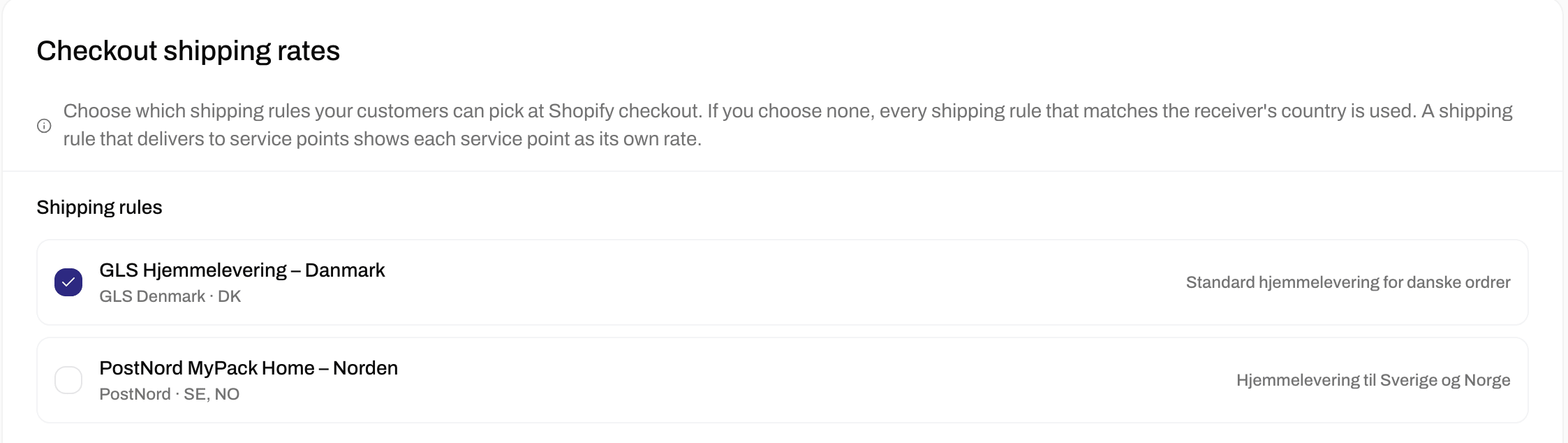
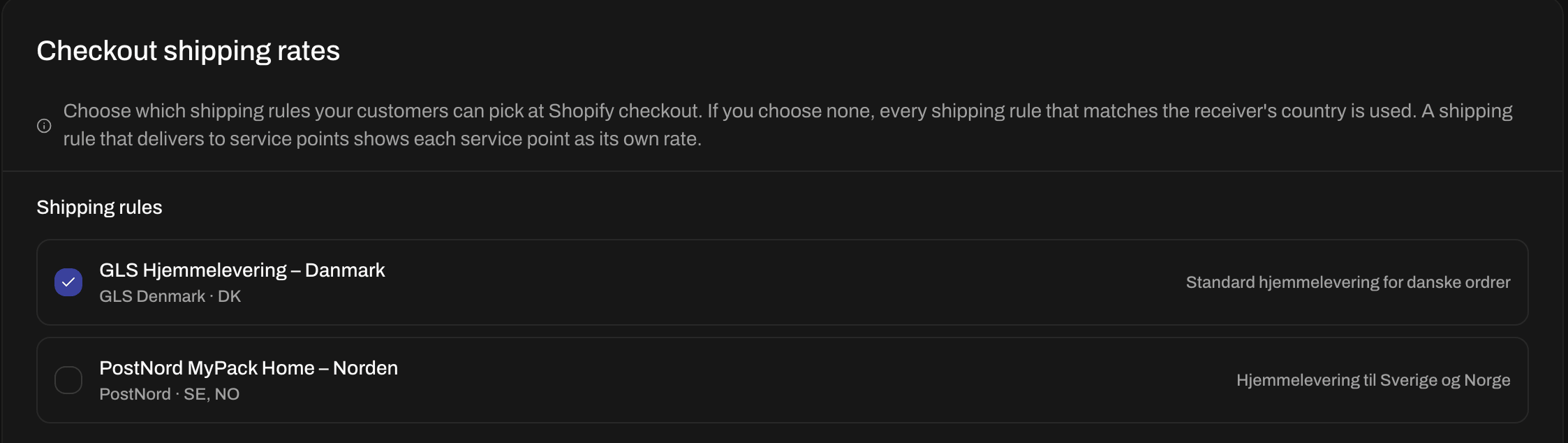
Scroll down to the Checkout shipping rates card and tick the shipping rules your customers can choose from. If you tick none, every shipping rule for the customer’s country shows up.
Tick the shipping rules your customers can choose from
3
Choose how many service points to show
Below the rules, Number of service points is how many service points your customers can pick from in total, from 1 to 20. It starts at 6. Don’t offer service points? Leave it as it is.
4
Save
Click Save changes.
Your customers read the shipping rule’s name, so give it a name that makes sense to them, such as “GLS Pakkeshop”, not an internal code. To show it in your customers’ own language, open the rule and fill in Name at checkout in other languages.
You do this part in your Shopify admin, so the names below are Shopify’s. Shopify groups the countries you ship to in shipping zones, and every zone has its own shipping prices. You tell Shopify to get the prices for a zone from Zippendo.
1
Open your shipping settings
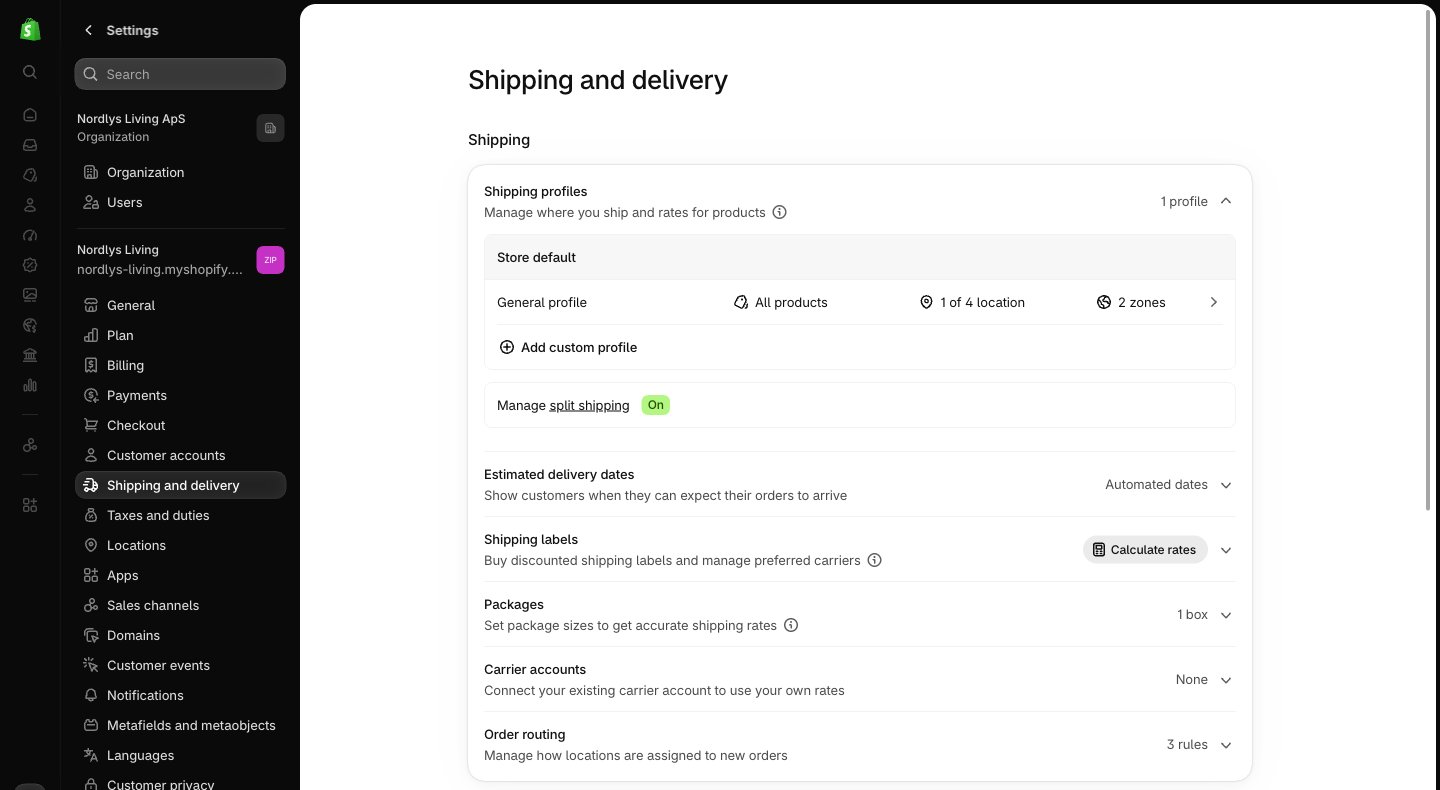
In your Shopify admin, click Settings at the bottom left, then Shipping and delivery.
Settings, then Shipping and delivery, in your Shopify admin
2
Open your shipping profile
Under Shipping profiles, click General profile. If your products use a different profile, open that one.
3
Add a shipping option to a zone
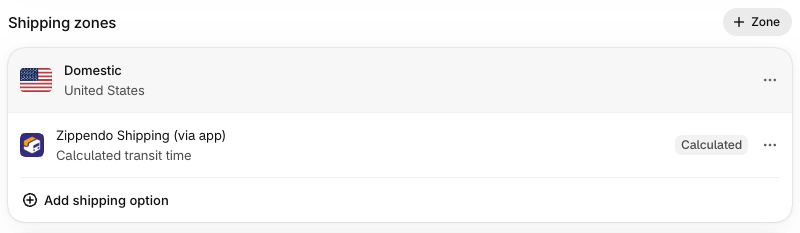
Scroll down to Shipping zones. In the zone you ship to, click Add shipping option.
A shipping zone with Zippendo Shipping (via app) and the Add shipping option button
4
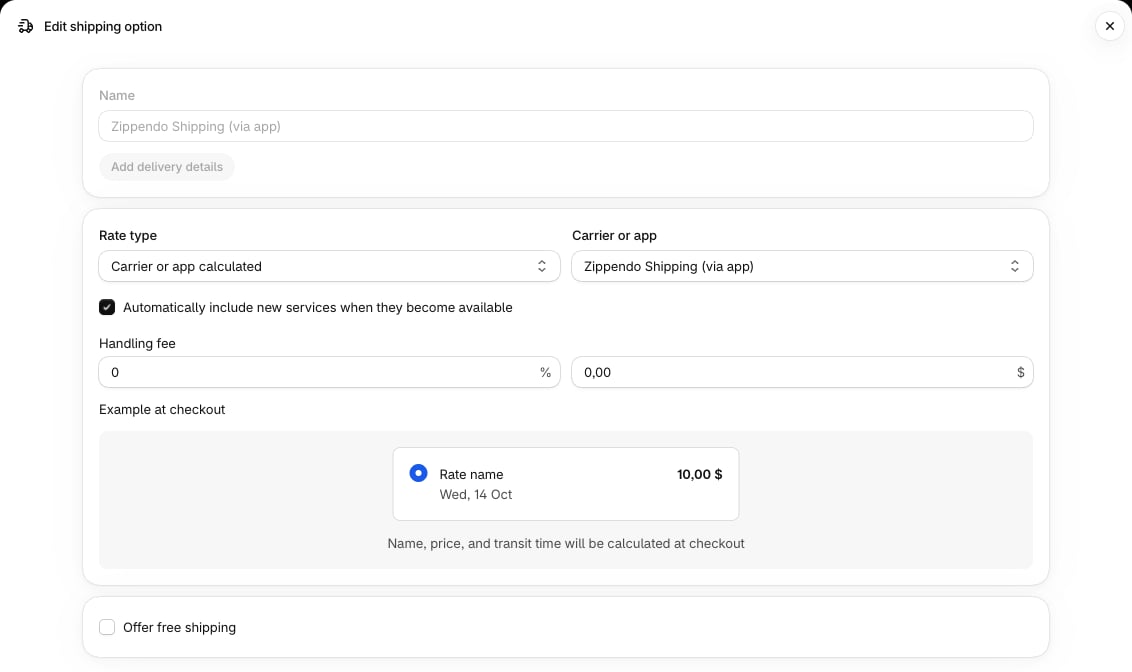
Choose Zippendo Shipping
Under Rate type, choose Carrier or app calculated. Under Carrier or app, choose Zippendo Shipping (via app). Click Done, then Save.
This is how the Zippendo option looks in Shopify
5
Do the same for your other zones
Repeat the last two steps for every shipping zone where your Zippendo prices should show.
6
Remove your old shipping prices
If a zone still has shipping prices you typed in yourself, your customers see those as well. To remove one, click ⋯ next to it and choose Delete. Keep one only if you want customers to see it next to your Zippendo prices.
Can’t choose Zippendo Shipping (via app)? Either your Shopify plan doesn’t let apps calculate shipping prices, or Shopify doesn’t know about Zippendo yet. In Zippendo, open your webshop, click the Connection & integration tab and, under Carrier service, click Check status. If nothing is set up, click Register carrier service and try step 2 again. If your plan doesn’t include it, use service points in the cart instead.
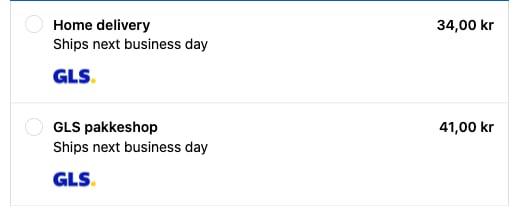
Open your webshop, put a product in the cart and go to checkout. Type a delivery address in a country your shipping rules cover. Under Shipping method, your shipping rules now show up with your prices.
Your shipping rules at Shopify checkout. On Shopify Plus, the service point picker also adds the carrier's logo
A shipping rule that delivers to a service point shows up once for every service point near the customer, with the service point’s name and address. The customer simply picks the one they want. On Shopify Plus, you can show a proper picker instead, with a map if you add your own Google Maps key: see Service point picker.
When the customer places the order, it arrives in Orders in Zippendo with the shipping rule and service point they chose. Create the shipment and send it as usual.
{"docsConfig":{"theme":"almond","$schema":"https://mintlify.com/docs.json","name":"Zippendo","colors":{"primary":"#000","light":"#fff","dark":"#000"},"logo":{"light":"https://mintcdn.com/zippendo/vvJk_PyssTmjqf9_/logo/light.svg?fit=max\u0026auto=format\u0026n=vvJk_PyssTmjqf9_\u0026q=85\u0026s=9fc741a418a93f2d556d0b9b613050e8","dark":"https://mintcdn.com/zippendo/vvJk_PyssTmjqf9_/logo/dark.svg?fit=max\u0026auto=format\u0026n=vvJk_PyssTmjqf9_\u0026q=85\u0026s=230c49f3bcdc109cf7306f3a3fb81bc2","href":"https://www.zippendo.com"},"favicon":"https://mintcdn.com/zippendo/vvJk_PyssTmjqf9_/favicon-dark.svg?fit=max\u0026auto=format\u0026n=vvJk_PyssTmjqf9_\u0026q=85\u0026s=3bd5c187f9c99f9ca518062f6a7b2e18","api":{"openapi":"https://api.zippendo.com/public/json","playground":{"display":"interactive"},"mdx":{"server":"https://api.zippendo.com"}},"navbar":{"links":[{"href":"https://app.zippendo.com/login","label":"Sign in"}],"primary":{"type":"button","label":"Get started","href":"https://app.zippendo.com/sign-up"}},"footer":{"socials":{"website":"https://www.zippendo.com"}},"seo":{"metatags":{"og:site_name":"Zippendo","og:type":"website","twitter:card":"summary_large_image"}},"fonts":{"family":"Inter"},"icons":{"library":"lucide"},"errors":{"404":{"redirect":false,"title":"404: Lost in Documentation Space","description":"Looks like this page took a wrong turn. Try the sidebar or head back to the introduction."}},"contextual":{"options":["copy","view","chatgpt","claude","perplexity","mcp","cursor","vscode"],"display":"header"},"styling":{"latex":false},"navigation":{"languages":[{"language":"en","default":true,"href":"introduction"},{"language":"de","navbar":{"links":[{"href":"https://app.zippendo.com/login","label":"Anmelden"}],"primary":{"type":"button","label":"Loslegen","href":"https://app.zippendo.com/sign-up"}},"href":"de/introduction"},{"language":"pl","navbar":{"links":[{"href":"https://app.zippendo.com/login","label":"Zaloguj się"}],"primary":{"type":"button","label":"Zacznij","href":"https://app.zippendo.com/sign-up"}},"href":"pl/introduction"},{"language":"da","navbar":{"links":[{"href":"https://app.zippendo.com/login","label":"Log ind"}],"primary":{"type":"button","label":"Kom i gang","href":"https://app.zippendo.com/sign-up"}},"href":"da/introduction"},{"language":"sv","navbar":{"links":[{"href":"https://app.zippendo.com/login","label":"Logga in"}],"primary":{"type":"button","label":"Kom igång","href":"https://app.zippendo.com/sign-up"}},"href":"sv/introduction"},{"language":"nl","navbar":{"links":[{"href":"https://app.zippendo.com/login","label":"Inloggen"}],"primary":{"type":"button","label":"Aan de slag","href":"https://app.zippendo.com/sign-up"}},"href":"nl/introduction"},{"language":"no","navbar":{"links":[{"href":"https://app.zippendo.com/login","label":"Logg inn"}],"primary":{"type":"button","label":"Kom i gang","href":"https://app.zippendo.com/sign-up"}},"href":"no/introduction"},{"language":"fi","navbar":{"links":[{"href":"https://app.zippendo.com/login","label":"Kirjaudu sisään"}],"primary":{"type":"button","label":"Aloita","href":"https://app.zippendo.com/sign-up"}},"href":"fi/introduction"},{"language":"fr","navbar":{"links":[{"href":"https://app.zippendo.com/login","label":"Se connecter"}],"primary":{"type":"button","label":"Commencer","href":"https://app.zippendo.com/sign-up"}},"href":"fr/introduction"}]}},"deployment":{"deploymentMetadataValue":{"subdomain":"zippendo","hasAudioNarration":false,"actualSubdomain":"zippendo","customDomains":["www.zippendo.com"],"gitSource":{"type":"github","owner":"zippendo","repo":"zippendo","deployBranch":"main","contentDirectory":"apps/docs","isPrivate":true,"mountPath":"","label":""},"chroma":{"liveDeploymentHistoryId":"6adbd363a4165772661cbff5","collectionId":"c7d6e11e-a9db-4571-89f6-de7c8fd67a4f","schemaVersion":"v3","latestBuiltDeploymentHistoryId":"6adbd363a4165772661cbff5"},"feedback":{"thumbs":true},"entitlements":{},"buildId":"6adf244cd7cf896c8ad7cdef","clientVersion":"0.0.3966","searchFilterCounts":[{"language":"de","tag":"Anleitungen","count":105},{"language":"en","tag":"How-to","count":86},{"language":"da","tag":"Guides","count":86},{"language":"fi","tag":"Ohjeet","count":86},{"language":"fr","tag":"Guides pratiques","count":86},{"language":"nl","tag":"Hoe doe je dat","count":86},{"language":"no","tag":"Slik gjør du","count":86},{"language":"pl","tag":"Poradniki","count":86},{"language":"sv","tag":"Instruktioner","count":86},{"language":"en","tag":"API reference","count":85},{"language":"en","tag":"Documentation","count":59},{"language":"da","tag":"Dokumentation","count":59},{"language":"de","tag":"Dokumentation","count":59},{"language":"fi","tag":"Dokumentaatio","count":59},{"language":"fr","tag":"Documentation","count":59},{"language":"nl","tag":"Documentatie","count":59},{"language":"no","tag":"Dokumentasjon","count":59},{"language":"pl","tag":"Dokumentacja","count":59},{"language":"sv","tag":"Dokumentation","count":59},{"language":"en","tag":"Connect a carrier","count":29},{"language":"da","tag":"Tilslut en transportør","count":29},{"language":"de","tag":"Versanddienstleister verbinden","count":29},{"language":"fi","tag":"Yhdistä kuljetusyhtiö","count":29},{"language":"fr","tag":"Connecter un transporteur","count":29},{"language":"nl","tag":"Een vervoerder koppelen","count":29},{"language":"no","tag":"Koble til en transportør","count":29},{"language":"pl","tag":"Połącz przewoźnika","count":29},{"language":"sv","tag":"Anslut en transportör","count":29},{"language":"en","tag":"Shipments","count":22},{"language":"en","tag":"Tutorials","count":19},{"language":"da","tag":"Vejledninger","count":19},{"language":"fi","tag":"Opastukset","count":19},{"language":"fr","tag":"Tutoriels","count":19},{"language":"nl","tag":"Handleidingen","count":19},{"language":"no","tag":"Veiledninger","count":19},{"language":"pl","tag":"Samouczki","count":19},{"language":"sv","tag":"Guider","count":19},{"language":"en","tag":"Connections","count":14},{"language":"en","tag":"Fulfillment flow","count":14},{"language":"da","tag":"Forbindelser","count":14},{"language":"da","tag":"Forsendelsesflow","count":14},{"language":"de","tag":"Verbindungen","count":14},{"language":"de","tag":"Versandablauf","count":14},{"language":"fi","tag":"Yhteydet","count":14},{"language":"fi","tag":"Toimitusprosessi","count":14},{"language":"fr","tag":"Connexions","count":14},{"language":"fr","tag":"Flux d'expédition","count":14},{"language":"nl","tag":"Koppelingen","count":14},{"language":"nl","tag":"Verzendproces","count":14},{"language":"no","tag":"Tilkoblinger","count":14},{"language":"no","tag":"Sendingsflyt","count":14},{"language":"pl","tag":"Połączenia","count":14},{"language":"pl","tag":"Przepływ realizacji zamówień","count":14},{"language":"sv","tag":"Anslutningar","count":14},{"language":"sv","tag":"Orderflöde","count":14},{"language":"en","tag":"Account","count":13},{"language":"en","tag":"Carriers","count":13},{"language":"da","tag":"Konto","count":13},{"language":"de","tag":"Konto","count":13},{"language":"fi","tag":"Tili","count":13},{"language":"fr","tag":"Compte","count":13},{"language":"nl","tag":"Account","count":13},{"language":"no","tag":"Konto","count":13},{"language":"pl","tag":"Konto","count":13},{"language":"sv","tag":"Konto","count":13},{"language":"da","tag":"Drift","count":12},{"language":"de","tag":"Betrieb","count":12},{"language":"fi","tag":"Toiminnot","count":12},{"language":"fr","tag":"Opérations","count":12},{"language":"nl","tag":"Dagelijks gebruik","count":12},{"language":"no","tag":"Drift","count":12},{"language":"pl","tag":"Operacje","count":12},{"language":"sv","tag":"Daglig drift","count":12},{"language":"da","tag":"Integrationer","count":11},{"language":"da","tag":"Vidensbase","count":11},{"language":"de","tag":"Integrationen","count":11},{"language":"de","tag":"Wissensdatenbank","count":11},{"language":"fi","tag":"Integraatiot","count":11},{"language":"fi","tag":"Tietopankki","count":11},{"language":"fr","tag":"Intégrations","count":11},{"language":"fr","tag":"Base de connaissances","count":11},{"language":"nl","tag":"Integraties","count":11},{"language":"nl","tag":"Kennisbank","count":11},{"language":"no","tag":"Integrasjoner","count":11},{"language":"no","tag":"Kunnskapsbase","count":11},{"language":"pl","tag":"Integracje","count":11},{"language":"pl","tag":"Baza wiedzy","count":11},{"language":"sv","tag":"Integrationer","count":11},{"language":"sv","tag":"Kunskapsbas","count":11},{"language":"de","tag":"Bestellungen \u0026 Verkaufskanäle","count":10}]},"assistantConfig":{"enableAskAiButton":false,"enableStarterQuestions":false,"enableContextualStarterQuestions":false,"enableAskAiSearchBar":true},"hasChatPermissions":false,"hasWebMcpPermissions":false,"toggles":[{"name":"kill-isr","enabled":true,"variant":{"name":"disabled","enabled":false,"feature_enabled":true},"impressionData":false},{"name":"agent-mintlify-slack","enabled":true,"variant":{"name":"disabled","enabled":false,"feature_enabled":true},"impressionData":false},{"name":"editor-v7-file-tree","enabled":true,"variant":{"name":"disabled","enabled":false,"feature_enabled":true},"impressionData":false},{"name":"agent-integrations-settings","enabled":true,"variant":{"name":"disabled","enabled":false,"feature_enabled":true},"impressionData":false},{"name":"automations-pr-grouping","enabled":true,"variant":{"name":"disabled","enabled":false,"feature_enabled":true},"impressionData":false},{"name":"custom-prefix","enabled":true,"variant":{"name":"disabled","enabled":false,"feature_enabled":true},"impressionData":false},{"name":"analytics-v7","enabled":true,"variant":{"name":"disabled","enabled":false,"feature_enabled":true},"impressionData":false},{"name":"user-flows-analytics","enabled":true,"variant":{"name":"disabled","enabled":false,"feature_enabled":true},"impressionData":false},{"name":"no-publish-flow","enabled":true,"variant":{"name":"disabled","enabled":false,"feature_enabled":true},"impressionData":false},{"name":"workos-onboarding","enabled":true,"variant":{"name":"disabled","enabled":false,"feature_enabled":true},"impressionData":false},{"name":"llms-txt-v2","enabled":true,"variant":{"name":"disabled","enabled":false,"feature_enabled":true},"impressionData":false},{"name":"pause-universal-search-reconcile","enabled":true,"variant":{"name":"disabled","enabled":false,"feature_enabled":true},"impressionData":false},{"name":"snapshot-serving-live","enabled":true,"variant":{"name":"disabled","enabled":false,"feature_enabled":true},"impressionData":false},{"name":"stripTemperatureMiddleware","enabled":true,"variant":{"name":"disabled","enabled":false,"feature_enabled":true},"impressionData":false},{"name":"per-site-search-delta","enabled":true,"variant":{"name":"disabled","enabled":false,"feature_enabled":true},"impressionData":false},{"name":"support-platform-pylon-zendesk","enabled":true,"variant":{"name":"disabled","enabled":false,"feature_enabled":true},"impressionData":false},{"name":"snapshot-serving","enabled":true,"variant":{"name":"disabled","enabled":false,"feature_enabled":true},"impressionData":false},{"name":"instant-rollback","enabled":true,"variant":{"name":"disabled","enabled":false,"feature_enabled":true},"impressionData":false},{"name":"granular-notifications-server","enabled":true,"variant":{"name":"disabled","enabled":false,"feature_enabled":true},"impressionData":false},{"name":"granular-notifications","enabled":true,"variant":{"name":"disabled","enabled":false,"feature_enabled":true},"impressionData":false},{"name":"editor-private-page-search","enabled":true,"variant":{"name":"disabled","enabled":false,"feature_enabled":true},"impressionData":false},{"name":"automations-fable","enabled":true,"variant":{"name":"disabled","enabled":false,"feature_enabled":true},"impressionData":false},{"name":"fixed-ai-action-pricing","enabled":true,"variant":{"name":"disabled","enabled":false,"feature_enabled":true},"impressionData":false},{"name":"automation-resolve-merge-conflict","enabled":true,"variant":{"name":"disabled","enabled":false,"feature_enabled":true},"impressionData":false},{"name":"scoped-publishing","enabled":true,"variant":{"name":"disabled","enabled":false,"feature_enabled":true},"impressionData":false},{"name":"mintql","enabled":true,"variant":{"name":"disabled","enabled":false,"feature_enabled":true},"impressionData":false},{"name":"page-level-analytics","enabled":true,"variant":{"name":"disabled","enabled":false,"feature_enabled":true},"impressionData":false},{"name":"editor-version-history-v2","enabled":true,"variant":{"name":"disabled","enabled":false,"feature_enabled":true},"impressionData":false},{"name":"editor-nav-generations","enabled":true,"variant":{"name":"disabled","enabled":false,"feature_enabled":true},"impressionData":false},{"name":"billing-page-v2","enabled":true,"variant":{"name":"disabled","enabled":false,"feature_enabled":true},"impressionData":false},{"name":"workspace-projects","enabled":true,"variant":{"name":"disabled","enabled":false,"feature_enabled":true},"impressionData":false},{"name":"assistant-v5","enabled":true,"variant":{"name":"disabled","enabled":false,"feature_enabled":true},"impressionData":false},{"name":"byok-sep-25","enabled":true,"variant":{"name":"disabled","enabled":false,"feature_enabled":true},"impressionData":false},{"name":"fork-pr-previews","enabled":true,"variant":{"name":"disabled","enabled":false,"feature_enabled":true},"impressionData":false},{"name":"revalidation-jwt","enabled":true,"variant":{"name":"disabled","enabled":false,"feature_enabled":true},"impressionData":false},{"name":"vite-origin","enabled":true,"variant":{"name":"disabled","enabled":false,"feature_enabled":true},"impressionData":false},{"name":"editor-agent-model-picker","enabled":true,"variant":{"name":"disabled","enabled":false,"feature_enabled":true},"impressionData":false},{"name":"billing-updated-9-15","enabled":true,"variant":{"name":"disabled","enabled":false,"feature_enabled":true},"impressionData":false},{"name":"hobby-abuse-scan","enabled":true,"variant":{"name":"disabled","enabled":false,"feature_enabled":true},"impressionData":false},{"name":"dashboard-inbox","enabled":true,"variant":{"name":"disabled","enabled":false,"feature_enabled":true},"impressionData":false}],"isAtlas":false,"googleFontsInlined":false},"customCss":[{"filePath":"style.css","content":"@media (min-width:1024px){.h-full.relative.flex-1.flex.items-center.gap-x-4{display:grid;grid-template-columns:240px auto 1fr auto;align-items:center;column-gap:16px}.h-full.relative.flex-1.flex.items-center.gap-x-4>.flex-1.flex.items-center.gap-x-4{width:240px;min-width:240px;max-width:240px;flex:none;grid-column:1;box-sizing:border-box;padding-right:0;justify-content:flex-start}.h-full.relative.flex-1.flex.items-center.gap-x-4>.flex-1.flex.items-center.gap-x-4>.hidden.lg\\:flex.items-center.gap-x-2:empty{display:none}.h-full.relative.flex-1.flex.items-center.gap-x-4>.flex.items-center.gap-4,.h-full.relative.flex-1.flex.items-center.gap-x-4>.flex.items-center.gap-4>.flex-1.relative.hidden.lg\\:flex.items-center{display:contents}.h-full.relative.flex-1.flex.items-center.gap-x-4 .h-14.font-semibold:has(.nav-tabs){grid-column:2;grid-row:1;justify-self:start}.h-full.relative.flex-1.flex.items-center.gap-x-4 nav[aria-label=Main]{grid-column:4;justify-self:end}.h-full.relative.flex-1.flex.items-center.gap-x-4 #search-bar-entry{grid-column:3;justify-self:end}}.flex-1.flex.items-center.gap-x-4{padding-left:0}.sidebar-title{font-weight:700}"}],"page":{"pagePath":"tutorials/shopify-checkout-prices","slug":"/tutorials/shopify-checkout-prices","pageMetadata":{"title":"Show your shipping prices in Shopify checkout","sidebarTitle":"Shipping prices at checkout","description":"Step by step, with pictures. Let your Shopify checkout show the shipping prices and service points from your Zippendo shipping rules.","href":"/tutorials/shopify-checkout-prices"},"description":{"compiledSource":"\"use strict\";\nconst {jsx: _jsx} = arguments[0];\nconst {useMDXComponents: _provideComponents} = arguments[0];\nfunction _createMdxContent(props) {\n const _components = {\n p: \"p\",\n ..._provideComponents(),\n ...props.components\n };\n return _jsx(_components.p, {\n children: \"Step by step, with pictures. Let your Shopify checkout show the shipping prices and service points from your Zippendo shipping rules.\"\n });\n}\nfunction MDXContent(props = {}) {\n const {wrapper: MDXLayout} = {\n ..._provideComponents(),\n ...props.components\n };\n return MDXLayout ? _jsx(MDXLayout, {\n ...props,\n children: _jsx(_createMdxContent, {\n ...props\n })\n }) : _createMdxContent(props);\n}\nreturn {\n default: MDXContent\n};\n","frontmatter":{},"scope":{}},"pageType":"default","mdx":{"mdxSource":{"compiledSource":"\"use strict\";const{Fragment:_Fragment,jsx:_jsx,jsxs:_jsxs}=arguments[0];const{useMDXComponents:_provideComponents}=arguments[0];function _createMdxContent(props){const _components={a:`a`,li:`li`,p:`p`,strong:`strong`,ul:`ul`,..._provideComponents(),...props.components},{Card,CardGroup,Check,Frame,Heading,Info,OptimizedImage,Step,Steps,Tip,Warning}=_components;if(!Card)_missingMdxReference(`Card`,true);if(!CardGroup)_missingMdxReference(`CardGroup`,true);if(!Check)_missingMdxReference(`Check`,true);if(!Frame)_missingMdxReference(`Frame`,true);if(!Heading)_missingMdxReference(`Heading`,true);if(!Info)_missingMdxReference(`Info`,true);if(!OptimizedImage)_missingMdxReference(`OptimizedImage`,true);if(!Step)_missingMdxReference(`Step`,true);if(!Steps)_missingMdxReference(`Steps`,true);if(!Tip)_missingMdxReference(`Tip`,true);if(!Warning)_missingMdxReference(`Warning`,true);return _jsxs(_Fragment,{children:[_jsx(_components.p,{children:`In this tutorial you make your Shopify checkout show your own shipping prices from Zippendo. Your customers pick how they want their parcel delivered, and if you offer delivery to a service point, they also pick the service point near them. When the order arrives in Zippendo, the shipment is already filled in with that carrier and service point, so you only have to send it.`}),`\n`,_jsx(_components.p,{children:`It takes about 10 minutes: one part in Zippendo, one part in your Shopify admin.`}),`\n`,_jsxs(Info,{children:[_jsx(_components.p,{children:_jsx(_components.strong,{children:`What you need`})}),_jsxs(_components.ul,{children:[`\n`,_jsxs(_components.li,{children:[`Your Shopify webshop connected to Zippendo. See `,_jsx(_components.a,{href:`/tutorials/connect-shopify`,children:`Connect Shopify`}),`.`]}),`\n`,_jsxs(_components.li,{children:[`At least one `,_jsx(_components.a,{href:`/tutorials/shipping-rules`,children:`shipping rule`}),` for the countries you ship to. The rule’s name and price are exactly what your customers see at checkout.`]}),`\n`,_jsxs(_components.li,{children:[`A Shopify plan that lets an app calculate your shipping prices. Shopify calls this “third-party carrier-calculated shipping”. It’s included on the Advanced and Plus plans. On other plans, Shopify offers it for a monthly fee, or free when you pay yearly. Not sure what you have? Go to step 2: if you can’t choose `,_jsx(_components.strong,{children:`Zippendo Shipping (via app)`}),` there, your plan doesn’t include it.`]}),`\n`]})]}),`\n`,_jsx(Heading,{level:`2`,id:`how-it-works`,children:`How it works`}),`\n`,_jsx(_components.p,{children:`At the shipping step, your customers see each of your shipping rules that fits their address and cart, with your price. You decide which rules can show up.`}),`\n`,_jsx(Heading,{level:`2`,id:`step-1-choose-which-shipping-rules-your-customers-see`,children:`Step 1: Choose which shipping rules your customers see`}),`\n`,_jsx(_components.p,{children:`You do this part in Zippendo.`}),`\n`,_jsxs(Steps,{children:[_jsx(Step,{title:`Open your webshop's settings`,children:_jsxs(_components.p,{children:[`Click `,_jsx(_components.strong,{children:`Order channels`}),` in the menu on the left. On the `,_jsx(_components.strong,{children:`Connected`}),` tab, click your Shopify webshop. You land on the `,_jsx(_components.strong,{children:`Orders \u0026 checkout`}),` tab.`]})}),_jsxs(Step,{title:`Tick the shipping rules`,children:[_jsxs(_components.p,{children:[`Scroll down to the `,_jsx(_components.strong,{children:`Checkout shipping rates`}),` card and tick the shipping rules your customers can choose from. If you tick none, every shipping rule for the customer’s country shows up.`]}),_jsxs(Frame,{caption:`Tick the shipping rules your customers can choose from`,children:[_jsx(OptimizedImage,{src:`https://mintcdn.com/zippendo/3iHx7f4_tYAQ-H01/images/tutorials/shopify-checkout-prices/05-choose-rules-light.png?fit=max\u0026auto=format\u0026n=3iHx7f4_tYAQ-H01\u0026q=85\u0026s=77c20721906684e78b25bcb5702a0b2c`,alt:`Checkout shipping rates card with two shipping rules. GLS Hjemmelevering – Danmark is ticked, PostNord MyPack Home – Norden is not`,className:`mint-block dark:mint-hidden`,\"data-og-width\":`2246`,width:`2246`,\"data-og-height\":`634`,height:`634`,\"data-path\":`images/tutorials/shopify-checkout-prices/05-choose-rules-light.png`,\"data-optimize\":`true`,\"data-opv\":`3`,srcset:`https://mintcdn.com/zippendo/3iHx7f4_tYAQ-H01/images/tutorials/shopify-checkout-prices/05-choose-rules-light.png?w=280\u0026fit=max\u0026auto=format\u0026n=3iHx7f4_tYAQ-H01\u0026q=85\u0026s=177ed62069387d80c76897bf6db06477 280w, https://mintcdn.com/zippendo/3iHx7f4_tYAQ-H01/images/tutorials/shopify-checkout-prices/05-choose-rules-light.png?w=560\u0026fit=max\u0026auto=format\u0026n=3iHx7f4_tYAQ-H01\u0026q=85\u0026s=30c49e11a1b7002ab4aa6d00a68cdc03 560w, https://mintcdn.com/zippendo/3iHx7f4_tYAQ-H01/images/tutorials/shopify-checkout-prices/05-choose-rules-light.png?w=840\u0026fit=max\u0026auto=format\u0026n=3iHx7f4_tYAQ-H01\u0026q=85\u0026s=f05dfd9256ce72c757906f00e8cf84a9 840w, https://mintcdn.com/zippendo/3iHx7f4_tYAQ-H01/images/tutorials/shopify-checkout-prices/05-choose-rules-light.png?w=1100\u0026fit=max\u0026auto=format\u0026n=3iHx7f4_tYAQ-H01\u0026q=85\u0026s=86a552a4f24b24c0c77d2f45366a5ef2 1100w, https://mintcdn.com/zippendo/3iHx7f4_tYAQ-H01/images/tutorials/shopify-checkout-prices/05-choose-rules-light.png?w=1650\u0026fit=max\u0026auto=format\u0026n=3iHx7f4_tYAQ-H01\u0026q=85\u0026s=f07d958ef5141b5d4a13441fb4964e20 1650w, https://mintcdn.com/zippendo/3iHx7f4_tYAQ-H01/images/tutorials/shopify-checkout-prices/05-choose-rules-light.png?w=2500\u0026fit=max\u0026auto=format\u0026n=3iHx7f4_tYAQ-H01\u0026q=85\u0026s=5816b2453e2290c4dd7b95c09de7b991 2500w`}),_jsx(OptimizedImage,{src:`https://mintcdn.com/zippendo/3iHx7f4_tYAQ-H01/images/tutorials/shopify-checkout-prices/05-choose-rules-dark.png?fit=max\u0026auto=format\u0026n=3iHx7f4_tYAQ-H01\u0026q=85\u0026s=2a50d2072e3addd4b80c430aed1c0de0`,alt:`Checkout shipping rates card with two shipping rules. GLS Hjemmelevering – Danmark is ticked, PostNord MyPack Home – Norden is not`,className:`mint-hidden dark:mint-block`,\"data-og-width\":`2246`,width:`2246`,\"data-og-height\":`634`,height:`634`,\"data-path\":`images/tutorials/shopify-checkout-prices/05-choose-rules-dark.png`,\"data-optimize\":`true`,\"data-opv\":`3`,srcset:`https://mintcdn.com/zippendo/3iHx7f4_tYAQ-H01/images/tutorials/shopify-checkout-prices/05-choose-rules-dark.png?w=280\u0026fit=max\u0026auto=format\u0026n=3iHx7f4_tYAQ-H01\u0026q=85\u0026s=16c531183e010aa4a094ebf3eda33be2 280w, https://mintcdn.com/zippendo/3iHx7f4_tYAQ-H01/images/tutorials/shopify-checkout-prices/05-choose-rules-dark.png?w=560\u0026fit=max\u0026auto=format\u0026n=3iHx7f4_tYAQ-H01\u0026q=85\u0026s=c7d0ad36bb84a87021633d3d896ff7e1 560w, https://mintcdn.com/zippendo/3iHx7f4_tYAQ-H01/images/tutorials/shopify-checkout-prices/05-choose-rules-dark.png?w=840\u0026fit=max\u0026auto=format\u0026n=3iHx7f4_tYAQ-H01\u0026q=85\u0026s=cb61f08812a87fe8761f9f1b51fdd96a 840w, https://mintcdn.com/zippendo/3iHx7f4_tYAQ-H01/images/tutorials/shopify-checkout-prices/05-choose-rules-dark.png?w=1100\u0026fit=max\u0026auto=format\u0026n=3iHx7f4_tYAQ-H01\u0026q=85\u0026s=74a72c42926fb17397943df148755ca0 1100w, https://mintcdn.com/zippendo/3iHx7f4_tYAQ-H01/images/tutorials/shopify-checkout-prices/05-choose-rules-dark.png?w=1650\u0026fit=max\u0026auto=format\u0026n=3iHx7f4_tYAQ-H01\u0026q=85\u0026s=f0847e69aefb0a0a9b01375206b37de7 1650w, https://mintcdn.com/zippendo/3iHx7f4_tYAQ-H01/images/tutorials/shopify-checkout-prices/05-choose-rules-dark.png?w=2500\u0026fit=max\u0026auto=format\u0026n=3iHx7f4_tYAQ-H01\u0026q=85\u0026s=45500c95d3157336eeb3e2d1e20473f7 2500w`})]})]}),_jsx(Step,{title:`Choose how many service points to show`,children:_jsxs(_components.p,{children:[`Below the rules, `,_jsx(_components.strong,{children:`Number of service points`}),` is how many service points your customers can pick from in total, from 1 to 20. It starts at 6. Don’t offer service points? Leave it as it is.`]})}),_jsx(Step,{title:`Save`,children:_jsxs(_components.p,{children:[`Click `,_jsx(_components.strong,{children:`Save changes`}),`.`]})})]}),`\n`,_jsx(Tip,{children:_jsxs(_components.p,{children:[`Your customers read the shipping rule’s name, so give it a name that makes sense to them, such as “GLS Pakkeshop”, not an internal code. To show it in your customers’ own language, open the rule and fill in `,_jsx(_components.strong,{children:`Name at checkout in other languages`}),`.`]})}),`\n`,_jsx(Heading,{level:`2`,id:`step-2-add-zippendo-shipping-in-shopify`,children:`Step 2: Add Zippendo Shipping in Shopify`}),`\n`,_jsx(_components.p,{children:`You do this part in your Shopify admin, so the names below are Shopify’s. Shopify groups the countries you ship to in shipping zones, and every zone has its own shipping prices. You tell Shopify to get the prices for a zone from Zippendo.`}),`\n`,_jsxs(Steps,{children:[_jsxs(Step,{title:`Open your shipping settings`,children:[_jsxs(_components.p,{children:[`In your Shopify admin, click `,_jsx(_components.strong,{children:`Settings`}),` at the bottom left, then `,_jsx(_components.strong,{children:`Shipping and delivery`}),`.`]}),_jsx(Frame,{caption:`Settings, then Shipping and delivery, in your Shopify admin`,children:_jsx(OptimizedImage,{src:`https://mintcdn.com/zippendo/3iHx7f4_tYAQ-H01/images/tutorials/shopify-checkout-prices/01-shopify-shipping-settings.png?fit=max\u0026auto=format\u0026n=3iHx7f4_tYAQ-H01\u0026q=85\u0026s=f626fbdb415ec2b2b9366f45fa2c0d77`,alt:`Shopify admin settings with Shipping and delivery selected. The Shipping profiles card shows the General profile for all products`,\"data-og-width\":`1440`,width:`1440`,\"data-og-height\":`790`,height:`790`,\"data-path\":`images/tutorials/shopify-checkout-prices/01-shopify-shipping-settings.png`,\"data-optimize\":`true`,\"data-opv\":`3`,srcset:`https://mintcdn.com/zippendo/3iHx7f4_tYAQ-H01/images/tutorials/shopify-checkout-prices/01-shopify-shipping-settings.png?w=280\u0026fit=max\u0026auto=format\u0026n=3iHx7f4_tYAQ-H01\u0026q=85\u0026s=cbe684936674dba388a64a9b50aa4108 280w, https://mintcdn.com/zippendo/3iHx7f4_tYAQ-H01/images/tutorials/shopify-checkout-prices/01-shopify-shipping-settings.png?w=560\u0026fit=max\u0026auto=format\u0026n=3iHx7f4_tYAQ-H01\u0026q=85\u0026s=77a6f07dab679afeb677030fc25243b7 560w, https://mintcdn.com/zippendo/3iHx7f4_tYAQ-H01/images/tutorials/shopify-checkout-prices/01-shopify-shipping-settings.png?w=840\u0026fit=max\u0026auto=format\u0026n=3iHx7f4_tYAQ-H01\u0026q=85\u0026s=383b5bb848ddb7bbc60a9832ab1c026f 840w, https://mintcdn.com/zippendo/3iHx7f4_tYAQ-H01/images/tutorials/shopify-checkout-prices/01-shopify-shipping-settings.png?w=1100\u0026fit=max\u0026auto=format\u0026n=3iHx7f4_tYAQ-H01\u0026q=85\u0026s=b36005162025d392faf4d8395f3cb77e 1100w, https://mintcdn.com/zippendo/3iHx7f4_tYAQ-H01/images/tutorials/shopify-checkout-prices/01-shopify-shipping-settings.png?w=1650\u0026fit=max\u0026auto=format\u0026n=3iHx7f4_tYAQ-H01\u0026q=85\u0026s=e1ff1dcb14e95c03f14d84509df331f3 1650w, https://mintcdn.com/zippendo/3iHx7f4_tYAQ-H01/images/tutorials/shopify-checkout-prices/01-shopify-shipping-settings.png?w=2500\u0026fit=max\u0026auto=format\u0026n=3iHx7f4_tYAQ-H01\u0026q=85\u0026s=a1a7b276b781dd9f248c633670c6fb7c 2500w`})})]}),_jsx(Step,{title:`Open your shipping profile`,children:_jsxs(_components.p,{children:[`Under `,_jsx(_components.strong,{children:`Shipping profiles`}),`, click `,_jsx(_components.strong,{children:`General profile`}),`. If your products use a different profile, open that one.`]})}),_jsxs(Step,{title:`Add a shipping option to a zone`,children:[_jsxs(_components.p,{children:[`Scroll down to `,_jsx(_components.strong,{children:`Shipping zones`}),`. In the zone you ship to, click `,_jsx(_components.strong,{children:`Add shipping option`}),`.`]}),_jsx(Frame,{caption:`A shipping zone with Zippendo Shipping (via app) and the Add shipping option button`,children:_jsx(OptimizedImage,{src:`https://mintcdn.com/zippendo/3iHx7f4_tYAQ-H01/images/tutorials/shopify-checkout-prices/02-shopify-shipping-zone.png?fit=max\u0026auto=format\u0026n=3iHx7f4_tYAQ-H01\u0026q=85\u0026s=0d61f6b70de82b01e95cdc2dd8f80257`,alt:`Shipping zones in Shopify. A zone lists Zippendo Shipping (via app) with Calculated transit time, and an Add shipping option button below it`,\"data-og-width\":`800`,width:`800`,\"data-og-height\":`233`,height:`233`,\"data-path\":`images/tutorials/shopify-checkout-prices/02-shopify-shipping-zone.png`,\"data-optimize\":`true`,\"data-opv\":`3`,srcset:`https://mintcdn.com/zippendo/3iHx7f4_tYAQ-H01/images/tutorials/shopify-checkout-prices/02-shopify-shipping-zone.png?w=280\u0026fit=max\u0026auto=format\u0026n=3iHx7f4_tYAQ-H01\u0026q=85\u0026s=fb4ab93c2044c2c1ac721251e5086e32 280w, https://mintcdn.com/zippendo/3iHx7f4_tYAQ-H01/images/tutorials/shopify-checkout-prices/02-shopify-shipping-zone.png?w=560\u0026fit=max\u0026auto=format\u0026n=3iHx7f4_tYAQ-H01\u0026q=85\u0026s=548722f1d16f29a799b6cf4d84106ead 560w, https://mintcdn.com/zippendo/3iHx7f4_tYAQ-H01/images/tutorials/shopify-checkout-prices/02-shopify-shipping-zone.png?w=840\u0026fit=max\u0026auto=format\u0026n=3iHx7f4_tYAQ-H01\u0026q=85\u0026s=a0a4120cba2b2326bbc2c294ecc24712 840w, https://mintcdn.com/zippendo/3iHx7f4_tYAQ-H01/images/tutorials/shopify-checkout-prices/02-shopify-shipping-zone.png?w=1100\u0026fit=max\u0026auto=format\u0026n=3iHx7f4_tYAQ-H01\u0026q=85\u0026s=3b53268e2e3dc4ff99e67fd3652a900f 1100w, https://mintcdn.com/zippendo/3iHx7f4_tYAQ-H01/images/tutorials/shopify-checkout-prices/02-shopify-shipping-zone.png?w=1650\u0026fit=max\u0026auto=format\u0026n=3iHx7f4_tYAQ-H01\u0026q=85\u0026s=39e63892187f23dd8cd30efdbfe53e94 1650w, https://mintcdn.com/zippendo/3iHx7f4_tYAQ-H01/images/tutorials/shopify-checkout-prices/02-shopify-shipping-zone.png?w=2500\u0026fit=max\u0026auto=format\u0026n=3iHx7f4_tYAQ-H01\u0026q=85\u0026s=7b96cc0dbe9abc93b785773e2beb45e1 2500w`})})]}),_jsxs(Step,{title:`Choose Zippendo Shipping`,children:[_jsxs(_components.p,{children:[`Under `,_jsx(_components.strong,{children:`Rate type`}),`, choose `,_jsx(_components.strong,{children:`Carrier or app calculated`}),`. Under `,_jsx(_components.strong,{children:`Carrier or app`}),`, choose `,_jsx(_components.strong,{children:`Zippendo Shipping (via app)`}),`. Click `,_jsx(_components.strong,{children:`Done`}),`, then `,_jsx(_components.strong,{children:`Save`}),`.`]}),_jsx(Frame,{caption:`This is how the Zippendo option looks in Shopify`,children:_jsx(OptimizedImage,{src:`https://mintcdn.com/zippendo/3iHx7f4_tYAQ-H01/images/tutorials/shopify-checkout-prices/03-shopify-carrier-or-app.png?fit=max\u0026auto=format\u0026n=3iHx7f4_tYAQ-H01\u0026q=85\u0026s=55a2b8468af18684a3ecb30b3db22bae`,alt:`Shopify shipping option window with Rate type set to Carrier or app calculated and Carrier or app set to Zippendo Shipping (via app)`,\"data-og-width\":`1132`,width:`1132`,\"data-og-height\":`672`,height:`672`,\"data-path\":`images/tutorials/shopify-checkout-prices/03-shopify-carrier-or-app.png`,\"data-optimize\":`true`,\"data-opv\":`3`,srcset:`https://mintcdn.com/zippendo/3iHx7f4_tYAQ-H01/images/tutorials/shopify-checkout-prices/03-shopify-carrier-or-app.png?w=280\u0026fit=max\u0026auto=format\u0026n=3iHx7f4_tYAQ-H01\u0026q=85\u0026s=ce1e24ef3f4157c5c90285e3fc4b72e8 280w, https://mintcdn.com/zippendo/3iHx7f4_tYAQ-H01/images/tutorials/shopify-checkout-prices/03-shopify-carrier-or-app.png?w=560\u0026fit=max\u0026auto=format\u0026n=3iHx7f4_tYAQ-H01\u0026q=85\u0026s=d591d01db3495741d5f783d5cc6fbbe4 560w, https://mintcdn.com/zippendo/3iHx7f4_tYAQ-H01/images/tutorials/shopify-checkout-prices/03-shopify-carrier-or-app.png?w=840\u0026fit=max\u0026auto=format\u0026n=3iHx7f4_tYAQ-H01\u0026q=85\u0026s=3714f1d0c98c0137cd8c993eddf10b11 840w, https://mintcdn.com/zippendo/3iHx7f4_tYAQ-H01/images/tutorials/shopify-checkout-prices/03-shopify-carrier-or-app.png?w=1100\u0026fit=max\u0026auto=format\u0026n=3iHx7f4_tYAQ-H01\u0026q=85\u0026s=7f9a0fa17e0885cf9ceba127e0b204bd 1100w, https://mintcdn.com/zippendo/3iHx7f4_tYAQ-H01/images/tutorials/shopify-checkout-prices/03-shopify-carrier-or-app.png?w=1650\u0026fit=max\u0026auto=format\u0026n=3iHx7f4_tYAQ-H01\u0026q=85\u0026s=f5e9c5da972b491d3f3fa4181dcdbbac 1650w, https://mintcdn.com/zippendo/3iHx7f4_tYAQ-H01/images/tutorials/shopify-checkout-prices/03-shopify-carrier-or-app.png?w=2500\u0026fit=max\u0026auto=format\u0026n=3iHx7f4_tYAQ-H01\u0026q=85\u0026s=a5ba1c1eccf876efef2d006ec131a20b 2500w`})})]}),_jsx(Step,{title:`Do the same for your other zones`,children:_jsx(_components.p,{children:`Repeat the last two steps for every shipping zone where your Zippendo prices should show.`})}),_jsx(Step,{title:`Remove your old shipping prices`,children:_jsxs(_components.p,{children:[`If a zone still has shipping prices you typed in yourself, your customers see those as well. To remove one, click `,_jsx(_components.strong,{children:`⋯`}),` next to it and choose `,_jsx(_components.strong,{children:`Delete`}),`. Keep one only if you want customers to see it next to your Zippendo prices.`]})})]}),`\n`,_jsx(Warning,{children:_jsxs(_components.p,{children:[`Can’t choose `,_jsx(_components.strong,{children:`Zippendo Shipping (via app)`}),`? Either your Shopify plan doesn’t let apps calculate shipping prices, or Shopify doesn’t know about Zippendo yet. In Zippendo, open your webshop, click the `,_jsx(_components.strong,{children:`Connection \u0026 integration`}),` tab and, under `,_jsx(_components.strong,{children:`Carrier service`}),`, click `,_jsx(_components.strong,{children:`Check status`}),`. If nothing is set up, click `,_jsx(_components.strong,{children:`Register carrier service`}),` and try step 2 again. If your plan doesn’t include it, use `,_jsx(_components.a,{href:`/tutorials/shopify-cart-service-points`,children:`service points in the cart`}),` instead.`]})}),`\n`,_jsx(Heading,{level:`2`,id:`step-3-try-it-as-a-customer`,children:`Step 3: Try it as a customer`}),`\n`,_jsxs(_components.p,{children:[`Open your webshop, put a product in the cart and go to checkout. Type a delivery address in a country your shipping rules cover. Under `,_jsx(_components.strong,{children:`Shipping method`}),`, your shipping rules now show up with your prices.`]}),`\n`,_jsx(Frame,{caption:`Your shipping rules at Shopify checkout. On Shopify Plus, the service point picker also adds the carrier's logo`,children:_jsx(OptimizedImage,{src:`https://mintcdn.com/zippendo/3iHx7f4_tYAQ-H01/images/tutorials/shopify-checkout-prices/04-checkout-rates.png?fit=max\u0026auto=format\u0026n=3iHx7f4_tYAQ-H01\u0026q=85\u0026s=2a88f646b8bbf1b9e4a6c117ad322762`,alt:`Shopify checkout with two shipping methods: Home delivery for 34,00 kr and GLS pakkeshop for 41,00 kr`,\"data-og-width\":`520`,width:`520`,\"data-og-height\":`206`,height:`206`,\"data-path\":`images/tutorials/shopify-checkout-prices/04-checkout-rates.png`,\"data-optimize\":`true`,\"data-opv\":`3`,srcset:`https://mintcdn.com/zippendo/3iHx7f4_tYAQ-H01/images/tutorials/shopify-checkout-prices/04-checkout-rates.png?w=280\u0026fit=max\u0026auto=format\u0026n=3iHx7f4_tYAQ-H01\u0026q=85\u0026s=dcbcb542281a791a0322e7a1972791b0 280w, https://mintcdn.com/zippendo/3iHx7f4_tYAQ-H01/images/tutorials/shopify-checkout-prices/04-checkout-rates.png?w=560\u0026fit=max\u0026auto=format\u0026n=3iHx7f4_tYAQ-H01\u0026q=85\u0026s=c1e122923d5169988105c03398be7019 560w, https://mintcdn.com/zippendo/3iHx7f4_tYAQ-H01/images/tutorials/shopify-checkout-prices/04-checkout-rates.png?w=840\u0026fit=max\u0026auto=format\u0026n=3iHx7f4_tYAQ-H01\u0026q=85\u0026s=82c182501d694e713a3b03a667a42cf4 840w, https://mintcdn.com/zippendo/3iHx7f4_tYAQ-H01/images/tutorials/shopify-checkout-prices/04-checkout-rates.png?w=1100\u0026fit=max\u0026auto=format\u0026n=3iHx7f4_tYAQ-H01\u0026q=85\u0026s=0a28623e97a0e0ddc59a3baf715d70a1 1100w, https://mintcdn.com/zippendo/3iHx7f4_tYAQ-H01/images/tutorials/shopify-checkout-prices/04-checkout-rates.png?w=1650\u0026fit=max\u0026auto=format\u0026n=3iHx7f4_tYAQ-H01\u0026q=85\u0026s=8814fc53c6b8df7f3cb7535be828b326 1650w, https://mintcdn.com/zippendo/3iHx7f4_tYAQ-H01/images/tutorials/shopify-checkout-prices/04-checkout-rates.png?w=2500\u0026fit=max\u0026auto=format\u0026n=3iHx7f4_tYAQ-H01\u0026q=85\u0026s=c9df4fe19d812066e4a0452004b24d25 2500w`})}),`\n`,_jsxs(_components.p,{children:[`A shipping rule that delivers to a service point shows up once for every service point near the customer, with the service point’s name and address. The customer simply picks the one they want. On Shopify Plus, you can show a proper picker instead, with a map if you add your own Google Maps key: see `,_jsx(_components.a,{href:`/tutorials/shopify-service-point-picker`,children:`Service point picker`}),`.`]}),`\n`,_jsx(Check,{children:_jsxs(_components.p,{children:[`When the customer places the order, it arrives in `,_jsx(_components.strong,{children:`Orders`}),` in Zippendo with the shipping rule and service point they chose. Create the shipment and send it as usual.`]})}),`\n`,_jsx(Heading,{level:`2`,id:`no-prices-at-checkout`,children:`No prices at checkout?`}),`\n`,_jsxs(_components.ul,{children:[`\n`,_jsx(_components.li,{children:`Prices show only once the customer has typed a delivery address.`}),`\n`,_jsx(_components.li,{children:`Check that at least one ticked shipping rule covers the customer’s country, and that its prices fit the cart (weight, cart value or number of items).`}),`\n`,_jsxs(_components.li,{children:[`Check that `,_jsx(_components.strong,{children:`Zippendo Shipping (via app)`}),` is added to the shipping zone for that country.`]}),`\n`]}),`\n`,_jsx(Heading,{level:`2`,id:`what’s-next`,children:`What’s next`}),`\n`,_jsxs(CardGroup,{cols:2,children:[_jsx(Card,{title:`Service point picker`,icon:`map-pin`,href:`/tutorials/shopify-service-point-picker`,children:_jsx(_components.p,{children:`On Shopify Plus, let customers choose their service point in a picker, with a map if you add your own Google Maps key.`})}),_jsx(Card,{title:`Service points in the cart`,icon:`shopping-cart`,href:`/tutorials/shopify-cart-service-points`,children:_jsx(_components.p,{children:`Your plan can’t show app prices? Let customers pick a service point in the cart.`})})]}),`\n`,_jsxs(_components.p,{children:[`All the details: `,_jsx(_components.a,{href:`/order-channels/shopify-checkout-rates`,children:`Live rates in Shopify checkout`})]})]})}function MDXContent(props={}){const{wrapper:MDXLayout}={..._provideComponents(),...props.components};return MDXLayout?_jsx(MDXLayout,{...props,children:_jsx(_createMdxContent,{...props})}):_createMdxContent(props)}return{default:MDXContent};function _missingMdxReference(id,component){throw new Error(`Expected `+(component?`component`:`object`)+\" `\"+id+\"` to be defined: you likely forgot to import, pass, or provide it.\")}","frontmatter":{},"scope":{"config":{},"pageMetadata":{"title":"Show your shipping prices in Shopify checkout","sidebarTitle":"Shipping prices at checkout","description":"Step by step, with pictures. Let your Shopify checkout show the shipping prices and service points from your Zippendo shipping rules.","href":"/tutorials/shopify-checkout-prices"}}},"mdxSourceWithNoJs":null},"mdxExtracts":{"tableOfContents":[{"title":"How it works","slug":"how-it-works","depth":2,"children":[]},{"title":"Step 1: Choose which shipping rules your customers see","slug":"step-1-choose-which-shipping-rules-your-customers-see","depth":2,"children":[]},{"title":"Step 2: Add Zippendo Shipping in Shopify","slug":"step-2-add-zippendo-shipping-in-shopify","depth":2,"children":[]},{"title":"Step 3: Try it as a customer","slug":"step-3-try-it-as-a-customer","depth":2,"children":[]},{"title":"No prices at checkout?","slug":"no-prices-at-checkout","depth":2,"children":[]},{"title":"What’s next","slug":"what’s-next","depth":2,"children":[]}],"codeExamples":{}},"jsLinks":[],"dynamicCss":".mint-block {\n display: block\n}\n.mint-hidden {\n display: none\n}\n.dark\\:mint-block:is(.dark *) {\n display: block\n}\n.dark\\:mint-hidden:is(.dark *) {\n display: none\n}","subdomain":"zippendo","siteName":"Zippendo","title":"Show your shipping prices in Shopify checkout - Zippendo","navMaps":{"firstHrefInVersion":{},"firstHrefInLanguage":{"en":{"href":"/tutorials/shopify-checkout-prices","matchLevel":0},"de":{"href":"/de/tutorials/shopify-checkout-prices","matchLevel":1},"pl":{"href":"/pl/tutorials/shopify-checkout-prices","matchLevel":1},"da":{"href":"/da/tutorials/shopify-checkout-prices","matchLevel":1},"sv":{"href":"/sv/tutorials/shopify-checkout-prices","matchLevel":1},"nl":{"href":"/nl/tutorials/shopify-checkout-prices","matchLevel":1},"no":{"href":"/no/tutorials/shopify-checkout-prices","matchLevel":1},"fi":{"href":"/fi/tutorials/shopify-checkout-prices","matchLevel":1},"fr":{"href":"/fr/tutorials/shopify-checkout-prices","matchLevel":1}}},"lastModified":"2026-10-26T10:00:51.798Z","originalFileLocation":"tutorials/shopify-checkout-prices.mdx","locale":"en"},"headHtml":"\u003cscript data-mint-head>(function(){var d=document.documentElement,p=null;if(!p){try{p=localStorage.getItem(\"isDarkMode\")}catch(e){}if(p==='true')p='dark';else if(p==='false')p='light';if(p!=='light'\u0026\u0026p!=='dark'\u0026\u0026p!=='system')p=\"system\"}var r=p==='system'?(matchMedia(\"(prefers-color-scheme: dark)\").matches?'dark':'light'):p;d.classList.remove(r==='dark'?'light':'dark');d.classList.add(r);d.setAttribute(\"data-theme-preference\",p)})();\u003c/script>\u003cmeta data-mint-head name=\"description\" content=\"Step by step, with pictures. Let your Shopify checkout show the shipping prices and service points from your Zippendo shipping rules.\">\u003cmeta data-mint-head name=\"application-name\" content=\"Zippendo\">\u003cmeta data-mint-head name=\"generator\" content=\"Mintlify\">\u003clink data-mint-head rel=\"icon\" type=\"image/png\" sizes=\"192x192\" href=\"/docs/mintlify-assets/_mintlify/favicons/zippendo/XeGTBUnK9_a8L7dY/_generated/favicon/android-chrome-192x192.png\" media=\"(prefers-color-scheme: light)\">\u003clink data-mint-head rel=\"apple-touch-icon\" type=\"image/png\" sizes=\"180x180\" href=\"/docs/mintlify-assets/_mintlify/favicons/zippendo/XeGTBUnK9_a8L7dY/_generated/favicon/apple-touch-icon.png\">\u003clink data-mint-head rel=\"icon\" type=\"image/png\" sizes=\"16x16\" href=\"/docs/mintlify-assets/_mintlify/favicons/zippendo/XeGTBUnK9_a8L7dY/_generated/favicon/favicon-16x16.png\" media=\"(prefers-color-scheme: light)\">\u003clink data-mint-head rel=\"icon\" type=\"image/png\" sizes=\"32x32\" href=\"/docs/mintlify-assets/_mintlify/favicons/zippendo/XeGTBUnK9_a8L7dY/_generated/favicon/favicon-32x32.png\" media=\"(prefers-color-scheme: light)\">\u003clink data-mint-head rel=\"shortcut icon\" type=\"image/x-icon\" href=\"/docs/mintlify-assets/_mintlify/favicons/zippendo/XeGTBUnK9_a8L7dY/_generated/favicon/favicon.ico\" media=\"(prefers-color-scheme: light)\">\u003clink data-mint-head rel=\"icon\" type=\"image/png\" sizes=\"192x192\" href=\"/docs/mintlify-assets/_mintlify/favicons/zippendo/XeGTBUnK9_a8L7dY/_generated/favicon-dark/android-chrome-192x192.png\" media=\"(prefers-color-scheme: dark)\">\u003clink data-mint-head rel=\"icon\" type=\"image/png\" sizes=\"16x16\" href=\"/docs/mintlify-assets/_mintlify/favicons/zippendo/XeGTBUnK9_a8L7dY/_generated/favicon-dark/favicon-16x16.png\" media=\"(prefers-color-scheme: dark)\">\u003clink data-mint-head rel=\"icon\" type=\"image/png\" sizes=\"32x32\" href=\"/docs/mintlify-assets/_mintlify/favicons/zippendo/XeGTBUnK9_a8L7dY/_generated/favicon-dark/favicon-32x32.png\" media=\"(prefers-color-scheme: dark)\">\u003clink data-mint-head rel=\"shortcut icon\" type=\"image/x-icon\" href=\"/docs/mintlify-assets/_mintlify/favicons/zippendo/XeGTBUnK9_a8L7dY/_generated/favicon-dark/favicon.ico\" media=\"(prefers-color-scheme: dark)\">\u003cmeta data-mint-head property=\"og:title\" content=\"Show your shipping prices in Shopify checkout - Zippendo\">\u003cmeta data-mint-head property=\"og:description\" content=\"Step by step, with pictures. Let your Shopify checkout show the shipping prices and service points from your Zippendo shipping rules.\">\u003cmeta data-mint-head property=\"og:site_name\" content=\"Zippendo\">\u003cmeta data-mint-head property=\"og:url\" content=\"https://www.zippendo.com/docs/tutorials/shopify-checkout-prices\">\u003cmeta data-mint-head property=\"og:type\" content=\"website\">\u003cmeta data-mint-head property=\"og:image\" content=\"https://zippendo.mintlify.app/_mintlify/api/og/v2?division=Shopify\u0026amp;title=Show+your+shipping+prices+in+Shopify+checkout\u0026amp;description=Step+by+step%2C+with+pictures.+Let+your+Shopify+checkout+show+the+shipping+prices+and+service+points+from+your+Zippendo+shipping+rules.\u0026amp;theme=7227caed4860308e744693c0\u0026amp;signature=ed117e8f6bf6b71b1e9a74f2e8735fe6e9ed8af42cc4e10a2c7b723afb207d16\">\u003cmeta data-mint-head property=\"og:image:width\" content=\"1200\">\u003cmeta data-mint-head property=\"og:image:height\" content=\"630\">\u003cmeta data-mint-head name=\"twitter:card\" content=\"summary_large_image\">\u003cmeta data-mint-head name=\"twitter:title\" content=\"Show your shipping prices in Shopify checkout - Zippendo\">\u003cmeta data-mint-head name=\"twitter:description\" content=\"Step by step, with pictures. Let your Shopify checkout show the shipping prices and service points from your Zippendo shipping rules.\">\u003cmeta data-mint-head name=\"twitter:image\" content=\"https://zippendo.mintlify.app/_mintlify/api/og/v2?division=Shopify\u0026amp;title=Show+your+shipping+prices+in+Shopify+checkout\u0026amp;description=Step+by+step%2C+with+pictures.+Let+your+Shopify+checkout+show+the+shipping+prices+and+service+points+from+your+Zippendo+shipping+rules.\u0026amp;theme=7227caed4860308e744693c0\u0026amp;signature=ed117e8f6bf6b71b1e9a74f2e8735fe6e9ed8af42cc4e10a2c7b723afb207d16\">\u003cmeta data-mint-head name=\"twitter:image:width\" content=\"1200\">\u003cmeta data-mint-head name=\"twitter:image:height\" content=\"630\">\u003cmeta data-mint-head name=\"msapplication-config\" content=\"/docs/mintlify-assets/_mintlify/favicons/zippendo/XeGTBUnK9_a8L7dY/_generated/favicon/browserconfig.xml\">\u003cmeta data-mint-head name=\"apple-mobile-web-app-title\" content=\"Zippendo\">\u003cmeta data-mint-head name=\"msapplication-TileColor\" content=\"#000\">\u003clink data-mint-head rel=\"canonical\" href=\"https://www.zippendo.com/docs/tutorials/shopify-checkout-prices\">\u003clink data-mint-head rel=\"alternate\" type=\"application/xml\" href=\"/docs/sitemap.xml\">\u003clink data-mint-head rel=\"alternate\" type=\"text/markdown\" href=\"/docs/tutorials/shopify-checkout-prices.md\">\u003clink data-mint-head rel=\"alternate\" hreflang=\"en\" href=\"https://www.zippendo.com/docs/tutorials/shopify-checkout-prices\">\u003clink data-mint-head rel=\"alternate\" hreflang=\"de\" href=\"https://www.zippendo.com/docs/de/tutorials/shopify-checkout-prices\">\u003clink data-mint-head rel=\"alternate\" hreflang=\"pl\" href=\"https://www.zippendo.com/docs/pl/tutorials/shopify-checkout-prices\">\u003clink data-mint-head rel=\"alternate\" hreflang=\"da\" href=\"https://www.zippendo.com/docs/da/tutorials/shopify-checkout-prices\">\u003clink data-mint-head rel=\"alternate\" hreflang=\"sv\" href=\"https://www.zippendo.com/docs/sv/tutorials/shopify-checkout-prices\">\u003clink data-mint-head rel=\"alternate\" hreflang=\"nl\" href=\"https://www.zippendo.com/docs/nl/tutorials/shopify-checkout-prices\">\u003clink data-mint-head rel=\"alternate\" hreflang=\"no\" href=\"https://www.zippendo.com/docs/no/tutorials/shopify-checkout-prices\">\u003clink data-mint-head rel=\"alternate\" hreflang=\"fi\" href=\"https://www.zippendo.com/docs/fi/tutorials/shopify-checkout-prices\">\u003clink data-mint-head rel=\"alternate\" hreflang=\"fr\" href=\"https://www.zippendo.com/docs/fr/tutorials/shopify-checkout-prices\">\u003clink data-mint-head rel=\"alternate\" hreflang=\"x-default\" href=\"https://www.zippendo.com/docs/tutorials/shopify-checkout-prices\">\u003cscript data-mint-head type=\"application/ld+json\">{\"@context\":\"https://schema.org\",\"@graph\":[{\"@type\":\"Organization\",\"@id\":\"https://www.zippendo.com/#organization\",\"name\":\"Zippendo\",\"url\":\"https://www.zippendo.com\",\"logo\":{\"@type\":\"ImageObject\",\"url\":\"https://mintcdn.com/zippendo/vvJk_PyssTmjqf9_/logo/light.svg?fit=max\u0026auto=format\u0026n=vvJk_PyssTmjqf9_\u0026q=85\u0026s=9fc741a418a93f2d556d0b9b613050e8\"}},{\"@type\":\"WebSite\",\"@id\":\"https://www.zippendo.com/docs#website\",\"name\":\"Zippendo\",\"url\":\"https://www.zippendo.com/docs\",\"publisher\":{\"@id\":\"https://www.zippendo.com/#organization\"}},{\"@type\":\"WebPage\",\"@id\":\"https://www.zippendo.com/docs/tutorials/shopify-checkout-prices#webpage\",\"url\":\"https://www.zippendo.com/docs/tutorials/shopify-checkout-prices\",\"name\":\"Show your shipping prices in Shopify checkout\",\"description\":\"Step by step, with pictures. Let your Shopify checkout show the shipping prices and service points from your Zippendo shipping rules.\",\"dateModified\":\"2026-10-26T10:00:51.798Z\",\"isPartOf\":{\"@id\":\"https://www.zippendo.com/docs#website\"},\"breadcrumb\":{\"@id\":\"https://www.zippendo.com/docs/tutorials/shopify-checkout-prices#breadcrumb\"}},{\"@type\":\"BreadcrumbList\",\"@id\":\"https://www.zippendo.com/docs/tutorials/shopify-checkout-prices#breadcrumb\",\"itemListElement\":[{\"@type\":\"ListItem\",\"position\":1,\"name\":\"Shopify\",\"item\":\"https://www.zippendo.com/docs/tutorials/connect-shopify\"},{\"@type\":\"ListItem\",\"position\":2,\"name\":\"Show your shipping prices in Shopify checkout\",\"item\":\"https://www.zippendo.com/docs/tutorials/shopify-checkout-prices\"}]},{\"@type\":[\"Article\",\"TechArticle\"],\"@id\":\"https://www.zippendo.com/docs/tutorials/shopify-checkout-prices#article\",\"headline\":\"Show your shipping prices in Shopify checkout\",\"name\":\"Show your shipping prices in Shopify checkout\",\"description\":\"Step by step, with pictures. Let your Shopify checkout show the shipping prices and service points from your Zippendo shipping rules.\",\"url\":\"https://www.zippendo.com/docs/tutorials/shopify-checkout-prices\",\"mainEntityOfPage\":{\"@id\":\"https://www.zippendo.com/docs/tutorials/shopify-checkout-prices#webpage\"},\"dateModified\":\"2026-10-26T10:00:51.798Z\",\"publisher\":{\"@id\":\"https://www.zippendo.com/#organization\"},\"isPartOf\":{\"@id\":\"https://www.zippendo.com/docs#website\"}}]}\u003c/script>\u003cscript data-mint-head type=\"application/ld+json\">{\"@context\":\"https://schema.org\",\"@type\":\"WebSite\",\"name\":\"Zippendo\",\"creator\":{\"@type\":\"Organization\",\"name\":\"Mintlify\",\"url\":\"https://mintlify.com\"}}\u003c/script>","siteName":"Zippendo","nav":{"global":null,"languages":[{"language":"en","default":true,"tabs":[{"tab":"Documentation","icon":"book-open","pages":[{"title":"Documentation","href":"/introduction"}]},{"tab":"Tutorials","icon":"map","groups":[{"group":"Getting started","pages":[{"title":"Zippendo tutorials","sidebarTitle":"Overview","href":"/tutorials"},{"title":"Getting started","href":"/tutorials/getting-started"},{"title":"Dashboard","href":"/tutorials/dashboard"}]},{"group":"Shipments \u0026 labels","pages":[{"title":"Create a shipment","href":"/tutorials/create-a-shipment"},{"title":"Labels and printing","href":"/tutorials/labels-printing"},{"title":"Tracking","href":"/tutorials/tracking"},{"title":"Carriers","href":"/tutorials/carriers"}]},{"group":"Orders \u0026 channels","pages":[{"title":"Orders","href":"/tutorials/orders"},{"title":"Filter orders and save views","sidebarTitle":"Filters and saved views","href":"/tutorials/filters-and-saved-views"},{"title":"Connect order channels","href":"/tutorials/connect-order-channels"},{"title":"Checkout","href":"/tutorials/checkout"}]},{"group":"Shopify","pages":[{"title":"Connect Shopify","description":"Install Zippendo from the Shopify App Store and finish the setup in Zippendo, so your Shopify orders come into your organization.","href":"/tutorials/connect-shopify"},{"title":"Show your shipping prices in Shopify checkout","sidebarTitle":"Shipping prices at checkout","href":"/tutorials/shopify-checkout-prices"},{"title":"Add the service point picker to Shopify checkout","sidebarTitle":"Service point picker","description":"Step by step, with pictures. On Shopify Plus, let your customers choose their service point in a picker under the shipping method, instead of scrolling a long list.","href":"/tutorials/shopify-service-point-picker"},{"title":"Let customers pick a service point in the Shopify cart","sidebarTitle":"Service points in the cart","href":"/tutorials/shopify-cart-service-points"}]},{"group":"Warehouse","pages":[{"title":"Connect PeakWMS","sidebarTitle":"Connect PeakWMS","href":"/tutorials/connect-peakwms"}]},{"group":"Automation","pages":[{"title":"Shipping rules","href":"/tutorials/shipping-rules"},{"title":"Returns","href":"/tutorials/returns"}]},{"group":"Account","pages":[{"title":"Settings, team, and brands","href":"/tutorials/settings-team-brands"}]}]},{"tab":"How-to","icon":"list-checks","pages":[{"title":"How-to","href":"/how-to"}]},{"tab":"Integrations","icon":"plug","pages":[{"title":"Integrations","href":"/integrations/overview"}]},{"tab":"Knowledge base","icon":"life-buoy","pages":[{"title":"Knowledge base","href":"/knowledge-base/introduction"}]},{"tab":"API reference","icon":"terminal","pages":[{"title":"API reference","href":"/api-reference/overview"}]}]},{"language":"de","navbar":{"links":[{"href":"https://app.zippendo.com/login","label":"Anmelden"}],"primary":{"type":"button","label":"Loslegen","href":"https://app.zippendo.com/sign-up"}},"pages":[{"title":"de","href":"/de/tutorials/shopify-checkout-prices"}]},{"language":"pl","navbar":{"links":[{"href":"https://app.zippendo.com/login","label":"Zaloguj się"}],"primary":{"type":"button","label":"Zacznij","href":"https://app.zippendo.com/sign-up"}},"pages":[{"title":"pl","href":"/pl/tutorials/shopify-checkout-prices"}]},{"language":"da","navbar":{"links":[{"href":"https://app.zippendo.com/login","label":"Log ind"}],"primary":{"type":"button","label":"Kom i gang","href":"https://app.zippendo.com/sign-up"}},"pages":[{"title":"da","href":"/da/tutorials/shopify-checkout-prices"}]},{"language":"sv","navbar":{"links":[{"href":"https://app.zippendo.com/login","label":"Logga in"}],"primary":{"type":"button","label":"Kom igång","href":"https://app.zippendo.com/sign-up"}},"pages":[{"title":"sv","href":"/sv/tutorials/shopify-checkout-prices"}]},{"language":"nl","navbar":{"links":[{"href":"https://app.zippendo.com/login","label":"Inloggen"}],"primary":{"type":"button","label":"Aan de slag","href":"https://app.zippendo.com/sign-up"}},"pages":[{"title":"nl","href":"/nl/tutorials/shopify-checkout-prices"}]},{"language":"no","navbar":{"links":[{"href":"https://app.zippendo.com/login","label":"Logg inn"}],"primary":{"type":"button","label":"Kom i gang","href":"https://app.zippendo.com/sign-up"}},"pages":[{"title":"no","href":"/no/tutorials/shopify-checkout-prices"}]},{"language":"fi","navbar":{"links":[{"href":"https://app.zippendo.com/login","label":"Kirjaudu sisään"}],"primary":{"type":"button","label":"Aloita","href":"https://app.zippendo.com/sign-up"}},"pages":[{"title":"fi","href":"/fi/tutorials/shopify-checkout-prices"}]},{"language":"fr","navbar":{"links":[{"href":"https://app.zippendo.com/login","label":"Se connecter"}],"primary":{"type":"button","label":"Commencer","href":"https://app.zippendo.com/sign-up"}},"pages":[{"title":"fr","href":"/fr/tutorials/shopify-checkout-prices"}]}]},"title":"Show your shipping prices in Shopify checkout - Zippendo","buildId":"dpl_3DJU2xKhT5gDPFQL5Tqv7AFnkWsF","deploymentId":"dpl_3DJU2xKhT5gDPFQL5Tqv7AFnkWsF","dynamics":["07c022d89b","a74be98ba7"],"chunks":["Frame-DZIqth76.js","DynamicMarkdown-BklwmxA6.js","zoom-image-lightbox-zlSAS9__.js","lightbox-handle-r17bVUz3.js"]}