Let customers pick a service point in the Shopify cart
Step by step. If your Shopify plan can’t show shipping prices from an app, let your customers choose their service point in the cart, and keep your own Shopify shipping methods.
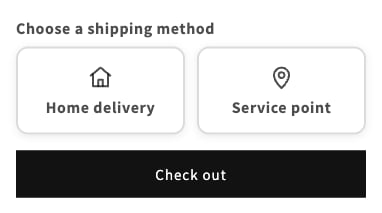
This tutorial is for webshops whose Shopify plan doesn’t let an app calculate shipping prices. You keep the shipping methods and prices you typed into Shopify yourself. Zippendo adds a small picker to your cart: your customers choose Home delivery or Service point, and if they want a service point, they find one near them and pick it. At checkout they choose your service point shipping method, and the order arrives in Zippendo with the service point they picked, ready to send.
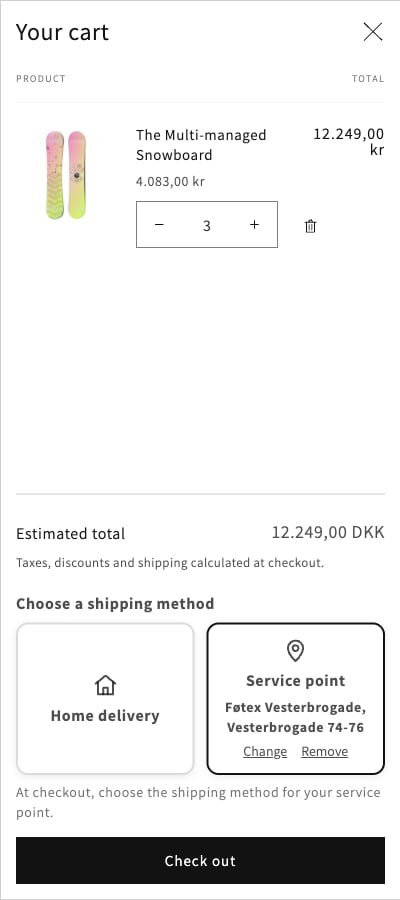
What your customers see in the cart
It takes about 15 minutes. You do most of it in Zippendo, and click Save once in Shopify.
What you need
Your Shopify webshop connected to Zippendo, with Zippendo importing its orders. See Connect Shopify.
A shipping method in Shopify for delivery to a service point, for example “GLS Pakkeshop”. You make it under Settings → Shipping and delivery in your Shopify admin, just like your other shipping methods.
A shipping rule in Zippendo for the same carrier product, such as GLS ShopDelivery.
Does your plan let apps calculate shipping prices? Then you don’t need this. Follow Show your shipping prices in Shopify checkout instead, and your customers choose their service point right at checkout.
Service points in the cart work only when Zippendo imports your Shopify orders. If another system, such as PeakWMS, handles them, the card in Zippendo shows Not available.
Step 1: Link your Shopify shipping method to a shipping rule
You do this in Zippendo. It tells Zippendo which shipping rule to use when a customer chooses your service point shipping method.
1
Open your webshop's settings
Click Order channels in the menu on the left. On the Connected tab, click your Shopify webshop. You land on the Orders & checkout tab.
2
Add a mapping
Scroll down to Shipping method mapping and click Add mapping. A new row appears.
3
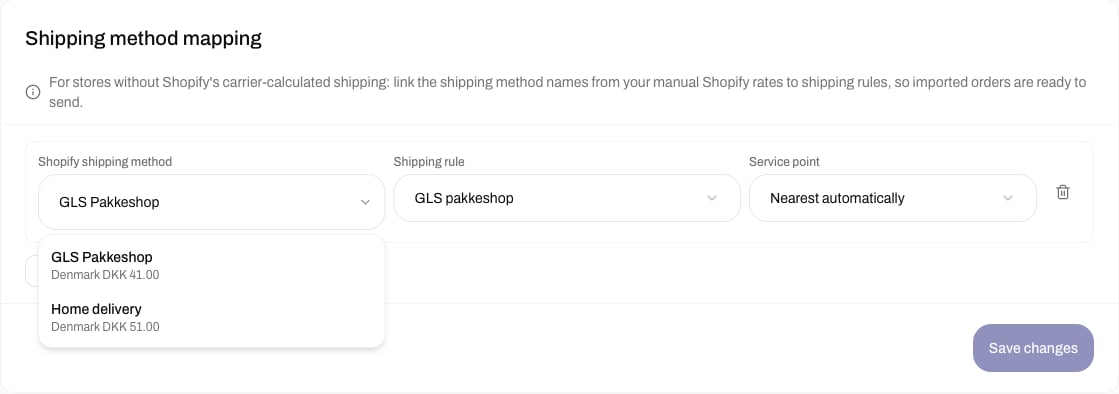
Pick your Shopify shipping method
Click Shopify shipping method. A list of your Shopify shipping methods opens, with their zones and prices. Click your service point shipping method, for example GLS Pakkeshop.
Pick your Shopify shipping method from the list
Your shipping method isn’t in the list? Check that it exists in Shopify and has a fixed price. You can also type the name, exactly as your customers see it at checkout.
4
Choose the shipping rule and save
Under Shipping rule, choose the rule that delivers to a service point. Leave Service point on Nearest automatically, then click Save changes.
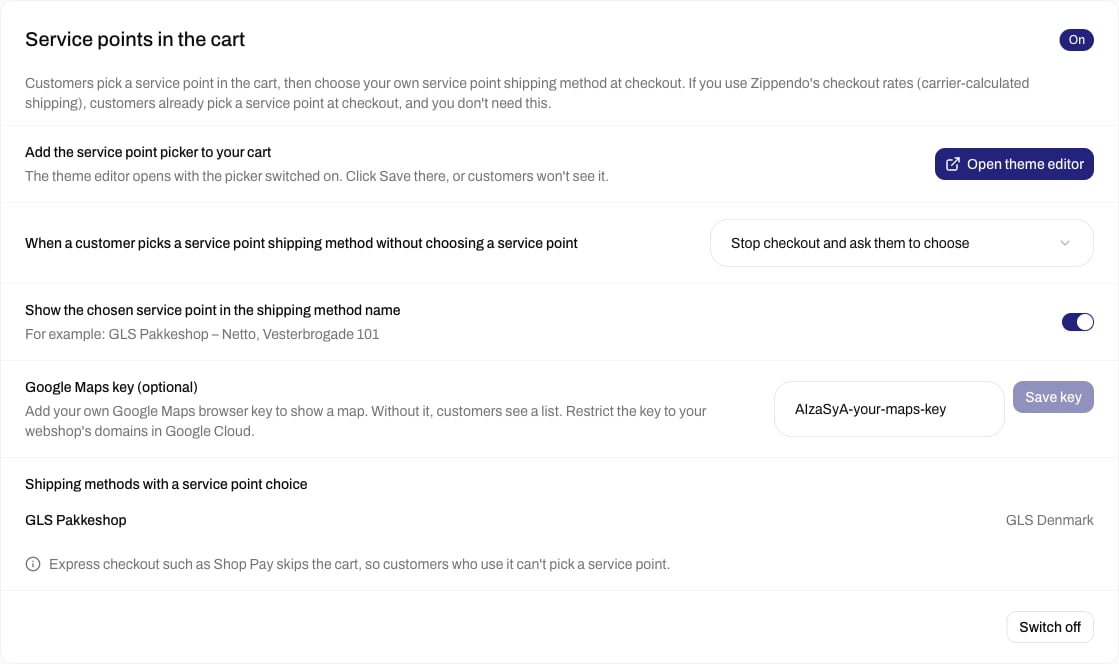
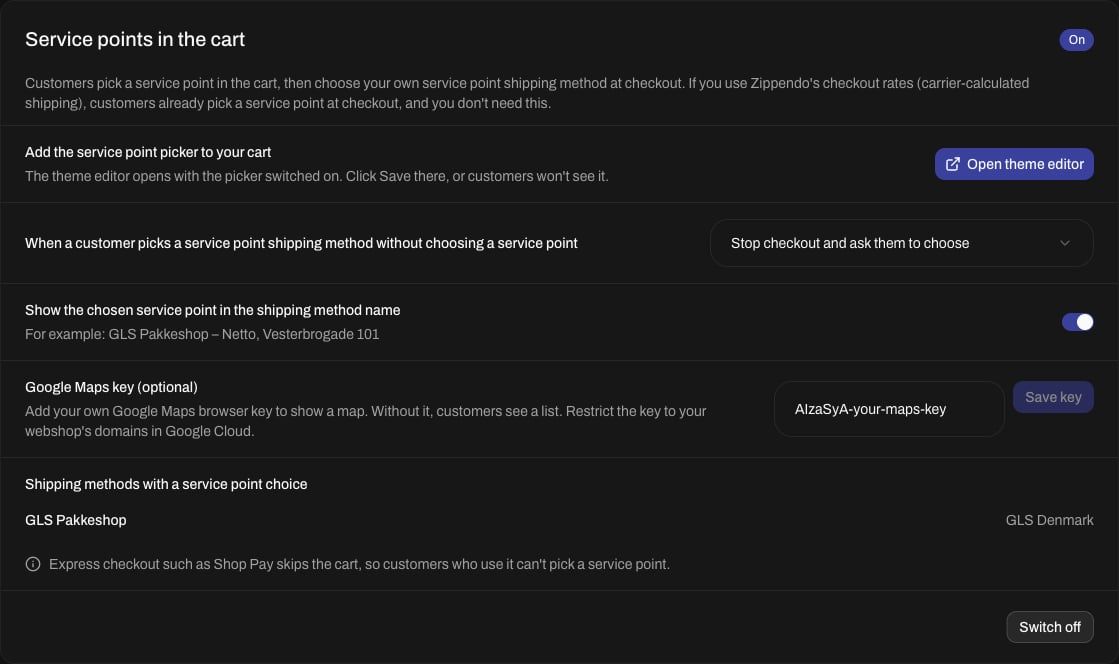
Still in Zippendo, scroll down to the Service points in the cart card, below Shipping method mapping. The card walks you through the setup one step at a time.
1
Approve the new permissions, if Zippendo asks
If the card shows Approve Zippendo’s new permissions in Shopify, click Approve in Shopify. Shopify opens and asks you to approve. Approve, then come back to Zippendo.
2
Switch it on
Under Switch on service points in the cart, click Switch on.
The card before you switch it on
Once it’s on, the card shows what to do next, and a few choices you can come back to later.
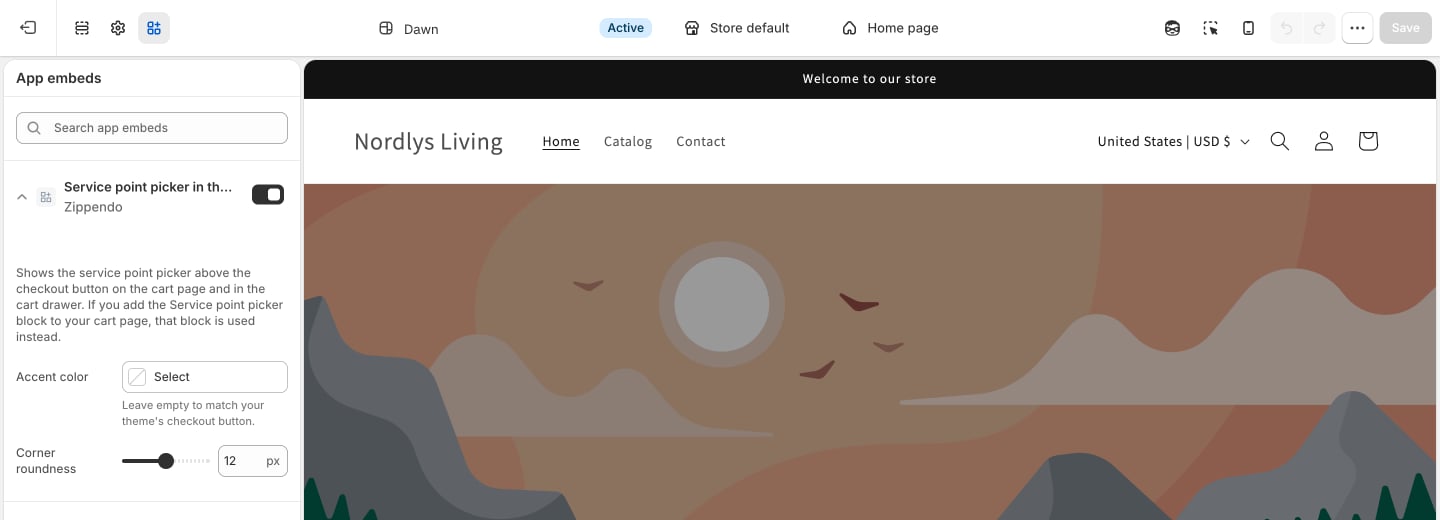
On the card, under Add the service point picker to your cart, click Open theme editor. Shopify’s theme editor opens with Service point picker in the cart already switched on under App embeds.
App embeds in Shopify's theme editor: the picker is switched on, with its look settings
2
Make it match your webshop (optional)
Click Service point picker in the cart to see its settings:
Accent color: the color of the chosen card, the chosen service point and the main button. Leave it empty, and the picker uses the colors of your theme’s checkout button.
Corner roundness: how round the corners of the cards and buttons are. Set it to 0 for square corners.
3
Save in Shopify
Click Save at the top right of the theme editor. If you don’t, your customers won’t see the picker.
The picker shows above the checkout button, both on your cart page and in the cart drawer (the cart that slides in from the side). If your theme puts it in the wrong place, or doesn’t show it at all, add the Service point picker block to your cart page in the theme editor instead.
Add your own Google Maps key, and your customers see the service points on a map next to the list. Paste the key into Google Maps key (optional) on the Service points in the cart card and click Save key. How to get a key, step by step: Get Google keys for the service point map and address search.
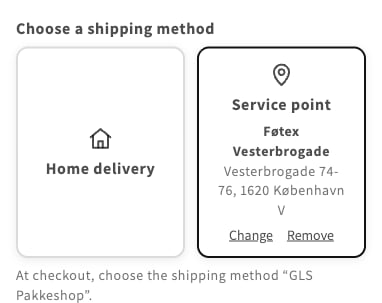
Open your webshop and put a product in the cart. Above the checkout button, under Choose a shipping method, you see two cards: Home delivery and Service point.
2
Find service points
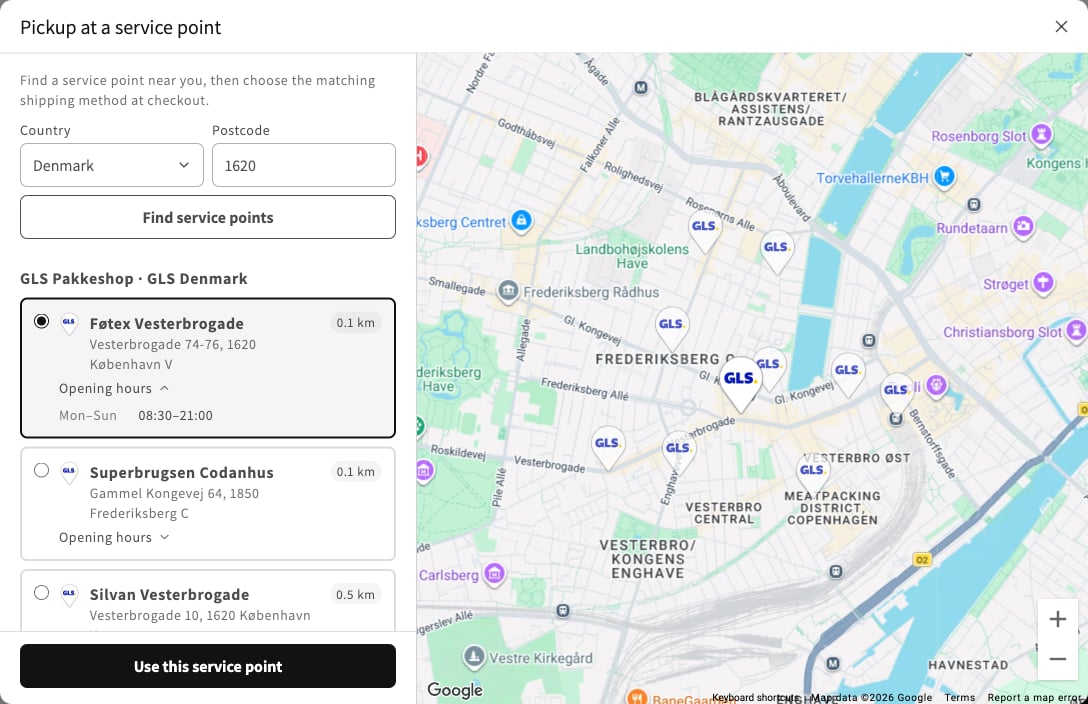
Click Service point. A window called Pickup at a service point opens. Choose a Country, type a Postcode and click Find service points. The nearest service points appear with their address and distance, and Opening hours opens their opening hours. With a Google Maps key, a map next to the list shows them too: clicking a pin selects that service point.
Service points near the postcode, in the list and on the map
3
Choose one
Select a service point and click Use this service point. The window closes, and the Service point card shows your choice, with Change and Remove. Below the cards, a line says which shipping method to choose at checkout.
The chosen service point, and the shipping method to pick at checkout
4
Go to checkout
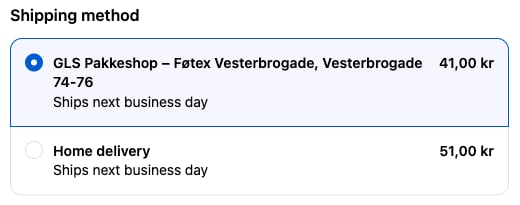
At checkout, choose your service point shipping method. Service point shipping methods that can’t deliver to the chosen service point are hidden, so the service point and the shipping method always match. Your other shipping methods, such as home delivery, stay available.
At checkout, the shipping method shows the chosen service point
The order arrives in Orders in Zippendo with the shipping rule from your mapping and the service point your customer chose, ready to send.
Once it’s on, the card also lets you choose what happens when a customer picks your service point shipping method at checkout without choosing a service point in the cart:
Stop checkout and ask them to choose: the customer can’t place the order until they pick a service point in the cart.
Let the order through and use the mapping’s service point setting: the order goes through, and Zippendo uses the Service point choice on your mapping: Nearest automatically or Choose manually.
Show the chosen service point in the shipping method name adds the service point to the shipping method’s name at checkout, for example “GLS Pakkeshop – Netto, Vesterbrogade 101”, so your customer can see where the parcel goes.
{"docsConfig":{"theme":"almond","$schema":"https://mintlify.com/docs.json","name":"Zippendo","colors":{"primary":"#000","light":"#fff","dark":"#000"},"logo":{"light":"https://mintcdn.com/zippendo/vvJk_PyssTmjqf9_/logo/light.svg?fit=max\u0026auto=format\u0026n=vvJk_PyssTmjqf9_\u0026q=85\u0026s=9fc741a418a93f2d556d0b9b613050e8","dark":"https://mintcdn.com/zippendo/vvJk_PyssTmjqf9_/logo/dark.svg?fit=max\u0026auto=format\u0026n=vvJk_PyssTmjqf9_\u0026q=85\u0026s=230c49f3bcdc109cf7306f3a3fb81bc2","href":"https://www.zippendo.com"},"favicon":"https://mintcdn.com/zippendo/vvJk_PyssTmjqf9_/favicon-dark.svg?fit=max\u0026auto=format\u0026n=vvJk_PyssTmjqf9_\u0026q=85\u0026s=3bd5c187f9c99f9ca518062f6a7b2e18","api":{"openapi":"https://api.zippendo.com/public/json","playground":{"display":"interactive"},"mdx":{"server":"https://api.zippendo.com"}},"navbar":{"links":[{"href":"https://app.zippendo.com/login","label":"Sign in"}],"primary":{"type":"button","label":"Get started","href":"https://app.zippendo.com/sign-up"}},"footer":{"socials":{"website":"https://www.zippendo.com"}},"seo":{"metatags":{"og:site_name":"Zippendo","og:type":"website","twitter:card":"summary_large_image"}},"fonts":{"family":"Inter"},"icons":{"library":"lucide"},"errors":{"404":{"redirect":false,"title":"404: Lost in Documentation Space","description":"Looks like this page took a wrong turn. Try the sidebar or head back to the introduction."}},"contextual":{"options":["copy","view","chatgpt","claude","perplexity","mcp","cursor","vscode"],"display":"header"},"styling":{"latex":false},"navigation":{"languages":[{"language":"en","default":true,"href":"introduction"},{"language":"de","navbar":{"links":[{"href":"https://app.zippendo.com/login","label":"Anmelden"}],"primary":{"type":"button","label":"Loslegen","href":"https://app.zippendo.com/sign-up"}},"href":"de/introduction"},{"language":"pl","navbar":{"links":[{"href":"https://app.zippendo.com/login","label":"Zaloguj się"}],"primary":{"type":"button","label":"Zacznij","href":"https://app.zippendo.com/sign-up"}},"href":"pl/introduction"},{"language":"da","navbar":{"links":[{"href":"https://app.zippendo.com/login","label":"Log ind"}],"primary":{"type":"button","label":"Kom i gang","href":"https://app.zippendo.com/sign-up"}},"href":"da/introduction"},{"language":"sv","navbar":{"links":[{"href":"https://app.zippendo.com/login","label":"Logga in"}],"primary":{"type":"button","label":"Kom igång","href":"https://app.zippendo.com/sign-up"}},"href":"sv/introduction"},{"language":"nl","navbar":{"links":[{"href":"https://app.zippendo.com/login","label":"Inloggen"}],"primary":{"type":"button","label":"Aan de slag","href":"https://app.zippendo.com/sign-up"}},"href":"nl/introduction"},{"language":"no","navbar":{"links":[{"href":"https://app.zippendo.com/login","label":"Logg inn"}],"primary":{"type":"button","label":"Kom i gang","href":"https://app.zippendo.com/sign-up"}},"href":"no/introduction"},{"language":"fi","navbar":{"links":[{"href":"https://app.zippendo.com/login","label":"Kirjaudu sisään"}],"primary":{"type":"button","label":"Aloita","href":"https://app.zippendo.com/sign-up"}},"href":"fi/introduction"},{"language":"fr","navbar":{"links":[{"href":"https://app.zippendo.com/login","label":"Se connecter"}],"primary":{"type":"button","label":"Commencer","href":"https://app.zippendo.com/sign-up"}},"href":"fr/introduction"}]}},"deployment":{"deploymentMetadataValue":{"subdomain":"zippendo","hasAudioNarration":false,"actualSubdomain":"zippendo","customDomains":["www.zippendo.com"],"gitSource":{"type":"github","owner":"zippendo","repo":"zippendo","deployBranch":"main","contentDirectory":"apps/docs","isPrivate":true,"mountPath":"","label":""},"chroma":{"liveDeploymentHistoryId":"6adbd363a4165772661cbff5","collectionId":"c7d6e11e-a9db-4571-89f6-de7c8fd67a4f","schemaVersion":"v3","latestBuiltDeploymentHistoryId":"6adbd363a4165772661cbff5"},"feedback":{"thumbs":true},"entitlements":{},"buildId":"6adf244cd7cf896c8ad7cdef","clientVersion":"0.0.3966","searchFilterCounts":[{"language":"de","tag":"Anleitungen","count":105},{"language":"en","tag":"How-to","count":86},{"language":"da","tag":"Guides","count":86},{"language":"fi","tag":"Ohjeet","count":86},{"language":"fr","tag":"Guides pratiques","count":86},{"language":"nl","tag":"Hoe doe je dat","count":86},{"language":"no","tag":"Slik gjør du","count":86},{"language":"pl","tag":"Poradniki","count":86},{"language":"sv","tag":"Instruktioner","count":86},{"language":"en","tag":"API reference","count":85},{"language":"en","tag":"Documentation","count":59},{"language":"da","tag":"Dokumentation","count":59},{"language":"de","tag":"Dokumentation","count":59},{"language":"fi","tag":"Dokumentaatio","count":59},{"language":"fr","tag":"Documentation","count":59},{"language":"nl","tag":"Documentatie","count":59},{"language":"no","tag":"Dokumentasjon","count":59},{"language":"pl","tag":"Dokumentacja","count":59},{"language":"sv","tag":"Dokumentation","count":59},{"language":"en","tag":"Connect a carrier","count":29},{"language":"da","tag":"Tilslut en transportør","count":29},{"language":"de","tag":"Versanddienstleister verbinden","count":29},{"language":"fi","tag":"Yhdistä kuljetusyhtiö","count":29},{"language":"fr","tag":"Connecter un transporteur","count":29},{"language":"nl","tag":"Een vervoerder koppelen","count":29},{"language":"no","tag":"Koble til en transportør","count":29},{"language":"pl","tag":"Połącz przewoźnika","count":29},{"language":"sv","tag":"Anslut en transportör","count":29},{"language":"en","tag":"Shipments","count":22},{"language":"en","tag":"Tutorials","count":19},{"language":"da","tag":"Vejledninger","count":19},{"language":"fi","tag":"Opastukset","count":19},{"language":"fr","tag":"Tutoriels","count":19},{"language":"nl","tag":"Handleidingen","count":19},{"language":"no","tag":"Veiledninger","count":19},{"language":"pl","tag":"Samouczki","count":19},{"language":"sv","tag":"Guider","count":19},{"language":"en","tag":"Connections","count":14},{"language":"en","tag":"Fulfillment flow","count":14},{"language":"da","tag":"Forbindelser","count":14},{"language":"da","tag":"Forsendelsesflow","count":14},{"language":"de","tag":"Verbindungen","count":14},{"language":"de","tag":"Versandablauf","count":14},{"language":"fi","tag":"Yhteydet","count":14},{"language":"fi","tag":"Toimitusprosessi","count":14},{"language":"fr","tag":"Connexions","count":14},{"language":"fr","tag":"Flux d'expédition","count":14},{"language":"nl","tag":"Koppelingen","count":14},{"language":"nl","tag":"Verzendproces","count":14},{"language":"no","tag":"Tilkoblinger","count":14},{"language":"no","tag":"Sendingsflyt","count":14},{"language":"pl","tag":"Połączenia","count":14},{"language":"pl","tag":"Przepływ realizacji zamówień","count":14},{"language":"sv","tag":"Anslutningar","count":14},{"language":"sv","tag":"Orderflöde","count":14},{"language":"en","tag":"Account","count":13},{"language":"en","tag":"Carriers","count":13},{"language":"da","tag":"Konto","count":13},{"language":"de","tag":"Konto","count":13},{"language":"fi","tag":"Tili","count":13},{"language":"fr","tag":"Compte","count":13},{"language":"nl","tag":"Account","count":13},{"language":"no","tag":"Konto","count":13},{"language":"pl","tag":"Konto","count":13},{"language":"sv","tag":"Konto","count":13},{"language":"da","tag":"Drift","count":12},{"language":"de","tag":"Betrieb","count":12},{"language":"fi","tag":"Toiminnot","count":12},{"language":"fr","tag":"Opérations","count":12},{"language":"nl","tag":"Dagelijks gebruik","count":12},{"language":"no","tag":"Drift","count":12},{"language":"pl","tag":"Operacje","count":12},{"language":"sv","tag":"Daglig drift","count":12},{"language":"da","tag":"Integrationer","count":11},{"language":"da","tag":"Vidensbase","count":11},{"language":"de","tag":"Integrationen","count":11},{"language":"de","tag":"Wissensdatenbank","count":11},{"language":"fi","tag":"Integraatiot","count":11},{"language":"fi","tag":"Tietopankki","count":11},{"language":"fr","tag":"Intégrations","count":11},{"language":"fr","tag":"Base de connaissances","count":11},{"language":"nl","tag":"Integraties","count":11},{"language":"nl","tag":"Kennisbank","count":11},{"language":"no","tag":"Integrasjoner","count":11},{"language":"no","tag":"Kunnskapsbase","count":11},{"language":"pl","tag":"Integracje","count":11},{"language":"pl","tag":"Baza wiedzy","count":11},{"language":"sv","tag":"Integrationer","count":11},{"language":"sv","tag":"Kunskapsbas","count":11},{"language":"de","tag":"Bestellungen \u0026 Verkaufskanäle","count":10}]},"assistantConfig":{"enableAskAiButton":false,"enableStarterQuestions":false,"enableContextualStarterQuestions":false,"enableAskAiSearchBar":true},"hasChatPermissions":false,"hasWebMcpPermissions":false,"toggles":[{"name":"kill-isr","enabled":true,"variant":{"name":"disabled","enabled":false,"feature_enabled":true},"impressionData":false},{"name":"agent-mintlify-slack","enabled":true,"variant":{"name":"disabled","enabled":false,"feature_enabled":true},"impressionData":false},{"name":"editor-v7-file-tree","enabled":true,"variant":{"name":"disabled","enabled":false,"feature_enabled":true},"impressionData":false},{"name":"agent-integrations-settings","enabled":true,"variant":{"name":"disabled","enabled":false,"feature_enabled":true},"impressionData":false},{"name":"automations-pr-grouping","enabled":true,"variant":{"name":"disabled","enabled":false,"feature_enabled":true},"impressionData":false},{"name":"custom-prefix","enabled":true,"variant":{"name":"disabled","enabled":false,"feature_enabled":true},"impressionData":false},{"name":"analytics-v7","enabled":true,"variant":{"name":"disabled","enabled":false,"feature_enabled":true},"impressionData":false},{"name":"user-flows-analytics","enabled":true,"variant":{"name":"disabled","enabled":false,"feature_enabled":true},"impressionData":false},{"name":"no-publish-flow","enabled":true,"variant":{"name":"disabled","enabled":false,"feature_enabled":true},"impressionData":false},{"name":"workos-onboarding","enabled":true,"variant":{"name":"disabled","enabled":false,"feature_enabled":true},"impressionData":false},{"name":"llms-txt-v2","enabled":true,"variant":{"name":"disabled","enabled":false,"feature_enabled":true},"impressionData":false},{"name":"pause-universal-search-reconcile","enabled":true,"variant":{"name":"disabled","enabled":false,"feature_enabled":true},"impressionData":false},{"name":"snapshot-serving-live","enabled":true,"variant":{"name":"disabled","enabled":false,"feature_enabled":true},"impressionData":false},{"name":"stripTemperatureMiddleware","enabled":true,"variant":{"name":"disabled","enabled":false,"feature_enabled":true},"impressionData":false},{"name":"per-site-search-delta","enabled":true,"variant":{"name":"disabled","enabled":false,"feature_enabled":true},"impressionData":false},{"name":"support-platform-pylon-zendesk","enabled":true,"variant":{"name":"disabled","enabled":false,"feature_enabled":true},"impressionData":false},{"name":"snapshot-serving","enabled":true,"variant":{"name":"disabled","enabled":false,"feature_enabled":true},"impressionData":false},{"name":"instant-rollback","enabled":true,"variant":{"name":"disabled","enabled":false,"feature_enabled":true},"impressionData":false},{"name":"granular-notifications-server","enabled":true,"variant":{"name":"disabled","enabled":false,"feature_enabled":true},"impressionData":false},{"name":"granular-notifications","enabled":true,"variant":{"name":"disabled","enabled":false,"feature_enabled":true},"impressionData":false},{"name":"editor-private-page-search","enabled":true,"variant":{"name":"disabled","enabled":false,"feature_enabled":true},"impressionData":false},{"name":"automations-fable","enabled":true,"variant":{"name":"disabled","enabled":false,"feature_enabled":true},"impressionData":false},{"name":"fixed-ai-action-pricing","enabled":true,"variant":{"name":"disabled","enabled":false,"feature_enabled":true},"impressionData":false},{"name":"automation-resolve-merge-conflict","enabled":true,"variant":{"name":"disabled","enabled":false,"feature_enabled":true},"impressionData":false},{"name":"scoped-publishing","enabled":true,"variant":{"name":"disabled","enabled":false,"feature_enabled":true},"impressionData":false},{"name":"mintql","enabled":true,"variant":{"name":"disabled","enabled":false,"feature_enabled":true},"impressionData":false},{"name":"page-level-analytics","enabled":true,"variant":{"name":"disabled","enabled":false,"feature_enabled":true},"impressionData":false},{"name":"editor-version-history-v2","enabled":true,"variant":{"name":"disabled","enabled":false,"feature_enabled":true},"impressionData":false},{"name":"editor-nav-generations","enabled":true,"variant":{"name":"disabled","enabled":false,"feature_enabled":true},"impressionData":false},{"name":"billing-page-v2","enabled":true,"variant":{"name":"disabled","enabled":false,"feature_enabled":true},"impressionData":false},{"name":"workspace-projects","enabled":true,"variant":{"name":"disabled","enabled":false,"feature_enabled":true},"impressionData":false},{"name":"assistant-v5","enabled":true,"variant":{"name":"disabled","enabled":false,"feature_enabled":true},"impressionData":false},{"name":"byok-sep-25","enabled":true,"variant":{"name":"disabled","enabled":false,"feature_enabled":true},"impressionData":false},{"name":"fork-pr-previews","enabled":true,"variant":{"name":"disabled","enabled":false,"feature_enabled":true},"impressionData":false},{"name":"revalidation-jwt","enabled":true,"variant":{"name":"disabled","enabled":false,"feature_enabled":true},"impressionData":false},{"name":"vite-origin","enabled":true,"variant":{"name":"disabled","enabled":false,"feature_enabled":true},"impressionData":false},{"name":"editor-agent-model-picker","enabled":true,"variant":{"name":"disabled","enabled":false,"feature_enabled":true},"impressionData":false},{"name":"billing-updated-9-15","enabled":true,"variant":{"name":"disabled","enabled":false,"feature_enabled":true},"impressionData":false},{"name":"hobby-abuse-scan","enabled":true,"variant":{"name":"disabled","enabled":false,"feature_enabled":true},"impressionData":false},{"name":"dashboard-inbox","enabled":true,"variant":{"name":"disabled","enabled":false,"feature_enabled":true},"impressionData":false}],"isAtlas":false,"googleFontsInlined":false},"customCss":[{"filePath":"style.css","content":"@media (min-width:1024px){.h-full.relative.flex-1.flex.items-center.gap-x-4{display:grid;grid-template-columns:240px auto 1fr auto;align-items:center;column-gap:16px}.h-full.relative.flex-1.flex.items-center.gap-x-4>.flex-1.flex.items-center.gap-x-4{width:240px;min-width:240px;max-width:240px;flex:none;grid-column:1;box-sizing:border-box;padding-right:0;justify-content:flex-start}.h-full.relative.flex-1.flex.items-center.gap-x-4>.flex-1.flex.items-center.gap-x-4>.hidden.lg\\:flex.items-center.gap-x-2:empty{display:none}.h-full.relative.flex-1.flex.items-center.gap-x-4>.flex.items-center.gap-4,.h-full.relative.flex-1.flex.items-center.gap-x-4>.flex.items-center.gap-4>.flex-1.relative.hidden.lg\\:flex.items-center{display:contents}.h-full.relative.flex-1.flex.items-center.gap-x-4 .h-14.font-semibold:has(.nav-tabs){grid-column:2;grid-row:1;justify-self:start}.h-full.relative.flex-1.flex.items-center.gap-x-4 nav[aria-label=Main]{grid-column:4;justify-self:end}.h-full.relative.flex-1.flex.items-center.gap-x-4 #search-bar-entry{grid-column:3;justify-self:end}}.flex-1.flex.items-center.gap-x-4{padding-left:0}.sidebar-title{font-weight:700}"}],"page":{"pagePath":"tutorials/shopify-cart-service-points","slug":"/tutorials/shopify-cart-service-points","pageMetadata":{"title":"Let customers pick a service point in the Shopify cart","sidebarTitle":"Service points in the cart","description":"Step by step. If your Shopify plan can't show shipping prices from an app, let your customers choose their service point in the cart, and keep your own Shopify shipping methods.","href":"/tutorials/shopify-cart-service-points"},"description":{"compiledSource":"\"use strict\";\nconst {jsx: _jsx} = arguments[0];\nconst {useMDXComponents: _provideComponents} = arguments[0];\nfunction _createMdxContent(props) {\n const _components = {\n p: \"p\",\n ..._provideComponents(),\n ...props.components\n };\n return _jsx(_components.p, {\n children: \"Step by step. If your Shopify plan can’t show shipping prices from an app, let your customers choose their service point in the cart, and keep your own Shopify shipping methods.\"\n });\n}\nfunction MDXContent(props = {}) {\n const {wrapper: MDXLayout} = {\n ..._provideComponents(),\n ...props.components\n };\n return MDXLayout ? _jsx(MDXLayout, {\n ...props,\n children: _jsx(_createMdxContent, {\n ...props\n })\n }) : _createMdxContent(props);\n}\nreturn {\n default: MDXContent\n};\n","frontmatter":{},"scope":{}},"pageType":"default","mdx":{"mdxSource":{"compiledSource":"\"use strict\";const{Fragment:_Fragment,jsx:_jsx,jsxs:_jsxs}=arguments[0];const{useMDXComponents:_provideComponents}=arguments[0];function _createMdxContent(props){const _components={a:`a`,li:`li`,p:`p`,strong:`strong`,ul:`ul`,..._provideComponents(),...props.components},{Check,Frame,Heading,Info,Note,OptimizedImage,Step,Steps,Warning}=_components;if(!Check)_missingMdxReference(`Check`,true);if(!Frame)_missingMdxReference(`Frame`,true);if(!Heading)_missingMdxReference(`Heading`,true);if(!Info)_missingMdxReference(`Info`,true);if(!Note)_missingMdxReference(`Note`,true);if(!OptimizedImage)_missingMdxReference(`OptimizedImage`,true);if(!Step)_missingMdxReference(`Step`,true);if(!Steps)_missingMdxReference(`Steps`,true);if(!Warning)_missingMdxReference(`Warning`,true);return _jsxs(_Fragment,{children:[_jsxs(_components.p,{children:[`This tutorial is for webshops whose Shopify plan doesn’t let an app calculate shipping prices. You keep the shipping methods and prices you typed into Shopify yourself. Zippendo adds a small picker to your cart: your customers choose `,_jsx(_components.strong,{children:`Home delivery`}),` or `,_jsx(_components.strong,{children:`Service point`}),`, and if they want a service point, they find one near them and pick it. At checkout they choose your service point shipping method, and the order arrives in Zippendo with the service point they picked, ready to send.`]}),`\n`,_jsx(Frame,{caption:`What your customers see in the cart`,children:_jsx(OptimizedImage,{src:`https://mintcdn.com/zippendo/3iHx7f4_tYAQ-H01/images/tutorials/shopify-cart-service-points/05-cart-picker.png?fit=max\u0026auto=format\u0026n=3iHx7f4_tYAQ-H01\u0026q=85\u0026s=e3741e8cac92fd7798324c4ffeb484b6`,alt:`Cart with Choose a shipping method and two cards, Home delivery and Service point, above the Check out button`,\"data-og-width\":`382`,width:`382`,\"data-og-height\":`213`,height:`213`,\"data-path\":`images/tutorials/shopify-cart-service-points/05-cart-picker.png`,\"data-optimize\":`true`,\"data-opv\":`3`,srcset:`https://mintcdn.com/zippendo/3iHx7f4_tYAQ-H01/images/tutorials/shopify-cart-service-points/05-cart-picker.png?w=280\u0026fit=max\u0026auto=format\u0026n=3iHx7f4_tYAQ-H01\u0026q=85\u0026s=602dfda64c65e70f51e8cf9256ee9438 280w, https://mintcdn.com/zippendo/3iHx7f4_tYAQ-H01/images/tutorials/shopify-cart-service-points/05-cart-picker.png?w=560\u0026fit=max\u0026auto=format\u0026n=3iHx7f4_tYAQ-H01\u0026q=85\u0026s=c8f69ca6ca656ff269ff203e9d60afb2 560w, https://mintcdn.com/zippendo/3iHx7f4_tYAQ-H01/images/tutorials/shopify-cart-service-points/05-cart-picker.png?w=840\u0026fit=max\u0026auto=format\u0026n=3iHx7f4_tYAQ-H01\u0026q=85\u0026s=fbd2ee39cfae397579b55a985962c3f5 840w, https://mintcdn.com/zippendo/3iHx7f4_tYAQ-H01/images/tutorials/shopify-cart-service-points/05-cart-picker.png?w=1100\u0026fit=max\u0026auto=format\u0026n=3iHx7f4_tYAQ-H01\u0026q=85\u0026s=19ef09e03a3e9e28ecd6c4727d5f200d 1100w, https://mintcdn.com/zippendo/3iHx7f4_tYAQ-H01/images/tutorials/shopify-cart-service-points/05-cart-picker.png?w=1650\u0026fit=max\u0026auto=format\u0026n=3iHx7f4_tYAQ-H01\u0026q=85\u0026s=d4499ee2c03f16b73f62726375aa7eda 1650w, https://mintcdn.com/zippendo/3iHx7f4_tYAQ-H01/images/tutorials/shopify-cart-service-points/05-cart-picker.png?w=2500\u0026fit=max\u0026auto=format\u0026n=3iHx7f4_tYAQ-H01\u0026q=85\u0026s=10c63d66299b7f542ec72959db183ea2 2500w`})}),`\n`,_jsxs(_components.p,{children:[`It takes about 15 minutes. You do most of it in Zippendo, and click `,_jsx(_components.strong,{children:`Save`}),` once in Shopify.`]}),`\n`,_jsxs(Info,{children:[_jsx(_components.p,{children:_jsx(_components.strong,{children:`What you need`})}),_jsxs(_components.ul,{children:[`\n`,_jsxs(_components.li,{children:[`Your Shopify webshop connected to Zippendo, with Zippendo importing its orders. See `,_jsx(_components.a,{href:`/tutorials/connect-shopify`,children:`Connect Shopify`}),`.`]}),`\n`,_jsxs(_components.li,{children:[`A shipping method in Shopify for delivery to a service point, for example “GLS Pakkeshop”. You make it under `,_jsx(_components.strong,{children:`Settings`}),` → `,_jsx(_components.strong,{children:`Shipping and delivery`}),` in your Shopify admin, just like your other shipping methods.`]}),`\n`,_jsxs(_components.li,{children:[`A `,_jsx(_components.a,{href:`/tutorials/shipping-rules`,children:`shipping rule`}),` in Zippendo for the same carrier product, such as GLS ShopDelivery.`]}),`\n`]})]}),`\n`,_jsx(Note,{children:_jsxs(_components.p,{children:[`Does your plan let apps calculate shipping prices? Then you don’t need this. Follow `,_jsx(_components.a,{href:`/tutorials/shopify-checkout-prices`,children:`Show your shipping prices in Shopify checkout`}),` instead, and your customers choose their service point right at checkout.`]})}),`\n`,_jsx(Warning,{children:_jsxs(_components.p,{children:[`Service points in the cart work only when Zippendo imports your Shopify orders. If another system, such as PeakWMS, handles them, the card in Zippendo shows `,_jsx(_components.strong,{children:`Not available`}),`.`]})}),`\n`,_jsx(Heading,{level:`2`,id:`step-1-link-your-shopify-shipping-method-to-a-shipping-rule`,children:`Step 1: Link your Shopify shipping method to a shipping rule`}),`\n`,_jsx(_components.p,{children:`You do this in Zippendo. It tells Zippendo which shipping rule to use when a customer chooses your service point shipping method.`}),`\n`,_jsxs(Steps,{children:[_jsx(Step,{title:`Open your webshop's settings`,children:_jsxs(_components.p,{children:[`Click `,_jsx(_components.strong,{children:`Order channels`}),` in the menu on the left. On the `,_jsx(_components.strong,{children:`Connected`}),` tab, click your Shopify webshop. You land on the `,_jsx(_components.strong,{children:`Orders \u0026 checkout`}),` tab.`]})}),_jsx(Step,{title:`Add a mapping`,children:_jsxs(_components.p,{children:[`Scroll down to `,_jsx(_components.strong,{children:`Shipping method mapping`}),` and click `,_jsx(_components.strong,{children:`Add mapping`}),`. A new row appears.`]})}),_jsxs(Step,{title:`Pick your Shopify shipping method`,children:[_jsxs(_components.p,{children:[`Click `,_jsx(_components.strong,{children:`Shopify shipping method`}),`. A list of your Shopify shipping methods opens, with their zones and prices. Click your service point shipping method, for example `,_jsx(_components.strong,{children:`GLS Pakkeshop`}),`.`]}),_jsxs(Frame,{caption:`Pick your Shopify shipping method from the list`,children:[_jsx(OptimizedImage,{src:`https://mintcdn.com/zippendo/3iHx7f4_tYAQ-H01/images/tutorials/shopify-cart-service-points/01-mapping-light.png?fit=max\u0026auto=format\u0026n=3iHx7f4_tYAQ-H01\u0026q=85\u0026s=0b4b312f9f18e53e73df0dad086d4862`,alt:`Shipping method mapping card with a new row. The Shopify shipping method list is open and shows GLS Pakkeshop and Home delivery with their zones and prices`,className:`mint-block dark:mint-hidden`,\"data-og-width\":`1119`,width:`1119`,\"data-og-height\":`394`,height:`394`,\"data-path\":`images/tutorials/shopify-cart-service-points/01-mapping-light.png`,\"data-optimize\":`true`,\"data-opv\":`3`,srcset:`https://mintcdn.com/zippendo/3iHx7f4_tYAQ-H01/images/tutorials/shopify-cart-service-points/01-mapping-light.png?w=280\u0026fit=max\u0026auto=format\u0026n=3iHx7f4_tYAQ-H01\u0026q=85\u0026s=13070cc9a22f795f02cab7c05e0da345 280w, https://mintcdn.com/zippendo/3iHx7f4_tYAQ-H01/images/tutorials/shopify-cart-service-points/01-mapping-light.png?w=560\u0026fit=max\u0026auto=format\u0026n=3iHx7f4_tYAQ-H01\u0026q=85\u0026s=0e279402deadeda5f2a38493d5466034 560w, https://mintcdn.com/zippendo/3iHx7f4_tYAQ-H01/images/tutorials/shopify-cart-service-points/01-mapping-light.png?w=840\u0026fit=max\u0026auto=format\u0026n=3iHx7f4_tYAQ-H01\u0026q=85\u0026s=40aa66d0edabaab976c37081e2a59eec 840w, https://mintcdn.com/zippendo/3iHx7f4_tYAQ-H01/images/tutorials/shopify-cart-service-points/01-mapping-light.png?w=1100\u0026fit=max\u0026auto=format\u0026n=3iHx7f4_tYAQ-H01\u0026q=85\u0026s=6756385bb847cde6f3b9742b528b8985 1100w, https://mintcdn.com/zippendo/3iHx7f4_tYAQ-H01/images/tutorials/shopify-cart-service-points/01-mapping-light.png?w=1650\u0026fit=max\u0026auto=format\u0026n=3iHx7f4_tYAQ-H01\u0026q=85\u0026s=780f9cf0801792543581635d35e901ed 1650w, https://mintcdn.com/zippendo/3iHx7f4_tYAQ-H01/images/tutorials/shopify-cart-service-points/01-mapping-light.png?w=2500\u0026fit=max\u0026auto=format\u0026n=3iHx7f4_tYAQ-H01\u0026q=85\u0026s=778f84f058d70f9e2dff1031621f1347 2500w`}),_jsx(OptimizedImage,{src:`https://mintcdn.com/zippendo/3iHx7f4_tYAQ-H01/images/tutorials/shopify-cart-service-points/01-mapping-dark.png?fit=max\u0026auto=format\u0026n=3iHx7f4_tYAQ-H01\u0026q=85\u0026s=1f794dc899ea1f2473010a933f9b636e`,alt:`Shipping method mapping card with a new row. The Shopify shipping method list is open and shows GLS Pakkeshop and Home delivery with their zones and prices`,className:`mint-hidden dark:mint-block`,\"data-og-width\":`1119`,width:`1119`,\"data-og-height\":`394`,height:`394`,\"data-path\":`images/tutorials/shopify-cart-service-points/01-mapping-dark.png`,\"data-optimize\":`true`,\"data-opv\":`3`,srcset:`https://mintcdn.com/zippendo/3iHx7f4_tYAQ-H01/images/tutorials/shopify-cart-service-points/01-mapping-dark.png?w=280\u0026fit=max\u0026auto=format\u0026n=3iHx7f4_tYAQ-H01\u0026q=85\u0026s=5edd9f641a07d297745a56a57bcca5a1 280w, https://mintcdn.com/zippendo/3iHx7f4_tYAQ-H01/images/tutorials/shopify-cart-service-points/01-mapping-dark.png?w=560\u0026fit=max\u0026auto=format\u0026n=3iHx7f4_tYAQ-H01\u0026q=85\u0026s=b65f403d5ae15bb168e1cb606b74c8e5 560w, https://mintcdn.com/zippendo/3iHx7f4_tYAQ-H01/images/tutorials/shopify-cart-service-points/01-mapping-dark.png?w=840\u0026fit=max\u0026auto=format\u0026n=3iHx7f4_tYAQ-H01\u0026q=85\u0026s=4681b8999a2d9f59e9590f6204712b99 840w, https://mintcdn.com/zippendo/3iHx7f4_tYAQ-H01/images/tutorials/shopify-cart-service-points/01-mapping-dark.png?w=1100\u0026fit=max\u0026auto=format\u0026n=3iHx7f4_tYAQ-H01\u0026q=85\u0026s=586525282939f2c2858e5b1510f4890d 1100w, https://mintcdn.com/zippendo/3iHx7f4_tYAQ-H01/images/tutorials/shopify-cart-service-points/01-mapping-dark.png?w=1650\u0026fit=max\u0026auto=format\u0026n=3iHx7f4_tYAQ-H01\u0026q=85\u0026s=33869aba724e6692cac6a03f0463b74d 1650w, https://mintcdn.com/zippendo/3iHx7f4_tYAQ-H01/images/tutorials/shopify-cart-service-points/01-mapping-dark.png?w=2500\u0026fit=max\u0026auto=format\u0026n=3iHx7f4_tYAQ-H01\u0026q=85\u0026s=c90c77617a868ac292ff1e9e4a4c6762 2500w`})]}),_jsx(_components.p,{children:`Your shipping method isn’t in the list? Check that it exists in Shopify and has a fixed price. You can also type the name, exactly as your customers see it at checkout.`})]}),_jsx(Step,{title:`Choose the shipping rule and save`,children:_jsxs(_components.p,{children:[`Under `,_jsx(_components.strong,{children:`Shipping rule`}),`, choose the rule that delivers to a service point. Leave `,_jsx(_components.strong,{children:`Service point`}),` on `,_jsx(_components.strong,{children:`Nearest automatically`}),`, then click `,_jsx(_components.strong,{children:`Save changes`}),`.`]})})]}),`\n`,_jsxs(_components.p,{children:[`Every detail of mappings: `,_jsx(_components.a,{href:`/order-channels/shopify-shipping-method-mapping`,children:`Shopify without carrier-calculated shipping`})]}),`\n`,_jsx(Heading,{level:`2`,id:`step-2-switch-on-service-points-in-the-cart`,children:`Step 2: Switch on service points in the cart`}),`\n`,_jsxs(_components.p,{children:[`Still in Zippendo, scroll down to the `,_jsx(_components.strong,{children:`Service points in the cart`}),` card, below `,_jsx(_components.strong,{children:`Shipping method mapping`}),`. The card walks you through the setup one step at a time.`]}),`\n`,_jsxs(Steps,{children:[_jsx(Step,{title:`Approve the new permissions, if Zippendo asks`,children:_jsxs(_components.p,{children:[`If the card shows `,_jsx(_components.strong,{children:`Approve Zippendo’s new permissions in Shopify`}),`, click `,_jsx(_components.strong,{children:`Approve in Shopify`}),`. Shopify opens and asks you to approve. Approve, then come back to Zippendo.`]})}),_jsxs(Step,{title:`Switch it on`,children:[_jsxs(_components.p,{children:[`Under `,_jsx(_components.strong,{children:`Switch on service points in the cart`}),`, click `,_jsx(_components.strong,{children:`Switch on`}),`.`]}),_jsxs(Frame,{caption:`The card before you switch it on`,children:[_jsx(OptimizedImage,{src:`https://mintcdn.com/zippendo/3iHx7f4_tYAQ-H01/images/tutorials/shopify-cart-service-points/02-switch-on-light.png?fit=max\u0026auto=format\u0026n=3iHx7f4_tYAQ-H01\u0026q=85\u0026s=d4e2e1756245673f072dd376fba422cc`,alt:`Service points in the cart card, Off, with Switch on service points in the cart and a Switch on button`,className:`mint-block dark:mint-hidden`,\"data-og-width\":`1119`,width:`1119`,\"data-og-height\":`203`,height:`203`,\"data-path\":`images/tutorials/shopify-cart-service-points/02-switch-on-light.png`,\"data-optimize\":`true`,\"data-opv\":`3`,srcset:`https://mintcdn.com/zippendo/3iHx7f4_tYAQ-H01/images/tutorials/shopify-cart-service-points/02-switch-on-light.png?w=280\u0026fit=max\u0026auto=format\u0026n=3iHx7f4_tYAQ-H01\u0026q=85\u0026s=3d0a437c5c7d5bea9344da148aa56797 280w, https://mintcdn.com/zippendo/3iHx7f4_tYAQ-H01/images/tutorials/shopify-cart-service-points/02-switch-on-light.png?w=560\u0026fit=max\u0026auto=format\u0026n=3iHx7f4_tYAQ-H01\u0026q=85\u0026s=7b89e8d0fff0c0467020a1feca94f9f3 560w, https://mintcdn.com/zippendo/3iHx7f4_tYAQ-H01/images/tutorials/shopify-cart-service-points/02-switch-on-light.png?w=840\u0026fit=max\u0026auto=format\u0026n=3iHx7f4_tYAQ-H01\u0026q=85\u0026s=57b3723b9c21b1e8bd5206d0646421cf 840w, https://mintcdn.com/zippendo/3iHx7f4_tYAQ-H01/images/tutorials/shopify-cart-service-points/02-switch-on-light.png?w=1100\u0026fit=max\u0026auto=format\u0026n=3iHx7f4_tYAQ-H01\u0026q=85\u0026s=02e1eb6eb71d6124f8957f0334c08824 1100w, https://mintcdn.com/zippendo/3iHx7f4_tYAQ-H01/images/tutorials/shopify-cart-service-points/02-switch-on-light.png?w=1650\u0026fit=max\u0026auto=format\u0026n=3iHx7f4_tYAQ-H01\u0026q=85\u0026s=0a444765628aeeda9b5077c831c9e1a1 1650w, https://mintcdn.com/zippendo/3iHx7f4_tYAQ-H01/images/tutorials/shopify-cart-service-points/02-switch-on-light.png?w=2500\u0026fit=max\u0026auto=format\u0026n=3iHx7f4_tYAQ-H01\u0026q=85\u0026s=f886e473165d6608b25fba2d03878c43 2500w`}),_jsx(OptimizedImage,{src:`https://mintcdn.com/zippendo/3iHx7f4_tYAQ-H01/images/tutorials/shopify-cart-service-points/02-switch-on-dark.png?fit=max\u0026auto=format\u0026n=3iHx7f4_tYAQ-H01\u0026q=85\u0026s=02aa793e29011bcdcd375892e44430a3`,alt:`Service points in the cart card, Off, with Switch on service points in the cart and a Switch on button`,className:`mint-hidden dark:mint-block`,\"data-og-width\":`1119`,width:`1119`,\"data-og-height\":`203`,height:`203`,\"data-path\":`images/tutorials/shopify-cart-service-points/02-switch-on-dark.png`,\"data-optimize\":`true`,\"data-opv\":`3`,srcset:`https://mintcdn.com/zippendo/3iHx7f4_tYAQ-H01/images/tutorials/shopify-cart-service-points/02-switch-on-dark.png?w=280\u0026fit=max\u0026auto=format\u0026n=3iHx7f4_tYAQ-H01\u0026q=85\u0026s=23afd7e0ad26c769f74401a5a56b9cc1 280w, https://mintcdn.com/zippendo/3iHx7f4_tYAQ-H01/images/tutorials/shopify-cart-service-points/02-switch-on-dark.png?w=560\u0026fit=max\u0026auto=format\u0026n=3iHx7f4_tYAQ-H01\u0026q=85\u0026s=8e119d2ffef3769b3e60c834b80daf4a 560w, https://mintcdn.com/zippendo/3iHx7f4_tYAQ-H01/images/tutorials/shopify-cart-service-points/02-switch-on-dark.png?w=840\u0026fit=max\u0026auto=format\u0026n=3iHx7f4_tYAQ-H01\u0026q=85\u0026s=31a6bda2c1e96edfa356f857b34caa91 840w, https://mintcdn.com/zippendo/3iHx7f4_tYAQ-H01/images/tutorials/shopify-cart-service-points/02-switch-on-dark.png?w=1100\u0026fit=max\u0026auto=format\u0026n=3iHx7f4_tYAQ-H01\u0026q=85\u0026s=50b8696ab1996bfec07470d35bc21460 1100w, https://mintcdn.com/zippendo/3iHx7f4_tYAQ-H01/images/tutorials/shopify-cart-service-points/02-switch-on-dark.png?w=1650\u0026fit=max\u0026auto=format\u0026n=3iHx7f4_tYAQ-H01\u0026q=85\u0026s=276c153b375ab0c096116b1bb6df4ccc 1650w, https://mintcdn.com/zippendo/3iHx7f4_tYAQ-H01/images/tutorials/shopify-cart-service-points/02-switch-on-dark.png?w=2500\u0026fit=max\u0026auto=format\u0026n=3iHx7f4_tYAQ-H01\u0026q=85\u0026s=53d0840606e1af27f23cd543f1676042 2500w`})]})]})]}),`\n`,_jsx(_components.p,{children:`Once it’s on, the card shows what to do next, and a few choices you can come back to later.`}),`\n`,_jsxs(Frame,{caption:`The card once it's on`,children:[_jsx(OptimizedImage,{src:`https://mintcdn.com/zippendo/3iHx7f4_tYAQ-H01/images/tutorials/shopify-cart-service-points/03-card-on-light.png?fit=max\u0026auto=format\u0026n=3iHx7f4_tYAQ-H01\u0026q=85\u0026s=f6f66052d8d8ac376cc0344557a1caf2`,alt:`Service points in the cart card, On, with Add the service point picker to your cart and an Open theme editor button, the choice Stop checkout and ask them to choose, Show the chosen service point in the shipping method name switched on, GLS Pakkeshop listed as a shipping method with a service point choice, and a box for an optional Google Maps key`,className:`mint-block dark:mint-hidden`,\"data-og-width\":`1119`,width:`1119`,\"data-og-height\":`664`,height:`664`,\"data-path\":`images/tutorials/shopify-cart-service-points/03-card-on-light.png`,\"data-optimize\":`true`,\"data-opv\":`3`,srcset:`https://mintcdn.com/zippendo/3iHx7f4_tYAQ-H01/images/tutorials/shopify-cart-service-points/03-card-on-light.png?w=280\u0026fit=max\u0026auto=format\u0026n=3iHx7f4_tYAQ-H01\u0026q=85\u0026s=8946d15726654937144585f7e1c31cec 280w, https://mintcdn.com/zippendo/3iHx7f4_tYAQ-H01/images/tutorials/shopify-cart-service-points/03-card-on-light.png?w=560\u0026fit=max\u0026auto=format\u0026n=3iHx7f4_tYAQ-H01\u0026q=85\u0026s=52f58a57cf190713d33d4db6418f88f8 560w, https://mintcdn.com/zippendo/3iHx7f4_tYAQ-H01/images/tutorials/shopify-cart-service-points/03-card-on-light.png?w=840\u0026fit=max\u0026auto=format\u0026n=3iHx7f4_tYAQ-H01\u0026q=85\u0026s=501dff921d4146379f4017665f723d05 840w, https://mintcdn.com/zippendo/3iHx7f4_tYAQ-H01/images/tutorials/shopify-cart-service-points/03-card-on-light.png?w=1100\u0026fit=max\u0026auto=format\u0026n=3iHx7f4_tYAQ-H01\u0026q=85\u0026s=7ccf08f65e1a89e6e6fe3ab5f641749d 1100w, https://mintcdn.com/zippendo/3iHx7f4_tYAQ-H01/images/tutorials/shopify-cart-service-points/03-card-on-light.png?w=1650\u0026fit=max\u0026auto=format\u0026n=3iHx7f4_tYAQ-H01\u0026q=85\u0026s=450755e87966f618c841b44d9d41dd7c 1650w, https://mintcdn.com/zippendo/3iHx7f4_tYAQ-H01/images/tutorials/shopify-cart-service-points/03-card-on-light.png?w=2500\u0026fit=max\u0026auto=format\u0026n=3iHx7f4_tYAQ-H01\u0026q=85\u0026s=067850f15bca44e942543955feffee82 2500w`}),_jsx(OptimizedImage,{src:`https://mintcdn.com/zippendo/3iHx7f4_tYAQ-H01/images/tutorials/shopify-cart-service-points/03-card-on-dark.png?fit=max\u0026auto=format\u0026n=3iHx7f4_tYAQ-H01\u0026q=85\u0026s=abf244844fbbf551e010220c6ebd9a06`,alt:`Service points in the cart card, On, with Add the service point picker to your cart and an Open theme editor button, the choice Stop checkout and ask them to choose, Show the chosen service point in the shipping method name switched on, GLS Pakkeshop listed as a shipping method with a service point choice, and a box for an optional Google Maps key`,className:`mint-hidden dark:mint-block`,\"data-og-width\":`1119`,width:`1119`,\"data-og-height\":`664`,height:`664`,\"data-path\":`images/tutorials/shopify-cart-service-points/03-card-on-dark.png`,\"data-optimize\":`true`,\"data-opv\":`3`,srcset:`https://mintcdn.com/zippendo/3iHx7f4_tYAQ-H01/images/tutorials/shopify-cart-service-points/03-card-on-dark.png?w=280\u0026fit=max\u0026auto=format\u0026n=3iHx7f4_tYAQ-H01\u0026q=85\u0026s=6cf60bc1c81a133a9a52e505c63f7ebd 280w, https://mintcdn.com/zippendo/3iHx7f4_tYAQ-H01/images/tutorials/shopify-cart-service-points/03-card-on-dark.png?w=560\u0026fit=max\u0026auto=format\u0026n=3iHx7f4_tYAQ-H01\u0026q=85\u0026s=8c3fda380b495eb7e839164c66331486 560w, https://mintcdn.com/zippendo/3iHx7f4_tYAQ-H01/images/tutorials/shopify-cart-service-points/03-card-on-dark.png?w=840\u0026fit=max\u0026auto=format\u0026n=3iHx7f4_tYAQ-H01\u0026q=85\u0026s=73581bcf5da6d6f94dc7ad8bb4f06f4d 840w, https://mintcdn.com/zippendo/3iHx7f4_tYAQ-H01/images/tutorials/shopify-cart-service-points/03-card-on-dark.png?w=1100\u0026fit=max\u0026auto=format\u0026n=3iHx7f4_tYAQ-H01\u0026q=85\u0026s=4622bd79685688078858b7a12114ce74 1100w, https://mintcdn.com/zippendo/3iHx7f4_tYAQ-H01/images/tutorials/shopify-cart-service-points/03-card-on-dark.png?w=1650\u0026fit=max\u0026auto=format\u0026n=3iHx7f4_tYAQ-H01\u0026q=85\u0026s=4352f6cbcd981e021512b52b00719c49 1650w, https://mintcdn.com/zippendo/3iHx7f4_tYAQ-H01/images/tutorials/shopify-cart-service-points/03-card-on-dark.png?w=2500\u0026fit=max\u0026auto=format\u0026n=3iHx7f4_tYAQ-H01\u0026q=85\u0026s=c8c6883469d0214936d31dcdcd8b17bb 2500w`})]}),`\n`,_jsx(Heading,{level:`2`,id:`step-3-add-the-picker-to-your-cart-in-shopify`,children:`Step 3: Add the picker to your cart in Shopify`}),`\n`,_jsxs(Steps,{children:[_jsxs(Step,{title:`Open the theme editor`,children:[_jsxs(_components.p,{children:[`On the card, under `,_jsx(_components.strong,{children:`Add the service point picker to your cart`}),`, click `,_jsx(_components.strong,{children:`Open theme editor`}),`. Shopify’s theme editor opens with `,_jsx(_components.strong,{children:`Service point picker in the cart`}),` already switched on under `,_jsx(_components.strong,{children:`App embeds`}),`.`]}),_jsx(Frame,{caption:`App embeds in Shopify's theme editor: the picker is switched on, with its look settings`,children:_jsx(OptimizedImage,{src:`https://mintcdn.com/zippendo/3iHx7f4_tYAQ-H01/images/tutorials/shopify-cart-service-points/04-theme-editor.png?fit=max\u0026auto=format\u0026n=3iHx7f4_tYAQ-H01\u0026q=85\u0026s=75f655c2f394ada5e6a2e0f96f3575e6`,alt:`Shopify theme editor with App embeds open, Service point picker in the cart from Zippendo switched on, its Accent color and Corner roundness settings, and the Save button at the top right`,\"data-og-width\":`1440`,width:`1440`,\"data-og-height\":`520`,height:`520`,\"data-path\":`images/tutorials/shopify-cart-service-points/04-theme-editor.png`,\"data-optimize\":`true`,\"data-opv\":`3`,srcset:`https://mintcdn.com/zippendo/3iHx7f4_tYAQ-H01/images/tutorials/shopify-cart-service-points/04-theme-editor.png?w=280\u0026fit=max\u0026auto=format\u0026n=3iHx7f4_tYAQ-H01\u0026q=85\u0026s=64e7ef86009ee2088d65c045dc5ec0dc 280w, https://mintcdn.com/zippendo/3iHx7f4_tYAQ-H01/images/tutorials/shopify-cart-service-points/04-theme-editor.png?w=560\u0026fit=max\u0026auto=format\u0026n=3iHx7f4_tYAQ-H01\u0026q=85\u0026s=298f1ce9af827ced8a8d0a190b418432 560w, https://mintcdn.com/zippendo/3iHx7f4_tYAQ-H01/images/tutorials/shopify-cart-service-points/04-theme-editor.png?w=840\u0026fit=max\u0026auto=format\u0026n=3iHx7f4_tYAQ-H01\u0026q=85\u0026s=28479fdd36c3be9d4da12fced6a253df 840w, https://mintcdn.com/zippendo/3iHx7f4_tYAQ-H01/images/tutorials/shopify-cart-service-points/04-theme-editor.png?w=1100\u0026fit=max\u0026auto=format\u0026n=3iHx7f4_tYAQ-H01\u0026q=85\u0026s=81ecf98db1e4063d3b49121bbbddee9a 1100w, https://mintcdn.com/zippendo/3iHx7f4_tYAQ-H01/images/tutorials/shopify-cart-service-points/04-theme-editor.png?w=1650\u0026fit=max\u0026auto=format\u0026n=3iHx7f4_tYAQ-H01\u0026q=85\u0026s=0b8db9bb2c1d98cc8ce0876c38cae3c2 1650w, https://mintcdn.com/zippendo/3iHx7f4_tYAQ-H01/images/tutorials/shopify-cart-service-points/04-theme-editor.png?w=2500\u0026fit=max\u0026auto=format\u0026n=3iHx7f4_tYAQ-H01\u0026q=85\u0026s=d9263667ec65007e8ed099cf9fcaee41 2500w`})})]}),_jsxs(Step,{title:`Make it match your webshop (optional)`,children:[_jsxs(_components.p,{children:[`Click `,_jsx(_components.strong,{children:`Service point picker in the cart`}),` to see its settings:`]}),_jsxs(_components.ul,{children:[`\n`,_jsxs(_components.li,{children:[_jsx(_components.strong,{children:`Accent color`}),`: the color of the chosen card, the chosen service point and the main button. Leave it empty, and the picker uses the colors of your theme’s checkout button.`]}),`\n`,_jsxs(_components.li,{children:[_jsx(_components.strong,{children:`Corner roundness`}),`: how round the corners of the cards and buttons are. Set it to 0 for square corners.`]}),`\n`]})]}),_jsx(Step,{title:`Save in Shopify`,children:_jsxs(_components.p,{children:[`Click `,_jsx(_components.strong,{children:`Save`}),` at the top right of the theme editor. If you don’t, your customers won’t see the picker.`]})})]}),`\n`,_jsxs(_components.p,{children:[`The picker shows above the checkout button, both on your cart page and in the cart drawer (the cart that slides in from the side). If your theme puts it in the wrong place, or doesn’t show it at all, add the `,_jsx(_components.strong,{children:`Service point picker`}),` block to your cart page in the theme editor instead.`]}),`\n`,_jsx(Heading,{level:`3`,id:`add-a-map-optional`,children:`Add a map (optional)`}),`\n`,_jsxs(_components.p,{children:[`Add your own Google Maps key, and your customers see the service points on a map next to the list. Paste the key into `,_jsx(_components.strong,{children:`Google Maps key (optional)`}),` on the `,_jsx(_components.strong,{children:`Service points in the cart`}),` card and click `,_jsx(_components.strong,{children:`Save key`}),`. How to get a key, step by step: `,_jsx(_components.a,{href:`/how-to/google-maps-key`,children:`Get Google keys for the service point map and address search`}),`.`]}),`\n`,_jsx(Heading,{level:`2`,id:`step-4-try-it-as-a-customer`,children:`Step 4: Try it as a customer`}),`\n`,_jsx(_components.p,{children:`Now check it the way your customers will see it.`}),`\n`,_jsxs(Steps,{children:[_jsx(Step,{title:`Open your cart`,children:_jsxs(_components.p,{children:[`Open your webshop and put a product in the cart. Above the checkout button, under `,_jsx(_components.strong,{children:`Choose a shipping method`}),`, you see two cards: `,_jsx(_components.strong,{children:`Home delivery`}),` and `,_jsx(_components.strong,{children:`Service point`}),`.`]})}),_jsxs(Step,{title:`Find service points`,children:[_jsxs(_components.p,{children:[`Click `,_jsx(_components.strong,{children:`Service point`}),`. A window called `,_jsx(_components.strong,{children:`Pickup at a service point`}),` opens. Choose a `,_jsx(_components.strong,{children:`Country`}),`, type a `,_jsx(_components.strong,{children:`Postcode`}),` and click `,_jsx(_components.strong,{children:`Find service points`}),`. The nearest service points appear with their address and distance, and `,_jsx(_components.strong,{children:`Opening hours`}),` opens their opening hours. With a Google Maps key, a map next to the list shows them too: clicking a pin selects that service point.`]}),_jsx(Frame,{caption:`Service points near the postcode, in the list and on the map`,children:_jsx(OptimizedImage,{src:`https://mintcdn.com/zippendo/3iHx7f4_tYAQ-H01/images/tutorials/shopify-cart-service-points/06-cart-results.png?fit=max\u0026auto=format\u0026n=3iHx7f4_tYAQ-H01\u0026q=85\u0026s=19bdfedb46228185d3f426045069e6d6`,alt:`The Pickup at a service point window after a postcode search: GLS service points with their address, distance and opening hours, one of them selected, a map with GLS pins, and a Use this service point button`,\"data-og-width\":`1088`,width:`1088`,\"data-og-height\":`704`,height:`704`,\"data-path\":`images/tutorials/shopify-cart-service-points/06-cart-results.png`,\"data-optimize\":`true`,\"data-opv\":`3`,srcset:`https://mintcdn.com/zippendo/3iHx7f4_tYAQ-H01/images/tutorials/shopify-cart-service-points/06-cart-results.png?w=280\u0026fit=max\u0026auto=format\u0026n=3iHx7f4_tYAQ-H01\u0026q=85\u0026s=0e6d23ee944caacc01a61f1066e8ecd6 280w, https://mintcdn.com/zippendo/3iHx7f4_tYAQ-H01/images/tutorials/shopify-cart-service-points/06-cart-results.png?w=560\u0026fit=max\u0026auto=format\u0026n=3iHx7f4_tYAQ-H01\u0026q=85\u0026s=102452cd54770a3ebe940e1ed0e5d9c7 560w, https://mintcdn.com/zippendo/3iHx7f4_tYAQ-H01/images/tutorials/shopify-cart-service-points/06-cart-results.png?w=840\u0026fit=max\u0026auto=format\u0026n=3iHx7f4_tYAQ-H01\u0026q=85\u0026s=9774d652318174362b4aa3ac736d56f0 840w, https://mintcdn.com/zippendo/3iHx7f4_tYAQ-H01/images/tutorials/shopify-cart-service-points/06-cart-results.png?w=1100\u0026fit=max\u0026auto=format\u0026n=3iHx7f4_tYAQ-H01\u0026q=85\u0026s=025754d3815985cb513bd701970efe65 1100w, https://mintcdn.com/zippendo/3iHx7f4_tYAQ-H01/images/tutorials/shopify-cart-service-points/06-cart-results.png?w=1650\u0026fit=max\u0026auto=format\u0026n=3iHx7f4_tYAQ-H01\u0026q=85\u0026s=e8adaa345c37f47675cd2d6eeed50f56 1650w, https://mintcdn.com/zippendo/3iHx7f4_tYAQ-H01/images/tutorials/shopify-cart-service-points/06-cart-results.png?w=2500\u0026fit=max\u0026auto=format\u0026n=3iHx7f4_tYAQ-H01\u0026q=85\u0026s=6802e84ab18da527bcf6d4f8ec2ad406 2500w`})})]}),_jsxs(Step,{title:`Choose one`,children:[_jsxs(_components.p,{children:[`Select a service point and click `,_jsx(_components.strong,{children:`Use this service point`}),`. The window closes, and the `,_jsx(_components.strong,{children:`Service point`}),` card shows your choice, with `,_jsx(_components.strong,{children:`Change`}),` and `,_jsx(_components.strong,{children:`Remove`}),`. Below the cards, a line says which shipping method to choose at checkout.`]}),_jsx(Frame,{caption:`The chosen service point, and the shipping method to pick at checkout`,children:_jsx(OptimizedImage,{src:`https://mintcdn.com/zippendo/3iHx7f4_tYAQ-H01/images/tutorials/shopify-cart-service-points/07-cart-chosen.png?fit=max\u0026auto=format\u0026n=3iHx7f4_tYAQ-H01\u0026q=85\u0026s=183d5ad92ead52103aa1bb9baeac84c6`,alt:`The Service point card selected, showing the chosen service point with Change and Remove links, and the text At checkout, choose the shipping method GLS Pakkeshop`,\"data-og-width\":`382`,width:`382`,\"data-og-height\":`303`,height:`303`,\"data-path\":`images/tutorials/shopify-cart-service-points/07-cart-chosen.png`,\"data-optimize\":`true`,\"data-opv\":`3`,srcset:`https://mintcdn.com/zippendo/3iHx7f4_tYAQ-H01/images/tutorials/shopify-cart-service-points/07-cart-chosen.png?w=280\u0026fit=max\u0026auto=format\u0026n=3iHx7f4_tYAQ-H01\u0026q=85\u0026s=5956628c37df8c57a3a3c2e580169e84 280w, https://mintcdn.com/zippendo/3iHx7f4_tYAQ-H01/images/tutorials/shopify-cart-service-points/07-cart-chosen.png?w=560\u0026fit=max\u0026auto=format\u0026n=3iHx7f4_tYAQ-H01\u0026q=85\u0026s=ee182016f194f2125d9eac0fedc19056 560w, https://mintcdn.com/zippendo/3iHx7f4_tYAQ-H01/images/tutorials/shopify-cart-service-points/07-cart-chosen.png?w=840\u0026fit=max\u0026auto=format\u0026n=3iHx7f4_tYAQ-H01\u0026q=85\u0026s=82721e3d21da309907cf081197736fb8 840w, https://mintcdn.com/zippendo/3iHx7f4_tYAQ-H01/images/tutorials/shopify-cart-service-points/07-cart-chosen.png?w=1100\u0026fit=max\u0026auto=format\u0026n=3iHx7f4_tYAQ-H01\u0026q=85\u0026s=b34c663a994efaa80043d4593fd7e553 1100w, https://mintcdn.com/zippendo/3iHx7f4_tYAQ-H01/images/tutorials/shopify-cart-service-points/07-cart-chosen.png?w=1650\u0026fit=max\u0026auto=format\u0026n=3iHx7f4_tYAQ-H01\u0026q=85\u0026s=33cdac4463633f19e61646d4b3dbeb92 1650w, https://mintcdn.com/zippendo/3iHx7f4_tYAQ-H01/images/tutorials/shopify-cart-service-points/07-cart-chosen.png?w=2500\u0026fit=max\u0026auto=format\u0026n=3iHx7f4_tYAQ-H01\u0026q=85\u0026s=22da5047b42654ed8694a9193ae9e017 2500w`})})]}),_jsxs(Step,{title:`Go to checkout`,children:[_jsx(_components.p,{children:`At checkout, choose your service point shipping method. Service point shipping methods that can’t deliver to the chosen service point are hidden, so the service point and the shipping method always match. Your other shipping methods, such as home delivery, stay available.`}),_jsx(Frame,{caption:`At checkout, the shipping method shows the chosen service point`,children:_jsx(OptimizedImage,{src:`https://mintcdn.com/zippendo/3iHx7f4_tYAQ-H01/images/tutorials/shopify-cart-service-points/08-checkout.png?fit=max\u0026auto=format\u0026n=3iHx7f4_tYAQ-H01\u0026q=85\u0026s=846900c6d0ffe173d2664d2474192528`,alt:`Shopify checkout Shipping method list with GLS Pakkeshop – Føtex Vesterbrogade, Vesterbrogade 74-76 selected at 41,00 kr and Home delivery at 51,00 kr`,\"data-og-width\":`520`,width:`520`,\"data-og-height\":`205`,height:`205`,\"data-path\":`images/tutorials/shopify-cart-service-points/08-checkout.png`,\"data-optimize\":`true`,\"data-opv\":`3`,srcset:`https://mintcdn.com/zippendo/3iHx7f4_tYAQ-H01/images/tutorials/shopify-cart-service-points/08-checkout.png?w=280\u0026fit=max\u0026auto=format\u0026n=3iHx7f4_tYAQ-H01\u0026q=85\u0026s=c055332a91fccb8d388806507bc0b61c 280w, https://mintcdn.com/zippendo/3iHx7f4_tYAQ-H01/images/tutorials/shopify-cart-service-points/08-checkout.png?w=560\u0026fit=max\u0026auto=format\u0026n=3iHx7f4_tYAQ-H01\u0026q=85\u0026s=80479f3303b25f8d2ee623660b1d3047 560w, https://mintcdn.com/zippendo/3iHx7f4_tYAQ-H01/images/tutorials/shopify-cart-service-points/08-checkout.png?w=840\u0026fit=max\u0026auto=format\u0026n=3iHx7f4_tYAQ-H01\u0026q=85\u0026s=8069e995ec3e62f81762359fda38c2de 840w, https://mintcdn.com/zippendo/3iHx7f4_tYAQ-H01/images/tutorials/shopify-cart-service-points/08-checkout.png?w=1100\u0026fit=max\u0026auto=format\u0026n=3iHx7f4_tYAQ-H01\u0026q=85\u0026s=a39fe4135b89f8aab6871f1e9bfc9423 1100w, https://mintcdn.com/zippendo/3iHx7f4_tYAQ-H01/images/tutorials/shopify-cart-service-points/08-checkout.png?w=1650\u0026fit=max\u0026auto=format\u0026n=3iHx7f4_tYAQ-H01\u0026q=85\u0026s=d4c29ef224bcb42f83e97e297862d30b 1650w, https://mintcdn.com/zippendo/3iHx7f4_tYAQ-H01/images/tutorials/shopify-cart-service-points/08-checkout.png?w=2500\u0026fit=max\u0026auto=format\u0026n=3iHx7f4_tYAQ-H01\u0026q=85\u0026s=a334364fbc4280bf81953624ebb8863d 2500w`})})]})]}),`\n`,_jsx(Check,{children:_jsxs(_components.p,{children:[`The order arrives in `,_jsx(_components.strong,{children:`Orders`}),` in Zippendo with the shipping rule from your mapping and the service point your customer chose, ready to send.`]})}),`\n`,_jsx(_components.p,{children:`The picker works the same way in a cart drawer:`}),`\n`,_jsx(Frame,{caption:`The same picker in a cart drawer`,children:_jsx(OptimizedImage,{src:`https://mintcdn.com/zippendo/3iHx7f4_tYAQ-H01/images/tutorials/shopify-cart-service-points/09-cart-drawer.png?fit=max\u0026auto=format\u0026n=3iHx7f4_tYAQ-H01\u0026q=85\u0026s=7c55410bf14a1865f119e1074862e44c`,alt:`A cart drawer with the cart items, the estimated total, Choose a shipping method with Home delivery and Service point cards, and the Check out button`,\"data-og-width\":`400`,width:`400`,\"data-og-height\":`900`,height:`900`,\"data-path\":`images/tutorials/shopify-cart-service-points/09-cart-drawer.png`,\"data-optimize\":`true`,\"data-opv\":`3`,srcset:`https://mintcdn.com/zippendo/3iHx7f4_tYAQ-H01/images/tutorials/shopify-cart-service-points/09-cart-drawer.png?w=280\u0026fit=max\u0026auto=format\u0026n=3iHx7f4_tYAQ-H01\u0026q=85\u0026s=1f7486bbef2b86466fdd789323cc2fb7 280w, https://mintcdn.com/zippendo/3iHx7f4_tYAQ-H01/images/tutorials/shopify-cart-service-points/09-cart-drawer.png?w=560\u0026fit=max\u0026auto=format\u0026n=3iHx7f4_tYAQ-H01\u0026q=85\u0026s=e066414f95fb9d756964517720d770fe 560w, https://mintcdn.com/zippendo/3iHx7f4_tYAQ-H01/images/tutorials/shopify-cart-service-points/09-cart-drawer.png?w=840\u0026fit=max\u0026auto=format\u0026n=3iHx7f4_tYAQ-H01\u0026q=85\u0026s=a1850461ad91b871a31ab1c295126cdd 840w, https://mintcdn.com/zippendo/3iHx7f4_tYAQ-H01/images/tutorials/shopify-cart-service-points/09-cart-drawer.png?w=1100\u0026fit=max\u0026auto=format\u0026n=3iHx7f4_tYAQ-H01\u0026q=85\u0026s=31ec294975a7c366487580f35e9bb974 1100w, https://mintcdn.com/zippendo/3iHx7f4_tYAQ-H01/images/tutorials/shopify-cart-service-points/09-cart-drawer.png?w=1650\u0026fit=max\u0026auto=format\u0026n=3iHx7f4_tYAQ-H01\u0026q=85\u0026s=502fd3f669dc937381a6aec897e5ead9 1650w, https://mintcdn.com/zippendo/3iHx7f4_tYAQ-H01/images/tutorials/shopify-cart-service-points/09-cart-drawer.png?w=2500\u0026fit=max\u0026auto=format\u0026n=3iHx7f4_tYAQ-H01\u0026q=85\u0026s=e74819b857a666940a6971c1121dcdfd 2500w`})}),`\n`,_jsx(Heading,{level:`2`,id:`choose-what-happens-without-a-service-point`,children:`Choose what happens without a service point`}),`\n`,_jsx(_components.p,{children:`Once it’s on, the card also lets you choose what happens when a customer picks your service point shipping method at checkout without choosing a service point in the cart:`}),`\n`,_jsxs(_components.ul,{children:[`\n`,_jsxs(_components.li,{children:[_jsx(_components.strong,{children:`Stop checkout and ask them to choose`}),`: the customer can’t place the order until they pick a service point in the cart.`]}),`\n`,_jsxs(_components.li,{children:[_jsx(_components.strong,{children:`Let the order through and use the mapping’s service point setting`}),`: the order goes through, and Zippendo uses the `,_jsx(_components.strong,{children:`Service point`}),` choice on your mapping: `,_jsx(_components.strong,{children:`Nearest automatically`}),` or `,_jsx(_components.strong,{children:`Choose manually`}),`.`]}),`\n`]}),`\n`,_jsxs(_components.p,{children:[_jsx(_components.strong,{children:`Show the chosen service point in the shipping method name`}),` adds the service point to the shipping method’s name at checkout, for example “GLS Pakkeshop – Netto, Vesterbrogade 101”, so your customer can see where the parcel goes.`]}),`\n`,_jsx(Heading,{level:`2`,id:`good-to-know`,children:`Good to know`}),`\n`,_jsxs(_components.ul,{children:[`\n`,_jsxs(_components.li,{children:[_jsx(_components.strong,{children:`Home delivery`}),` removes a chosen service point, so a customer who changes their mind gets the parcel at home.`]}),`\n`,_jsx(_components.li,{children:`The countries in the picker are the countries your webshop sells to in Shopify.`}),`\n`,_jsx(_components.li,{children:`Express checkout buttons, such as Shop Pay, skip the cart. Customers who use them can’t pick a service point there.`}),`\n`,_jsx(_components.li,{children:`Your Shopify shipping methods and prices stay your own. Zippendo only adds the service point.`}),`\n`,_jsxs(_components.li,{children:[_jsx(_components.strong,{children:`Switch it off`}),`: click `,_jsx(_components.strong,{children:`Switch off`}),` on the card. Then, in the theme editor, switch off `,_jsx(_components.strong,{children:`Service point picker in the cart`}),` and click `,_jsx(_components.strong,{children:`Save`}),`.`]}),`\n`]}),`\n`,_jsxs(_components.p,{children:[`All the details: `,_jsx(_components.a,{href:`/order-channels/shopify-cart-service-points`,children:`Service points in the Shopify cart`})]})]})}function MDXContent(props={}){const{wrapper:MDXLayout}={..._provideComponents(),...props.components};return MDXLayout?_jsx(MDXLayout,{...props,children:_jsx(_createMdxContent,{...props})}):_createMdxContent(props)}return{default:MDXContent};function _missingMdxReference(id,component){throw new Error(`Expected `+(component?`component`:`object`)+\" `\"+id+\"` to be defined: you likely forgot to import, pass, or provide it.\")}","frontmatter":{},"scope":{"config":{},"pageMetadata":{"title":"Let customers pick a service point in the Shopify cart","sidebarTitle":"Service points in the cart","description":"Step by step. If your Shopify plan can't show shipping prices from an app, let your customers choose their service point in the cart, and keep your own Shopify shipping methods.","href":"/tutorials/shopify-cart-service-points"}}},"mdxSourceWithNoJs":null},"mdxExtracts":{"tableOfContents":[{"title":"Step 1: Link your Shopify shipping method to a shipping rule","slug":"step-1-link-your-shopify-shipping-method-to-a-shipping-rule","depth":2,"children":[]},{"title":"Step 2: Switch on service points in the cart","slug":"step-2-switch-on-service-points-in-the-cart","depth":2,"children":[]},{"title":"Step 3: Add the picker to your cart in Shopify","slug":"step-3-add-the-picker-to-your-cart-in-shopify","depth":2,"children":[{"title":"Add a map (optional)","slug":"add-a-map-optional","depth":3,"children":[]}]},{"title":"Step 4: Try it as a customer","slug":"step-4-try-it-as-a-customer","depth":2,"children":[]},{"title":"Choose what happens without a service point","slug":"choose-what-happens-without-a-service-point","depth":2,"children":[]},{"title":"Good to know","slug":"good-to-know","depth":2,"children":[]}],"codeExamples":{}},"jsLinks":[],"dynamicCss":".mint-block {\n display: block\n}\n.mint-hidden {\n display: none\n}\n.dark\\:mint-block:is(.dark *) {\n display: block\n}\n.dark\\:mint-hidden:is(.dark *) {\n display: none\n}","subdomain":"zippendo","siteName":"Zippendo","title":"Let customers pick a service point in the Shopify cart - Zippendo","navMaps":{"firstHrefInVersion":{},"firstHrefInLanguage":{"en":{"href":"/tutorials/shopify-cart-service-points","matchLevel":0},"de":{"href":"/de/tutorials/shopify-cart-service-points","matchLevel":1},"pl":{"href":"/pl/tutorials/shopify-cart-service-points","matchLevel":1},"da":{"href":"/da/tutorials/shopify-cart-service-points","matchLevel":1},"sv":{"href":"/sv/tutorials/shopify-cart-service-points","matchLevel":1},"nl":{"href":"/nl/tutorials/shopify-cart-service-points","matchLevel":1},"no":{"href":"/no/tutorials/shopify-cart-service-points","matchLevel":1},"fi":{"href":"/fi/tutorials/shopify-cart-service-points","matchLevel":1},"fr":{"href":"/fr/tutorials/shopify-cart-service-points","matchLevel":1}}},"lastModified":"2026-10-26T10:00:51.796Z","originalFileLocation":"tutorials/shopify-cart-service-points.mdx","locale":"en"},"headHtml":"\u003cscript data-mint-head>(function(){var d=document.documentElement,p=null;if(!p){try{p=localStorage.getItem(\"isDarkMode\")}catch(e){}if(p==='true')p='dark';else if(p==='false')p='light';if(p!=='light'\u0026\u0026p!=='dark'\u0026\u0026p!=='system')p=\"system\"}var r=p==='system'?(matchMedia(\"(prefers-color-scheme: dark)\").matches?'dark':'light'):p;d.classList.remove(r==='dark'?'light':'dark');d.classList.add(r);d.setAttribute(\"data-theme-preference\",p)})();\u003c/script>\u003cmeta data-mint-head name=\"description\" content=\"Step by step. If your Shopify plan can\u0026#x27;t show shipping prices from an app, let your customers choose their service point in the cart, and keep your own Shopify shipping methods.\">\u003cmeta data-mint-head name=\"application-name\" content=\"Zippendo\">\u003cmeta data-mint-head name=\"generator\" content=\"Mintlify\">\u003clink data-mint-head rel=\"icon\" type=\"image/png\" sizes=\"192x192\" href=\"/docs/mintlify-assets/_mintlify/favicons/zippendo/XeGTBUnK9_a8L7dY/_generated/favicon/android-chrome-192x192.png\" media=\"(prefers-color-scheme: light)\">\u003clink data-mint-head rel=\"apple-touch-icon\" type=\"image/png\" sizes=\"180x180\" href=\"/docs/mintlify-assets/_mintlify/favicons/zippendo/XeGTBUnK9_a8L7dY/_generated/favicon/apple-touch-icon.png\">\u003clink data-mint-head rel=\"icon\" type=\"image/png\" sizes=\"16x16\" href=\"/docs/mintlify-assets/_mintlify/favicons/zippendo/XeGTBUnK9_a8L7dY/_generated/favicon/favicon-16x16.png\" media=\"(prefers-color-scheme: light)\">\u003clink data-mint-head rel=\"icon\" type=\"image/png\" sizes=\"32x32\" href=\"/docs/mintlify-assets/_mintlify/favicons/zippendo/XeGTBUnK9_a8L7dY/_generated/favicon/favicon-32x32.png\" media=\"(prefers-color-scheme: light)\">\u003clink data-mint-head rel=\"shortcut icon\" type=\"image/x-icon\" href=\"/docs/mintlify-assets/_mintlify/favicons/zippendo/XeGTBUnK9_a8L7dY/_generated/favicon/favicon.ico\" media=\"(prefers-color-scheme: light)\">\u003clink data-mint-head rel=\"icon\" type=\"image/png\" sizes=\"192x192\" href=\"/docs/mintlify-assets/_mintlify/favicons/zippendo/XeGTBUnK9_a8L7dY/_generated/favicon-dark/android-chrome-192x192.png\" media=\"(prefers-color-scheme: dark)\">\u003clink data-mint-head rel=\"icon\" type=\"image/png\" sizes=\"16x16\" href=\"/docs/mintlify-assets/_mintlify/favicons/zippendo/XeGTBUnK9_a8L7dY/_generated/favicon-dark/favicon-16x16.png\" media=\"(prefers-color-scheme: dark)\">\u003clink data-mint-head rel=\"icon\" type=\"image/png\" sizes=\"32x32\" href=\"/docs/mintlify-assets/_mintlify/favicons/zippendo/XeGTBUnK9_a8L7dY/_generated/favicon-dark/favicon-32x32.png\" media=\"(prefers-color-scheme: dark)\">\u003clink data-mint-head rel=\"shortcut icon\" type=\"image/x-icon\" href=\"/docs/mintlify-assets/_mintlify/favicons/zippendo/XeGTBUnK9_a8L7dY/_generated/favicon-dark/favicon.ico\" media=\"(prefers-color-scheme: dark)\">\u003cmeta data-mint-head property=\"og:title\" content=\"Let customers pick a service point in the Shopify cart - Zippendo\">\u003cmeta data-mint-head property=\"og:description\" content=\"Step by step. If your Shopify plan can\u0026#x27;t show shipping prices from an app, let your customers choose their service point in the cart, and keep your own Shopify shipping methods.\">\u003cmeta data-mint-head property=\"og:site_name\" content=\"Zippendo\">\u003cmeta data-mint-head property=\"og:url\" content=\"https://www.zippendo.com/docs/tutorials/shopify-cart-service-points\">\u003cmeta data-mint-head property=\"og:type\" content=\"website\">\u003cmeta data-mint-head property=\"og:image\" content=\"https://zippendo.mintlify.app/_mintlify/api/og/v2?division=Shopify\u0026amp;title=Let+customers+pick+a+service+point+in+the+Shopify+cart\u0026amp;description=Step+by+step.+If+your+Shopify+plan+can%27t+show+shipping+prices+from+an+app%2C+let+your+customers+choose+their+service+point+in+the+cart%2C+and+keep+your+own+Shopify+\u0026amp;theme=7227caed4860308e744693c0\u0026amp;signature=d9b866bb5f91818718621bf7f4c20feef91bc4992d796469a15809fec3e4540b\">\u003cmeta data-mint-head property=\"og:image:width\" content=\"1200\">\u003cmeta data-mint-head property=\"og:image:height\" content=\"630\">\u003cmeta data-mint-head name=\"twitter:card\" content=\"summary_large_image\">\u003cmeta data-mint-head name=\"twitter:title\" content=\"Let customers pick a service point in the Shopify cart - Zippendo\">\u003cmeta data-mint-head name=\"twitter:description\" content=\"Step by step. If your Shopify plan can\u0026#x27;t show shipping prices from an app, let your customers choose their service point in the cart, and keep your own Shopify shipping methods.\">\u003cmeta data-mint-head name=\"twitter:image\" content=\"https://zippendo.mintlify.app/_mintlify/api/og/v2?division=Shopify\u0026amp;title=Let+customers+pick+a+service+point+in+the+Shopify+cart\u0026amp;description=Step+by+step.+If+your+Shopify+plan+can%27t+show+shipping+prices+from+an+app%2C+let+your+customers+choose+their+service+point+in+the+cart%2C+and+keep+your+own+Shopify+\u0026amp;theme=7227caed4860308e744693c0\u0026amp;signature=d9b866bb5f91818718621bf7f4c20feef91bc4992d796469a15809fec3e4540b\">\u003cmeta data-mint-head name=\"twitter:image:width\" content=\"1200\">\u003cmeta data-mint-head name=\"twitter:image:height\" content=\"630\">\u003cmeta data-mint-head name=\"msapplication-config\" content=\"/docs/mintlify-assets/_mintlify/favicons/zippendo/XeGTBUnK9_a8L7dY/_generated/favicon/browserconfig.xml\">\u003cmeta data-mint-head name=\"apple-mobile-web-app-title\" content=\"Zippendo\">\u003cmeta data-mint-head name=\"msapplication-TileColor\" content=\"#000\">\u003clink data-mint-head rel=\"canonical\" href=\"https://www.zippendo.com/docs/tutorials/shopify-cart-service-points\">\u003clink data-mint-head rel=\"alternate\" type=\"application/xml\" href=\"/docs/sitemap.xml\">\u003clink data-mint-head rel=\"alternate\" type=\"text/markdown\" href=\"/docs/tutorials/shopify-cart-service-points.md\">\u003clink data-mint-head rel=\"alternate\" hreflang=\"en\" href=\"https://www.zippendo.com/docs/tutorials/shopify-cart-service-points\">\u003clink data-mint-head rel=\"alternate\" hreflang=\"de\" href=\"https://www.zippendo.com/docs/de/tutorials/shopify-cart-service-points\">\u003clink data-mint-head rel=\"alternate\" hreflang=\"pl\" href=\"https://www.zippendo.com/docs/pl/tutorials/shopify-cart-service-points\">\u003clink data-mint-head rel=\"alternate\" hreflang=\"da\" href=\"https://www.zippendo.com/docs/da/tutorials/shopify-cart-service-points\">\u003clink data-mint-head rel=\"alternate\" hreflang=\"sv\" href=\"https://www.zippendo.com/docs/sv/tutorials/shopify-cart-service-points\">\u003clink data-mint-head rel=\"alternate\" hreflang=\"nl\" href=\"https://www.zippendo.com/docs/nl/tutorials/shopify-cart-service-points\">\u003clink data-mint-head rel=\"alternate\" hreflang=\"no\" href=\"https://www.zippendo.com/docs/no/tutorials/shopify-cart-service-points\">\u003clink data-mint-head rel=\"alternate\" hreflang=\"fi\" href=\"https://www.zippendo.com/docs/fi/tutorials/shopify-cart-service-points\">\u003clink data-mint-head rel=\"alternate\" hreflang=\"fr\" href=\"https://www.zippendo.com/docs/fr/tutorials/shopify-cart-service-points\">\u003clink data-mint-head rel=\"alternate\" hreflang=\"x-default\" href=\"https://www.zippendo.com/docs/tutorials/shopify-cart-service-points\">\u003cscript data-mint-head type=\"application/ld+json\">{\"@context\":\"https://schema.org\",\"@graph\":[{\"@type\":\"Organization\",\"@id\":\"https://www.zippendo.com/#organization\",\"name\":\"Zippendo\",\"url\":\"https://www.zippendo.com\",\"logo\":{\"@type\":\"ImageObject\",\"url\":\"https://mintcdn.com/zippendo/vvJk_PyssTmjqf9_/logo/light.svg?fit=max\u0026auto=format\u0026n=vvJk_PyssTmjqf9_\u0026q=85\u0026s=9fc741a418a93f2d556d0b9b613050e8\"}},{\"@type\":\"WebSite\",\"@id\":\"https://www.zippendo.com/docs#website\",\"name\":\"Zippendo\",\"url\":\"https://www.zippendo.com/docs\",\"publisher\":{\"@id\":\"https://www.zippendo.com/#organization\"}},{\"@type\":\"WebPage\",\"@id\":\"https://www.zippendo.com/docs/tutorials/shopify-cart-service-points#webpage\",\"url\":\"https://www.zippendo.com/docs/tutorials/shopify-cart-service-points\",\"name\":\"Let customers pick a service point in the Shopify cart\",\"description\":\"Step by step. If your Shopify plan can't show shipping prices from an app, let your customers choose their service point in the cart, and keep your own Shopify shipping methods.\",\"dateModified\":\"2026-10-26T10:00:51.796Z\",\"isPartOf\":{\"@id\":\"https://www.zippendo.com/docs#website\"},\"breadcrumb\":{\"@id\":\"https://www.zippendo.com/docs/tutorials/shopify-cart-service-points#breadcrumb\"}},{\"@type\":\"BreadcrumbList\",\"@id\":\"https://www.zippendo.com/docs/tutorials/shopify-cart-service-points#breadcrumb\",\"itemListElement\":[{\"@type\":\"ListItem\",\"position\":1,\"name\":\"Shopify\",\"item\":\"https://www.zippendo.com/docs/tutorials/connect-shopify\"},{\"@type\":\"ListItem\",\"position\":2,\"name\":\"Let customers pick a service point in the Shopify cart\",\"item\":\"https://www.zippendo.com/docs/tutorials/shopify-cart-service-points\"}]},{\"@type\":[\"Article\",\"TechArticle\"],\"@id\":\"https://www.zippendo.com/docs/tutorials/shopify-cart-service-points#article\",\"headline\":\"Let customers pick a service point in the Shopify cart\",\"name\":\"Let customers pick a service point in the Shopify cart\",\"description\":\"Step by step. If your Shopify plan can't show shipping prices from an app, let your customers choose their service point in the cart, and keep your own Shopify shipping methods.\",\"url\":\"https://www.zippendo.com/docs/tutorials/shopify-cart-service-points\",\"mainEntityOfPage\":{\"@id\":\"https://www.zippendo.com/docs/tutorials/shopify-cart-service-points#webpage\"},\"dateModified\":\"2026-10-26T10:00:51.796Z\",\"publisher\":{\"@id\":\"https://www.zippendo.com/#organization\"},\"isPartOf\":{\"@id\":\"https://www.zippendo.com/docs#website\"}}]}\u003c/script>\u003cscript data-mint-head type=\"application/ld+json\">{\"@context\":\"https://schema.org\",\"@type\":\"WebSite\",\"name\":\"Zippendo\",\"creator\":{\"@type\":\"Organization\",\"name\":\"Mintlify\",\"url\":\"https://mintlify.com\"}}\u003c/script>","siteName":"Zippendo","nav":{"global":null,"languages":[{"language":"en","default":true,"tabs":[{"tab":"Documentation","icon":"book-open","pages":[{"title":"Documentation","href":"/introduction"}]},{"tab":"Tutorials","icon":"map","groups":[{"group":"Getting started","pages":[{"title":"Zippendo tutorials","sidebarTitle":"Overview","href":"/tutorials"},{"title":"Getting started","href":"/tutorials/getting-started"},{"title":"Dashboard","href":"/tutorials/dashboard"}]},{"group":"Shipments \u0026 labels","pages":[{"title":"Create a shipment","href":"/tutorials/create-a-shipment"},{"title":"Labels and printing","href":"/tutorials/labels-printing"},{"title":"Tracking","href":"/tutorials/tracking"},{"title":"Carriers","href":"/tutorials/carriers"}]},{"group":"Orders \u0026 channels","pages":[{"title":"Orders","href":"/tutorials/orders"},{"title":"Filter orders and save views","sidebarTitle":"Filters and saved views","href":"/tutorials/filters-and-saved-views"},{"title":"Connect order channels","href":"/tutorials/connect-order-channels"},{"title":"Checkout","href":"/tutorials/checkout"}]},{"group":"Shopify","pages":[{"title":"Connect Shopify","href":"/tutorials/connect-shopify"},{"title":"Show your shipping prices in Shopify checkout","sidebarTitle":"Shipping prices at checkout","href":"/tutorials/shopify-checkout-prices"},{"title":"Add the service point picker to Shopify checkout","sidebarTitle":"Service point picker","description":"Step by step, with pictures. On Shopify Plus, let your customers choose their service point in a picker under the shipping method, instead of scrolling a long list.","href":"/tutorials/shopify-service-point-picker"},{"title":"Let customers pick a service point in the Shopify cart","sidebarTitle":"Service points in the cart","href":"/tutorials/shopify-cart-service-points"}]},{"group":"Warehouse","pages":[{"title":"Connect PeakWMS","description":"Set up Zippendo as the label provider for your PeakWMS warehouse, step by step with screenshots, from the first click in Zippendo to the first label printed at the packing table.","sidebarTitle":"Connect PeakWMS","href":"/tutorials/connect-peakwms"}]},{"group":"Automation","pages":[{"title":"Shipping rules","href":"/tutorials/shipping-rules"},{"title":"Returns","href":"/tutorials/returns"}]},{"group":"Account","pages":[{"title":"Settings, team, and brands","href":"/tutorials/settings-team-brands"}]}]},{"tab":"How-to","icon":"list-checks","pages":[{"title":"How-to","href":"/how-to"}]},{"tab":"Integrations","icon":"plug","pages":[{"title":"Integrations","href":"/integrations/overview"}]},{"tab":"Knowledge base","icon":"life-buoy","pages":[{"title":"Knowledge base","href":"/knowledge-base/introduction"}]},{"tab":"API reference","icon":"terminal","pages":[{"title":"API reference","href":"/api-reference/overview"}]}]},{"language":"de","navbar":{"links":[{"href":"https://app.zippendo.com/login","label":"Anmelden"}],"primary":{"type":"button","label":"Loslegen","href":"https://app.zippendo.com/sign-up"}},"pages":[{"title":"de","href":"/de/tutorials/shopify-cart-service-points"}]},{"language":"pl","navbar":{"links":[{"href":"https://app.zippendo.com/login","label":"Zaloguj się"}],"primary":{"type":"button","label":"Zacznij","href":"https://app.zippendo.com/sign-up"}},"pages":[{"title":"pl","href":"/pl/tutorials/shopify-cart-service-points"}]},{"language":"da","navbar":{"links":[{"href":"https://app.zippendo.com/login","label":"Log ind"}],"primary":{"type":"button","label":"Kom i gang","href":"https://app.zippendo.com/sign-up"}},"pages":[{"title":"da","href":"/da/tutorials/shopify-cart-service-points"}]},{"language":"sv","navbar":{"links":[{"href":"https://app.zippendo.com/login","label":"Logga in"}],"primary":{"type":"button","label":"Kom igång","href":"https://app.zippendo.com/sign-up"}},"pages":[{"title":"sv","href":"/sv/tutorials/shopify-cart-service-points"}]},{"language":"nl","navbar":{"links":[{"href":"https://app.zippendo.com/login","label":"Inloggen"}],"primary":{"type":"button","label":"Aan de slag","href":"https://app.zippendo.com/sign-up"}},"pages":[{"title":"nl","href":"/nl/tutorials/shopify-cart-service-points"}]},{"language":"no","navbar":{"links":[{"href":"https://app.zippendo.com/login","label":"Logg inn"}],"primary":{"type":"button","label":"Kom i gang","href":"https://app.zippendo.com/sign-up"}},"pages":[{"title":"no","href":"/no/tutorials/shopify-cart-service-points"}]},{"language":"fi","navbar":{"links":[{"href":"https://app.zippendo.com/login","label":"Kirjaudu sisään"}],"primary":{"type":"button","label":"Aloita","href":"https://app.zippendo.com/sign-up"}},"pages":[{"title":"fi","href":"/fi/tutorials/shopify-cart-service-points"}]},{"language":"fr","navbar":{"links":[{"href":"https://app.zippendo.com/login","label":"Se connecter"}],"primary":{"type":"button","label":"Commencer","href":"https://app.zippendo.com/sign-up"}},"pages":[{"title":"fr","href":"/fr/tutorials/shopify-cart-service-points"}]}]},"title":"Let customers pick a service point in the Shopify cart - Zippendo","buildId":"dpl_3DJU2xKhT5gDPFQL5Tqv7AFnkWsF","deploymentId":"dpl_3DJU2xKhT5gDPFQL5Tqv7AFnkWsF","dynamics":["07c022d89b","a74be98ba7"],"chunks":["Frame-DZIqth76.js","DynamicMarkdown-BklwmxA6.js","zoom-image-lightbox-zlSAS9__.js","lightbox-handle-r17bVUz3.js"]}