

How the pieces fit together
Your webshop, PeakWMS and Zippendo each do one job:
Your customer picked their shipping method from a list that came from Zippendo, so Zippendo already knows which carrier and carrier product the order needs. That is why there is usually nothing to set up for it.
Your orders stay in PeakWMS. They are not copied into Zippendo. You turn that off in step 4.
Words used on this page
Before you start
- Your warehouse uses PeakWMS, and you can change its settings.
- Your webshop is connected to Zippendo, so checkout already shows Zippendo’s shipping methods.
- You have at least one shipping rule in Zippendo.
1. Create the connection in Zippendo
1
Open Apps & integrations
In Zippendo, click Apps & integrations in the sidebar, then the Catalog tab. PeakWMS is under Integrations.
2
Click Connect on PeakWMS
The Connect PeakWMS window opens.
3
Give it a name
Type a Name you will recognize later, such as “PeakWMS Køge warehouse”. If you run more than one warehouse, make one connection per warehouse and name each after it.
4
Fill in the Account ID (optional)
If you are going to fill in an Account ID in PeakWMS later, type the same value under Account ID (optional). When the two do not match, Zippendo refuses the request, so a forwarder set up with another warehouse’s web addresses cannot print labels on the wrong connection. You can leave it empty.
5
Pick a brand (only with brands)
If your organization uses brands, pick the Brand this warehouse ships for.
6
Click Create connection
You see WMS connection created, and the connection’s page opens with the API token and a list of web addresses. Keep this page open: you need both in the next step.
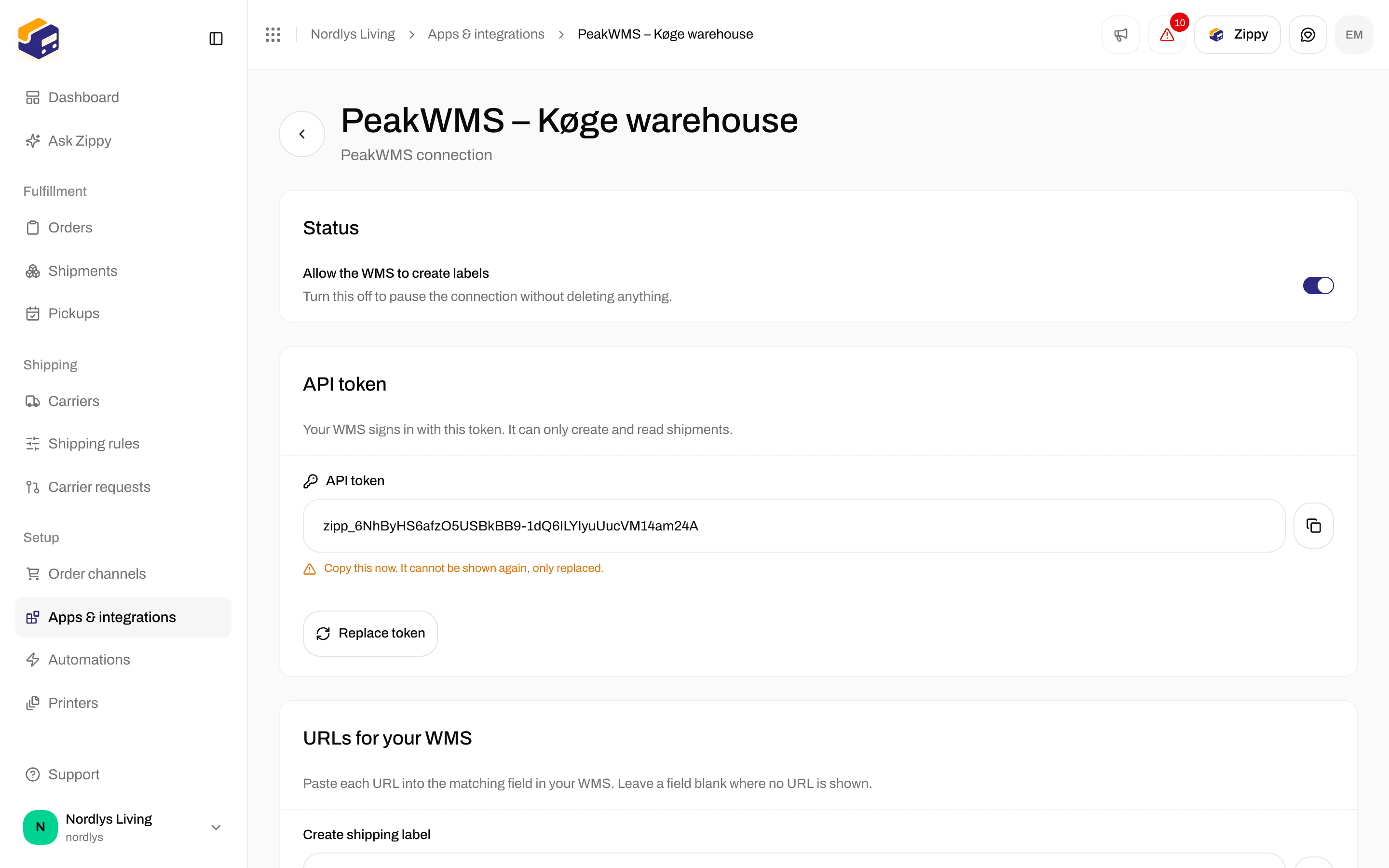
The API token is shown once, right after you create the connection
2. Put them into PeakWMS
In PeakWMS, create a new Forwarder and set Provider to Generic. If you cannot find that screen, PeakWMS’s own help center walks through it. The setup is the same whichever shipping company you use. Now copy each web address from the URLs for your WMS section in Zippendo into the PeakWMS field with the same name. Each address has its own copy button.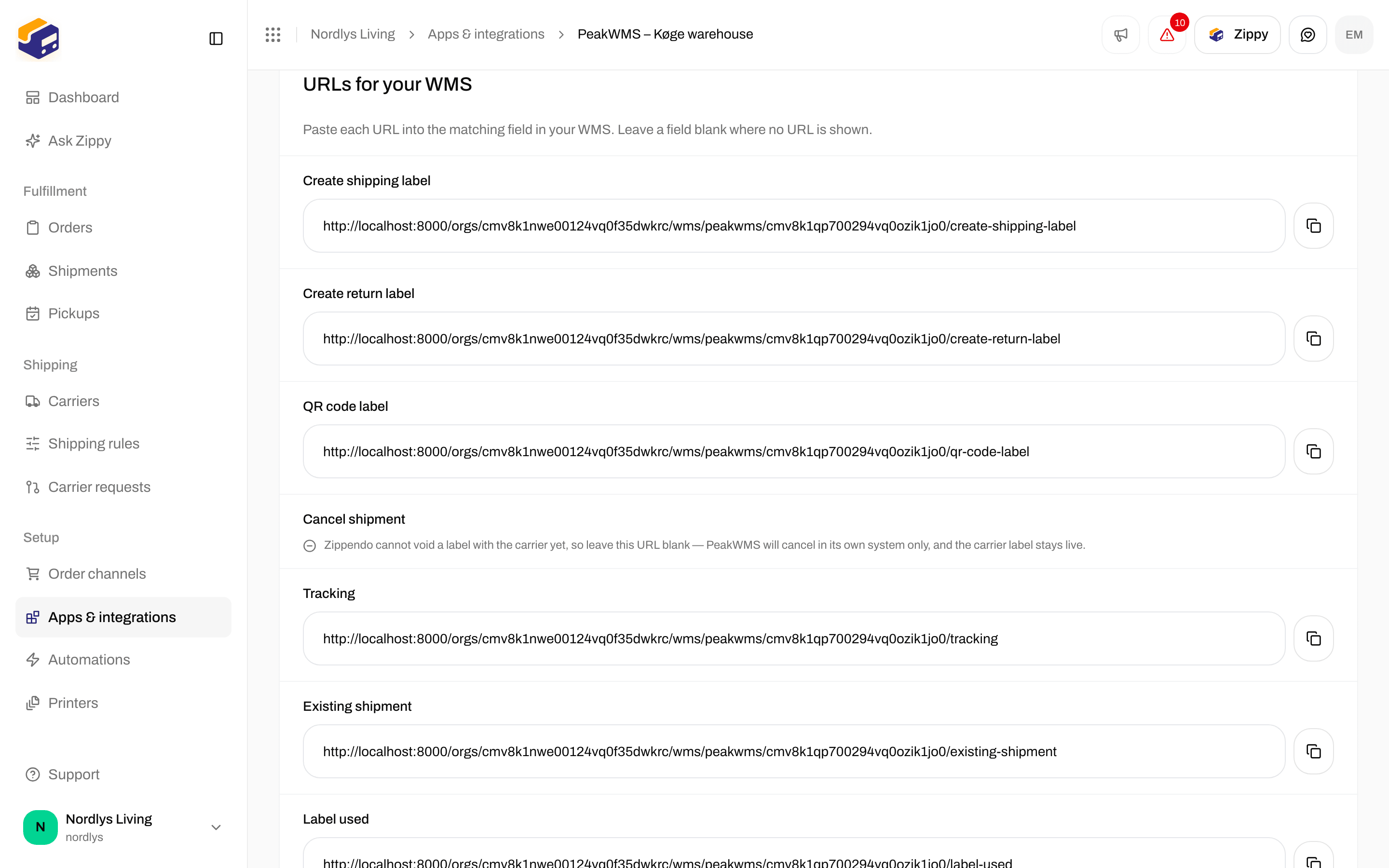
URLs for your WMS on the connection page, with a copy button for each address
Then fill in the three fields PeakWMS uses to sign in to Zippendo:
- API key: the API token Zippendo showed you.
- Auth scheme: pick Bearer from the list. It is simply how PeakWMS hands the token over.
- Account ID: the same value you typed in Zippendo, if you used one.
3. Tell PeakWMS which carrier product to use
In PeakWMS, each shipping method has a Host ID. That is how PeakWMS tells Zippendo which carrier, carrier product and shipping rule to use. You set it in PeakWMS, on the shipping method itself. Zippendo gives you the code to paste:1
Open the connection in Zippendo
Go to Host IDs for your shipping rules.
2
Pick the rule the shipping method should use
Choose it under Zippendo shipping rule, then click the copy button next to its Host ID.
3
Paste that code into the Host ID field in PeakWMS
That is it. Zippendo recognizes the code and knows exactly which carrier and shipping rule you mean, with nothing more to set up in Zippendo. A rule for service points needs only this one Host ID, whichever service point your customer picks.
Changing a rule’s carrier or carrier product changes its Host ID. Zippendo shows the new one in the rule’s editor before you save. Paste it into PeakWMS afterwards, or PeakWMS stops recognizing orders that use the rule.
GLS_BUSINESS_PARCEL? You can. In Zippendo, open the connection and go to Host ID mappings. Click Add mapping, type your code under Host ID in the WMS and pick the matching rule under Zippendo shipping rule. Do that for each shipping method in PeakWMS, then click Save mappings. A row without a shipping rule cannot be saved.
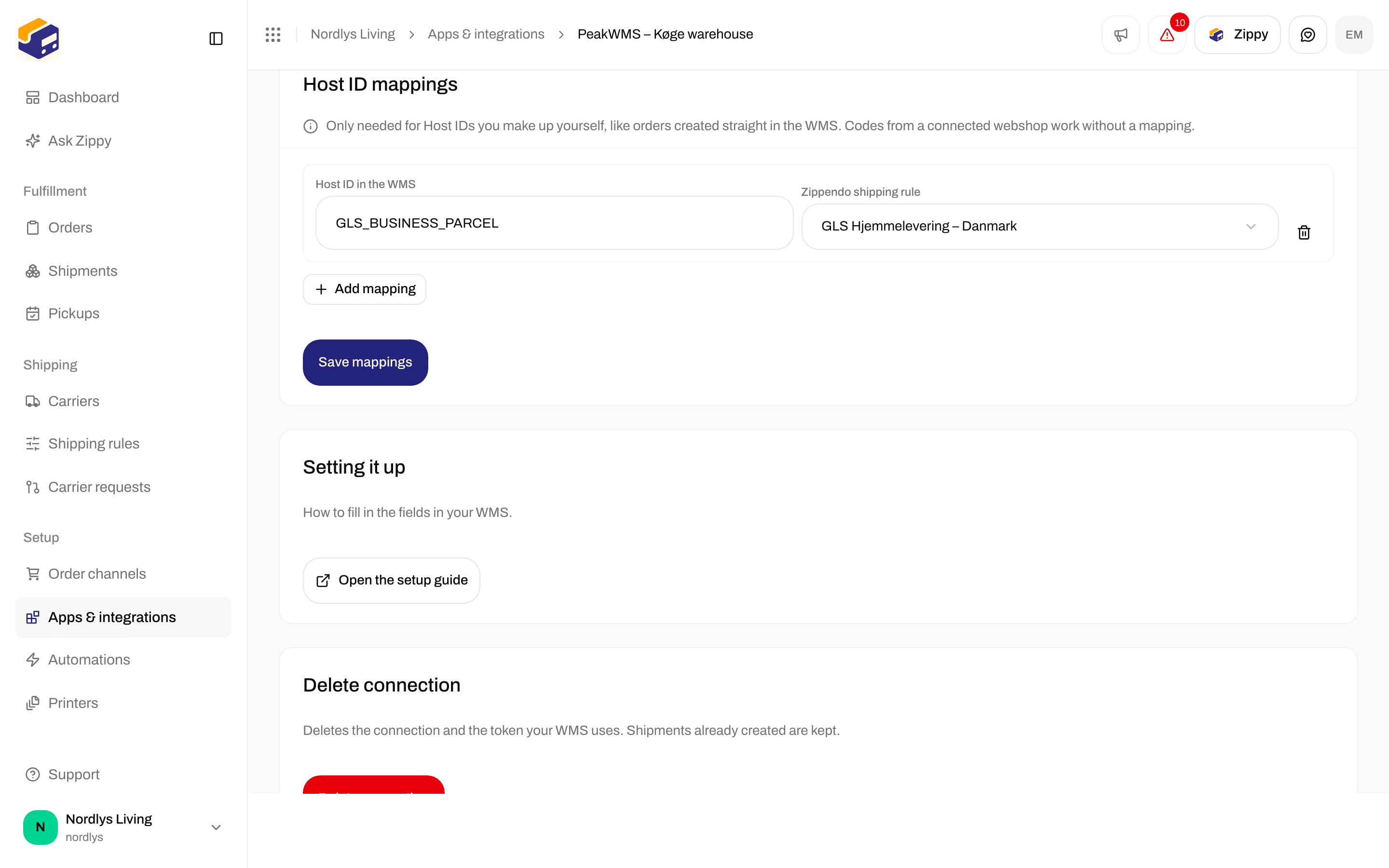
A Host ID mapping from your own code to a Zippendo shipping rule
You need your own codes when some orders do not come from a webshop connected to Zippendo, for example orders typed straight into PeakWMS.
4. Stop Zippendo importing your orders
PeakWMS is now in charge of your orders. If Zippendo also imported them, both systems would try to ship the same order, and you could end up paying for two labels for one parcel. Go to Order channels, open your webshop, and under What Zippendo is used for, turn off Import orders from this webshop.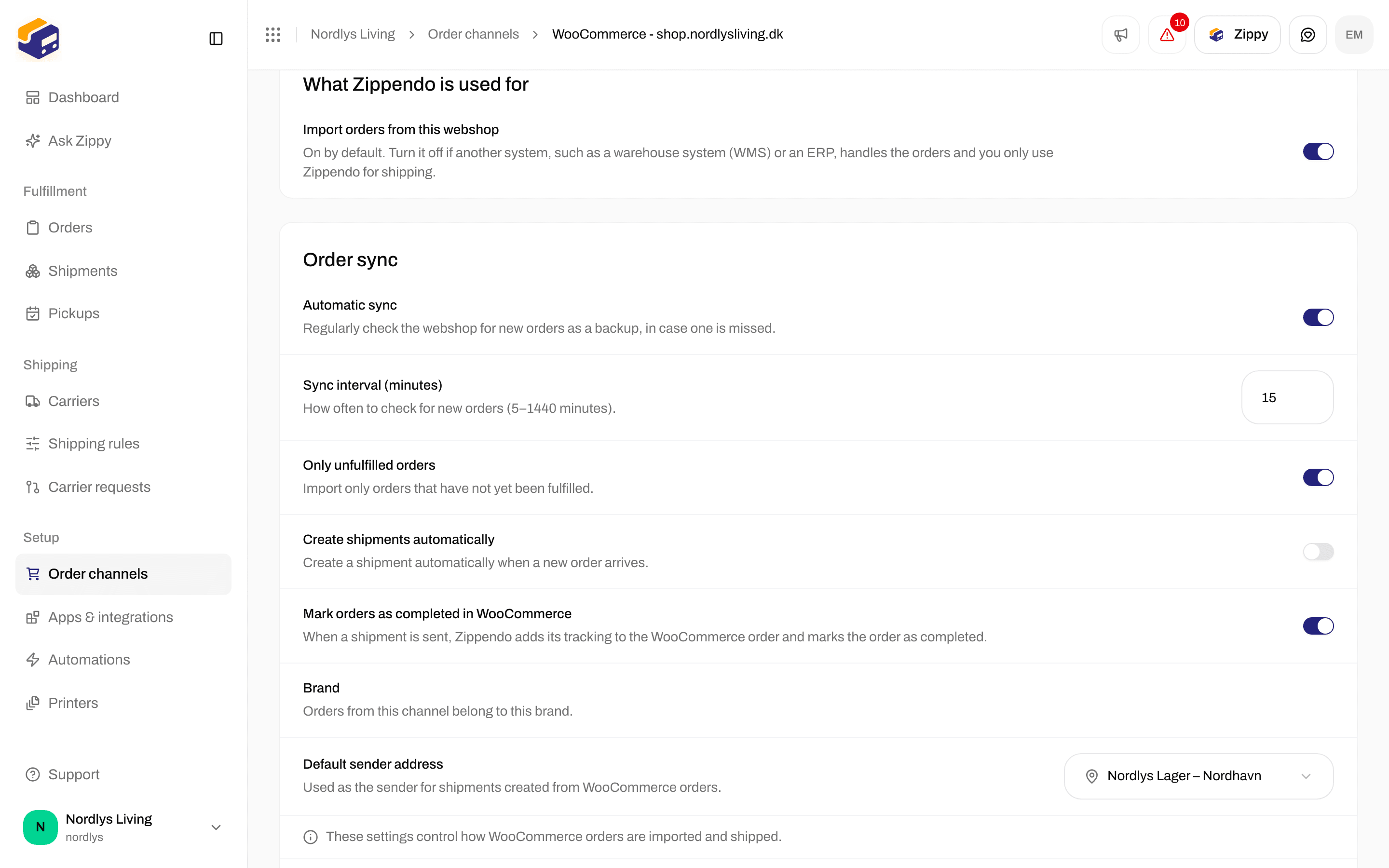
The switch that stops Zippendo importing orders from a webshop
You find this switch on Shopify and WooCommerce webshops. If your webshop is something else, send us a message and we will turn it off for you.
Only turn this back on if you want Zippendo to manage your orders again.
5. Try it, then go live
Do a dry run in your PeakWMS test environment first. Pack one order, and check three things:- the label prints, and it is the carrier you expected
- the parcel shows up under Shipments in Zippendo
- tracking appears on the order in PeakWMS
Pause or remove the connection
Open the connection: on the Connected tab under Apps & integrations, click its row on the PeakWMS card.- Turn off Allow the WMS to create labels to stop PeakWMS creating labels without deleting anything. Turn it back on when you are ready.
- Click Delete connection at the bottom to remove the connection and its API token for good. Shipments that were already created stay in Zippendo.
Good to know
What if a packer packs the same order twice?
What if a packer packs the same order twice?
Nothing bad happens. If PeakWMS asks for the same label twice, for example because the connection timed out and it tried again, Zippendo hands back the label it already made instead of buying a second one. You are never charged twice for the same parcel.Very occasionally the carrier makes the label but it does not make it back to PeakWMS. If that happens, Zippendo stops and tells your packer, rather than quietly buying a second label. The first one is waiting for you under Shipments: print it from there.
Several parcels for one order
Several parcels for one order
Each parcel gets its own label, and they all travel together as one shipment with the carrier. Your packers print one label per parcel.
Where do I see what happened?
Where do I see what happened?
On the Connected tab under Apps & integrations, each PeakWMS connection shows when PeakWMS last contacted Zippendo, or “Not used yet”. When something went wrong, it shows the exact message your packer saw, and the connection’s page shows it under Latest error. Shipments appear under Shipments like any other.
Return labels
Return labels
PeakWMS sends the customer’s address as the sender and your warehouse as the receiver, and Zippendo gets a return label. The address the parcel comes back to is always the sender address on your Zippendo shipping rule, so the label is right even if PeakWMS has a different address on file.
Dangerous goods
Dangerous goods
Zippendo cannot produce the papers that dangerous goods legally need, so it refuses these orders rather than shipping them without. Send those through a different forwarder in PeakWMS.
If something goes wrong
Your packer sees the message in PeakWMS, so ask them to read it out. Here is what each one means:
Still stuck? The connection’s page in Zippendo shows the most recent failure. Send us a message with the order number and we will look.