

A scan only prints. The shipment was sent before its packing slip printed, so scanning never sends a shipment again.
Before you start
- A label printer, and a document printer for the packing slips, set up in Zippendo Printer. See Set up Zippendo Printer.
- A barcode scanner that works as a keyboard. Most USB scanners do.
Set it up
1
Check the code on your packing slips
New organizations start with QR code (recommended). To check yours, click the organization switcher at the bottom of the sidebar, then Manage. On the Organization tab, find Packing slip code. If it says No code, pick QR code (recommended) or Barcode. You see Packing slip code saved. Changing it needs a role with Edit organization or Edit everything.
2
Print packing slips when you send
Open the shipping rule your orders use. Click Configure on the Document generation card and turn on Generate packing slip. Then click Configure on the Automatic printing card, turn on Print documents automatically and choose a Document printer.
3
Print labels when you scan
In the same window, turn on Print labels automatically and choose a Label printer. Set When to print to When the packing slip is scanned. Click Done and save the rule.
4
Open the scan station
Click Scan station in the sidebar, or Open scan station on the Printers page.
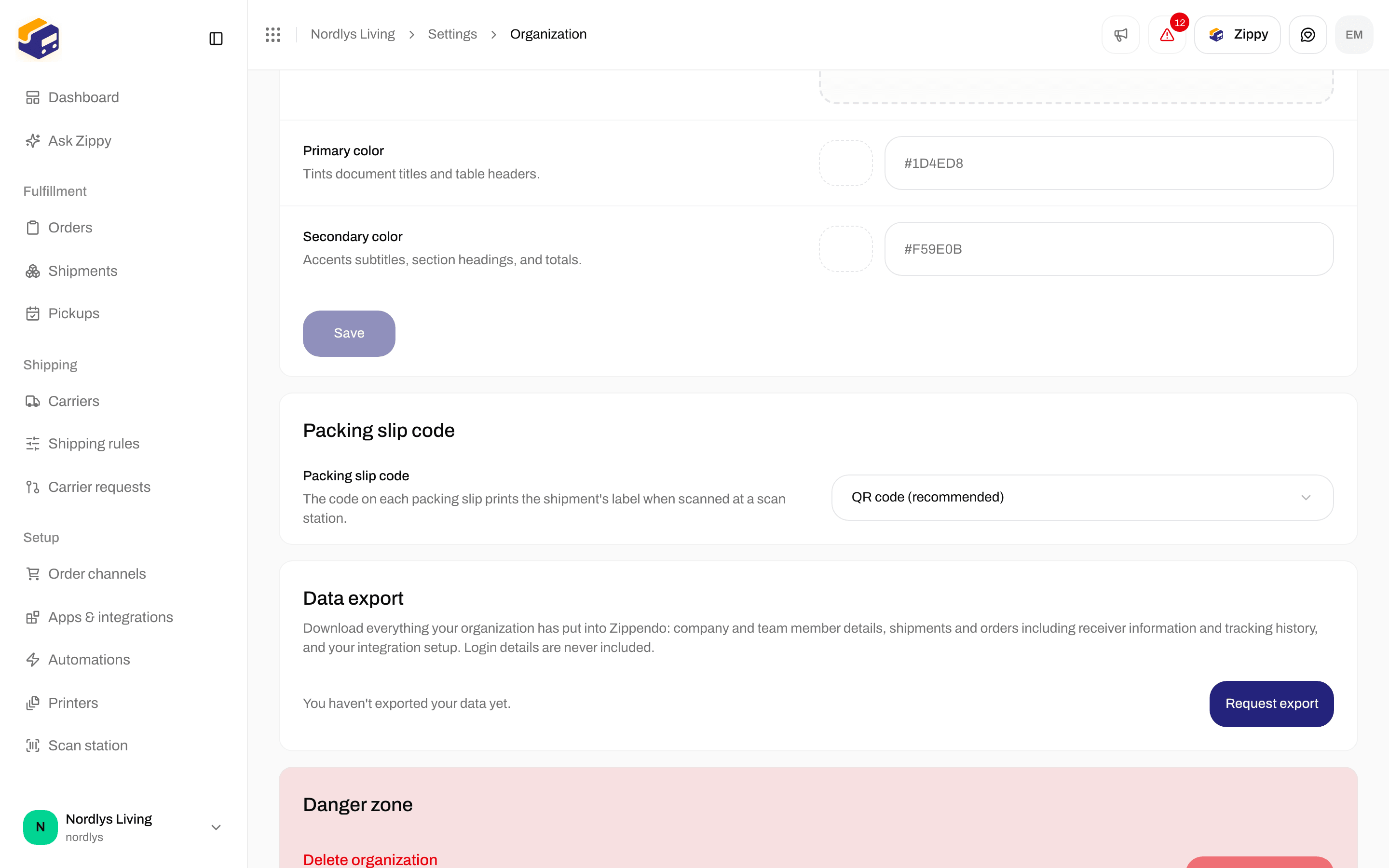
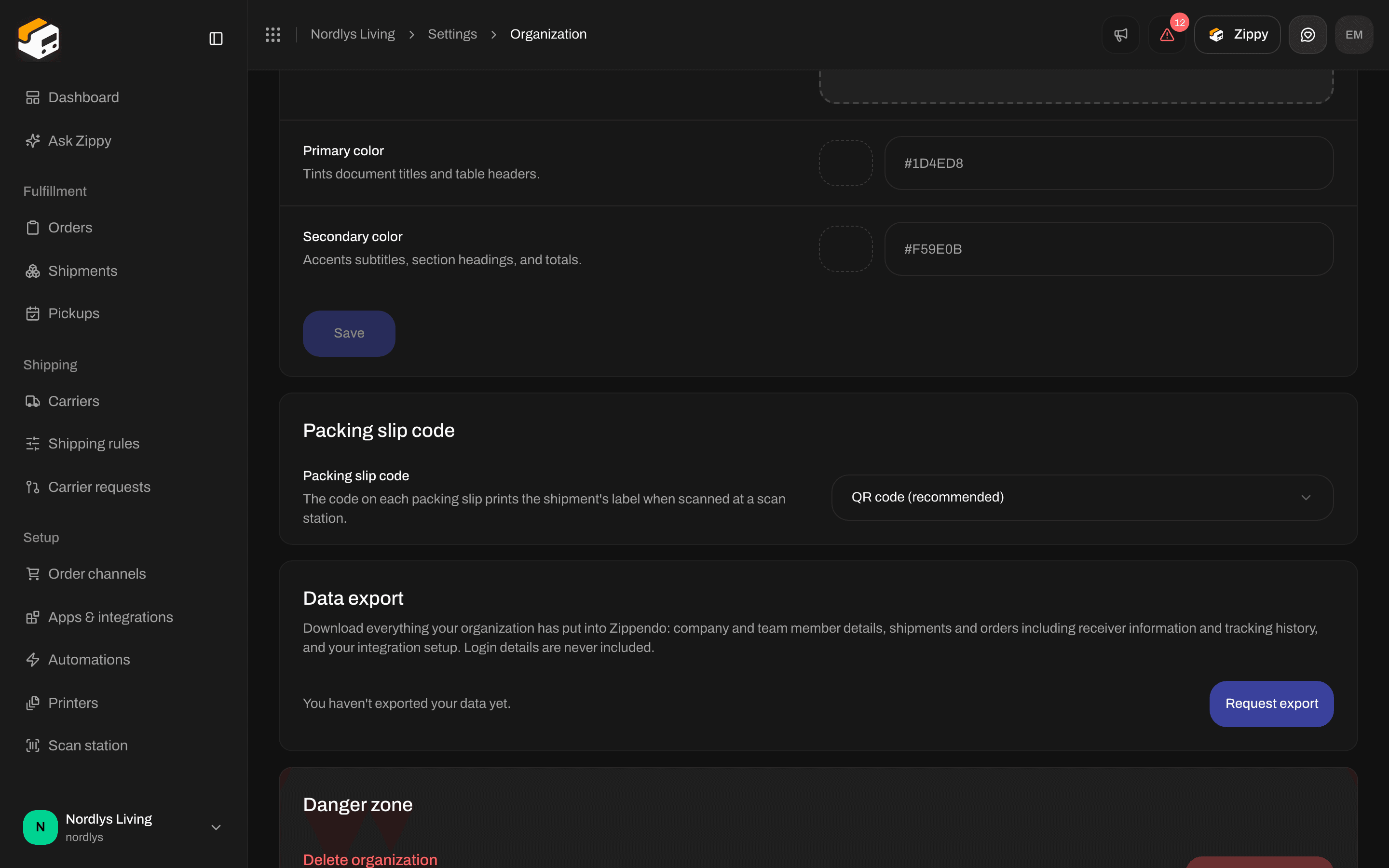
Packing slip code in the organization settings
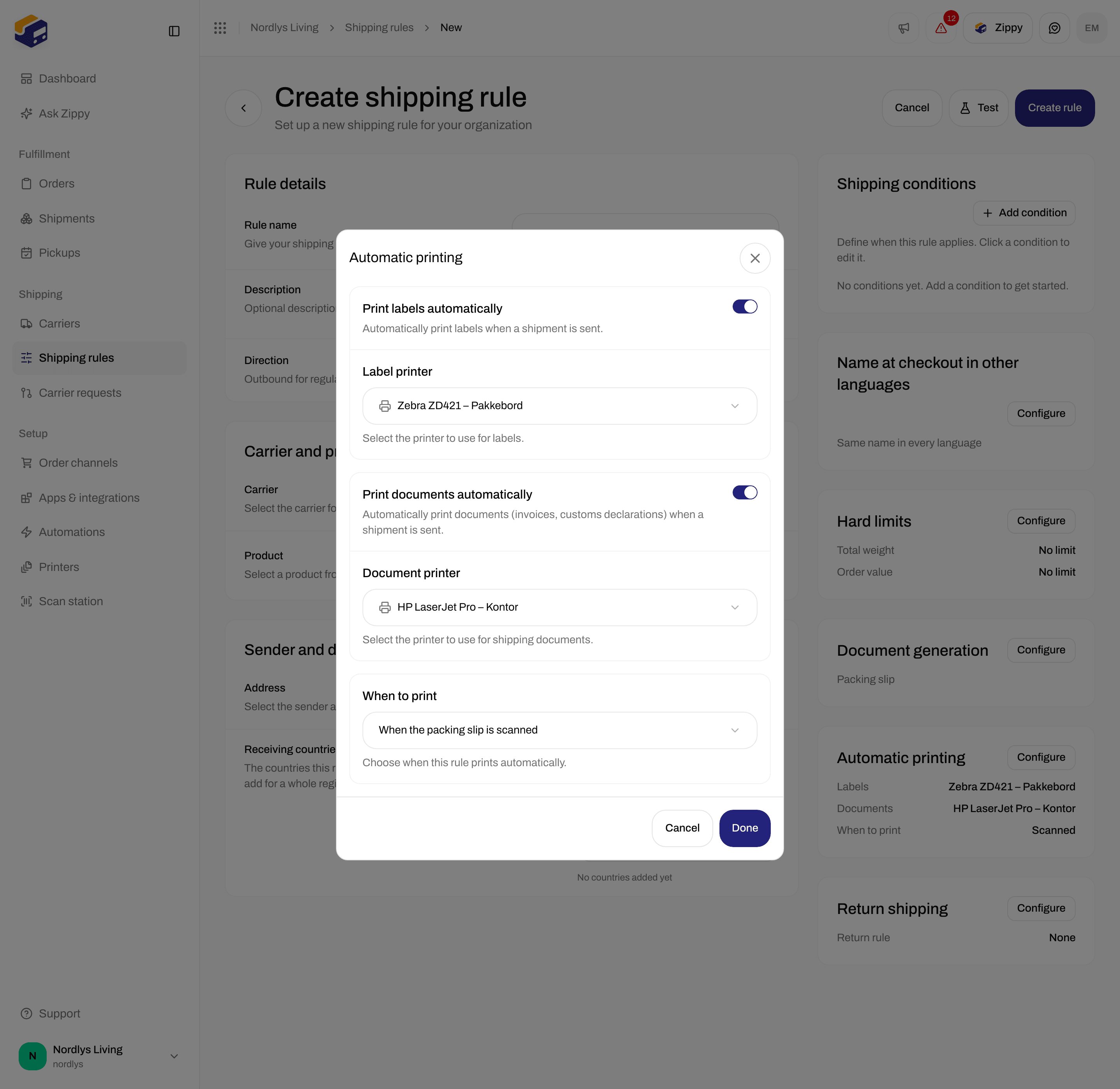
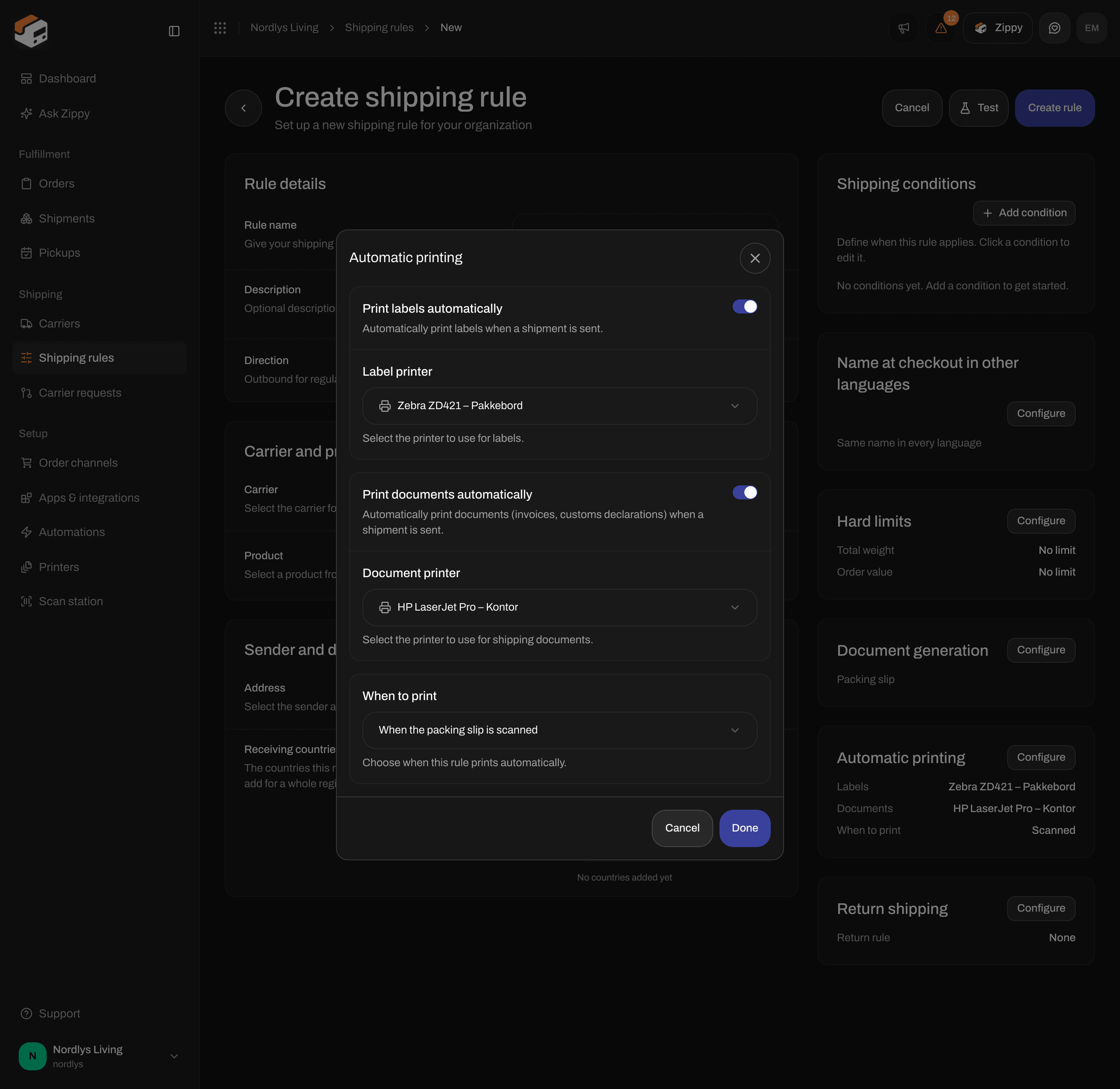
A shipping rule that prints the packing slip when you send, and the label when you scan
What prints, and when
With When the packing slip is scanned on the shipping rule:
A scan never prints the packing slip again.
A rule set to When the shipment is sent keeps printing everything when you send. You can still scan its packing slips. If the rule also has Print labels automatically on, the label then prints a second time, and the scan station tells you so.
Use the scan station
Scan the code on a packing slip. The Packing slip code field is always ready, so you don’t need to click it first. The big panel shows the result, and the station plays a sound after each scan.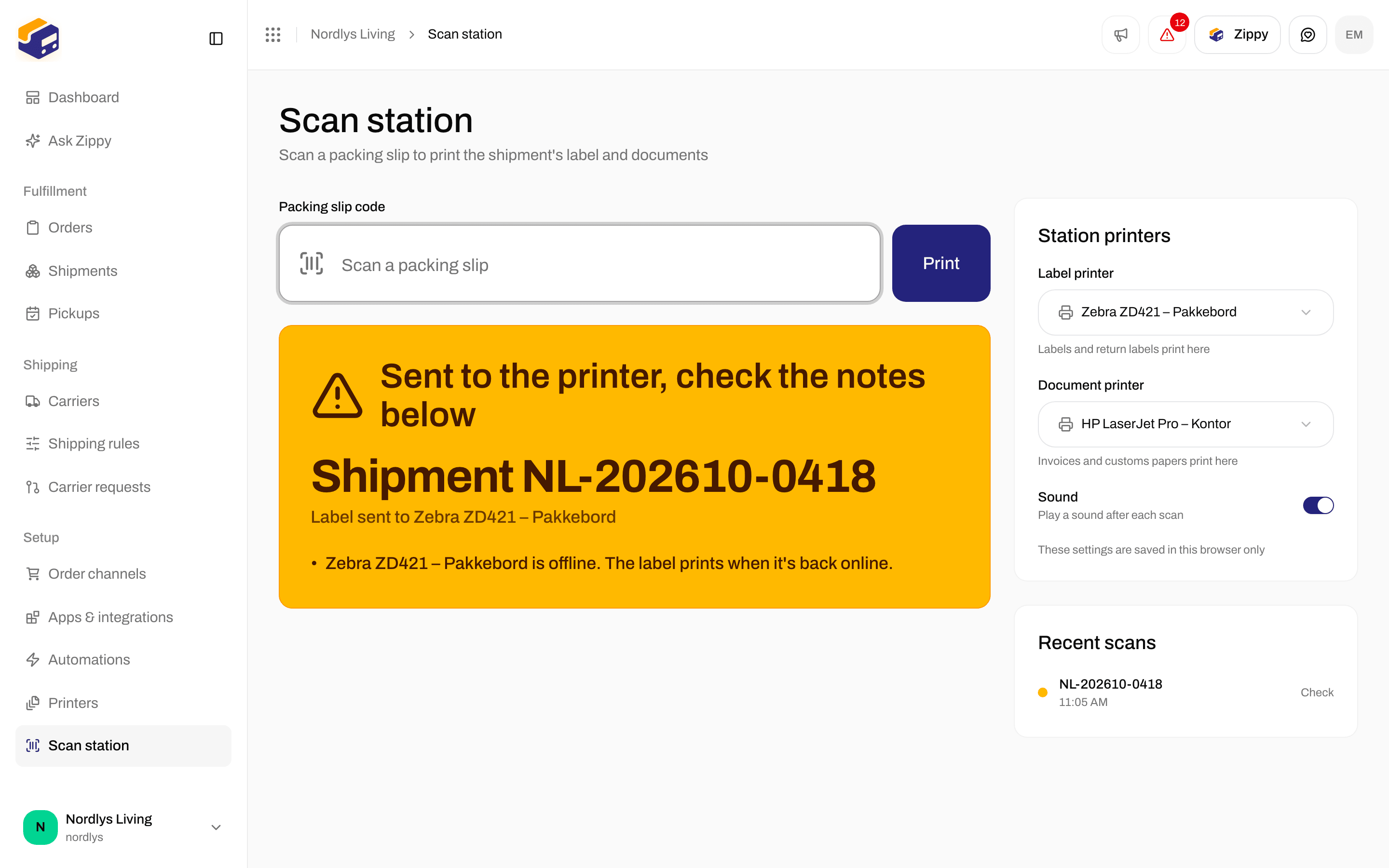
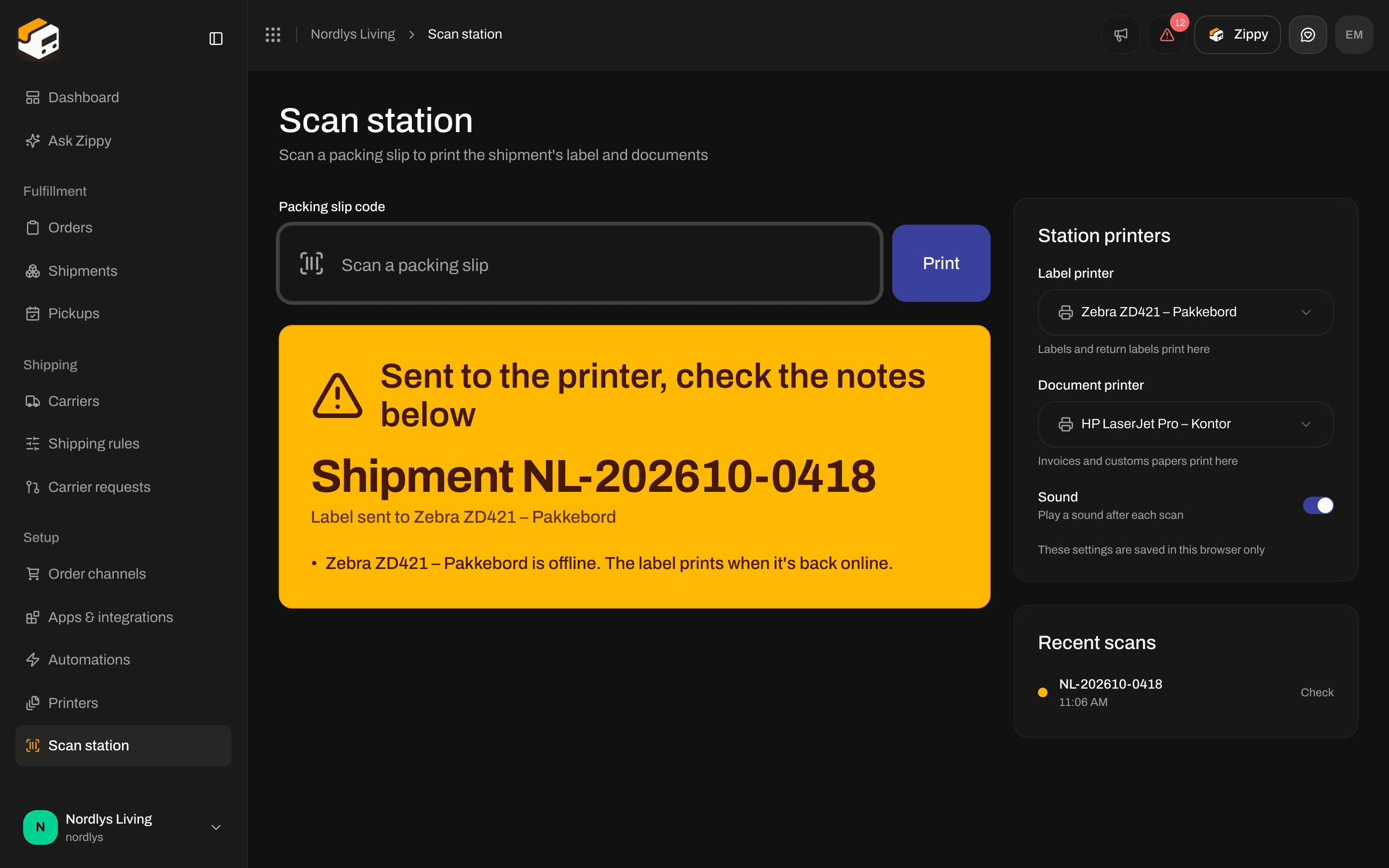
An amber result: the label is on its way and prints once the label printer is back online
Recent scans lists the scans you made since you opened the page.
The station’s printers
Under Station printers, choose a Label printer and a Document printer for this station. Leave them on Use the shipment’s printer to print on the printers chosen on the shipping rule, or on the shipment. Turn off Sound for a silent station. These settings are saved in this browser only, so each station keeps its own. Two stations next to different printers can scan from the same shipping rule. If no document printer is chosen anywhere, the label still prints and the station tells you how many documents didn’t print.Return labels
If the shipment has a return shipment, for example one the shipping rule creates with Create return automatically when the shipment is sent, the return label prints on the same label printer in the same scan. This works for shipments that came from an order. If the return label isn’t ready yet, the station turns amber and says The return label isn’t ready yet. Only the shipment’s own label printed.Set this parcel aside
When the carrier has reported a problem with the shipment, for example customs data the carrier refused, nothing prints. The station turns red and says Set this parcel aside, with the carrier’s message. Put the parcel to one side and sort the problem out with the carrier. The station keeps refusing this shipment, even after the problem is solved. When the carrier confirms the parcel may go, open the shipment and click Print all in the Documents card.Scanner tips
- Set the scanner to work as a keyboard (often called USB keyboard or HID mode) and to press Enter after each code. Most scanners do both out of the box.
- The codes read correctly with any keyboard language on the computer, so you don’t need to change the scanner’s language.
- A QR code needs a scanner that reads 2D codes. If your scanner only reads barcodes made of lines, pick Barcode under Packing slip code.
- The text under the code is the shipment’s reference. If a code won’t scan, search for the reference on Shipments and print from the shipment page.
Packing slips made before you switched the code on
Packing slips created before you picked a code have no code to scan. Print those labels from the shipment page as before. Every packing slip created after that carries the code.If something goes wrong
More about printers and print jobs: Printer jobs, Auto-print labels.