

What you see in the list
The table is called All orders and has these columns:- Order ID - the order number from your webshop.
- Customer - the customer’s name.
- Status - for example Pending, Processing, Fulfilled or Cancelled. See Order statuses.
- Order channel - the order channel the order came from.
- Shipments - how many shipments the order already has.
- Created - when the order was created.
- Brand - only when your organization has brands and you are looking at the whole organization.
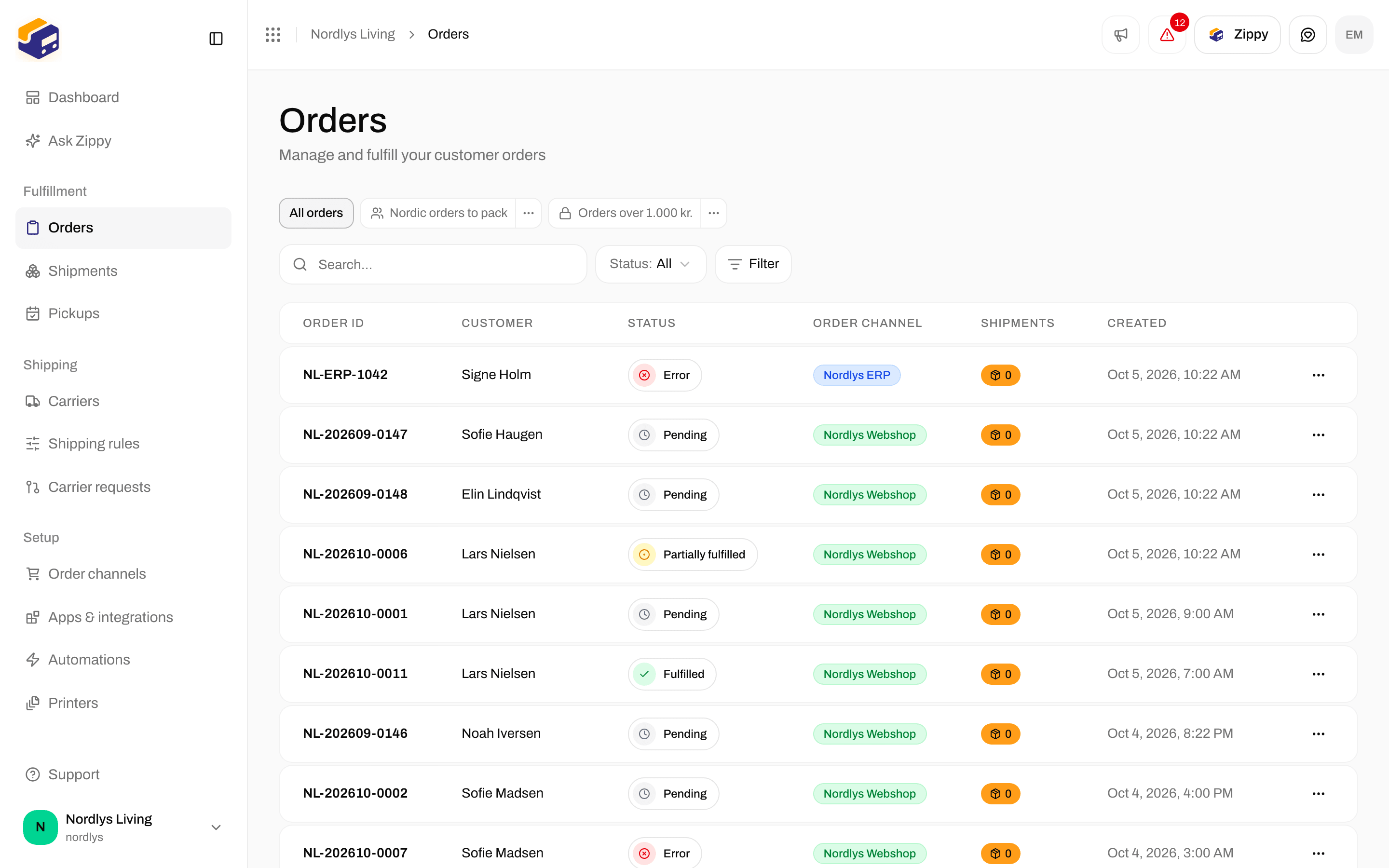
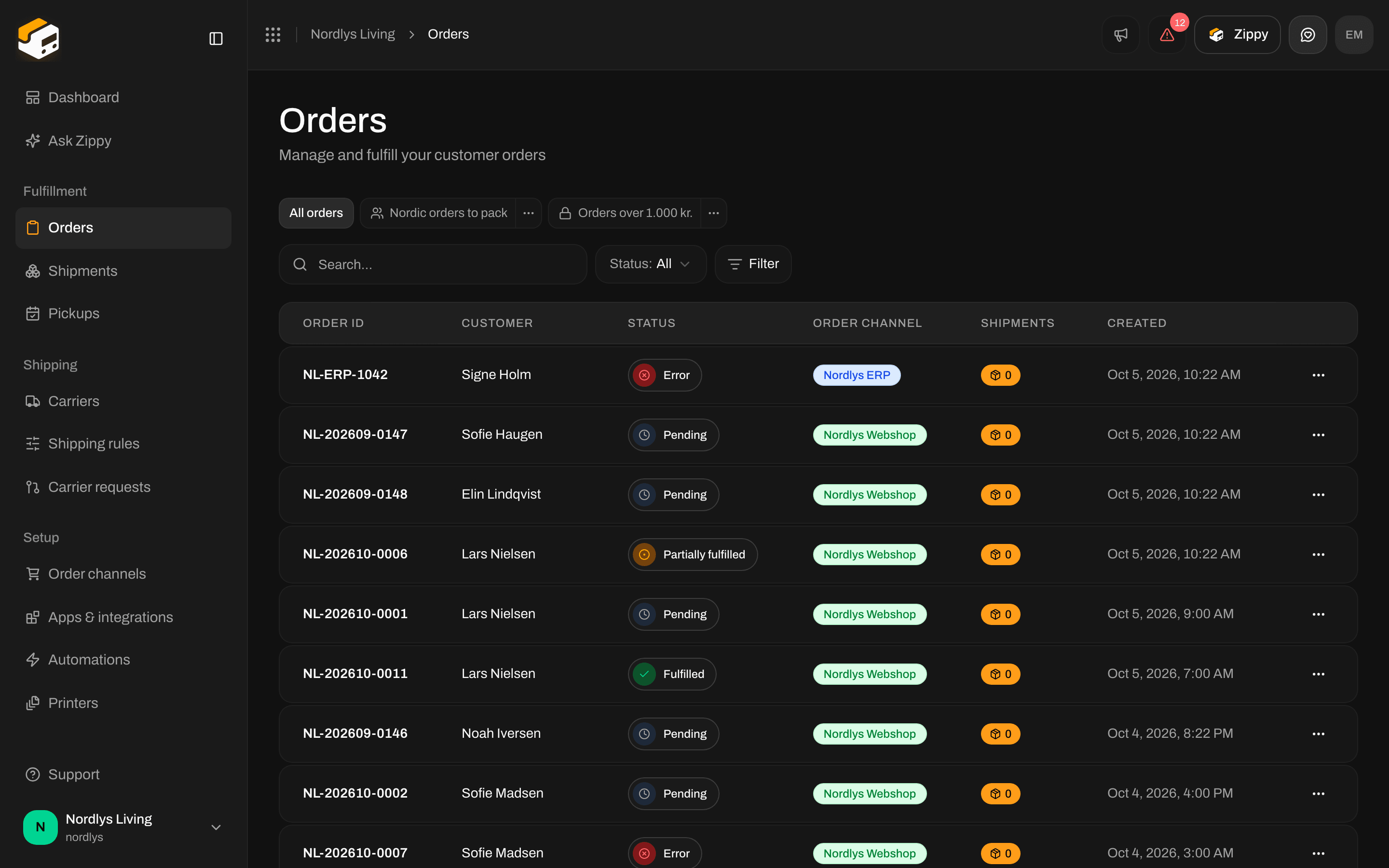
The orders list
Finding an order
- Pages: the newest orders are at the top. Use the page controls under the table to see older orders, and Page size to show more per page.
- Search: type an order number, a customer name or a customer email.
- Status: pick one status, or All.
- Brand: shown when your organization has brands: All brands, No brand or one brand.
- Channel orders: click a webshop under Channel orders in the sidebar to see only its orders.
Filters
Need more than search and status? Click Filter next to them. Pick what you want to filter on, then pick a value, and the filter appears as a small tag above the table.- What you can filter on: Status, Order channel, Channel type, Brand, Shipping rule, Country, Currency, Order number, Customer name, Customer email, Shipping method, Notes, Total amount, Subtotal, Has shipments, Created and Updated.
- Change how it matches: click the middle of a tag to choose, for example, is any of, is not, contains, starts with, is greater than, is on or after or is empty.
- All or any: click the small word and between two tags to change it to or. With and, an order has to match every tag. With or, matching one is enough.
- Groups: Add filter group puts a few tags in brackets with their own and / or. That lets you ask for things like “pending, and going to Denmark or Sweden”.
- Dates: pick Today, Yesterday, 1 week ago, 2 weeks ago, 1 month ago or 3 months ago, or Custom date… to choose a day from the calendar. The shortcuts move with the calendar, so a view showing “the last 7 days” still shows the last 7 days next week.
- Remove a filter: click the × on the tag. If nothing matches, the table says No orders match these filters and offers Clear filters.
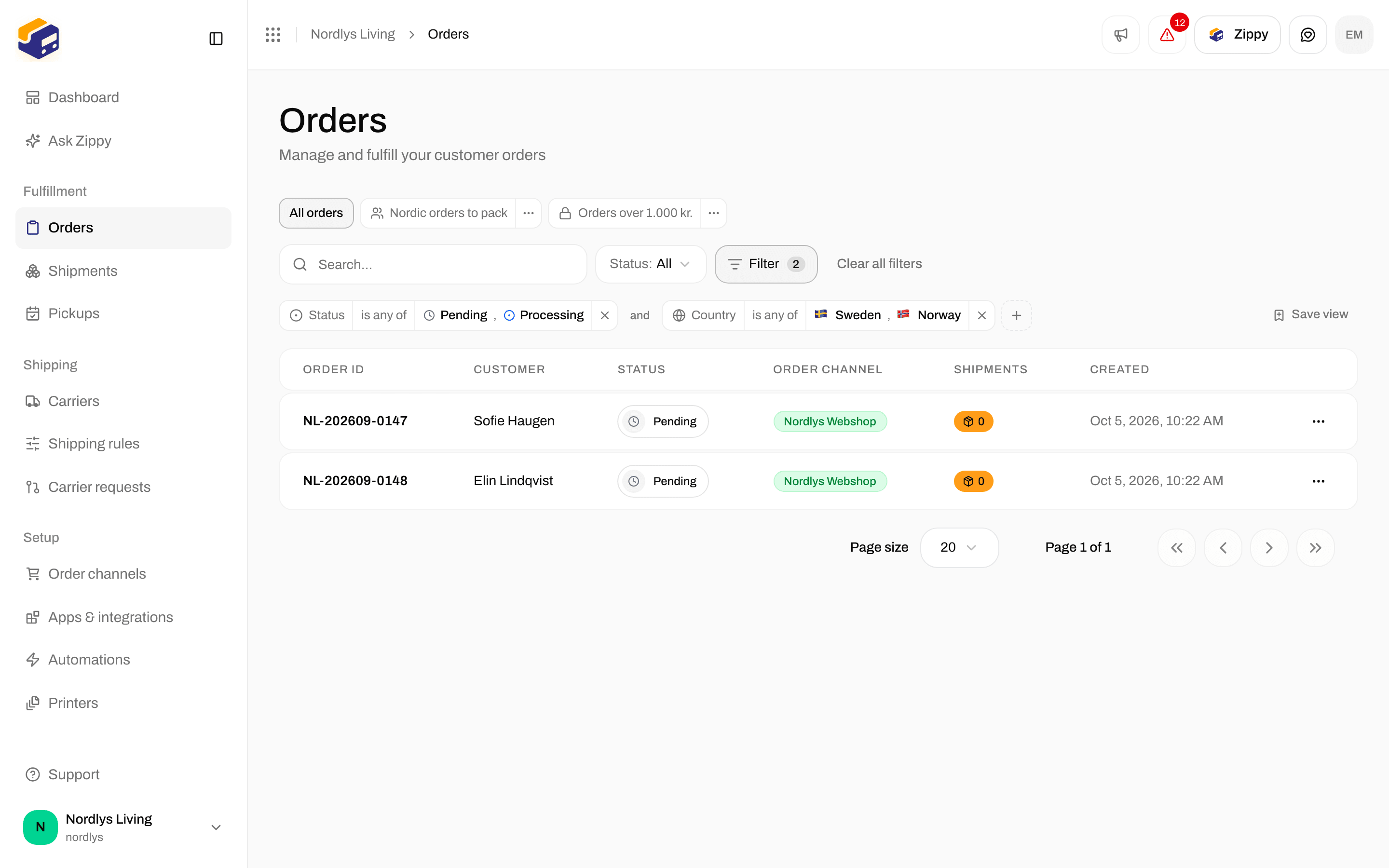
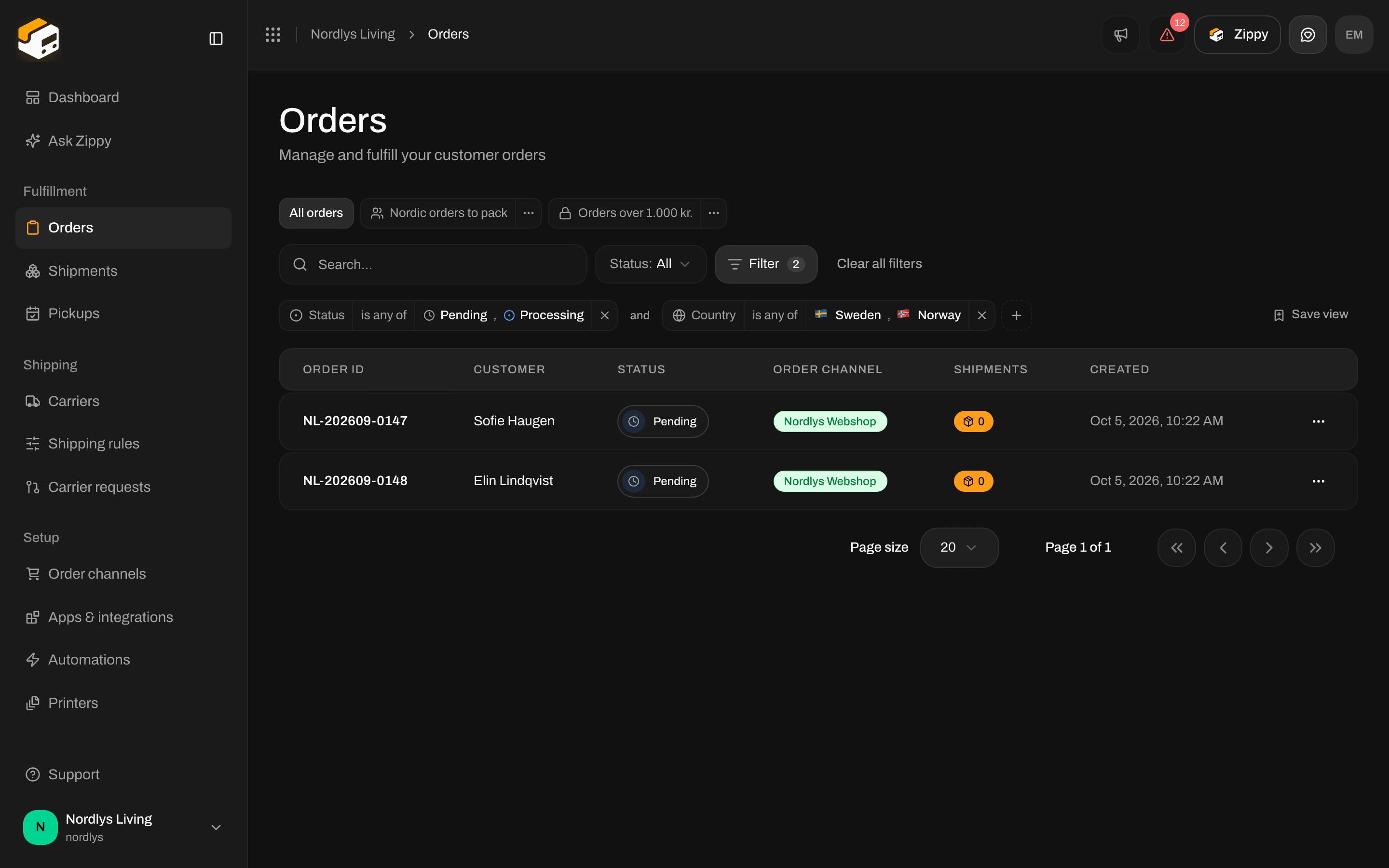
Two filter tags joined by and
Saved views
If you keep coming back to the same filter, click Save view at the right end of the tags. Give the view a Name, an optional description, and choose Who can see it:- Only me - a personal view. No other team member sees it.
- Everyone in the organization - a shared view every team member sees.
Empty list
If you see no orders at all:- Connect an order channel: orders come from Shopify, WooCommerce or your own system. Click Order channels in the sidebar and connect your webshop if you have not yet.
- Give it a moment: after connecting, new orders come in by themselves. Whether older orders are imported depends on what you chose when you connected. Check the order channel’s settings if nothing arrives.