

Where to find your shipments
Click Shipments in the sidebar. You see:- The list of all your shipments, with search, the Filter button for combining filters, and saved views. They work the same way as on the Orders list. See Search and filters.
- A Create shipment button to add a new one.
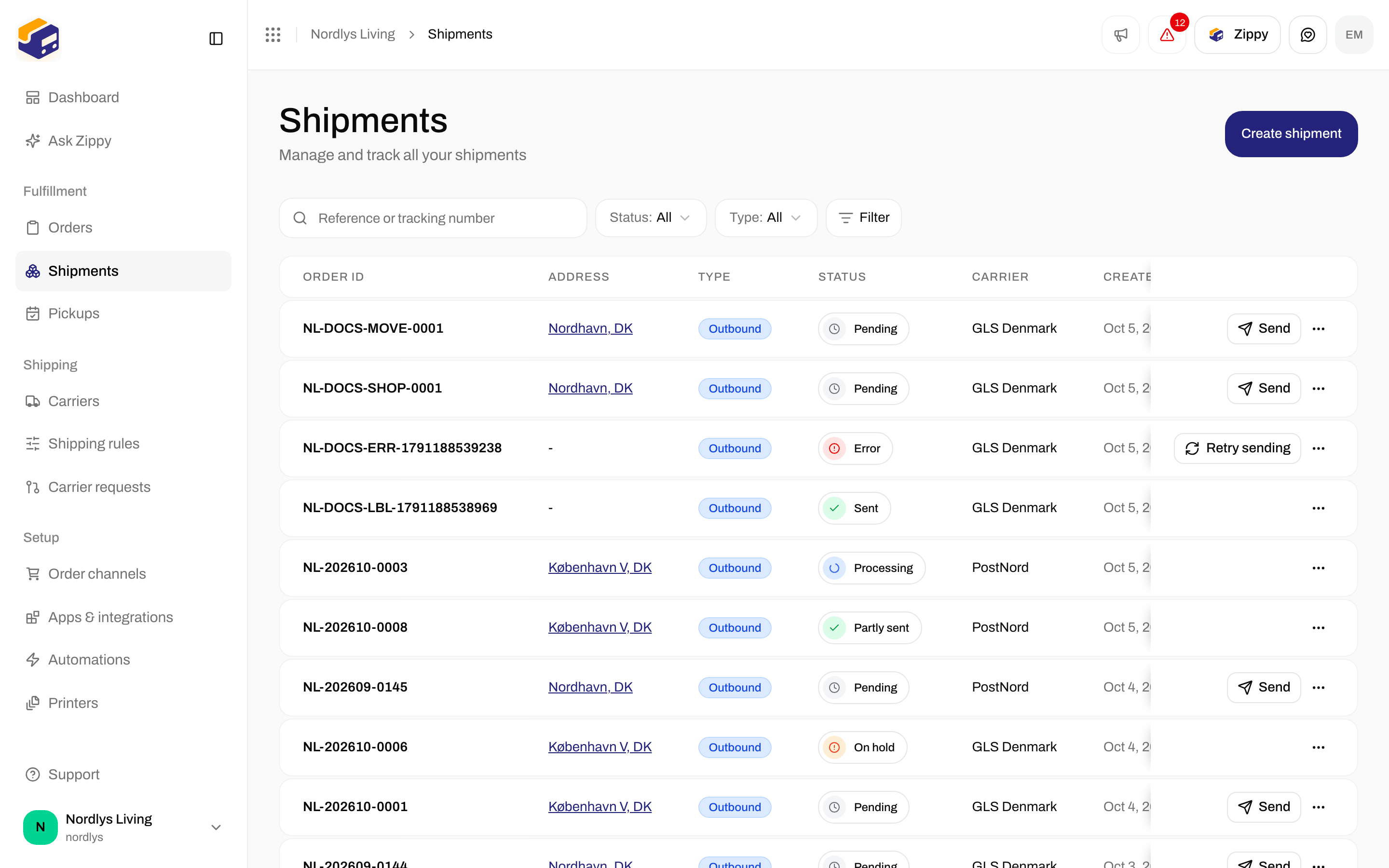

The Shipments list
What you need first
1
At least one connected carrier
Go to Carriers and connect a carrier, such as PostNord or GLS. You choose the carrier and product when you create the shipment.
2
At least one sender address
Open the organization menu, click Manage, then Addresses. You choose which sender address goes on the label.
What you can do
Creating a shipment
Step by step: carrier, product, parties, parcels and, when the product needs one, a service point.
Shipment statuses
What Pending, Sent, Error and the other statuses mean.
Documents and labels
View, download and print labels and other shipment documents.
Split shipment
Spread one shipment over more parcels or more shipments.
Find a service point
Choose where the receiver collects the parcel when the product delivers to a service point.