

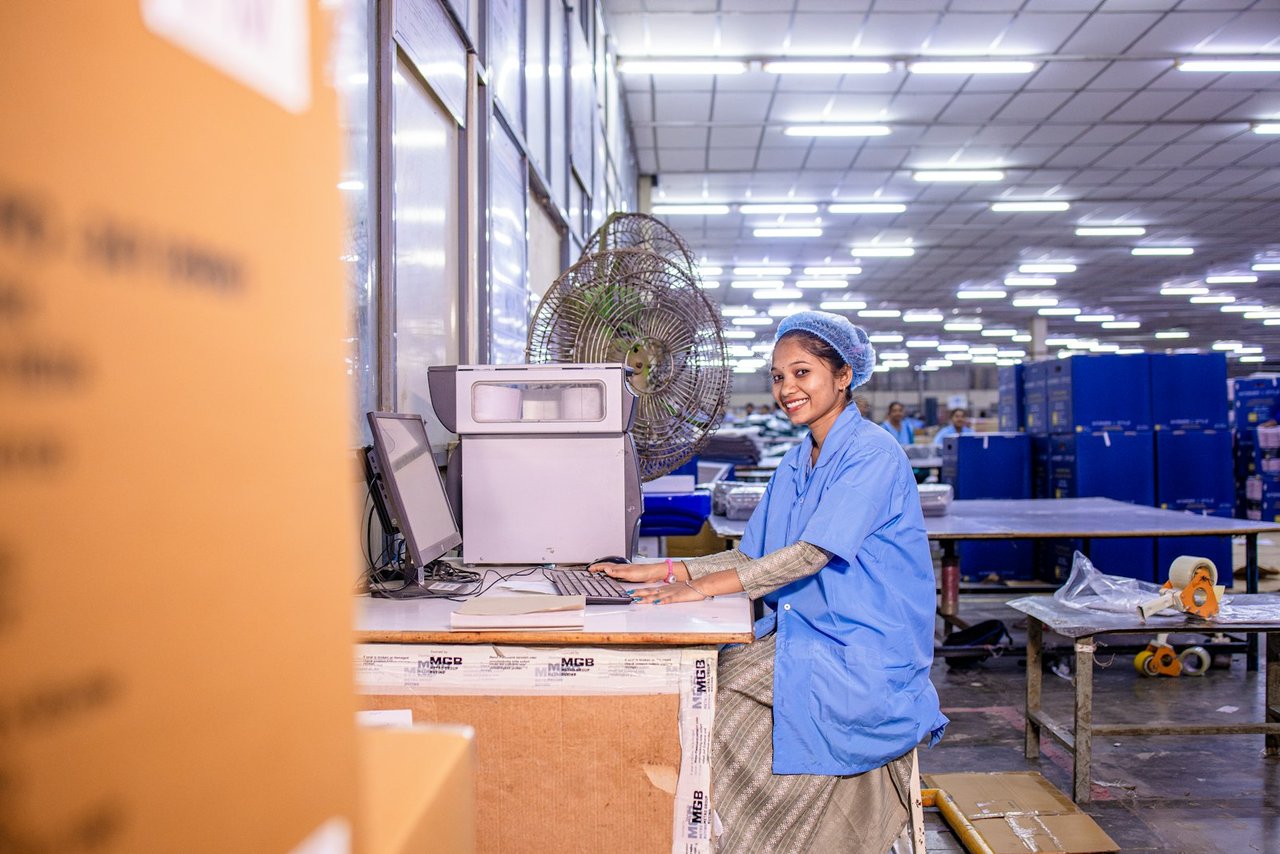
Photo by EqualStock on Unsplash
To print shipping labels automatically, you need three things: a label printer connected to a computer, a small print app on that computer that receives labels without showing a print window, and a rule that says which labels print where and when. With those in place, the label comes out of the printer when you book the shipment, or when you scan the packing slip at the bench. The rest of this guide covers which printer and label size to choose, how to set the printer up, how to send each label to the right bench, and what to check when nothing prints.
Key takeaways
Automatic printing needs a label printer, a print app on the computer next to it, and a rule for when and where to print.
A thermal label printer with 100 x 150 mm labels is faster than A4 sheets once you ship every day.
Set the label size in the printer driver and print at 100 percent, or barcodes can come out too small to scan.
Give each printer a type, label or document, so labels never end up on the A4 printer.
If several people pack, print the label when the packing slip is scanned, so each label lands on the right box.
What do you need to print shipping labels automatically?
By hand, every parcel means opening the order, downloading a PDF and clicking print. An automatic setup replaces those clicks with three parts:
- A printer. A thermal label printer for labels, and usually an ordinary A4 printer for packing slips and invoices.
- A print app on the computer next to the printer. A web page cannot print without showing the print window each time. That is a browser safety feature, and it is why every automatic setup uses a small program installed on the computer the printer is connected to.
- A rule. Something has to decide that this label goes to this printer at this moment. In shipping software, that is usually a setting on the shipping rule or on the packing station.
Your webshop sends the order, your shipping software books the shipment with the carrier, the carrier returns the label, and the print app prints it. Nobody touches a file.
Should you print shipping labels on A4 paper or on a label printer?
Both work. The choice depends on how many parcels you send.
| A4 printer | Thermal label printer | |
|---|---|---|
| What you print on | Sheets with one or two adhesive labels, or plain paper you cut and tape | Rolls or stacks of labels, most often 100 x 150 mm (about 4 x 6 inches) |
| Ink | Toner or ink cartridges | None for direct thermal printers |
| Handling | You peel or cut each label | One finished label per parcel |
| Fit with carrier labels | Many carriers offer an A4 layout | Many carriers offer a 100 x 150 mm layout |
| Good for | A few parcels a day | Daily shipping and every packing bench |
Check the label size your carriers use before you buy rolls. Many carrier labels fit 100 x 150 mm, but not all, and a label that is larger than the roll gets scaled down or cut off.
There are two kinds of thermal printers. A direct thermal printer uses heat-sensitive labels and no ink or ribbon. The labels darken over time in heat and sunlight, which is fine for a parcel. A thermal transfer printer uses a ribbon and makes labels that last for years, which matters more for warehouse shelf labels than for shipping labels.
How do you set up a label printer for shipping labels?
Do these steps once per printer, in this order.
- Install the driver from the printer maker's website. A generic driver can get the label size wrong.
- In the driver settings, set the paper size to your label size, for example 100 x 150 mm, and the media type to direct thermal (or thermal transfer if you use a ribbon).
- Run the printer's calibration, so it finds the gap between two labels. Without it, labels can start halfway down.
- Print a test page from your computer's own printer settings.
- Print one real shipping label at 100 percent scale, with "fit to page" switched off. Scan the barcode with a barcode scanner or a phone app.
- If wide labels come out sideways or across two labels, turn them to portrait in the driver or in your print app.
PDF or ZPL?
Most carriers send labels as PDF files, and every printer can print a PDF. Zebra and compatible label printers also understand ZPL, a printer language for labels. Some carriers let you choose ZPL instead of PDF. If you are not sure, keep PDF: it works with almost every label printer.
How do you make labels print automatically on the right printer?
The question "which printer?" comes up as soon as you have more than one. A label on the A4 printer wastes a sheet. A label printed at the wrong bench ends up on someone else's box. Three habits prevent both.
- Give every printer a type. A label printer gets labels and nothing else. A document printer gets packing slips, invoices and customs papers. Then a label can never go to the A4 printer.
- Name printers by place. "Bench 1 label" and "Office A4" tell everyone where a print job will come out. The printer's model number does not.
- Decide what chooses the printer. You have two options. The printer is set on the shipping rule, so all express orders print at the bench that handles express. Or the printer is set on the packing station, so each bench prints its own labels whatever the rule says.
The second option is the one that scales. When three packers each scan their own packing slips, each label must print at the scanner's bench, not on one shared printer.
When should the label print: when you book or when you pack?
Automatic printing can happen at two moments.
| Print when the shipment is booked | Print when the packing slip is scanned | |
|---|---|---|
| How it works | The label prints as soon as the carrier returns it | Only the packing slip prints at booking. The label prints when the packer scans the slip. |
| Good for | One person who packs, smaller volumes | Several packers, peak days, return labels in the box |
| Risk | Labels pile up and can end up on the wrong box | Needs a barcode scanner at each bench |
If you pack alone, printing at booking is simple and fast. Once several people pack at the same time, printing at the scan keeps each label together with its box. We describe that setup in scanning at the packing bench, and how it fits into a full peak day in our Black Friday packing workflow.
What should you do when a shipping label does not print?
Work through this table before you call anyone. Start from what you see at the printer and read across the row.
| Symptom | Likely cause | Fix |
|---|---|---|
| Nothing prints | The print app is closed, the computer is asleep, or the printer is off | Open the app, wake the computer, check power and cable. Queued jobs print when everything is back. |
| A blank label comes out | Wrong label type, or the roll is loaded the wrong way | Check that the labels match the printer (direct thermal or ribbon) and reload the roll. |
| The label is cut off or tiny | Wrong paper size or scaling | Set the label size in the driver and print at 100 percent. |
| The label is sideways or split over two labels | A wide label on a portrait roll | Turn wide labels to portrait in the driver or the print app. |
| The barcode will not scan | Print too light, or scaled down | Raise the print darkness and print at 100 percent. |
| The label prints at the wrong bench | The printer is set on the wrong rule or station | Check the printer on the shipping rule, or on the packing station. |
| There is no label at all | The carrier accepted the shipment but has not issued the label yet | Ask the carrier for the label again. Do not create a new shipment, or the parcel is booked twice. |
If one printer keeps failing on peak days, keep a spare printer of the same model, already set up, on the shelf.
How Zippendo helps
In Zippendo, the setup above comes down to three steps:
- Install Zippendo Printer on the computer next to your printers. It runs on Mac (Apple Silicon and Intel) and Windows, and prints on the label printers and document printers attached to that computer, without a print window. See Set up Zippendo Printer.
- Switch on automatic printing on the shipping rule and choose the moment: when the shipment is sent, or when its packing slip is scanned. Labels go to a label printer, and packing slips and invoices to a document printer. A shipment without a rule prints on the printers chosen on it. See Auto-print labels and documents.
- If several people pack, open a scan station at each bench. Each station keeps its own label and document printer, so every bench prints its own labels. See Scan to print.
Labels only go to label printers. Each printer has a job list where you can retry failed jobs, jobs wait while a printer is offline, and a printer setting turns wide labels to portrait. DHL Express, FedEx, PostNL and UPS let you choose ZPL for thermal printers, and other carriers send their own format, usually PDF. If a carrier accepted a shipment but has not issued the label yet, Fetch label asks again with one click. See Labels overview.
Create a Zippendo account, install Zippendo Printer at your packing bench and switch on automatic printing in your first shipping rule.
Printing labels FAQ
Sincerely yours,

Jonas Bang
Jonas Bang · Co-founder, CPO