> ## Documentation Index
> Fetch the complete documentation index at: https://www.zippendo.com/docs/llms.txt
> Use this file to discover all available pages before exploring further.
# Tracking
> Follow a shipment after dispatch and share the carrier tracking link with your customer.
Tracking starts after you **send** a shipment. The carrier returns a tracking number (and usually a public tracking URL). Zippendo stores those on the parcel, shows them on the shipment and the order, and builds a **Tracking Timeline** from carrier events.
There is no separate Zippendo tracking website for customers. You give them the **carrier** link (or the number) from the dashboard.
The **Tracking** tab appears only when the shipment has a tracking number, tracking URL, label-free code, or QR code. Pending shipments without a booking have no tracking tab.
## Where tracking appears
### Shipment overview
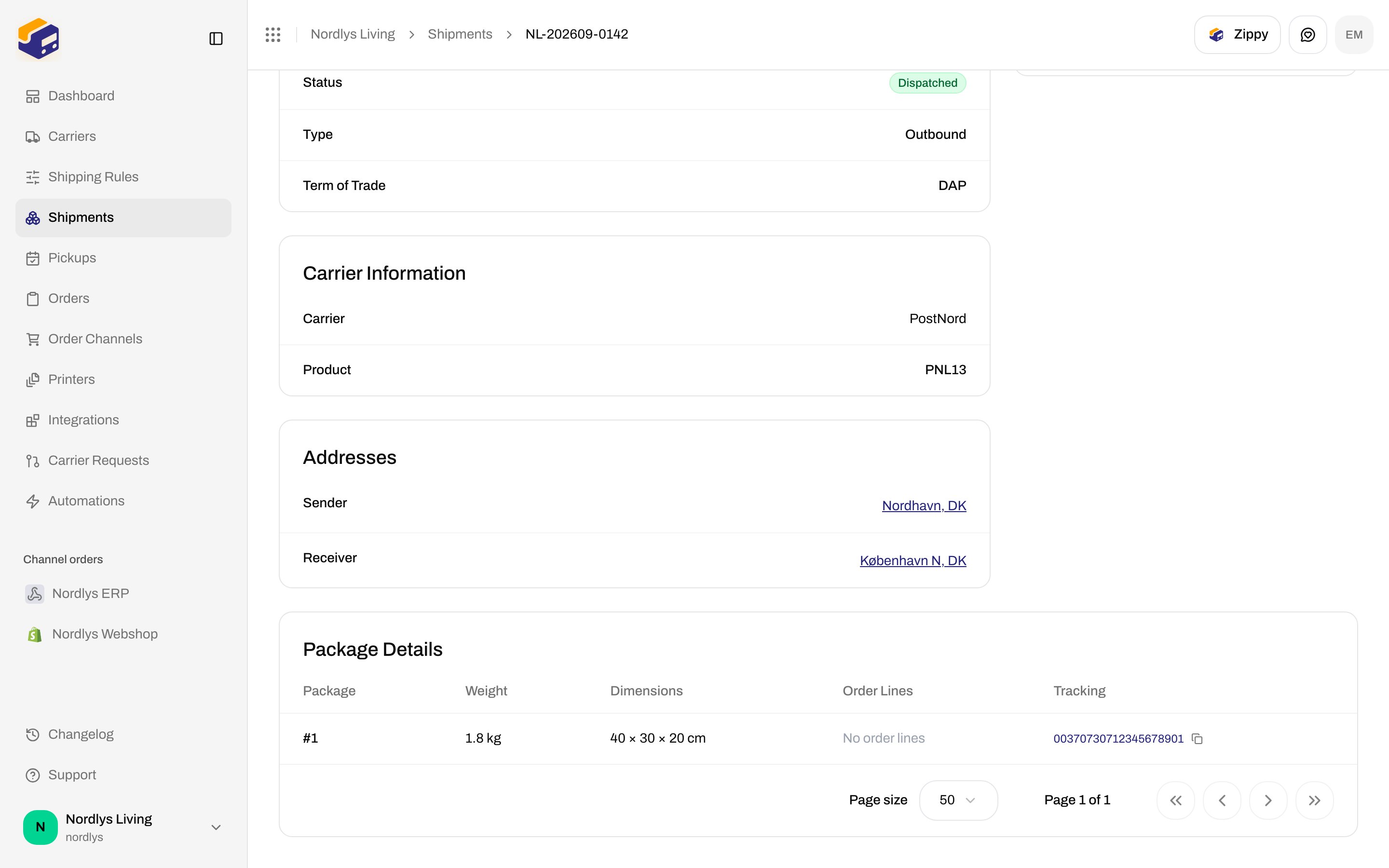
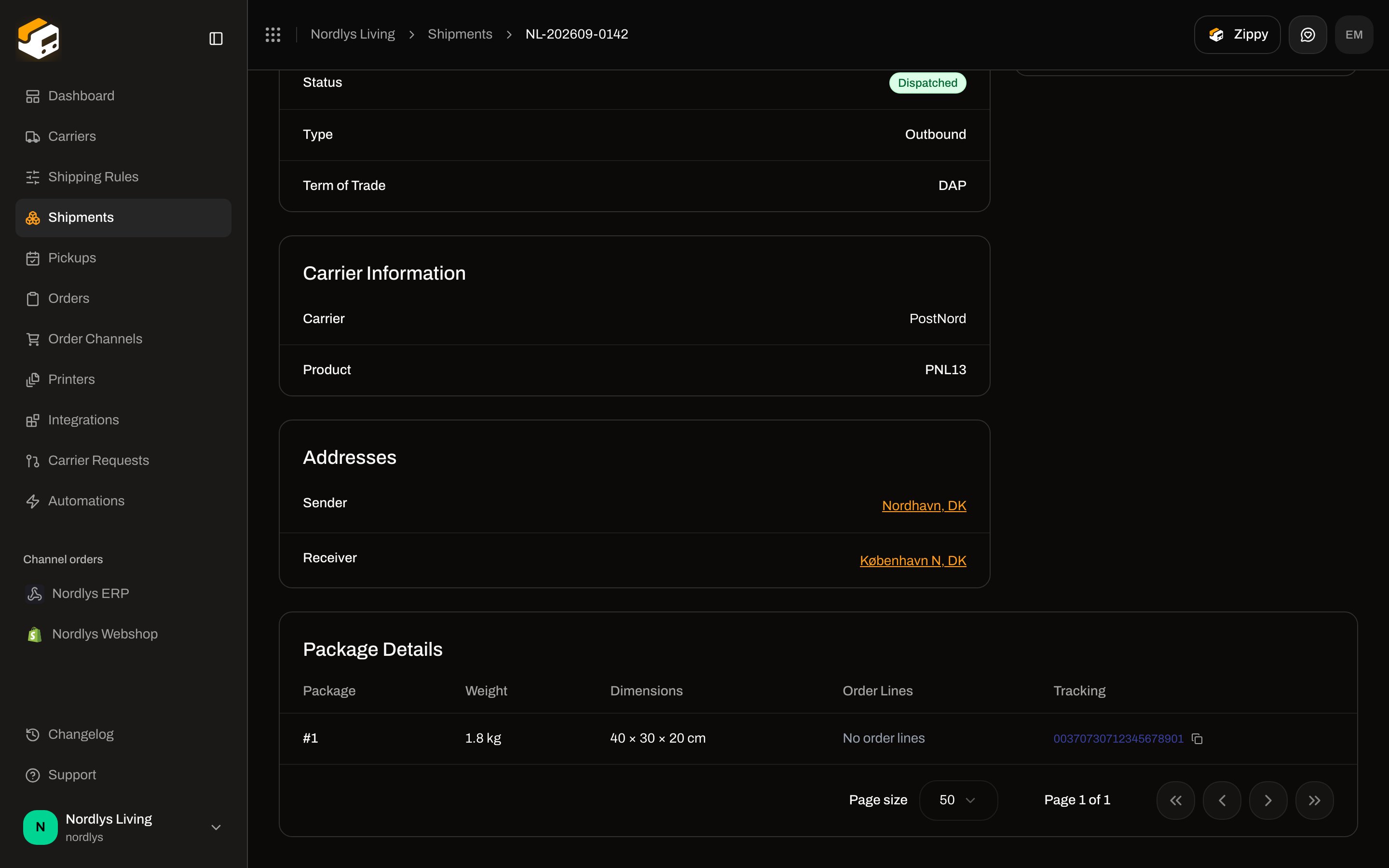
Open **Shipments** and click a **Dispatched** row. Scroll to **Package Details**. The **Tracking** column shows the number. The number is a link when the parcel has a tracking URL; the copy button copies the number.
 ### Tracking tab
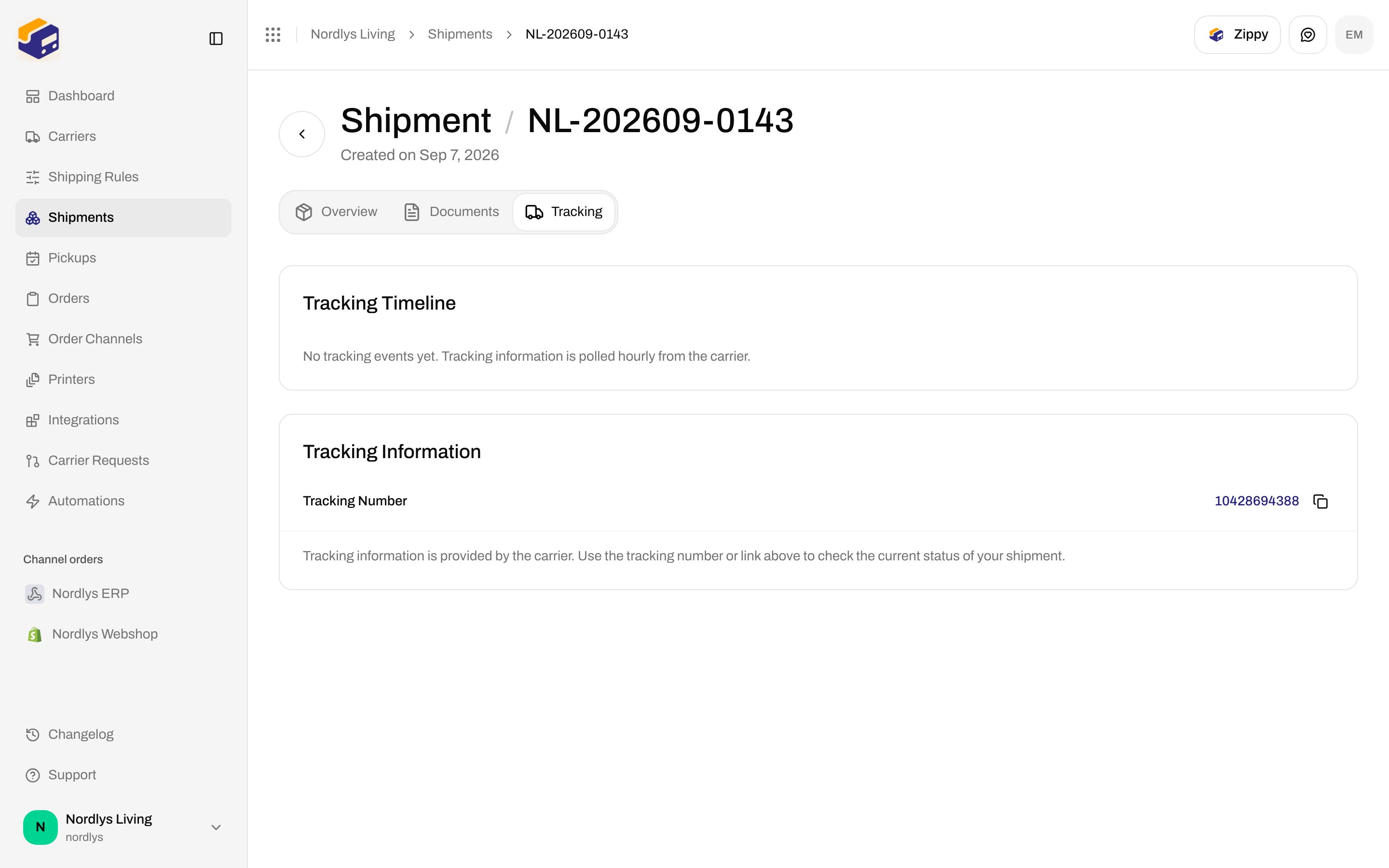
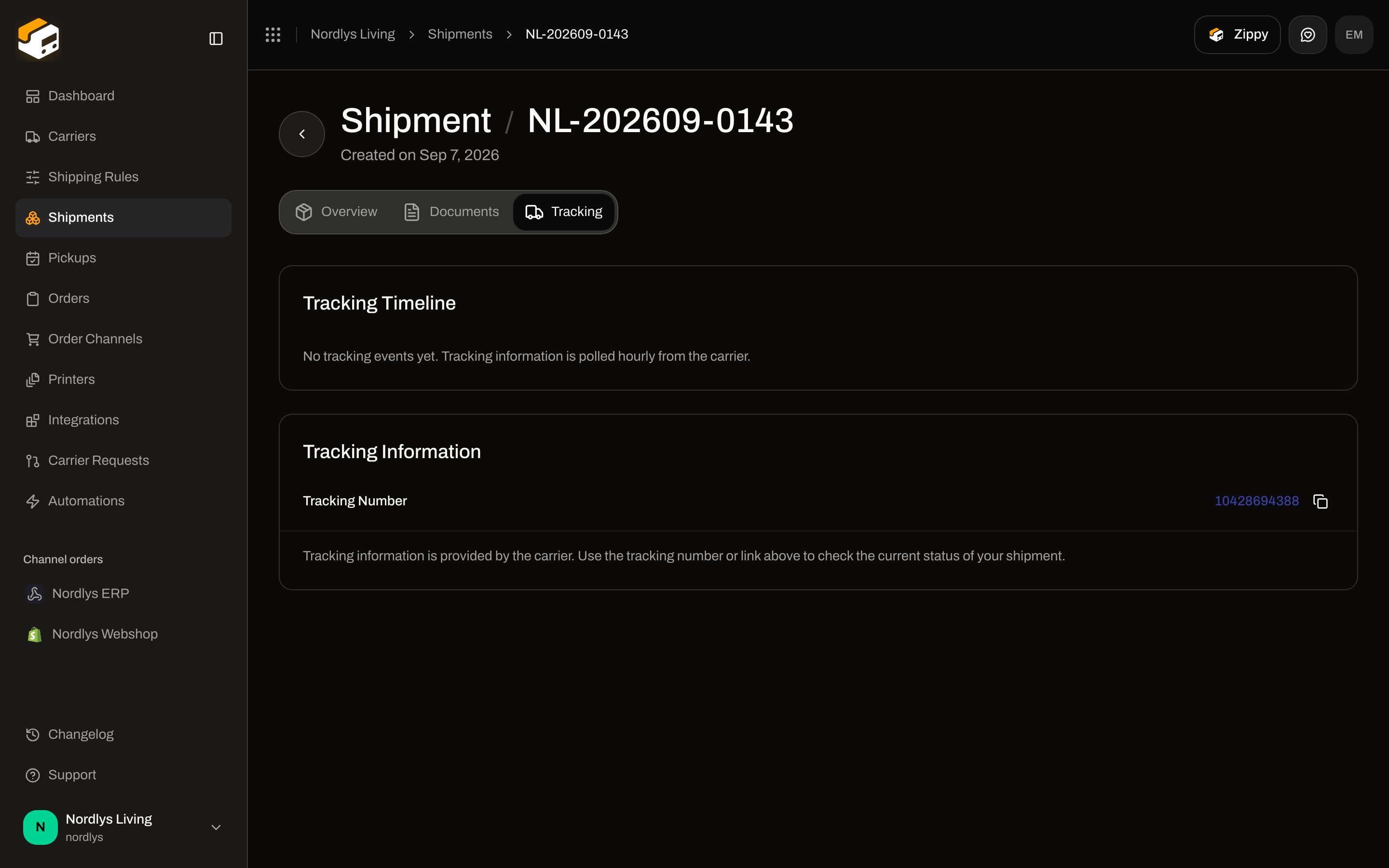
Click **Tracking**. You get two cards:
1. **Tracking Timeline** — current status badge and the event list.
2. **Tracking Information** — **Tracking Number** (copy, or click if it is a link), optional **Tracking Link** (**Track Shipment** or **Track Package**), **Label-Free Code**, and **QR Code** (**Open QR Code**) when the carrier supplies them. Multi-parcel shipments label each block **Package 1**, **Package 2**, and so on.
### Tracking tab
Click **Tracking**. You get two cards:
1. **Tracking Timeline** — current status badge and the event list.
2. **Tracking Information** — **Tracking Number** (copy, or click if it is a link), optional **Tracking Link** (**Track Shipment** or **Track Package**), **Label-Free Code**, and **QR Code** (**Open QR Code**) when the carrier supplies them. Multi-parcel shipments label each block **Package 1**, **Package 2**, and so on.
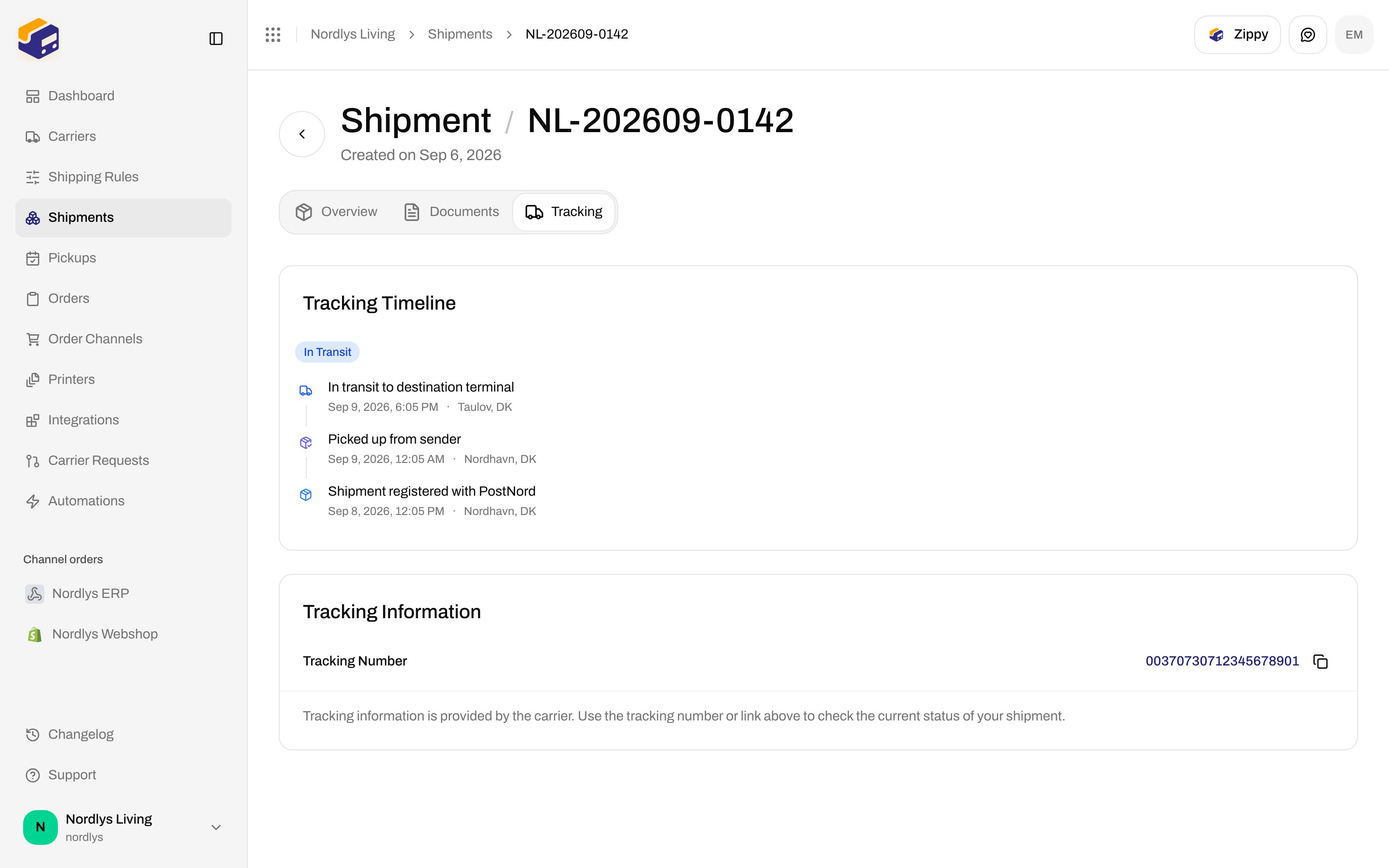
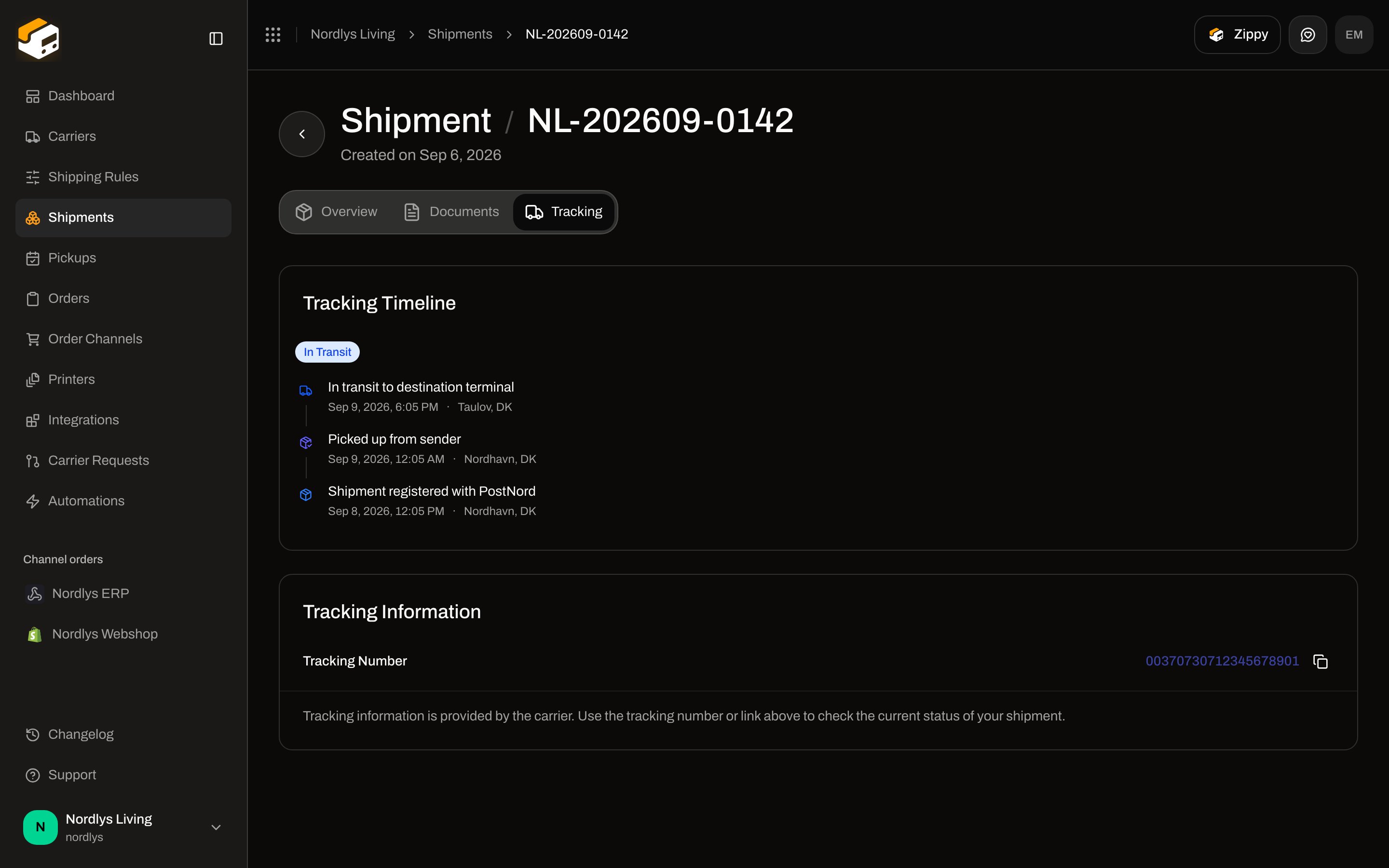 The note under the numbers is: **Tracking information is provided by the carrier. Use the tracking number or link above to check the current status of your shipment.**
### Order
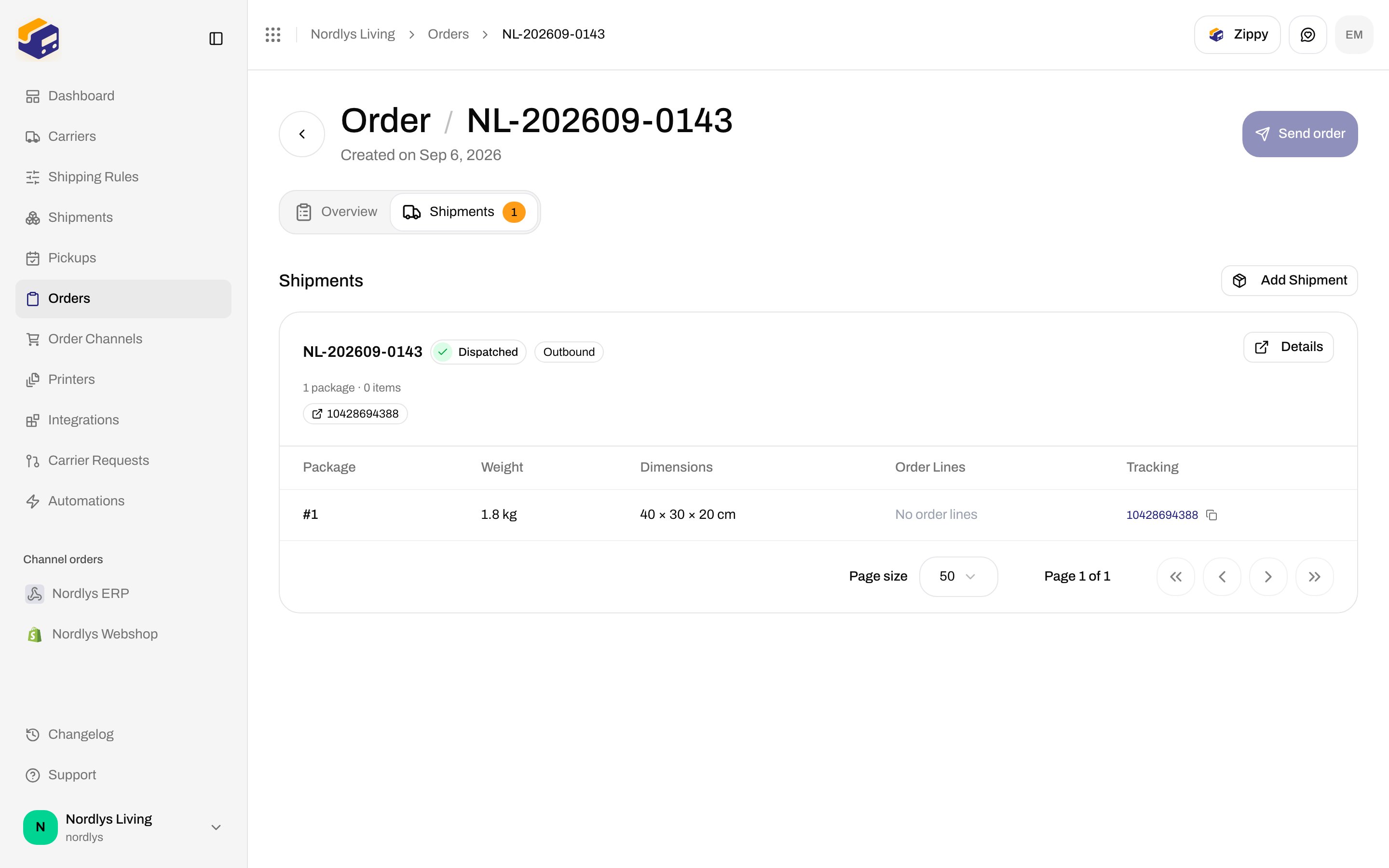
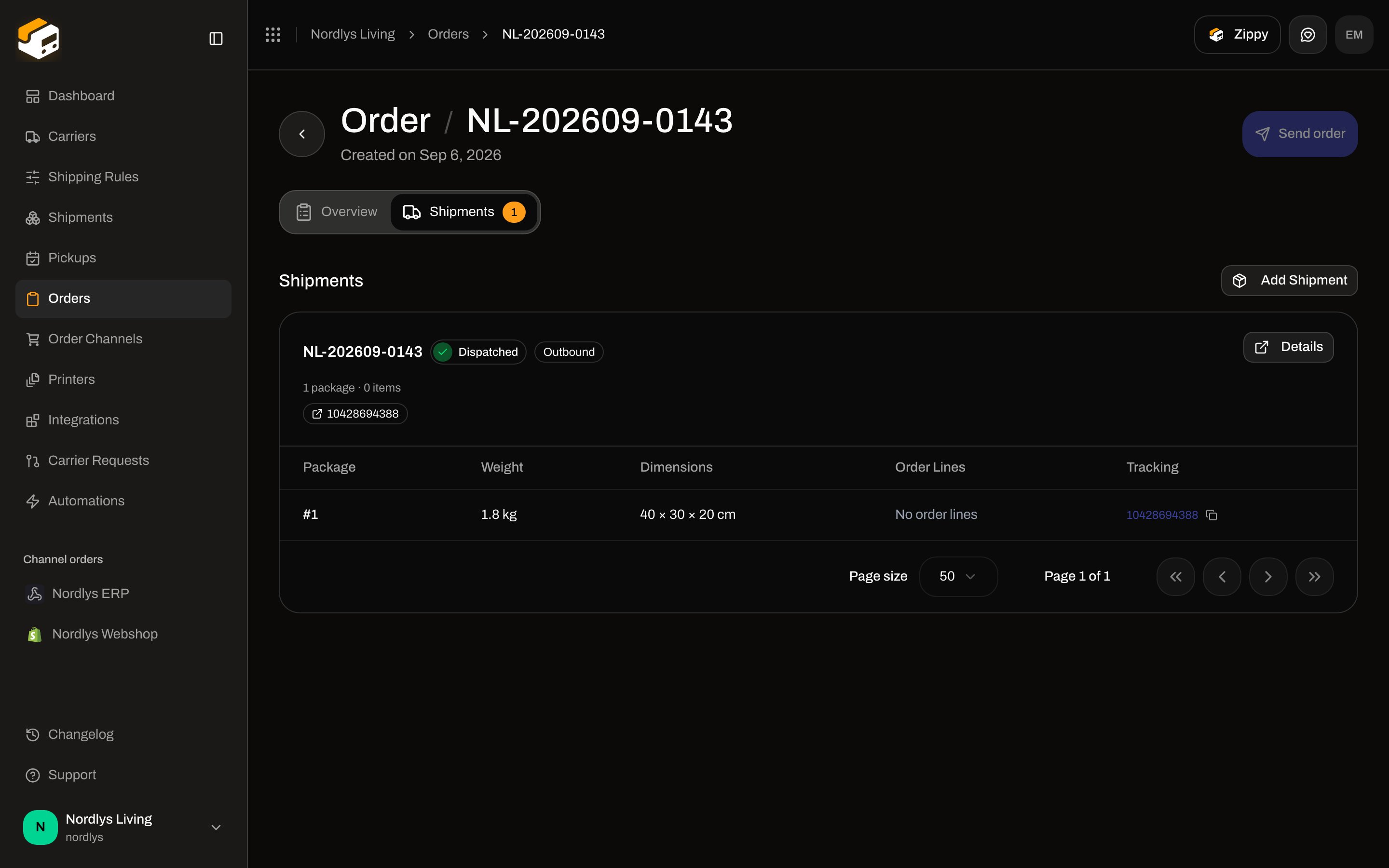
Open the order → **Shipments**. Each card can show the tracking number as a badge. Use **Details** to open the full shipment **Tracking** tab.
The note under the numbers is: **Tracking information is provided by the carrier. Use the tracking number or link above to check the current status of your shipment.**
### Order
Open the order → **Shipments**. Each card can show the tracking number as a badge. Use **Details** to open the full shipment **Tracking** tab.
 ### Shipments list
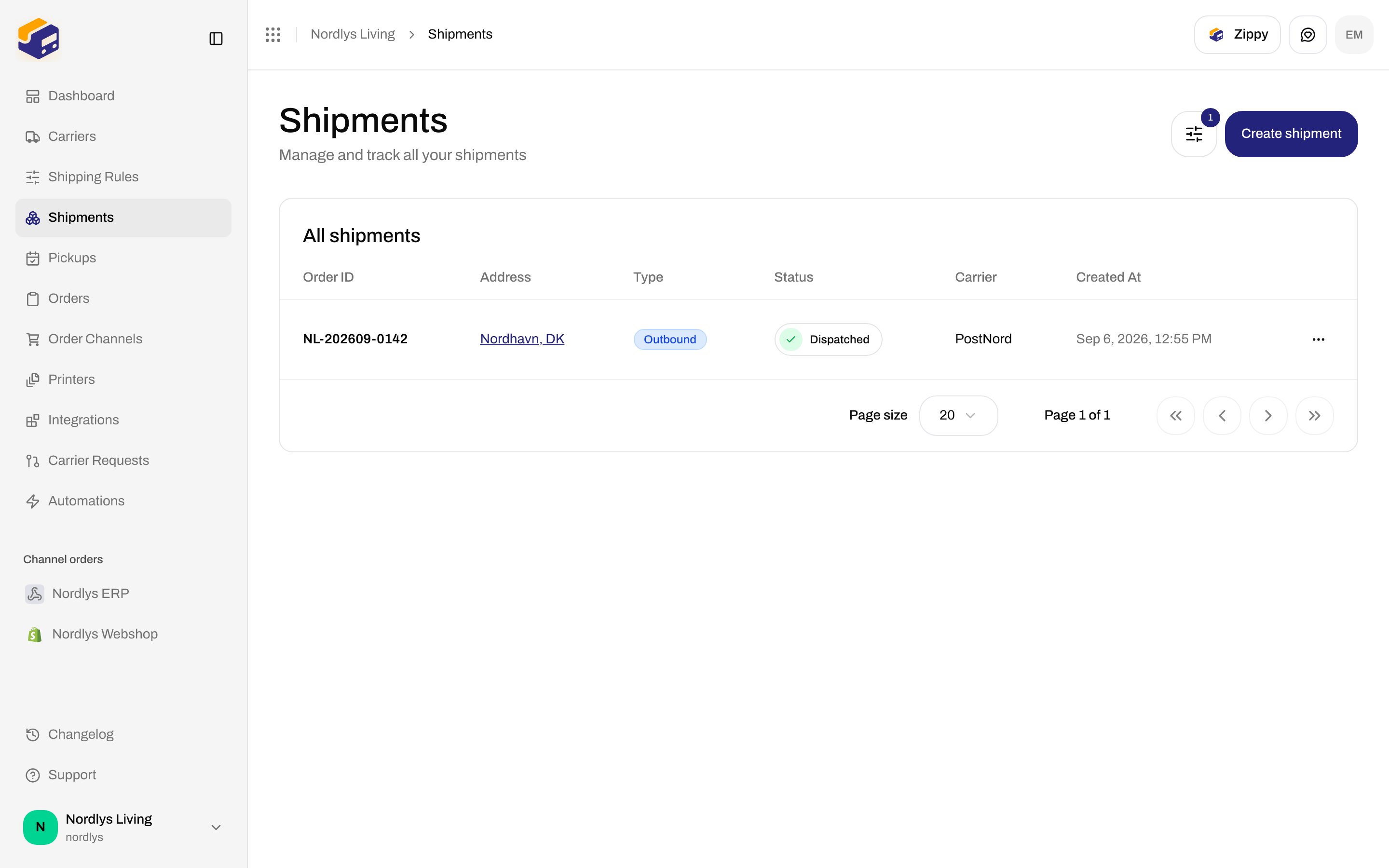
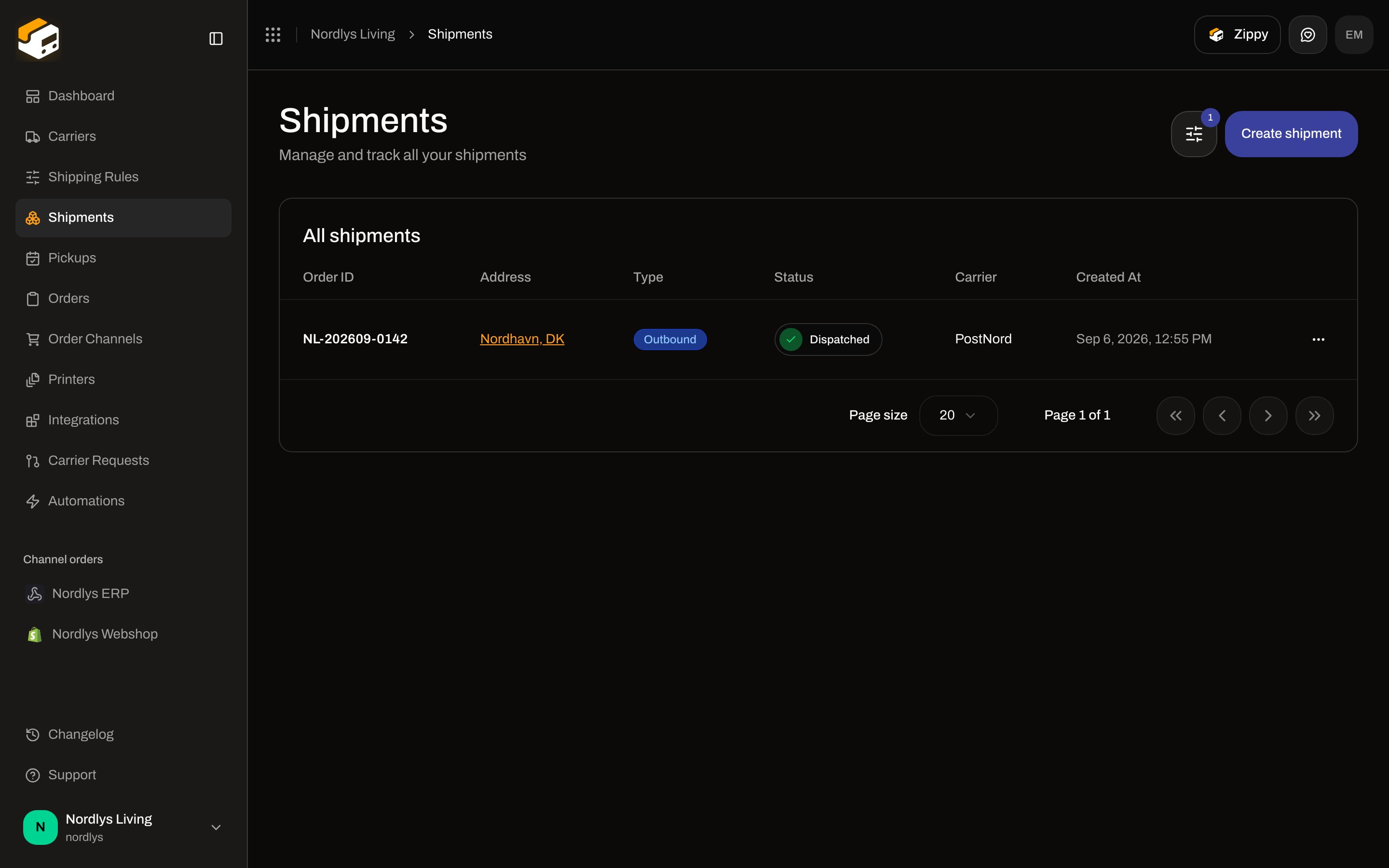
The list search placeholder is **Reference or tracking number**. Paste a tracking number to find the shipment.
### Shipments list
The list search placeholder is **Reference or tracking number**. Paste a tracking number to find the shipment.
 ## Status timeline
Events are newest-first. Each row shows the carrier’s description (or raw carrier status), the time, and a location when the carrier sent one. Zippendo maps carrier statuses to these badges:
| Status | Meaning |
| -------------------- | ------------------------------------------- |
| **Created** | Label created / registered with the carrier |
| **Awaiting Pickup** | Waiting for collection |
| **Picked Up** | Carrier collected the parcel |
| **In Transit** | Moving through the network |
| **Out for Delivery** | On the delivery vehicle |
| **Ready for Pickup** | At a pickup point for the recipient |
| **Delivered** | Delivered (terminal) |
| **Returned** | Returned to sender (terminal) |
| **Exception** | Delivery issue / deviation |
**Delivered** and **Returned** are terminal. Zippendo does not move a shipment backwards out of those states.
Right after send, the timeline is often still empty. The empty copy is: **No tracking events yet. Tracking information is polled hourly from the carrier.**
## Status timeline
Events are newest-first. Each row shows the carrier’s description (or raw carrier status), the time, and a location when the carrier sent one. Zippendo maps carrier statuses to these badges:
| Status | Meaning |
| -------------------- | ------------------------------------------- |
| **Created** | Label created / registered with the carrier |
| **Awaiting Pickup** | Waiting for collection |
| **Picked Up** | Carrier collected the parcel |
| **In Transit** | Moving through the network |
| **Out for Delivery** | On the delivery vehicle |
| **Ready for Pickup** | At a pickup point for the recipient |
| **Delivered** | Delivered (terminal) |
| **Returned** | Returned to sender (terminal) |
| **Exception** | Delivery issue / deviation |
**Delivered** and **Returned** are terminal. Zippendo does not move a shipment backwards out of those states.
Right after send, the timeline is often still empty. The empty copy is: **No tracking events yet. Tracking information is polled hourly from the carrier.**
 Pull carriers are refreshed about once an hour. Some carriers **push** events (for example Bring Event Cast). Either way, the timeline looks the same.
## Customer tracking links
Copy the **Tracking Number**, click the numbered link, or open **Track Shipment** / **Track Package**. That URL is the carrier’s public page (for example GLS Find parcel), not a Zippendo page.
If you use Shopify or WooCommerce auto-fulfilment, Zippendo can push the tracking number back to the store when the shipment is dispatched — the shopper then sees tracking on the order in the store, not in a Zippendo portal.
Label-free drop-off uses **Label-Free Code** and **Open QR Code** on the same **Tracking Information** card when the carrier issued them.
## Notifications
The dashboard does not send the customer an email or SMS when tracking changes. Carrier products usually notify the recipient themselves.
For **your** systems:
* **Settings → Webhooks** → **Add Webhook**. Under **Tracking**, subscribe to **Tracking Updated**. Zippendo POSTs when a new event is stored.
* **Automations** can start from **Tracking Updated** if you want Slack, an integration, or another action.
Pull carriers are refreshed about once an hour. Some carriers **push** events (for example Bring Event Cast). Either way, the timeline looks the same.
## Customer tracking links
Copy the **Tracking Number**, click the numbered link, or open **Track Shipment** / **Track Package**. That URL is the carrier’s public page (for example GLS Find parcel), not a Zippendo page.
If you use Shopify or WooCommerce auto-fulfilment, Zippendo can push the tracking number back to the store when the shipment is dispatched — the shopper then sees tracking on the order in the store, not in a Zippendo portal.
Label-free drop-off uses **Label-Free Code** and **Open QR Code** on the same **Tracking Information** card when the carrier issued them.
## Notifications
The dashboard does not send the customer an email or SMS when tracking changes. Carrier products usually notify the recipient themselves.
For **your** systems:
* **Settings → Webhooks** → **Add Webhook**. Under **Tracking**, subscribe to **Tracking Updated**. Zippendo POSTs when a new event is stored.
* **Automations** can start from **Tracking Updated** if you want Slack, an integration, or another action.
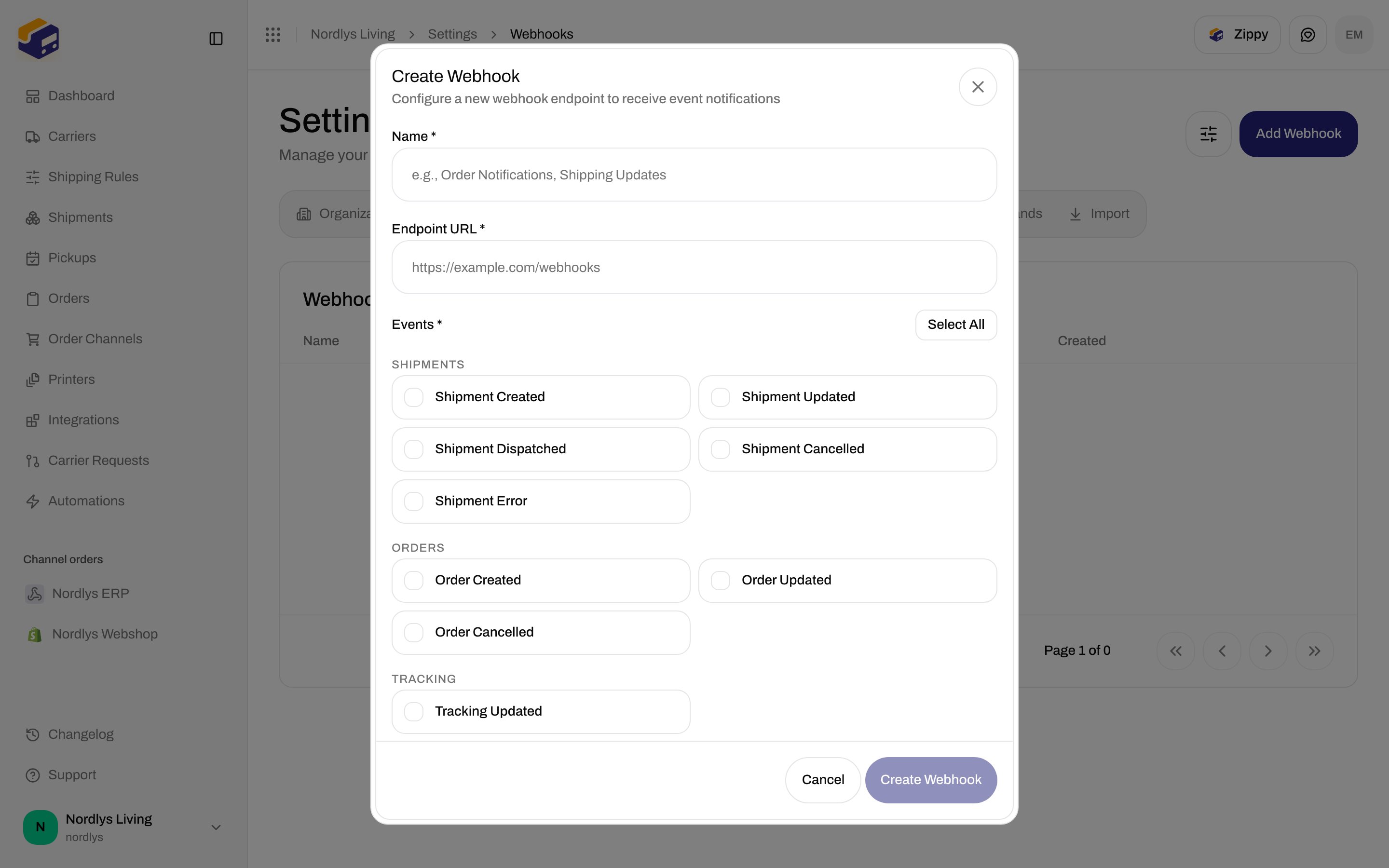
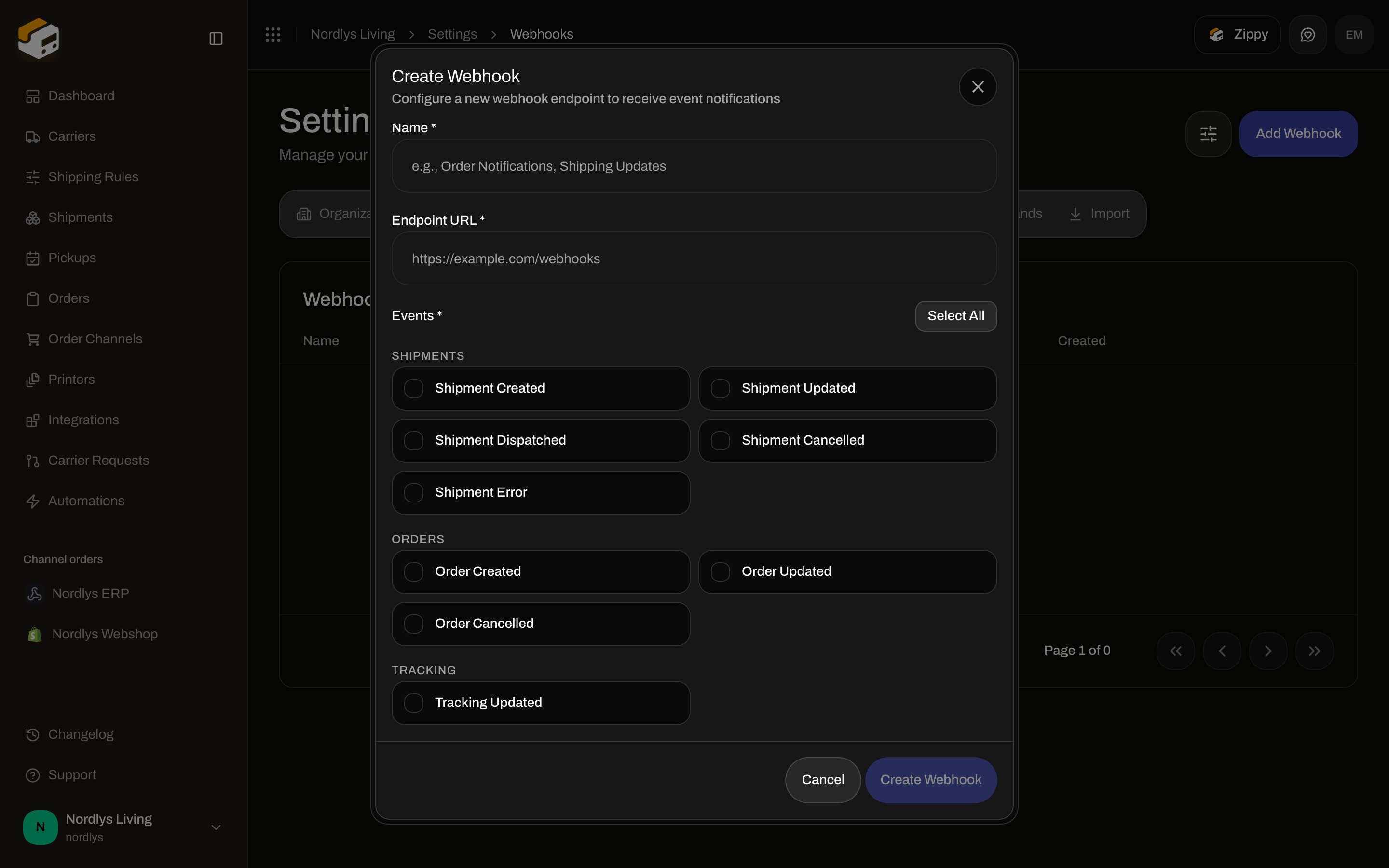 Test the endpoint with **Send Test** on the webhook row after you save. Payload shape is in the [webhooks quickstart](/docs/quickstarts/webhooks).
## When tracking does not update
Open **Tracking Information**. If there is no number, the send may have failed — check status and [Labels not generating](/docs/knowledge-base/labels-not-generating).
If the carrier page also has no scans, the parcel has not reached the first scan. Wait for pickup.
Pull tracking is hourly. An empty timeline with a valid number is normal for the first hours after send.
If the carrier site has events and Zippendo does not after several hours, verify the carrier under **Carriers**. See [Tracking not updating](/docs/knowledge-base/tracking-not-updating).
Zippendo does not offer a “refresh tracking now” button on the shipment. Do not recreate the shipment just to force a number — that books a second label.
## Next
Buy the label, then view or print it from Documents.
Tracking also appears on the order’s shipment card.
Pending, dispatched, error, and the rest of the booking lifecycle.
Checklist when the carrier page is ahead of Zippendo.
Field-level: [Carrier tracking webhooks](/docs/how-to/tracking-webhooks) · [Webhooks](/docs/how-to/webhooks)
Test the endpoint with **Send Test** on the webhook row after you save. Payload shape is in the [webhooks quickstart](/docs/quickstarts/webhooks).
## When tracking does not update
Open **Tracking Information**. If there is no number, the send may have failed — check status and [Labels not generating](/docs/knowledge-base/labels-not-generating).
If the carrier page also has no scans, the parcel has not reached the first scan. Wait for pickup.
Pull tracking is hourly. An empty timeline with a valid number is normal for the first hours after send.
If the carrier site has events and Zippendo does not after several hours, verify the carrier under **Carriers**. See [Tracking not updating](/docs/knowledge-base/tracking-not-updating).
Zippendo does not offer a “refresh tracking now” button on the shipment. Do not recreate the shipment just to force a number — that books a second label.
## Next
Buy the label, then view or print it from Documents.
Tracking also appears on the order’s shipment card.
Pending, dispatched, error, and the rest of the booking lifecycle.
Checklist when the carrier page is ahead of Zippendo.
Field-level: [Carrier tracking webhooks](/docs/how-to/tracking-webhooks) · [Webhooks](/docs/how-to/webhooks)