> ## Documentation Index
> Fetch the complete documentation index at: https://www.zippendo.com/docs/llms.txt
> Use this file to discover all available pages before exploring further.
# Shipping rules
> Automatically assign a carrier, product, and sender address — and price checkout rates — from destination, weight, and cart value.
A **shipping rule** is a saved shipping setup: which connected [carrier](/docs/tutorials/carriers) and **product** to use, which **sender address** to print on the label, which **destination countries** it covers, and which **conditions** set the checkout price.
Use rules when the same combination repeats. A shopper in Denmark should get GLS home delivery at 39 DKK; a shopper in Sweden should get PostNord. Without a rule, you pick carrier and product on every [shipment](/docs/tutorials/create-a-shipment).
You need at least one [connected carrier](/docs/tutorials/carriers) and one [sender address](/docs/settings/sender-addresses) before you can save a rule.
## What a rule does
A rule is used in three places:
1. **Checkout rates** — Shopify and WooCommerce offer matching rules as shipping options. The shopper's destination country, cart weight, order value, and item count decide which rules appear and what they cost. See [Checkout](/docs/tutorials/checkout).
2. **Orders** — When the shopper (or a shipping-method mapping) picks a rule, the [order](/docs/tutorials/orders) stores it. Creating a shipment from that order fills carrier, product, services, and sender from the rule.
3. **Shipments** — You can apply a rule to a draft or pending shipment, or leave the shipment on manual carrier settings.
When you **send** a shipment that has a rule, the rule also drives optional **document generation**, **auto-print**, and **return** behaviour.
Shipping rules are not the same as [automations](/docs/automations/overview). An automation is an event-driven workflow (for example, apply a rule when a shipment is created). A shipping rule is the reusable carrier/product setup the automation applies.
## Where to find them
**Shipping Rules** is a top-level item in the sidebar, between **Carriers** and **Shipments**. The older **Settings → Shipping Rules** path redirects here.
The list shows each rule's name, carrier, destination countries, and a short conditions summary. Click **Add Shipping Rule** to create one, or click a row to edit it.
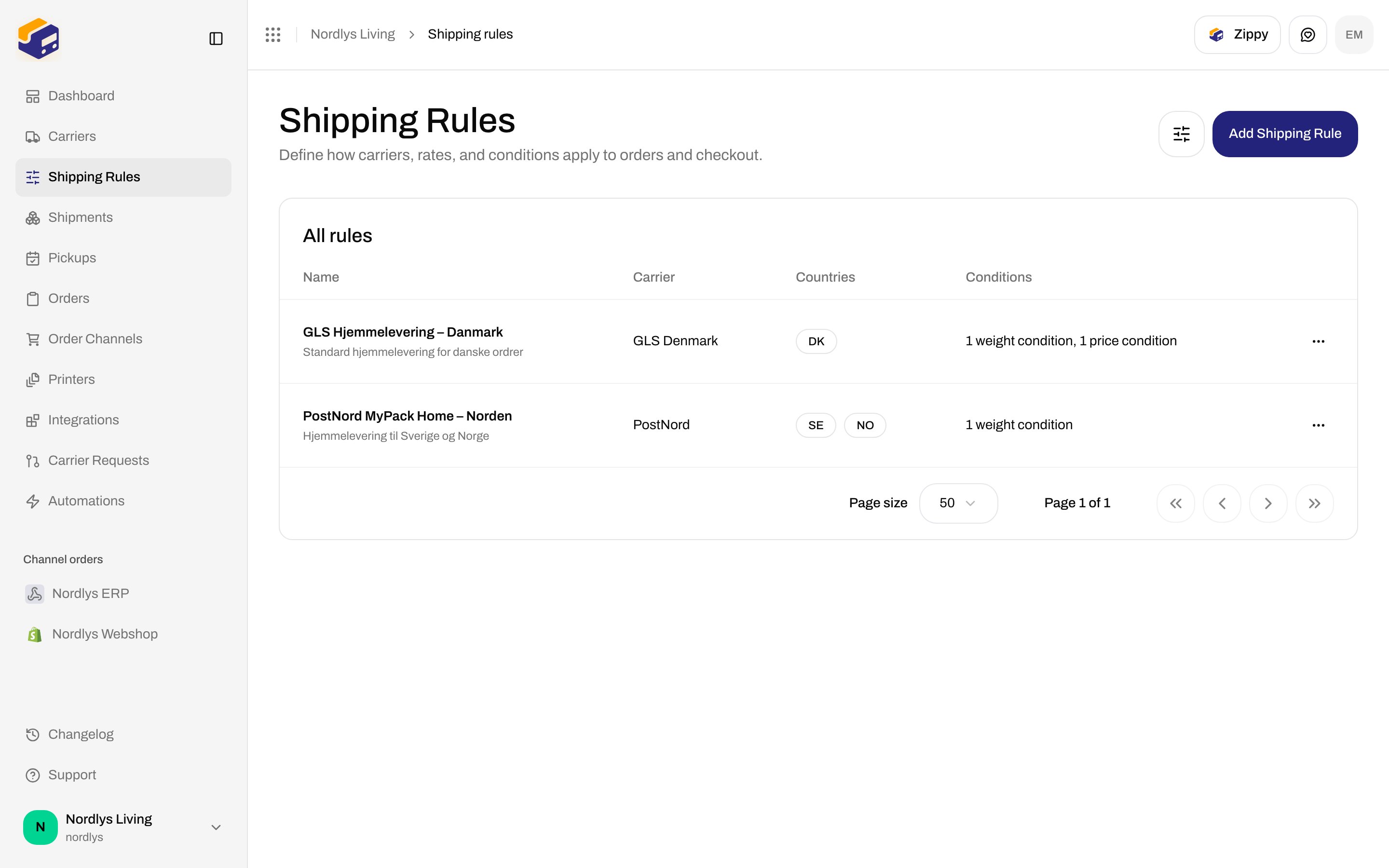
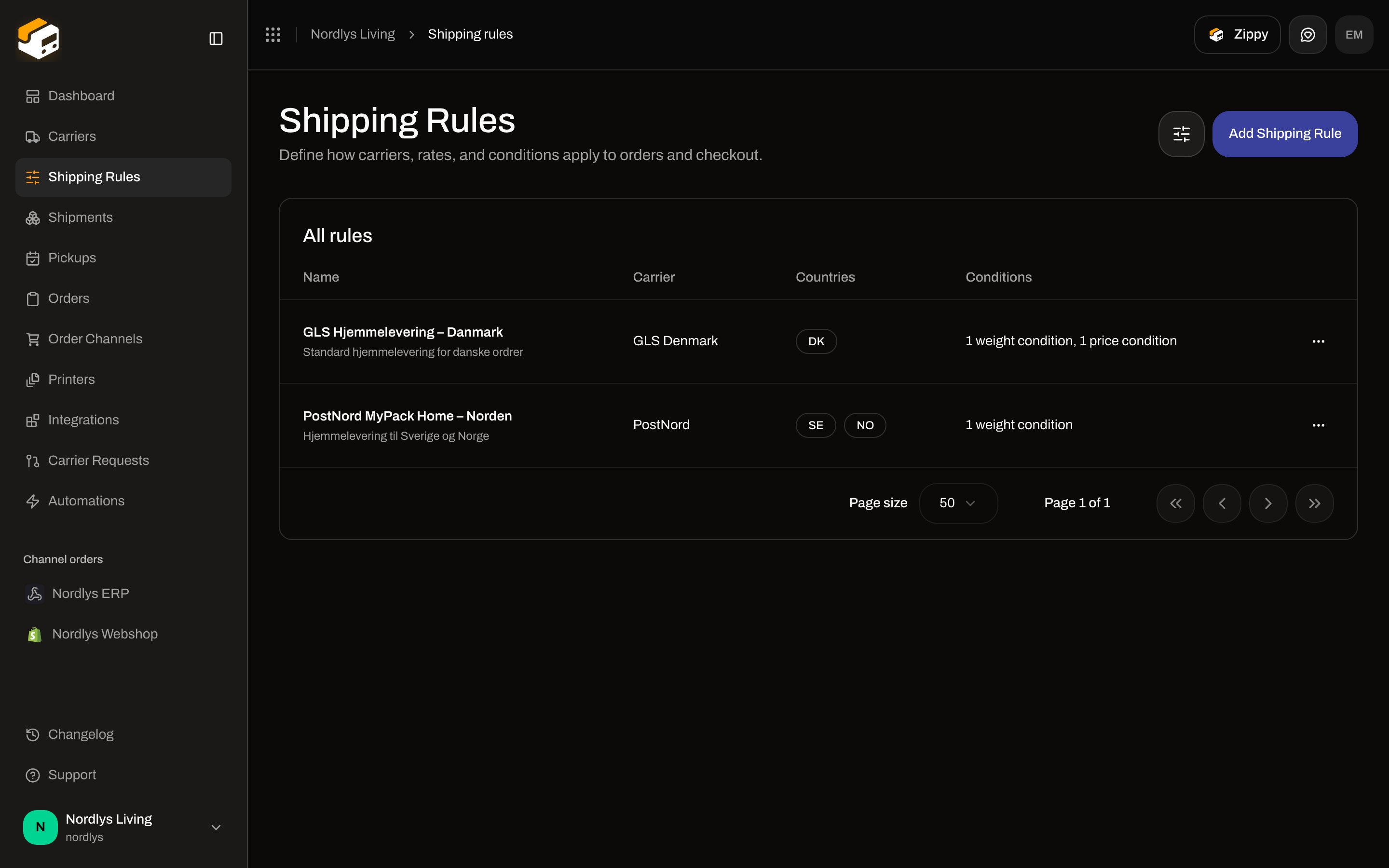 Filter the list by search, carrier, or [brand](/docs/settings/brands) from the header filter.
## Create a rule
Click **Add Shipping Rule**. The page title is **Create Shipping Rule**.
**Rule name** is what you (and shoppers, at checkout) see. Write it the way customers should read it — `GLS Hjemmelevering – Danmark`, not an internal code. Add an optional **Description**.
**Outbound** is regular shipments. **Inbound (Return)** is for return labels. Product lists filter to products that support the direction you pick.
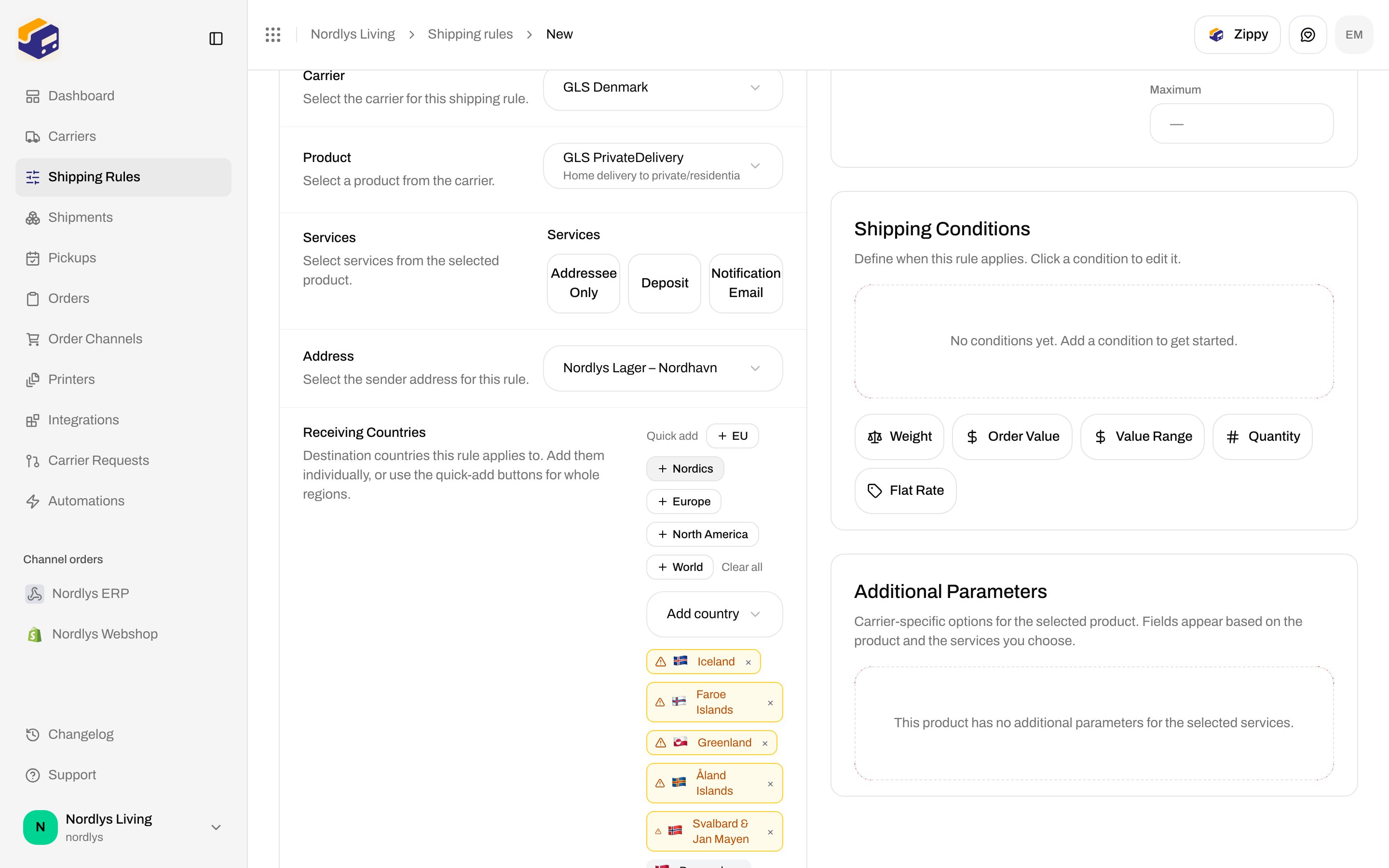
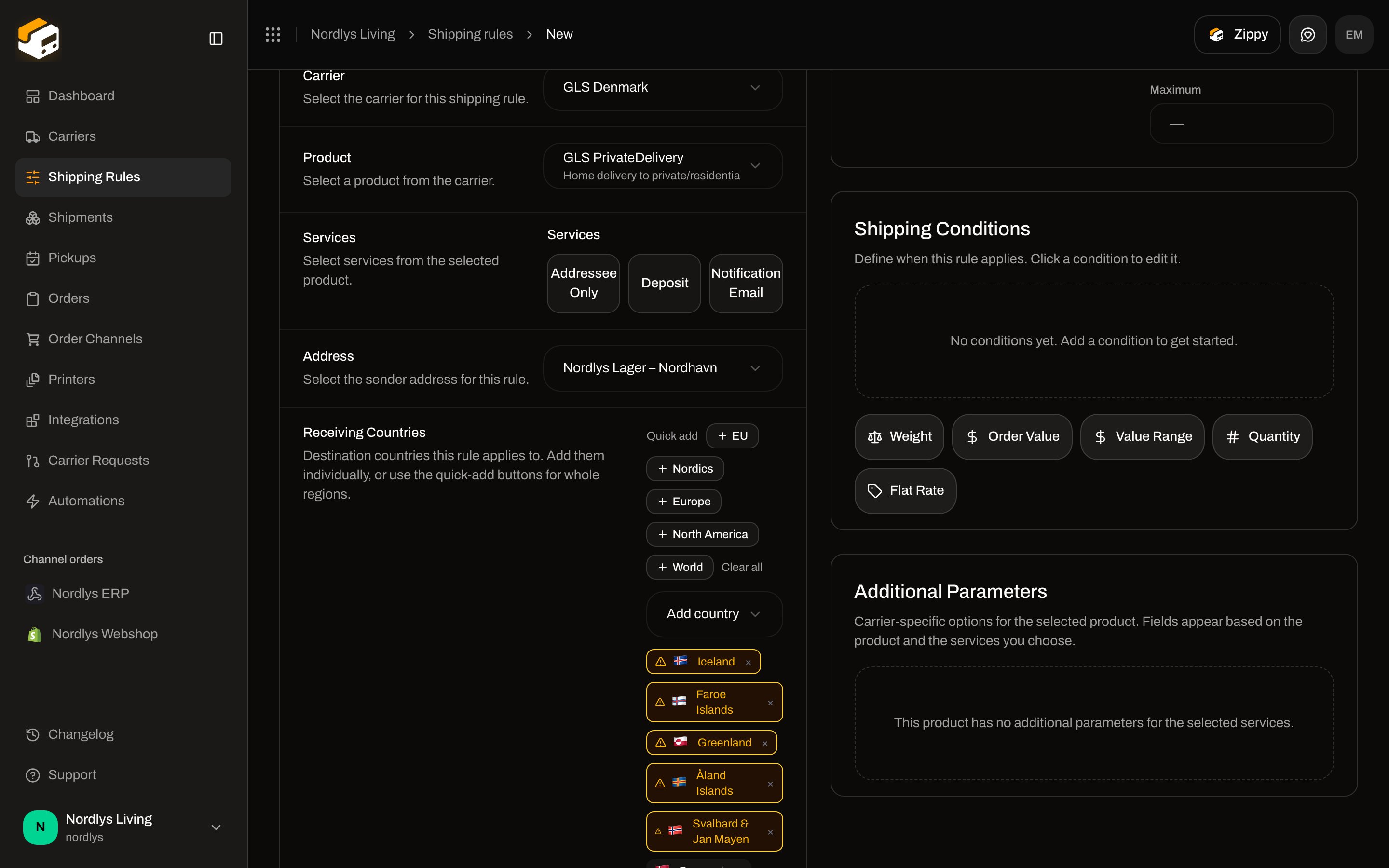
Select a **Carrier** you have connected, then a **Product** from that carrier (for example **GLS PrivateDelivery**). If the product exposes **Services** (Address Only, Deposit, Email), tick the ones this rule should always include.
**Address** is the "from" address printed on the label. Only sender-type addresses appear.
**Receiving Countries** is required. Add countries one by one, or use **Quick add**: **EU**, **Nordics**, **Europe**, **North America**, or **World**. A country the selected service does not support is flagged.
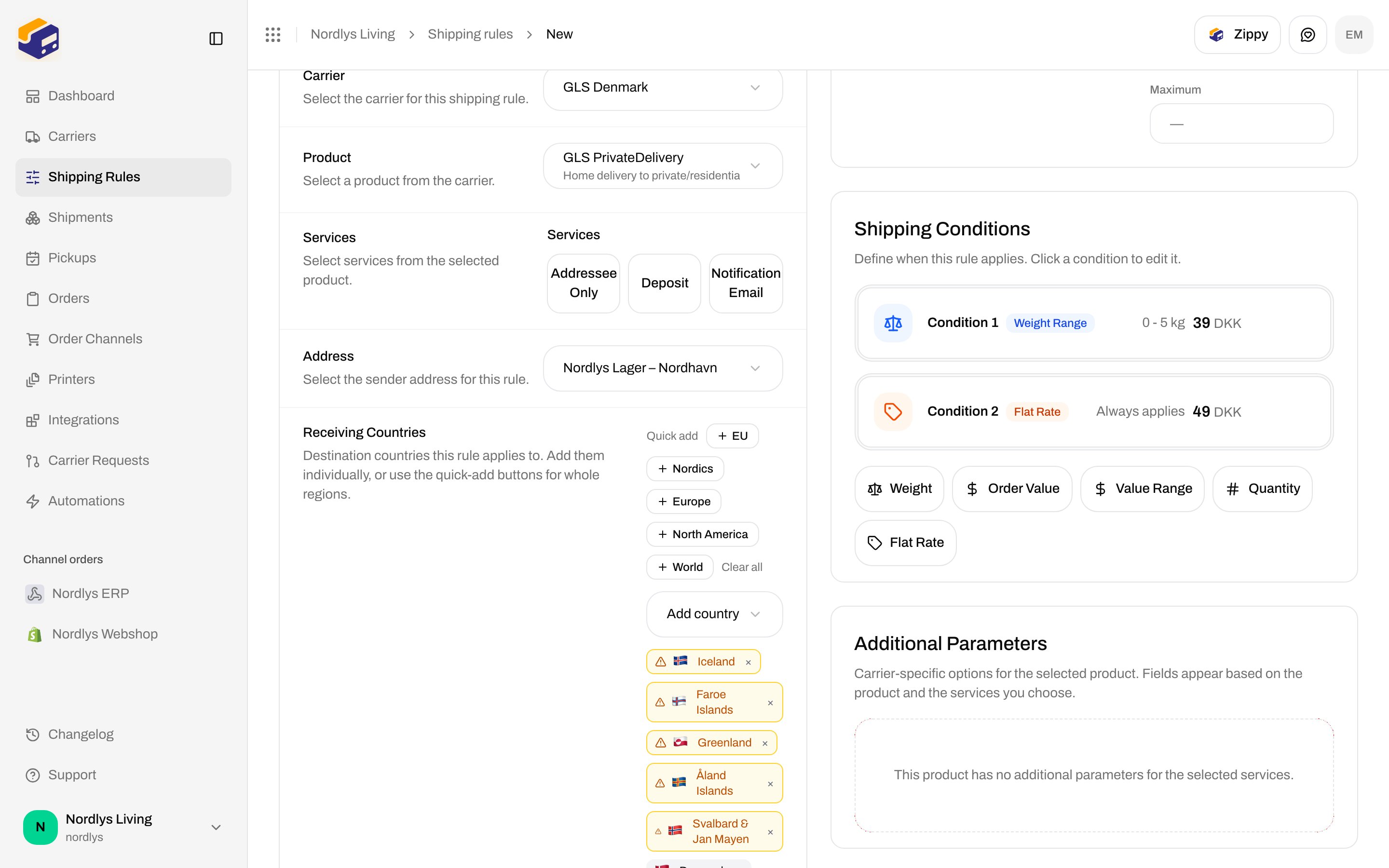
The form will not save without a condition. Start with **Flat Rate** if every matching cart should pay the same price, or add **Weight**, **Order Value**, **Value Range**, or **Quantity**.
Click **Create Rule**. You return to the list. There is no separate "enable" switch — a saved rule is live.
Filter the list by search, carrier, or [brand](/docs/settings/brands) from the header filter.
## Create a rule
Click **Add Shipping Rule**. The page title is **Create Shipping Rule**.
**Rule name** is what you (and shoppers, at checkout) see. Write it the way customers should read it — `GLS Hjemmelevering – Danmark`, not an internal code. Add an optional **Description**.
**Outbound** is regular shipments. **Inbound (Return)** is for return labels. Product lists filter to products that support the direction you pick.
Select a **Carrier** you have connected, then a **Product** from that carrier (for example **GLS PrivateDelivery**). If the product exposes **Services** (Address Only, Deposit, Email), tick the ones this rule should always include.
**Address** is the "from" address printed on the label. Only sender-type addresses appear.
**Receiving Countries** is required. Add countries one by one, or use **Quick add**: **EU**, **Nordics**, **Europe**, **North America**, or **World**. A country the selected service does not support is flagged.
The form will not save without a condition. Start with **Flat Rate** if every matching cart should pay the same price, or add **Weight**, **Order Value**, **Value Range**, or **Quantity**.
Click **Create Rule**. You return to the list. There is no separate "enable" switch — a saved rule is live.
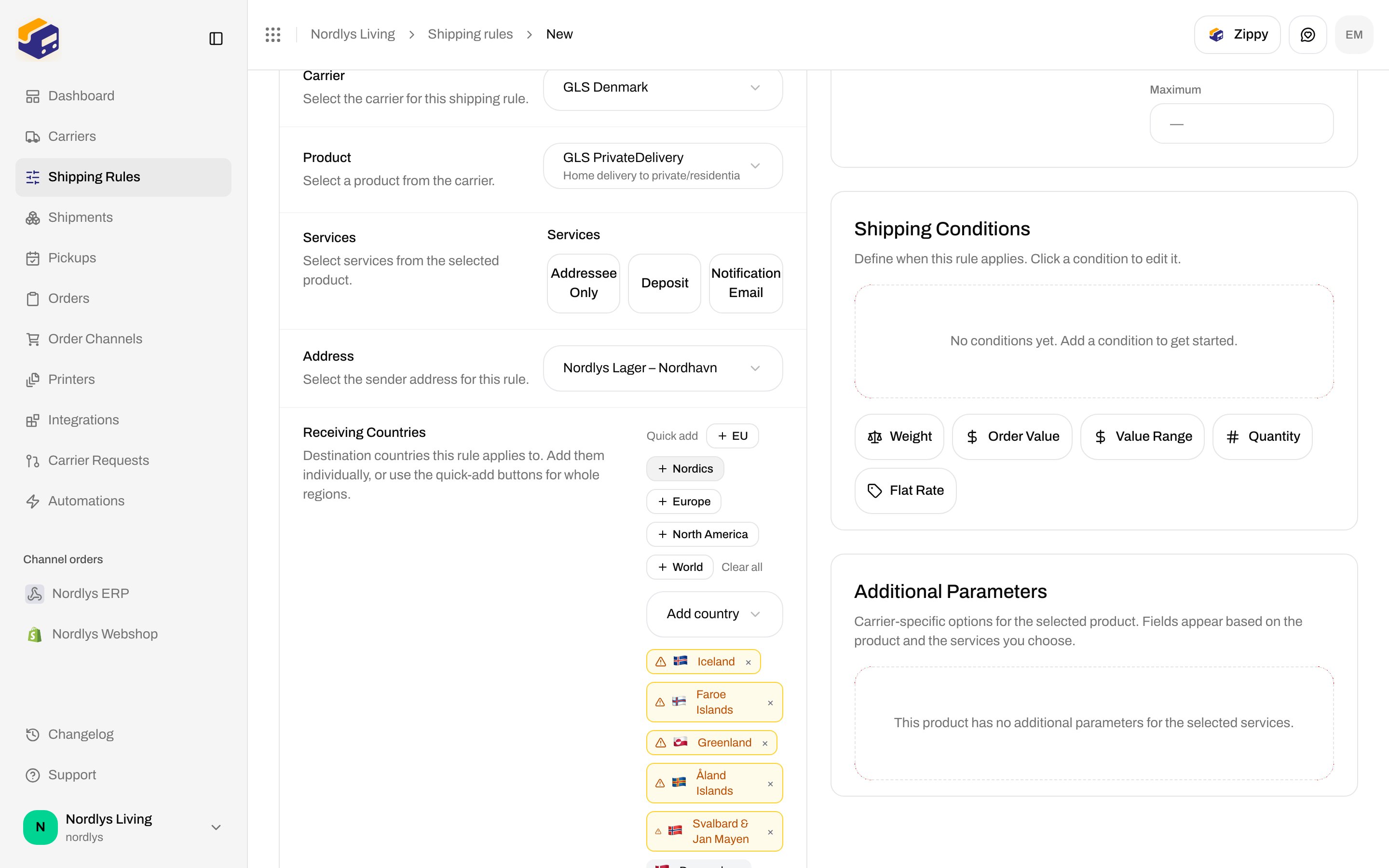
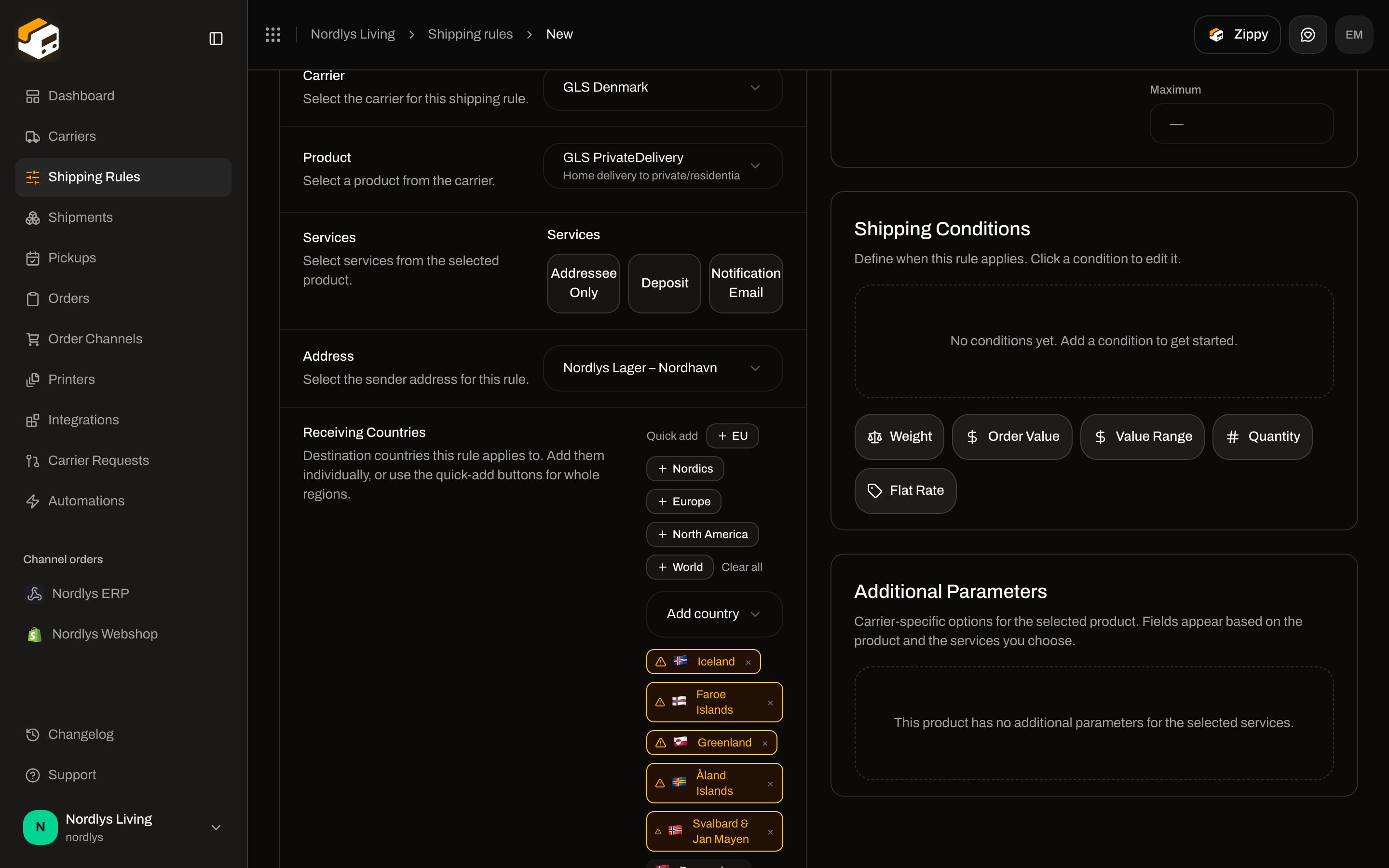 The checkout rate label is the rule **name** plus the product name. Keep names short and in the shopper's language.
## Conditions
Conditions answer: *does this cart get a shipping price from this rule, and how much?* They do **not** pick a carrier by SKU or by order channel. Those are not condition types.
The five types the form offers:
| Button | Type | When it matches |
| --------------- | ----------------- | ------------------------------------------------------------------------------------------------------------------------------------------------------ |
| **Weight** | Weight range | Total cart weight (kg) is between **Minimum** and **Maximum**, inclusive |
| **Order Value** | Order value | Cart **Total** (after discounts) or **Subtotal** (before discounts) compared with **at least / greater than / at most / less than / equal to** a value |
| **Value Range** | Order value range | Cart total or subtotal falls between a min and max |
| **Quantity** | Item quantity | Total item count compared with an operator and a number |
| **Flat Rate** | Flat rate | Always matches — use as a fallback price |
Every condition also has a **Shipping Price** and a **Currency**. That price is what the shopper pays at checkout when this condition is the best match.
The checkout rate label is the rule **name** plus the product name. Keep names short and in the shopper's language.
## Conditions
Conditions answer: *does this cart get a shipping price from this rule, and how much?* They do **not** pick a carrier by SKU or by order channel. Those are not condition types.
The five types the form offers:
| Button | Type | When it matches |
| --------------- | ----------------- | ------------------------------------------------------------------------------------------------------------------------------------------------------ |
| **Weight** | Weight range | Total cart weight (kg) is between **Minimum** and **Maximum**, inclusive |
| **Order Value** | Order value | Cart **Total** (after discounts) or **Subtotal** (before discounts) compared with **at least / greater than / at most / less than / equal to** a value |
| **Value Range** | Order value range | Cart total or subtotal falls between a min and max |
| **Quantity** | Item quantity | Total item count compared with an operator and a number |
| **Flat Rate** | Flat rate | Always matches — use as a fallback price |
Every condition also has a **Shipping Price** and a **Currency**. That price is what the shopper pays at checkout when this condition is the best match.
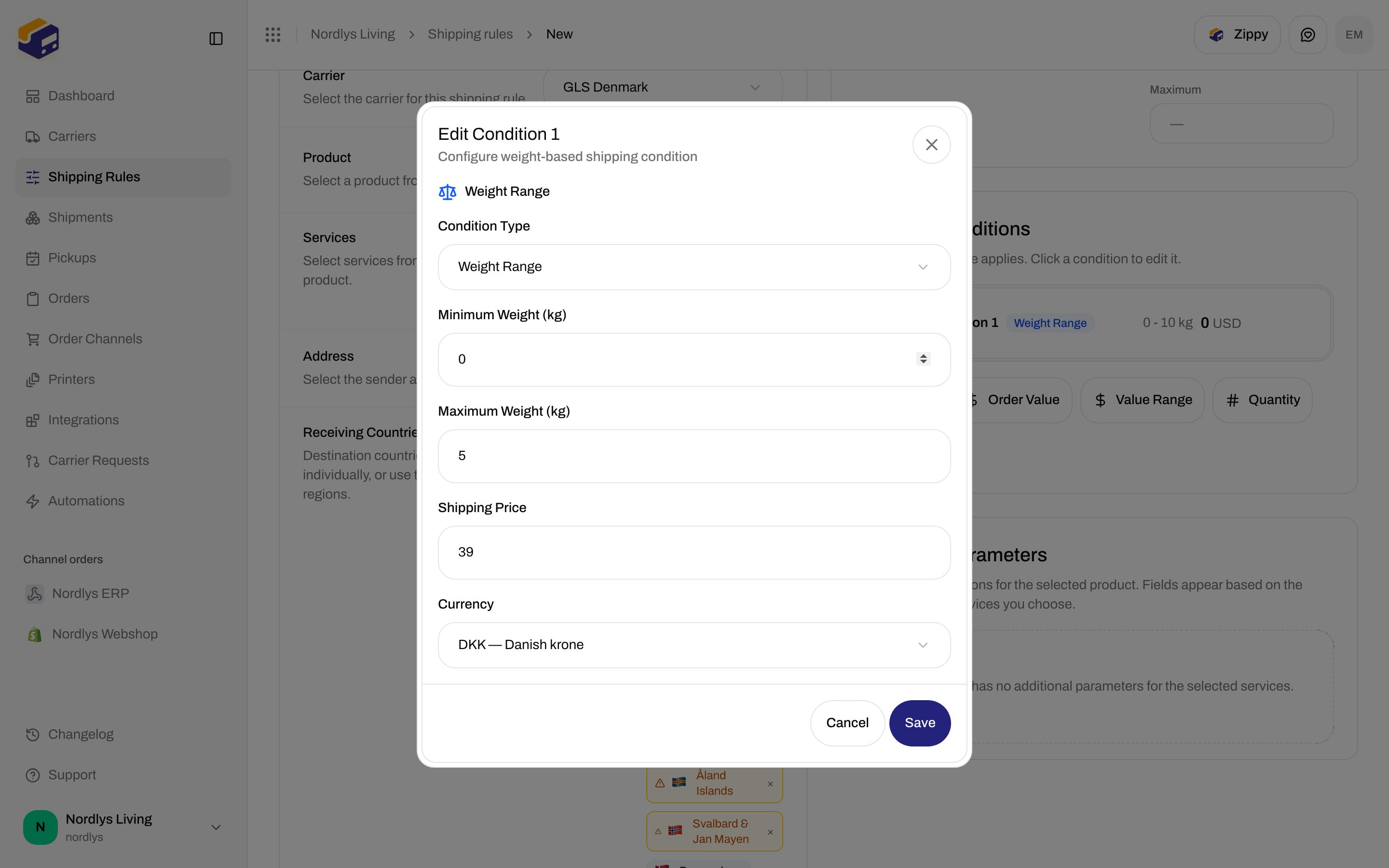
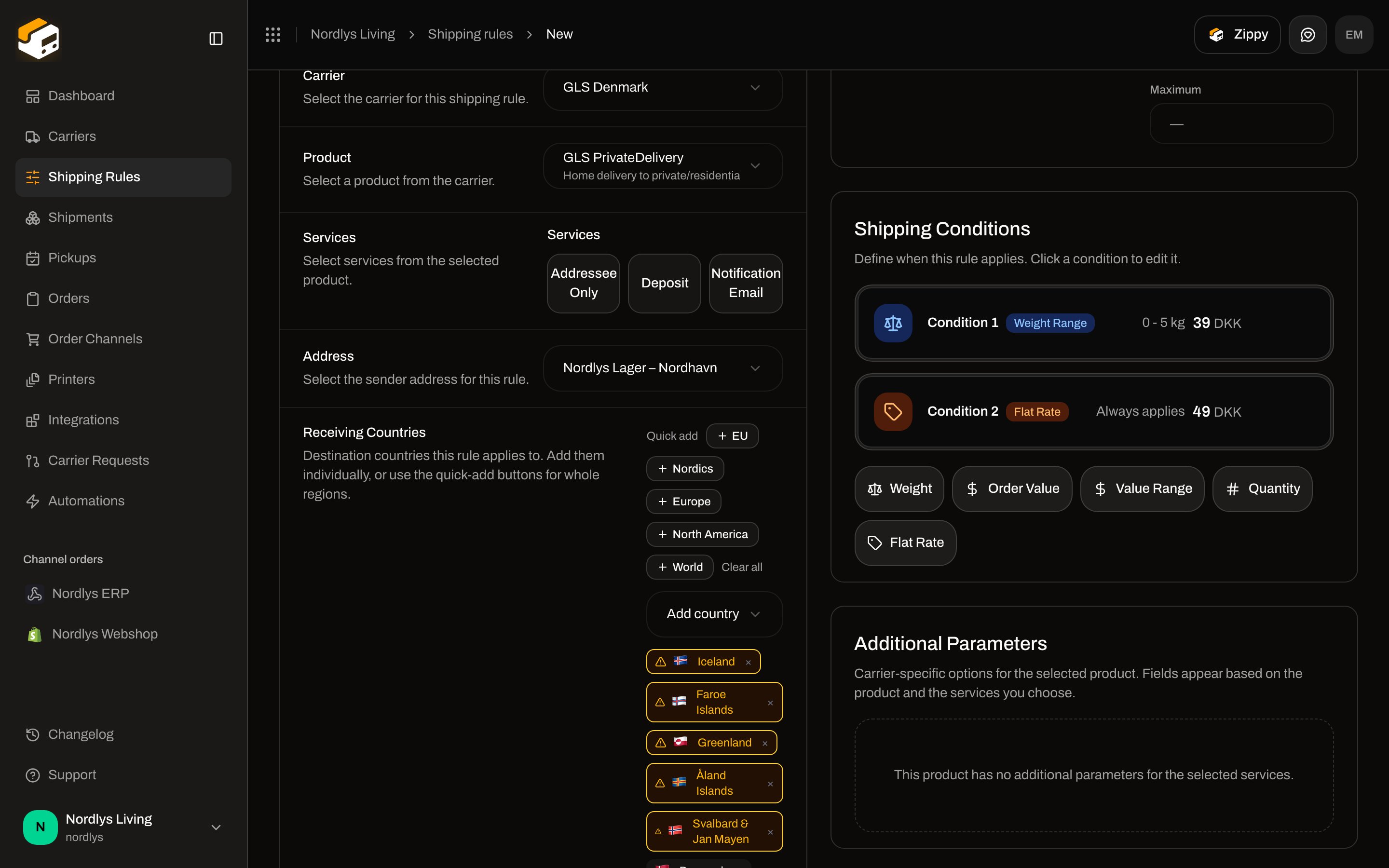
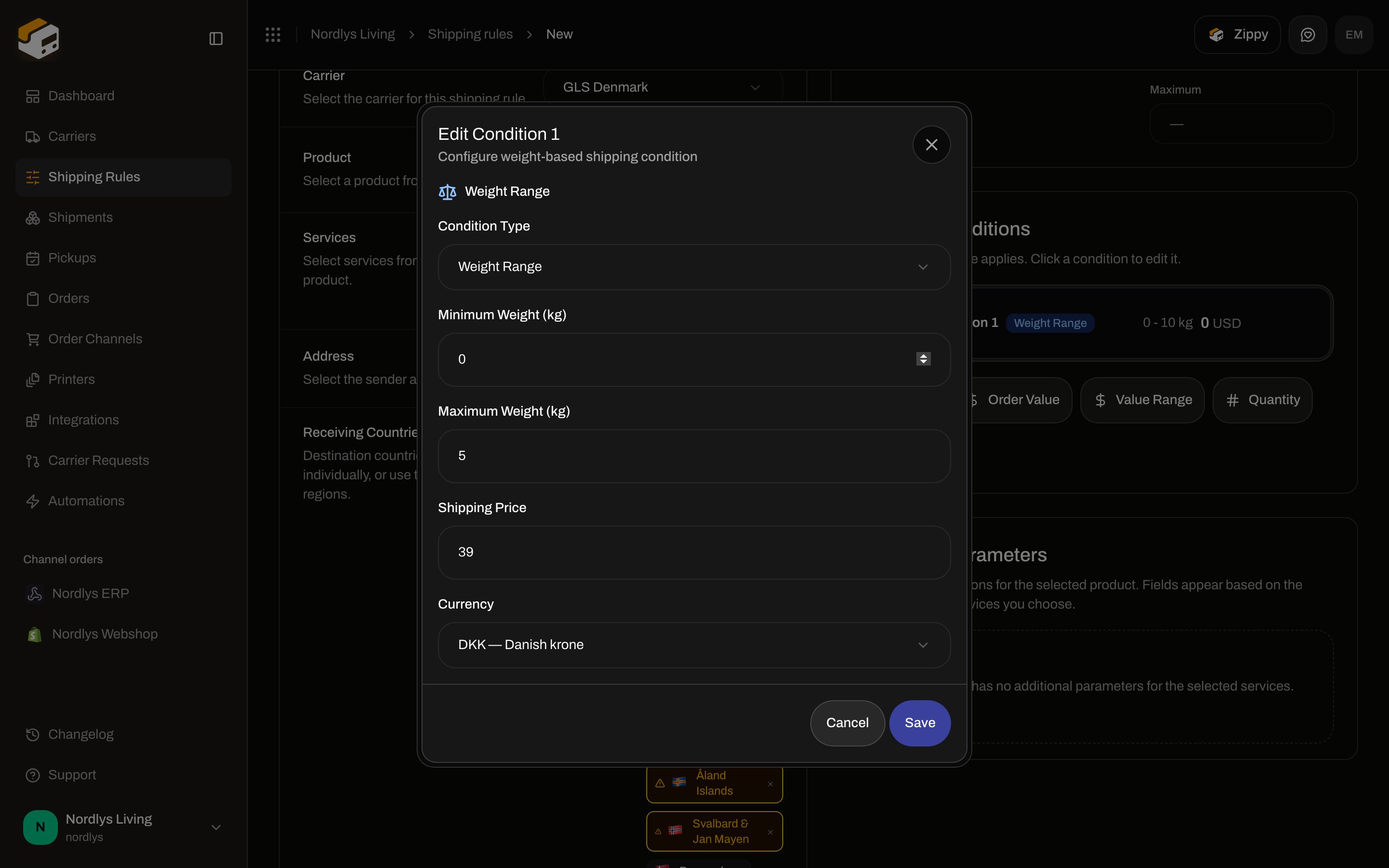 You can add several conditions on one rule. Click a condition card to edit it, or use the trash icon to remove it.
 ### How Zippendo picks a price
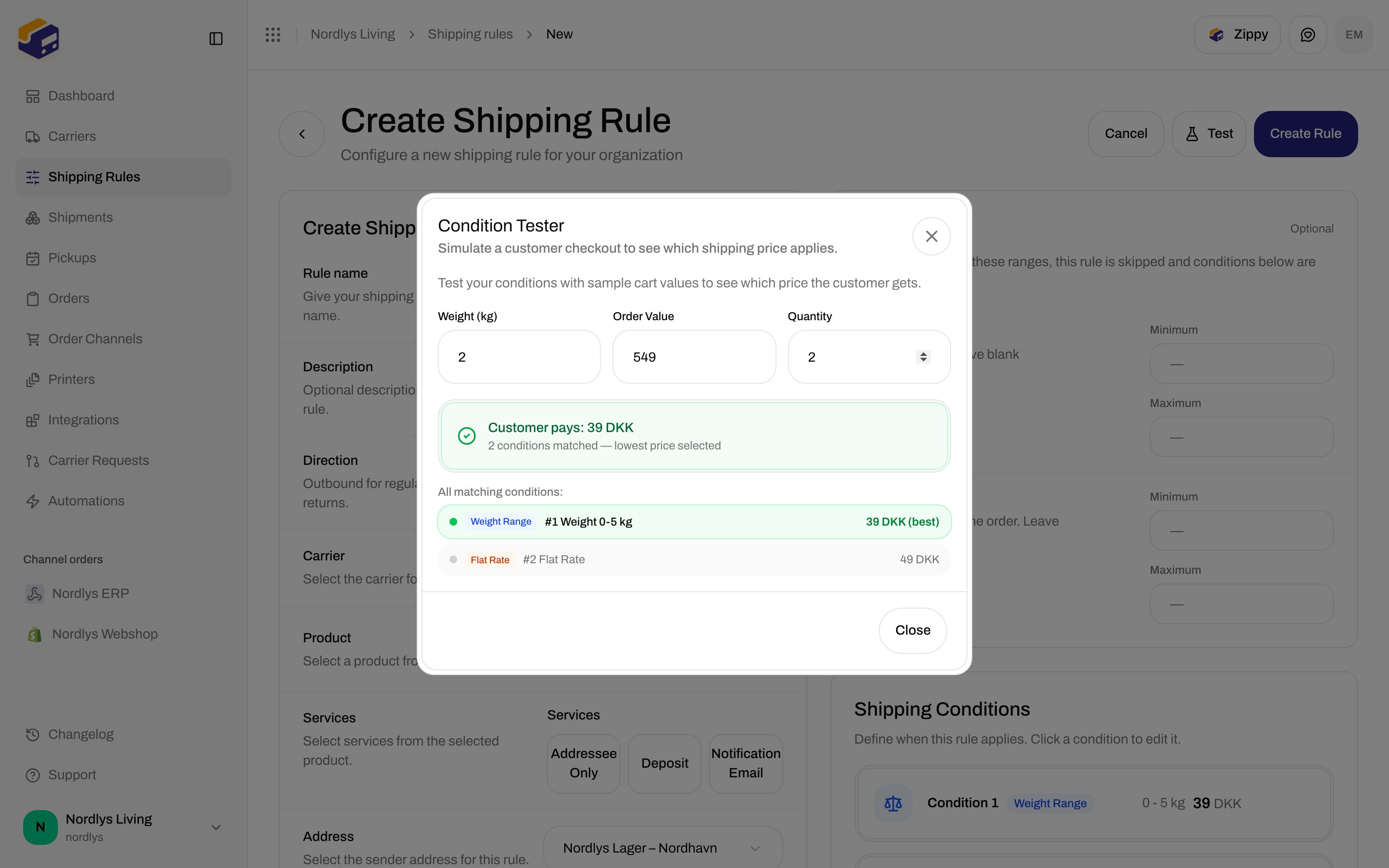
All conditions on the rule are evaluated. The matching condition with the **lowest shipping price** wins. A 2 kg cart that matches both "0–5 kg at 39 DKK" and "flat rate 49 DKK" pays **39 DKK**.
**Total** (after discounts) order-value conditions are only evaluated for imported orders. At Shopify checkout, only the subtotal is known, so a **Total** condition is skipped there. Use **Subtotal** for checkout pricing.
### Hard limits
Above the conditions, **Hard Limits** (optional) skip the entire rule before conditions run:
* **Total weight** minimum / maximum (kg)
* **Order value** minimum / maximum (same currency as the order)
If the cart is outside any limit you set, the rule is hidden at checkout and its conditions are not evaluated.
## Examples that exist in the product
Build these with the fields above — not with SKU or channel conditions, which the form does not have.
**By destination country.** Create one rule per region. Set **Receiving Countries** to `DK` for domestic GLS, and a second rule with `SE` and `NO` for PostNord. Country is the first filter at checkout.
### How Zippendo picks a price
All conditions on the rule are evaluated. The matching condition with the **lowest shipping price** wins. A 2 kg cart that matches both "0–5 kg at 39 DKK" and "flat rate 49 DKK" pays **39 DKK**.
**Total** (after discounts) order-value conditions are only evaluated for imported orders. At Shopify checkout, only the subtotal is known, so a **Total** condition is skipped there. Use **Subtotal** for checkout pricing.
### Hard limits
Above the conditions, **Hard Limits** (optional) skip the entire rule before conditions run:
* **Total weight** minimum / maximum (kg)
* **Order value** minimum / maximum (same currency as the order)
If the cart is outside any limit you set, the rule is hidden at checkout and its conditions are not evaluated.
## Examples that exist in the product
Build these with the fields above — not with SKU or channel conditions, which the form does not have.
**By destination country.** Create one rule per region. Set **Receiving Countries** to `DK` for domestic GLS, and a second rule with `SE` and `NO` for PostNord. Country is the first filter at checkout.
 **By weight.** Add a **Weight** condition for `0–5` kg at 39 DKK and another for `5–20` kg at 59 DKK. Or set a hard-limit max of 20 kg so heavier carts never see this rule.
**By order value.** Free shipping over 500: **Order Value**, operator **at least**, value `500`, shipping price `0`. A **Value Range** of `0–499` at 49 DKK covers the rest.
**By item quantity.** **Quantity**, **at least** `3`, shipping price `0` for "three items ship free".
**Flat rate fallback.** Add **Flat Rate** last so any cart that did not match a tighter condition still gets a price. Without a matching condition, checkout hides the rule.
**By order channel.** This is not a condition on the rule. On the store's **Orders & checkout** tab, tick which rules appear at checkout. If you select none, every org rule that matches the destination is offered. Shopify stores without carrier-calculated shipping map method names to rules instead — see [shipping method mapping](/docs/order-channels/shopify-shipping-method-mapping).
**By SKU.** There is no SKU condition. Split those orders with a dedicated channel, a [brand](/docs/settings/brands), or pick the rule on the order yourself.
## Carrier products and extra options
The **Product** list comes from the carrier catalog for the selected connection. Home-delivery and parcel-shop (service point) products are different products — a parcel-shop rule requires a pickup point when you apply it to a shipment that does not already have one.
**Additional Parameters** appear when the product (and the services you ticked) define them. GLS PrivateDelivery often has none. Other products may ask for return options or similar carrier-specific fields. Required parameters must be filled before the rule saves.
If you later make the carrier or sender address exclusive to another brand, saving this rule fails until you change the **Brand** field or those references.
## Documents, printing, and returns
These settings run when a shipment **with this rule** is sent.
**By weight.** Add a **Weight** condition for `0–5` kg at 39 DKK and another for `5–20` kg at 59 DKK. Or set a hard-limit max of 20 kg so heavier carts never see this rule.
**By order value.** Free shipping over 500: **Order Value**, operator **at least**, value `500`, shipping price `0`. A **Value Range** of `0–499` at 49 DKK covers the rest.
**By item quantity.** **Quantity**, **at least** `3`, shipping price `0` for "three items ship free".
**Flat rate fallback.** Add **Flat Rate** last so any cart that did not match a tighter condition still gets a price. Without a matching condition, checkout hides the rule.
**By order channel.** This is not a condition on the rule. On the store's **Orders & checkout** tab, tick which rules appear at checkout. If you select none, every org rule that matches the destination is offered. Shopify stores without carrier-calculated shipping map method names to rules instead — see [shipping method mapping](/docs/order-channels/shopify-shipping-method-mapping).
**By SKU.** There is no SKU condition. Split those orders with a dedicated channel, a [brand](/docs/settings/brands), or pick the rule on the order yourself.
## Carrier products and extra options
The **Product** list comes from the carrier catalog for the selected connection. Home-delivery and parcel-shop (service point) products are different products — a parcel-shop rule requires a pickup point when you apply it to a shipment that does not already have one.
**Additional Parameters** appear when the product (and the services you ticked) define them. GLS PrivateDelivery often has none. Other products may ask for return options or similar carrier-specific fields. Required parameters must be filled before the rule saves.
If you later make the carrier or sender address exclusive to another brand, saving this rule fails until you change the **Brand** field or those references.
## Documents, printing, and returns
These settings run when a shipment **with this rule** is sent.
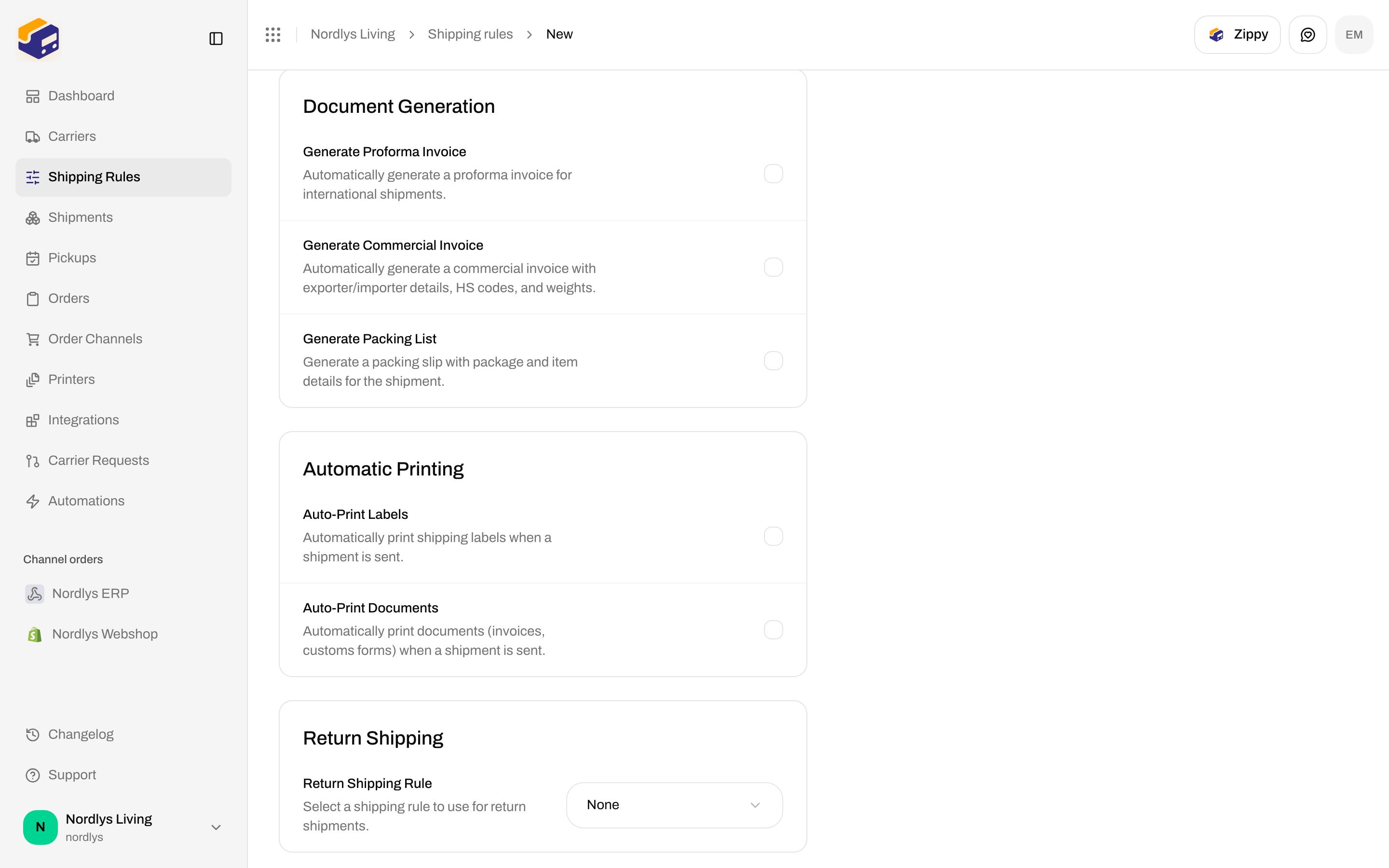
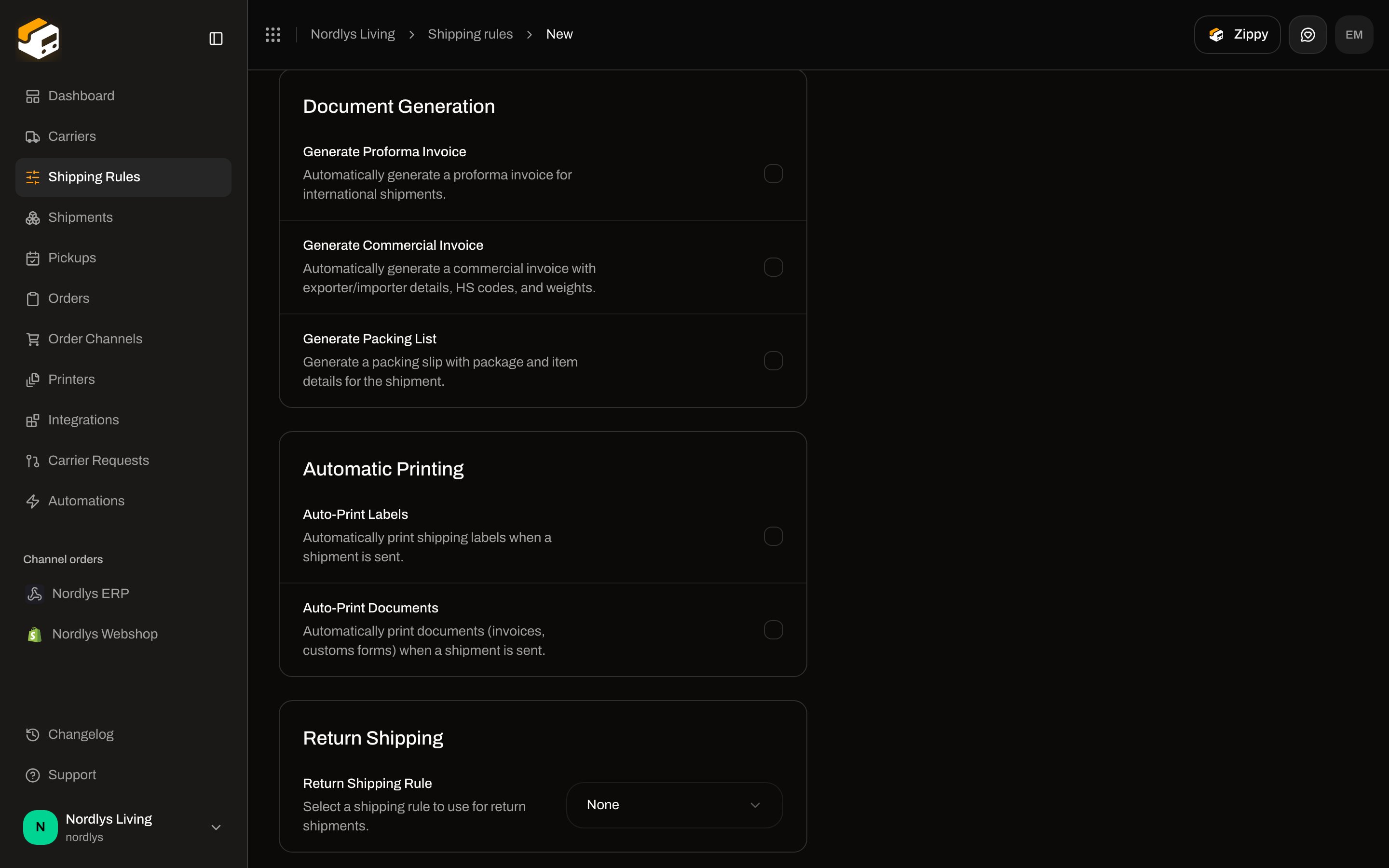 * **Generate Proforma Invoice** / **Generate Commercial Invoice** — Zippendo builds customs documents for international shipments. Some carriers file those documents themselves; the form then tells you Zippendo will not generate copies.
* **Generate Packing List** — packing slip with package and item details.
* **Auto-Print Labels** / **Auto-Print Documents** — send the PDF to an approved [label or document printer](/docs/printers/auto-print-labels) when the shipment is sent. Printers must be **Active**.
* **Return Shipping Rule** — pick an inbound rule to use for returns. **Auto-create return on dispatch** creates and sends that return when the outbound shipment is dispatched. See [Returns](/docs/tutorials/returns).
## Brands
If the organisation uses [brands](/docs/settings/brands), a **Brand** field appears on the form. A brand-assigned rule only matches that brand's orders and may only reference carriers and sender addresses that brand can use (its own, or organisation-wide). Unassigned rules stay organisation-wide.
## How rules are chosen (there is no priority field)
Rules do not have a priority number or first-match-wins order.
**At checkout**
1. Load the channel's linked rules, or all organisation rules if none are linked.
2. Keep rules whose **Receiving Countries** include the destination.
3. Drop rules that fail **hard limits**.
4. Drop rules whose **conditions** do not match (a rule with conditions and no match is hidden).
5. Offer every remaining rule as a rate. Home-delivery rules appear once; parcel-shop rules expand into nearby pickup points.
Several rules can appear at once. The shopper picks one. Within a single rule, the cheapest matching condition sets the price.
**On an order or shipment**
The rule is the one already stored on the order (from checkout or mapping), or the one you assign with **Configure**. Creating or sending a shipment does not re-run condition matching to pick a different rule.
## Edit, disable, and delete
Click a row (or **Edit** in the row menu) to open **Edit Shipping Rule**. Change fields and click **Update Rule**.
There is **no enable/disable toggle**. A saved rule is always a candidate at checkout (if countries, limits, conditions, brand, and channel linking allow it). To stop using a rule:
* Delete it, or
* Remove destination countries / tighten hard limits so it no longer matches, or
* Unlink it from the order channel's checkout rate list.
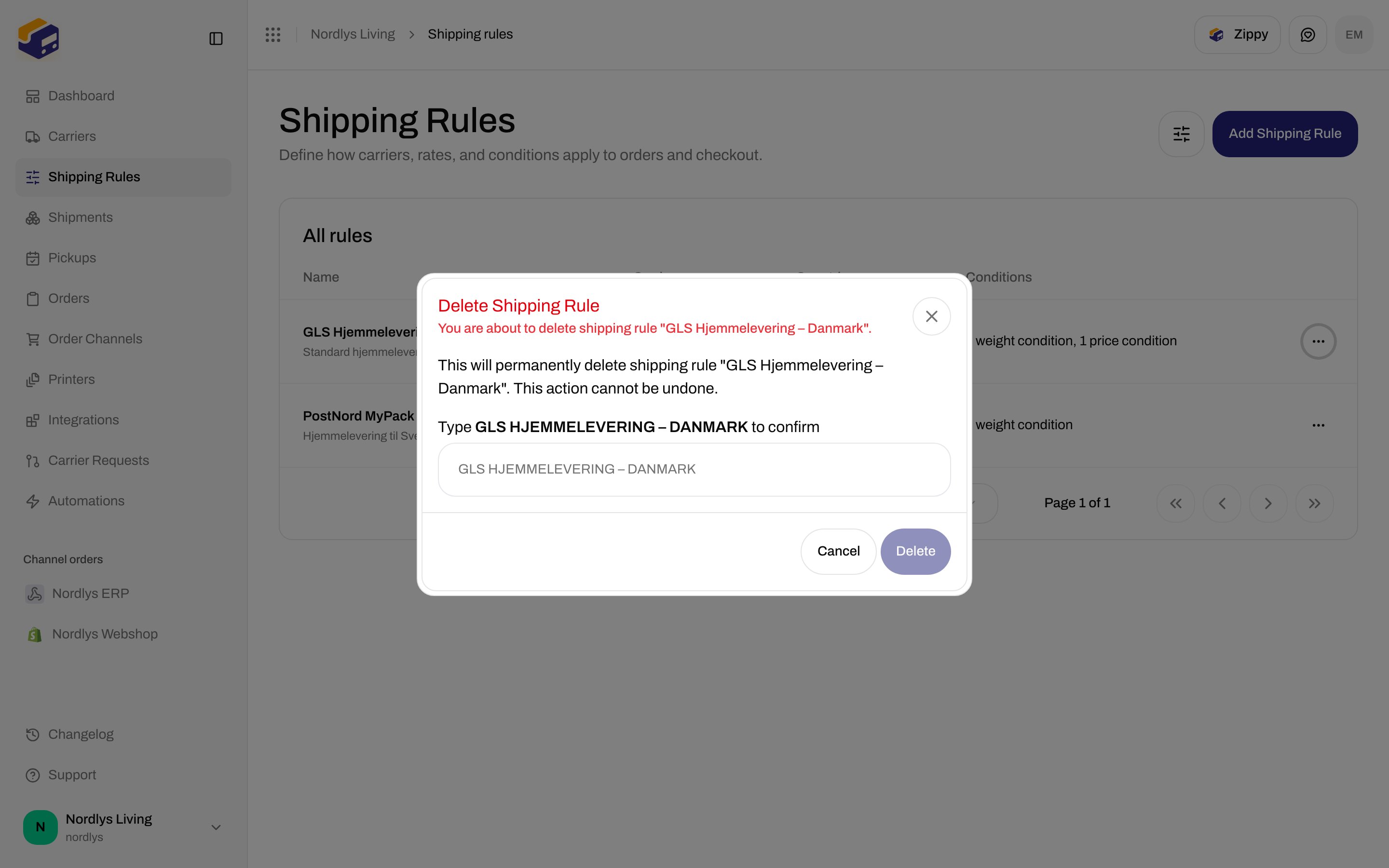
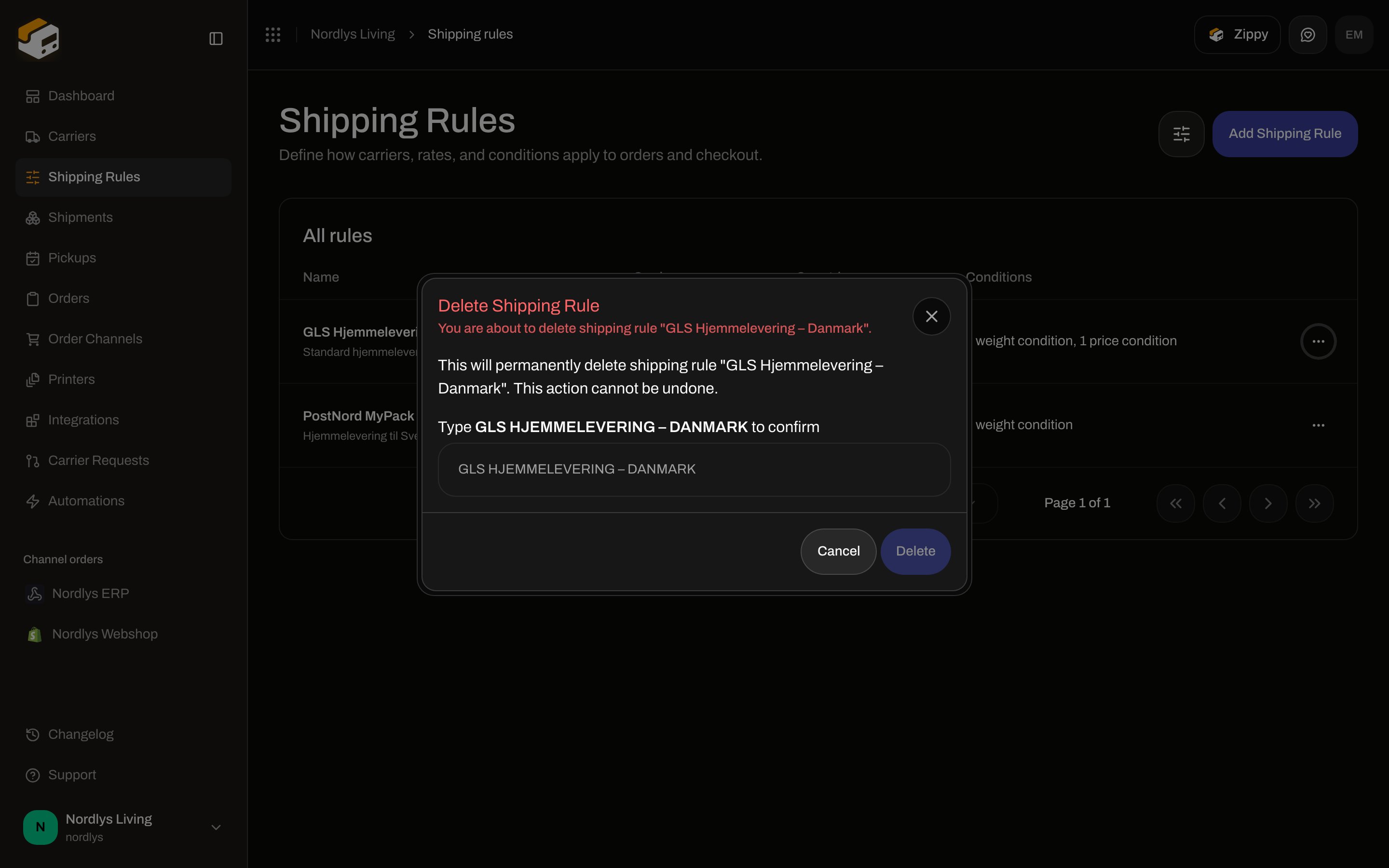
Deleting is permanent. Open the row menu, click **Delete**, and type the rule name in capitals to confirm.
* **Generate Proforma Invoice** / **Generate Commercial Invoice** — Zippendo builds customs documents for international shipments. Some carriers file those documents themselves; the form then tells you Zippendo will not generate copies.
* **Generate Packing List** — packing slip with package and item details.
* **Auto-Print Labels** / **Auto-Print Documents** — send the PDF to an approved [label or document printer](/docs/printers/auto-print-labels) when the shipment is sent. Printers must be **Active**.
* **Return Shipping Rule** — pick an inbound rule to use for returns. **Auto-create return on dispatch** creates and sends that return when the outbound shipment is dispatched. See [Returns](/docs/tutorials/returns).
## Brands
If the organisation uses [brands](/docs/settings/brands), a **Brand** field appears on the form. A brand-assigned rule only matches that brand's orders and may only reference carriers and sender addresses that brand can use (its own, or organisation-wide). Unassigned rules stay organisation-wide.
## How rules are chosen (there is no priority field)
Rules do not have a priority number or first-match-wins order.
**At checkout**
1. Load the channel's linked rules, or all organisation rules if none are linked.
2. Keep rules whose **Receiving Countries** include the destination.
3. Drop rules that fail **hard limits**.
4. Drop rules whose **conditions** do not match (a rule with conditions and no match is hidden).
5. Offer every remaining rule as a rate. Home-delivery rules appear once; parcel-shop rules expand into nearby pickup points.
Several rules can appear at once. The shopper picks one. Within a single rule, the cheapest matching condition sets the price.
**On an order or shipment**
The rule is the one already stored on the order (from checkout or mapping), or the one you assign with **Configure**. Creating or sending a shipment does not re-run condition matching to pick a different rule.
## Edit, disable, and delete
Click a row (or **Edit** in the row menu) to open **Edit Shipping Rule**. Change fields and click **Update Rule**.
There is **no enable/disable toggle**. A saved rule is always a candidate at checkout (if countries, limits, conditions, brand, and channel linking allow it). To stop using a rule:
* Delete it, or
* Remove destination countries / tighten hard limits so it no longer matches, or
* Unlink it from the order channel's checkout rate list.
Deleting is permanent. Open the row menu, click **Delete**, and type the rule name in capitals to confirm.
 ## Apply a rule when you ship
### From an order
Open the order. The **Shipping rule** card shows the assigned rule, or **No rule on order**. Orders without a rule and without shipments also show a **Configure Shipping Rules** prompt.
## Apply a rule when you ship
### From an order
Open the order. The **Shipping rule** card shows the assigned rule, or **No rule on order**. Orders without a rule and without shipments also show a **Configure Shipping Rules** prompt.
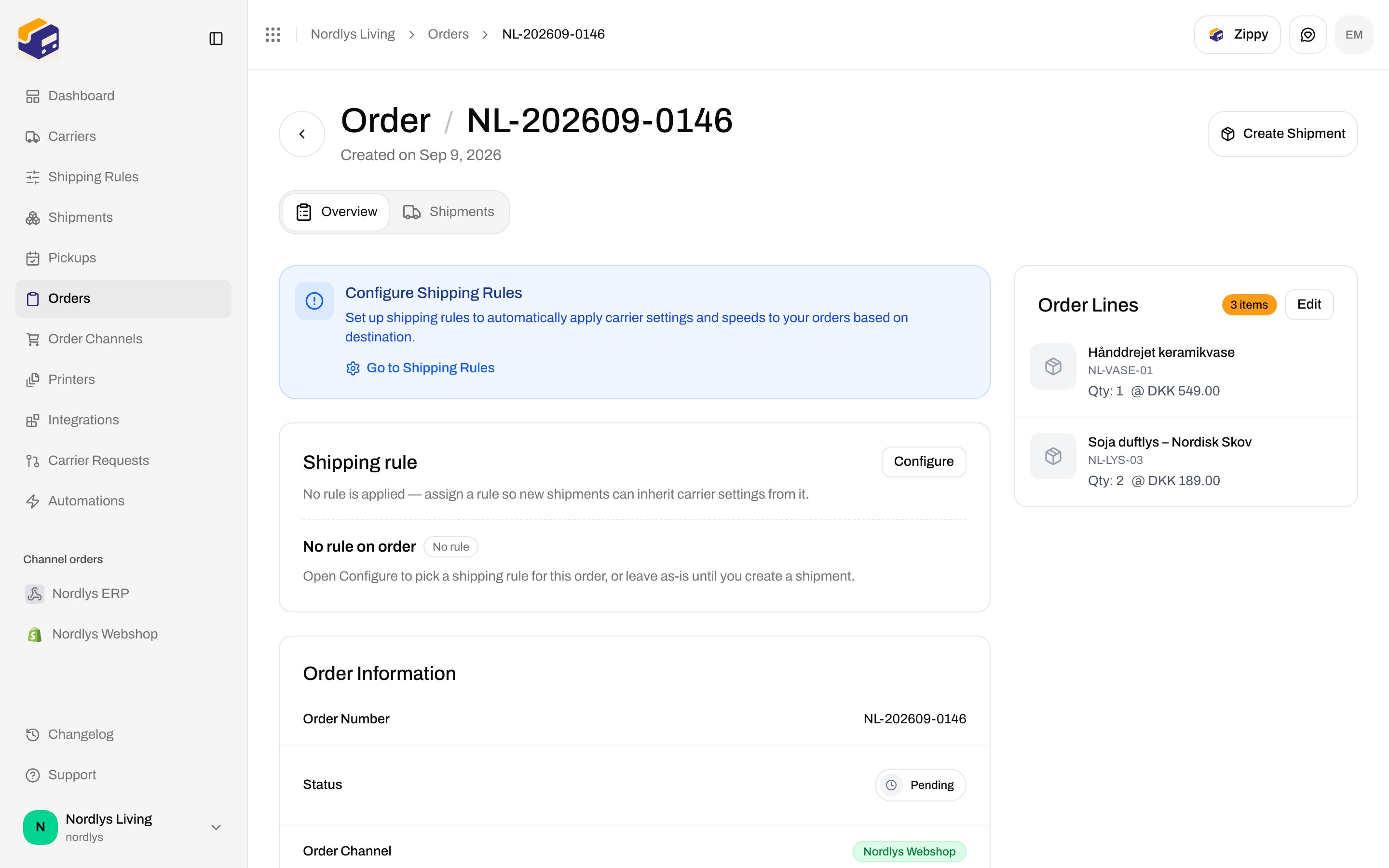
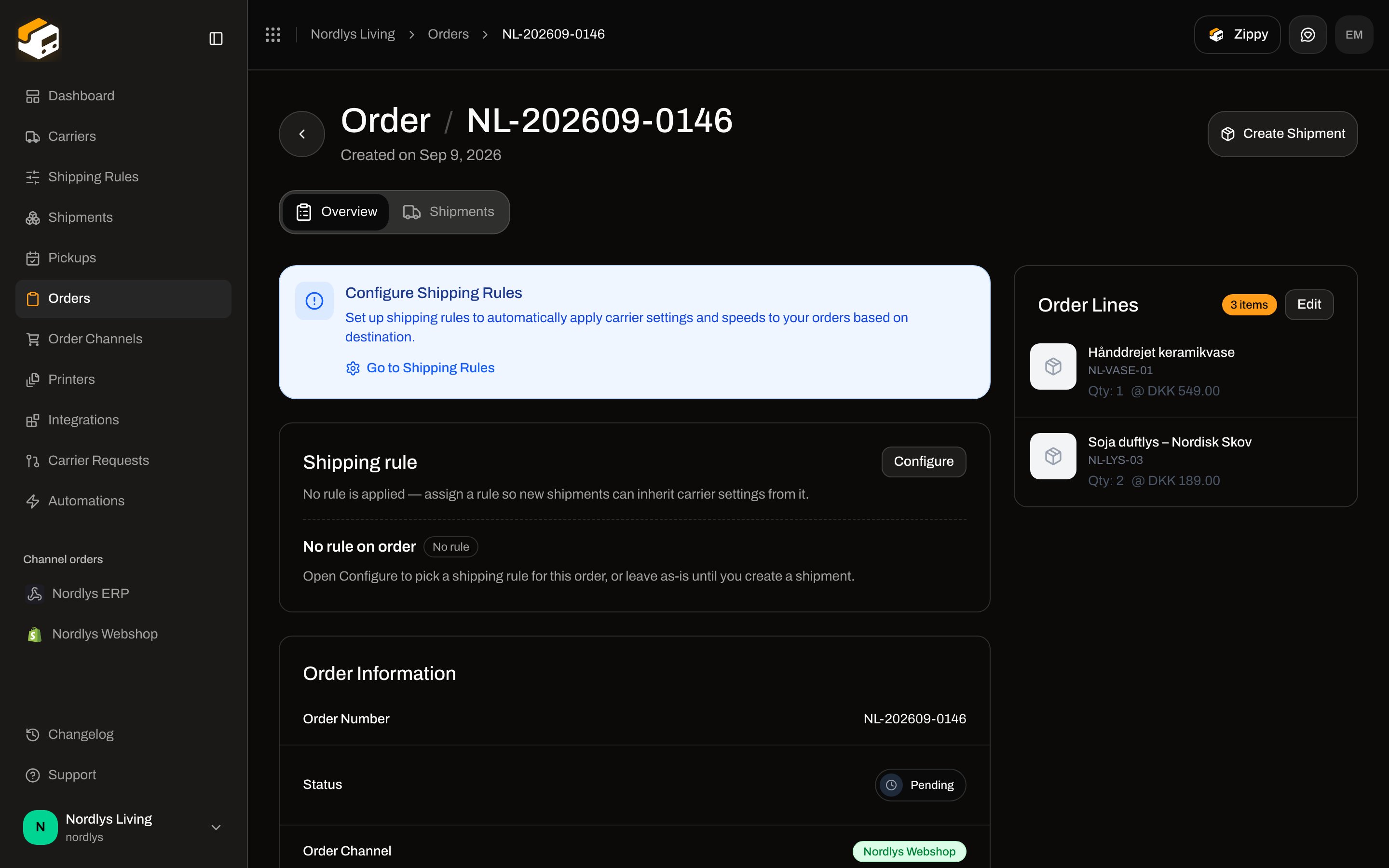 Click **Configure**, pick a rule (or **No shipping rule (manual)**), and **Apply**. If the order already has draft or pending shipments, you can apply the same rule to those shipments in the same dialog.
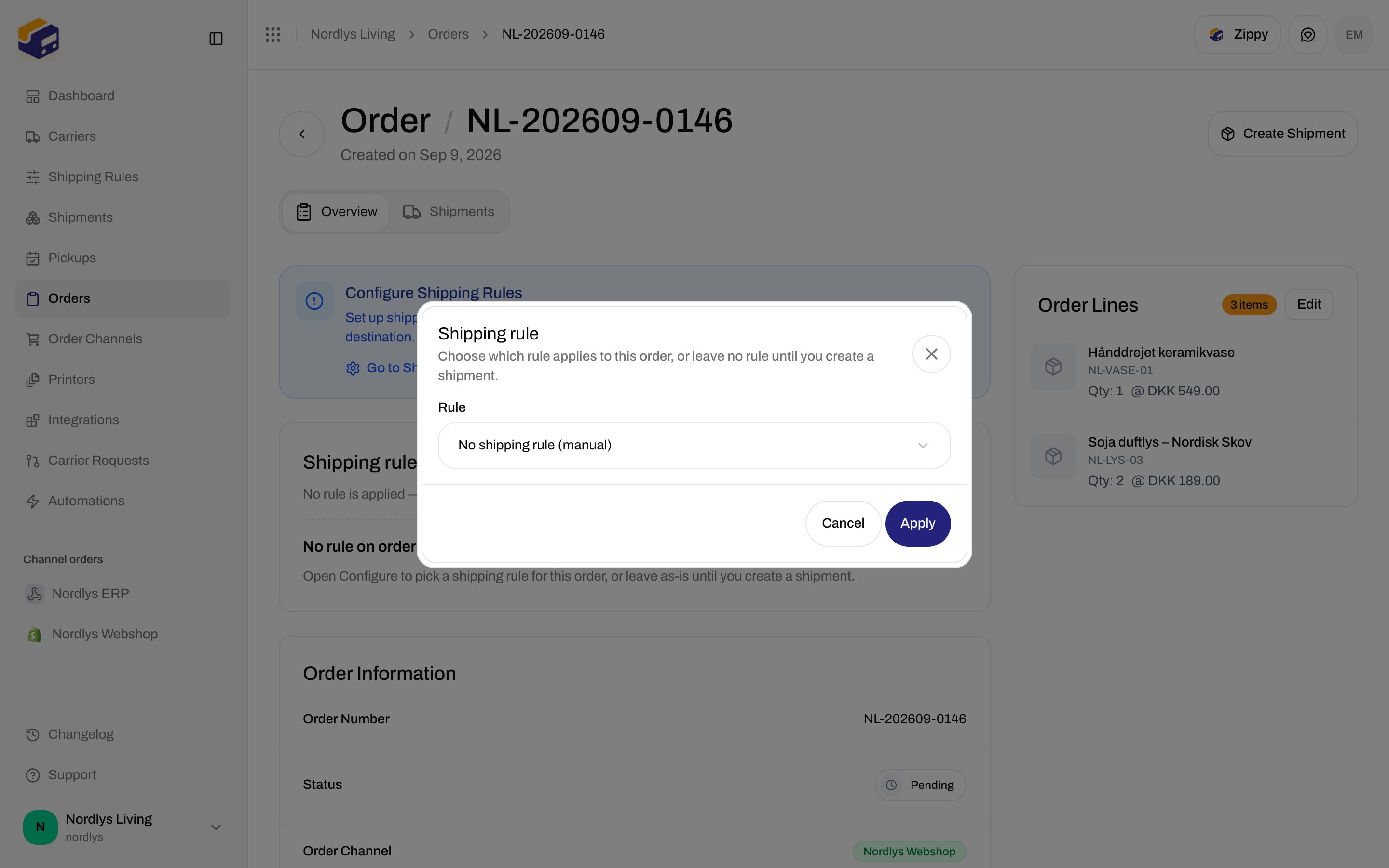
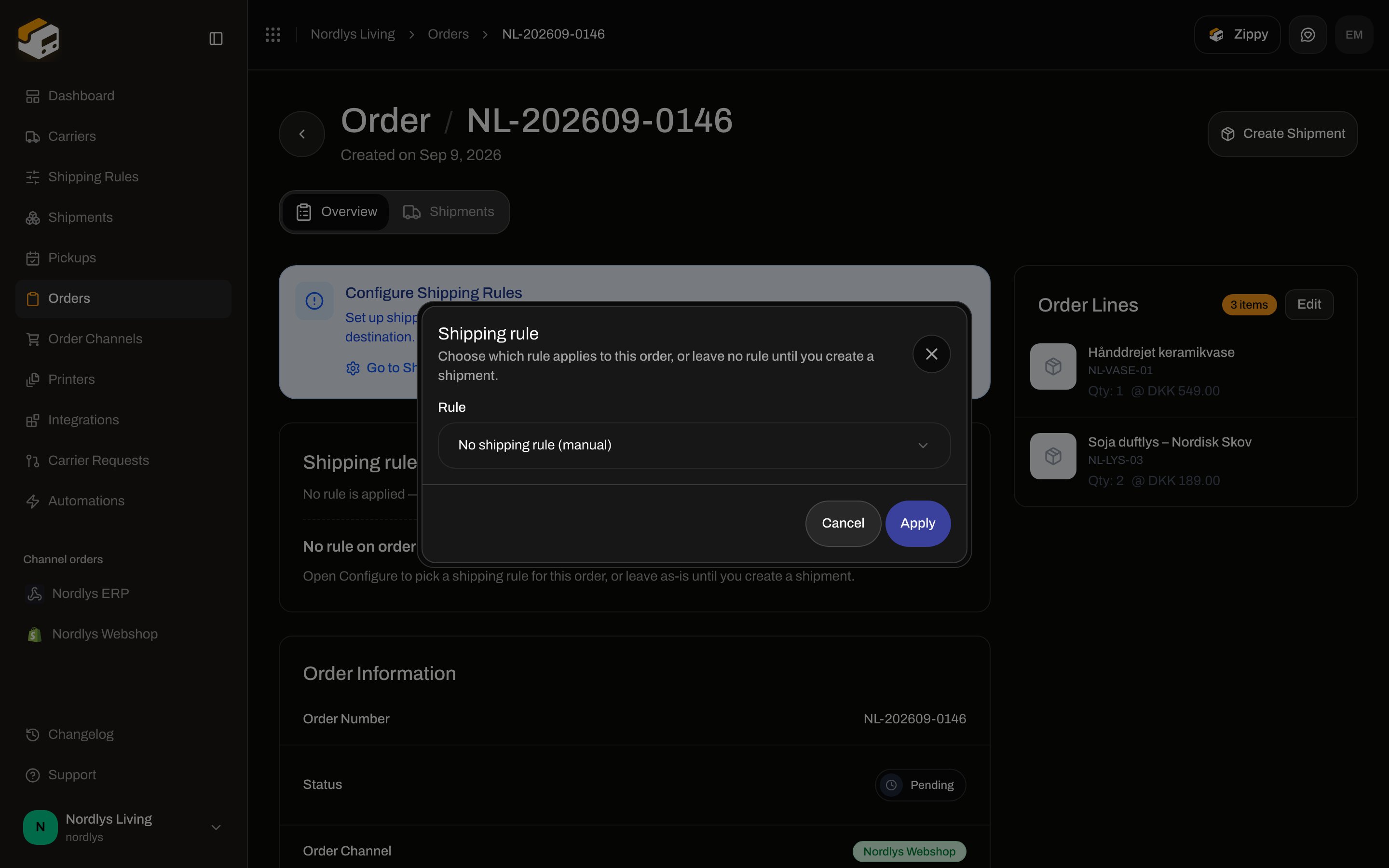 When you click **Create Shipment** on an order that already has a rule, the modal uses that rule by default — carrier, product, services, and sender are filled. Use **Configure carrier manually instead** if you need a one-off exception.
### From a shipment
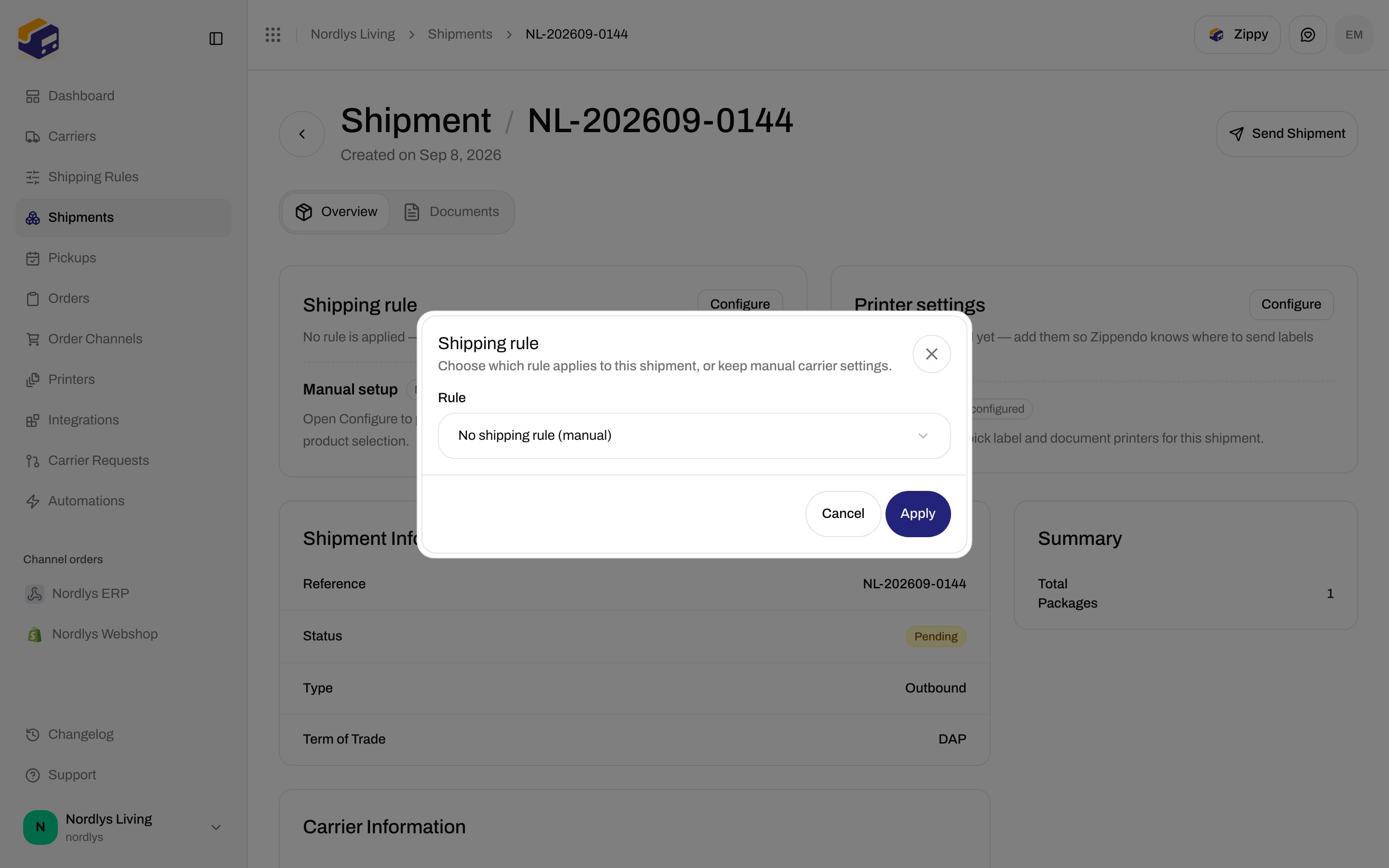
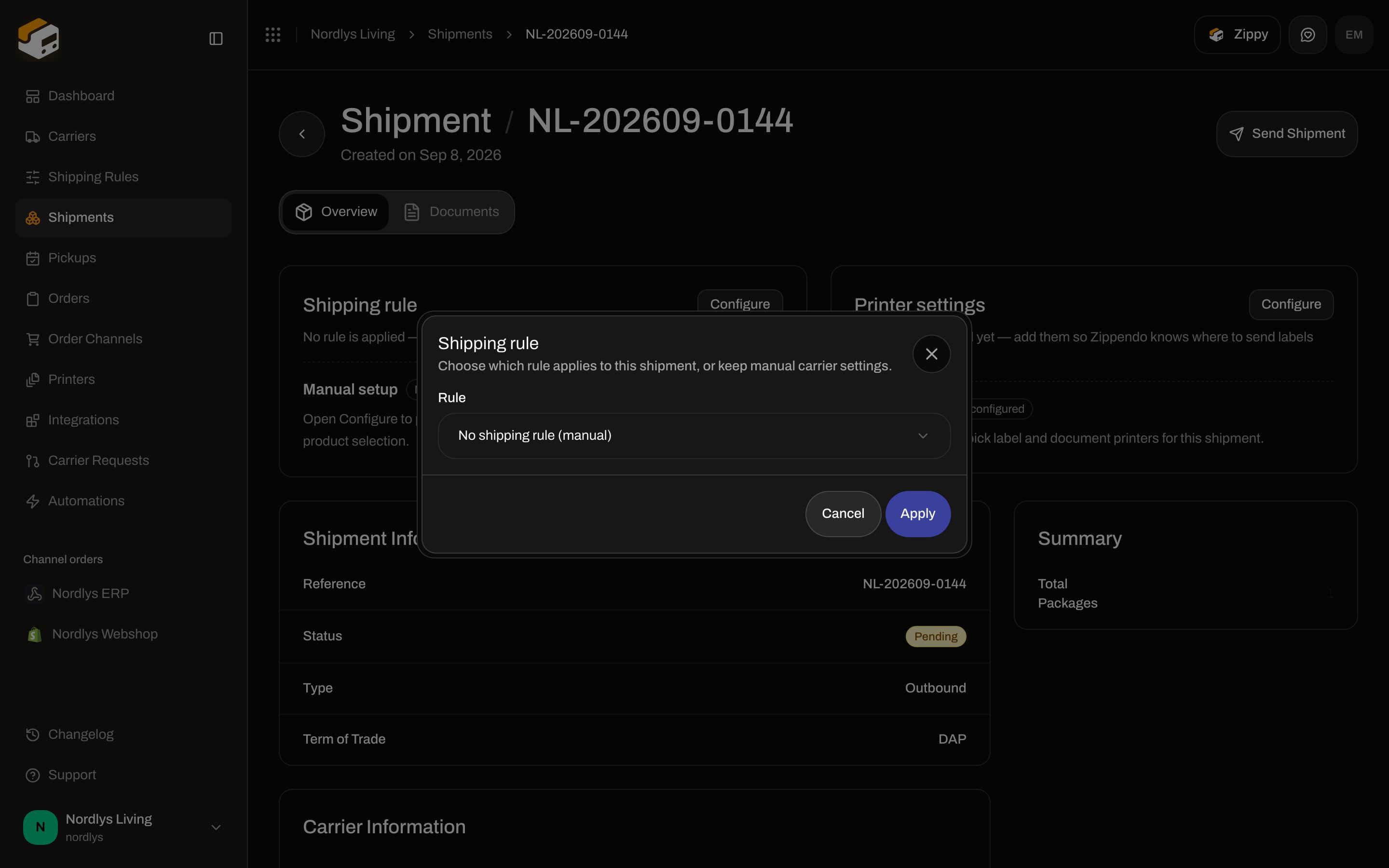
Draft and pending shipments show a **Shipping rule** card on the overview. **Manual setup** means carrier settings are edited on the shipment itself.
When you click **Create Shipment** on an order that already has a rule, the modal uses that rule by default — carrier, product, services, and sender are filled. Use **Configure carrier manually instead** if you need a one-off exception.
### From a shipment
Draft and pending shipments show a **Shipping rule** card on the overview. **Manual setup** means carrier settings are edited on the shipment itself.
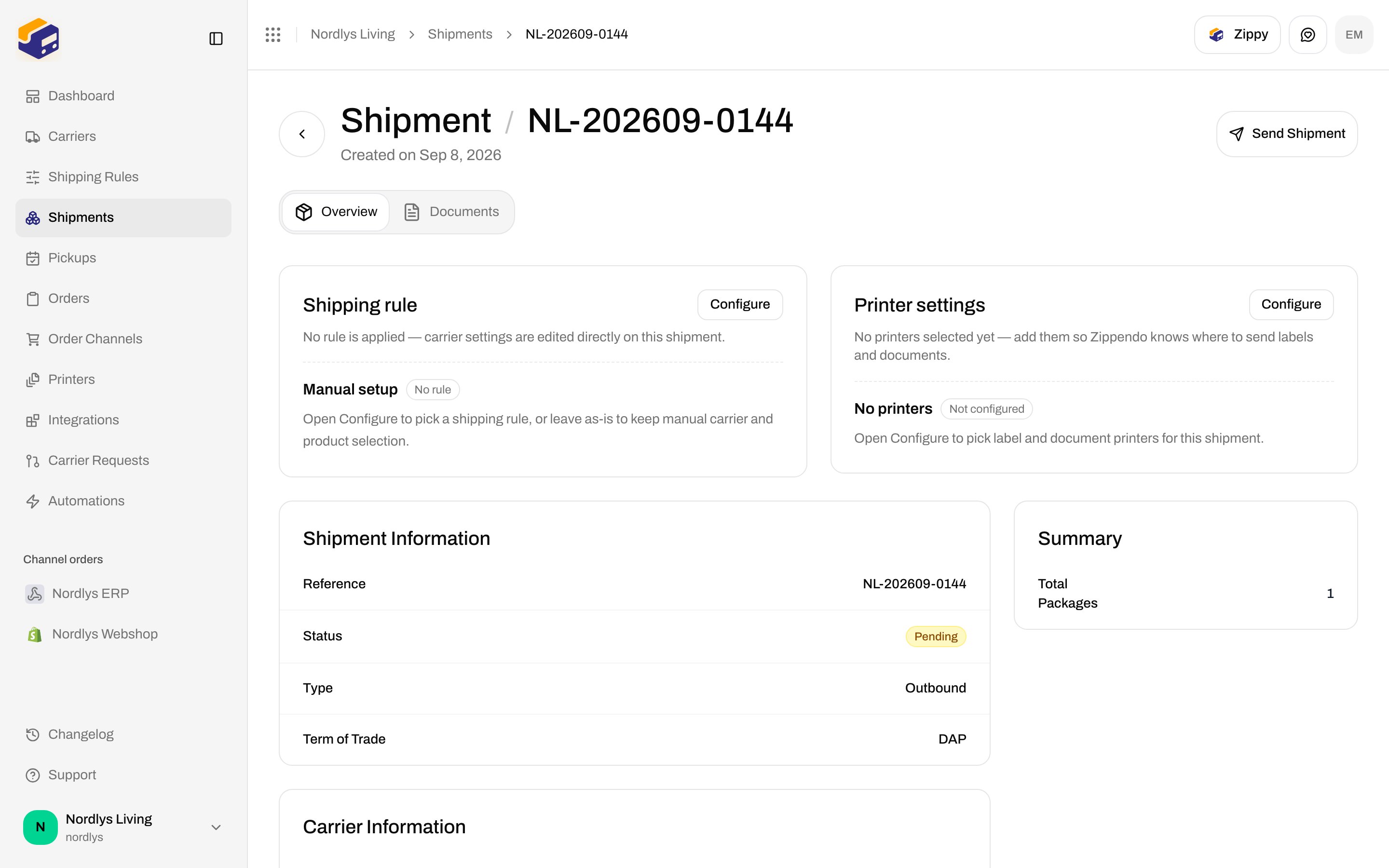
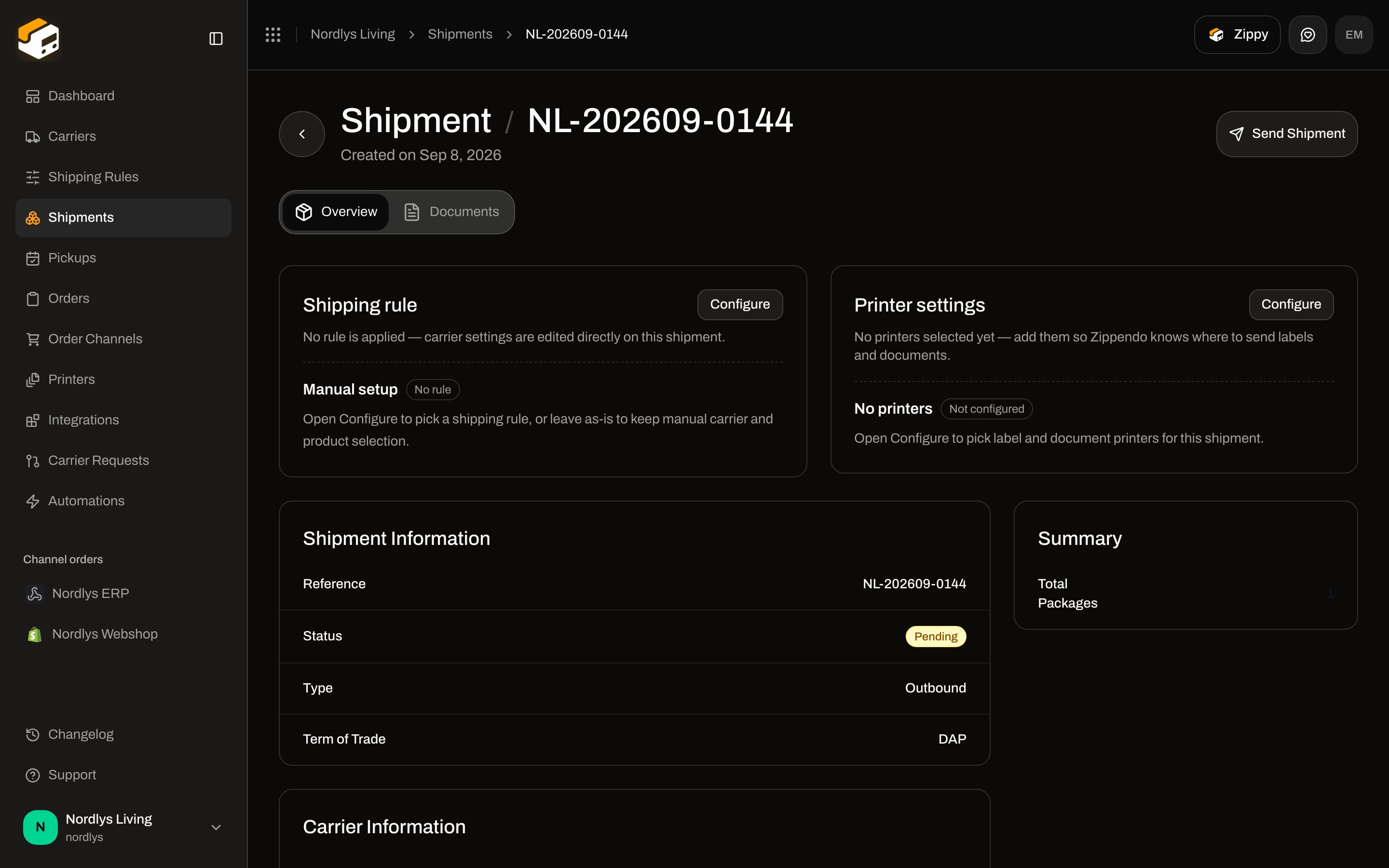 **Configure** opens the same kind of picker. Applying a rule replaces the shipment's carrier settings and sender. If the product is a parcel shop and the shipment has no pickup point yet, you choose one before the apply succeeds.
 You can still change carrier or product on a pending shipment after a rule is applied.
### Automations
In the automation builder, the **Apply Shipping Rule** action sets a chosen rule on a shipment (for example after `shipment.created`). That is the same apply as the modal — it does not re-evaluate conditions. See [Building an automation](/docs/automations/building-an-automation).
## Test and verify
### Condition Tester
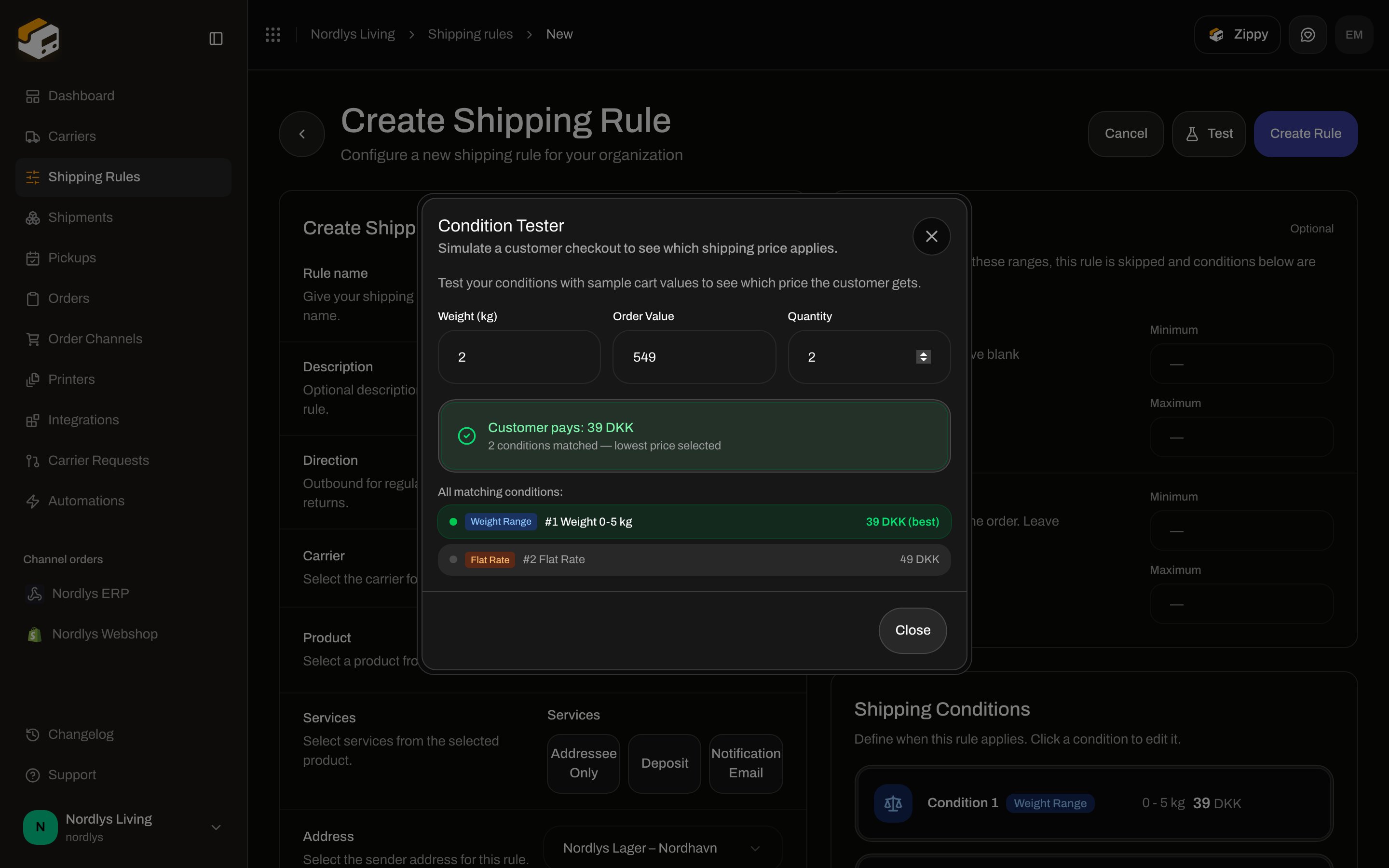
On the create or edit page, click **Test**. Enter sample **Weight (kg)**, **Order Value**, and **Quantity**. The tester uses the same matching rules as checkout:
* Hard limits skip the rule entirely.
* Every matching condition is listed; the lowest price is marked **(best)**.
* A free (0) price and a large spread between matching prices get a warning.
You can still change carrier or product on a pending shipment after a rule is applied.
### Automations
In the automation builder, the **Apply Shipping Rule** action sets a chosen rule on a shipment (for example after `shipment.created`). That is the same apply as the modal — it does not re-evaluate conditions. See [Building an automation](/docs/automations/building-an-automation).
## Test and verify
### Condition Tester
On the create or edit page, click **Test**. Enter sample **Weight (kg)**, **Order Value**, and **Quantity**. The tester uses the same matching rules as checkout:
* Hard limits skip the rule entirely.
* Every matching condition is listed; the lowest price is marked **(best)**.
* A free (0) price and a large spread between matching prices get a warning.
 The tester does not book a shipment and does not need the rule to be saved first.
### Confirm a live rule
1. Place a test checkout (or use [checkout rates](/docs/order-channels/shopify-checkout-rates) in a development store) to a country on the rule. The option name should be your rule name.
2. Open the synced order. The **Shipping rule** card should show that rule as **Active**.
3. Create and send the shipment. The carrier and product should match the rule. If you enabled auto-print or documents, check the shipment's documents tab and the printer job list.
## Common pitfalls
* **No rates at checkout.** The destination country is missing from **Receiving Countries**, hard limits exclude the cart, or every condition failed to match. A rule with conditions and no match is hidden, not offered for free. A rule with *no* conditions (only possible via API or older data) is offered at price 0.
* **You expected first-match priority.** There is no priority. Checkout shows every matching rule. Narrow countries, hard limits, or channel linking if you see too many options.
* **SKU or channel is not a condition.** Link rules on the order channel, or assign a rule on the order. Do not look for a SKU picker on the condition modal.
* **Total vs subtotal at Shopify checkout.** **Total** conditions never match during Shopify checkout. Use **Subtotal** for live rates.
* **Parcel-shop product, no pickup point.** Applying the rule to a shipment without a service point opens the pickup-point picker. Checkout already stores the shopper's choice when they picked a parcel shop rate.
* **Brand mismatch.** A brand-locked rule will not quote on another brand's storefront, even if you linked it.
* **Plan limit.** Creating more rules than the plan allows opens an upgrade prompt. The reference page is [Shipping rules](/docs/settings/shipping-rules).
* **Create Rule stays disabled / validation errors.** Name, carrier, product, address, at least one country, and at least one condition are required.
* **No success toast on create.** After **Create Rule**, the signal is the redirect back to the list with the new row.
You have a working rule when a matching checkout shows it at the right price, and a shipment created from that order already has the carrier, product, and sender filled in.
## Related
* Reference: [Shipping rules](/docs/settings/shipping-rules)
* [Create a shipment](/docs/tutorials/create-a-shipment)
* [Checkout](/docs/tutorials/checkout) · [Live rates in Shopify](/docs/order-channels/shopify-checkout-rates) · [Shipping method mapping](/docs/order-channels/shopify-shipping-method-mapping)
* [Carriers](/docs/tutorials/carriers) · [Orders](/docs/tutorials/orders) · [Returns](/docs/tutorials/returns) · [Labels and printing](/docs/tutorials/labels-printing)
* [Auto-print labels](/docs/printers/auto-print-labels) · [Brands](/docs/settings/brands) · [Building an automation](/docs/automations/building-an-automation)
* Field-level: [Shipping rule fields](/docs/how-to/shipping-rule-fields) · [Apply a shipping rule](/docs/how-to/apply-a-shipping-rule) · [Auto-print](/docs/how-to/auto-print)
The tester does not book a shipment and does not need the rule to be saved first.
### Confirm a live rule
1. Place a test checkout (or use [checkout rates](/docs/order-channels/shopify-checkout-rates) in a development store) to a country on the rule. The option name should be your rule name.
2. Open the synced order. The **Shipping rule** card should show that rule as **Active**.
3. Create and send the shipment. The carrier and product should match the rule. If you enabled auto-print or documents, check the shipment's documents tab and the printer job list.
## Common pitfalls
* **No rates at checkout.** The destination country is missing from **Receiving Countries**, hard limits exclude the cart, or every condition failed to match. A rule with conditions and no match is hidden, not offered for free. A rule with *no* conditions (only possible via API or older data) is offered at price 0.
* **You expected first-match priority.** There is no priority. Checkout shows every matching rule. Narrow countries, hard limits, or channel linking if you see too many options.
* **SKU or channel is not a condition.** Link rules on the order channel, or assign a rule on the order. Do not look for a SKU picker on the condition modal.
* **Total vs subtotal at Shopify checkout.** **Total** conditions never match during Shopify checkout. Use **Subtotal** for live rates.
* **Parcel-shop product, no pickup point.** Applying the rule to a shipment without a service point opens the pickup-point picker. Checkout already stores the shopper's choice when they picked a parcel shop rate.
* **Brand mismatch.** A brand-locked rule will not quote on another brand's storefront, even if you linked it.
* **Plan limit.** Creating more rules than the plan allows opens an upgrade prompt. The reference page is [Shipping rules](/docs/settings/shipping-rules).
* **Create Rule stays disabled / validation errors.** Name, carrier, product, address, at least one country, and at least one condition are required.
* **No success toast on create.** After **Create Rule**, the signal is the redirect back to the list with the new row.
You have a working rule when a matching checkout shows it at the right price, and a shipment created from that order already has the carrier, product, and sender filled in.
## Related
* Reference: [Shipping rules](/docs/settings/shipping-rules)
* [Create a shipment](/docs/tutorials/create-a-shipment)
* [Checkout](/docs/tutorials/checkout) · [Live rates in Shopify](/docs/order-channels/shopify-checkout-rates) · [Shipping method mapping](/docs/order-channels/shopify-shipping-method-mapping)
* [Carriers](/docs/tutorials/carriers) · [Orders](/docs/tutorials/orders) · [Returns](/docs/tutorials/returns) · [Labels and printing](/docs/tutorials/labels-printing)
* [Auto-print labels](/docs/printers/auto-print-labels) · [Brands](/docs/settings/brands) · [Building an automation](/docs/automations/building-an-automation)
* Field-level: [Shipping rule fields](/docs/how-to/shipping-rule-fields) · [Apply a shipping rule](/docs/how-to/apply-a-shipping-rule) · [Auto-print](/docs/how-to/auto-print)