> ## Documentation Index
> Fetch the complete documentation index at: https://www.zippendo.com/docs/llms.txt
> Use this file to discover all available pages before exploring further.
# Labels and printing
> Buy a label by sending a shipment, then view, download, or print it from Zippendo.
A **label** is created when you **send** a shipment — that is the step that books the parcel with the carrier. Until then the **Documents** tab is empty. After a successful send, the shipping label (and any other documents the carrier or a shipping rule generated) appear on the shipment so you can view, download, or print them.
This walkthrough uses the screens in the Zippendo dashboard. For field-level document types and printer jobs, see [Documents and labels](/docs/shipments/documents-and-labels) and [Printers](/docs/printers/overview).
You need a **pending** shipment with a carrier and product, plus at least one **sender address**. Create the shipment first — [Create a shipment](/docs/tutorials/create-a-shipment).
## Buy a label
Open **Shipments**, find the pending row, and open it. The header action is **Send Shipment**.
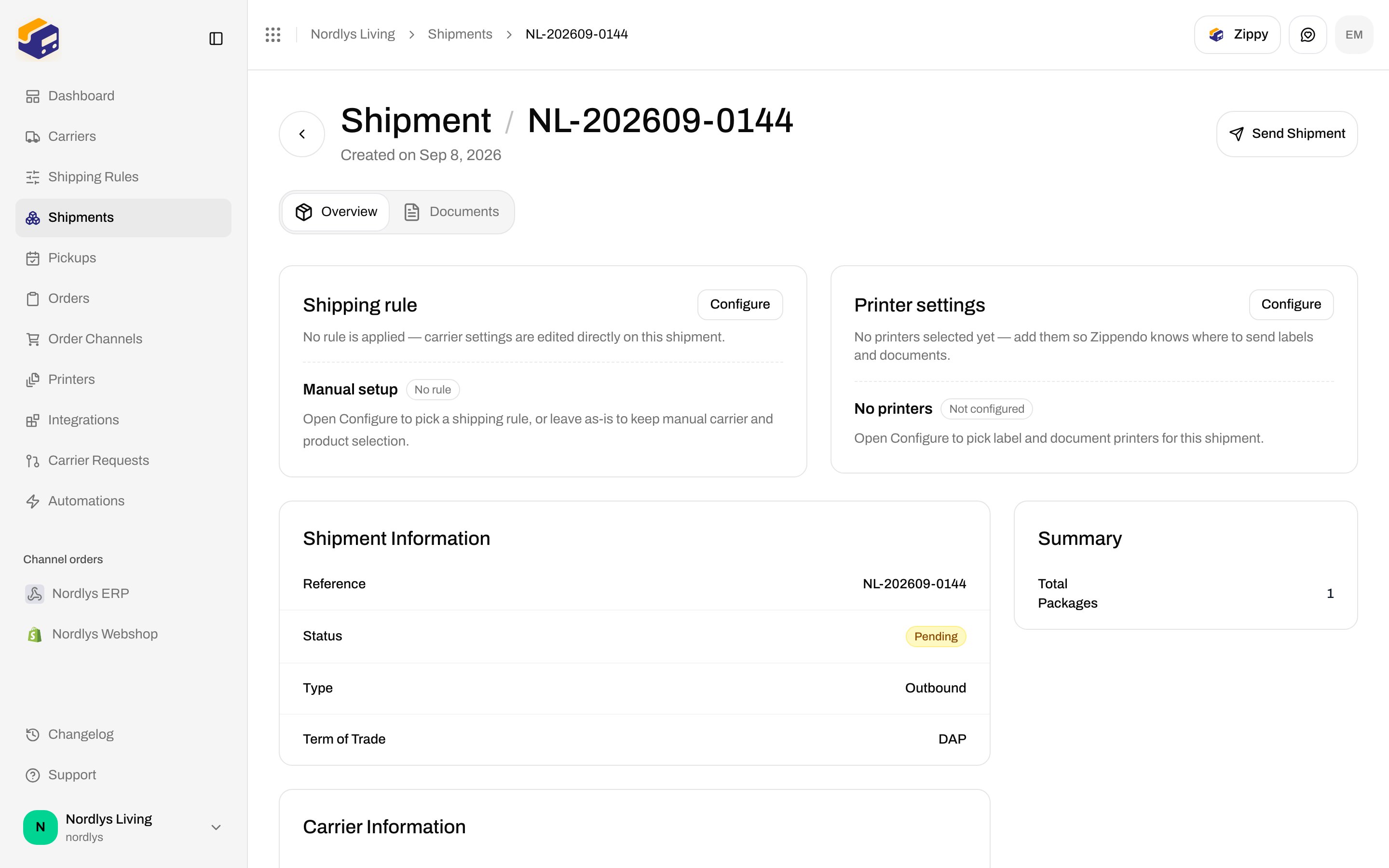
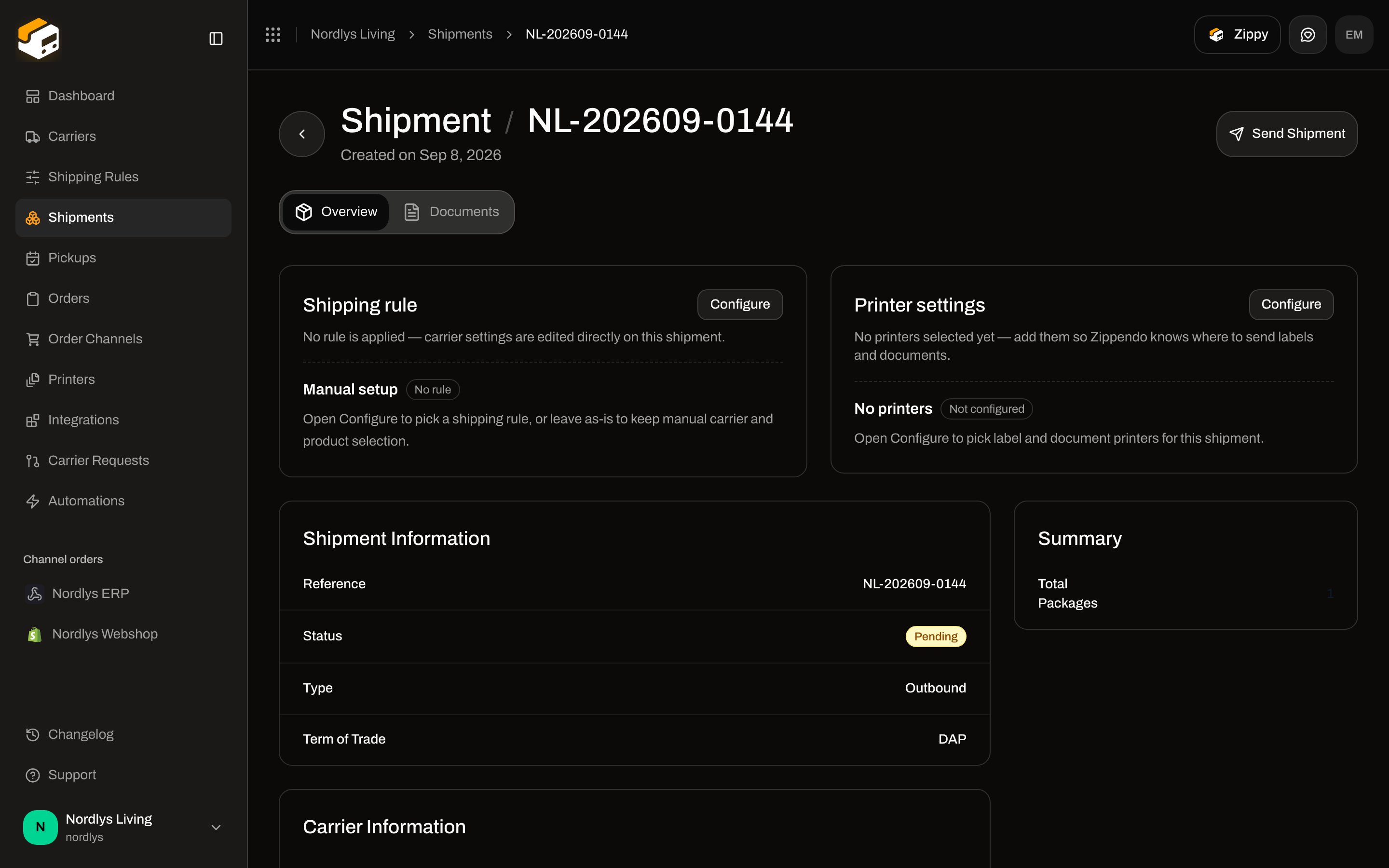 Go to **Shipments** and click the row. Status should be **Pending**.
Zippendo books the shipment with the carrier. A success toast reads **Shipment sent successfully**. Status changes to **Dispatched**, and **Send Shipment** disappears.
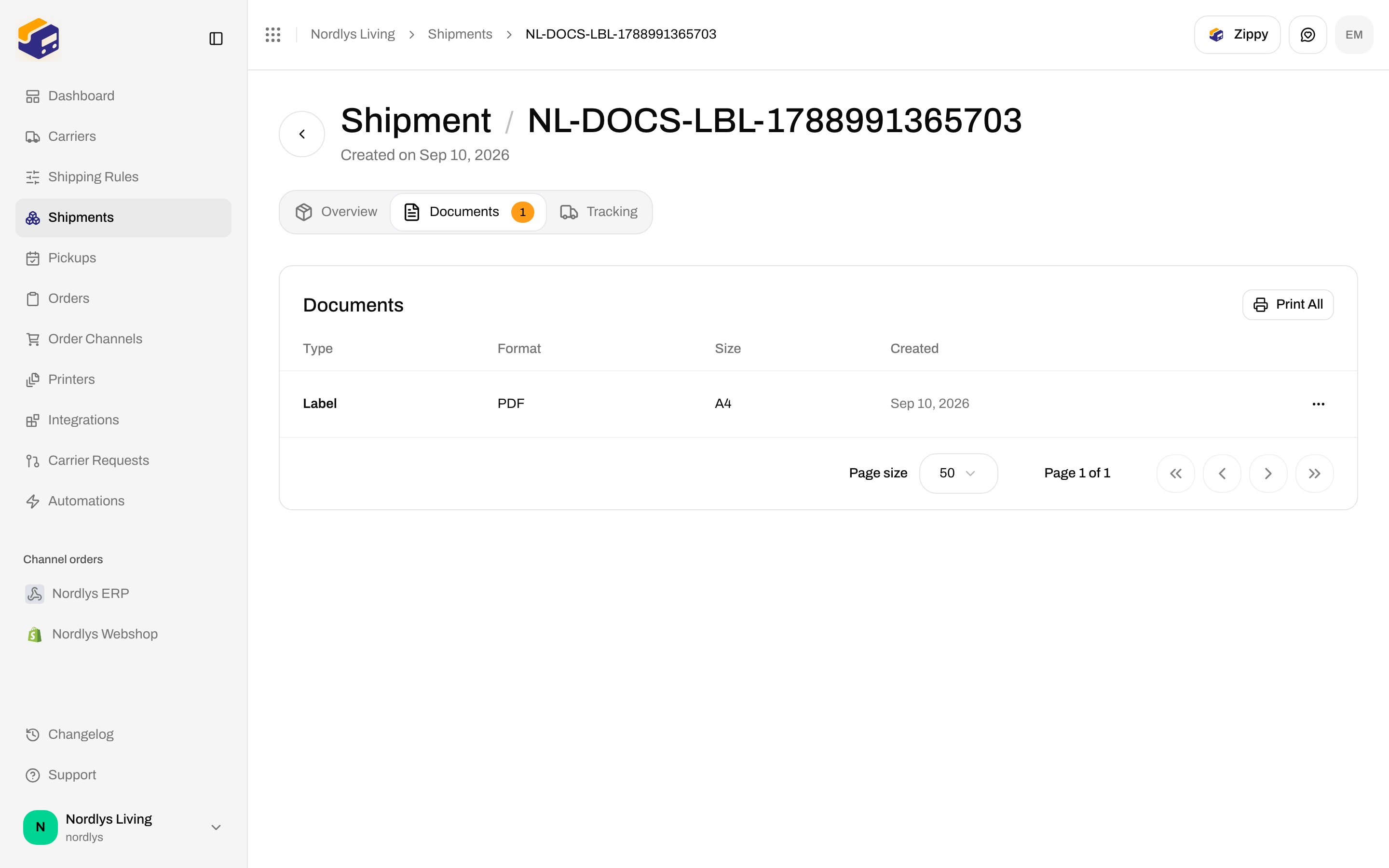
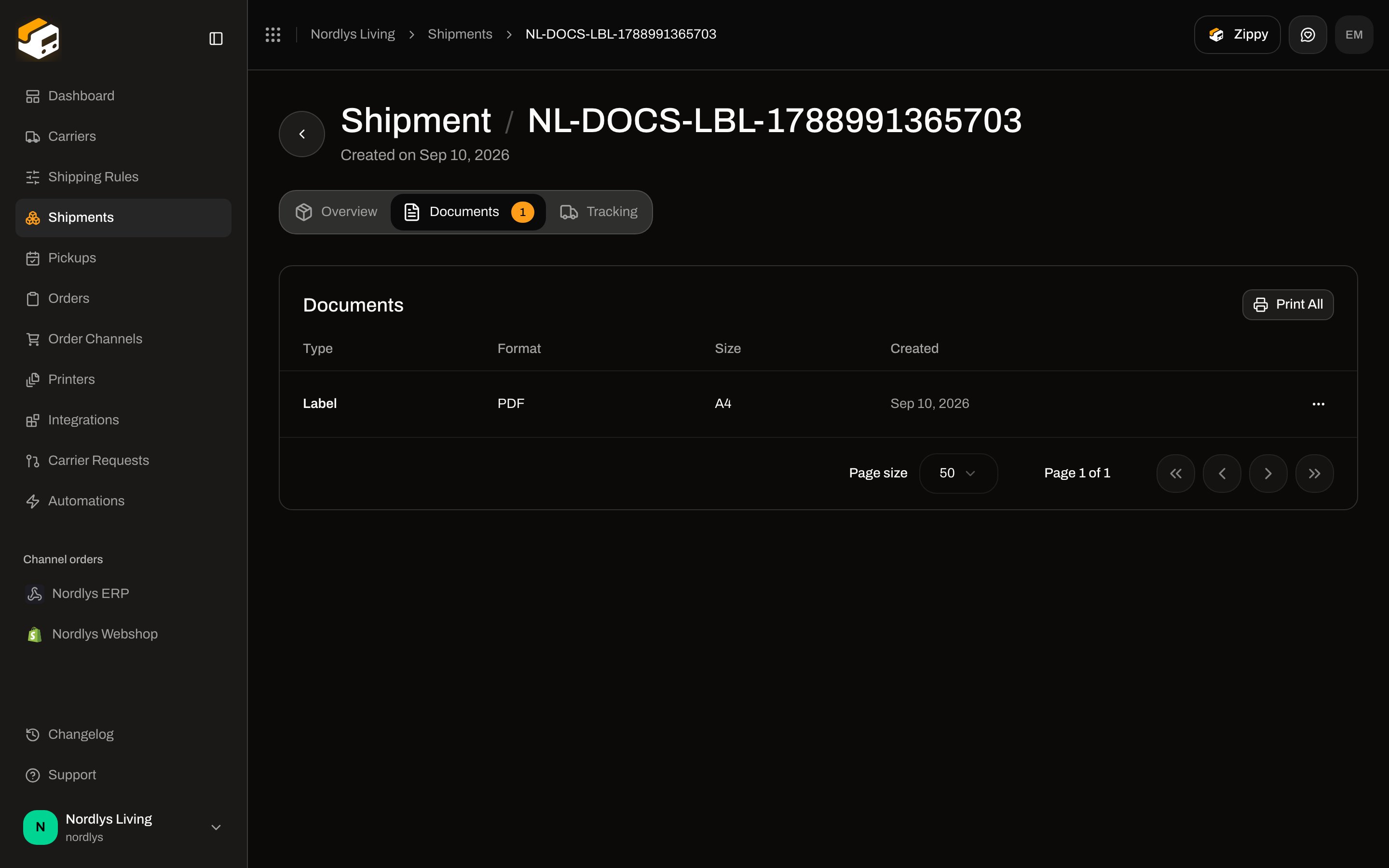
Click the **Documents** tab. The shipping **Label** is listed with its format (usually **PDF**), label size (for example **A4**), and created date.
Sending a shipment is what uses a billable unit on your plan. See [Credits](#credits-and-usage) below.
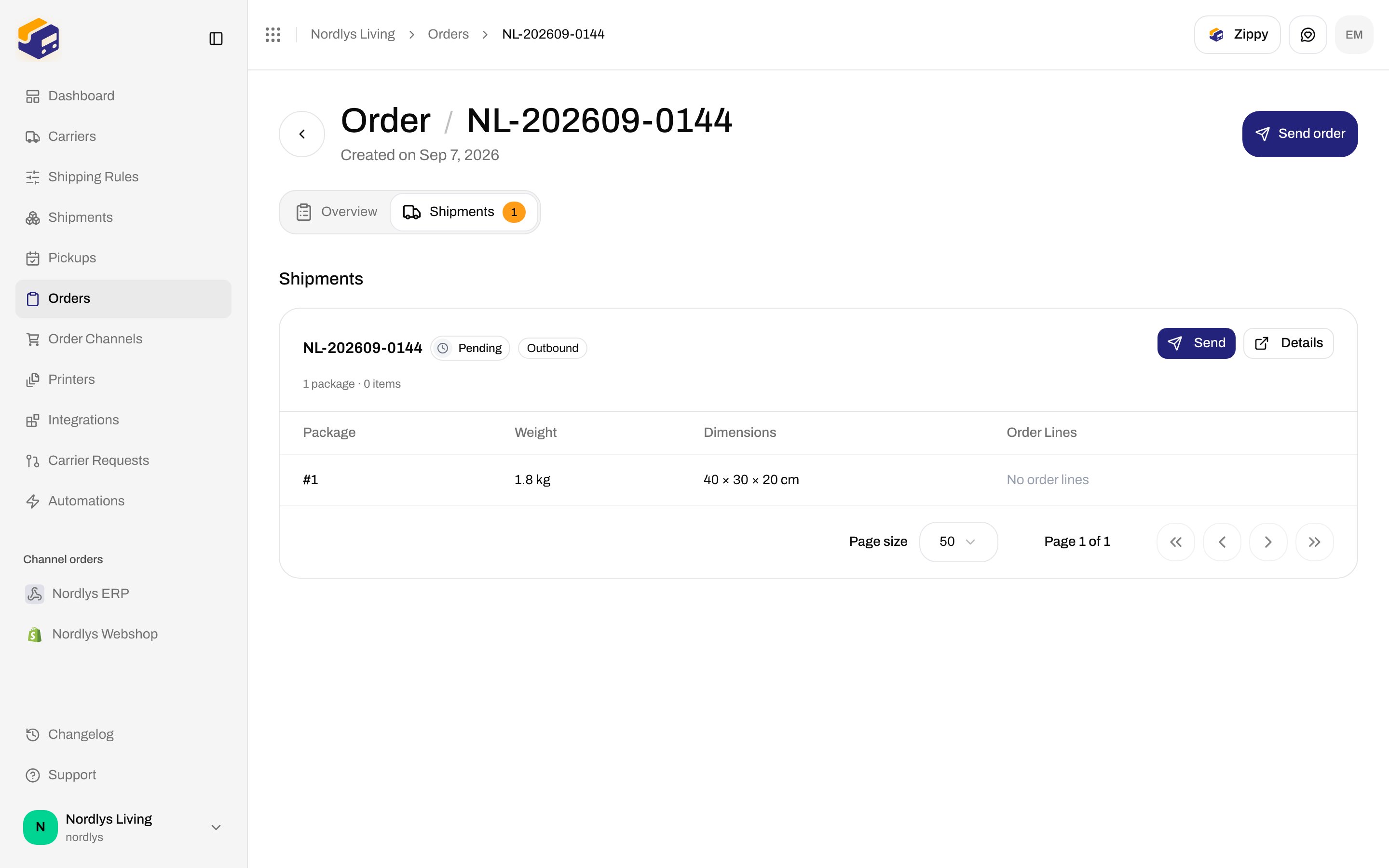
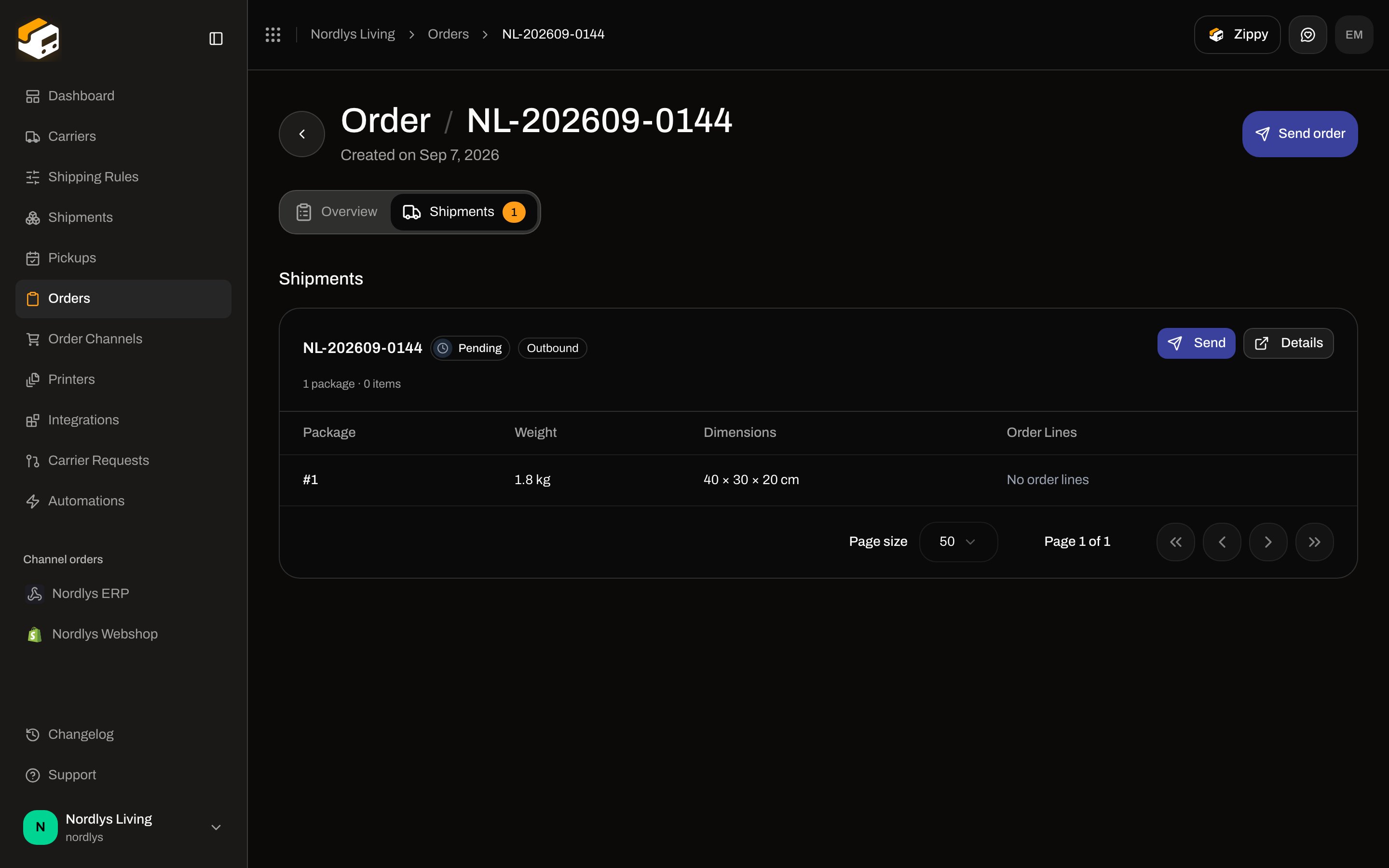
From an order that already has sendable shipments, the header action is **Send order**. That books every **Pending** or **Error** shipment on the order in one request — the same booking path as **Send Shipment**.
Go to **Shipments** and click the row. Status should be **Pending**.
Zippendo books the shipment with the carrier. A success toast reads **Shipment sent successfully**. Status changes to **Dispatched**, and **Send Shipment** disappears.
Click the **Documents** tab. The shipping **Label** is listed with its format (usually **PDF**), label size (for example **A4**), and created date.
Sending a shipment is what uses a billable unit on your plan. See [Credits](#credits-and-usage) below.
From an order that already has sendable shipments, the header action is **Send order**. That books every **Pending** or **Error** shipment on the order in one request — the same booking path as **Send Shipment**.
 ## View and download
On **Documents**, each row is a document. Row click opens the viewer. The row menu has **View**, **Download**, and **Print**.
## View and download
On **Documents**, each row is a document. Row click opens the viewer. The row menu has **View**, **Download**, and **Print**.
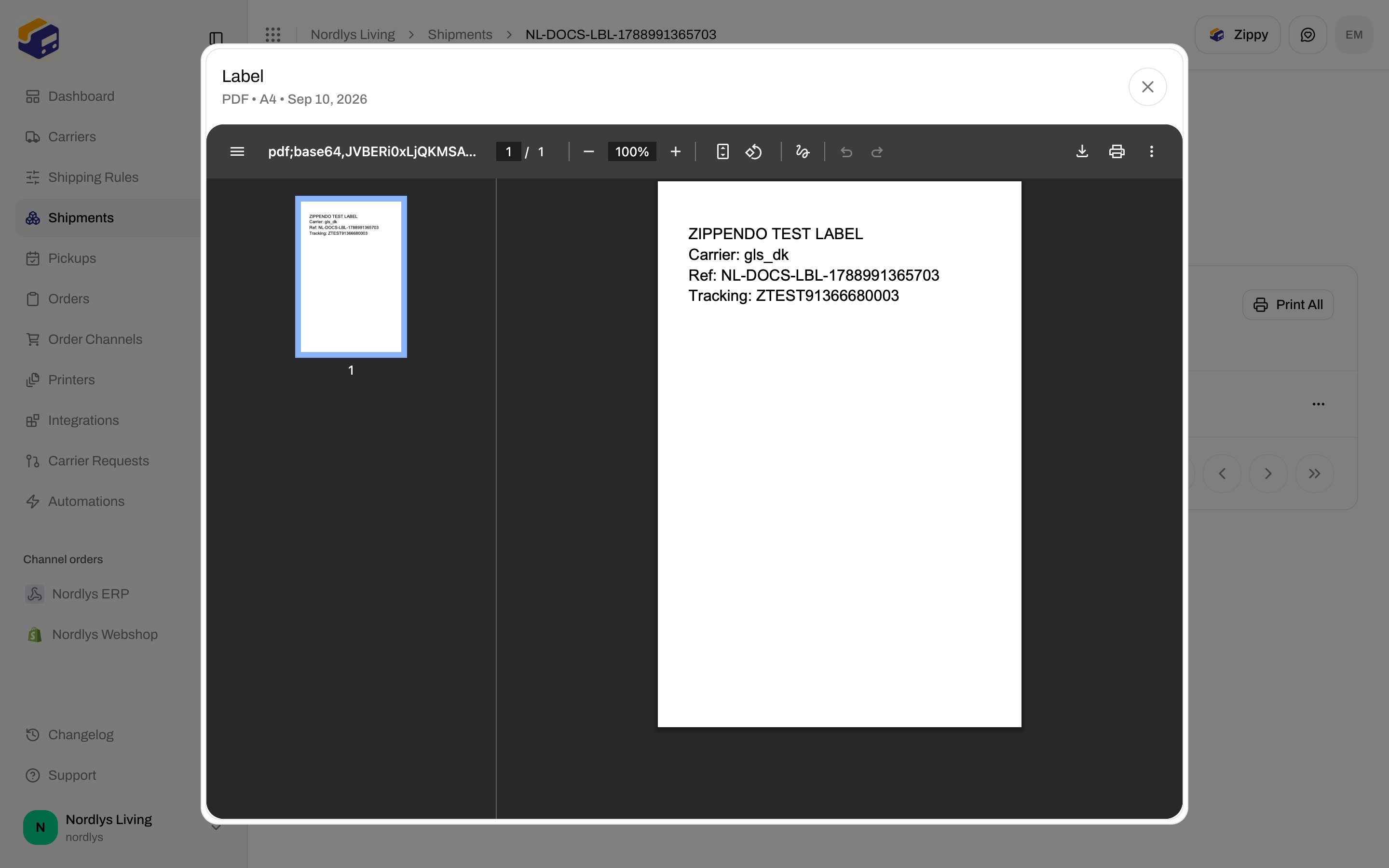
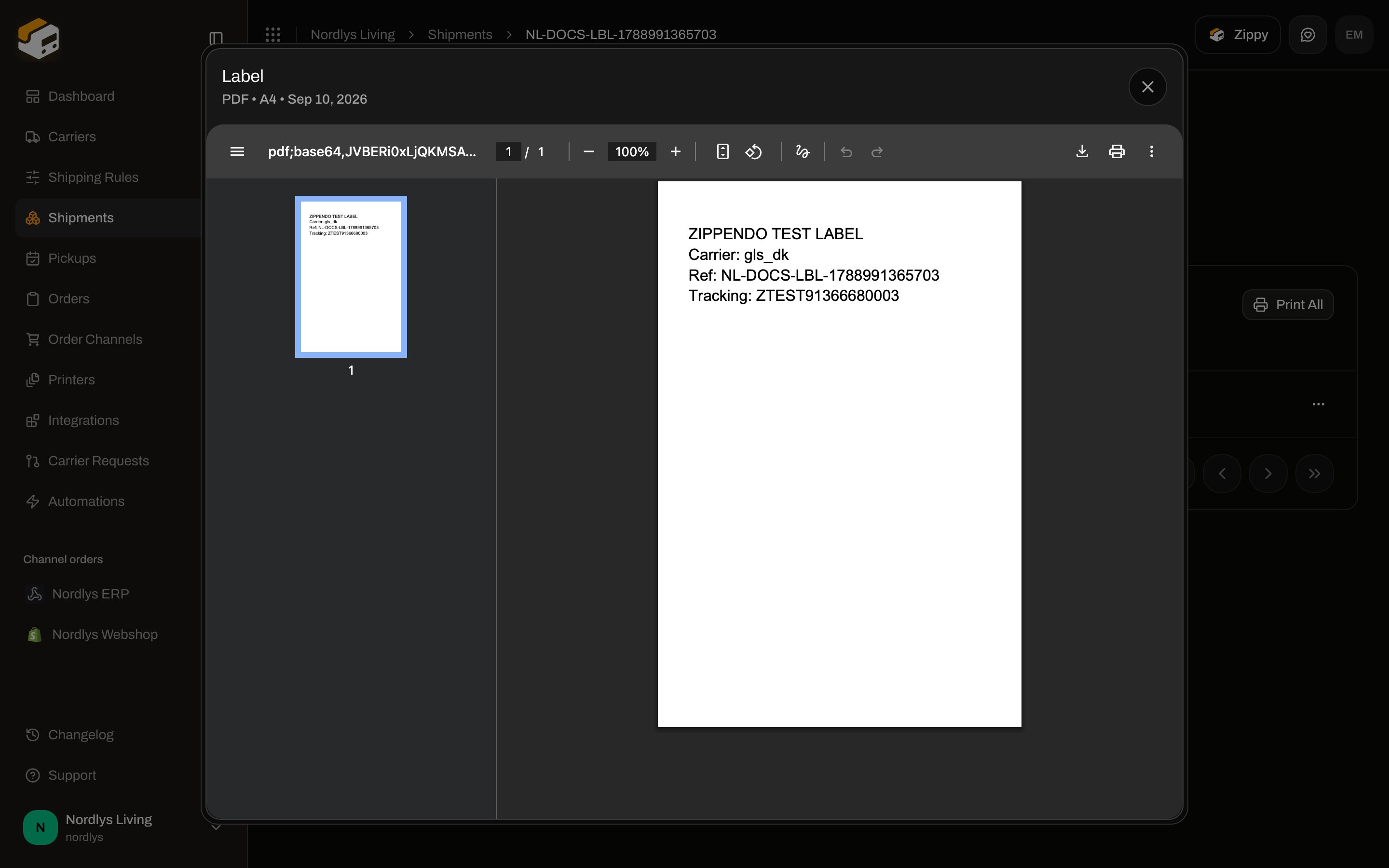
 **View** opens a modal titled with the document type (for example **Label**). The subtitle shows format, label size, and date (for example **PDF • A4 • 10 Sep 2026**). PDFs render in the modal; image formats render as a picture.
 **Download** saves `{type}.{format}` (for example `label.pdf`) through the browser. You can print that file from the system print dialog — that is browser / OS printing, not a Zippendo print job.
On an order’s **Shipments** tab, the card menu can also download each **Label** (by format, such as **PDF**) and other documents.
### Formats and other documents
The **Format** column shows what the carrier or Zippendo produced: **pdf**, **png**, **jpg**, **zpl**, or **svg**. ZPL is printer instructions, not a page you preview in the browser — download it for a Zebra-compatible printer.
When they exist, the **Type** column uses these labels:
* **Label**
* **Customs Invoice**
* **Commercial Invoice**
* **Proforma Invoice**
* **Packing List**
* **Certificate of Origin**
* **CN22 Customs Declaration**
* **CN23 Customs Declaration**
* **Other**
Packing lists and invoices are generated when the matching shipping-rule options are on (**Generate Packing List**, **Generate Proforma Invoice**, **Generate Commercial Invoice**). Some carriers return their own customs forms with the label instead. If **Documents** only shows **Label**, nothing else was generated for that shipment.
The dedicated **Labels** sidebar page is not a working label inbox. Use the shipment **Documents** tab (or the order shipment card) to get files.
## Print through the printer client
**Print** and **Print All** do **not** open the browser print dialog. They create print jobs for the [Zippendo Printer Client](/docs/printers/overview) — a desktop app that receives jobs over a WebSocket and prints on a local **Label** or **Document** printer.
Open **Printers** and use **Download Printer Client** (macOS Apple Silicon, macOS Intel, or Windows). Sign in from the app and register each local printer. Approve it in Zippendo so status is **Active**. Field-level desktop app: [Set up the printer client](/docs/how-to/setup-printer-client).
On **Documents**, click **Print All**, or **Print** on one row. Labels go to a label printer; packing slips and invoices go to a document printer.
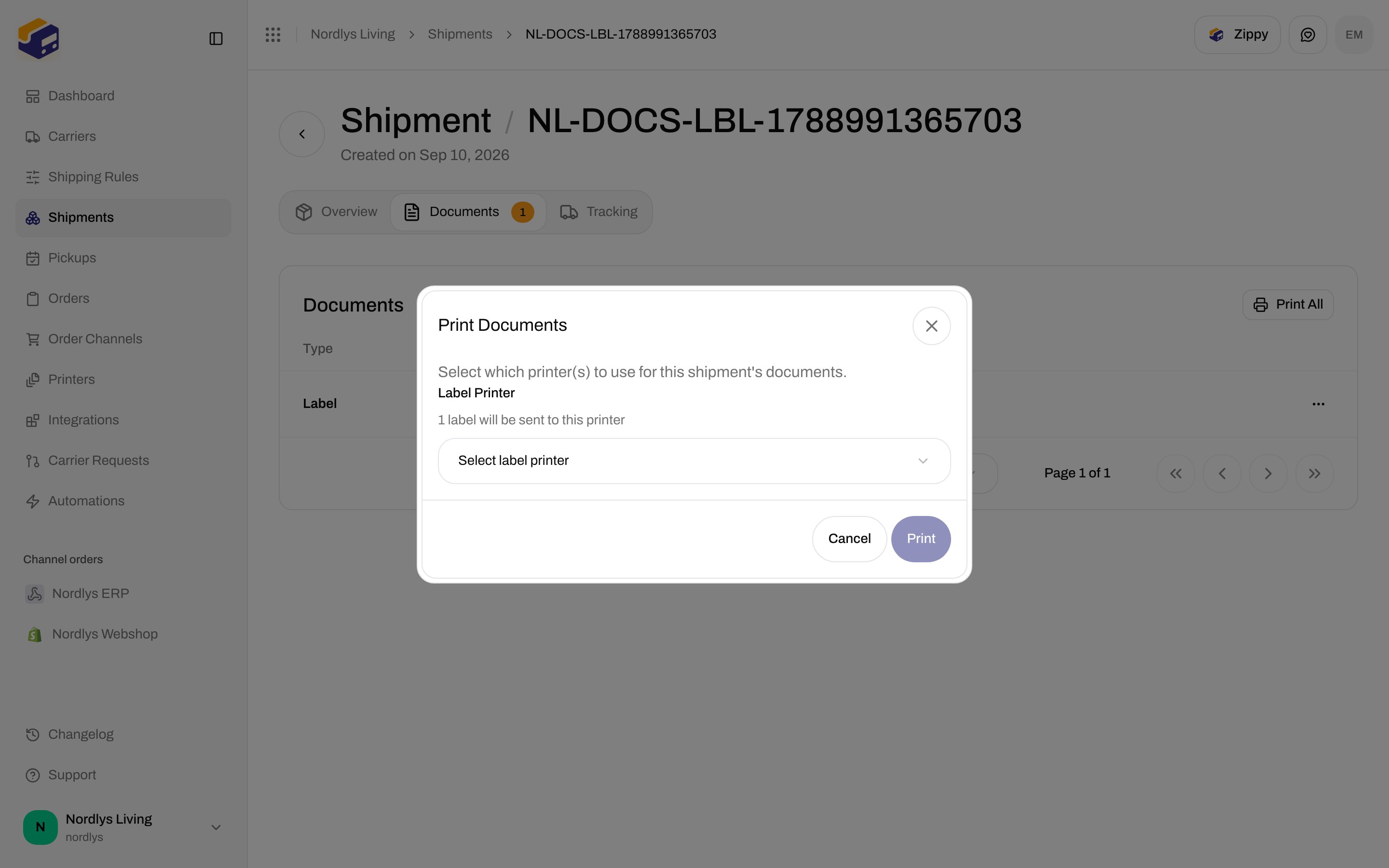
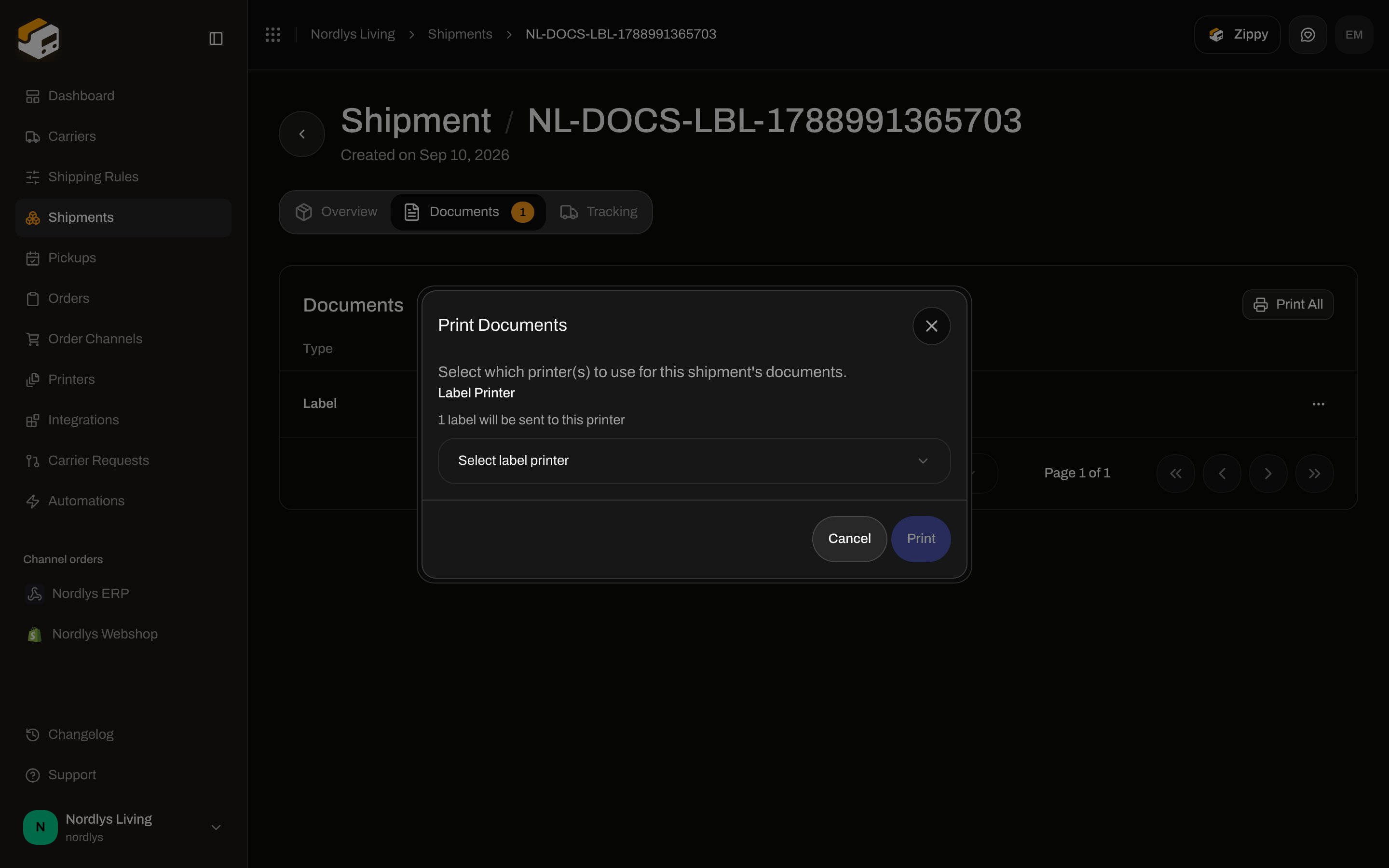
If the shipment (or its shipping rule) has no printer, **Print Documents** asks you to choose. The help text reads **Select which printer(s) to use for this shipment's documents.**
**Download** saves `{type}.{format}` (for example `label.pdf`) through the browser. You can print that file from the system print dialog — that is browser / OS printing, not a Zippendo print job.
On an order’s **Shipments** tab, the card menu can also download each **Label** (by format, such as **PDF**) and other documents.
### Formats and other documents
The **Format** column shows what the carrier or Zippendo produced: **pdf**, **png**, **jpg**, **zpl**, or **svg**. ZPL is printer instructions, not a page you preview in the browser — download it for a Zebra-compatible printer.
When they exist, the **Type** column uses these labels:
* **Label**
* **Customs Invoice**
* **Commercial Invoice**
* **Proforma Invoice**
* **Packing List**
* **Certificate of Origin**
* **CN22 Customs Declaration**
* **CN23 Customs Declaration**
* **Other**
Packing lists and invoices are generated when the matching shipping-rule options are on (**Generate Packing List**, **Generate Proforma Invoice**, **Generate Commercial Invoice**). Some carriers return their own customs forms with the label instead. If **Documents** only shows **Label**, nothing else was generated for that shipment.
The dedicated **Labels** sidebar page is not a working label inbox. Use the shipment **Documents** tab (or the order shipment card) to get files.
## Print through the printer client
**Print** and **Print All** do **not** open the browser print dialog. They create print jobs for the [Zippendo Printer Client](/docs/printers/overview) — a desktop app that receives jobs over a WebSocket and prints on a local **Label** or **Document** printer.
Open **Printers** and use **Download Printer Client** (macOS Apple Silicon, macOS Intel, or Windows). Sign in from the app and register each local printer. Approve it in Zippendo so status is **Active**. Field-level desktop app: [Set up the printer client](/docs/how-to/setup-printer-client).
On **Documents**, click **Print All**, or **Print** on one row. Labels go to a label printer; packing slips and invoices go to a document printer.
If the shipment (or its shipping rule) has no printer, **Print Documents** asks you to choose. The help text reads **Select which printer(s) to use for this shipment's documents.**
 A success toast is **1 print job created** (or the plural). Failures toast **1 document failed to print** — usually because no active printer of that type exists.
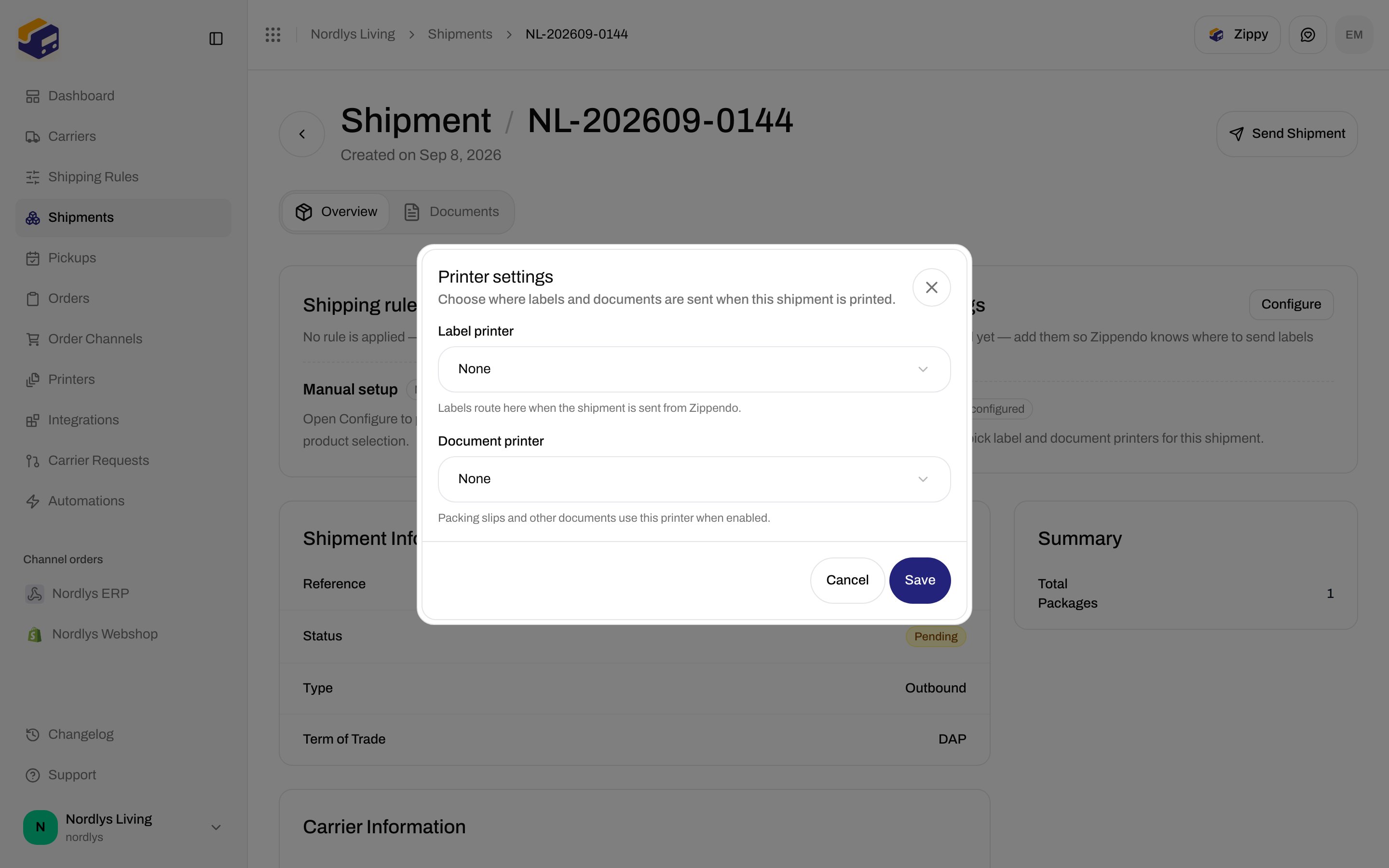
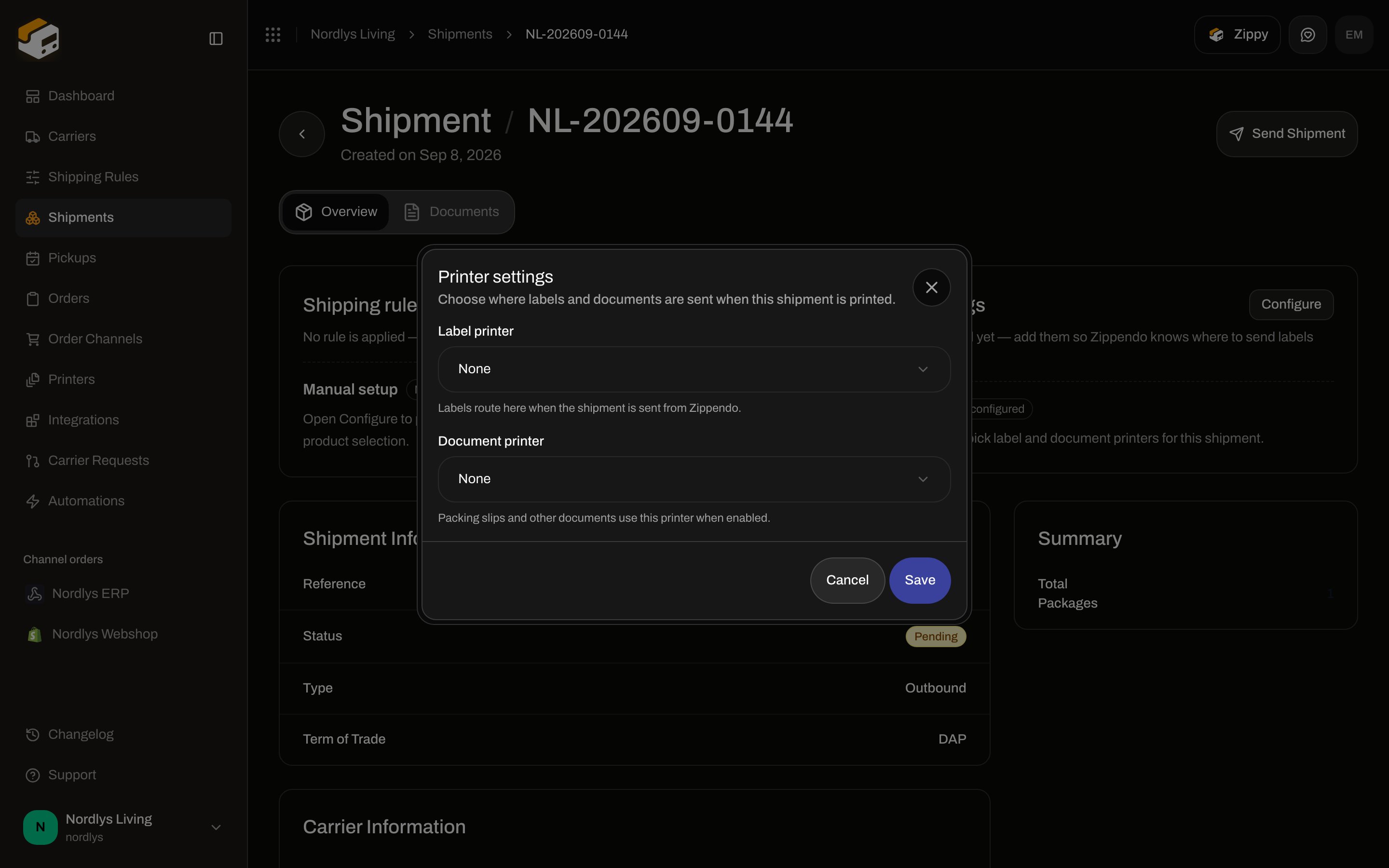
On a **pending** shipment you can set printers early under **Printer settings** → **Configure**. Empty copy: **No printers selected yet — add them so Zippendo knows where to send labels and documents.** In the modal, **Labels route here when the shipment is sent from Zippendo.**
A success toast is **1 print job created** (or the plural). Failures toast **1 document failed to print** — usually because no active printer of that type exists.
On a **pending** shipment you can set printers early under **Printer settings** → **Configure**. Empty copy: **No printers selected yet — add them so Zippendo knows where to send labels and documents.** In the modal, **Labels route here when the shipment is sent from Zippendo.**
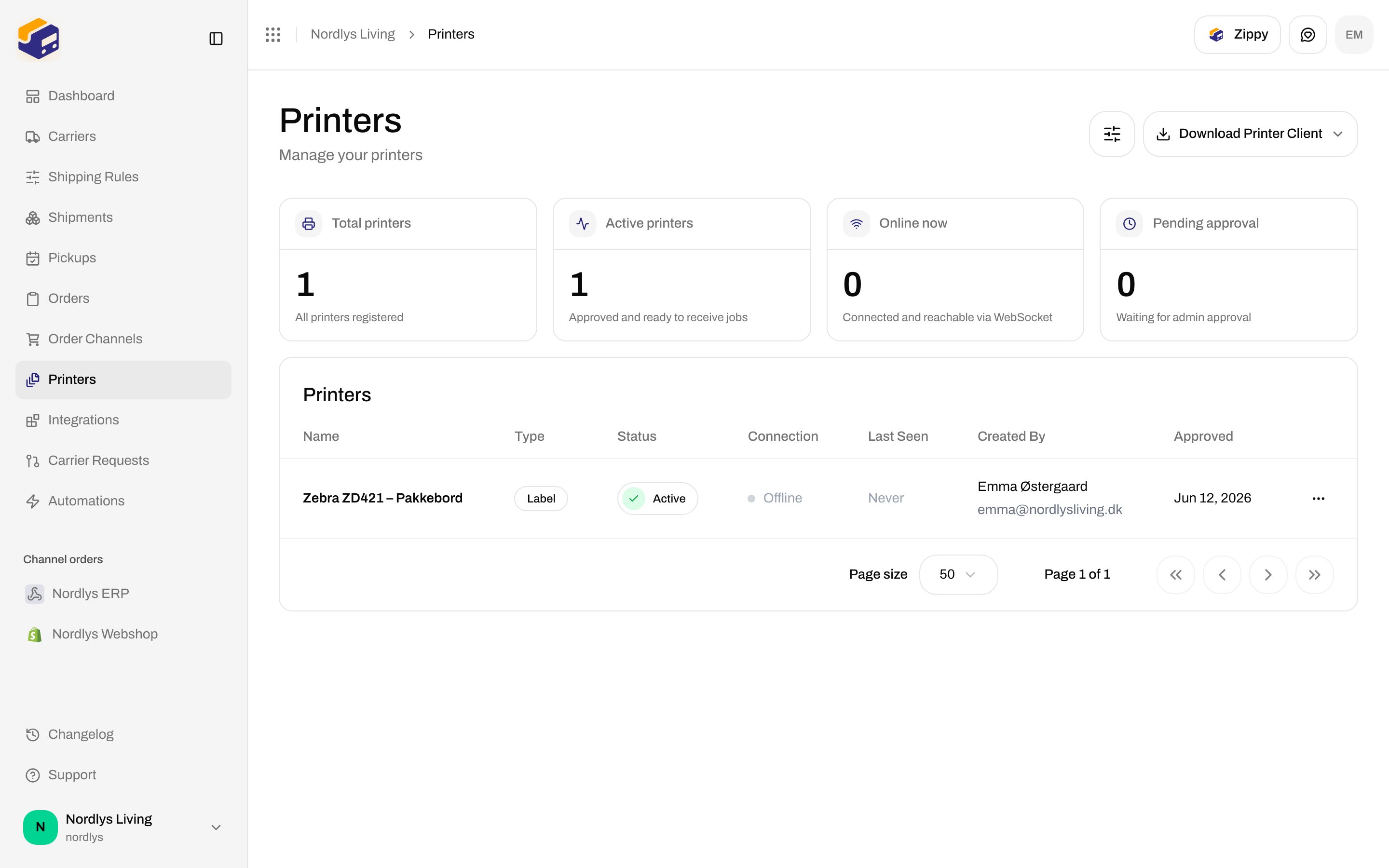
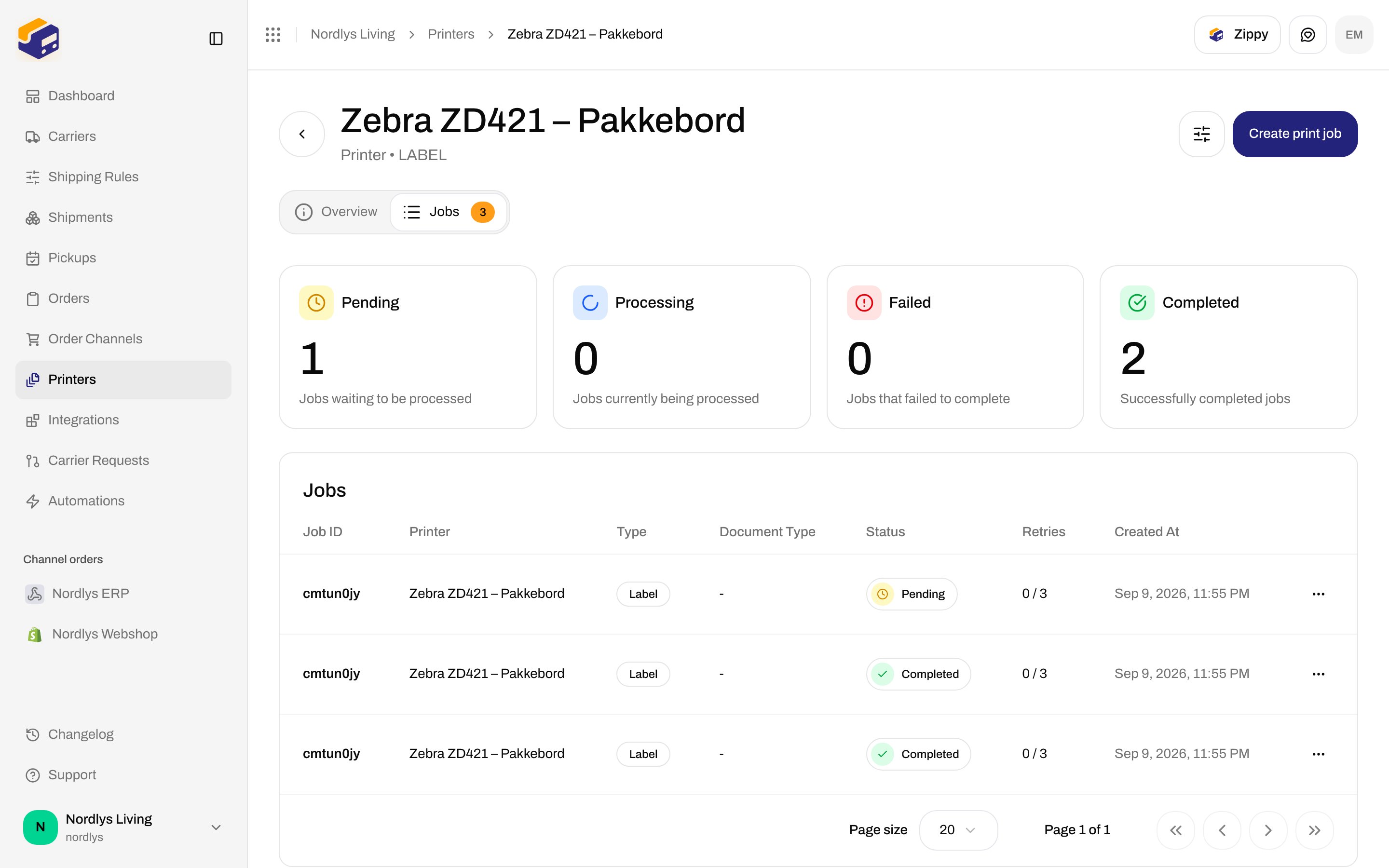
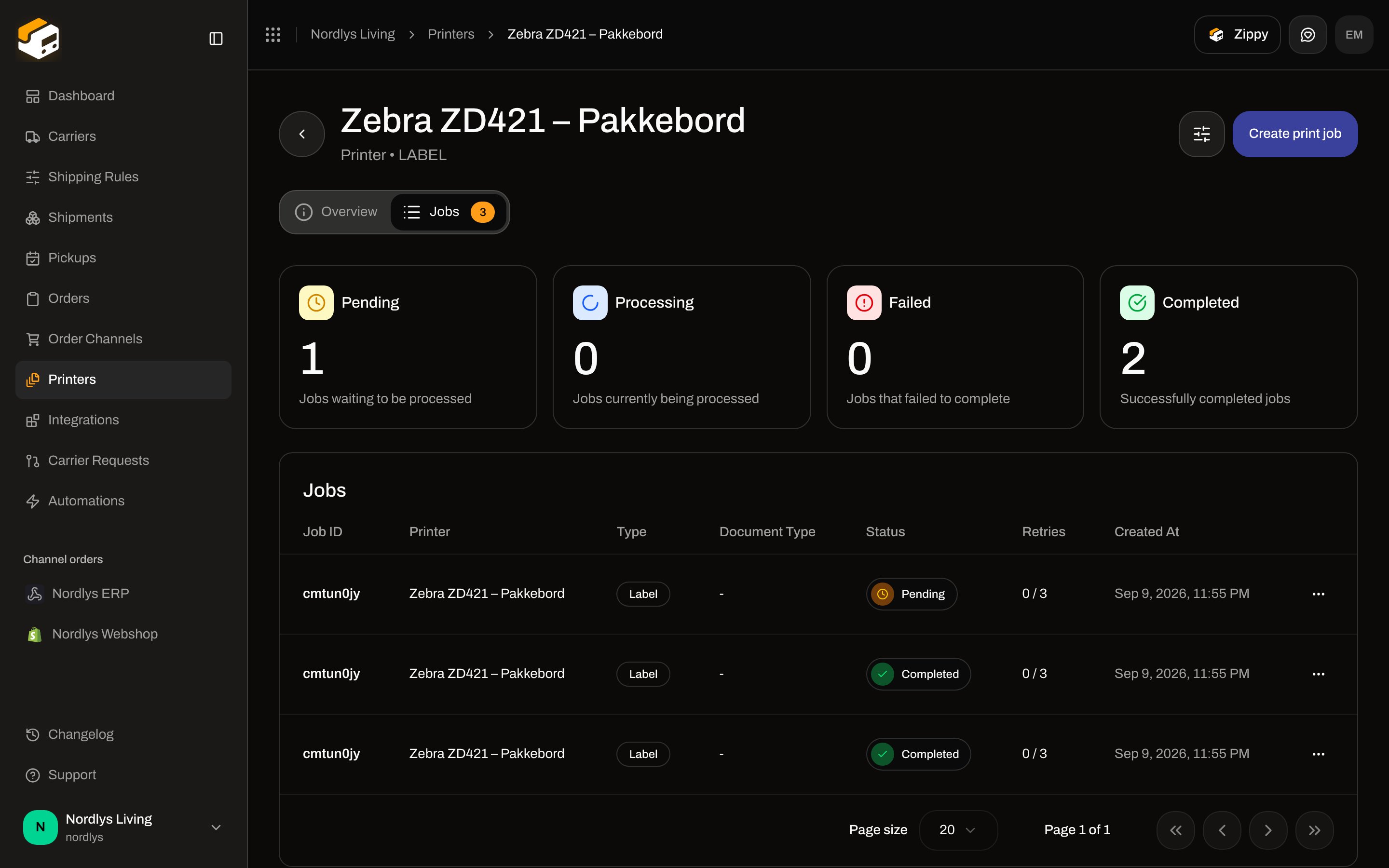
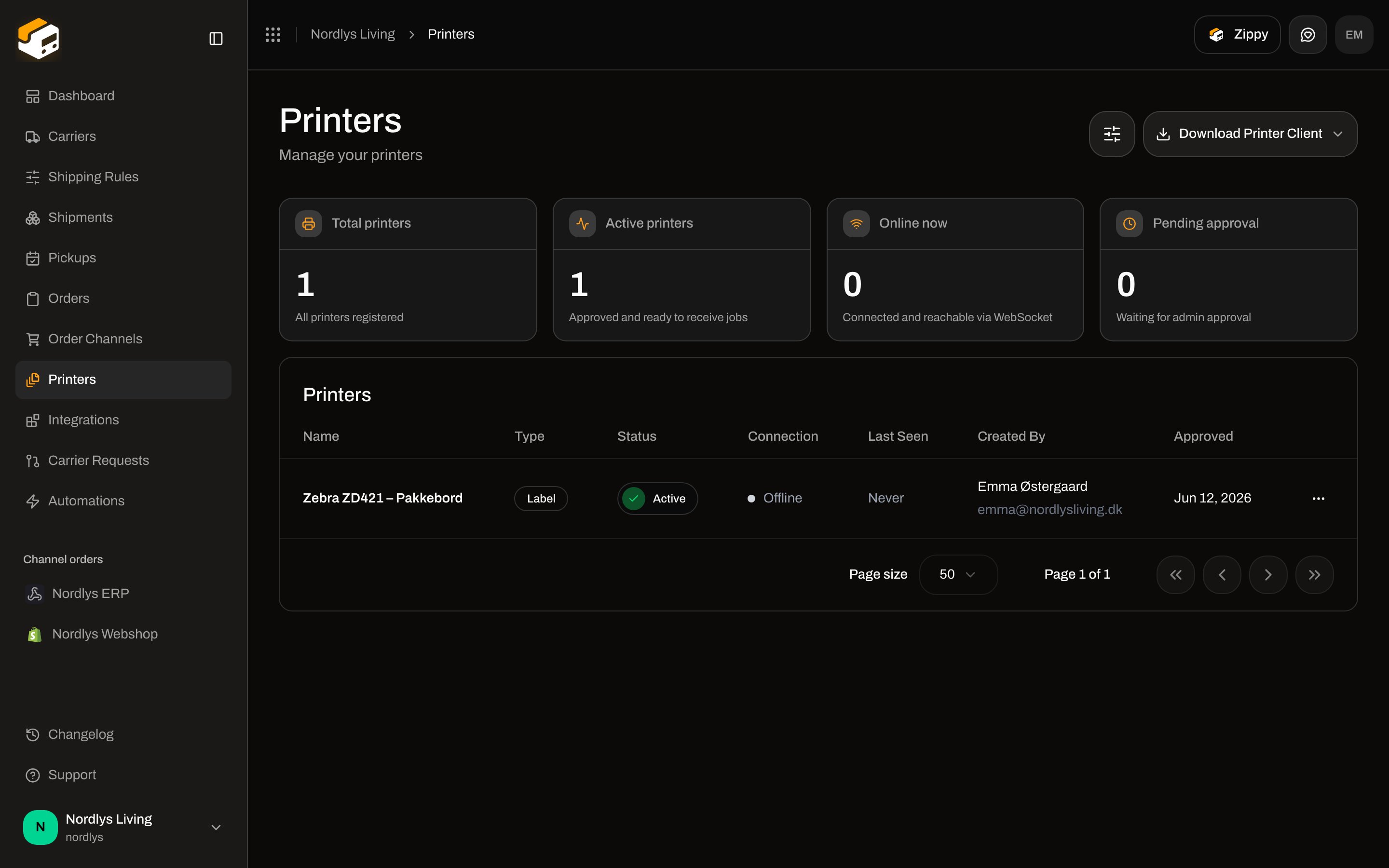 Open a printer and click the **Jobs** tab. Stats are **Pending**, **Processing**, **Failed**, and **Completed**. Retry a failed job from that list. The connection shows **Offline** when the desktop app is not connected — jobs stay queued.
 ### Rotate wide labels
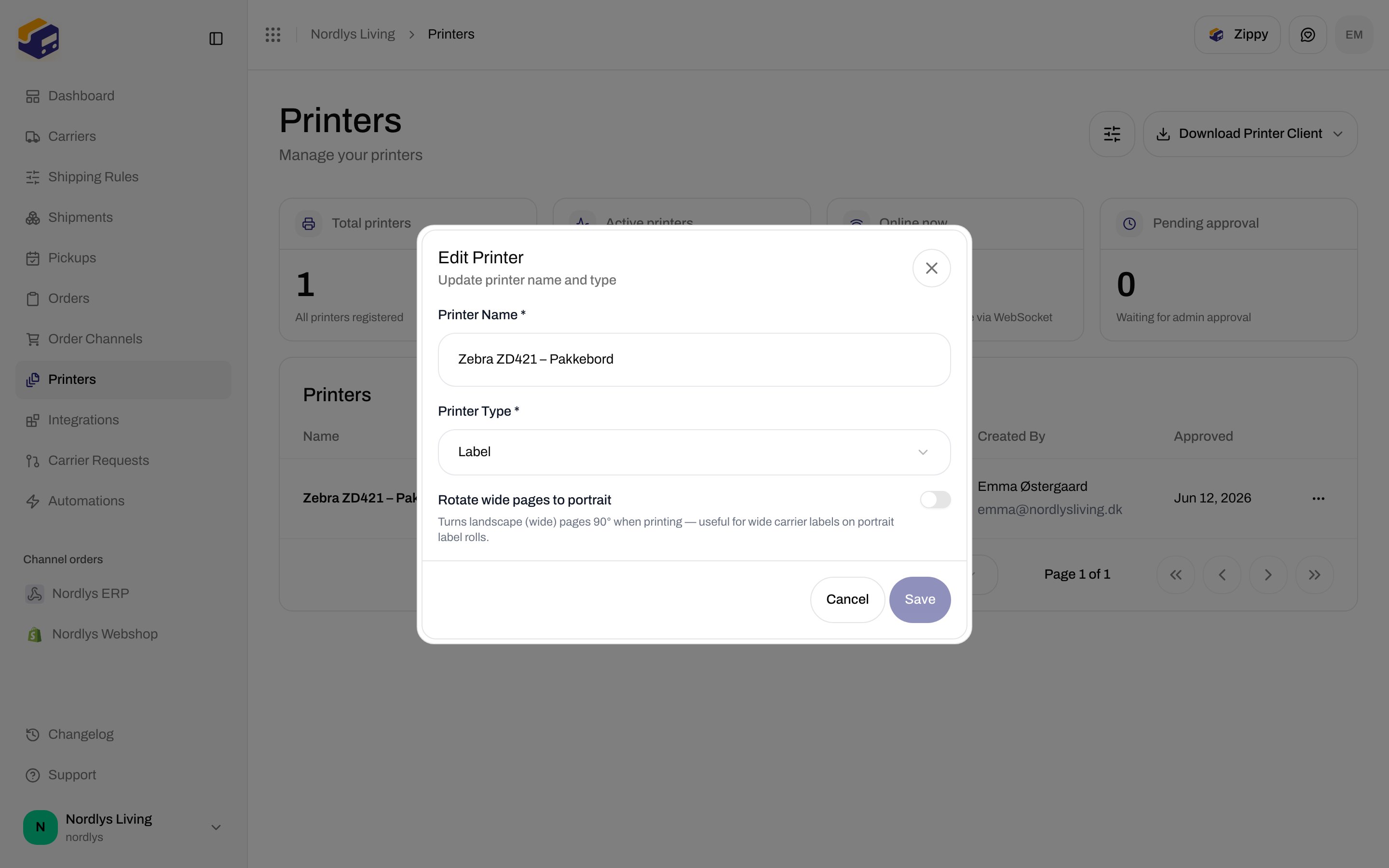
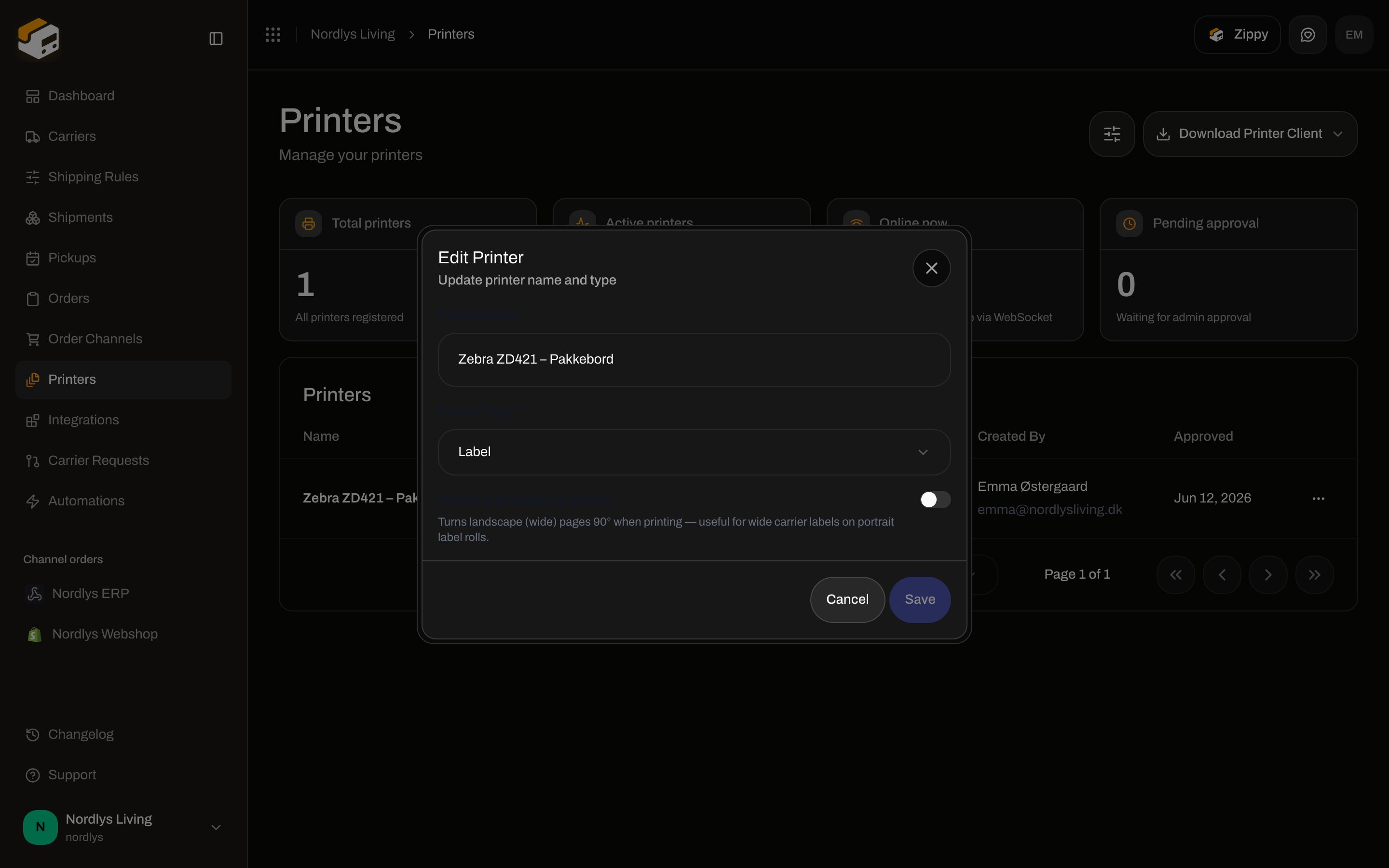
There is no rotate control on the label viewer. Rotation is a printer setting: **Edit** the printer and turn on **Rotate wide pages to portrait**. Hint: **Turns landscape (wide) pages 90° when printing — useful for wide carrier labels on portrait label rolls.**
### Rotate wide labels
There is no rotate control on the label viewer. Rotation is a printer setting: **Edit** the printer and turn on **Rotate wide pages to portrait**. Hint: **Turns landscape (wide) pages 90° when printing — useful for wide carrier labels on portrait label rolls.**
 ## Auto-print when a shipment is sent
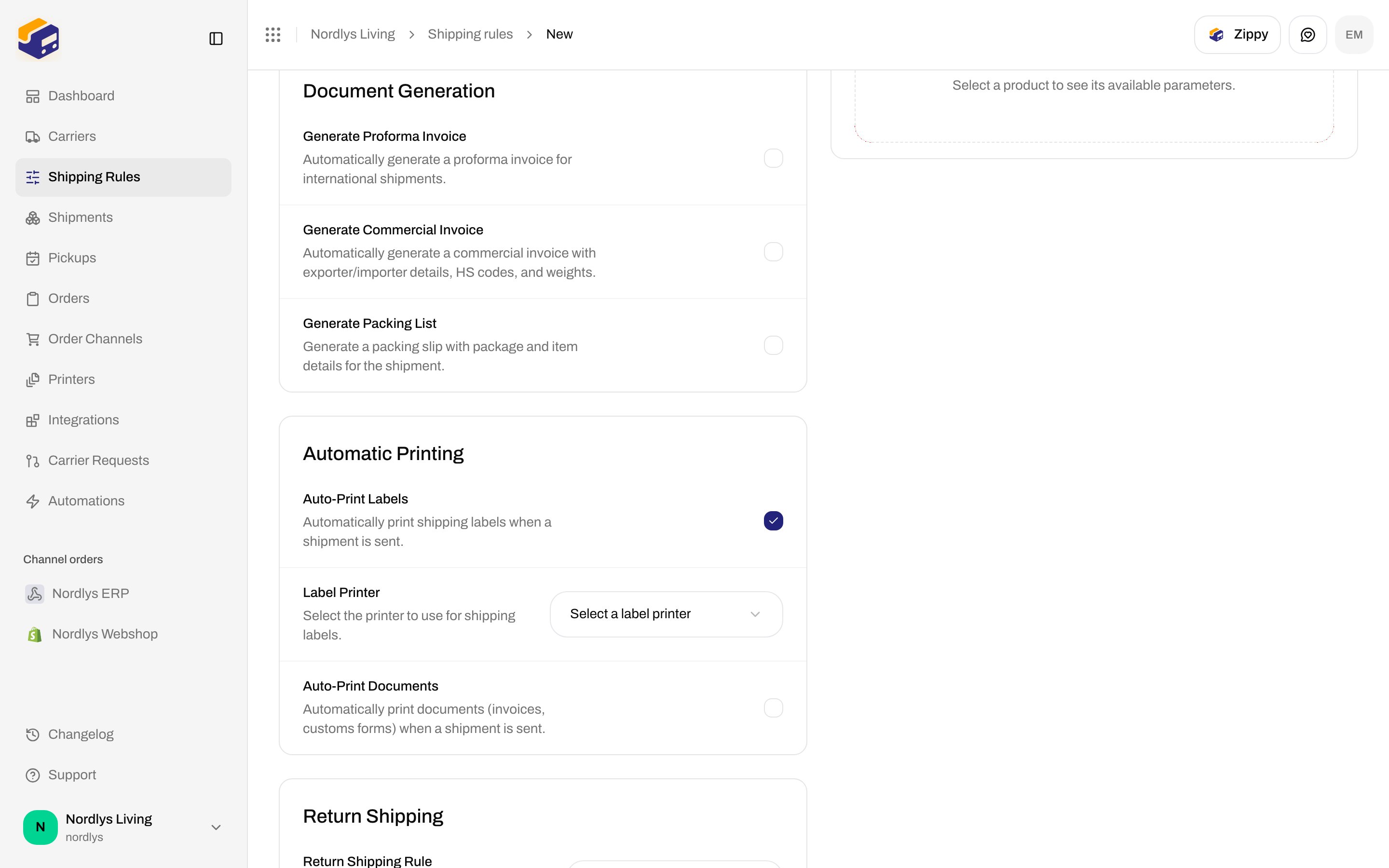
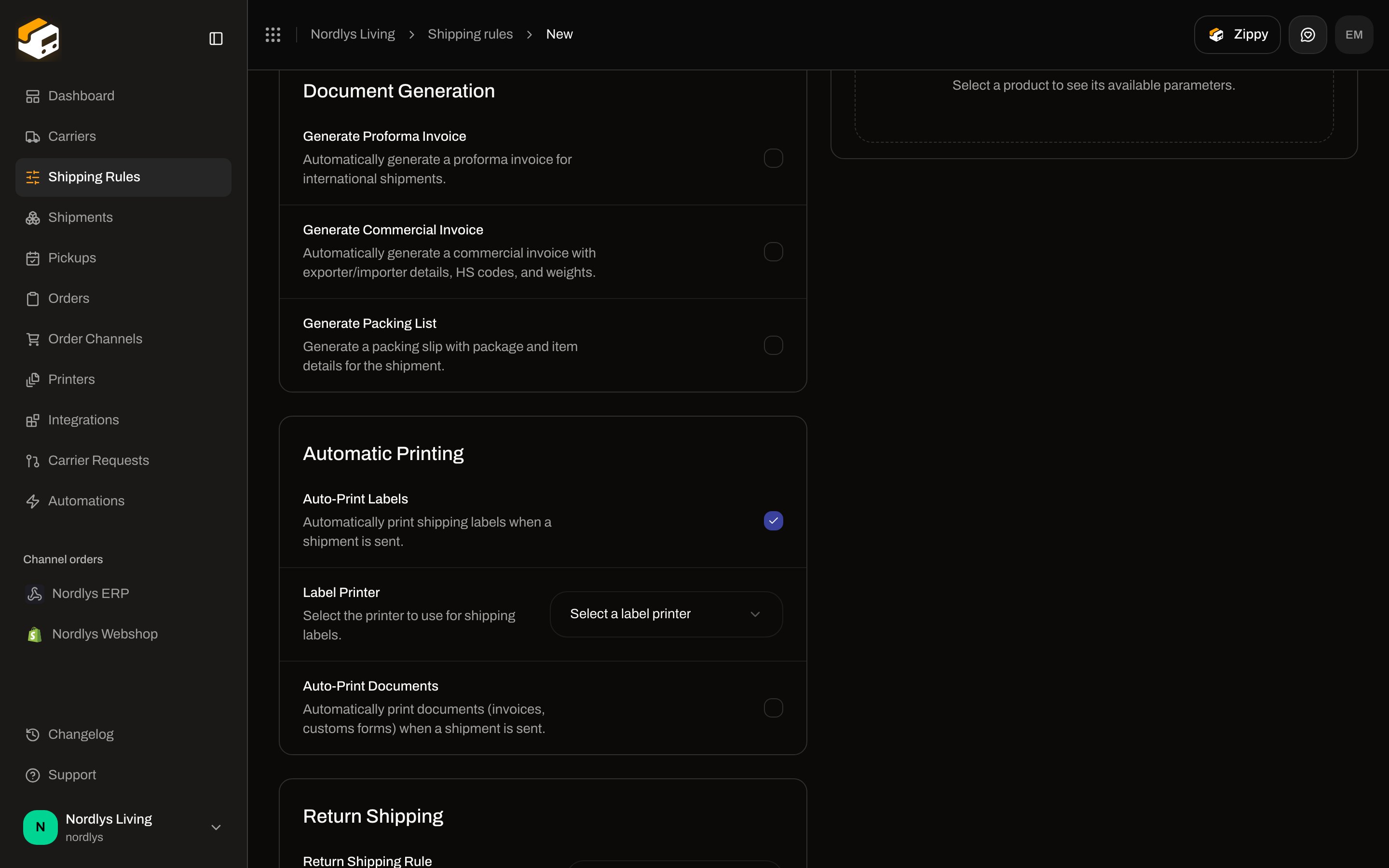
On a [shipping rule](/docs/tutorials/shipping-rules), open **Automatic Printing**:
* **Auto-Print Labels** — **Automatically print shipping labels when a shipment is sent.** Pick a **Label Printer**.
* **Auto-Print Documents** — **Automatically print documents (invoices, customs forms) when a shipment is sent.** Pick a **Document Printer**.
## Auto-print when a shipment is sent
On a [shipping rule](/docs/tutorials/shipping-rules), open **Automatic Printing**:
* **Auto-Print Labels** — **Automatically print shipping labels when a shipment is sent.** Pick a **Label Printer**.
* **Auto-Print Documents** — **Automatically print documents (invoices, customs forms) when a shipment is sent.** Pick a **Document Printer**.
 The printer must be **Active**. If auto-print does not fire, check the rule, the printer connection, and [Printer jobs](/docs/printers/printer-jobs).
## When send fails
If the carrier rejects the booking, the shipment status becomes **Error**. The header action changes to **Retry Send**. An error banner titled **Shipment failed to send** lists the localized reason and the error code. Use **Request Logs** when you need the carrier request and response for support.
The printer must be **Active**. If auto-print does not fire, check the rule, the printer connection, and [Printer jobs](/docs/printers/printer-jobs).
## When send fails
If the carrier rejects the booking, the shipment status becomes **Error**. The header action changes to **Retry Send**. An error banner titled **Shipment failed to send** lists the localized reason and the error code. Use **Request Logs** when you need the carrier request and response for support.
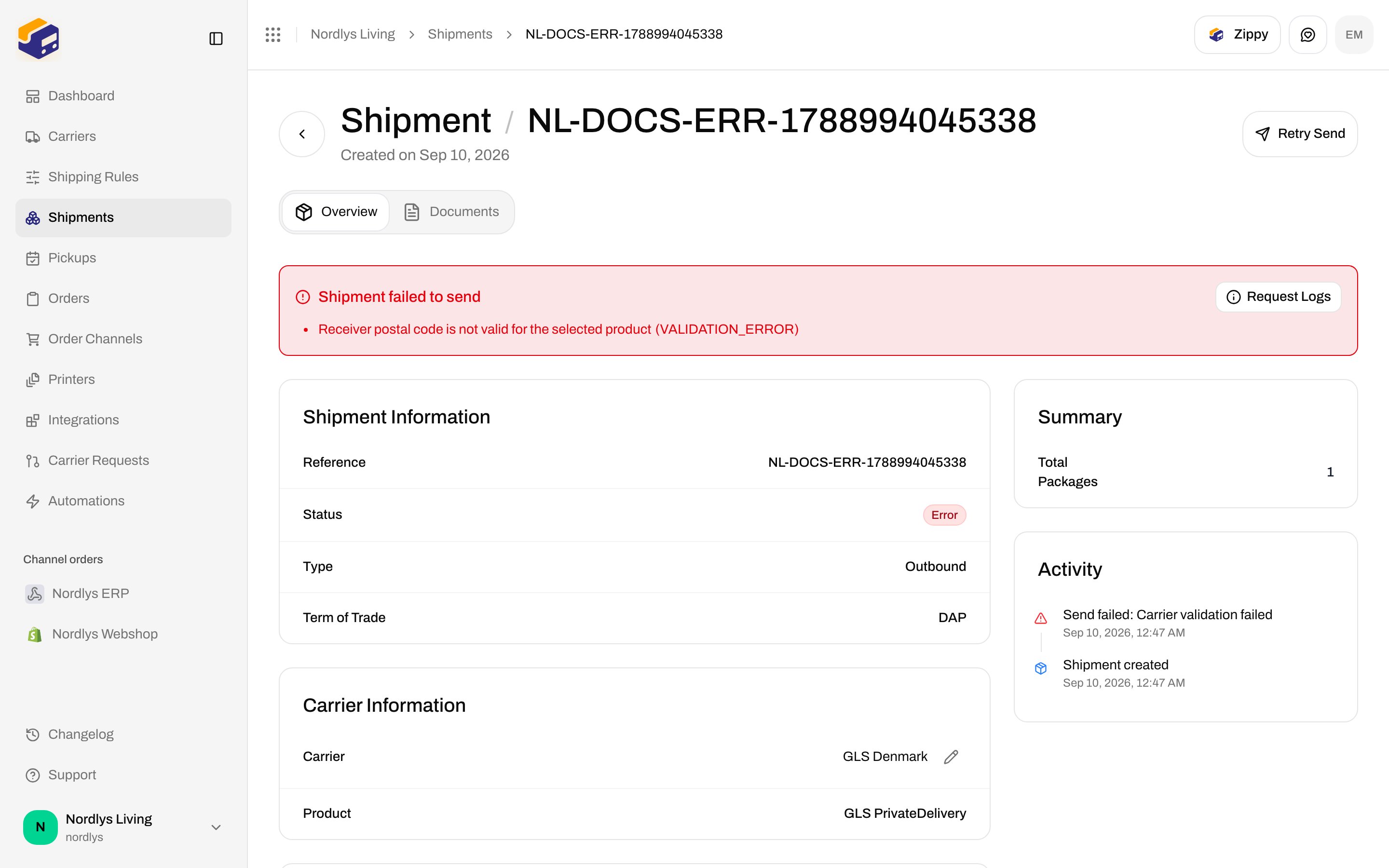
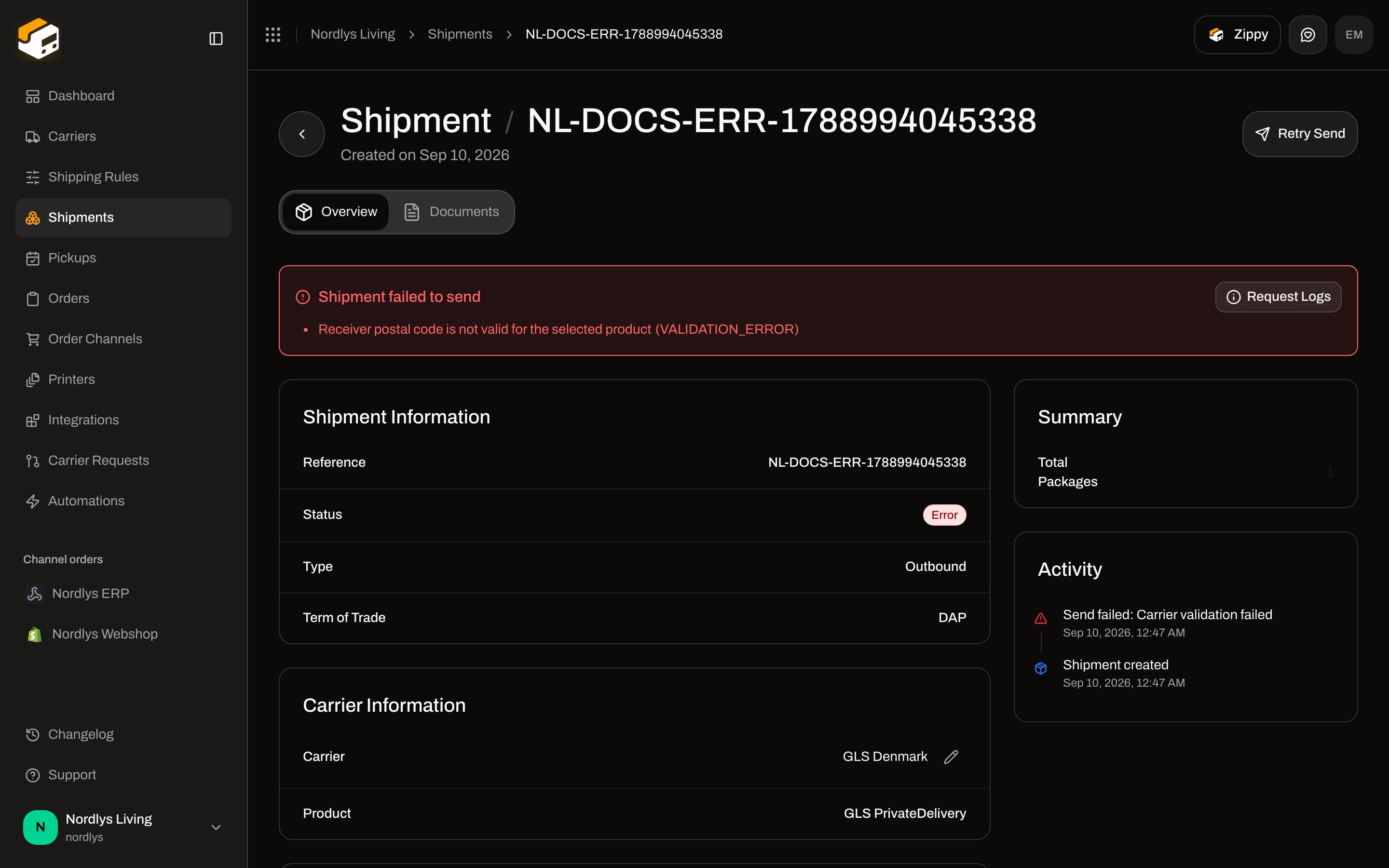 Fix the data (address, product, credentials) and click **Retry Send**. More triage: [Labels not generating](/docs/knowledge-base/labels-not-generating).
Zippendo does **not** offer void-label or cancel-label on the shipment. You can **Delete** a shipment that is still pending. After dispatch, treat the label as live with the carrier — reprint from **Documents** if you need another copy.
## Credits and usage
Each successful send counts as a shipment on your plan. **Settings → Pricing** shows **Current Usage**: **Shipments this period** and how many of the included allowance you have used. Overage, if enabled, bills extra shipments; if it is off, sending pauses at the limit.
Fix the data (address, product, credentials) and click **Retry Send**. More triage: [Labels not generating](/docs/knowledge-base/labels-not-generating).
Zippendo does **not** offer void-label or cancel-label on the shipment. You can **Delete** a shipment that is still pending. After dispatch, treat the label as live with the carrier — reprint from **Documents** if you need another copy.
## Credits and usage
Each successful send counts as a shipment on your plan. **Settings → Pricing** shows **Current Usage**: **Shipments this period** and how many of the included allowance you have used. Overage, if enabled, bills extra shipments; if it is off, sending pauses at the limit.
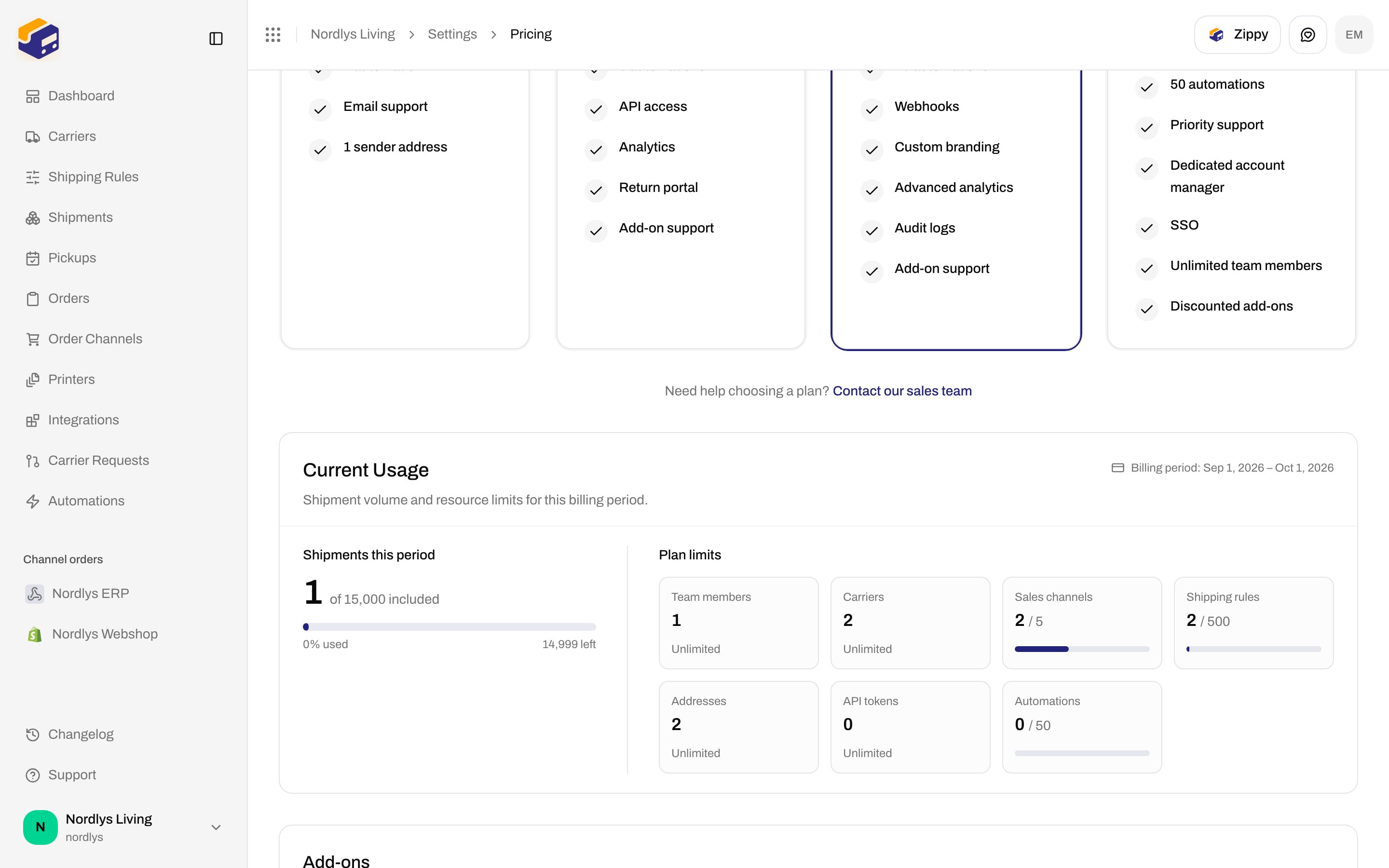
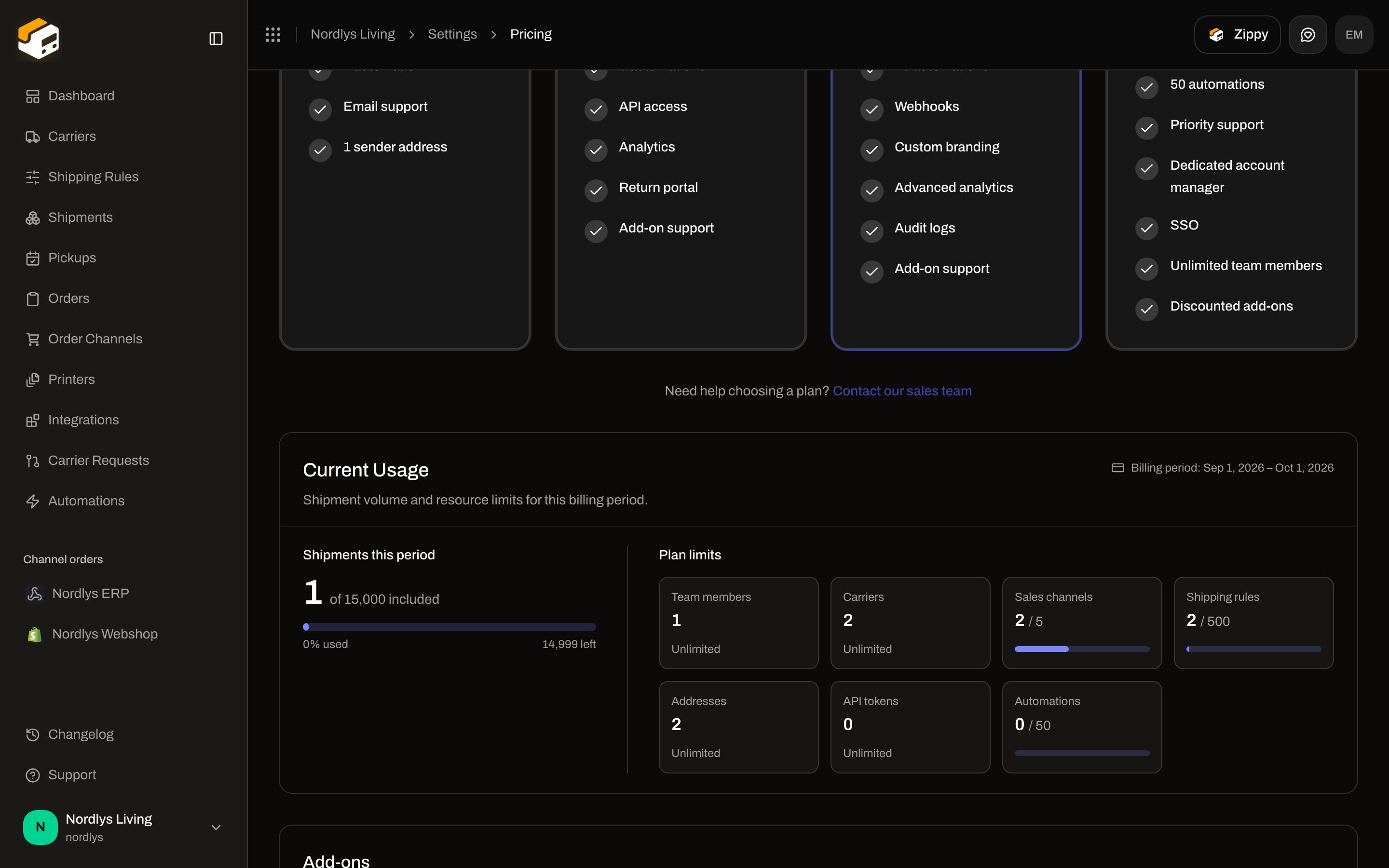 Downloading or reprinting an existing label does not buy another label. Sending (or **Retry Send** that succeeds) does.
## Next
Get a pending shipment ready before you send.
Follow the parcel after dispatch and share the carrier tracking link.
Auto-print labels when a matching shipment is sent.
Rule and printer checklist when labels should print without a click.
Field-level: [Set up the printer client](/docs/how-to/setup-printer-client) · [Add a printer](/docs/how-to/add-a-printer) · [Printer jobs](/docs/how-to/printer-jobs) · [Auto-print](/docs/how-to/auto-print) · [Shipment printer settings](/docs/how-to/shipment-printer-settings)
Downloading or reprinting an existing label does not buy another label. Sending (or **Retry Send** that succeeds) does.
## Next
Get a pending shipment ready before you send.
Follow the parcel after dispatch and share the carrier tracking link.
Auto-print labels when a matching shipment is sent.
Rule and printer checklist when labels should print without a click.
Field-level: [Set up the printer client](/docs/how-to/setup-printer-client) · [Add a printer](/docs/how-to/add-a-printer) · [Printer jobs](/docs/how-to/printer-jobs) · [Auto-print](/docs/how-to/auto-print) · [Shipment printer settings](/docs/how-to/shipment-printer-settings)