> ## Documentation Index
> Fetch the complete documentation index at: https://www.zippendo.com/docs/llms.txt
> Use this file to discover all available pages before exploring further.
# Filter orders and save views
> Narrow the orders or shipments list to exactly what you need to pack today, then save that filter as a view your whole team can open with one click.
Every warehouse has a handful of questions it asks the order list all day long. *What is waiting to be packed for Sweden and Norway? Which orders over 1.000 kr. still have no shipment? What came in since yesterday?* This tutorial shows how to ask those questions with filters, combine them, and save the useful ones as views so nobody has to rebuild them tomorrow.
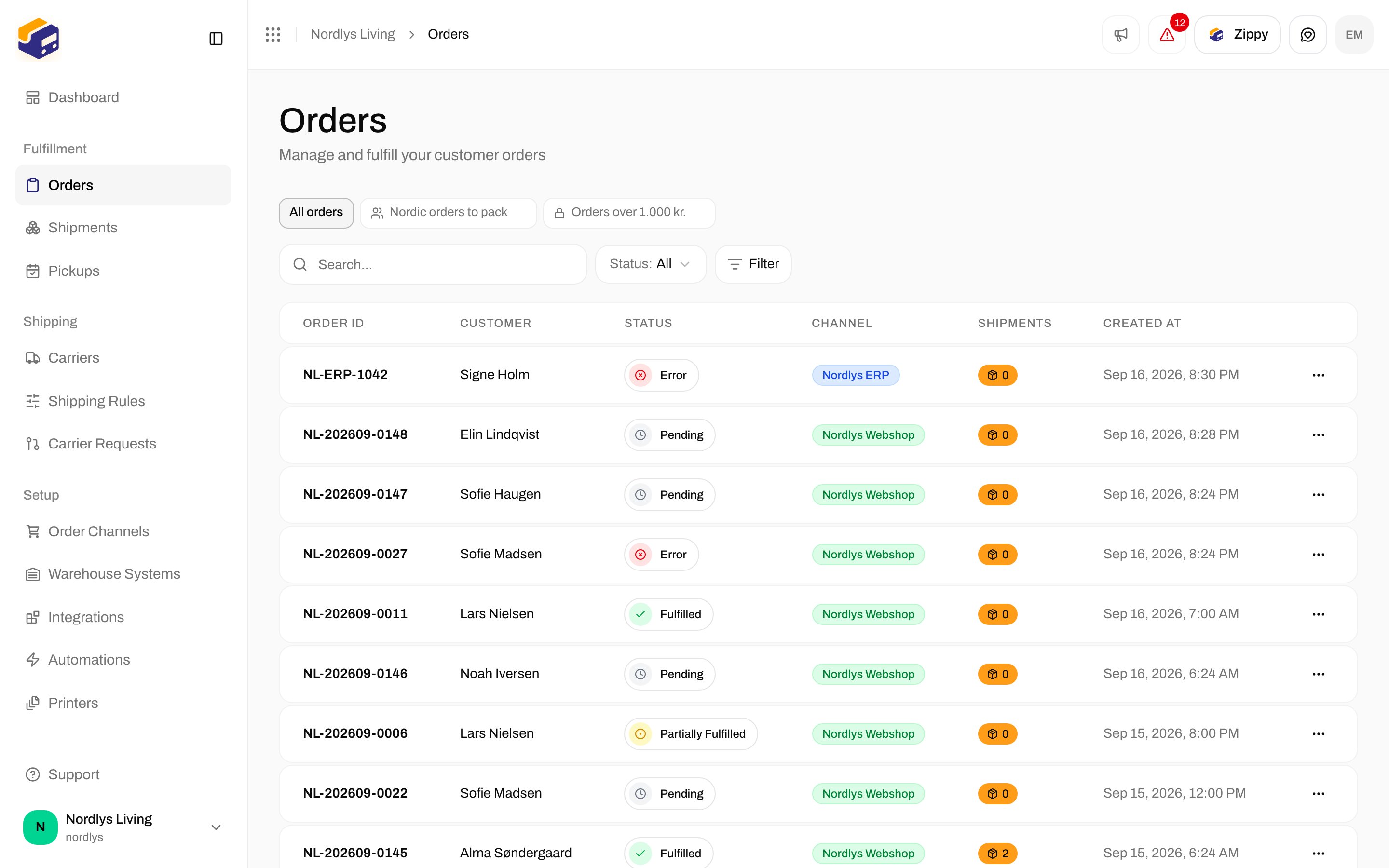
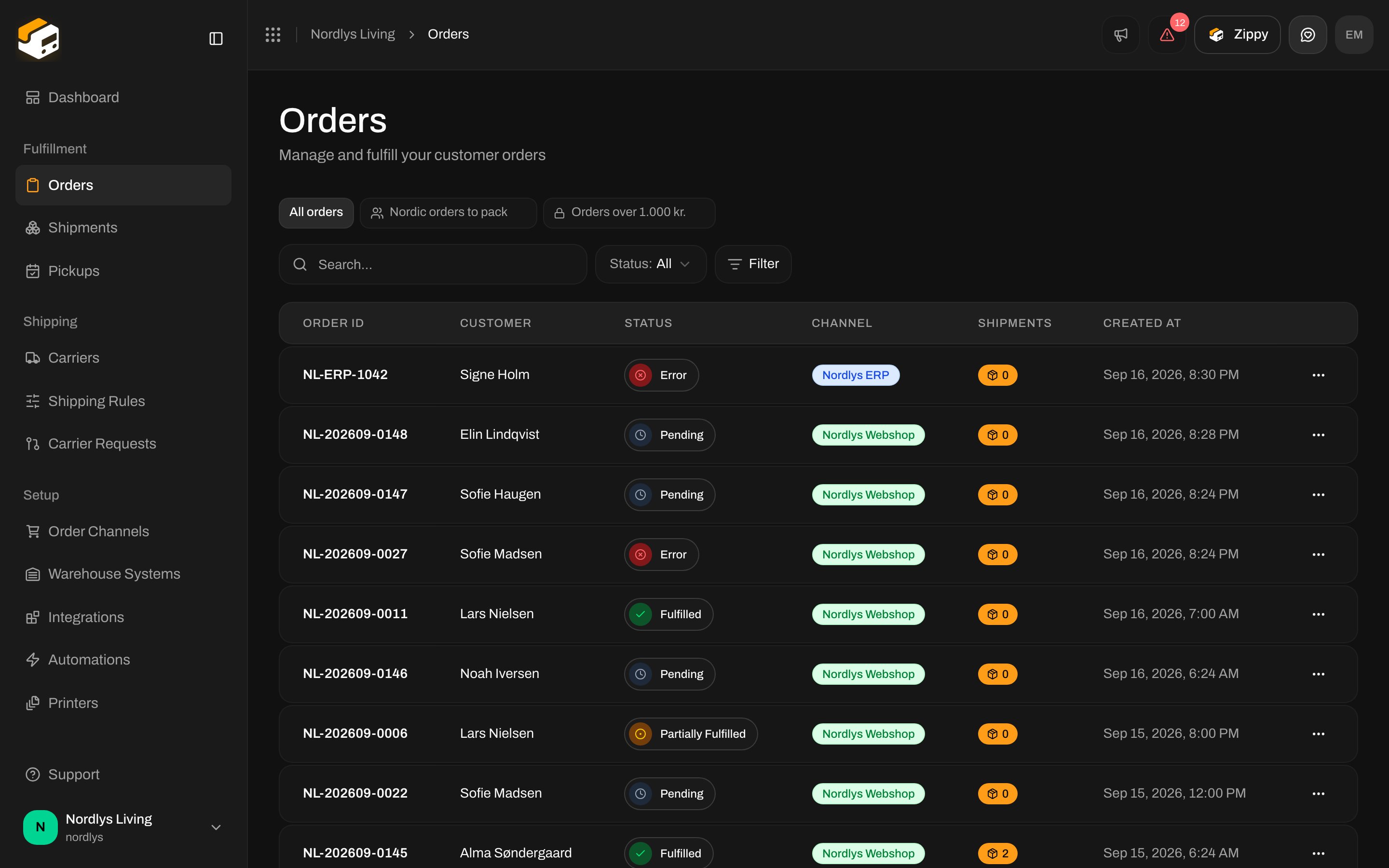
Everything here works the same on **Orders** and **Shipments**. The screenshots use the orders list.
 ## Before you start
* You need a few orders in the list. If you have none yet, connect a store first: [Connect order channels](/docs/tutorials/connect-order-channels).
* Anyone who can open the list can filter it and save views. No special role is needed.
## 1. Add your first filter
Above the table, next to the search box, click **Filter**. A list of everything you can filter on opens: status, order channel, country, customer name and email, order total, whether the order has a shipment yet, and when it was created or updated.
## Before you start
* You need a few orders in the list. If you have none yet, connect a store first: [Connect order channels](/docs/tutorials/connect-order-channels).
* Anyone who can open the list can filter it and save views. No special role is needed.
## 1. Add your first filter
Above the table, next to the search box, click **Filter**. A list of everything you can filter on opens: status, order channel, country, customer name and email, order total, whether the order has a shipment yet, and when it was created or updated.
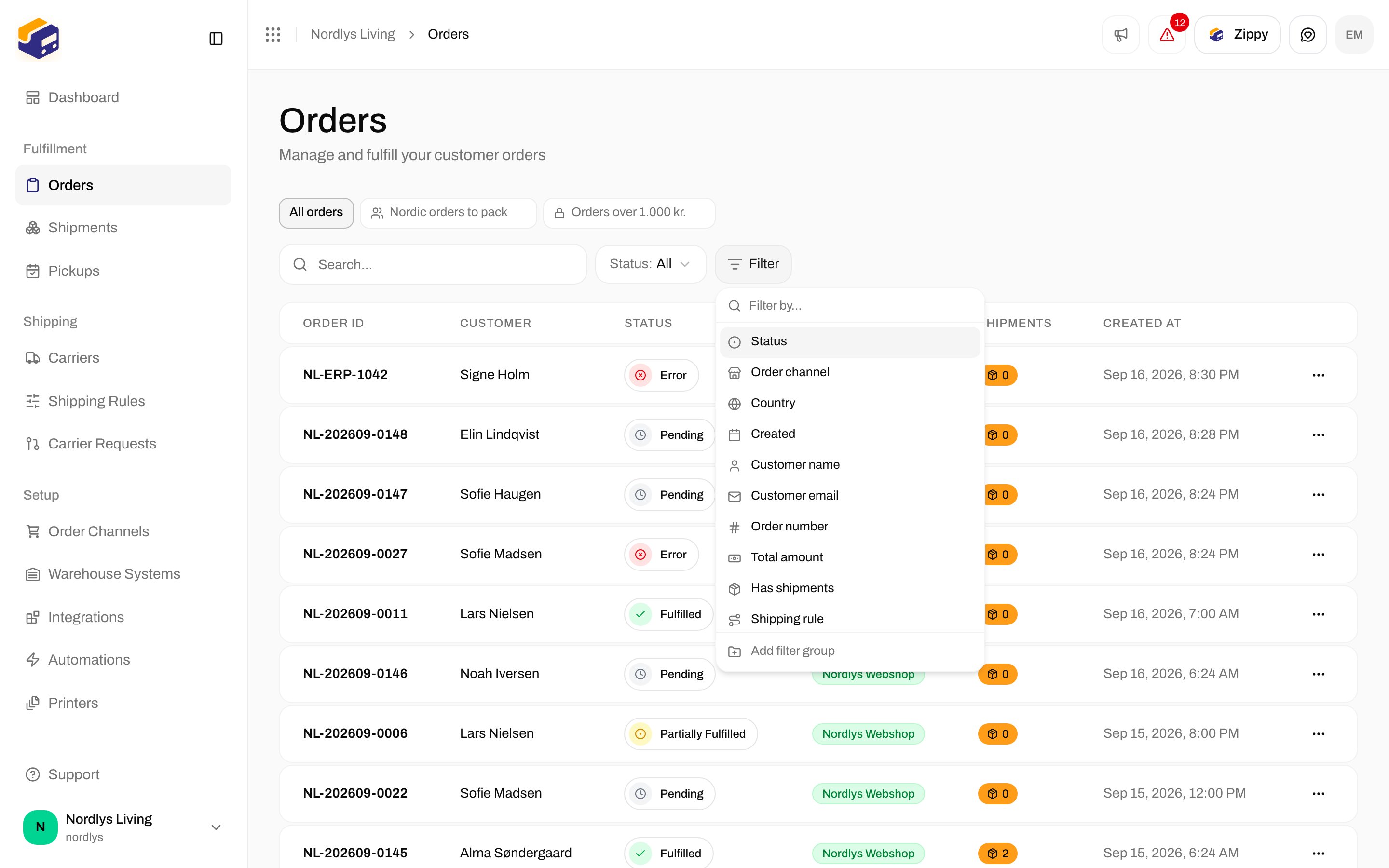
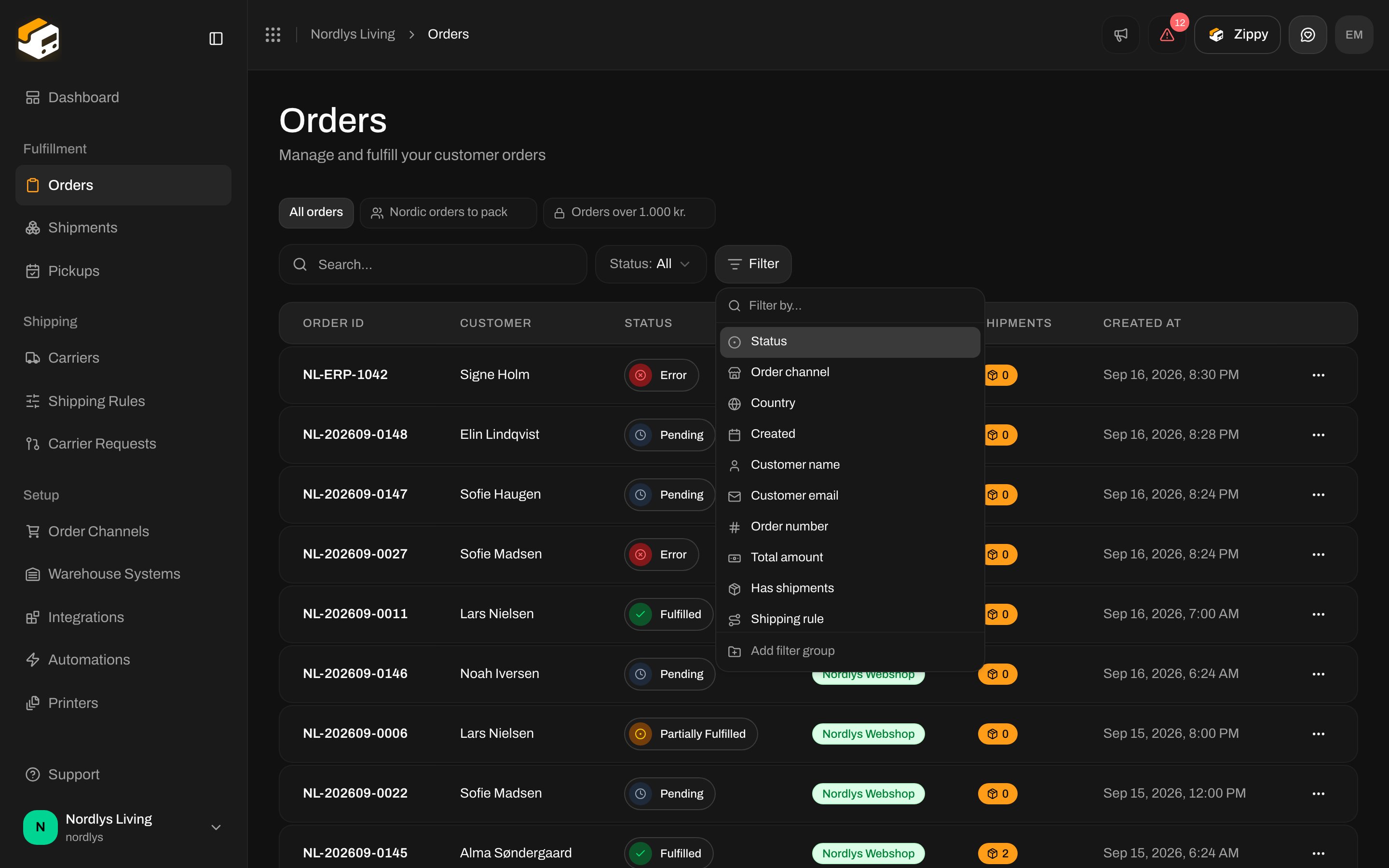 Start typing to find a property faster, or use the arrow keys and Enter.
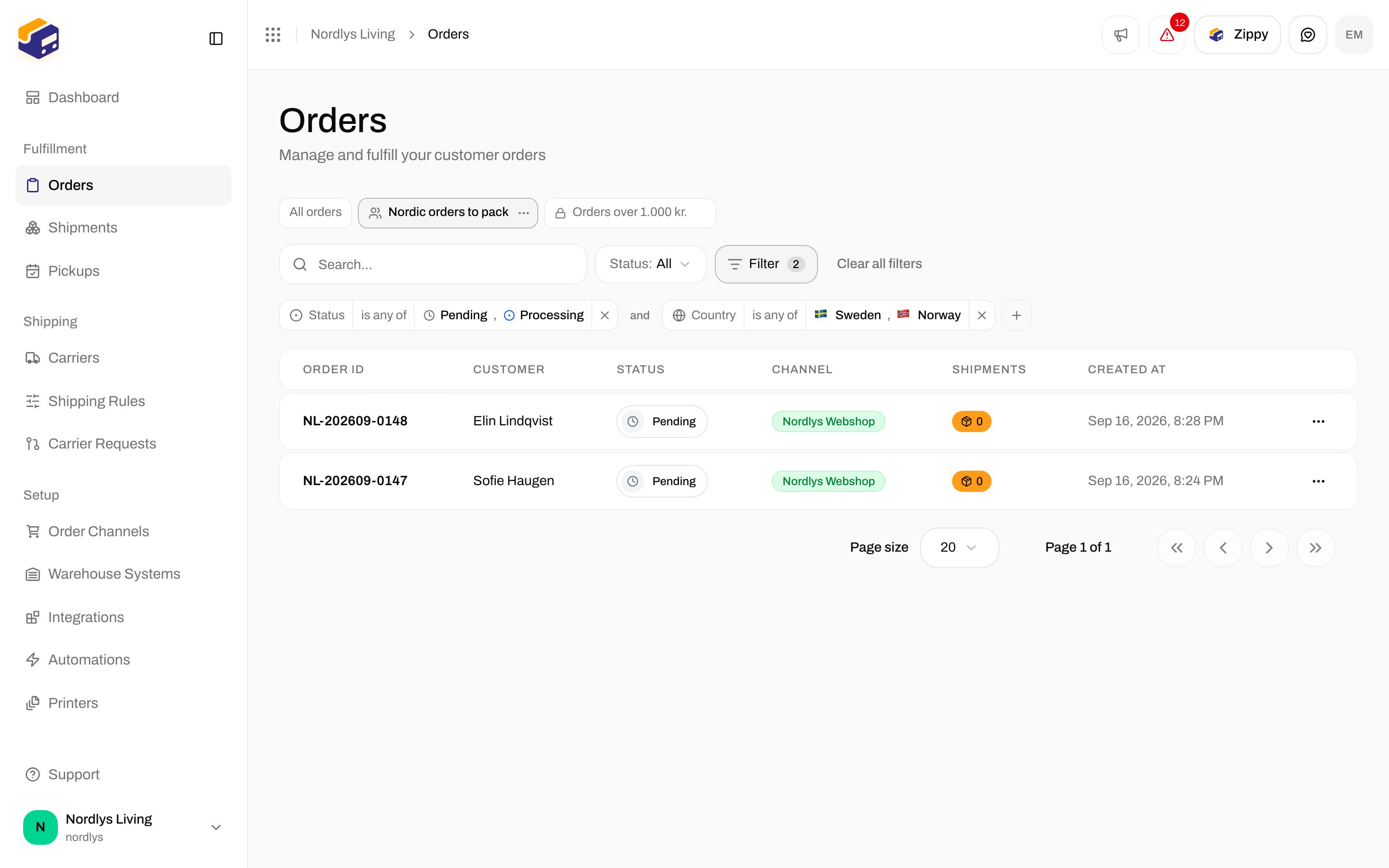
Choose **Status**, then tick **Pending** and **Processing**. The filter appears as a small tag above the table the moment you tick the first value, and the list updates behind it. Keep ticking or unticking until it reads the way you want, then click anywhere outside to close the menu.
Start typing to find a property faster, or use the arrow keys and Enter.
Choose **Status**, then tick **Pending** and **Processing**. The filter appears as a small tag above the table the moment you tick the first value, and the list updates behind it. Keep ticking or unticking until it reads the way you want, then click anywhere outside to close the menu.
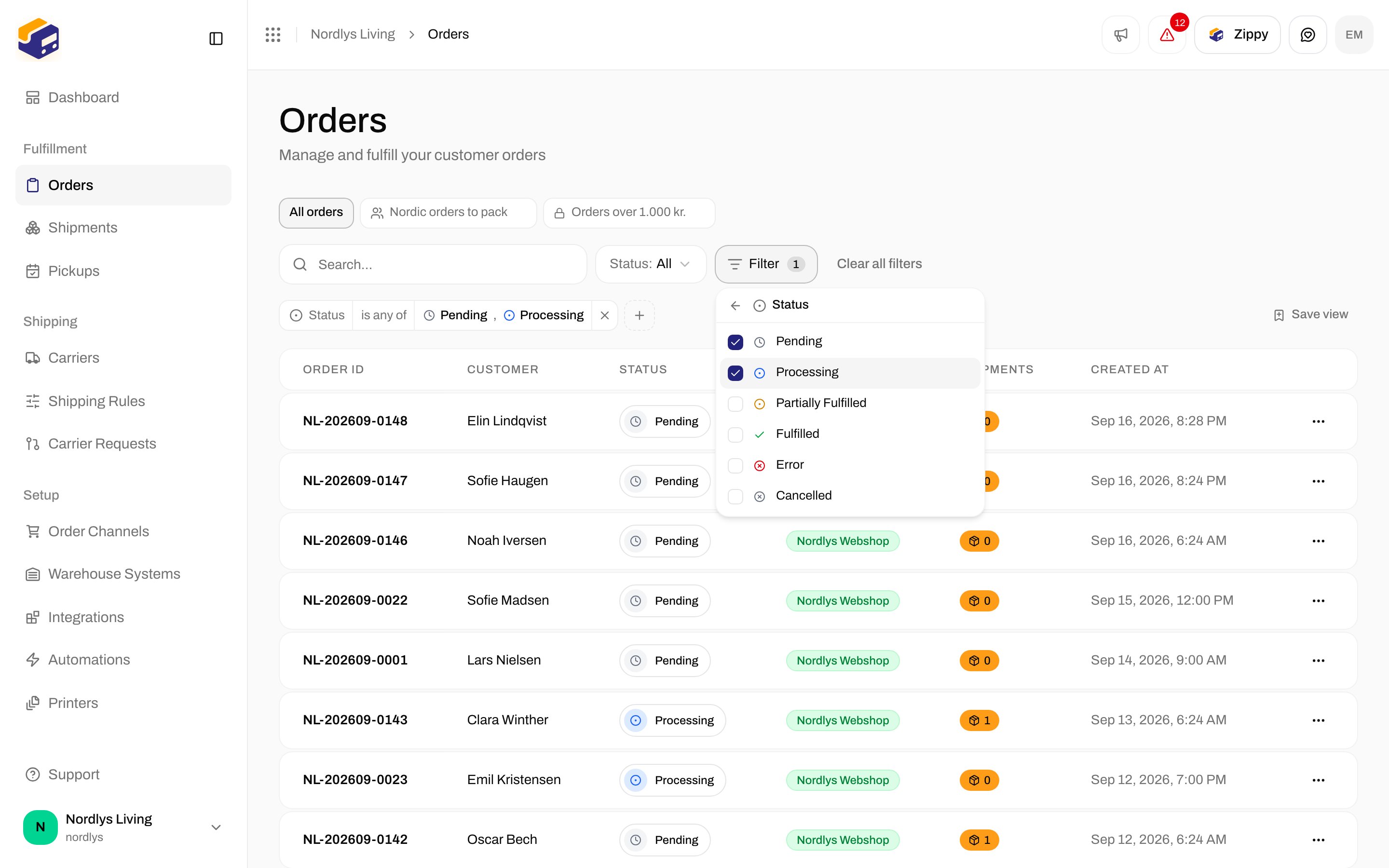
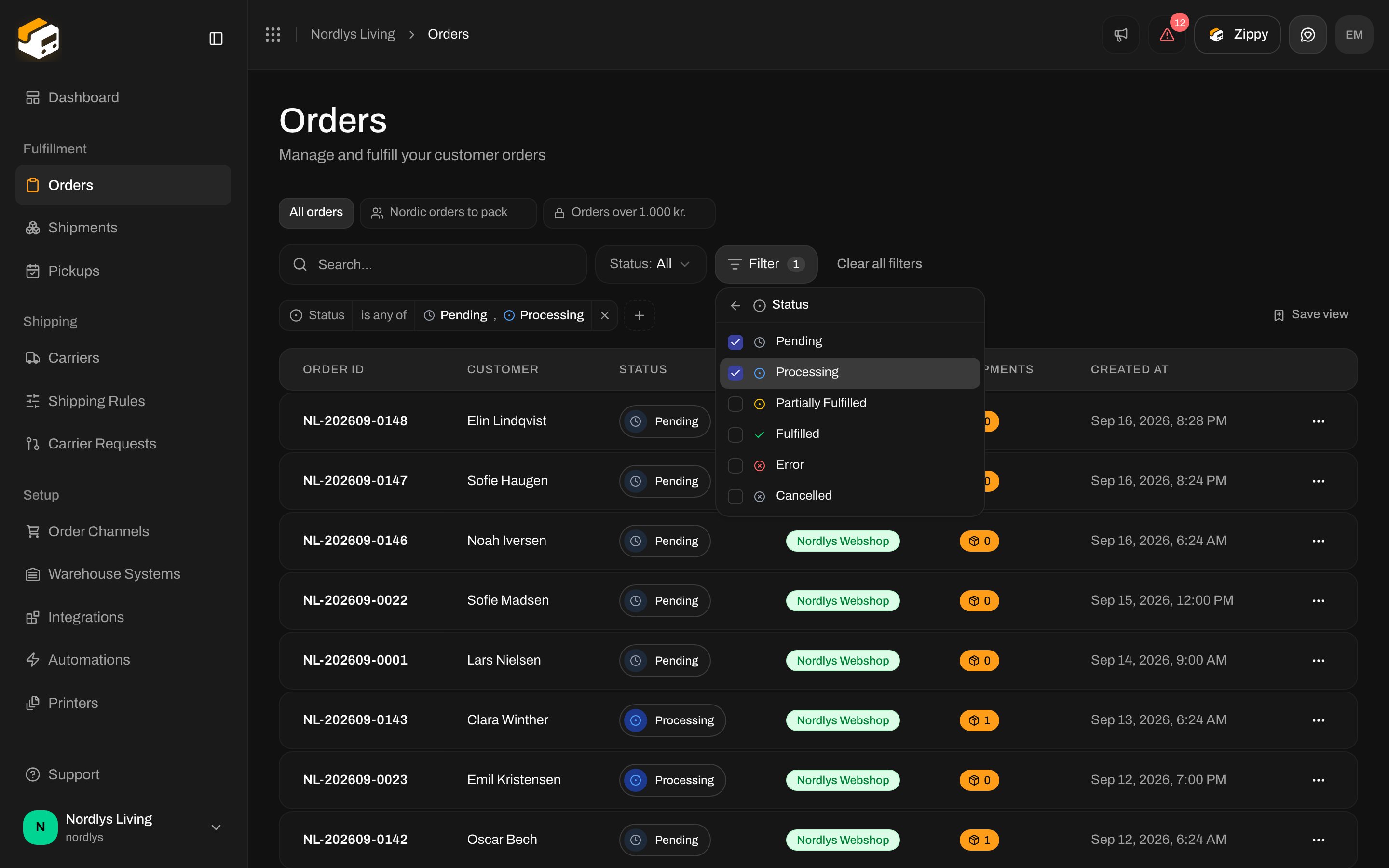 Click the small **+** at the end of the tags and choose **Country**. Tick **Sweden** and **Norway**. The two tags are joined by the word **and**, so an order has to match both to stay in the list.
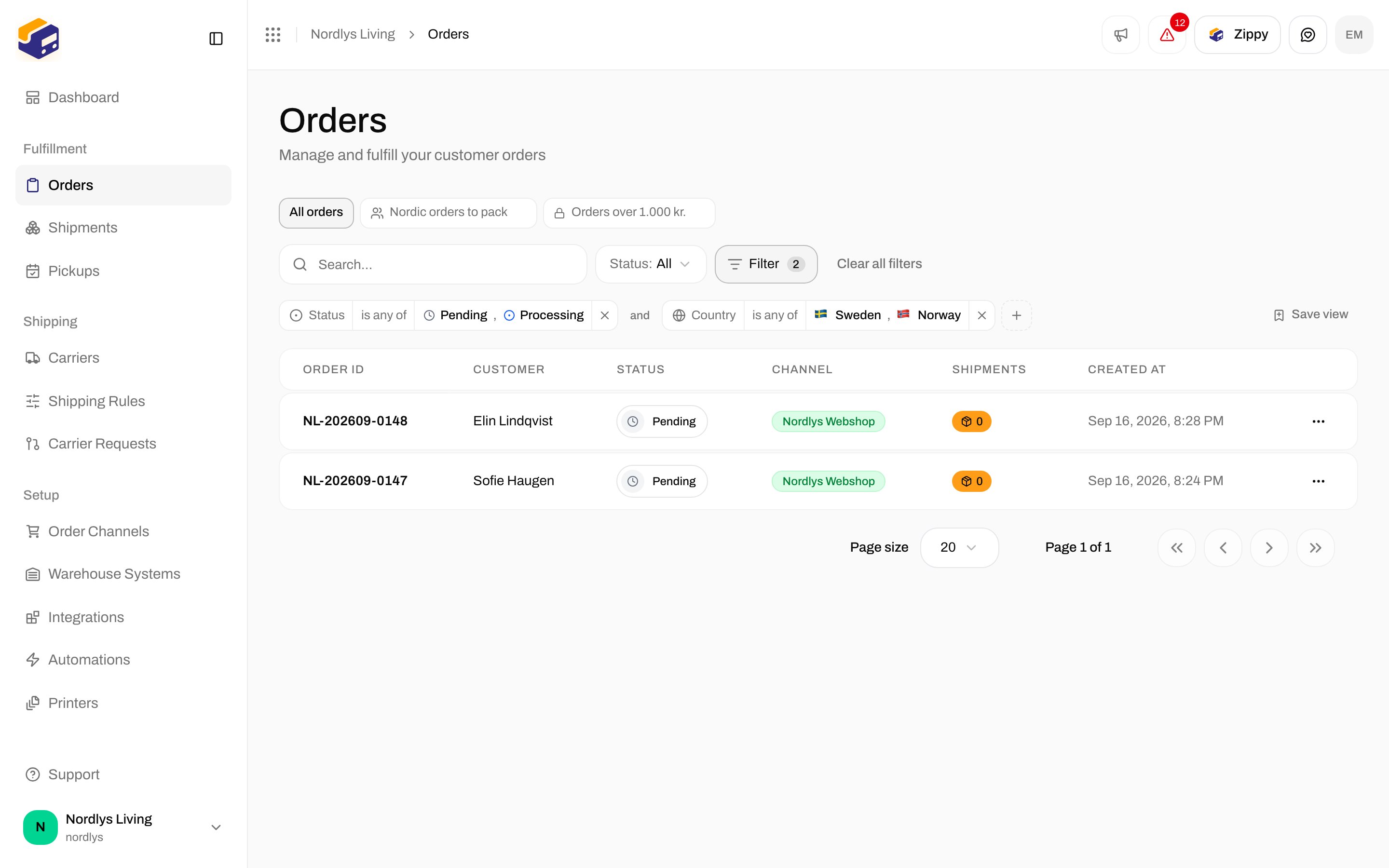
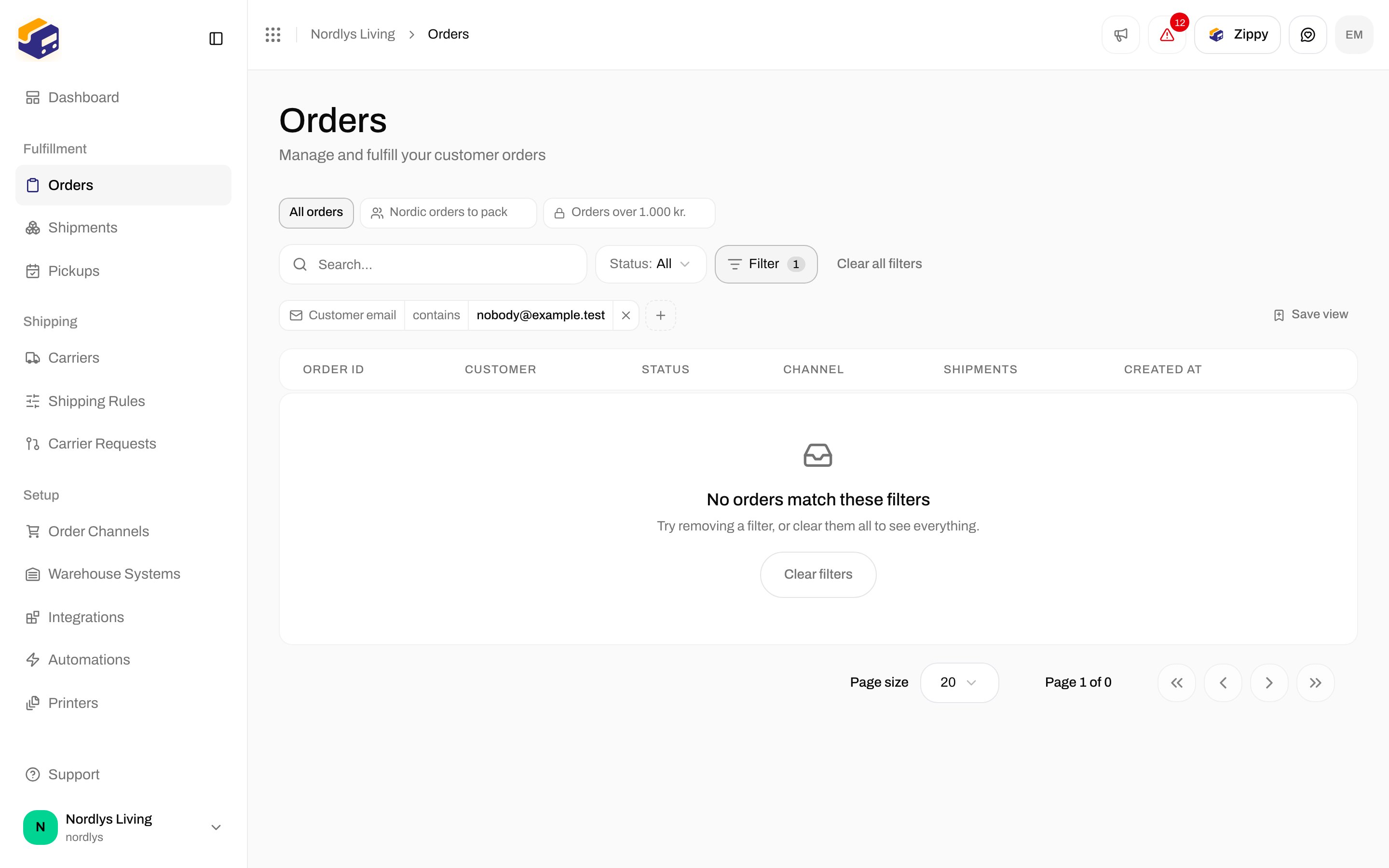
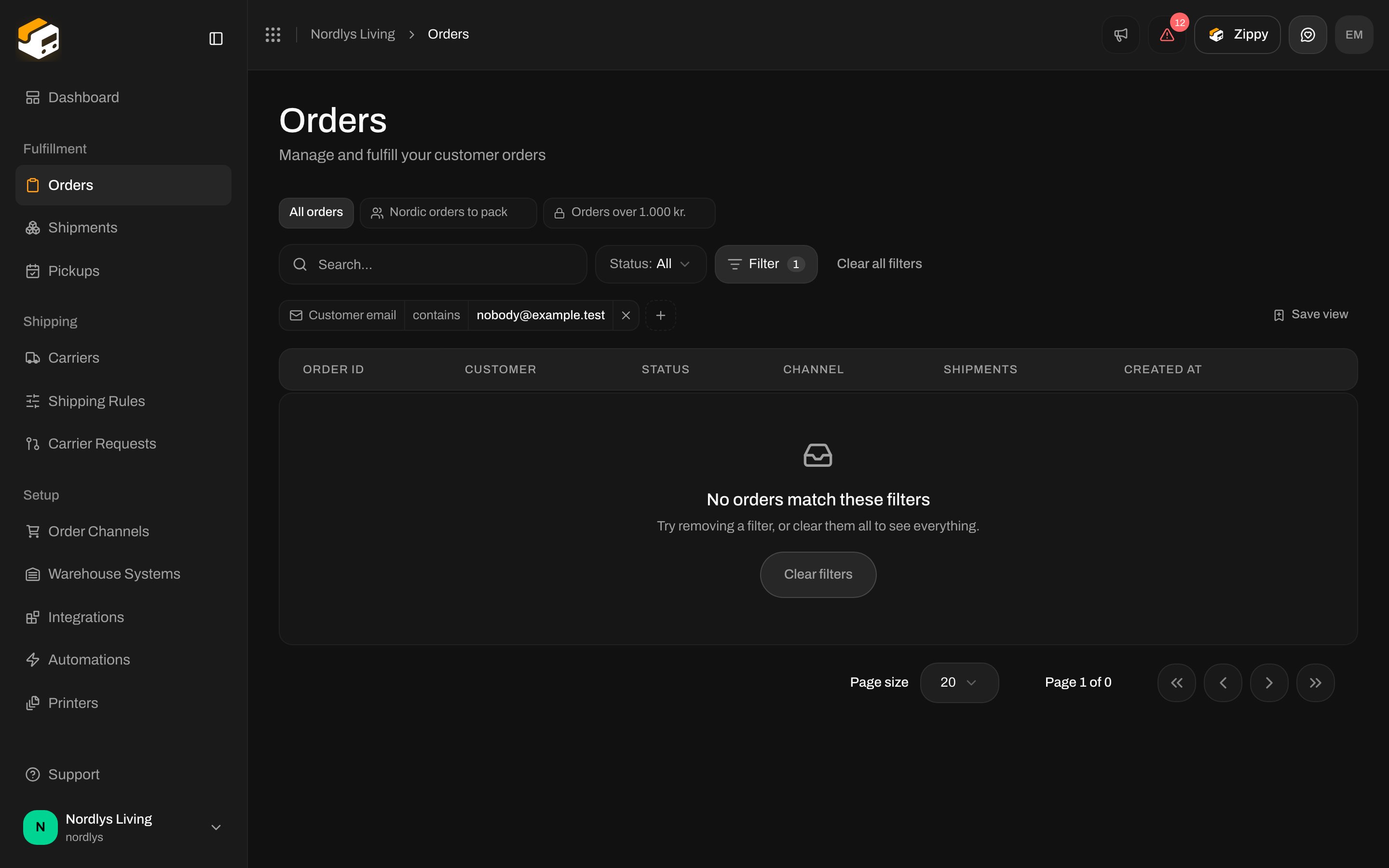
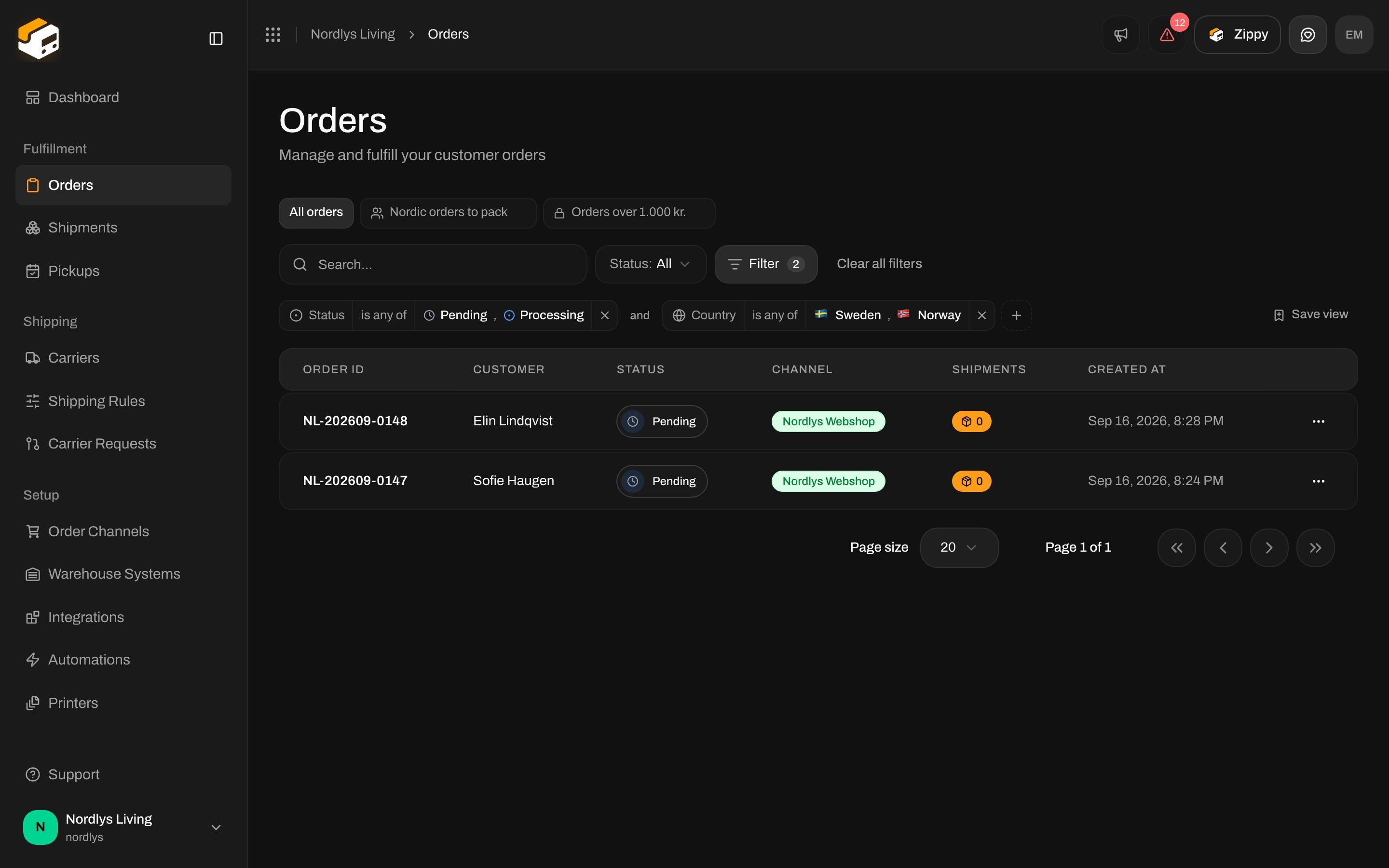 The number on the **Filter** button tells you how many filters are active. To remove one, click the **×** at the end of its tag.
## 2. Change how a filter matches
Each tag has three parts: the property, how it matches, and the value. Click the middle part to change how it matches. For a list such as **Country** the choices are **is any of** and **is not any of**. Text properties such as **Customer email** offer **contains**, **does not contain**, **starts with** and **ends with**. Amounts offer **is greater than**, **is at least**, **is less than** and **is at most**. Anything that can be empty also offers **is empty** and **is not empty**.
The number on the **Filter** button tells you how many filters are active. To remove one, click the **×** at the end of its tag.
## 2. Change how a filter matches
Each tag has three parts: the property, how it matches, and the value. Click the middle part to change how it matches. For a list such as **Country** the choices are **is any of** and **is not any of**. Text properties such as **Customer email** offer **contains**, **does not contain**, **starts with** and **ends with**. Amounts offer **is greater than**, **is at least**, **is less than** and **is at most**. Anything that can be empty also offers **is empty** and **is not empty**.
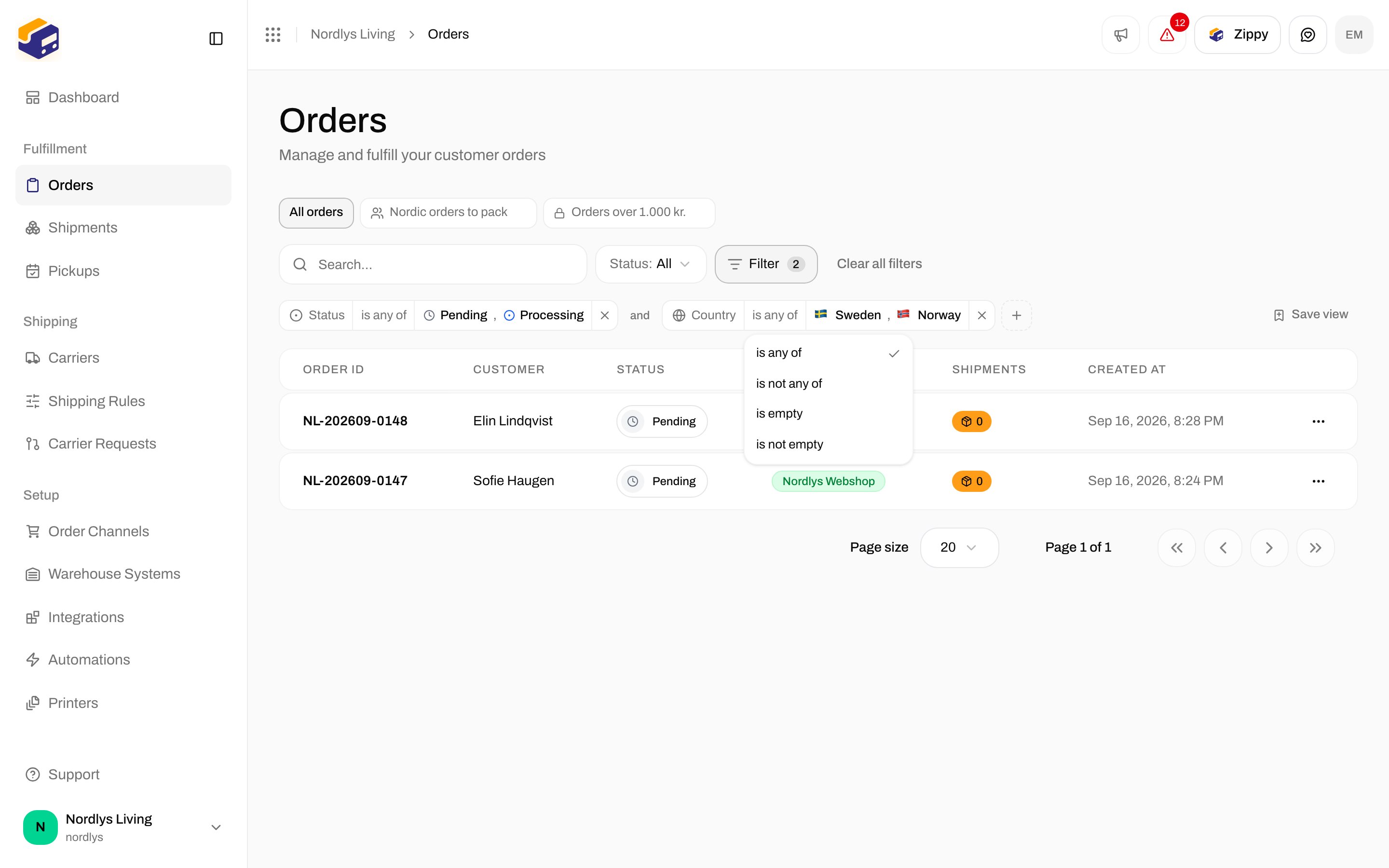
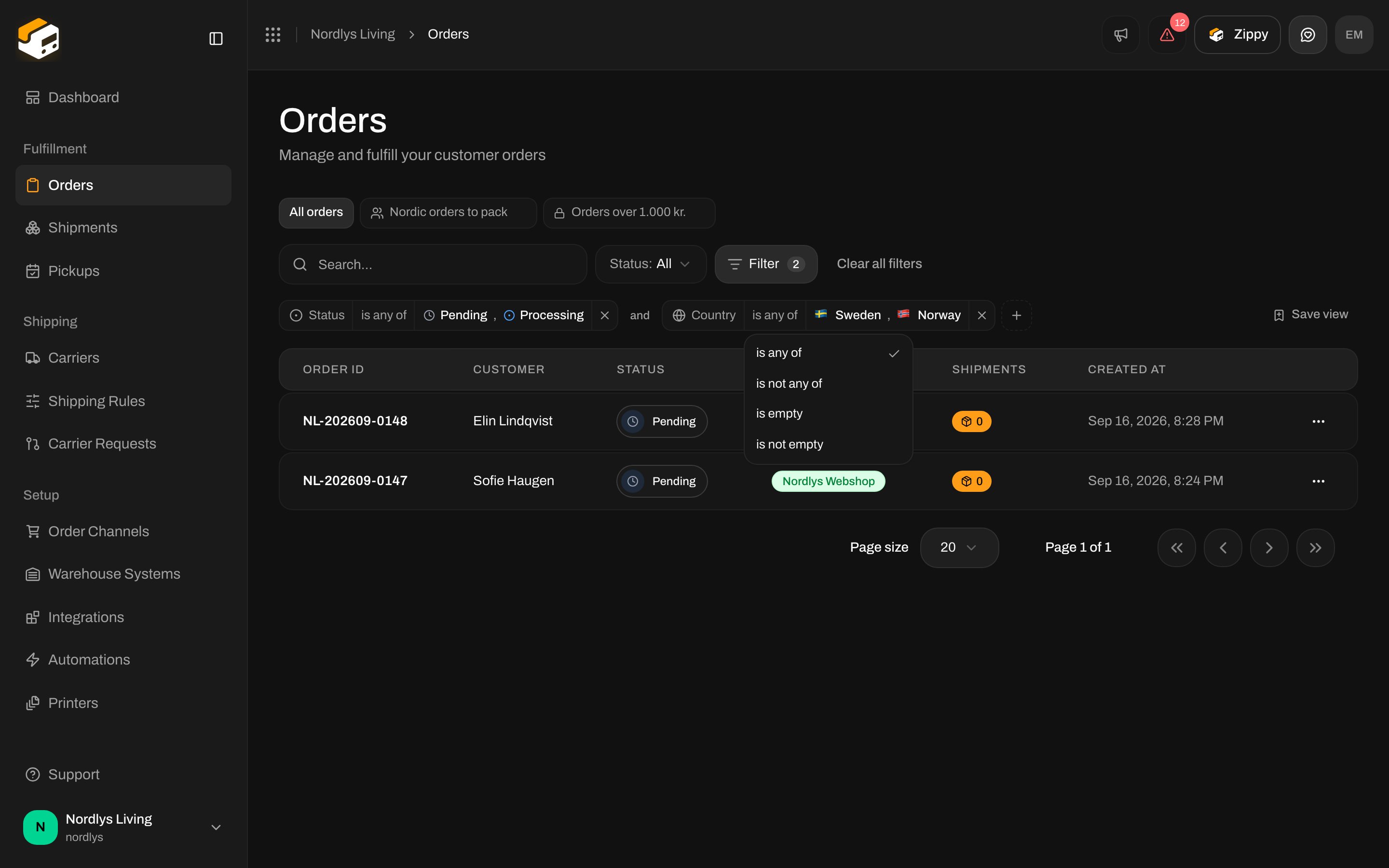 **Is not** keeps the orders where the value is missing. "Country is not Denmark" also shows orders that have no address yet, because those are not Denmark either. That is usually what you want when you are looking for problems.
## 3. Match all, or match any
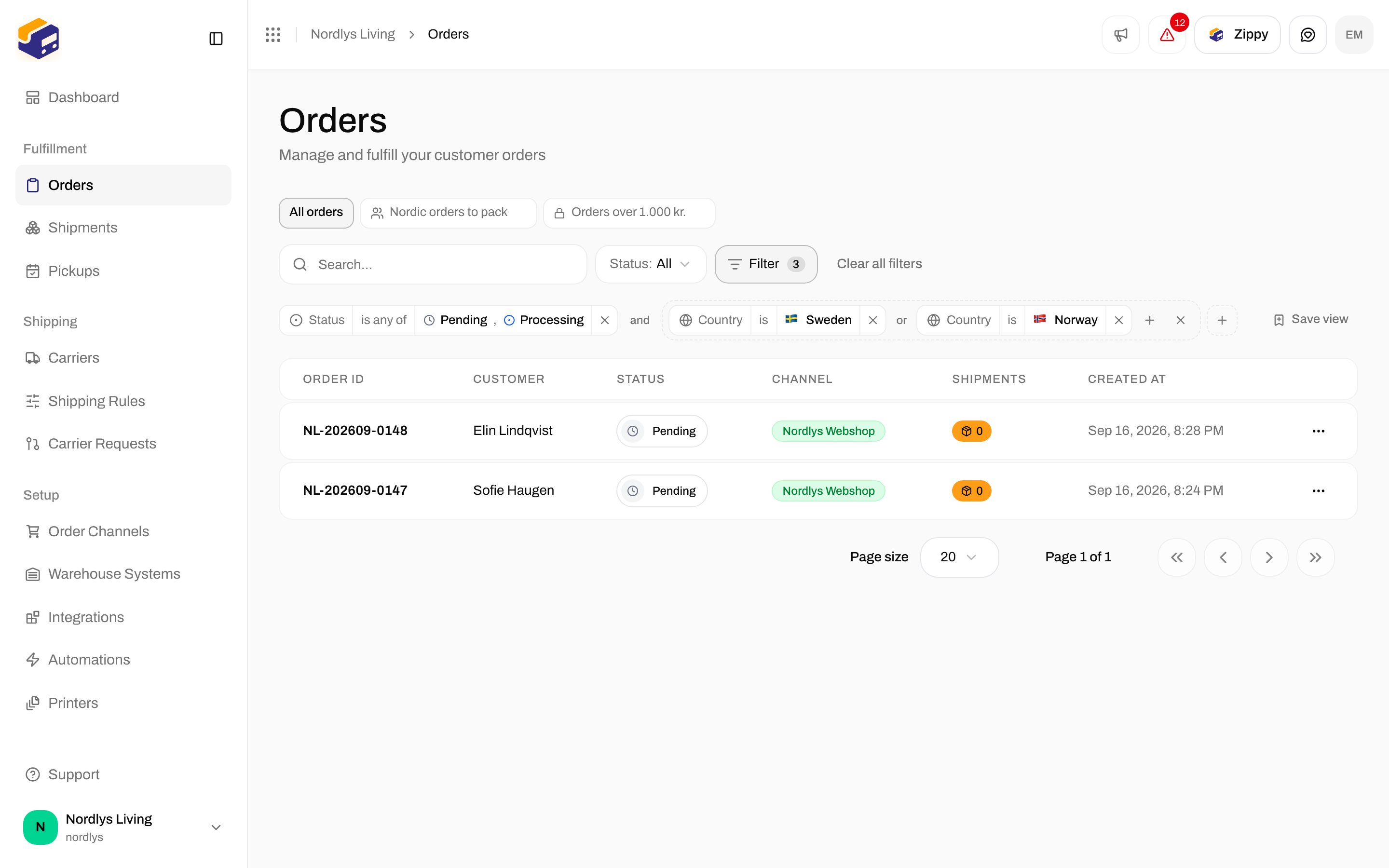
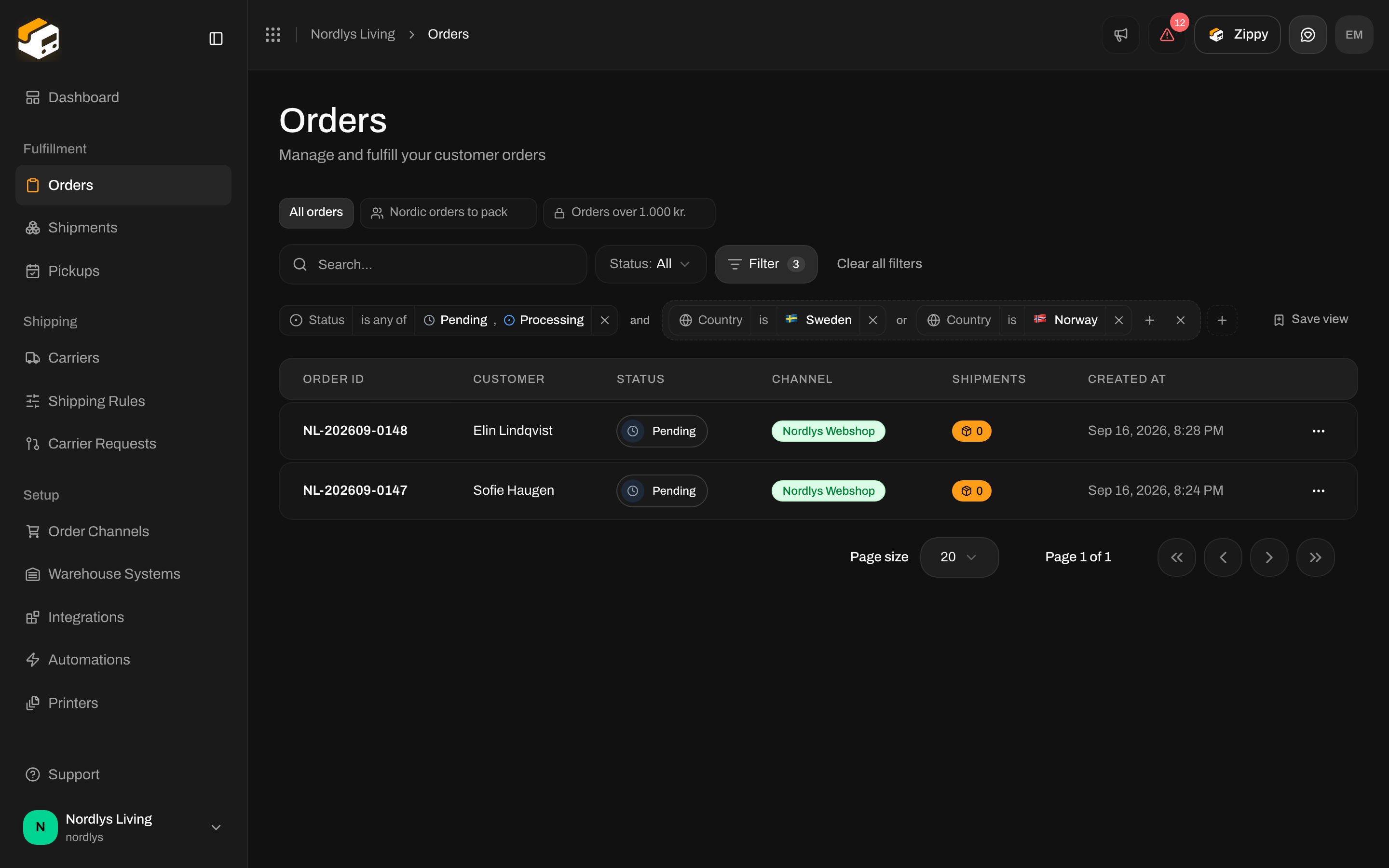
Click the word **and** between two tags and it becomes **or**. With **and**, an order has to match every tag. With **or**, matching one is enough.
When you need both in the same filter, put some tags in a group. Click **Filter**, choose **Add filter group** at the bottom, and pick the first property for the group. The group shows as a bracket with its own **and** / **or**.
**Is not** keeps the orders where the value is missing. "Country is not Denmark" also shows orders that have no address yet, because those are not Denmark either. That is usually what you want when you are looking for problems.
## 3. Match all, or match any
Click the word **and** between two tags and it becomes **or**. With **and**, an order has to match every tag. With **or**, matching one is enough.
When you need both in the same filter, put some tags in a group. Click **Filter**, choose **Add filter group** at the bottom, and pick the first property for the group. The group shows as a bracket with its own **and** / **or**.
 ## 4. Filter by date
Dates have shortcuts: **Today**, **Yesterday**, **1 week ago**, **2 weeks ago**, **1 month ago** and **3 months ago**, or **Custom date…** to pick a day from the calendar. "Created is on or after 1 week ago" gives you the last seven days.
## 4. Filter by date
Dates have shortcuts: **Today**, **Yesterday**, **1 week ago**, **2 weeks ago**, **1 month ago** and **3 months ago**, or **Custom date…** to pick a day from the calendar. "Created is on or after 1 week ago" gives you the last seven days.
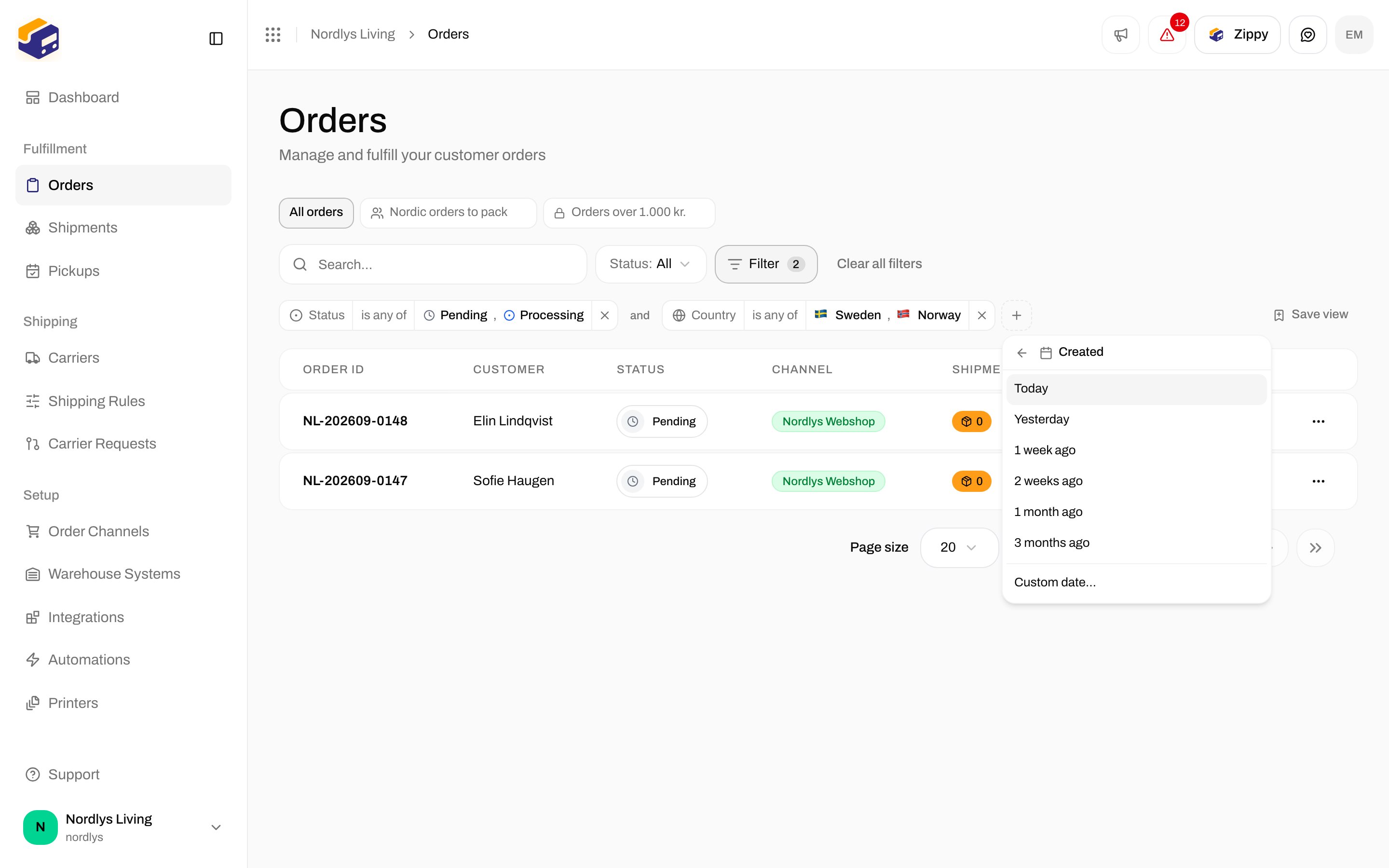
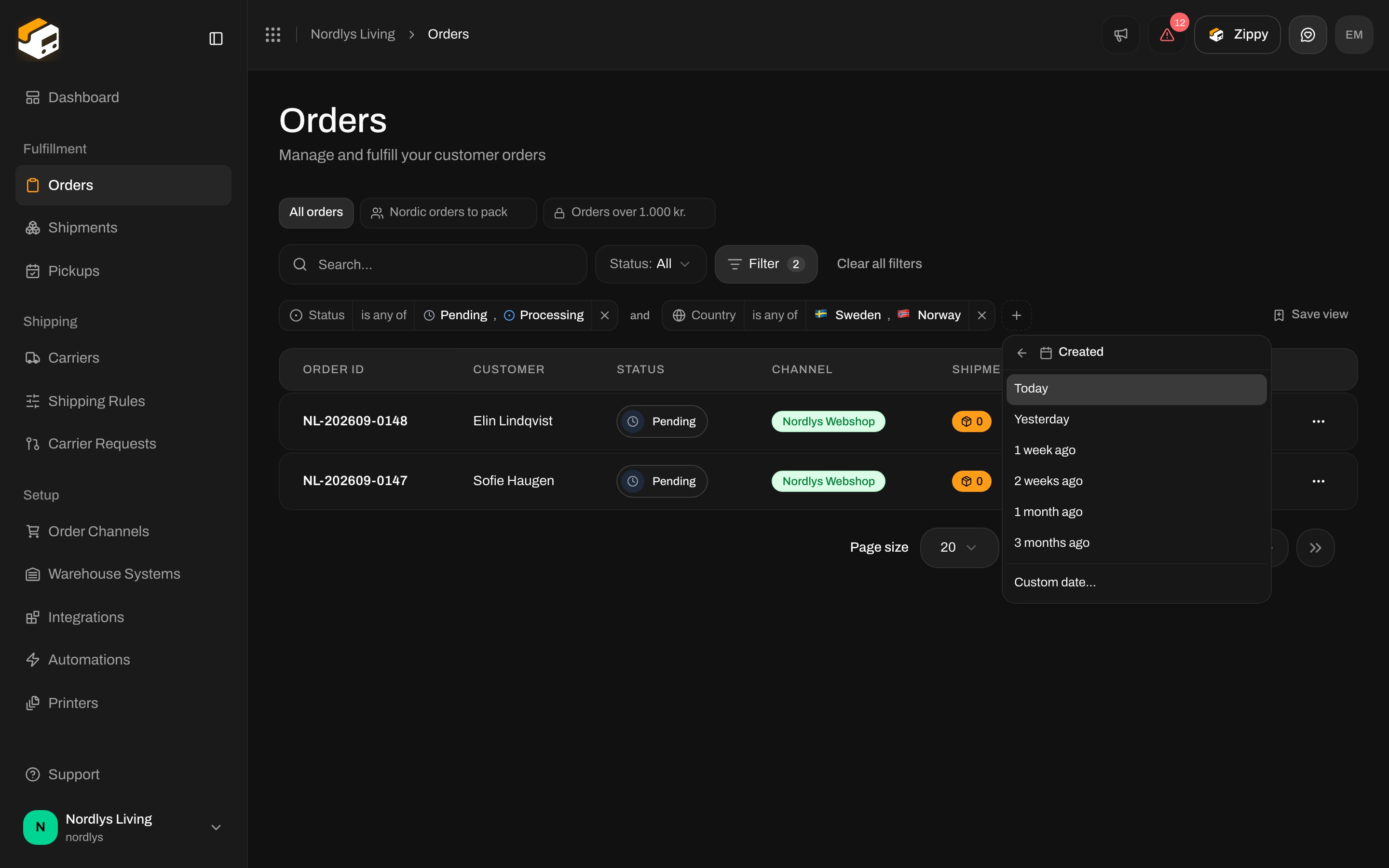 The shortcuts move with the calendar. A view saved with **1 week ago** still means "the last seven days" when you open it next month. A **Custom date** stays fixed on that day.
## 5. Save the filter as a view
Once a filter is worth keeping, save it.
At the right end of the tags, click **Save view**.
Give the view a short name your team will recognise, add a note if it helps, and choose **Only me** or **Everyone in the organization**.
The shortcuts move with the calendar. A view saved with **1 week ago** still means "the last seven days" when you open it next month. A **Custom date** stays fixed on that day.
## 5. Save the filter as a view
Once a filter is worth keeping, save it.
At the right end of the tags, click **Save view**.
Give the view a short name your team will recognise, add a note if it helps, and choose **Only me** or **Everyone in the organization**.
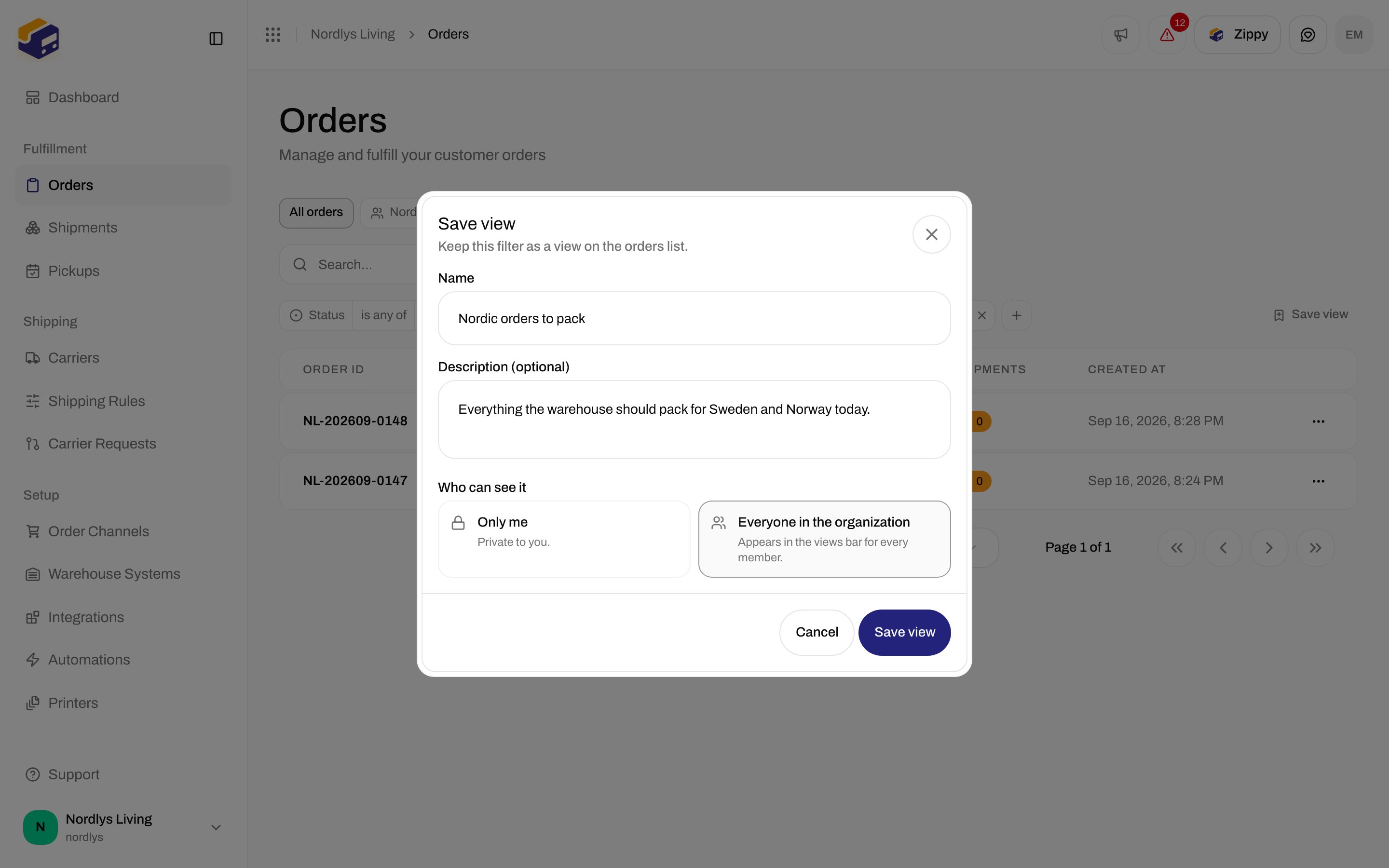
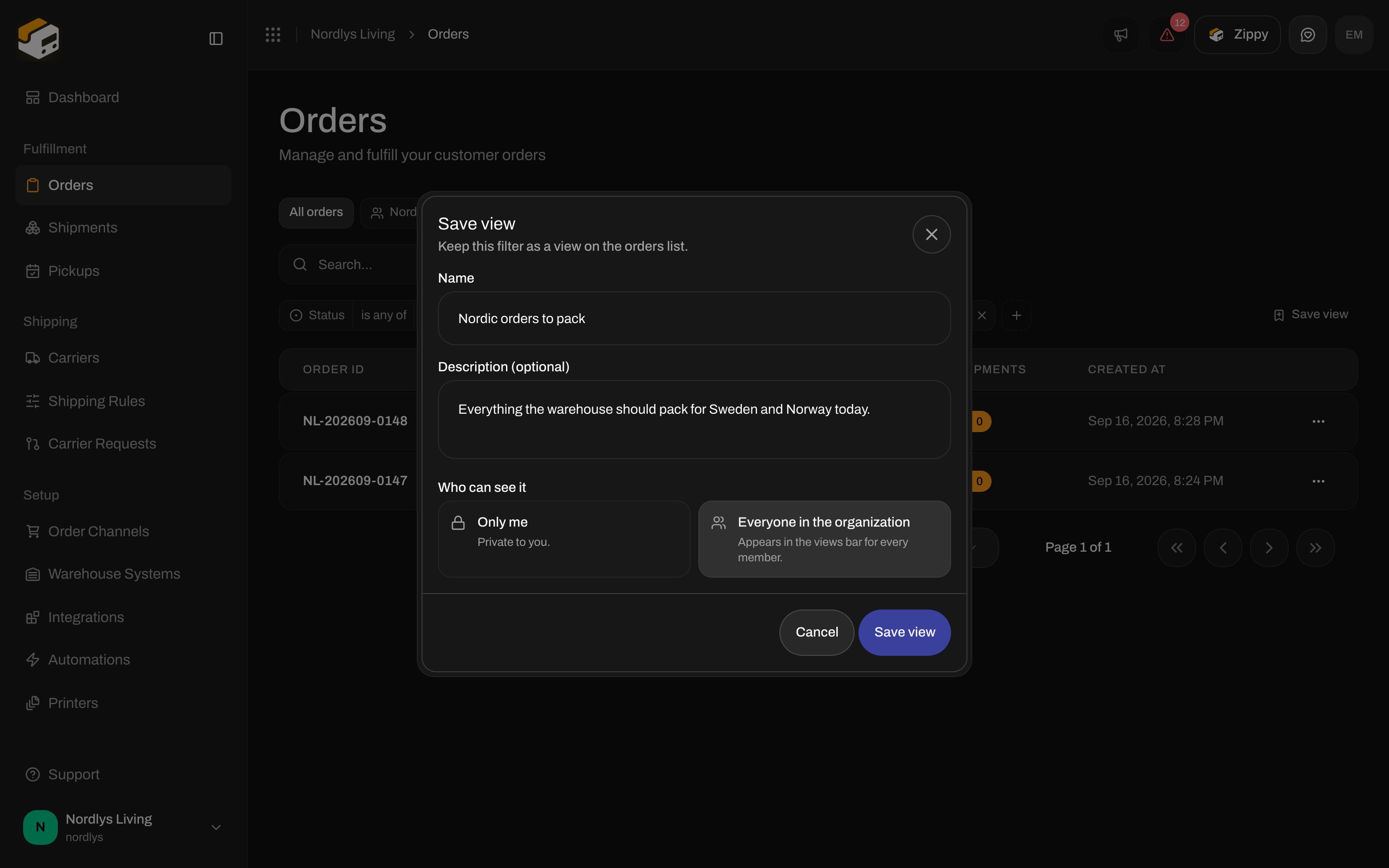 Saved views appear as tabs above the filters, after **All orders**. Click a tab to load its filter. The tab you are on is highlighted, and the little icon tells you whether the view is shared or personal.
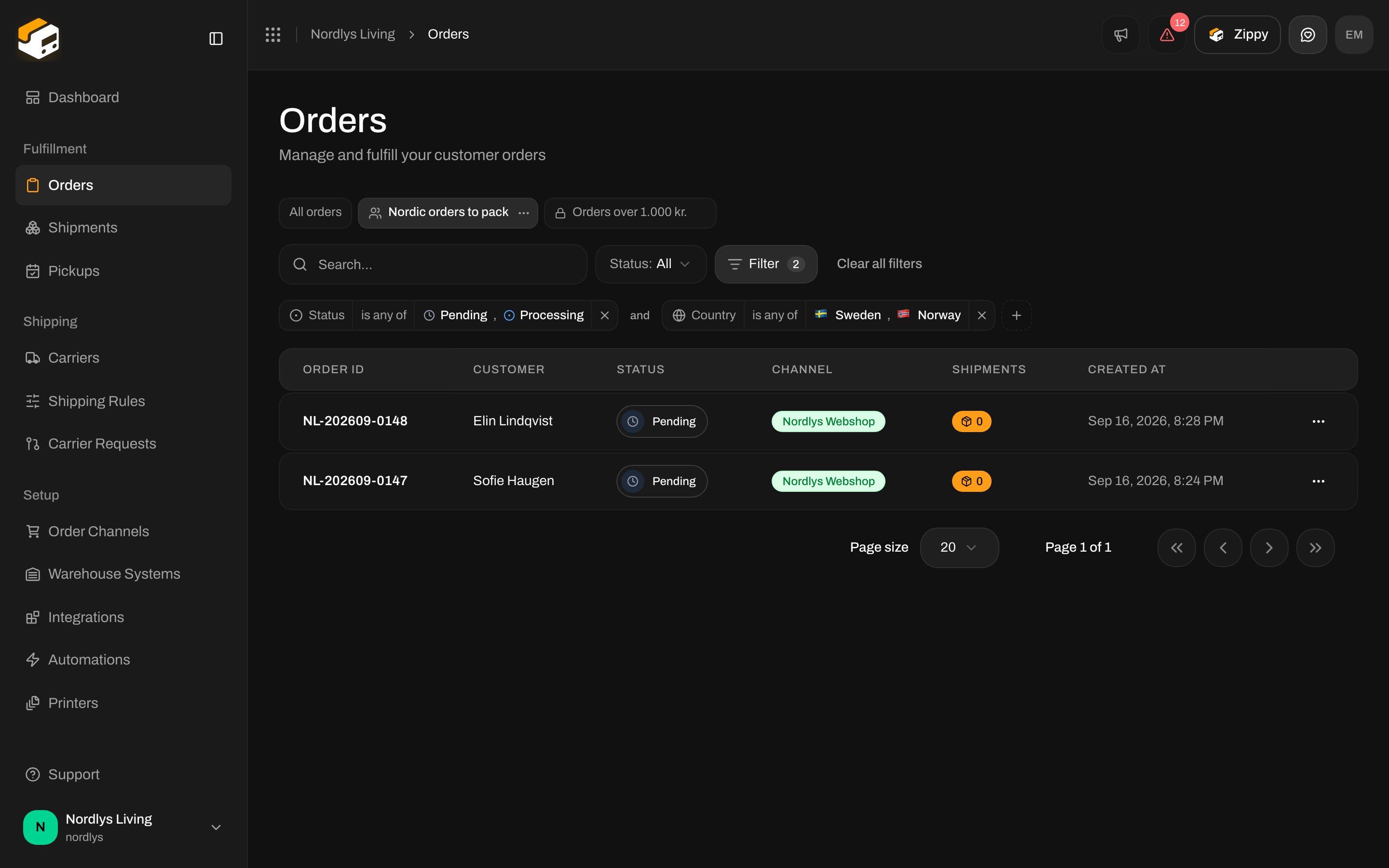 The filter is also in the page address. Copy the link from your browser and send it to a colleague, and they land on the same filtered list, even without a saved view.
## 6. Change a view later
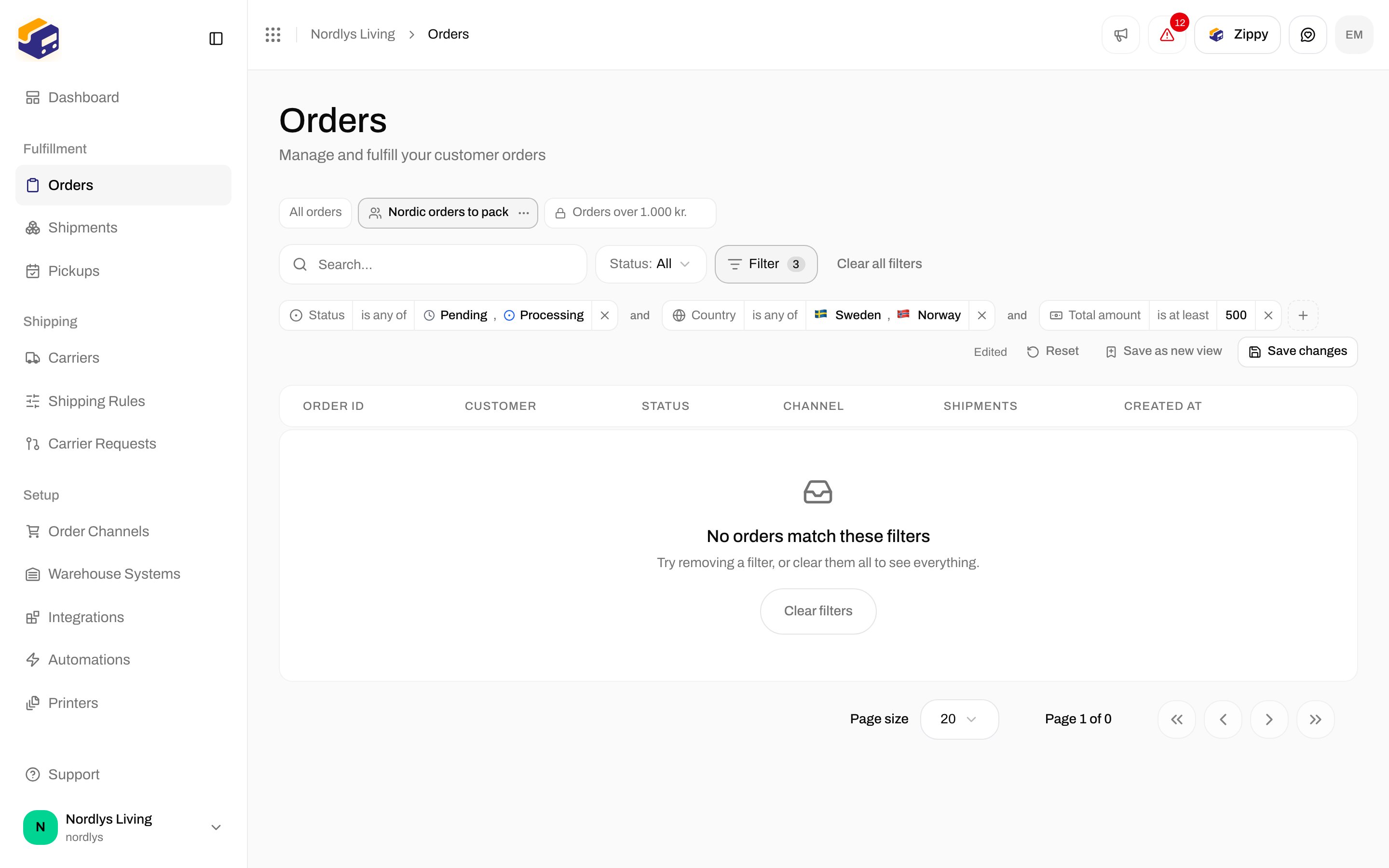
Open a view and change its filter. The bar marks the view as **Edited** and offers three choices:
* **Reset** puts the saved filter back.
* **Save changes** updates the view for everyone who can see it.
* **Save as new view** keeps the original and stores your changes as a second view.
The filter is also in the page address. Copy the link from your browser and send it to a colleague, and they land on the same filtered list, even without a saved view.
## 6. Change a view later
Open a view and change its filter. The bar marks the view as **Edited** and offers three choices:
* **Reset** puts the saved filter back.
* **Save changes** updates the view for everyone who can see it.
* **Save as new view** keeps the original and stores your changes as a second view.
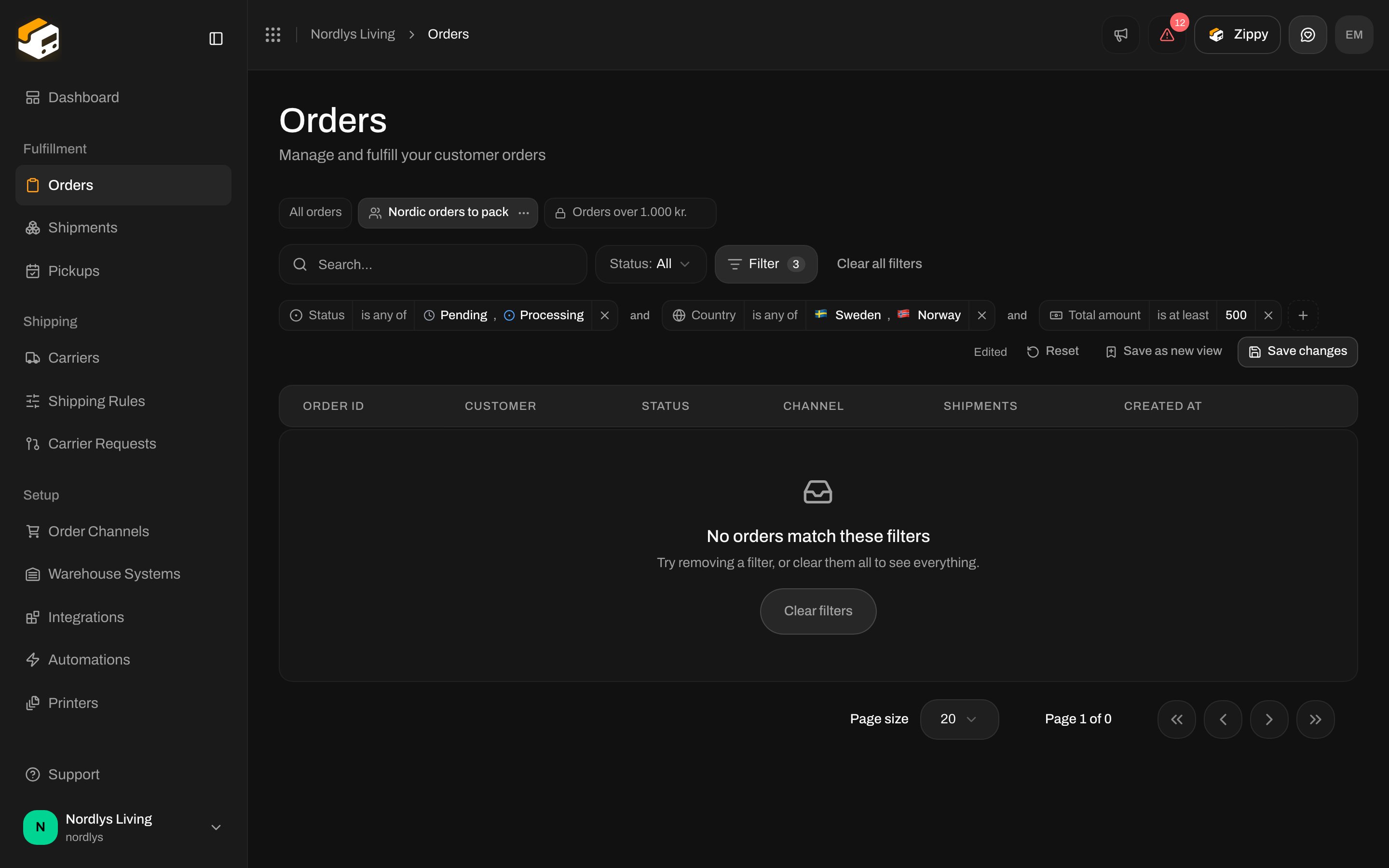 The small menu on a view tab lets you **Rename** it, switch it between **Share with the organization** and **Make personal**, or **Delete** it.
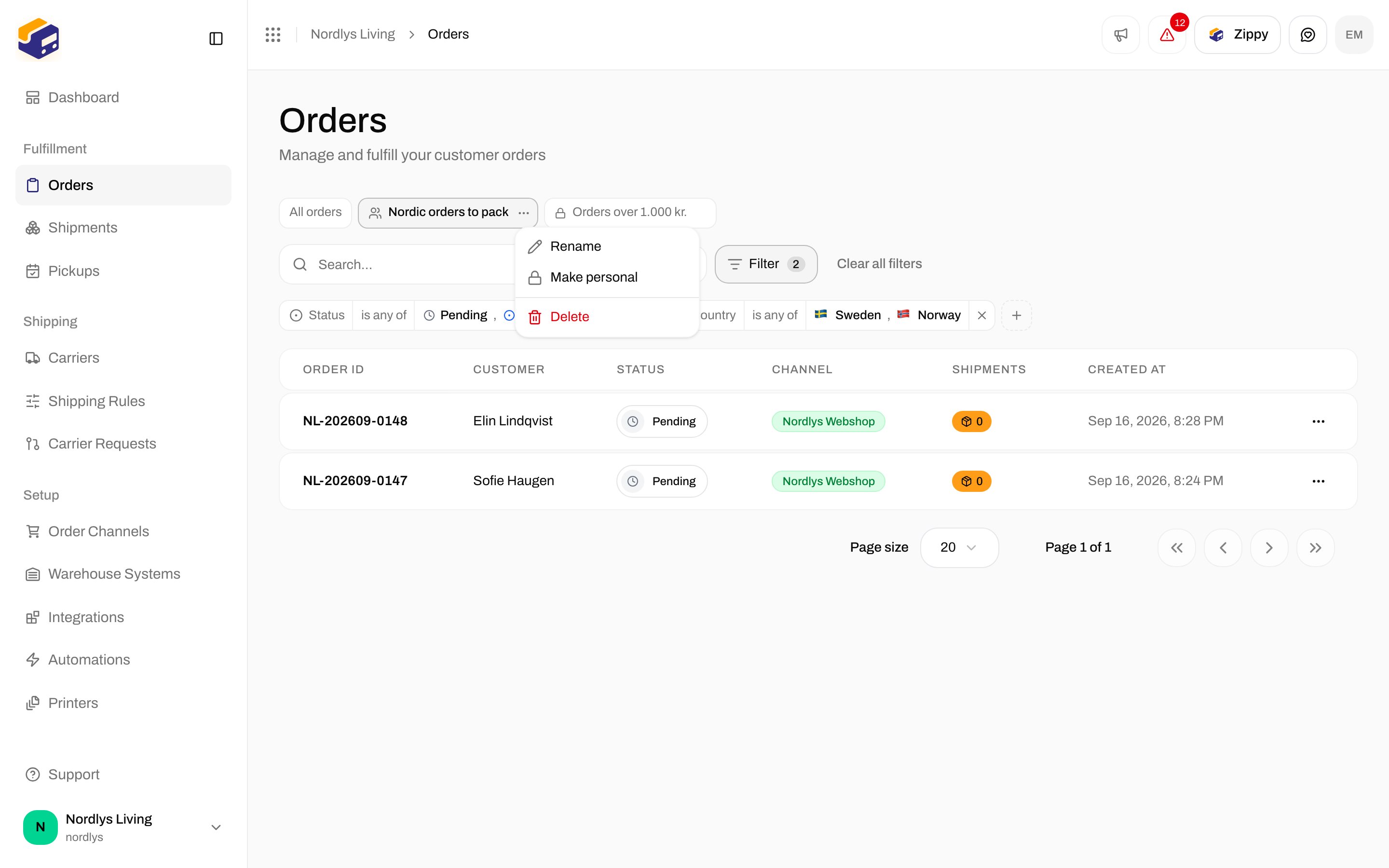
 Deleting a shared view removes it for everyone who could see it. The orders themselves are never affected by anything you do with filters or views.
## 7. The same on Shipments
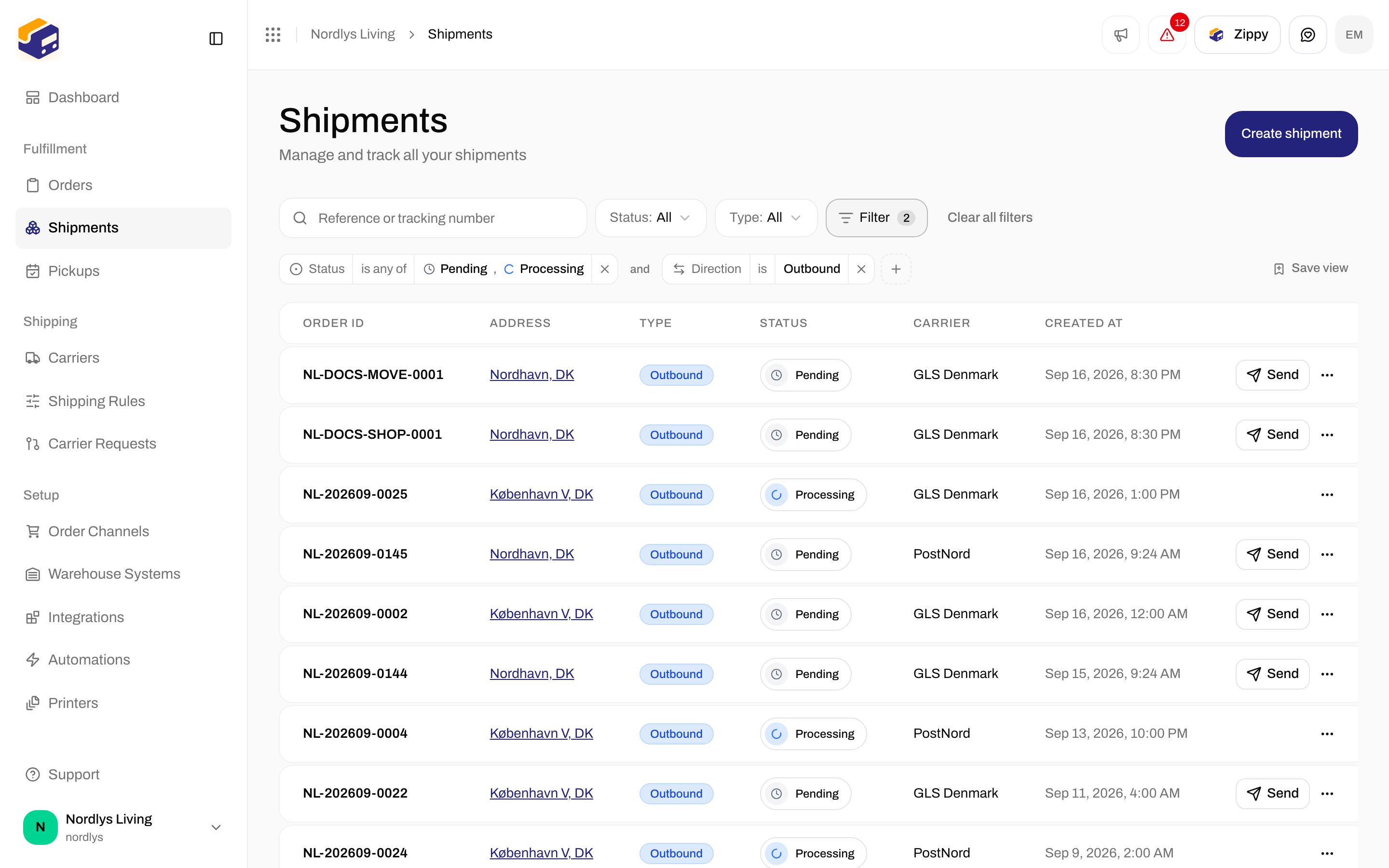
The **Shipments** list has its own **Filter** button with shipment properties: status, tracking status, direction, carrier, carrier product, recipient country, reference, tracking number, and whether the shipment has an order or documents. Its saved views are kept separately from the orders views.
Deleting a shared view removes it for everyone who could see it. The orders themselves are never affected by anything you do with filters or views.
## 7. The same on Shipments
The **Shipments** list has its own **Filter** button with shipment properties: status, tracking status, direction, carrier, carrier product, recipient country, reference, tracking number, and whether the shipment has an order or documents. Its saved views are kept separately from the orders views.
 ## When nothing matches
If a filter leaves nothing behind, the table says so and offers **Clear filters**. It does not mean your orders are gone.
## When nothing matches
If a filter leaves nothing behind, the table says so and offers **Clear filters**. It does not mean your orders are gone.
 ## Ideas for views
| View | Filter |
| ------------------------------ | -------------------------------------------------------------- |
| **Pack today** | Status is Pending or Processing, and Has shipments is No |
| **Nordic orders** | Country is Sweden or Norway |
| **High value** | Total amount is at least 1.000 |
| **Stuck in error** | Status is Error, and Created is on or before 2 weeks ago |
| **This week's Shopify orders** | Channel type is Shopify, and Created is on or after 1 week ago |
## Good to know
* Each list can hold up to 50 saved views.
* If your organization uses brands, a view saved while you are looking at one brand only appears inside that brand and in the whole-organization view. Inside a brand, the **Brand** property is not offered, since every order there already belongs to that brand.
* Personal views are yours alone. Nobody else sees them, including administrators.
## Related
* [Orders](/docs/tutorials/orders) for the rest of the orders screen
* [Search and filters](/docs/how-to/search-and-filters) for every control on the filter bar
* [Order statuses](/docs/orders/order-statuses) and [Shipment statuses](/docs/shipments/shipment-statuses) for what each status means
## Ideas for views
| View | Filter |
| ------------------------------ | -------------------------------------------------------------- |
| **Pack today** | Status is Pending or Processing, and Has shipments is No |
| **Nordic orders** | Country is Sweden or Norway |
| **High value** | Total amount is at least 1.000 |
| **Stuck in error** | Status is Error, and Created is on or before 2 weeks ago |
| **This week's Shopify orders** | Channel type is Shopify, and Created is on or after 1 week ago |
## Good to know
* Each list can hold up to 50 saved views.
* If your organization uses brands, a view saved while you are looking at one brand only appears inside that brand and in the whole-organization view. Inside a brand, the **Brand** property is not offered, since every order there already belongs to that brand.
* Personal views are yours alone. Nobody else sees them, including administrators.
## Related
* [Orders](/docs/tutorials/orders) for the rest of the orders screen
* [Search and filters](/docs/how-to/search-and-filters) for every control on the filter bar
* [Order statuses](/docs/orders/order-statuses) and [Shipment statuses](/docs/shipments/shipment-statuses) for what each status means