> ## Documentation Index
> Fetch the complete documentation index at: https://www.zippendo.com/docs/llms.txt
> Use this file to discover all available pages before exploring further.
# Connect Shopify
> Install Zippendo from the Shopify App Store and finish setup in the client so orders sync into your organization.
Connecting Shopify creates an **order channel** for that store. New orders sync into **Orders**, you can book shipments from them, and Zippendo can write fulfillment and tracking back to Shopify when you dispatch.
This walkthrough follows the client UI as it exists today. Connecting always starts in the Shopify App Store — Zippendo does not ask you to type a `myshopify.com` domain.
Live Shopify OAuth (the App Store listing and the Shopify admin consent screen) cannot be completed in the documentation environment. Those steps are described from the install flow in the product. Every Zippendo screen in the connect path is shown below.
## What connecting does
After a successful connect, Zippendo:
* Creates a Shopify order channel for the store and shows it under **Order channels → Connected stores**.
* Registers order webhooks so new and updated orders arrive in near real time (`ORDERS_CREATE`, `ORDERS_UPDATED`, `ORDERS_CANCELLED`, `ORDERS_FULFILLED`, `ORDERS_PARTIALLY_FULFILLED`).
* Registers a carrier service named **Zippendo Shipping** so [live checkout rates](/docs/order-channels/shopify-checkout-rates) can appear in Shopify checkout when your plan supports third-party carrier-calculated shipping.
* Enqueues an initial order import based on the import range you chose on the connect screen.
* Turns **Fulfillment sync to Shopify** on by default: when you dispatch a shipment in Zippendo, the Shopify order is marked fulfilled with its tracking number. This does not book the carrier by itself.
You do not configure webhooks yourself in Shopify for this integration.
Already a paying Zippendo customer? Your existing subscription continues unchanged — installing the app does not move your billing to Shopify.
## Before you start
* A **Shopify store** and permission to install apps (store owner or a staff account that can approve the scopes below).
* A Zippendo **organization**. If you install the app before you have an account, the connect screen lets you **Create a Zippendo account** or **Sign in**.
* At least one [sender address](/docs/settings/sender-addresses) if you want a default sender on connect. You can skip it and set **Default Address** later.
* A [connected carrier](/docs/tutorials/carriers) and [shipping rules](/docs/tutorials/shipping-rules) if you want checkout rates or method mapping to pre-fill shipments.
* Shopify **third-party carrier-calculated shipping** if you want live rates at checkout (included on Advanced and Plus; other plans may add it). Stores without it still sync orders — use [shipping method mapping](/docs/order-channels/shopify-shipping-method-mapping) instead.
Zippendo requests these Shopify scopes when you install:
* `read_orders` — import orders
* `write_fulfillments`, `write_merchant_managed_fulfillment_orders`, `write_third_party_fulfillment_orders` — write tracking back
* `read_shipping`, `write_shipping` — carrier service / checkout rates
* `read_products` — line-item weight, HS codes, origin, barcode
* `read_customers` — recipient name and email for labels
If your organization uses [brands](/docs/settings/brands), assign the **Brand** after connecting on **Orders & checkout**. The connect flow does not ask for a brand. Shopify store cards in **Connected stores** do not show a brand badge.
## Connect the store
In the sidebar, go to **Order channels**. Open the **Available integrations** tab.
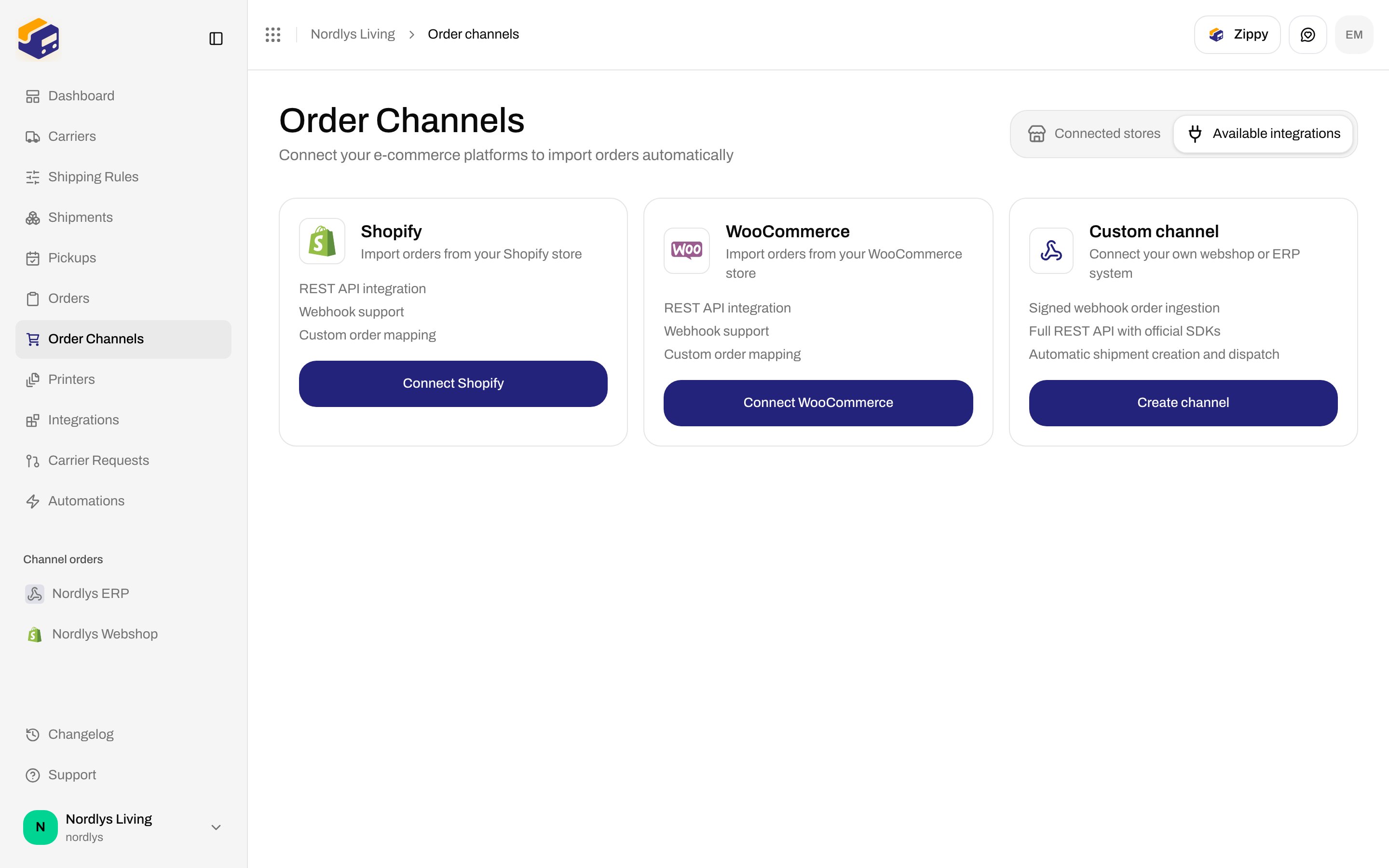
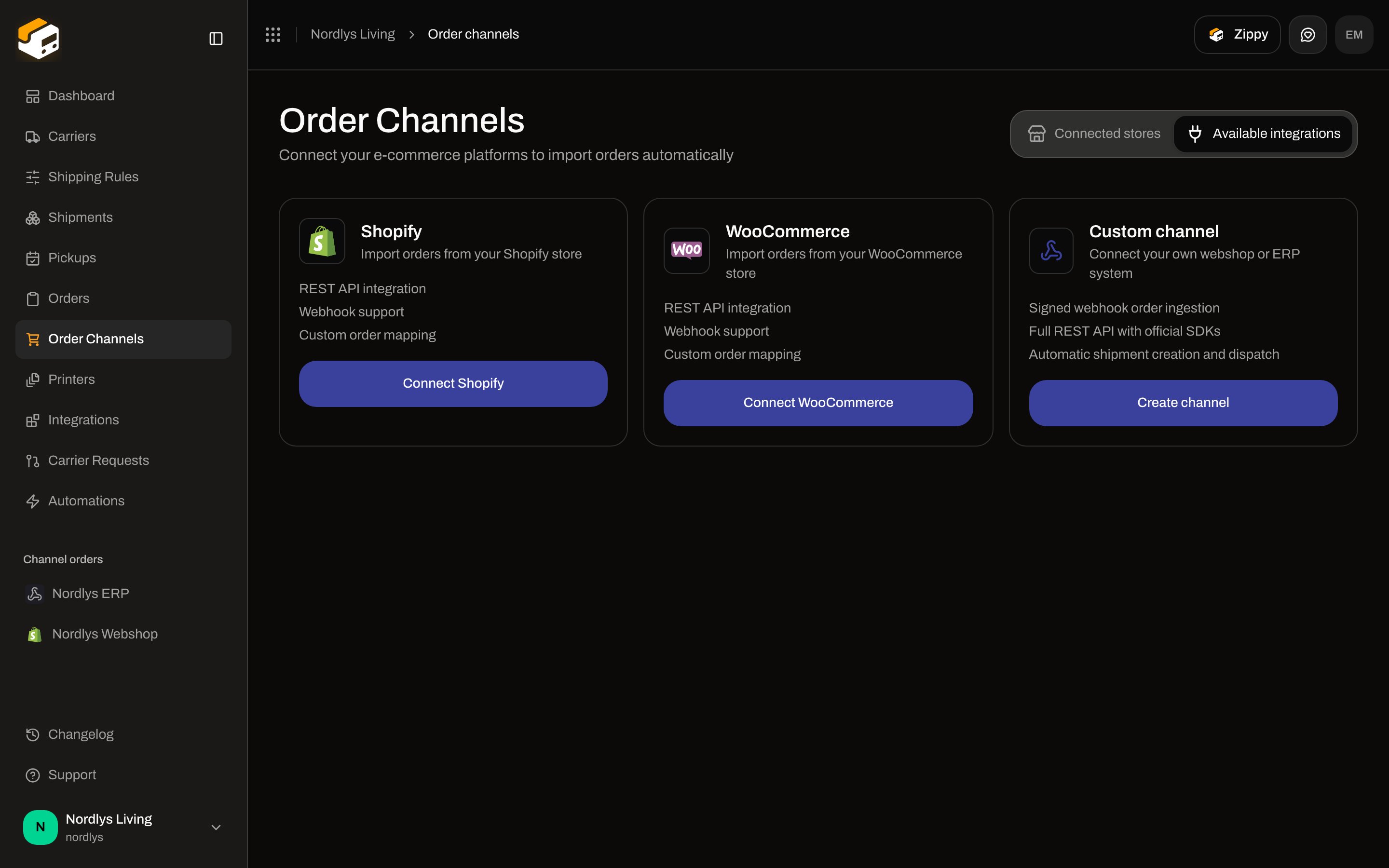 On the Shopify card, click **Connect Shopify**. The modal title is **Connect your Shopify store**.
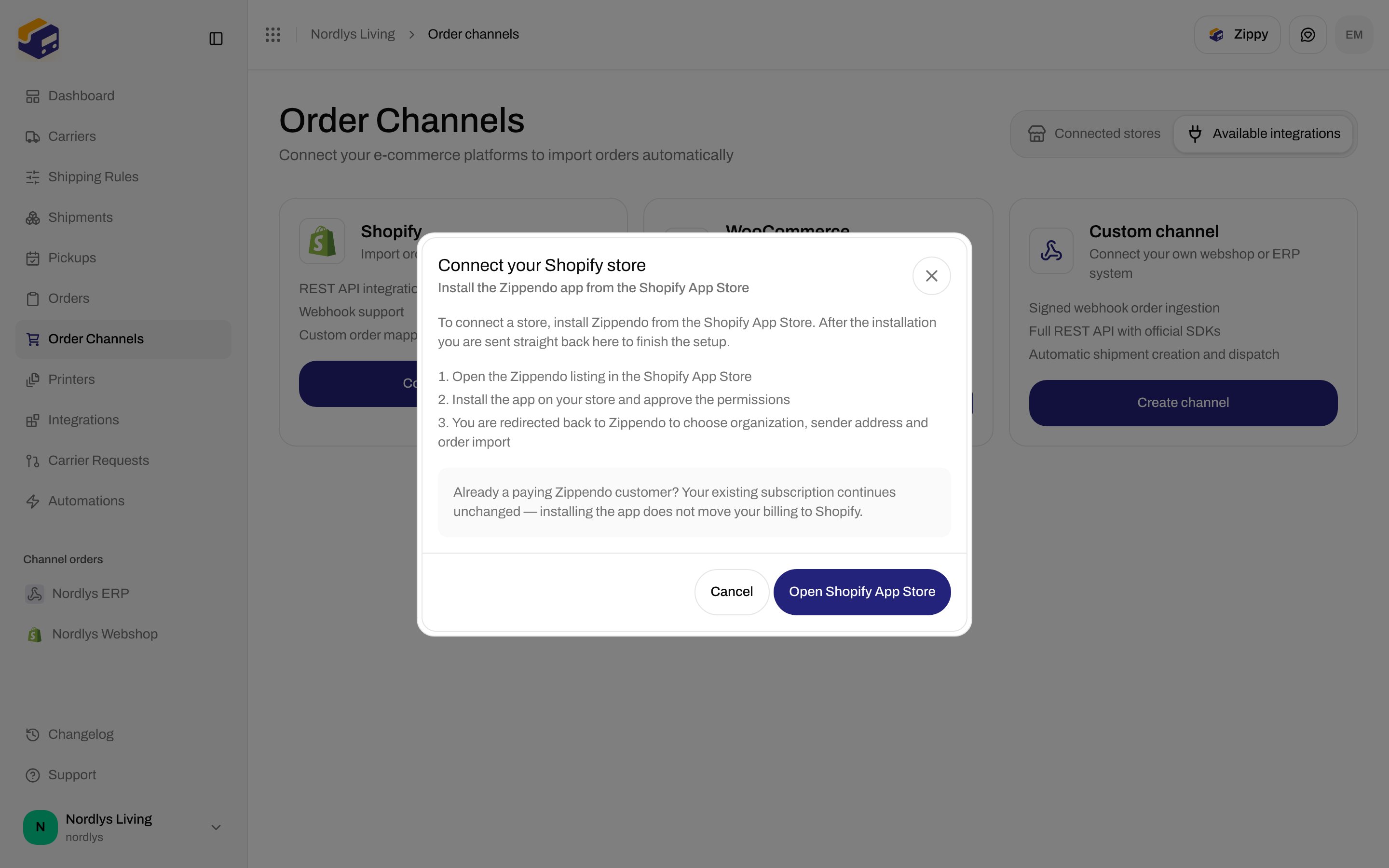
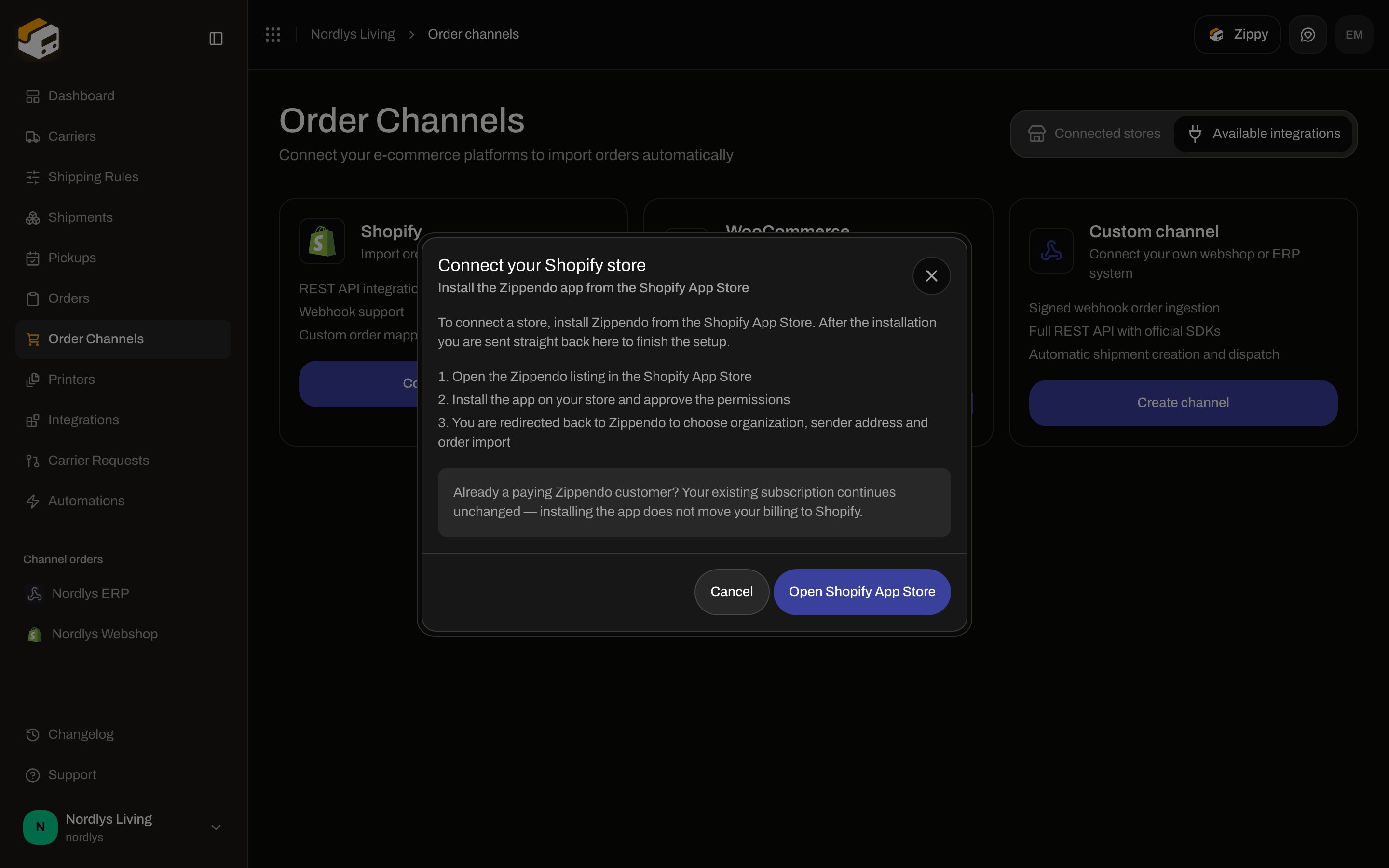 The modal lists the real next steps:
1. Open the Zippendo listing in the Shopify App Store
2. Install the app on your store and approve the permissions
3. You are redirected back to Zippendo to choose organization, sender address and order import
Click **Open Shopify App Store** (or **Cancel**). That button opens the listing in a new tab and closes the modal.
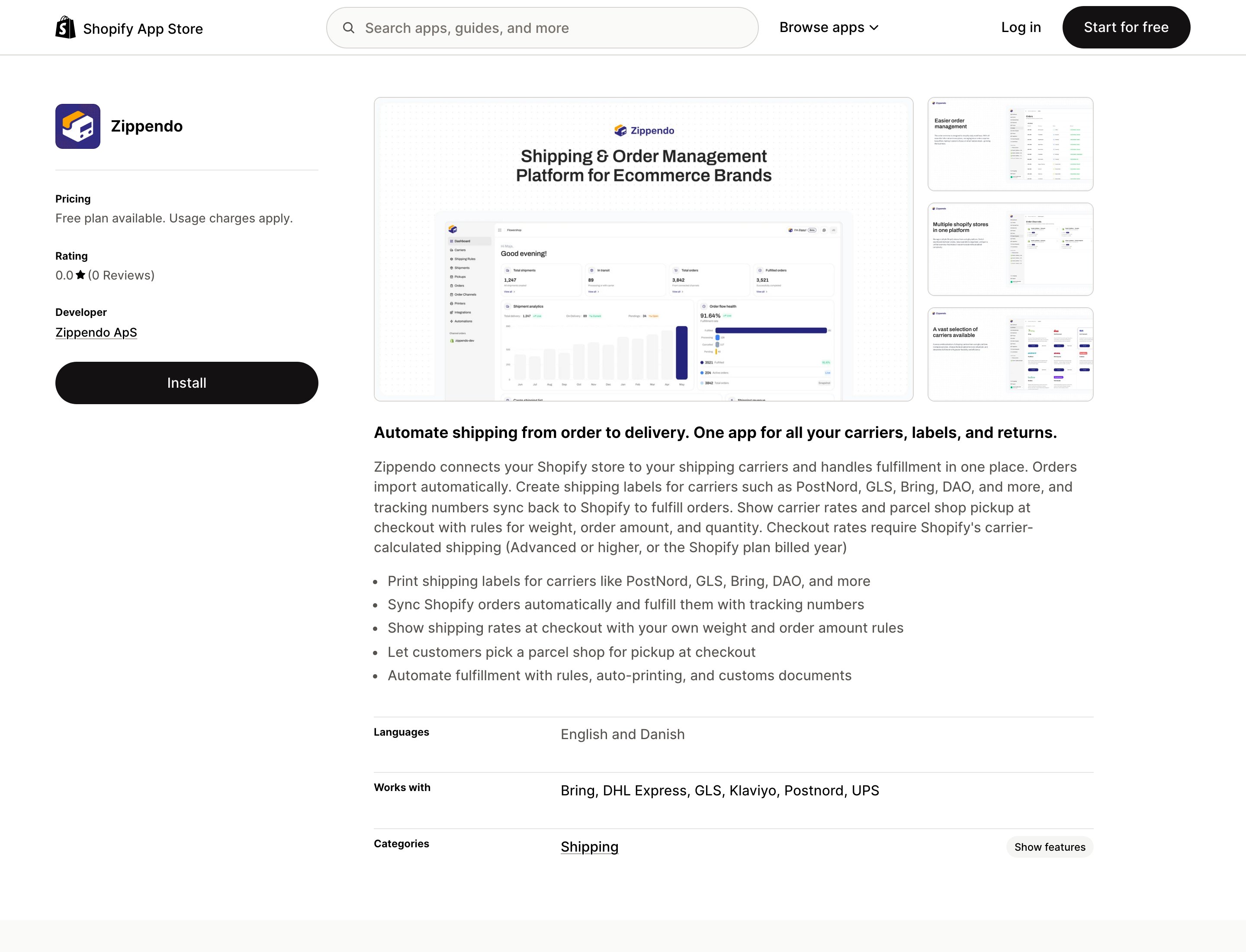
In the Shopify App Store, install **Zippendo** on the store you want to connect and approve the scopes.
The modal lists the real next steps:
1. Open the Zippendo listing in the Shopify App Store
2. Install the app on your store and approve the permissions
3. You are redirected back to Zippendo to choose organization, sender address and order import
Click **Open Shopify App Store** (or **Cancel**). That button opens the listing in a new tab and closes the modal.
In the Shopify App Store, install **Zippendo** on the store you want to connect and approve the scopes.
 Shopify then sends you to Zippendo’s app entry URL. The API verifies the request and, if the shop is not already connected, starts OAuth immediately — there is no extra Zippendo page before Shopify’s consent screen.
After you approve access, Shopify redirects to Zippendo’s OAuth callback. The callback stores a short-lived pending install (about 30 minutes) and sends you to `/shopify/connect?token=…`.
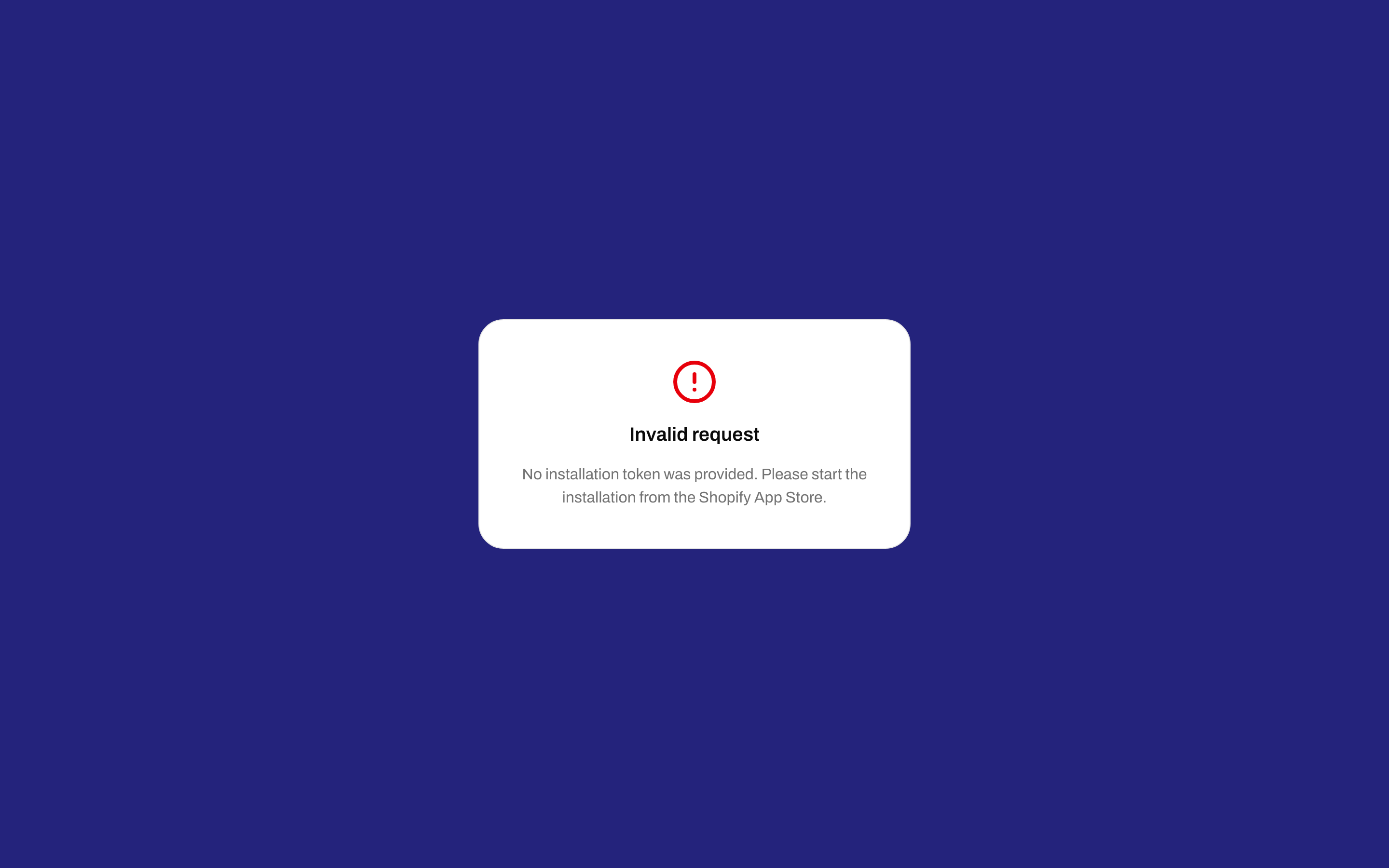
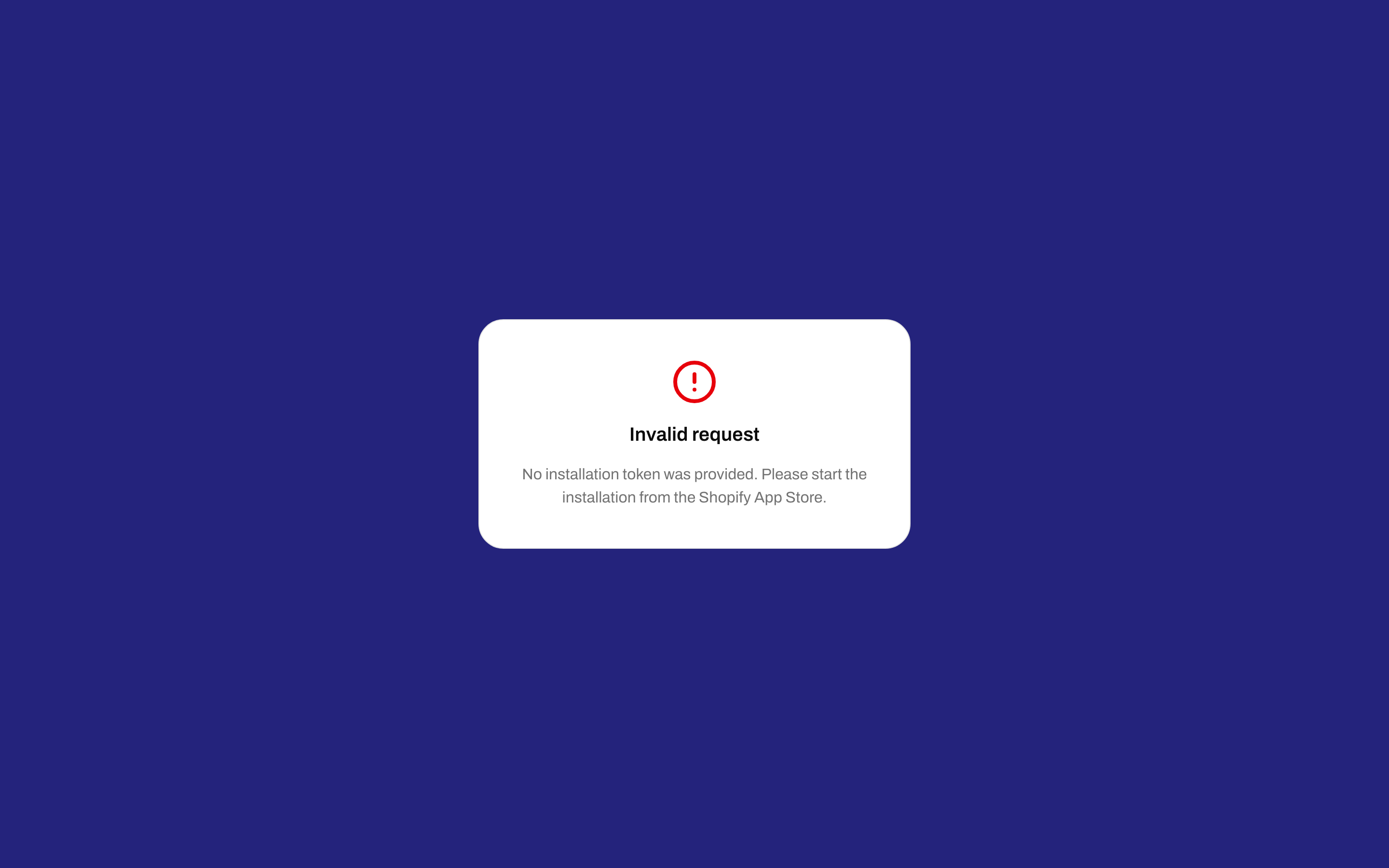
Opening `/shopify/connect` without that token shows **Invalid request**:
Shopify then sends you to Zippendo’s app entry URL. The API verifies the request and, if the shop is not already connected, starts OAuth immediately — there is no extra Zippendo page before Shopify’s consent screen.
After you approve access, Shopify redirects to Zippendo’s OAuth callback. The callback stores a short-lived pending install (about 30 minutes) and sends you to `/shopify/connect?token=…`.
Opening `/shopify/connect` without that token shows **Invalid request**:
 If you are not signed in, the connect page shows the store name and domain and asks you to finish in Zippendo.
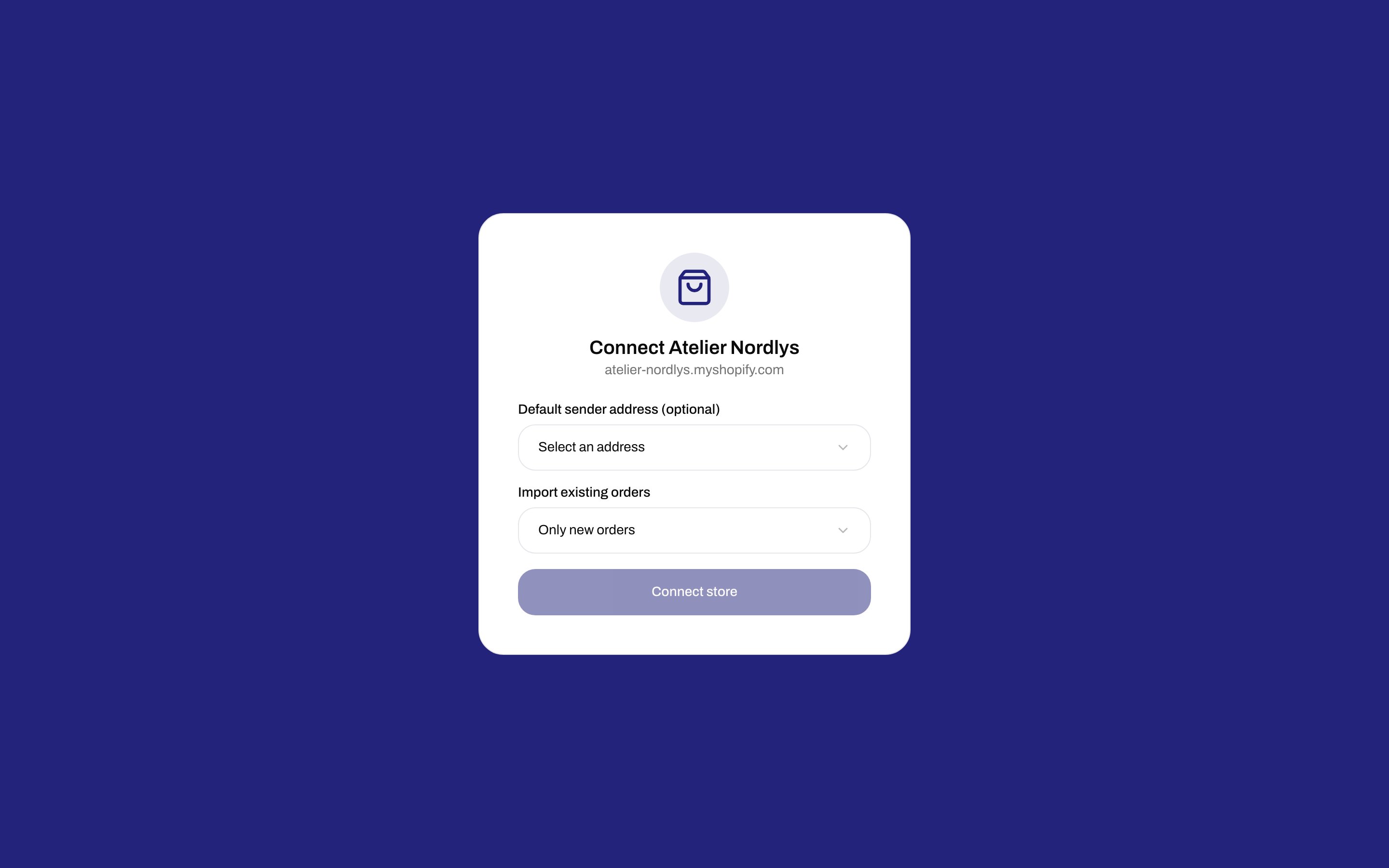 Use **Create a Zippendo account** or **Sign in**. After auth you return to the same connect URL.
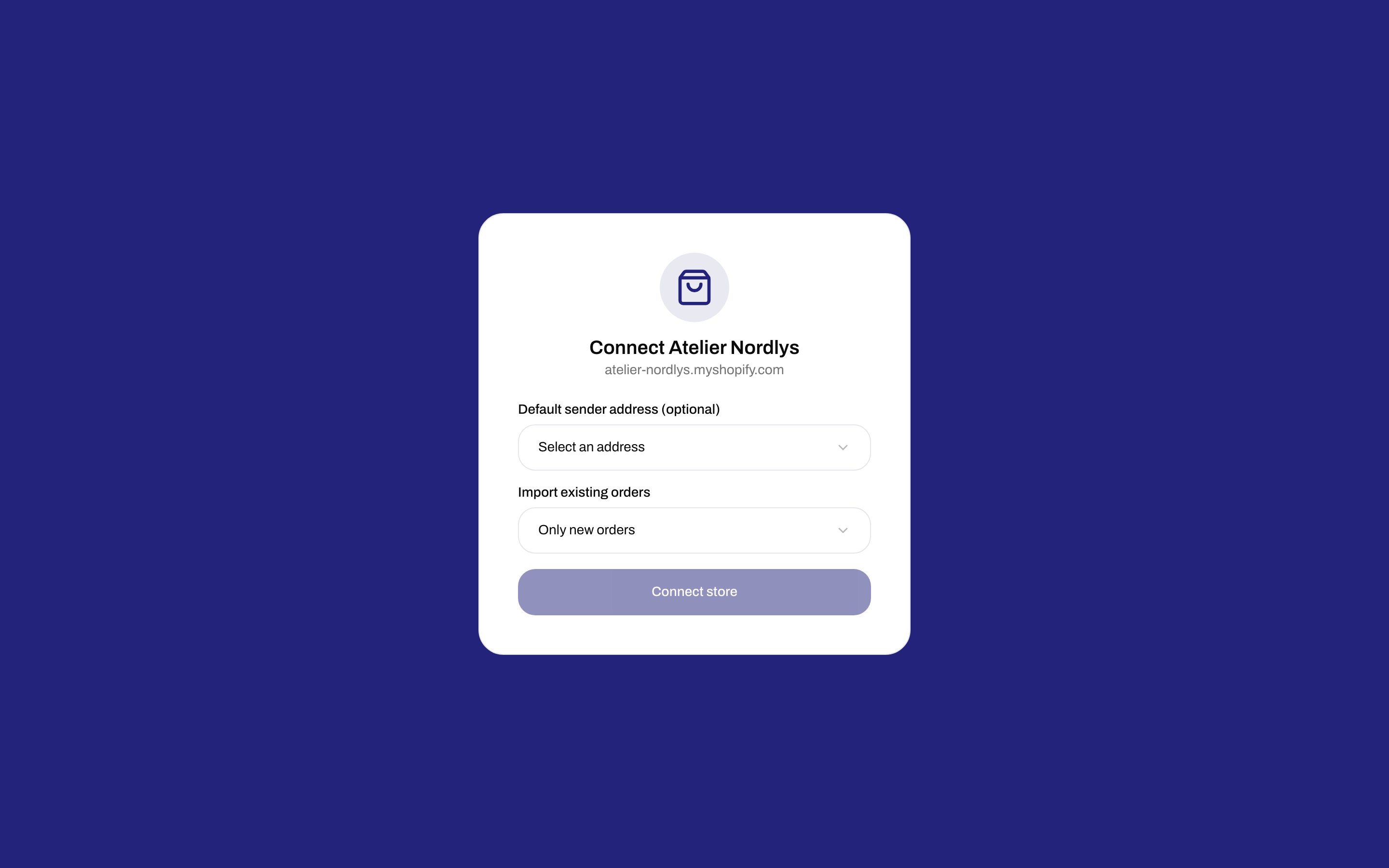
When you are signed in and belong to an organization, finish the link here.
Use **Create a Zippendo account** or **Sign in**. After auth you return to the same connect URL.
When you are signed in and belong to an organization, finish the link here.
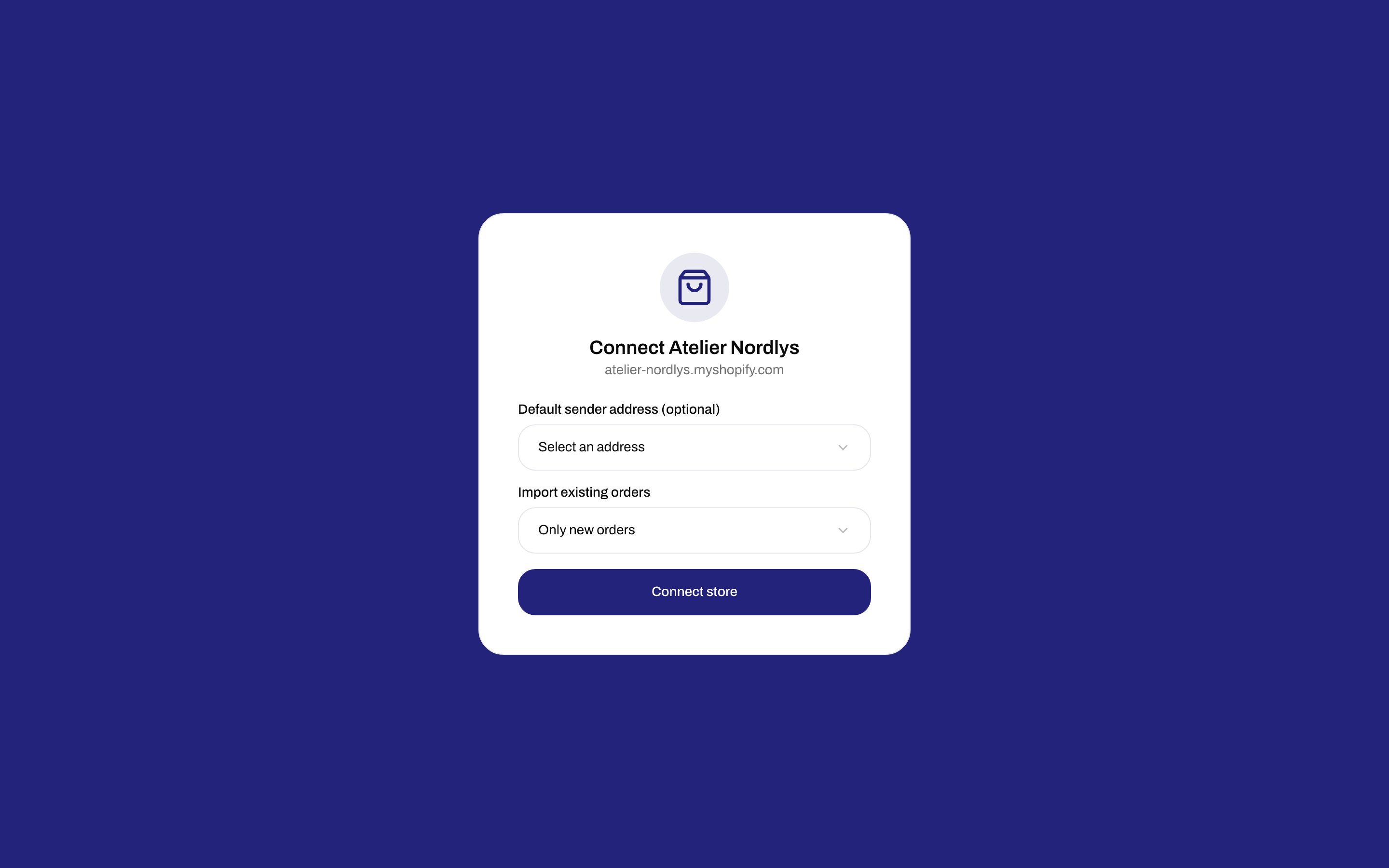
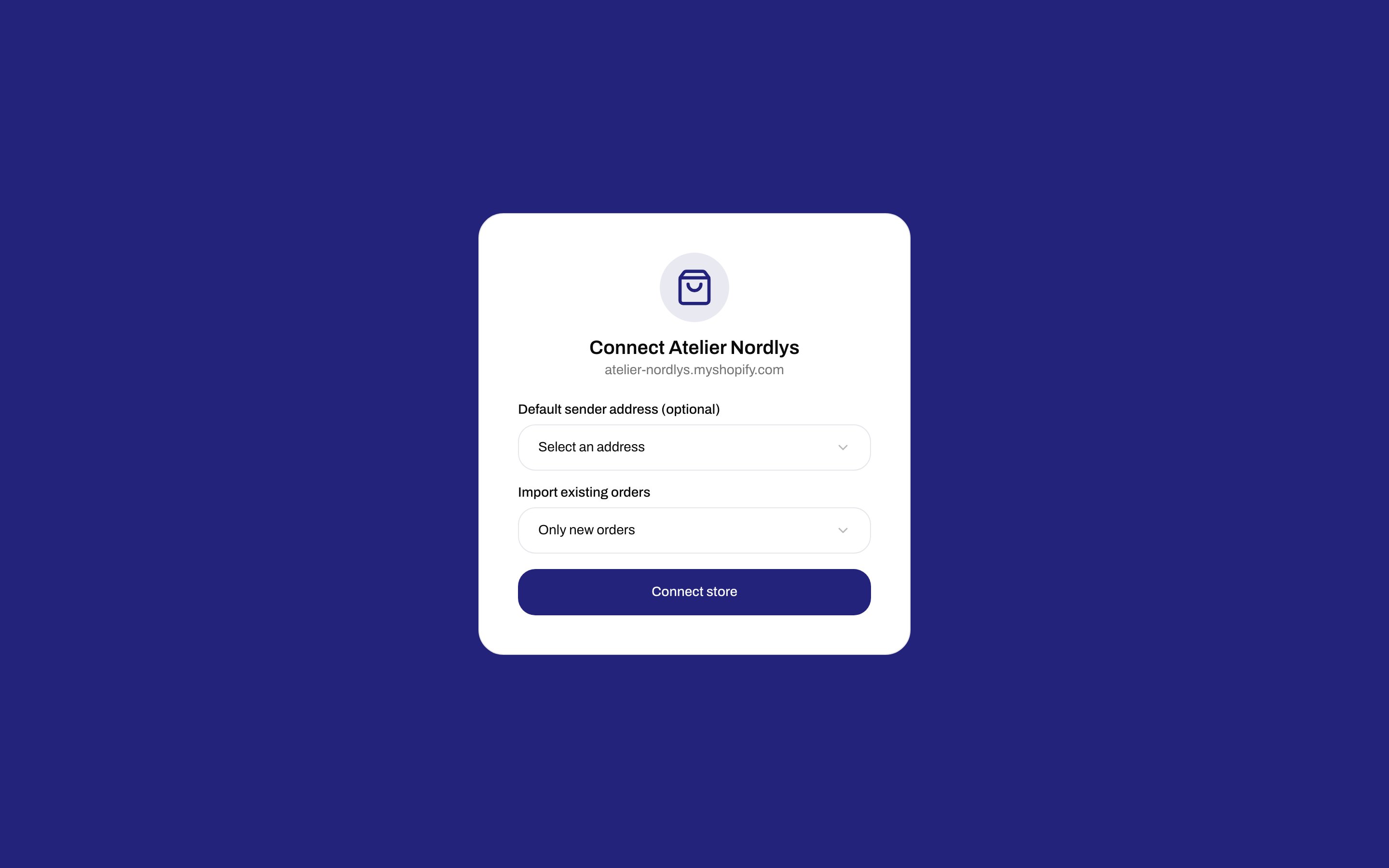 * **Organization** — shown only if you belong to more than one organization.
* **Default sender address (optional)** — used as the sender when a shipment is created without a matching shipping rule. If you have no addresses yet, you can set one later in **Settings → Addresses**.
* **Import existing orders** — **Only new orders**, **Import last 30 days**, or **Import from a specific date** (that date cannot be more than one month ago).
Click **Connect store**. Zippendo creates the channel, registers webhooks and the carrier service, and starts the import you chose.
A successful connect lands you on **Order channels** with the toast **Successfully connected \{shop name}!** and the description **Webhooks have been set up for real-time order sync.**
If the pending-install link expired or was already used, the page shows **Installation unavailable** and tells you to reinstall from Shopify.
## After connecting
The store appears on **Order channels → Connected stores**. The card shows the channel name, `*.myshopify.com` domain, **Status: Active**, and **Connected** / **Updated** dates.
* **Organization** — shown only if you belong to more than one organization.
* **Default sender address (optional)** — used as the sender when a shipment is created without a matching shipping rule. If you have no addresses yet, you can set one later in **Settings → Addresses**.
* **Import existing orders** — **Only new orders**, **Import last 30 days**, or **Import from a specific date** (that date cannot be more than one month ago).
Click **Connect store**. Zippendo creates the channel, registers webhooks and the carrier service, and starts the import you chose.
A successful connect lands you on **Order channels** with the toast **Successfully connected \{shop name}!** and the description **Webhooks have been set up for real-time order sync.**
If the pending-install link expired or was already used, the page shows **Installation unavailable** and tells you to reinstall from Shopify.
## After connecting
The store appears on **Order channels → Connected stores**. The card shows the channel name, `*.myshopify.com` domain, **Status: Active**, and **Connected** / **Updated** dates.
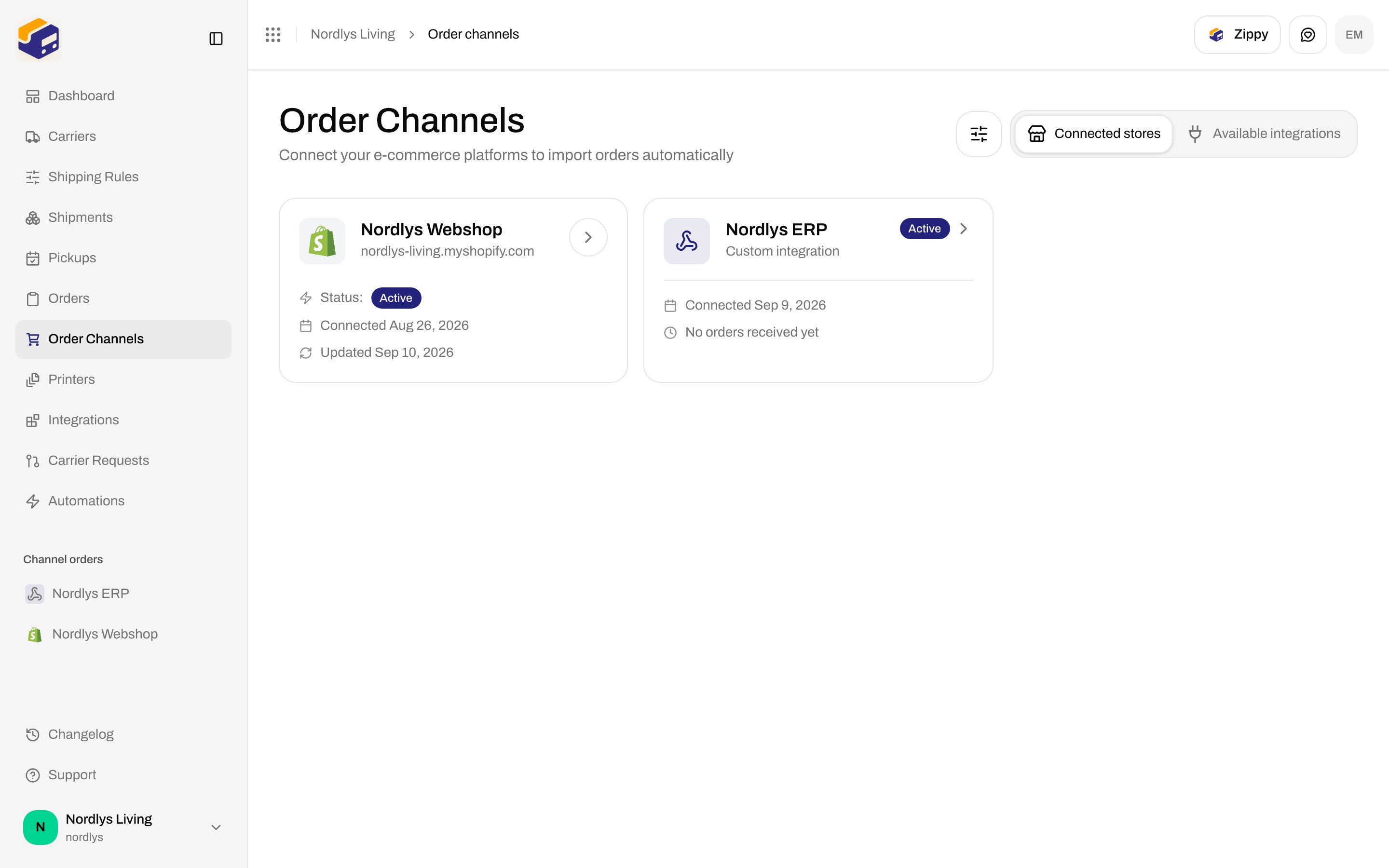
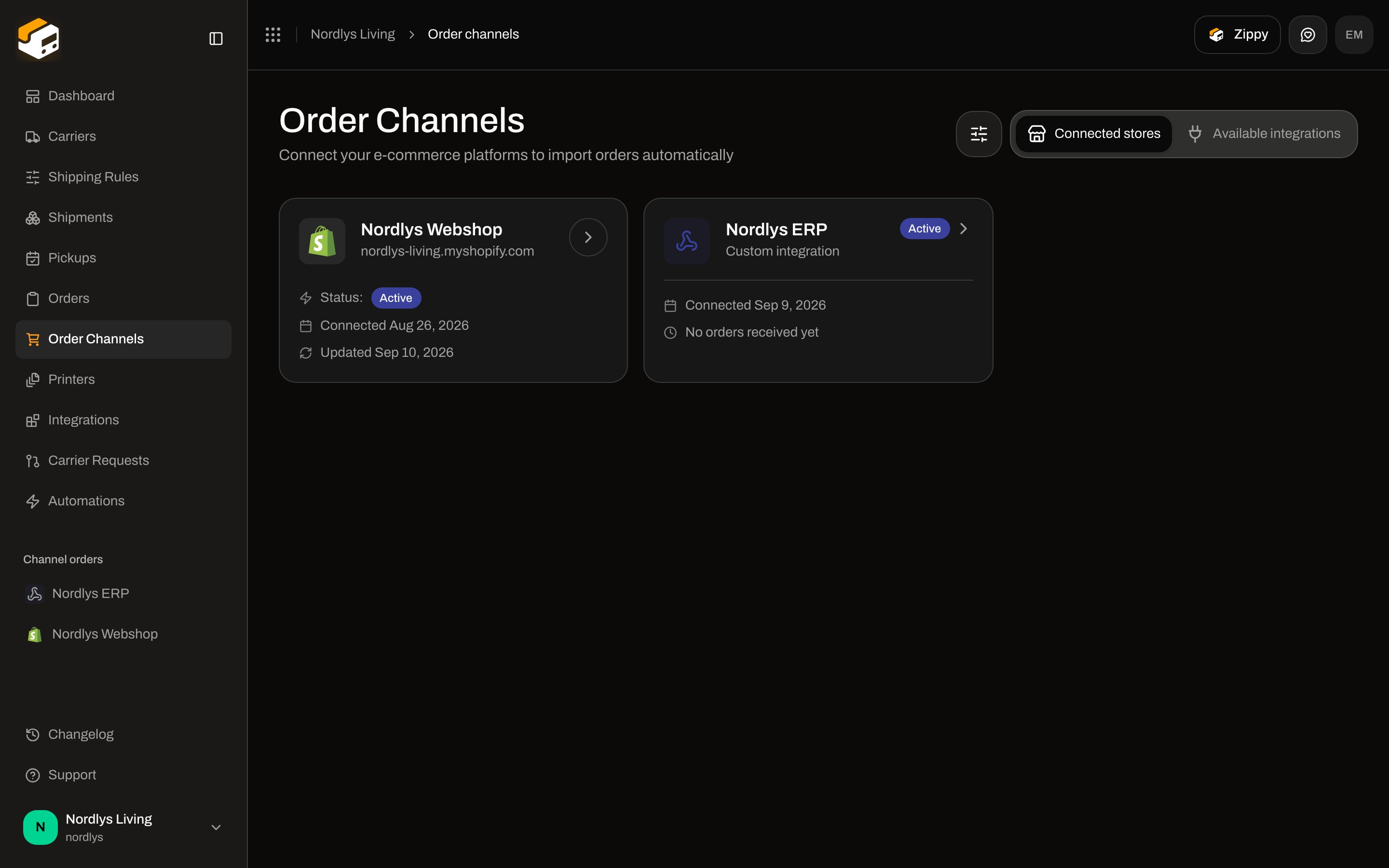 Click the card to open **Shopify Channel** settings. The header includes **Shopify Admin** (opens `https://{shop}/admin`) and two tabs: **Orders & checkout** and **Connection & integration**.
If you uninstall the app in Shopify without disconnecting in Zippendo, the card shows **Uninstalled in app** and status **Uninstalled in app**.
### Orders & checkout
Click the card to open **Shopify Channel** settings. The header includes **Shopify Admin** (opens `https://{shop}/admin`) and two tabs: **Orders & checkout** and **Connection & integration**.
If you uninstall the app in Shopify without disconnecting in Zippendo, the card shows **Uninstalled in app** and status **Uninstalled in app**.
### Orders & checkout
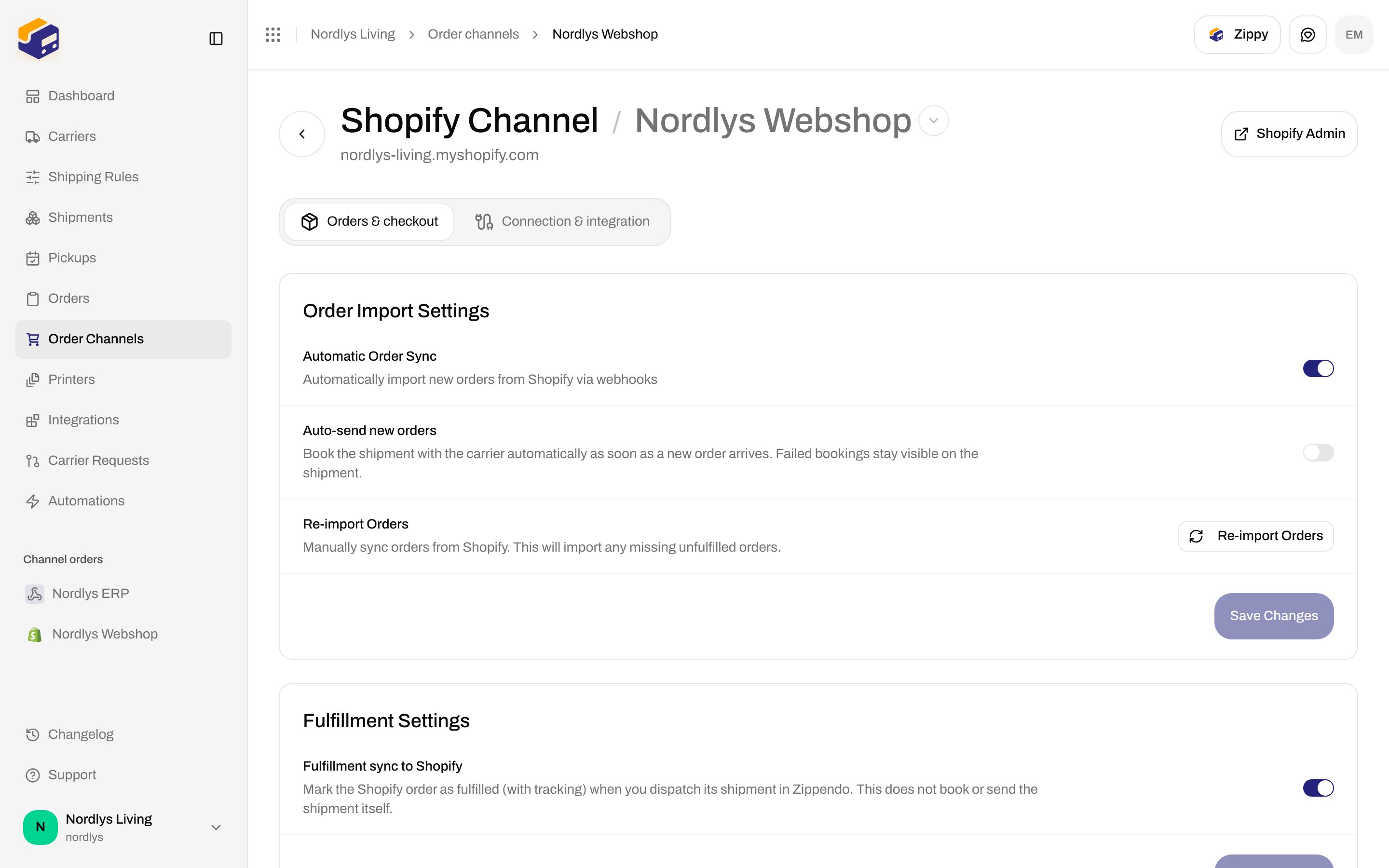
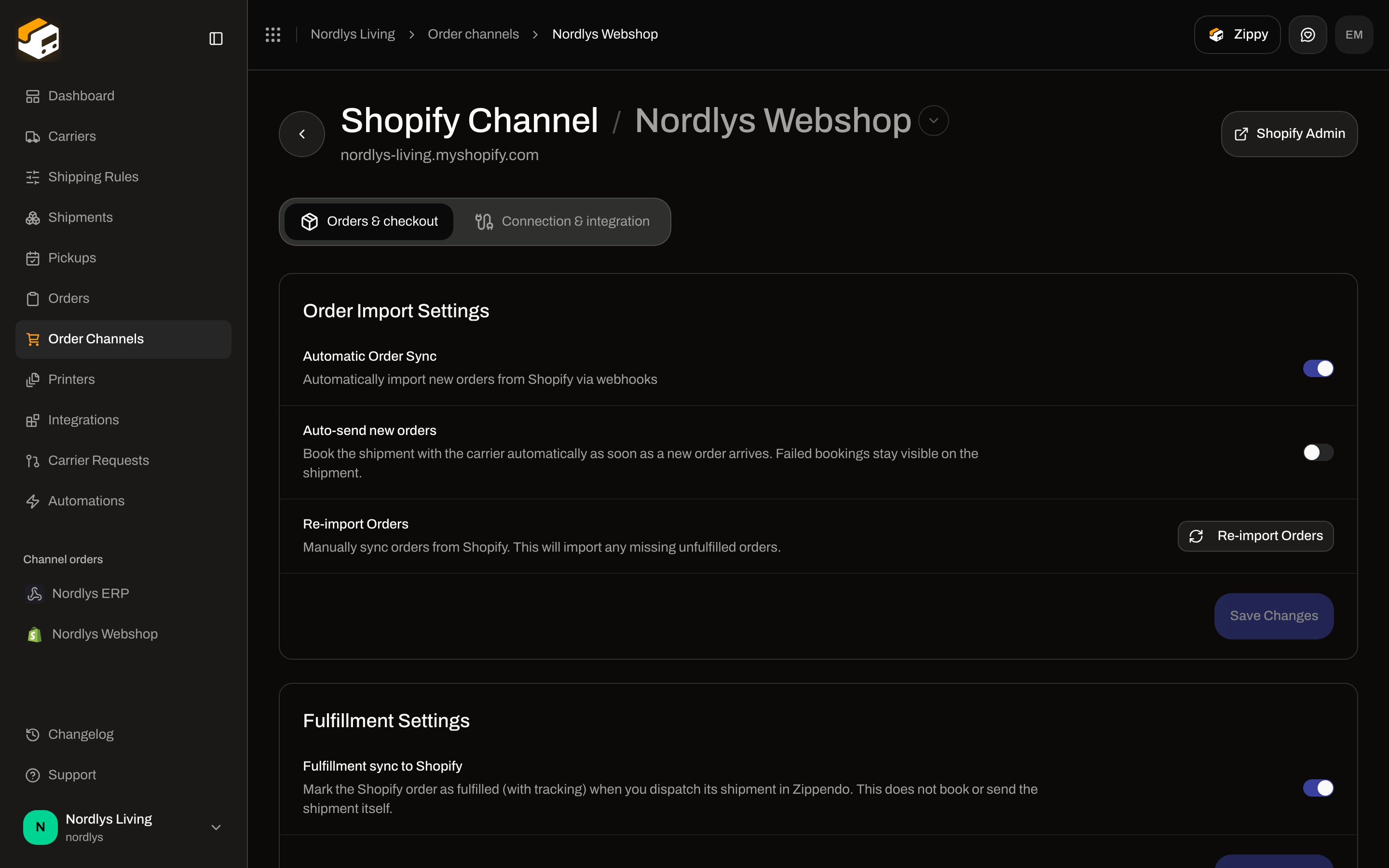 **Order Import Settings**
* **Automatic Order Sync** — import new orders from Shopify via webhooks.
* **Auto-send new orders** — book the shipment with the carrier as soon as a new order arrives. Failed bookings stay visible on the shipment. Off by default.
* **Re-import Orders** — manually import any missing unfulfilled orders.
Click **Save Changes** after you toggle these.
**Fulfillment Settings**
* **Fulfillment sync to Shopify** — mark the Shopify order as fulfilled (with tracking) when you dispatch its shipment in Zippendo. On by default. This does not book or send the shipment itself.
### Default sender, checkout rates, and method mapping
There is no Shopify **location** or **product catalog** mapping in this UI. Sender location is your Zippendo address. Line items come from the order. Shipping is either live checkout rates or a mapped method name.
**Order Import Settings**
* **Automatic Order Sync** — import new orders from Shopify via webhooks.
* **Auto-send new orders** — book the shipment with the carrier as soon as a new order arrives. Failed bookings stay visible on the shipment. Off by default.
* **Re-import Orders** — manually import any missing unfulfilled orders.
Click **Save Changes** after you toggle these.
**Fulfillment Settings**
* **Fulfillment sync to Shopify** — mark the Shopify order as fulfilled (with tracking) when you dispatch its shipment in Zippendo. On by default. This does not book or send the shipment itself.
### Default sender, checkout rates, and method mapping
There is no Shopify **location** or **product catalog** mapping in this UI. Sender location is your Zippendo address. Line items come from the order. Shipping is either live checkout rates or a mapped method name.
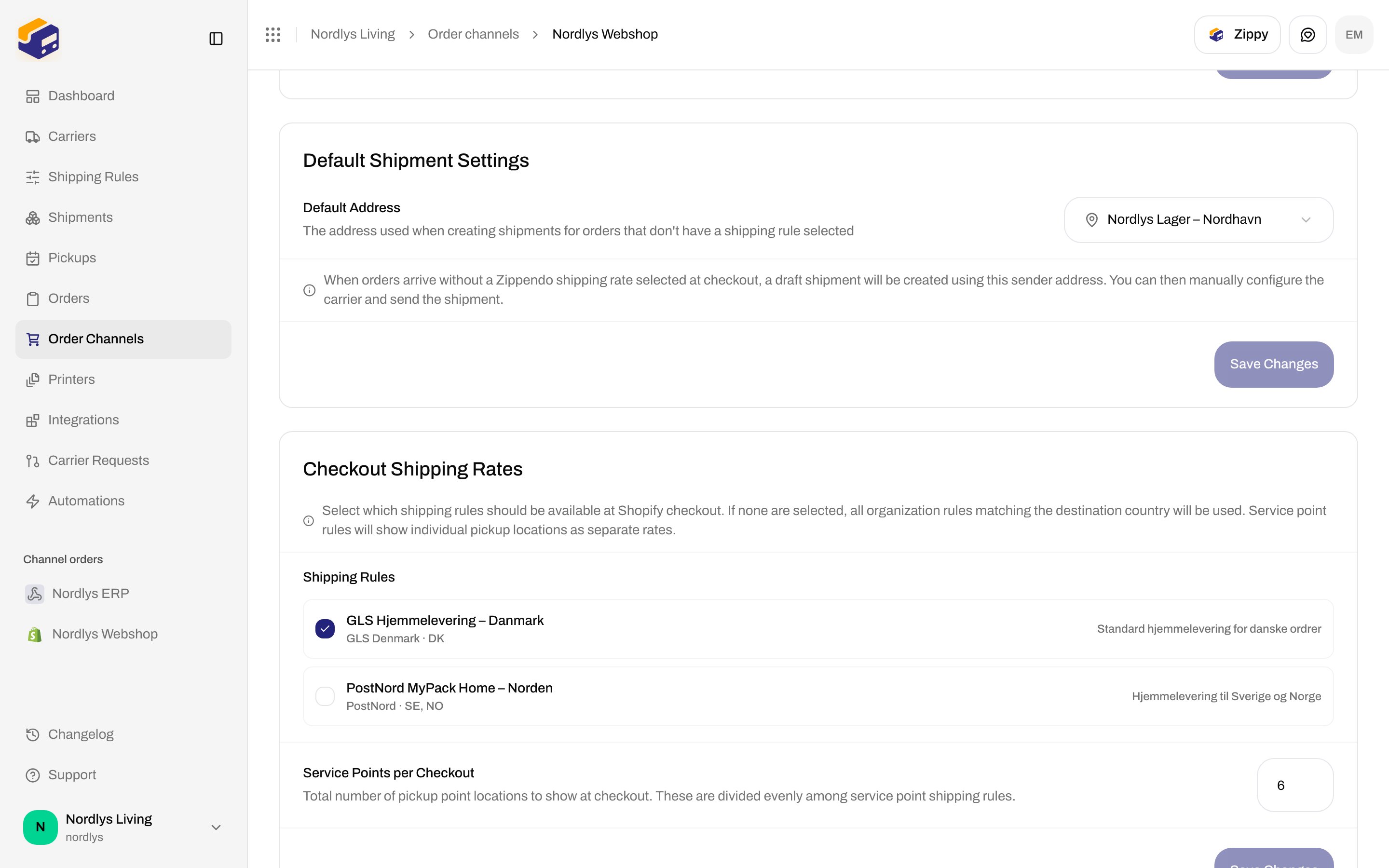
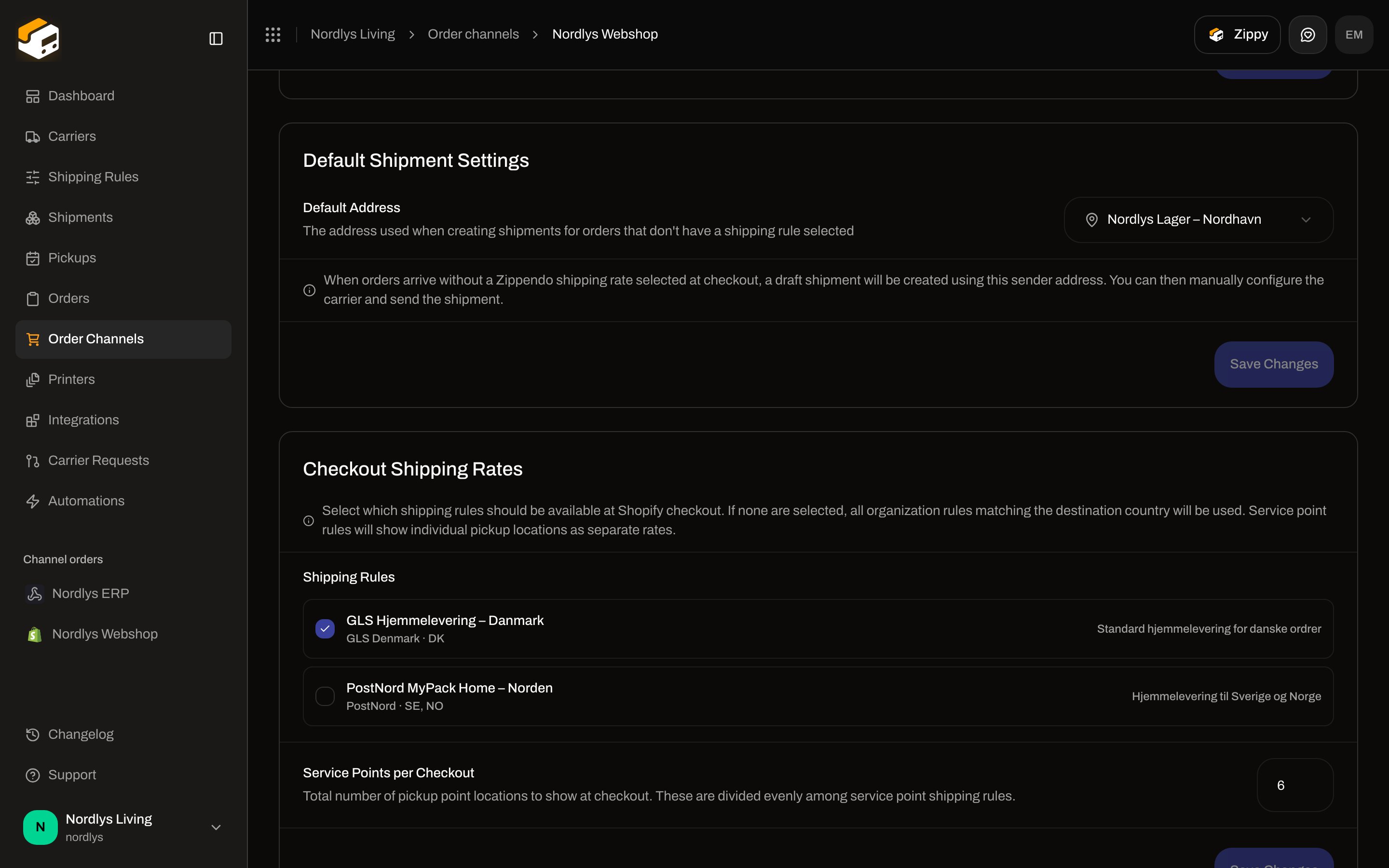 * **Default Address** — sender used when an order arrives without a Zippendo shipping rate at checkout. A draft shipment is created so you can pick carrier and send.
* **Checkout Shipping Rates** — tick the [shipping rules](/docs/settings/shipping-rules) that should appear at Shopify checkout. If none are selected, every organization rule that matches the destination country is offered. **Service Points per Checkout** (1–20, default 6) is the total pickup locations shown, split across service-point rules.
* After you register the carrier service, add **Zippendo Shipping** in **Shopify Admin → Settings → Shipping and delivery**. See [Live rates in Shopify checkout](/docs/order-channels/shopify-checkout-rates).
* **Default Address** — sender used when an order arrives without a Zippendo shipping rate at checkout. A draft shipment is created so you can pick carrier and send.
* **Checkout Shipping Rates** — tick the [shipping rules](/docs/settings/shipping-rules) that should appear at Shopify checkout. If none are selected, every organization rule that matches the destination country is offered. **Service Points per Checkout** (1–20, default 6) is the total pickup locations shown, split across service-point rules.
* After you register the carrier service, add **Zippendo Shipping** in **Shopify Admin → Settings → Shipping and delivery**. See [Live rates in Shopify checkout](/docs/order-channels/shopify-checkout-rates).
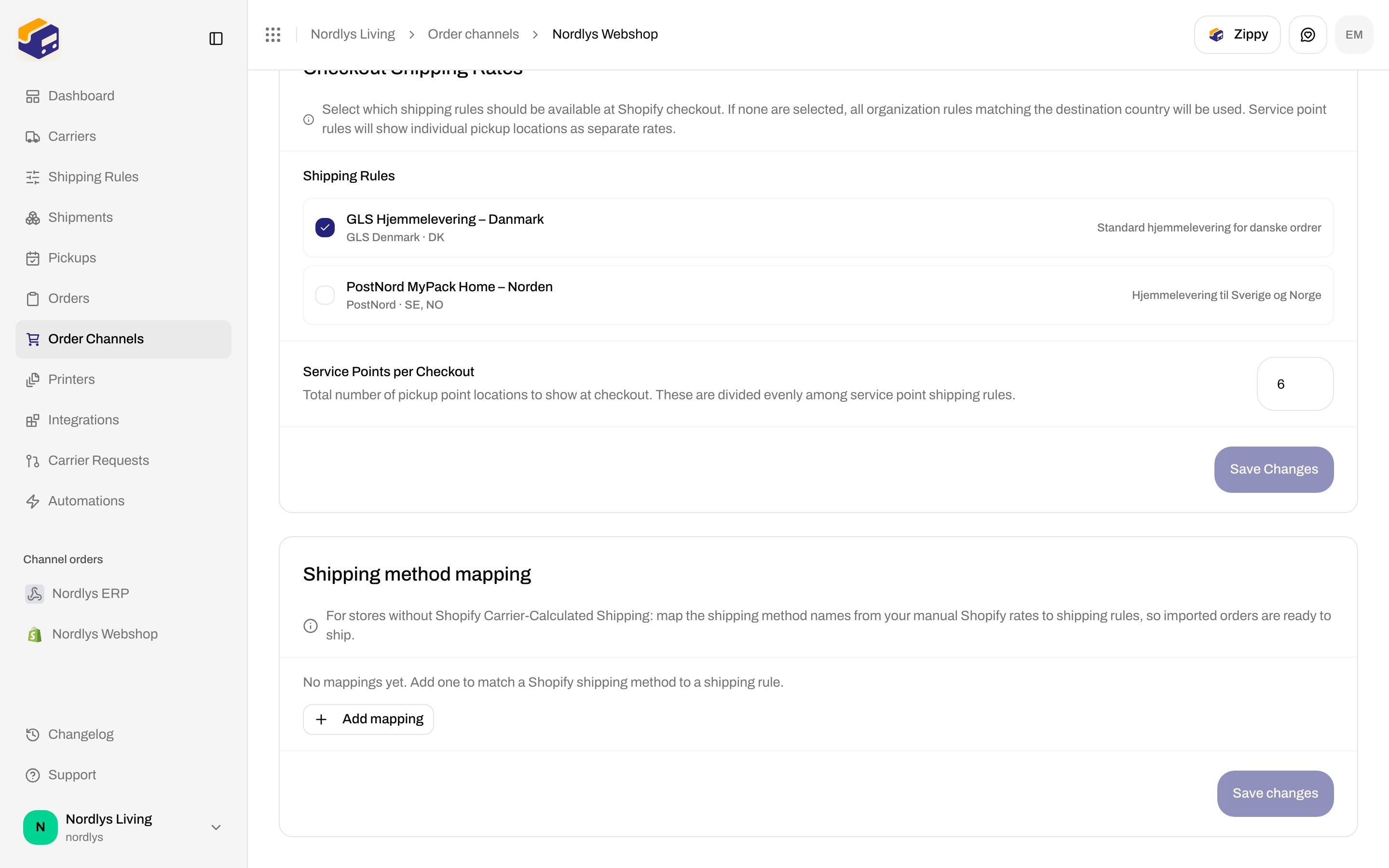
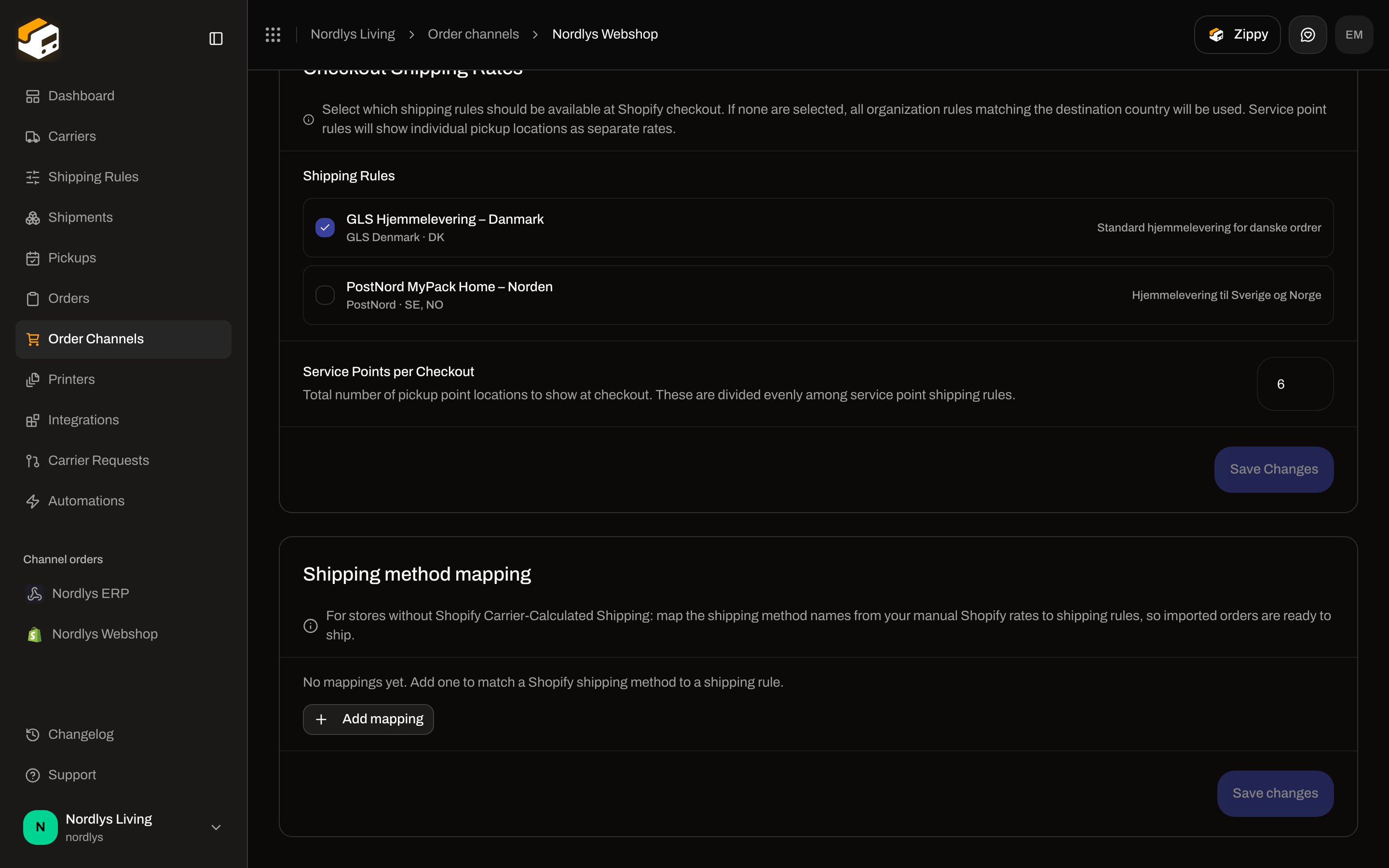 **Shipping method mapping** is for stores **without** carrier-calculated shipping. Click **Add mapping**, type the Shopify rate name (for example `GLS Home Delivery`), and pick a shipping rule. Parcel-shop rules also let you choose **Nearest automatically** or **Choose manually**. Full detail: [Shopify without carrier-calculated shipping](/docs/order-channels/shopify-shipping-method-mapping).
### Connection & integration
**Shipping method mapping** is for stores **without** carrier-calculated shipping. Click **Add mapping**, type the Shopify rate name (for example `GLS Home Delivery`), and pick a shipping rule. Parcel-shop rules also let you choose **Nearest automatically** or **Choose manually**. Full detail: [Shopify without carrier-calculated shipping](/docs/order-channels/shopify-shipping-method-mapping).
### Connection & integration
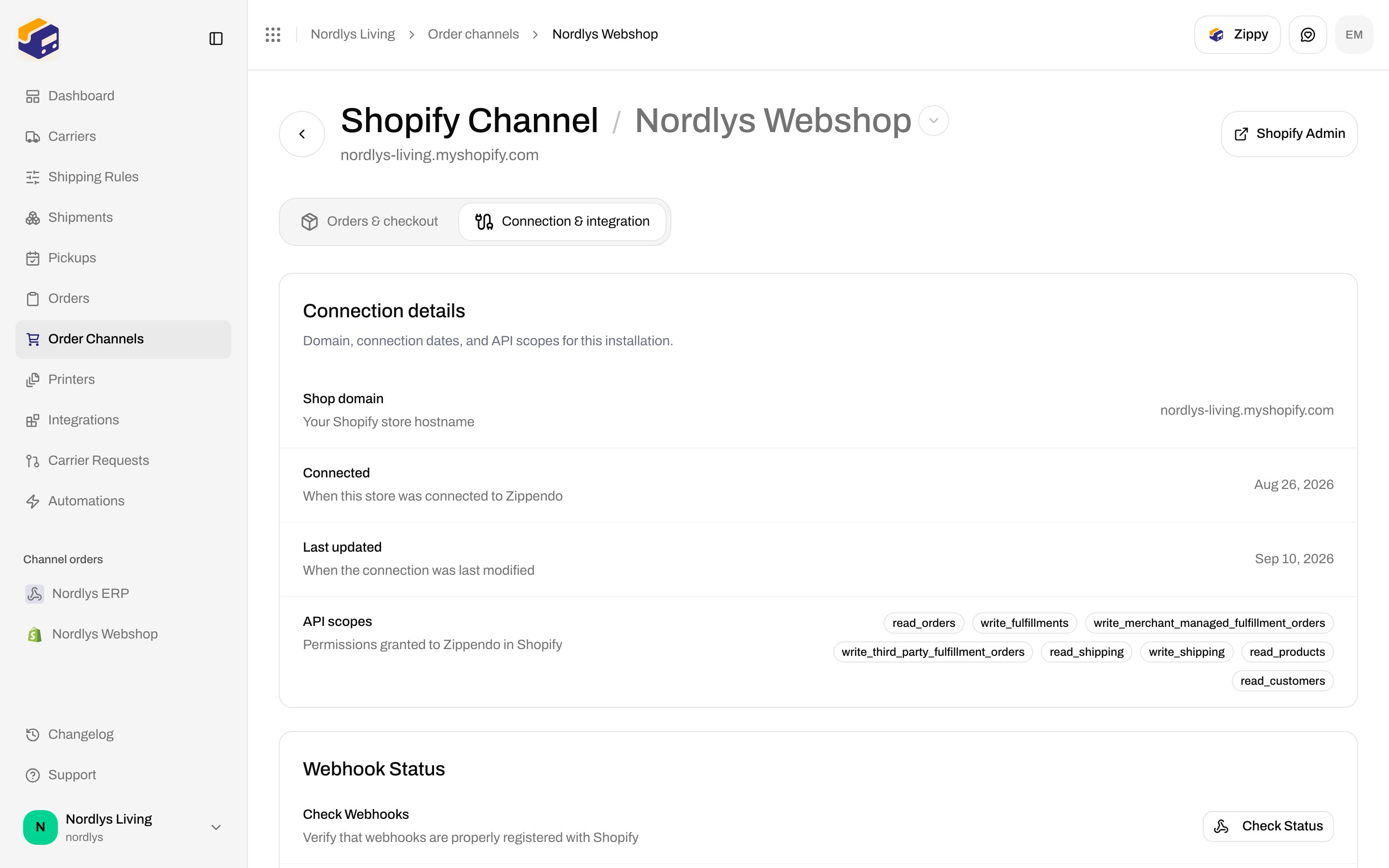
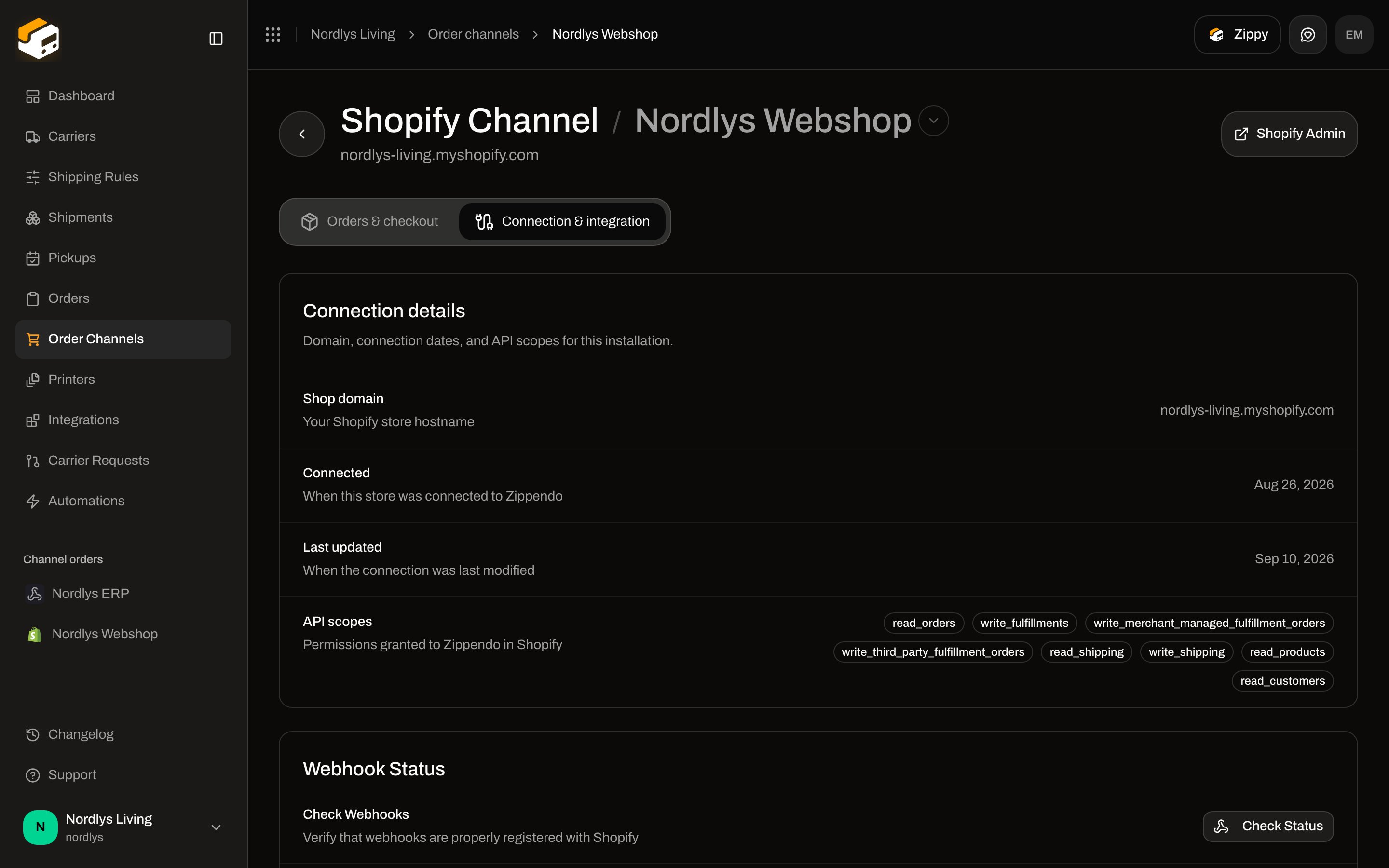 * **Connection details** — shop domain, connected date, last updated, and the API scopes granted in Shopify.
* **Webhook Status** — **Check Status** lists registered topics. If fewer than five order webhooks are present, **Re-register Webhooks**.
* **Carrier Service** — **Check Status** and **Register Carrier Service** if rates are missing at checkout.
Use **Connect another store** in the store picker on this page to run the same App Store flow for a second shop. Each store is its own installation.
## How orders arrive
1. A customer places an order in Shopify.
2. Shopify sends an order webhook (or the periodic sync / **Re-import Orders** picks it up).
3. Zippendo creates or updates the order on this channel.
4. If the customer chose a Zippendo checkout rate, the shipment is matched to that rule (and pickup point). If they used a mapped manual rate, the mapped rule is applied. Otherwise a draft shipment uses **Default Address**.
5. You fulfill from **Orders** as usual.
Orders already fulfilled in Shopify import as fulfilled and do not get a new shipment, so they are not double-shipped.
## What you see in Orders
Open **Orders**. Synced Shopify orders use the channel name (the store’s Zippendo channel name). Columns include **Order ID**, **Customer**, **Status**, **Channel**, **Shipments**, and **Created At**.
* **Connection details** — shop domain, connected date, last updated, and the API scopes granted in Shopify.
* **Webhook Status** — **Check Status** lists registered topics. If fewer than five order webhooks are present, **Re-register Webhooks**.
* **Carrier Service** — **Check Status** and **Register Carrier Service** if rates are missing at checkout.
Use **Connect another store** in the store picker on this page to run the same App Store flow for a second shop. Each store is its own installation.
## How orders arrive
1. A customer places an order in Shopify.
2. Shopify sends an order webhook (or the periodic sync / **Re-import Orders** picks it up).
3. Zippendo creates or updates the order on this channel.
4. If the customer chose a Zippendo checkout rate, the shipment is matched to that rule (and pickup point). If they used a mapped manual rate, the mapped rule is applied. Otherwise a draft shipment uses **Default Address**.
5. You fulfill from **Orders** as usual.
Orders already fulfilled in Shopify import as fulfilled and do not get a new shipment, so they are not double-shipped.
## What you see in Orders
Open **Orders**. Synced Shopify orders use the channel name (the store’s Zippendo channel name). Columns include **Order ID**, **Customer**, **Status**, **Channel**, **Shipments**, and **Created At**.
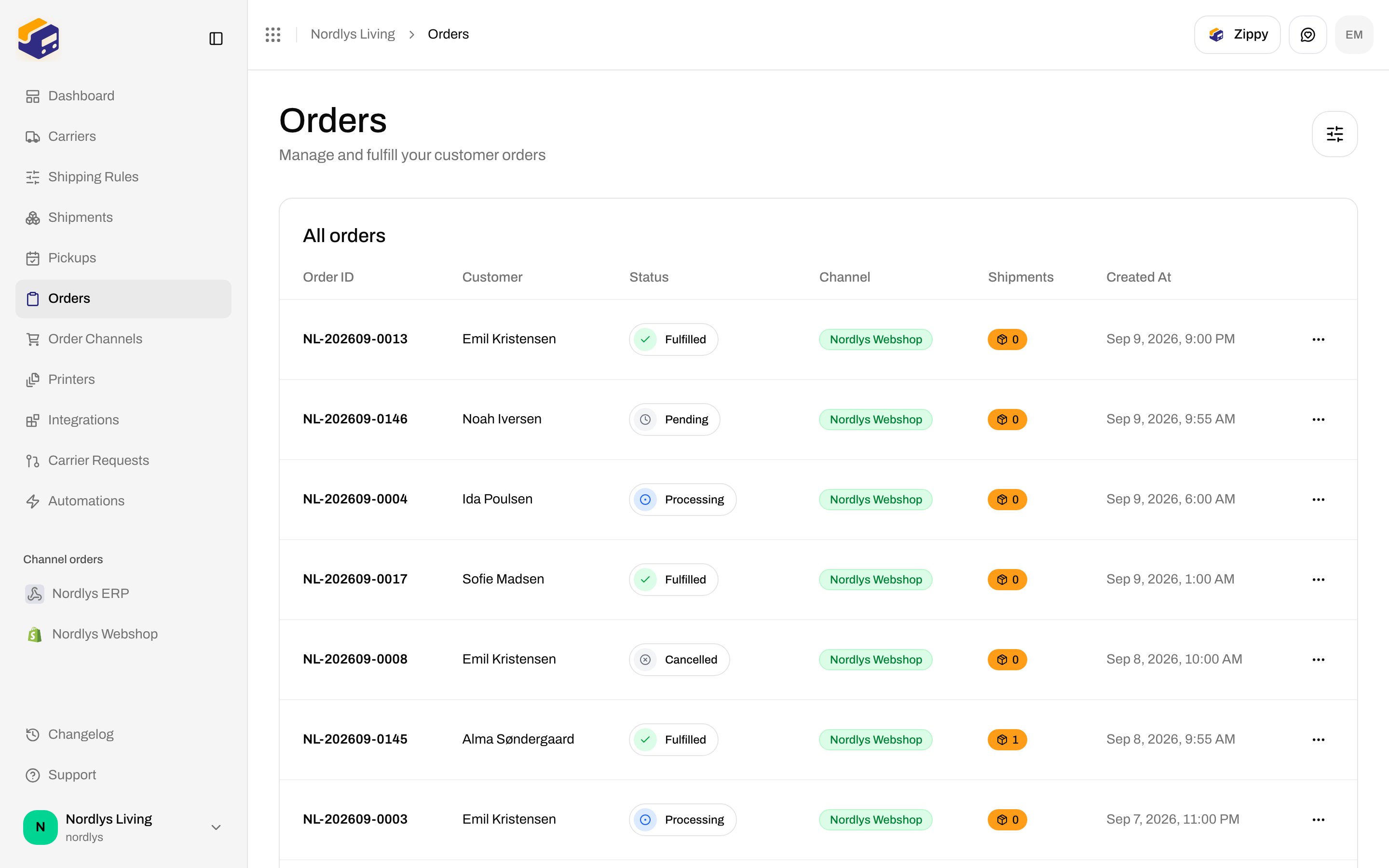
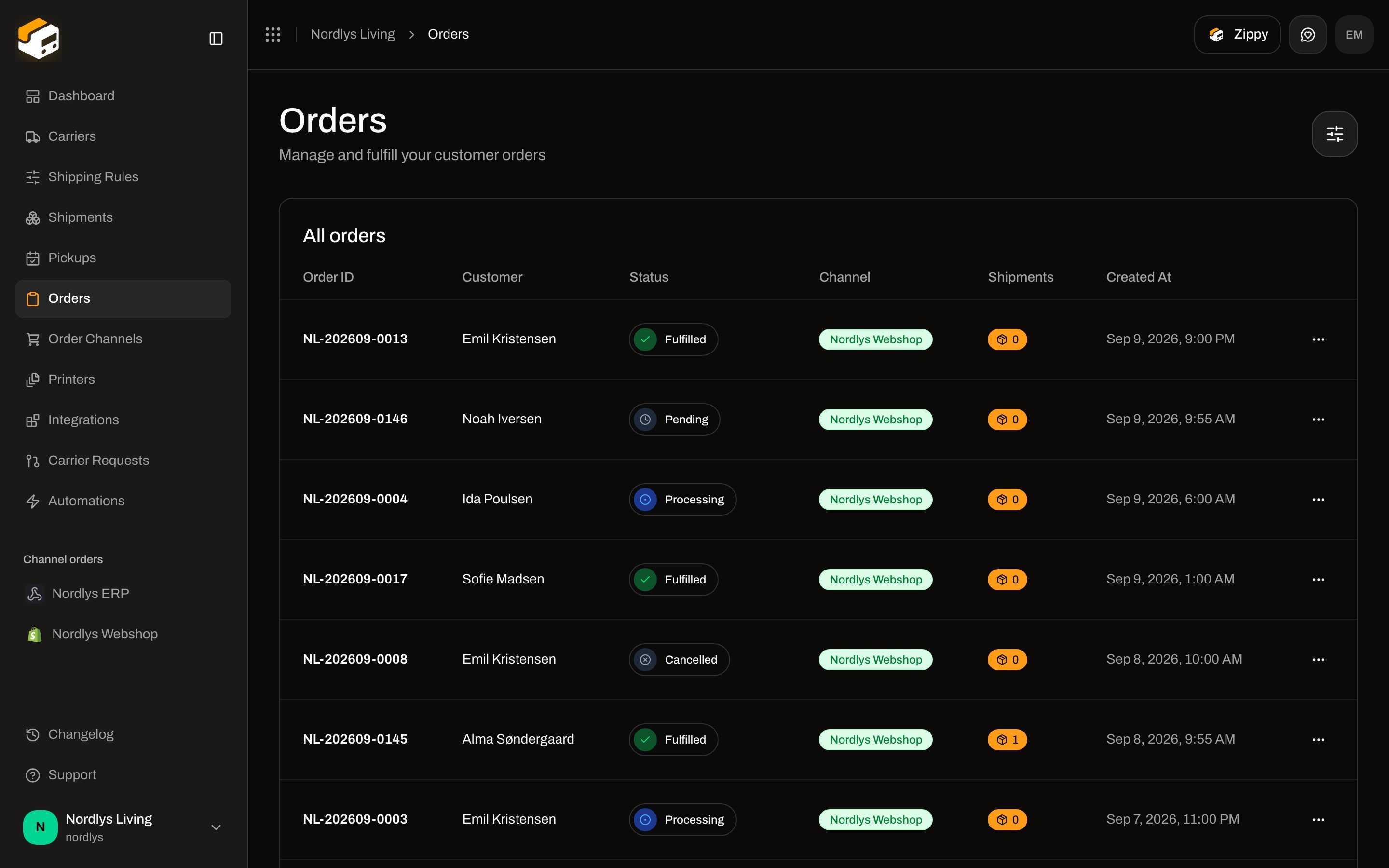 Open an order. **Order Information** includes **Order Channel**. Use **Create Shipment** or **Send order** from here — see [Orders](/docs/tutorials/orders).
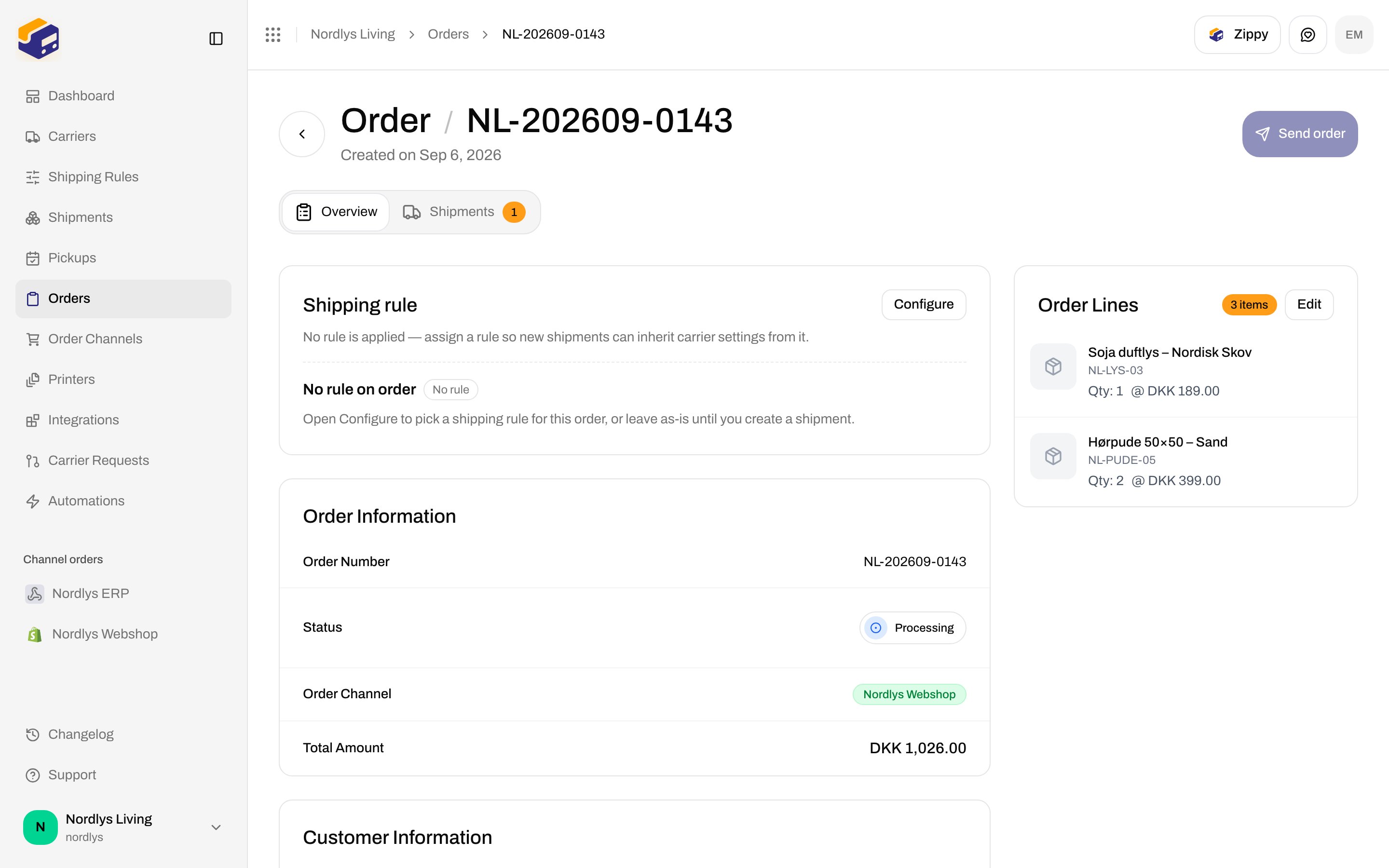
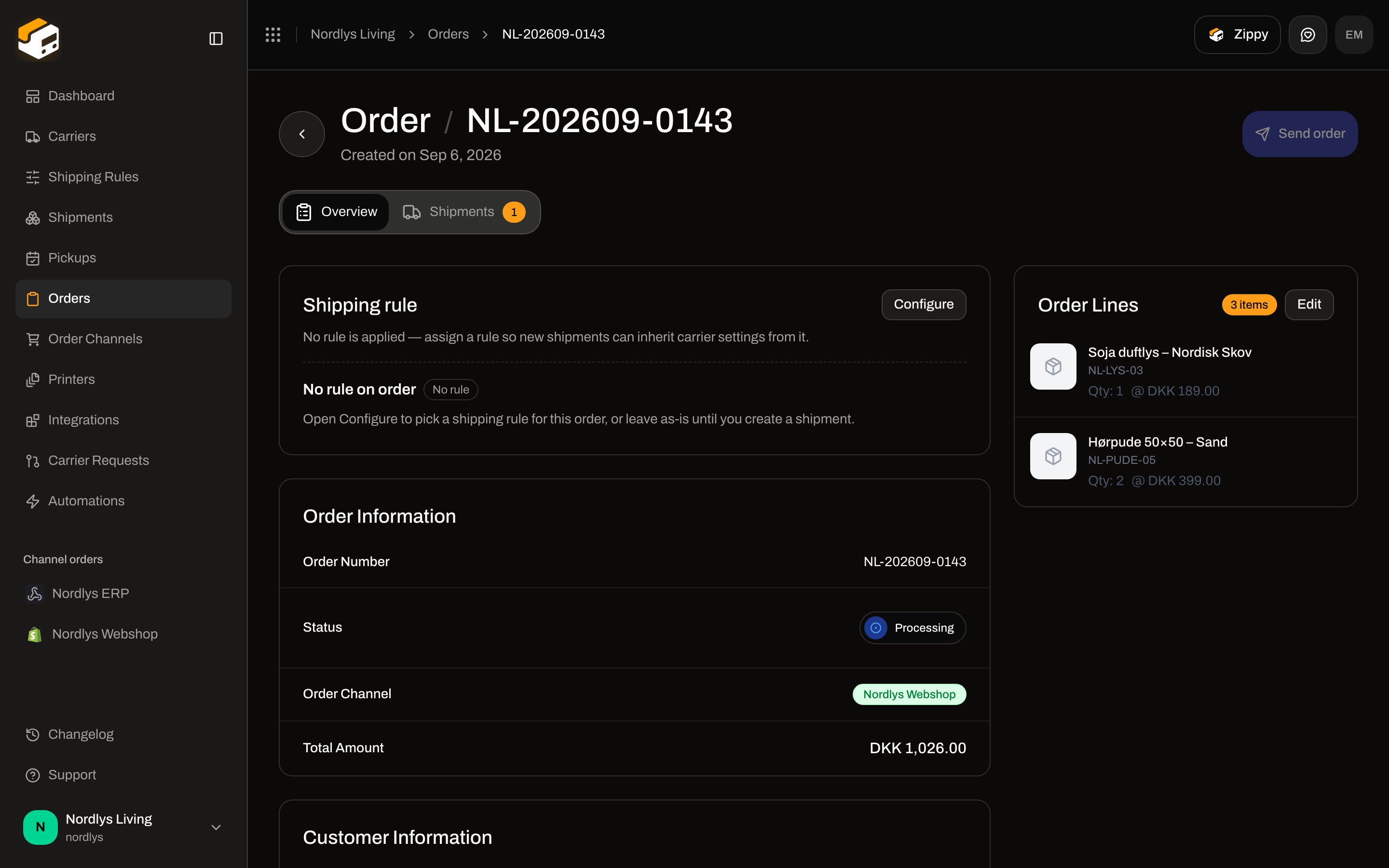 Statuses you will see include **Pending**, **Processing**, **Partially Fulfilled**, **Fulfilled**, **Cancelled**, and **Error**.
## Disconnect and reconnect
Statuses you will see include **Pending**, **Processing**, **Partially Fulfilled**, **Fulfilled**, **Cancelled**, and **Error**.
## Disconnect and reconnect
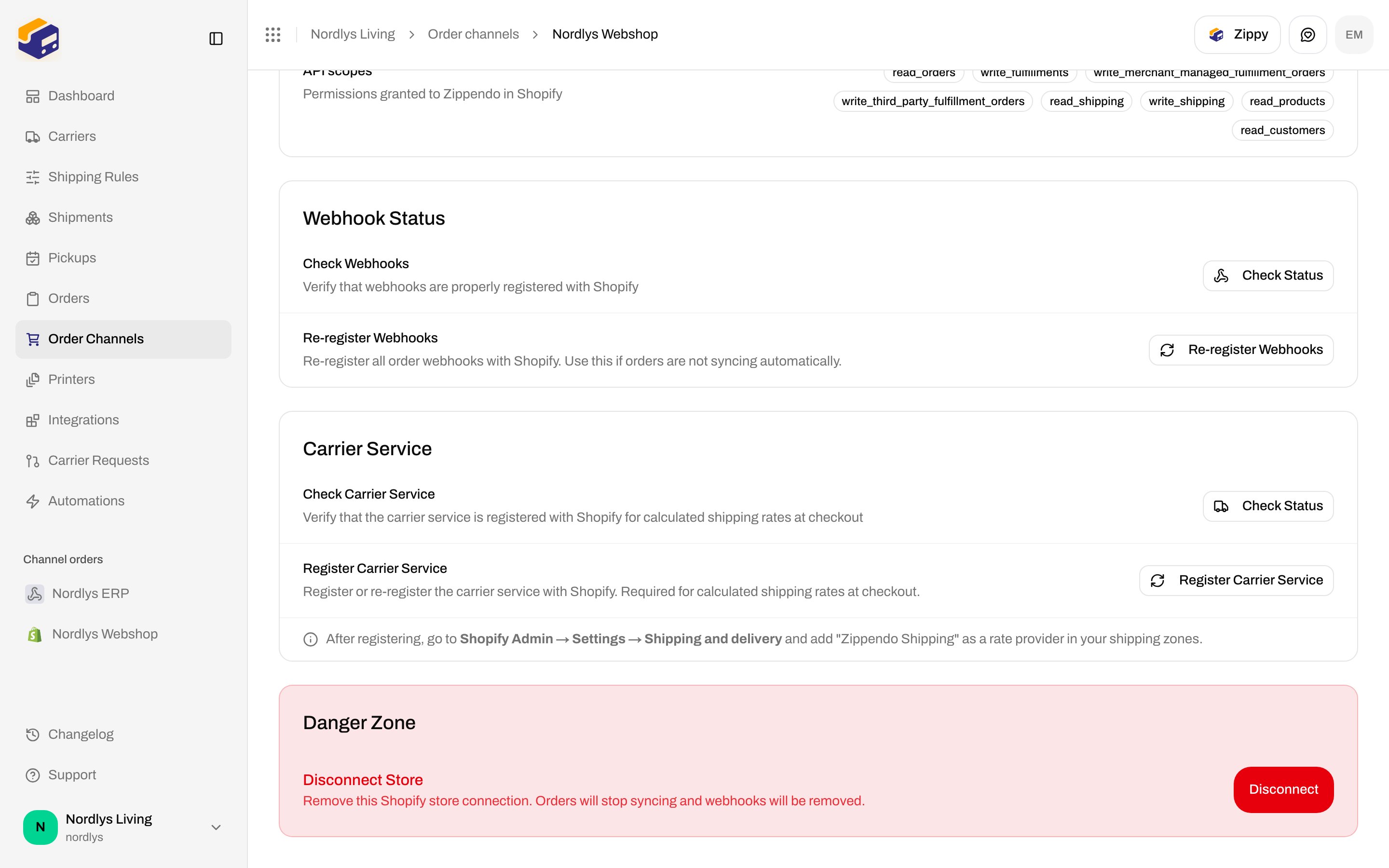
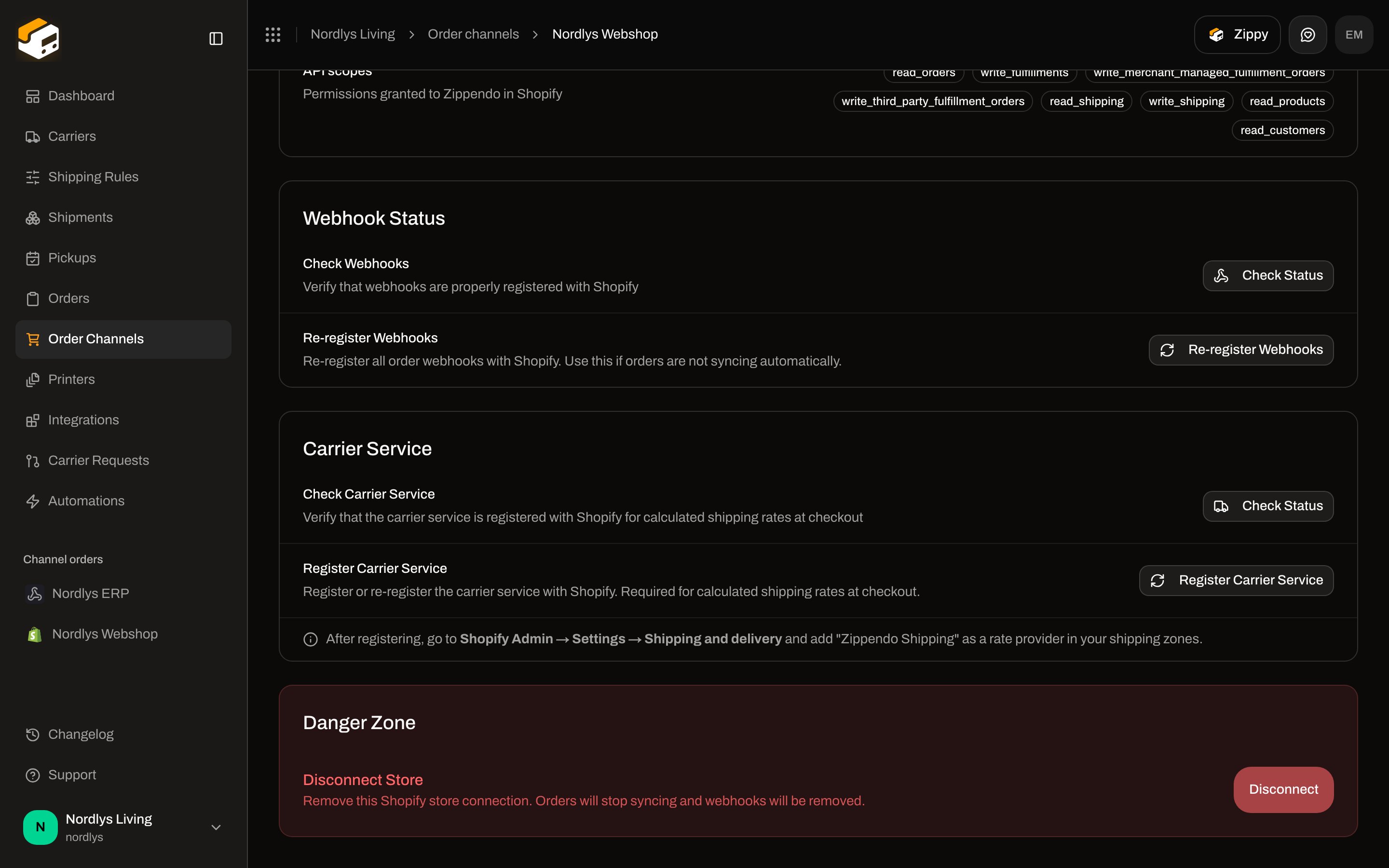 On **Connection & integration**, **Danger Zone** is **Disconnect Store**. The copy is: **Remove this Shopify store connection. Orders will stop syncing and webhooks will be removed.**
Click **Disconnect**. Confirm with **Are you sure you want to disconnect this Shopify store? This will stop syncing orders and remove the integration.** The toast **Shopify store disconnected** confirms it.
Disconnecting stops order sync and fulfillment write-back. Orders already in Zippendo stay. Reconnect the store if you want sync again.
To reconnect the **same** store to the **same** organization, install Zippendo from the App Store again and finish `/shopify/connect`. An uninstalled row is reactivated in place (settings and orders are kept).
You cannot connect that shop to a *different* Zippendo organization. The shop is claimed by the first org that connected it.
## Common errors
| What you see | What to do |
| --------------------------------------------------------------------------------- | ------------------------------------------------------------------------------------------------------------------------------------------------------------------------------------------------------------ |
| **Invalid request** / no installation token | Start from the Shopify App Store, not by opening `/shopify/connect` yourself. |
| **Installation unavailable** or **This Shopify installation link has expired** | The pending-install link lasts about 30 minutes. Reinstall the app from Shopify. |
| **This Shopify store is already connected to an organization** | That shop already has a live install. Open it from **Connected stores**, or disconnect first if you meant to replace it. |
| **This Shopify store is permanently linked to a different Zippendo organization** | The shop was connected to another org first. Use that org, or contact support — you cannot move the claim yourself. |
| **No organization found** | Create a Zippendo organization, then reopen the connect link. |
| Orders not arriving | On **Connection & integration**, **Check Status** and **Re-register Webhooks**. Confirm **Automatic Order Sync** is on, then try **Re-import Orders**. |
| No rates at Shopify checkout | Confirm carrier-calculated shipping on your Shopify plan. **Check Carrier Service** / **Register Carrier Service**, then add **Zippendo Shipping** in Shopify shipping zones. Or use method mapping instead. |
| **Failed to connect your Shopify store** / **Failed to connect Shopify store** | Retry the App Store install. If you just disconnected, wait a moment and connect again. |
## Next steps
Open a synced order and create a shipment.
Show Zippendo rules and pickup points at Shopify checkout.
WooCommerce and custom channels alongside this Shopify store.
Map manual Shopify rates when you do not have live rates.
Field-level: [Shopify settings](/docs/how-to/shopify-settings) · [Get a shipping quote](/docs/how-to/shipping-quotes)
On **Connection & integration**, **Danger Zone** is **Disconnect Store**. The copy is: **Remove this Shopify store connection. Orders will stop syncing and webhooks will be removed.**
Click **Disconnect**. Confirm with **Are you sure you want to disconnect this Shopify store? This will stop syncing orders and remove the integration.** The toast **Shopify store disconnected** confirms it.
Disconnecting stops order sync and fulfillment write-back. Orders already in Zippendo stay. Reconnect the store if you want sync again.
To reconnect the **same** store to the **same** organization, install Zippendo from the App Store again and finish `/shopify/connect`. An uninstalled row is reactivated in place (settings and orders are kept).
You cannot connect that shop to a *different* Zippendo organization. The shop is claimed by the first org that connected it.
## Common errors
| What you see | What to do |
| --------------------------------------------------------------------------------- | ------------------------------------------------------------------------------------------------------------------------------------------------------------------------------------------------------------ |
| **Invalid request** / no installation token | Start from the Shopify App Store, not by opening `/shopify/connect` yourself. |
| **Installation unavailable** or **This Shopify installation link has expired** | The pending-install link lasts about 30 minutes. Reinstall the app from Shopify. |
| **This Shopify store is already connected to an organization** | That shop already has a live install. Open it from **Connected stores**, or disconnect first if you meant to replace it. |
| **This Shopify store is permanently linked to a different Zippendo organization** | The shop was connected to another org first. Use that org, or contact support — you cannot move the claim yourself. |
| **No organization found** | Create a Zippendo organization, then reopen the connect link. |
| Orders not arriving | On **Connection & integration**, **Check Status** and **Re-register Webhooks**. Confirm **Automatic Order Sync** is on, then try **Re-import Orders**. |
| No rates at Shopify checkout | Confirm carrier-calculated shipping on your Shopify plan. **Check Carrier Service** / **Register Carrier Service**, then add **Zippendo Shipping** in Shopify shipping zones. Or use method mapping instead. |
| **Failed to connect your Shopify store** / **Failed to connect Shopify store** | Retry the App Store install. If you just disconnected, wait a moment and connect again. |
## Next steps
Open a synced order and create a shipment.
Show Zippendo rules and pickup points at Shopify checkout.
WooCommerce and custom channels alongside this Shopify store.
Map manual Shopify rates when you do not have live rates.
Field-level: [Shopify settings](/docs/how-to/shopify-settings) · [Get a shipping quote](/docs/how-to/shipping-quotes)